
A designer who delivers a 24 by 36 inch poster from a 1024 pixel source needs a 4x upscale that holds up at arm’s length, and the best ai upscalers for designers exist because a blurry enlargement costs the client, the print run and the designer’s name. Topaz Gigapixel leads this guide because it runs locally with unlimited rendering, specialised models for faces, text and art, and a faithful approach that adds no invented detail to a product shot. The remaining seven tools cover generative detail, free local upscaling, Photoshop workflows and credit-based web tools, and each one solves a different part of the enlargement job.
The first decision is faithful or generative, and it matters more than the brand. A faithful upscaler reconstructs what is already in the file, while a generative upscaler invents new detail, and the wrong choice ruins the job. A product photo needs faithful reconstruction, while a piece of AI art can take generative detail, and the detail sections below state which kind each tool is. Each tool below was checked as live in November 2026, and the prices reflect vendor list prices or third-party reports, so recheck the current figure before you buy.
Designers differ in output, volume and budget, and this guide weights those differences heavily. A print designer enlarging weekly needs different software than a web designer upscaling occasionally, and the recommendations below reflect that split, with the year-one cost math counting subscriptions, credits and the print runs a bad upscale wastes, so the true cost is visible before the first purchase.
What an Upscale Really Costs a Designer
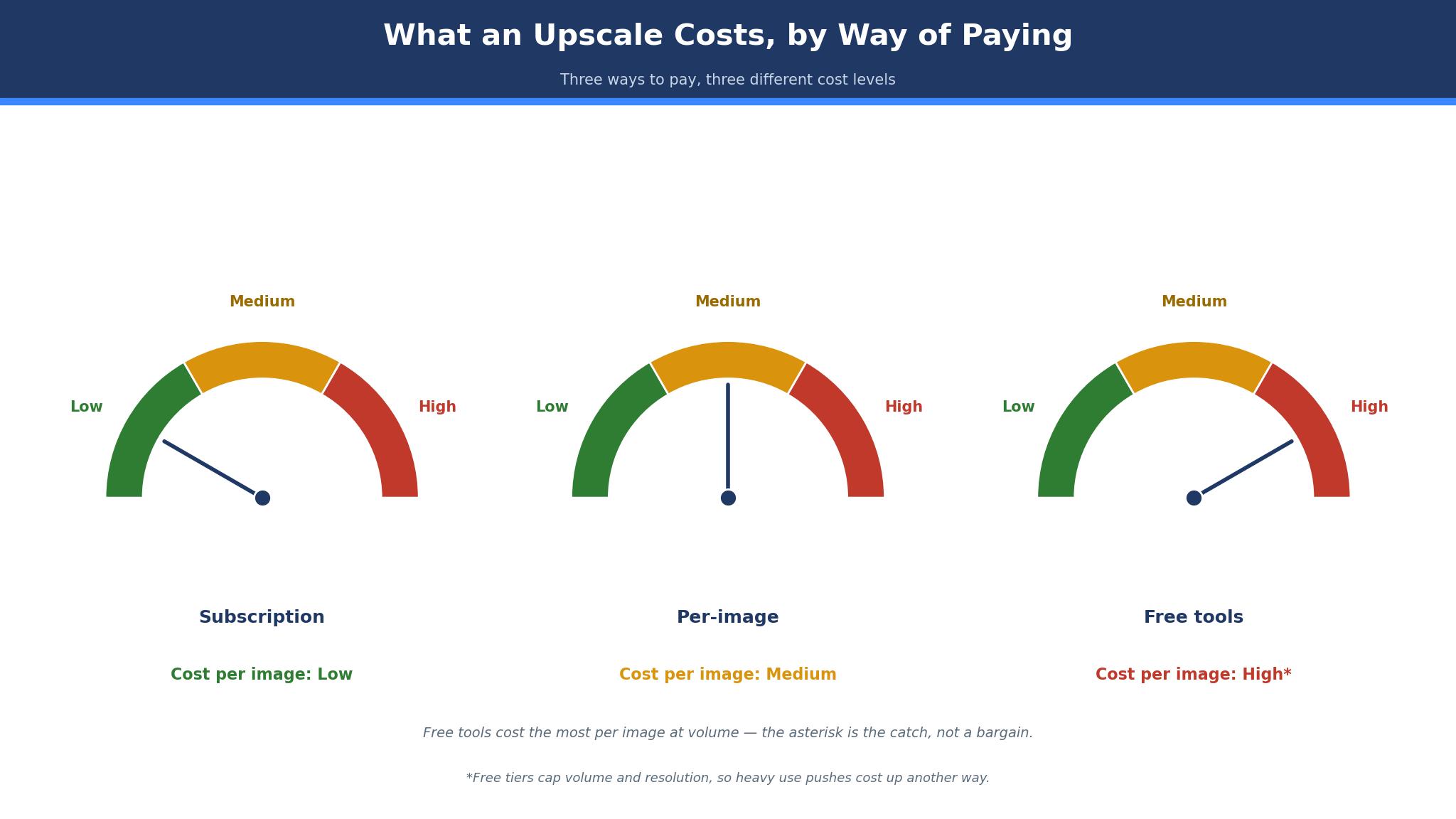
The sticker price of an upscaler is the smallest part of its cost. A 20 dollar plan looks cheap until the designer adds a second tool for generative detail, a third for batch work and a print re-run after a bad enlargement, and the stack passes 80 dollars a month without any new design being sold. Designers should price a tool by the full stack, not by the headline plan, and the detail sections below call out the add-ons that change the bill.
Per-image math is the bigger cost. A web tool that charges 67 cents for one 4x upscale sounds cheap until a catalogue of 200 product images costs 134 dollars, while a flat subscription with unlimited local rendering costs the same every month no matter the volume. At 50 images a month the subscription wins, and at five images a month the per-image tool wins. The best ai upscalers for designers are priced on the volume the designer actually runs, not on the plan the vendor prefers to sell.
Batch time is the hidden cost. A web tool that processes one image at a time will eat an afternoon on a 200-image catalogue, while a desktop tool that queues the whole batch overnight frees the designer for billable work. The hourly value of that freed afternoon often exceeds the subscription, and the tools below were judged partly on whether they handle a batch without babysitting.
The third cost is the reprint. A poster that looks sharp on screen and soft at full print size wastes the paper, the ink and the deadline, and the designer pays for all three. Testing the upscale at 100 percent zoom before sending it to print is the cheapest quality control available, and the tools below were judged partly on how honest their preview is.
Why Faithful and Generative Upscaling Are Different Jobs
Faithful and generative upscaling are different jobs in a specific way. The first difference is what the model adds, because a faithful model sharpens edges and recovers detail that is already in the file, while a generative model dreams new texture into the image. A product shot with invented texture is a lie, and a client who spots it will not order again. Use faithful models for anything the customer must trust, and generative models only for art.
The second difference is control. Generative tools offer creativity sliders, resemblance controls and text prompts, while faithful tools offer model choice and strength settings. The designer who needs a face to stay the same face should use a faithful model with face recovery, and the designer who wants a render to gain texture should use a generative one with the creativity slider low. The wrong control at the wrong setting ruins both kinds of job.
The practical test is simple. Take one product shot and one piece of AI art, run both through each model type, and compare the four results at full zoom. The product shot will look honest on the faithful model and invented on the generative one, while the art will look soft on the faithful model and rich on the generative one. That single comparison teaches the difference faster than any manual, and it is the test every designer should run before buying.
The third difference is the file. Faithful upscalers handle large print files, up to 600 megapixels in Topaz Gigapixel’s case, while generative tools often cap output at 4K or charge heavily for large files. A designer printing large format needs the ceiling checked before buying, because a tool that caps at 4K cannot deliver a billboard.
The 8 Tools at a Glance
| Tool | Main job | Best for | Starting price |
|---|---|---|---|
| Topaz Gigapixel | Faithful local upscaling | Photos, print, offline work | From 19 dollars a month billed annually, reported |
| Magnific | Generative detail upscaling | AI art, concept images | From 14.50 dollars a month billed annually, reported |
| Upscayl | Free local upscaling | Free, private, offline work | Free |
| Let’s Enhance | Web upscaling at scale | Product files, batch work | From 9 dollars a month |
| Adobe Photoshop | Upscale inside Photoshop | Existing Photoshop workflows | From 22.99 dollars a month |
| Krea | Web generation plus upscale | Fast iteration, real-time work | From 10 dollars a month |
| ImgLarger | Simple web upscaling | Quick enlargements | From 9 dollars a month |
| Topaz Photo AI | Upscale plus denoise | Photo restoration in one pass | From 199 dollars a year |
Best Pick by Job
| Job type | First pick | Second tool | Why this pair works |
|---|---|---|---|
| Print and photography | Topaz Gigapixel | Topaz Photo AI | Gigapixel enlarges faithfully and Photo AI adds denoise |
| AI art and concept work | Magnific | Krea | Magnific invents detail and Krea iterates fast |
| Free and private | Upscayl | Let’s Enhance | Upscayl costs nothing offline and Let’s Enhance adds web scale |
| Photoshop workflow | Adobe Photoshop | Topaz Gigapixel | Photoshop upscales in place and Gigapixel adds local power |
| Batch product files | Let’s Enhance | ImgLarger | Let’s Enhance handles large files and ImgLarger adds quick jobs |
Print work and concept art pull in opposite directions, so the ranking follows the output. A print designer needs faithful enlargement at large sizes, while a concept artist needs generative detail on AI images. A tool that manages the other side decently still disappoints when it weakens the result the designer is actually judged on. Choose the first tool for the output that matters most, keep the second in reserve for the jobs the first handles poorly, and drop that second subscription the month it stops earning its keep.
The same rule governs what you pay. A designer enlarging 100 images a month can justify 19 dollars a month for Gigapixel on annual billing, since the flat fee beats per-image pricing by a wide margin and one saved reprint pays for the year. A designer enlarging five images a month should start free on Upscayl instead, then weigh Let’s Enhance once the volume grows. The best ai upscalers for designers are the ones that fit the designer’s current volume without blocking the next print job.
How to Judge the best ai upscalers for designers
Start with the same-file test, because that is where an upscaler either earns its fee or wastes it. Take one 1024 by 1024 image, run the same 4x upscale through the tool and two rivals, and compare the three results at 100 percent zoom. Count the artifacts, check the edges, and look at the faces and the text. A tool that invents detail on a product shot has failed the test, while a tool that sharpens cleanly has passed it.
Next, test the ceiling on a real job. Take your largest print file, upscale it to the size the printer needs, and check whether the tool accepts the file and delivers the resolution. Look for the output cap, because a tool that stops at 4K cannot deliver a large poster. The best ai upscalers for designers state their maximum output plainly, and the ones that hide it should be treated with care.
Then check the cost per image at your volume. Take last month’s image count, price it on the subscription and on the per-image rate, and compare the two totals. A credit system that looks cheap at ten images can cost triple at a hundred, and the honest comparison is last month’s real volume, not the vendor’s example.
Finally, check where the file goes. A desktop tool that renders locally keeps client files on the designer’s machine, while a web tool uploads every image to a server the designer does not control. For sensitive client work, unpublished products or unreleased campaigns, the offline option is not a preference but a requirement, and the privacy terms should be read before the first upload.
The 8 Tools in Detail
Faithful quality sets the order below, so the benchmark for print leads.
1. Topaz Gigapixel
Topaz Gigapixel is the benchmark for faithful upscaling, and its local rendering is the reason. The desktop app for Mac and Windows offers specialised models for faces, text, art and high fidelity, enlarges up to 6x and now up to 16x in recent versions, and renders locally with unlimited output under the subscription. Pricing is reported from 19 dollars a month billed annually or 29 dollars month to month, with a standalone yearly figure of 149 dollars also reported, so confirm the current card on the vendor site before budgeting.
The drawback is the price confusion and the subscription-only model. Topaz ended perpetual licenses in 2025, which annoyed longtime users, and the conflicting price reports make the year-one cost harder to pin down. The Pro tier, which adds full commercial use, is reported at 54 dollars a month or 499 dollars a year, so a commercial studio must budget past the entry price.
Topaz suits print designers and photographers who enlarge often. It fits a designer delivering large-format print, a retoucher who needs face recovery, and anyone who wants unlimited local rendering without a per-image meter. Run your hardest product shot through Gigapixel and two rivals at the same 4x setting, inspect all three at full zoom, and if Gigapixel’s edges stay honest while the others invent texture, it is the print pick.
2. Magnific
Magnific is the generative upscaler, and its detail invention is the reason. It adds new texture to AI images and concept art, with creativity and resemblance sliders and precision modes that upscale up to 16x, which makes it the pick when the source image is meant to gain detail rather than keep it. The slider is the whole product, because the same image at low creativity looks sharpened and at high creativity looks reimagined, and the designer chooses the point on that scale. Pricing is reported from 14.50 dollars a month billed annually, with monthly billing at 20 dollars and higher tiers adding Topaz upscalers.
The drawback is the risk and the price fog. Generative detail is wrong for product shots, faces and anything the viewer must trust, and the conflicting price reports mean the year-one cost needs a live check. A designer who uses Magnific on the wrong image will deliver invented detail to a client who expected the truth.
Magnific suits concept artists and AI image makers. It fits an illustrator enlarging AI art, a designer who wants a render to gain texture, and anyone whose source images are meant to be reimagined. Run one AI portrait through Magnific at low creativity and one at high, compare the two at full zoom, and if the low setting adds texture without changing the face, Magnific earns its place for art.
3. Upscayl
Upscayl is the free upscaler, and its price is the reason. The open-source desktop app runs offline on Mac, Windows and Linux, uses Real-ESRGAN and other models, enlarges up to 16x, and costs nothing with no account and no watermark. For a designer who upscales occasionally and values privacy, there is no cheaper honest option.
The drawback is the depth. Upscayl is thinner than Gigapixel on face recovery, text handling and model choice, and the interface is utilitarian rather than polished. A designer who needs batch processing, cloud rendering or print-grade face recovery will outgrow it, and the free price buys no support when something goes wrong.
Upscayl suits designers who upscale rarely and value privacy. It fits a freelancer with occasional enlargements, a designer working with sensitive client files, and anyone who wants a free tool before committing to a subscription. Run your standard test file through Upscayl and Gigapixel at the same setting, compare the two at full zoom, and if Upscayl holds up well enough for the job, the free tool wins.
4. Let’s Enhance
Let’s Enhance is the web upscaler for scale, and its file handling is the reason. It handles product files up to 512 megapixels, which suits ecommerce catalogues and large batch jobs, and the web interface needs no install. Pricing starts at 9 dollars a month, with higher tiers adding credits and features.
The drawback is the credit math. Credits burn per image and per size, and a catalogue of 200 large files can cost far more than the entry plan suggests. The quality is strong for product work but trails Gigapixel on the hardest photographic material, and a designer who needs the best possible enlargement will notice the gap.
Let’s Enhance suits designers with batch product work. It fits an ecommerce designer, a studio upscaling a catalogue, and anyone who needs large files handled in a browser. Send ten product images through Let’s Enhance at the size your store needs, check the per-image cost, and if the batch clears at a price the catalogue budget absorbs, Let’s Enhance is the scale pick.
5. Adobe Photoshop
Photoshop is the upscaler for designers already living in Adobe, and its workflow is the reason. Generative Upscale runs inside Photoshop with Firefly and Topaz models, enlarging 2x or 4x up to 56 megapixels, so the designer never leaves the app where the retouching happens. The Photoshop plan costs 22.99 dollars a month on an annual plan, with a 7-day free trial.
The drawback is the ceiling and the credit cost. The 4x cap and 56 megapixel ceiling are lower than Gigapixel’s, and credit costs apply on top of the subscription for partner models. A designer who needs larger print output will hit the ceiling, and the subscription buys far more than upscaling, which is either a bargain or a waste depending on the workflow.
Photoshop suits designers who retouch and lay out in one app. It fits a retoucher, a layout designer, and anyone whose upscale is one step in a longer Photoshop job. Upscale your current retouch job inside Photoshop at the size the client needs, compare the result with a Gigapixel run of the same file, and if the in-app result holds up, Photoshop is the workflow pick.
6. Krea
Krea is the fast web upscaler, and its real-time workflow is the reason. Generation, editing and upscaling sit in one place, which suits designers who iterate live and need a larger version of an image they just made. Paid plans start at 10 dollars a month, with annual billing reported lower and a free tier for basic use.
The drawback is the depth. Krea is weaker than Gigapixel on faithful print enlargement and weaker than Magnific on generative detail, so it suits iteration rather than final output. The credit math also needs watching, because real-time work burns credits fast in a long session.
Krea suits designers who iterate in the browser. It fits a designer running a live client session, an illustrator upscaling fresh generations, and anyone who values speed over polish in the first pass. Upscale three fresh generations in Krea and inspect them at full zoom, and if the results are clean enough to show the client, Krea earns its slot for fast work.
7. ImgLarger
ImgLarger is the simple web upscaler, and its ease is the reason. The tool enlarges images in a browser with no install and no learning curve, which suits a designer who needs a quick enlargement between bigger jobs. Pricing starts at 9 dollars a month, with a free tier for occasional use.
The drawback is the ceiling. ImgLarger is thinner than Gigapixel on model choice and print-grade quality, and the per-image costs on larger files add up. A designer who needs the best possible enlargement or large-format output will find it light, and the value sits in speed rather than quality.
ImgLarger suits designers who need quick enlargements. It fits a web designer, a social media designer, and anyone who upscales a handful of images a month. Run your standard test file through ImgLarger and Upscayl at the same setting, compare the two at full zoom, and if ImgLarger is faster without a visible quality loss, it is the quick pick.
8. Topaz Photo AI
Topaz Photo AI is the all-in-one photo tool, and its pipeline is the reason. It combines upscaling with noise reduction and sharpening in one pass, using the Gigapixel engine, which suits photo restoration where the source needs all three fixes at once. The single pass matters, because running three separate tools on one photo triples the chance of an artifact, while one pipeline keeps the corrections consistent. Pricing is reported at 199 dollars a year on subscription.
At 199 dollars a year it costs more than Gigapixel alone, which stings for a designer who only needs upscaling, because the all-in-one pipeline adds little on clean source files. Denoising is the extra value here, so a designer who rarely needs it pays for a feature that sits idle.
Topaz Photo AI suits photographers and designers who restore photos. It fits a retoucher cleaning old images, a designer working with noisy source files, and anyone who wants upscale, denoise and sharpen in a single pass. Run a noisy old photo through Photo AI and through Gigapixel alone, compare the two at full zoom, and if the single pass saves a separate denoise step, Photo AI earns the premium.
The Print Mistakes That Waste Upscaling Money
The most expensive mistake is upscaling the wrong kind of image with the wrong kind of model. A generative upscale on a product shot invents texture the customer will notice, and a faithful upscale on a flat AI render leaves it looking soft, and both mistakes cost a reprint. Match the model to the image, faithful for anything the viewer must trust and generative only for art, and the best ai upscalers for designers are judged here on whether they make that choice obvious.
A second mistake is trusting the on-screen preview. A 4x upscale that looks sharp at 25 percent zoom can fall apart at 100 percent, and a designer who sends it to print without checking has wasted the run. Inspect every enlargement at full zoom before it leaves the studio, and price the reprint into any tool that hides its preview.
Making the Final Call on Upscalers
Start by listing the non-negotiables, because the list is shorter than most designers expect. Model type, maximum output, cost per image and preview honesty are the four that eliminate most tools quickly. Write them down and check each tool against them, because the best ai upscalers for designers all pass the same four tests.
Next, run a trial on the top two choices with one real file. Measure three things, the artifacts at 100 percent zoom, whether the output size meets the print brief, and the cost per image at last month’s volume. The winner on those three measures is usually the right tool, even when it is not the cheapest.
Then check the human factor. Ask the vendor a hard question about a failed enlargement, and judge the answer. A company that cannot explain its own models in plain language will not help when a print run is at stake. The trial is the time to test that claim.
Frequently Asked Questions
What is the best AI upscaler for print designers?
Topaz Gigapixel is the best pick for print, because it enlarges faithfully, runs locally with unlimited rendering, and handles large files up to 600 megapixels. Magnific is the pick for AI art, and Upscayl is the pick when the budget is zero. The print brief decides, not the demo image, and the tool that wins the same-file test at full zoom is the one to buy.
Can AI upscaling fix a blurry photo?
Partly. A faithful upscaler with face recovery and sharpening can rescue a soft photo, and Topaz Photo AI adds denoise in the same pass. A photo that is badly out of focus will stay soft, and no upscaler can invent detail that was never captured. Test the worst file before promising a client a rescue, and price the job on the result you actually get rather than the result you hope for.
Is Topaz Gigapixel or Magnific better?
Gigapixel is better for photos and print, because it reconstructs faithfully without inventing detail. Magnific is better for AI art and concept images, because it adds texture the source never had. A designer who does both should own both, and a designer who does one should buy only the matching tool, since the wrong model on the wrong image costs a reprint either way.
How much does AI upscaling cost per image?
It ranges from free on Upscayl to about 67 cents per 4x upscale on some web tools. A flat subscription like Gigapixel at 19 dollars a month billed annually wins past 30 images a month, while a per-image tool wins below ten. Price last month’s real volume before choosing, and recheck the math every quarter as volume changes.
Do upscalers work offline?
Yes, on desktop tools. Topaz Gigapixel and Upscayl both run locally without uploading files, which matters for sensitive client work. Web tools like Magnific, Let’s Enhance and Krea need an internet connection and upload the image, so check the privacy terms before sending client files.
What size can AI upscalers deliver?
Topaz Gigapixel handles files up to 600 megapixels from a large source, Photoshop Generative Upscale caps around 56 megapixels, and many web tools cap at 4K output. Check the maximum output against your print brief before buying, because a tool that caps at 4K cannot deliver a large poster, and the cap is usually buried in the documentation rather than printed on the pricing page.
The Verdict on AI Upscalers for Designers
Topaz Gigapixel takes the top spot because it is the tool a designer is least likely to regret. The faithful models are honest, the local rendering is unlimited, and the print quality holds up at full zoom. The price confusion is real, so confirm the current card before buying, but the output justifies the subscription for anyone who prints weekly, and the unlimited rendering means the per-image cost falls with every job.
Magnific is the pick for AI art, Upscayl is the pick for free work, and Photoshop is the pick for in-app workflows. The best ai upscalers for designers are not the ones with the flashiest demo, they are the ones whose model matches the image, whose output meets the print size, and whose cost per image fits the month’s volume.
Choose by the output first, the model type second and the price third. Run one real file through the top two, measure the three things that matter, and set a review date. A designer who picks this way will spend less time reprinting and more time delivering enlargements that hold up at arm’s length.