

The files usually survive the move. The access does not. When a team decides to migrate Dropbox to Google Drive business, the copy itself is the straightforward part, because modern transfer tools can shift terabytes in the background while people keep working. The trouble starts on the first Monday after cutover, when a client cannot open a proposal, a contractor sees an empty folder, a finance spreadsheet opens read only for the person who edits it every week, and a link pasted into a contract returns an error. None of those failures mean the files were lost. They mean the permission model changed underneath the files, and nobody mapped it before the move.
This guide is built around that distinction. It explains how Dropbox and Google Drive treat ownership, sharing, groups and links differently, gives you a permission mapping table to complete before you copy anything, lists what breaks and how to fix each break, and walks through a staged migration you can run without shutting the business down. It also covers prices for both platforms and for four migration helper tools, the Shared drive limits that catch large teams by surprise, and the mistakes that turn a tidy move into a week of access tickets. Prices change often, so check the official pricing page and checkout before paying for anything named here.
Why the File Move Is the Easy Part
Dropbox Business and Google Drive both store files in the cloud and both let you share them, so it is tempting to treat a migration as a copy job. In Dropbox, a team folder belongs to the team and sharing a link is a separate act from giving someone folder access. In Google Drive, files live in one of two places with very different rules, a person’s My Drive or a Shared drive owned by the organisation, and the same file behaves differently depending on which place holds it.
Copy a file when you migrate Dropbox to Google Drive business without deciding which Drive home it belongs in, and you have moved the content while breaking the logic that governed who could see it.
Ownership is the second hidden difference. In Dropbox, when a team member leaves, an admin can transfer their files and shared folders usually keep working. In Google Drive, a file in My Drive belongs to one person, and if that person leaves without a transfer, files they owned can become hard to reach even when others had edit access. Shared drives solve this by making the organisation the owner, which is why the choice between My Drive and Shared drives is the single most important access decision in the migration, and it should be made before a single folder is copied.
A third difference is how each platform treats people outside your company. Dropbox teams routinely share folders with clients and contractors by email. Google Drive can do the same, but only if admin settings allow external sharing, only if the guest has a Google account for edit access, and only within the limits of the Shared drive or folder you put them in. A migration that never checks the admin console will produce folders that look complete and refuse entry to exactly the outsiders who need them most.
The Permission Mapping Table to Build Before You Move Anything
Do not migrate Dropbox to Google Drive business folders until you have a permission map. The map is a simple spreadsheet with one row per shared folder, and it is the document that turns a vague hope that access will carry over into a checkable plan. Build it from Dropbox admin reports and a quick survey of folder owners, not from memory, because the folders people forget are the ones that break loudest. For each folder, record the Dropbox owner, the members, the groups, the external guests, the link settings and the sensitivity of the contents. Then write down the matching Google Drive decision in the next columns.
That sheet becomes your cutover checklist, your audit trail and your defence when someone asks why their access changed.
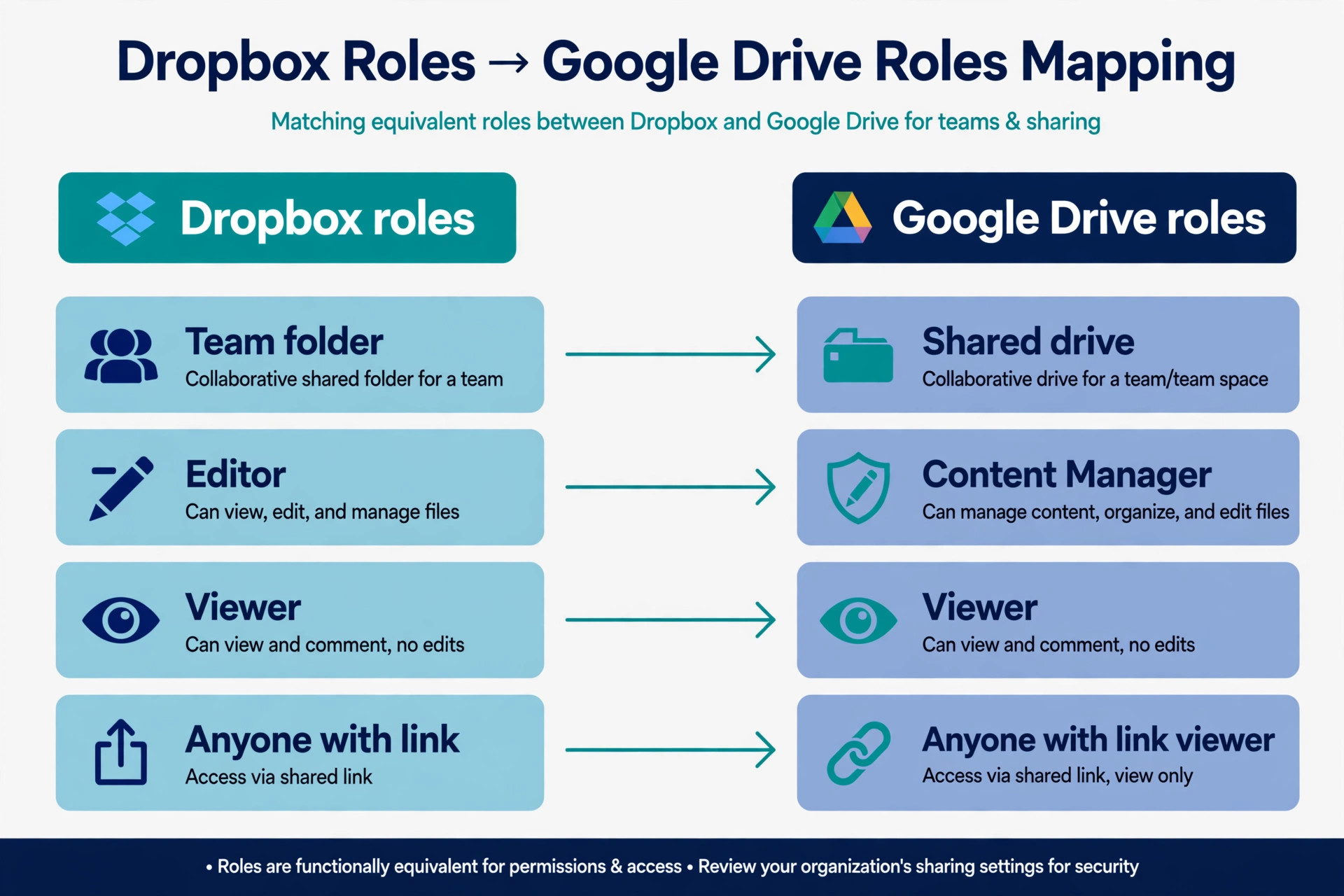
The table below shows how each Dropbox pattern translates. Add a row for every exception you find, because exceptions are where migrations fail.
| Dropbox pattern | Google Drive equivalent | Action before you copy |
|---|---|---|
| Team folder, all staff | Shared drive, all staff group as members | Create the Shared drive and add the group, not individuals one by one |
| Department folder | Shared drive per department | Split one giant team folder into department Shared drives where limits demand it |
| Project folder, mixed staff and clients | Shared drive for staff plus a separate client folder with external sharing on | Never put external guests in a staff wide Shared drive by default |
| Folder shared with one person | Folder in a Shared drive, shared with that person | Re-share after the move, because person level shares do not transfer on their own |
| Anyone with the link, view only | Anyone with the link, viewer, only where policy allows | Check admin settings first, and replace the link everywhere it was published |
| Anyone with the link, edit | Restricted sharing, named editors only | Never recreate an edit link in Drive. Name the editors instead |
| Password protected link | Drive link plus a separate delivery step for sensitive files | Drive links have no password option, so sensitive files need a different control |
| Editor who is not the owner | Content Manager on a Shared drive, or Editor on a folder | Match the role, do not give every editor Manager rights |
| Viewer who must not download | Viewer with download disabled, where the plan supports it | Test this on one file, because download control behaves differently by plan and file type |
| Former employee still listed | No access, and a leaver check before cutover | Remove leavers in Dropbox first, so the map does not copy stale access to Drive |
Two rules make this table work. First, map groups, not people, wherever you can. A Google Group per department, added once to each Shared drive, means a new hire gets access on joining the group and a leaver loses it on leaving, with no folder by folder edits. Second, write each folder’s sensitivity in plain words, so a client confidential or payroll folder never inherits a broad setting by accident.
What Breaks, in Plain Order
Every plan to migrate Dropbox to Google Drive business breaks something. The teams that cope well are the ones that expect the breaks, in this order, and fix them in sequence rather than discovering them through support tickets.
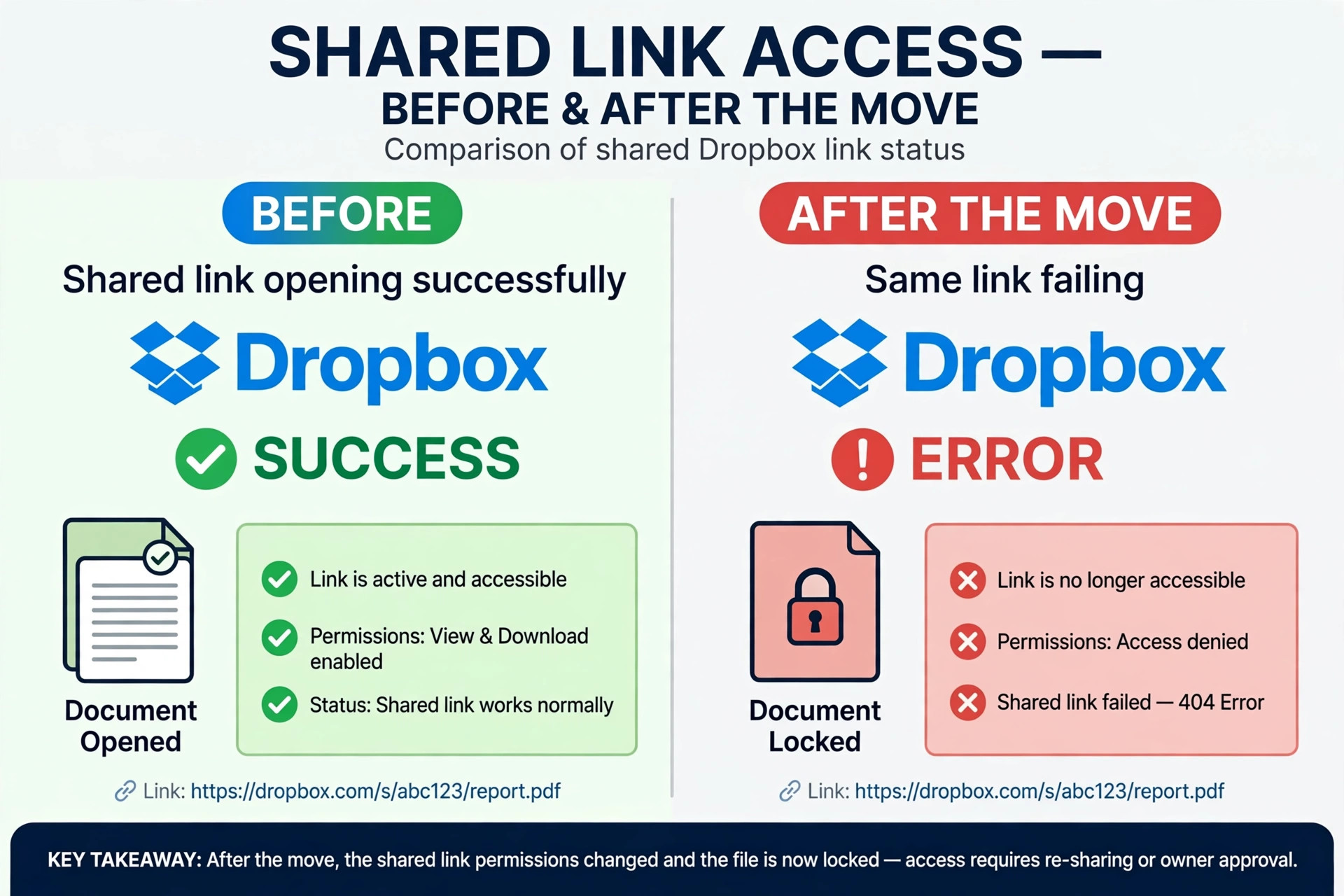
First, shared links break. Dropbox links do not become Google Drive links. Every link pasted into a contract, a proposal, a client portal, an email template, a help article or a project task will point at the old location. Some of those links will keep working if you leave Dropbox running, and some will fail the day you cancel Dropbox. Inventory your published links before cutover, prioritise client facing links, and send new Drive links with a short note explaining the change. A migration tool cannot make an old Dropbox URL resolve to a new Drive file.
Second, person level permissions fall away on a plain copy. A manual download and upload, or a basic sync tool, copies files, not the list of people who could open them. Even a good migration tool needs a user mapping file pairing each Dropbox account with the right Google account, and any account it cannot match must be fixed by hand. Run the mapping early, while Dropbox is still live, and never assume matching email addresses means matching people.
Third, Dropbox Paper documents do not become Google Docs on their own. Paper files need to be exported, usually to a Word or PDF format, before they can live usefully in Drive, and comments and live collaboration inside Paper do not carry over cleanly. Export the Paper documents that are still live and archive the rest.
Fourth, folder depth and item counts hit Drive limits. A Shared drive holds a maximum of 400,000 items, counting files, folders and shortcuts together, and folder paths cannot nest deeper than 20 levels. Dropbox teams with years of nested project folders often exceed one or both limits in a single giant folder, and the transfer will stall or silently skip items if you do not split the structure first. Count items per top level folder before you move and split any folder approaching the limit.
Fifth, version history and timestamps reset on a basic move. Most simple transfers bring over the latest version only, and the modified date becomes the upload date. That matters for legal files and audit trails. If version history matters for a folder, say so in your permission map and choose a method that preserves it there, even if the rest of the move uses a simpler method.
Sixth, external guests lose access in ways that look inconsistent. A guest with a Google account may keep working, a guest without one may drop to view only or lose access entirely, and a guest added to a Shared drive under one admin policy may be blocked under another. Test external access with a real guest account before cutover, not an internal test account.
Seventh, file names and characters cause quiet skips. Very long paths, unusual characters and duplicate names that Dropbox tolerated can fail or collide in Drive, and a transfer report that says 98 percent complete still leaves hundreds of files unmoved in a large library. Read the error log after every pass and run a delta pass to catch files that changed during the first transfer.
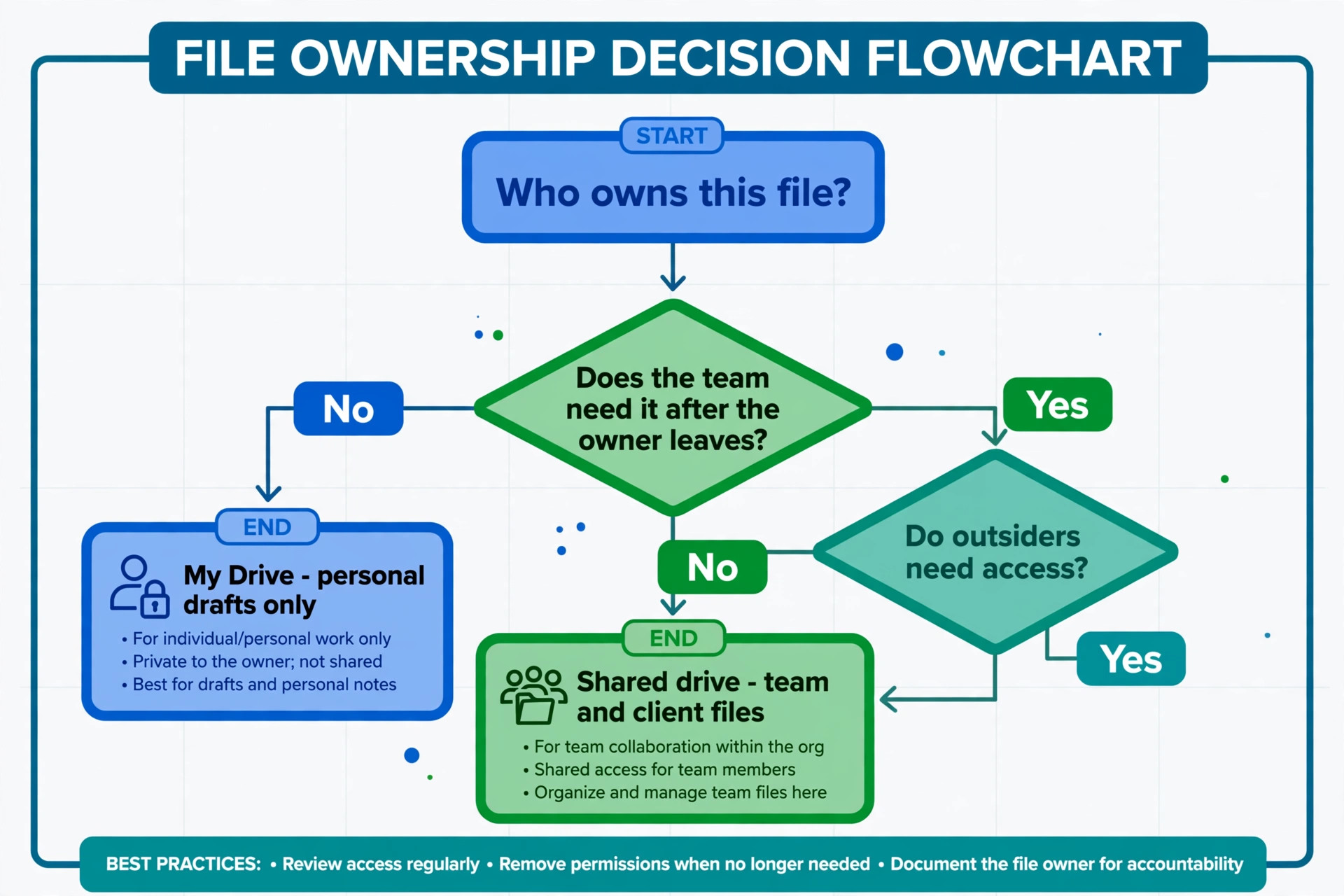
My Drive is personal. Each file has one owner, and when the owner leaves, the organisation must transfer ownership deliberately or risk losing access. My Drive suits personal drafts and files one person owns and occasionally shares. It is a poor home for team records and client deliverables.
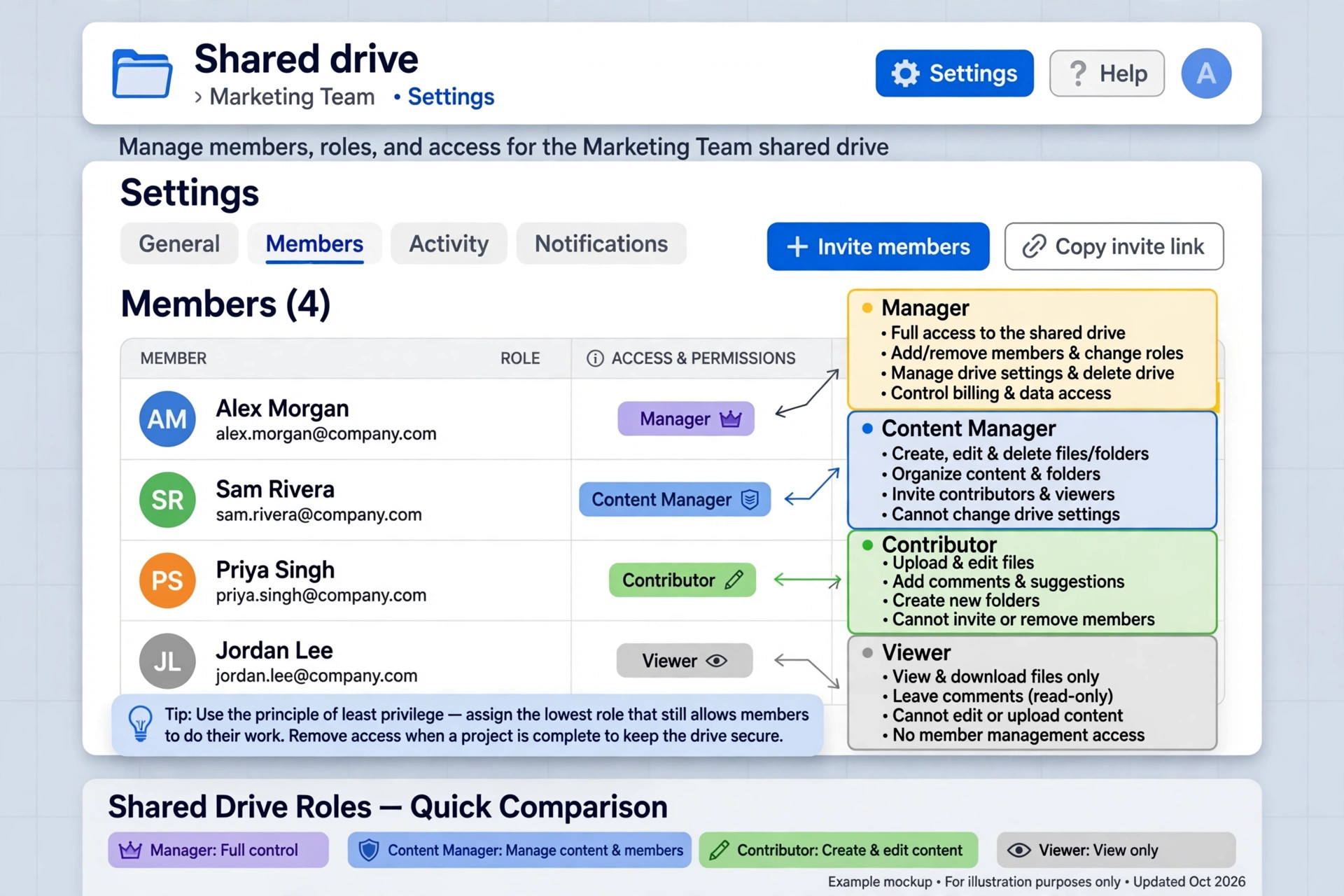
Shared drives are organisational. The organisation owns the files, members get one of five access levels, and adding or removing a member changes their access to everything in that drive at once. That is why the default answer for team folders should be a Shared drive, not a senior person’s My Drive. The trade off is rigidity. Every file in a Shared drive inherits the drive membership, so a file needing tighter access belongs in a different drive or a restricted folder.
If you migrate Dropbox to Google Drive business, plan your Shared drive structure around how access changes, not around how folders looked in Dropbox. A shape that works is one Shared drive per department, one per long running client, and one for company wide resources such as policies and templates. Keep each drive well under the 400,000 item limit and membership under the 600 direct member limit by using groups. If one Dropbox folder would become a drive with 500 members and 350,000 items, split it now.
Also decide your external sharing policy before you create the drives, set it to match the sensitivity in your permission map, and test it with a guest account.
How to Migrate Dropbox to Google Drive Business Without Losing Access
A staged migration beats a weekend big bang, because each stage gives you a chance to catch an access failure while Dropbox is still available as a fallback. The stages below assume a team of roughly 10 to 100 people. Larger teams should add a pilot department and a longer parallel running period, not a faster copy.
Start with an inventory week. Export the Dropbox folder list, member list and sharing report, count files and storage per top level folder, list every external guest, and complete the permission mapping table. At the same time, set up Google Workspace, confirm the plan and storage, and create the Google Groups for each department. This week produces no visible change for most staff. The decisions made here prevent the tickets later.
Next, run a pilot with one department and one client folder. Migrate those folders, re-share according to the map, replace the links that department uses most, and ask pilot users to work in Drive for a week while Dropbox stays read only for those folders. Fix the map for every problem they report before scheduling the wider move. A pilot that surfaces ten problems is a success.
Then migrate in waves by department, not by alphabetical folder order. One wave per week suits a mid sized team, with a delta pass at the end of each wave. After each wave, verify that file counts match, that a sample of files opens for the right people, that external guests can still reach their folders, and that the error log is empty or explained. Keep Dropbox running in read only mode for migrated folders until the wave is signed off.
Cutover day itself should be boring. Freeze edits for the final wave, run the last delta pass, replace the remaining links, tell staff and affected clients the new locations, and switch the team to Drive as the system of record. Keep Dropbox paid for at least 30 days after the last wave.
Finally, decommission deliberately. After 30 days with no complaints and a verified count, export a final Drive inventory, revoke Dropbox access for leavers and guests, cancel on a date matching your billing cycle, and archive the permission map with the migration reports.
Four Migration Helper Tools, Priced Honestly
You have four sensible routes to migrate Dropbox to Google Drive business, and the right one depends on how much permission detail you need to preserve and how much data you hold. The count here is four, including Google’s own tool, and prices below are listed prices found during research for this guide, so check checkout before you commit.
Google Workspace Migrate is the built in route, and it is included with Business Standard and above according to the Google Workspace pricing page. It suits teams already buying Workspace, because there is no separate migration bill, and it handles user mapping and a staged move inside the Google admin workflow. Its weakness is scope. For a straightforward move with clean user mapping, start here and only pay for a third party tool if the pilot shows a gap.
CloudFuze is a specialist cloud to cloud migration service that handles user mapping, permission mapping, delta passes and reporting across dozens of cloud platforms. Third party comparisons list it from about 9.99 dollars per month on a usage based plan, which makes the entry point low, although the final bill scales with what you move. It suits mid sized teams that need permission handling without hiring a migration consultant.
Cloudsfer is the control heavy alternative, with filtering, scheduling, pre migration analysis and rollback support that larger or regulated teams value. Third party comparisons list it from about 25 dollars per month on a flat plan, so price both against your own data volume rather than comparing headline rates. Choose Cloudsfer when the move needs audit trails and a rollback plan you can show to a compliance reviewer.
Movebot prices differently again, at a listed 0.75 dollars per gigabyte with no per user charge. A 2 terabyte library costs about 1,500 dollars on that rate, while a 500 gigabyte library costs about 375 dollars, so small libraries are cheap and very large libraries deserve a quote comparison. Movebot suits teams that want a clean pay for what you move model and a delta pass.
A manual download and upload is a fallback only, because it preserves no permissions, no version history and no timestamps. Use it only for a single unshared folder, or to rescue files a tool skipped.
The Cost Comparison That Actually Matters
When you migrate Dropbox to Google Drive business, cost is not just the Workspace subscription. It is the subscription, plus the migration tool, plus the overlap month when you pay for both platforms, plus the staff time spent on mapping, testing and link replacement. Budget for all four, or the project will look cheap in week one and expensive in week four.
Google Workspace list prices on the official pricing page at research time were 7 dollars per user per month for Business Starter, 14 dollars for Business Standard and 22 dollars for Business Plus, all on annual billing, with flexible monthly billing at 8.40 dollars, 16.80 dollars and 26.40 dollars. Storage is pooled at 30 gigabytes per user on Starter, 2 terabytes on Standard and 5 terabytes on Plus, and Business plans are capped at 300 users. Starter is a false economy for a migration, because 30 gigabytes pooled will not hold a serious library, so most teams should price Standard as the realistic starting point.
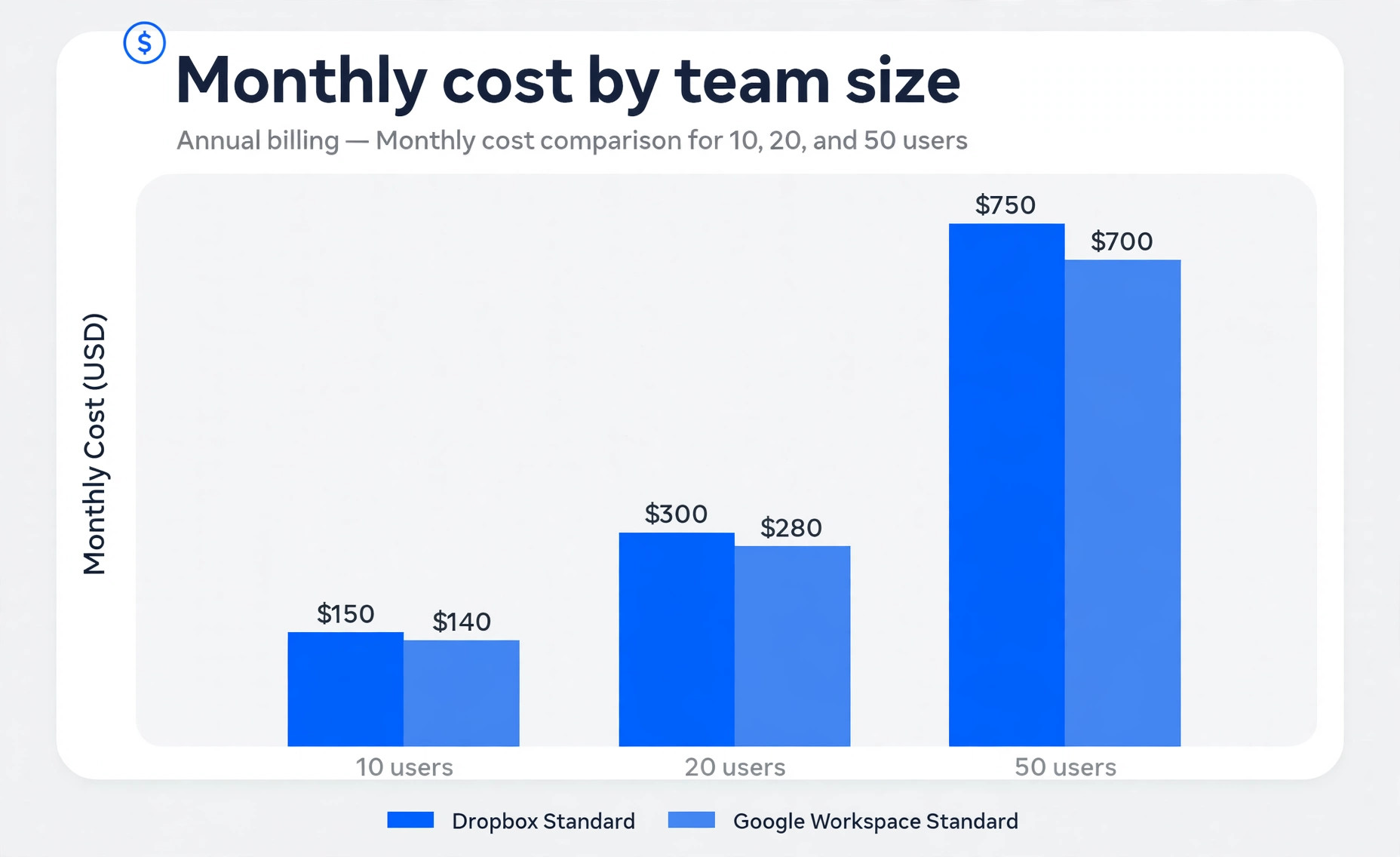
Dropbox Business list prices on the official upgrade page at research time were 15 dollars per user per month for Standard and 24 dollars per user per month for Advanced, on annual billing, with Standard starting at 3 terabytes for the team and Advanced starting at 15 terabytes. Monthly billing costs more on both platforms, so confirm the cycle at checkout. A 20 person team on Dropbox Standard pays about 300 dollars a month, while the same team on Workspace Standard pays about 280 dollars a month and also gets business email, calendar, Docs and Meet.
If the team only needs storage and already has email elsewhere, the saving is smaller and the move must be justified by collaboration benefits, not price alone.
| Team size | Dropbox Standard, annual | Workspace Standard, annual | What the Workspace bill also includes |
|---|---|---|---|
| 10 users | About 150 dollars a month | About 140 dollars a month | Business email, calendar, Docs, Sheets, Meet |
| 20 users | About 300 dollars a month | About 280 dollars a month | Business email, calendar, Docs, Sheets, Meet |
| 50 users | About 750 dollars a month | About 700 dollars a month | Business email, calendar, Docs, Sheets, Meet |
Add the migration tool cost and one overlap month to whichever row fits your team. A 20 person team using Movebot for a 1 terabyte library would add about 750 dollars once, plus about 300 dollars for the overlap month. Present the total project cost to leadership, not just the monthly subscription.
How to Choose Your Migration Path
When you migrate Dropbox to Google Drive business, choose by the complexity of your sharing, not by the size of your file library alone. A team with simple sharing, few external guests and no Paper dependency can use the built in Google tool, run a pilot, and finish in two to three weeks. A team with heavy external sharing, regulated files or deep nesting needs a specialist tool and should plan for four to six weeks including retention.
Ask four questions before you choose. How many external guests touch your folders, and can you test their access with a real guest account. How many folders exceed 100,000 items or nest deeper than 15 levels. How much version history must survive, and for which folders. And how long can you run both platforms in parallel, because a team with a 30 day overlap can fix problems calmly, while a team that must cancel immediately needs a flawless first pass, which no migration guarantees.
If the answers point in different directions, split the migration. Move simple folders with the built in tool and complex client folders with a specialist tool.
Mistakes That Turn a Move Into a Lockout
The most common mistake is copying files into one person’s My Drive and calling the job done. That person becomes a single point of failure. Put team files in Shared drives from the start, even when My Drive feels faster.
The second mistake is giving everyone Manager rights on a Shared drive to save time. Manager rights let a member delete files permanently and change membership, which is far more power than most staff need. Give most staff Content Manager or Contributor rights and reserve Manager for two admins per drive.
The third mistake is migrating leavers and stale guests along with live access. Every stale account copied to Drive is a security finding waiting for an audit, and every guest who left a project two years ago does not need a new Drive invitation. Clean the Dropbox member list before the map, not after the copy.
The fourth mistake is replacing links in documents but forgetting links in systems. Links live in contracts, email signatures, client portals, task descriptions and automated messages. Search those systems for the old Dropbox domain before cutover.
The fifth mistake is skipping the delta pass. Files change during a migration, especially in active project folders, and a transfer that started on Monday is out of date by Friday. Always run a final delta pass after the freeze and verify file counts before you tell the team the move is complete.
The sixth mistake is cancelling Dropbox too early. A 30 day overlap feels like wasted spend until the day a client reports a broken link to a file nobody mapped. Keep the old system read only, keep the billing date in the project plan, and cancel only after the verification checklist is signed off.
The Cutover Week Checklist
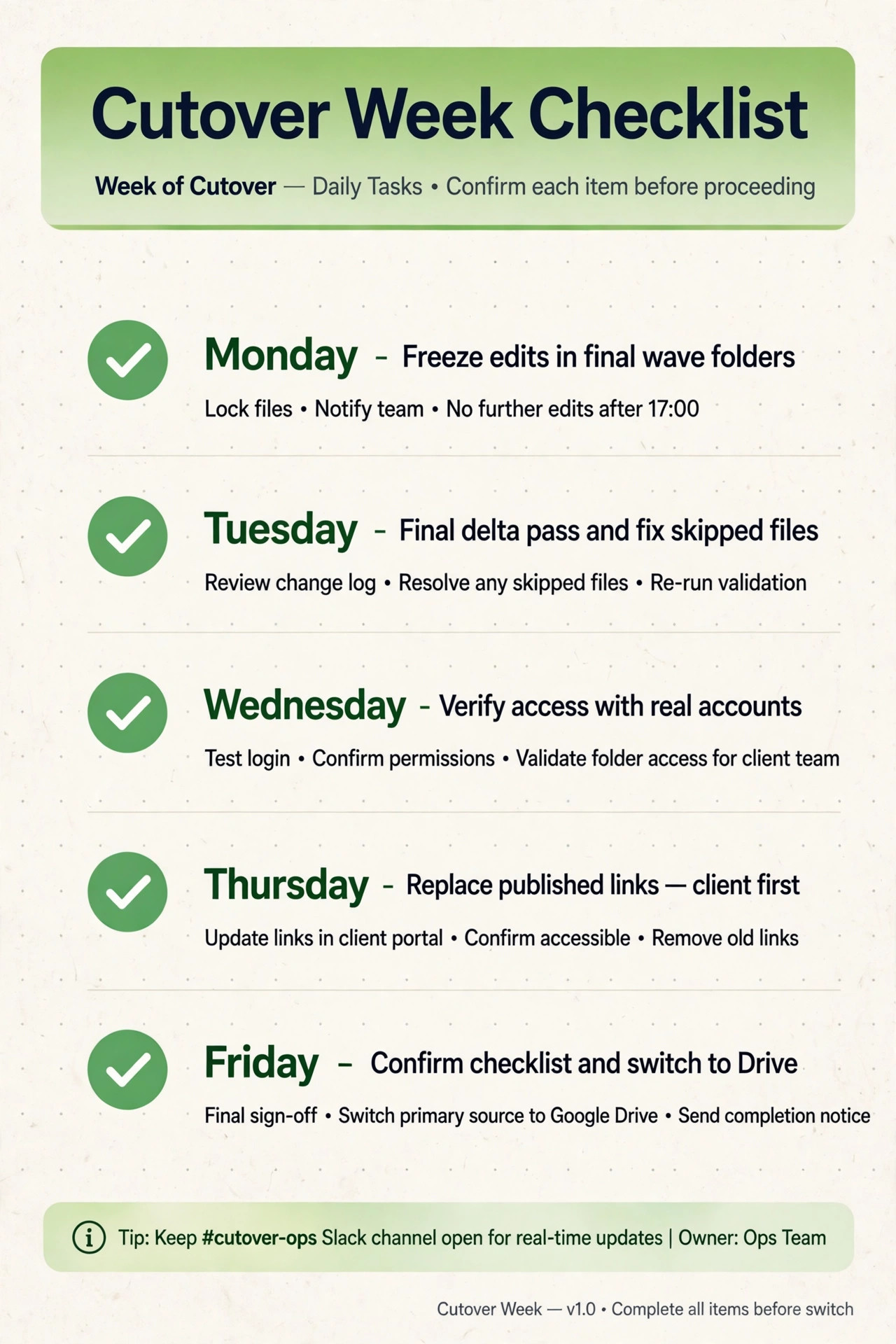
Cutover week is a sequence, not a single event. On the Monday, freeze edits in the final wave folders and tell the team where to work instead. On the Tuesday, run the final delta pass, fix naming problems and re-run skipped files the same day. On the Wednesday, verify access with real accounts, including one external guest account, one new hire style account with group access only, and one restricted viewer who must not be able to download a sensitive file.
On the Thursday, replace published links in priority order, client facing links first, then internal documentation, then task and email templates. Send a short message to staff with the new Shared drive names and a separate short message to affected clients with their new links.
On the Friday, confirm the verification checklist, switch the team to Drive as the system of record, set Dropbox folders to read only, and log any remaining issues with an owner and a fix date.
The 30 Day Watch After Cutover
The month after cutover is when quiet failures surface. A client who opens a folder once a quarter will not report a broken link in week one. A seasonal report folder will not be missed until the month it is due. A contractor returning from leave will discover their access changed only when they return. Plan for this slow discovery, and do not disband the migration team on cutover day.
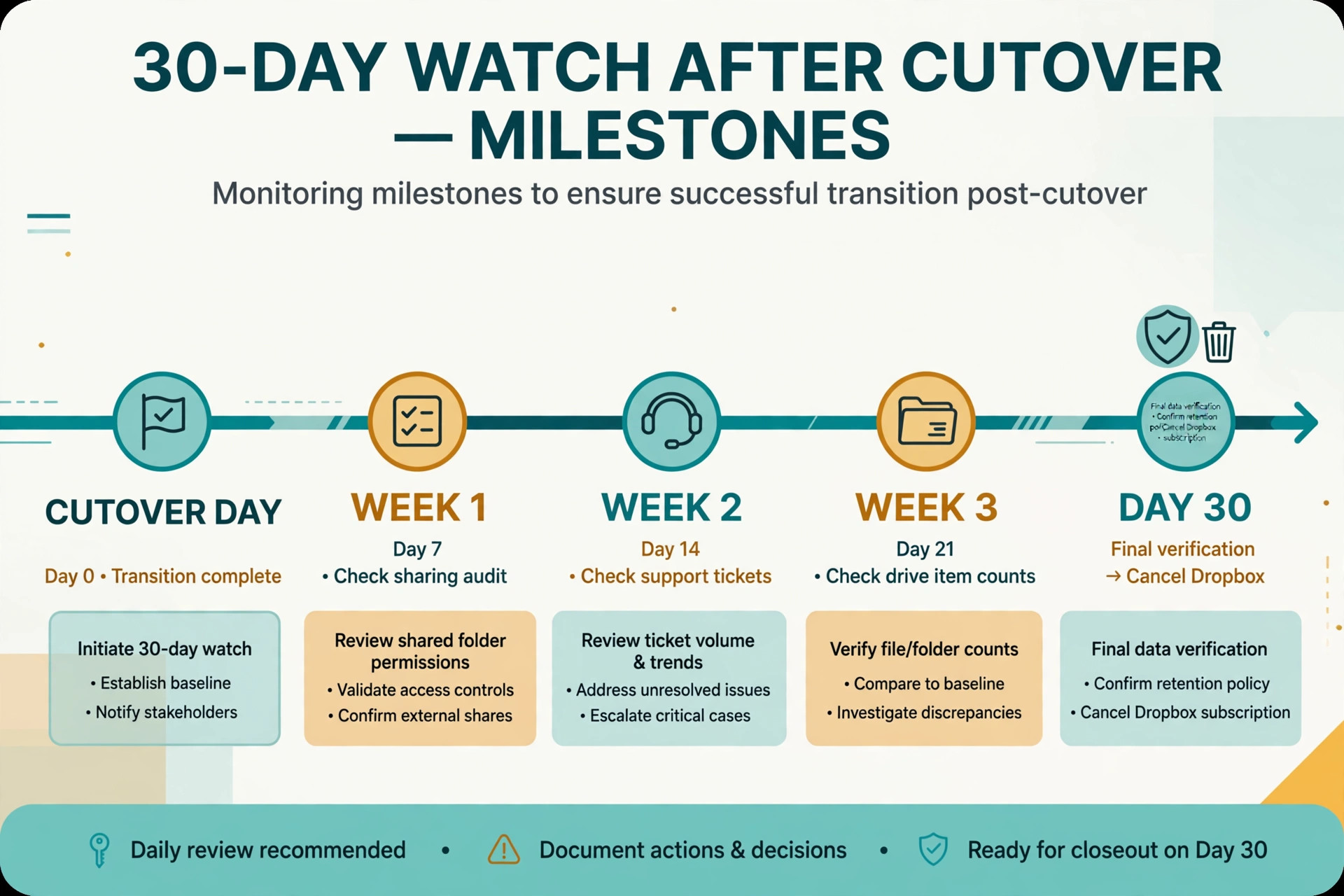
Each week of the retention period, check three things. Check the Drive sharing audit for unexpected external shares. Check support tickets for patterns, because three tickets about one folder usually point to a mapping error. And check item counts per Shared drive, because a fast growing drive may need splitting before it approaches the 400,000 item limit.
At day 30, run the final verification. Confirm file counts, guest access, leaver removal and that no live link still points to Dropbox. Only then cancel Dropbox, archive the permission map and migration reports together, and hand the Shared drive admin list to whoever owns Drive going forward.
For related reading, best project management software helps if the move is part of a wider workflow tidy up, best software for small business puts Drive in the context of the rest of your stack, and automate small business with AI covers routine filing once files are settled.
Frequently Asked Questions
Will my Dropbox sharing permissions transfer automatically to Google Drive?
No, not on a plain copy. A manual move copies files only, and even a specialist tool used to migrate Dropbox to Google Drive business needs a user mapping file that pairs each Dropbox account with the right Google account before it can recreate sharing. Build the permission mapping table in this guide first, test it on a pilot folder, and re-share according to the map after each wave. Treat any tool claim about automatic permission transfer as a claim to verify on your own pilot, not as a promise.
No. Dropbox links point to Dropbox, and they do not redirect to Google Drive files. You must create new Drive links and replace them everywhere the old links were published, starting with client facing documents and portals. Keep Dropbox running in read only mode during retention, and never cancel until the link inventory is cleared for live documents.
Team files belong in Shared drives, because the organisation owns them and access survives staff departures. My Drive suits personal drafts. If a folder matters after its creator leaves, it is a Shared drive folder.
What happens to Dropbox Paper documents in the move?
Paper documents need to be exported before they work well in Drive, usually to Word or PDF format, and live comments and collaboration inside Paper do not carry over cleanly. Identify the Paper documents that are still live, export those, and archive the rest. Do not convert hundreds of stale Paper notes by default, because the result is a Drive full of files nobody needs.
How long does a business migration take?
A small team with simple sharing can finish in two to three weeks including a pilot. A mid sized team with external guests, deep folders and a retention period should plan for four to six weeks. Mapping permissions, testing external access, replacing links and running delta passes take the time, and rushing those stages is what creates lockouts.
Can we keep using Dropbox and Drive at the same time?
Yes, and for a short period you should. Run both in parallel during migration, with Dropbox read only for folders already moved, and keep Dropbox paid for at least 30 days after the last wave. Parallel running is your safety net for missed files and broken links. Do not run both indefinitely with no system of record, because staff will edit in different places and the two libraries will drift apart.
Leave Dropbox Running Until Drive Has Proved Itself
A successful migration is not measured by how fast the files copied. It is measured by how few people notice the move, how quickly a new hire gets the right access through groups, and how calmly the business survives the first client request after cutover.
Start with the inventory week, even if the team is impatient to see progress, because a week spent mapping saves a month spent fixing access tickets. Choose the migration tool by the complexity of your sharing, not by the size of the headline discount, and price the whole project including the overlap month. When Drive has proved itself for a full month, cancel Dropbox with confidence and hand the system to a named owner.