
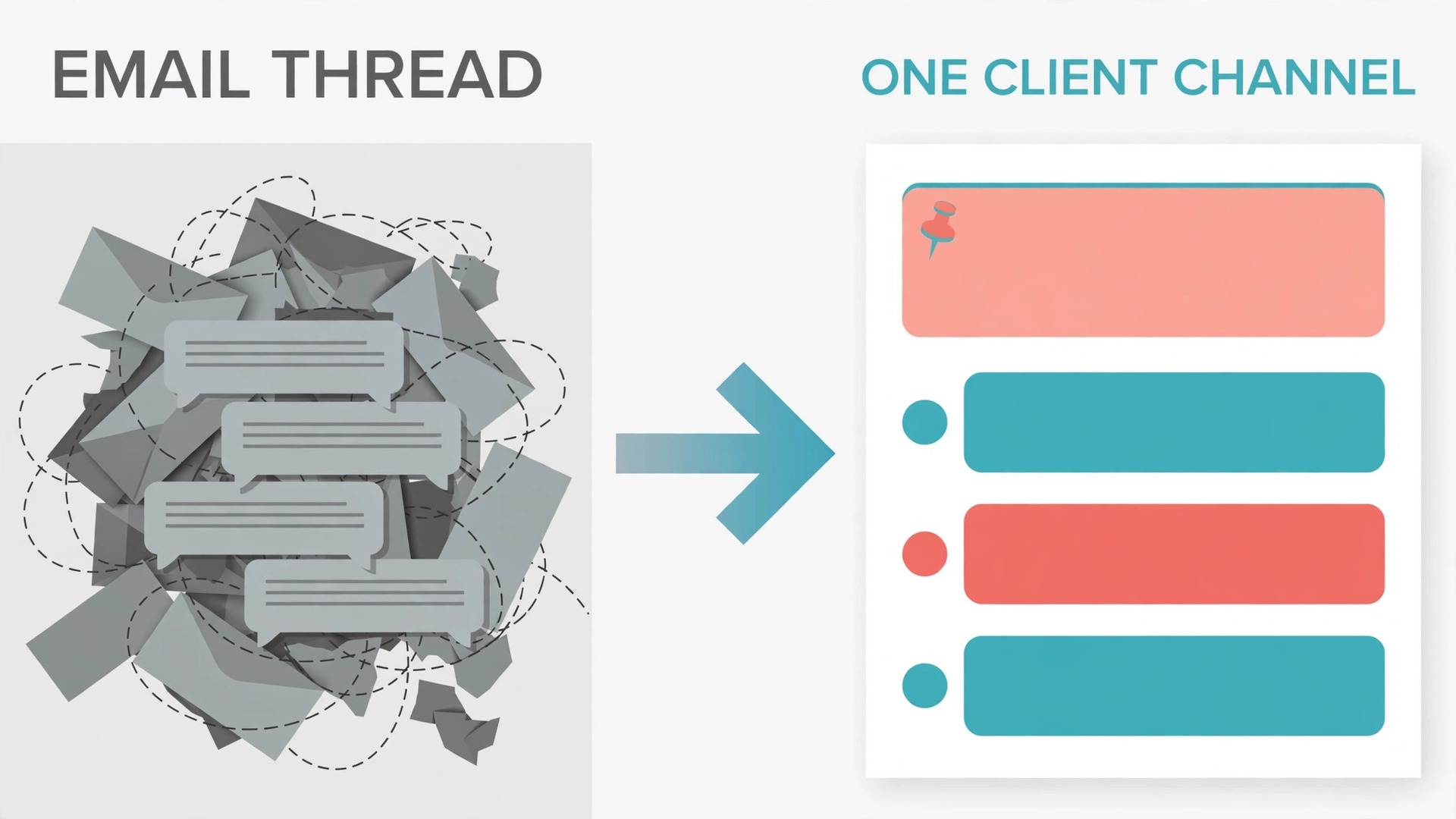
An email thread promises order and delivers archaeology. The brief lives in message three, the feedback in message nineteen, the approval in a forwarded chain with a subject line that no longer matches the work, and the one decision you need is buried under three rounds of “looping back.” When you use Slack for freelance client communication, the same conversation gets a room of its own, a name that says what it is for, and a search box that finds the decision in seconds. That single change is why so many freelancers move client talk out of email, not because email is broken for everything, but because email was built for messages, while a channel was built for a project.
The difference shows up in the daily work, not in the sales pitch. A client who can see progress in one place asks fewer “just checking in” messages. A freelancer who can point to a pinned brief, a dated approval, and a weekly update spends less time defending the work and more time doing it. Slack does not create that discipline by itself. Left unstructured, a channel becomes a faster, noisier inbox. Structured well, with one channel per client, clear guest access, a fixed update rhythm, and written boundaries, it becomes the closest thing a solo freelancer gets to a studio front desk. This guide builds that structure step by step.
Why Email Threads Break Down for Freelance Work
Email fails freelancers in a specific way. It mixes five kinds of message into one stream, and each kind needs a different response. A brief, a question, a file, an approval, and a payment chase all arrive with the same weight, in the same list, sorted only by time. When a project runs for six weeks, the list grows long enough that nobody can reconstruct what was agreed without re-reading it. Clients feel ignored because their approval sat under newer mail. Freelancers feel ambushed because a scope change arrived as a casual sentence in a long reply.
A channel fixes the sorting problem by giving each client a place rather than a thread. The brief is pinned, the current deliverable has its own thread, and search finds the decision in seconds. That is the practical case for channels.
How to Use Slack for Freelance Client Communication
Start before you invite anyone. Decide the shape of your setup, write the rules once, and reuse them for every client. Clients copy whatever structure you give them, so a named channel, a pinned welcome post, and a weekly update will be treated like a project room, while a bare channel will be treated like a group chat.
Follow these steps in order for each new client.
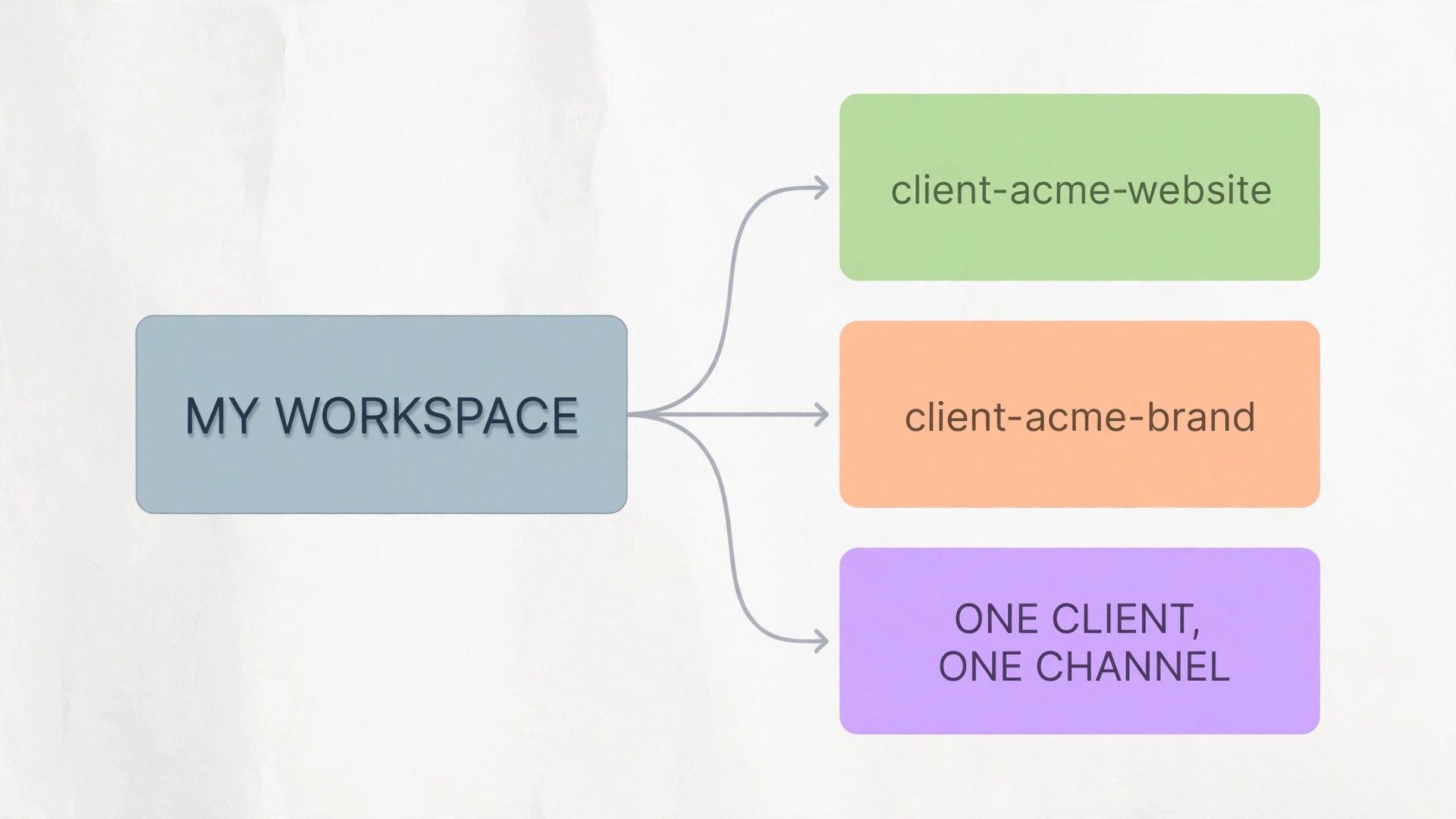
- Create a private channel named for the client and the work, such as client-acme-website or client-acme-brand. Private matters here, because a private channel keeps one client’s work invisible to every other guest in your workspace.
- Write a short channel topic that states the project in one line, and a channel description that names the deliverable, the deadline, and the person who approves work.
- Pin a welcome post on day one. It should state your working hours, your usual response time, where files go, and how approvals work. Pinning it matters, because new people joining later will otherwise never see it.
- Create a canvas or a pinned document inside the channel that holds the brief, the scope, the revision count, and the links to live deliverables. Update that one document instead of reposting the brief every time it changes.
- Invite the client as a guest, not as a full member, unless they need access to several channels. Guest access is covered in detail below, and it is the single most important privacy control in this whole setup.
- Set a weekly update day and keep it. Clients forgive slow days far more easily than silent weeks, and a fixed update day turns progress reporting into a habit instead of a chore.
- Agree the exit on day one. Tell the client what happens to the channel when the project ends, so offboarding later feels like a planned step rather than a sudden lockout.
Your Own Workspace or a Channel Per Client
Freelancers face one structural choice at the start, and it shapes everything else. Option one is your own workspace, where you are the owner and each client gets a private channel or a small set of channels. Option two is joining the client’s workspace as a guest or member, where you work inside their rooms, under their rules, alongside their staff. Most freelancers end up using both, and the skill is knowing which client belongs in which arrangement.
Your own workspace suits retainer clients, short projects, and clients who do not already live in Slack. You control the naming, the membership, and the archive, and when the project ends you close the channel on your terms. If a client already spends all day in their own Slack, joining their workspace often wins, because your messages land where they already look.
A channel per client inside your workspace is the default worth defending. One client, one private channel, plus a second channel only when the work genuinely splits, for example one channel for the website build and one for ongoing content. Resist the urge to create a channel per deliverable, per week, or per stakeholder. Every extra channel is another place a decision can hide, and a client with four channels will post in the wrong one within the first week. One channel per client keeps the story of the project in one readable place.
Joining a client’s workspace suits embedded work, such as a three month engagement where you attend their standups. There you accept their naming and their norms, and you protect yourself by keeping your own notes and copies of approvals, plus a weekly summary posted in their channel, so losing access never means losing your own history.
When you use Slack for freelance client communication across several clients at once, naming discipline is what keeps you sane. Use the same prefix for every client channel, write the project in the name, and never name a channel after a person alone, because people change roles and projects change hands. A channel called client-acme-website survives a contact leaving. A channel called client-sarah does not, and renaming it mid-project confuses everyone who bookmarked it.
Guest Access, Permissions and Slack Connect
Guest access is where freelancers most often get privacy wrong. A guest is someone who joins your workspace with limited access, and Slack offers two kinds. A single-channel guest can use exactly one channel, chosen by an admin, and can take part fully inside it, sending messages, uploading files, joining huddles with channel members, and messaging people they share that channel with. A multi-channel guest can use several channels chosen by an admin, can start group messages with people they share channels with, and can use more features such as slash commands. The billing difference matters.
Single-channel guests are available at no extra cost up to five per paid member on a paid plan, while multi-channel guests are billed like regular members. That rule alone settles most freelancer setups. One private channel per client plus single-channel guest access gives each client a clean room at no extra seat cost.
Guests cannot browse your workspace, search channels they are not in, or see member lists beyond their own channel. That is the protection you want, and it is why you must never invite a client as a full member by accident. A full member can join public channels and see far more, and you cannot undo someone having seen something.
Set a time limit on guest access when the project has a known end date. Slack lets owners and admins set an automatic deactivation date, with a reminder five days before it arrives. For open ended retainers, skip the time limit but review access quarterly, and remove guests who have not been active in ninety days.
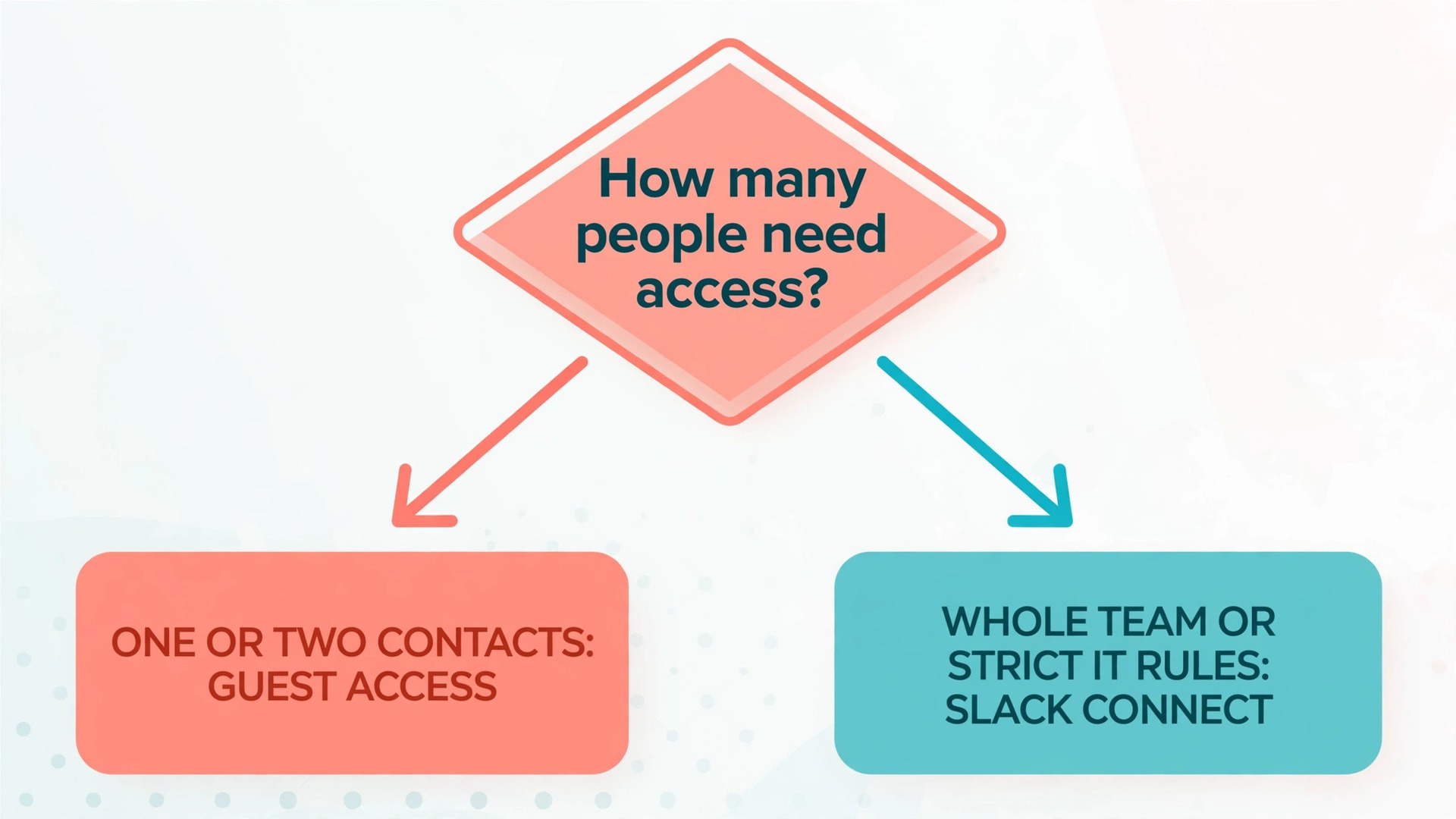
Slack Connect is the other route, and it fits a different shape of client. Two organisations share a channel, each side keeping its own workspace, login, and admin control, so the client never becomes a guest in your workspace. It suits larger clients with their own IT rules and long relationships, but it needs a paid plan, and both sides’ admins may need to approve the channel, which can take days inside a large company.
Choose between guest access and Slack Connect with one question. How many people on the client side need access, and how much control does their organisation want to keep. One or two contacts with a straightforward project belong as guests in your workspace. A whole client team, or a client with strict IT approval rules, belongs in a Slack Connect channel. Either way, write the same welcome post, the same hours, and the same approval rule in the room, because the tool changes but the discipline does not.
The Weekly Update Format That Clients Actually Read
Clients do not stop asking for updates because you are busy. They stop asking when they trust the rhythm. A weekly update posted on the same day, in the same format, every week, builds that trust faster than any single brilliant deliverable. The format below is deliberately short. A client who opens a wall of text skims it, and a client who skims misses the decision you needed. Five short blocks, each two or three lines, beat a long essay every time.
Post the update in the client channel, not in a direct message. A channel update becomes part of the project record, visible to anyone the client adds later. A direct message update dies with that conversation, and a new stakeholder joining in week five will ask you to repeat it.
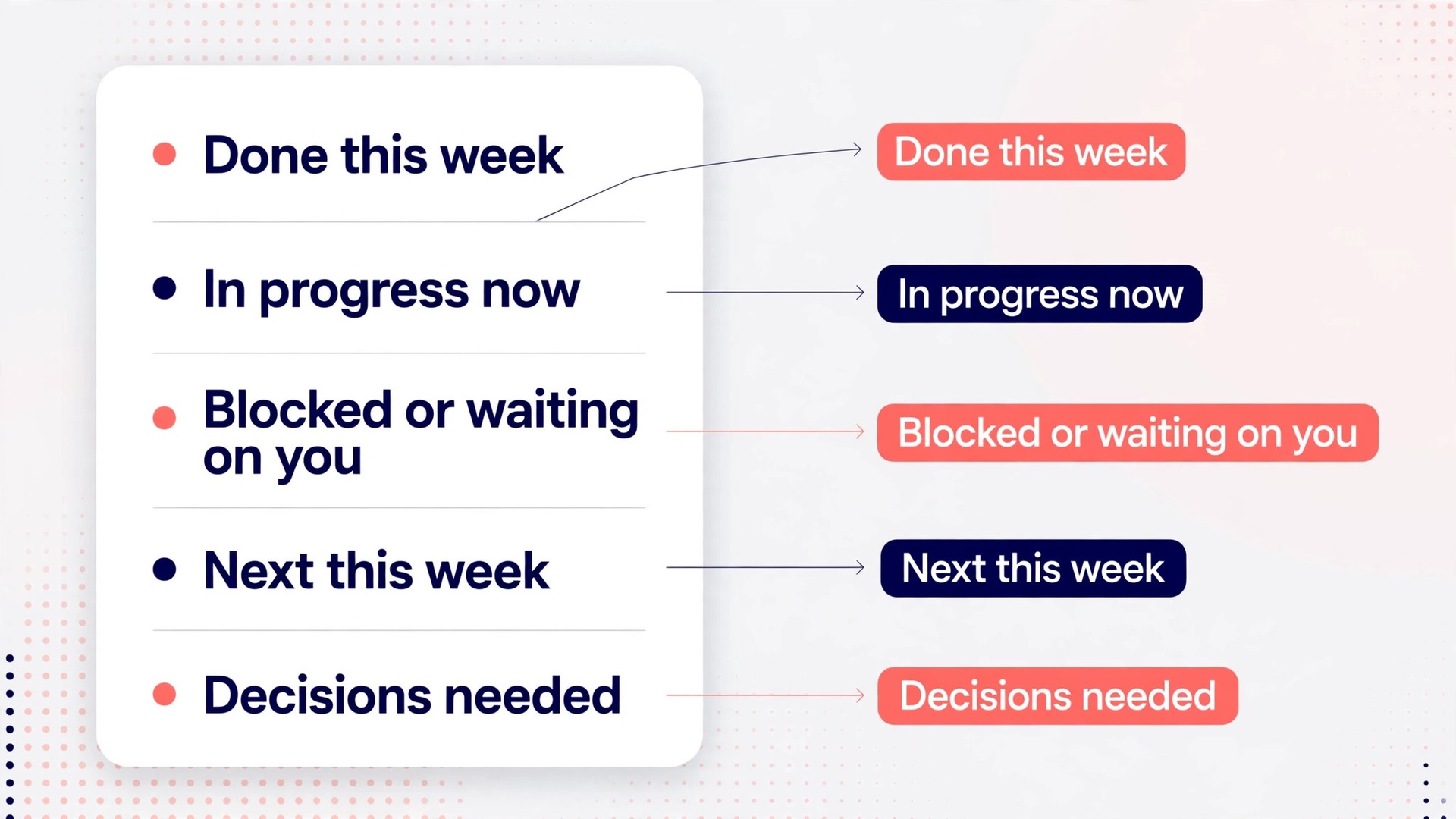
Use this template every week. Copy it, fill it in, and do not redesign it mid-project.
**Done this week**
- The homepage draft is live on the staging link, with the new headline and the revised services section.
- The first two blog posts are edited and ready for your review, linked below.
**In progress now**
– The contact page form is being rebuilt, and testing starts on Thursday.
**Blocked or waiting on you**
- I need your approval on the homepage headline by Wednesday, so the build stays on schedule.
- The team photo for the about page is still outstanding.
**Next this week**
– Publish the two reviewed posts, and start the pricing page draft.
**Decisions needed**
– Approve the headline option A or option B, linked in the thread below.
That template works because it answers the only five questions a client really has. What did you do. What are you doing. What do you need from me. What happens next. What must I decide. Put the blockage in its own block, in plain language, with a date, because clients respond to a dated, specific ask far faster than to a vague note that something is pending.
When you use Slack for freelance client communication week after week, the update also becomes your scope defence. A client who later says “I thought the pricing page was included in this round” can be shown the update where the pricing page was listed under next week, and the reply where they approved it. A factual update history is worth more than a perfect memory in any scope discussion.
Timing matters as much as format. Pick one day, for example Friday morning, and post before noon in the client’s time zone. If you miss the day, post the next morning, and do not let a miss become a skipped week. Honest short updates beat polished late ones.
Files, Approvals and a Paper Trail You Can Search
When you use Slack for freelance client communication, chat is fast and files are forever, so treat them differently. Post discussion in the channel, but store the deliverable somewhere with a stable link, such as Google Drive, Dropbox, or Notion, and post that link in the channel. When you upload a file directly into Slack and later revise it, the channel ends up with five versions and nobody knows which one is current. A stable link with a version note, such as “Homepage draft, version 3, revised 12 October,” keeps one source of truth while the channel holds the conversation about it.
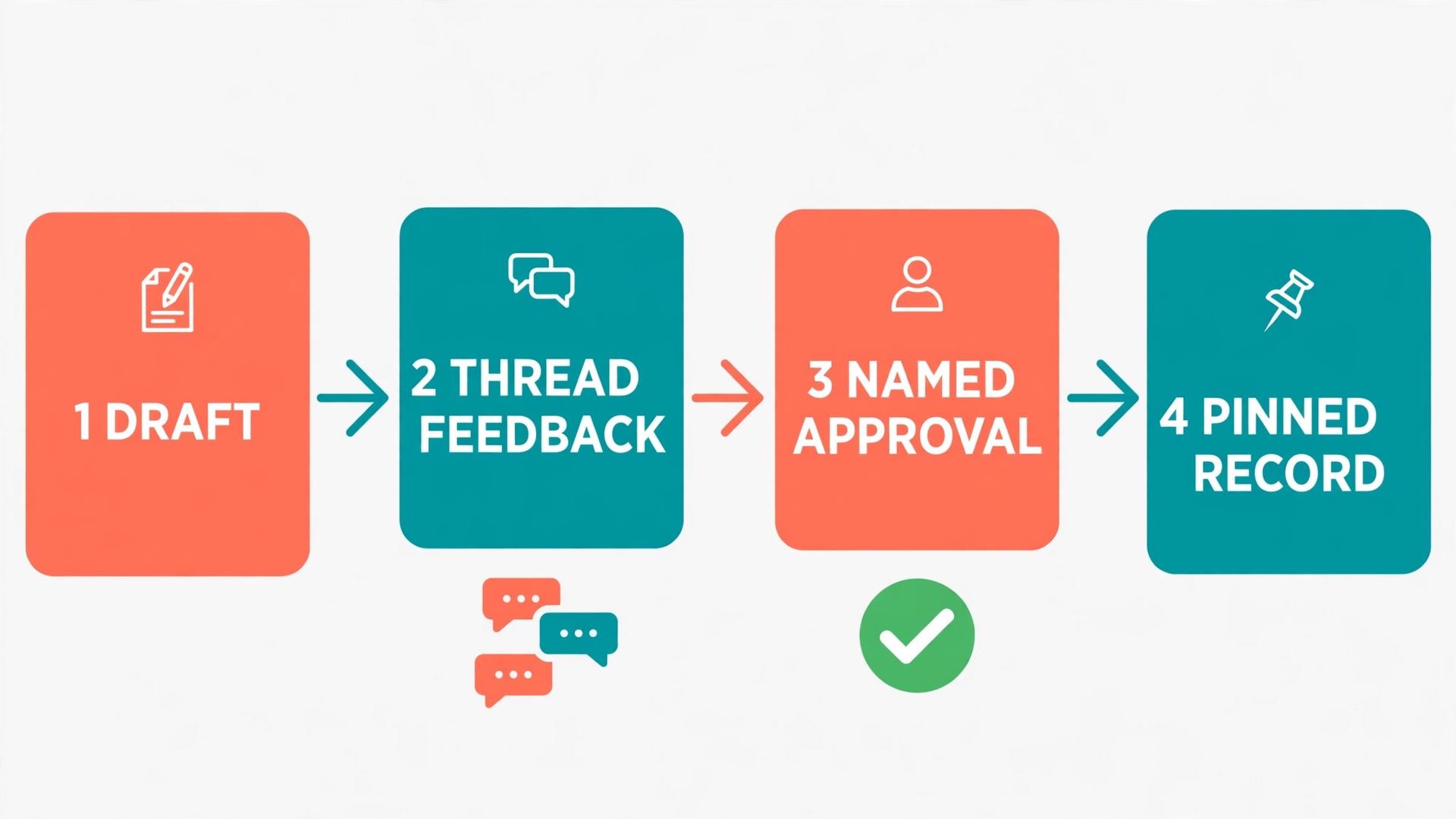
Approvals need a rule, written before the first deliverable. An approval counts only when the named approver writes Approved in the channel, on the thread for that deliverable, naming the version. A thumbs up emoji, a looks good in a direct message, and a fine by me from someone who is not the approver do not count. Clients accept the rule when you explain it once, because it protects them too.
Build the approval flow into the channel with threads. Post the deliverable as a main message with the version and the link. Ask for approval in that same message, with a date. Keep all feedback in the thread under it, not scattered across the channel. When the approver writes “Approved,” pin that message or copy the approval line into your pinned project document. That two minute habit turns a chat log into an auditable record, and it is the habit that saves you when a client revises their memory of what was agreed.
Name files so search works. Use the client name, the deliverable, the date, and the version, for example acme-homepage-2026-10-12-v3.pdf. Keep a short index in the pinned project document linking each deliverable to its current version, and update it when a version changes.
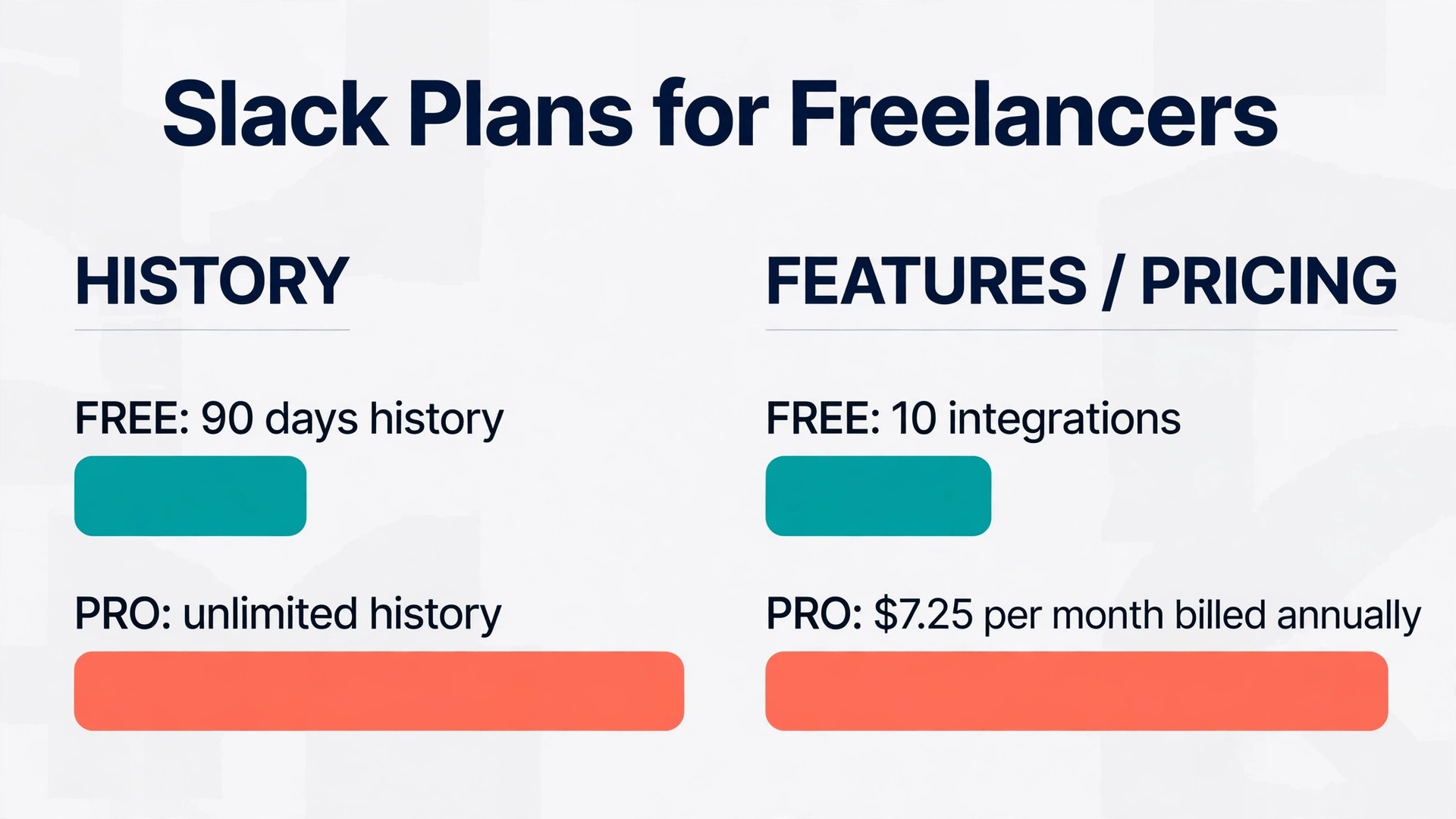
Keep your own copies outside Slack. The free plan shows only the last ninety days of message history, so a free workspace is not an archive, and even on a paid plan a channel can be closed or access can change. Export the approvals that matter into your project document each week, as part of the update routine.
Boundaries That Protect Your Hours and Your Scope
Slack rewards speed, and speed without boundaries becomes availability at all hours. The fix is not to answer slowly out of spite. The fix is to publish your hours, hold them kindly, and answer inside them with real attention. Clients respect a freelancer who replies well during stated hours far more than one who replies instantly at midnight and then burns out by Thursday.
Write your hours into the pinned welcome post, in the client’s time zone, and repeat them when you onboard. State your working days, your usual response time for ordinary messages, and what counts as a genuine urgency. A website being down counts. A preference about a headline does not. Stay consistent, because inconsistent availability trains clients to expect the fastest version every time.
Use Slack’s own tools to hold the line. Set your status with your working hours, use Do Not Disturb outside those hours, and use scheduled messages for evening drafts you want delivered in the morning. These tools are the digital version of closing the studio door, and clients who run their own businesses understand a closed door.
Scope boundaries belong in the channel too, in a calm, early form. When a request sits outside the agreed scope, acknowledge it warmly, name the scope line it crosses, and offer the next step, usually a short quote for the extra work or a note that it can join the next round. Do not silently absorb extra work hoping the client notices, because that teaches clients that scope is flexible.
When you use Slack for freelance client communication with several clients, protect focus with sections and notification settings. Group your client channels into a sidebar section, mute channels that are waiting on the client, and check muted channels once or twice a day instead of letting every message interrupt deep work. A channel that is waiting on the client does not need your attention until the client replies. That single habit, muting waiting channels, returns hours a week to most freelancers, and it costs nothing.
What Slack Costs a Solo Freelancer
Pricing decides the setup more than features do, so get the numbers right before you commit. At the time of writing, Slack’s published plans are Free at no cost, Pro at 7.25 dollars per user per month billed annually or 8.75 dollars billed monthly, and Business+ at 15 dollars per user per month billed annually or 18 dollars billed monthly, with Enterprise+ priced on request. Check Slack’s pricing page before you pay, because plan prices and included features change, and this guide cannot replace the checkout page.
For most solo freelancers, the decision is between Free and Pro, and it turns on history and guests. Free shows only the last ninety days of history, allows up to ten app integrations, and limits huddles to one to one conversations. Pro removes the history limit, removes the integration limit, and unlocks guest access and Slack Connect, so if you run client work through Slack, Pro is usually the honest cost of doing it properly.
Do the seat maths before you upgrade. On Pro at the annual rate, one seat costs about 87 dollars a year. Single-channel guests cost nothing extra up to five per paid member, so five clients as single-channel guests add no seat cost, while multi-channel guests are billed like members. Keep clients to one channel each as single-channel guests, and your Slack bill stays at one seat for a long stretch of your freelance career.
Offboarding a Client Cleanly
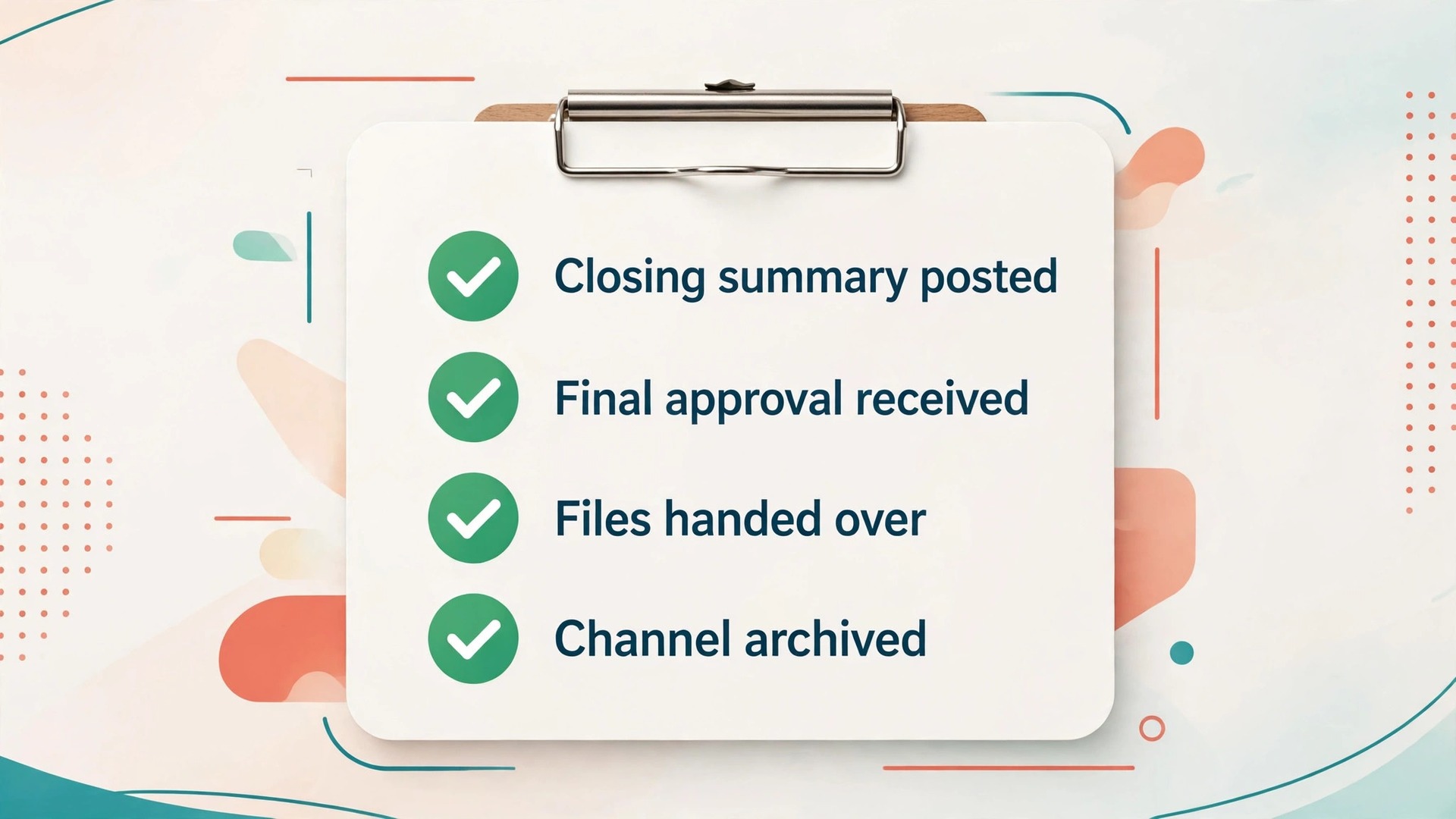
When you use Slack for freelance client communication, offboarding is where good freelancers separate themselves from careless ones, because the end of a project is when access, files, and feelings all need handling at once. Plan the exit in the final week, not after the final invoice, and run it as a short checklist so nothing depends on memory.
- Post a closing summary in the channel. List what was delivered, with links to the current versions, what was left out by agreement, and any handover notes the client needs to run the work themselves.
- Ask for final approval in the channel, naming the version, and wait for the named approver to confirm. That approval is the record that the project closed complete.
- Hand over every file, password, and account the client owns, through the channel or by email, and confirm receipt in the channel. Never leave a client locked out of their own website, analytics, or ad account because a handover step was missed.
- Export the approvals, the scope, and the key decisions into your own project document. Once the channel closes, you may not be able to search it, so the export is your record.
- Tell the client the date the channel will close or their guest access will end, and give them a few working days to download anything they need. A sudden lockout after a good project leaves a bad final impression, and a dated, polite notice avoids it entirely.
- Remove the guest, archive the channel, and update your own records. Archiving keeps the history searchable for you on a paid plan while removing the channel from the active list, which keeps your sidebar clean for live clients.
- Send a short closing email that thanks the client, restates the handover, and invites future work or a referral. Email is the right place for this because it survives after Slack access ends.
Handle awkward endings with the same checklist, plus one extra step, which is to keep the tone factual. If a project ends early, post what was delivered up to that point, what was paid for, and what happens next, without blame and without a long explanation. A factual closing protects your reputation far better than a final argument, and it leaves the door open for the client to return with a better brief later.
Mistakes That Turn a Channel Into Noise
Most Slack problems for freelancers are not technical. They are habits that seemed harmless in week one and became expensive by week six. Watch for these five.
First, posting everything in the main channel instead of threading replies. A channel where every reply is a new top level message becomes unreadable within days, because questions and answers lose each other. Reply in threads, always, for anything attached to a deliverable or a decision. Reserve the main channel for updates, deliverables, and decisions.
Second, letting direct messages become the real project. Direct messages feel faster, and clients often default to them, but a decision made in a direct message is invisible to the rest of the client team and unsearchable for anyone who joins later. When a client messages you directly about project work, answer briefly and move the substance into the channel, with a line such as “Moving this to the channel so the whole team can see it.” Clients learn the habit quickly when you model it kindly.
Third, answering every message the moment it arrives. Instant replies feel like great service, and they destroy deep work. Batch your Slack checks, answer well twice or three times a day during working hours, and use your status to show when you are in focus time. Clients adapt within a week, and the quality of your replies improves when you answer with attention instead of reflex.
Fourth, mixing clients in one channel or one workspace area. Never put two clients in the same channel to save time, never discuss one client in another client’s channel, and never forward a screenshot from one project into another. The privacy failure here is not just embarrassing. It can breach a confidentiality clause and end a relationship instantly. One client, one private channel, no exceptions.
Fifth, leaving old guests in place. A guest who finished six months ago and still reads your workspace is a risk you chose by inaction. Review access quarterly, remove finished guests, and archive finished channels. The review takes ten minutes, and it is the cheapest insurance in this whole guide.
When you use Slack for freelance client communication with these habits fixed, the channel starts to feel like a calm studio rather than a noisy inbox. That calm is not an accident. It is the result of threads, a weekly rhythm, a written approval rule, and access reviews, repeated until clients expect them.
If you are still deciding whether Slack is the right home for your client work, or how it compares with the alternatives, start with the comparison of Slack versus Microsoft Teams to see where each tool fits, then read the roundup of Slack alternatives for cases where a lighter or cheaper tool suits a particular client better. For the wider freelance picture, the guide on how to get clients as a freelancer with AI covers winning the work that Slack then helps you deliver, and the roundup of best team communication software puts Slack in context alongside the other tools a growing freelance practice might adopt.
Together they show how to use Slack for freelance client communication as part of a wider practice, not as an isolated tool.
Frequently Asked Questions
Should I use my own Slack workspace or join the client’s workspace?
Use your own workspace with a private channel per client as the default, because you control the naming, the membership, and the archive, and you keep the record when the project ends. Join the client’s workspace only for long or embedded engagements, and keep your own copies of approvals outside their workspace.
Can a client see my other clients in my Slack workspace?
No, provided you invite each client as a guest into a private channel of their own. Guests cannot browse your workspace, search channels they are not in, or see member lists beyond their own channel. The risk comes from inviting a client as a full member by mistake, so check the role on every invite and review membership at each milestone.
Is the free plan enough for freelance client work?
The free plan can work for one short project, but it shows only the last ninety days of message history, allows up to ten app integrations, and does not offer guest access or Slack Connect. For ongoing client work, Pro is usually the right choice, because unlimited history, guest access, and Slack Connect make a client setup private and searchable. Check Slack’s pricing page before you pay, because plan details change.
How do I stop a client messaging me at all hours?
Publish your working hours and your usual response time in the pinned welcome post, in the client’s time zone, and define what counts as a genuine urgency. Use Do Not Disturb outside those hours, set a status showing when you are next available, and use scheduled messages for evening drafts you want delivered in the morning. Answer well inside your hours, and hold the line consistently.
What should I do when a client asks for work outside the agreed scope?
Acknowledge the request warmly, name the scope line it crosses in plain language, and offer the next step, which is usually a short quote for the extra work or a note that it can join the next round. Do not argue scope in a heated thread, and do not silently absorb extra work hoping the client notices. A short, friendly scope reply protects both sides, and it is far easier to write early than after the extra work has already been done for free.
How do I close a client channel without losing the record?
Post a closing summary with links to the current deliverables, get final approval in the channel from the named approver, hand over every file and account the client owns, and export the approvals and key decisions into your own project document. Give the client a few working days notice before their guest access ends, then remove the guest and archive the channel. The archive keeps the history searchable for you on a paid plan while clearing your sidebar for live clients.
Make Slack Work Like a Small Studio, Not a Group Chat
A channel becomes a professional front desk when you treat it that way from day one. One private channel per client. Guests, not members. A pinned welcome post with hours and an approval rule. A weekly update in the same format, on the same day. Files linked from one source of truth, approvals named and dated, access reviewed every quarter, and a clean closing summary when the work ends.
When you use Slack for freelance client communication with this structure in place, the tool stops being another inbox and starts being evidence of good work. Clients see progress without asking, decisions stay findable, scope stays visible, and your evenings stay yours. Start with your next new client, and let the second client inherit a system that already works.