
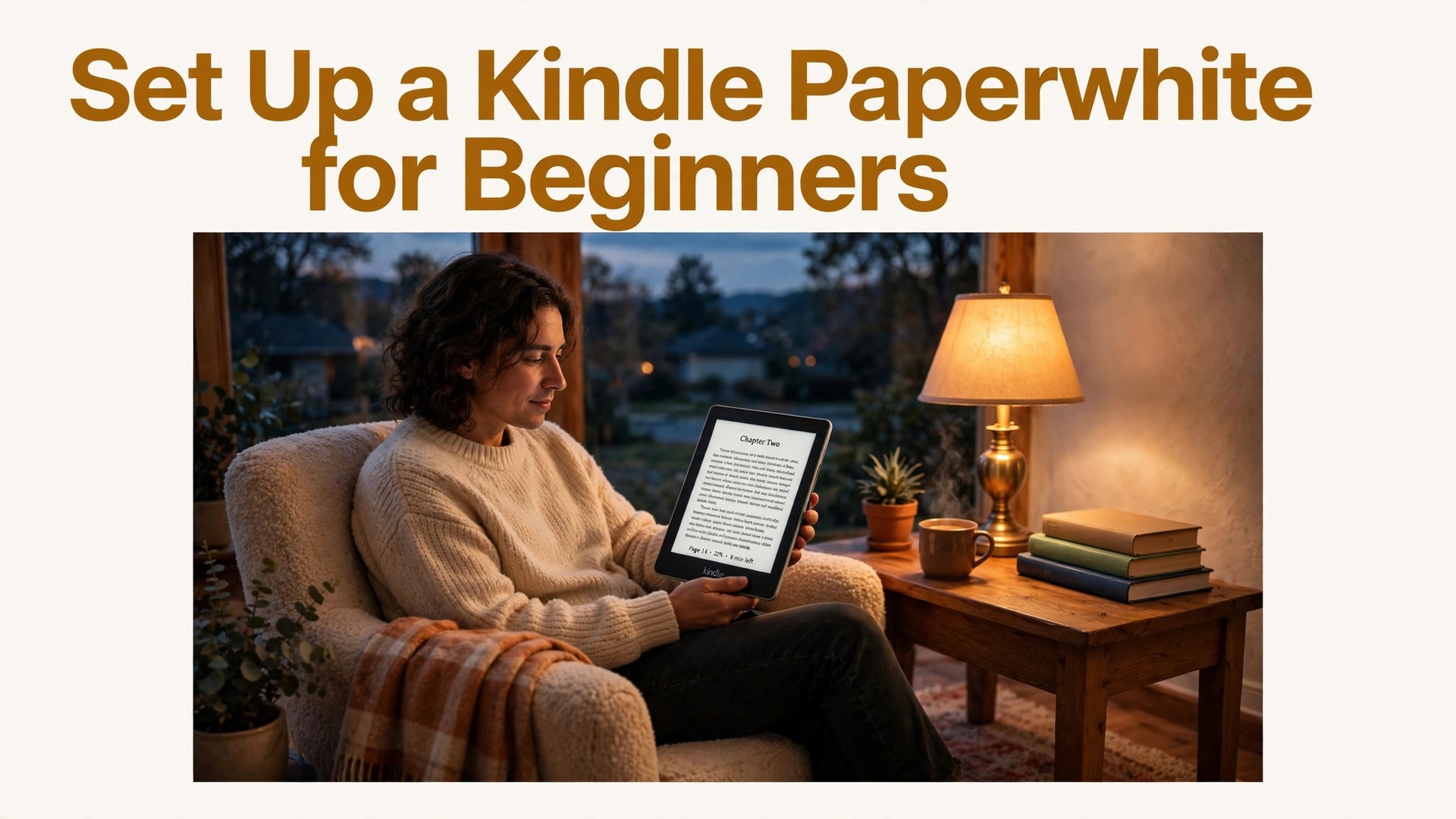
Kindle owners finish more books than phone readers do, and the reason is rarely willpower. A 2026 reading survey found that dedicated e-reader owners reported finishing roughly twice as many books per year as people who read mainly on phones, largely because the device removes feeds, messages and browser tabs from the reading hour. The catch is that a Paperwhite fresh out of the box still needs ten minutes of setup before it feels that calm, because font size, warmth and library sorting all ship at defaults that suit nobody. This guide shows how to set up Kindle Paperwhite for beginners in the order that matters, so the first book feels comfortable from page one.
A Kindle Paperwhite is a dedicated e-reader with a glare free electronic ink screen that reads like paper, a built in front light for dark rooms, weeks of battery life, and access to the Kindle Store, your library, and personal documents sent to the device. It does not try to be a tablet, and that focus is its strength, since a device with no social media notifications and no web browser rabbit holes leaves you alone with the book, which is the point.
Unbox, Charge and Prepare Before First Power On
Inside the box you should find the Paperwhite itself, a USB-C charging cable, and a short quick start guide. The power adapter is often not included, so use a standard USB phone charger or a computer USB port for the first charge, and note that the first full charge takes a few hours, though the device ships with enough charge to begin setup immediately. Charge to at least half before a long setup session, since a device that dies during registration or a large library sync creates a confusing restart loop that is easy to avoid with a short charge first.
While the device charges, gather what setup needs. You need an Amazon account, or the willingness to create one, since registration links the Paperwhite to your Kindle library and purchases. You also need your Wi-Fi network name and password, since registration and downloads need Wi-Fi, and a phone or computer nearby for account verification if Amazon asks for it. If you already read on the Kindle app on a phone or tablet, your existing library, highlights, and reading progress will sync to the Paperwhite once it registers, which is one of the most satisfying moments of setup for existing readers.
Decide on a case before the first week ends, though it is not needed for setup itself. A case protects the screen in a bag, wakes the device when opened, and puts it to sleep when closed, which saves battery and avoids accidental page turns. A case with a hand strap or stand suits readers who read one handed in bed, while a slim cover suits readers who carry the device in a small bag. Buy the case for your exact Paperwhite generation, since screen sizes and button positions differ between generations and a wrong case blocks the power button or USB port.
Think about your first book before setup finishes, since a device with no book ready feels empty and gets put aside. Pick a book you genuinely want to read next, not a book you feel you should read, and buy or borrow it so it waits in your library when registration completes. A short, engaging book for the first read proves the settings work and builds the habit, while a long, dense book as a first test can feel like a chore before the device has earned its place. Your first book choice matters more than any setting in this guide for whether the Paperwhite becomes a habit.
How to set up Kindle Paperwhite for beginners
The steps below follow the on screen setup in order, with notes on the choices beginners usually rush. Keep the charger nearby, keep Wi-Fi details ready, and do not skip the tutorial, since it teaches gestures that are not obvious from the hardware alone. To set up Kindle Paperwhite for beginners well, slow down at the font and warmth steps, because those two settings decide comfort more than any other choice in this guide.
- Power on the device. Press and hold the power button on the bottom edge until the screen lights up, then wait for the welcome screen. Electronic ink screens refresh differently from phone screens, with a brief flicker on page changes, which is normal and not a fault, so do not worry if the first screens look slightly different from a tablet.
- Choose a language. Select your language from the list with a tap, and confirm, since language affects menus, dictionaries, and store recommendations. If you read in more than one language, set the main language now and add dictionaries for other languages later in settings, as covered in the library section.
- Connect to Wi-Fi. Select your network from the list, enter the password with the on screen keyboard, and wait for the connection to confirm. A Paperwhite that cannot reach Wi-Fi can still read books already on the device, but it cannot register, download, or sync, so Wi-Fi is worth fixing properly rather than skipping, including checking that you selected the right network if several similar names appear.
- Register with your Amazon account. Sign in with your Amazon email and password, or create an account if needed, and approve any verification code sent to your phone or email. If you bought the Paperwhite from your own Amazon account, it may arrive pre-registered, in which case confirm the account shown is yours before proceeding, since a device registered to a gift giver account will download their library, not yours.
- Complete the short tutorial. The tutorial teaches tapping to turn pages, swiping to navigate, tapping the top of the screen for the reading toolbar, and swiping down for quick settings. Complete it even if it feels basic, since the toolbar and quick settings gestures are used daily and are not labelled on the device itself.
- Let the library sync. After registration, the Paperwhite downloads your library list and any books set to download automatically, which can take a while on a large library. Leave Wi-Fi on and the device charging during this first sync, and do not judge the device by its speed during sync, since syncing hundreds of books is the heaviest job it will ever do, and normal use afterwards is far faster.
- Open your first book and set font and warmth. Open the book you chose, tap the top of the screen, tap the Aa icon, and adjust font, size, boldness, spacing, and margins to comfort, as detailed in the reading settings section below. Set warmth for evening reading as well, since a first book read with harsh cool light at night creates a poor first impression that settings alone can fix in seconds.
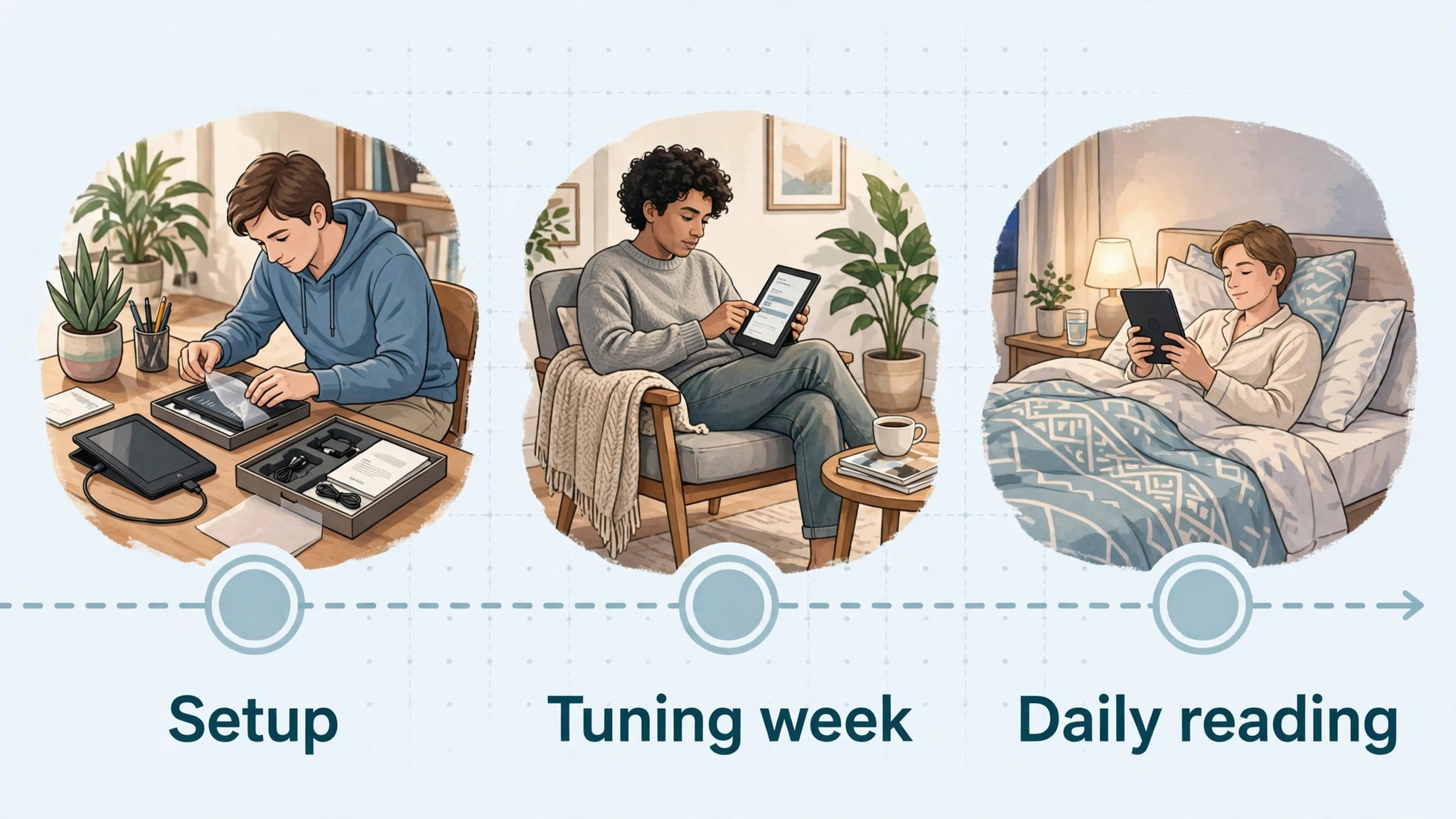
Once the first book opens comfortably, setup is essentially done, and the rest of this guide is about library organisation, reading settings, and habits that keep the device in daily use. A Paperwhite set up in an afternoon and then ignored helps nobody, so the sections below focus on the daily experience, not just the setup screens. To set up Kindle Paperwhite for beginners in full, treat the first week as a tuning week, adjusting one setting per reading session until the device feels like yours.
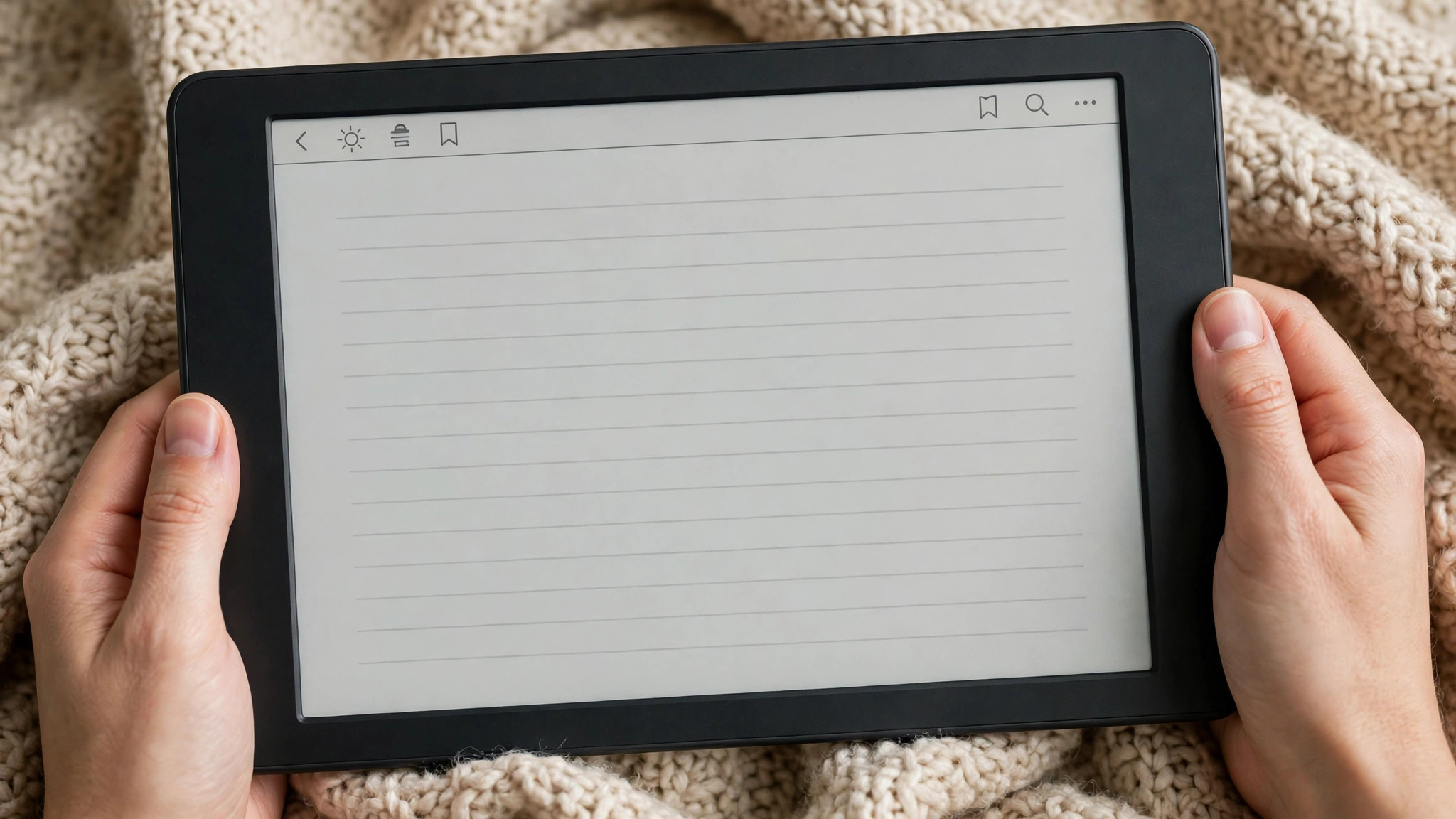
First Setup Checklist
A short checklist turns first setup into a routine you can repeat after a reset or use to help a family member, and it catches the small omissions that cause later confusion. Tick each item before calling setup complete, and note anything that failed, since a note now is easier to act on than a vague memory next month.
- Device charged to at least half, with the charging cable and a suitable charger identified for future use.
- Language chosen, Wi-Fi connected, and Amazon account confirmed as yours, not a gift giver or family member account.
- Tutorial completed, with page turn taps, toolbar tap, and quick settings swipe all practised once.
- Library synced, with at least one book downloaded and opened, proving downloads and reading both work.
- Font, size, boldness, spacing, and margins set to a comfortable first choice, with warmth set for evening reading.
- Screen brightness checked in both daylight and a dark room, since a brightness that suits one fails the other.
- A case fitted or ordered, and a reading spot chosen, such as a bedside table charger and a regular reading time.
- Personal documents test completed if you plan to send files, by sending one document and confirming it appears in the library.
The value of this checklist is that it separates setup from reading, so reading does not begin with a hunt for settings mid chapter. A reader who opens a book and immediately fights font size, brightness, and warmth will associate the device with frustration, while a reader who opens a book that already feels right will associate it with pleasure. Ten minutes of checklist work buys that difference, and it is the best ten minutes in this whole guide.

Reading Settings Table
Reading settings live in two places, which confuses beginners until the split is clear. The Aa menu while reading controls font, size, boldness, line spacing, margins, and orientation for the book you are reading, while quick settings, reached by swiping down from the top, controls brightness and warmth for the device. Device settings, reached from the home screen, control library, Wi-Fi, and account options. The table below gives starting points for the reading settings that matter most, paired with the library sync guidance in the next section as the overview proof element for this guide.
| Setting | Where to find it | First week starting point |
|---|---|---|
| Font face | While reading, tap top, then Aa | Bookerly for most readers, try Amazon Ember if Bookerly feels heavy |
| Font size | Aa menu, size slider | Size 4 to 6 for most adults, larger for tired eyes or small print preference |
| Boldness | Aa menu, bold slider | 0 to 2 for most readers, higher only if text looks thin |
| Line spacing | Aa menu, layout | Middle spacing for most books, wider for dense nonfiction |
| Margins | Aa menu, layout | Small or medium, wider margins suit annotation and note taking |
| Orientation | Aa menu, layout | Portrait for most books, horizontal for wide tables or large print |
| Brightness | Swipe down, quick settings | Around 12 to 16 indoors, higher in bright rooms, lower at night |
| Warmth | Swipe down, quick settings, warmth slider | 0 during the day, 12 to 18 in the evening, scheduled by sunset if offered |
| Dark mode | Device settings, display, or quick settings | Try for night reading, keep light mode for daytime |
| Page turn animation | Device settings, reading options | On for a book feel, off for faster page turns |
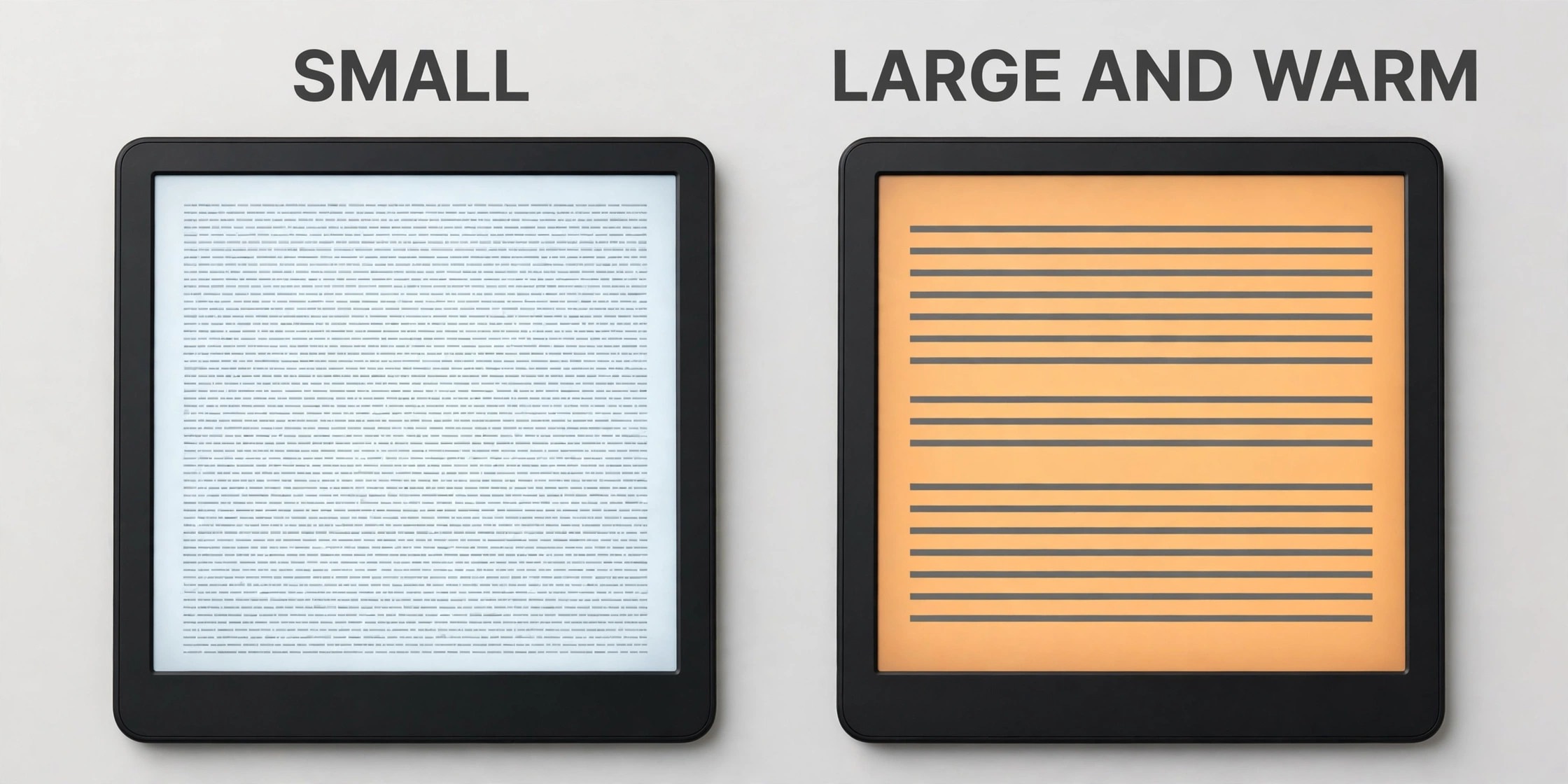
Font choice is personal, and the best test is a full page of real reading, not a settings preview. Read one page in Bookerly, one page in another font, and notice which one your eyes settle on without effort, since the right font disappears and leaves only the story. Font size follows the same rule, and larger is not always better, since a size that is too large forces frequent page turns and breaks reading flow, while a size that is too small causes eye strain. Aim for a size where a page holds a comfortable paragraph count and your eyes do not tire after ten minutes.
Warmth deserves attention because it affects sleep as well as comfort. Warm light shifts the screen toward amber, reducing blue light in the evening, and many readers find warm evening light easier on tired eyes. Schedule warmth to rise at sunset if the device offers scheduling, so evening reading automatically warms without a daily adjustment, and keep daytime warmth low, since warm light during the day can look dull and yellow. If warmth scheduling is not offered on your model, a manual evening adjustment takes seconds from quick settings and is worth the habit.
Brightness is the setting beginners most often set too high. Electronic ink needs far less brightness than a phone screen, since the screen reflects ambient light rather than shining like a tablet, and a brightness of 12 to 16 indoors is often enough. In a dark room, lower brightness further and raise warmth, since a bright screen in a dark room causes eye strain even on electronic ink. Test brightness in your actual reading spots, meaning bed, sofa, and daylight, rather than setting it once in a shop bright room and never revisiting it.
Library, Sync and Personal Documents
Library organisation decides whether a large collection feels like a library or a pile. Collections let you group books by topic, author, or status, such as Currently Reading, To Read, Finished, and Reference, and a book can sit in more than one collection without duplicating storage. Create three or four collections at most in week one, since a collection system with twenty empty collections is harder to use than no system at all, and add collections only when a real need appears, such as a book club list or a study topic that grows.
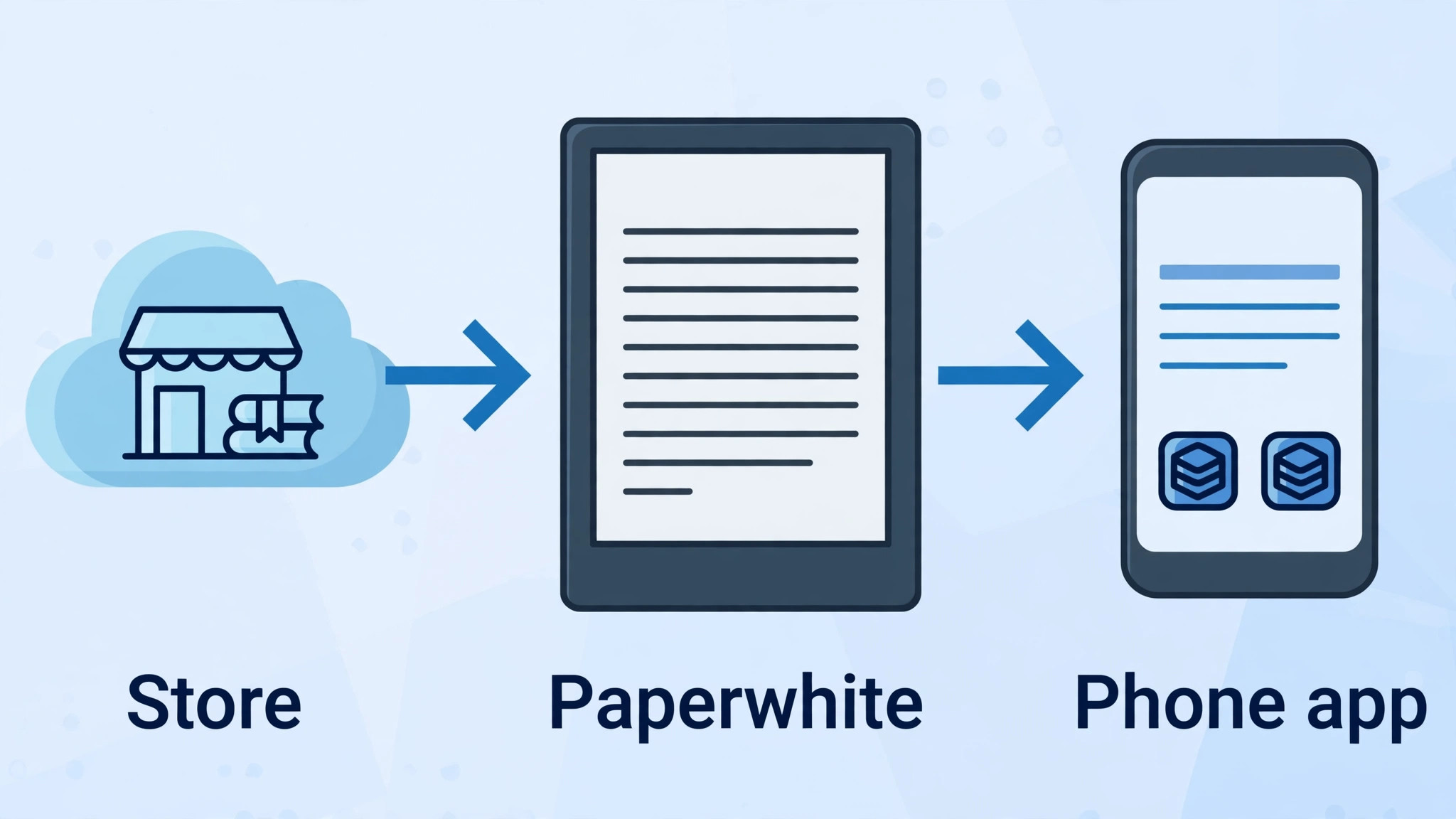
Sync keeps reading progress, highlights, notes, and bookmarks aligned across your Paperwhite, phone, and tablet Kindle apps, so you can switch devices without losing your place. Sync needs Wi-Fi and the same Amazon account on every device, and it works best when you sync before switching devices, by returning to the home screen and allowing a moment for upload. If progress seems out of date on a second device, open the book on the first device, return home, wait for sync, then open the book on the second device, since that sequence resolves most sync confusion without any settings change.
Personal documents, meaning PDFs, articles, and files you own, reach the Paperwhite through Send to Kindle, which accepts email to your Kindle address, uploads from the Send to Kindle website or app, and drag and drop in some tools. Sent documents appear in the library like books, though PDFs keep fixed layouts that may need zooming on a small screen, while converted documents reflow like Kindle books and suit the Paperwhite better. Test Send to Kindle with one short document before sending a large archive, since a failed first send teaches the file size and format limits faster than reading about them.
Borrowing books extends the library without buying, through library services that lend Kindle books in supported regions, and through Kindle Unlimited where offered as a subscription. Borrowing works through the same store and library system, with loan periods and return dates handled automatically, and a borrowed book that expires simply leaves the device without affecting your purchases. Check what borrowing options exist in your region before assuming a service works everywhere, since library lending varies by country and publisher, and a service that works for a friend abroad may not work for you.
When you set up Kindle Paperwhite for beginners with library habits included, the device becomes a reading system, not just a screen. Collections organise, sync preserves progress, and Send to Kindle brings your own documents into the same reading flow, so the Paperwhite earns its place beside, not instead of, your other reading apps, each used where it suits best.
Battery, Storage and Care Habits
Battery life on a Paperwhite is measured in weeks, not hours, under typical reading of about half an hour a day with Wi-Fi off and moderate brightness. Wi-Fi left on, high brightness, and frequent store browsing all reduce that life, so turn Wi-Fi off when not downloading, keep brightness moderate, and put the device to sleep with the power button or case cover when not reading. A Paperwhite that dies quickly usually has Wi-Fi on, brightness high, or a large sync running, and checking those three explains most short battery complaints without any repair.
Storage on modern Paperwhites, typically 16 gigabytes on current models, holds thousands of books, since Kindle books are small files, though audiobooks and large PDFs use more space. Storage rarely limits book readers, but it can limit audiobook listeners, so check storage in device settings if downloads fail, and remove finished audiobooks or large files you no longer need, since your purchases stay in the cloud library for redownload. A device with comfortable free space syncs faster and updates more reliably than a device filled to the edge.
Care habits are simple and worth stating. Keep the Paperwhite out of direct sunlight for long periods, since heat ages batteries and sunlight can damage screens, and avoid water exposure beyond the device water resistance rating, which protects against splashes and brief immersion but not against swimming or high pressure water. Wipe the screen with a dry microfibre cloth, never with wet wipes or sprays, and carry the device in its case in a bag, since a bare screen against keys and coins scratches over time. A Paperwhite treated gently lasts for years, and a device that lasts becomes the device you reach for daily.
That long life is part of why you set up Kindle Paperwhite for beginners carefully once, since settings and habits chosen in week one tend to stay with the device for its whole life.

Problems Beginners Meet
A book that will not download usually needs a Wi-Fi, account, or storage check, in that order. First, confirm Wi-Fi is on and connected, since a device with Wi-Fi off queues downloads silently. Second, confirm the account is yours and the purchase or borrow completed, since a book bought on a different account will not appear. Third, check storage, since a full device refuses new downloads without a clear error. Work through those three before deregistering or resetting, since a reset erases local settings and downloads for a problem that was often just Wi-Fi off.
Page turns that feel slow or ghosted, meaning faint traces of the previous page remain, are usually normal electronic ink behaviour, and a full screen refresh setting, where offered, clears ghosting at the cost of a slightly slower turn. If ghosting is severe, restart the device, check for a software update, and test with a different book, since a single corrupted book can display badly while the device itself is fine. A restart fixes more display complaints than any settings change, and it takes under a minute, so try it early rather than late.
A device that will not charge usually has a cable, charger, or port problem. Try a different USB-C cable and a known good charger, check the port for lint or debris, and leave the device charging for at least thirty minutes before judging, since a fully flat battery takes time to show any sign of life. If charging still fails, try a computer USB port as a test, since a computer port delivers power differently from a wall charger and can reveal whether the charger or the device is at fault. Keep the original cable for testing, since a cable that charges a phone may still fail on a device with different power needs.
When you set up Kindle Paperwhite for beginners with problems in mind, remember that most faults are settings, Wi-Fi, or storage, not hardware failure. A calm check of those three, plus a restart, solves a large share of complaints, and a device that is restarted and resynced usually returns to normal without a support call or a replacement, which is the outcome every beginner hopes for.
More Reading on Stratilyze
More Reading on Stratilyze. Reading devices connect to wider habits, so the guides on Kindle for language learning reading and Kindle Scribe for study notes cover related reading workflows, and the guide on e-readers for travel reading light covers reading on the move. Read the language learning guide first if you read in more than one language, since dictionary and vocabulary features matter more there.
Frequently Asked Questions
Do I need an Amazon account to use a Kindle Paperwhite?
Yes, registration needs an Amazon account to access the Kindle Store, your library, and sync features, though you can read personal documents sent to an unregistered device with more effort and fewer features. Registration is free, and you do not need a Prime membership or a Kindle Unlimited subscription to buy and read books. If the device arrives pre-registered to a gift giver account, deregister it and register with your own account before building a library.
How long does the battery really last?
Under typical reading of about half an hour a day with Wi-Fi off and moderate brightness, a Paperwhite lasts weeks on a charge, though heavy reading, high brightness, Wi-Fi left on, and audiobook listening all shorten that. The weeks figure assumes normal book reading, not constant store browsing or large downloads, so judge your battery over a full month of your own use rather than a single heavy week. Turn Wi-Fi off when not downloading for the largest single saving.
Can I read library books on a Kindle Paperwhite?
In supported regions, yes, through library lending services that deliver Kindle books to your device, with loan periods and automatic returns. Availability varies by country, library system, and publisher, so check your local library service for Kindle compatibility before assuming it works. Borrowed books appear in your library like purchases during the loan, then leave the device automatically at expiry, without affecting your owned books.
What is the difference between brightness and warmth?
Brightness controls how much light the front light produces, while warmth controls the colour of that light, from cool blue white to warm amber. Brightness affects visibility, warmth affects comfort and evening eye strain, and the two work together, since a bright cool screen at night feels harsh while a dim warm screen feels gentle. Set brightness for visibility in your room, and warmth for time of day, with warmer settings in the evening.
Can I listen to audiobooks on a Paperwhite?
Yes, supported Paperwhite models play Audible audiobooks through paired Bluetooth headphones or speakers, though the device has no built in speaker for audiobooks and no headphone jack. Pair headphones in Bluetooth settings, download the audiobook over Wi-Fi, and play from the library, noting that audiobook listening drains battery faster than reading. If audiobook listening is your main use, a phone or dedicated player may suit better, while the Paperwhite remains best for reading.
How do I send my own PDFs and documents to the Kindle?
Use Send to Kindle, by emailing files to your Kindle address, uploading through the Send to Kindle website or app, or using the share options in supported apps. Sent documents appear in your library, with PDFs keeping fixed layouts that may need zooming, and converted documents reflowing like Kindle books. Test with one short document first, check that it appears after syncing over Wi-Fi, and keep file sizes reasonable for faster delivery.
Read a Little Every Day
The Paperwhite habit that lasts is small and daily, not grand and occasional. Ten pages before bed, a chapter with morning coffee, or a few pages in a waiting room all count, and a device that is charged, synced, and set to a comfortable font makes those small sessions effortless. A reading streak built from small sessions beats a weekend binge followed by a month of silence, and the Paperwhite is designed for exactly that rhythm, with weeks of battery and a screen that waits patiently between sessions.
Keep the device by your reading chair, keep Wi-Fi off when not downloading, and revisit font and warmth whenever your eyes or your schedule change. A Paperwhite tuned to your eyes and your evenings becomes invisible, leaving only the book, which is the highest compliment a reading device can earn. To set up Kindle Paperwhite for beginners and keep reading, the rule is simple. Set it up once, properly, read a little every day, and let the library grow with your curiosity rather than with your intentions.
