
The same phone can load long YouTube videos perfectly while the Shorts feed spins forever, shows a blank shelf, or repeats the same few clips without end. That contrast is the key to understanding how to fix YouTube Shorts not loading, because Shorts do not fail the way ordinary video fails. The Shorts feed is a real time recommendation stream, built from fresh feed requests, cached feed data, and your watch history signals, and a fault in any one of those layers breaks Shorts while leaving regular videos untouched. A spinning Shorts tab on a phone that plays everything else is not a broken phone and usually not a broken app.
It is a stale cache, a struggling network path, a paused history setting, or a bad app build, and this guide separates those causes with quick tests, then works through the fixes in the order that solves the most cases first.
The Three Way Test That Locates the Fault
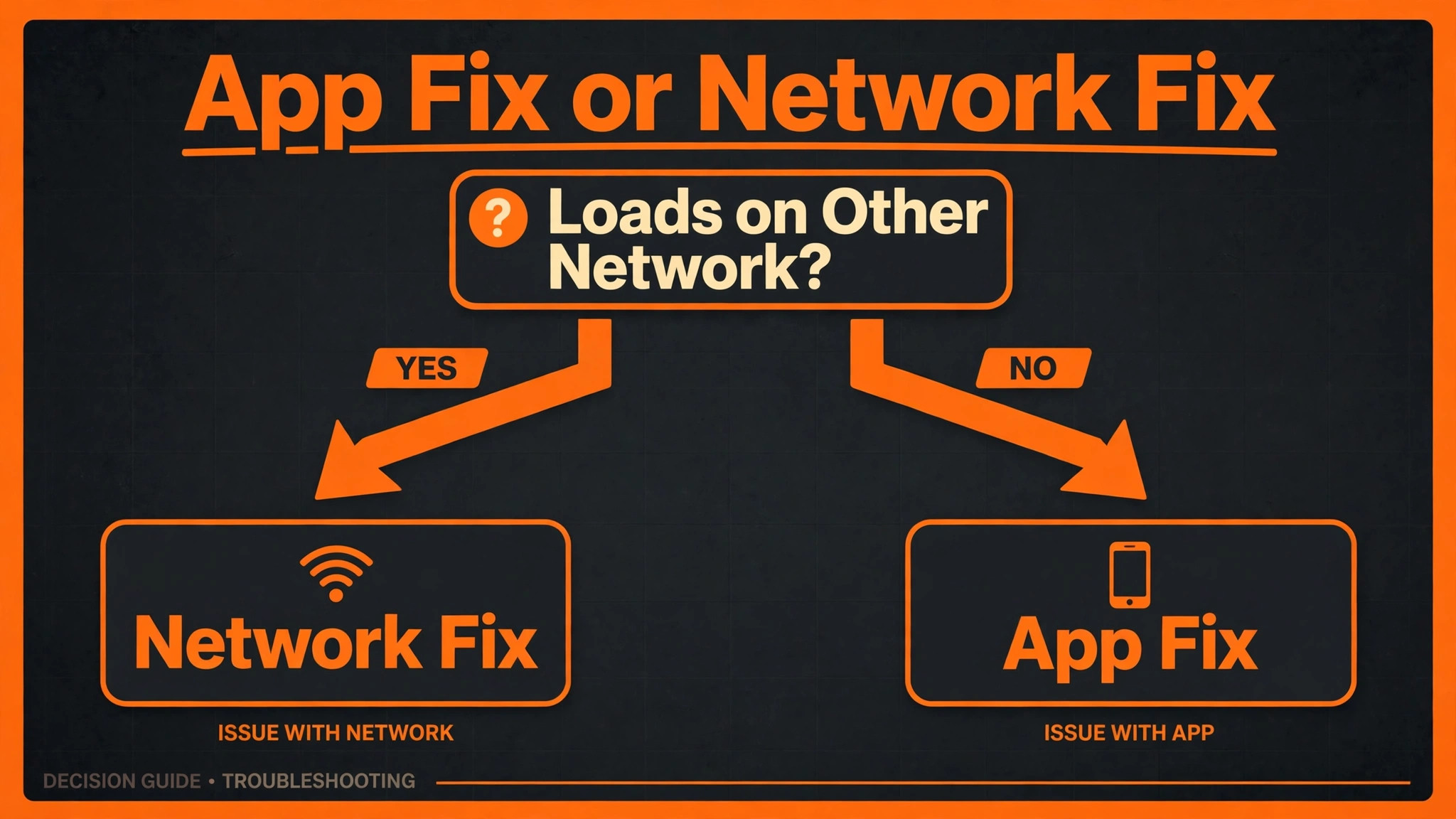
Before you change anything, run three comparisons that take two minutes and locate the fault precisely. First, open a regular long YouTube video and play it. If long videos play smoothly while Shorts spin, the fault is Shorts specific, which points at feed cache, feed requests, or recommendation signals rather than at general playback. If long videos also fail, the fault is general, which points at the network, the app, or the device. Second, switch networks. Turn Wi-Fi off and try Shorts on mobile data, or the reverse. If Shorts load on one network and not the other, the fault is network level, which points at throttling, DNS, a VPN, or a filtered network.
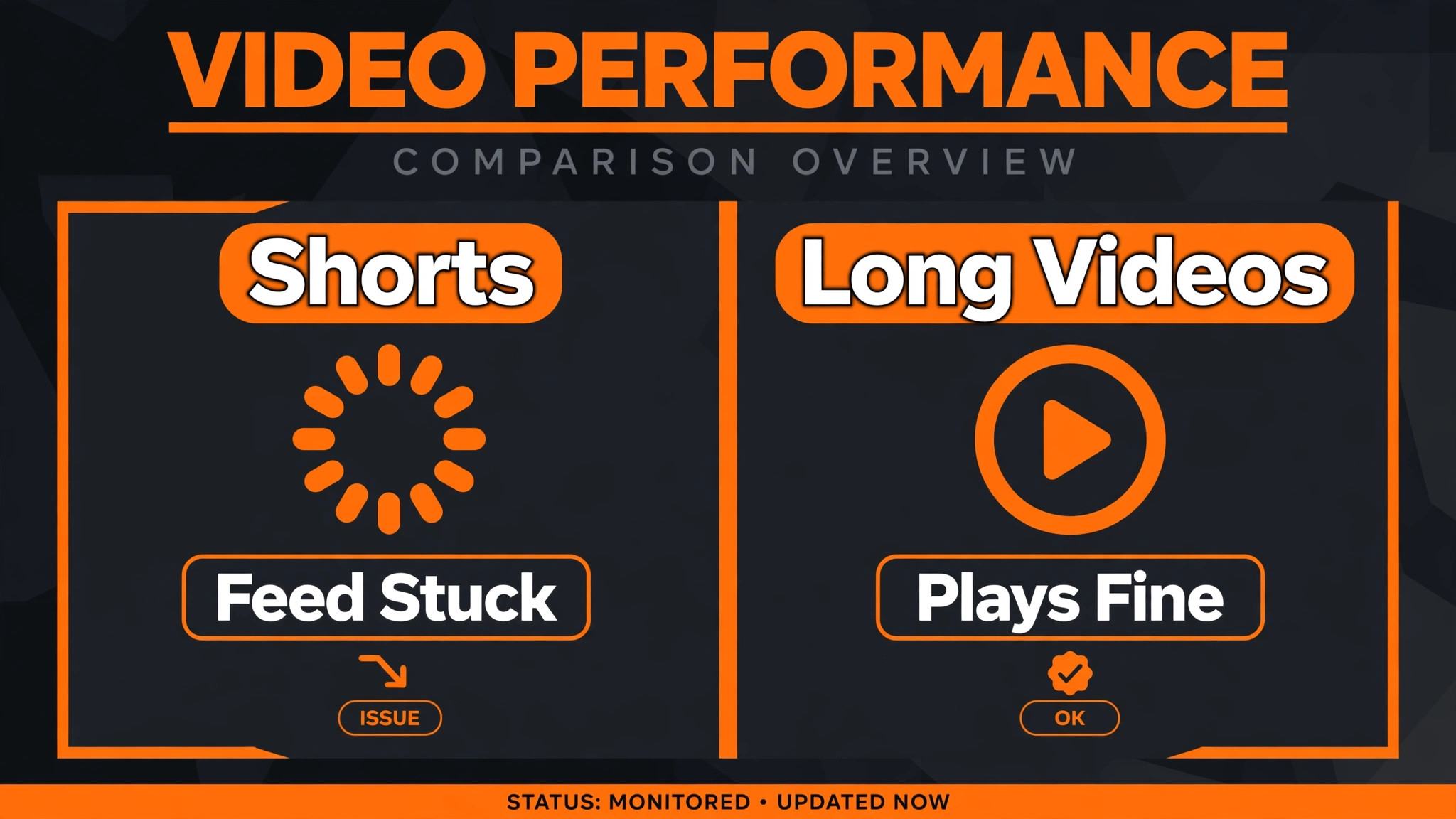
Third, try Shorts on another device or in a browser on the same network. If Shorts load elsewhere, the fault is in the app or the phone. If Shorts fail everywhere on the same network but work on mobile data, the network is the cause, and no app setting will fix it.
Note exactly what failure looks like, because the symptom narrows the cause further. A spinning loader that never resolves points at feed requests failing or a corrupted cache wedge. A blank Shorts shelf with no error points at a feed that returned nothing, which can follow a history setting change or an account sync problem. The same few Shorts repeating endlessly points at a stale feed index that is not refreshing, which is usually cache. Shorts that load but stutter or freeze mid-swipe point at playback or device performance rather than at the feed. Write down your pattern before you proceed, because the table below maps each pattern to its most likely cause.
| What you see in Shorts | Most likely cause | Check this first |
|---|---|---|
| Spinning loader forever | Corrupted feed cache or failing feed requests | Cache clear and network switch |
| Blank Shorts shelf, no error | Feed returned nothing or account sync problem | Restart, history settings, and sign-in check |
| Same Shorts repeating endlessly | Stale feed index not refreshing | Cache clear and feed refresh wait |
| Shorts load on mobile data but not Wi-Fi | Network filtering, DNS, or throttling | VPN off and network switch |
| Shorts fail in app but play in browser | App build or app cache fault | App update and cache clear |
| Shorts stutter or freeze mid-swipe | Device performance or playback fault | Restart, storage, and app update |
| Shorts tab missing entirely | Outdated app or regional availability | App update and account region check |
| Shorts fail after a YouTube update | Bad app build | Roll back updates and wait for patch |
That table is the diagnostic map for this guide. The top rows cover the majority of complaints, and both cache and network deserve attention before reinstallation, because a fresh install on the same network with the same cache behaviour will fail in exactly the same way if the network is the cause.
Why Shorts break while long videos play
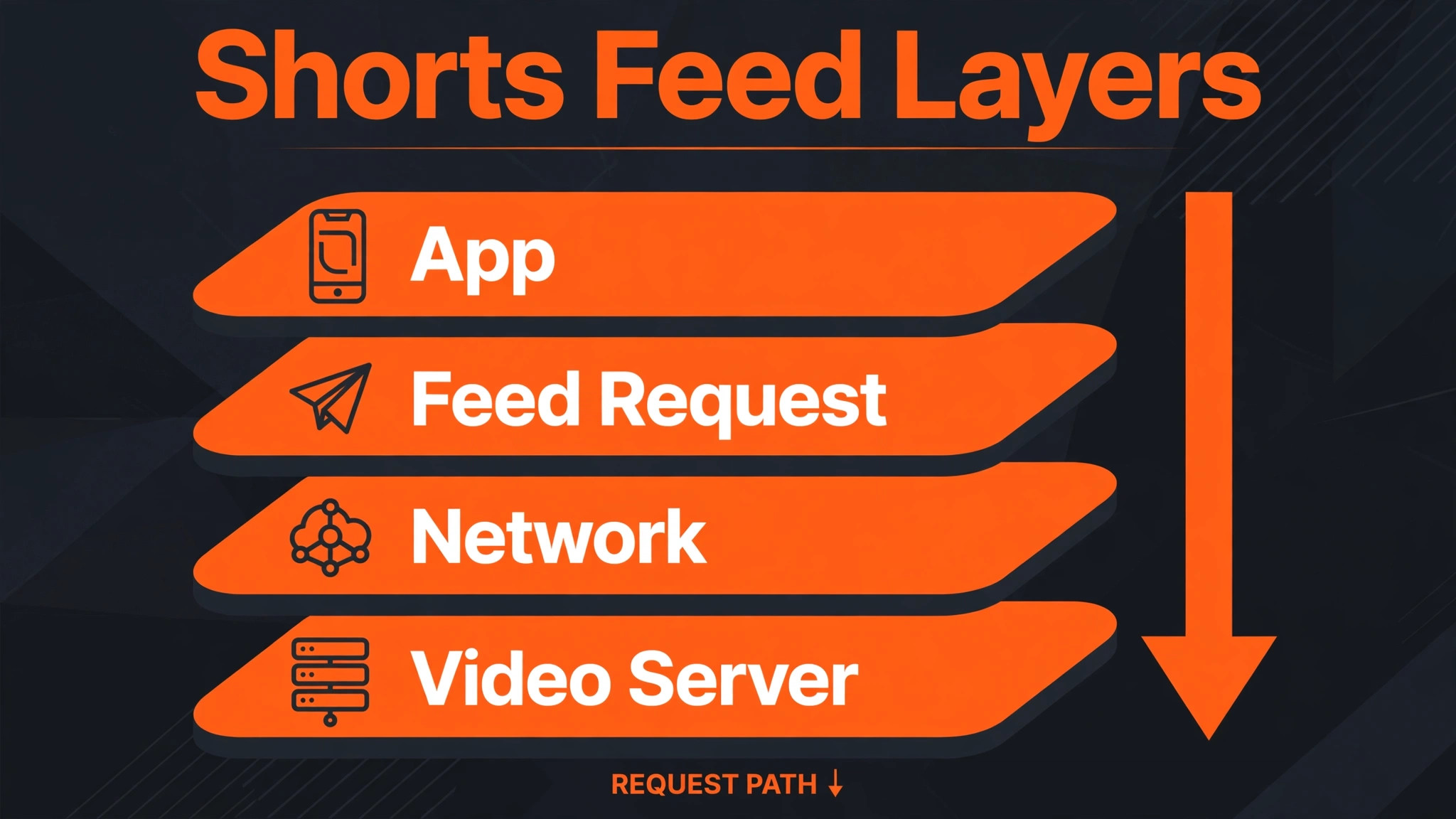
Shorts and long videos travel different paths inside YouTube, and that difference explains the most confusing symptom in this guide. A long video is a single file request that either succeeds or fails, while the Shorts feed is a continuous stream of recommendations that must refresh with every swipe. The feed depends on cached feed indexes, on real time requests that are more sensitive to network instability, and on recommendation signals derived from your watch history. A corrupted feed index can therefore wedge the Shorts tab while long videos, which do not use that index, play normally.
A network that handles large buffered video fine can still drop the small frequent requests the feed needs, producing a spinning Shorts tab on a connection that streams movies without trouble. A watch history setting that pauses history can starve the recommendation engine of fresh signals, leaving the feed stale or empty. Understanding these three dependencies, cache, feed requests, and history signals, turns a mysterious Shorts failure into a tractable checklist, and the fix order below follows those dependencies in turn.
How to Fix YouTube Shorts Not Loading in Order
Work through this checklist from top to bottom and test the Shorts tab after each step, scrolling for at least thirty seconds to give the feed time to rebuild. The order runs from the fastest checks to the deeper app work, and you should stop as soon as Shorts load and refresh normally.
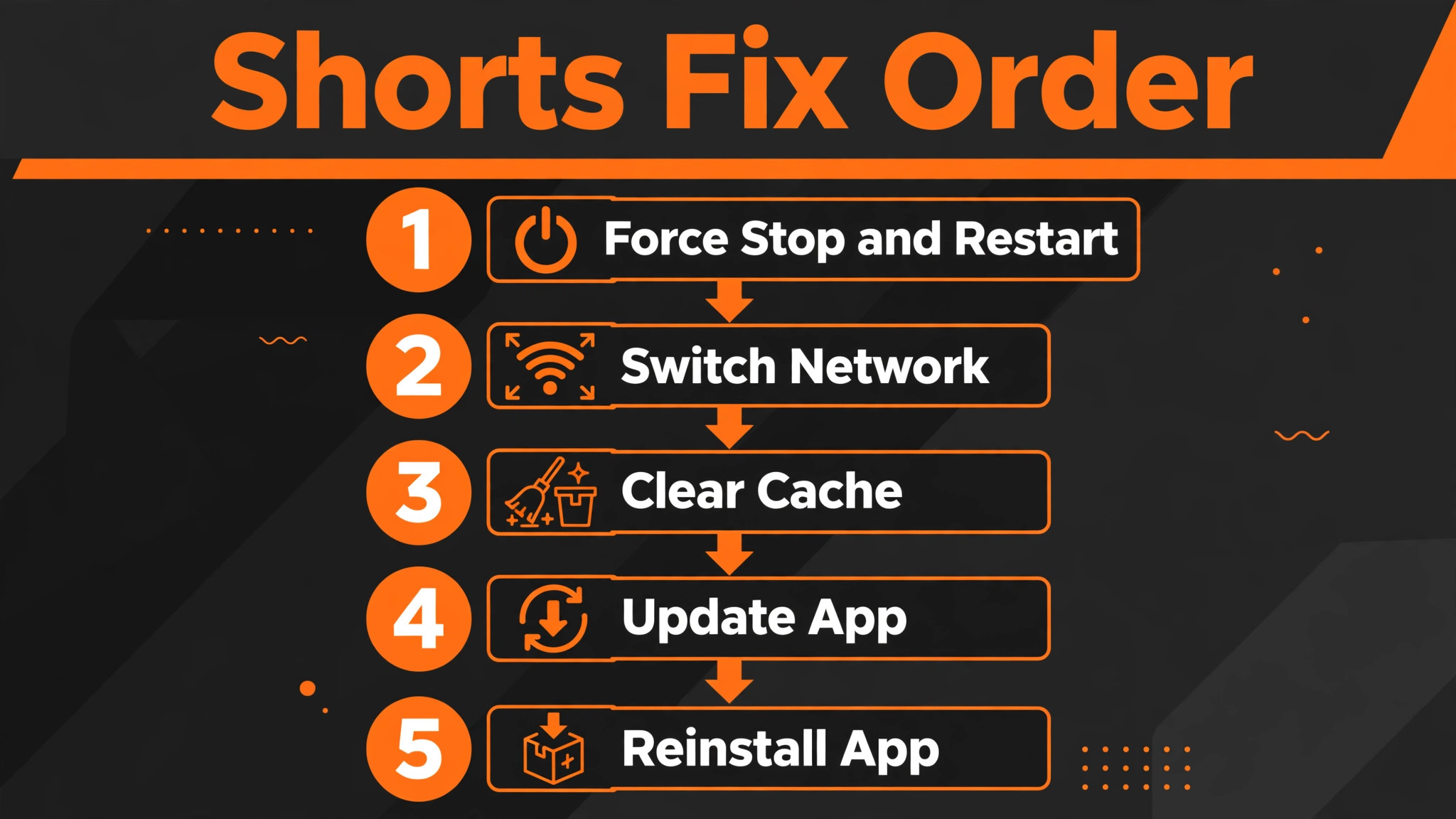
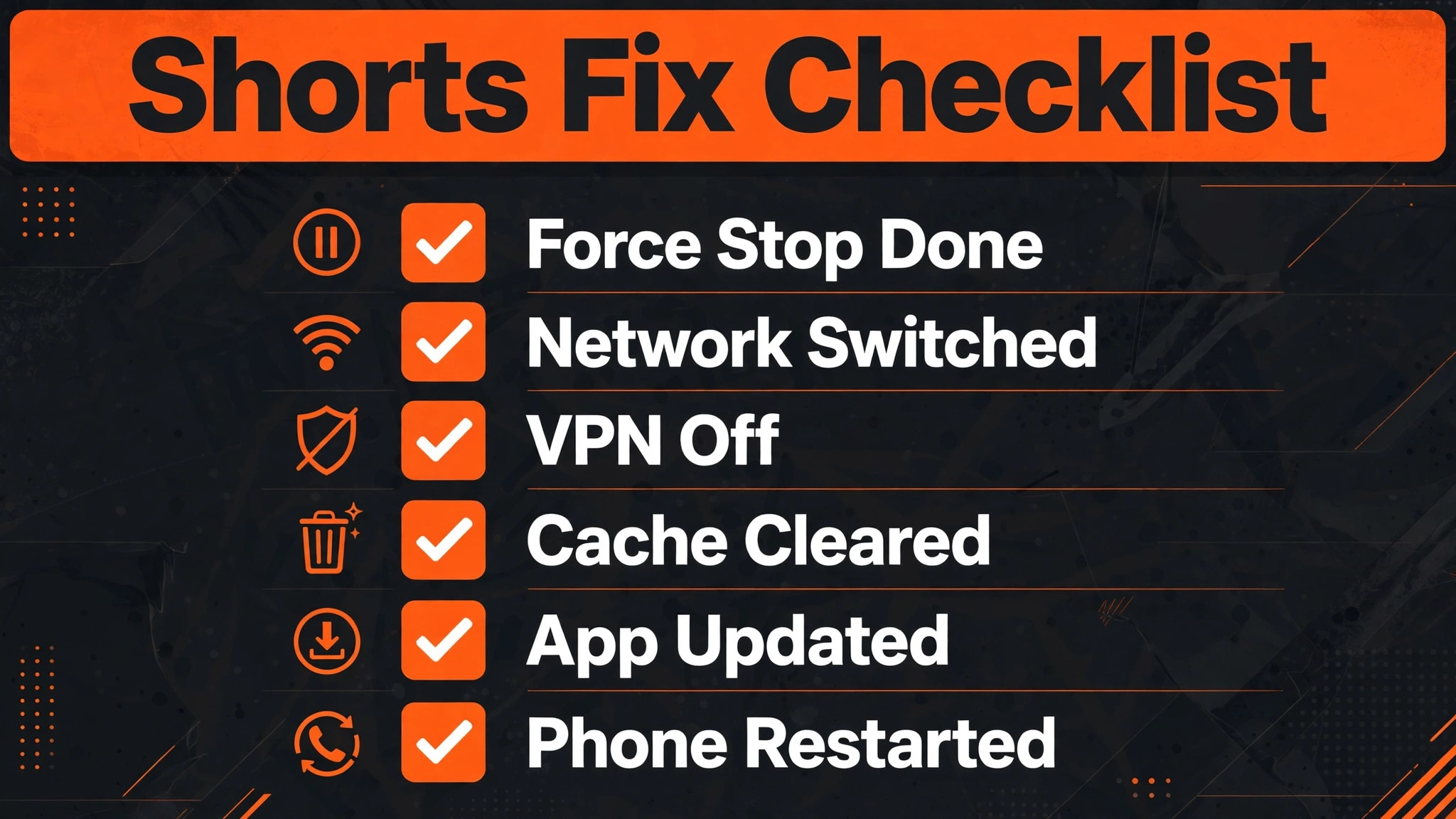
Step 1. Force stop YouTube and restart the phone
Close YouTube completely, removing it from recent apps, and reopen it. This clears a misbehaving background process without deleting any data. If that fails, force stop the app from Settings, then Apps, then YouTube, then Force Stop, and reopen it. If Shorts still spin, restart the phone itself, which clears temporary system errors and stuck network states that affect app performance. Test the Shorts tab after the restart before changing anything else, because a restart alone resolves many transient feed failures, and skipping it leads to cache clears and reinstalls for a fault that a reboot would have ended.
Step 2. Switch networks and turn off VPN, ad blockers, and private DNS
Open Shorts on mobile data if you were on Wi-Fi, or on Wi-Fi if you were on mobile data, and compare. Shorts feed requests are sensitive to network instability, throttling, and DNS behaviour, and mobile data and home Wi-Fi often behave differently for feed delivery. Turn off any VPN, because a VPN routing feed requests through a distant or congested server can stall the feed while ordinary browsing feels fine. Turn off ad blockers and private DNS settings as a test, because both can interfere with the domains YouTube uses for feed delivery. Avoid public or corporate networks with content filtering for this test, since filtered networks can block feed requests while allowing regular video.
If Shorts appear on one network but not another, the issue is network level, not your account or the app, and the fix is a different network, a router restart, or a DNS change, not a reinstall.
Step 3. Clear the YouTube app cache on Android
When a restart does not fix it, the cache is the most common culprit. YouTube caches feed data, thumbnails, and playback state aggressively, and a corrupted entry from an interrupted load, an update, or a storage hiccup can wedge the Shorts tab while everything else works. On Android, long press the YouTube icon, open App Info, then Storage and Cache, and tap Clear Cache. Do not tap Clear Data here, because that signs you out and wipes local settings, and it is a later resort, not this one. Reopen YouTube, open the Shorts tab, and wait for the feed to rebuild fresh.
Clearing cache deletes no subscriptions, history, or downloads, because those live in your account, not in the local cache. What it deletes is locally stored feed data, which the app simply re-downloads. If the feed loads after this step, stale cache was the killer, and it is the fix that resolves the most stubborn spinning loaders.
Step 4. Update YouTube or roll back a bad update
Shorts is updated more often than any other part of YouTube, and an app update in the store may already contain the fix for exactly your feed failure. Open the Play Store or App Store, search for YouTube, and install any pending update. After updating, clear the cache once more so the new build starts from clean data, then restart the phone and test. If the store shows no update but Shorts broke right after a YouTube update, the new build itself may be at fault. On Android, you can uninstall YouTube updates from App Info to return to the factory version as a diagnostic, then update again when the next patch lands.
Rolling back is proof, not a permanent home, because the factory build lacks current features, so treat it as a test that confirms a bad build rather than a solution to live with. Also check for a system update while you are here, because an old system WebView or media component can break video playback across apps, not just in YouTube.
Step 5. Check watch history, date and time, and storage
Shorts recommendations depend on watch history signals, and a paused history or a cleared history can leave the feed stale or empty. Open YouTube settings, check your history settings, and confirm watch history is on if you want personalised Shorts. If history was paused, turning it back on and watching a few Shorts will gradually refresh the feed, though it may take some time for recommendations to rebuild. Check the phone’s date and time settings and turn on automatic date and time, because incorrect time can break authentication and feed requests. Check free storage too, because a nearly full phone cannot cache feed data properly, and freeing space can restore normal feed behaviour.
These three checks are easy to overlook because they live outside the Shorts tab itself, yet each one can starve or break the feed while long videos continue to play.
Step 6. Clear data or offload and reinstall the app
If cache, network, update, and history checks have all failed, the stronger app step is next. On Android, open App Info, then Storage, and tap Clear Data, understanding that you will need to sign in again and reset preferences, though your channel and subscriptions remain safe in your account. On iPhone there is no per-app cache clear, so the equivalent is to delete YouTube, restart the phone, and reinstall from the App Store, which removes corrupted feed files while preserving account data after sign-in. After reinstalling, sign in, open the Shorts tab, and scroll for at least thirty seconds to let the feed rebuild. If Shorts load after this step, corrupted app data was the cause.
If they still fail on a clean install, on multiple networks, and on another device, the fault is account level or service level, and waiting for a YouTube fix or contacting support is the honest next step.
Shorts on TV, Browser, and Other Devices
Shorts failures are not limited to phones, and the fix changes with the device. On a smart TV, Shorts problems usually trace to the TV app cache, an outdated TV app, or the TV’s network connection, and the fixes are to restart the TV fully, check for a TV app update, and test on another device on the same network. On a desktop browser, Shorts failures usually trace to browser cache, extensions, or a browser profile problem, and the fixes mirror the Chrome video checklist, including clearing browser cache and cookies for YouTube, testing in an incognito window, and disabling extensions that interfere with media.

On a tablet, the phone steps apply directly, with the Android cache clear or the iPhone delete and reinstall as the equivalents. The cross-device test remains the most valuable step on every platform. If Shorts fail on the TV but play on the phone on the same network, the TV app is the suspect. If Shorts fail everywhere on one network but play on mobile data, the network is the suspect. If Shorts fail everywhere on every network for one account but play for another account, the account is the suspect, and history settings, region availability, and account standing deserve a look.
Region and age settings deserve a note here, because Shorts availability varies and some accounts face restrictions that long videos do not. A Shorts tab that is missing entirely, rather than spinning, can mean the app is outdated, the account region does not support Shorts fully, or a supervised account has Shorts restricted. Update the app first, confirm the account region and age settings are correct, and test with another account on the same device if possible. A tab that appears for one account and not another on the same phone is an account difference, not a phone fault, and no phone setting will create a tab that the account does not have.
Similarly, a creator whose own Shorts do not appear in the feed should check upload format, tagging, and content policies, because feed distribution for a creator’s own videos follows different rules from playback of other people’s Shorts, and a playback guide cannot fix a distribution issue.
The feed refresh wait that owners skip
One of the most common reasons a fix appears to fail is impatience. After clearing cache, updating, or reinstalling, the Shorts feed needs time to rebuild its index, fetch fresh recommendations, and cache thumbnails, and opening the tab for three seconds and declaring failure misses that rebuild. After any cache or reinstall step, open the Shorts tab, wait, scroll slowly, and give the feed at least thirty seconds, and preferably a minute, before judging. Do the same after turning watch history back on, because recommendations rebuild gradually as you watch, not instantly.
A feed that starts with a few repeated clips and gradually diversifies over a session is rebuilding normally, while a feed that stays blank or spinning after several minutes on a good network has a genuine fault. Patience is not a substitute for a fix, but it is a necessary part of testing one, and many owners repeat cache clears and reinstalls unnecessarily because they never waited long enough for the first fix to work.
Shorts Audio, Comments, and Engagement Features That Fail Differently
Not every Shorts complaint is a loading failure, and treating every symptom as a feed problem leads to the wrong fix. Shorts that load and play video but have no sound usually suffer a media volume, mute, or Bluetooth routing problem rather than a feed problem, so raise media volume during playback, check whether the player itself is muted, and turn Bluetooth off as a test before clearing cache. Shorts whose comments will not load while the video plays point at a different data path, and the fix is usually a network switch or a cache clear, because comments load separately from the video stream.
Shorts that cannot be liked, shared, or saved while playback works point at an account sign-in problem or a temporary action limit, so confirm you are signed into the correct account and check for any in-app notice about limits. Shorts that play without captions where captions are expected point at a caption setting on the video or the app, not at the feed, and toggling captions in the player settings resolves it.
Engagement features also depend on account standing in ways playback does not. An account with a temporary restriction may watch Shorts normally while being unable to comment or like, and that selective failure looks like a broken app until the restriction is understood. Check for any notice in the app about account status, and test liking and commenting from another account on the same device to separate an account limit from an app fault. Age restricted Shorts add another layer. A Short that requires sign-in or age verification will not play fully for a signed-out viewer, and the fix is to sign in with an eligible account rather than to troubleshoot the feed.
Similarly, a Short removed by its creator or by YouTube for a policy reason will fail for everyone, and no device setting restores it. The discipline here mirrors the rest of this guide. Match the symptom to the layer, sound to audio routing, comments to their own data path, engagement to account standing, and missing videos to availability, before applying the feed fixes.
Owners who know how to fix YouTube Shorts not loading in the feed sense should still check these adjacent layers when the failure is partial rather than total, because a video that loads but cannot be heard, commented on, or liked has a different fault from a feed that will not load at all, and the fix belongs to that fault.
Mistakes People Make When They Try to Fix YouTube Shorts Not Loading
The most common mistake when you try to fix YouTube Shorts not loading is to tap Clear Data before Clear Cache, signing yourself out and wiping local settings for a problem that a cache clear would have solved. The second mistake is to reinstall on the same filtered network and conclude the app is broken, when the network was blocking feed requests all along and the cross-network test would have shown it. The third mistake is to judge a fix after three seconds, before the feed has rebuilt, and to stack another fix on top of a fix that was already working.
The fourth mistake is to ignore watch history settings, because a paused history starves the recommendation engine and leaves the feed stale in a way that no cache clear can fix. The fifth mistake is to assume a bad app build is permanent, when rolling back as a diagnostic and waiting for the next patch is the correct response to a build that broke Shorts overnight. Work the order, switch networks as a test, clear cache before data, and wait for the feed to rebuild. Learning how to fix YouTube Shorts not loading properly is mostly learning that the feed has layers, and that cache, network, and history must each be tested before the app is blamed.
A Routine That Keeps the Shorts Feed Healthy
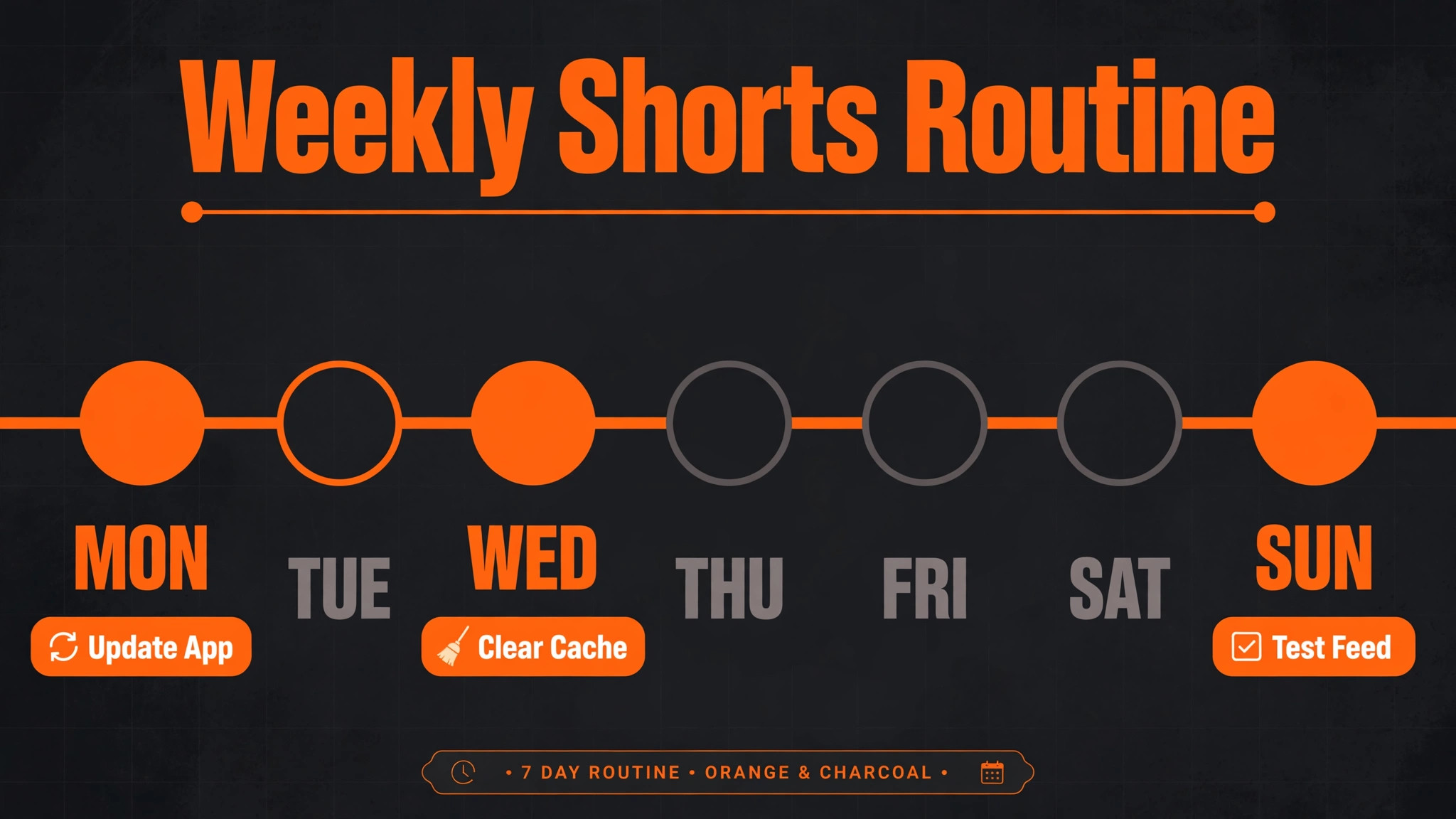
Feed health is mostly app and network hygiene. Keep YouTube updated, because Shorts changes arrive constantly and an outdated build falls behind the feed format. Clear the app cache occasionally, especially after an interrupted load or a failed update, before the corruption wedges the feed. Keep watch history on if you want personalised recommendations, and keep free storage above a comfortable margin so feed data can cache properly. Keep the phone’s date and time automatic, and avoid VPNs and aggressive ad blockers while watching Shorts, since both can interfere with feed requests. Restart the phone weekly, which clears the transient states that accumulate into feed failures.
Finally, keep a second network ready as a test, whether mobile data or another Wi-Fi network, so a feed failure can be split into network versus app in seconds. If Shorts fail after a long trip or a network change, retest on your home network first, since travel networks and hotel Wi-Fi often filter feed traffic in ways home networks do not. These habits cost minutes and prevent the stale cache, starved history, and filtered network combination that causes most Shorts complaints.
More Reading on Stratilyze
Shorts feed faults usually sit in the app, the connection or the account, so readers whose feed will not load usually test the neighbouring YouTube faults next. The guide to a YouTube app that keeps crashing on Android covers the install and storage checks on the same phone that also break the feed, the guide to YouTube videos buffering on a slow connection explains the network side when videos stall on a slow connection instead of loading, and the guide to YouTube comments that will not load gives the same feed-diagnosis pattern applied to the part of the app that fails second most often.
Frequently Asked Questions
Why do YouTube Shorts spin forever while long videos play fine?
Shorts depend on a real time recommendation feed, cached feed data, and history signals, while long videos are single file requests. A corrupted feed cache, a network path that drops small frequent feed requests, or a paused watch history can break Shorts while long videos play normally. Clear the app cache, switch networks as a test, and check watch history settings, in that order, and give the feed thirty seconds to rebuild after each step.
Should I clear YouTube cache or data to fix Shorts?
Clear cache first. On Android, App Info, then Storage and Cache, then Clear Cache removes temporary feed data without signing you out or deleting subscriptions, history, or downloads. Clear Data is stronger and signs you out, so reserve it for cases where cache, network, update, and history checks have all failed. On iPhone there is no per-app cache clear, so deleting and reinstalling the app is the equivalent of a cache clear.
Why do Shorts load on mobile data but not on Wi-Fi?
This pattern points at the Wi-Fi network, not the app. The network may throttle video, filter feed domains, use a DNS setting that breaks feed requests, or suffer instability that drops small frequent requests. Restart the router, turn off any VPN or private DNS, and test on another Wi-Fi network. If Shorts play on mobile data and on another Wi-Fi network, your home network is the cause, and the fix belongs to the router or provider.
Can a YouTube update break Shorts?
Yes. Shorts is updated frequently, and a bad build can break the feed overnight for many users at once. If Shorts broke immediately after an update, check for a newer update that patches it, and on Android roll back updates as a diagnostic to confirm the build is at fault. Rolling back is proof, not a permanent solution, so update again when the next patch lands rather than living on the factory build.
Why does my Shorts feed show the same videos repeatedly?
A stale feed index that is not refreshing is the usual cause, often from a corrupted cache or a paused watch history that starves recommendations of fresh signals. Clear the cache, confirm watch history is on, watch a few Shorts to generate fresh signals, and give the feed time to rebuild. If the repetition persists on a clean install with history on and a good network, the recommendation engine may need time, and engaging with different topics will diversify the feed gradually.
Is Shorts not loading a problem with my account?
It can be, but it is less common than cache or network causes. If Shorts fail on every device and every network for one account but play for another account on the same device, check history settings, region and age settings, and account standing. If you need to fix YouTube Shorts not loading that survives a clean reinstall on multiple networks, the fault is likely account level or service level, and waiting for a YouTube fix or contacting support is the honest next step.
The Final Word on a Shorts Feed That Will Not Load
A Shorts feed that will not load is a feed with a broken layer, and the layers are few. Cache, network, history, app build, and account, tested in that order, cover nearly every case. Start with the three way test, long videos versus Shorts, Wi-Fi versus mobile data, and one device versus another, and let those comparisons name the layer before you change anything. Clear cache before data, switch networks before reinstalling, and wait for the feed to rebuild before judging a fix. Do that, and the next time you need to fix YouTube Shorts not loading, you will find the broken layer in minutes and the feed will be scrolling again before the frustration has time to settle.
Keep this checklist saved for the next spinning feed you meet. It will save you an evening.