
To fix YouTube comments not loading, start with the test that saves the most time. Open the same video in a private or incognito window, or on a second device, and look at the comment section. If comments load there, your account and the video are fine, and the problem lives in your browser profile or your app data. If comments fail everywhere, the problem is the video itself, your account setting, or a wider YouTube outage, and no amount of cache clearing on one device will change it. That single comparison is the verdict for most cases, and it is where this guide begins.
If you want to fix YouTube comments not loading, work from that test outward, and stop at the step that brings comments back.
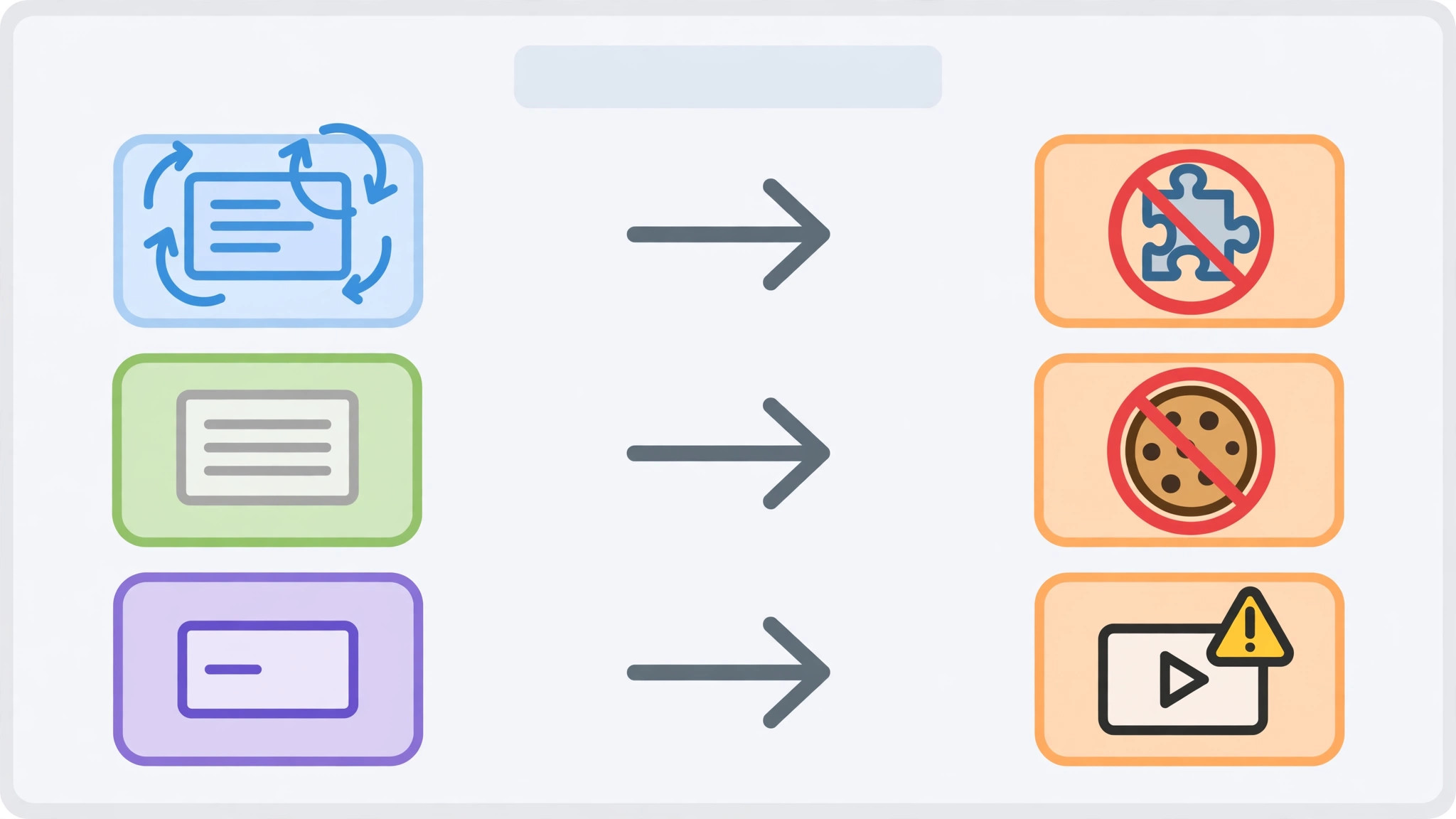
Comments fail for a surprisingly small set of reasons, and they cluster into four groups. The video or channel may have comments turned off, or the video may be marked as made for kids, in which case comments are disabled by design and no viewer fix exists. The browser or app may be holding stale cache, a broken cookie, or an extension that blocks the comment loader. The account may have Restricted Mode on, or a session fault that a sign out and sign in clears. Finally, the network or YouTube itself may be at fault, which looks like a device problem but is not.
This guide separates those groups cleanly, so you do not waste an hour clearing data for a video that simply has comments disabled.
Why Comments Load Separately From the Video
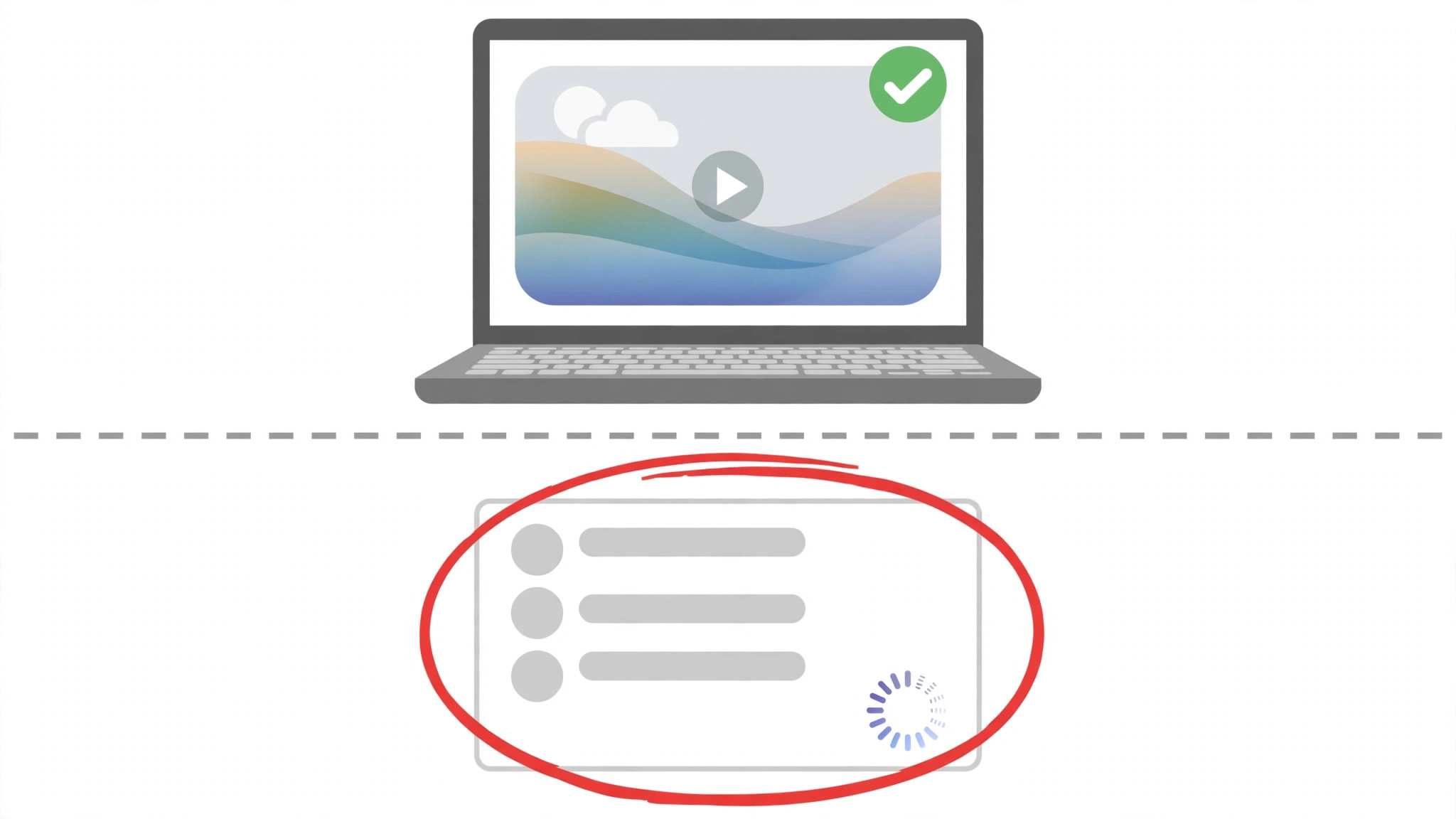
YouTube loads the video player and the comment section through different parts of the page, which is why a video can play perfectly while comments spin forever. The video stream is a large media file served from a content network, while comments are a live feed that must check your account, the video settings, moderation filters, and sorting preferences before it renders. A weak connection that handles video can still fail to finish the comment request, especially on a slow or congested network where the player gets priority.
Extensions add a second layer. Ad blockers and privacy tools sometimes treat the comment loader as a tracker or an analytics request and block it, which leaves a blank space or an endless spinner where comments should be. The video still plays because the player request is not blocked, so the failure looks strange until you test with extensions off. Browser cache adds a third layer. An old cached script for the comment section can conflict with the current YouTube code, and the page will keep serving the stale version until the cache is cleared or a private window bypasses it.
On mobile, the same split exists inside the app. The app keeps its own cache, separate from the browser, and a corrupted app cache can break comments while the browser version works fine. That is why the first test matters so much. Comments working in one place and failing in another tells you exactly which cache, extension set, or app install to repair, instead of sending you through every fix on every device.
First Check the Video and the Account
Before you clear anything, rule out the cases no fix can change. Scroll to the bottom of the comment area on desktop, or look below the video on mobile, and read what the page actually says. A message that comments are turned off, or a comment section that is simply absent, means the creator disabled comments for that video or channel. Videos marked as made for kids also have comments disabled, and that is a platform rule, not a bug. If every video on one channel shows the same result, the channel has likely disabled comments across its content.
Next, test a second video from a different creator, preferably a popular video with thousands of comments. If comments load on the second video but not the first, the first video is the cause, and you can stop troubleshooting your device. If comments fail on every video, keep going, because the problem is on your side or with YouTube itself.
Then check Restricted Mode. Restricted Mode filters content and can hide comments across many videos without showing a warning. On desktop, open your profile menu and look for Restricted Mode at the bottom. On mobile, open the app settings under General and check the same option. Turn it off, reload the video, and test again. Also check whether you are signed in. You do not need an account to read most comments, but a broken sign in session can still break the comment feed, so a sign out and sign in test belongs early in the list, not at the end.

Fix YouTube Comments Not Loading in Order
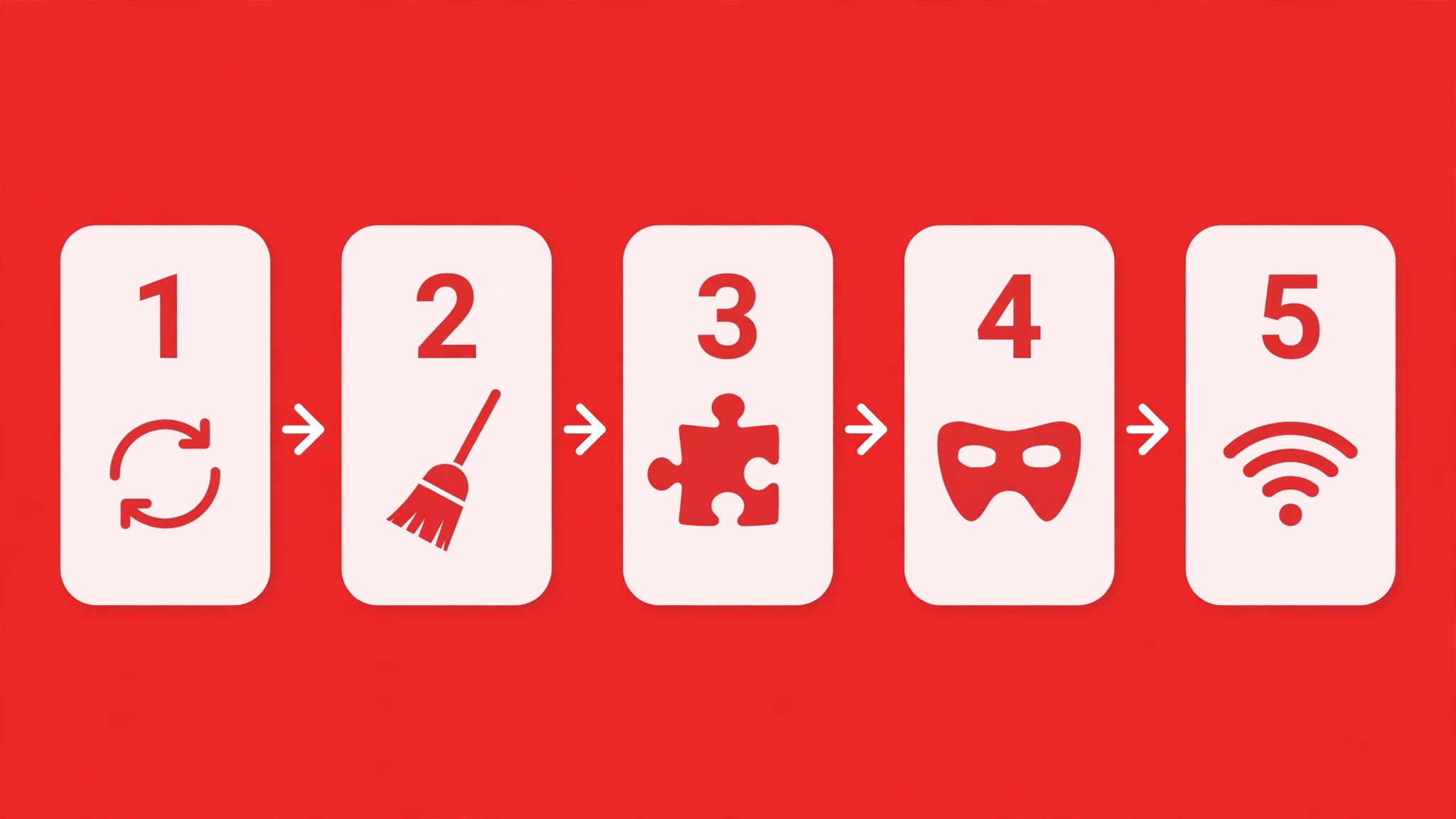
Follow this list top to bottom, and test comments after each step on the same video. Stop as soon as comments appear.
- Test the video in a private window and on a second device to separate a video problem from a device problem.
- Reload the page, force a hard refresh, and restart the app or browser completely.
- Check the comment area for a disabled message and test a second video from another creator.
- Turn Restricted Mode off and sign out of YouTube, then sign back in.
- Open a private window to test with extensions off. If comments load there, disable extensions one by one in the normal window.
- Clear browser cache and cookies for all time, or clear the YouTube app cache on Android.
- Update the YouTube app or the browser to the latest version, then restart the device.
- Switch networks, for example from Wi-Fi to mobile data, to rule out a network or DNS problem.
- On iPhone, where there is no per app cache button, delete the YouTube app and reinstall it.
- Check a status site or a second network for a YouTube outage, and wait if the outage is confirmed.
The order protects your sign in state and your preferences. Early steps are reversible and fast. Cache clearing and reinstalling come later because they sign you out of sites or reset app preferences, and doing them first for a video with comments disabled would have been wasted effort.
Cache clearing only helps if you clear the right data for the right range. In Chrome and other Chromium browsers, open Settings, go to Privacy and security, choose Delete browsing data, select cookies and cached images and files, and set the time range to all time. Clearing only the last hour will not remove an older cached comment script, and clearing only cached images will not remove a bad cookie. After clearing, close the browser completely and reopen it, then load the video again. A reload without a restart sometimes keeps the old page state alive in memory.
Firefox follows the same pattern through Settings, then Privacy and Security, then Cookies and Site Data, where Clear Data removes both cookies and cached web content. Safari users should clear website data for YouTube specifically where possible, or clear history and website data more broadly, knowing that this signs you out of other sites too. That sign out cost is why cache clearing sits in the middle of the list, not at the top. It is effective, but it is not free.
A narrower option exists in Chrome and Edge. Under site settings, you can view all site data, search for YouTube, and remove only YouTube entries. This keeps your other sign ins intact while forcing YouTube to reload fresh data. Try the narrow option first if you have many signed in sites you do not want to disturb. If comments still fail after a narrow clear, do the full all time clear, because a cookie from a related Google domain can also be part of the fault.
On Android, clear the app cache without clearing app data first. Open Settings, go to Apps, select YouTube, tap Storage and cache, and tap Clear cache. This removes temporary files while keeping your sign in and preferences. Clear storage or clear data is a bigger step that signs you out and resets the app, so use it only after a cache clear has failed. On iPhone, iOS offers no per app cache button for YouTube, so the equivalent step is to delete the app and reinstall it from the App Store, which clears all local app data in one move.

Extensions, Ad Blockers, and Private Windows
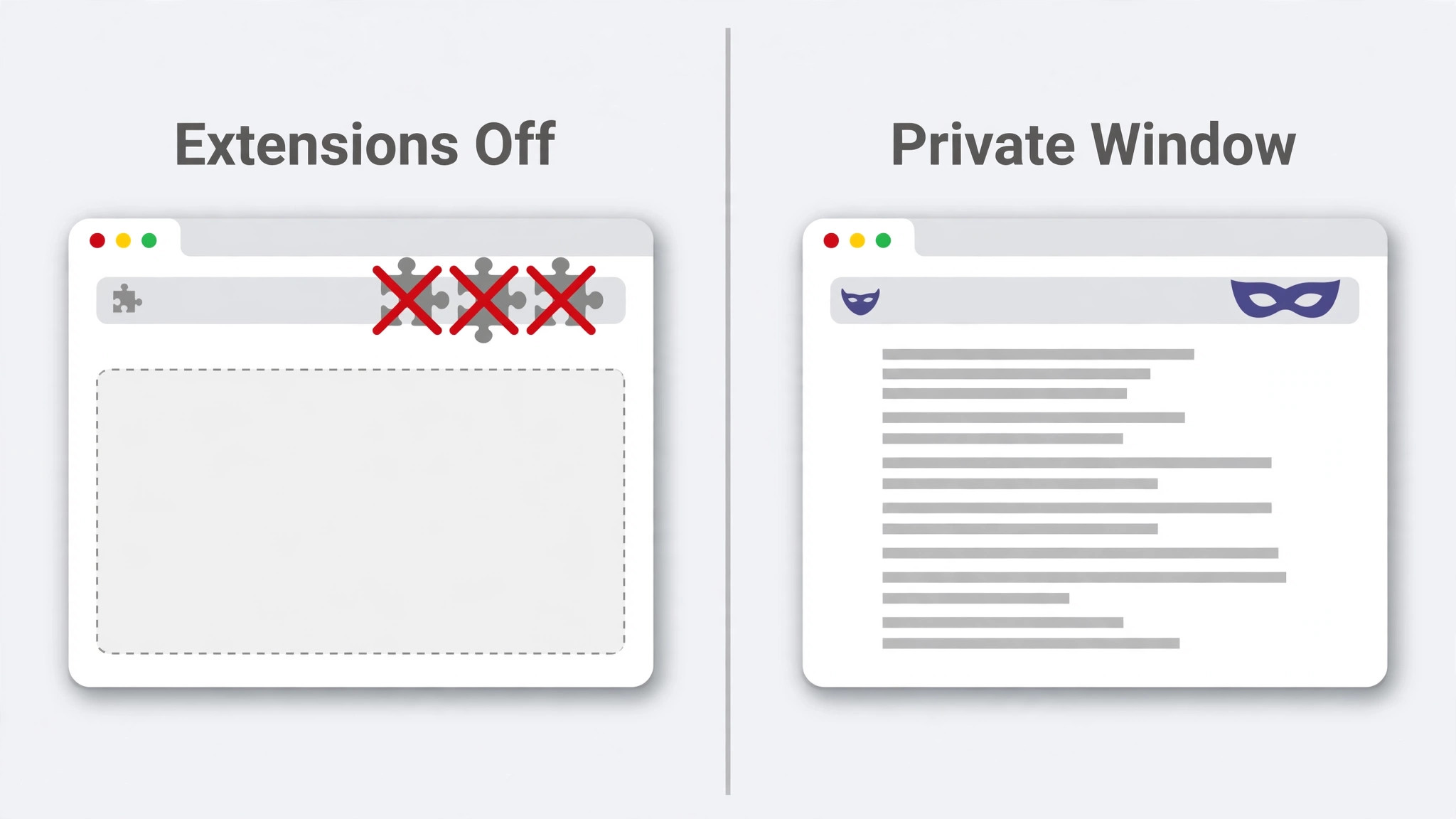
Extensions are the most common browser cause, and the private window test proves it in seconds. A private window loads YouTube without your usual extensions and without your normal cookies, so comments loading in private mode point directly at an extension or a cookie in the normal profile. Do not skip this test, because it turns a vague suspicion into a proven cause.
If private mode works, return to the normal window and disable all extensions, then reload the video. If comments return, re-enable extensions one at a time, reloading the video after each one, until comments break again. Ad blockers, privacy blockers, and script blockers are the usual suspects, and some filter lists now flag the comment request itself. When you find the culprit, add YouTube to that extension allow list rather than removing the extension entirely, unless you prefer to browse without it.
Also check for multiple blockers running at once. Two ad blockers, or an ad blocker plus a privacy extension, can interact in ways neither does alone, and the comment loader is sensitive to that interaction. Keep one blocker, configure its YouTube exception, and test again. Browser features such as enhanced tracking protection in Firefox can also interfere, so test with that protection relaxed for YouTube if comments fail only in Firefox and work in another browser.
App, Browser, and Network Fixes That Actually Help
An outdated app or browser is a real cause, not a generic suggestion. YouTube changes its comment code frequently, and an old app version can stop matching the current server behaviour. On Android, open the Play Store, check for a YouTube update, install it, and restart the phone. On iPhone, open the App Store the same way. On desktop, update the browser through its help or about menu, then close and reopen it before testing. An update that is downloaded but never applied because the browser stayed open will not fix anything.
Network problems need a clean test too. Switch from Wi-Fi to mobile data, or from mobile data to Wi-Fi, and load the same video. If comments load on the second network, the first network, its DNS, or a content filter on that network is interfering. School, work, and public Wi-Fi networks sometimes filter YouTube features, and a VPN can add the same effect by routing comment requests through a filtered or slow path. Turn the VPN off temporarily and test again. If comments return, the VPN route or its filter was the cause, and switching VPN servers or leaving it off for YouTube is the practical answer.
Device restarts belong in this group as well. A phone or computer that has been running for weeks can hold stale network state and app state that no single app restart clears. Restart the device after an app update or a cache clear if comments still fail, because the restart clears both at once. It is a dull step, and it is also the step that ends a surprising number of stubborn cases.
Symptom Guide for Comment Failures
| What you see | Most likely cause | First move |
|---|---|---|
| Comments off message or no comment section | Creator disabled comments or video is made for kids | Test another creator video, no device fix exists |
| Spinner that never finishes | Stale cache, blocked loader, or weak network | Private window test, then cache clear |
| Comments load in private mode only | Extension or cookie in normal profile | Disable extensions one by one |
| Comments fail on one network only | Network filter, DNS, or VPN route | Switch networks and turn VPN off |
| Comments fail in app but work in browser | Corrupted app cache or outdated app | Clear app cache or reinstall on iPhone |
| Comments fail everywhere on every video | Account setting, outage, or session fault | Restricted Mode check, sign out and in, outage check |
Use the table before you repeat steps. A spinner and a disabled message are different problems with different fixes, and treating a disabled video as a cache problem will waste the whole session. Note the exact symptom, run the matching first move, and only then move down the main checklist.
Mistakes That Waste Time on Comment Problems
The first mistake is clearing everything before testing. A full cache clear, a data clear, and a reinstall in one go destroy the evidence that would have told you which one was needed, and they sign you out of sites and reset preferences for no benefit if the video had comments disabled. Test first, change one thing, test again. That discipline is slower per step and far faster overall.
The second mistake is assuming the problem is YouTube when it is one video. Comment sections are controlled per video and per channel, and a creator can disable them, hold comments for review, or limit who can comment. If a video you care about has comments off, the only route is to contact the creator or watch for a change in settings. No browser setting overrides a creator choice, and extensions that claim to restore disabled comments should be treated with suspicion, since they cannot create comments that the platform has turned off.
The third mistake is leaving a blocker exception half done. Adding YouTube to one blocker while a second blocker still runs, or allowing the main YouTube domain while a related Google domain stays blocked, leaves the comment loader broken and makes the blocker look innocent. Check every blocker, every privacy tool, and the browser tracking protection setting together, and test after each change so you know which one mattered.
The fourth mistake is testing with the wrong video. If you test your fix on a video that has comments disabled, every fix will appear to fail. Keep one known good video bookmarked, a popular video with an active comment section, and use it as your test video for every step. A fix is only proven when that test video shows comments again.

Keep Comments Loading After the Fix
Prevention here is mostly about keeping the browser and app current and the extension list short. Update the YouTube app and the browser when updates appear, rather than letting versions drift for months, because comment code changes often and old versions fall behind silently. Review extensions every few months and remove ones you no longer use, since each extension is a potential point of interference with a page as complex as YouTube.
Keep a private window test in your pocket for the next failure. It takes ten seconds and immediately tells you whether to look at extensions and cookies or to look at the video, the account, and the network. Teach yourself that test once, and most future comment problems become a five minute job instead of an evening of random clearing.
If you use YouTube on a managed network, such as a school or work connection, accept that some filtering may be outside your control. In that case, the practical answer is to watch comments on a personal network or device, rather than fighting a filter you cannot change. Note the network where the problem appears, so you do not chase a device fix for a network rule.
When to Report the Problem to YouTube
Report the problem when comments fail on every video, on every device, and on every network, after you have cleared cache, updated everything, and signed out and back in. That pattern points at an account fault or a platform fault, and only YouTube can see the account side. Use the feedback or help route inside the app or on the YouTube help pages, and include the device, the app or browser version, the network you tested on, and whether private mode changed anything. A report with those facts is far more useful than a report that says comments do not work.
Also check a status site before reporting, since a widespread outage produces exactly the same symptom on every device and no local fix will help. If a status site shows a YouTube problem, wait and test again later, rather than reinstalling apps and clearing data during an outage. The outage test is free, and it prevents a lot of unnecessary disruption.
Comments on Smart TVs, Consoles, and Streaming Devices
Television apps behave differently from phone and desktop apps, and comment failures there have their own pattern. On a smart TV, the YouTube app is often an older build that updates through the TV store rather than the phone store, and the TV may hold app data for months without a restart. If comments fail on the TV but work on your phone, the TV app is the prime suspect, not your account. The first move is to force close the YouTube app on the TV, restart the TV fully rather than putting it to sleep, and test the same video again. A full restart clears temporary TV app state that a sleep cycle preserves.
If a restart does not help, check the TV app version in the TV app store and install any update, then sign out of YouTube on the TV and sign back in. Signing out on a TV is slower than on a phone because it usually needs a code on a second device, but it is worth doing, since a stale TV session can break comments while the phone session works perfectly. Also check the TV network connection.
A TV on a weak Wi-Fi signal at the far end of a house may play video from a buffer while failing to load the live comment feed, and moving the TV to a wired connection or closer to the router can change the result immediately.
Consoles and streaming sticks add one more layer, which is their own system cache and their own app store versions. Clear the app data where the device allows it, or uninstall and reinstall the YouTube app on the stick or console, then test a known good video before changing anything else. If you want to fix YouTube comments not loading on a TV, treat the TV as a separate device with its own app, cache, and session, and run the same test order on it that you ran on the phone. The method does not change, only the menus do.
One TV specific trap is the restricted profile. Many TVs have a restricted or kids profile that filters YouTube content and hides comments, and switching to the main profile restores them at once. Check which profile is active before you clear data or reinstall, because a profile switch is a ten second fix and a reinstall is not. Also check whether the TV is running a YouTube app in a restricted mode set by the TV maker or by a parental control app. When comments fail only on one profile or one TV in the house, the profile or the TV setting is the cause, and the fix is a setting change, not a device repair.
A careful pass through the TV app settings, the profile, and the network will fix YouTube comments not loading on most televisions without touching your phone at all, and it keeps the phone troubleshooting you already did from being repeated needlessly on the wrong screen. When the TV test still fails after an update, a sign out, and a network switch, the remaining causes are the same as on any device, which are a creator disabled video, a platform outage, or an account setting, so check those before you reset the whole television.
More Reading for Everyday Tech Fixes
If comments are back, the wider fix guides on Stratilyze cover the next annoyance in the same step by step style. The guide to fixing an iPhone with no sound covers speaker and settings checks, the guide to fixing Spotify offline playback applies the same test after each step method to downloads, the guide to fixing Bluetooth that will not turn on covers pairing problems, and the guide to fixing Instagram login problems helps when an account session itself is the fault. Read the Spotify guide next if your videos play but your music downloads do not, since that problem needs a different checklist.
Frequently Asked Questions
Why do YouTube comments not load on one video but load on others?
That pattern almost always means the problem is the video, not your device. The creator may have disabled comments for that video, the channel may have comments off, or the video may be marked as made for kids, which disables comments by platform rule. Test a popular video from another creator. If comments load there, your device is fine and no cache clear or reinstall will restore comments on the first video. This one video test is the fastest way to fix YouTube comments not loading, because it tells you whether any device fix is even relevant.
How do I fix YouTube comments not loading in the mobile app?
Start with the app cache on Android, through Settings, then Apps, then YouTube, then Storage and cache, then Clear cache. On iPhone, delete the app and reinstall it, since iOS offers no per app cache button. Update the app, restart the phone, and test a known good video. If comments work in the browser but not the app after those steps, sign out of the app and sign back in, because a stale app session can break the comment feed on its own.
Do ad blockers really block YouTube comments?
Yes, they can. Some filter lists treat the comment request as a tracker or analytics call and block it, which leaves a spinner or a blank comment area while the video plays normally. Test in a private window, where extensions are usually off. If comments load there, disable extensions one by one in the normal window until you find the culprit, then add YouTube to that extension allow list and test again. Extension blocking is a leading reason people need to fix YouTube comments not loading in a desktop browser, and the private window test proves it in seconds.
Why do comments load in incognito mode but not in my normal browser?
Private mode bypasses your normal cookies, cache, and extensions, so comments loading there point at one of those three. The usual order is to disable extensions first, then clear cookies and cache for all time, then sign out and back in. Test after each step on the same video. When comments return in the normal window, you have found the cause, and you can stop before taking a heavier step such as resetting the whole browser profile.
Can Restricted Mode hide YouTube comments?
Yes. Restricted Mode filters content and can hide comments across many videos without an obvious warning. Check the Restricted Mode setting in your profile menu on desktop or under General in app settings on mobile, turn it off, and reload the video. If you are on a managed account or a shared device, Restricted Mode may be locked by an administrator, in which case the setting cannot be changed from your side and comments will stay filtered on that account. A locked Restricted Mode is easy to miss when you try to fix YouTube comments not loading, because the setting looks normal until you try to change it.
Try YouTube site data first, since it keeps your other sign ins intact. In Chrome or Edge, view site data, search for YouTube, and remove those entries, then close and reopen the browser. If comments still fail, clear cookies and cached files for all time, knowing you will sign back in to other sites afterwards. A full clear is stronger because a related Google cookie can also affect the comment feed, so use it when the narrow clear does not work.
What to Do Next
Comments that load in private mode but not in your normal window are an extension or cookie problem, and comments that fail everywhere are a video, account, or outage problem. That distinction is the whole fix in one sentence, and it is why the private window test comes first. When you fix YouTube comments not loading by testing first and changing one thing at a time, you avoid the two classic wastes, which are clearing data for a disabled video and reinstalling an app for a blocked extension.
Keep one known good video as your test, keep the app and browser updated, and keep the extension list short. The next time comments spin, run the private test, match the symptom to the table, and work the list in order. Most cases end within a few steps, and the ones that do not are the ones worth reporting, because they point at the account or the platform rather than your device.