
The verdict is simple. Do not rebuild your store, do not switch hosts in a panic, and do not install a new checkout plugin before you diagnose the fault. Most checkout failures come from a gateway setting, a shipping rule, a plugin clash, or a broken cart page, and each one can be found with a test in minutes. When you need to fix WooCommerce checkout not working small store problems, work through those four checks in order, then prove the fix with a real test order, because that sequence finds the fault with evidence rather than guesswork.
A broken checkout is the most expensive fault a small store can have, because visitors who cannot pay do not complain, they leave. A store that loses one order a day loses more than 30 orders a month, and most owners discover the fault only when a loyal customer messages them or when sales drop for no obvious reason. That silent loss is why checkout needs a regular test, not just a test at launch, because updates, gateway changes, and shipping changes can break checkout at any time.
Before you change anything, save a record of the problem. Note when the last successful order arrived, what error shoppers see, whether the fault affects all products or only some, and whether it affects all payment methods or only one. Note also whether the fault affects logged in shoppers, guests, or both, because that detail narrows the fault fast. Take a backup too, because checkout settings are easy to break under pressure, and a backup lets you undo a bad change in minutes.
Why Checkout Fails Silently for Small Stores
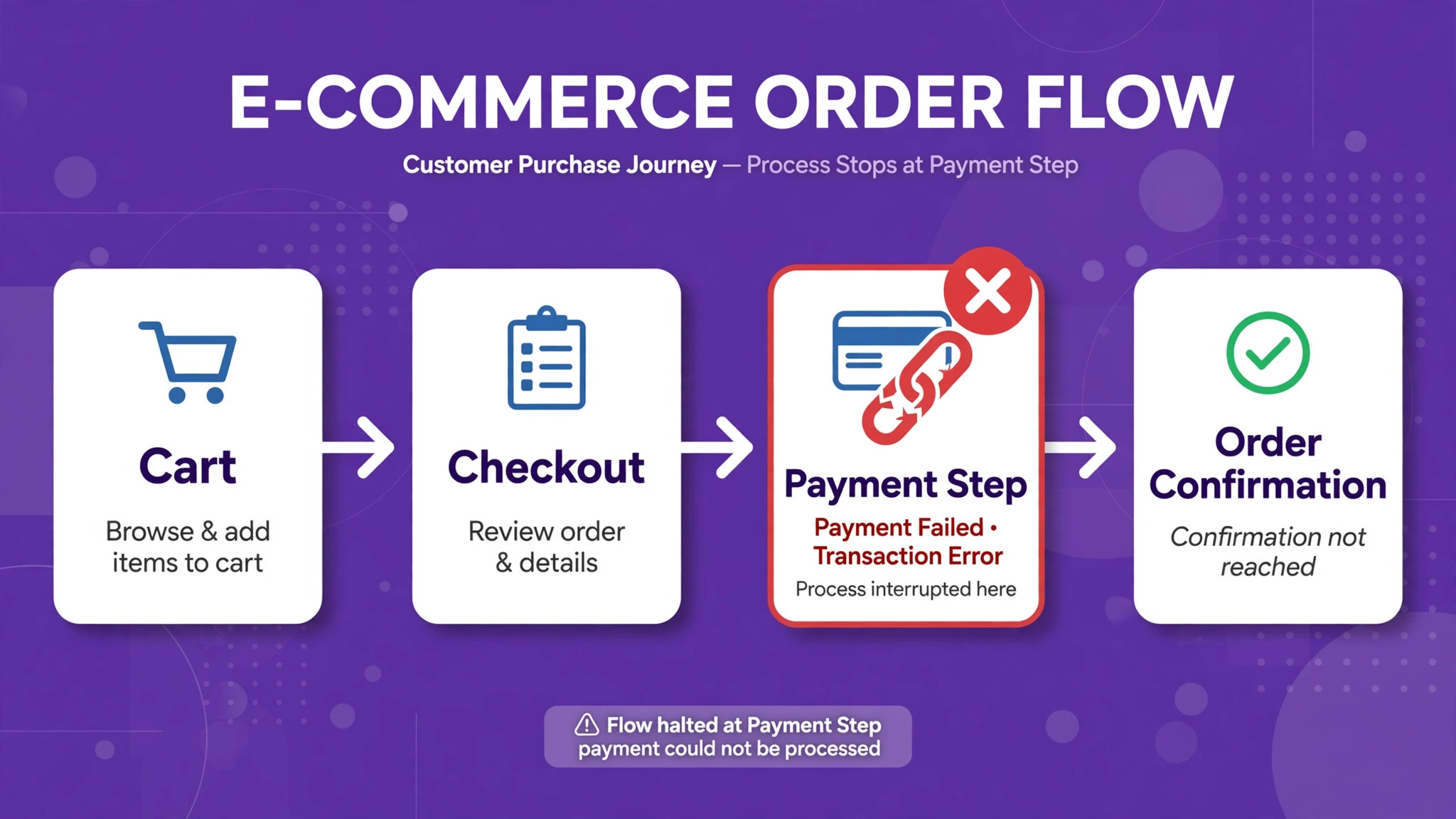
Checkout is a chain, and every link must work for an order to complete. The cart page must hold the right products and totals, the shipping step must offer a valid method for the shopper address, the payment step must offer a valid gateway for that cart, and the order step must record the order and send confirmation. If any link fails, the shopper sees a spinner, a vague error, or a missing payment option, and the store owner sees nothing, because no order is created to investigate.
Four causes explain most failures. A gateway may be disabled, in test mode, or missing live keys, so it never offers payment. A shipping zone may not cover the shopper address, so no shipping method appears and checkout cannot proceed. A plugin or theme clash may break checkout scripts, so the page loads but the order button does nothing. A cart or checkout page may be cached, misconfigured, or using outdated shortcodes, so totals and sessions behave wrongly. Each cause looks different to the shopper, and the checks below use those differences to narrow the fault.
Start by reproducing the fault exactly as a shopper would. Use a private browser window, add the same product a failing shopper tried, use the same address country and postcode pattern, and try the same payment method. Note the exact error, the exact step where checkout stops, and whether the cart totals change when you change address or shipping. That reproduction is your baseline, because every later test should be compared against it. If you cannot reproduce the fault, test with a different product type, a different address, and a guest account, because checkout faults often hide behind one combination.
How to Fix WooCommerce Checkout Not Working Small Store Orders
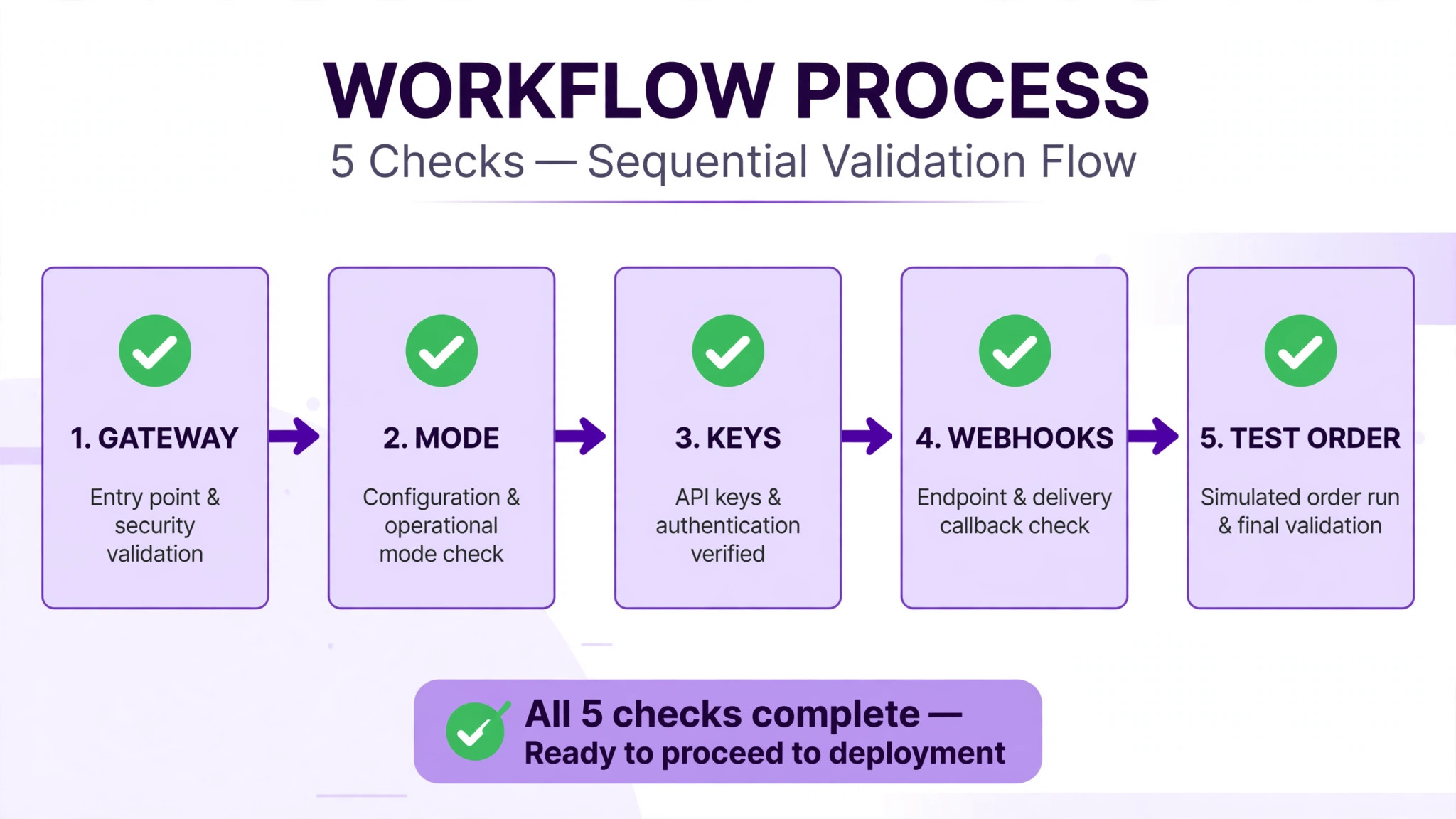
To fix WooCommerce checkout not working small store orders, work in the order below, and test after each check. The order matters, because the gateway check fixes payment failures, the shipping check fixes missing method failures, the plugin check finds hidden clashes, the cart page check fixes broken pages and caching, and the test order sequence proves the whole chain works. Changing all five at once may restore checkout without telling you why, which means the fault can return with the next update.
Keep a simple log as you go. Write down what you checked, what you found, and what you changed, with the time of each test. That log saves you from repeating steps, helps a developer or gateway support team pick up the problem later, and proves which change fixed the fault. If a check passes, move on. If a check fails, fix that layer before moving to the next, because later checks assume earlier layers work.
| Check | What it proves | If it fails, do this |
|---|---|---|
| Payment gateway check | A valid gateway offers payment for this cart | Correct keys, mode, and country rules |
| Shipping zone check | A valid shipping method covers this address | Correct zones, methods, and rates |
| Plugin conflict check | No plugin or theme breaks checkout scripts | Isolate the conflicting plugin or theme |
| Cart page check | Cart and checkout pages work and are not cached | Correct pages, shortcodes, and cache rules |
| Test order sequence | The full chain works for real shoppers | Repeat the failed layer, then escalate |
Do not run a broad deactivation test on a busy live store, because disabling many plugins at once can break checkout, tracking, and other features while you test. Use a staging copy where possible, or a troubleshooting mode that disables plugins only for your own session. Test quickly, note the result, and restore the normal setup at once.
The Payment Gateway Check That Finds Most Checkout Failures
Open the payment settings and check each gateway line by line, because a single wrong setting explains a checkout with no payment options. Confirm at least one gateway is enabled, configured, and in live mode for a live store, because a gateway left in test mode will not accept real payments, and a gateway with test keys in live mode will fail every real card. Confirm the gateway supports the cart currency, the shopper country, and the product type, because some gateways exclude subscriptions, digital products, or certain countries, and that exclusion hides the gateway for those shoppers only.
Check keys and webhooks next, because those two settings cause silent failures, and that gateway audit is a core step to fix WooCommerce checkout not working small store orders. API keys must match the mode, meaning live keys for live mode and test keys for test mode, and a key copied with a space or a missing character will fail without a clear error. Webhooks must point to the correct store address and must deliver successfully, because failed webhooks leave orders stuck in pending or failed states even when payment was taken. Open the gateway dashboard, look for failed webhook deliveries and failed payments, and note any error codes, because those codes tell support exactly where the fault sits.
Test gateways one at a time, because testing all gateways together hides which one fails. Disable all gateways except one on staging, run a test checkout with that gateway, and note whether payment options appear and whether a test payment completes. Repeat for each gateway that matters, then restore the gateways you need. If only one gateway fails, focus on that gateway setup, because a fault that affects one gateway is almost never a store wide fault. If all gateways fail, look at shipping and cart pages next, because a missing shipping method or a broken cart can hide all payment options downstream.
Check the checkout type too, because block checkout and classic checkout behave differently with some gateways. If checkout fails on one type but works on the other, the fault may sit in a gateway integration for that checkout type, and the fix may be an update, a setting change, or a switch to the working type while support investigates. Record which checkout type you tested, because support will ask, and a test on the wrong type can waste a whole support thread.

The Shipping Zone Check That Unblocks Checkout
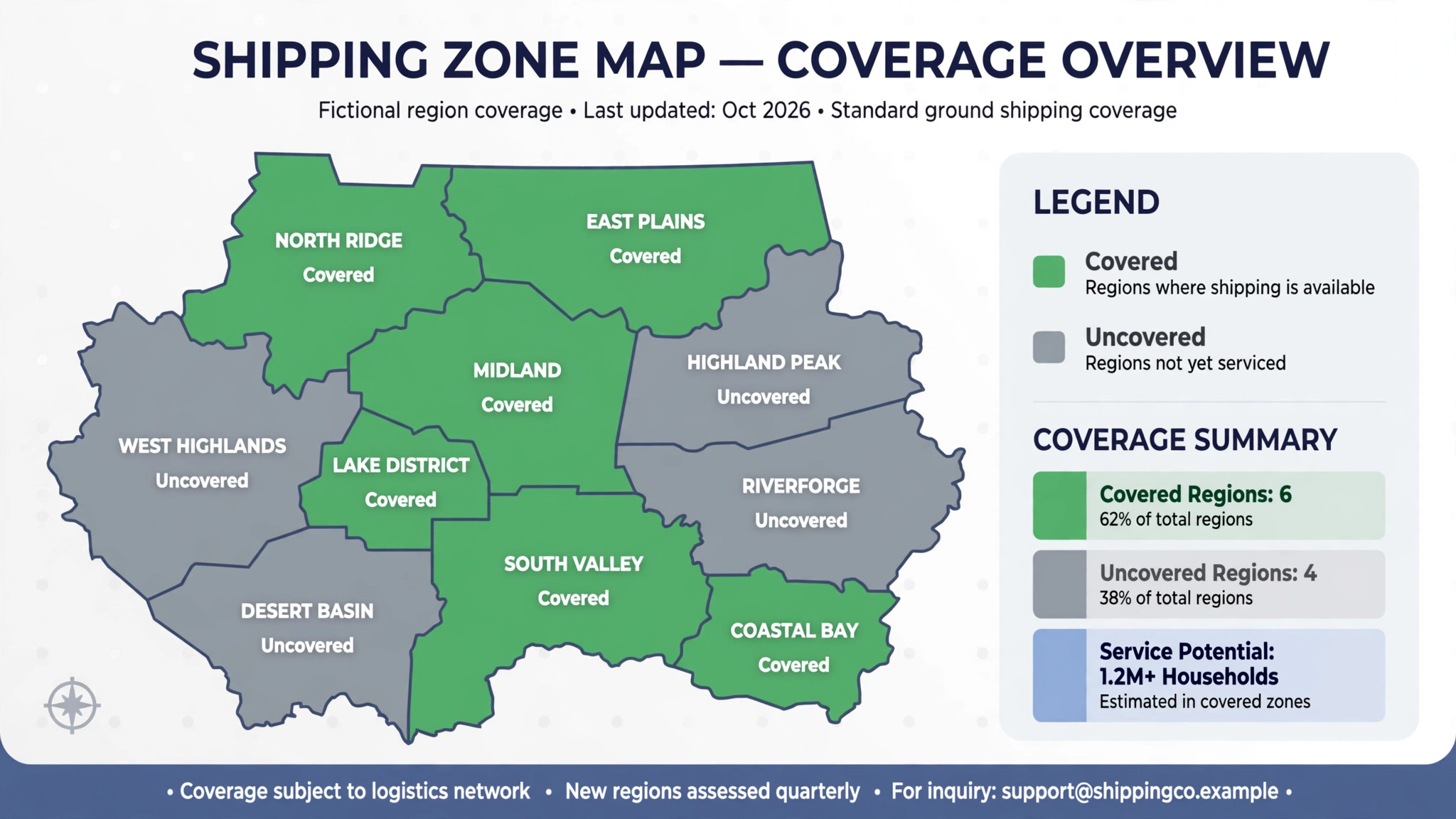
Shipping zones decide which methods a shopper sees, and a zone that does not cover the shopper address leaves checkout with no shipping method, which blocks payment in many setups. Open the shipping settings and check zones in order, because the first matching zone wins, and a broad zone placed above a specific zone can hide the specific rates. Confirm at least one zone covers the countries you sell to, with at least one active method, and confirm that method has a rate that applies to the test cart, because a method with a weight or total limit that excludes the cart will not appear.
Test shipping with several addresses, because a zone that works for one country may fail for another, and that multi address test helps fix WooCommerce checkout not working small store orders. Test the exact address a failing shopper used, then test a second address in the same country, then test an address in a different country you sell to. Note which addresses show methods and which show the message that no shipping methods are available, because that pattern reveals whether the fault is a missing zone, a wrong method limit, or a live rate failure.
Check live rates with care, because carrier quotes can delay checkout or fail when the carrier service is down. Temporarily disable live rates on staging and test with a flat rate, because if checkout becomes smooth with a flat rate, live rates are delaying or breaking responses. Review tax and address validation settings too, because strict postcode rules can reject valid addresses and block checkout for shoppers whose postcodes do not match the expected pattern. Keep address rules as loose as your carrier allows, because a rejected postcode loses an order that a delivery driver could have found.
Check the link between shipping and payment, because some gateways only appear for certain shipping methods, and cash on delivery is the clearest example. If a gateway disappears when a shopper picks a certain shipping method, the fault may be a gateway rule tied to shipping, not a gateway fault alone. Test each shipping method with each gateway on staging, and note the combinations that hide payment, because that matrix tells you whether to fix a gateway rule, a shipping rule, or both.
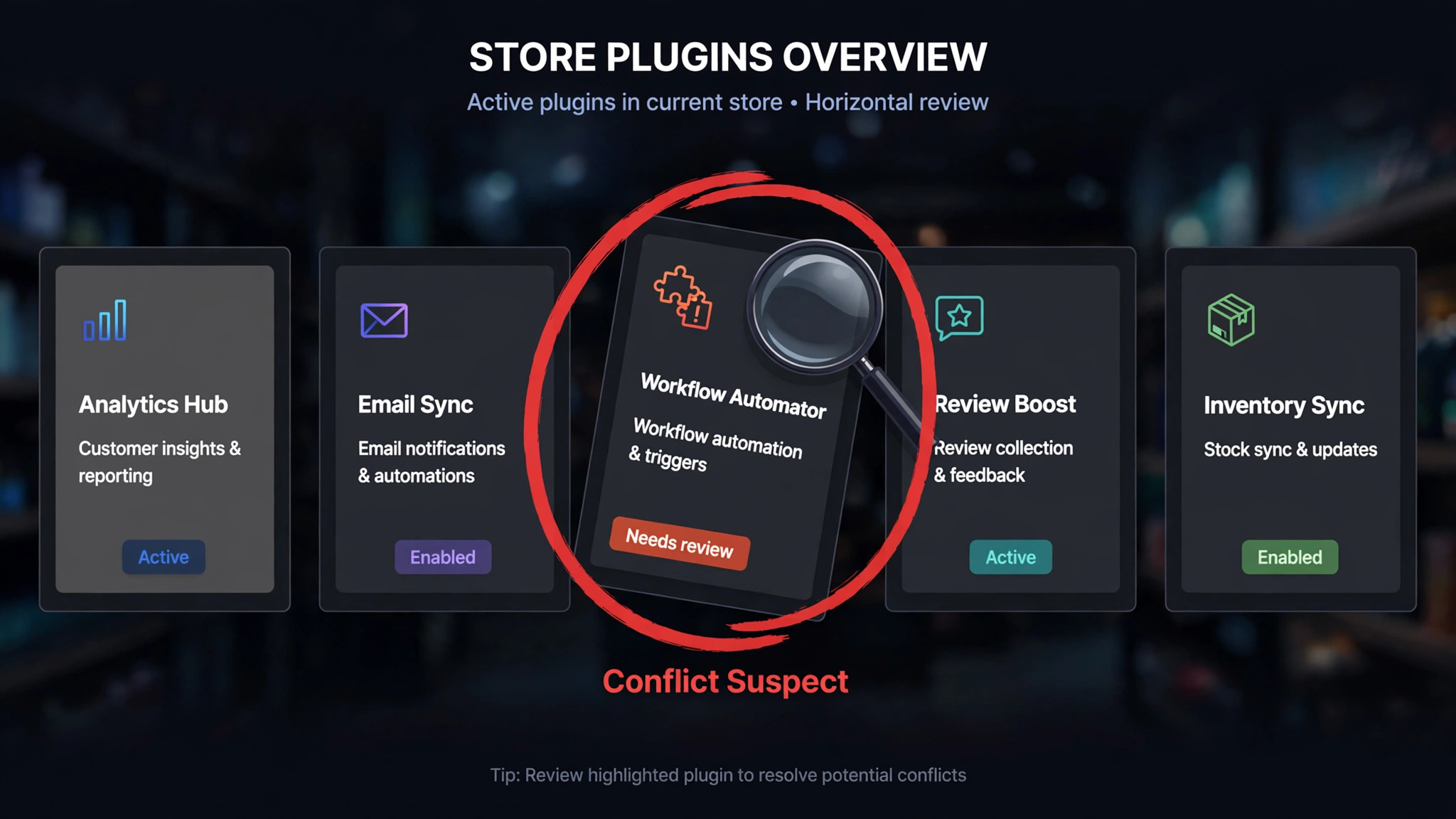
Plugins break checkout in quiet ways. A checkout field editor may break required scripts, a caching plugin may serve a stale checkout page, a security plugin may block checkout requests, and a script minifier may break payment scripts. The symptom is often a spinner that never ends, totals that do not update, or an order button that does nothing, and the fault often appears after an update, without any obvious error. A controlled conflict test finds the culprit without guessing, and that test is essential when you fix WooCommerce checkout not working small store faults after an update.
Run the conflict test on a staging copy where possible. Reproduce the failure first, so you know the test is valid. Then switch to a default theme, keep the store plugin and the affected gateway active, and disable other plugins. Test checkout again. If it works, re-enable plugins in small groups, then one by one, testing checkout after each group, until the failure returns. The last plugin enabled before the failure returns is the likely conflict, and you should reproduce the failure once more with only that plugin active before naming it.
If you must test on a live site, use a troubleshooting mode that disables plugins only for your own session, so shoppers still see the normal site. Test quickly, note the result, and restore the normal setup at once. Never leave a live site with security or caching plugins disabled while you wait for a reply, because that trades a checkout fault for a security risk. If the conflict test shows checkout works with plugins disabled but you cannot find a single culprit, look at the theme next, because an outdated checkout template can break checkout scripts just as a plugin can.
When you find a conflict, check for an update first, because many conflicts follow an update that the other plugin has since fixed. Check the conflicting plugin settings next, because a script minification setting, a firewall rule, or a checkout field rule can often be adjusted without removing the plugin. Only replace a plugin when updates and settings fail, and record the replacement in your log so the next person knows why the change was made. Check logs too, because store, fatal error, and gateway logs often name the failing script or request, which narrows the conflict test before you start.
The Cart Page Check That Catches Caching and Page Faults
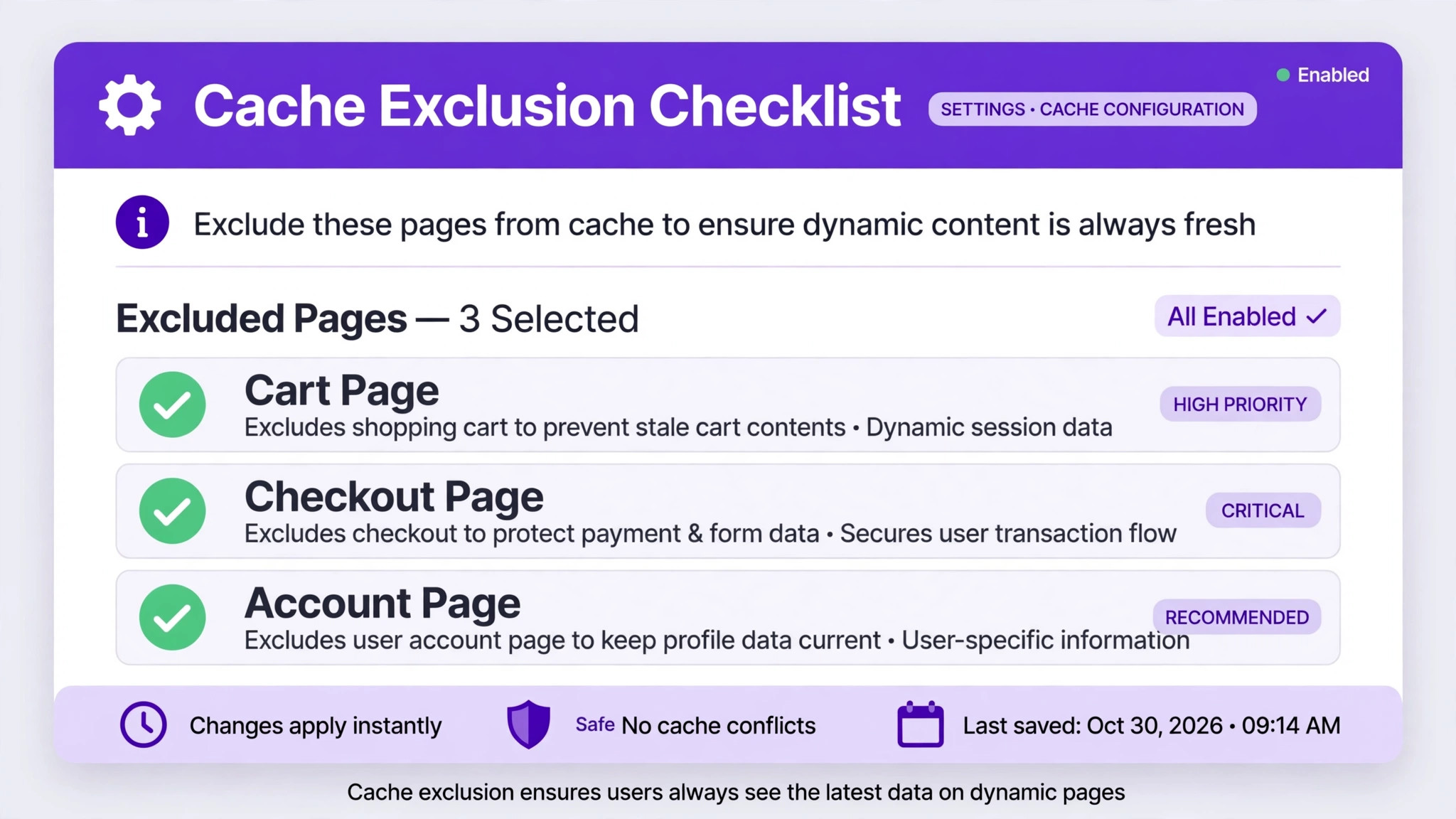
Cart and checkout pages must never be cached, because cached pages serve stale totals, stale sessions, and stale nonces that break checkout for real shoppers while working for the site owner. Exclude the cart page, the checkout page, and the account page from full page cache and from your content delivery cache, and exclude any address that includes a cart ajax parameter. Test checkout after clearing cache, because a cache rule that looks correct can still serve a stale page until the cache is cleared, and that cache test helps fix WooCommerce checkout not working small store orders. If checkout works after clearing cache but fails again later, the cache exclusion is wrong, not the checkout itself.
Check that the cart and checkout pages exist, use the correct setup, and have not been overwritten by a page builder or a theme template. Open each page in the dashboard, confirm it is published, confirm it has not been set to a different template that hides checkout fields, and confirm the page address matches the address in store settings. A checkout page that was duplicated, trashed, or rebuilt without the correct setup will load but will not process orders, and that fault looks like a gateway fault until the page itself is checked.
Check sessions and totals by testing with different carts. Add a simple product, a variable product, and a product with a coupon, and note whether totals update when quantities change, when shipping changes, and when a coupon is applied. A cart that shows wrong totals usually has a tax, coupon, or shipping rule fault, not a payment fault, and fixing totals first often restores payment options that were hidden by an invalid total. Test as a guest and as a logged in shopper, because session rules and caching can make checkout work for one and fail for the other.
Check security basics that gateways require. Confirm the site uses HTTPS throughout, with a valid certificate and no mixed content warnings, because payment gateways require secure pages and will hide payment fields or block payment when security fails. Confirm the site, store plugin, gateway plugins, and PHP version are up to date, because outdated versions cause compatibility faults that look like configuration faults. Update on staging first where possible, test checkout after each update group, and only then update live, because an update that fixes one fault can introduce another if it is applied blindly.
The Test Order Sequence That Proves Checkout Works
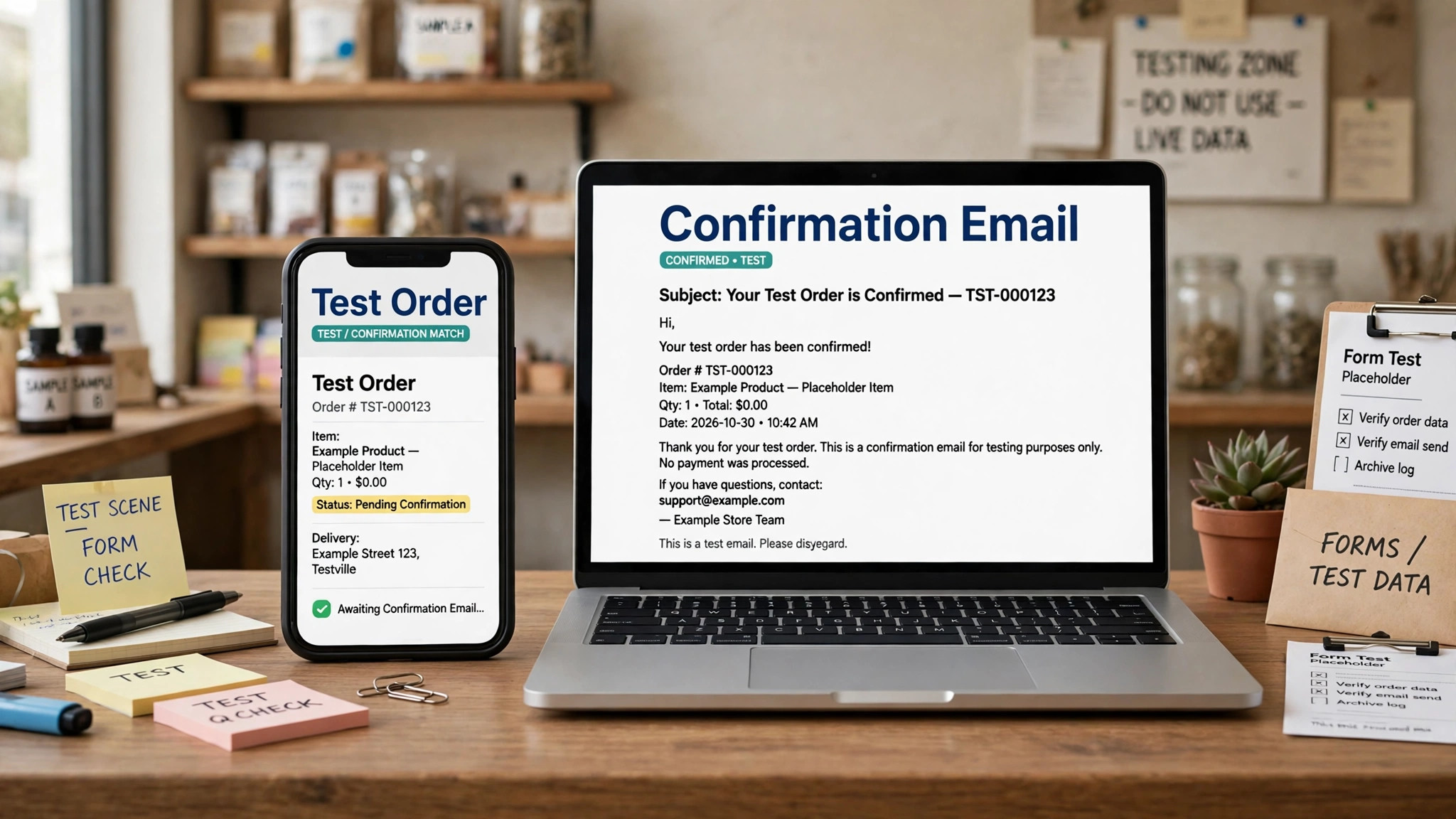
A single test from your own computer does not prove checkout works, because you may be logged in, cached, or whitelisted in ways shoppers are not. Run a full test order sequence that mimics real shoppers, and run it after every fix, not only at the end. Start with a test order from a private browser window, using a guest account, a real product, and a test payment method where the gateway supports test mode. Note the order number, the order status, and whether confirmation mail arrives, because all three must agree for the test to pass.
Run a second test from a phone on mobile data, because that test bypasses office networks and caching that can mask faults. Run a third test with a different gateway, because a fix that works for one gateway may fail for another. Run a fourth test with a different shipping address, because a fix that works for one zone may fail for another. Run a fifth test with a coupon and a different product type, because totals, tax, and shipping rules differ by cart. If any test fails, return to the layer that test points to, fix it, and rerun the full sequence, because a fix that passes one test but fails another is not a fix yet.
Keep the test sequence as a written checklist for future updates, because checkout breaks most often after updates, gateway changes, or shipping changes, and that habit helps fix WooCommerce checkout not working small store orders for good. After any plugin update, theme update, gateway change, or shipping change, run the same sequence before you assume checkout still works. That habit catches a broken checkout within hours, while a daily sales check catches it only after orders are already lost. A checkout that is tested after every change rarely loses sales for long, because the fault is found while it is still small.
Record the final proof in your log. Note the date, the test products, the test gateways, the test addresses, and the order numbers, including any test orders you later cancel or refund. That record becomes the baseline for the next fault, and it lets a developer or gateway support team start from a known good setup rather than from scratch. A fix without a record is a fix that will need to be rediscovered next time, and checkout faults have a habit of returning after the next update.
Tools Worth Testing First
Stripe for Card Payments
Stripe suits small stores that need card payments, wallets, and clear dashboards for failed payments and webhook deliveries. Its strength is the dashboard, because failed payments, failed webhooks, and error codes sit in one place and can be shared with support. Test card payments in test mode first, then check webhook deliveries, and confirm the gateway is in live mode with live keys before you accept real orders.
PayPal for Buyer Trust
PayPal suits stores whose shoppers trust PayPal and want to pay without entering card details on a new store. Its strength is familiarity, because many shoppers already have an account and will complete checkout faster with a payment method they know. Test PayPal checkout as a guest and as a logged in shopper, and check that the return address after payment lands on the correct order confirmation page.
WooCommerce Payments for Native Checkout
WooCommerce Payments suits stores that want card payments inside the store dashboard, without managing a separate gateway account. Its strength is the native setup, because payments, refunds, and payouts sit alongside orders in the same dashboard. Test card payments, refunds, and webhook style status updates on staging, and confirm currency and country support for your shoppers before you rely on it alone.
Prices for payment tools are usually transaction based, with a percentage plus a fixed fee per successful charge, so confirm on the vendor page for your country, currency, and sales volume, because rates differ by region and by plan. Some tools also charge monthly fees for advanced features, so read the pricing page for your size rather than relying on a headline rate. Judge each tool by the test order sequence, not by the feature list, because a tool that passes the full test sequence is the right tool when you fix WooCommerce checkout not working small store orders.
When to Escalate Checklist
Escalate when the checks above pass individually but the full chain still fails, because that pattern usually means a host, gateway, or theme fault that a store owner cannot fix from the dashboard. Escalate also when gateway keys and webhooks are correct but payments still fail, when checkout works on staging but fails on live, or when logs show errors that point to server limits or code faults. Those signs point to a layer outside basic settings, and further dashboard changes will only add noise.
Prepare a short escalation pack before you contact support. Include the test log, the reproduction steps, the gateway and shipping settings that matter, the plugin conflict test result, the log entries that show errors, and the test order results. Send that pack to the gateway support team when only one gateway fails, to the host when checkout works on staging but fails on live, and to a developer when logs point to theme or code faults. A clear pack gets a faster answer, because support can start from evidence rather than from questions.
Use this checklist before you escalate, and tick each item honestly.
– Gateway enabled, in live mode, with live keys, and supporting the test cart currency and country – Shipping zone covers the test address, with an active method and a valid rate – Plugin conflict test run on staging or in troubleshooting mode, with the result recorded – Cart, checkout, and account pages excluded from cache, with cache cleared and retested – Site uses HTTPS throughout, with store, gateway, and theme versions up to date – Full test order sequence run from a private window, a phone, a second gateway, and a second address – Logs checked for store, fatal error, and gateway errors, with relevant entries saved – Backup taken before any setting change, so a bad change can be undone
If most items are ticked and checkout still fails, escalate with the pack, and do not keep changing settings while waiting, because random changes will confuse the support investigation. If several items are unticked, finish them first, because support will ask for those results before it can help.
Your Checkout Recovery Plan
Start tonight with a reproduction, not with a rebuild. Reproduce the fault as a shopper, note the exact step where checkout stops, and then work through gateway, shipping, plugin, and cart checks in order, testing after each one. That order finds the fault fast, and it finds it with evidence rather than guesswork. Most small store checkout faults yield to that sequence in an evening, without a new theme, a new host, or a new checkout plugin.
Then protect the fix. Run the test order sequence after every update, gateway change, or shipping change, and check sales and order numbers daily for a week after any change. A checkout that is tested after every change rarely loses sales for long, and a store that replies fast to a failing shopper wins orders that slower rivals lose. That speed is the real payoff when you fix WooCommerce checkout not working small store problems, because every order completed is revenue that might otherwise have gone to a competitor.
Keep the log. The next fault will arrive after an update, a gateway change, or a shipping change, and a log that records what worked last time turns a day of guessing into an hour of checking. Save the gateway settings, the shipping zones, the cache exclusions, and the test results in one place, and share that place with anyone who works on the store. Good records are the cheapest insurance a small store checkout can buy.
Frequently Asked Questions About WooCommerce Checkout Problems
Why does checkout show no payment methods?
Checkout shows no payment methods when every enabled gateway fails its availability test for that cart, address, currency, or shipping method. That is different from a card decline, because the shopper has not reached a payment attempt yet. Check gateway mode and keys, country and currency rules, and shipping methods first, because a missing shipping method can hide all payment options downstream.
Why does checkout work for me but fail for shoppers?
Checkout often works for the site owner because the owner is logged in, cached, or using a different address, gateway, or product combination from failing shoppers. Test as a guest, from a phone on mobile data, and with the exact product and address a failing shopper used. Cache exclusions and session rules are common causes of owner only success.
Should I disable all plugins to test checkout on a live store?
No, not on a busy live store, because broad deactivation can break checkout, tracking, and other features while you test. Use a staging copy where possible, or a troubleshooting mode that disables plugins only for your own session. Test quickly, note the result, and restore the normal setup at once.
How do shipping zones block checkout?
A zone that does not cover the shopper address offers no shipping method, and checkout cannot proceed without a valid method in many setups. Check zones in order, confirm an active method with a valid rate for the test cart, and test several addresses, because a zone that works for one country may fail for another. Temporarily test with a flat rate on staging to rule out live rate failures.
What should I check first when orders stay pending after payment?
Check gateway webhooks and payment logs first, because failed webhooks leave orders stuck in pending or failed states even when payment was taken. Confirm webhook addresses, delivery success, and gateway mode and keys, and share any error codes with gateway support. Do not refund or resend orders until the gateway status is clear, because duplicate actions can create duplicate charges.
When should I escalate a checkout fault to a developer?
Escalate when individual checks pass but the full chain still fails, when checkout works on staging but fails on live, or when logs show server or code errors. Send the test log, reproduction steps, gateway and shipping settings, conflict test result, and log entries with your request. Finish the escalation checklist first, because support will ask for those results before it can help.
More Reading on Stratilyze
– Fix WordPress Contact Form Not Sending for a Small Business, plain text title, link not verified at writing time – Fix Shopify Checkout Not Working for a Small Store, plain text title, link not verified at writing time – Best Payment Gateways for Small Online Stores, plain text title, link not verified at writing time – WooCommerce Shipping Zones Explained for Beginners, plain text title, link not verified at writing time – Small Store Checkout Fixes That Recover Lost Sales, plain text title, link not verified at writing time