
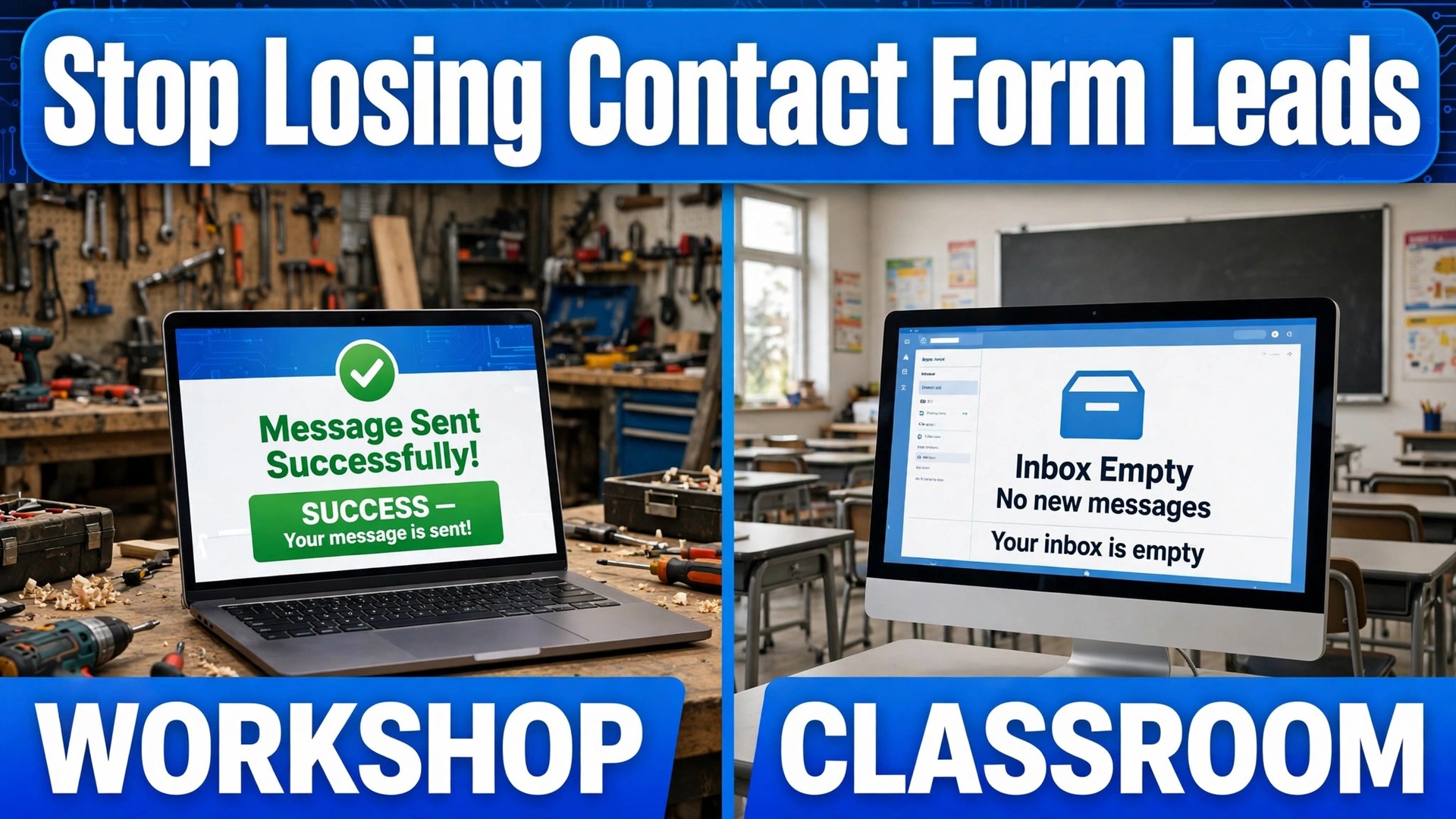
One missed enquiry a week is 52 leads a year, and most small businesses never know those leads existed. A visitor fills in a contact form, sees a success message, and waits for a reply that never comes, while the business owner assumes the phone simply went quiet. That silent loss is the core problem when you need to fix WordPress contact form not sending small business mail, because the form looks healthy from the front while the message dies somewhere between the website, the server, and the inbox.
A public review of 150 confirmed contact form cases found only 8 messages sitting in spam, while far more were lost to untrusted sending, wrong addresses, or blocked mail. That finding matters, because it means checking spam alone will not fix most dead forms. The reliable approach is to work through the chain in order, testing each link and changing one thing at a time, so you know exactly which fix worked. This guide follows that order, with a test at the end of every check.
Before you change anything, save a record of the problem. Note when the last successful enquiry arrived, whether any form works at all, and whether other WordPress mail, such as password resets, still arrives. That record tells you whether the fault sits in the form, in the mail system, or in the inbox, and it stops you from chasing the wrong layer for hours. Take a backup too, because form and mail settings are easy to break under pressure, and a backup lets you undo a bad change in minutes.
Why a Form Can Say Sent While Nothing Arrives
A success message only means the form accepted the submission. It does not prove an email left the server, reached the inbox provider, or landed in the inbox. WordPress sends mail through a function that hands the message to the server mail system by default, and many hosts limit or block that system to stop spam from hacked sites. Even when the server sends the message, inbox providers may reject it or filter it, because it lacks the authentication that proves it really came from your domain.
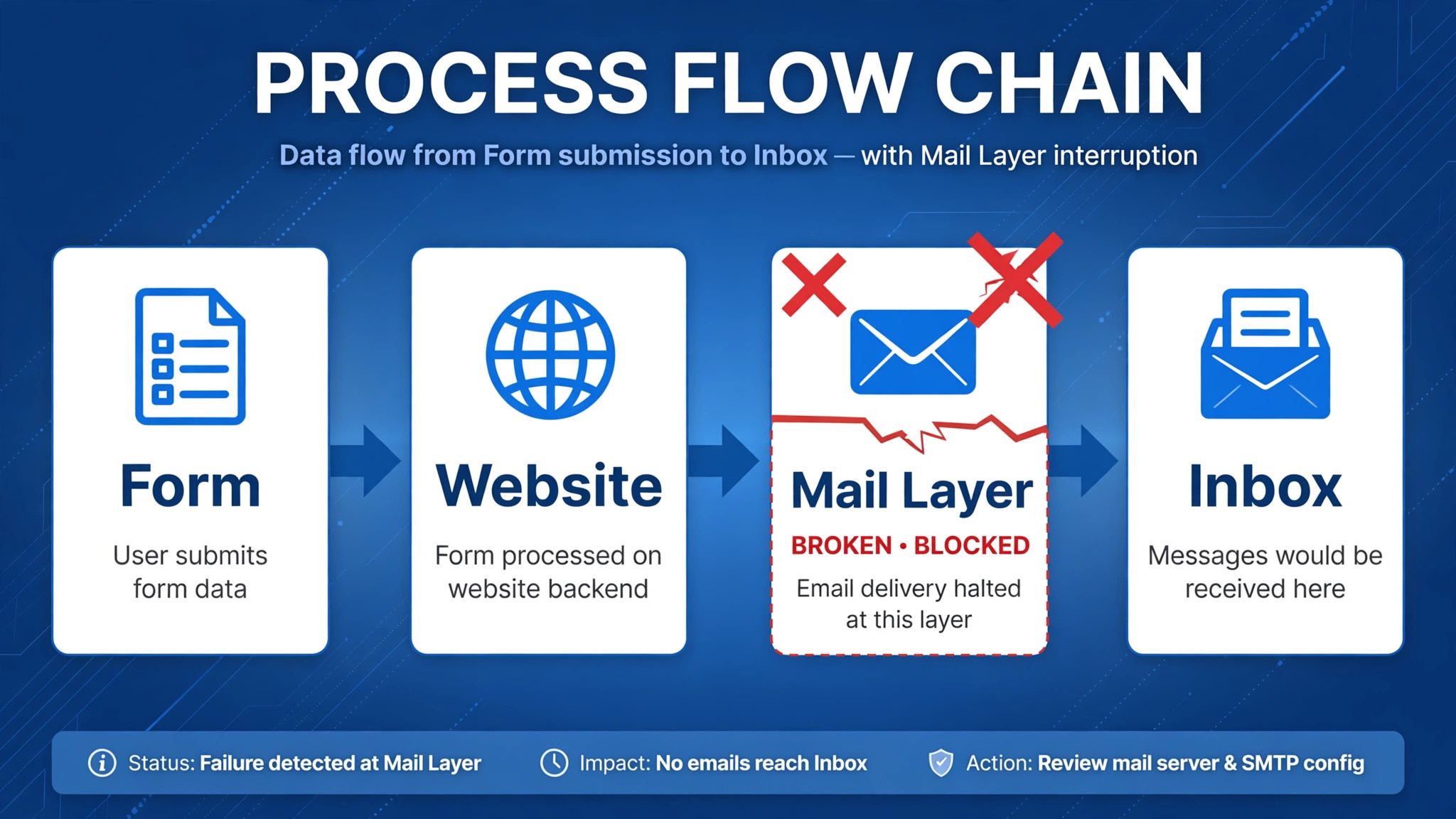
Four layers decide delivery, and each one can fail silently. The form layer decides who gets notified and what sender address the message uses. The mail layer decides how the message leaves the site, meaning server mail or an authenticated mail service. The domain layer proves the sender with records that inbox providers check. The inbox layer decides whether the message lands in the inbox, in spam, or nowhere at all. A fix that only touches one layer will fail if the fault sits in another, which is why the checks below run in order.
Start by separating two questions. Did WordPress try to send anything, and did the inbox provider accept it. A mail logging tool answers the first question, because it records every message WordPress attempts. A test message to a second inbox answers the second question, because it shows whether delivery works for one provider, for all providers, or for none.
How to Fix WordPress Contact Form Not Sending Small Business Mail
To fix WordPress contact form not sending small business mail, work in the order below, and test after each check. The order matters, because the SMTP check fixes the most common cause, the spam check rules out the simplest cause, the plugin check finds hidden blockers, the notification check catches wrong addresses, and the test sequence proves the whole chain works. Changing all five at once may restore mail without telling you why, which means the fault can return with the next update.
Keep a simple log as you go. Write down what you checked, what you found, and what you changed, with the time of each test. That log saves you from repeating steps, helps a developer or host support team pick up the problem later, and proves which change fixed the fault. If a check passes, move on. If a check fails, fix that layer before moving to the next, because later checks assume earlier layers work.
| Check | What it proves | If it fails, do this |
|---|---|---|
| SMTP check | Mail leaves through a trusted service | Set up authenticated mail |
| Spam folder check | Mail is not merely filtered | Fix sender and domain records |
| Plugin conflict check | No plugin blocks the form or mail | Isolate the conflicting plugin |
| Form notification check | The right address gets the right message | Correct recipient and sender settings |
| Test submission sequence | The full chain works for real visitors | Repeat the failed layer, then escalate |
Do not install three mail plugins at once and hope one works. Two mail plugins will fight over the same setting, and three will leave a settings drawer full of half configured mailers that nobody can untangle later. Pick one mail plugin, configure it fully, test it, and only replace it if the test proves it cannot work with your host or mail service.

The SMTP Check That Fixes Most Dead Forms
By default, WordPress hands mail to the server mail system, which many hosts restrict and inbox providers distrust. The message often lacks a real login to a mail account, so Gmail, Outlook, and company mail servers have no reason to trust it, and they reject it or filter it without telling the sender. The durable fix is to send through an authenticated mail service, meaning a service WordPress signs in to, with a sender address on your own domain.
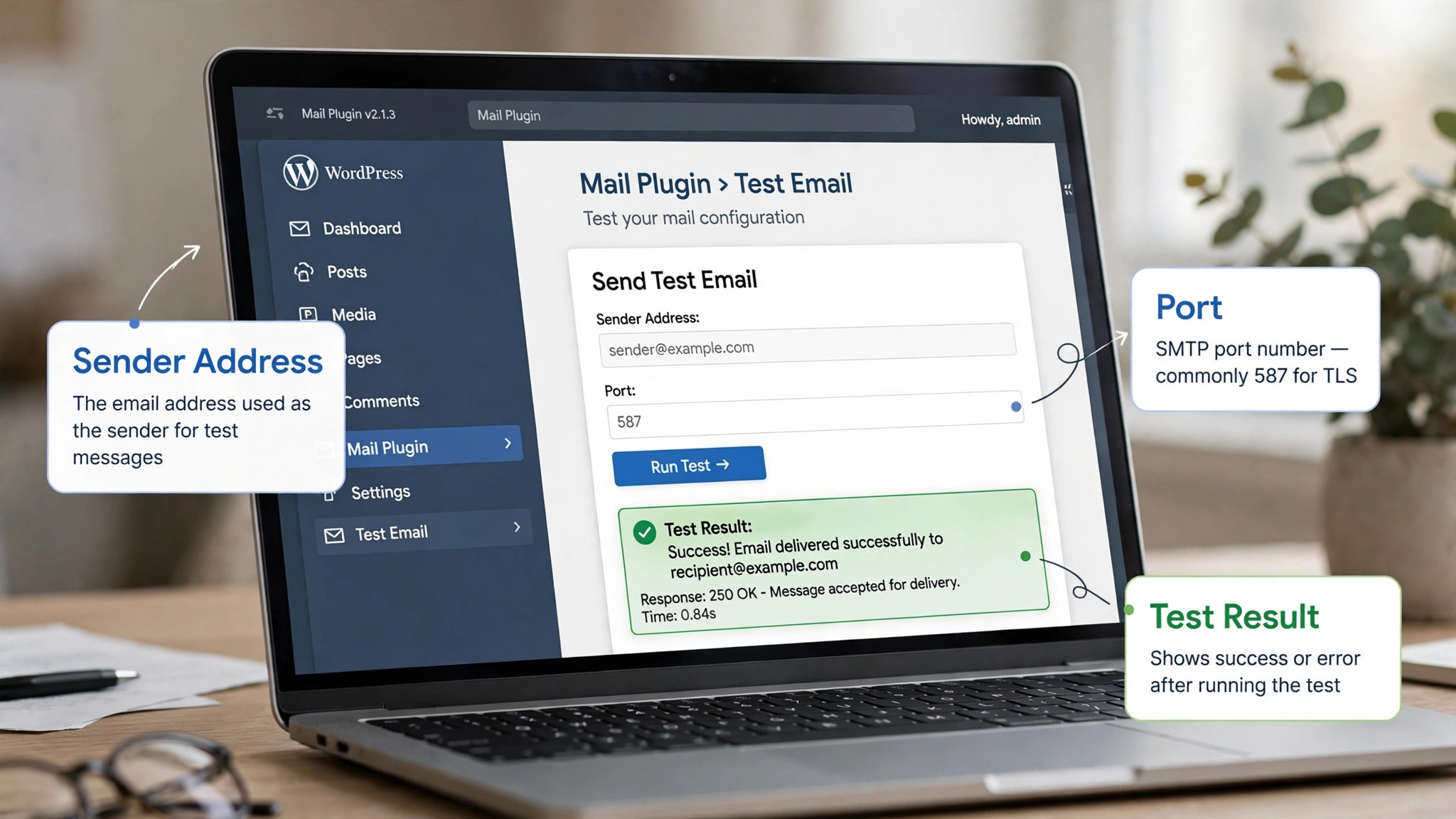
Install one SMTP plugin and connect it to a real mail account or sending service. Popular choices include a workspace account, a Microsoft 365 account, or a dedicated sending service, and the plugin settings will ask for the server address, port, username, and password or API key. Use port 587 with encryption where your provider supports it, or port 465 where it requires it, and follow the provider settings exactly, because a single wrong port choice will block all mail.
Force the sender address to an address on your own domain, such as hello at your domain, and put the visitor address in the reply field instead of the sender field, because a message that claims to come from a visitor Gmail address while being sent by your host fails authentication at once.
Test the mail plugin on its own before you test the form. Send a test message from the plugin test screen to an inbox you control, and check whether it arrives, whether it lands in spam, and what the message headers say about authentication. If the test message arrives in the inbox, the mail layer works, and any remaining fault sits in the form or the inbox. If the test message fails, fix the mail layer first, because no form change can compensate for mail that never leaves the site. Record the test result in your log, with the time and the inbox used.
Domain records complete the SMTP check. Publish the sender records your mail provider asks for, usually called SPF and DKIM, and add a DMARC record once the first two pass, because inbox providers now expect at least one authentication record and bulk senders must publish DMARC. Changes to domain records can take hours to spread, so wait, then send another test and read the headers for pass results. A test that passes authentication but still lands in spam is a warning, not a fix, and it usually means sender reputation or content needs attention before you move on.
The Spam Folder Check That Rules Out the Simplest Cause
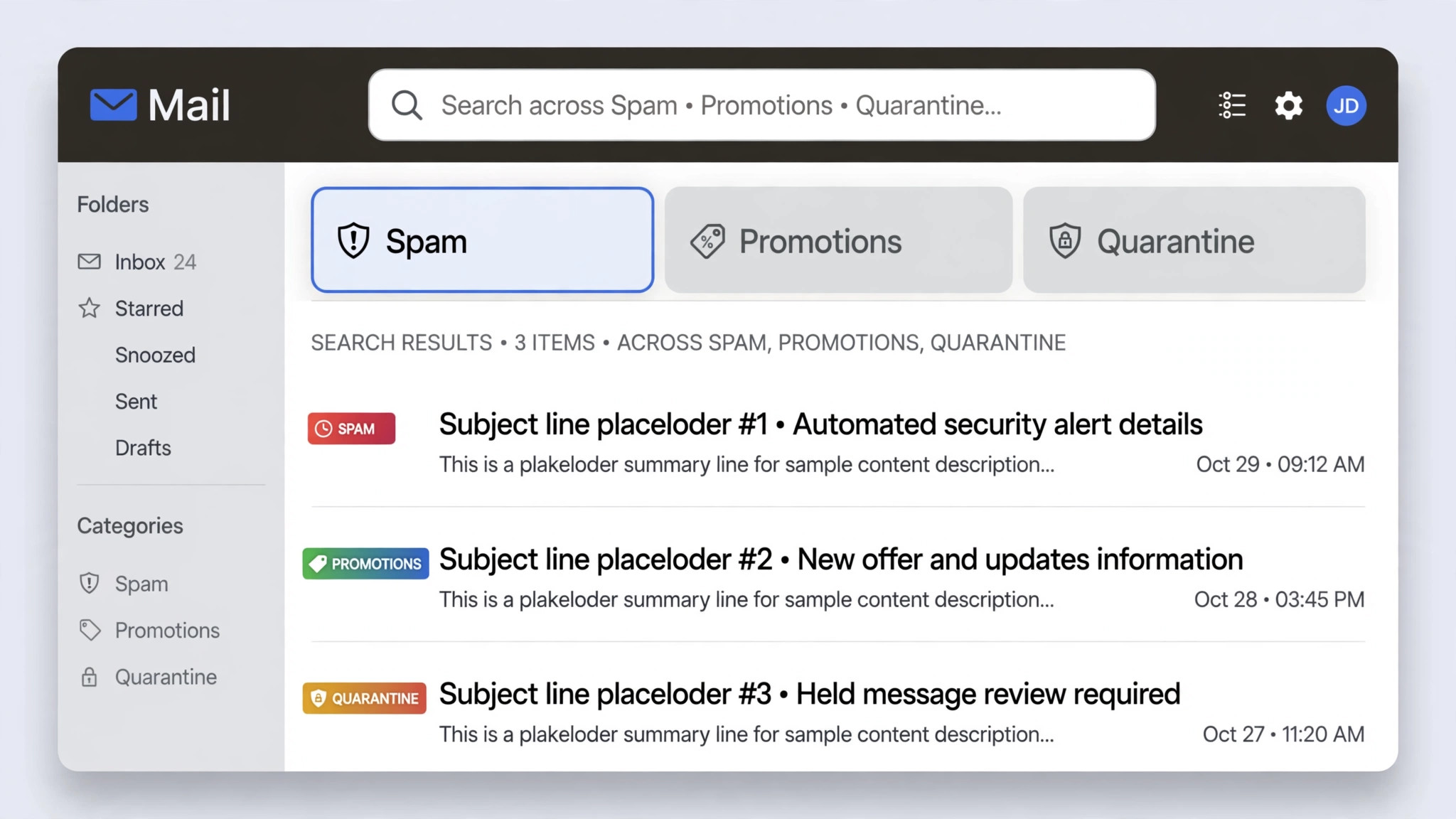
Check spam properly, not casually, because a quick glance at one inbox misses most filtering. Search every folder, including spam, promotions, and quarantine, in the inbox that should receive form mail, and search for the sender address, the subject line, and a unique word from a recent test submission. Ask a colleague to check a second inbox too, because filtering differs by provider, and a message that lands in spam at Gmail may arrive normally at Outlook, or the reverse. If you find test messages in spam, the site is sending, but inbox providers do not trust the message enough yet.
Read the headers of a spam message before you change anything else. Headers show whether authentication passed or failed, which gives you the next fix, and that header reading step is essential when you fix WordPress contact form not sending small business mail. A message with failed authentication needs the SMTP and domain work from the previous section, while a message with passed authentication that still lands in spam needs a closer look at sender reputation, sending volume, and message content. Mark the message as not spam in your own inbox, because that trains your personal filter, but do not rely on that action to fix delivery for other recipients, because their filters learn separately.
Check two traps that look like spam filtering but are not. First, check whether the host delivers mail for your domain to itself, even though your real inbox lives elsewhere, because that local delivery trap keeps messages on the web server where nobody reads them. Your host or domain settings can confirm where mail for your domain is routed, and the fix is to route it to your real inbox provider. Second, check whether an earlier bounce blocked your address, because some platforms stop sending to an address after repeated bounces, and the fix is to clear that block and resend a test.
If spam checks pass and no message appears anywhere, the fault sits earlier in the chain, meaning the form, the mail plugin, or the host. Do not keep resending tests to the same inbox and hoping, because repeated tests without a change only add noise. Return to the SMTP test result, confirm it still passes, and then move to the plugin check, because a passing mail test plus a failing form test points squarely at the form layer.
Plugins block forms in quiet ways. A security plugin may block submissions it judges suspicious, a caching plugin may serve a stale form page, a spam protection tool may reject real visitors, and a second form plugin may fight over the same mail setting. The symptom is often a form that works for the site owner but fails for visitors, or a form that worked until an update and then stopped, without any obvious error. A controlled conflict test finds the culprit without guessing.
Run the conflict test on a staging copy where possible, because disabling plugins on a live store or busy site can break other features while you test. On staging, reproduce the failure first, so you know the test is valid. Then switch to a default theme, keep WordPress, the form plugin, and the mail plugin active, and disable other plugins. Test the form again. If it works, re-enable plugins in small groups, then one by one, testing the form after each group, until the failure returns. The last plugin enabled before the failure returns is the likely conflict, and you should reproduce the failure once more with only that plugin active before naming it.
If you must test on a live site, use a troubleshooting mode that disables plugins only for your own session, so visitors still see the normal site. Test quickly, note the result, and restore the normal setup at once. Never leave a live site with security or caching plugins disabled while you wait for a reply, because that trades a mail fault for a security risk. If the conflict test shows the form works with plugins disabled but you cannot find a single culprit, look at the theme next, because an outdated theme template can break form scripts just as a plugin can.
When you find a conflict, do not simply delete the conflicting plugin and move on, because you may lose a feature the site needs. Check for an update first, because many conflicts follow an update that the other plugin has since fixed. Check the conflicting plugin settings next, because a spam threshold or firewall rule can often be adjusted without removing the plugin. That controlled test is the fastest way to fix WordPress contact form not sending small business mail when a plugin is the blocker.

The Form Notification Check That Catches Wrong Addresses
Many dead forms have a mail layer that works perfectly and a notification rule that sends mail to the wrong place. Open the form settings and check the notification rule line by line, because a single wrong field explains a form that tests well in one place and fails in another. Confirm the recipient address is spelled correctly, uses an inbox someone actually reads, and does not point to an old staff address or a personal inbox that nobody monitors. Confirm the sender address uses your own domain, and confirm the reply address uses the visitor address, because that combination passes authentication while still letting you reply to the visitor with one click.
Check conditional notifications next, because many forms send different notifications for different answers, and one branch may point to a wrong address or to no address at all. Test each branch that matters, meaning each service, each location, and each enquiry type that has its own notification rule. A form that works for a general enquiry but fails for a quote request usually has a broken branch, not a broken mail system, and the fix is to correct that branch alone. Check also whether notifications are paused, disabled, or set to send only on a condition that never triggers, because those settings hide in plain sight.
Check whether submissions are saved even when mail fails. Many form tools store entries in the dashboard, and those stored entries are your safety net while mail is broken. Open the entries screen and look for recent submissions that never arrived by email. If entries exist, the form is accepting submissions and the fault sits in mail or notification settings, which narrows the fix. If no entries exist, the form itself may be failing before submission, which points back to a plugin, theme, or script fault. Either way, saved entries let you reply to real enquiries while you fix mail, so check them daily until the fix is proven.
Watch for notification rules that use a free mail address as the sender, because Gmail and Yahoo addresses as senders fail authentication when sent from your host. Replace any free mail sender with a domain address, and test again. Keep one clear notification per enquiry, with a clear subject line that includes the form name. That audit is a common step to fix WordPress contact form not sending small business mail.

The Test Submission Sequence That Proves the Fix
A single test from your own computer does not prove a form works, because you may be logged in, cached, or whitelisted in ways visitors are not. Run a full test sequence that mimics real visitors, and run it after every fix, not only at the end. Start with a test from a private browser window, using a personal mail address you control, and fill in every required field with realistic text. Submit, note the success message, and check the recipient inbox, the spam folder, and the stored entries screen. All three should agree within a few minutes.
Run a second test from a phone on mobile data, because that test bypasses office networks and caching that can mask faults. Run a third test with a different mail provider, because delivery can pass at one provider and fail at another. Run a fourth test for each notification branch that matters, meaning each service or enquiry type with its own recipient. If any test fails, return to the layer that test points to, fix it, and rerun the full sequence, because a fix that passes one test but fails another is not a fix yet.
Keep the test sequence as a written checklist for future updates, because form mail breaks most often after updates, host moves, or domain changes. After any plugin update, theme update, or host change, run the same sequence before you assume mail still works. That habit catches a broken form within hours, and it is how you fix WordPress contact form not sending small business mail for good, not just for today.
Record the final proof in your log. Note the date, the test addresses, the test results, and the settings that finally worked, including the mail plugin, the sender address, and the domain records. That record becomes the baseline for the next fault, and it lets a developer or host support team start from a known good setup rather than from scratch. A fix without a record is a fix that will need to be rediscovered next time.
Tools Worth Testing First
WP Mail SMTP for WordPress Mail
WP Mail SMTP reroutes WordPress mail through an authenticated mail service, with a test screen, a mail log, and a forced sender address option. Its strength is the setup wizard, because it guides a small business through provider choice, authentication, and testing without manual code. Test the test message first, then the form, and check the log after each test, because the log shows whether WordPress attempted the message even when the inbox stays empty.
FluentSMTP for Free Mail Routing
FluentSMTP offers free mail routing through common providers and sending services, with a mail log and fallback connections for sites that need a second route. Its strength is the log and the fallback option, because a site can switch to a backup connection when the main connection fails. Test the fallback by disabling the main connection on staging, and confirm the log records the switch, because a fallback that nobody tests is not a safety net.
WPForms for Small Business Forms
WPForms suits small businesses that need drag and drop forms, notification rules, spam protection, and stored entries in one tool. Its strength is the notification screen, because recipient, sender, reply, and subject settings sit in one place and are easy to audit line by line. Test each notification branch, check stored entries after each test, and confirm the sender uses a domain address, not a visitor address.
Contact Form 7 for Simple Forms
Contact Form 7 suits sites that need a simple, free form with mail settings that can be edited directly. Its strength is simplicity, because the mail tab shows recipient, sender, and subject in plain fields, which makes a wrong address easy to spot. Test the mail tab settings carefully, because this tool does not store entries by default, so a mail failure here loses the enquiry unless a storage add on is installed.
Prices for these tools range from free plans for basic mail routing and simple forms to paid tiers for advanced features, so confirm on the vendor page for your site size and feature needs. Run a trial on staging where possible, and judge each tool by the test sequence, because a tool that passes the full test sequence is the right tool when you fix WordPress contact form not sending small business mail.
When to Escalate Checklist
Escalate when the checks above pass individually but the full chain still fails, because that pattern usually means a host or domain fault that a site owner cannot fix from the dashboard. Escalate also when domain records are correct but authentication still fails, when the host confirms outgoing mail is blocked, or when mail fails for all WordPress mail, not just the form. Those signs point to a layer outside the form, and further dashboard changes will only add noise.
Prepare a short escalation pack before you contact support. Include the test log, the mail plugin and its test result, the sender and recipient addresses, the domain record results, the plugin conflict test result, and the stored entries evidence. Send that pack to the host first when mail fails for all WordPress mail, to the form plugin support team when only one form fails, and to the mail provider when authentication passes but delivery fails. A clear pack gets a faster answer, because support can start from evidence rather than from questions.
Use this checklist before you escalate, and tick each item honestly.
– Mail plugin test passes to at least one inbox, with headers showing authentication results – Spam, promotions, and quarantine folders checked in every recipient inbox – Plugin conflict test run on staging or in troubleshooting mode, with the result recorded – Notification recipient, sender, reply, and subject settings audited line by line – Stored entries checked, and any real enquiries replied to from stored entries – Full test sequence run from a private window, a phone, and a second mail provider – Domain records checked, with pass or fail results recorded for each record – Backup taken before any setting change, so a bad change can be undone
If most items are ticked and mail still fails, escalate with the pack, and do not keep changing settings while waiting, because random changes will confuse the support investigation. If several items are unticked, finish them first, because support will ask for those results before it can help.
The Fix in Plain Terms
Start with mail, not with the form, because most dead forms are mail faults wearing a form disguise. Set up authenticated mail, force a domain sender, publish domain records, and prove the mail layer with a test message. Then check spam properly, run a controlled plugin test, audit notifications line by line, and prove the whole chain with a test sequence that mimics real visitors. That order finds the fault fast, and it finds it with evidence rather than guesswork.
Then protect the fix. Run the test sequence after every update, host change, or domain change, and check stored entries daily until the fix is proven for a full week. A form that is tested after every change rarely loses leads for long, and a school, shop, or service business that replies fast wins enquiries that slower rivals lose. That speed is the real payoff when you fix WordPress contact form not sending small business mail, because every enquiry answered is a lead that might otherwise have gone to a competitor.
Keep the log. The next fault will arrive after an update, a move, or a domain change, and a log that records what worked last time turns a day of guessing into an hour of checking. Save the mail plugin settings, the sender address, the domain records, and the test results in one place, and share that place with anyone who works on the site. Good records are the cheapest insurance a small business website can buy.
Frequently Asked Questions About Fixing a WordPress Contact Form
Why does my form show success but no email arrives?
A success message only means the form accepted the submission, not that mail left the server or reached the inbox. The message may have failed at the mail layer, at domain authentication, or at inbox filtering, without any error shown to the visitor. Check the mail log, the spam folder, and stored entries to find which layer failed, then fix that layer.
Is the spam folder really the most common cause?
No, in most cases it is not. A public review of 150 confirmed cases found only 8 messages sitting in spam, while far more were lost to untrusted sending, wrong addresses, or blocked mail. Check spam first because it is quick, but do not stop there if spam is empty. The SMTP and notification checks fix far more dead forms than spam checks alone.
Do I need an SMTP plugin for a small business site?
In most cases, yes, because server mail alone is distrusted by major inbox providers and limited by many hosts. An SMTP plugin sends mail through a real account or sending service, with authentication that inbox providers can verify. Choose one plugin, configure it fully, and test it, rather than installing several mail plugins at once.
How do I test a form the way a real visitor experiences it?
Use a private browser window, a phone on mobile data, and a second mail provider, and fill in every required field with realistic text. Check the recipient inbox, the spam folder, and stored entries after each test, and test every notification branch that matters. A test from your own logged in computer alone can hide faults that visitors hit.
What should I do if only one form fails while others work?
Check that form notification rule first, because a wrong recipient, a paused notification, or a broken conditional branch explains a single form failure. Check stored entries for that form, and test each branch separately. If notifications are correct, run a plugin conflict test, because a script or spam rule may affect only that form.
When should I contact my host instead of changing more settings?
Contact your host when mail fails for all WordPress mail, when domain records are correct but authentication still fails, or when the host confirms outgoing mail is blocked. Send the test log, the mail plugin test result, and the domain record results with your request, so support can start from evidence. Do not keep changing settings while waiting, because random changes confuse the investigation.
More Reading on Stratilyze
– Fix Shopify Checkout Not Working for a Small Store, plain text title, link not verified at writing time – How to Fix a Slow WordPress Site for a Small Business, plain text title, link not verified at writing time – Best Contact Form Plugins for Small Business Websites, plain text title, link not verified at writing time – WordPress Maintenance Checklist for Busy Owners, plain text title, link not verified at writing time – Small Business Website Fixes That Save Lost Leads, plain text title, link not verified at writing time