
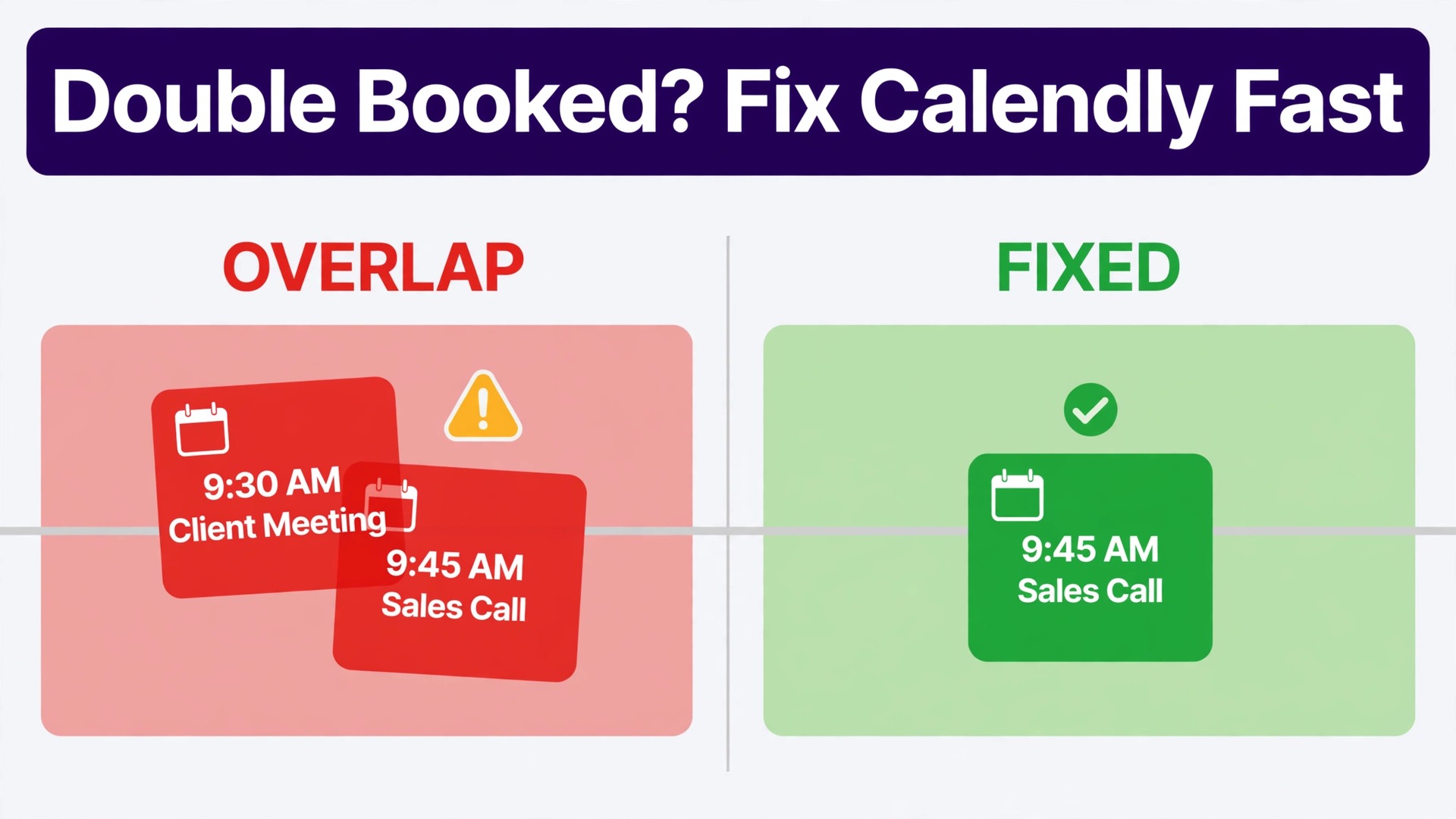
The verdict is simple. To fix Calendly double booking small business schedules, check the calendar that Calendly reads for conflicts before you change anything else, because most double bookings trace back to a calendar event that Calendly did not see as busy, a second calendar that was never connected, or an event type that was left open when it should have been closed. Calendly is designed to check a connected calendar in real time and to withhold busy times from invitees, so when two bookings land on the same slot, the first question is always which calendar, which event, and which setting allowed the second booking through.
That verdict sounds too simple for a problem that feels embarrassing, especially when two clients arrive at the same time or when a client receives a confirmation for a slot you already promised elsewhere. The embarrassment is real, but the fix is usually systematic rather than dramatic. A double booking is rarely a random glitch. It is a configuration gap that can be found, proved with a test booking, and closed with a setting change, a calendar correction, and a clear apology and rebook offer to the affected client.
This guide follows the order a small business should actually use. First, protect the affected clients and stop further double bookings. Second, find the exact calendar or setting that allowed the overlap. Third, fix availability, calendar connections, buffers, and event limits. Fourth, test with a fresh booking before reopening the page. Exact Calendly areas are named throughout, including Availability, Calendar settings, and event type settings, because a small business owner should not have to hunt for a setting while clients wait.
Why Calendly Double Books a Small Business Calendar
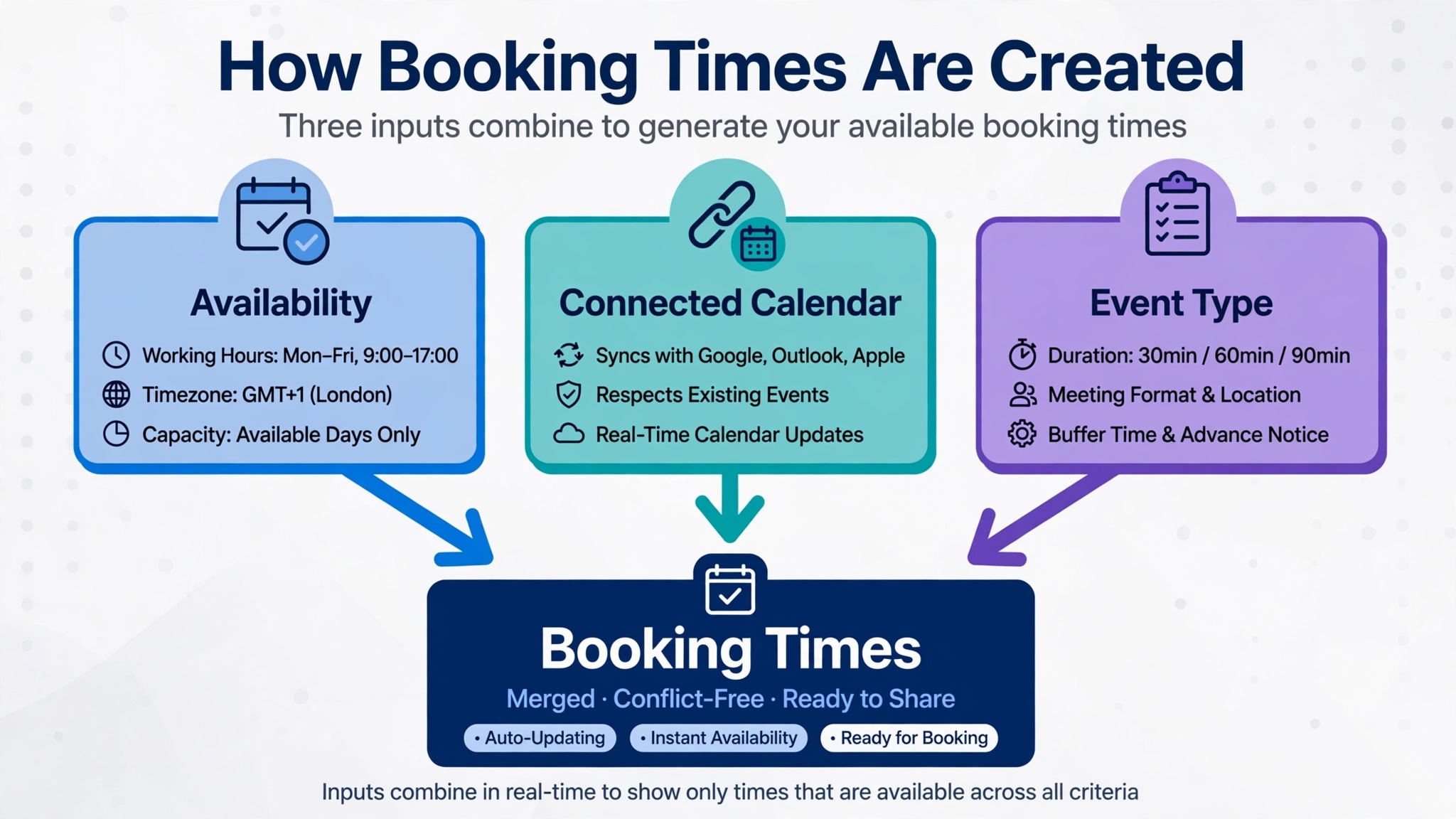
Calendly prevents double booking by combining two inputs. The first input is availability, which is the days and times you say you are open for meetings. The second input is the connected calendar, which Calendly checks for conflicts, so a time that is busy on that calendar is not offered to invitees. When either input is wrong, double bookings follow. Availability that is too wide offers times you cannot actually take. A calendar that is not connected, or that is connected but not selected for conflict checks, offers times that look free to Calendly even though they are busy in real life.
Calendar event status is a frequent hidden cause when you fix Calendly double booking small business schedules, because a free event will not block a booking even when it sits on the calendar. Calendly help material notes that Calendly only recognises events marked as busy as conflicts, so an event marked as free will not block a booking even though it sits on the calendar. That detail explains many cases where the owner insists the calendar was busy, while Calendly correctly followed the rule that free events do not block time. A similar gap happens with multiple calendars.
If work meetings live on one calendar and personal commitments live on another, and only the first calendar is selected for conflict checks, the second calendar cannot protect its times.
Event type settings create a second family of causes. An event type that allows multiple bookings at the same time, an event type with no buffer, or an event type with start increments that do not fit the meeting length can all create overlaps that look like double bookings even when the calendar is connected. Team event types add a further layer, because buffers and availability from one team member can affect collective or round robin events in ways that are not obvious from a single member calendar. A double booking that involves two team members usually points to a team event setting rather than to a single calendar.
Double Booking Causes at a Glance
| Cause | Signal you will see | Fix that matters most |
|---|---|---|
| Calendar not connected | Bookings ignore existing meetings | Connect calendar in Calendar settings |
| Wrong calendar selected | Some meetings block, others do not | Select all conflict calendars |
| Event marked as free | Calendly offers a busy time | Change the calendar event to busy |
| Availability too wide | Bookings at lunch or travel time | Narrow availability and add date overrides |
| No buffer | Back to back meetings with no gap | Add before and after buffers |
| Multiple bookings allowed | Same slot booked twice by design | Limit bookings per slot on the event type |
| Stale event settings | Old bookings keep old buffer rules | Cancel and rebook affected bookings after a change |
| Team event misconfigured | One member double booked in a team event | Check team availability and buffers together |
How to fix Calendly double booking small business schedules step by step
Work through this workflow in order, and pause new bookings on the affected event type while you diagnose, if the business can afford a short pause. A pause of a day, with a clear message on the booking page or a manual booking route for urgent clients, is better than a second double booking while the first is still being fixed. Keep a log of the overlapping bookings, with dates, times, event types, and the calendars involved, because that log points to the setting that allowed the overlap.
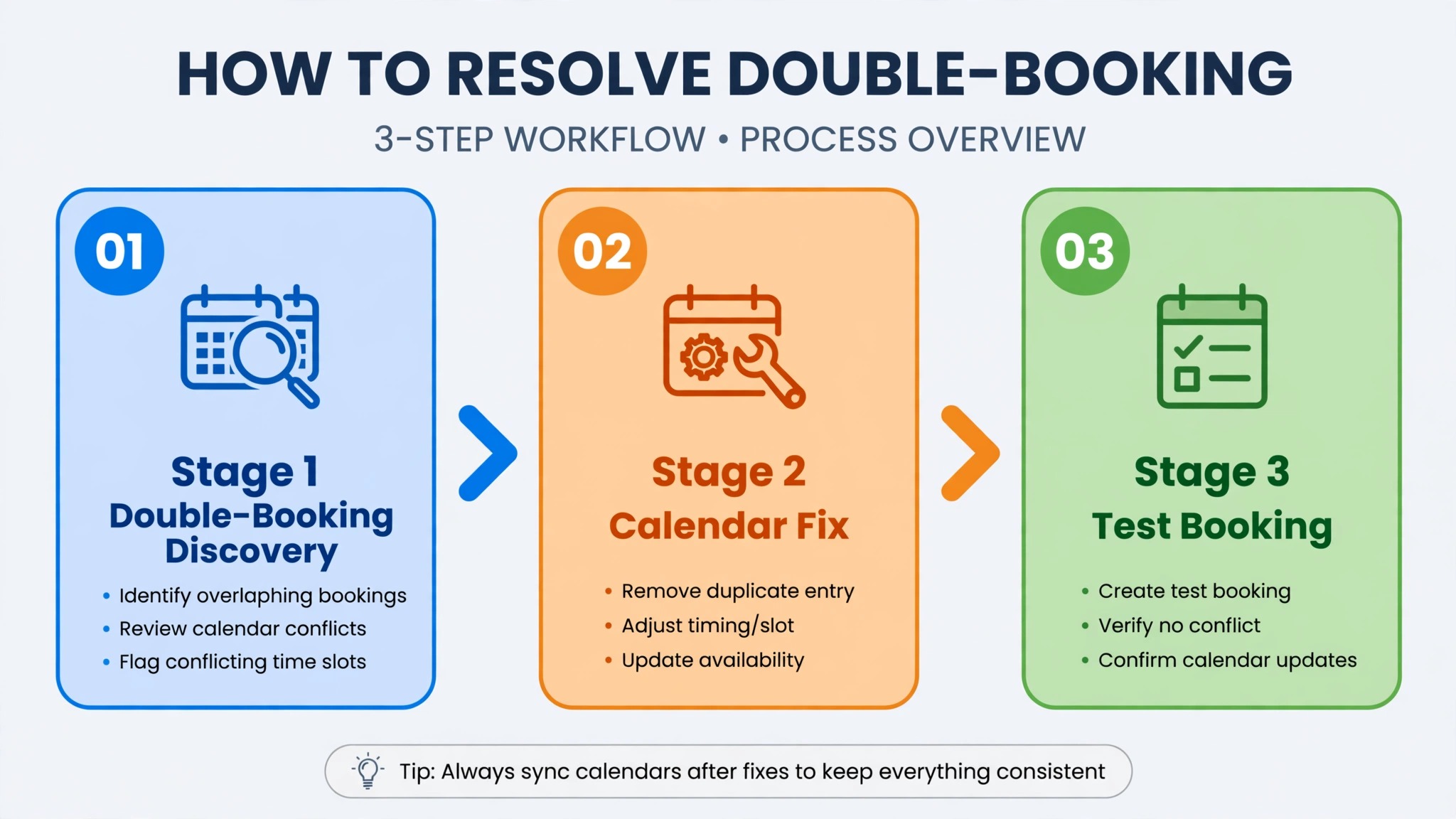
Step 1 Protect the affected clients first
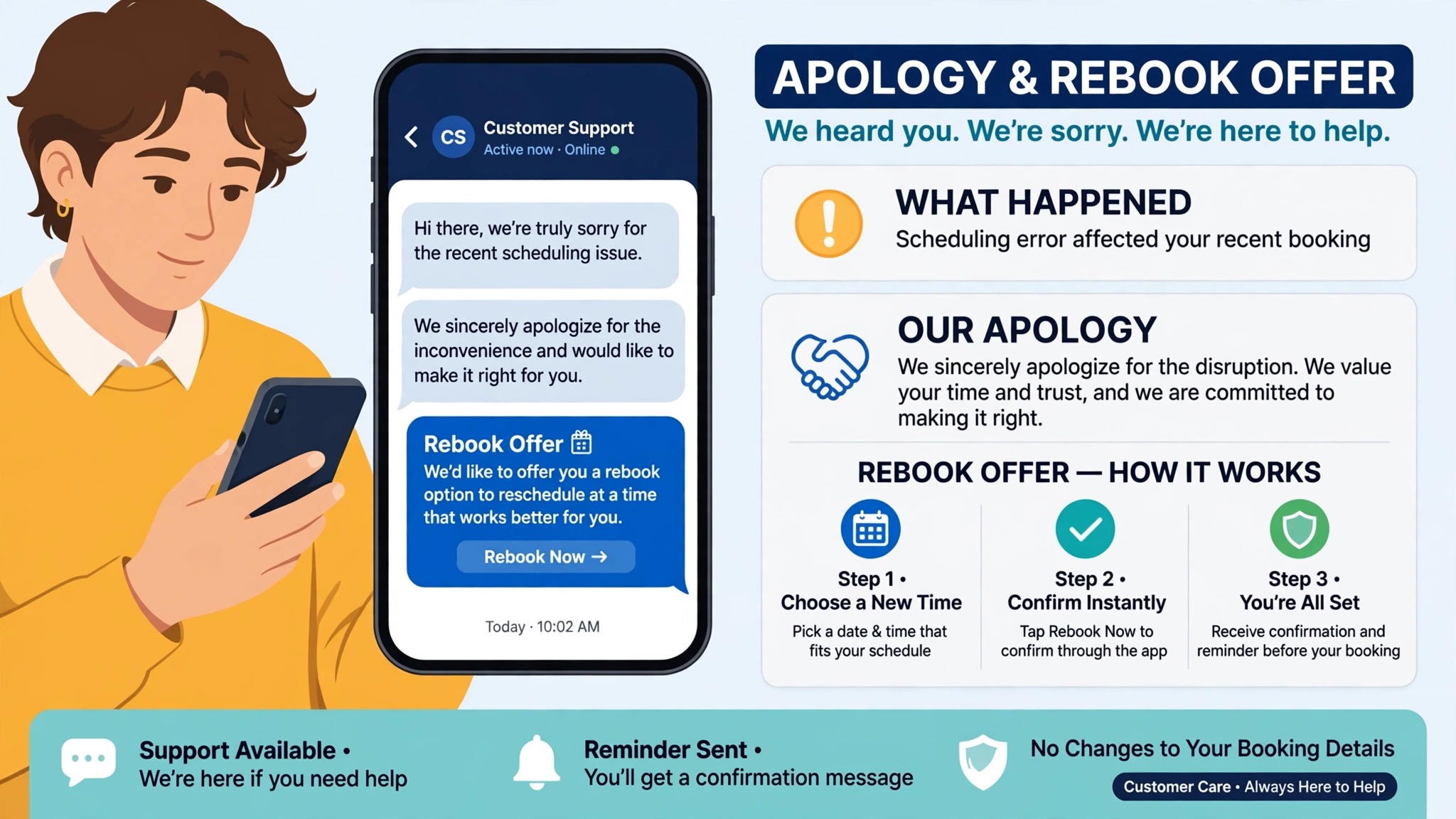
Contact both clients from the overlapping bookings promptly, apologise clearly, and offer a concrete alternative rather than asking them to sort it out between themselves. The client who booked first usually keeps the original slot, unless that client prefers to move, and the second client receives a priority rebook offer with two or three specific times. Do not blame the software in the first message. Clients care about the new time, not about the configuration detail, and a clear rebook offer restores trust faster than a technical explanation.
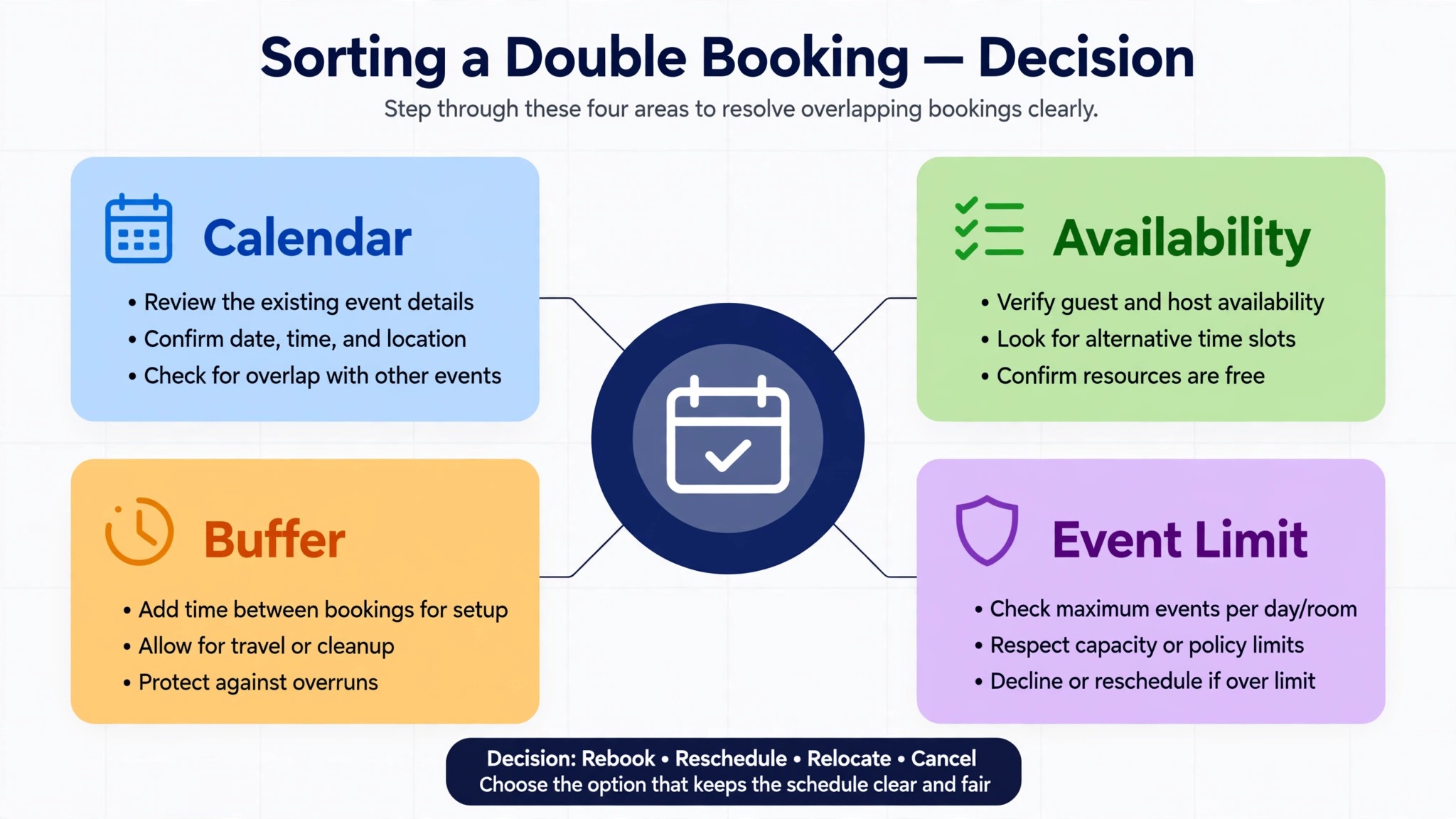
Use a short apology and rebook script, adapted to your voice, for this contact. Start with a plain apology for the clash, state the original time, offer two or three alternative times, and ask the client to confirm one. Offer a phone call if the client prefers to reschedule by voice, and confirm the new booking in writing once the client chooses. Record which client moved, which time they chose, and whether any compensation, such as a discount or an extended session, was offered, so the next team member who speaks to that client has the full story.

Step 2 Check which calendars Calendly reads for conflicts
Open Availability, then Calendar settings, and check which calendar account is connected, which calendars are selected under Calendars to check for conflicts, and which calendar is selected under Calendar to add events to. Those three choices decide whether Calendly sees your real busy times. If a work calendar is connected but a personal calendar that holds school runs, medical appointments, or travel is not selected, those personal times will remain bookable, and a double booking with a personal commitment will follow.

Check for a disconnected calendar as well. Calendly help material on reconnecting a disconnected calendar notes that disconnection affects scheduling, and a calendar that disconnected silently after a password change or a permission change will stop protecting its times. Reconnect the calendar, sign in again where asked, allow access, and confirm that the calendar shows as connected before you reopen bookings. If Microsoft approval is required for an Outlook calendar, ask the Microsoft administrator to approve the app, because Calendly cannot read a calendar that the administrator has blocked.
Step 3 Fix free events and duplicate calendars
Search the connected calendars for the exact time of the double booking, and check the status of the event that should have blocked it. If that event is marked as free, change it to busy, and check whether other important events share the same free status. A single free event explains a single double booking, but a pattern of free events, such as all day events created as free by default, explains repeated overlaps. Fix the pattern, not just the one event, by changing the default status for that event type in the calendar app where possible.
Check for duplicate calendars that show the same meetings twice, or for a calendar that was connected twice under different accounts. Duplicate calendars can confuse conflict checks, especially when one copy is selected for conflicts and the other copy, which holds the real meeting, is not. Remove the duplicate connection, keep the calendar that holds the authoritative meetings, and test again. Also check whether a team member has a personal calendar connected for conflicts while the team calendar is the one that actually holds client work, because that mismatch leaves client times unprotected.
Step 4 Tighten availability rules and date overrides
Open Availability and review the working hours for each day, including lunch, travel, and admin time that should not be bookable. Availability that runs from morning to evening without breaks will offer times that the owner cannot realistically take, and those times become double bookings when a manual commitment is added later. Narrow the hours to real meeting hours, add breaks as unavailable time, and use date overrides to mark specific days as unavailable, such as holidays, training days, or travel days. Blocked times from date overrides will not appear as bookable, which is exactly the protection a small business needs for irregular days.
Check availability per event type as well when you fix Calendly double booking small business schedules, because an event type can use a different availability schedule from the general schedule. A consultation event that should only run on certain days may still be using a general schedule that offers every weekday, and that mismatch creates bookings on days the owner never intended to consult. Assign the correct availability schedule to each event type, save, and test the booking page for that event type specifically, rather than assuming that a general availability fix covers every event.
Step 5 Set buffers and start time increments correctly
Buffers add extra time before or after a meeting, so the owner can prepare, travel, or wrap up without feeling rushed. Calendly help material on buffers explains that Calendly uses the full meeting and buffer window to determine which booking times are available, and that connected calendars are checked for conflicts with both the meeting and the buffer time. A thirty minute meeting with fifteen minute buffers before and after needs sixty minutes of free time, even though the meeting itself stays thirty minutes long. That rule is the key to fixing back to back overlaps that feel like double bookings.
Choose buffers that match the real work between meetings. A phone consultation may need only a five minute buffer, while an in person visit may need thirty minutes for travel. Avoid using both a before buffer and an after buffer where one buffer would do, because stacked buffers between meetings can block a large amount of time and confuse clients who see few available slots. If buffers seem to block times unexpectedly, use the Calendly troubleshooting tool on the scheduling page, which can show a buffer message when buffer settings are blocking a slot.
Check start time increments as well. Start increments control which start times are offered, and an increment that does not fit the meeting length can create odd gaps or apparent overlaps. For example, a forty five minute meeting with hourly start increments will leave gaps that clients cannot use, while a thirty minute meeting with fifteen minute increments offers more flexible starts. Test the booking page after changing increments, because the offered times are the real proof of whether the setting works as intended.
Step 6 Check event type limits and team settings
Open the event type that double booked and check whether it allows more than one booking at the same time, whether it has a daily limit, and whether it requires host confirmation. An event type designed for a group workshop may correctly allow multiple bookings at the same slot, while an event type designed for one to one consultations should allow only one. A small business that copies a group event type to create a one to one event type can inherit the group setting without noticing, and that inherited setting is a common cause of a slot booked twice by design.
For team events, check collective and round robin settings together, because buffers on one member other events can affect team availability. In a collective event, every required host must be free, so a buffer on one host other event can block the team slot. In a round robin event, buffers on other event types can cause uneven distribution or unexpected blocks. Review team availability as a group, test the team booking page with each member calendar in mind, and assign one owner to team event settings so changes do not drift across members.
Step 7 Test with a fresh booking before reopening
After fixing calendars, availability, buffers, and event limits, test the booking page as if you were a client. Try to book the exact time that previously double booked, and confirm that it is now withheld. Try to book a time that overlaps a buffer, and confirm that it is also withheld. Try to book a time that should be free, and confirm that it is offered. That three part test, blocked time, buffer time, and free time, proves the fix far better than a settings screen that looks correct.
Remember that event type settings in place at the time of a booking lock into that booking. Calendly community guidance notes that buffers attached to bookings made while buffers were in place remain attached to those bookings even after buffers are removed from the event type, and the change applies only to bookings made after the change. If an existing booking still blocks a time under old buffer rules, you may need to cancel and rebook that booking under the new rules, with the client agreement, to free the slot. Do not assume that a settings change rewrites existing bookings, because it does not.
Calendly Booking Checklist for a Small Business
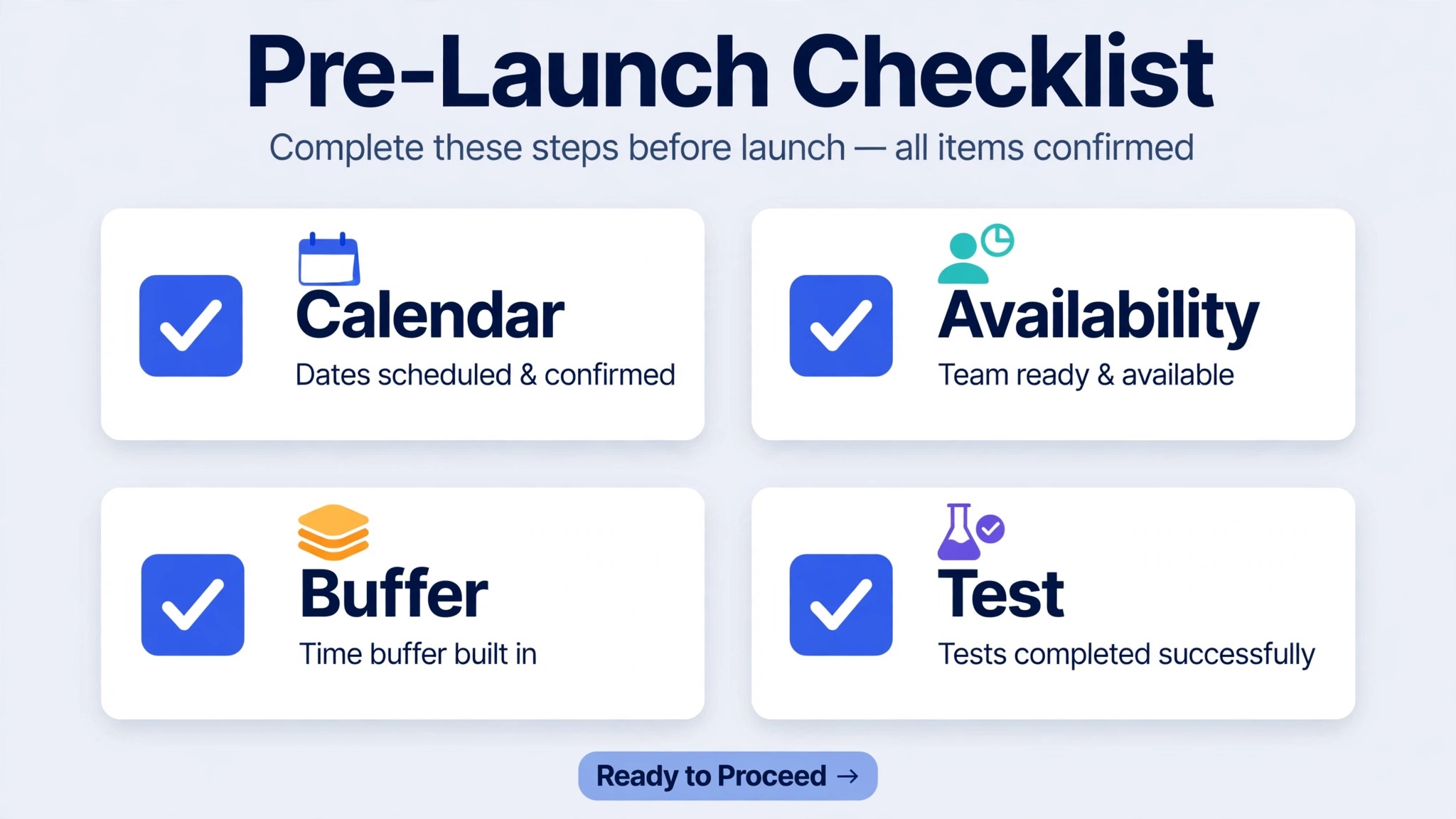
Use this checklist after any calendar change, availability change, or team change, and before reopening a booking page that double booked.
– Affected clients contacted, with a rebook offer and a confirmed new time – Calendar account connected and showing as connected in Calendar settings – All conflict calendars selected, including personal calendars that hold commitments – Calendar to add events to set to the authoritative calendar – Free events that should block time changed to busy – Availability hours narrowed to real meeting hours, with breaks protected – Date overrides set for holidays, travel, and training days – Buffers set to match real preparation and travel time, not to a guessed value – Start time increments tested on the booking page for each event type – Event type booking limit set to one for one to one consultations – Team event availability and buffers reviewed as a group where relevant – Fresh test booking completed for blocked time, buffer time, and free time – Old bookings checked for locked in buffer rules where a slot still looks blocked – Booking page reopened only after the test booking proves the fix
Mistakes That Keep Calendly Double Booking Alive
Leaving a disconnected calendar connected in name only is the most common mistake when teams try to fix Calendly double booking small business schedules, because a lost permission stops protection silently. A calendar that shows in a list but has lost permission after a password change will not protect its times, and the owner may not notice until the next double booking. Check connection status after every password change, every administrator change, and every Calendly warning about calendar access, and reconnect promptly rather than assuming the connection healed itself.
Changing buffers without checking existing bookings is the second mistake. Because settings lock into bookings at booking time, a buffer removal that looks successful on the event type page may leave existing bookings still blocking their old buffer windows. A small business that removes buffers and then wonders why a slot stays blocked is seeing that locked in rule in action. Cancel and rebook the affected bookings, with client agreement, or wait for those bookings to pass before judging the new buffer setting.
Copying an event type without checking its limits is the third mistake. A copied group event, a copied team event, or a copied event with a different availability schedule can carry settings that do not fit the new purpose. After copying any event type, review its booking limit, availability schedule, buffers, and calendar settings as if it were new, because a copied setting is still a setting that can double book.
Relying on memory instead of calendar blocks is the fourth mistake. A commitment that lives only in a notebook, a chat message, or the owner head cannot block a Calendly slot, no matter how important it is. Put every commitment that should block booking time onto a calendar that Calendly checks for conflicts, marked as busy, with the correct time and date. That habit, more than any single setting, is what keeps a small business calendar honest across a busy week.
Apology and Rebook Scripts That Protect Trust
A double booking apology should be short, specific, and forward looking. State the clash plainly, take responsibility without blaming the software, and offer a clear next step. A script that works for most small businesses reads as follows in adapted form. Apologise for the clash on the original date and time, explain that the slot was booked twice in error, offer two or three alternative times, and ask the client to confirm the time that suits them best. Close by confirming that the new booking will be confirmed in writing and that the original booking will be cancelled so no further confusion arises.
For a client who must move at short notice, add a goodwill gesture that fits the business, such as an extended session, a priority slot, or a small discount on the next booking, and record it as part of how you fix Calendly double booking small business schedules without losing client trust. A goodwill gesture is not an admission of a larger fault, it is a recognition that the client time was wasted, and it often turns a frustrated client into a loyal one. Record the gesture, so the next team member does not offer a second gesture for the same clash, and so the business can see the real cost of double bookings over a month.
For a client who booked first and keeps the slot, a short confirmation message is still worthwhile, because that client may have heard about the clash or may worry that their booking moved. Confirm the original time, confirm that nothing about their booking has changed, and thank them for their patience. That message takes a minute and prevents a second round of confusion, where the client who kept the slot also tries to rebook.
Reviewing Booking Pages Monthly So Overlaps Stay Rare
A booking page that worked in January can double book in June, because calendars change, team members change, and event types are copied for new services without a full settings review. Set a monthly review, on a fixed day, to open Availability, Calendar settings, and each active event type, and to confirm that the settings still match how the business actually works. That review takes less time than one double booking apology, and it catches a disconnected calendar, a widened availability window, or a copied event limit before clients find it.
During the monthly review, test one booking page as a client, even when no problem has been reported. Book a free time, check that a busy time is withheld, and check that a buffer time is withheld, using the same three part test described in the workflow. If the test fails, pause that event type, fix the setting, and retest before sharing the page again. A monthly test also gives new team members a safe way to learn the booking system, because they can practise on a test booking rather than on a real client booking.
Keep a one page booking settings note, updated at each monthly review, with the connected calendars, the availability schedules, the buffer values, and the event type limits. When a team member leaves, when a new calendar is added, or when a new service launches, that note shows what must be checked before the new setup goes live. It also helps you fix Calendly double booking small business schedules faster in future, because the note answers the first diagnostic questions without opening every settings screen from scratch. A small business that reviews its booking pages monthly will still see occasional clashes, but those clashes will be rare, small, and fixable, rather than repeated and embarrassing.
Frequently Asked Questions
Why does Calendly double book when my calendar is connected?
A connected calendar only protects times on calendars selected for conflict checks, and only for events marked as busy. Check Calendar settings for the selected conflict calendars, check the event status for the overlapping meeting, and check whether the calendar disconnected after a password or permission change.
Do I need a paid Calendly plan to prevent double booking?
Double booking prevention through connected calendar conflict checks is enabled by default, according to Calendly community guidance, and does not require a paid plan for that basic protection. Paid plans add other features, but the core calendar check is part of the standard scheduling behaviour when a calendar is connected and selected.
Why does a time stay blocked after I remove buffers?
Event type settings in place at the time of a booking lock into that booking, so buffers attached to earlier bookings remain even after buffers are removed from the event type. The change applies to bookings made after the change. Cancel and rebook affected bookings, with client agreement, to apply the new buffer rules to those slots.
Can Calendly check more than one calendar for conflicts?
Yes, Calendly can check multiple calendars for conflicts when those calendars are connected and selected in Calendar settings. Connect every calendar that holds commitments, select each one for conflict checks, and choose one authoritative calendar for adding new bookings, so the system has a single place to write new events.
What should I do when two clients book the same slot?
Contact both clients promptly, keep the original slot for the first booking unless that client prefers to move, and offer the second client two or three specific alternative times with a clear apology. Confirm the new booking in writing, cancel the duplicate booking cleanly, and record any goodwill gesture offered.
How do buffers affect Calendly availability?
Calendly uses the full meeting and buffer window to determine availability, and connected calendars are checked for conflicts with both the meeting and the buffer time. A thirty minute meeting with fifteen minute buffers before and after needs sixty minutes of free time, even though the meeting length stays thirty minutes.
Why does a team event double book one member?
Team event availability depends on the members involved, and buffers on one member other events can block or affect team slots, especially in collective and round robin events. Review team availability and buffers as a group, test the team booking page, and assign one owner to team event settings.
How can I test that a double booking fix worked?
Test the booking page as a client, trying the previously double booked time, a time inside a buffer, and a time that should be free. The first two should be withheld and the third should be offered. That three part test proves the fix better than a settings screen that looks correct.
The Verdict for a Small Business Calendar
A Calendly double booking is a signal, not a mystery, and the signal usually points to a calendar that was not read, an event that was not busy, an availability window that was too wide, or an event setting that allowed the overlap. Fix the calendar first, then availability, then buffers and event limits, and prove the fix with a fresh test booking before reopening the page. That order protects clients, stops a second clash, and gives the team confidence that the page can be shared again.
Keep the calendar honest from now on by putting every blocking commitment onto a checked calendar marked as busy, by reviewing connection status after password changes, and by testing the booking page after every availability or team change. To fix Calendly double booking small business schedules for good, treat the booking page as a live shop window, checked regularly, rather than as a set and forget link, and let a clean test booking, not hope, decide when it is safe to share again.