
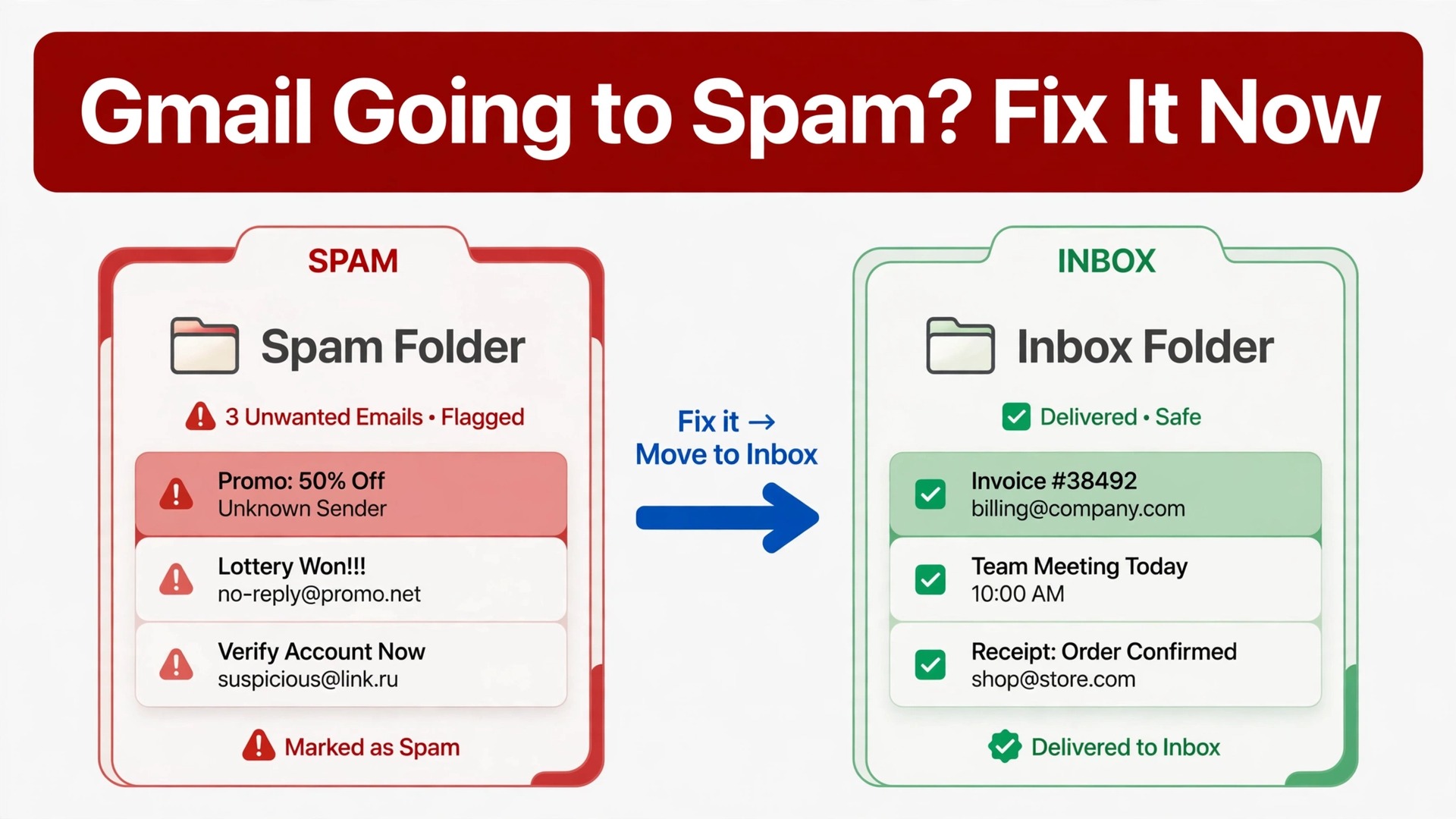
Gmail now treats unauthenticated bulk mail far more harshly than it did a few years ago, and that shift explains why a small business can send the same newsletter for years and then watch it slide into spam. Google defines a bulk sender in its guidance as a domain sending close to 5,000 messages or more to personal Gmail addresses in a day, counting subdomains together, and once that threshold is crossed the stricter rules tend to stick. The verdict is blunt. If you want to fix Gmail going to spam small business mail, authentication comes first, list quality comes second, and copy tweaks come last, because no subject line can rescue mail that fails the basic trust checks.
That order surprises many owners, because spam feels like a wording problem. In practice, Gmail filters weigh who sent the mail, whether the sending domain proved its identity, whether recipients wanted it, and whether recipients marked similar mail as spam. A well written email from an unauthenticated domain will still struggle, while a plain email from a properly authenticated domain with a clean list will usually reach the inbox. This guide follows the order Gmail actually rewards, with exact records to publish, exact tools to check, and a test routine you can repeat after every change.
It also sets realistic expectations. Deliverability rarely improves the day after a single DNS change, because reputation, complaint history, and sending patterns change slowly. A small business should expect to fix the technical foundation in week one, clean the list in week two, and then measure inbox placement over several sends before judging the result. Chasing a different trick after every send only resets the learning period and hides which change actually helped.
Why Gmail Sends Small Business Mail to Spam
Gmail spam placement has several distinct causes, and each cause needs a different fix. Authentication failure is the most technical cause. It happens when SPF, DKIM, or DMARC records are missing, wrong, or misaligned, so Gmail cannot prove that the sending server was allowed to send for your domain. List quality is the most human cause. It happens when mail goes to people who did not ask for it, to old addresses that bounce, or to recipients who mark it as spam instead of unsubscribing.
Content triggers still matter, but they are usually the third cause, not the first, and that ranking matters when you fix Gmail going to spam small business mail, because copy fixes alone cannot rescue failed authentication. Heavy images with little text, misleading subject lines, broken unsubscribe links, and links to low trust domains can all push a borderline message into spam. Sending behaviour matters too.
A sudden volume spike, a new sending domain with no history, or a burst to a cold purchased list looks like the pattern of a spammer, even when the business behind it is legitimate. Gmail also weighs engagement, so mail that recipients open, reply to, and move to the inbox builds a better history than mail that is ignored or deleted unread.
Small businesses are vulnerable to a particular mix of these causes. They often send from several tools at once, such as a website, a shop platform, a newsletter tool, and a booking system, and each tool needs to be included in authentication. They often keep old customer lists for years without cleaning them, and they often reuse a domain for marketing and for transactional mail, so a marketing complaint can affect order confirmations as well. Fixing spam therefore means fixing the whole sending setup, not just one campaign.
Spam Causes and Fixes at a Glance
| Cause | Signal you will see | Fix that matters most |
|---|---|---|
| Missing SPF | Authentication fails in message headers | Publish and test the SPF record |
| Missing DKIM | Signing domain does not match sender | Enable DKIM signing for your domain |
| No DMARC | No policy or reporting for failures | Publish DMARC starting at monitoring |
| Stale list | High bounces and low opens | Remove inactive and bouncing addresses |
| High complaints | Spam rate rises in Postmaster Tools | Stop the offending send and clean the list |
| Sudden volume spike | New domain or list blocked or filtered | Warm up volume gradually |
| Broken unsubscribe | Complaints instead of opt outs | Fix one click unsubscribe and honour it fast |
How to fix Gmail going to spam small business mail step by step
Work through this workflow in order, and test after the authentication steps before you change copy or send a large campaign. Each step builds on the one before it, so skipping ahead to content changes while authentication still fails wastes the effort. Keep a log of every DNS change, with the old record, the new record, and the date, because DNS problems are far easier to solve when you can see what changed.
Step 1 Confirm the problem is Gmail spam placement
Before you change DNS records, confirm that the problem is really Gmail spam placement and not a wider delivery failure. Send a test message to a personal Gmail address, to a colleague Gmail address, and to a non Gmail address, using the same sending tool and the same content. If only Gmail places the mail in spam, the cause is likely Gmail specific authentication, reputation, or complaint history. If every provider rejects or filters the mail, the cause is more likely a basic authentication or blocklist problem.
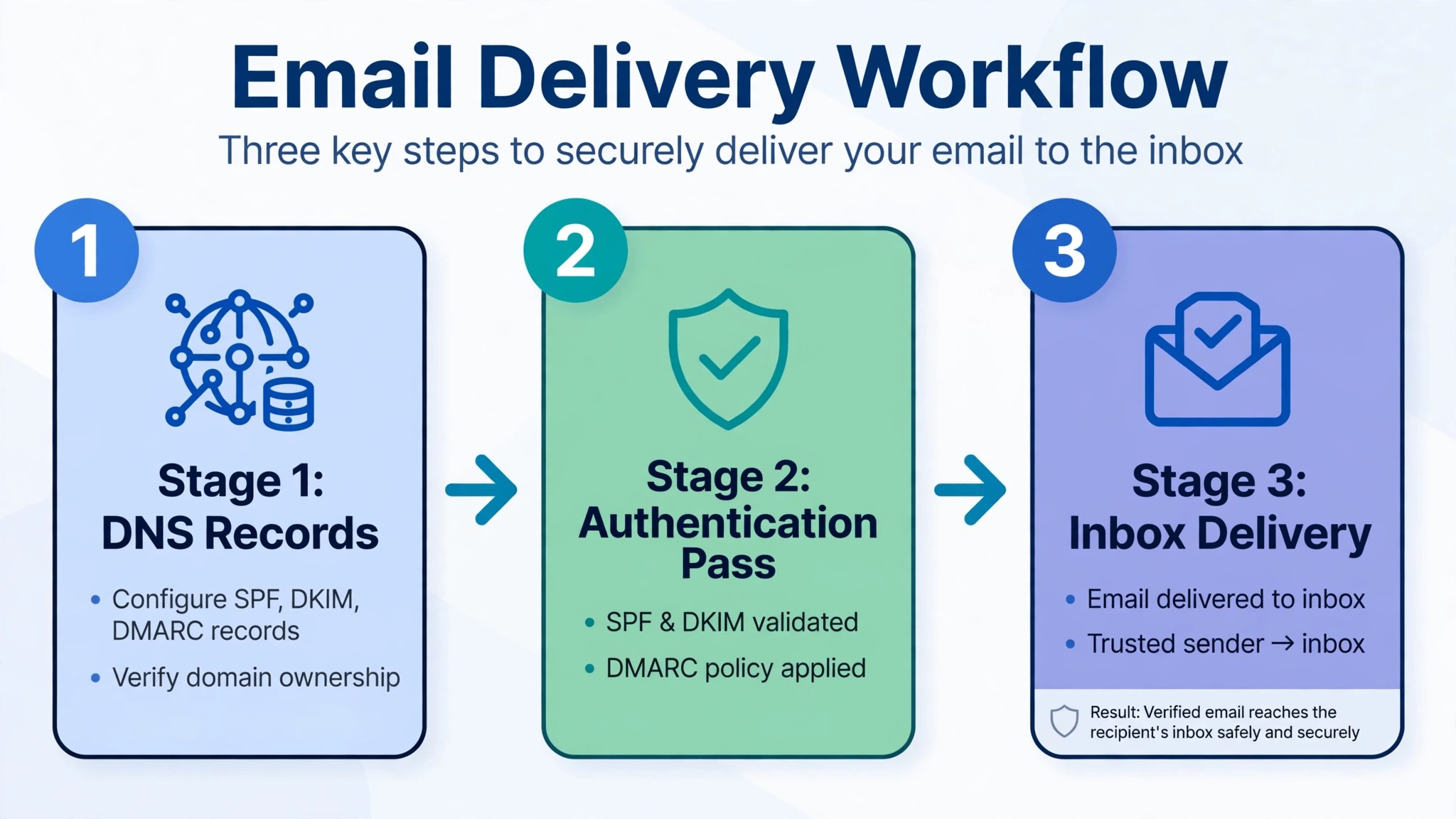
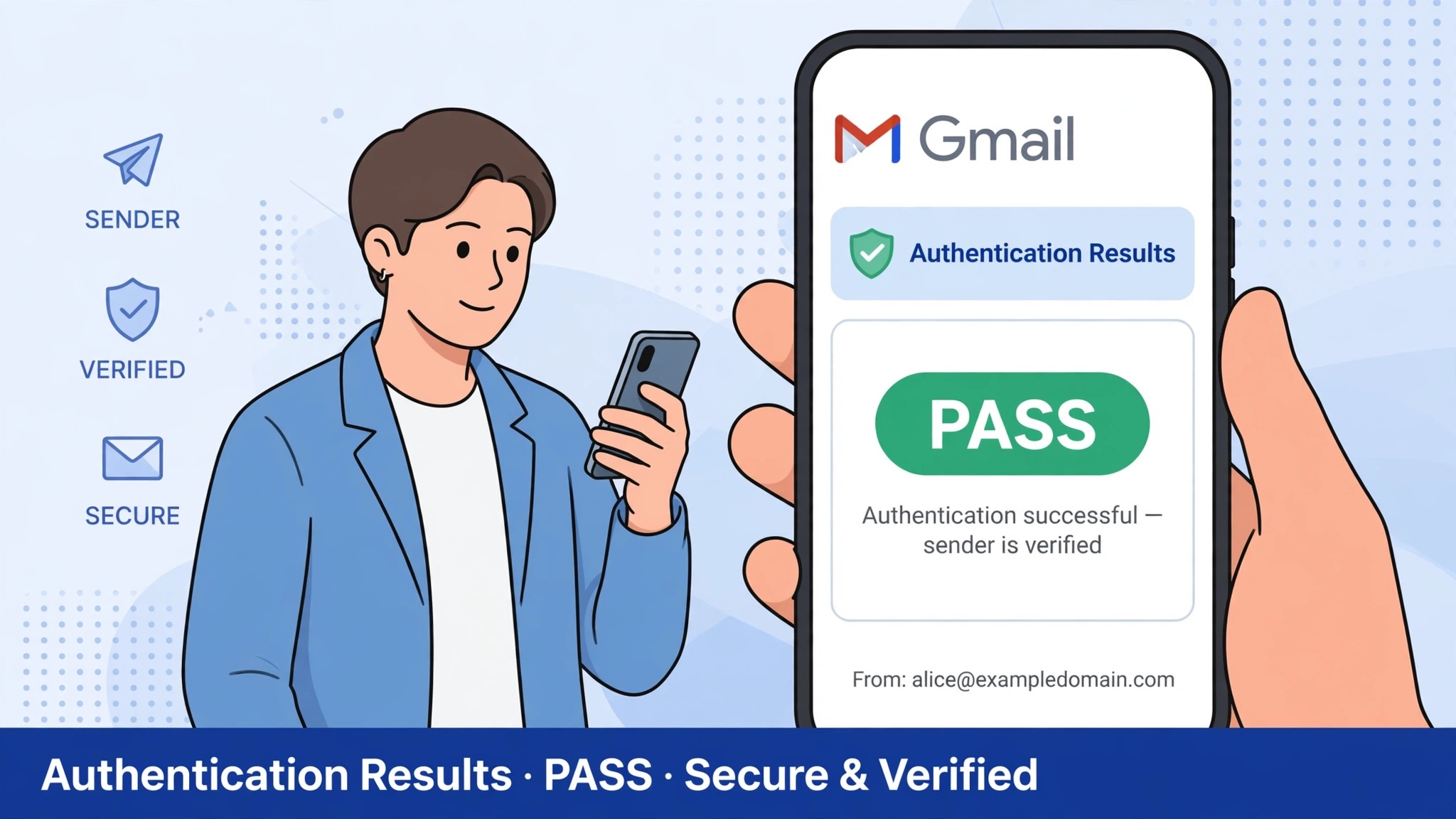
Ask a recipient to open the message in Gmail, open the full message details, and read the authentication results for SPF, DKIM, and DMARC. Those three results, pass or fail, are the most useful diagnostic facts you will get in this whole process. Save a copy of those details with the date, because they show the starting point against which every later fix can be measured. Do not rely on memory or on a screenshot of the spam folder alone.

Step 2 Publish and test SPF
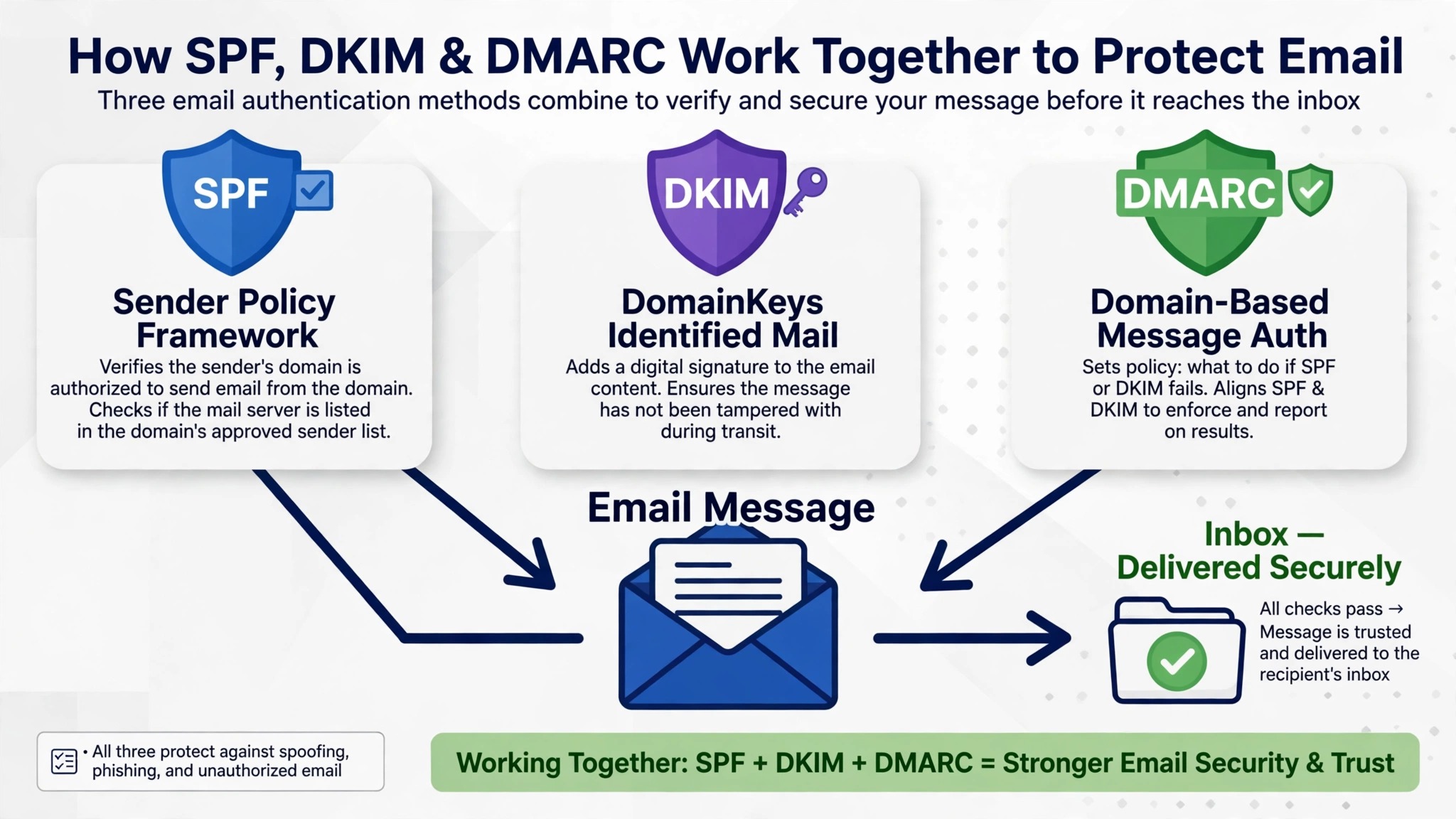
SPF is a DNS record that lists which servers may send mail for your domain. Publish one SPF record for the sending domain, and include every legitimate sending service, such as your email host, your newsletter tool, your shop platform, and your booking system. A common small business mistake is publishing SPF for the email host only, while the newsletter tool sends from a different server and fails SPF on every campaign.
Watch the SPF lookup limit. An SPF record that triggers more than ten DNS lookups returns an error rather than a pass, and that error is a fail, not a warning. If you use many sending tools, flatten the record where your DNS host allows it, or ask each tool whether it offers a dedicated sending subdomain. Test the record with a DNS lookup tool after every change, and allow time for DNS propagation before you judge the result. A record that looks correct in your DNS panel may not yet be visible to Gmail.
Step 3 Enable DKIM signing for your domain
DKIM adds a cryptographic signature to each message, so Gmail can verify that the message was not altered in transit and that it came from an authorised sender. Enable DKIM in each sending tool, using your own domain rather than the tool shared domain where that option exists. That alignment matters, because Gmail compares the signing domain with the From domain, and a shared tool domain signature is weaker evidence for your business domain than your own signature.
Copy the DKIM public key into DNS exactly as the tool provides it, without adding spaces or line breaks that break the record. Test a message after enabling DKIM and check that the DKIM result shows a pass for your domain. If one tool passes DKIM and another fails, fix the failing tool before you move on, because a mixed result leaves Gmail with conflicting evidence about your domain. Keep a note of which tool uses which DKIM selector, so a future key rotation does not break a working setup.
Step 4 Publish DMARC starting at monitoring
DMARC tells receiving mail systems what to do when SPF and DKIM do not align with the From domain, and it asks for reports back to you about failures. Start with a monitoring policy, which asks receivers to take no enforcement action but to send you reports. That monitoring stage is essential for a small business, because it reveals third party services sending as your domain without proper DKIM, such as a booking tool or a form plugin you had forgotten about.
Read the DMARC aggregate reports, or use a report parser tool to turn the raw reports into a readable list. Fix any legitimate sender that appears as failing, by adding it to SPF or enabling DKIM for it, before you move to a stricter policy. Only after legitimate senders pass consistently should you consider moving toward a quarantine policy, and then toward a reject policy, in stages. Moving straight to a strict policy before the reports are clean can block legitimate mail, including order confirmations and password resets.
Step 5 Verify the domain in Google Postmaster Tools
Google Postmaster Tools is the free service that shows senders data about mail sent to personal Gmail addresses, including spam complaint rate, authentication success, encryption, delivery errors, and compliance status for bulk sender rules. Verify your domain in Postmaster Tools by adding the verification record to DNS, then wait for data to appear. Data is shown only after enough volume reaches Gmail, so a very small sender may see limited data at first, and that limitation itself is useful to know.
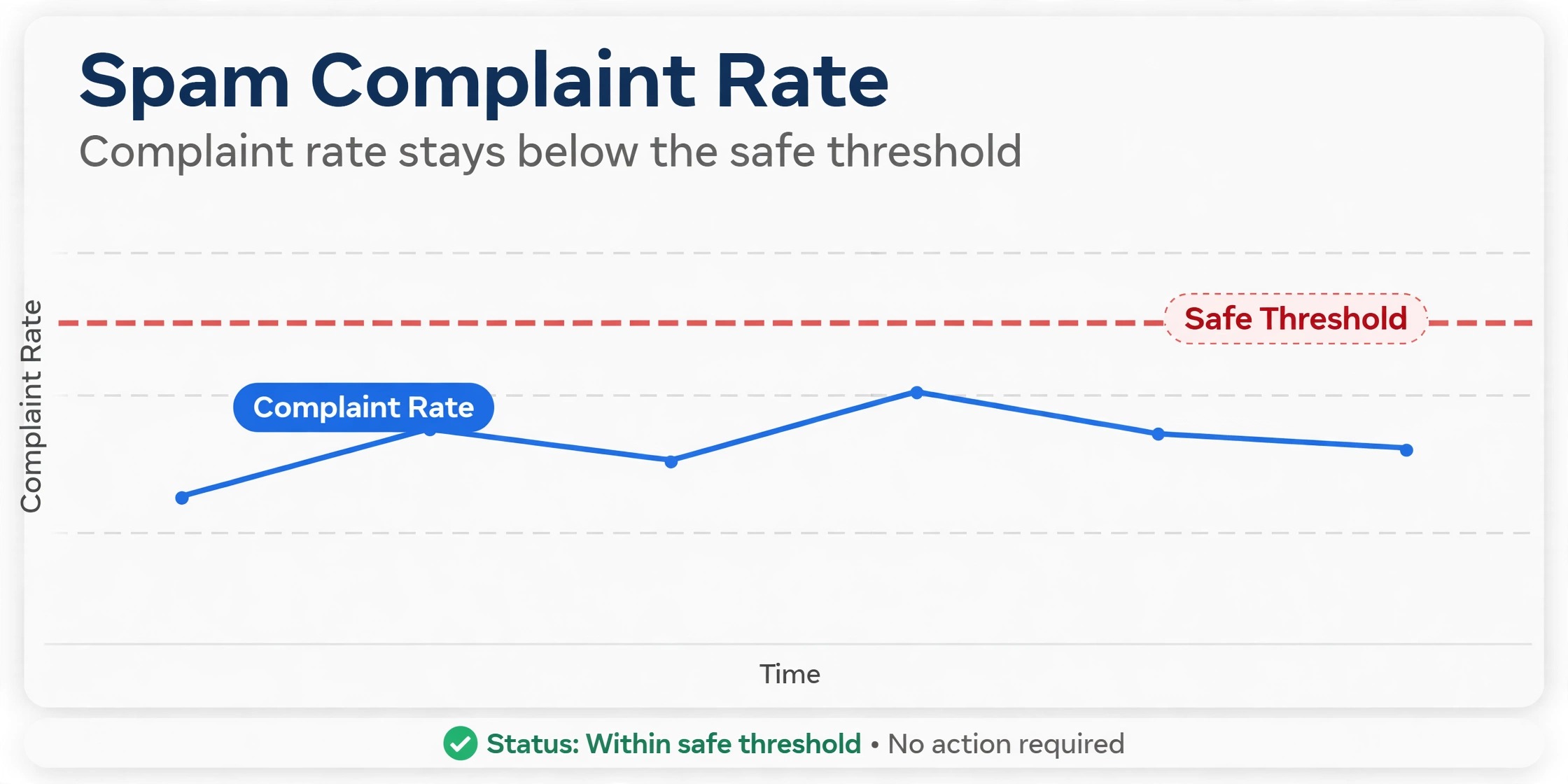
Check the spam rate first. Guidance reviewed for this guide treats 0.10 percent as the practical ceiling to aim for, with 0.30 percent as a hard line that triggers limits until the rate stays below that line for seven straight days, although exact enforcement wording changes over time and should be checked in the current Google sender guidance. Check the compliance status dashboard next, and clear every applicable bulk sender requirement it lists. Check authentication pass rates, and aim for close to 100 percent for SPF, DKIM, and DMARC, because a low pass rate points straight back to a configuration error in an earlier step.
Step 6 Clean the list before the next large send
List hygiene is where many small businesses recover the most inbox placement for the least technical effort. Remove hard bouncing addresses, remove addresses that have not opened or clicked in a long period that fits your sending frequency, and remove any address that was purchased, rented, or added without clear permission. A smaller list of engaged recipients beats a large list of strangers on every deliverability measure, because Gmail weighs complaints and engagement far more heavily than list size.
Segment the cleaned list before the next send if you want to fix Gmail going to spam small business mail without risking the whole list on one test. Send first to your most engaged recipients, such as recent openers and recent buyers, and watch the spam rate and bounce rate on that segment before sending to less engaged groups. If a segment shows high complaints, stop and investigate that segment rather than pushing through to the full list. A send that stops early with a clean segment protected is far better than a full send that damages the domain reputation for weeks.
Step 7 Fix content triggers and unsubscribe handling
Once authentication and list quality are sound, review content with a practical eye. Use a clear From name that recipients recognise, a subject line that matches the message inside, and a balance of text and images rather than one large image with almost no text. Avoid misleading claims, excessive punctuation, and link shorteners that hide the destination, because all of these add risk to a borderline message. Test the message with a spam checker tool if your sending platform offers one, but treat its score as a hint, not as a guarantee of inbox placement.
Fix unsubscribe handling at the same time. Marketing mail should offer a simple one click unsubscribe, and opt outs should be honoured promptly, within two days under the bulk sender rules reviewed for this guide. A recipient who can unsubscribe easily will not need to mark mail as spam, and every spam complaint avoided protects the domain. Check that the unsubscribe link works on a phone as well as on a desktop, because a broken mobile unsubscribe link creates complaints from the very recipients most likely to use it.
Step 8 Test inbox placement and repeat the cycle
Send a test campaign to a small seed list that includes Gmail, Yahoo, and Outlook addresses, plus a few engaged customers who have agreed to report placement. Ask seed recipients to check inbox, promotions, and spam, and to move the test message to the inbox if it lands in spam, because that engagement signal helps future mail. Record placement by provider, not just by overall opens, because a fix that helps Gmail may not help Outlook, and vice versa.
Repeat the cycle after every major change. Change one variable at a time, whether that variable is a DNS record, a list segment, or a content element, and measure the next send against the previous one. A small business that changes authentication, list, and copy in the same week cannot tell which change helped, and may undo a working fix while chasing a different problem. Patience in testing is the cheapest deliverability tool available.
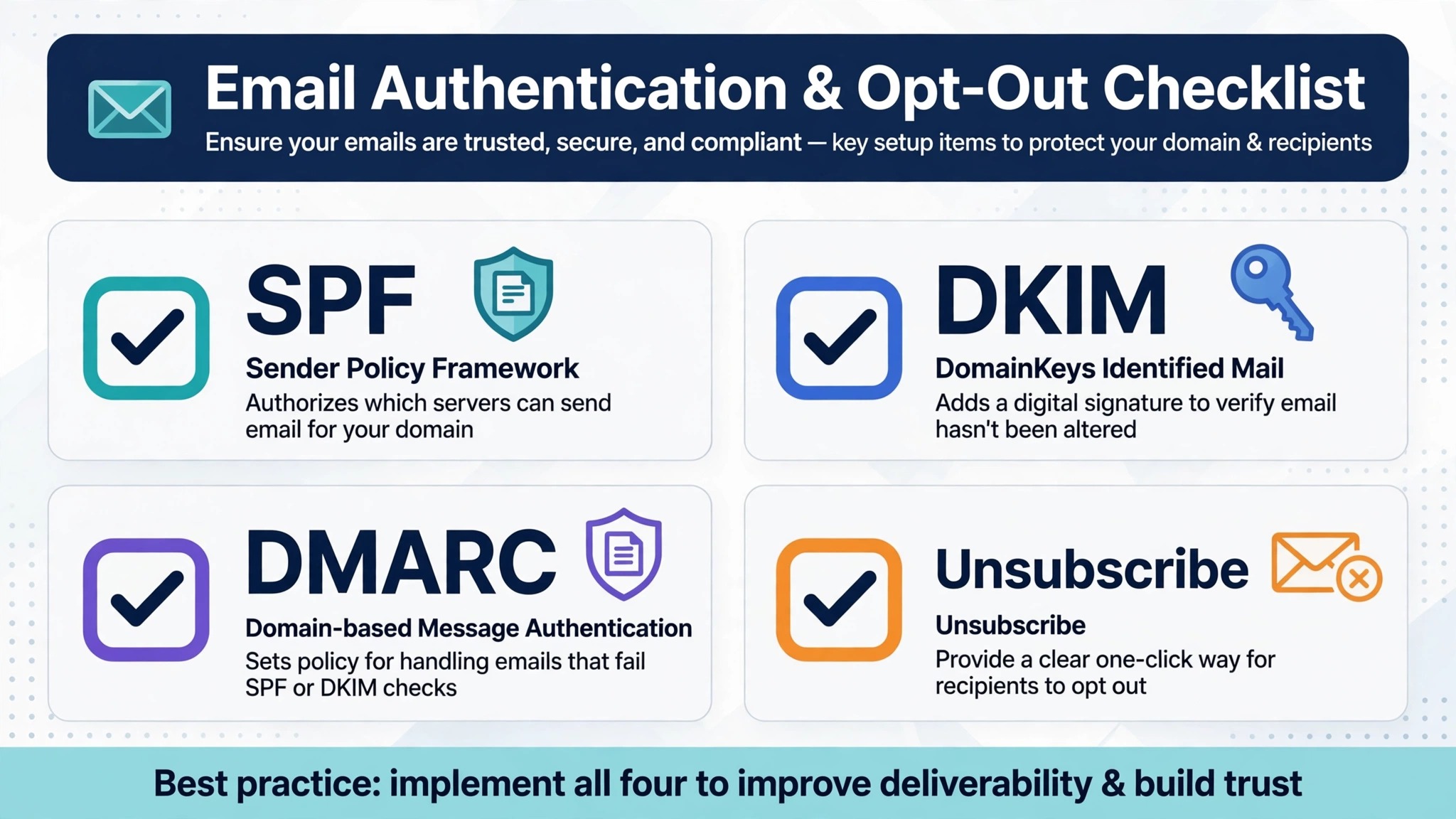
Gmail Sender Checklist for a Small Business
Use this checklist before any large send, and do not send to the full list until the authentication items are marked as passing.
– SPF record published, with every sending tool included and lookup count checked – DKIM signing enabled for your own domain in every sending tool – DMARC record published at monitoring, with reports reviewed for failing senders – From domain aligned with SPF or DKIM domain on every message type – Domain verified in Google Postmaster Tools, with spam rate and compliance checked – Hard bounces removed and inactive addresses suppressed or removed – Purchased, rented, and permission free addresses removed entirely – One click unsubscribe working on phone and desktop, with opt outs honoured promptly – Transactional mail separated from marketing mail by subdomain or tool where possible – Seed list test completed, with inbox placement recorded by provider – Sending volume planned without sudden spikes to cold segments – Complaint rate, bounce rate, and authentication pass rate logged after each send
Mistakes That Keep Gmail Spam Placement Stuck
Sending to a purchased list is the mistake that does the most lasting damage when you try to fix Gmail going to spam small business mail, because complaints from unwilling recipients undo technical fixes. Purchased addresses did not ask for your mail, they complain at high rates, and they can include spam traps that damage reputation on contact. No authentication fix can rescue a purchased list, and the damage from one purchased send can affect legitimate mail for weeks. Delete purchased addresses entirely rather than trying to warm them up slowly, because slow sending to unwilling recipients still generates complaints.
Sending marketing and transactional mail from the same domain and tool is the second mistake. When a marketing campaign generates complaints, the reputation effect can spill over to order confirmations, password resets, and booking messages, which customers need urgently. Separating marketing mail onto a subdomain, with its own authentication, protects transactional mail from marketing complaints, and it makes diagnosis easier, because a problem on one subdomain does not hide inside the other.
Ignoring Postmaster Tools data is the third mistake. Many owners fix DNS records once and never return to check whether authentication pass rates actually improved, or whether the spam rate fell after list cleaning. Postmaster Tools data lags real sends by days, so a single check the morning after a fix proves little. Check weekly during a recovery period, and compare the trend across several sends rather than reacting to one day of data.
Changing the From domain to escape a bad reputation is the fourth mistake. A new domain has no history, so Gmail treats its early mail cautiously, and a new domain that immediately sends to the same stale list will build a bad reputation faster than the old domain recovered. Fix the list and the authentication on the existing domain first, and use a new subdomain for a genuinely separate mail stream only when the old stream is clean and the separation has a real business reason.
Separating Mail Streams and Warming Up Volume
A small business that sends several kinds of mail should think in streams, not in one inbox, and that separation is a practical way to fix Gmail going to spam small business mail while protecting order mail. Transactional mail, such as order confirmations and password resets, should go to recipients who expect it immediately, and it should be authenticated and monitored separately from marketing mail. Marketing mail, such as newsletters and offers, should go only to recipients who opted in, at a frequency they expect, with easy unsubscribe handling. Support mail, such as replies to enquiries, behaves differently again, because it is usually one to one and highly engaged.
Volume warm up matters when a domain is new, when a subdomain is new, or when sending resumes after a long pause. Start with engaged recipients, increase volume gradually over days or weeks depending on list size, and watch bounce and complaint rates at each step. A warm up that rushes to full volume in two days defeats its own purpose, because Gmail sees a sudden spike rather than a steady, wanted pattern. The right pace is the pace at which complaint and bounce rates stay low at each step, not a fixed calendar that ignores the data.
If your business uses a shared sending tool, check whether other senders on the same shared domain or IP affect your mail. A shared domain that carries complaints from other senders can drag your mail down even when your own list is clean. In that case, a dedicated sending domain, with your own DKIM signing, is worth the setup effort, because it gives Gmail a clean, single owner signal for your mail. Ask the tool provider how shared and dedicated sending differ on their platform before you switch, because the migration itself needs DNS changes and a warm up period.

Reading a Gmail Message Header Without a Technical Team
A message header sounds technical, but a small business owner only needs three lines from it. Open a test message in Gmail, open the full message details, and look for the SPF, DKIM, and DMARC results. Each result will show as pass or fail, and each fail points to a specific step in the workflow above. An SPF fail points to the sending server list. A DKIM fail points to signing or to a key copied incorrectly into DNS. A DMARC fail usually means the From domain does not align with either SPF or DKIM, even when one of them passes alone. Reading those three lines before you change anything prevents the common error of fixing the wrong record twice.
Save the header results for a passing message as well as for a failing one, because the passing example shows what good looks like for your setup. Compare the two side by side when a new tool is added, because a new tool that sends without DKIM will show up immediately in that comparison. Keep the saved examples in the same log as your DNS changes, with dates, so a future team member can see which tool was added when, and which record changed with it. That log turns a confusing header into a simple before and after record.
Also check the sending domain and the From address in the header, not just the display name in the inbox. A message that displays a friendly business name may still be sent from a shared tool domain, and Gmail weighs the underlying domain more heavily than the display name. If the underlying domain does not match your business domain, that is a sign to enable custom domain authentication in the sending tool, as described in the DKIM step. This check helps you fix Gmail going to spam small business mail at the source, rather than polishing a display name that Gmail largely ignores for trust.
Finally, repeat the header check after every DNS change, and allow time for propagation before you judge the result. A record changed in the morning may not be visible to Gmail until later in the day, and a test sent too early can show a fail for a record that is actually correct. Test once, wait, test again, and record both results with times. That patience avoids a cycle of repeated DNS edits that never get a fair test.
Frequently Asked Questions
Why do only my Gmail messages go to spam?
Gmail specific placement usually points to authentication, complaint history, or reputation for your domain on Gmail, rather than a general sending failure. Check message authentication details in Gmail, verify the domain in Postmaster Tools, and compare placement with other providers using the same content and sending tool.
Do small senders need SPF, DKIM, and DMARC?
Google recommends authentication for all senders, and bulk sender rules make SPF, DKIM, and DMARC mandatory above the bulk threshold. Even below that threshold, publishing all three records gives Gmail clear proof of identity, which helps inbox placement and protects the domain from spoofing.
How long does it take to recover from Gmail spam placement?
Recovery time varies with the cause, the complaint history, and the volume of clean sends that follow the fix. Authentication fixes can show in message headers quickly, but reputation recovery needs several clean sends over days or weeks. Measure placement across several sends rather than judging the first send after a fix.
Will changing my subject line fix spam placement?
A subject line change can help a borderline message, but it cannot fix failed authentication, a stale list, or a high complaint rate. Fix SPF, DKIM, DMARC, and list quality first, then test subject lines on a clean foundation, so the test result reflects content rather than a technical failure underneath it.
What is a safe Gmail spam complaint rate?
Guidance reviewed for this guide treats 0.10 percent as the practical ceiling to aim for, with 0.30 percent as a hard line that triggers limits. Check the current Google sender guidance for the exact wording, and watch the trend in Postmaster Tools rather than reacting to a single day of data.
Should I use a new domain to escape spam placement?
A new domain has no reputation history, so Gmail treats its early mail cautiously, and sending to the same stale list from a new domain will build a bad reputation quickly. Fix authentication and list quality on the existing domain first, and use a new subdomain only for a genuinely separate mail stream.
Can I ask Gmail to review my domain?
Gmail does not offer a general postmaster email or phone route for sender review. The practical route is domain verification in Postmaster Tools, a clean compliance status, and a delivery issue report inside that tool with a full message sample, where the tool offers that workflow for verified domains.
Does deleting inactive subscribers hurt my business?
Deleting inactive subscribers usually improves deliverability, because inactive addresses generate bounces, low engagement, and occasional complaints, while contributing almost no sales. A smaller engaged list gives clearer data, better inbox placement, and a more honest picture of which campaigns actually work.
The Verdict for a Small Business Sender
Gmail spam placement is rarely a mystery once authentication, list, and behaviour are checked in order, and it is rarely fixed by a single trick. The businesses that recover fastest are the ones that publish SPF, DKIM, and DMARC correctly, verify the domain in Postmaster Tools, clean the list without sentimentality, and then send steadily to engaged recipients while watching the data. That routine is unglamorous, but it is what Gmail rewards, because it proves, send after send, that the mail is wanted.
Start this week by checking one message authentication result in Gmail and verifying the domain in Postmaster Tools, before you send another large campaign. Fix any failing record, suppress the stale segment, and send the next campaign to engaged recipients first. To fix Gmail going to spam small business mail for good, treat deliverability as a weekly habit, not as a one off rescue, and let clean data, not hope, decide when the full list is safe to mail again.