
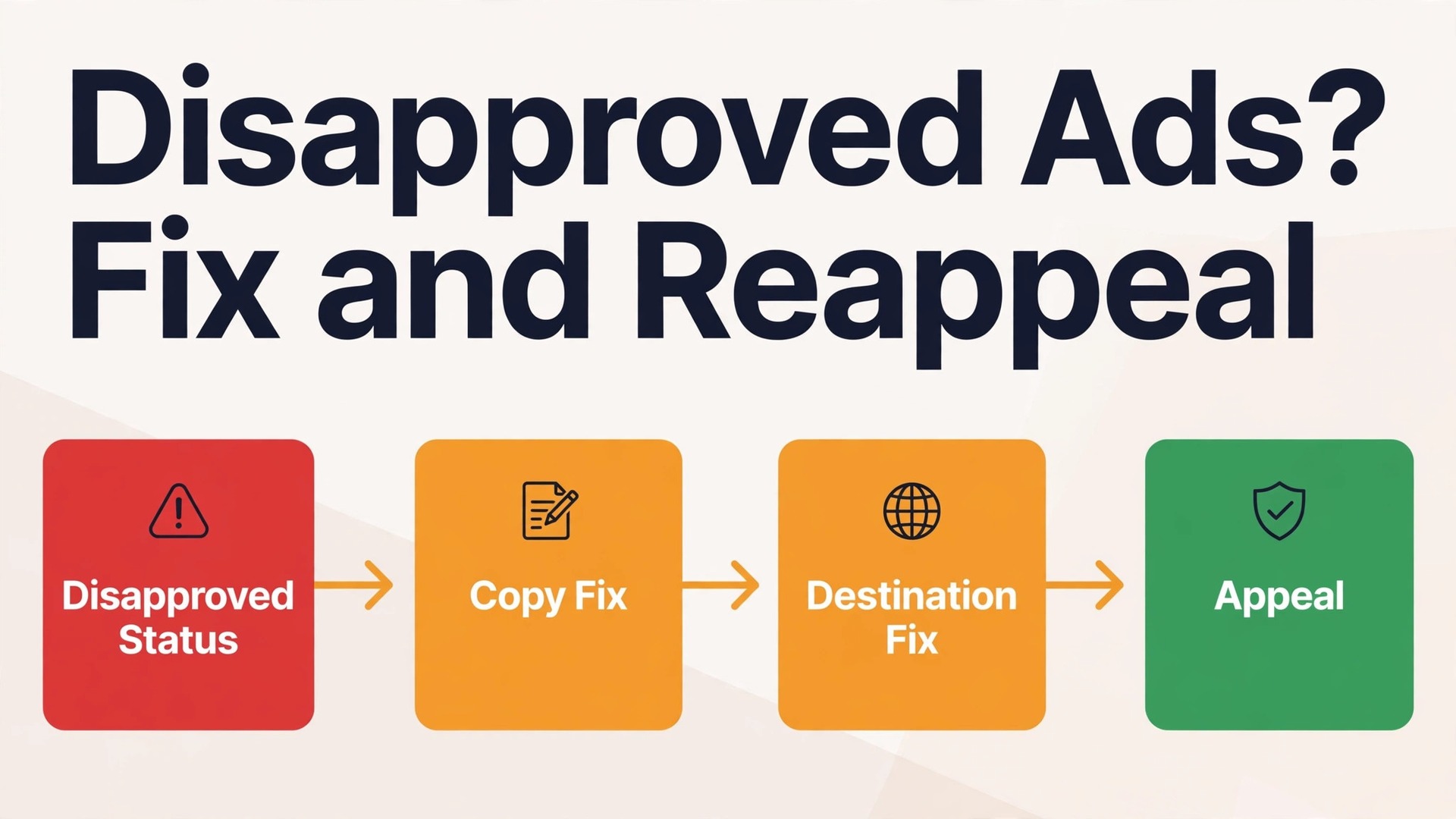
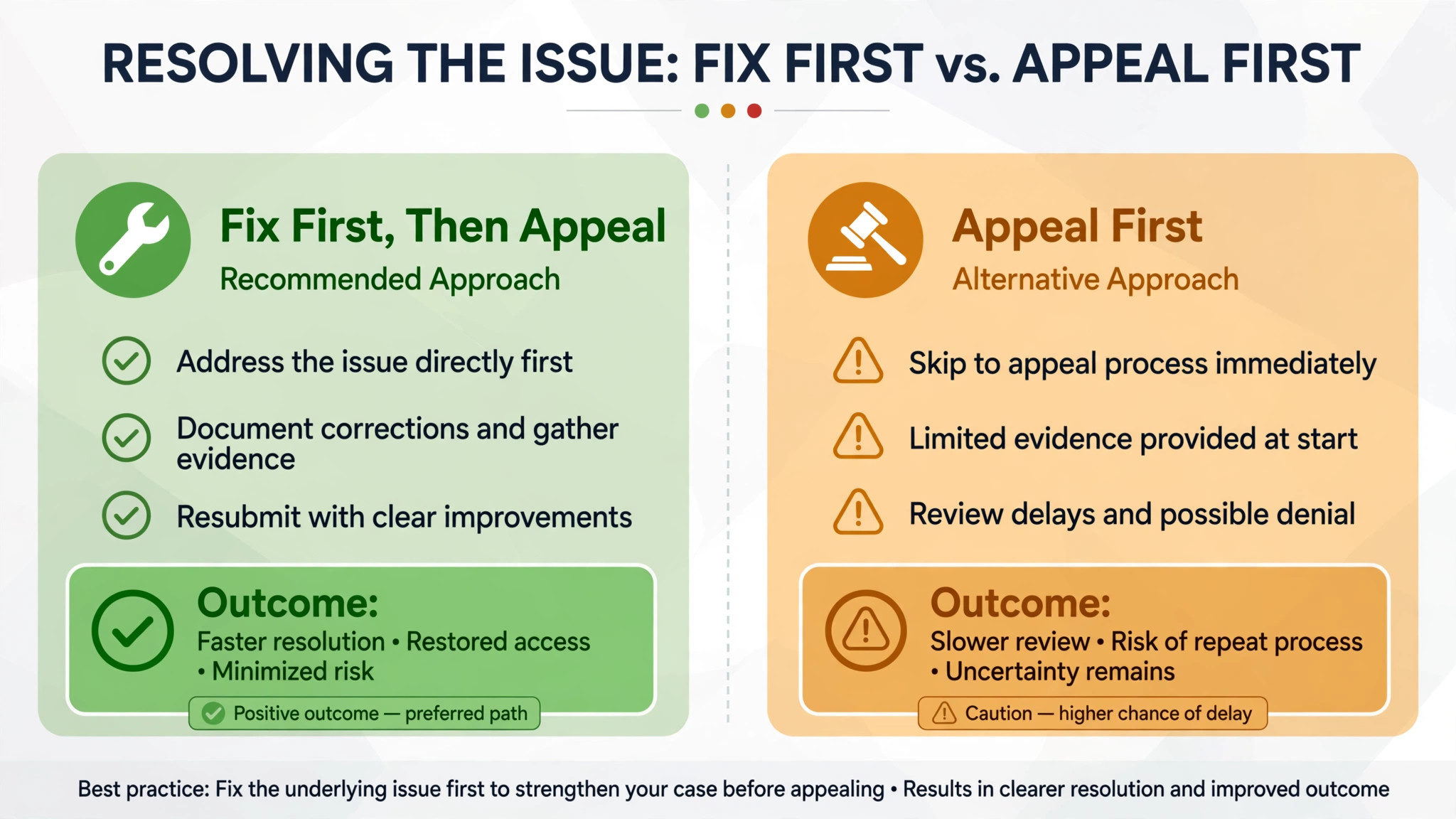
Two instincts compete the moment an ad is disapproved. The first says appeal immediately and argue that Google made a mistake. The second says fix something quickly and resubmit. Appealing first feels faster, but it fails whenever the ad or landing page still breaks the policy, because a reviewer will simply confirm the original decision. Fixing first feels slower, but it is the route that actually gets ads running again. This guide shows how to fix Google Ads disapproved ads small business accounts face, in the order that works. Read the reason, fix the cause, then appeal only when the fix is done or when you genuinely believe the decision was wrong.
A disapproved ad does not run at all until the violation is fixed and the ad is reviewed again. That is the key fact behind every step below. Editing a disapproved ad, or appealing it through Policy Manager, is what triggers a fresh review. Simply waiting does nothing, and repeatedly appealing an unchanged ad wastes time and can delay the account further. For a small business paying for clicks, every day of disapproval is a day of lost enquiries, so the goal is one clean fix and one clean appeal, not a cycle of guesses.
Small businesses face a particular version of this problem. The person managing ads is often also the owner, the marketer, and the webmaster, so a landing page fix and an ad fix compete for the same afternoon. This guide separates the two, so you can tell in ten minutes whether the problem lives in the ad copy, on the landing page, or in a policy that needs certification or a different approach. It also gives you an appeal draft you can adapt, and a checklist to run before you resubmit anything.
What Disapproved Actually Means
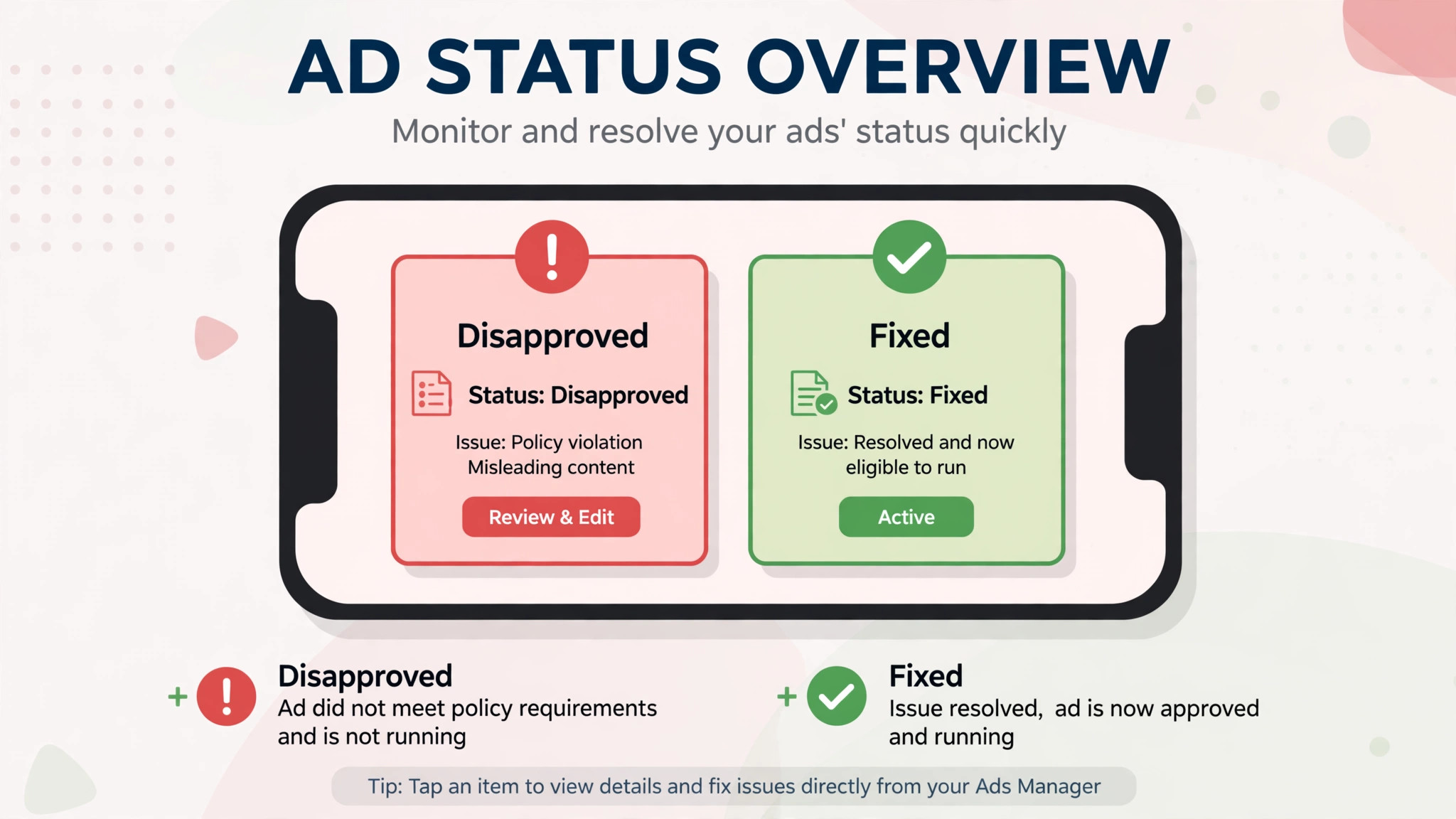
Google Ads uses several serving statuses, and disapproved is the strictest for an individual ad. A disapproved ad will not serve until it is fixed and reviewed. That differs from an ad that is eligible with limitations, which may still run in restricted situations, and from an ad under review, which is simply waiting for a first decision. Do not confuse the three. If the status says disapproved, assume zero impressions from that ad until a review passes it.
Disapproval can come from the ad itself, from an asset attached to it, or from the destination page it points to. Ad copy problems include claims Google does not allow, such as misleading guarantees, restricted terms, or formatting that breaks editorial rules. Destination problems include a page that does not load, a display web address that does not match the final address, or page content that breaks a policy even though the ad copy is clean. Policy Manager names the policy, and that name is your starting point. Never guess the cause when the policy name is sitting in the account.
Account level trouble is different again. A single disapproved ad is a routine problem. Many disapproved ads across campaigns, or a suspension notice, signal a deeper issue with the account, the website, or the business model. This guide focuses on ad level disapproval, but it flags the signs that mean you should stop fixing individual ads and look at the account and website first.
| Status you see | What it means | What to do |
|---|---|---|
| Disapproved | Ad will not run until fixed and reviewed | Read the policy, fix the cause, resubmit or appeal |
| Eligible with limitations | Ad may run in limited situations | Read the limitation and decide if the restriction matters |
| Under review | First review still in progress | Wait, and check again before changing anything |
| Account suspended | Account level enforcement | Follow the suspension appeal path, not ad level fixes |
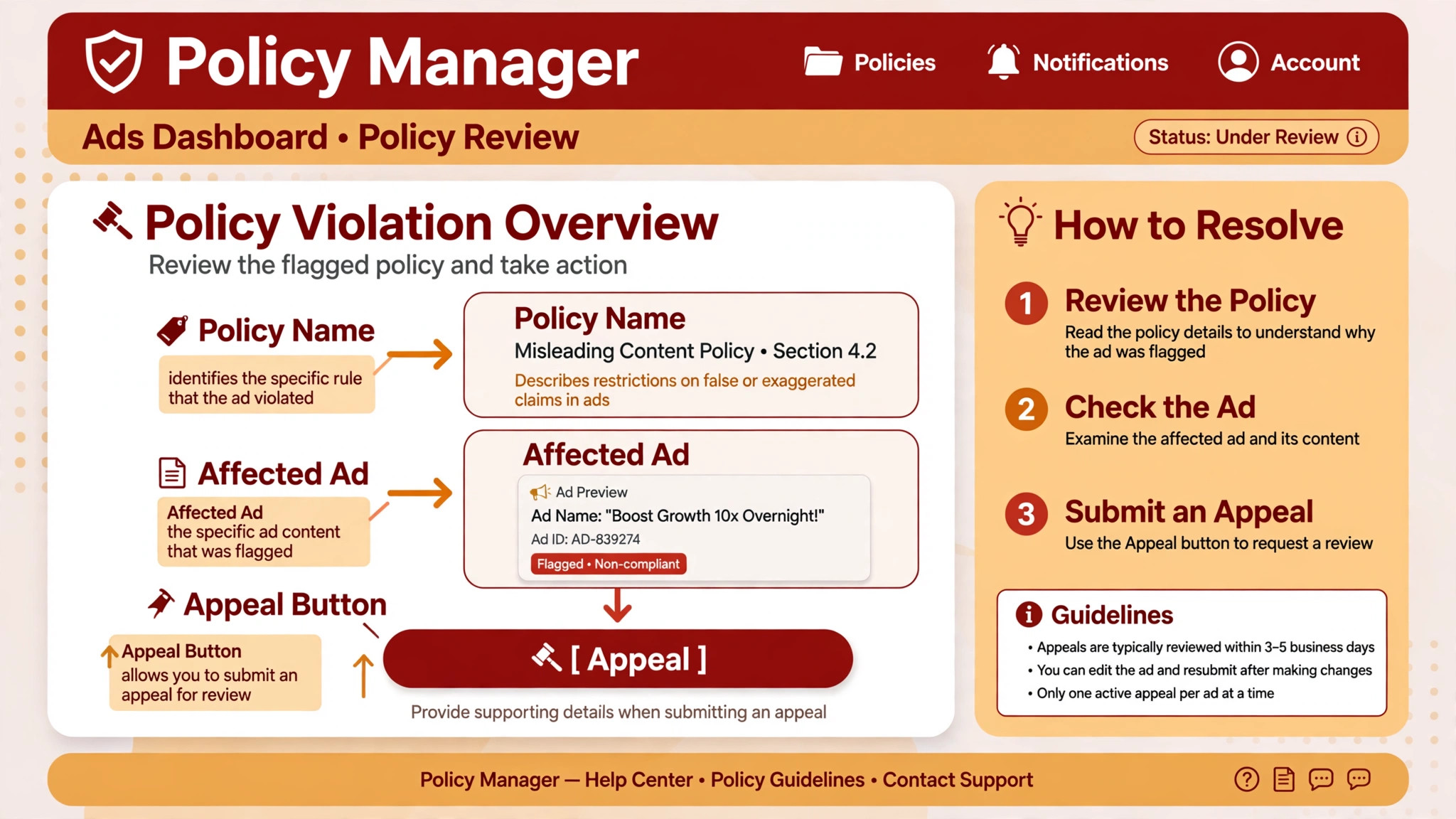
The Step Workflow for a Disapproved Ad
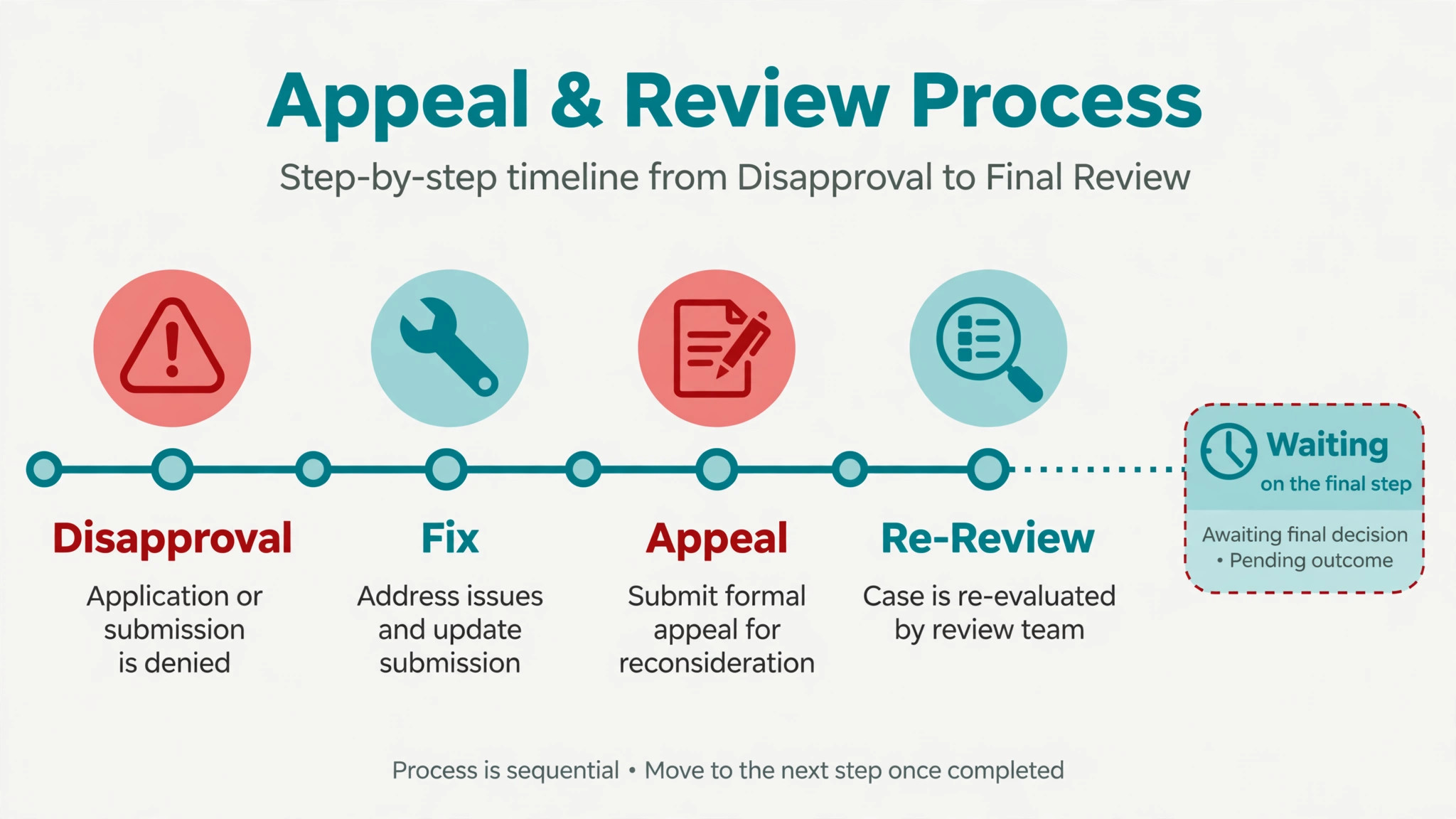
Step 1. Find the exact policy reason in Policy Manager
Open the Campaigns menu, go to Ads or Ad groups, and find the disapproved ad. Hover over the status or open Policy Manager from Tools and then Troubleshooting to see the policy issues tab. Read the policy name and the detail Google gives. Write down the policy, the affected ad, and whether the issue is in the ad, an asset, or the destination. That note becomes the basis for every later step, and it stops you from fixing the wrong thing.
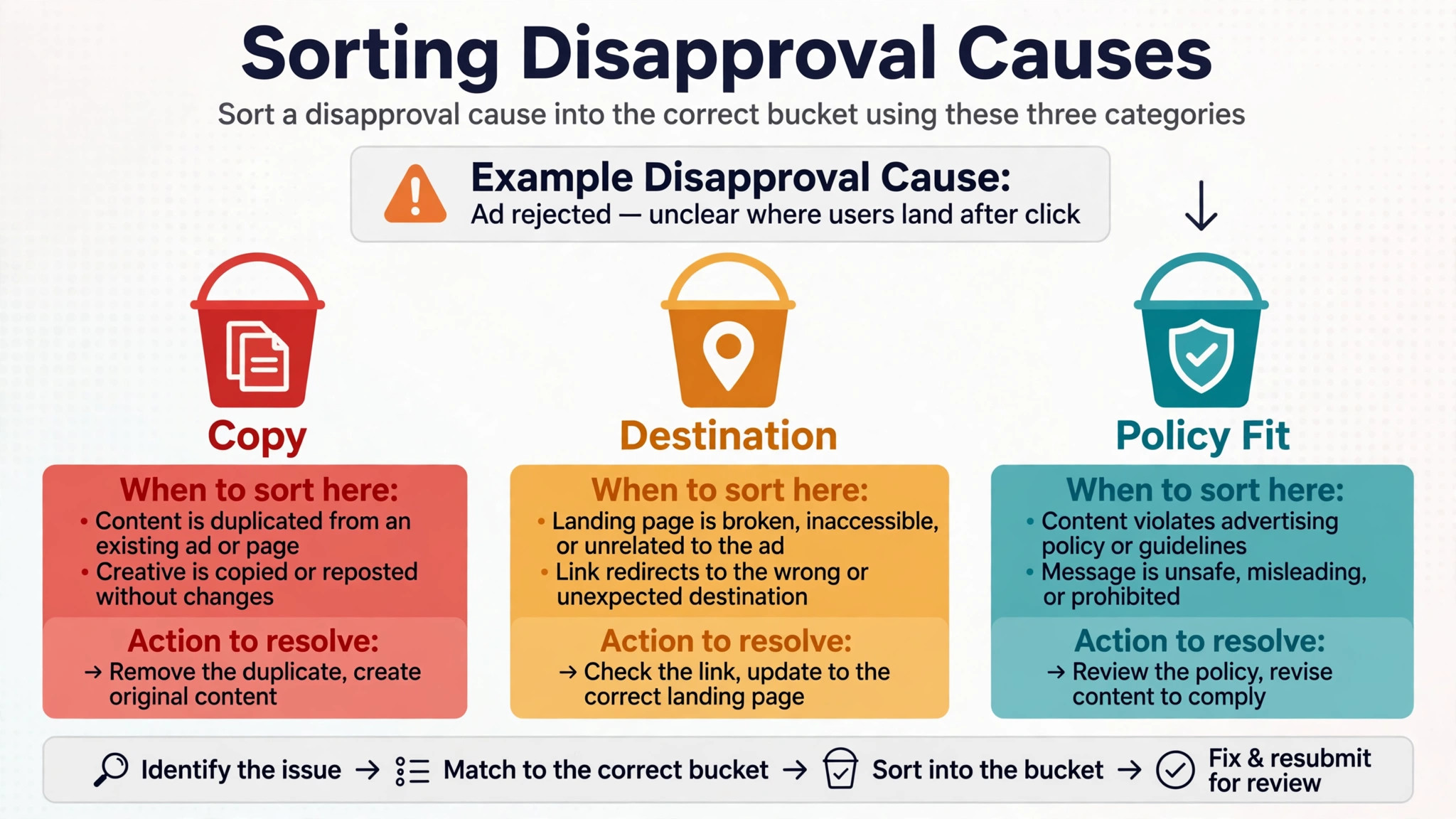
Step 2. Decide whether the problem is copy, destination, or policy fit
Copy problems are fixed in the ad. Destination problems are fixed on the landing page or by pointing the ad at a compliant page. Policy fit problems, such as a restricted product or a missing certification, may not be fixable by editing words at all. Sorting the problem into one of those three buckets before you edit saves the most common wasted effort, which is rewriting ad copy when the landing page is the real cause, or rebuilding a landing page when a single claim in the ad is the trigger.
Step 3. Fix the ad copy or the landing page
Edit the ad to comply with the policy, or fix the landing page, then save. Editing an ad sends it for review automatically in most cases, so do not edit and then also appeal the same ad in the same hour unless you have a reason to. If the landing page is the problem, fix the page first and confirm it loads cleanly, then edit or resubmit the ad. A fix that is half done, such as removing a claim from the ad while leaving it on the landing page, will fail review again.
Step 4. Check the destination end to end
Open the final address as a visitor would, on desktop and on mobile, and check that it loads quickly, matches the display address, and contains no broken elements, misleading claims, or policy breaking content. Check for redirect loops, pages that block crawlers, and content that differs from what the ad promises. If the page uses popups, age gates, or forms, check that they do not hide the promised content or mislead the visitor. Destination requirements are strict, and a page that looks fine to the owner can still fail them.
Step 5. Draft the appeal with evidence
If you fixed the issue, choose the appeal reason that says you made changes to comply with the policy. If you believe the decision was wrong, choose the reason that disputes the decision, and explain precisely why the ad and page comply. Keep the appeal short, specific, and tied to the policy named. Vague appeals that say the ad should be approved because the business is legitimate do not help a reviewer. Evidence helps, such as a note of exactly what changed on the page and where.
Step 6. Submit once, then track the appeal in Policy Manager
Submit the appeal from Policy Manager, then track its status there rather than resubmitting or editing the same ad repeatedly. Review timing varies, and third party guides often report one to three days, but Google does not publish a guaranteed review time for every case, so treat any day count as an estimate. If the appeal is rejected, read the new reason carefully, because it may name a second issue that the first review did not highlight. Fix that issue before appealing again, rather than sending the same appeal twice.
Common Disapproval Reasons and Their Fixes
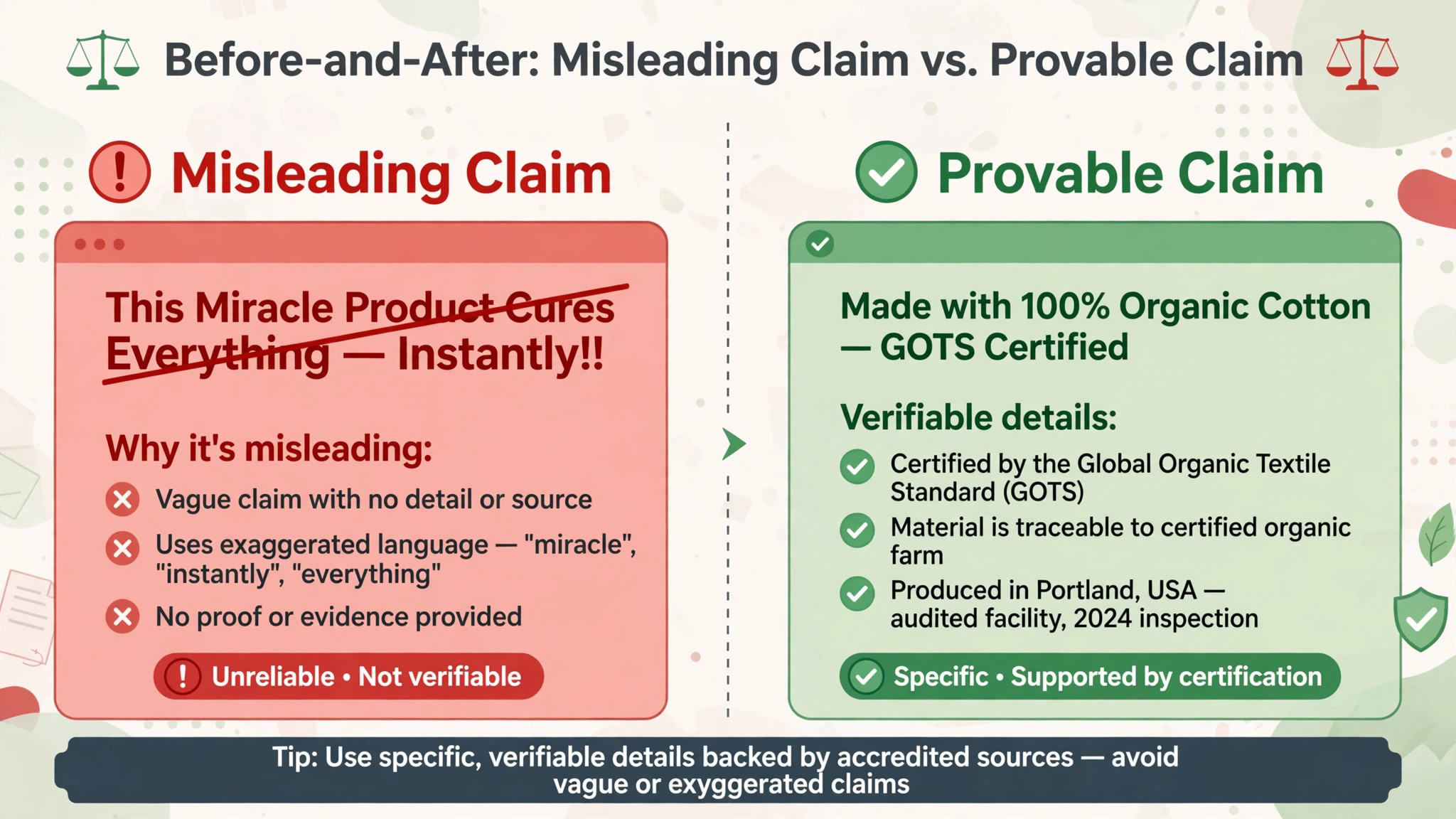
Misleading claims are a frequent cause for small businesses. Phrases that promise guaranteed results, imply a qualification the business does not hold, or exaggerate a benefit can trigger disapproval even when the owner believes them to be true. The fix is to soften the claim to something provable, such as naming a real feature, a real service area, or a real process, and to make sure the landing page supports the same claim. If the landing page makes a stronger claim than the ad, the ad can still be disapproved on destination grounds.
Trademark problems arise when an ad uses a brand name the advertiser is not authorised to use in ad copy. A reseller or repair business may be allowed to describe a brand on its website but not to use it in ad headlines. The fix is usually to remove the brand term from the ad copy and describe the service generically, while keeping accurate brand mentions on the landing page where they are factual. If the business is authorised, the trademark authorisation route in Google Ads is the path to check, and that process takes time, so plan around it.
Restricted products and services form a third bucket. Alcohol, healthcare, financial services, and several other categories carry extra rules, certifications, or regional limits. A small business in one of those categories should read the specific policy for its category before rewriting generic copy, because a generic fix will miss the category requirement. In some cases the correct outcome is not a rewrite but a certification application, a landing page change such as an age gate, or a decision not to advertise that product through Google Ads at all.
Destination problems deserve their own attention because they surprise owners most. A page that returns an error, a display address that does not match the final address, a page that redirects to a different domain, or a page with malware or unwanted software will all block an ad. The compromised site case is the most serious. If Google flags a compromised site, clean the whole site, not only the landing page, check Google Search Console for security issues, and only then request review in Policy Manager. Appealing before cleaning is reliably rejected, and repeated rejected appeals only delay recovery.
| Reason group | Where the fix lives | First action |
|---|---|---|
| Misleading claim | Ad copy and landing page | Soften the claim to something provable |
| Trademark use | Ad copy | Remove the brand term from headlines |
| Restricted category | Policy and certification | Read the category policy before rewriting |
| Destination not working | Landing page and address | Fix the address, error, or redirect |
| Destination mismatch | Ad settings | Match display address to final address |
| Compromised site | Whole website | Clean the site, then request review |
Landing Page Fixes That Pass Review
A compliant landing page starts with the basics. The page must load, must match the ad promise, and must work on mobile. A page that loads slowly, shows a generic homepage when the ad promised a specific service, or hides the service behind a form will struggle. Small businesses often point every ad at the homepage for convenience, and that convenience is a common destination problem. Point each ad at the page that delivers the promised service, with the price, location, or booking step the ad mentions.
Content honesty matters as much as technical loading. Remove exaggerated claims, fake testimonials, countdown timers that reset endlessly, and before and after images that mislead. Make contact details, business name, and terms visible, especially for services that involve payment or personal data. A page that looks like a real business with real contact routes passes review more easily than a page that hides who runs it. If the page collects leads, explain what happens after the form is submitted, in plain words.
Technical checks catch the rest. Test the page in a private browser window, test it on a phone network rather than only office wifi, and check for redirect chains that send visitors through several addresses. Check that robots rules or firewalls do not block Google crawlers while allowing human visitors, since a page that works for you but not for the crawler will still be disapproved. If a developer manages the site, give them the exact policy reason and the final address, so they fix the right page rather than the homepage.
Ad Copy Fixes That Pass Review
Ad copy fixes start with the policy name, not with a general rewrite. If the policy is editorial, check capitalisation, punctuation, spacing, and repeated words. If the policy is about claims, remove superlatives and guarantees that cannot be proved. If the policy is about restricted terms, remove the term and describe the service differently. A targeted edit that addresses the named policy will pass review faster than a full rewrite that accidentally introduces a new problem.
Keep the revised ad honest and specific. A headline that names the service, the town, and a real feature will usually comply and will also convert better than a vague headline full of praise. Avoid clickbait phrasing, such as implying urgency that does not exist, and avoid price claims that the landing page does not support. When in doubt, write the ad as if a sceptical customer and a policy reviewer will both read it, because both will.
After editing, check every asset attached to the ad, including sitelinks, callouts, and images where applicable. An asset can carry the same policy problem as the main copy, and fixing the headline while leaving a problematic sitelink will keep the ad disapproved. Review the full ad preview, not only the headline field, before assuming the fix is complete.
The Appeal Draft
An appeal is a short business letter to a reviewer, not a complaint and not a sales pitch. Open by naming the ad, the campaign if helpful, and the policy. State whether you made changes or dispute the decision. List exactly what changed, with page sections or ad lines described plainly. Close by asking for re-review. Keep the whole appeal to a short paragraph or two, because reviewers handle many appeals and clarity beats length.
A made changes appeal might read as follows. We have removed the guaranteed results wording from the ad headline and from the landing page service section, and the page now describes the service, the process, and the service area without a guarantee. We ask for re-review of the ad against the misleading claims policy. That draft works because it names the policy, names the change, and names where the change lives. Adapt the wording to your own policy and change, and do not copy a generic draft without checking that every sentence is true for your ad.
A dispute appeal needs a different structure. State the policy, state why the ad and page comply, and point to the specific evidence, such as a certification, a factual product description, or a page section that shows the claim is accurate. Avoid arguing that competitors run similar ads, because competitor ads are not evidence for your case and reviewers do not decide on that basis. Avoid repeating the ad copy without explanation, since the reviewer has already seen it. Explain the compliance point the first review may have missed.
Resubmission Checks Before You Press Submit
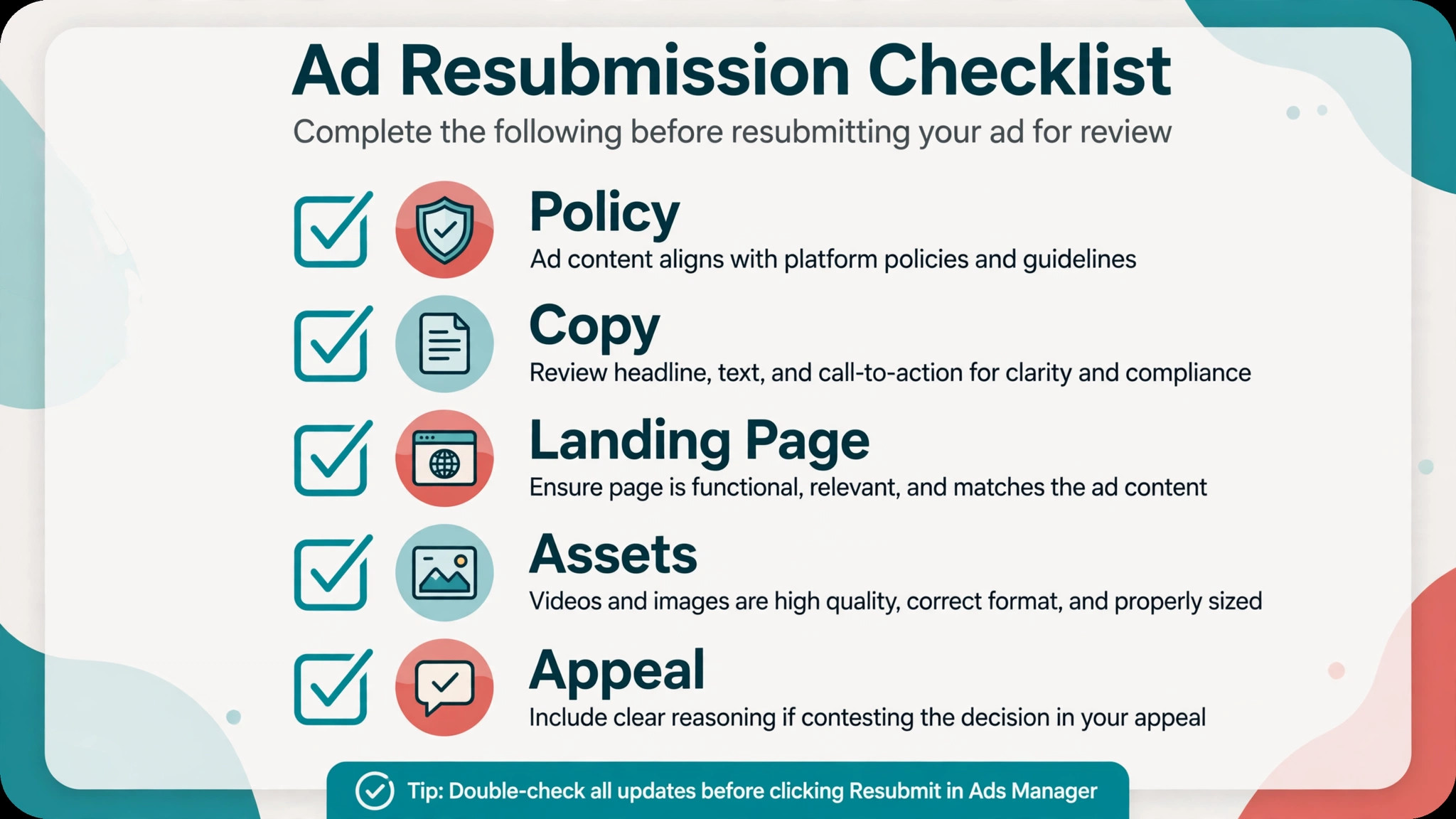
– Policy name and affected ad recorded, with the issue located in copy, asset, or destination. – Ad copy edited to address the named policy, with no new claim introduced. – Landing page fixed and tested on desktop and mobile, with matching display and final addresses. – All attached assets reviewed for the same policy problem. – Appeal reason chosen correctly, either made changes or dispute decision. – Appeal text specific, naming the policy, the change, and the page location. – No duplicate appeal or edit submitted for the same ad in the same hour. – Appeal status tracked in Policy Manager, with the new reason read carefully if rejected.
When you fix Google Ads disapproved ads small business owners often rush this checklist, and rushing is how a second disapproval happens. A ten minute check before submission saves days of waiting for a review that was always going to fail. If any item on the checklist is uncertain, fix that item first. A clean submission is worth more than a fast submission.
When Disapproval Means a Bigger Account Problem
A pattern of disapprovals across many ads points beyond individual copy. Check whether the website itself carries policy problems, such as misleading claims on every service page, a business model Google restricts, or a history of compromised content. Check whether the account has prior suspensions or repeated violations, since enforcement can escalate from ad level to account level. In those cases, fixing one ad at a time will not restore stable serving, and the account and website need a broader review first.
Also check for a mismatch between the business and the advertising promise. A business that advertises a service it does not actually provide, or a price it does not honour, will keep generating destination and claims problems no matter how the copy is polished. The honest fix is to align the ads with the real offer, even if that means advertising fewer services or a higher price. Ads that match reality pass review more easily and convert better, because visitors find what they were promised.
If an account suspension notice appears, stop ad level appeals and follow the suspension path in Policy Manager, which is separate from individual ad appeals. A suspension appeal needs a broader explanation of the business, the website, and the steps taken to comply. Sending ad level appeals during a suspension will not restore the account, and it can waste the appeal opportunities the account has. Read the suspension notice fully before acting, and gather website and business evidence before submitting.
Preventing the Next Disapproval When You Fix Google Ads Disapproved Ads Small Business Campaigns
Prevention starts before the next ad is written. Keep a short list of approved claims for the business, with the evidence for each claim, and write new ads from that list rather than inventing fresh superlatives each time. Keep landing pages aligned with ads by reviewing both together whenever either changes. A page update that adds a new claim can disapprove an old ad, and an ad update that promises a new price can fail against an unchanged page.
Train anyone who writes ads or edits the website on the basic policies for the business category. A team member who knows that guaranteed results wording, brand terms in headlines, and homepage pointing are common triggers will avoid them without needing a policy manual. Review new ads in Policy Manager shortly after launch, so a disapproval is caught on day one rather than discovered weeks later when enquiries have already dropped.
A One Week Recovery Plan for a Small Business
Day one is diagnosis only. Read the policy reason, locate the problem in copy, asset, or destination, and record it. Do not edit anything on day one unless the fix is obvious and small, such as a single word in a headline. A day spent diagnosing properly prevents a week spent appealing fixes that missed the cause. When you fix Google Ads disapproved ads small business owners often skip this day, and that skip is the most expensive part of the whole process.
Day two is the fix day. Edit the ad copy or repair the landing page, test the destination on desktop and mobile, and review every attached asset. If a developer must fix the page, send them the exact policy reason and the final address on day two, not a vague request to check the website. When you fix Google Ads disapproved ads small business teams should treat day two as a single complete fix, not a series of small edits spread across the week, because each edit can trigger a new review.
Day three is the appeal day. Submit one appeal with a specific draft, then stop touching the ad. Use the waiting time to check other ads in the same campaign for the same policy problem, since a claim or destination issue rarely affects only one ad. Fixing sibling ads proactively prevents a second disapproval notice arriving just as the first one clears. When you fix Google Ads disapproved ads small business accounts benefit most from this sibling check, because it turns one rescue into account wide prevention.
Days four to seven are tracking and prevention days. Check Policy Manager once a day, read any new reason fully if an appeal is rejected, and build the approved claims list for future ads. If the ad is approved, note what the successful fix was, so the next campaign starts from a working example rather than from memory. When you fix Google Ads disapproved ads small business owners who keep that note will rarely face the same disapproval twice, because the lesson is written down instead of carried in one person head.
Frequently Asked Questions
How do I find why my Google Ad was disapproved?
Open Policy Manager from Tools and then Troubleshooting, or open the ad in the Campaigns menu and check the status detail. Policy Manager names the policy and shows whether the issue affects the ad, an asset, or the destination. Record that policy name before editing, because every fix should address the named policy rather than a guessed cause.
Will editing a disapproved ad send it for review automatically?
In most cases, yes. Editing an ad usually triggers a fresh review without a separate appeal step. That is why you should finish the fix before editing, and avoid editing the same ad repeatedly in a short period. If the problem was on the landing page, fix the page first, then edit or resubmit the ad so the review sees the corrected destination.
Should I appeal or fix first?
Fix first, unless you are confident the decision was wrong and nothing needs changing. An appeal on an unchanged ad that still breaks the policy will be rejected, and repeated rejected appeals delay recovery. Fix the copy or page, then appeal with the made changes reason. Appeal with the dispute reason only when the ad and page already comply and you can explain why.
How long does a Google Ads appeal review take?
Review timing varies by policy and case volume, and third party guides often report one to three days, but Google does not publish a guaranteed review time for every appeal. Treat day counts as estimates, track the appeal in Policy Manager, and avoid duplicate appeals while waiting. If the appeal is rejected, read the new reason before acting, since it may name a second issue.
What if my landing page looks fine but the ad is still disapproved?
Check the destination technically, not just visually. Test the final address for errors, redirects, crawler blocking, and mismatch with the display address. Check page content for claims that differ from the ad, and check the whole domain if a compromised site flag is involved. A page that loads for the owner can still fail for the crawler, and that difference is a common cause of repeated destination disapprovals.
Can one disapproved ad suspend my whole account?
One disapproved ad on its own does not normally suspend an account, but repeated violations, many disapproved ads, or a serious policy breach can escalate to account level enforcement. Treat repeated disapprovals as a warning to review the website and ad practices broadly, rather than as isolated bad luck. If a suspension notice appears, follow the suspension appeal path instead of ad level fixes.
What should I write in a Google Ads appeal?
Name the policy, state whether you made changes or dispute the decision, list exactly what changed and where, and ask for re-review. Keep it short and specific. Avoid vague claims about the business being legitimate, avoid arguing from competitor ads, and avoid copying a generic template without checking that every sentence is true for your ad and page.
How can a small business avoid repeated disapprovals?
Keep an approved claims list, align ads and landing pages whenever either changes, point ads at specific service pages rather than the homepage, and check Policy Manager shortly after launching new ads. When you fix Google Ads disapproved ads small business teams should also train anyone who edits ads or web pages on the common triggers for their category, so the next ad starts compliant instead of needing rescue.
Fix Once, Fix Cleanly, Then Move On
A disapproved ad is a routine problem with a routine solution, provided the fix addresses the real cause. Read the policy, sort the problem into copy, destination, or policy fit, fix it fully, and appeal once with evidence. That sequence gets more ads running again than any shortcut, and it protects the account from the cycle of rejected appeals that follows guesswork.
For a small business, the discipline matters more than speed. A fast appeal on an unchanged ad loses days. A careful fix and a clean appeal, checked against the list in this guide, usually restores serving with one review. Build the prevention habits alongside the fix, approved claims, aligned pages, and early Policy Manager checks, and the next campaign will need far less rescue work than this one.