
The problem is familiar to anyone who works away from a desk. On a laptop alone, reference material, email, notes and the document you are actually writing all compete for one small screen. You end up flipping between windows, losing your place in a spreadsheet, or shrinking everything until nothing is readable. Learning how to set up portable monitor for laptop travel solves that squeeze, because a second screen gives research a home of its own while your main work stays front and centre on the laptop.
This guide covers the whole job, not just the cable. You will learn how to check your laptop ports before you buy, how to choose a size and panel that suits a backpack rather than a desk, how to power the screen without draining your laptop by lunchtime, how to arrange two screens without hurting your neck, and how to pack and protect the panel so it survives real travel. Prices quoted here reflect United States listings seen in October 2026 and change often, so check the official page and the checkout total before you pay.
The Problem With One Laptop Screen on the Road
A single laptop screen forces a trade-off on every task. Writers keep a source document behind the draft and lose the thread each time they switch. Analysts keep a spreadsheet behind a report and recheck numbers they have already read. Project managers keep a task board behind email and miss updates that were visible a minute earlier. None of this is a failure of discipline. It is what happens when the work needs two views at once and the hardware only offers one.
A portable monitor changes the shape of that work. Put the document you are writing on the laptop, where the keyboard is, and put the source, the data, the call notes or the preview on the second screen. The gain is not about screen size alone. It is about fewer window switches, fewer mistakes from copying numbers across tabs, and a calmer working rhythm when a deadline is tight and the hotel desk is small. Travellers who work in short bursts between meetings gain the most, because they do not have time to rebuild their window layout at every stop.
The catch is that a portable monitor only helps if it is easy to carry, quick to connect and honest about power. A heavy panel that needs its own brick, a special cable and ten minutes of fiddling will stay in the bag. A light panel that connects with one cable and holds its position on a wobbly cafe table will come out every day. That difference is why this guide starts with ports, weight and power rather than with panel specifications. The best screen for travel is the one you actually unpack.
How to Set Up Portable Monitor for Laptop Travel in Ten Minutes
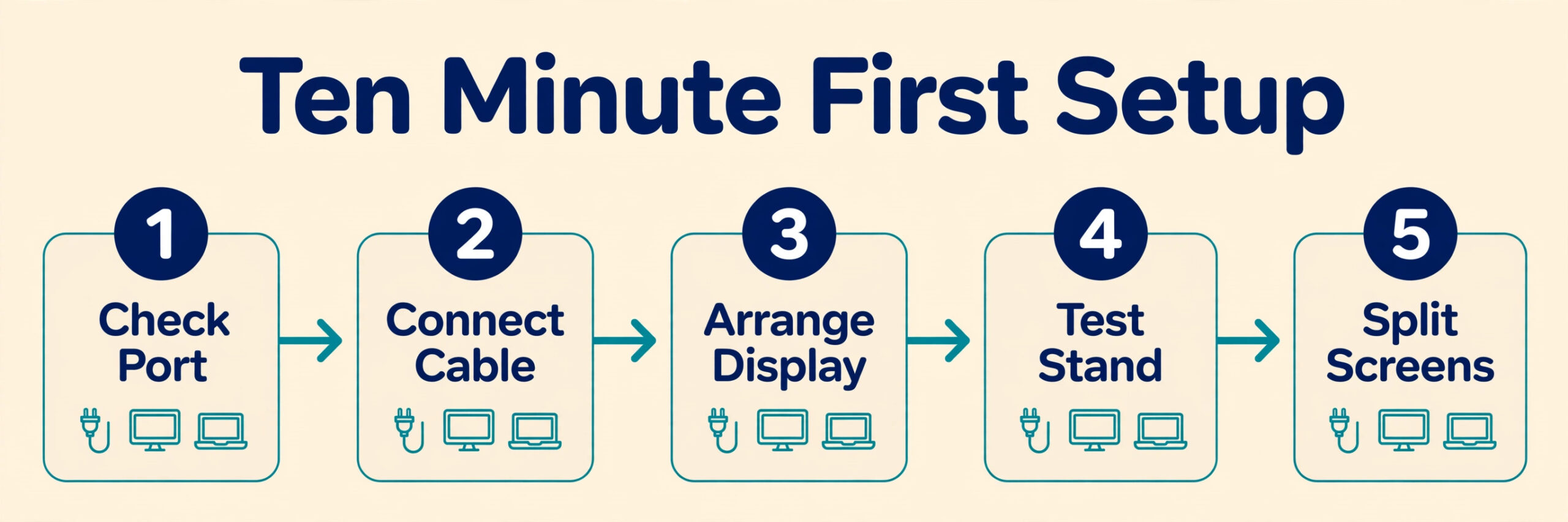
The first time you set up portable monitor for laptop travel, give yourself ten unhurried minutes at a real table. Later setups take two minutes, but the first one is where you learn which port works, which cable the panel prefers and how the stand behaves on an uneven surface. Rushing that first setup in an airport lounge is how screens end up back in the bag for the rest of the trip.
Start before you leave home by checking your laptop ports. Look for a USB-C port marked with a DisplayPort symbol or a Thunderbolt symbol, or check the laptop specifications for DisplayPort Alt Mode. That feature lets one USB-C cable carry both video and power to the monitor, which is the simplest travel setup. If your laptop has no such port, you will need an HDMI connection plus a separate USB cable for power, or a small adapter or dock. Finding this out at home, rather than at a client site, is the single most useful step in the whole process.
Next, update your display settings once and save the habit. On Windows, open display settings, identify the screens, and drag the second screen to match its physical position, usually to the left or right of the laptop. Set the portable monitor as an extended display, not a duplicate, so each screen shows different work. On a Mac, open System Settings, then Displays, and arrange the screens the same way. Pick a scaling level that keeps text readable on the smaller panel rather than cramming more on screen at tiny sizes. These settings usually persist, so the second and third setups are mostly plug and go.
Finally, decide what goes on each screen and keep that split consistent. A reliable split is writing or design work on the laptop, with reference material, inbox, calendar or preview on the portable monitor. When the split is the same every day, your hands and eyes learn it, and you stop hunting for windows.
Pick the Right Size, Panel and Weight Before You Buy
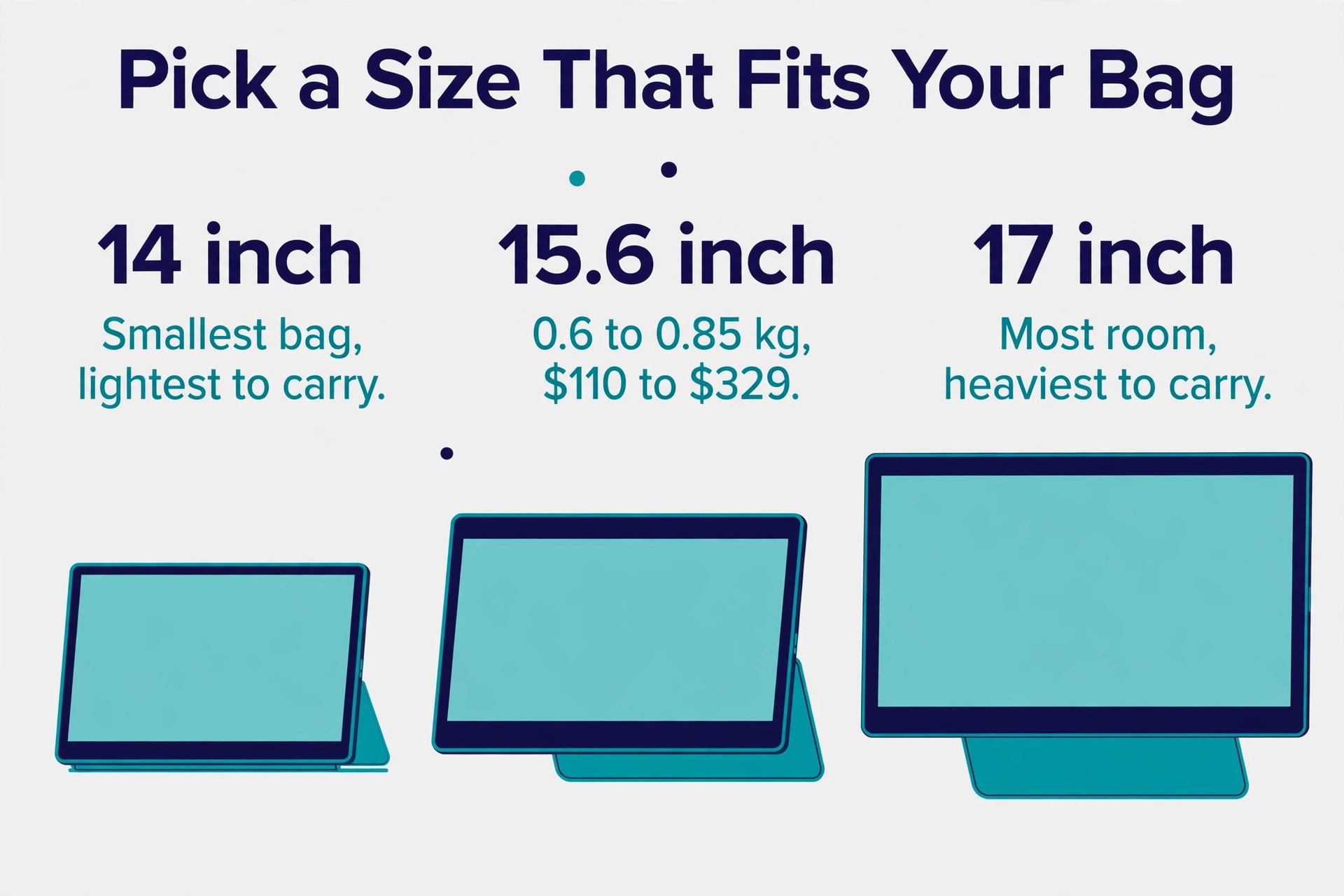
Size is the first decision, and it is really a bag decision. A 14 inch panel suits travellers who walk a lot, fly with a small backpack, or work from cramped train seats. It adds less bulk and pairs well with a 13 or 14 inch laptop. A 15.6 inch panel is the common default, because it matches a 15 inch laptop, gives spreadsheets and documents comfortable room, and still fits most laptop sleeves. A 17 inch panel gives the most room but pushes bag weight and desk footprint up, and it suits travellers who drive to a base and work from one desk for days rather than travellers who move every few hours.
Weight matters more than the specification sheet suggests. Published weights for popular 15.6 inch models cluster around 0.6 to 0.85 kilograms for the panel alone, before the cover, cables and charger. The ASUS ZenScreen MB16ACV is listed around 0.83 kilograms, the Arzopa A1 Gamut around 0.72 kilograms, and the ASUS ZenScreen OLED MQ16AH around 0.6 kilograms in comparison listings from October 2026. Add a protective cover and cables and the travel kit is closer to a full kilogram. That is manageable in a well packed backpack and tiring in a thin tote bag with no waist support. Weigh your packed bag once, with the monitor in it, before you decide the weight is fine.
Resolution and panel type are the next trade-off. A 1920 by 1080 IPS panel is the right choice for most travel work. Text is sharp at normal viewing distance, colours stay consistent when you view the screen at an angle, and power draw stays low. A higher resolution panel looks crisper, but it draws more power, costs more, and forces smaller text scaling on a 15 inch screen. An OLED panel gives deeper blacks and stronger contrast, which photographers and video editors notice, but it carries a clear price premium.
The ASUS ZenScreen OLED MQ16AH was listed around 329 dollars in October 2026 comparison listings, against about 110 dollars for the Arzopa A1 Gamut and about 179 dollars for the ASUS ZenScreen MB16ACV. Pay that premium only if colour work is part of your paid work.
Brightness deserves more attention than refresh rate for travel. Most portable panels are rated around 250 to 300 nits, which is fine indoors and weak in bright window light. The Plugable 15.6 inch USB-C portable monitor is rated at 300 nits, while some brighter models reach around 420 nits. If you often work near windows, in airport lounges or outdoors, favour a brighter panel and a matte anti glare finish over a glossy one. A 144 hertz panel feels smoother when scrolling, and the ASUS ZenScreen MB16AHG with that refresh rate was listed at 279 dollars on the ASUS store in October 2026, but for documents, email and spreadsheets the gain over 60 hertz is small.
Spend on brightness and weight first.
Touch is a niche feature for most travellers. A touch panel suits presenters who annotate on screen, and the ASUS ProArt PA148CTV touch model was listed around 349 dollars in October 2026 listings. For writers, analysts and managers, touch adds cost and weight without changing daily work. Built in speakers are a bonus only, since most travellers will still use earbuds for calls.
Power and Cables Without the Battery Surprise
Power is where travel setups succeed or fail, and it is also where buyers get misled by the phrase single cable. A single USB-C cable can carry video and power, but the power still has to come from somewhere. If no charger is attached, it comes from your laptop battery. If a charger is attached to the monitor through a power delivery passthrough port, power flows to both the monitor and the laptop. Knowing which arrangement you have, before you sit down for a four hour work session, is essential.
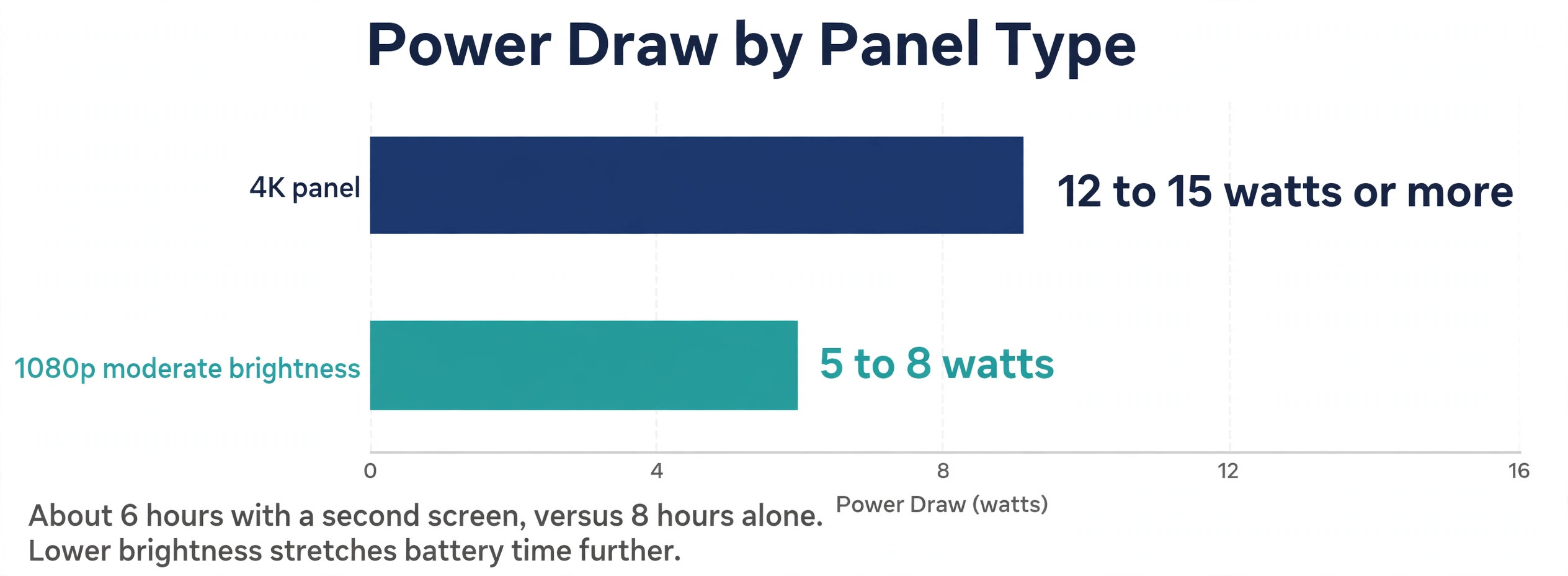
Typical power draw for a 15.6 inch portable monitor sits in the range of 5 to 15 watts, depending on brightness and resolution. A 1080p panel at moderate brightness usually draws about 5 to 8 watts, while a 4K panel can draw 12 to 15 watts or more. Arzopa guidance puts the extra battery drain from a connected portable monitor at roughly 10 to 25 percent faster drain during normal browsing and email, with a bigger hit during heavy tasks. That means a laptop that lasts eight hours alone might last closer to six hours with a second screen at full brightness.
Lowering monitor brightness, closing video heavy tabs on the second screen, and dimming the laptop screen a notch will stretch that time further.
The table below sets out the four power arrangements you will meet on the road, so you can match the setup to the time you have away from a socket.
| Setup | What powers the monitor | What happens to the laptop battery | Best for |
|---|---|---|---|
| One USB-C cable, no charger | The laptop battery | Drains faster, plan for shorter sessions | Short cafe stops under two hours |
| Two USB-C ports with passthrough charger | The wall charger, through the monitor | Charges while you work | Full workdays at a hotel desk |
| HDMI video plus USB power cable | The laptop or a separate charger | Drains faster unless a charger is attached | Older laptops without video over USB-C |
| Power bank or second charger on the monitor | The power bank or charger | Protected, if the bank output is high enough | Flights, trains and socket free rooms |
A charger rated at 45 watts covers most thin laptops plus a portable monitor, while a 65 watt charger is a safer all round travel brick. Check the passthrough rating before you assume a charger will charge the laptop through the monitor. Some monitors pass through 60 watts, which suits a MacBook Air class machine but not a large performance laptop that needs 90 watts or more. If the passthrough rating is lower than your laptop charger, the laptop may charge slowly or hold its charge during heavy work.
Cables cause more failed setups than faulty screens. Carry the cable that came with the monitor for the first few trips, because a cheap charging only USB-C cable will not carry video at all. A video capable USB-C cable must support DisplayPort Alt Mode, and for chargers above 60 watts it should be a rated cable built for that power level. Pack a short mini HDMI cable as a backup, and keep all cables in one pouch.
Check official specifications for the exact model you buy. The ASUS ZenScreen MB169CK-P page lists dual USB-C ports, a Full HD IPS panel, an anti glare surface and a 360 degree kickstand, and ASUS lists that model at 139 dollars, while deal listings in October 2026 showed the related MB169CK around 99 dollars. Trust the checkout total on the day you buy, not a single roundup figure. See the official ASUS ZenScreen MB169CK-P specifications at https://www.asus.com/us/displays-desktops/monitors/zenscreen/zenscreen-mb169ck-p/ before you order.
Arrange Two Screens So Your Neck and Eyes Cope
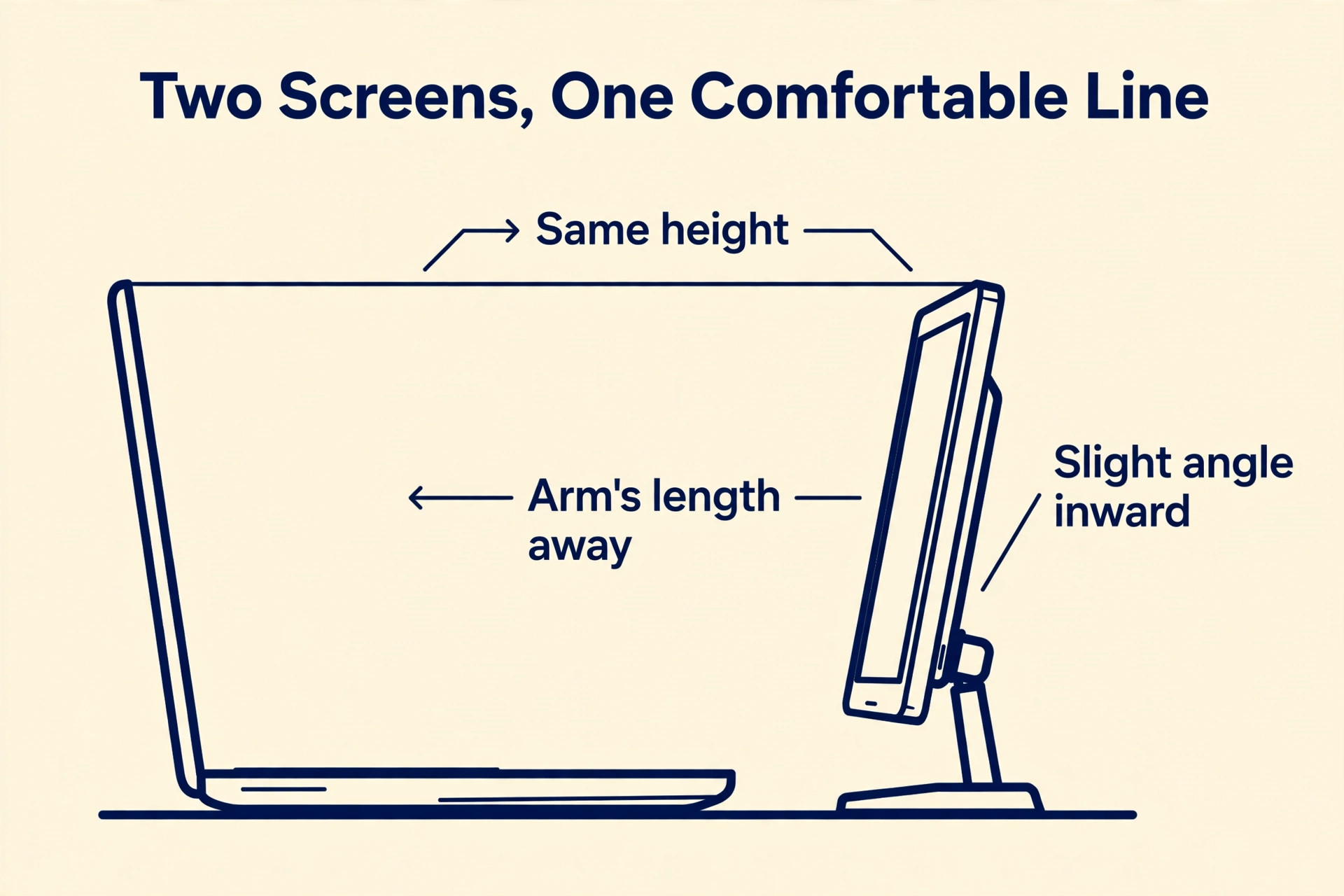
A second screen helps only if you can look at it without twisting. Place the portable monitor beside the laptop at roughly the same height, with the top of each screen near eye level when you sit upright. If the portable monitor sits flat on a low table while the laptop sits higher, your neck will tilt all day. A laptop stand, a stack of books in a hotel room, or a small folding riser will bring the two screens into line. The goal is small head turns, not a constant sideways glance.
Distance matters as much as height. Sit about an arm’s length from both screens, and angle the portable monitor slightly toward you. Keep the brighter screen out of direct window light, and if one screen looks much brighter than the other, lower the brighter one until they match. Mismatched brightness causes more eye fatigue than a slightly smaller screen.
When you set up portable monitor for laptop travel on a small table, leave the laptop as the main screen and treat the portable panel as the support screen. That split keeps your hands centred on the keyboard and your head mostly facing forward. Travellers who put the main work on the far screen and keep glancing sideways will tire faster, even if the panel itself is excellent. The arrangement is part of the product, not an afterthought.
Pack It, Protect It and Carry It Every Day
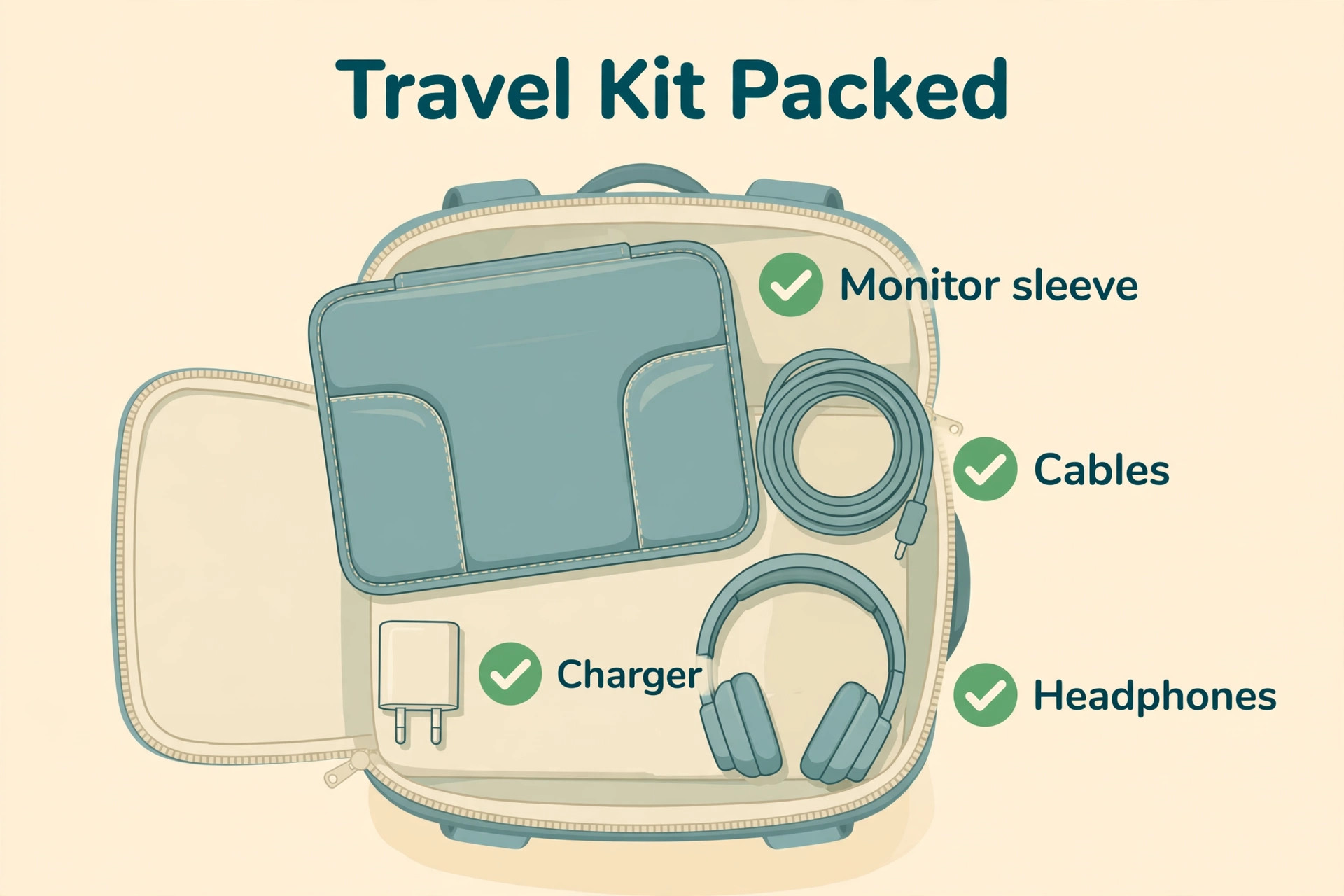
Packing decides whether a portable monitor survives a year of travel or cracks in the first month. The panel itself is thin, which is the point, and thin panels do not like pressure on the centre of the screen, sharp objects in the same pocket, or a bag that bends when it is overfilled. A padded sleeve made for the panel, or the magnetic cover that ships with many models, should stay on the screen whenever it is in transit. Do not pack the monitor loose against a laptop charger, keys or a metal water bottle.
Pack in layers that make sense when you open the bag. Put the laptop in its own compartment, the monitor in its sleeve in the next compartment or flat against a rigid side of the bag, and cables in a small pouch where they cannot press into the screen. If your bag has only one large compartment, place the monitor flat against your back panel, with softer items in front of it, so nothing hard presses on the glass during a crowded commute. Test the packed bag by closing it without forcing the zip. A bag that only closes under pressure is a bag that will eventually damage a screen.
Everyday carrying also means thinking about total weight and balance. A kilogram of monitor plus a laptop, charger, headphones and notebook adds up quickly. If you walk a lot, favour a backpack with a padded back and a chest strap, and keep the heaviest items close to your back. If you mostly move between car, hotel and meeting room, a briefcase style bag is fine, provided the monitor has its own padded pocket.
When you set up portable monitor for laptop travel as a daily habit, pack the kit the same way every time. The monitor goes in the same pocket, the video cable in the same pouch, and the charger in the same corner of the bag. That consistency means you can pack in the dark, in a rush, or in a crowded airport without forgetting the one cable that makes the whole setup work. Travellers who repack differently each day are the ones who arrive with a screen and no way to connect it.
Hotel, Cafe and Airport Setups That Actually Work
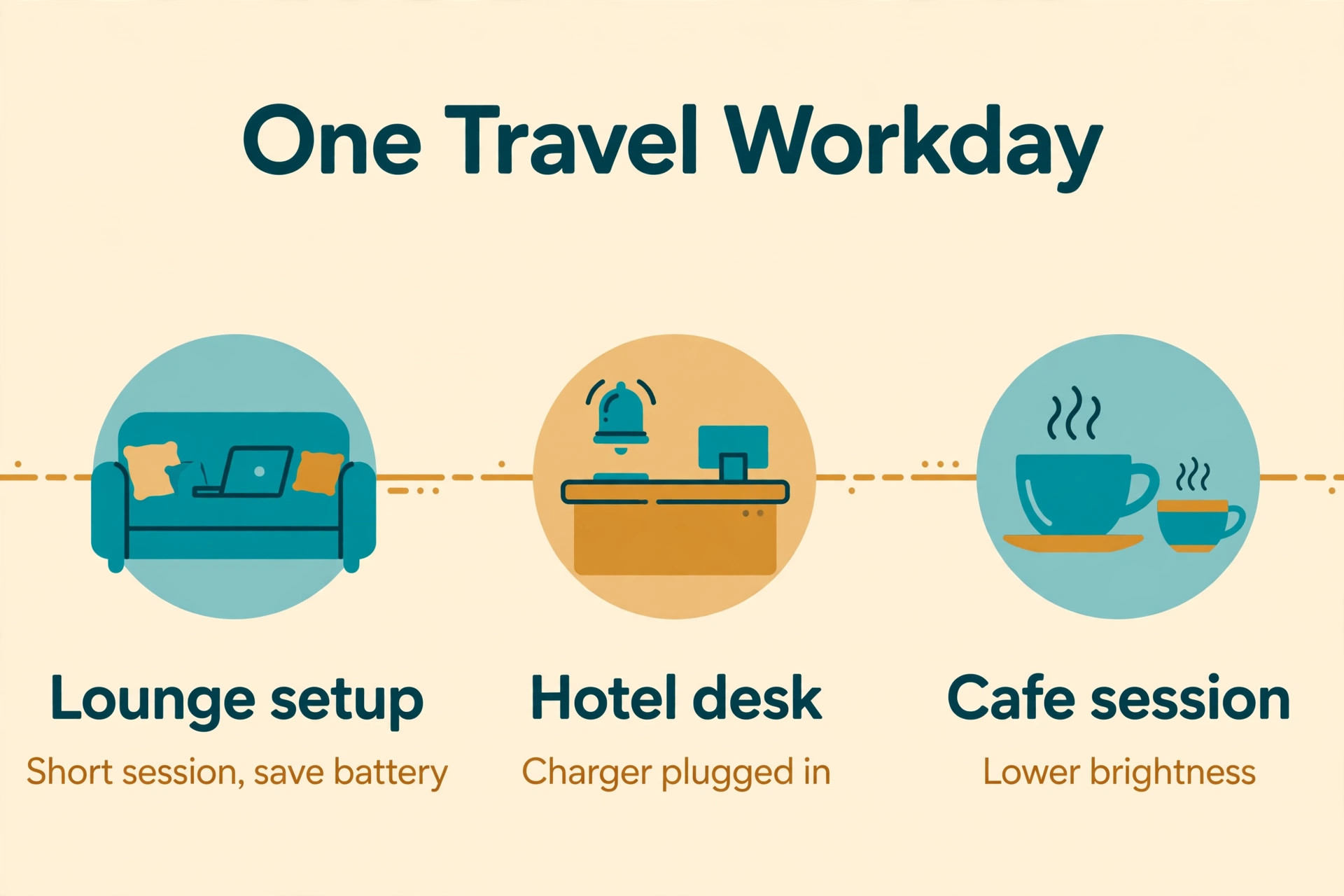
Hotel desks are the easiest travel setup, and they still reward a short routine. Clear a space wide enough for the laptop and the monitor side by side, plug the charger into the wall first, then connect the monitor, then open your work. If the desk is too narrow, place the portable monitor slightly behind and to the side of the laptop, angled toward you, rather than squeezing both screens into a row that forces you to hunch. If the hotel chair is low, use a cushion or a folded towel to raise your seating position instead of lowering the screens. Small adjustments like these turn a mediocre hotel desk into a workable office for a day.
Cafes need a different approach, because table space is shared and power is uncertain. Choose a table with room for both screens and a wall socket nearby, and sit with your back to a wall where possible so the screens are less exposed to passers by. Keep the setup compact, with the monitor close to the laptop and cables tucked behind the screens rather than trailing across the table. If no socket is free, run the monitor at lower brightness, keep sessions shorter, and do the heaviest work first while the battery is full. A cafe is a good place for writing, email and planning, and a poor place for a four hour video editing session on battery alone.
Airports and trains are for short, focused work, not for full desk setups. On a plane, a portable monitor is rarely practical, because tray tables are small. Use the laptop alone in flight, and save the second screen for the lounge or the destination. On a train with a proper table, a 14 inch panel works better than a 15.6 inch panel, because it leaves room for a notebook and a drink. In a lounge, set up only if you have at least forty minutes before boarding.
When you set up portable monitor for laptop travel in a new place, do a thirty second check before you start work. Screens at the same height, cables not pulling on ports, charger connected if the session will run long, and brightness matched between screens. That check takes less time than fixing a slipped stand or a dead battery halfway through a call, and it is the habit that separates travellers who enjoy a second screen from travellers who find it more trouble than it is worth.
Mistakes That Ruin a Travel Screen
The first mistake is buying on price alone and ending up with a dim panel, a weak stand or a single port that cannot do what the trip needs. A panel that costs 30 dollars less but washes out in daylight, wobbles on every table, or needs a separate power brick will cost more in frustration than it saves at checkout. Read the port list, the brightness rating and the stand design before you compare prices, and treat a missing second USB-C port as a real limitation, not a footnote.
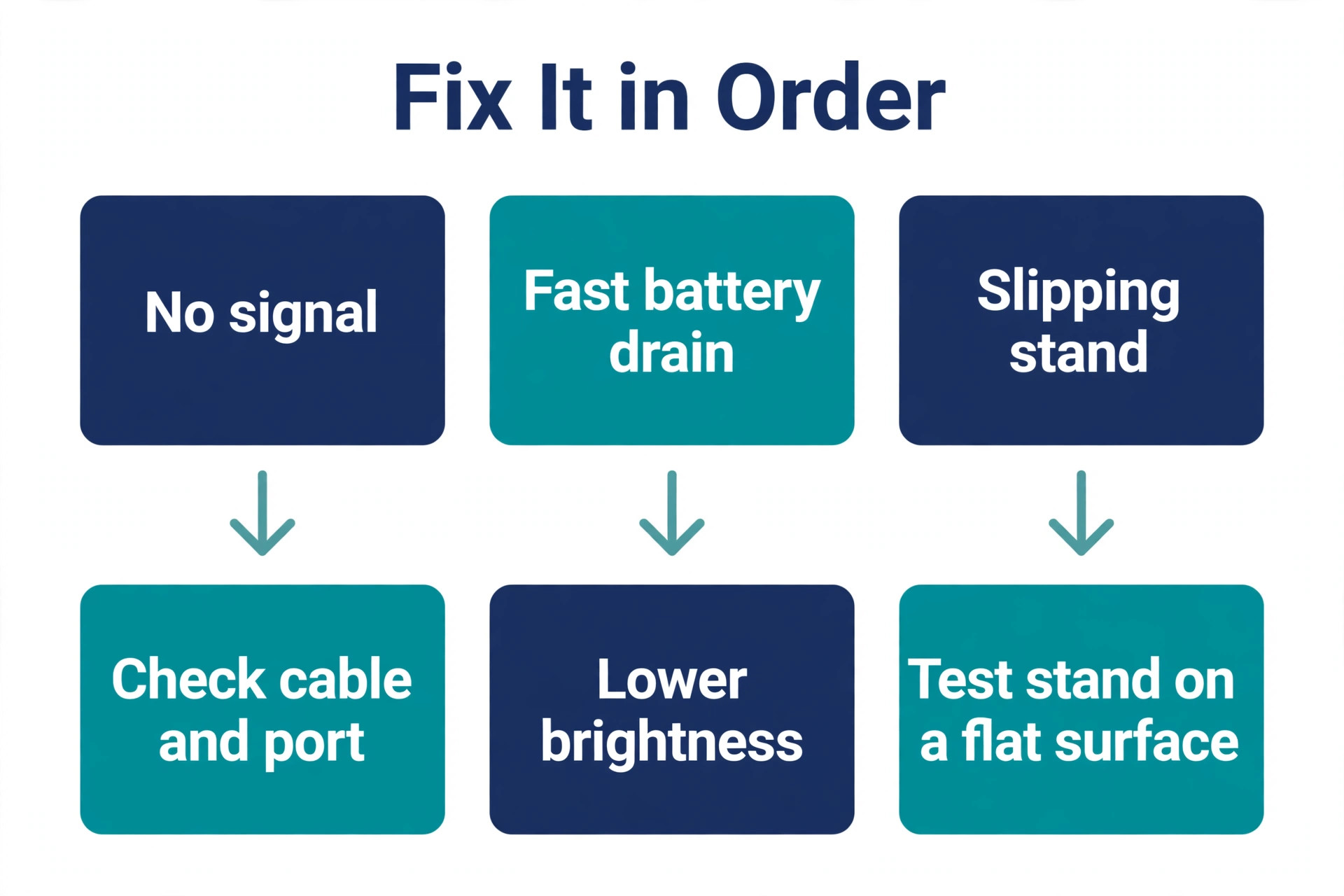
The second mistake is assuming every USB-C port on a laptop carries video. Many laptops have USB-C ports for charging and data only, with no video output. Others have video on one port but not on another. Test the exact port you plan to use, with the exact cable you plan to carry, before the trip. If video over USB-C does not work, an HDMI connection plus USB power is a workable fallback, but it needs two cables and, on some laptops, a separate power source for the monitor.
The third mistake is running both screens at full brightness on battery and then blaming the monitor when the laptop dies early. Brightness is the largest controllable power cost in a travel setup. Drop the portable monitor to a comfortable indoor level, dim the laptop slightly, and close video or animation heavy pages on the second screen when you are away from a socket. Those three changes often recover more working time than any battery saving mode, and they cost nothing.
The fourth mistake is packing the monitor without protection and stacking heavy items on top of it. A cracked corner or a pressure mark on the panel usually comes from packing, not from use. Use the sleeve or cover every time, keep sharp and heavy items in a different pocket, and never sit on a bag that holds a thin screen. If the panel travels in checked luggage, put it in hand luggage instead. Airport handling is not kind to thin glass, however well the bag is packed.
When you set up portable monitor for laptop travel, avoid a sixth mistake as well, which is leaving the same window layout on both screens for every job. Writing, spreadsheet work, video calls and presentations each suit a different split. Change the split to fit the job, and save the habit of putting reference material on the second screen for the tasks where reference material actually matters. A second screen is a tool, not a decoration, and its value comes from matching the layout to the work in front of you.
Travel Checklist and Final Checks
Use this checklist the night before a trip and again before you leave the hotel room. It covers the whole kit in one pass, so a forgotten cable does not become a lost workday.
- Laptop charger and a charger rated high enough for laptop plus monitor, with the cable that matches it
- Portable monitor in its sleeve or cover, with the kickstand or folding cover tested and working
- Video capable USB-C cable, plus a short mini HDMI cable as a backup for older laptops and televisions
- Small cable pouch, so video, power and adapter cables stay together and cannot press on the screen
- Earbuds or headphones, for calls in cafes, lounges and shared coworking rooms
- Microfibre cloth, for cleaning the panel and for wiping a dusty hotel desk before setup
- A note on your phone with the monitor model number, the port layout, and the display arrangement that works for you
When you set up portable monitor for laptop travel at the destination, run the thirty second check from the previous section, then start with the hardest task while your energy and battery are at their best. If the setup feels awkward after ten minutes, adjust height or angle before you settle in, because a small discomfort at minute ten becomes a real ache by hour three. A travel screen should fade into the background and let the work take over. If it keeps demanding attention, something in the arrangement, the brightness or the cable plan still needs fixing.
For readers who travel for client work, related reading includes best AI tools for freelance writers for writing on the road, best AI tools for consultants for client facing work, and how to plan a month of social media content with AI for batching content between trips. Each guide pairs well with a two screen setup, because the work they describe involves reference material, drafts and schedules open at the same time.
Frequently Asked Questions
Do I need a special laptop to use a portable monitor?
No, but you need a compatible port. A USB-C port with DisplayPort Alt Mode or Thunderbolt gives the simplest one cable setup. A laptop with HDMI only can still use a portable monitor, but you will need HDMI for video plus a USB cable for power, and in some cases a separate charger for the monitor. Check the laptop specifications and test the exact port and cable before you travel.
How much battery does a portable monitor use?
A typical 1080p portable monitor draws about 5 to 8 watts at moderate brightness, while brighter or higher resolution panels draw more, up to about 15 watts for a 4K panel. In practice, Arzopa guidance suggests battery drain roughly 10 to 25 percent faster during normal browsing and email. Lowering brightness and using a passthrough charger when a socket is available will reduce that impact sharply.
Is a 14 inch or a 15.6 inch portable monitor better for travel?
A 14 inch panel is better if you walk a lot, fly with a small bag, or work from train tables and small cafe tables. A 15.6 inch panel is better if you drive to your base, work from hotel desks, or spend long hours in spreadsheets and documents. Both sizes work well, so choose by bag size and table space rather than by screen size alone.
Can I charge my laptop through a portable monitor?
Sometimes, if the monitor has a USB-C power delivery passthrough port and you connect a suitable charger to it. Check the passthrough wattage, because a 60 watt passthrough suits a thin laptop but may only hold the charge on a larger performance laptop. If the monitor has no passthrough port, the laptop must be charged from its own charger, and the monitor will draw power from the laptop when no charger is attached.
What should I do if the monitor shows no signal?
Check the cable first, then the port. Use the cable that came with the monitor, try a different USB-C port on the laptop, and confirm the laptop port supports video output. If you are using HDMI, confirm the monitor input is set to HDMI and the USB power cable is connected. Restarting the laptop with the monitor already connected also resolves many first time detection problems.
Is a portable monitor worth carrying every day?
It is worth carrying if your work regularly needs two views at once, such as writing with sources open, checking data while drafting a report, or monitoring email during a call. It is less worth carrying if your work is mostly single document reading, short email replies, or meetings where a second screen would distract. Try it for two full workweeks before deciding, because the benefit shows up in daily rhythm rather than in a single test.
The Bag Test That Decides If It Earns Its Place
A portable monitor earns its place in your bag when three tests all pass. It connects in under two minutes without a hunt for the right cable. It holds its position on a real table while you type. And it leaves you with enough battery, or a clear charging plan, for the work session ahead. If any of those tests fails, fix that part of the kit before you buy a larger or sharper panel, because a bigger screen will not fix a bad cable, a slipping stand or a missing charger.
When you set up portable monitor for laptop travel with that test in mind, the buying choice becomes simpler. Choose the lightest panel with the brightness, ports and stand your trips actually need, pack it the same way every time, and keep the power plan honest about sockets and battery. Do that, and the second screen stops being an accessory you carry hopefully and becomes part of how you work on the road, in hotels, in cafes, and in client rooms, with fewer window switches and more finished work at the end of the day.