
A video that stops every few seconds is more than an annoyance. It breaks a lesson halfway through, ruins the end of a match, and turns a short break into a long wait for a wheel that never seems to finish spinning. The good news is that most buffering has a clear cause, and most causes have a fix that costs nothing. If you want to fix YouTube buffering slow internet problems at home, the first job is not to buy a faster plan. It is to find out whether your connection, your Wi-Fi, your device, or the quality setting you chose is the part that cannot keep up.
This guide works through those causes in the order that saves the most time. You will start with a ten minute checklist, then match your speed to the right quality, then fix Wi-Fi and device problems, then deal with mobile data and downloads, and finally decide when an upgrade is worth paying for and when it is not. Every fix here is one you can test in a single viewing session, so you will know quickly whether it helped. Prices and speeds quoted here were checked against public vendor pages at draft time, and you should still check the checkout page before you pay for any plan, because prices change.
Why YouTube Buffers Even When Your Plan Looks Fast Enough
Buffering happens when video data arrives more slowly than you watch it. YouTube tries to stay ahead by loading a little of the video before you need it, and that buffer is your safety margin. When the margin runs out, playback stops while the player waits for more data. That can happen even on a plan that advertises a high headline speed, because the speed you pay for is not always the speed that reaches one device at one moment.
Three gaps explain most of the confusion. The first gap is between advertised speed and sustained speed. A plan sold as 50 Mbps may deliver that speed in a short test, then drop lower when the network is busy in the evening, when a neighbour’s traffic competes for the same local capacity, or when your provider shapes video traffic at peak times. YouTube needs sustained speed, not a brief peak, because a video plays for minutes at a time.
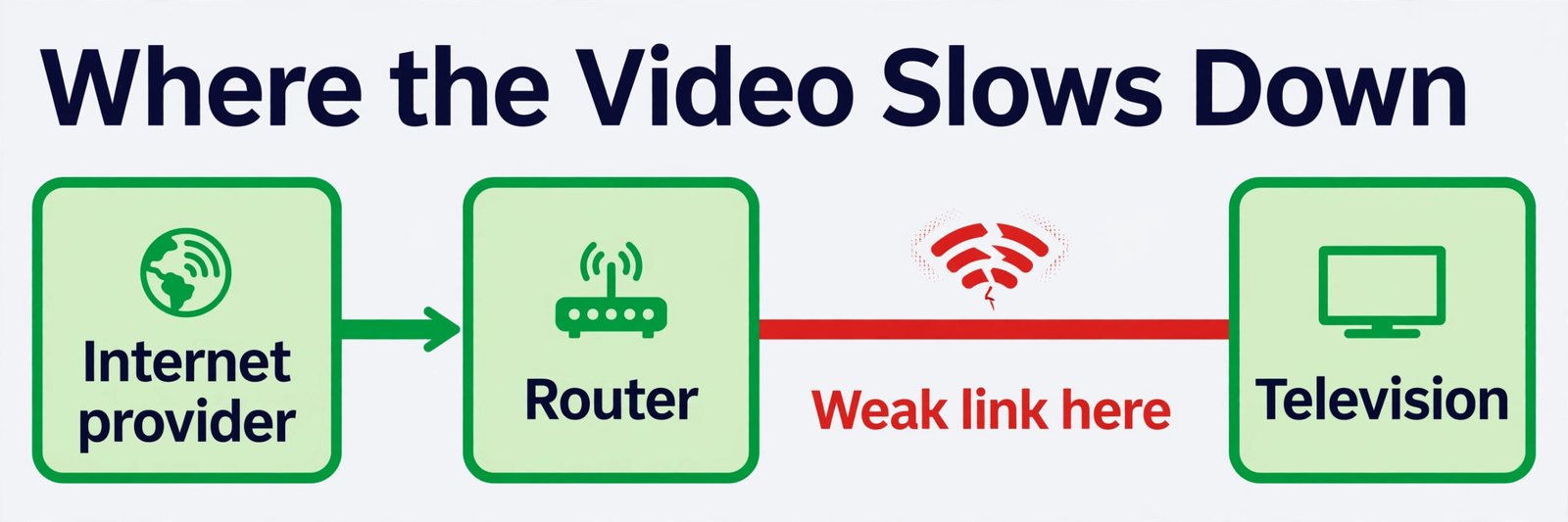
The second gap is between the router and the device. A router in a hallway, two walls away from a bedroom television, may receive a strong signal from the provider and still deliver a weak signal to the television. Wi-Fi speed falls with distance, walls, floors, and interference from other networks, and older devices on the 2.4 GHz band are more exposed to that interference than newer devices on 5 GHz. In that case the internet coming into the house is fine, and the last few metres inside the house are the problem.
The third gap is between what YouTube tries to play and what the connection can carry. On Auto quality, YouTube aims high when it thinks the connection can handle it, then drops down when it cannot. On a borderline connection, that up and down cycle can feel worse than steady lower quality, because each jump up risks another pause. A manual quality setting removes that guessing and gives the player a target it can actually sustain.
How to Fix YouTube Buffering Slow Internet in 10 Minutes
Start here, even if you plan to read the rest of the guide later. These ten steps are ordered so that the fastest and most revealing checks come first, and each step tells you what to do next if it does not help. Work through them in order, test the same video after each change, and stop when playback stays smooth for at least two minutes without a pause.
– [ ] Pause other heavy activity for one test. Close large downloads, pause cloud backups, and ask others in the house to pause video calls or streaming for two minutes while you test.
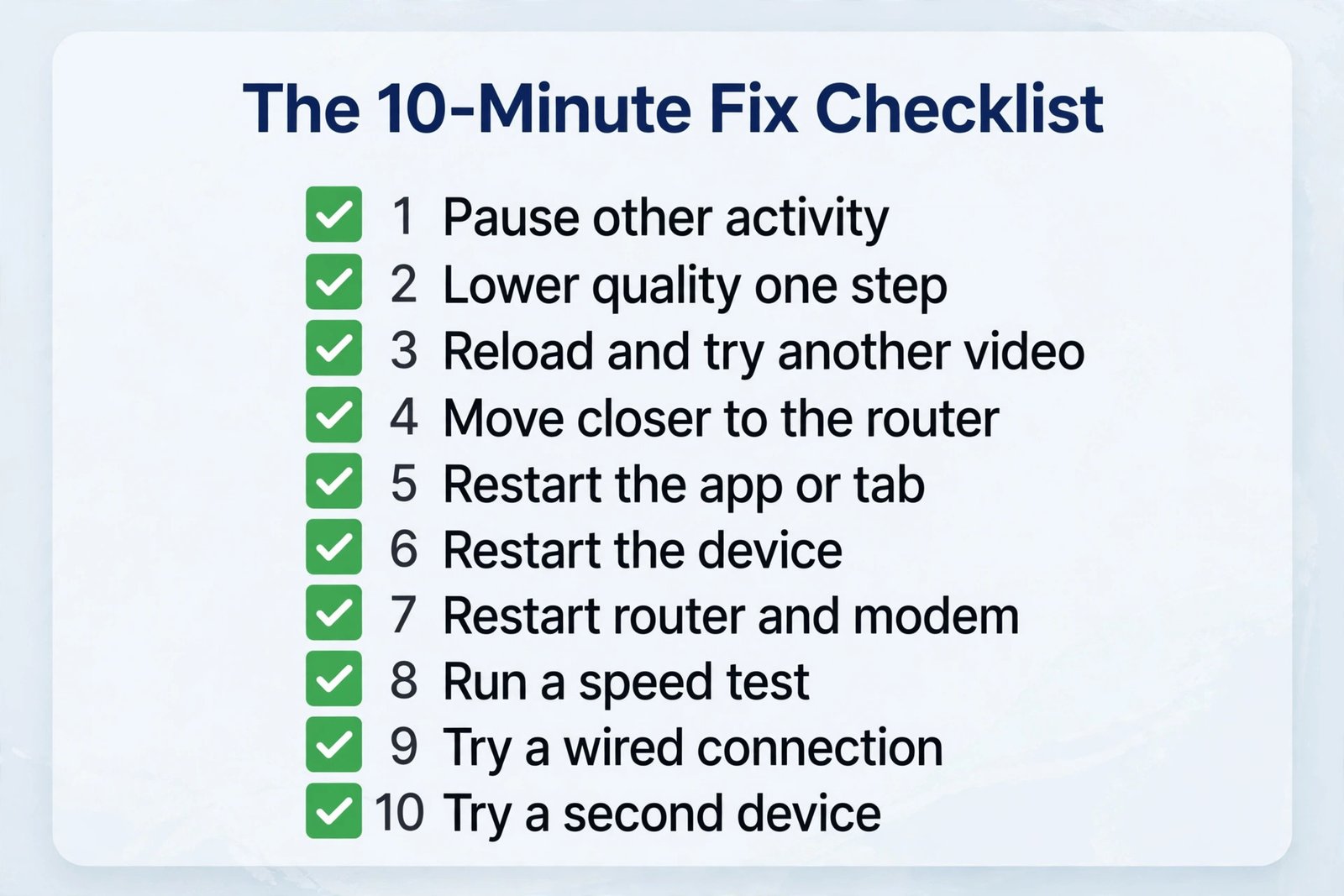
- [ ] Drop the quality one step. If the video is on Auto or 1080p, set it to 720p for the test. If it is already on 720p, try 480p. Smooth playback at a lower setting points to a speed or stability problem, not a broken app.
- [ ] Reload the video and try a different video. If one video buffers and another plays fine, the problem may sit with that video, its encoding, or a temporary server issue, and the fix is to wait or pick another version.
- [ ] Move closer to the router for one test. If a phone or laptop plays smoothly near the router and buffers in another room, the problem is Wi-Fi coverage, not the plan.
- [ ] Restart the YouTube app or the browser tab. Close the app fully, or close the tab and open a fresh one, then play the same video again.
- [ ] Restart the device. A phone, tablet, television, or laptop that has been running for days can clear temporary memory and network problems with a simple restart.
- [ ] Restart the router and modem. Unplug both for about 30 seconds, plug the modem back in first, wait for its lights to settle, then plug the router back in and wait for Wi-Fi to return.
- [ ] Run a speed test on the same device and in the same spot where you watch. Compare the result with the quality table later in this guide.
- [ ] Try a wired connection for one test, if you can. An Ethernet cable from the router to a laptop or television removes Wi-Fi from the test completely.
- [ ] Try a second device on the same network. If a phone buffers and a laptop plays fine in the same room, focus on the phone. If every device buffers, focus on the network.
If the checklist fixes the problem, you still benefit from reading the quality and Wi-Fi sections, because the same problem will return the next time the network is busy. If the checklist does not fix it, the later sections help you narrow the cause further, and the final sections help you decide whether a plan change, a router change, or a call to your provider is the right next move.
Set the Right Quality for Your Real Speed
Quality is the single most powerful lever you have on a slow connection, because it directly controls how much data YouTube must deliver every second. Google publishes recommended sustained speeds for YouTube playback, and those numbers give you a clear target. Sustained speed means the speed your device holds over time, not the highest number a speed test flashes for a second.
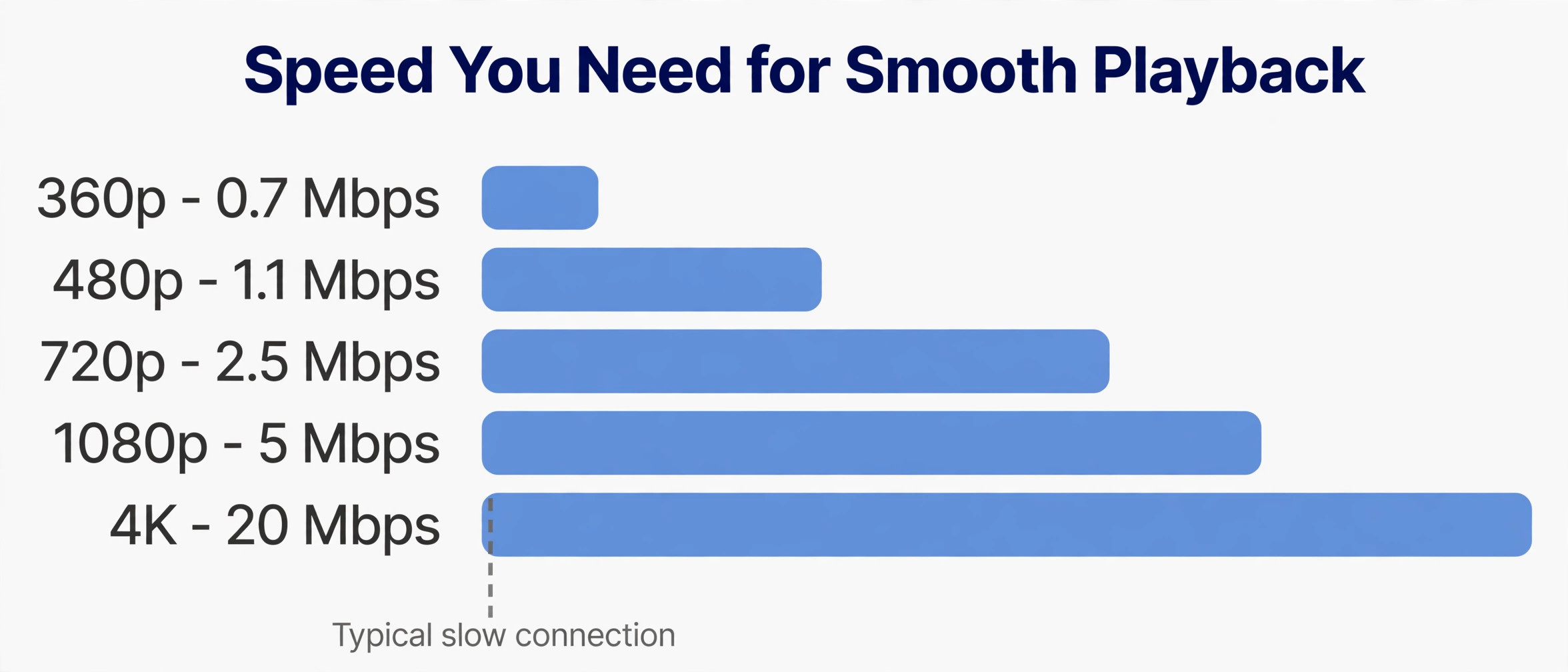
| Resolution | Recommended sustained speed | Best use |
|---|---|---|
| 360p | 0.7 Mbps | Small phone screen, very weak connection |
| 480p | 1.1 Mbps | Phone viewing, audio led content, background watching |
| 720p | 2.5 Mbps | Laptop viewing, most everyday watching |
| 1080p | 5 Mbps | Large laptop or television, detail led content |
| 4K | 20 Mbps | Large 4K television, close viewing, high detail content |
To set quality on a computer, open the video, select the settings gear, select Quality, and pick a specific resolution instead of Auto. On a phone, open the video, tap the settings gear, tap Quality, and pick Advanced if you want a specific resolution, or pick a named tier such as Data saver, Higher picture quality, or Auto under the simpler menu. On a television, the same settings gear appears in the player controls, though the exact menu wording varies by app version. The habit to build is to set quality once for a session, rather than letting Auto jump up and down.
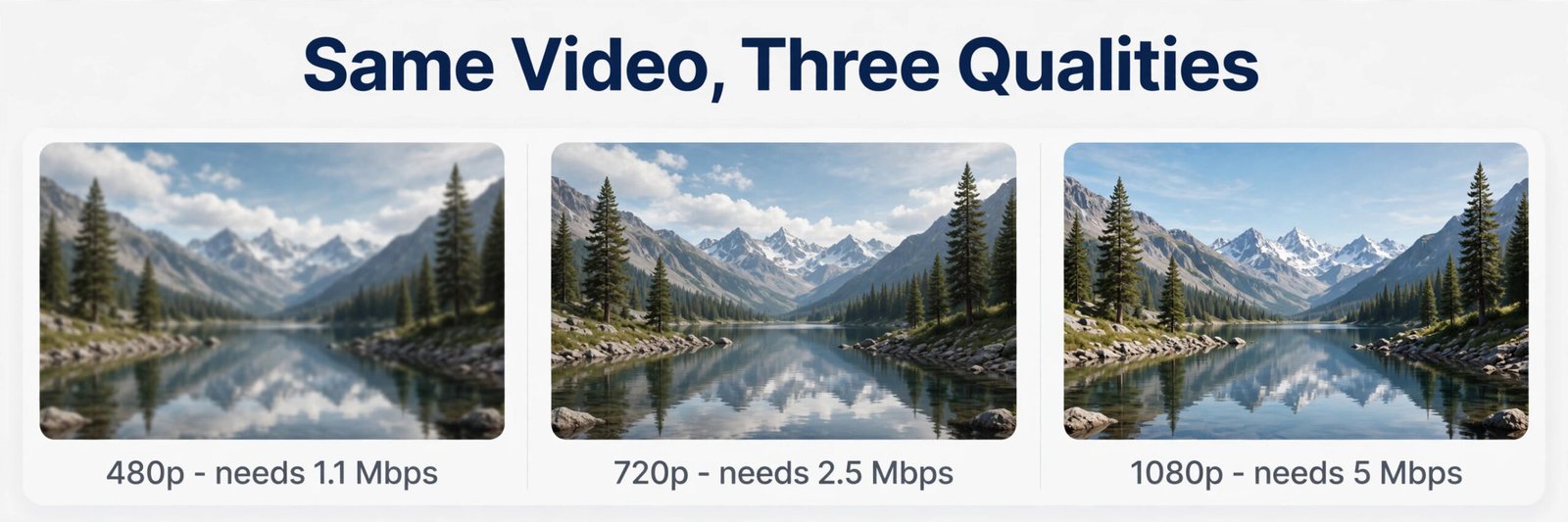
A common question is whether dropping from 1080p to 720p looks bad. On a phone or a laptop at normal viewing distance, most people notice far less difference than they expect, and the gain in smoothness is usually worth more than the small loss in sharpness. On a large television viewed from close up, the difference is more visible, and that is where a wired connection or a better Wi-Fi position matters more. For talks, podcasts, news, and lessons where the words matter more than fine detail, 480p or 720p is often the right choice even on a faster connection, because it leaves headroom for everything else in the house.
Data use matters on mobile, and quality is also the lever that controls it. Higher quality uses more mobile data per hour, and a lower setting can stretch a limited plan much further. If you watch on mobile data often, set the mobile quality separately from the Wi-Fi quality where the app allows it, and use downloads on Wi-Fi for the videos you know you will watch later. That split, high quality on Wi-Fi at home and data saver quality on mobile, is one of the simplest ways to fix YouTube buffering slow internet problems when you are away from home.
Fix the Wi-Fi First, Before You Blame YouTube
When every device in a room buffers but a device near the router plays fine, the Wi-Fi link is the problem. Wi-Fi is a shared radio link, and its real speed depends on distance, walls, interference, and the age of the router and the device. A small change in position can matter more than a plan upgrade, and it costs nothing to test.
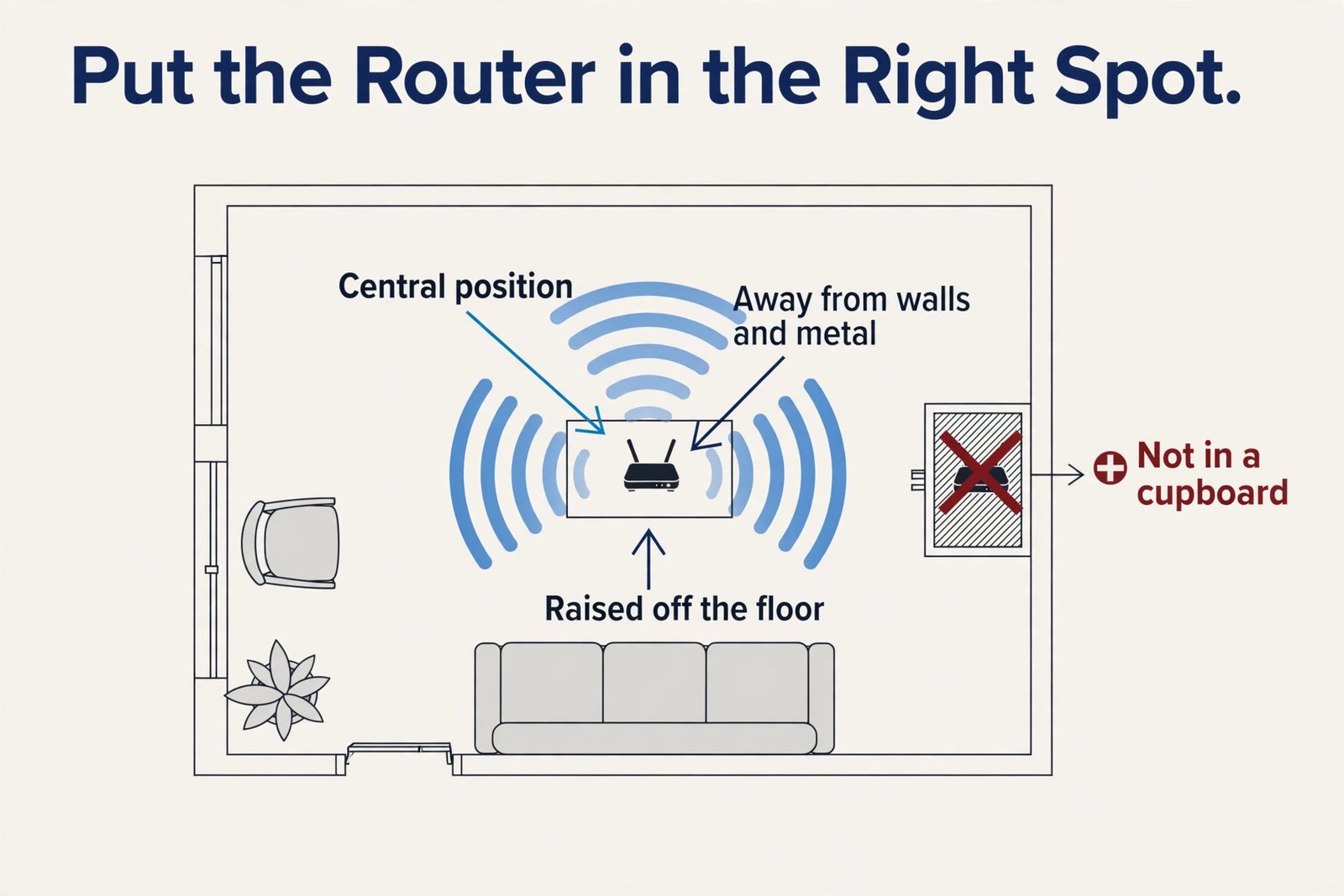
Start with position. Move the router to a central, open spot, away from thick walls, metal cabinets, fish tanks, and the inside of a closed cupboard. Raise it off the floor if you can, and keep it away from microwaves, baby monitors, and other strong radio sources. On the device side, move a little closer to the router, face the router if you are using a laptop, and avoid watching from behind a thick wall or a floor below the router. Test the same video after each move, because a change that looks small can shift the signal enough to stop pauses.
Next, check which Wi-Fi band you are using. Most modern routers offer both 2.4 GHz and 5 GHz. The 2.4 GHz band reaches further through walls, but it is slower and more crowded, because neighbours, Bluetooth devices, and older gadgets all use it. The 5 GHz band is faster and less crowded, but it does not travel as far. If you watch near the router, 5 GHz is usually the better choice. If you watch two rooms away, 2.4 GHz may be more stable, even if it is slower, because a stable slower link beats a fast link that keeps dropping. Many routers combine both bands under one network name, and the device chooses for itself.
If your router lets you separate the bands, try each one for a day and keep the one that buffers less. That band test is a practical way to fix YouTube buffering slow internet problems at home.
Fix the Device, App and Browser
A slow connection gets the blame for many problems that actually start on the device. An old app version, a full storage drive, a browser with dozens of tabs, or a television that has not been restarted in weeks can all stall playback. The fixes here are quick, and they help you separate device problems from network problems.
Start with the app or the browser. On a phone or tablet, update the YouTube app through the app store, then close it fully and reopen it. On a computer, update the browser to the latest version, close extra tabs, and try the video in a private window with extensions disabled for one test. If the video plays smoothly in a private window but buffers in your normal window, an extension, such as an ad blocker or a video enhancer, may be interfering, and you can narrow it down by disabling extensions one at a time.
If the video plays smoothly in a different browser, the problem may sit with the first browser’s settings or cache, and clearing the cache for YouTube is a reasonable next step. That app check is a practical way to fix YouTube buffering slow internet problems at home.
Restarting the device is more useful than it sounds. A restart clears temporary files, closes background processes, and forces the device to reconnect to Wi-Fi with a fresh network session. If you watch on a television, unplug it from power for about 30 seconds rather than just pressing the remote power button, because many televisions stay in a low power standby mode and do not fully restart from the remote. If you watch on a laptop, a restart also clears a browser session that may have been running for days with many tabs and processes.
Fix Mobile Data and Downloads for Travel and Weak Signal
Mobile buffering has its own causes. A phone can show full signal bars and still struggle, because signal bars show strength, not speed or stability, and a crowded cell, a moving train, or a weak indoor signal can all cause pauses. The first step is to test in a fixed spot. Stand still near a window or outside for one test, and compare playback with playback while moving. If playback is smooth when you stand still and pauses when you move, the problem is signal variation, not the app.
Set mobile quality separately. In the YouTube app, open Settings, then Video quality preferences, and choose a lower setting for mobile networks than for Wi-Fi. Data saver quality will keep most videos playing on a weak signal, and it will also protect a limited mobile data plan. If you are on a plan with a data cap, a lower setting is not just a quality choice, it is a budget choice, because a single hour of high quality video can use several times more data than the same hour at a lower setting. Check your plan details before you stream for long periods on mobile data, because overage charges or throttling after a cap can look exactly like buffering.
That mobile setting is a practical way to fix YouTube buffering slow internet problems at home.
Downloads are the best fix for known weak spots. If you know you will watch on a train, a plane, or in a building with poor signal, download the video on Wi-Fi first. YouTube Premium includes downloads for offline viewing, and the individual plan in the United States was reported at $15.99 a month after the June 2026 price change, with the family plan at $26.99 a month and Premium Lite at $8.99 a month, though you should check the current checkout page for your country and plan before you subscribe, because prices vary by region and change over time. For many viewers, a download is cheaper than a plan upgrade, because it removes the network from playback completely.
If you do not want a subscription, you can still plan around Wi-Fi by watching longer videos at home and saving short clips for mobile.
Hotspot viewing deserves a separate note, because it adds a second Wi-Fi link. When a laptop connects through a phone hotspot, the video travels from the cell network to the phone, then from the phone to the laptop over Wi-Fi. Either link can be the bottleneck, and the phone also has to power both radios at once, which can drain the battery and heat the phone. If hotspot viewing buffers, try watching directly on the phone for one test. If the phone plays smoothly and the laptop buffers, the hotspot link is the limit. Keep the phone close to the laptop, plug the phone in to charge, and drop the laptop quality one step.
Those three steps cover most hotspot cases, and the key to fix YouTube buffering slow internet trouble on a hotspot is usually the extra link, not YouTube itself.
When the Problem Is Your Plan, Your Provider or YouTube Itself
Sometimes the honest answer is that the connection itself cannot carry the quality you want, and no device fix will change that. You can tell this is the case when every device buffers in every room, a wired test still buffers, the speed test is consistently below the quality table for the resolution you want, and the problem happens at all times of day. In that case, the decision is about the plan, the provider, or the way you watch.
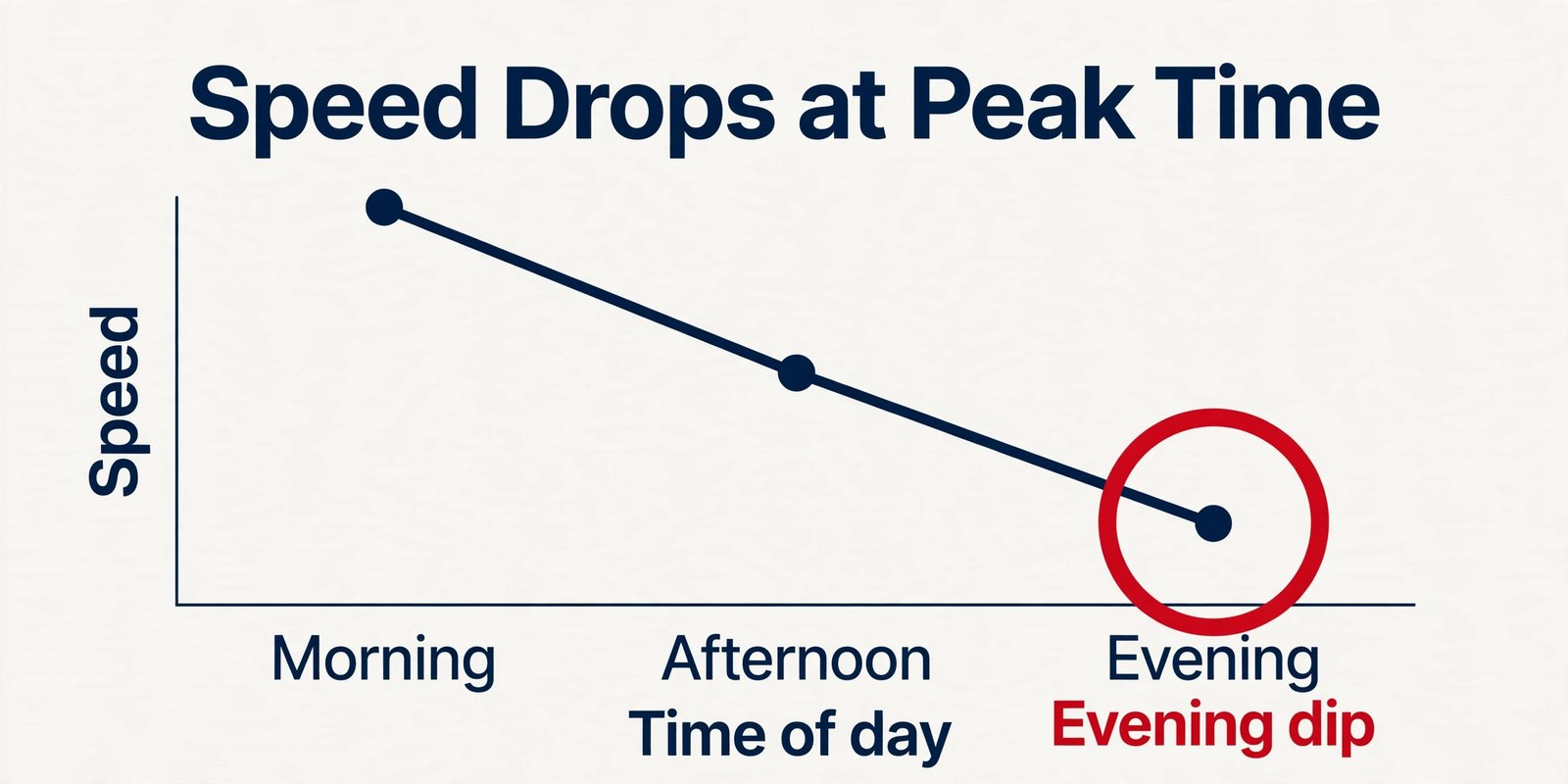
Before you upgrade, run speed tests at three times, morning, afternoon, and evening, on the same device in the same spot, and write the results down. A plan that delivers 20 Mbps in the morning and 3 Mbps in the evening has a peak time problem, and an upgrade may not fix it if the evening drop is caused by local congestion rather than your plan tier. A plan that delivers 4 Mbps all day has a tier problem, and an upgrade to a tier that delivers 10 Mbps or more will make 1080p realistic.
Take those numbers to your provider, because a support call that starts with measured results gets a better answer than a call that starts with a general complaint.
Also check whether your provider throttles video, or whether your plan has a fair use limit that slows video after a certain amount of data. Some mobile plans slow video to a lower resolution by default, and some home plans have a data cap that, once passed, reduces speed for the rest of the month. Ask the provider directly whether video is limited on your plan, and whether a higher tier removes that limit. If the answer is yes, compare the cost of the higher tier with the cost of watching at a lower quality, because for many households the lower quality is perfectly acceptable and the upgrade is not worth it.
Pick the Fix That Matches Your Symptom
Different symptoms point to different fixes, and matching them saves time. Use this section as a decision guide after you have run the ten minute checklist, because it turns a general list of fixes into a specific next step.
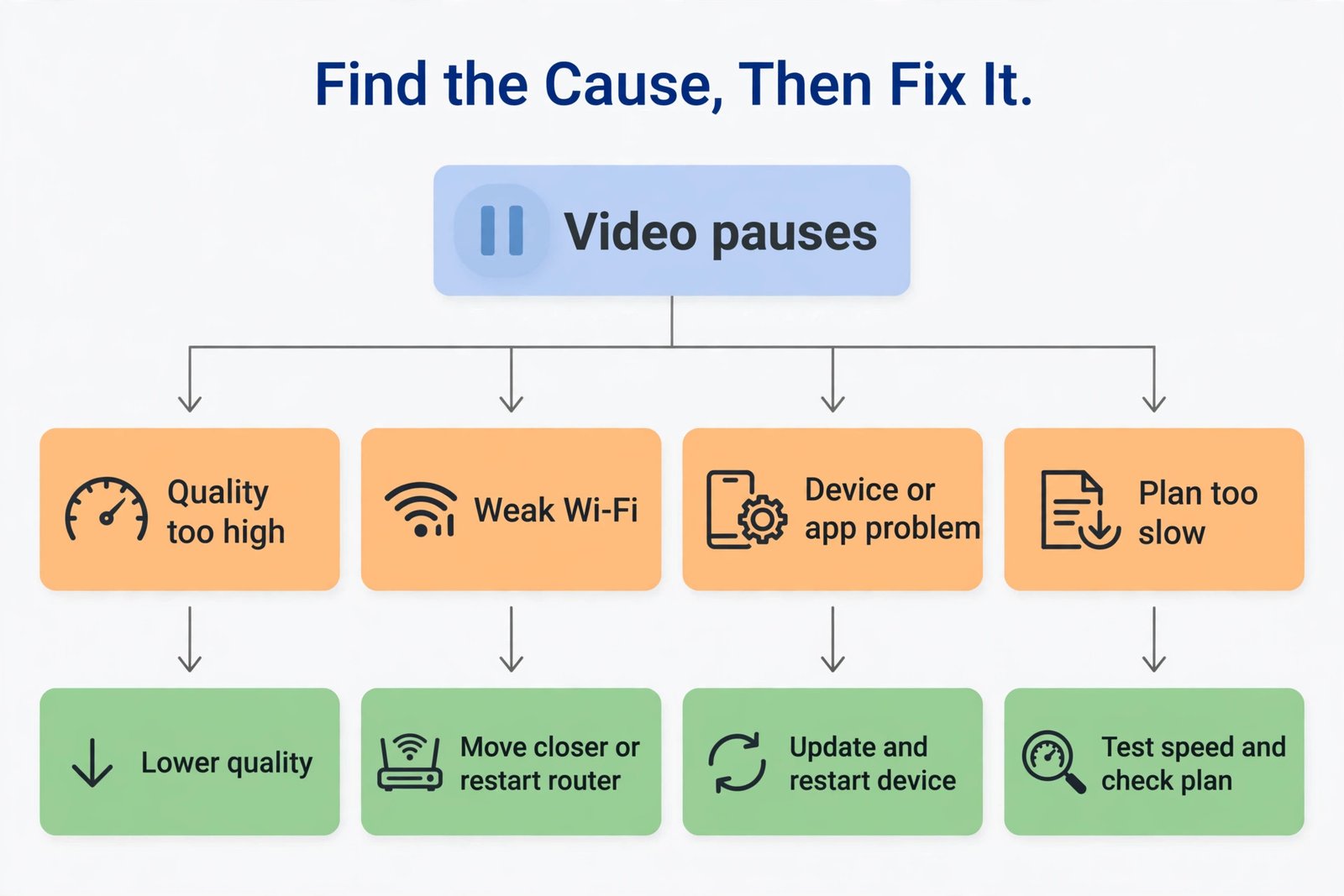
If only one video buffers and others play fine, the problem is likely that video or a temporary server issue. Wait, reload, or choose another version of the same content. If only one device buffers and others play fine in the same room, focus on that device, its app version, its storage, and its Wi-Fi band. If every device buffers in one room but plays fine near the router, focus on Wi-Fi coverage, position, and band. If every device buffers everywhere, even on a wired connection, focus on the plan, the provider, and peak time congestion. That symptom check is a practical way to fix YouTube buffering slow internet problems at home.
If playback is smooth at 480p but pauses at 1080p, the connection is the limit, and the fix is to stay at the lower quality, reduce load from other devices, or upgrade the plan. If playback pauses at every quality, including 360p, the problem is more likely a device fault, a very weak signal, or a provider fault, because even a very slow connection should usually carry 360p. If playback pauses only in the evening, the problem is likely peak time load, and the fix is to watch at a lower quality in the evening, download in advance, or ask the provider about congestion.
Mistakes That Make Buffering Worse
The first mistake is leaving quality on Auto and assuming it will sort itself out. Auto is useful on a strong connection, but on a borderline connection it can jump up, pause, drop down, and jump up again, and that cycle feels worse than steady lower quality. Set a manual quality for a session when you know the connection is weak, and let Auto return when the connection is strong.
The second mistake is restarting the router repeatedly without testing anything else. One restart is a useful test. Five restarts in an hour will not fix a plan limit, a device fault, or a service outage, and it can hide the real cause by changing the network state each time. Restart once, test, and move on to the next check if it does not help.
The third mistake is opening many tabs, downloads, and streams at once while testing. A test is only useful if you control the load, so pause other activity for the test, then add it back one item at a time to see what tips the video into buffering. Without that control, you cannot tell whether the fix worked or whether the load simply changed.
The fourth mistake is blaming the device when the network is at fault, or blaming the network when the device is at fault. The second device test and the wired test exist to prevent that error, and they take only a few minutes. Skipping them often leads to a purchase that fixes the wrong part of the chain.
The fifth mistake is ignoring updates. An old app, an old browser, and an old television system can all cause playback problems that look like slow internet, and updates are free. Check for updates before you buy anything, and check again after a major app or system release if buffering suddenly appears.
The sixth mistake is paying for speed you cannot use. A plan upgrade that raises the headline speed from 50 Mbps to 200 Mbps will not help a phone on a weak 2.4 GHz link, or a television that only needs 5 Mbps for 1080p. Match the purchase to the measured bottleneck, whether that bottleneck is speed, coverage, or device performance. A useful way to fix YouTube buffering slow internet trouble without wasting money is to spend only after a test has named the bottleneck.
For creators and students who watch YouTube as part of their work, related reading on this site includes how to start a YouTube channel with AI for channel setup, best AI tools for YouTubers for creator tools, and best AI video editing tools for editing the videos you watch and make. Those guides help with the creative side, while this guide covers the playback side, so you can watch, learn, and publish without the wheel interrupting you.
Frequently Asked Questions
Why does YouTube buffer on a fast internet plan?
A fast plan does not guarantee a fast link to one device. Wi-Fi distance, walls, interference, other devices sharing the connection, and peak time congestion can all reduce the speed that actually reaches the player. Run a speed test on the watching device in the watching spot, set a manual quality that matches that result, and test a wired connection if you can, because those steps show whether the plan, the Wi-Fi, or the device is the limit.
What speed do I need for smooth YouTube playback?
Google recommends a sustained speed of 0.7 Mbps for 360p, 1.1 Mbps for 480p, 2.5 Mbps for 720p, 5 Mbps for 1080p, and 20 Mbps for 4K. Aim for a little headroom above those numbers, because other activity and Wi-Fi loss will reduce the speed available to the player. If your sustained speed is below the number for the quality you want, drop one quality step for smooth playback.
Does lowering quality really stop buffering?
Yes, in most cases, because lower quality needs less data per second. Dropping from 1080p to 720p cuts the required sustained speed from about 5 Mbps to about 2.5 Mbps, and dropping to 480p cuts it further to about 1.1 Mbps. On a phone or laptop, the visual difference is often small, and the gain in smoothness is usually worth it, especially for talks, lessons, and news.
Why does YouTube buffer only in the evening?
Evening buffering usually points to peak time load, either in your home, where more people are streaming at once, or on the wider network, where many households are online at the same time. Test in the morning and in the evening on the same device, pause other streams for the evening test, and drop the quality one step in the evening if the speed test shows a clear evening drop. If the drop is large and consistent, ask your provider about congestion on your plan.
Should I buy a new router to stop YouTube buffering?
Buy a new router only if the tests point to Wi-Fi coverage or an old router as the cause. If a device plays smoothly near the router and buffers in another room, coverage is the problem, and position changes, a wired link, or a mesh system may help. If every device buffers even on a wired connection, a new router is unlikely to help, and the plan or the provider is the more likely cause.
Premium does not increase your internet speed, so it will not fix buffering caused by a slow connection or weak Wi-Fi. It can help in a different way, because it includes downloads for offline viewing, so you can download a video on Wi-Fi and watch it later without any network at all. If you travel or watch in weak signal areas often, downloads may be more useful than a faster plan, but check the current price at checkout before you subscribe.
Watch Without the Wheel
Buffering feels random, but it rarely is. A video pauses because the data cannot keep up, and the data cannot keep up for a reason you can usually name, whether that reason is quality set too high, Wi-Fi too weak, a device that needs an update, a household sharing one slow link, or a plan that simply does not deliver enough sustained speed. Work through the checklist, set the quality to match your real speed, fix the Wi-Fi link before you buy anything, and use downloads when you know the signal will be weak.
Those habits will fix most cases, and they will also give you the measured evidence to make a smart upgrade decision when an upgrade is truly needed.
Start with the next video you watch. Drop the quality one step if it pauses, test near the router if it still pauses, and note the speed test result. That one session will tell you more than a week of guessing, and it will turn a frustrating wheel into a problem with a name and a fix. The goal is not perfect 4K on every connection. The goal is steady playback that lets you follow the lesson, enjoy the match, and finish the video without interruption, and that goal is within reach on most home and mobile connections today.
A clear plan to fix YouTube buffering slow internet trouble is worth more than a faster headline speed, because it fixes the part that actually breaks playback.