
The best AI video editing tools in 2026 don’t ask you to become an editor — they ask you to approve one. Auto-captions, silence removal, filler-word cuts, B-roll suggestions and one-click reframing now handle the first 80% of a rough cut, which is where most videos used to die unfinished. The question is no longer whether AI editing works; it’s which tool matches the footage you actually shoot.
We tested seven tools against the same workflow: a 6-minute talking-head clip (scripted product demo with umms, long pauses and one off-script tangent), run through each tool’s AI edit pipeline — transcript-based cutting, silence removal, captions and a vertical reframe for Shorts. Prices below were verified in October 2026.
Quick Answer: The Best AI Video Editing Tools
| Tool | Best for | Free plan | Paid from | Max export |
|---|---|---|---|---|
| Descript | Editing by transcript (talking-head, podcast) | Yes — 60 min/mo | $16/mo (annual) | 4K |
| CapCut | Free/cheap social editing (Shorts, Reels) | Yes — generous | $19.99/mo (Pro) | 4K |
| Adobe Premiere Pro | Professional NLE with generative AI | Trial only | $22.99/mo | 4K+ |
| DaVinci Resolve | Pro editing without a subscription | Yes — fully usable | $295 one-time (Studio) | 4K+ |
| Runway | AI fixes to existing footage (inpainting, upscale) | 125 one-time credits | $12/mo (annual) | 4K |
| Opus Clip | Turning long video into Shorts automatically | Yes — 60 credits/mo | $15/mo | 1080p+ |
| VEED | Browser-based captions + quick team edits | Yes — watermarked | $12/mo (annual) | 4K |
One-line verdict: Use Descript if you edit spoken content and hate timelines. Use CapCut if your budget is under $20/month and your output is social. Go Premiere Pro or DaVinci Resolve when you’re editing for clients or cinema.
How We Tested: One Clip, Seven Pipelines
Every tool received the same 6-minute, 4K talking-head recording: a product walkthrough with 11 filler words (“um”, “uh”, “you know”), four pauses over 3 seconds, one off-script tangent to cut, and a section that needed captions plus B-roll. We scored:
- Auto-transcript accuracy — can you cut by deleting text without re-listening?
- Silence/filler removal — how much of the dead air vanished with one click?
- Caption quality — accuracy, styling, and time to fix errors
- Reframe/B-roll — can it reframe for 9:16 or suggest supporting visuals?
- Export reality — max resolution on the cheapest plan that removes watermarks
Pricing figures were checked against official pricing pages and dated October 2026 reviews. Editing-tool pricing moves fast — confirm before you buy.
1. Descript — Best Overall for Talking-Head and Podcast Video
Best for: YouTubers, podcasters and course creators who edit spoken content.
Free plan: 60 media minutes/month, 100 one-time AI credits, 720p watermarked export.
Paid from: Hobbyist $16/month billed annually ($24 month-to-month); Creator $24/month annual ($35 monthly); Business $50/month annual ($65 monthly). Verified September–October 2026.
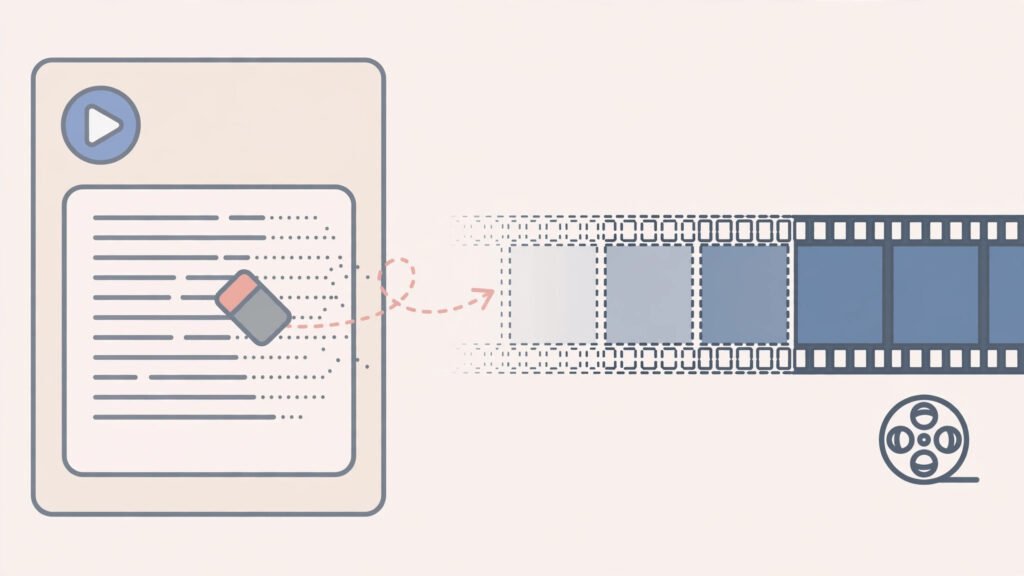
Descript is the tool that made “edit video by editing text” mainstream, and in 2026 it still does that job better than anything else. On our test clip, the transcript hit roughly 92% accuracy on clean audio, filler words were flagged automatically, and deleting the off-script tangent from the transcript removed it from the video — no scrubbing the timeline.
The pricing is the catch, and it’s metered in a way that confuses everyone. You pay by media hours (every minute of raw footage you upload counts, transcribed or not) plus AI credits for Studio Sound, voice dubbing and AI effects. Hobbyist gives you 10 media hours and 400 AI credits a month with 1080p watermark-free export; Creator gives 30 hours, 800 credits and 4K. For a solo creator publishing weekly, Creator at $24/month annual is the realistic tier.
Pros:
- Transcript editing is genuinely magical for talking-head video
- Studio Sound audio cleanup is among the best in the category
- Underlord AI agent builds rough cuts from instructions
- Strong dubbing (30 languages) and caption translation (61)
Cons:
- Credit + media-hour metering makes costs unpredictable at volume
- Not built for cinematic B-roll-heavy editing or multi-cam
- Underlord’s “access vs full access” difference between Hobbyist and Creator is poorly documented
Best for verdict: If your videos are mostly you talking to camera or interview audio, Descript removes the worst hours of editing. Everyone else should keep reading.
Best for: Shorts, Reels, TikTok and any creator on a budget.
Free plan: Fully functional editor with AI features; auto-captions are limited monthly and export is capped at 1080p.
Paid from: Pro $19.99/month or $179.99/year (~$15/month), verified October 2026. Ultra at $79/month for heavy AI generation; Team from ~$12.49/seat. Regional and app-store pricing varies.
CapCut is the editing app behind a huge share of short-form video, and its free tier is the reason. For our test workflow it handled auto-captions, smart reframe to 9:16 and background removal without a subscription. The paid Pro tier unlocks 4K export, 1,200 AI credits a month, vocal isolation (AI voice removal from mixed audio) and camera tracking, plus commercial usage rights — worth it the moment your videos make money.

Two honest caveats. First, the free tier got narrower in early 2026: more AI features sit behind credits and export limits tightened. Second, CapCut is owned by ByteDance (TikTok’s parent), which matters to some brands’ compliance policies — check before using it for client work.
Pros:
- Best price-to-feature ratio in the category; free tier is legitimately usable
- Auto-captions, templates and effects are genuinely fast
- Mobile + desktop workflow is seamless for shoot-and-post creators
- Pro’s vocal isolation and camera tracking are real differentiators
Cons:
- Free tier limits tightened in 2026; more paywalls than before
- Timeline gets unwieldy for long-form or complex projects
- ByteDance ownership is a non-starter for some companies
Best for verdict: Posting short-form regularly and paying for nothing else? CapCut is your editor. The moment you edit long-form, look at Descript or a real NLE.
3. Adobe Premiere Pro — Best Pro NLE With Generative AI
Best for: Professional editors, agencies and anyone needing maximum control.
Free plan: 7-day free trial only (Premiere Pro is subscription-only).
Paid from: $22.99/month annual prepaid ($35.99 month-to-month); bundled in Creative Cloud All Apps. Verified October 2026.
Premiere Pro isn’t an “AI editor” in the auto-everything sense — it’s the professional timeline everything else is compared to, now with generative AI baked in. On our test clip, Text-Based Editing (transcript-driven cutting) was nearly as fast as Descript’s for removing silences and the tangent, and Enhance Speech cleaned up the room tone better than most dedicated tools. Newer additions — Generative Extend, Media Intelligence search (“find the close-up where I mention pricing”), and object-aware masking — are genuinely useful time-savers rather than demos.
The honest truth: none of that matters if you’re a solo creator. Premiere is overkill and overpriced for talking-head weekly videos, and it still needs a real computer and real editing knowledge. Where it earns its keep is client work, multi-cam shoots and broadcast delivery, where 4K+ timelines, Lumetri color and the Adobe ecosystem are the actual job.
Pros:
- Text-Based Editing is the closest any NLE gets to Descript
- Generative Extend, object masking and Media Intelligence are mature
- Unlimited ceiling for color, audio and delivery formats
- Industry-standard for client work
Cons:
- Expensive subscription with no meaningful free tier
- Steep learning curve; AI doesn’t remove the need to know editing
- Overkill (and heavy) for quick social videos
Best for verdict: If clients pay you to edit, this is still the answer. If you’re the client, pick Descript or DaVinci.
4. DaVinci Resolve — Best Free Pro Editor
Best for: Filmmakers, editors who refuse subscriptions, and AI-curious beginners.
Free plan: Free forever — a remarkably complete NLE (multi-user, Fusion VFX, Fairlight audio) with AI tools like Magic Mask, voice isolation and IntelliScript included. Verified October 2026.
Paid from: DaVinci Resolve Studio $295 one-time, which adds 4K+ 120fps, neural engine extras (depth map, face refinement, SuperScale upscaling), stereoscopic 3D and multi-GPU.
Blackmagic’s pitch is simple: the free version does 90% of what most editors need, and the paid version costs less than a year of Premiere. For our test workflow, voice isolation (Fairlight) and silence detection handled the audio cleanup well, and Auto Subtitles plus IntelliScript (AI-generated timelines from scripts) cover the “AI assist” basics. Magic Mask’s object tracking — click a subject, get a travelling matte — remains the single most impressive free AI feature in any editor.
The catch is learning curve: Resolve is a real NLE with a real interface, and its AI features are scattered across the Edit, Color, Fusion and Fairlight pages. It won’t hold your hand like Descript or CapCut. But if you want professional power without a subscription and don’t mind YouTube tutorials, nothing else comes close.
Pros:
- Best free editor by a wide margin; no watermark, real features
- Studio is a one-time $295 — no subscription treadmill
- Magic Mask, voice isolation and neural engine tools are genuinely powerful
- Color page is the industry benchmark
Cons:
- Steep learning curve; AI features are scattered across pages
- Demands a decent GPU for neural engine features
- Fewer hand-holding workflows than Descript/CapCut
Best for verdict: The best “I want to learn editing properly” choice, and the only serious free option for long-form.
5. Runway — Best AI Effects and Fixes for Existing Footage
Best for: Creators who need AI effects, inpainting, upscaling or background swaps on real footage.
Free plan: 125 one-time credits (enough to test, not to produce).
Paid from: Standard $12/month annual ($18 month-to-month), 625 credits/month; Pro $28/month annual. Video inpainting (object removal) needs Standard+. Verified October 2026.
Runway is famous for generation, but for editing its value is fixing footage: remove a boom mic with inpainting, upscale a 720p clip to 4K, swap a background, or extend a shot by a second. On our test clip we used it to remove a distracting background object and upscale a B-roll insert — both worked without the uncanny artifacts that plagued these tools two years ago.
Runway is not a video editor and shouldn’t be your only tool: there’s no real timeline, no captioning workflow, no transcript. Think of it as the AI effects department you send clips to, then bring back into your editor. The credit system also punishes experimentation — failed generations cost the same as good ones.
Pros:
- Inpainting and upscaling quality leads the category
- Fast iteration on fixes that would take hours manually
- Good fit as a companion to any NLE
Cons:
- Not an editor — no timeline, captions or transcript workflow
- Credits burn fast on experimentation
- Watermarked/720p limits on lower tiers for some outputs
Best for verdict: Buy it for fixing shots, not for cutting them. Pair with Premiere or Resolve.
6. Opus Clip — Best for Turning Long Video Into Shorts
Best for: Podcasters and YouTubers who want Shorts/Reels/TikTok from every long video.
Free plan: 60 credits/month, 720p exports with watermark.
Paid from: Starter $15/month, 200 credits and 1080p watermark-free; Pro $29/month, 400 credits. Annual billing roughly halves the monthly price. Verified October 2026.
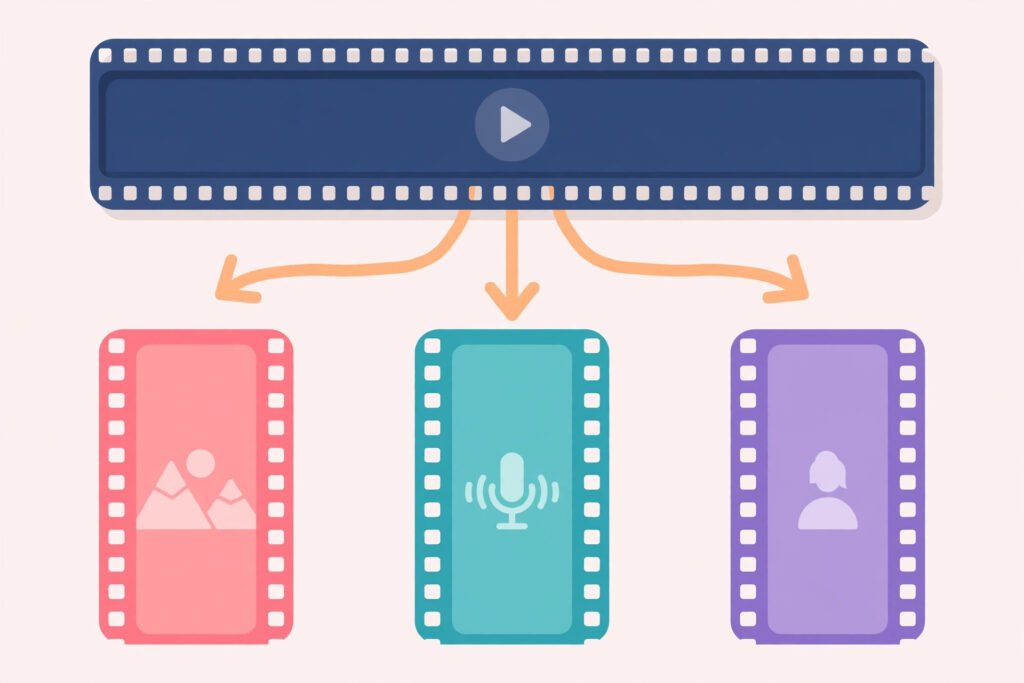
Opus Clip does one job: feed it a long video (or a YouTube link) and it finds the moments worth clipping, reframes them to vertical, adds animated captions and scores each clip for “virality.” On our 6-minute test clip it produced four Shorts; two were genuinely postable, one needed caption fixes, one was a dud. That’s a realistic hit rate — and still faster than clipping manually.
The virality score is marketing, not science: treat it as a sorting hint, not a promise. And the AI b-roll generator and brand templates on higher tiers are genuinely useful for faceless channels, though heavy users will hit credit limits.
Pros:
- Fastest path from long video to a week of Shorts
- Caption styling and reframing are excellent out of the box
- Clip-anything workflow (upload or paste a link)
Cons:
- Virality scores are a sorting hint, not a prediction
- You still need to review every clip before posting
- Credit limits punish long podcasts on cheaper tiers
Best for verdict: If repurposing is a chore you skip, Opus Clip pays for itself. If you already clip manually, save the money.
7. VEED — Best Browser-Based Editor for Teams
Best for: Teams and marketers who edit in the browser and hate installing software.
Free plan: 2 hours/month, 720p with watermark.
Paid from: Lite $12/month annual ($24 monthly); Pro $29/month annual ($55 monthly); Business $59/month annual. Verified October 2026.
VEED lives entirely in the browser, which makes it the fastest tool here for a marketer who needs a captioned, branded video in 20 minutes. It now bundles transcription (100+ languages), AI eye-contact and noise removal, one-click translation/dubbing with lip-sync, and — new in 2026 — “Agents,” a reviewer/editor pair that quality-checks scripts and export files before you share them.
Pro adds 4K export, the full AI toolkit and more transcription hours; Lite removes watermarks with limited AI credits. Against Descript, VEED’s editing depth is shallower — no true transcript-based restructuring beyond captions — but for social and marketing clips, it’s often enough, and the shared brand kits make team output consistent.
Pros:
- Zero install; runs fully in the browser
- Fast captions, translations and branding for teams
- Agents QA feature is genuinely useful for shared publishing
Cons:
- Shallower editing than Descript/Premiere for complex work
- AI features are credit-limited on cheaper tiers
- Long 4K uploads/downloads tax browser workflows
Best for verdict: A marketing team sharing one account? VEED. A solo creator going deep? Descript.
Full Comparison Table: Pricing and Export Resolution

| Tool | Free plan | Entry paid | Annual equivalent | Free export | Paid export | AI metering |
|---|---|---|---|---|---|---|
| Descript | 60 media min/mo | $16/mo (Hobbyist, annual) | $192/yr | 720p, watermark | 1080p (Hobbyist), 4K (Creator+) | Media hours + AI credits |
| CapCut | Yes, generous | $19.99/mo (Pro) | $179.99/yr | 1080p | 4K | AI credits (Pro 1,200/mo) |
| Premiere Pro | Trial only | $22.99/mo (annual) | ~$264/yr | — | 4K+ | Generative credits (bundled) |
| DaVinci Resolve | Yes, full NLE | $295 one-time (Studio) | n/a | 1080p | 4K+ 120fps (Studio) | None (local processing) |
| Runway | 125 credits once | $12/mo (Standard, annual) | $144/yr | 720p on some tools | 4K (plan-dependent) | Credits per second of output |
| Opus Clip | 60 credits/mo | $15/mo (Starter) | ~$90–180/yr | 720p, watermark | 1080p | Credits per video minute |
| VEED | 2 hrs/mo | $12/mo (Lite, annual) | $144/yr | 720p, watermark | 4K (Pro) | Credits + transcription hours |
How to Choose the Right AI Video Editor
Match the tool to the footage, not the hype:
- Talking-head, podcasts, courses → Descript. Transcript editing saves the most time exactly here.
- Short-form social on a budget → CapCut. Free-to-cheap, captions and reframe built in.
- Client/pro work → Premiere Pro or DaVinci Resolve. Full timelines, color, and delivery control.
- Fixing or upgrading existing footage → Runway. Inpainting and upscaling as a companion tool.
- Long video → Shorts pipeline → Opus Clip. Automate repurposing instead of re-editing.
- Team marketing in the browser → VEED. Shared brand assets, captions and quick turnaround.
The honest workflow most creators end up with: shoot → rough-cut in Descript or CapCut → polish color/audio in Resolve or Premiere → clip highlights with Opus Clip → publish. One tool rarely does the whole job well, and the subscriptions above overlap less than their marketing suggests.
FAQ
What is the best free AI video editor?
DaVinci Resolve is the strongest fully free option for serious editing, and CapCut is the best free choice for short-form social video. Descript and VEED both have free tiers, but their exports are watermarked and time-limited.
Can AI edit a video from start to finish?
For simple formats — talking-head cuts, podcast clips, captioned Shorts — mostly yes: Descript and Opus Clip can take raw footage to a publishable draft. For anything with pacing, storytelling or client standards, AI gets you to a solid rough cut; a human still finishes it.
Is Descript or CapCut better for YouTube?
Descript for long-form, voice-led YouTube videos (interviews, tutorials, commentary). CapCut for Shorts and fast, visual content. Many creators use both: Descript for the main video, CapCut for clips.
Should I choose DaVinci Resolve or Premiere Pro for AI features?
Premiere Pro’s AI (Text-Based Editing, Generative Extend, Media Intelligence) is more integrated for working editors; DaVinci Resolve’s AI (Magic Mask, voice isolation, IntelliScript) is remarkable for a one-time $295. If you already pay for Creative Cloud, Premiere wins. If you don’t, Resolve does.
How much should I pay for an AI video editor?
Solo creator: $12–25/month covers one excellent tool (Descript Creator $24, CapCut Pro ~$15–20, VEED Lite $12). Don’t stack subscriptions — pick the editor first, then add Opus Clip ($15) only if repurposing is a real bottleneck.
Do free AI video editors add watermarks?
CapCut and DaVinci Resolve free tiers do not add watermarks to standard exports. Descript (720p free export), VEED and Opus Clip do watermark free-tier exports; their cheapest paid tiers remove them.
Conclusion
The best AI video editing tool depends on what you shoot. Spoken content belongs in Descript. Short-form on a budget belongs in CapCut. Professional work belongs in Premiere Pro or DaVinci Resolve — the first for its ecosystem and generative AI, the second for doing almost everything without a subscription. Runway fixes footage, Opus Clip multiplies it, and VEED keeps teams moving in the browser.
Start with the free tier that matches your footage, run one real video through it this week, and upgrade only when the limits actually bite. That single test tells you more than any feature table — including ours.
Looking at generation rather than editing? See our guide to AI video generators — and for the full upload workflow, our AI tools for YouTubers guide covers ideation through SEO.