
Your iPhone shows full signal bars on cellular, yet refuses to join the Wi-Fi network it joined happily yesterday, or it joins and then drops the moment you open a video. That failure is infuriating because it feels random, but it almost always has a cause in one of three places, which are the phone’s wireless settings, the saved network details, or the router itself. When you fix iPhone Wi-Fi not connecting, the order matters as much as the steps, because a quick toggle fixes a stuck radio in seconds, while a full network reset wipes every saved password and should only come after simpler fixes have been tried.
This guide works through the fixes in the order Apple support and experienced troubleshooters recommend, from fastest and least destructive to slowest and most thorough. It covers toggling and restarting, forgetting and rejoining a network, router restarts and settings, software updates, and the network reset, plus the signs that point to a hardware fault instead. Follow the steps in order, test after each one, and stop as soon as the phone connects and stays connected, because fixing a problem you have already solved only adds new problems.
What Your iPhone Is Telling You
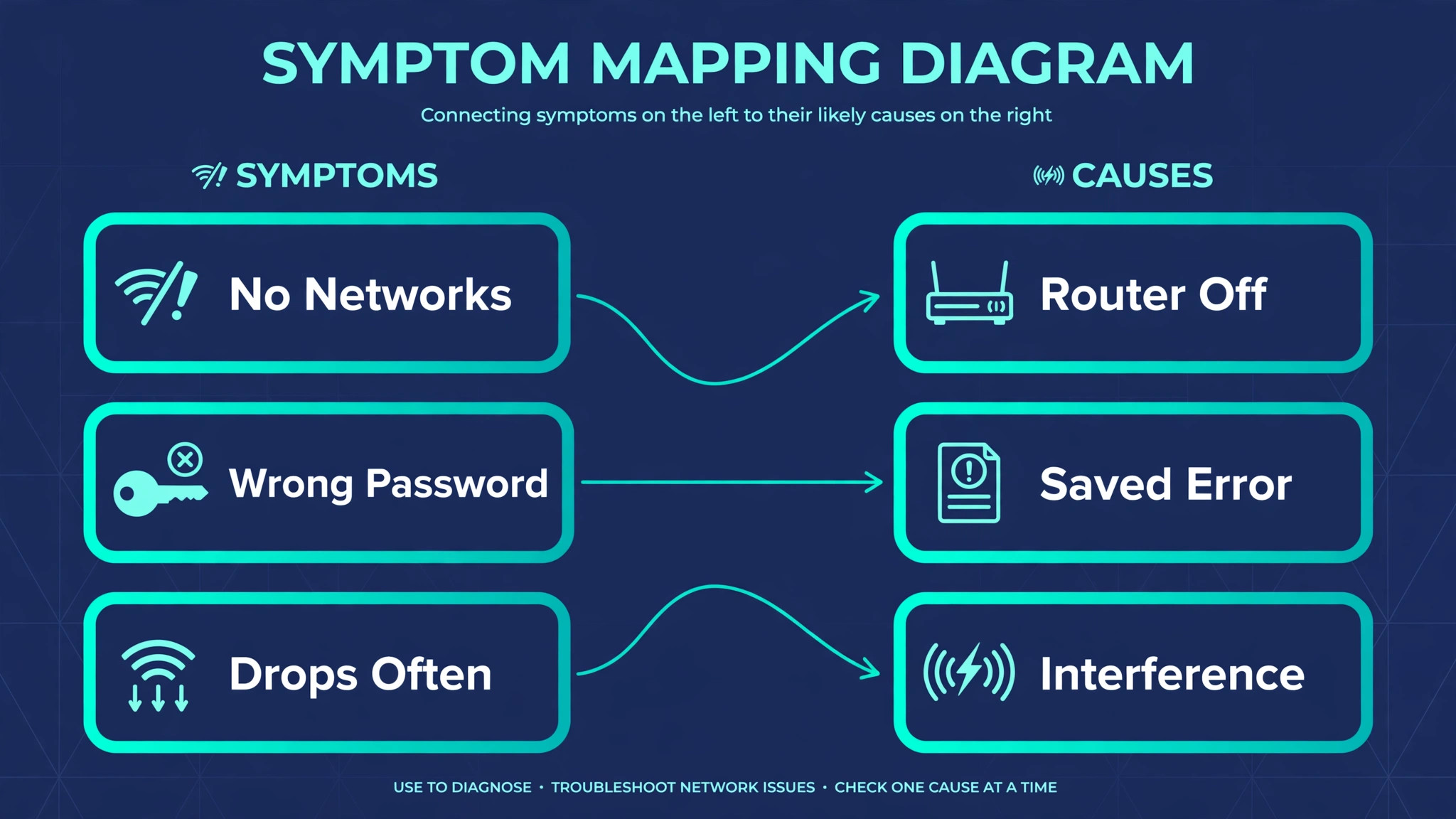
The exact symptom narrows the cause faster than any random fix, so note what you see before changing anything. If the phone cannot see the network name at all, while other devices can, the problem is more likely on the phone, such as a stuck radio, a software fault, or a hardware fault, than on the router. If the phone sees the network but rejects the password, the saved password, the router password, or a changed router setting is the likely cause, and re-entering the password carefully often solves it. If the phone joins but shows no internet, or drops repeatedly, the router, its internet connection, or interference is more likely, especially if other devices show the same pattern.
Check the other devices in the house before touching the phone’s settings, because that single check splits the problem in half. If a laptop and a tablet also fail on the same network, focus on the router and the internet connection first, and save phone resets for later. If only the iPhone fails while everything else works, focus on the phone, starting with a toggle and a restart. That distinction saves time and prevents a full network reset for a router problem, which is one of the most common and most avoidable mistakes in Wi-Fi troubleshooting.
Note also whether the failure affects every network or just one, because a phone that fails on every network points to the phone itself, while a phone that fails on one network points to that network’s saved details or settings.
A greyed out Wi-Fi switch deserves special attention, because it usually signals a deeper software or hardware problem rather than a simple settings error. Try a restart first, and if the switch stays greyed out, work through the later steps in this guide, including a network reset, before concluding that repair is needed. A phone that connects to other networks but not to yours, after a router password change or a router replacement, usually needs only a forget and rejoin, because the saved details no longer match the router. Reading the symptom correctly at the start makes every later step faster and less destructive. Note the symptom carefully when you fix iPhone Wi-Fi not connecting, before changing any setting.
If the phone connects to a hotspot from another phone but not to home Wi-Fi, the home router settings deserve the focus, because a hotspot success proves the phone’s radio works, and the remaining difference is the router’s security mode, band, or password, all of which can be checked in the router admin area without touching the phone further. Also note whether the phone connects briefly then drops when you open a specific app, because some apps trigger VPN or proxy behaviour that breaks Wi-Fi, and testing with those apps closed can reveal an app specific cause that no network step will fix.
How to fix iPhone Wi-Fi not connecting in Order
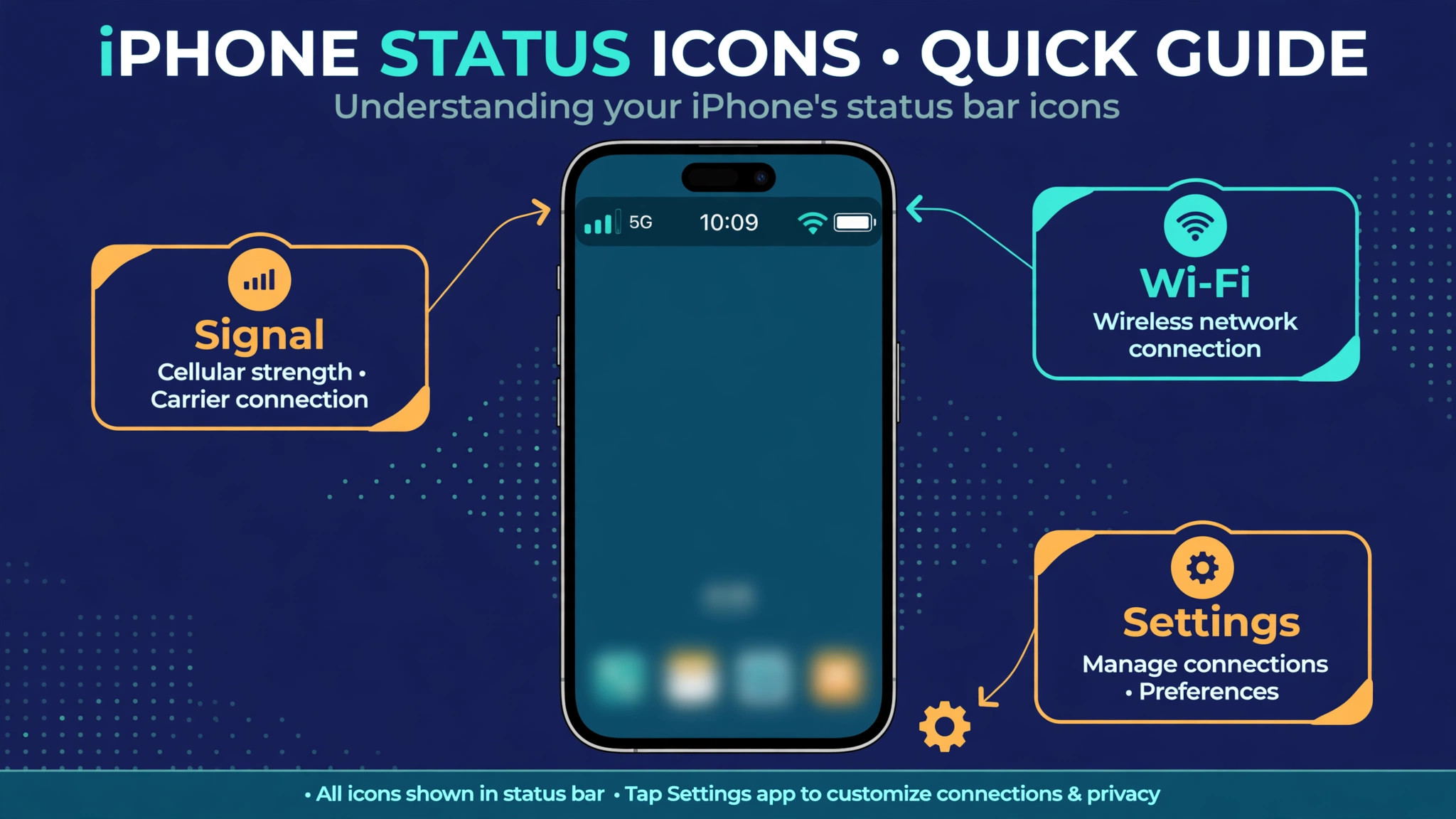
Work through this order exactly, testing after each step, and stop when the phone connects and stays connected through a video and a web page load. The order runs from quick and harmless to slow and destructive, so you never wipe saved networks for a problem a toggle would have fixed. Keep your Wi-Fi password handy from step three onward, because forgetting a network and resetting network settings both require re-entering it.
- Toggle Wi-Fi off and on in Settings, wait ten seconds, and toggle it back on, then try joining the network again.
- Toggle Airplane Mode on for at least 15 seconds, then off, which restarts the phone’s radios without a full restart.
- Restart the iPhone fully, wait for it to boot, and try the network again before changing anything else.
- Forget the network in Wi-Fi settings, using the info button beside its name, then rejoin it and enter the password carefully.
- Restart the router and modem by unplugging them, waiting a full minute, plugging the modem back first, then the router, and waiting for lights to settle.
- Move closer to the router and try the other band, such as 5 GHz instead of 2.4 GHz, or the reverse, to rule out band and range problems.
- Remove or pause any VPN or security app temporarily, restart the phone, and test again, because those apps commonly interfere with Wi-Fi.
- Check for an iOS update in Settings, under General and Software Update, and install it if one is available, then retest.
- Reset network settings in Settings, under General, Transfer or Reset iPhone, and Reset, then rejoin the network with the password.
- If the phone still fails on every network, contact Apple Support or visit an authorised service provider, bringing a note of the steps already tried.
That order is deliberate, because each step rules out a whole class of causes before moving to a more disruptive one. Toggling and restarting clear stuck radios and temporary software states, forgetting clears corrupt saved details for one network, and a router restart clears the router’s temporary states, which cause a surprising share of home Wi-Fi failures. Updating iOS matters because Apple regularly fixes wireless bugs in updates, and a phone on an old version can suffer a known fault that is already fixed. Resetting network settings is powerful, because it clears all saved networks, passwords, cellular settings, VPN and access point settings, so it should come only after simpler steps, and only when you have passwords ready to re-enter.
When you fix iPhone Wi-Fi not connecting, resist the urge to jump straight to the reset, because a reset that was unnecessary still costs time re-entering every network password and reconfiguring VPN and cellular settings. A patient walk through the order usually fixes the problem by step five or six, and the steps you skipped become useful evidence if you later need support, because you can say exactly what was tried and what changed after each step.
Router Steps in Detail
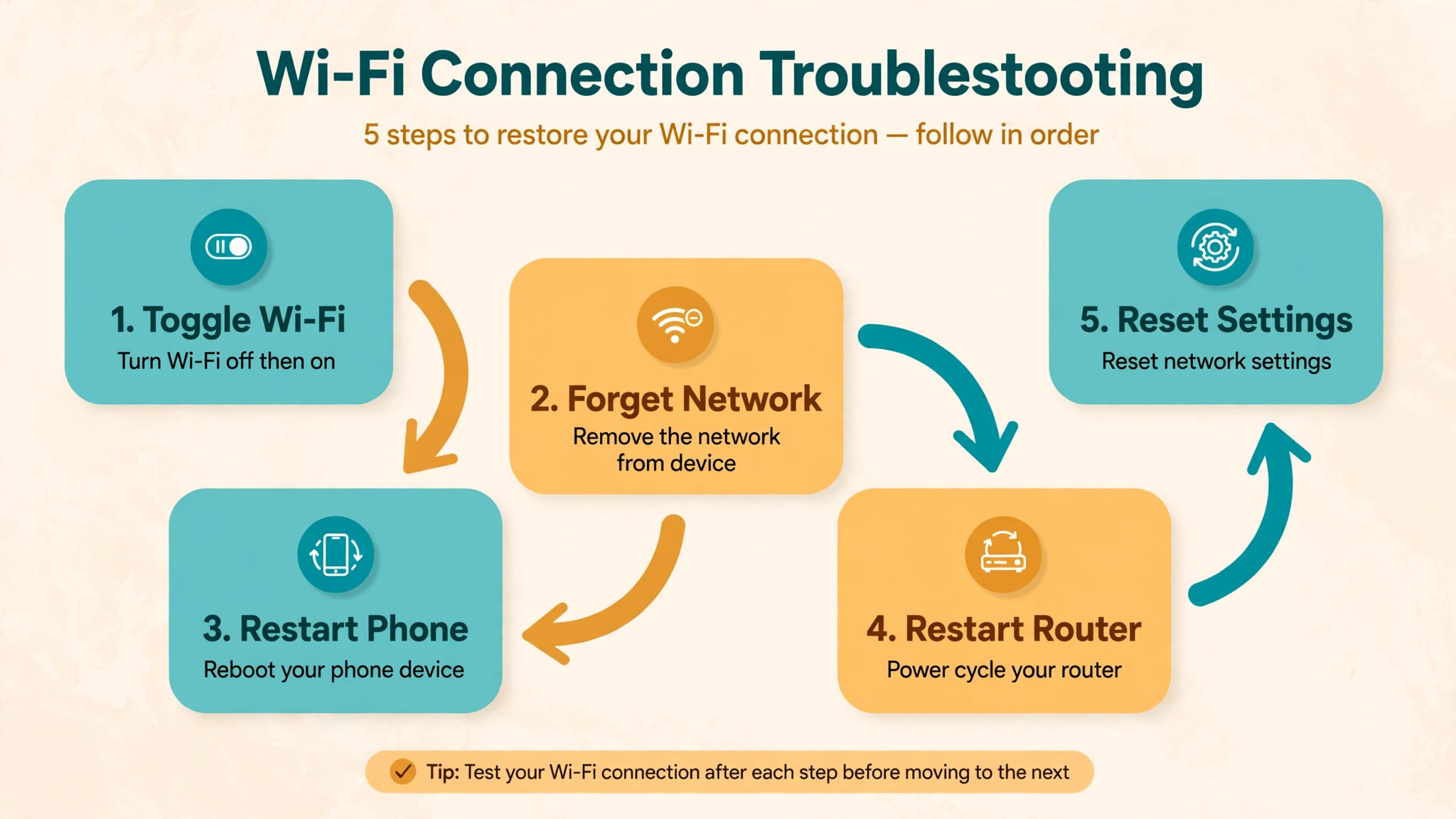
Router steps deserve detail, because a rushed router restart that skips the waiting time, or a router setting changed blindly, can make things worse. Start with a proper restart, which means unplugging the router and modem from power, waiting a full minute so their internal states fully clear, plugging the modem back first and waiting for its lights to stabilise, then plugging the router back and giving it a minute or two to boot fully. Test with another device first, to confirm the router itself is back and the internet works, and only then test the iPhone, because testing too early, while the router is still booting, produces a false failure that sends you down the wrong path.
Next, check the router’s wireless settings, using its app or admin page, and confirm the network name and password match what you are entering on the phone. Apple recommends WPA3 Personal for security where available, or WPA2 with WPA3 transitional mode for compatibility with older devices, and WPA2 Personal with AES as a fallback, while older modes such as WEP, WPA and TKIP should be avoided, because they can cause connection problems with modern phones. If the router offers separate names for 2.4 GHz and 5 GHz bands, try each band separately, because a phone can struggle on one band while working fine on the other, especially at range or through thick walls.
Check for a router firmware update in the same admin area, because outdated router software can clash with newer phones, and enable automatic updates if the router offers them. Check the router label first when you fix iPhone Wi-Fi not connecting after a password change, because the label often holds the current password.
Also check for simple physical causes, because pets, furniture moves and cleaning can unplug a modem cable, a coaxial cable, or an Ethernet cable, leaving a router broadcasting a signal with no internet behind it. Confirm the modem, power cables and internet cables are firmly connected, and look for a pattern, such as failures only when a microwave runs, which points to interference on the 2.4 GHz band, or failures only in one room, which points to range.
Apple’s own guide to managing Wi-Fi settings on iPhone, available on Apple Support, explains forgetting a network, private address settings, and low data mode, and it is worth reading if a specific setting, rather than the connection itself, seems to be the problem. If your router offers a guest network, test the iPhone on it, because a guest network uses simpler settings and can reveal whether the main network’s advanced settings are the problem, and if the guest network works while the main network fails, compare their security modes and band settings side by side before changing the main network.
Cause Table for Common Symptoms
Use this table to match what you see with the most likely cause and the first fix to try, so you can jump to the relevant section without working blindly. The table does not replace the full fix order, but it helps when a symptom is clear and time is short.
| Symptom | Most likely cause | First fix to try |
|---|---|---|
| Network name missing, other devices see it | Stuck phone radio or software fault | Toggle Wi-Fi, Airplane Mode, then restart |
| Password rejected though it looks right | Changed router password or corrupt saved details | Forget the network and rejoin carefully |
| Joins but no internet, other devices also fail | Router or internet connection fault | Restart modem and router properly |
| Joins but drops repeatedly | Interference, range, or band problem | Try the other band, move closer, restart router |
| Works on other networks, fails on yours only | Saved details or router setting mismatch | Forget and rejoin, check router security mode |
| Fails on every network | Phone software or hardware fault | Update iOS, reset network settings, seek support |
| Wi-Fi switch greyed out | Deep software or hardware fault | Restart, reset network settings, seek support |
| Works after restart, fails again later | App interference or router instability | Remove VPN or security apps, update router firmware |
A symptom that changes after a step is useful information, even when the step does not fully fix the problem, so note what changed. If forgetting a network changes a password error into a successful join that then drops, the password problem is solved and the remaining problem is stability, which points to the router or interference. If a router restart fixes every device for an hour and then failures return, the router itself may be unstable or overheating, and a firmware update or a replacement deserves consideration. Troubleshooting is a process of narrowing, not a single magic step, and a short note of symptoms and changes makes that narrowing far faster, especially if you later speak to support.
Use the table first when you fix iPhone Wi-Fi not connecting and time is short, then follow the full order.
When the Problem Is Hardware
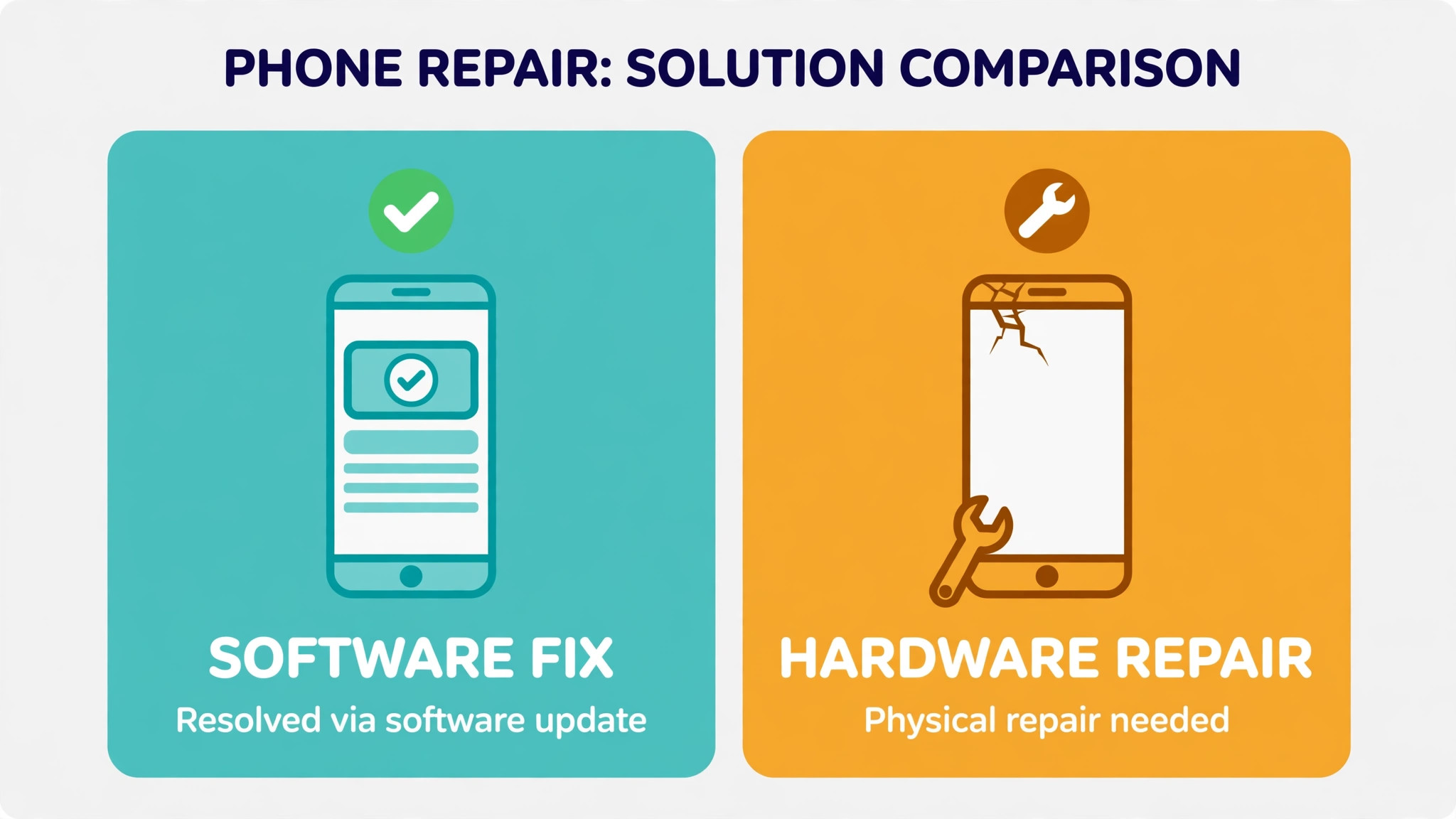
Most Wi-Fi failures are software, settings, or router problems, but a minority are hardware, and recognising them early saves repeated resets that cannot help. Suspect hardware when the Wi-Fi switch stays greyed out after a restart and a network reset, when the phone fails on every network including a known good hotspot, or when Wi-Fi fails alongside other wireless problems, such as Bluetooth failing at the same time, which can point to a shared wireless component. Physical damage, such as a drop, water exposure, or a swollen battery pressing on internal parts, also points toward hardware, and in those cases further resets waste time and risk data if a backup is not current.
Before concluding hardware, complete the full fix order once, including an iOS update and a network reset, and test with a different network, such as a friend’s Wi-Fi or a mobile hotspot from another phone, because a single network can mislead. Back up the phone before any reset that could lead to repair, and note the phone’s model, iOS version, and the exact steps tried, because support will ask for those details and a clear note speeds diagnosis considerably. Back up before any reset when you fix iPhone Wi-Fi not connecting toward a possible repair, without exception.
Keep a note of the phone’s serial number and purchase date with your troubleshooting notes, because support will ask for both, and having them ready avoids a second call, and if the phone was recently repaired by a third party, mention that too, because a non original part can affect wireless performance in ways that are hard to diagnose without that history. If the phone is under warranty or covered by a care plan, contact Apple Support first rather than a third party repairer, because unauthorised repairs can affect coverage, and an official diagnosis is free to obtain even when repair itself is not.
A repair decision should weigh the phone’s age and value, because an older phone with a failing wireless component may cost more to repair than it is worth, while a newer phone usually justifies official repair. If repair is not worthwhile, a temporary workaround, such as using cellular data, a wired adapter where supported, or a replacement device, can keep the phone usable while you decide. Whatever the outcome, do not attempt to open the phone yourself, because modern iPhones contain batteries and tightly packed components that are easy to damage, and a failed home repair can turn a wireless fault into a dead phone.
Mistakes That Waste Time on Wi-Fi Fixes
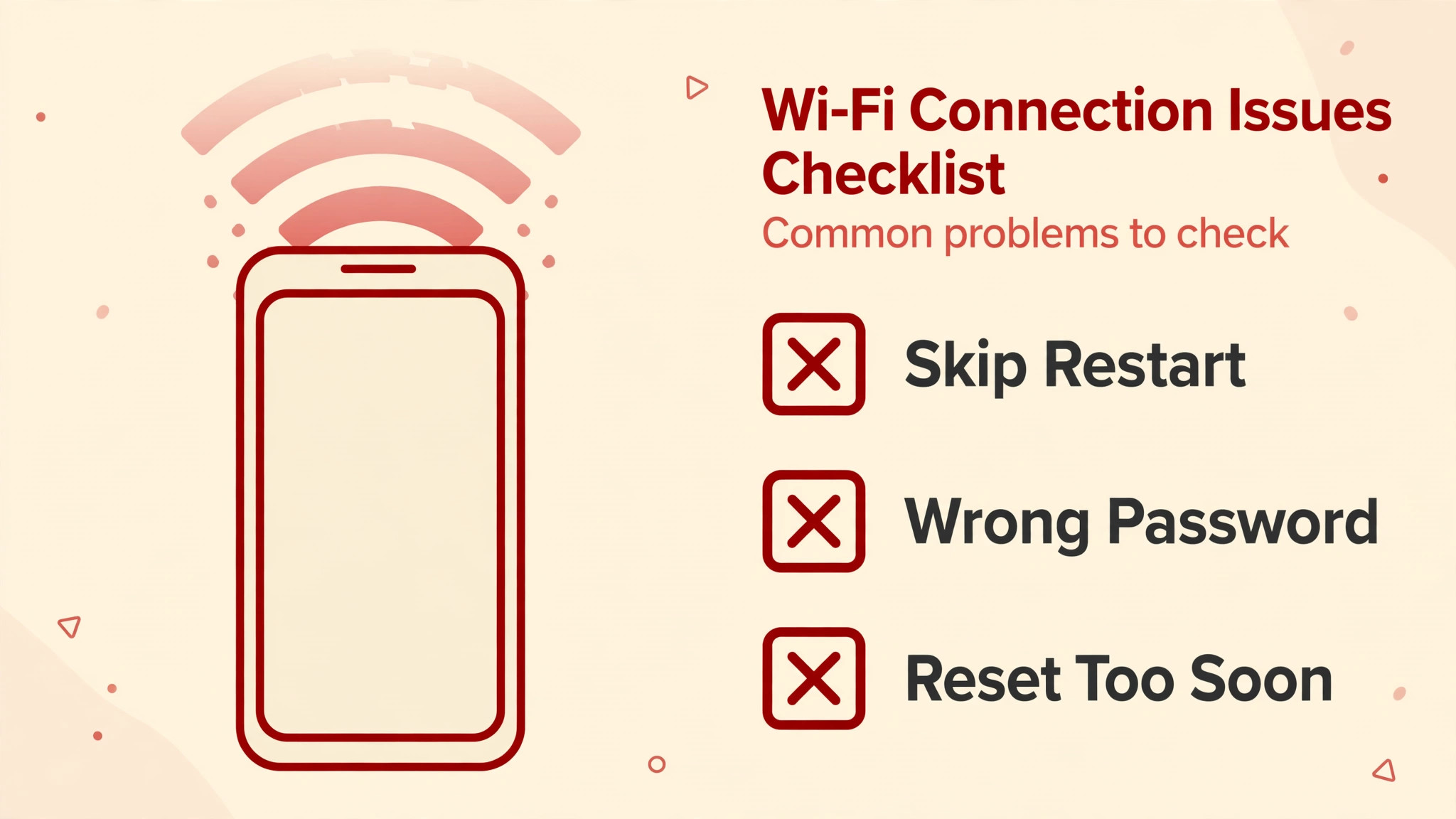
The first mistake is resetting network settings first, before toggling, restarting, or forgetting a single network, which wipes every saved password for a problem that often needs only a restart. The second mistake is re-entering the same password repeatedly without checking whether the router password changed, or whether caps lock or a similar character is the real problem, because a password that is almost right fails exactly like a password that is completely wrong. The third mistake is testing too early after a router restart, while the router is still booting, and concluding the restart failed, when a minute more patience would have shown success.
The fourth mistake is changing several router settings at once, such as security mode, band names and channels together, which makes it impossible to know which change helped or harmed, and can leave the router in a worse state than before. Change one setting, test, and note the result, before changing another. The fifth mistake is ignoring other devices, because a problem affecting every device is a router problem, and phone resets cannot fix it, while a problem affecting only the iPhone is a phone problem, and router changes cannot fix it.
The sixth mistake is skipping the iOS update, because a known wireless bug fixed in an update will keep returning until the update is installed, no matter how many toggles and restarts are tried. Keep a short note when you fix iPhone Wi-Fi not connecting through fixes, because support will ask what changed. Avoid changing router channels blindly, because automatic channel selection usually outperforms manual choices in a home, and a manual channel that looks free today can become crowded tomorrow when neighbours’ routers adapt, so change channels only when a Wi-Fi analyser shows a clear, persistent clash.
Preventing the Next Wi-Fi Failure
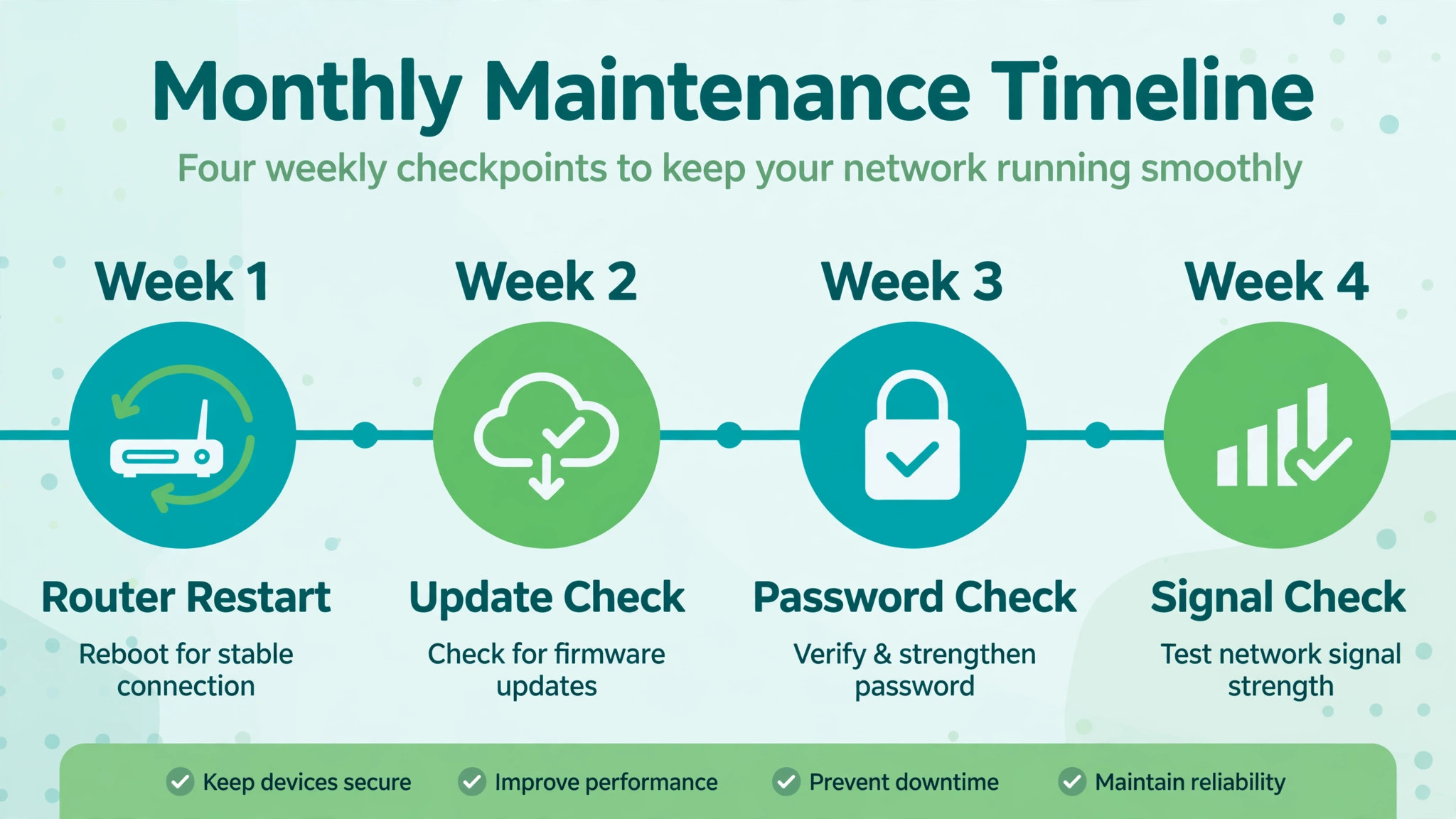
Prevention for Wi-Fi is mostly about keeping software current and the router healthy, because most failures come from outdated software, unstable routers, or forgotten password changes. Keep iOS updated, enable automatic updates if you are comfortable with them, and update router firmware when the router app or admin page offers it, because both sides of the connection improve over time. Keep a secure note of the Wi-Fi password, and update it whenever the router password changes, so a forget and rejoin never becomes a hunt for a lost password. Place the router centrally, elevated, and clear of large metal objects and interference sources where possible, because a well placed router gives every device a stronger starting signal.
For households, a simple routine helps, which is to restart the router monthly, or whenever performance degrades noticeably, and to check that the router’s admin password is changed from its default, because a router left on defaults is both a security risk and a common cause of strange settings changes. If the iPhone regularly struggles in one room, consider the placement and extender guidance in a dedicated home network setup, rather than accepting daily drops, because a structural signal problem will keep returning until the signal path itself improves.
A few minutes of prevention each month is far cheaper than an hour of troubleshooting during an important call, and it keeps the phone’s wireless system in the healthy state where quick fixes actually work. That routine prevents repeat trouble when you fix iPhone Wi-Fi not connecting again after an update.
For households with several iPhones, apply the same prevention routine to each device, because a router problem affects all of them while a phone problem affects one, and comparing their behaviour after each change is the fastest way to tell which side is at fault, and teach household members the forget and rejoin step, so a simple password change does not become a support call for every device in the house.
More Reading on Stratilyze
If this guide helps your iPhone connect again, the wider Stratilyze guides cover the wireless problems around it. The guide to iPhone no sound fixes covers another common iPhone fault in the same fix order style, the guide to Bluetooth not turning on helps when a different wireless radio fails, and the guide to Wi-Fi dropping on a laptop covers the same problem on a computer. Read the Bluetooth guide next if more than one wireless feature fails, because a shared wireless fault needs a different approach.
Frequently Asked Questions
Why will my iPhone not connect to Wi-Fi even with the right password?
A password that looks right can still fail if the router password changed, if the saved network details on the phone are corrupt, or if a character was mistyped, such as a similar looking letter or number. Forget the network in Wi-Fi settings and rejoin it, entering the password slowly and checking it against the router’s label or admin page. If other devices connect with the same password, the phone’s saved details are the likely cause, and a forget and rejoin usually solves it without a wider reset.
What does resetting network settings on an iPhone actually delete?
Resetting network settings deletes saved Wi-Fi networks and passwords, cellular settings, VPN settings and access point settings, returning network configuration to defaults without deleting photos, apps or personal files. You will need to rejoin Wi-Fi networks and reconfigure VPN and cellular settings afterwards, so keep passwords handy before resetting. Use it only after toggling, restarting, forgetting the network, and restarting the router have all been tried, because it is powerful but disruptive.
Why does my iPhone Wi-Fi work at home but not at work or school?
Different networks have different settings, security modes, and sign in requirements, and a phone that works at home can fail on a network that needs a captive portal sign in, a certificate, or a specific security mode. Try forgetting and rejoining that network, check whether a sign in page should appear, and ask the network administrator whether the network restricts new devices or needs a profile installed. Managed school or work devices may also need IT help before a network reset, because resets can remove managed settings.
How do I fix iPhone Wi-Fi not connecting after an iOS update?
Start with a restart, then forget and rejoin the affected network, because updates can occasionally leave saved network details or wireless states inconsistent. Check for a further iOS update, since Apple often follows a major release with fixes for wireless bugs, and restart the router as well to rule out a coincidental router fault. If the problem affects every network after an update, reset network settings as a later step, and contact Apple Support if the failure persists across networks.
Should I use 2.4 GHz or 5 GHz for my iPhone?
Use 5 GHz when you are close to the router and want faster speeds, because it offers higher throughput over shorter distances, and use 2.4 GHz when you are farther away or separated by walls, because it travels farther and penetrates obstacles better. If one band drops repeatedly while the other stays steady, use the steady band for important calls, and consider router placement or an extender for the weak band’s area. Many routers offer both bands under one name and steer devices automatically, but separate names let you choose manually when steering fails.
What should I do if my iPhone Wi-Fi switch is greyed out?
Restart the phone first, because a greyed out switch often clears with a restart, and if it stays greyed out, reset network settings as a later step, since that clears deeper wireless configuration. Test whether the switch recovers after each step, and note whether other wireless features, such as Bluetooth, also fail, because combined failures point more strongly to hardware. If the switch stays greyed out after a restart and a network reset, contact Apple Support or an authorised provider, because repair or deeper diagnosis is likely needed.
The Fix Order That Works Most Often
Most iPhone Wi-Fi failures resolve with a patient walk through the order in this guide, starting with a toggle and a restart, moving through forget and rejoin and a proper router restart, and only then reaching an iOS update and a network reset. Check other devices first to split phone problems from router problems, change one router setting at a time, and test after every step so you stop as soon as the phone connects and stays connected. Keep passwords recorded, software updated, and the router well placed, and the next failure, if it comes, will be a quick fix instead of an hour of guesswork.
If the phone still fails on every network after the full order, take your note of steps tried to Apple Support, because a clear history speeds a hardware diagnosis more than any further resetting can. Share the working fix with household members, so the next person who hits the same failure can repeat it without starting from scratch, and keep the note of steps tried in a shared household document, because Wi-Fi problems recur, and a household that remembers its last fix solves the next one in minutes.
Keep a copy of the router admin password in a secure household note, because a forgotten admin password turns a simple settings check into a factory reset, and a factory reset erases every custom setting the household relies on, so a secure note is the cheapest insurance for home networking.