
When you need to fix iPhone face ID not working, a passcode is a fallback, not a replacement. When Face ID works, unlocking takes a glance, payments confirm with a look, and passwords fill themselves. When it stops, every one of those moments turns into typing, and a phone that felt effortless starts feeling broken. Compare that with a fingerprint sensor, which fails in an obvious way when a finger is wet. Face ID fails in subtler ways, through a smudged sensor bar, a case edge, a changed appearance, a software fault after an update, or a damaged TrueDepth camera that no setting can revive.
If you want to fix iPhone face ID not working, the trick is to separate those causes in order, because cleaning, resetting, and repairing are very different jobs, and doing them in the wrong order wastes time or money.
Face ID uses the TrueDepth camera system at the top of the phone, which projects infrared dots onto your face and reads the pattern back to build a mathematical model. It works in the dark, because infrared does not need visible light, and it adapts gradually to small changes such as a beard, glasses, or a haircut. It does not adapt to a blocked sensor, a cracked cover over the sensor, or a hardware fault in the dot projector, the flood illuminator, or the infrared camera. Those parts are calibrated to the display assembly, which is why a third party screen replacement can break Face ID even when the new screen looks perfect.
This guide moves from the cheapest checks to the most expensive conclusion, and it tells you clearly when to stop troubleshooting and book a repair.
Clean the Sensor and Fix How You Hold the Phone
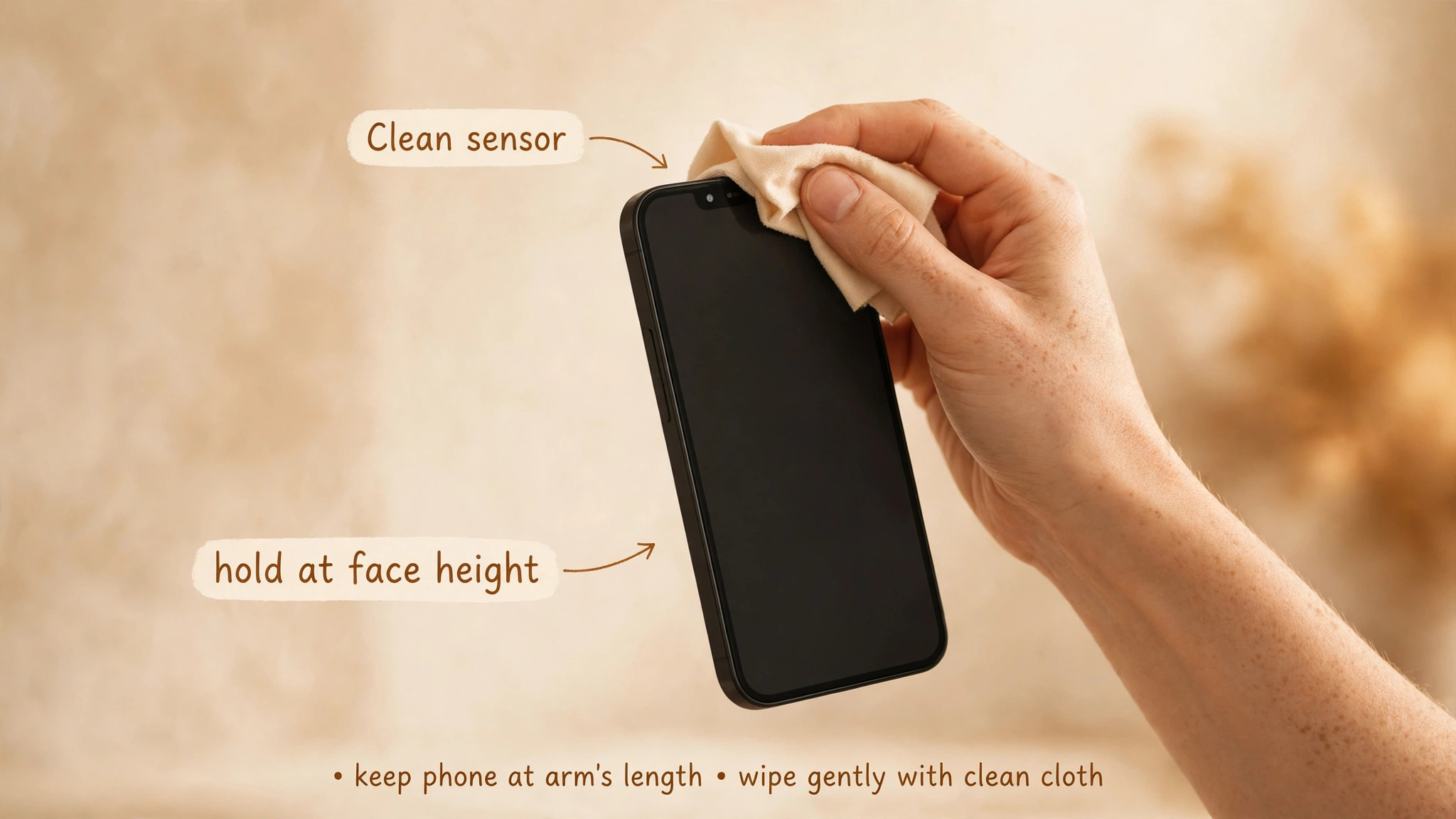
Start with the sensor bar, because it is the most common cause and the easiest to fix. Wipe the top of the phone, across the notch or Dynamic Island area, with a soft, dry microfibre cloth. Remove smudges, sunscreen, makeup, and water droplets, and check for a film of grease that builds up invisibly over weeks. Do not use a wet wipe with harsh cleaner, and do not press hard on the glass. A gentle wipe is enough, and a scratched sensor window from aggressive cleaning is worse than a smudge.
Next, check what covers the sensor. A case with a raised edge that overlaps the sensor bar, a thick screen protector without a proper cutout for the Dynamic Island, or a privacy screen that darkens the top of the display can all block or distort the infrared pattern. Remove the case and test Face ID without it. If it works, the case is the problem, and a case with a wider sensor cutout will fix it permanently. If you use a screen protector, check that it is made for your exact model, and test with it removed if you suspect it, since a protector that looks clear to your eyes can still refract infrared light.
Position matters as much as cleanliness. Hold the phone 10 to 20 inches from your face, at eye level, in portrait orientation on older models, and look directly at the screen. Face ID on iPhone 13 and later running iOS 16 or later also works when the phone is held sideways, but portrait remains the reliable test position. If you hold the phone flat on a desk, too close, or at a steep angle, the camera cannot see enough of your face, and the phone will ask you to move it lower or higher.
Test in normal indoor lighting first, facing away from a bright window behind you, because strong backlight can confuse the sensor even though Face ID is designed to work in darkness.
Check Settings Before You Reset Anything
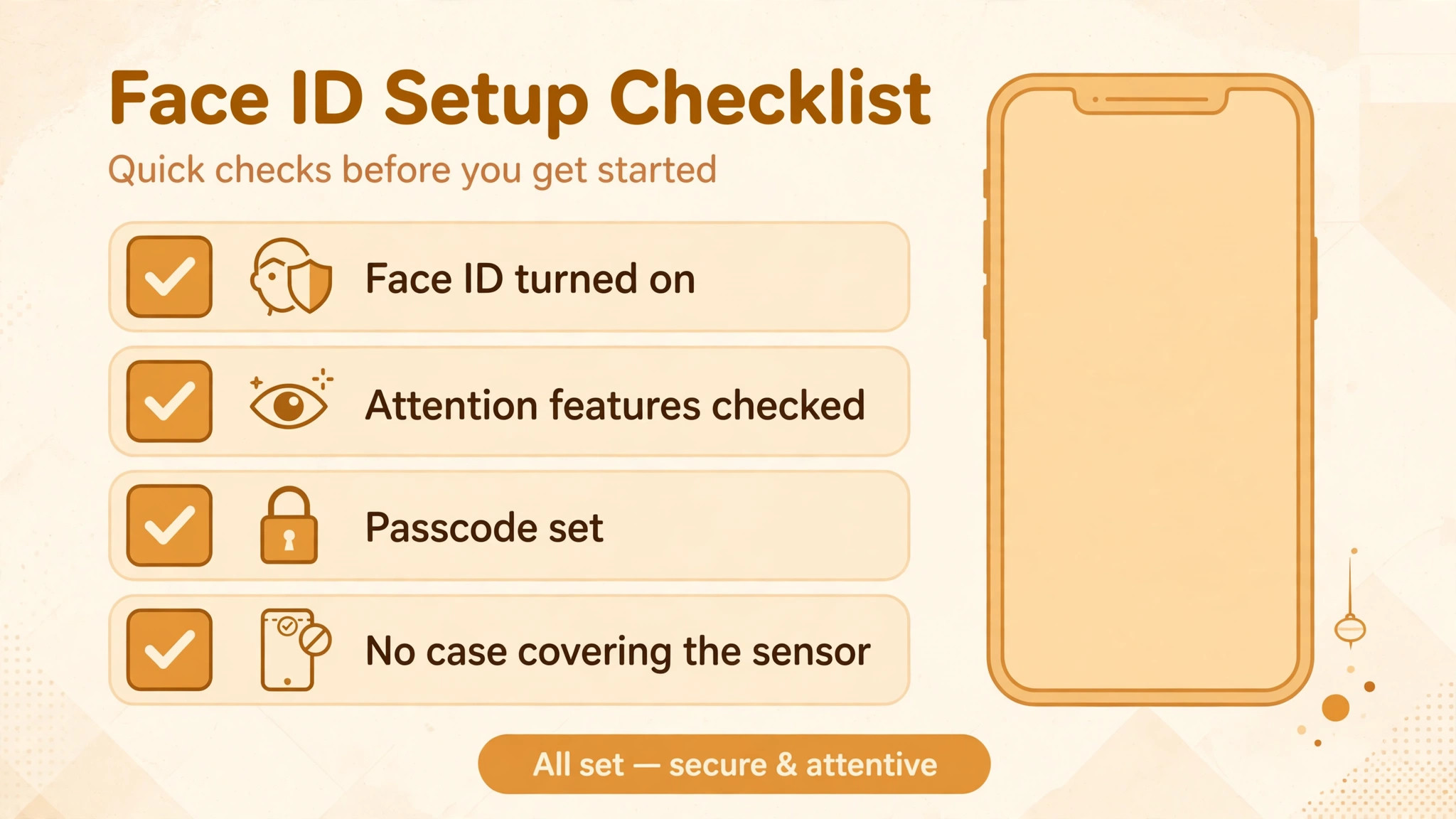
Open Settings, then Face ID and Passcode, enter your passcode, and check which features are switched on. iPhone Unlock is the main one, but Wallet and Apple Pay, iTunes and App Store, and Password Autofill each have their own toggles, and Face ID can fail for payments while working for unlock if a single toggle is off. If a toggle is off for the feature that fails, switch it on and test that feature specifically. Do not assume a general Face ID failure when only one feature is affected.
Also check Attention Aware Features in the same screen. By default, Face ID requires your attention, which means your eyes must be open and looking at the device. If you wear sunglasses that block infrared, or if you are trying to unlock without looking directly, attention aware checks can cause failures that look like sensor faults. Most sunglasses that pass visible light still block infrared, so test without sunglasses before changing any setting. Turning attention aware features off makes unlocking easier, but it also lowers security, since the phone can unlock while you are not looking at it, so treat that toggle as a test, not a permanent fix, unless you accept the trade off.
Check for the normal security lockouts that are not faults at all. After a restart, after five unsuccessful face matches, after 48 hours without an unlock, or after triggering Emergency SOS, the phone requires a passcode before Face ID works again. Those are designed behaviours, and entering the passcode once restores Face ID. If Face ID asks for a passcode every time even after a successful passcode entry, that is different, and it points at a settings or sensor problem rather than a lockout.
Fix iPhone Face ID Not Working in Order
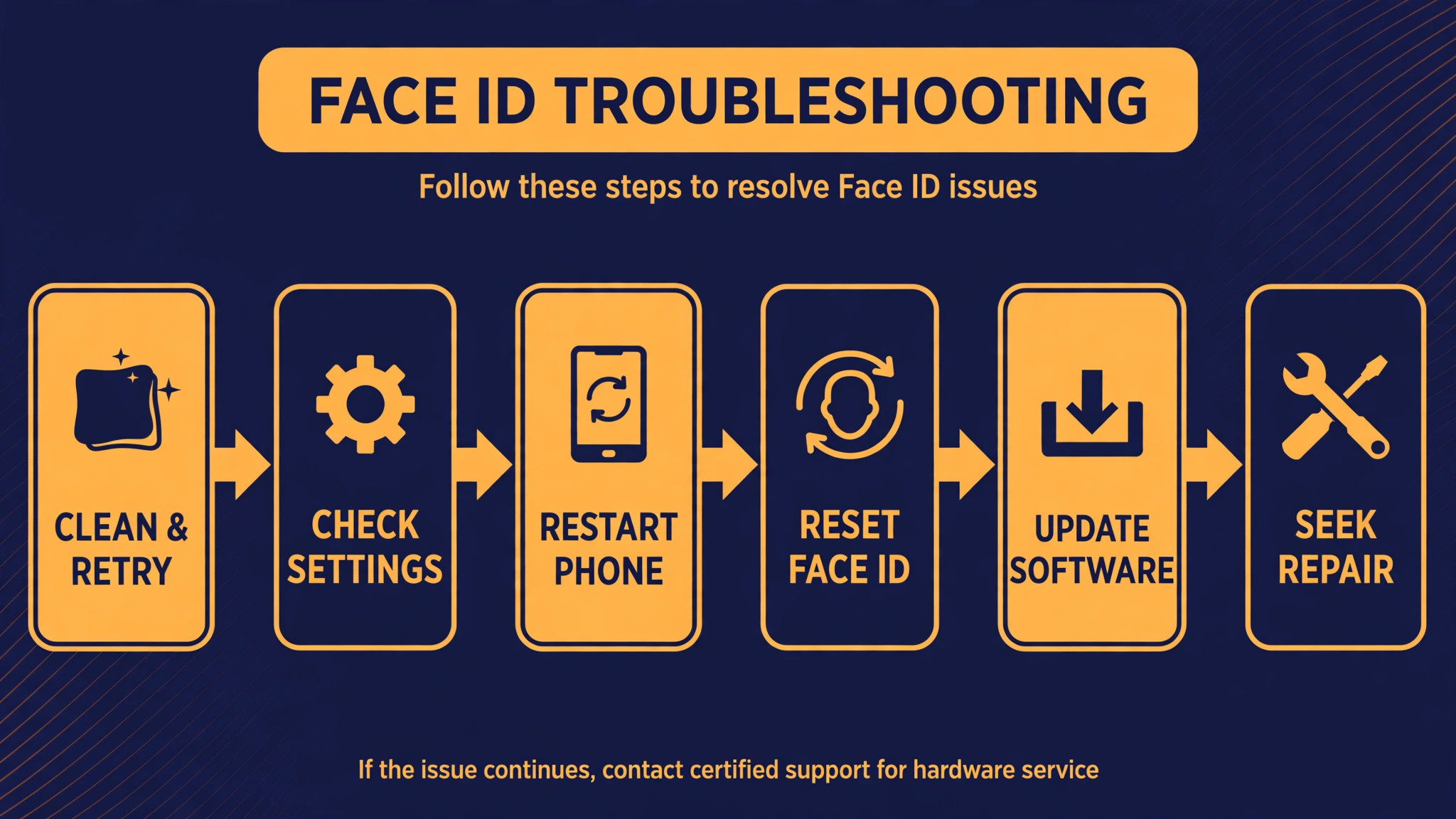
Work this list top to bottom, testing Face ID after each step by locking the phone and unlocking with a glance in normal lighting.
- Wipe the sensor bar with a dry microfibre cloth and remove the case, then test.
- Hold the phone 10 to 20 inches away, at eye level, in portrait, facing the screen directly.
- Restart the phone with a normal power off and on, not just a lock and unlock.
- Check Face ID and Passcode toggles for iPhone Unlock and the feature that fails.
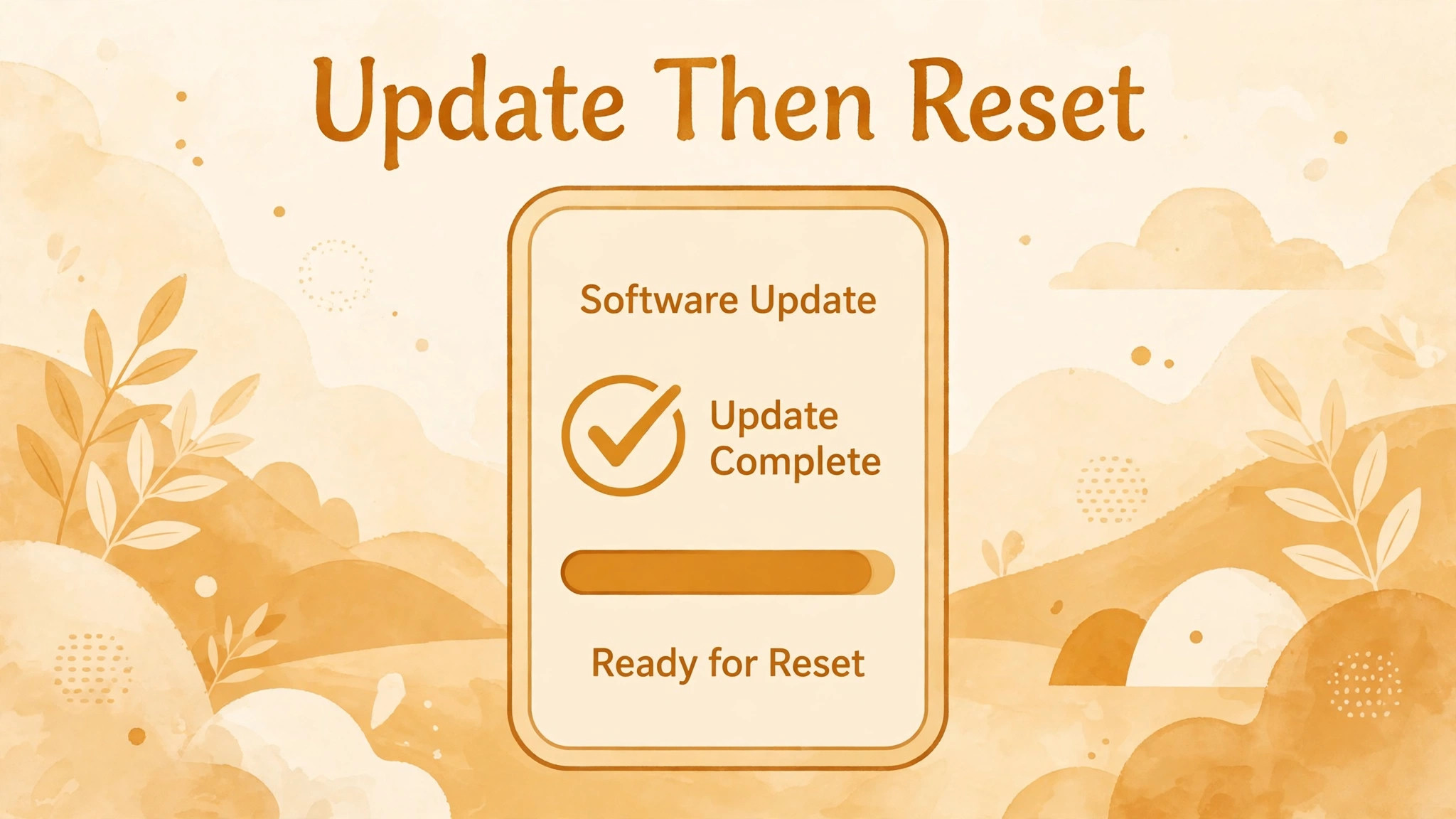
- Update iOS through Settings, then General, then Software Update, and test again.
- Reset Face ID from Face ID and Passcode, then set it up again in good lighting.
- Add an Alternate Appearance if glasses, a mask, or a regular look change causes failures.
- Test the front camera in the Camera app. If selfies fail or show black, suspect hardware.
- Reset all settings, which keeps photos and apps but forgets Wi-Fi passwords and Bluetooth pairings.
- Back up the phone, then contact Apple Support or visit an authorised service provider for a TrueDepth diagnosis.
The order protects your data and your time. Cleaning and positioning cost nothing. A restart and an update fix software drift. A Face ID reset rebuilds the facial model. A full settings reset and a service visit are last resorts, and jumping to them first wastes the easy wins.
Reset Face ID and Set It Up Again Properly
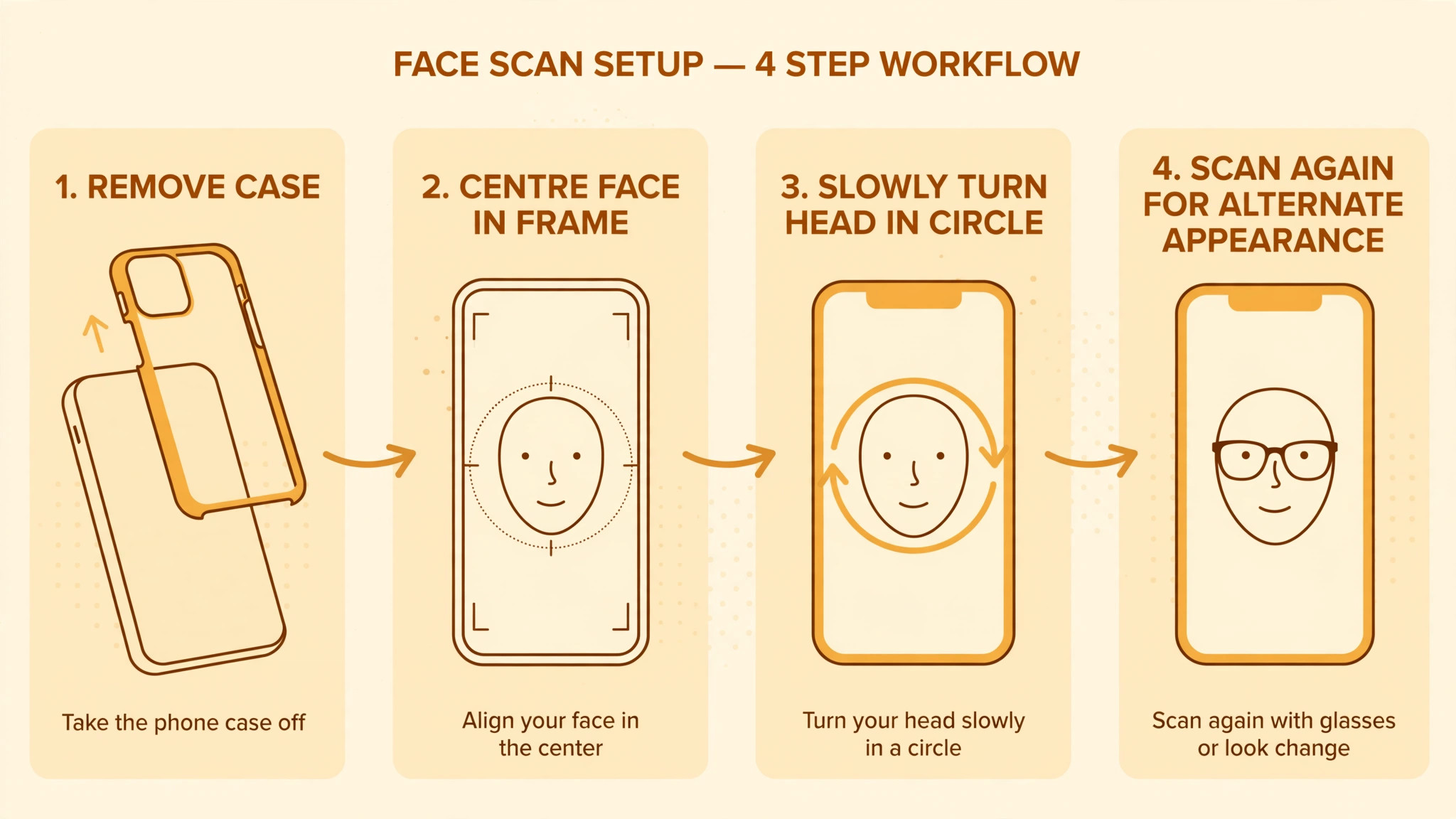
Resetting Face ID deletes the stored facial model and lets you build a fresh one, which fixes corruption after an update, a failed enrolment, or a gradual drift that the adaptive model could not follow. Open Settings, then Face ID and Passcode, enter your passcode, tap Reset Face ID, and then tap Set Up Face ID. Follow the on screen prompts, moving your head slowly in a circle as instructed, until the first scan completes, then repeat for the second scan. Do this in a well lit room, without a mask, hat, or sunglasses, with the phone held steady at arm length, and with your face fully in the frame.
A rushed enrolment is a common cause of a reset that appears to fail. If you enrol in a dark room, while walking, or with the phone too close, the model starts weak and fails in normal use. Take the extra minute to enrol properly, and test immediately afterwards by locking and unlocking several times, in different rooms, with and without glasses if you wear them. If unlocking works right after enrolment but fails later in the day, note when it fails, since a pattern tied to sunglasses, a mask, or low light points at a condition problem rather than a model problem.
Alternate Appearance is the right tool for a regular second look. If you wear glasses most days but enrolled without them, or if you regularly wear a mask for work, add an Alternate Appearance from the same settings screen and enrol the second look deliberately. Face ID with a mask, available on iPhone 12 and later from iOS 15.4 onward, is a separate option that uses the area around the eyes, and it works best when it is set up while you are actually wearing the mask you use. Do not enrol an alternate look in a hurry and then wonder why it fails. Enrol the look you actually present to the phone each day.
Software Faults, Updates, and the Settings Reset
Software faults after an iOS update are real, and they usually show up as Face ID failing for everyone on a particular version until a patch lands. If Face ID broke the day you updated, check for a newer iOS version before resetting anything else, since a patch may already be waiting. Update on Wi-Fi with the phone charged, restart after the update, and test Face ID before restoring any backup, so you know whether the update itself fixed it.
A force restart is a stronger version of a normal restart and it clears sensor drift that builds up over long uptime without deleting data. The button sequence differs by model, so use the sequence for your phone, which on recent models involves pressing volume up, then volume down, then holding the side button until the Apple logo appears. Try a force restart when a normal restart and a Face ID reset have both failed, and test immediately afterwards. It costs nothing and it separates a temporary system fault from a persistent one.
Reset All Settings is the last software step, and it deserves a warning. It does not delete photos, apps, or messages, but it does forget Wi-Fi passwords, Bluetooth pairings, VPN settings, and alarm settings, so note those down first. Open Settings, then General, then Transfer or Reset iPhone, then Reset, then Reset All Settings. After the phone restarts, set up Face ID again and test before restoring custom settings one by one. If Face ID works after this reset but fails after you restore a particular setting or profile, that setting is the culprit, and you have isolated it rather than guessing.
Symptom Guide for Face ID Failures
| What you see | Most likely cause | First move |
|---|---|---|
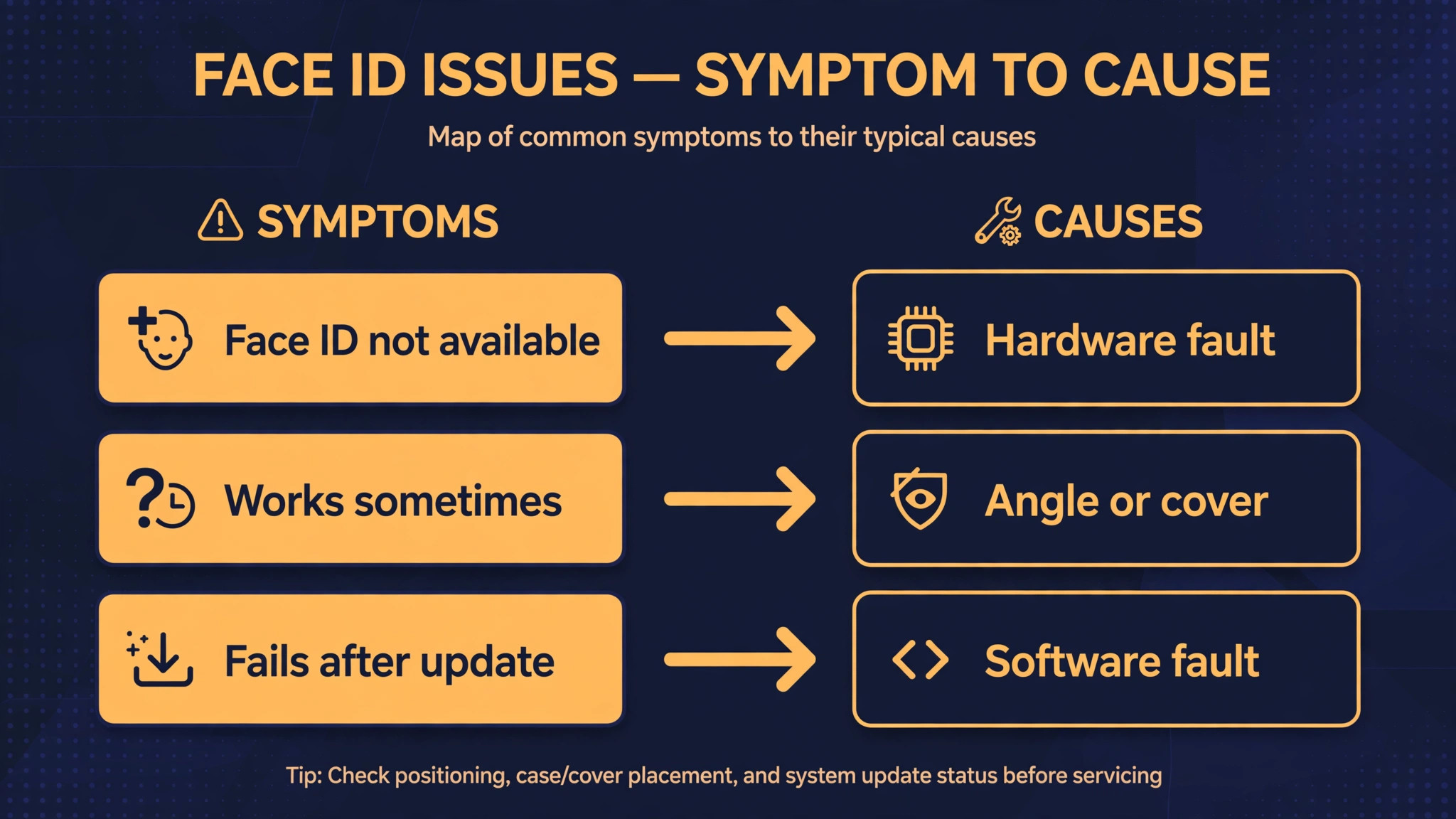
| Face ID works sometimes, fails at angles | Position, distance, or partial block | Hold 10 to 20 inches away at eye level, clean sensor |
| Face ID not available message | System fault or sensor fault | Restart, update iOS, reset Face ID, then service |
| Fails only with sunglasses on | Sunglasses block infrared | Test without sunglasses, consider Alternate Appearance |
| Fails after a drop or water exposure | TrueDepth hardware damage | Stop resetting, book a service diagnosis |
| Fails after a screen replacement | Sensor calibration lost | Return to the repairer or visit Apple |
| Front camera also black or failing | TrueDepth hardware fault | Book service, software steps will not fix it |
| Passcode required after restart or 5 fails | Normal security lockout | Enter passcode once, Face ID returns |
The front camera test is the most important row in the table. Face ID and the front camera share the TrueDepth module, so a front camera that shows black, freezes, or fails in the Camera app points strongly at hardware. Software steps cannot fix a dead infrared camera or dot projector, and repeating resets while the camera is dead only wastes time. Book the diagnosis at that point.
When Hardware Is the Answer and What Repair Means
TrueDepth hardware consists of the infrared camera, the dot projector, and the flood illuminator, all calibrated precisely to the display assembly. A drop can misalign or crack one of those parts without cracking the visible screen. Water exposure can corrode the module even after the phone dries and works normally otherwise. A screen replacement that does not transfer or calibrate the sensor correctly can leave the display perfect and Face ID dead. None of those faults respond to cleaning, resetting, or updating, and recognising that early saves days of frustration.
Do not attempt to open the phone or repair the TrueDepth module yourself. The parts are paired and calibrated, the module sits in a delicate assembly, and a home repair attempt can turn a repairable fault into a board level problem, as well as voiding remaining warranty or AppleCare cover. Visit Apple or an authorised service provider, describe the symptom pattern, mention any drop, water exposure, or screen work, and let them run the diagnostic. Bring your passcode and your Apple ID details, and back up the phone first, since a repair can involve a replacement device or a full restore.
Repair cost and outcome depend on the fault and the cover. A phone under warranty or AppleCare with a genuine hardware fault is a very different case from a phone with third party screen work or liquid damage, and the service provider will explain the options after diagnosis. Ask what the repair covers, whether Face ID will be fully restored or only partially, and what happens to your data. If the quoted repair approaches the value of the phone, compare it honestly against a replacement, especially for an older model where the battery and other parts are also ageing. A repair that restores Face ID but leaves a worn battery may not be the best use of the money.
Mistakes That Make Face ID Worse
The first mistake is enrolling Face ID in poor conditions and then blaming the sensor. A dark room, a moving phone, a mask, or a face half out of frame creates a weak model that fails all day. Enrol slowly, in good light, with a steady hand, and retest in several rooms before deciding the sensor is faulty.
The second mistake is covering the sensor with an incompatible case or protector and then resetting repeatedly. Each reset builds a new model through the same blocked sensor, so each reset fails the same way, and the user concludes the phone is broken. Remove the case and protector first, test, and only then reset. The order of those two steps decides whether the reset helps or wastes time.
The third mistake is ignoring the front camera test. Users who reset Face ID ten times while the front camera is black are treating a hardware fault as a software fault, and every reset reinforces the false conclusion that the software is at fault. Test the camera once, early, and let a black or frozen front camera redirect you to service immediately.
The fourth mistake is turning off attention aware features permanently without understanding the security cost. Disabling attention checks makes unlocking easier, but it also allows unlocking when you are not looking at the phone, which matters if someone else can hold the phone to your face. Use it as a diagnostic test, and if it fixes the problem, look for the real cause, such as sunglasses blocking infrared, rather than leaving security lowered forever.
Keep Face ID Working After the Fix
Keep the sensor bar clean as a habit, not as a repair. A quick wipe when you clean the screen, a case with a proper sensor cutout, and a protector made for your exact model will prevent most recurring failures. Check the cutout after any case or protector change, since a new accessory is the most common trigger for a sudden Face ID failure on a phone that worked yesterday.
Update iOS promptly, but test Face ID after a major update while you are still at home with Wi-Fi and your passcode to hand. A quick lock and unlock test after an update catches a software regression before you depend on Face ID for a payment in a shop. Keep a backup current, so a service visit or a settings reset never threatens your photos or messages. Those three habits, which are cleaning, testing after updates, and backing up, cost minutes and prevent most Face ID emergencies.
If you regularly switch between glasses, a mask, or a work look, maintain the Alternate Appearance enrolment for that look and update it when the look changes significantly. A beard grown over months, a new glasses frame, or a regular mask change can drift the model gradually, and a fresh alternate enrolment restores reliability faster than repeated failed unlocks. Face ID adapts to small changes on its own, but a deliberate re-enrolment beats months of adaptation when the change is large.
Face ID With Masks, Glasses, and Appearance Changes
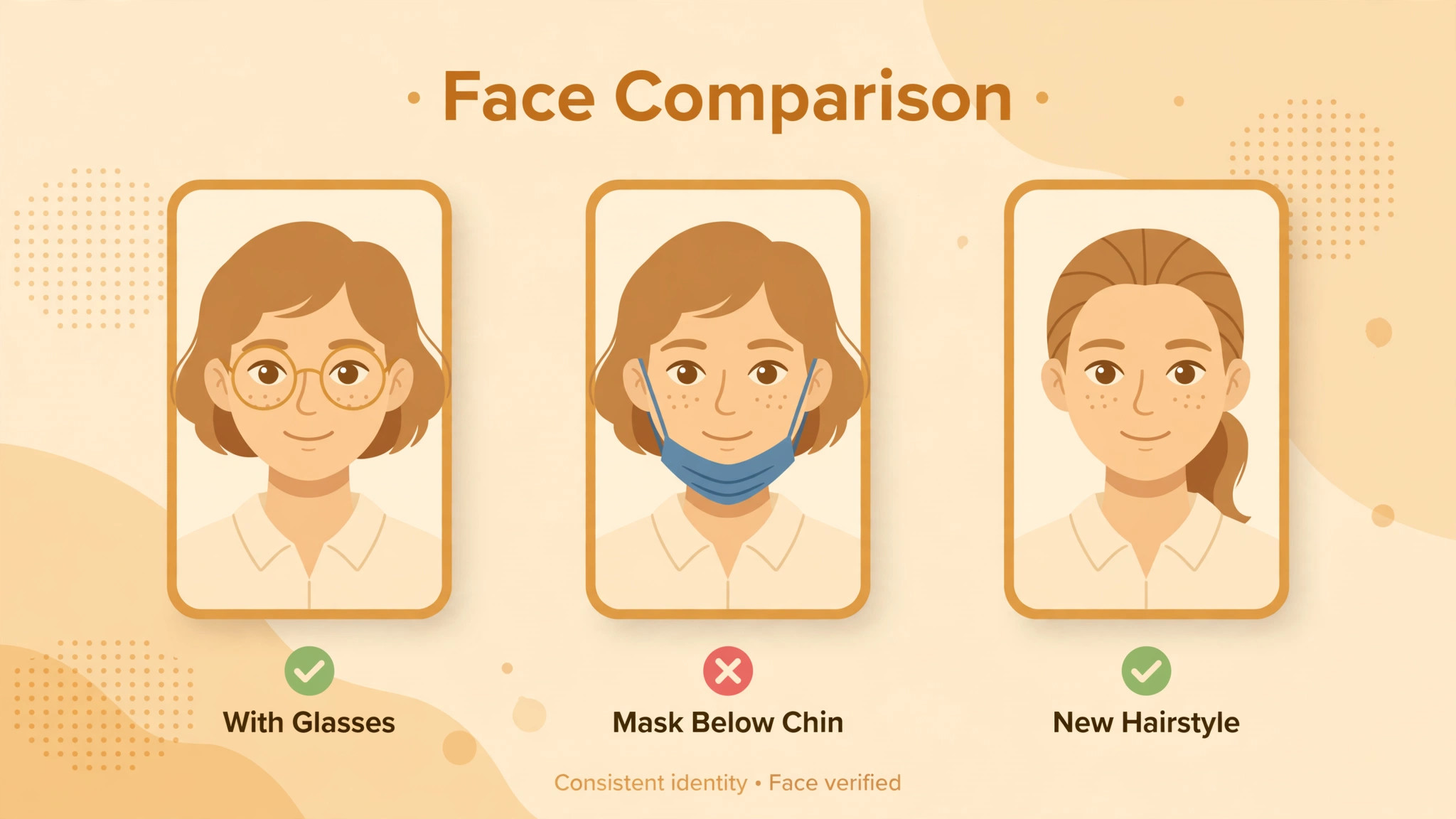
Appearance changes cause more Face ID failures than most users expect, because the system must balance security against adaptation. A small change, such as a new haircut or a light beard, is absorbed gradually as you unlock successfully over days. A large change, such as a heavy beard grown on holiday, a new glasses frame with thick rims, or a mask worn all day, can push the model past the point where adaptation keeps up, and failures start suddenly even though nothing is broken. The fix is a deliberate re-enrolment, not a series of frustrated retries, because five failed attempts lock Face ID to a passcode and stop adaptation for that session.
Glasses deserve a specific test. Enrol Face ID without glasses if that is how you set it up, then test with each pair you wear regularly. Thin frames rarely cause trouble, while thick, dark, or heavily coated frames can interfere with the infrared pattern. If one pair fails consistently, add it as an Alternate Appearance while wearing that pair, and test again in the same lighting where it failed. Sunglasses are a separate case, because many sunglasses block infrared even when they look light, and no enrolment will reliably fix a lens that blocks the signal itself. Test without sunglasses first, and accept that some sunglasses simply require a passcode.
Masks changed Face ID behaviour for millions of users, and Apple added a mask option on iPhone 12 and later from iOS 15.4 onward that recognises the eye area. Set it up while wearing the mask you actually use, in good lighting, and test with that mask several times before relying on it. A mask that sits differently each day, or a mask combined with glasses that fog or shift, will still fail sometimes, and that is a limit of eye area recognition, not a fault in your phone. If mask unlocking matters daily, keep the mask option on and keep an Alternate Appearance for your unmasked look, so both presentations are enrolled deliberately.
Large appearance changes over time deserve a fresh enrolment rather than an alternate one. If you have grown a beard, lost significant weight, or changed your look substantially since enrolment, reset Face ID and enrol the current look as the primary model, then add an alternate for the second look you present most often. A fresh primary model is more reliable than a chain of alternates built on an old face. When you fix iPhone face ID not working after a big appearance change, the reset is not a sign of failure, it is the correct maintenance step, and it takes less time than a week of failed unlocks.
Keep the enrolment conditions consistent, enrol in the light you unlock in most often, and retest after a week to confirm the new model holds. If failures return only with one specific accessory, such as one pair of glasses or one mask style, that accessory is the variable to change, and the phone is telling you so clearly once you test one variable at a time. A careful appearance test will fix iPhone face ID not working in many cases where users assumed the sensor had died, and it costs nothing but a few minutes of deliberate enrolment.
More Reading for Everyday Tech Fixes
If Face ID is back, the wider fix guides on Stratilyze cover the next phone problem in the same order. The guide to fixing an iPhone with no sound covers speaker checks, the guide to fixing apps that crash after an iOS update helps when an update breaks more than Face ID, the guide to fixing fast battery drain on Android covers power problems on the other platform, and the guide to fixing a smartwatch that will not sync applies the same clean, reset, repair order to wearables. Read the crashing apps guide next if Face ID broke alongside other apps after the same update, since that pattern points at the update rather than the sensor.
Frequently Asked Questions
Why does Face ID work sometimes but fail at other times?
Intermittent failure usually means position, light, or a partial block, not a dead sensor. Position and light are the first checks when you fix iPhone face ID not working that only fails sometimes. Hold the phone 10 to 20 inches away at eye level, clean the sensor bar, remove the case, and test without sunglasses. If failures cluster around one condition, such as sunglasses, a mask, or a dark room with a bright window behind you, that condition is the cause. A sensor that is truly dead fails consistently, while a blocked or badly positioned sensor fails only when the block or angle is present.
How do I fix iPhone face ID not working after an iOS update?
Check for a newer iOS version first, since update regressions are often patched quickly. Restart the phone, then reset Face ID and enrol again in good lighting with a steady hand. If the front camera also fails in the Camera app, stop resetting and book a service diagnosis, because an update does not usually damage the camera hardware on its own. Keep your passcode ready throughout, since resets and updates both require it.
Does a screen protector or case really break Face ID?
Yes, both can. A case edge that overlaps the sensor bar, or a thick protector without a proper Dynamic Island cutout, can block or distort infrared light even when it looks clear to your eyes. Accessory blocks are a common reason people try to fix iPhone face ID not working after buying a new case. Remove the case and test, then test without the protector if you still suspect it. If Face ID works without the accessory, replace it with one made for your exact model with a correct sensor cutout, rather than resetting Face ID repeatedly through the same block.
What does the Face ID not available message mean?
It means the system cannot use the TrueDepth camera at all, rather than simply failing to recognise you. Restart the phone, update iOS, and reset Face ID once. If the message persists after those steps, or if the front camera is also black or failing, the cause is likely hardware, and you should contact Apple Support or visit an authorised provider. Do not keep resetting, since a persistent not available message after a clean reset points away from software.
Can I fix iPhone face ID not working without losing my photos?
Yes. Cleaning, restarting, updating, resetting Face ID, and resetting all settings all keep your photos, apps, and messages. Only a full erase removes data, and that step is not needed for most Face ID problems. Still, keep a backup current before any reset, because a service visit can involve a replacement device. A backup turns a repair from a data risk into a routine restore.
When should I stop troubleshooting and book a repair?
Book a repair when Face ID fails after cleaning, a restart, an update, and a clean reset, when the front camera is black or failing, when the failure followed a drop, water exposure, or a screen replacement, or when the not available message will not clear. Those patterns point at TrueDepth hardware, which is calibrated to the display and cannot be fixed from settings. Bring a backup, your passcode, and a note of when the failure started and what happened to the phone just before it.
The Sensible Next Step
Face ID failures feel mysterious because the sensor is invisible, but the diagnosis is orderly. Clean the bar, hold the phone correctly, check the toggles, update the software, and reset the model once, properly, in good light. When you fix iPhone face ID not working by working that order, most cases end at cleaning or resetting, and the ones that do not end there tell you something useful, which is that the front camera test or the drop history points at hardware.
Do not let a Face ID problem drift into a daily annoyance of typed passcodes. Run the checklist once, properly, and note which step fixed it, so the next accessory change or update does not send you back to the start. A glance that works every time is worth the ten minutes it takes to earn it back.