

A MacBook that runs fine on battery but refuses to charge feels very different from a MacBook that is simply slow, because every minute on battery brings the shutdown closer, and the usual fixes for slow performance do nothing. Compare that with a MacBook that shows a charging symbol but never gains percentage, which is a different fault entirely, because power reaches the machine but the battery cannot accept it. When you fix MacBook battery not charging, the first job is to tell those cases apart, because a faulty cable, a dirty port, a weak adapter, a macOS power setting, and a worn battery each need a different fix, and treating them all as one problem wastes time and money.
This guide works through causes and fixes in order, from the cable and wall socket, through ports and adapters, to settings, battery health, and the system management steps that apply to Intel Macs. It explains what the charging messages actually mean, including the normal pauses caused by optimised charging, and it gives the signs that point to a battery or logic board fault needing professional help. Follow the steps in order, test after each one, and stop when the battery percentage starts rising steadily under normal use.
What Not Charging Actually Means
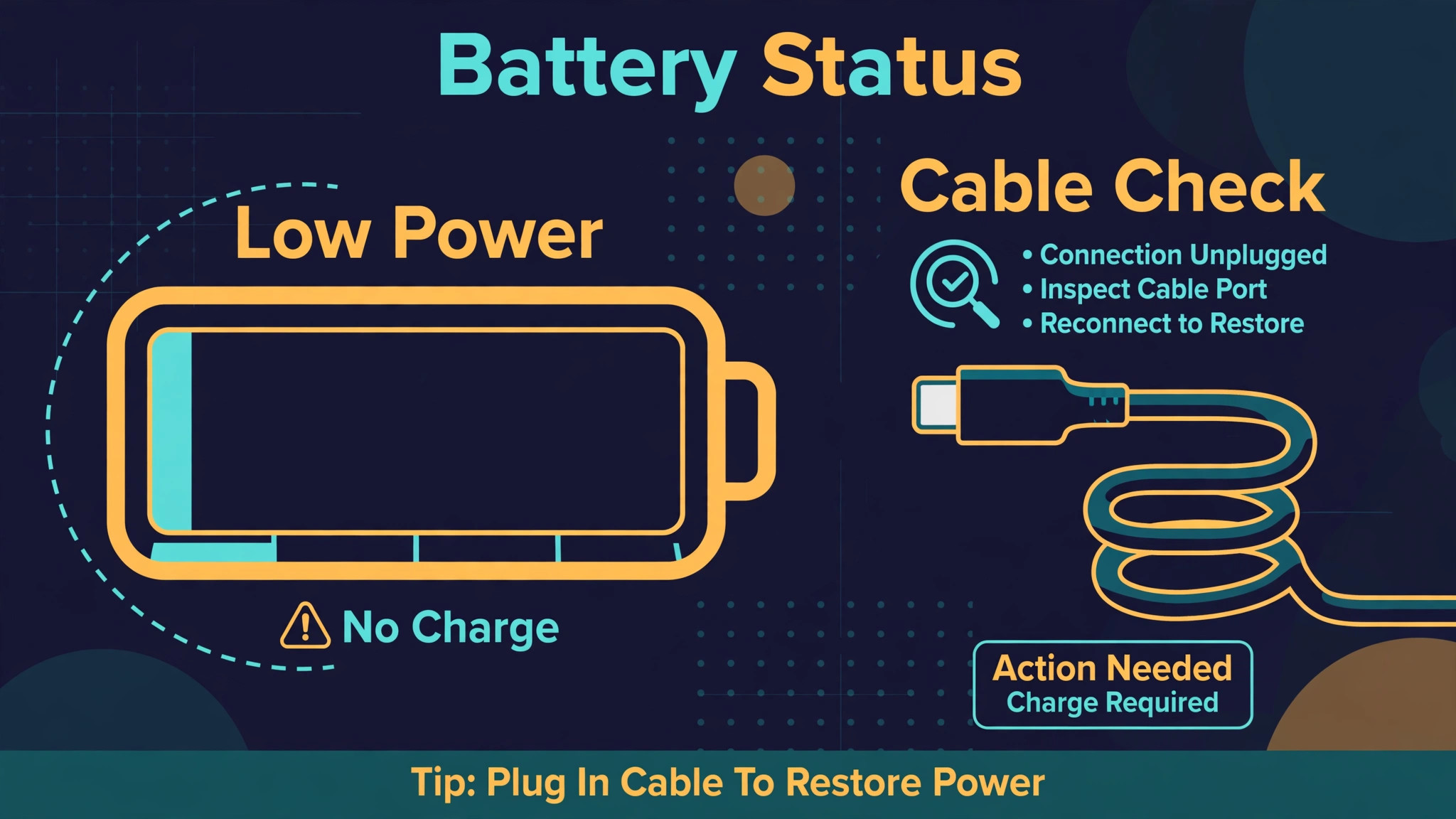
Not charging covers several different states, and the MacBook itself usually tells you which one you have, if you know where to look. Click the battery icon in the menu bar, and note whether it says charging, not charging, or shows no charging symbol at all, and note the percentage and whether it rises, falls, or stays flat while plugged in. A MacBook that says not charging while plugged in, at a high percentage, may simply be full, or may be holding charge deliberately under optimised battery charging, which pauses charging around 80 percent to protect long term battery health, and that pause is normal, not a fault.
A MacBook that shows no charging symbol at all, and whose percentage falls while plugged in, is not receiving power, which points to the cable, adapter, port, or wall socket.
A MacBook that charges only at certain cable angles points to a worn cable, a loose port, or debris in the port, because movement breaks the connection that a healthy cable and port hold firmly. A MacBook that charges, then stops, then drains, often has an ageing battery whose capacity and health have fallen, so it cannot hold charge reliably even when power arrives. A MacBook that is completely dead and shows nothing when plugged in may have a deeply drained battery that needs a long undisturbed charge before it shows any sign of life, or it may have a charger, cable, or internal fault that prevents power reaching the battery at all.
Each of those patterns leads to a different first fix, which is why the menu bar reading and the cable angle test, done before any resetting, save so much time.
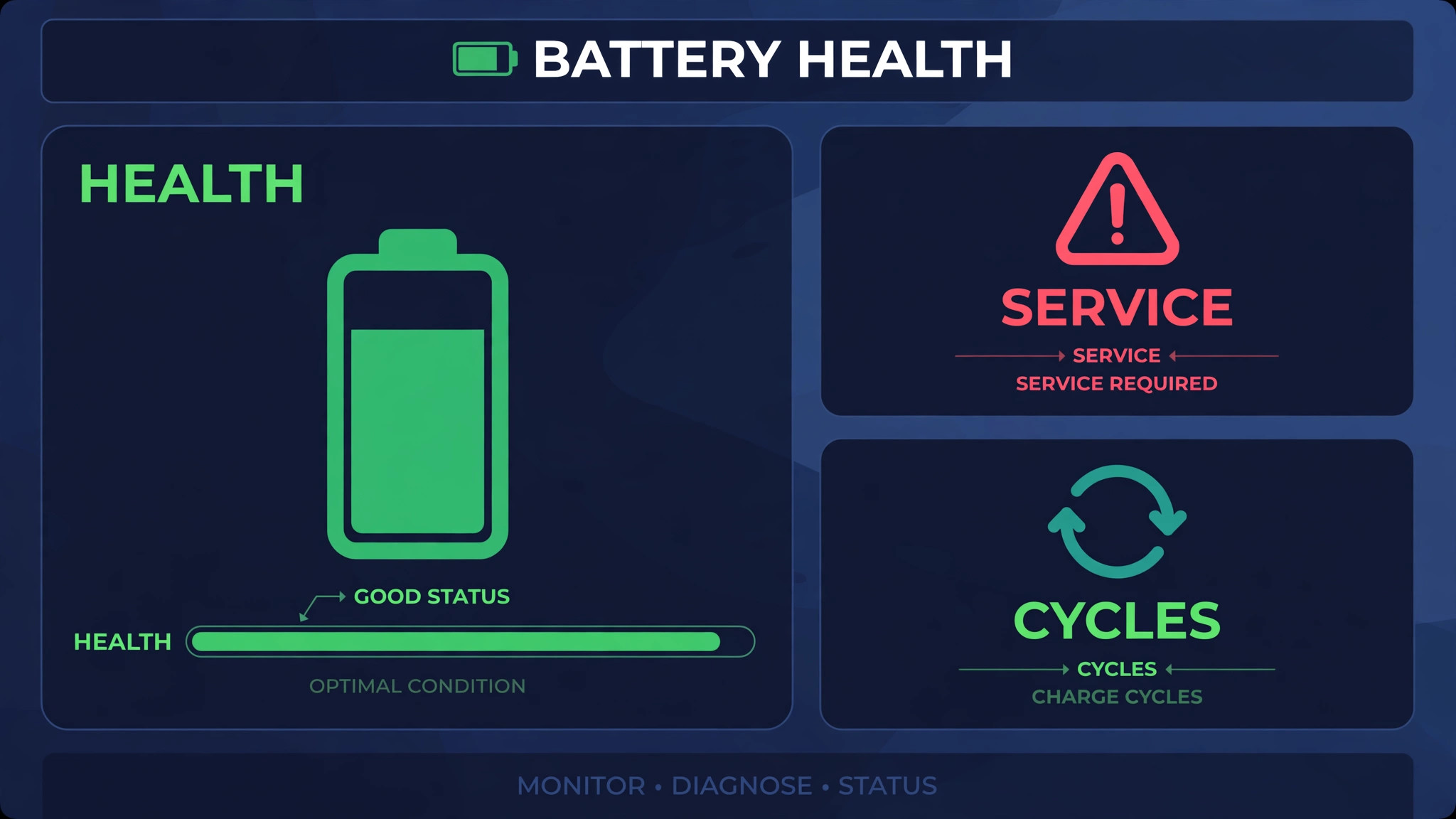
Battery health itself is worth checking early, because it changes the whole decision. Open System Settings, go to Battery, and check battery health and condition, or on older macOS versions check System Information under Power, where condition may read normal, replace soon, replace now, or service battery. A condition of normal with a charging fault points to cable, adapter, port, or settings, while a condition of replace soon or service battery points to the battery itself, and no cable swap will fix a battery that the system already flags for service.
Note the cycle count as well, because a battery with very high cycles has simply lived a long working life, and its charging behaviour should be judged with that age in mind.
How to fix MacBook battery not charging in Order
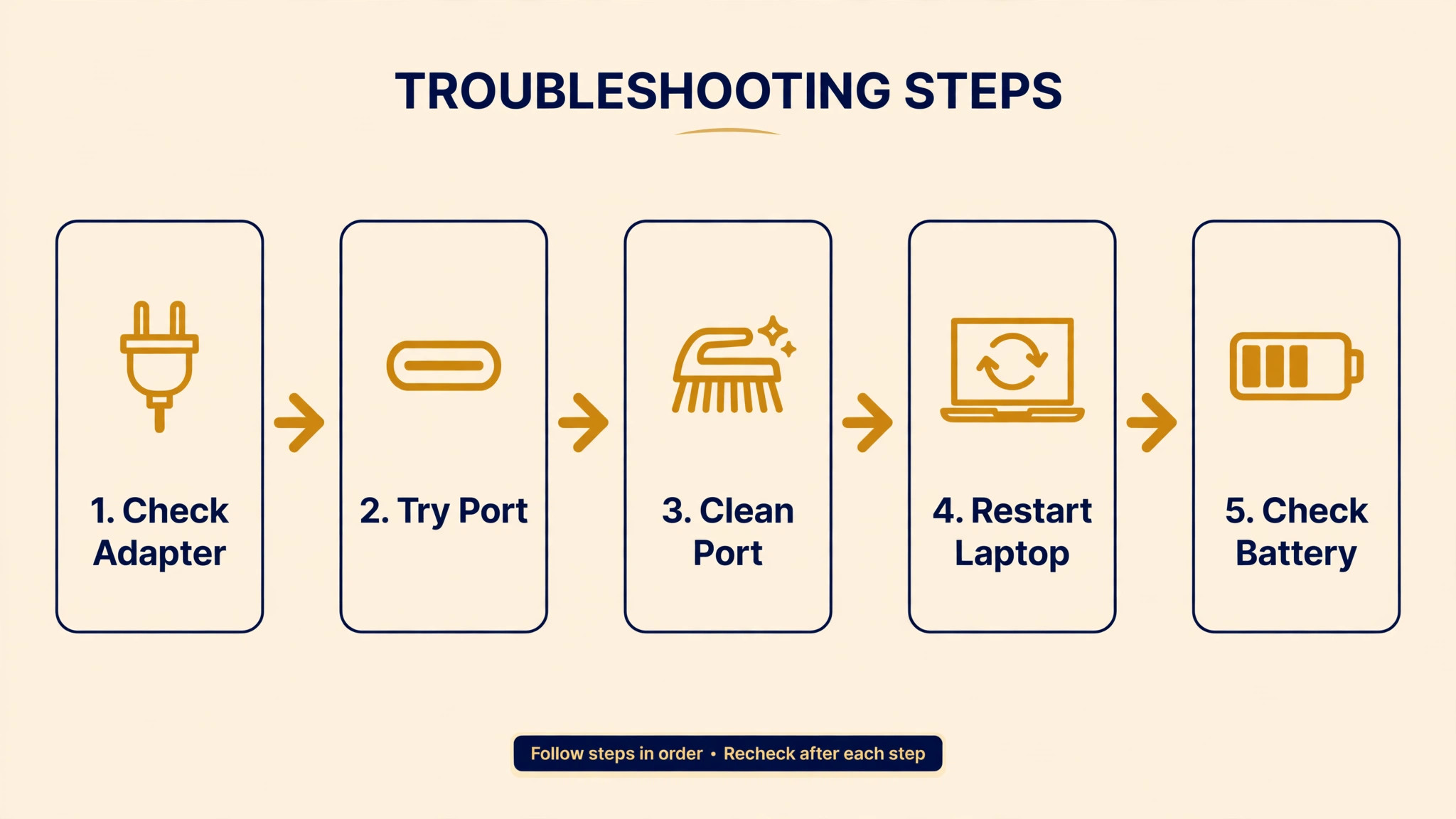
Work through this order, testing after each step by watching the battery percentage for several minutes under normal use, and stop when charging resumes steadily. The order runs from cheap and external to internal and disruptive, so you never reset system management for a faulty wall socket, and you never replace a battery for a dirty port.
- Try a different wall socket, and confirm the socket works by plugging another device into it, to rule out a dead outlet or a switched off strip.
- Inspect the cable and adapter for fraying, kinks, or damage, and try a known good Apple adapter and cable of the correct wattage for your model.
- Clean the charging port gently, with the MacBook powered off, removing dust or lint from a USB-C or MagSafe port with a soft, dry tool, never a metal object.
- Try a different charging port on the MacBook, where it has more than one, because a single faulty port can fail while others work.
- Charge undisturbed for at least 30 minutes, especially if the battery was deeply drained, because a flat battery can take a while to show progress.
- Check System Settings under Battery, and note whether optimised charging is holding the charge, or whether a setting explains a pause.
- Check battery health and condition in Battery settings or System Information, and note whether service is already recommended.
- Update macOS in System Settings under General and Software Update, because power management bugs are regularly fixed in updates.
- On an Intel Mac, reset the System Management Controller, following the steps in the SMC section below, and test again.
- If charging still fails on every cable, adapter and port, contact Apple Support or an authorised provider, with a note of steps tried.
That order matters, because the most common cause is also the cheapest to test, which is a failed cable or adapter, and many users replace a battery or reset system settings for a cable that a swap would have exposed in a minute. Wattage matters as well, because an underpowered adapter may run the MacBook but barely charge it, especially under heavy load, so a small phone charger is not a valid test for a laptop that shipped with a much larger adapter. Use the adapter that came with the MacBook, or an adapter of equal or greater wattage from a reputable maker, and test with that adapter before concluding anything about the battery or the machine itself.
When you fix MacBook battery not charging, give each step a fair test, because a battery percentage can take several minutes to move, and a quick glance after thirty seconds can falsely suggest failure. Plug in, note the percentage and the time, work normally for ten minutes, and check again, because a steady rise, even a slow one, means charging works, while a flat or falling percentage means the step did not help. That ten minute test, repeated after each step, turns guessing into evidence, and the evidence points clearly to the faulty part by the end of the order.
Cause Table for Charging Symptoms
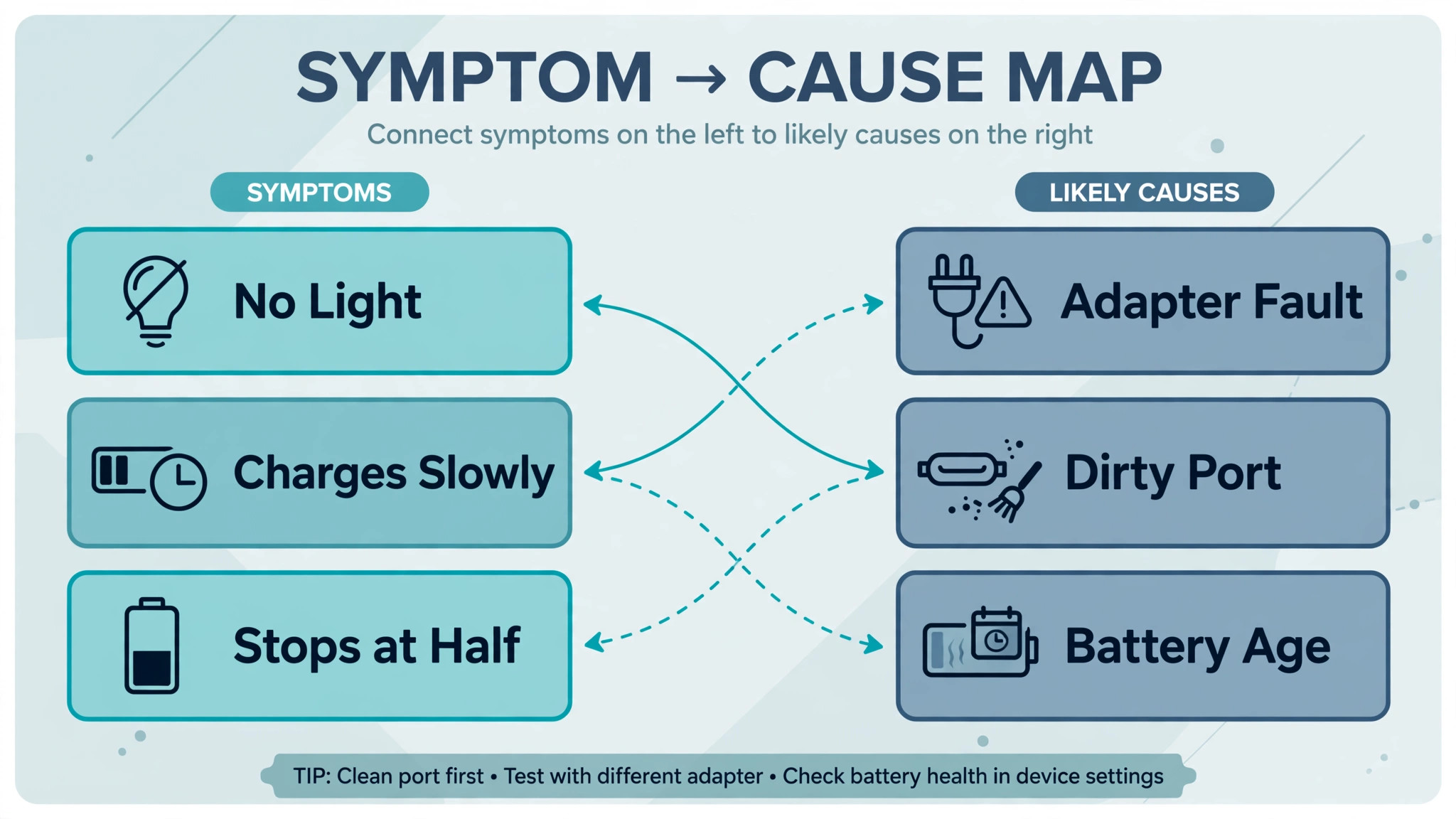
Use this table to match what you see with the most likely cause and the first fix, so a clear symptom leads straight to the relevant section without working through every step blindly. The table does not replace the full order, but it speeds diagnosis when a symptom is distinctive.
| Symptom | Most likely cause | First fix to try |
|---|---|---|
| No charging symbol, percentage falls | No power reaching the MacBook | Different socket, cable and adapter |
| Charges only at certain cable angles | Worn cable or loose or dirty port | Swap cable, clean port, try another port |
| Says not charging near full battery | Full battery or optimised charging pause | Check Battery settings, charge to full if offered |
| Says not charging at low battery | Weak adapter, port, or battery fault | Correct wattage adapter, port test, health check |
| Charges, then stops, then drains | Ageing battery or power management fault | Health check, macOS update, SMC on Intel |
| Completely dead, nothing on screen | Deeply drained battery or charger fault | Known good charger, undisturbed charge 30 minutes |
| Charges on one port, not another | Single faulty port or debris | Clean port, test other ports, seek service if one port dead |
| Battery condition says service battery | Worn battery needing replacement | Book battery service, avoid further resets |
A symptom that changes after a step is useful, even when the step does not fully fix the problem, so note what changed. If a new cable changes no symbol into a charging symbol that then stalls, the cable was one problem and a second problem, such as battery health or a setting, remains. If charging works on one port but not another, the fault is localised to that port, and further cable swaps will not help, while a service appointment for that port becomes the sensible next step. Troubleshooting is narrowing, not magic, and a short note of symptoms, steps, and changes makes that narrowing fast, especially if you later speak to support.
Use the table first when you fix MacBook battery not charging and the symptom is clear.
Cable, Port and Adapter Checks in Detail
Cable checks need more than a glance, because damage often hides near the connectors, where bending is greatest, or inside a cable that looks fine outside. Run fingers gently along the cable, feeling for kinks, soft spots, or exposed wires, and check both connectors for bent pins, discoloration, or debris, because a connector that looks clean can still fail to seat fully. Test with a known good cable and adapter, borrowed from another MacBook user if needed, and test the suspect cable on another MacBook if possible, because that swap in both directions proves whether the cable or the machine is at fault.
Keep the test adapter’s wattage in mind, because an adapter far below the MacBook’s shipped wattage may show not charging under load even when it is healthy, and that false result can mislead the whole diagnosis.
Port checks need care, because a charging port is easy to damage with the wrong tool. Power the MacBook off, use only a soft, dry, non metal tool, such as a wooden toothpick or a soft brush, and remove lint or dust gently, without pushing debris deeper or scratching contacts. Shine a light into the port and look for bent contacts, corrosion, or a foreign object, and if anything looks bent or damaged, stop and seek service, because forcing a cable into a damaged port can worsen the fault.
Try every port the MacBook has, noting which ports charge and which do not, because a single dead port with healthy others points to that port, while all ports failing points to the cable, adapter, or internal power system.
Adapter and socket checks complete the external picture. Test the wall socket with another device, test a different socket on a different circuit if possible, and check power strips and extension leads, because a strip with a tripped switch or a failed socket can look normal while delivering no power. If the adapter feels unusually hot, smells burnt, or shows damage, stop using it and replace it, because a damaged adapter is a safety risk as well as a charging fault. When you fix MacBook battery not charging, external checks come first for a reason, because they cost nothing, risk nothing, and solve a large share of charging failures without touching any setting.

System Management Steps for Intel and Apple Silicon
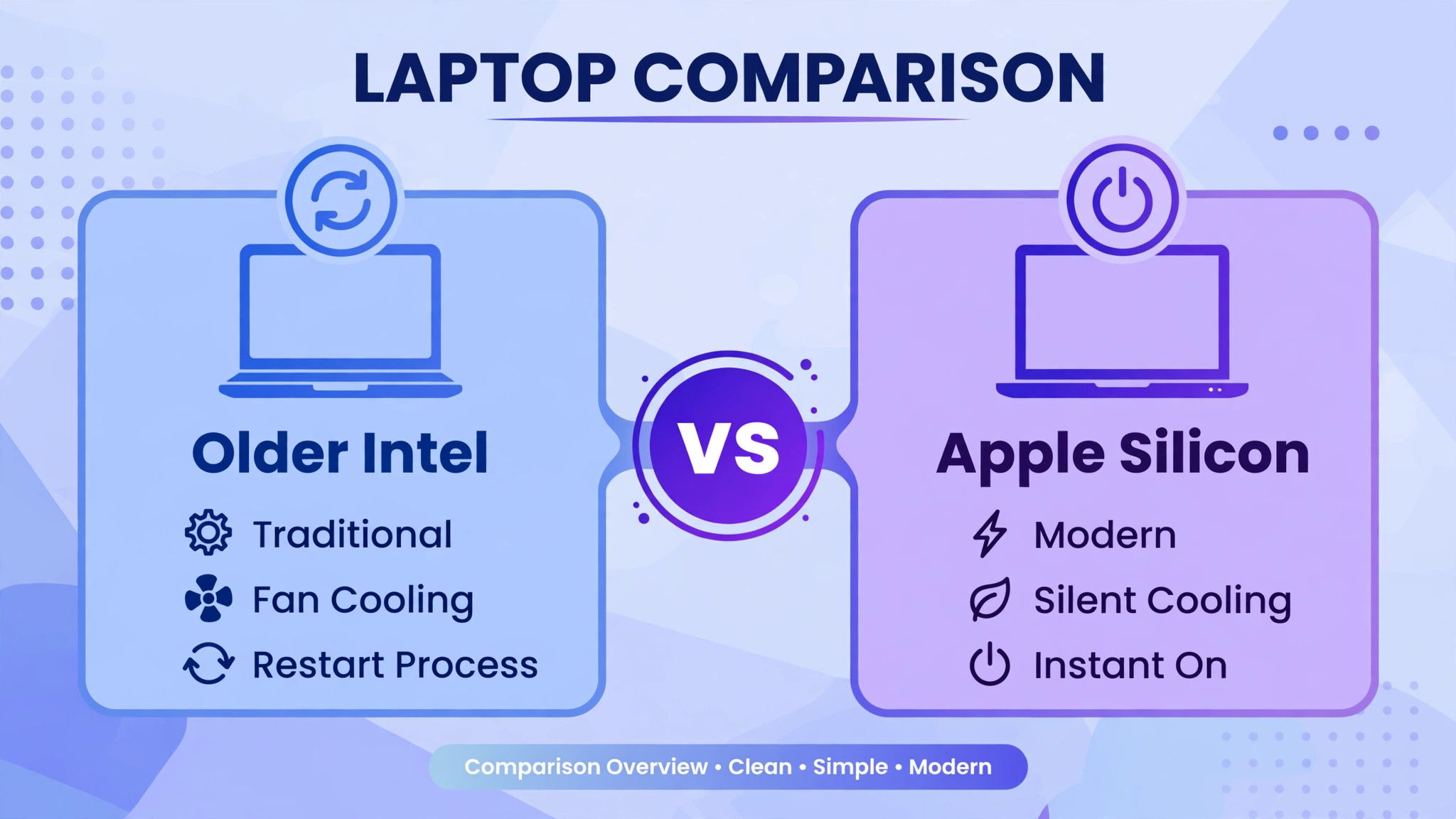
System Management Controller steps differ by Mac type, and using the wrong procedure wastes time, so identify your Mac first. On Apple silicon Macs, which include M1, M2, M3 and later models, there is no SMC key combination, and the equivalent step is a complete shutdown, not sleep or restart, followed by waiting until the machine is fully off, waiting about 30 seconds, and powering it back on, because Apple silicon resets its power management functions during a full power cycle. If an Apple silicon Mac still fails to charge after a full shutdown and restart, move on to battery health, macOS updates, and support, rather than searching for an SMC key combination that does not exist for that machine.
On Intel Macs with a non removable battery, which covers most MacBooks from 2009 onward, the SMC reset follows a specific key combination. Shut the Mac down fully, unplug the power adapter, then on the built in keyboard press Shift, Control and Option on the left side together with the power button, hold all keys for 10 seconds, release them, reconnect the power adapter, and press the power button to turn the Mac on. On Intel Macs with a T2 chip, an alternative first step is to shut down, press and hold the power button for 10 seconds, release, wait a few seconds, and press power again normally.
Try the standard steps before an SMC reset, because Apple guidance places SMC reset after simpler troubleshooting, and test charging after the reset before moving to any further step. Confirm your Mac type before any reset when you fix MacBook battery not charging, because the procedure differs.
SMC reset is appropriate for power related symptoms, such as a battery not charging despite a connected adapter, a Mac that will not power on, fans running constantly, or a MagSafe light showing the wrong status, but it does not fix kernel panics, frozen apps, slow performance, storage faults, or data corruption, which need different troubleshooting. If an SMC reset does not help, do not repeat it several times hoping for a different result, because a reset that fails once rarely succeeds on repetition, and the remaining causes are more likely battery, port, or logic board faults that need diagnosis. Note the Mac type, the procedure used, and the result, so support can see that the correct procedure was followed.
Battery Health and When Service Is Needed
Battery health decides whether further troubleshooting is worthwhile, because a battery flagged for service will not be fixed by cables, ports, or resets. Check health in System Settings under Battery, where macOS shows maximum capacity and condition, and note the cycle count in System Information under Power, because capacity falls gradually with cycles and age, and a battery at low capacity will charge slowly, drain fast, and eventually stop holding a useful charge. A condition reading of normal means the battery is not the prime suspect, while replace soon, replace now, or service battery means the battery itself is the likely cause, and booking service is more sensible than further resetting.
Service options depend on warranty, care coverage, and the Mac’s age, so check coverage before booking, and back up the Mac fully before any service, because service can involve parts replacement that risks data if a backup is missing. Apple and authorised providers can run diagnostics that distinguish a battery fault from a logic board or charging circuit fault, which matters because the two have very different repair costs, and a diagnosis before authorising repair prevents paying for a battery when the charging circuit is at fault.
If the Mac is old and the repair cost approaches the value of a replacement, weigh that honestly, and consider whether a desktop style use, plugged in permanently, or a replacement machine, serves better than an expensive repair on an ageing system.
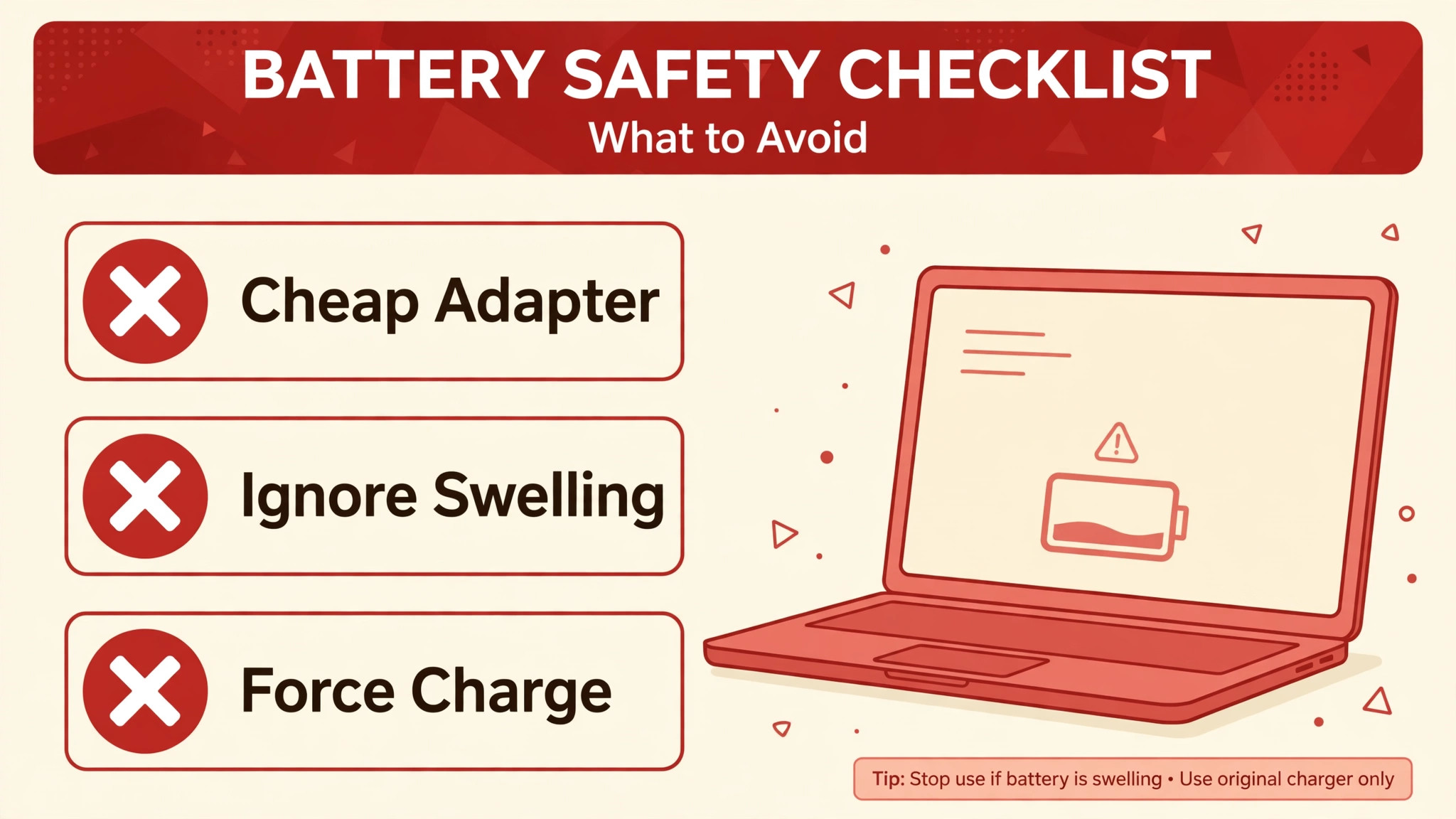
When you fix MacBook battery not charging with a battery already flagged for service, do not delay booking while trying every cable and reset again, because a worn battery can swell in rare cases, and swelling presses on trackpads, keyboards and internal parts, causing secondary damage. Signs of swelling include a trackpad that feels raised or clicks differently, a case that no longer sits flat, or a screen that shows pressure marks, and any of those signs mean stop using the Mac and seek service promptly, without attempting to open it yourself. A battery service, done promptly, restores charging and prevents a small battery problem from becoming a larger machine problem.
Mistakes That Waste Time on Charging Fixes
The first mistake is replacing the battery first, before testing cable, adapter, socket and port, which spends the most money on the least likely cause for many users. The second mistake is testing with an underpowered phone charger, which proves nothing about a laptop that needs a far larger adapter, and produces a false not charging result that misleads the whole diagnosis. The third mistake is cleaning a port with a metal object while the Mac is powered on, which risks shorting contacts and damaging the port, when a powered off, soft tool approach is both safer and more effective.
The fourth mistake is repeating an SMC reset several times, or using an Intel SMC procedure on an Apple silicon Mac, which wastes time and can confuse diagnosis, because the correct procedure differs by Mac type and a failed reset rarely succeeds on repetition. The fifth mistake is ignoring optimised charging, and treating a normal pause around 80 percent as a fault, which leads to unnecessary resets for a feature designed to protect the battery. The sixth mistake is continuing to use a swollen battery or a damaged adapter, because both are safety risks, not just inconveniences, and prompt service is cheaper and safer than waiting for secondary damage.
Preventing the Next Charging Problem
Prevention for MacBook charging is mostly about cable care, adapter care, and software currency, because most failures come from worn cables, dirty ports, or outdated power management. Coil cables loosely without sharp bends near connectors, avoid yanking cables out by the cord, and replace a cable at the first sign of fraying, rather than waiting for it to fail during important work. Keep ports clean by checking them occasionally and keeping the MacBook in a case that does not trap lint in ports, and use the correct wattage adapter, because a habit of borrowing small chargers stresses both the adapter and the charging system.
Keep macOS updated, because power management improves in updates, and check battery health every few months, so a declining battery is noticed gradually rather than discovered as a sudden failure. Inspect cables monthly when you fix MacBook battery not charging through a prevention routine, and replace frayed cables promptly. Avoid extreme heat, such as leaving a MacBook in a hot car or on a radiator, because heat ages batteries faster than any other everyday factor, and avoid letting the battery sit at zero for long periods, because a deeply drained battery can become hard to revive.
A few minutes of cable, port and health care each month keeps charging reliable, and it means the next time a charging problem appears, the cause will be obvious, because the usual suspects will already be in good condition. Store the MacBook in a cool, dry place when travelling, and avoid leaving it in a car on a hot day, because heat is the fastest ager of lithium batteries, and a battery kept cool will hold capacity noticeably longer than one regularly heated.
More Reading on Stratilyze
If this guide helps your MacBook charge again, the wider Stratilyze guides cover the Mac problems around it. The guide to MacBook fan loud noise covers another power and heat fault, the guide to iPhone battery drain after an update helps with battery behaviour on the other Apple device, and the guide to laptop keyboard keys not working covers a hardware fault with a similar diagnosis approach. Read the fan guide next if heat and charging problems appear together, because the two often share a cause.
Frequently Asked Questions
Why does my MacBook say not charging when you fix MacBook battery not charging at a high percentage?
A MacBook that says not charging near full battery is often simply full, or is holding charge deliberately under optimised battery charging, which pauses charging around 80 percent to protect long term health. Check Battery settings to see whether optimised charging is active, and look for a charge to full option if you need a full charge for travel. If the message appears at a low percentage, or the percentage falls while plugged in, the cause is more likely cable, adapter, port, or battery, and the fix order in this guide applies.
Should I reset the SMC when you fix MacBook battery not charging on an Apple silicon Mac?
No key combination SMC reset exists for Apple silicon Macs, because those models reset power management during a complete shutdown and power on cycle. Shut the Mac down fully, wait until it is fully off, wait about 30 seconds, and power it back on, then test charging again. If that fails, check battery health, update macOS, and contact support, rather than searching for an Intel SMC procedure that does not apply to your machine.
What wattage charger does my MacBook need?
Use the adapter that shipped with your MacBook, or an adapter of equal or greater wattage from a reputable maker, because an underpowered adapter may run the Mac but barely charge it, especially under heavy load. A small phone charger is not a valid test for a laptop, and it can produce a false not charging result. Check your model’s shipped adapter wattage in its specifications, and test charging with a correct wattage adapter before concluding that the battery or the machine is at fault.
How do I know if my MacBook battery needs replacing?
Check Battery settings or System Information under Power for condition and maximum capacity, and note the cycle count, because a condition of replace soon, replace now, or service battery means the battery itself is the likely cause. A battery with low capacity will also charge slowly, drain fast, and may stop holding a useful charge, even with a good cable and adapter. Book a diagnostic with Apple or an authorised provider if service is flagged, because diagnostics distinguish a battery fault from a charging circuit fault, which have different repair costs.
Can a dirty charging port stop a MacBook charging?
Yes, dust and lint in a USB-C or MagSafe port can prevent a cable seating fully, causing intermittent charging, charging only at certain angles, or no charging at all. Power the Mac off, clean the port gently with a soft, dry, non metal tool, and never use a metal object while powered on, because that risks shorting contacts. If the port looks bent, corroded, or damaged, stop and seek service, because forcing a cable into a damaged port can worsen the fault.
Is it safe to keep using a MacBook with a swollen battery?
No, stop using a MacBook with signs of swelling, such as a raised trackpad, a case that no longer sits flat, or pressure marks on the screen, and seek service promptly. A swollen battery can press on internal parts and cause secondary damage, and it should not be opened, punctured, or charged further at home. Back up data if it is safe to do so, then contact Apple or an authorised provider for battery service, because prompt replacement restores safety as well as charging.
The Charging Verdict
A MacBook charging fault resolves fastest when external causes are tested first, symptoms are read correctly, and each step gets a fair ten minute test. Try a different socket, a known good cable and correct wattage adapter, a cleaned port, and a different port, then check battery health and settings, update macOS, and use the correct system management step for your Mac type, which is a full shutdown cycle for Apple silicon and an SMC reset for Intel. Treat an optimised charging pause as normal, treat a service flagged battery as a service job rather than a settings puzzle, and stop using a swollen battery or damaged adapter at once.
Done that way, most charging problems end with a cable or a setting, and the minority that need service arrive at support with a clear note of what was tried, which speeds the repair. Keep the known good cable and adapter together in a labelled pouch, so a future charging scare starts with a trusted test pair instead of a drawer of mixed chargers of unknown wattage.