

You click Share, your slides appear, and then everything falls behind. You advance a slide and your audience sees it three seconds later. You move the mouse and the pointer drags across their screens like it is wading through water. A video clip stutters, text smears when you scroll, and the meeting that should have taken twenty minutes takes forty because every point needs repeating. When you fix Microsoft Teams screen sharing lag, the stakes are higher than a minor annoyance when you present for a living. It breaks the timing of a demo, it makes a training session feel unprofessional, and it forces you to apologise for a tool problem that is not your fault.
If you want to fix Microsoft Teams screen sharing lag, start with the network and the share itself, because most lag comes from how much picture data you are asking the connection to carry, not from a broken app.
Teams screen sharing is a live video stream of your screen. Every change on your display, every scroll, every animation, and every video frame must be captured, compressed, sent across the network, and drawn on each viewer screen in near real time. That chain has several weak links. A slow upload connection starves the stream at the source. A 4K display or a second monitor doubles the pixels to encode. A busy computer with dozens of browser tabs steals the processor time Teams needs to compress the picture. A VPN route adds delay at every hop.
This guide works through those links in order, from the fastest checks to the deeper settings, and it ends with presentation habits that keep lag low even on an average connection.
Why Screen Sharing Lags When Video Calls Do Not
A normal video call and a screen share stress different parts of the system. A webcam feed is a small, predictable picture that changes slowly, and Teams can compress it heavily without anyone noticing. A screen share is a large, detailed picture full of text, and text is the hardest thing to compress cleanly. Small text on a spreadsheet or a code editor needs sharp detail to stay readable, so Teams must send more data to keep it legible, and any shortage of bandwidth or processor power shows up at once as blur, smearing, or delay.
Resolution is the multiplier. Sharing a full 4K display sends four times the pixels of a 1080p display, and sharing two monitors sends more still. Microsoft own guidance for laptops docked to 4K displays lists exactly this problem, and its workarounds include dropping the monitor to 1920 by 1080, closing unused apps, and turning off incoming video during the meeting. Those are not generic tips. They directly reduce the pixel load and the processor load that cause lag, and they are the reason a share that lags on a 4K dock often runs smoothly on the laptop screen alone.
Motion is the second multiplier. A static slide shares easily, because most of the picture stays the same between frames and Teams only needs to send the changes. A scrolling document, an animated dashboard, or a playing video changes almost every pixel every frame, which demands far more bandwidth and encoding power. That is why a presentation can feel fine on title slides and fall apart the moment you play a clip or scroll a long page. The fix is not always more bandwidth. Sometimes it is sharing less motion, or sharing a window instead of the whole screen, so the encoder only tracks one app.
Test the Network Before You Change Settings
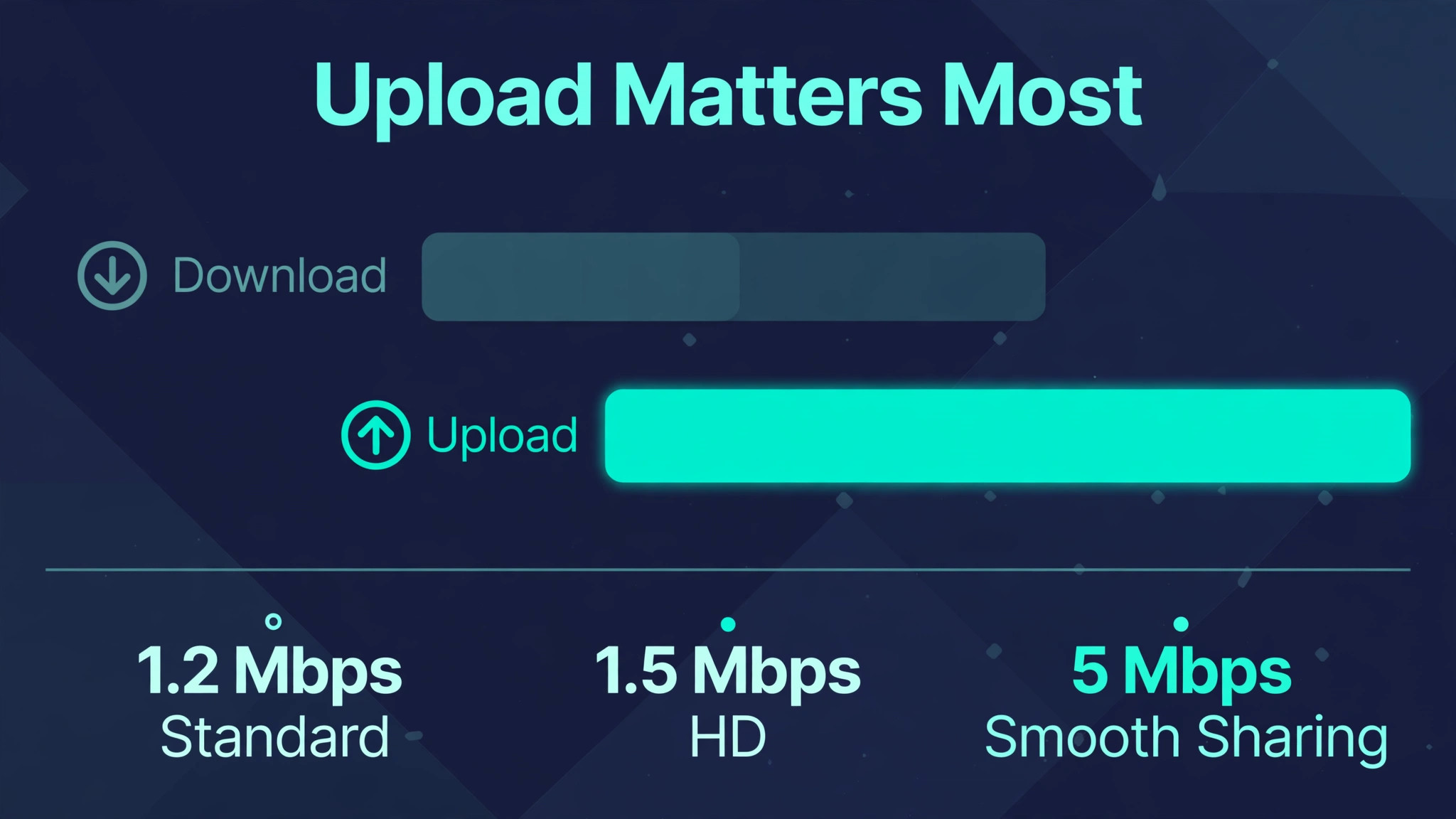
Network testing comes first because it decides whether any setting change can help. Open a speed test and look at upload speed, not just download speed. Screen sharing lives on upload, since you are sending your screen to everyone else, and a connection with fast downloads but a slow upload will lag exactly as described. Microsoft guidance cited in support discussions puts a practical floor near 5 Mbps up and down for smooth sharing, while the minimums for a standard video call are lower, near 1.2 Mbps, and near 1.5 Mbps for high definition video. If your upload sits below 5 Mbps, treat the network as the main suspect and work the network steps before touching Teams settings.
Test latency and stability as well as speed. A speed test that shows a good average can hide jitter, which is variation in delay, and packet loss, which forces retransmissions that appear as freezes. Microsoft recommends one way latency under 100 milliseconds for screen sharing, which is stricter than the 150 milliseconds it recommends for ordinary video calls. If your latency is high or your ping varies wildly between tests, the connection itself is unstable, and no Teams toggle will fully compensate for it.
Run the test twice, once on Wi-Fi and once on a wired Ethernet connection if you can. Wired connections remove Wi-Fi interference, distance, and competing devices from the equation, and they are the single most reliable network fix for presenters. If wired sharing is smooth and Wi-Fi sharing lags, the problem is your wireless environment, and the fix is a cable, a closer access point, or a less congested Wi-Fi channel, not a Teams reinstall. Also test with the VPN off if your organisation allows it, since VPN routing can add latency and reduce available bandwidth for real time traffic, and a split tunnel that keeps Teams traffic local can help where a full tunnel hurts.
Fix Microsoft Teams Screen Sharing Lag in Order
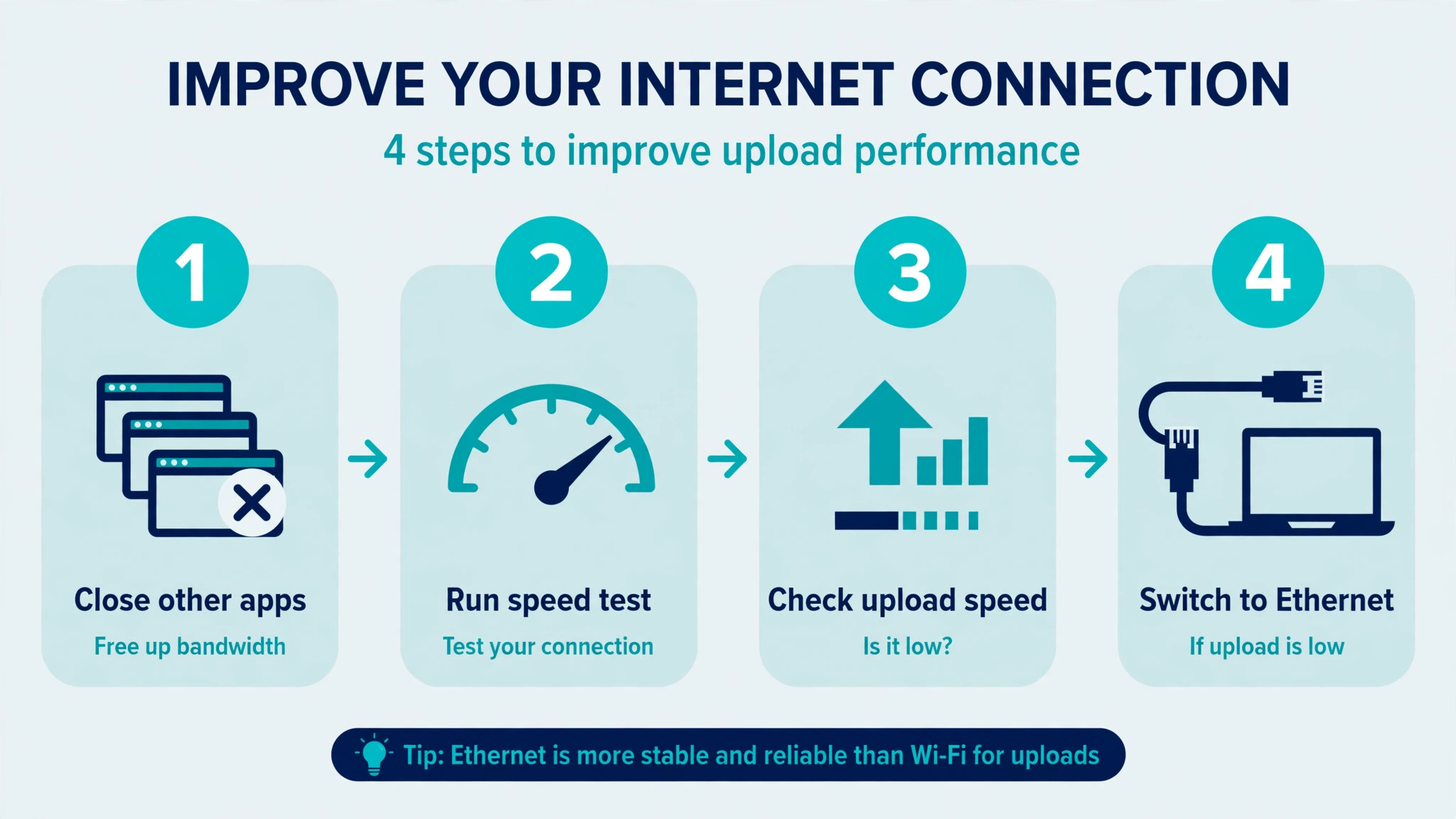
Work this list top to bottom and test with a short share after each step. Use a solo meeting or a test call with one colleague, so you can see the result without derailing a real presentation.
- Plug in Ethernet, turn the VPN off if allowed, and close downloads, cloud sync, and streaming on the same connection.
- Share one window instead of the whole screen, and close every app and browser tab you do not need for the presentation.
- Drop a 4K display to 1920 by 1080 for the meeting, or share from the laptop screen instead of the docked display.
- Turn off your own camera video and turn off incoming video during the share to free bandwidth and processor time.
- In the sharing toolbar, turn on Optimize for video and Include computer sound only when you actually play video, since video optimisation changes the encoding trade off.
- Update Teams and your graphics drivers, then restart the computer before an important presentation.
- In Teams settings, try disabling GPU hardware acceleration, restart Teams, and test again, since a faulty driver path can make acceleration slower than software encoding.
- Clear the Teams cache through the documented cache folders, restart Teams, and test a short share.
- Use PowerPoint Live for slide decks instead of sharing the whole screen, since it sends slides as data rather than as a video of your screen.
- If lag persists on every network and every device, ask your IT team to check meeting policies, bandwidth policies, and quality of service settings for Teams traffic.
The order matters because it starts with the load you place on the system and ends with the system itself. Sharing less picture, on a better connection, with fewer competing apps, fixes more presentations than any toggle. Settings and cache steps help when the load is already reasonable but the app is misbehaving.
Bandwidth Steps That Make the Biggest Difference
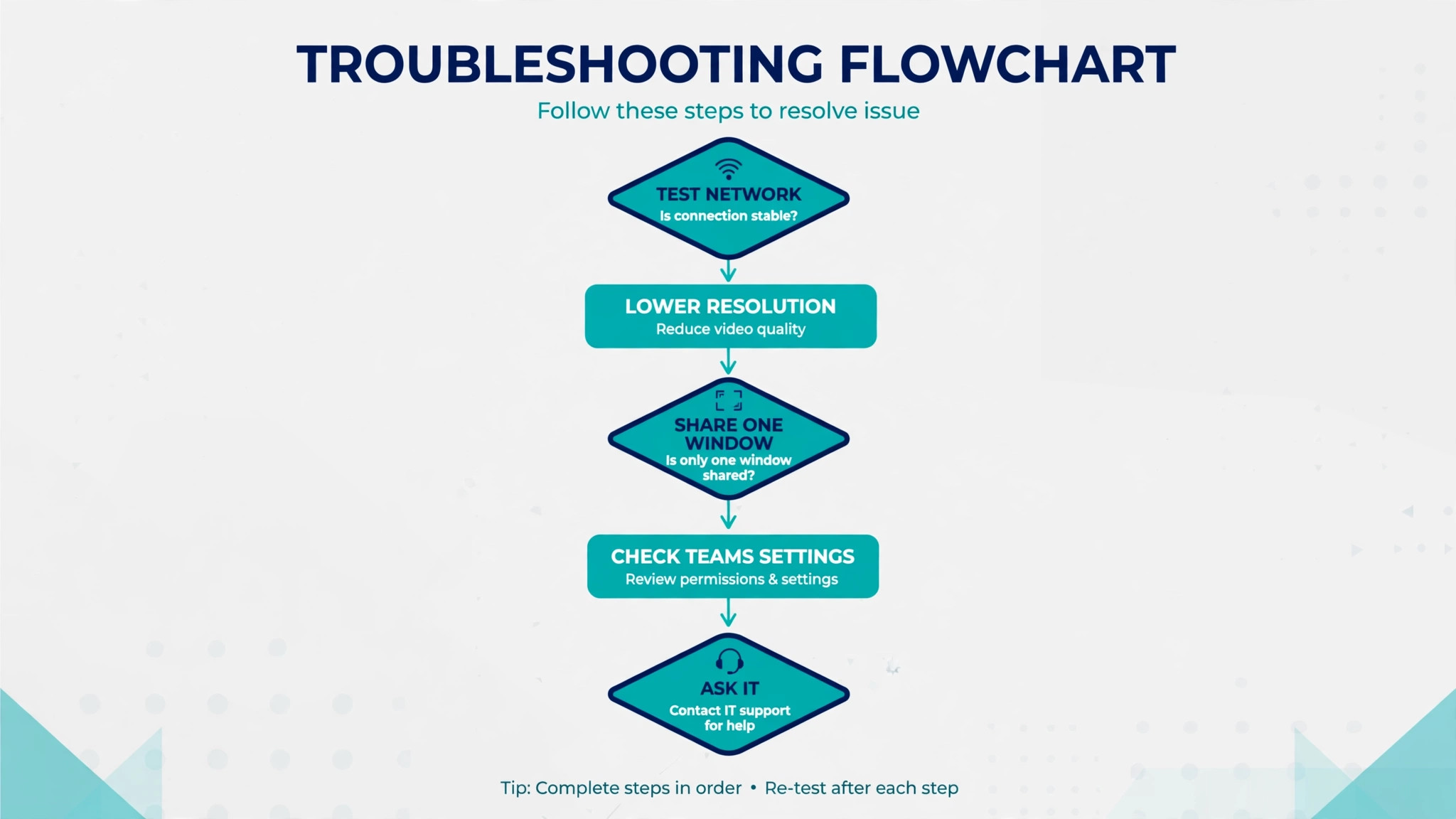
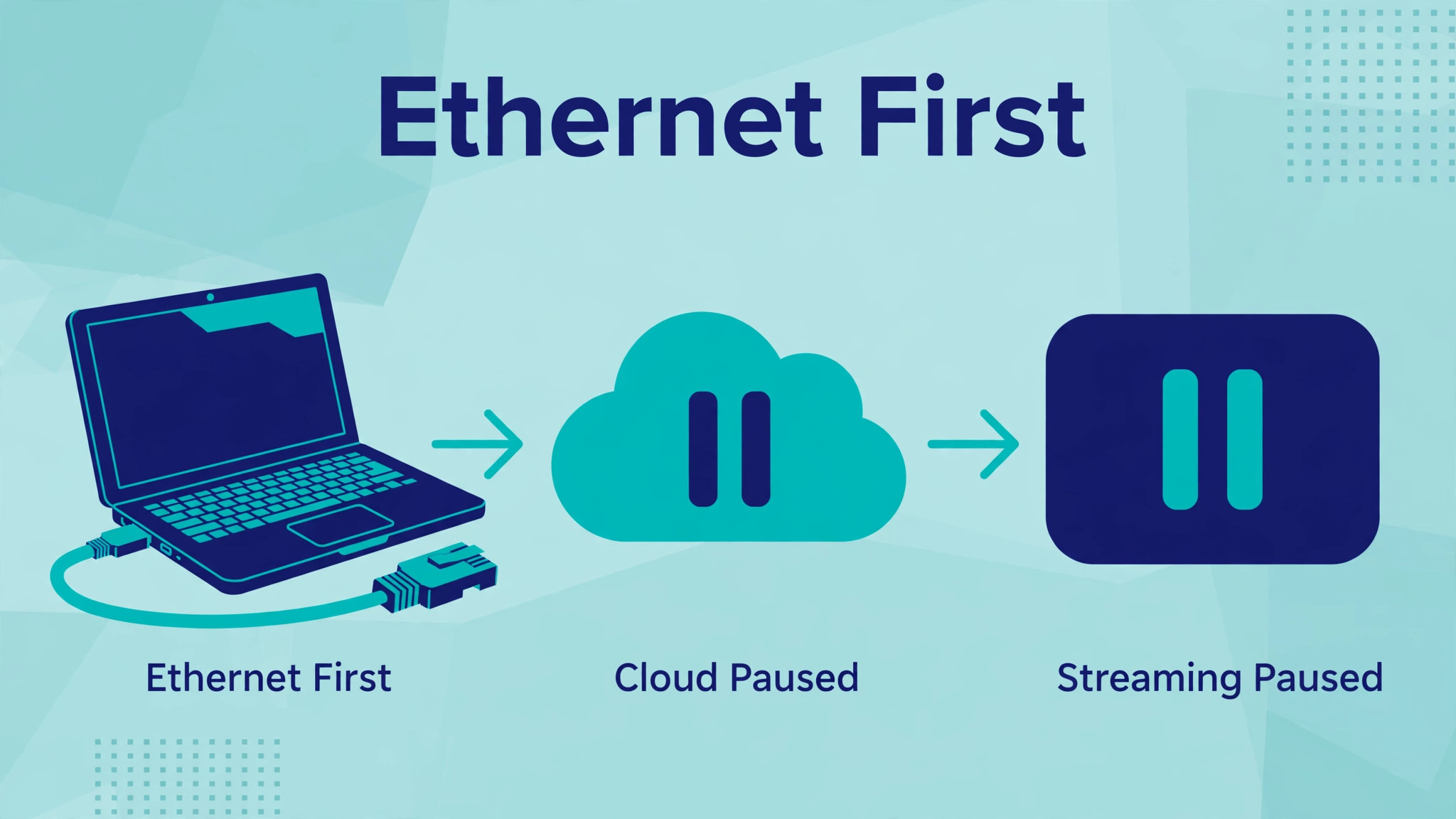
Bandwidth is not just the number on your plan. It is the bandwidth actually available to Teams at the moment you share, after every other app, device, and person on the network has taken their share. Start by closing cloud sync tools, backup software, large downloads, and video streaming on the same machine and the same network. A backup that starts mid presentation can steal the upload headroom a share needs, and the lag will appear and disappear with the backup, which makes it look random when it is not.
Ask others on the same network to pause heavy use during an important presentation if you can. A household streaming in 4K, or an office full of video calls, shares the same upload pipe, and a share that works at 9 am can lag at 11 am when the office fills up. If you present from home regularly, consider a wired connection as a permanent setup rather than a test step. A cable to the router, or a powerline or mesh node with an Ethernet port near the desk, gives a stable path that Wi-Fi cannot match through walls and interference.
Quality of service settings on a router can help where you control the network. Prioritising Teams media traffic, which uses UDP ports 3478 to 3481, tells the router to protect real time traffic when the network is busy. This is an advanced step, and on a work network it belongs to IT, but on a home network it is a setting worth checking in the router admin pages. Do not expect quality of service to create bandwidth that does not exist. It protects Teams when the network is contested, it does not make a slow upload fast.
Finally, match the share to the connection you actually have. Matching the share to the connection is a practical way to fix Microsoft Teams screen sharing lag without buying faster internet. On a weak connection, share a single window at a lower resolution, turn off video, and avoid playing video inside the share. On a strong wired connection, you can afford a full screen share with video optimisation on. The presenter who adjusts the share to the network will look smoother than the presenter who insists on the heaviest share on the weakest connection.
Teams Settings and the GPU Question
Teams settings contain a few controls that genuinely affect sharing, and a few that people change without effect. The most useful sharing controls live in the sharing toolbar itself. When you share a screen or a window, look for the option to optimise for video, sometimes shown as Optimize for video or a similar motion option, and use it only for video content. Video optimisation raises the frame rate for motion at the cost of sharpness for text, so it helps a clip and hurts a spreadsheet. For slides and documents, leave it off and let Teams prioritise sharpness.
GPU hardware acceleration is the setting people argue about most, and the honest answer is that it helps on some machines and hurts on others. Acceleration hands video encoding to the graphics chip, which is usually faster, but a buggy graphics driver can make it slower or unstable. Microsoft own troubleshooting for slow video on docked laptops lists disabling GPU hardware acceleration as a workaround, and the setting sits under Settings and General, under Application, with a Teams restart required after changing it. Try it in both states, with a short test share each time, and keep the state that measures better on your machine.
Do not copy someone else answer for this setting, because it depends on your driver and hardware. Testing both states is the honest way to fix Microsoft Teams screen sharing lag on a machine where acceleration behaves unpredictably.
Background effects and video settings also cost resources during a share. Turn off background blur or replacement while you present, since the effect runs on every video frame even when you are sharing your screen. Turn off your own camera if the audience does not need to see you, and use the meeting control to turn off incoming video, which stops Teams decoding every other participant video while you share. Each of those steps frees processor time and bandwidth for the share itself, and together they can be the difference between a smooth share and a lagging one.
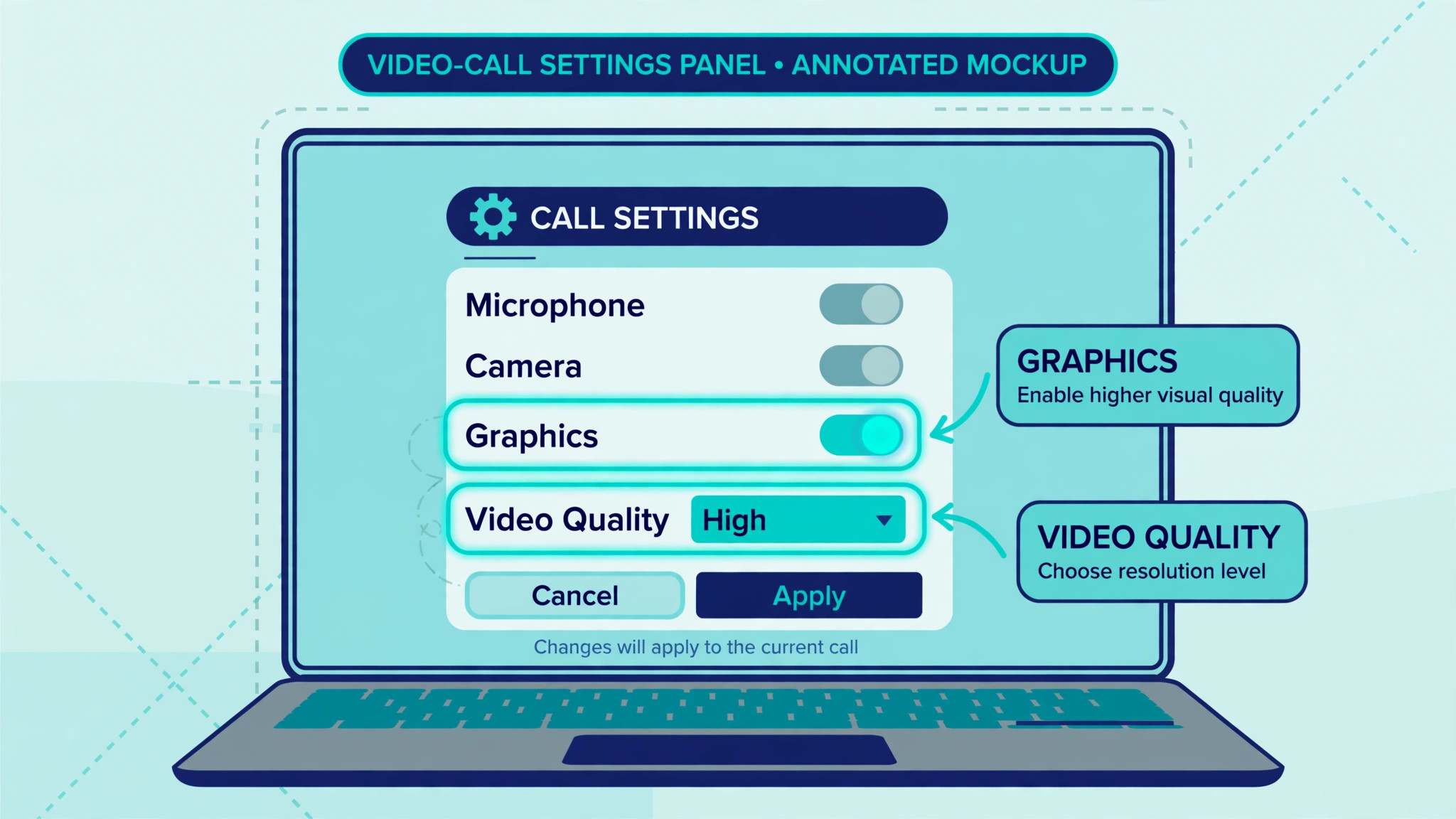
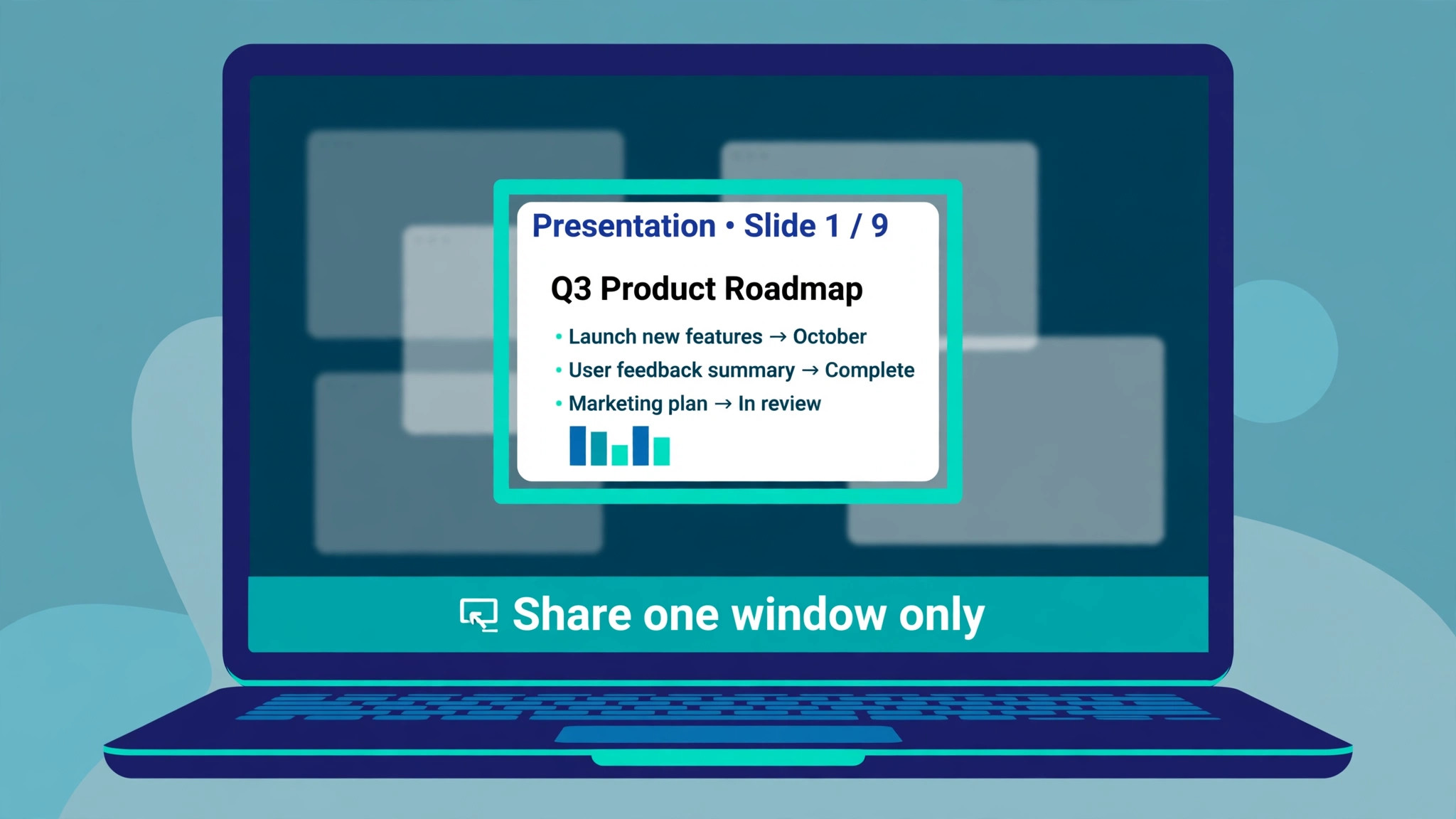
How you share matters as much as how fast your connection is. Sharing your entire screen sends every monitor, every notification, and every accidental window switch to the audience, and it forces the encoder to track the whole desktop. Sharing a single window sends only that app, which reduces the encoded area, hides notifications, and prevents an embarrassing pop up from appearing mid presentation. Microsoft low bandwidth guidance makes the same point for educators, instructing them to share applications rather than the entire screen to save bandwidth. Make window sharing your default, and use full screen sharing only when you genuinely need to move between several apps live.
PowerPoint Live is the best tool most presenters ignore. Instead of sharing a video of your slides, PowerPoint Live sends the deck itself through Teams, and each viewer renders the slides locally. That removes the screen encoder from the chain entirely for the slide portion, which means sharper text, no scroll smear, and no lag when you advance slides. It also lets viewers move through slides independently if the presenter allows it, and it keeps slide navigation smooth even on a weak connection. If your presentation is a slide deck, use PowerPoint Live first and share your screen only for the live demo portion.
Presentation habits complete the fix. Preload the demo, close the browser tabs you will not use, and turn off notifications before you share, so nothing competes for attention or processor time mid call. Avoid scrolling long documents rapidly during a share, and instead jump to the section you need, since rapid scrolling is the worst case for a screen encoder. Pause before advancing a slide, give the audience a second to receive it, and narrate the change as you make it, so a small delay does not break the flow. These habits cost nothing, and they make even a modest connection feel professional.
Presenters who adopt them often fix Microsoft Teams screen sharing lag before they ever open a settings menu.
Symptom Guide for Teams Sharing Lag
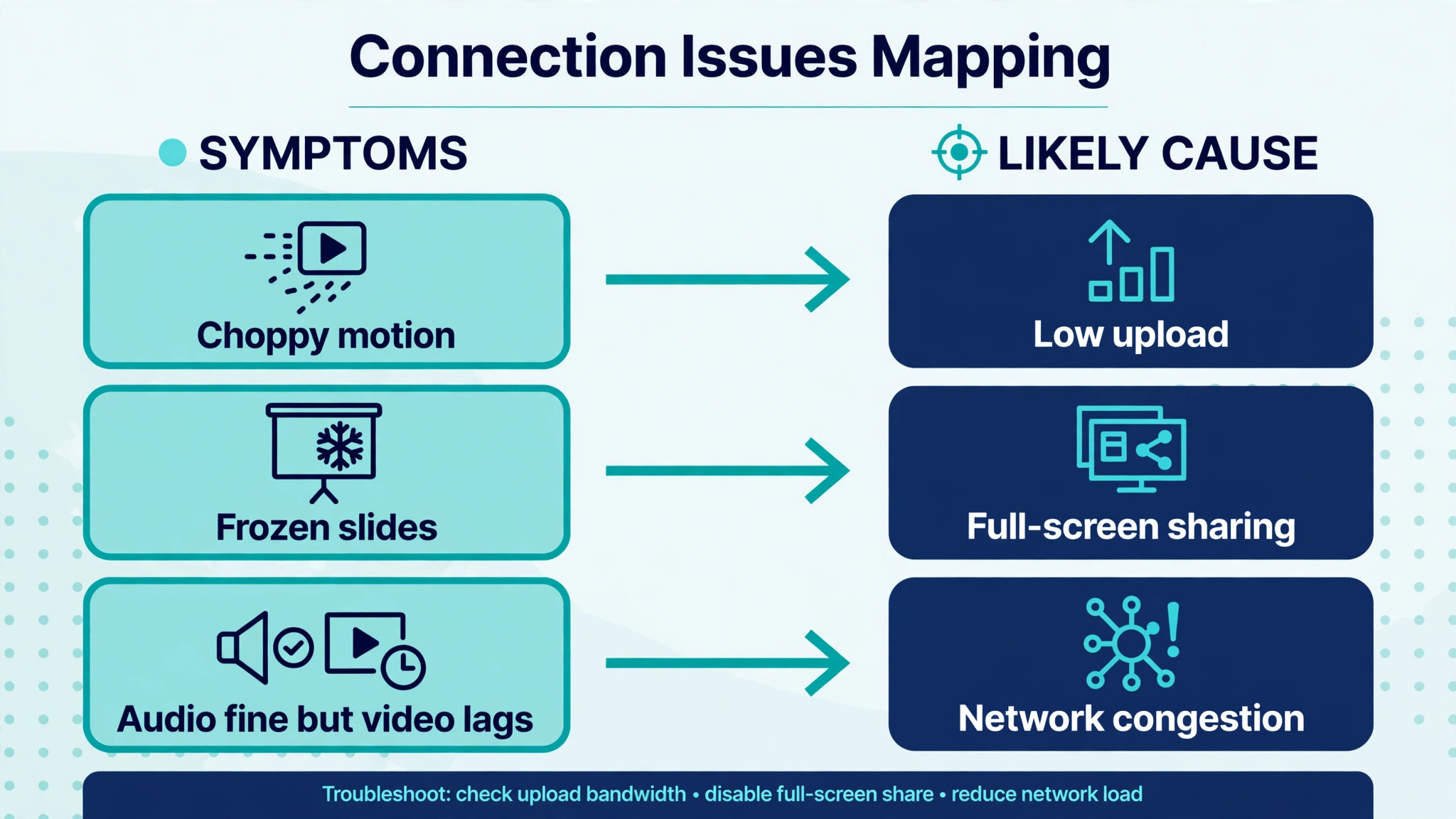
| What you see | Most likely cause | First move |
|---|---|---|
| Slides advance seconds late | Upload bandwidth short or large display area | Ethernet, window share, lower resolution |
| Text smears when scrolling | Encoder overloaded by motion and detail | Stop rapid scrolling, share one window |
| Video clips stutter inside the share | Video optimisation off or bandwidth short | Turn on Optimize for video, close competing apps |
| Share lags only on a docked 4K monitor | Pixel load from 4K display | Drop to 1920 by 1080 or share from laptop screen |
| Share lags only on Wi-Fi, fine on cable | Wireless interference or distance | Use Ethernet or move closer to the access point |
| Share lags after a Teams or driver update | Driver or acceleration regression | Toggle GPU acceleration, update drivers, restart |
| Everyone lags at the same time of day | Shared network contention | Present on wired connection, pause sync and streaming |
Read the symptom before you change settings. A share that lags only on a 4K dock does not need a cache clear, and a share that lags only at busy times does not need a driver update. Match the first move to the pattern, test with a short share, and only then move to the next step.
Cache, Updates, and When to Involve IT
Clearing the Teams cache is a legitimate step, but it should come after the load and network steps, not before them. Microsoft documents a cache clearing process that involves quitting Teams, removing the cache folders, and restarting the app, and the exact folders differ by Teams version and platform, so follow the current Microsoft documentation for your install rather than an old blog path. After clearing, sign in again if needed and test a short share before a real meeting. Cache clearing fixes stale app state, it does not fix a slow upload, so a cache clear that is followed by the same heavy full screen share on Wi-Fi will look like it failed when the real cause never changed.
Updates deserve a routine, not a panic. Update Teams regularly, update graphics drivers from the chip maker or the computer maker, and restart the computer before an important presentation. A driver update that is installed but never activated by a restart will not help, and a Teams update that lands mid meeting can disrupt a share, so apply updates the day before, not minutes before you present. Keep a note of the driver version that works well on your machine, so you can spot a regression after an update and roll back if your IT policy allows it.
Involve IT when lag affects every user on a network, when lag persists on a wired connection with a strong upload speed, or when meeting policies may be limiting media bit rate. IT can check meeting policies, media bit rate limits, and quality of service configuration, and they can test whether a VPN or proxy path is adding latency for Teams traffic. Bring them the facts from your own tests, including wired versus Wi-Fi results, upload speed, and whether window sharing or PowerPoint Live changed anything. Those facts turn a vague complaint into a diagnosable network case.
Mistakes That Keep Teams Lagging
The first mistake is sharing the whole desktop by habit. Full screen sharing is the heaviest option and the least private, and it should be the exception, not the default. Share one window, and if you need two apps, switch the shared window between them deliberately rather than sharing everything at once. The audience sees a cleaner presentation, and the encoder does less work. Window sharing alone can fix Microsoft Teams screen sharing lag that looked like a network failure.
The second mistake is presenting on Wi-Fi from the far end of the house while a backup runs. That combination stacks three handicaps at once, which are distance, interference, and upload contention, and no setting can fully overcome all three. Move closer, plug in a cable, and pause the backup, and the same presentation will feel like a different tool.
The third mistake is toggling GPU acceleration and video optimisation together and then not knowing which change helped. Change one setting, test a short share, and record the result. Presentation settings interact, and changing two at once leaves you guessing when the next meeting lags again. A short test in a solo meeting costs a minute and saves a meeting.
The fourth mistake is ignoring the display. A 4K monitor looks superb for solo work, and it is a liability for sharing until you drop its resolution for the meeting. Keep the 4K display for editing and design work, and share at 1080p or from the laptop screen when you present. That trade off is temporary, reversible, and often the single biggest lag fix available.
A Pre Presentation Routine That Prevents Lag
Build a five minute routine before any important share. Plug in Ethernet or confirm a strong Wi-Fi signal, close downloads and cloud sync, close unused apps and browser tabs, and restart Teams if it has been running for days. Open the deck in PowerPoint Live where possible, preload any demo, and turn off notifications. Share one window, turn off your camera if it is not needed, and run a thirty second test share in a solo meeting, advancing a slide and scrolling once, to confirm the picture is sharp and responsive.
That routine also gives you a fallback plan. If the test share lags, you already know whether Ethernet, window sharing, or a resolution drop fixes it, and you can apply that fix before the audience joins. If the test share still lags after those steps, you can warn the audience, switch to PowerPoint Live, or share the deck as a file and narrate over it, rather than discovering the problem live. A tested fallback is part of how teams fix Microsoft Teams screen sharing lag in real meetings, not just in guides. A presenter with a tested fallback looks prepared, while a presenter who discovers lag mid meeting looks unlucky, even though the tool failed both of them equally.
More Reading for Everyday Work Tools
If sharing is smoother now, the wider work guides on Stratilyze cover the rest of the remote meeting stack. The guide to fixing a smartwatch that will not sync uses the same test after each step method for wearables, the guide to fixing a laptop keyboard that misses keys helps when presentation typing goes wrong, the guide to fixing Google Docs that will not save covers the document side of a shared session, and the guide to fixing a webcam for online tutoring helps you choose a camera that pairs well with a smooth share. Read the webcam guide next if your video looks as bad as your share felt, since camera and share problems often share a network cause.
Frequently Asked Questions
How much upload speed do I need for smooth Teams screen sharing?
Aim for at least 5 Mbps of upload speed actually available to Teams during the share, not just the headline speed on your plan. Standard video calls can work near 1.2 Mbps and high definition video near 1.5 Mbps, but screen sharing sends far more detailed picture data, especially for text and motion. Test upload speed while other apps are closed, and if the result sits below 5 Mbps, use Ethernet, pause cloud sync and streaming, share one window, and lower the display resolution before you change Teams settings.
Why does Teams screen sharing lag on a 4K monitor but not on a laptop screen?
A 4K display has four times the pixels of a 1080p display, so the encoder must capture, compress, and send four times the picture data. Microsoft troubleshooting for docked laptops lists this exact problem and recommends dropping the monitor to 1920 by 1080, closing unused apps, and turning off incoming video. If you need to fix Microsoft Teams screen sharing lag on a docked setup, the resolution drop is often the fastest fix, and sharing from the laptop screen is a reliable fallback for important presentations.
Should I turn GPU hardware acceleration on or off in Teams?
It depends on your machine and driver, so test both states. Acceleration usually helps by handing encoding to the graphics chip, but a buggy driver can make it slower than software encoding. Change the setting under Settings and General, restart Teams, and run a short test share in each state. Keep the state that gives sharper text and faster slide advances on your hardware, and retest after a major driver update, since a driver change can flip which state works better.
Does PowerPoint Live really reduce screen sharing lag?
Yes, for slide decks, because it sends the slides as data for each viewer device to render, rather than sending a live video of your screen. That removes the screen encoder from the slide portion entirely, so text stays sharp and slide advances stay fast even on a weaker connection. Use PowerPoint Live for the deck and reserve screen sharing for live demos, where the audience genuinely needs to see your screen rather than a rendered slide.
That pattern points at shared network contention rather than a Teams setting. Other video calls, streaming, backups, and cloud sync on the same network all compete for upload bandwidth, and a share that works in a quiet morning can lag in a busy afternoon. Present on a wired connection, pause sync and downloads during the meeting, and share one window at a lower resolution. If the pattern affects a whole office, ask IT to check quality of service settings and media policies for Teams traffic.
Can a VPN cause Teams screen sharing lag?
Yes. A VPN adds routing hops and encryption overhead, which can raise latency and reduce the bandwidth available for real time traffic. Microsoft latency guidance for screen sharing is stricter than for ordinary calls, so a VPN delay that goes unnoticed in chat can break a share. Turn the VPN off temporarily where policy allows and test the share. A VPN test belongs early in any attempt to fix Microsoft Teams screen sharing lag, because routing delay is invisible from inside the app. If it improves, ask IT about split tunnelling, which can keep Teams traffic on a direct path while other traffic stays on the VPN.
A Calmer Way to Present
Lag rarely has a single villain. It is usually a heavy share on a contested connection, run by a busy computer, on a high resolution display, and each of those factors adds a little delay until the total becomes unusable. When you fix Microsoft Teams screen sharing lag by removing load first, then fixing the network, and only then touching settings, you attack the problem in the order that actually moves the result.
Start the next presentation with a window share on a wired connection, a 1080p display, and a closed set of competing apps, and test for thirty seconds before the audience joins. That routine will not make a slow connection fast, but it will make a normal connection feel smooth, and it will tell you quickly when the problem belongs to IT rather than to you. A smooth share is less about a perfect tool and more about a share sized to the connection you have.