
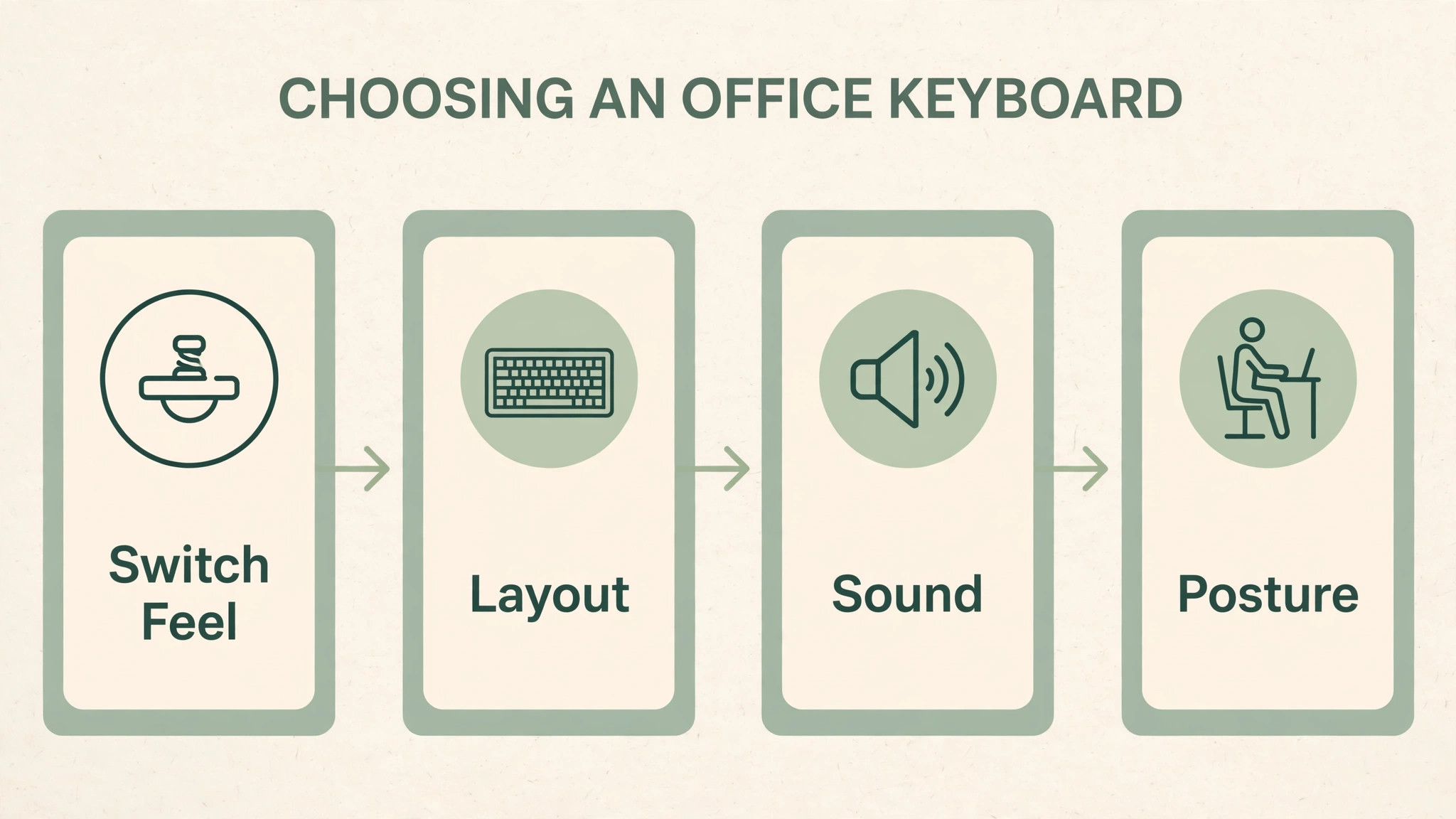
Typing comfort is decided by force, travel, sound, layout, and posture, not by brand or by how expensive a keyboard looks on a desk. A keyboard that forces fingers to bottom out hard, that places hands at an awkward angle, or that clacks loudly enough to distract colleagues will tire hands by lunch, while a keyboard with the right switch feel, a comfortable keycap shape, and a neutral wrist position will carry a full working day without complaint. That distinction matters for the best keyboard for office typing comfort, because office typing is repetitive work, and small daily friction compounds into fatigue, strain, and slower output over months.
If you are looking for the best keyboard for office typing comfort, start with your hands, your typing style, and your office noise rules, and let the keyboard follow those facts, not a gaming or enthusiast trend.
Office typing comfort has a different priority list from gaming or enthusiast keyboard buying. Gaming buyers prioritise speed, polling rate, and actuation point, while office buyers should prioritise consistent feel across a full shift, low fatigue, quiet operation for shared spaces, and a layout that supports the work they actually do, including numbers, shortcuts, and function keys. A keyboard that feels delightful for ten minutes in a shop can feel tiring after four hours of documents, email, and spreadsheets, which is why this guide tests comfort over a working day, not over a first impression.
Four keyboards are compared, with real prices and switch details from published 2026 comparisons, plus a switch guide that explains the feel choices in plain language, so you can match keyboard to hands rather than to hype.
How to Choose an Office Typing Keyboard
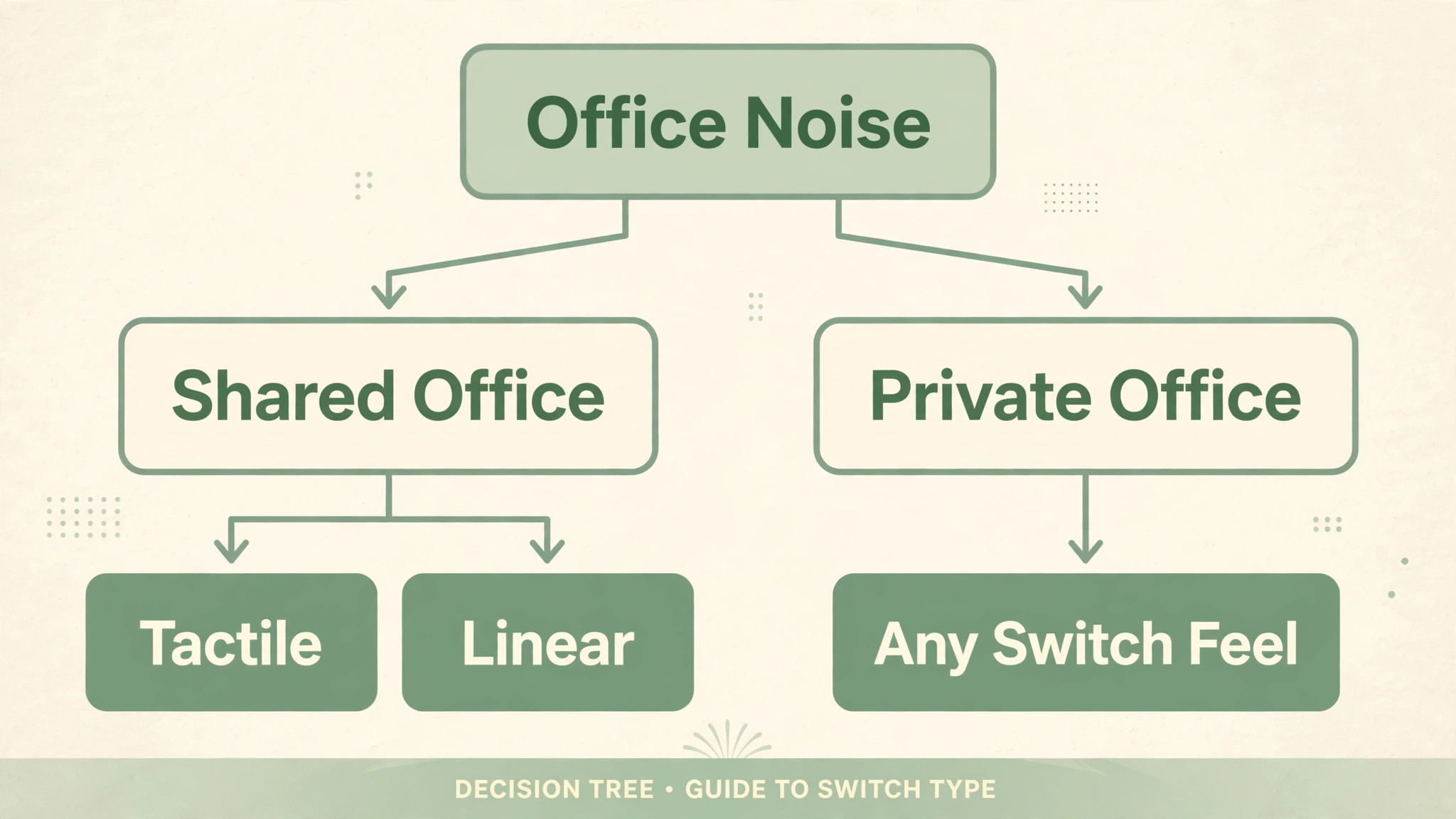
Switch feel is the first comfort variable, and it divides into three families. Switch feel is also the first test when you judge the best keyboard for office typing comfort, since a switch that tires fingers will fail no matter how good the layout or build is. Linear switches move smoothly from top to bottom without a bump, which suits fast typists who like a clean press and who do not want tactile feedback interrupting flow. Tactile switches add a small bump at the actuation point, which confirms each keypress without a loud click, and which many office typists prefer because the bump reduces bottoming out and improves accuracy.
Clicky switches add a bump plus an audible click, which is satisfying alone but disruptive in shared offices and open plan spaces, and which should be avoided for most office work unless you work alone with a closed door. For office comfort, tactile switches are the usual sweet spot, with linear as the quiet alternative for fast typists who dislike bumps.
Key travel, keycap shape, and layout are the next comfort variables. Travel, the distance a key moves when pressed, affects fatigue, with very short travel feeling abrupt for long documents and very long travel feeling tiring for fast typists. Low profile switches, found on Logitech MX keyboards, offer shorter travel that suits laptop typists moving to a desktop keyboard, while standard profile mechanical switches offer deeper travel that suits typists who like a substantial press. Keycap shape matters too, with sculpted or gently dished caps guiding fingers to the centre of each key, while flat caps can feel less secure during fast typing.
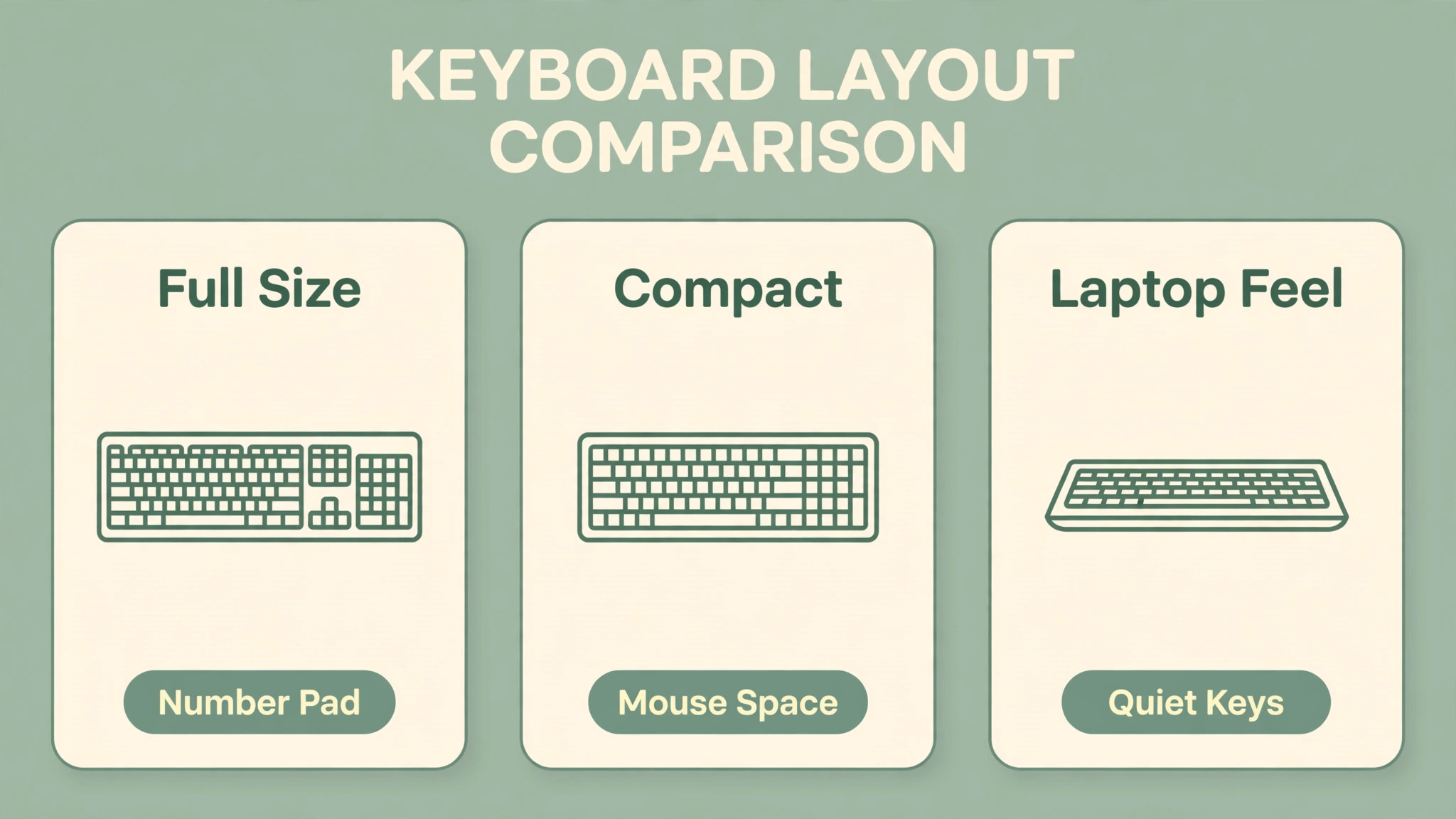
Layout must match work, with a full size keyboard suiting spreadsheet and number heavy work, a tenkeyless layout suiting writers who value mouse space, and a 75 percent layout suiting compact desks that still need function keys.
Sound, connectivity, and build complete the office checklist. Sound matters in shared offices, where a loud keyboard creates social friction even if it feels good alone, so test sound with a recording or a shop demo and favour quiet switches, dampened keycaps, or a keyboard with sound absorbing layers for shared spaces. Connectivity matters for multi device workers, with Bluetooth and 2.4 GHz wireless letting one keyboard switch between laptop, tablet, and desktop, while wired USB offers the simplest reliability and no battery anxiety.
Build matters for longevity, with a solid frame, stable keys that do not wobble, and adjustable feet that allow a slight tilt or a flat position, since a keyboard that flexes or wobbles will feel cheap and tiring over time. Hot swap capability, where switches pull out without soldering, is a bonus that lets you try different switch feels later without buying a new keyboard, and it is worth prioritising if you are unsure about switch preference.
Ergonomics is not a keyboard feature alone, it is a system of chair, desk, keyboard, and wrist position. Keep wrists neutral, not bent up or down, with forearms roughly parallel to the floor, and avoid resting wrists heavily on a hard desk edge, which compresses tendons over time. A wrist rest helps some typists, but only if it supports the heel of the palm without pushing wrists upward, and a negative tilt keyboard tray helps others by angling keys away from the body. Take short breaks every hour, stretch fingers and wrists, and vary tasks so typing is not continuous for four hours without pause.
A comfortable keyboard cannot fix a poor chair or desk height, so check the whole workstation before blaming the keyboard alone.
Switch Guide for Office Typists
Linear switches, such as Cherry MX Red, Gateron Yellow, or Logitech low profile linear variants, press smoothly without a bump, with a consistent force curve from top to bottom. They suit fast typists, gamers who type a lot, and typists who find tactile bumps distracting, and they are generally quieter than clicky switches, though not silent. Their risk for office work is bottoming out, since without a bump to signal actuation, some typists press keys fully to the bottom with extra force, which increases fatigue over a long day. Lighter linear switches reduce that force, while heavier linear switches suit typists with a heavy touch who want control.
Tactile switches, such as Cherry MX Brown, Gateron Brown, Gateron Jupiter Banana, or Logitech tactile low profile switches, add a bump at actuation that confirms each press without a click. That bump helps typists learn to press just to actuation rather than bottoming out hard, which reduces fatigue and improves accuracy for many office typists. Tactile switches are the most popular office choice for good reason, balancing feedback, quiet operation, and all day comfort. Their risk is a mushy or scratchy feel on cheap switches, so test a switch tester or a demo keyboard before committing, since tactile quality varies more by switch brand and keyboard build than by switch colour name alone.
Clicky switches, such as Cherry MX Blue, add a bump plus a sharp click that many typists love for feedback and rhythm. They suit private offices, home offices with a closed door, and typists who work alone, but they are too loud for most shared offices, open plan spaces, and video calls, where microphone pickup makes clicks especially noticeable. If you love clicky feel but share a space, consider tactile switches with a similar bump without the click, or a clicky keyboard reserved for home use only.
Scissor switches, found on laptop keyboards and the Logitech MX Keys S, offer short travel, quiet operation, and a familiar laptop feel, which suits typists moving from a laptop to a desktop keyboard who want consistency rather than a mechanical learning curve.
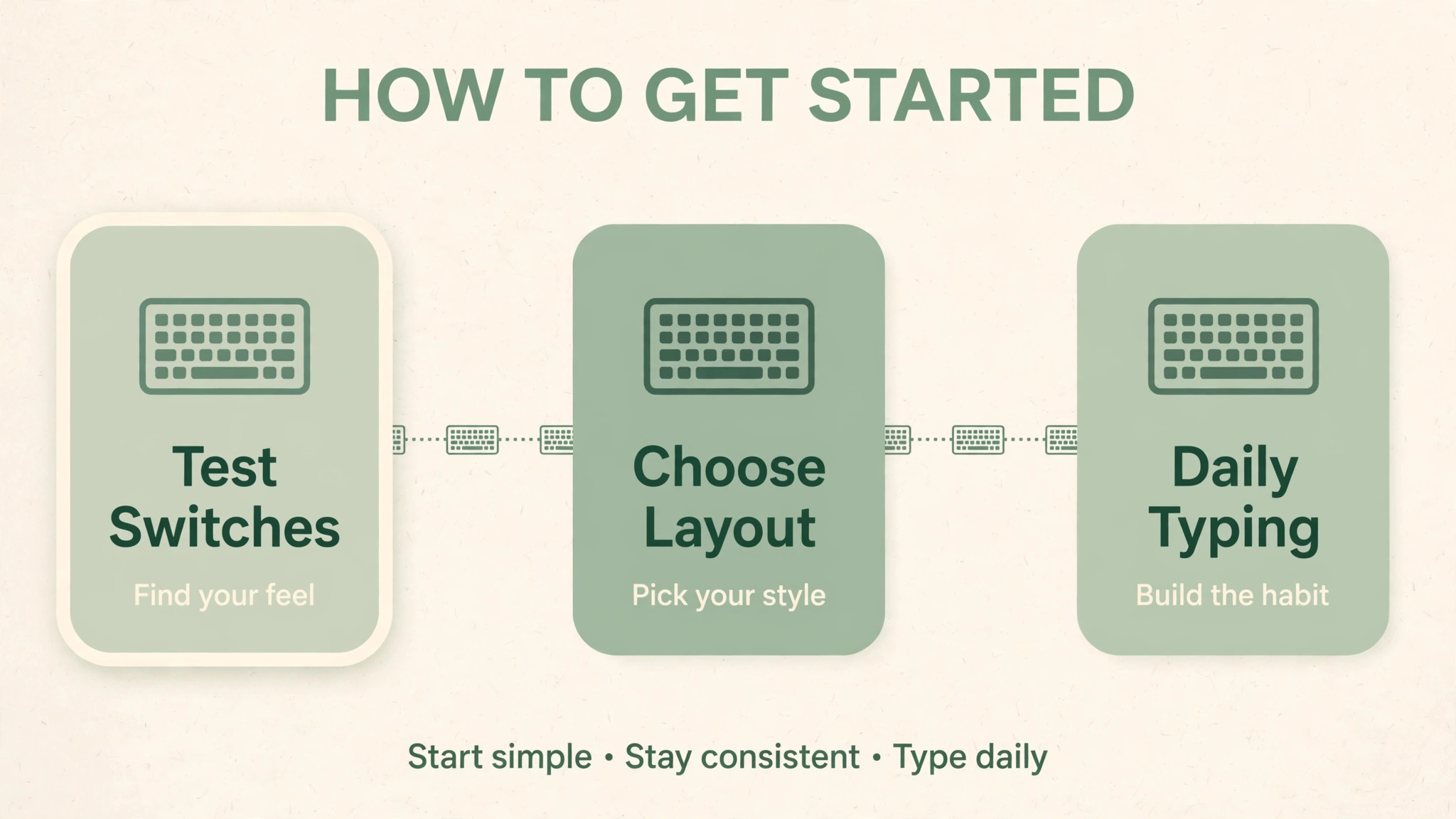
Switch testing before buying is the single best comfort investment, and it costs little. A switch tester, costing roughly 20 to 30 dollars for a set of common switches, lets you press linear, tactile, and clicky switches side by side and learn which feel your fingers prefer over minutes rather than guessing from descriptions. Alternatively, visit a shop and type a paragraph on demo keyboards, paying attention to fatigue after a few minutes, not just first impression delight. Note which switches cause finger soreness, which cause accidental keypresses, and which feel natural without thought, since the switch that disappears during typing is the switch that will serve a working day best.
Hot swap keyboards let you change switches later, which reduces the risk of a wrong first choice, and which is why hot swap models feature prominently in this guide.
Best Keyboard for Office Typing Comfort Compared in Four Models
| Keyboard | Layout and switches | Price noted | Connection | Best for |
|---|---|---|---|---|
| Keychron Q1 Max | 75 percent, Gateron Jupiter hot swap, gasket mount | About 200 dollars | Bluetooth, 2.4 GHz, USB-C | Premium comfort, custom feel |
| Logitech MX Mechanical | Full size or tenkeyless, low profile tactile | About 150 to 180 dollars | Bluetooth, Logi Bolt, USB-C | Low profile comfort, multi device |
| Keychron V1 Max | 75 percent, Gateron Jupiter Banana hot swap | About 95 to 110 dollars | Bluetooth, 2.4 GHz, USB-C | Value custom comfort |
| Logitech MX Keys S | Full size, scissor switch, backlit | About 90 to 110 dollars | Bluetooth, Logi Bolt, USB-C | Quiet laptop feel, shared offices |
Prices are published comparison snapshots and move with sales and switch choices, so confirm the current price and exact switch and layout before ordering. Several models offer multiple switch options, and the wrong switch choice can change comfort completely, so order the switch type this guide recommends for office work, or order a hot swap model and a switch tester to confirm preference before committing to a full set.
The Keychron Q1 Max, at about 200 dollars, is a 75 percent aluminium keyboard with Gateron Jupiter hot swap switches, a gasket mount design that softens keypresses and sound, QMK and VIA software for remapping, and tri mode connectivity via Bluetooth, 2.4 GHz, and USB-C. Its gasket mount, which suspends the plate on gaskets rather than bolting it rigidly, produces a softer, deeper typing feel with less harsh bottoming out, which many typists describe as the most comfortable mechanical feel available at this price. Its hot swap sockets let you try different switches without soldering, its keycaps are well shaped for long sessions, and its build quality feels permanent rather than disposable.
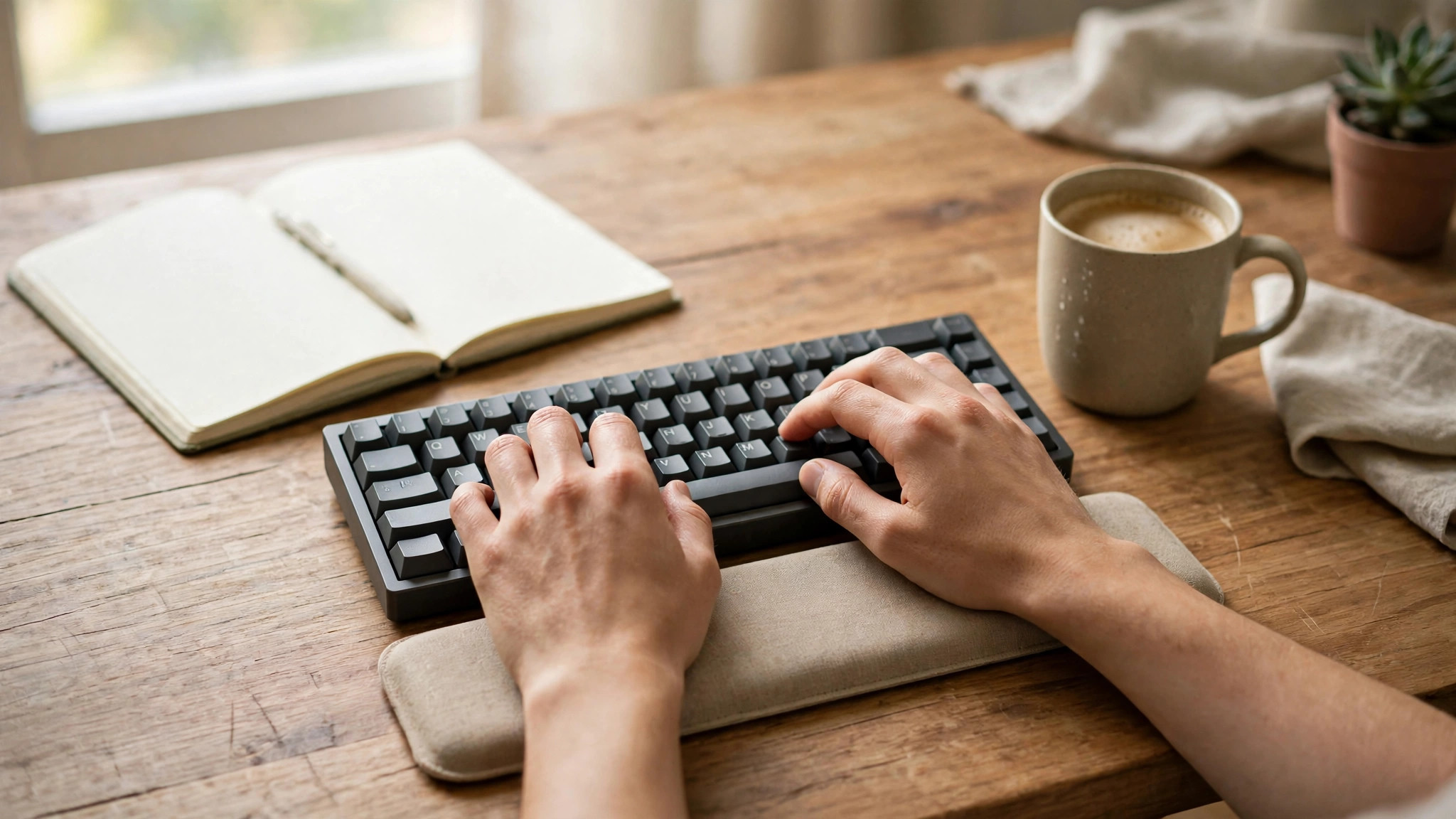
Skip it if budget is tight, since at 200 dollars it costs twice the V1 Max for a refinement in build and sound rather than a transformation in typing, and skip it if you need a number pad, since its 75 percent layout omits the dedicated number pad that spreadsheet workers rely on. Also skip it if you prefer a low profile laptop feel, since its standard profile mechanical keys are taller and heavier than MX Mechanical or MX Keys S keys. Buy the Q1 Max when comfort is the top priority, when you want a keyboard that will last years and accept switch changes, and when a compact layout without a number pad suits your work.
Logitech MX Mechanical, the Low Profile Professional Pick
The Logitech MX Mechanical, at about 150 to 180 dollars, offers low profile mechanical switches in tactile or linear variants, a full size or tenkeyless layout, Bluetooth and Logi Bolt multi device connectivity, backlit keys, and a design that bridges laptop familiarity with mechanical feel. Its low profile switches reduce finger travel compared with standard mechanical switches, which suits laptop typists and reduces fatigue for some office workers, while its tactile variant retains a bump for feedback without clicky noise. Its multi device switching, with dedicated keys for three devices, suits workers who move between laptop, desktop, and tablet daily, and its build is solid and professional for office use.
Skip it if you want hot swap switches, since the MX Mechanical switches are not user swappable in the way Keychron hot swap models are, so switch choice at purchase is final. Also skip it if you want the deepest, softest mechanical feel, since low profile switches feel more like a premium laptop keyboard than a gasket mount mechanical keyboard, which some enthusiasts find less satisfying for long documents. Buy the MX Mechanical when low profile comfort, multi device switching, and Logitech software integration matter, and when you want a professional keyboard that works immediately without customisation learning.
Keychron V1 Max, the Value Custom Pick
The Keychron V1 Max, at about 95 to 110 dollars, offers the Q1 Max core comfort ideas at half the price, with a 75 percent layout, Gateron Jupiter Banana tactile hot swap switches, tri mode connectivity, QMK and VIA support, and a plastic case with sound absorbing layers. Its Banana switches provide a tactile bump that office typists love, its hot swap sockets let you experiment with switches later, and its sound, while not as refined as the aluminium Q1 Max, is still pleasant and quiet enough for most offices with tactile switches.
For a buyer who wants custom mechanical comfort without paying premium aluminium prices, this is a strong value pick, and it is the model many guides recommend as the first mechanical keyboard for office workers. That value plus hot swap flexibility is a strong case for it as the best keyboard for office typing comfort for first time mechanical buyers.
Skip it if you need a number pad, since its 75 percent layout omits one, and skip it if you want premium aluminium build or the softest gasket feel, since its plastic case and mount differ from the Q1 Max in feel and sound. Also check keycap and switch details for the exact listing, since Keychron offers multiple switch and keycap options that change feel and sound. Buy the V1 Max when value and customisation matter, when you are unsure about switch preference and want hot swap flexibility, and when a compact layout suits your desk and work.
The Logitech MX Keys S, at about 90 to 110 dollars, is a full size scissor switch keyboard with backlit keys, Bluetooth and Logi Bolt multi device connectivity, a low profile laptop feel, and quiet operation that suits shared offices, open plan spaces, and video calls. Its scissor switches offer short, consistent travel with a familiar laptop feel, its keys are stable and well spaced, and its full size layout includes a number pad for spreadsheet work. Its backlight adjusts to ambient light, its multi device switching moves easily across three devices, and its quiet sound makes it the safest choice for offices where keyboard noise creates social friction.
Skip it if you want mechanical switch feel, hot swap capability, or deep key travel, since the MX Keys S is deliberately a laptop style keyboard, not a mechanical keyboard, and its feel will disappoint enthusiasts expecting mechanical feedback. Also skip it if you prefer a compact layout, since its full size footprint takes more desk space and pushes the mouse further right, which can strain shoulders for some users. Buy the MX Keys S when quiet operation, laptop familiarity, a number pad, and multi device switching matter most, and when you want a keyboard that disappears into office work rather than demanding attention.
Rejection Reasons and Layout First Buying
Each keyboard has a clear skip reason, and those reasons protect buyers from the most common typing comfort regret, which is choosing a keyboard for feel alone while ignoring layout, noise, or switch lock in. Skip the Q1 Max if budget or a number pad matters more than premium feel. Skip the MX Mechanical if hot swap or deep mechanical feel matters more than low profile convenience. Skip the V1 Max if a number pad or aluminium build matters more than value. Skip the MX Keys S if mechanical feel or compact layout matters more than quiet laptop familiarity.
A keyboard bought against its skip reason will frustrate, even if reviewers praised it for a different typing style and office setup.
Layout choice deserves more attention than switch colour, because layout decides daily workflow. Spreadsheet and number heavy workers should prioritise full size keyboards with a number pad, even if that means a larger footprint and a mouse positioned further right. Writers and coders who value mouse space and a centred typing position should consider tenkeyless or 75 percent layouts, which bring the mouse closer and reduce shoulder reach. Compact desk workers should consider 75 percent layouts that retain function keys and arrows, which are essential for office shortcuts, rather than 60 percent layouts that hide arrows and function keys behind layers and slow office work.
Test layout by typing your most common tasks, including numbers, shortcuts, and function key use, not just prose, since a layout that suits prose may frustrate spreadsheet work.
Setup Checklist, Wrist Position, and Mistakes
- Choose tactile switches for most office work, linear for fast quiet typing, and avoid clicky in shared spaces.
- Test switches with a tester or demo keyboard before committing, and favour hot swap if unsure.
- Match layout to work, full size for numbers, tenkeyless or 75 percent for mouse space and compact desks.
- Set keyboard height so wrists stay neutral, forearms parallel to floor, and avoid resting wrists on hard edges.
- Use a wrist rest only if it supports the palm heel without pushing wrists upward, and try negative tilt if wrists ache.
- Connect via Bluetooth or 2.4 GHz for multi device work, or USB for simplest reliability, and keep a cable handy for charging.
- Take short breaks hourly, stretch fingers and wrists, and vary tasks to avoid continuous typing strain.
- Update firmware and remap keys with maker software only if shortcuts improve your actual workflow.
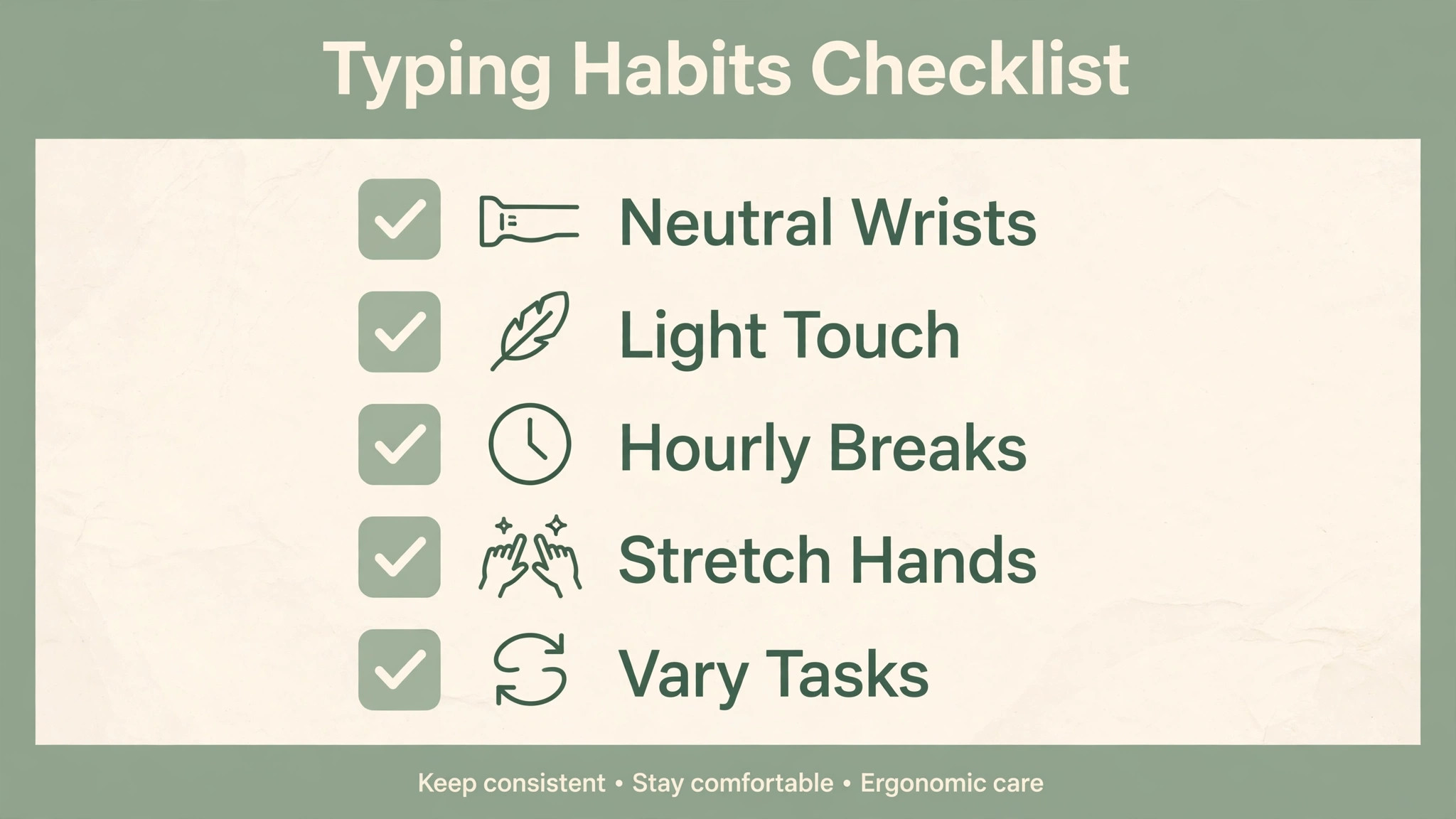
Wrist position and desk height matter more than keyboard tilt alone. Set chair height so feet rest flat and forearms are roughly parallel to the floor, with the keyboard at elbow height or slightly below. If the desk is too high, a keyboard tray or an adjustable desk helps more than keyboard feet alone. Avoid typing with wrists bent sharply upward, which is common when keyboards sit too high or when wrist rests are too thick, and avoid resting wrists heavily on a hard surface while typing, since that compresses tendons and reduces blood flow.
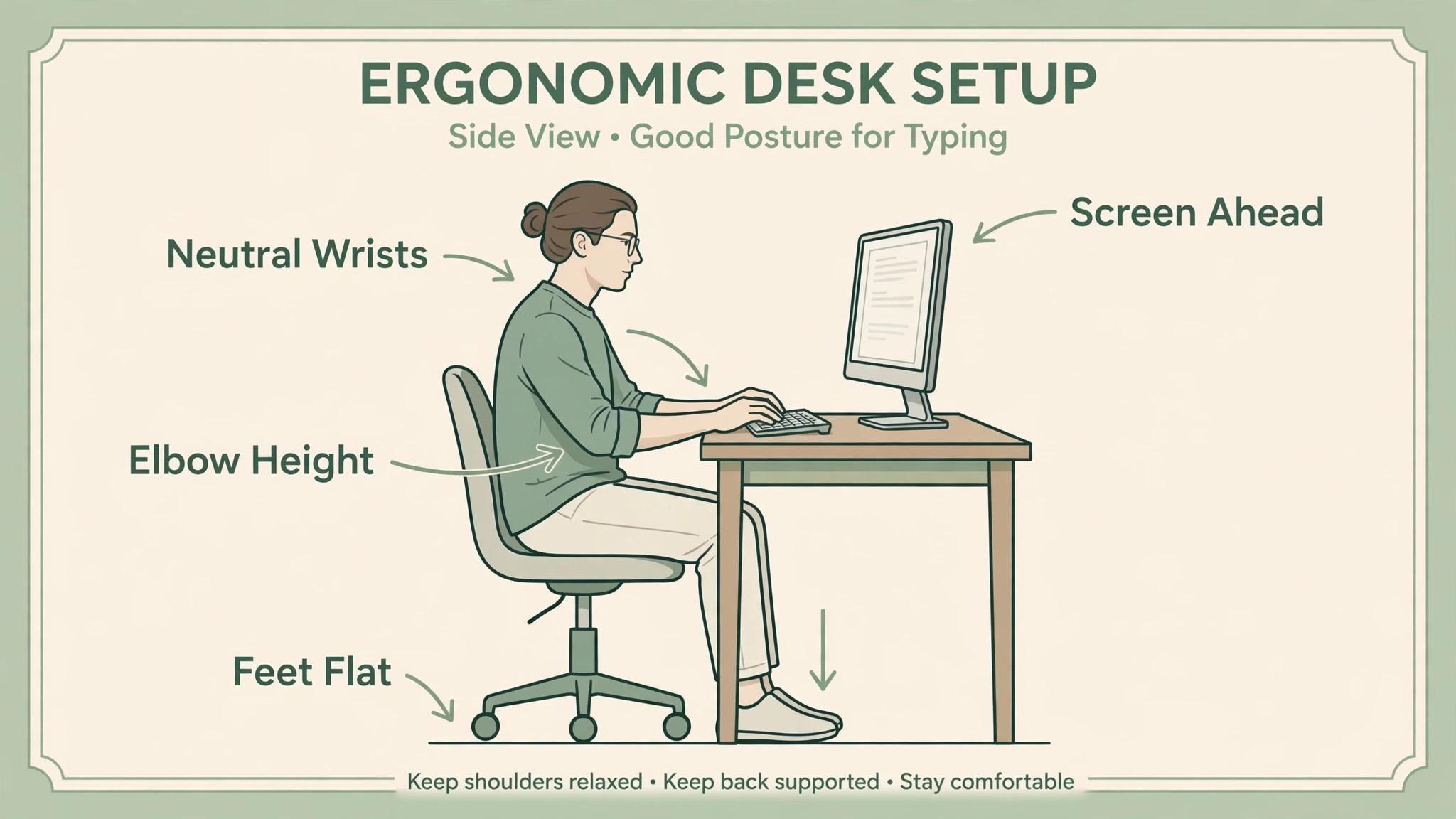
A light touch, with fingers floating rather than resting heavily, reduces fatigue more than any switch change, and it is a habit worth practising deliberately for a week after a new keyboard arrives.
Mistakes office typists make with keyboards follow a pattern. The first mistake is buying clicky switches for a shared office, then facing complaints and video call noise problems that a tactile switch would have avoided. The second mistake is buying a compact layout without a number pad for spreadsheet work, then missing the pad daily and buying a separate number pad anyway. The third mistake is ignoring desk and chair height, blaming the keyboard for wrist pain that a height adjustment would fix. The fourth mistake is chasing enthusiast trends, such as ultra light linear switches or exotic keycaps, that feel exciting for a week and tiring for a working year.
Choose for a working day, not for a first impression, and test with real work tasks before committing.
More Reading for Office and Creator Gear
If a keyboard choice is clearer now, the wider office guides on Stratilyze cover the rest of the desk. The guide to a desk lamp for eye strain helps you light the desk without glare, the guide to a webcam for online tutoring helps you look good on calls, the guide to a chair for long study sessions covers seating for long typing days, and the guide to a keyboard for programming beginners covers a related keyboard angle for coders. Read the chair guide next if wrist or back discomfort affects typing, since chair and desk height decide keyboard comfort as much as switches do.
Frequently Asked Questions
What is the best keyboard for office typing comfort overall?
For most office typists, a tactile mechanical keyboard with hot swap switches, such as the Keychron V1 Max at about 95 to 110 dollars, offers the best balance of comfort, value, and flexibility, because its tactile bump reduces bottoming out and its hot swap sockets let you try other switches later. Balance across feel, layout, and noise is what defines the best keyboard for office typing comfort for most workers. For quiet shared offices, the Logitech MX Keys S at about 90 to 110 dollars is a strong alternative, while the best keyboard for office typing comfort for premium feel is the Keychron Q1 Max at about 200 dollars.
Choose by switch feel, layout, and noise rules, using the setup checklist, rather than by a single best label.
Are mechanical keyboards better than membrane keyboards for office typing?
Mechanical keyboards generally offer more consistent feel, longer key life, and switch choice, which benefits heavy typists, while good membrane and scissor keyboards, such as the MX Keys S, offer quiet operation and laptop familiarity that suit shared offices and laptop typists. Neither type is universally better, since comfort depends on switch feel, travel, layout, and posture together. Test both types with real work tasks, and choose the keyboard that feels natural after an hour of typing, not just after a minute in a shop.
What switch type is best for office typing?
Tactile switches are best for most office typists, because the bump confirms each keypress without a loud click, which reduces bottoming out and improves accuracy over a long day. Linear switches suit fast typists who dislike bumps and want a smooth press, while clicky switches suit private offices only, since their click disrupts shared spaces and video calls. Scissor switches suit laptop typists who want consistency with a laptop feel. Test switches with a tester before buying, since personal preference varies more than any guide can predict.
Do I need a number pad for office work?
A number pad is essential for spreadsheet, accounting, and data entry work, where number entry speed matters daily, and a full size keyboard is the simplest way to include one. Writers, coders, and general office workers who rarely enter numbers can choose a tenkeyless or 75 percent layout for mouse space and a more centred typing position, and add a separate number pad later if needs change. Match layout to your actual number use, not to a generic recommendation, since a missing number pad frustrates daily number work more than any switch choice.
Is a wrist rest good for typing comfort?
A wrist rest helps some typists by supporting the heel of the palm and reducing pressure on a hard desk edge, but it can hurt if it pushes wrists upward into a bent position. Use a rest only if wrists stay neutral with it, and remove it if wrists bend or ache. A rest should support the palm between typing bursts, not bear weight during typing, and it should be low and soft rather than high and firm. If wrist pain persists, check desk and chair height first, since height problems cause more wrist issues than wrist rest choice.
How do I reduce typing fatigue over a long day?
Keep wrists neutral, forearms parallel to the floor, and fingers light rather than pounding keys, with a keyboard and switch feel that suits your touch. Take short breaks every hour, stretch fingers, wrists, and shoulders, and vary tasks so typing is not continuous for hours. Use a tactile switch that signals actuation without bottoming out hard, and set chair and desk height so elbows sit comfortably. If fatigue or pain persists despite setup changes, seek professional ergonomic advice, since persistent pain needs assessment beyond keyboard choice.
Comfort You Can Type On All Day
A keyboard is a daily tool, not a desk decoration, and comfort over a full shift is the only test that matters. The V1 Max proves that custom mechanical comfort costs under 110 dollars, the MX Keys S proves that quiet laptop familiarity still serves shared offices brilliantly, the MX Mechanical proves that low profile professionalism bridges laptop and desktop, and the Q1 Max proves that premium build and gasket feel reward typists who type all day. When you judge the best keyboard for office typing comfort by switch feel, layout, noise, and wrist position, you buy a keyboard that disappears into work, which is the highest praise any office tool can earn.
Test switches, match layout to work, set wrist position correctly, and let the keyboard support your hands rather than fighting them. That routine, with any keyboard in this guide matched to your typing style, will carry documents, email, and spreadsheets through a working year without the fatigue that a wrong keyboard creates by lunch.