A touch screen that ignores taps in one area but works everywhere else is describing its own fault. A dead zone points at the display, a screen that only fails with a case on points at the case, and a screen that fails after a drop points at damage that no setting can repair. This guide shows how to fix iPhone touch screen not responding by reading those clues before reaching for a restore, because the right response depends entirely on which pattern your phone shows.
Touch faults reward a careful hand. Testing without the case, testing with clean dry hands, and testing in different parts of the screen each rule out a different cause, and together they draw a map of the fault. That map is what decides whether a restart, a settings change, or a repair appointment is the honest next step.
The Likely Causes, Matched to What You See
Before the steps, it helps to know that this fault rarely has a single cause, and the table below separates the likely causes by the sign you actually see, so you can start at the row that matches your situation rather than at the top of a generic list. Working out how to fix iPhone touch screen not responding starts with that match, because the right first step depends on the symptom in front of you.
| Likely cause | Sign you will see | First check |
|---|---|---|
| Software freeze | Whole screen dead after an app crash | Force restart the iPhone |
| Case or protector interference | Edges or one area unresponsive | Remove the case and protector for a test |
| Wet or dirty screen | Taps register in the wrong place | Dry and clean the screen |
| Storage full | Screen lags then stops responding | Free space after a restart |
| Faulty app | Touch fails in one app only | Delete and reinstall that app |
| Hardware damage | Dead strip after a drop | Book a display inspection |
Note what changed before the fault began, what still works, and what you have already tried, because those three facts turn a frustrating afternoon into a short sequence of tests. A short note on those points, written before you start, also makes any later conversation with support far shorter, since you can describe what you have ruled out instead of repeating the symptom.
Before You Force a Restart
Read the whole guide once before changing anything, because the order matters, and a step skipped early often returns as a larger problem later. Where a price or a feature is given, check it on the vendor page before you commit, since pricing and features change, and the right choice depends on your situation and your existing setup.
When you approach fix iPhone touch screen not responding, keep a simple log of each test and its result, even a few lines on paper. Change one thing, test, and note the result before moving on, because changing three things at once and seeing an improvement leaves you unsure which change helped, and the fault returns when the unhelpful changes are undone.
Back up anything important before the later steps, even if you do not expect to reach them. A backup made while the device still works is worth far more than a backup attempted after a destructive step, and it removes the fear that keeps people from taking a legitimate last resort step. Check that the backup completed, rather than assuming it did, since a backup that never finished offers no protection at all.

How to fix iPhone touch screen not responding in the Right Order
Working through fix iPhone touch screen not responding in this order keeps the least disruptive tests first, so a simple settings fault is found before anyone considers a reinstall, a replacement, or a repair booking, and each step below ends with what a success looks like, so you know when to stop.
- **Wait and watch for a few seconds.** Leave the phone untouched for about thirty seconds before pressing anything else. A busy app or a background task can freeze touch briefly and then recover on its own. Repeated tapping during that window can queue inputs that fire all at once when the phone recovers, which makes a brief freeze look like a wild fault. If this step restores normal behaviour, stop here and note what worked, because continuing past a working fix only adds risk.
- **Force restart the iPhone.** Press and release Volume Up, press and release Volume Down, then press and hold the Side button until the Apple logo appears. On older models with a Home button, hold the Home and Side buttons together instead. A force restart clears a frozen system state without erasing data, and it is the fastest test for a whole screen freeze. If this step restores normal behaviour, stop here and note what worked, because continuing past a working fix only adds risk.
- **Remove the case and screen protector.** Take off the case and peel back the screen protector edge for a test, or remove it fully if touch improves. Thick cases can press on screen edges, and a lifting or cracked protector can confuse touch sensing in one area. Test taps across the whole screen, including corners and edges, before refitting anything. If this step restores normal behaviour, stop here and note what worked, because continuing past a working fix only adds risk.
- **Clean and dry the screen.** Wipe the screen with a soft dry cloth and make sure both the screen and your hands are dry. Water, lotion, and gloves can each change how touch registers, and a wet screen may respond to phantom touches. Test again with clean dry hands, and only then treat the fault as a software or hardware problem. If this step restores normal behaviour, stop here and note what worked, because continuing past a working fix only adds risk.
- **Test touch in different areas and apps.** Open several apps and test taps, swipes, and typing in each, noting exactly which areas fail. A fault in one app only points at that app, while a dead strip in every app points at the display or its connection. A precise map of the dead area is also the detail a repair technician will ask for first. If this step restores normal behaviour, stop here and note what worked, because continuing past a working fix only adds risk.
- **Close the suspect app and restart normally.** Force close the app that was open when touch failed, then restart the phone normally and reopen the app. If touch fails only in that app, delete it and reinstall it from the App Store. A corrupted app install can seize touch input in ways that look like a system fault. At this stage of fix iPhone touch screen not responding, a success here is especially valuable, because it proves the fault sat in the middle of the sequence rather than at either end. If this step restores normal behaviour, stop here and note what worked, because continuing past a working fix only adds risk.
- **Check storage and update iOS.** Open Settings, General, iPhone Storage, and free space if the phone is nearly full, then open Settings, General, Software Update, and install any available update. A full storage can stall the system until touch stops responding, and touch faults after a major update are often fixed in a following point release. If this step restores normal behaviour, stop here and note what worked, because continuing past a working fix only adds risk.
- **Check accessibility touch settings.** Open Settings, Accessibility, Touch, and review Touch Accommodations, AssistiveTouch, and any custom gesture settings. A setting changed by accident, or enabled during an earlier troubleshooting attempt, can delay, ignore, or duplicate touches. Turn suspect settings off for a test before assuming the screen itself has failed. If this step restores normal behaviour, stop here and note what worked, because continuing past a working fix only adds risk.
- **Reset all settings.** Open Settings, General, Transfer or Reset iPhone, Reset, and choose Reset All Settings. This keeps your files but returns settings to defaults, so note Wi-Fi passwords and custom settings first. Test touch before restoring custom settings, so a restored setting cannot quietly reintroduce the fault. If this step restores normal behaviour, stop here and note what worked, because continuing past a working fix only adds risk.
- **Test with a backup free of the fault if possible.** If touch works after a restart but fails again after restoring a backup, the fault may live in restored data or settings. Note the pattern rather than restoring repeatedly, because each restore costs time and may hide the trigger. A clean test state, even briefly, gives the clearest evidence about software versus hardware. If this step restores normal behaviour, stop here and note what worked, because continuing past a working fix only adds risk.
- **Back up and restore as a last resort.** Back up the phone through a computer if touch allows, then restore it and test touch before restoring your backup. A fault that survives a clean restore points strongly at hardware. Do not attempt this step if touch is so unreliable that a backup cannot complete, and seek help instead. If this step restores normal behaviour, stop here and note what worked, because continuing past a working fix only adds risk.
- **Stop and seek service for hardware signs.** Stop troubleshooting when a dead strip follows a drop, when the screen shows lines or discolouration, or when touch fails in exactly the same area after a clean restore. Further resets cannot repair a damaged display connection, and continued forcing can worsen the damage. Book a display inspection with your notes on the dead area. If this step restores normal behaviour, stop here and note what worked, because continuing past a working fix only adds risk.

What Changes the Outcome
Touch faults are hard to judge because the screen is both the symptom and the tool you use to test it. When touch fails, every settings menu becomes harder to reach, which is why the early steps use buttons and physical actions rather than menus. A force restart, a case removal, and a cleaning need no touch at all, and they rule out the commonest causes before you need the screen to cooperate. This distinction shapes how you should approach fix iPhone touch screen not responding.
Partial faults tell a clearer story than total failures. A screen that ignores one strip, one corner, or one edge usually points at the display or its connection, while a screen that lags everywhere usually points at storage, software, or a busy system. Map the fault before resetting anything, because that map survives even if later steps change the behaviour.
Accessories cause more touch faults than most owners expect. A protector that lifts at an edge, a case that presses the screen border, or moisture trapped under a protector can each create dead zones or phantom touches. Removing accessories for a test costs nothing and often ends the repair immediately, which is why it belongs before any reset.
The checks that matter most, in brief, are the first five steps of the sequence, and they deserve a second pass if the fault survives them.
- Wait and watch for a few seconds
- Force restart the iPhone
- Remove the case and screen protector
- Clean and dry the screen
- Test touch in different areas and apps
Apple publishes touch screen and restart guidance through its official support pages, and the button sequences in this guide follow those pages. See Apple Support for the current restart steps for your iPhone model.
Testing one change at a time is the habit that separates a quick repair from a long afternoon of guessing. Change a single setting, run the same test you ran at the start, and write down the result before you touch anything else. When a later step appears to work, that note tells you whether the improvement came from the latest change or from an earlier one that only needed time to take effect. Support teams ask for the same log, so the habit pays twice.
A short note made before you start will save time later, especially if the fault returns or if someone else has to finish the job. Record what changed just before the fault appeared, which tests you have already run, and what each test showed. A fault that began after an update, a new accessory, or a move points in a different direction from a fault that appeared out of nowhere, and that single detail often narrows the search more than any single setting.
Do not judge a fix by the first few seconds after you apply it. Some settings need a restart, some connections need a fresh pairing attempt, and some apps need a full close before a change takes effect. Run the same real world test you used at the start, such as opening the feature, making a test call, or playing a short clip, and give the result a full minute before you declare the step a failure and move on.
If the same fault has appeared before, look for the pattern rather than treating each occurrence as new. A fault that returns after every update, every long trip, or every period of heavy use usually has a trigger that the ordered steps can expose. Fixing the trigger, such as a worn cable, a full storage, or an app that hogs resources, prevents the next occurrence far better than repeating the same quick fix.
Keep the accessories you use for testing in a known good state. A spare cable, a charged spare remote battery, or a second pair of earbuds turns a vague suspicion into a clear answer in under a minute. When the fault follows the accessory to another device, the accessory is the problem. When the fault stays with the original device, the device or its settings deserve the attention.
Before any step that erases data or resets settings, confirm where your important content lives. Photos, messages, and documents that sync to a cloud account usually return after a reinstall, while local downloads and unsaved work may not. A quick backup takes a few minutes and turns a last resort step from a risk into a routine procedure.
When a fault may end in a warranty claim, preserve evidence as you go rather than reconstructing it later. Keep dated notes, keep the original accessory that failed, and avoid opening a sealed device, since an opened device can complicate a claim even when the fault is genuine. A repair centre that receives a clear timeline and untouched hardware can usually decide faster than one that receives only a description.
After any system or app update, retest the feature that previously failed, even if the update notes do not mention it. Updates change drivers, permissions, and background behaviour in ways that release notes rarely capture fully, and a fault that an update quietly fixed can return with the next update just as quietly. A two minute retest after each update turns that uncertainty into a known result.

Errors Worth Avoiding
The following errors do not cause the original fault, but they regularly turn a short repair into a long one, and they are worth naming before you start.
- Repeatedly force restarting without removing the case, which leaves the real cause in place through every restart.
- Restoring the phone before mapping which screen areas fail, which destroys the evidence a technician needs.
- Cleaning the screen with a wet cloth or a harsh cleaner, which can push moisture into edges and damage coatings.
- Assuming a hardware failure when only one app ignores touch, which leads to a repair for an app problem.
- Continuing to use a phone with a cracked screen and a dead strip, which risks cuts and further display damage.
Avoiding those errors keeps fix iPhone touch screen not responding short and calm, because every wasted reset or repeated test adds frustration without adding evidence, and a calm repair is a faster repair.

When Outside Help Is the Right Call
Book a display inspection when a dead area persists across apps after a force restart, a case removal, and a clean restore test, or when the fault began after a drop, a crack, or liquid exposure. Take a note or a photo of the dead area from another device if possible, and list the steps you tried. Stop if the screen shows swelling, separation, or a burning smell, and do not charge a phone that looks swollen.
Take your notes with you when you seek help, including which tests passed and which failed, and the exact conditions where the fault appears. Support moves faster with ruled out causes than with a repeated symptom description, and a clear log often leads to a faster repair or a correct replacement part on the first visit.
A Short Routine That Prevents Repeats
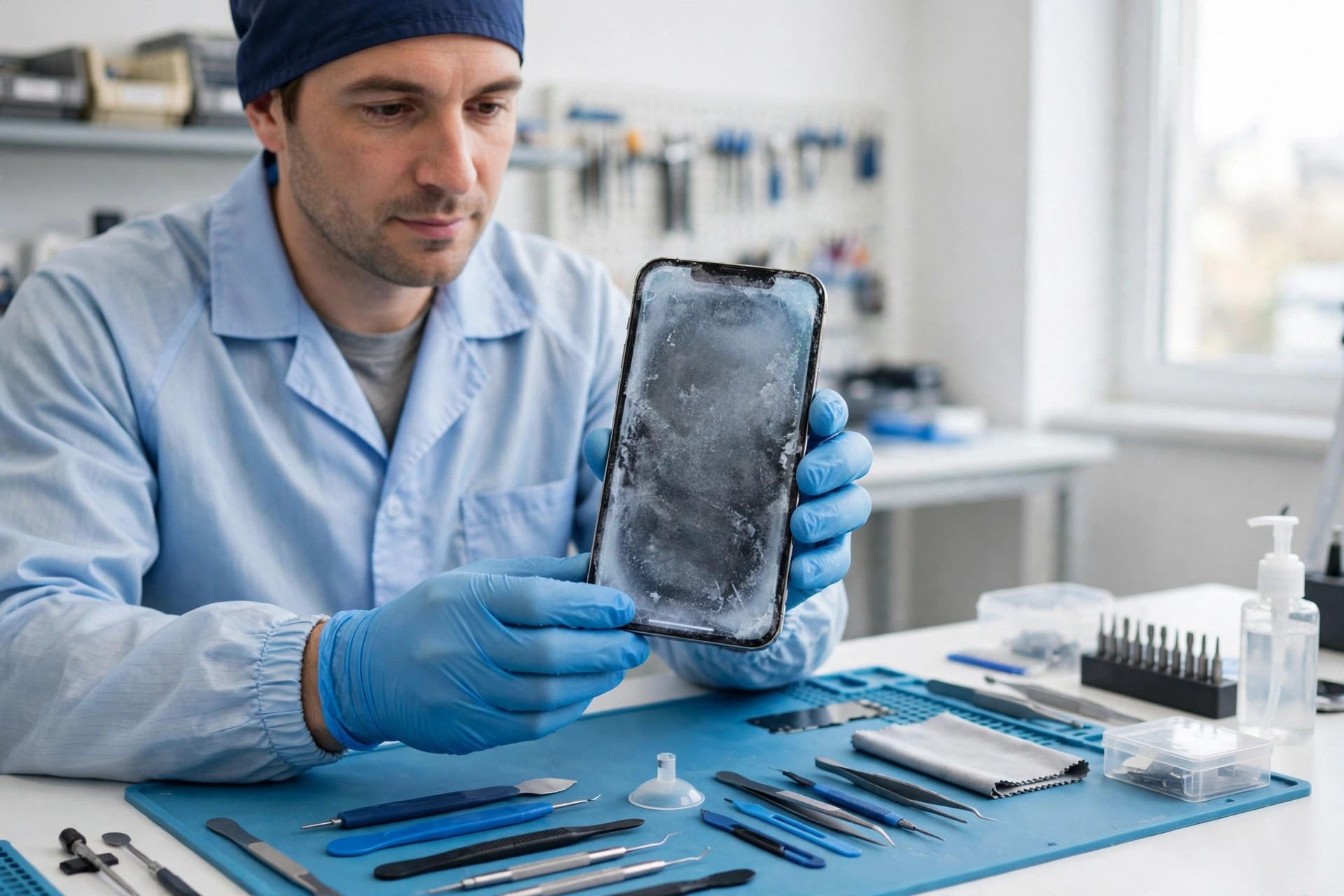
Use a well fitting case that does not press the screen edges, replace a lifting protector promptly, and keep storage comfortably free. Update iOS when point releases appear, and review accessibility touch settings after anyone else uses the phone. A quick monthly check of the protector edge, storage, and screen cleanliness prevents most touch faults from becoming total failures.
A ten minute monthly check of updates, storage, cables, and permissions catches most problems while they are still small, and it builds a baseline so a future change stands out immediately. Prevention is not extra work on top of the repair, it is the same discipline applied before the fault appears, and it pays for itself the first time it saves a repeat repair.
More Reading on Stratilyze
More Reading on Stratilyze. If this guide helped, the related guides on this site cover the neighbouring faults that often appear alongside this one, including Fix Iphone Face Id Not Working, Fix Iphone Storage Full and Fix Iphone Apps Crashing After Ios Update. Reading the closest match first usually saves a second round of troubleshooting, because a fault in one feature often shares a cause with a fault in another. Keep this guide open while you check the related one, and compare the symptom tables before changing any setting, since the right fix depends on matching your exact symptom rather than the closest headline.
When the First Sweep Misses the Cause
A second pass is not a repeat of the first pass, it is a different kind of test. The first pass rules out the common causes in order, while the second pass looks for a cause that was masked during the first, such as a second device interfering, a setting that reverted after a restart, or a fault that only appears under load. Work the second pass slowly, and change only one variable at a time, since a second pass done hastily produces the same confusion as the first pass done at random.
During the second pass, test under the exact conditions where the fault originally appeared, with the same app, the same accessory, and the same network or location. A fault that cannot be reproduced under test conditions has not necessarily been fixed, it may simply be waiting for its trigger. If the second pass still fails, the notes from both passes together give support a far stronger starting point than either pass alone, and they often reveal a pattern that a single pass hides.
Testing Every Symptom Before You Declare Victory
Return to the first step and confirm it properly before moving on, because a step that was rushed the first time often looks like a failure when it was really an incomplete test. Give it the full time it needs, watch for the result described in the main sequence, and only then move to the next step. This habit of retesting the early steps, rather than jumping to the later and more disruptive ones, saves most of the time that troubleshooting usually wastes.
The diagnosis table at the start deserves a second look once the main steps are done, because a cause that seemed unlikely at the start can become the leading explanation once the obvious ones are ruled out. Compare what you observed with the sign described for each row, and if your observation matches a row you dismissed earlier, work that row again with fresh attention. Diagnosis improves when the table is treated as a checklist to revisit, not as an introduction to skip.
Test again the next day under normal use, not just in the moment after the fix. Some faults return when the device warms up, when a background app updates, or when the original trigger recurs, and a next day test catches those returns while the repair is still fresh in your mind. If the fault returns, note exactly what changed since the fix, since that change is the most likely trigger.
Frequently Asked Questions
Why did this problem start suddenly?
The commonest trigger is a change just before the fault, such as an update, a new accessory, a move, or a period without use. Tracing that change usually points at the cause faster than testing parts at random. Note the last change first, then work through the ordered steps, because a fault with a clear trigger often has a short fix and a fault without one needs the full sequence. Retest the exact action that failed before, not an easier one.
How long should each fix take before I move on?
Give each simple step a proper test rather than a glance, because a restart, a cable swap, or a permission change needs a minute or two to show its result, while a reinstall or a restore needs longer. If a step shows no change after a fair test, move on and note the result, because the log of failed steps is what narrows the remaining causes for the steps that follow. Retest the exact action that failed before, not an easier one.
Will clearing data or resetting settings delete my content?
Clearing a cache removes temporary files only, while clearing data or storage signs you out and removes local settings, so check where your content lives before the stronger step. Content that syncs to a cloud account usually returns after a reinstall, while local downloads and unsaved work need a backup first. Never take a destructive step on a device that holds the only copy of something important. Retest the exact action that failed before, not an easier one.
What if the fault affects only one app, one device, or one connection?
That pattern is useful evidence, because a fault tied to one app points at that app and its permissions, while a fault that follows the device points at the device itself. The ordered guide for fix iPhone touch screen not responding helps separate those two cases before you change settings everywhere, and testing with a second app, a second device, or a second connection is the fastest way to draw that line. Retest the exact action that failed before, not an easier one.
When should I contact support instead of trying more fixes?
Contact support after the ordered steps fail, or immediately if you see danger signs such as heat, swelling, liquid damage, or a burning smell, and take your notes on what you tried. Support moves faster when you can list the causes you have ruled out, and continuing to guess after that point risks making a repairable fault worse or turning a warranty claim into a dispute. Retest the exact action that failed before, not an easier one.
How do I stop this happening again?
Keep updates current, keep comfortable free storage, check cables and permissions monthly, and note any change before a fault appears, because most repeats come from the same neglected basics. A ten minute monthly check is cheaper than another afternoon of troubleshooting, and it builds a baseline that makes future changes obvious before they become faults. Retest the exact action that failed before, not an easier one.
A Calm Way to Finish
Work through fix iPhone touch screen not responding in order, stop at the step that works, and keep the notes on what you tried, because that discipline turns a frustrating fault into a short sequence of tests, and it also means the next fault starts from a known baseline instead of from scratch.
Start with the first step today, test one change at a time, and let the result of each test decide the next move, because a calm ordered approach beats a fast random one, and the time saved by not repeating failed steps is time you get back for the work itself.