
Start with the check that solves most cases, which is to confirm the Outlook calendar is actually enabled for that account in iPhone settings, because a calendar that is added but not toggled on will never sync, no matter how many restarts or reinstalls follow. That single toggle, hidden among mail, contacts, and calendar switches, is the most common cause of an Outlook calendar that seems broken while Outlook mail works perfectly. When you fix Outlook calendar not syncing iPhone, the order in this guide follows that logic, moving from calendar toggles and fetch settings, through account and app steps, and only then to removal and reinstall, so a simple switch is never missed while chasing a deeper fault.
This guide covers both directions of calendar sync, which are events created in Outlook not appearing on iPhone, and events created on iPhone not appearing in Outlook, plus the case where one calendar syncs while another does not. It explains fetch versus push, calendar selection, account types, and the Outlook app versus Apple Calendar distinction, because those choices decide which settings actually control sync. Follow the steps in order, test by creating a test event after each step, and stop as soon as events sync in both directions.
What Kind of Calendar Sync Failure You Have
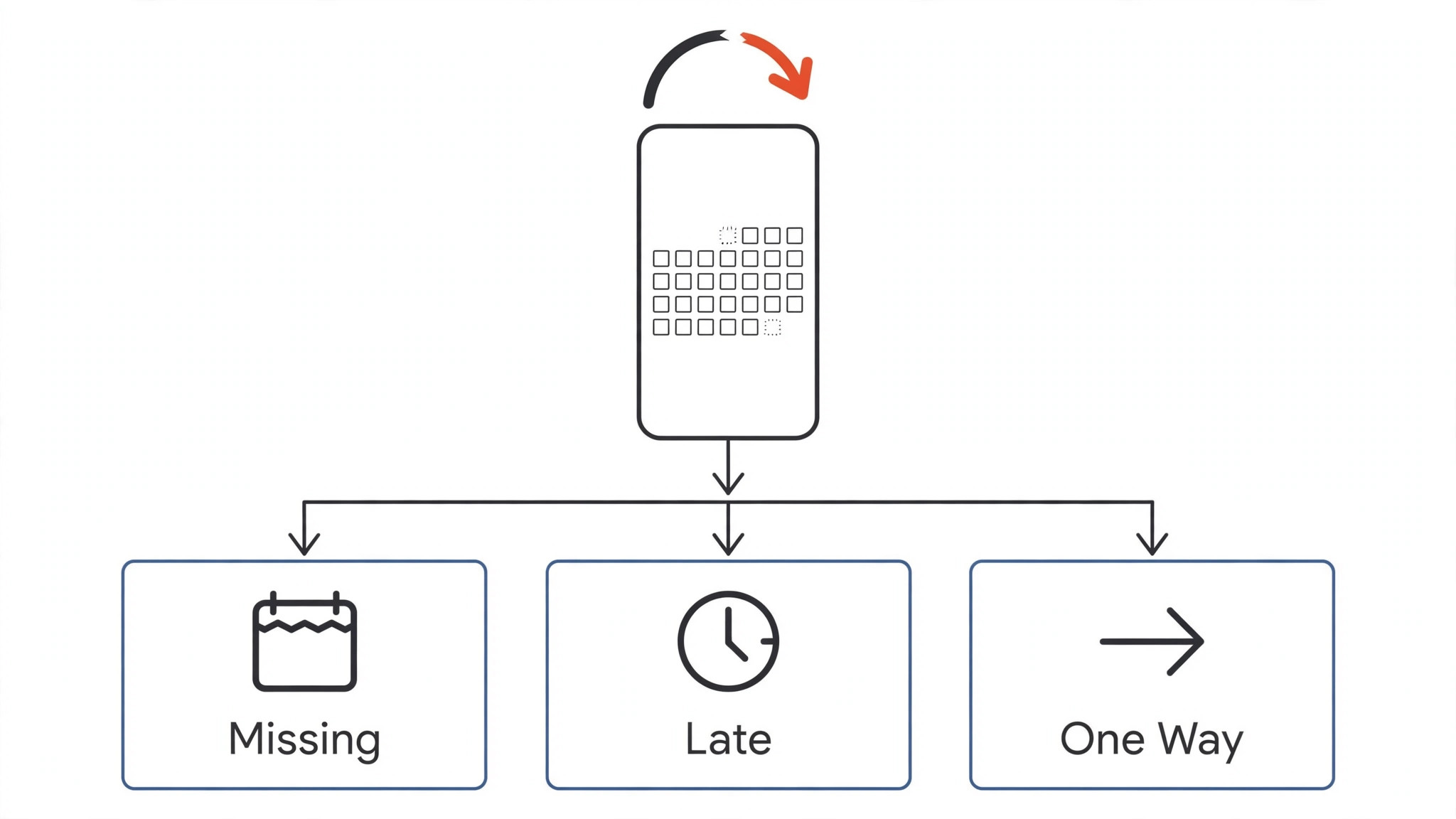
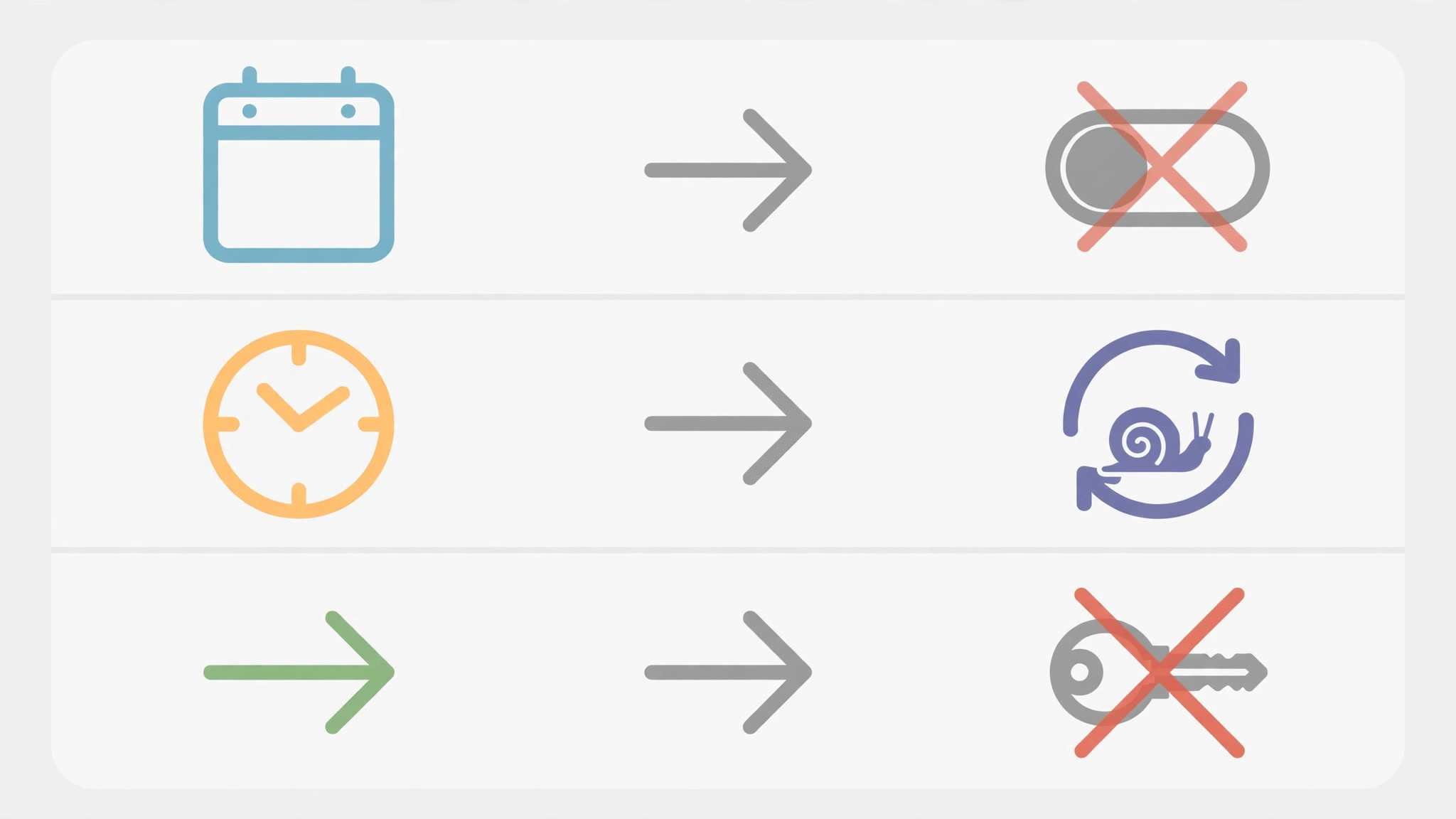
The pattern of calendar failure narrows the cause faster than any single fix, so note exactly what happens before changing settings. If no Outlook events appear on iPhone at all, while Outlook mail works, the cause is more likely a calendar toggle, a fetch setting, or an account configuration that includes mail but not calendar, because mail sync proves the account and connection work. If Outlook events appear but only after a long delay, or only when the Calendar app is opened, the cause is more likely a fetch schedule, a battery restriction, or a background refresh setting, because sync works but only in bursts rather than promptly.
If events appear on iPhone but changes made on iPhone never reach Outlook, the cause is more likely a default calendar setting, because new events may be saving to a different calendar, such as iCloud, instead of Outlook.
Check whether the failure affects one calendar or all calendars for the account, because an Outlook account can hold several calendars, such as a main calendar, a shared calendar, and a holiday calendar, and each has its own visibility toggle in the Calendar app. A calendar that is hidden, rather than unsynced, looks exactly like a sync failure, because its events simply do not display, while sync itself works perfectly. Open the Calendar app, tap Calendars at the bottom, and confirm every Outlook calendar you expect is checked, because an unchecked calendar is the fastest fix in this whole guide, and it is missed surprisingly often after an account re-add or an iOS update that resets selections.
Also check which app you are using, because Outlook calendar on iPhone can mean two different things, which are the Outlook app itself, and Apple Calendar configured with an Outlook account, and those two paths have different settings. If you use the Outlook app, its own account and sync settings control calendar, while if you use Apple Calendar, iPhone settings under Mail, Contacts, and Calendars, or Accounts, control sync, and fixing the wrong app’s settings will never help the other.
Note which app shows the failure, and follow the steps for that app, testing the other app as a comparison, because a calendar that syncs in one app but not the other points to that app’s settings, not to the account itself. Note which app shows the failure when you fix Outlook calendar not syncing iPhone, before fixing settings.
How to fix Outlook calendar not syncing iPhone in Order
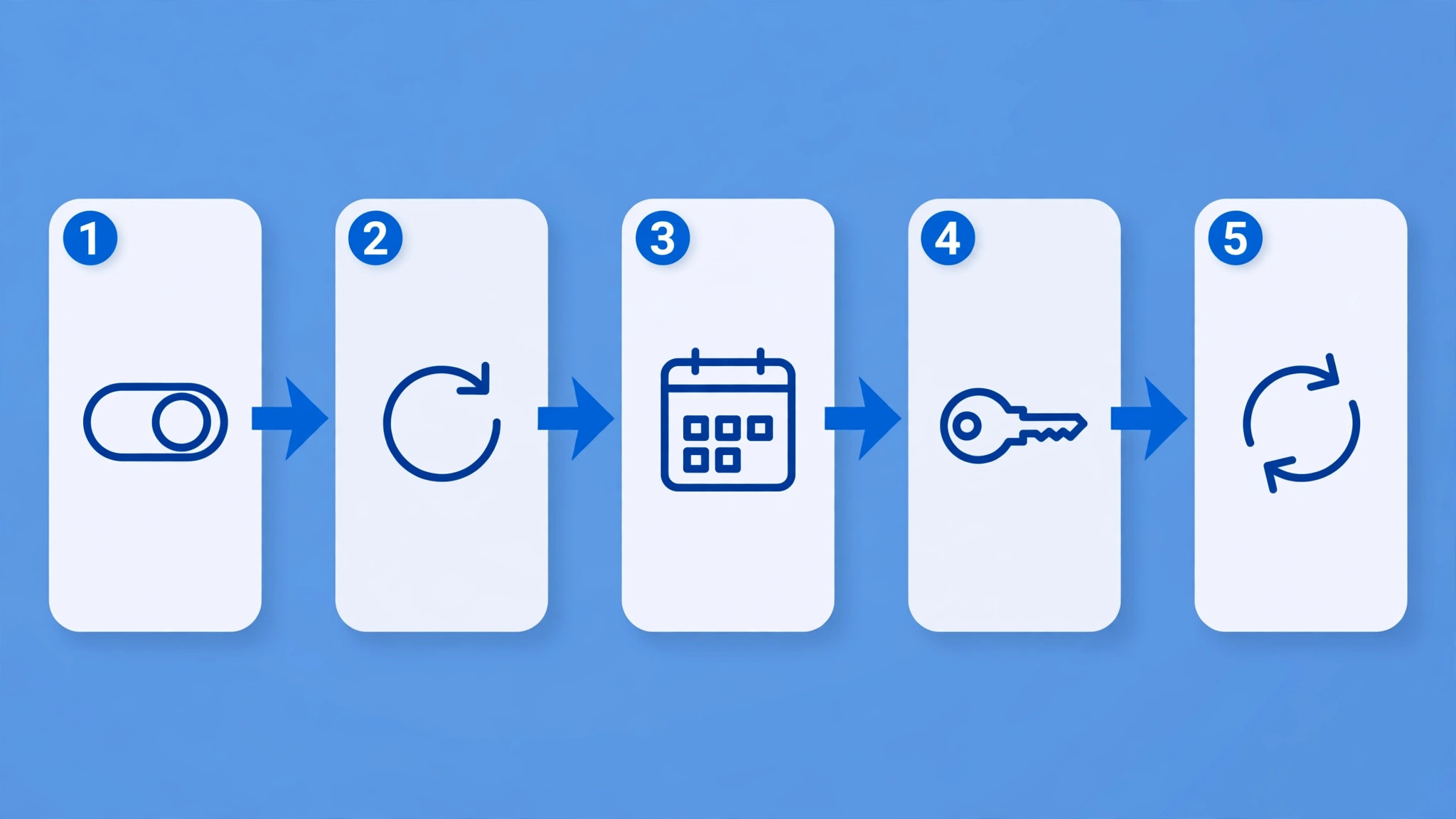
Work through this order, creating a test event after each step, and stop when events sync in both directions. The order runs from quick toggles to disruptive account steps, so a calendar selection or a fetch setting can solve the problem before any account work begins, and an account removal comes only after simpler steps have failed. Keep your Outlook login details handy from step nine onward, because account steps require signing in again. Test in both directions, by creating an event in Outlook on the web and checking iPhone, and by creating an event on iPhone and checking Outlook on the web, because one direction working while the other fails points to a default calendar or permission cause.
- Open the Calendar app, tap Calendars, and confirm every Outlook calendar you expect is checked and visible.
- In iPhone Settings, go to Accounts or Mail, select the Outlook account, and confirm Calendars is toggled on for that account.
- In iPhone Settings, go to Calendar, then Accounts, then Fetch New Data, confirm Push is on where available, and set Fetch to a frequent schedule for the Outlook account.
- Force close the Calendar app or the Outlook app, reopen it, and pull to refresh, to clear a temporary app state.
- Restart the iPhone fully, then open the calendar and test again, because a restart clears deeper temporary states than an app close.
- Check the connection by opening a web page and Outlook mail, and confirm mail syncs, because a connection fault blocks calendar as well.
- In the Outlook app, if you use it, check account settings and calendar sync, and confirm the correct account and calendars are enabled there.
- Check that new events on iPhone default to the Outlook calendar, in Calendar settings under Default Calendar, so new events do not save to iCloud by mistake.
- Update iOS and the Outlook app, install either if available, restart, and test again, because updates fix known sync bugs.
- Remove the Outlook account from iPhone settings, restart, add the account again, re-enable Calendars, recheck calendar selections, and test again.
- Uninstall and reinstall the Outlook app, if you use it, sign in again, and test, as a stronger step when account re-adding has failed.
- If calendar still fails for the account on every device, check the Outlook account, its permissions, and any organisation policy, and contact IT or Microsoft support with a note of steps tried.
That order protects your events, because early steps change only display and sync settings, while account removal and reinstall, which require reconfiguration, come only after simpler fixes have failed. Fetch settings deserve emphasis, because iPhone fetch controls how often the phone checks for new calendar data when push is unavailable, and a fetch schedule set to manual means calendar updates arrive only when the app is opened, which looks exactly like a sync failure. Push, where the account and server support it, delivers changes promptly, while fetch delivers them on a schedule, so a phone set to manual fetch will always lag, no matter how healthy the account is.
When you fix Outlook calendar not syncing iPhone, test with a test event that has a distinctive title and a time in the near future, so it is easy to spot on the other side, and check both the correct calendar and the correct date, because a test event saved to the wrong calendar or the wrong day looks like a sync failure while sync actually worked. If a test event appears in Outlook on the web but not on iPhone, the iPhone side, its toggles, fetch, or app, deserves the next step, while a test event that appears on iPhone but not in Outlook points to a default calendar or upload cause.
A test event that syncs in both directions proves the system works, and any remaining missing events are likely older events outside the sync window, which the sync window section below explains.
Fetch, Push and Sync Windows Explained
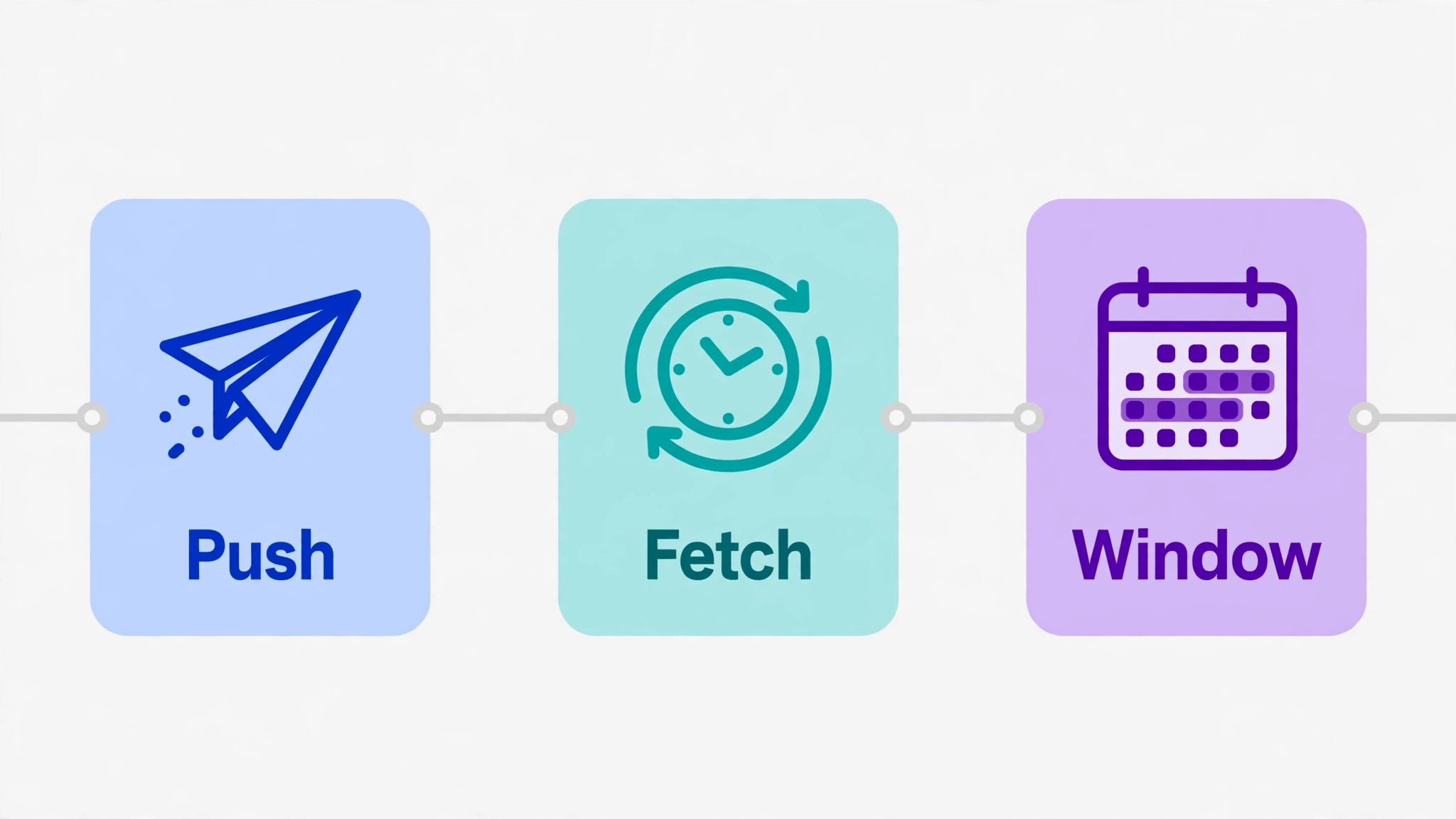
Fetch and push are the two ways iPhone receives new calendar data, and understanding them explains many delay complaints that are not failures at all. Push means the server sends changes to the phone immediately when they happen, so an event created in Outlook appears on iPhone within seconds, provided the account, server, and network all support push for that account type. Fetch means the phone checks the server on a schedule, such as every 15 minutes, 30 minutes, hourly, or manually, so an event created in Outlook appears only at the next scheduled check, and a phone set to manual fetch updates only when the calendar app is opened.
Some account types support push, while others support fetch only, depending on the server and protocol, so a setting that promises push may still behave as fetch for certain accounts, and that limitation should be checked before assuming a fault.
To check fetch settings, open iPhone Settings, go to Calendar, then Accounts, then Fetch New Data, and confirm Push is on at the top, then check the schedule for the Outlook account specifically, because the global push switch and the per account schedule interact. Set the Outlook account to Push where offered, or to the most frequent fetch schedule available where push is not offered, and test with a test event, noting how long it takes to appear, because that delay, measured once, tells you whether sync is prompt, scheduled, or broken.
If push is on but events still arrive late, check battery and background refresh settings, because the system can delay background fetch to save power, especially in Low Power Mode, which pauses background activity across apps.
Sync windows cause a subtler confusion, because iPhone may sync only a limited window of events, such as recent and near future events, rather than the entire calendar history, and older events outside that window will not appear even when sync works perfectly. Check the sync window in account settings where offered, and test with a near future event rather than an old event, because a near future event falls inside every sync window, while an old event may fall outside it.
If near future events sync but old events do not, the system is healthy and the sync window explains the gap, while if near future events also fail, a toggle, fetch, or account fault remains, and the fix order should continue. When you fix Outlook calendar not syncing iPhone, fetch and window checks come before account removal for a reason, because they explain many delay and missing event complaints without any account work at all.
Cause Table for Calendar Sync Symptoms
Use this table to match what you see with the most likely cause and the first fix, so a clear symptom leads straight to the relevant section without working blindly. The table does not replace the full order, but it speeds diagnosis when a pattern is distinctive.
| Symptom | Most likely cause | First fix to try |
|---|---|---|
| No Outlook events on iPhone, mail works | Calendar toggle off or calendar hidden | Check account calendar toggle, check Calendars list |
| Events arrive late, only on app open | Fetch set to manual or background restricted | Set Push or frequent fetch, check background refresh |
| iPhone events never reach Outlook | Default calendar set to iCloud, not Outlook | Set Default Calendar to Outlook |
| One Outlook calendar missing, others sync | That calendar unchecked or not enabled | Check Calendars list, check account calendar settings |
| Calendar syncs in Outlook app, not Apple Calendar | Apple Calendar account setting fault | Check iPhone account toggles and fetch for that account |
| Calendar syncs in Apple Calendar, not Outlook app | Outlook app account or sync setting fault | Check Outlook app account and calendar settings |
| Sync fails after an iOS update | Reset toggles, fetch, or permissions | Recheck toggles, fetch, calendar selections |
| Sync fails on every device for the account | Account, permission, or organisation policy | Check account status, contact IT or support |
A symptom that changes after a step is useful, even when the step does not fully fix the problem, so note what changed. If enabling a calendar toggle turns no events into some events, the toggle was part of the problem and a fetch or window cause may remain for the rest. Use the table first when you fix Outlook calendar not syncing iPhone and the pattern is clear. If changing fetch turns manual only sync into scheduled sync, fetch was the cause, even if events still arrive with a delay, because that delay is now a schedule, not a failure.
Troubleshooting is narrowing, not magic, and a short note of symptoms, steps, and changes makes that narrowing fast, especially if you later seek IT help.
Account types matter, because an Outlook account added as Exchange, as Outlook, or as another type can behave differently for calendar, even when mail works identically across types. If calendar sync fails persistently for an account added one way, removing and re-adding it with the recommended type for your organisation or for Outlook, following Microsoft or IT guidance, sometimes resolves it, because the recommended type enables the correct calendar protocol. Check with IT for work or school accounts, because organisations commonly require a specific account type, a device management profile, or a modern authentication method, and a personal setup that ignores those requirements will sync mail while failing calendar, or will fail entirely after a policy change.
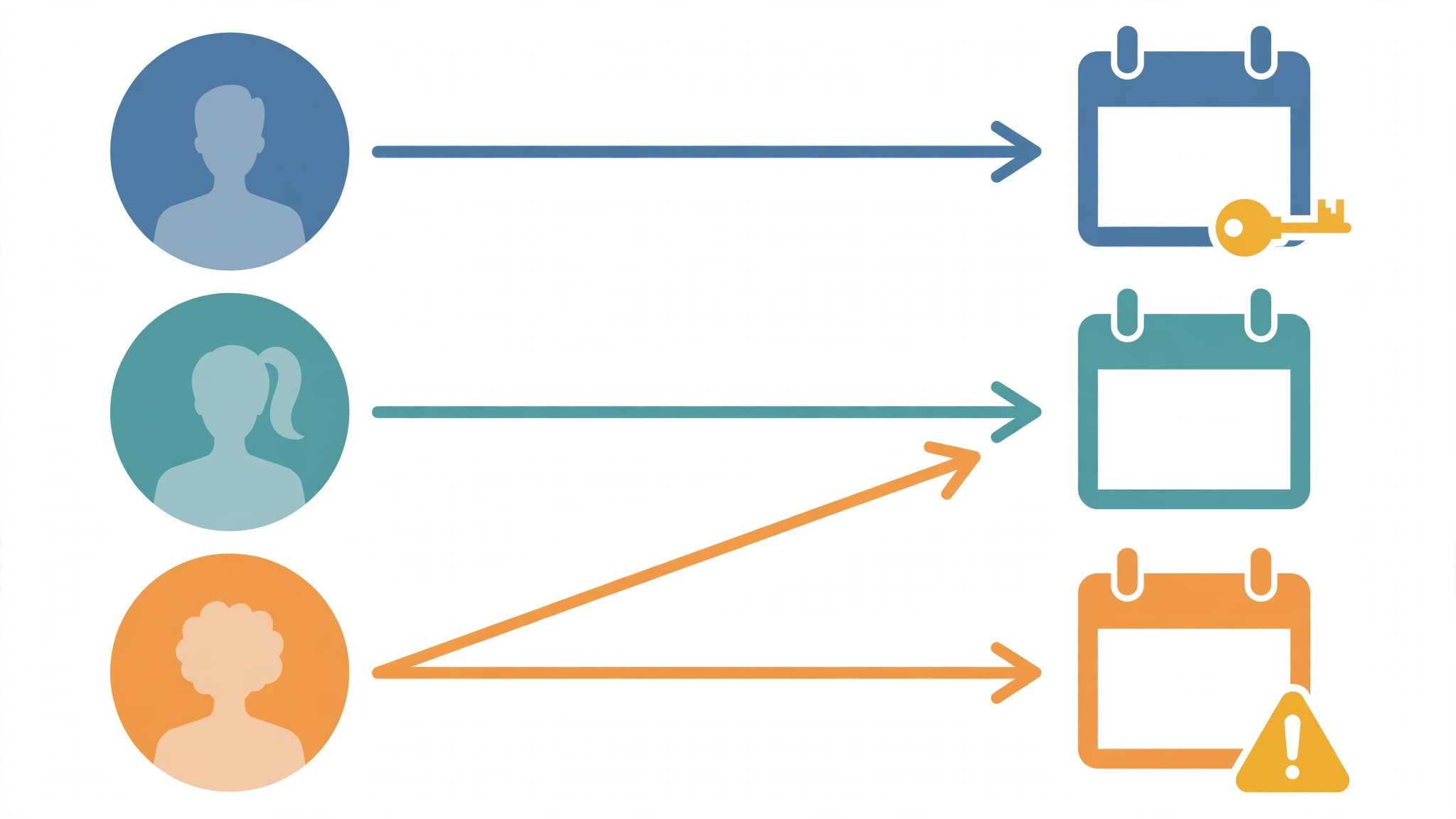
Shared calendars add another layer, because a calendar shared with you by a colleague may sync differently from your own calendar, and permissions control whether you can view, edit, or only see free and busy times. If a shared calendar fails while your own calendar syncs, check whether the sharing permission is still active, whether the shared calendar is checked in the Calendars list, and whether the owner changed sharing, because a revoked or changed share looks exactly like a sync failure for that calendar alone.
Test the shared calendar on Outlook on the web, because a shared calendar that fails there as well has a sharing or permission cause, not an iPhone cause, while a shared calendar that works on the web but not on iPhone points to iPhone calendar selection or account settings.
Organisation policies deserve a direct check for work accounts, because a policy can require a passcode, restrict calendar sync, or require a managed app, and a phone that does not meet the policy may sync mail while blocking calendar, or may block both after a policy update. Check for a device management profile in iPhone settings, confirm the phone meets the organisation’s requirements, and contact IT with the exact symptom, because IT can see policy and account states that the phone cannot show.
When you fix Outlook calendar not syncing iPhone with a work account, involve IT earlier rather than later, because a policy fault cannot be fixed by phone steps alone, and repeated account removals can complicate a managed setup.
Outlook App Versus Apple Calendar
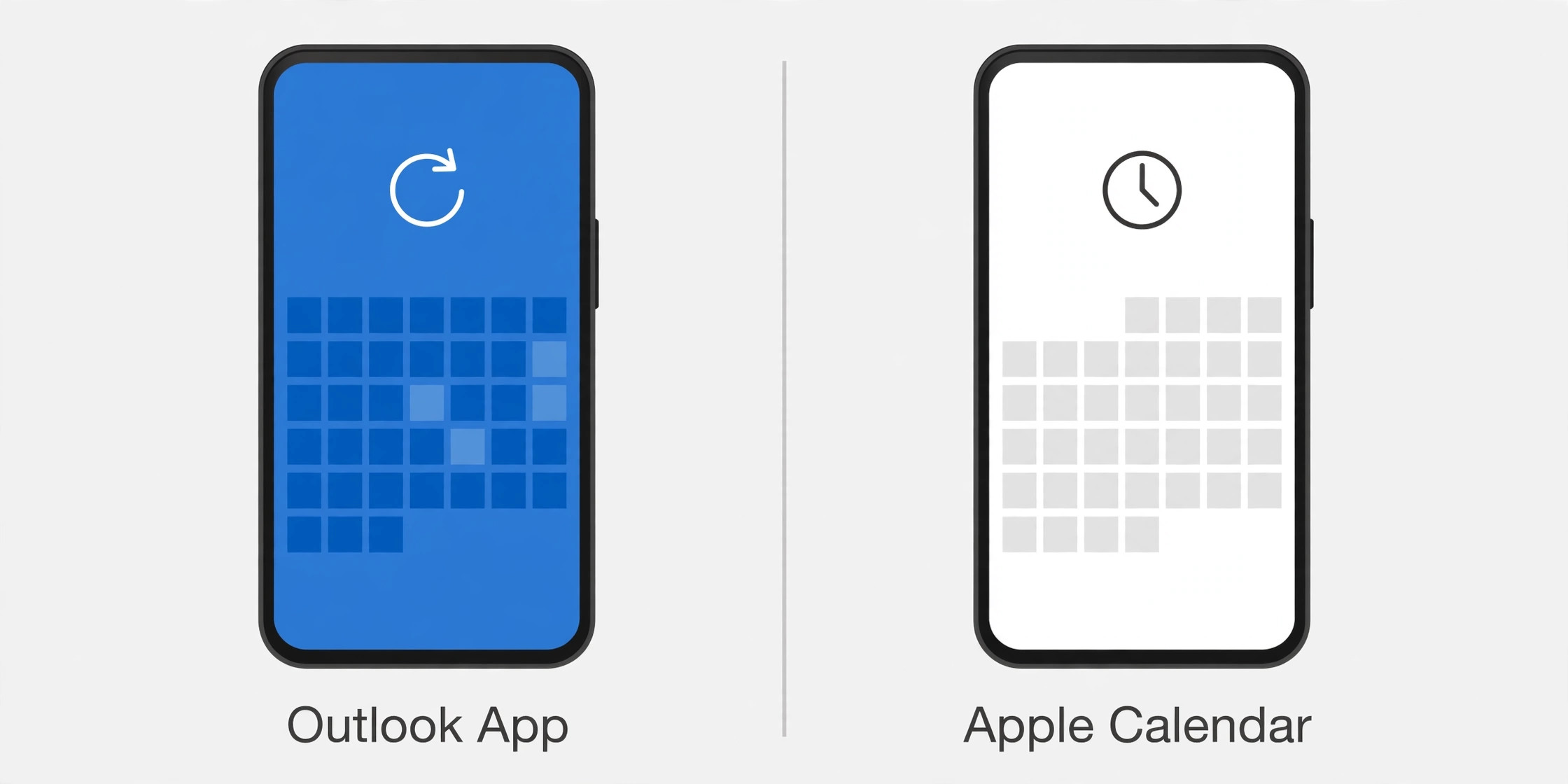
Choosing between the Outlook app and Apple Calendar matters, because each has its own settings, and fixing one will not fix the other. The Outlook app, from Microsoft, manages its own account, calendar, mail, and contacts in one place, and its calendar sync settings live inside the app, under account settings, where calendars can be enabled or disabled per account. Apple Calendar, built into iPhone, manages calendars from all accounts together, and its settings live in iPhone Settings under Accounts and Calendar, where each account’s calendar toggle, fetch schedule, and default calendar are controlled.
A user who checks Apple Calendar settings while using the Outlook app, or Outlook app settings while using Apple Calendar, will find nothing wrong, because the fault lives in the other app’s settings.
Test both apps as a diagnostic step, by checking whether Outlook calendar events appear in the Outlook app, in Apple Calendar, in both, or in neither, because that four way result separates app faults from account faults cleanly. Events in neither app point to the account, its toggles, or its server state, while events in one app but not the other point to the failing app’s settings. If you prefer one app, configure that app fully, including its calendar toggles and default calendar, and do not assume the other app’s settings transfer, because they do not.
If you use both apps, keep their calendar selections consistent, so an event hidden in one app is not mistaken for a sync failure when it simply is unchecked there.
Default calendar settings deserve emphasis in this comparison, because a new event created on iPhone saves to the default calendar, and a default set to iCloud means new iPhone events will never reach Outlook, even when Outlook sync itself works perfectly. Set the default calendar to Outlook in iPhone Calendar settings if Outlook is your main calendar, and check the calendar selected for each new event, especially after an account re-add, which can reset the default. Set the default carefully when you fix Outlook calendar not syncing iPhone with a new account, before creating events.
That single default, checked once, prevents a whole class of one direction sync complaints that look like failures but are actually correct behaviour for the wrong calendar.
Mistakes That Waste Time on Calendar Sync
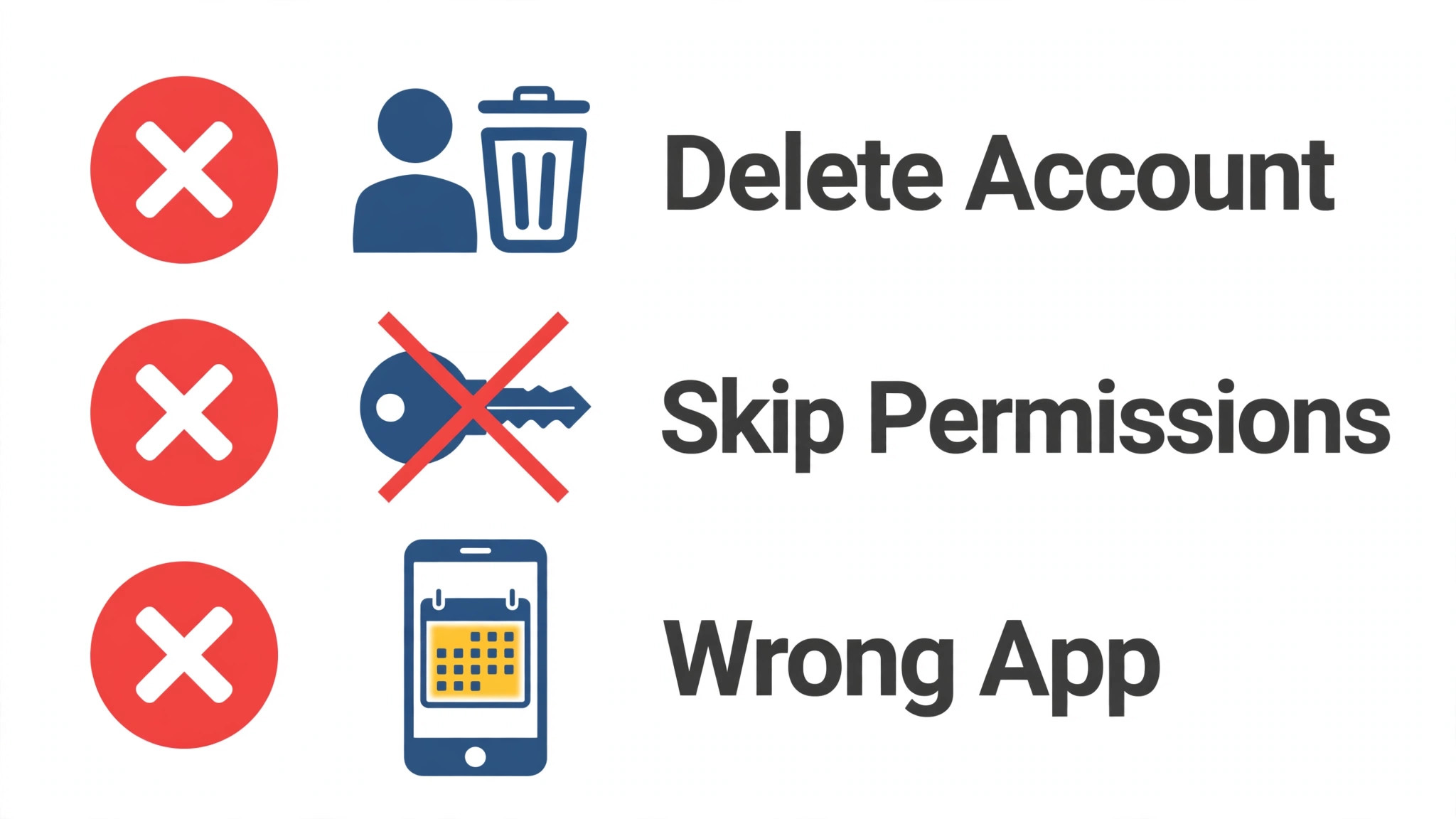
The first mistake is removing the account first, before checking calendar toggles, calendar selections, and fetch settings, which disrupts mail, contacts, and calendar for a problem that often needs only a toggle. The second mistake is fixing the wrong app’s settings, by checking Outlook app settings while using Apple Calendar, or the reverse, because each app has its own settings and the fault lives in only one of them. The third mistake is testing with an old event outside the sync window, instead of with a near future test event, because an old event outside the window looks like a sync failure while sync actually works for current events.
The fourth mistake is ignoring the default calendar, because new iPhone events saving to iCloud instead of Outlook produce a one direction failure that no sync step can fix, while a default change fixes it instantly. The fifth mistake is changing several settings at once, such as toggles, fetch, and account settings together, which makes it impossible to know which change helped, and can leave the phone in a worse state than before. The sixth mistake is ignoring organisation policy for work accounts, because a policy fault cannot be fixed by phone steps alone, and repeated account removals can complicate a managed setup that IT could have diagnosed in minutes.
Preventing the Next Calendar Sync Failure
Prevention for calendar sync is mostly about toggle, fetch, and default awareness, because most failures come from a reset toggle, a fetch change, or a default change after an update or an account re-add. After any iOS update or account change, recheck calendar toggles, calendar selections, fetch settings, and the default calendar, because updates commonly reset those four items, and a two minute check after an update prevents a week of missing events. Recheck the four settings after updates when you fix Outlook calendar not syncing iPhone through a prevention routine.
Keep a note of which calendars should be visible and which account is the default for new events, so a future failure can be checked against known settings instead of guessed at.
Keep iOS and the Outlook app updated, because updates fix known sync bugs, and test calendar sync in both directions after any update, with a near future test event, because a quick test catches a toggle or fetch problem while it is still easy to fix. For work accounts, keep IT contact details handy, and check organisation requirements before changing account types or removing managed profiles, because a managed setup has constraints that personal troubleshooting can break.
A few minutes of toggle, fetch, and default care each month keeps calendar events syncing promptly in both directions, which is exactly how a calendar should work, and it means the next sync failure, if it comes, will be a quick toggle check instead of an account removal.
More Reading on Stratilyze
If this guide helps your calendar sync again, the wider Stratilyze guides cover the mail and sync problems around it. The guide to Outlook emails going to spam helps when Outlook mail lands wrong, the guide to smartwatch not syncing with a phone covers another sync fault with a similar diagnosis, and the guide to iPhone no sound helps when a different iPhone feature fails alongside sync. Read the spam guide next if Outlook mail also misbehaves, because mail and calendar faults often share an account cause.
Frequently Asked Questions
Why is my Outlook calendar not syncing on iPhone when you fix Outlook calendar not syncing iPhone?
The most common causes are a calendar toggle off for the Outlook account, a calendar unchecked in the Calendar app’s Calendars list, a fetch schedule set to manual, or a default calendar set to iCloud instead of Outlook. Check the account calendar toggle in iPhone Settings, check every Outlook calendar is checked in the Calendar app, set fetch to Push or frequent, and set Default Calendar to Outlook. A calendar that syncs mail but not events almost always has a toggle, selection, or fetch cause, not an account failure.
How do I enable Outlook calendar sync on iPhone?
Open iPhone Settings, go to Accounts or Mail, select the Outlook account, and confirm Calendars is toggled on, then open the Calendar app, tap Calendars, and confirm every Outlook calendar you expect is checked. In Settings, go to Calendar, then Accounts, then Fetch New Data, and set Push on where available, or a frequent fetch schedule for the Outlook account. Test with a near future test event in both directions, because a test event proves sync works while an old event may fall outside the sync window.
Why do Outlook events appear late on my iPhone?
Late events usually mean fetch is set to manual or infrequent, background refresh is restricted, or Low Power Mode is pausing background activity, rather than a total sync failure. Set fetch to Push where available, or to the most frequent schedule offered, confirm background refresh is allowed for Calendar, and test outside Low Power Mode, noting how long a test event takes to appear. A measured delay that matches the fetch schedule is normal scheduled behaviour, while no arrival at all points to a toggle or account fault.
Why do events I create on iPhone not appear in Outlook?
That one direction failure usually means new iPhone events are saving to a different calendar, most often iCloud, instead of Outlook, because the default calendar setting controls where new events save. Set Default Calendar to Outlook in iPhone Calendar settings, and check the calendar selected for each new event, especially after an account re-add, which can reset the default. If the default is already Outlook, check the account calendar toggle and fetch settings, and test with a distinctive near future event.
Should I use the Outlook app or Apple Calendar for Outlook calendar?
Either works, but each has its own settings, so choose one as your main calendar app and configure it fully, rather than fixing one app’s settings while using the other. The Outlook app manages calendar inside the app under account settings, while Apple Calendar manages it in iPhone Settings under Accounts and Calendar, including toggles, fetch, and default calendar. Test both apps as a diagnostic step, because events in one app but not the other point to the failing app’s settings, while events in neither point to the account itself.
What should I do if Outlook calendar fails for a work account?
Check calendar toggles, selections, fetch, and default calendar first, because those phone settings cause most failures even for work accounts, then contact IT, because work accounts commonly require a specific account type, a device management profile, or a modern authentication method that phone steps alone cannot satisfy. Note the exact symptom, including direction, calendar, and whether other devices fail, because IT can see policy and account states the phone cannot show. Avoid removing managed profiles or changing account types without IT guidance, because that can complicate a managed setup.
A Calendar That Stays in Step
An Outlook calendar sync failure on iPhone resolves fastest when toggles, selections, fetch, and default calendar are checked before any account work, because those four items explain most failures while mail keeps working. Confirm Calendars is on for the account, check every Outlook calendar in the Calendar app’s list, set Push or frequent fetch, and set Default Calendar to Outlook, testing with a near future event in both directions after each step. Remember that the Outlook app and Apple Calendar have separate settings, so fix the app you actually use, and involve IT early for work accounts where policy may control sync.
Keep those four settings noted, recheck them after updates and account changes, and the next calendar failure will be a quick toggle check instead of an account removal.