

If you live entirely inside Apple devices, do your task management alone, and want a calmer daily list, you should migrate Todoist to Things and stop paying a yearly subscription for features you rarely open. If you share projects with colleagues, need a Windows or Android app, or run a team workspace, you should stay on Todoist, because Things will not give you those things at any price. That split is the whole decision, and the rest of this guide exists to make the move go smoothly for people in the first group.
Things is made by Cultured Code and runs only on Apple platforms, with a one time purchase per device and free sync through Things Cloud. Todoist runs almost everywhere, with a free Beginner plan and paid Pro and Business plans, and it is built for sharing and cross platform capture. Moving between them is not a like for like swap. Done well, the move leaves fewer lists, clearer days, and no monthly bill. Done carelessly, it leaves flattened projects and lost repeat schedules.
Who Should Move to Things and Who Should Stay on Todoist
Start with an honest inventory of how you actually use Todoist today. If almost every task was created by you, for you, and completed by you, Things fits. If a large share of tasks were assigned to you, commented on by a teammate, or completed by another person, Things does not fit, because it has no shared projects, no assignment, and no comments thread. You can send someone a task, but you cannot work inside the same live project together.
Device ownership is the second hard filter. Things requires a Mac, iPhone, iPad, Apple Watch, or Apple Vision Pro. There is no web app and no Android or Windows version. If you regularly open tasks on a work Windows laptop or an Android phone, you will be locked out at exactly the moments you need the list most. Mixed device users should stay on Todoist, or keep Todoist as a shared capture inbox.
The third filter is how you plan your days. Todoist centres on due dates, priorities from P1 to P4, and filters that slice tasks by label, project, and date. Things centres on Inbox, Today, Upcoming, Anytime, and Someday, plus Areas and projects, and it separates the date you plan to start work from the date work is due. A report due on Friday can carry a When date of Wednesday, so it appears in your plan on Wednesday rather than sitting invisibly until Friday morning.
What Things Does Differently, and Why It Matters for Your Old Data
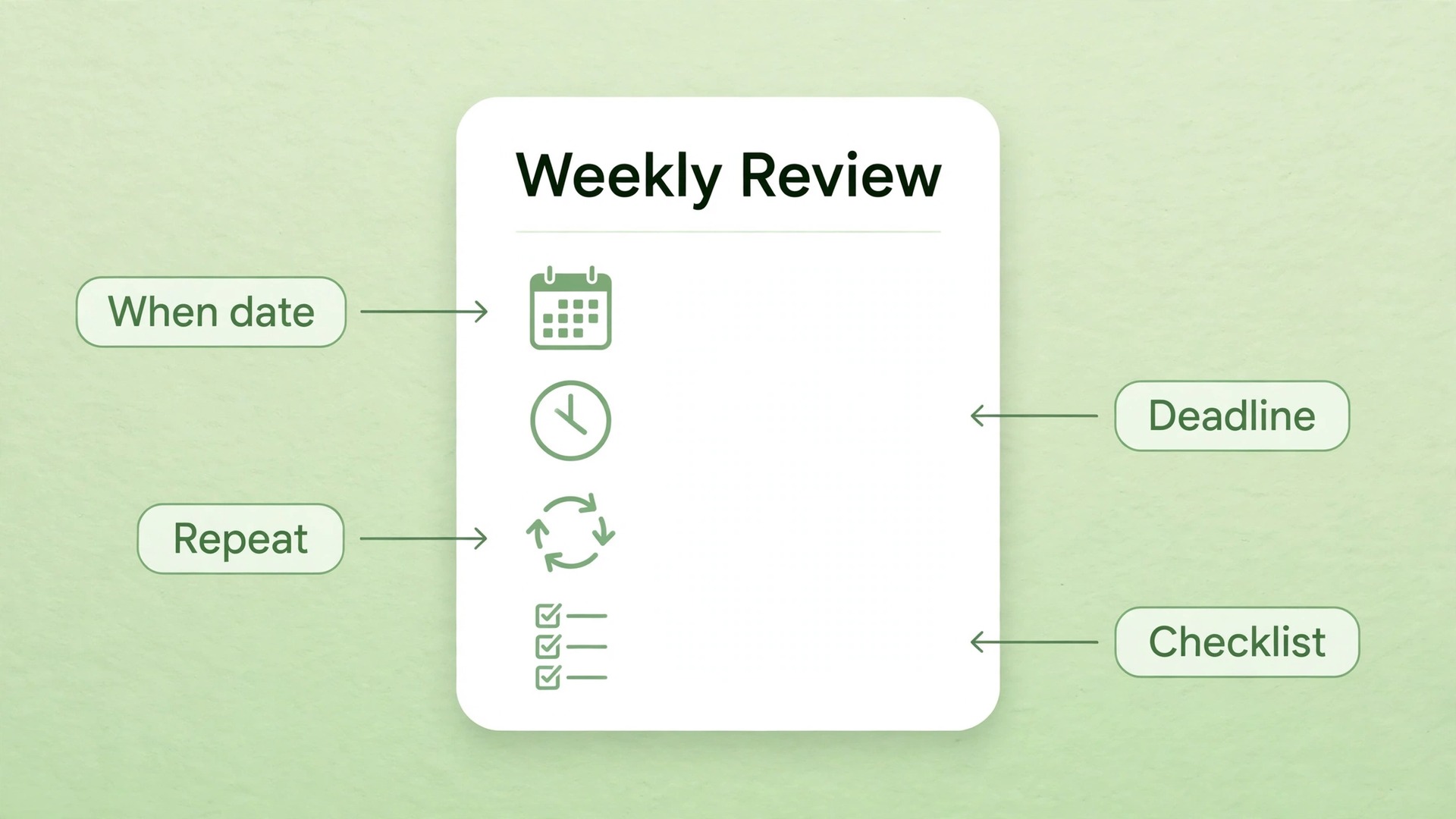
Things organises life into Areas, projects, to-dos, headings, checklists, and tags. An Area is a sphere of life such as Work, Family, Health, or Finance. A project sits inside an Area and groups to-dos that lead to one outcome. Headings divide a project into sections, such as Research, Draft, and Publish, without creating a separate project for each phase. A to-do can carry notes, tags, a When date, a deadline, a reminder time, and a checklist of smaller steps. When you finish a project, it moves to the Logbook, where completed projects stay searchable instead of vanishing.
Todoist organises work into projects, sections, tasks, subtasks, labels, filters, and priorities. Four differences decide how your data survives the move. First, Things has no priority levels, so Todoist P1 to P4 priorities do not import. Second, Things has no true subtask nesting, so deep hierarchies arrive flattened. Third, Things has no collaboration, so anything that depended on another person needs a new home outside Things. Fourth, Things keeps start and due dates separate, while Todoist collapses much of that thinking into a single due date plus reminders, so imported due dates need review.
The official importer is the fact that makes this migration practical at all. Cultured Code publishes a Todoist importer that connects to the Todoist public API, signs you into your Todoist account, and copies your data into Things. The importer requires iOS 17.4 or macOS 14.4 or later, so update your device first if you run an older system. The import copies rather than moves, so your Todoist data stays intact while you test Things. Never delete Todoist on import day.
What the importer carries, and what it drops, should be clear before you start. Projects become projects, boards become projects, tasks become to-dos, labels become tags, comments are appended to the notes field of each to-do, and repeating tasks are imported as ordinary to-dos whose repeat schedule must be rebuilt by hand. Image attachments do not import, priority status does not import, favourite status does not import, and location notifications do not import. Links to other Todoist items are preserved as text, but they still point at Todoist, so they will not open the matching item inside Things until you update them by hand.
When you migrate Todoist to Things with this list in front of you, the most common disappointment, which is opening Things and wondering where priorities and attachments went, simply does not happen.
Before You Import, Audit and Clean Up Todoist
When you migrate Todoist to Things, the quality of the result depends almost entirely on the cleanup you do before import. Spend an evening on this audit and you will save several evenings of repair later. Start by counting. Write down how many active projects you have, how many tasks sit in each project, how many labels you use, and how many repeating tasks you rely on. Archive or delete dormant projects before import, and aim to import only projects you have touched in the last 90 days, plus a small number of reference projects you genuinely revisit.
Next, review labels with a ruthless eye. Todoist labels often accumulate over years, with near duplicates and single use labels created for one task long ago. Things tags work best as a small set of filters you actually tap, such as home, office, calls, waiting, and low energy. Merge near duplicates in Todoist first, delete labels used only once or twice, and decide which labels should become tags and which should become Areas, projects, or headings instead.
Then deal with the four things the importer drops. For priorities, add a tag such as urgent or a deadline to every P1 task that still matters, because the P1 flag itself will vanish. For favourites, tag those tasks starred or move them into a daily review project. For attachments, download anything you still need and store it in iCloud Drive or Files, then paste a short note into the Todoist task pointing at the new location before import. For location reminders, convert each one into a time reminder or a When date. Subtasks need a decision per project too.
Convert a parent task into a Things project with headings, which suits a multi step outcome, or keep it as a single to-do with its subtasks as checklist steps, which suits a simple procedure. Finally, list every shared project and agree its future before import day.
How to Migrate Todoist to Things With the Official Importer
The table below maps each Todoist element to its Things equivalent and to the action you should take before import. Read it before you touch the importer, because several mappings need preparation work in Todoist first. The steps below show how to migrate Todoist to Things using the official importer, one project at a time, with verification after each step rather than hope at the end.
| Todoist element | Things equivalent | Action before import |
|---|---|---|
| Project | Project | Archive dormant projects, rename vague projects clearly |
| Board project | Project | Check board columns, rebuild them as headings after import |
| Section | Heading inside a project | Keep section names short, they become your project structure |
| Task | To-do | Rename vague titles, add context to the title itself |
| Subtask | Flattened to-do or checklist step | Choose per project, project or checklist, before import |
| Label | Tag | Merge duplicates, keep only tags you will actually filter by |
| Due date | When date, not a deadline | Review after import, promote real deadlines by hand |
| Priority P1 to P4 | Nothing, dropped | Add an urgent tag or a deadline to tasks that need it |
| Favourite | Nothing, dropped | Tag starred tasks or move them to a daily review project |
| Comment | Note text on the to-do | Download attachments first, add a file location note |
| Attachment | Nothing, dropped | Save files to iCloud Drive or Files, note the location |
| Repeating task | Ordinary to-do, repeat lost | List every repeat pattern, rebuild repeats after import |
| Shared project | Personal copy only, no sharing | Agree a new home for shared work before you cancel |
| Completed task | Not imported as history | Export completed history separately if you need the record |
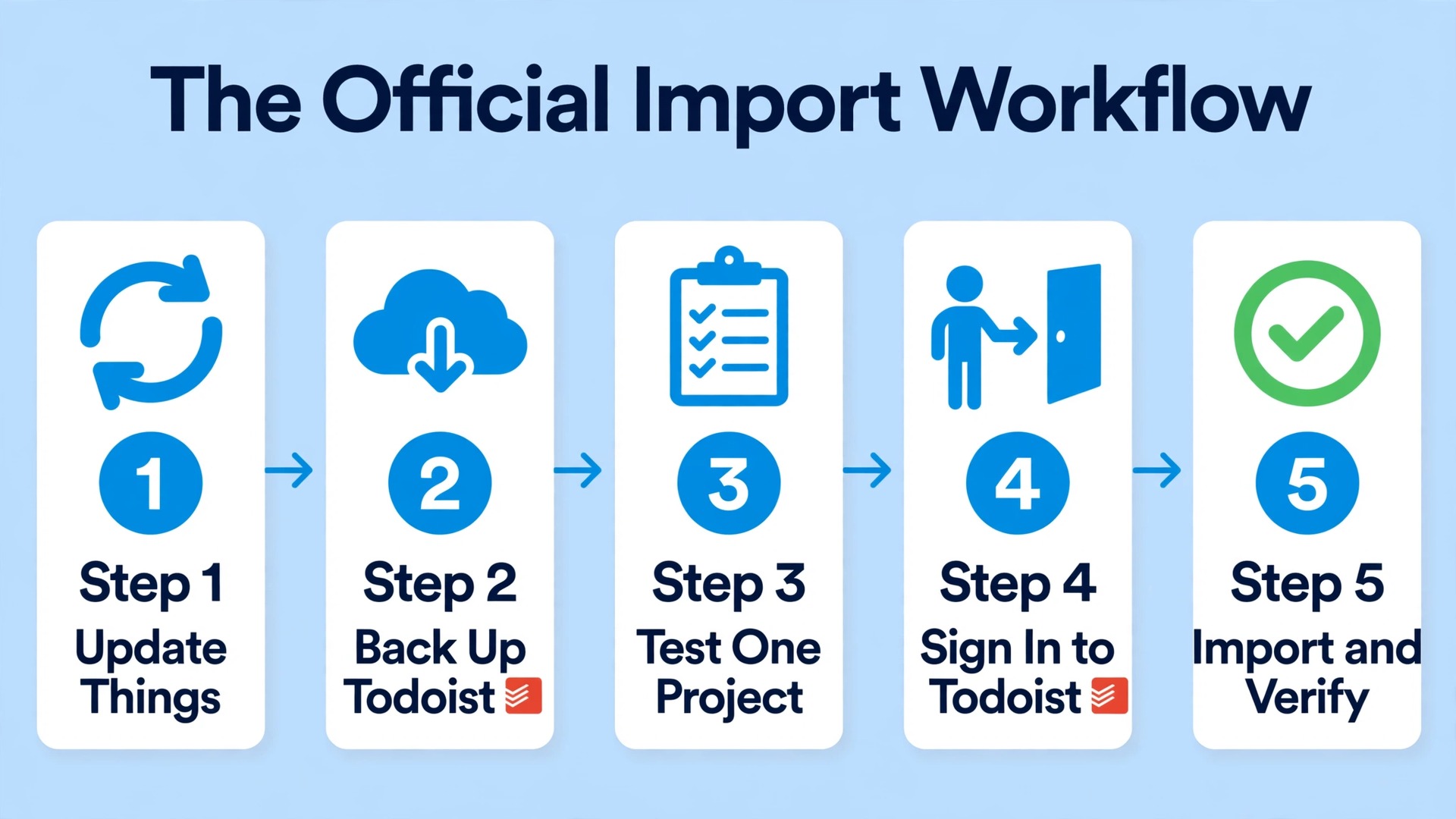
- Update Things, confirm your device runs iOS 17.4 or macOS 14.4 or later, then sign into Things Cloud.
- Back up Todoist first, using the export steps later in this guide, and keep Todoist untouched while you test.
- Clean one small test project in Todoist, with labels, a section, a repeating task, and a comment.
- In Things, open the import option for Todoist, sign into Todoist when prompted, and authorise the connection.
- Import the test project first and verify it completely. Count to-dos, check tags, open notes, and confirm headings.
- Fix your cleanup rules based on the test, then import the remaining projects one by one, verifying counts after each project.
- Rebuild repeating tasks, promote true deadlines, restore attachments by linking to their new file locations, and rebuild Areas and headings.
- Live in Things for two full weeks with Todoist still available read only, then cancel only after a second verification pass finds nothing missing.
Project and Area Mapping in Detail
Projects map cleanly, but Areas need deliberate design, because Todoist has no direct Area equivalent. In Things, Areas are explicit and visible in the sidebar. Design your Areas before import day, and keep the number small. Five to seven Areas cover most solo users well, for example Work, Home, Health, Finance, Learning, Family, and Personal. More than ten Areas usually means you have recreated Todoist project clutter under a new name.
Map each Todoist project to one of three destinations, and write that mapping down before import, with one row per Todoist project and columns for its new Area, its new project name, and any heading structure it needs. A project that leads to a single outcome, such as Launch the portfolio site, becomes a Things project inside the matching Area. A project that is really an ongoing responsibility, such as Household admin, becomes an Area itself if it is broad, or a project with recurring to-dos if it is narrow. A project that is really a list of unrelated tasks grouped only by context, such as Errands, becomes a single project called Errands inside the Home Area.
Sections deserve care too, because they are the closest Todoist feature to Things headings. Rename sections so they read as stages, and remove empty sections. Board columns can become headings in a single project, or the Doing column can become Today tasks while Backlog becomes Anytime tasks.

Todoist labels and Things tags look identical, and the importer does map labels to tags, but the way you should use them differs. In Todoist, labels often do three jobs at once. They mark context, they mark projects, and they mark priority, because filters combine them freely. In Things, tags work best when they answer one question at a time, usually context or state. A tag should let you filter a long list down to what you can do right now, in this place, with this energy. Tags such as calls, errands, home, office, waiting, and low energy pass that test.
Rebuild tags in three passes. First, list every Todoist label and count how many active tasks carry it. Delete labels with fewer than three active tasks unless the label marks something legally or financially important. Second, sort the survivors into keep as tag, convert to project, convert to Area, or convert to heading. A label used across many projects usually stays a tag. A label used inside one project usually becomes a heading or a project name. Third, rename tags for tapping. Short, lowercase, single word tags are easier to filter on iPhone than long phrases.
Things also rewards tagging for review rather than for storage. Create a tag called review weekly for projects and tasks that need a regular look, such as subscriptions and finance admin. Create a tag called waiting for for every task blocked on someone else, then review that tag once a week and chase what has stalled. Create a tag called focus for the two or three tasks that matter most each day, and use it to build Today deliberately rather than letting Today fill up by accident.

Recurring Tasks, Converting Them Without Losing the Rhythm
Recurring tasks are the part of this migration that needs the most manual work, and they deserve a dedicated pass rather than a hope that the importer handles them. The official importer copies repeating Todoist tasks as ordinary to-dos and drops the repeat schedule. If you import and then cancel Todoist without rebuilding repeats, daily habits, weekly reviews, monthly bills, and annual renewals will silently stop appearing. That is the single most damaging failure mode in this whole move, because nothing looks broken on import day. The break appears weeks later, when a bill or a review fails to show up.
When you migrate Todoist to Things, put repeat rebuilding on the same checklist as the import itself, not on a vague later list.
Start by listing every repeating task in Todoist before import. Open each project and search for repeating tasks, or export your task list and scan it for repeat patterns. Write each one down with its exact pattern, for example every weekday, every Monday, every second Friday, on the first of each month, or every six months. Note the difference between a task that repeats on a fixed calendar date and a task that repeats a set number of days after completion, because Things handles those two ideas differently. A bill due on the first of each month is calendar fixed. A task such as water the plants every three days after you last did it is completion based.
After import, rebuild each repeat inside Things as a repeating to-do. Open the imported to-do, set it to repeat, choose the pattern, and set both its When date and its deadline if the task has both a start and a due concept. Test the first few repeats carefully. Create a test repeat that fires tomorrow, complete it, and confirm the next occurrence appears on the right date. Pay special attention to monthly and yearly repeats, because month end dates and leap years cause the most surprises. Things also supports repeating projects as templates that regenerate, which suits weekly reviews and monthly reporting packs.
What to Export from Todoist and How, Before You Cancel Anything
Even if you migrate Todoist to Things with the official importer, keep a Todoist backup, because the importer drops attachments, priorities, favourites, and location data, and because a backup is your only record of completed work. Todoist offers two practical export routes, and they complement each other. First, download a backup from Todoist on the web or desktop app. Open your avatar, open Settings, open the Backups tab, and download the most recent backup, or create a fresh backup first if you are on a paid plan. The download arrives as a ZIP file containing one CSV file per active project.
Extract it and store it somewhere safe, such as iCloud Drive or an external drive, with the date in the folder name. Note that backups cover active projects and do not include completed tasks or archived projects, so they are not a complete history on their own.
Second, export individual projects as CSV from each project menu, for any project where comments, labels, deadlines, and attachments matter to you. Project CSV exports give you a readable spreadsheet you can search later. For completed history, use the Export to Google Sheets extension or manually review your completed task list before cancel, because neither the backup nor the project CSV export includes completed tasks. If completed history matters for work records, taxes, or client billing, save that history before you close the account. Store the backup with a short note of your own, with the date, the number of projects, and the location of downloaded attachments.
Keep the backup for at least a year after cancelling Todoist, even if Things works perfectly.
A related migration guide on this site follows the same audit first approach for notes, and it is a useful second example of how to plan a move before touching an importer. Read our Evernote to Notion migration checklist if you want to see the same backup, mapping, and verification pattern applied to a different app. The tools differ, but the discipline is identical. Back up first, map second, test third, and cancel last.
The Weekend Migration Plan for an Apple User
This plan assumes you migrate Todoist to Things over one weekend, with Todoist still available during the following two weeks as a safety net. It is written for a solo Apple user with a Mac and an iPhone, which is the most common Things setup, and it adapts easily if you also use an iPad.
- Friday evening, do the audit and cleanup only. Count projects and tasks, archive dormant projects, merge duplicate labels, add urgent tags or deadlines to P1 tasks, download attachments, and list every repeating task with its pattern. Buy Things for Mac and iPhone, install it, create a Things Cloud account, and confirm sync works with a test to-do. Create your Areas, using five to seven names that match your real life. Do not import on Friday night when you are tired.
- Saturday morning, run the test import. Import one small project, verify it completely, and fix your cleanup rules based on what you learn. Check counts, tags, notes, headings, and flattened subtasks. Rebuild one repeating task and confirm its next occurrence appears correctly. If the test looks good, import the remaining projects one by one through Saturday, verifying counts after each project.
- Saturday evening and Sunday morning, rebuild the systems that the importer cannot build for you. Recreate repeating tasks and repeating projects, promote true deadlines from When dates, and rebuild your tag system to the short list you designed. Build a Today routine that takes five minutes each morning, and a weekly review project that regenerates each week, with headings for waiting tasks, Someday, upcoming deadlines, and Inbox cleaning. Test calendar integration, Quick Entry, Siri, and the share sheet on iPhone.
- Sunday afternoon, do a full verification pass. Open each Area and project, and compare counts against your Friday audit. Confirm notes, tags, and deadlines on your most important projects. Check that every repeating task on your Friday list now exists as a repeating to-do in Things, and that every shared project has a new home or a documented decision. Then set Todoist aside without cancelling it. Use Things exclusively for two weeks, and only then cancel after a second verification pass.

Costs, and What You Stop Paying When You Move
Cost is often the reason people start this migration, but it should not be the only reason, because the cheapest tool you do not use is still a waste. If you migrate Todoist to Things, run the numbers for your actual setup. Todoist Pro is listed at 7 dollars per month on monthly billing or 60 dollars per year on annual billing, which works out to 5 dollars per month. Things is a one time purchase per platform, listed in the United States at 49.99 dollars for Mac, 9.99 dollars for iPhone and Apple Watch, 19.99 dollars for iPad, and 29.99 dollars for Apple Vision Pro.
A Mac plus iPhone setup costs about 60 dollars once, roughly one year of Todoist Pro, and after that there is no recurring charge for the current major version. Over three years, the saving for a Mac and iPhone user is roughly 120 dollars. Over five years, it is roughly 240 dollars, assuming prices stay flat, which they may not.
There are costs beyond the purchase price to count honestly. If you need Things on a new device later, you buy that platform version separately. If Cultured Code releases a future major version, that version may be a separate purchase, as Things 3 was a paid upgrade from Things 2, although updates within the current major version are free. If you use Todoist Business for team features, Things cannot replace it at any price. The Mac app offers a 15 day trial, so test the core experience before paying for Mac, and buy iPhone only after the Mac trial convinces you.

After the Move, Your First Two Weeks in Things
The first two weeks decide whether Things becomes a habit or a brief experiment. In the first week after you migrate Todoist to Things, adopt three routines and resist the urge to recreate Todoist inside Things. First, process the Inbox daily, moving every item to a project, a When date, Anytime, or Someday. Second, plan Today each morning rather than letting Today fill itself, choosing the order and moving evening tasks to This Evening. Third, run a weekly review every week for the first two months, reviewing waiting tags, Someday, Upcoming deadlines, and stalled projects.
Watch for three common post move mistakes. The first is importing too much. If Things feels cluttered in week two, archive ruthlessly and merge tags again. The second is treating When dates as deadlines. A task with a When date of Wednesday and no deadline will not warn you on Friday if it slips, so promote real deadlines during your weekly review. The third is recreating Todoist filters as dozens of tags. If you have more than 30 tags in week two, cut the list to the tags you tapped in the last week.
If you are comparing daily planning tools more broadly before you commit, our roundup of the best AI daily planner apps shows how Things compares with other approaches to planning a day, including apps that add AI scheduling on top of a task list. Things wins on calm design and Apple integration. It does not win on AI scheduling, team features, or cross platform reach, and knowing that before you move is better than discovering it after you cancel Todoist.

Frequently Asked Questions
Does the official importer move my Todoist data or copy it
It copies your data. Your Todoist account stays intact during and after import, so you can test Things, fix mapping problems, and keep Todoist as a backup until you are ready to cancel. Do not delete Todoist on import day. Keep it available for at least two weeks after you start using Things daily.
What happens to my Todoist priorities and favourites in Things
They do not import, because Things has no priority levels and no favourite flag. Before import, add an urgent tag or a deadline to tasks that were P1, and tag or move favourite tasks so you can find them again. After import, check those tasks first, because they are the ones most likely to blend into ordinary work if you skip this step.
Will my repeating tasks keep repeating after import
No, not automatically. Repeating tasks import as ordinary to-dos and lose their repeat schedule. List every repeat pattern before import, then rebuild each one as a repeating to-do in Things, with its When date and deadline set correctly. Test a daily and a monthly repeat before you cancel Todoist, because a missed repeat only becomes visible weeks later.
Can I use Things on Windows, Android, or the web
No. Things runs only on Apple devices, including Mac, iPhone, iPad, Apple Watch, and Apple Vision Pro. There is no web version and no Android or Windows app. If you regularly need tasks on a non Apple device, keep Todoist or another cross platform tool for that work, or do not move at all.
Do attachments, comments, and completed tasks transfer
Comments transfer as note text on each to-do, which preserves the words but not the comment thread or author details. Image attachments do not transfer, so download files you still need and store them in iCloud Drive or Files before import, with a location note in the task. Completed tasks are not part of the active import, so export completed history separately if you need it for records.
Is Things really cheaper than Todoist Pro over time
For a solo Apple user, usually yes, because Things is a one time purchase per platform while Todoist Pro is a yearly subscription. A Mac plus iPhone setup costs about 60 dollars once, compared with 60 dollars per year for Todoist Pro on annual billing. The saving grows over three to five years, but it only counts if Things fits your work, because a cheaper tool you cannot use at work or with a team is not a saving.
A Calmer List Is Worth the Weekend It Takes to Build
Move to Things if you work alone, live on Apple devices, and want your days planned around when you will do work rather than only when work is due. Stay on Todoist if you share projects, work across platforms, or depend on advanced filters and integrations that Things does not offer. There is no shame in either choice, and the wrong choice is the one made for price alone without checking the collaboration and device filters first.
For the Apple only solo user, the path is clear. Audit Todoist, clean labels and priorities, back up everything, test the importer on one small project, rebuild repeats and deadlines by hand, and live in Things for two weeks before cancelling Todoist. That sequence protects the work that matters, which is not the app itself but the projects, the promises, and the routines inside it. If Things does that for you after two honest weeks, the migration was worth it. If it does not, Todoist is still there and your data is still intact.
Related reading for the next step is simple. If you want to compare daily planning approaches before you buy, start with the daily planner roundup linked above. If you are planning a second migration for notes, the Evernote to Notion checklist linked above shows the same backup and mapping discipline in a different app. If you already use Things, spend your next evening on the weekly review habit rather than on new tags or new projects.