
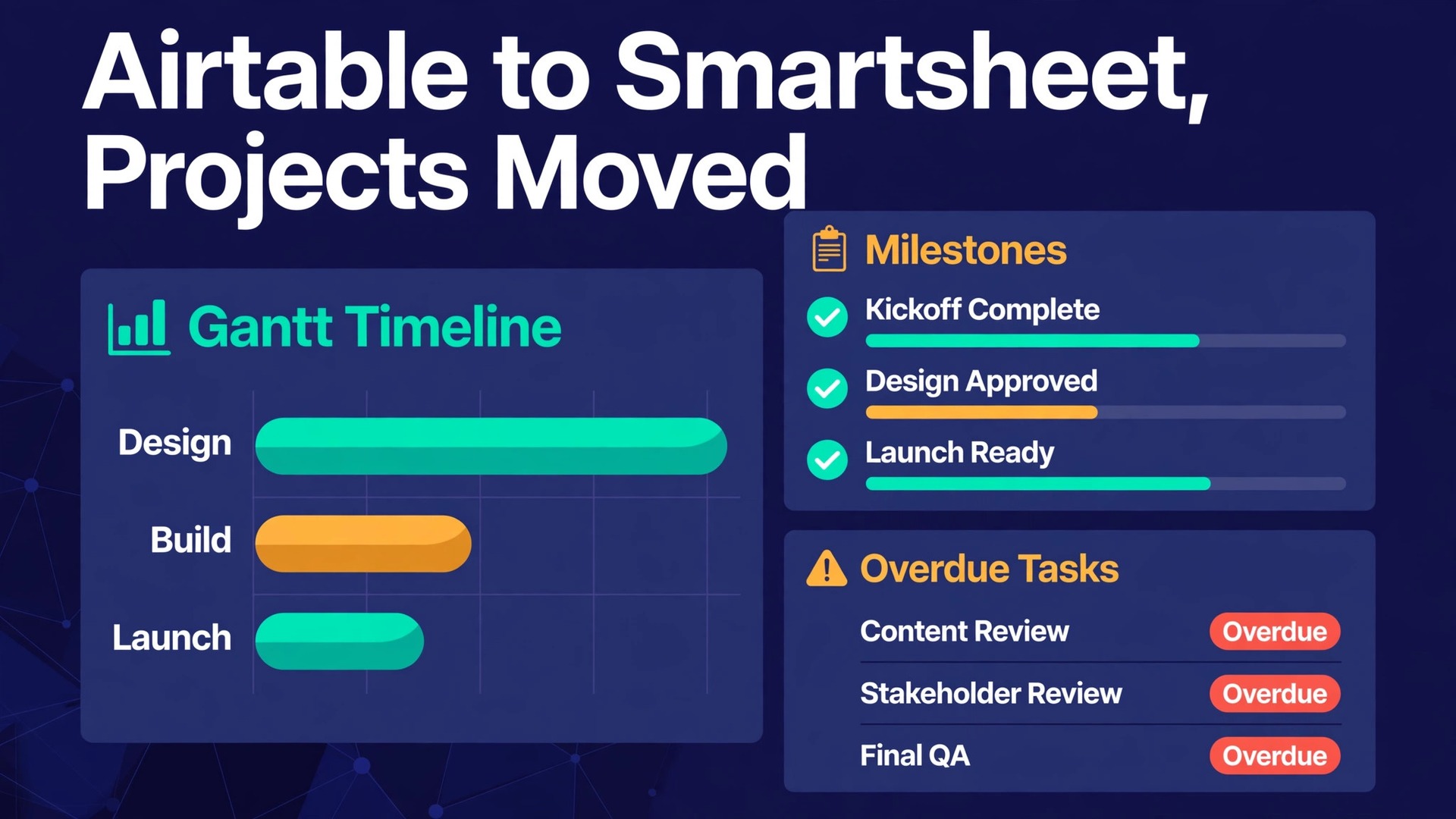
Project reporting is where many Airtable setups start to strain. A base that began as a tidy tracker can grow to dozens of tables, hundreds of linked records and a set of views that only two people fully understand. When leadership asks for a portfolio rollup, a resource view across five projects or a status pack that updates itself, the team ends up exporting, stitching and reformatting by hand. If that sounds familiar, it may be time to switch Airtable to Smartsheet, not because Airtable is a weak tool, but because Smartsheet is built around the sheet, timeline and report structure that project delivery runs on.
This guide walks through the move in the order that prevents rework. It starts with the base to sheet map, then converts each view type, then deals with fields and formulas, then rebuilds automations, then covers reporting, pricing and a phased plan you can run while live projects continue. Prices and limits quoted here were checked against vendor pages at draft time, so confirm them before you buy.
Why Teams Decide to switch Airtable to Smartsheet
Airtable is a strong relational database with a friendly front end, loved for linked tables, flexible views and interfaces nontechnical staff can build. The trouble appears when the work itself becomes the product. A project manager does not only need to store tasks. They need to see dependencies, spot a slipped milestone early, prove who is overloaded this week and hand a sponsor a dashboard that answers questions without a meeting.
Smartsheet answers those needs from a different starting point. Every sheet can show a Gantt timeline with dependencies and a critical path, and reports can pull rows from many sheets into one live view. When a task date moves, the report, the dashboard and the timeline move with it.
Governance is the second reason teams move. Smartsheet sheets carry row level structure, locked columns, approval workflows and an activity log on the Business plan, so a project lead can control who changes dates, who approves spend and what changed last Tuesday. Airtable can approximate some of this with permissions and interfaces, but the controls sit at different layers and often require a higher tier for the same coverage.
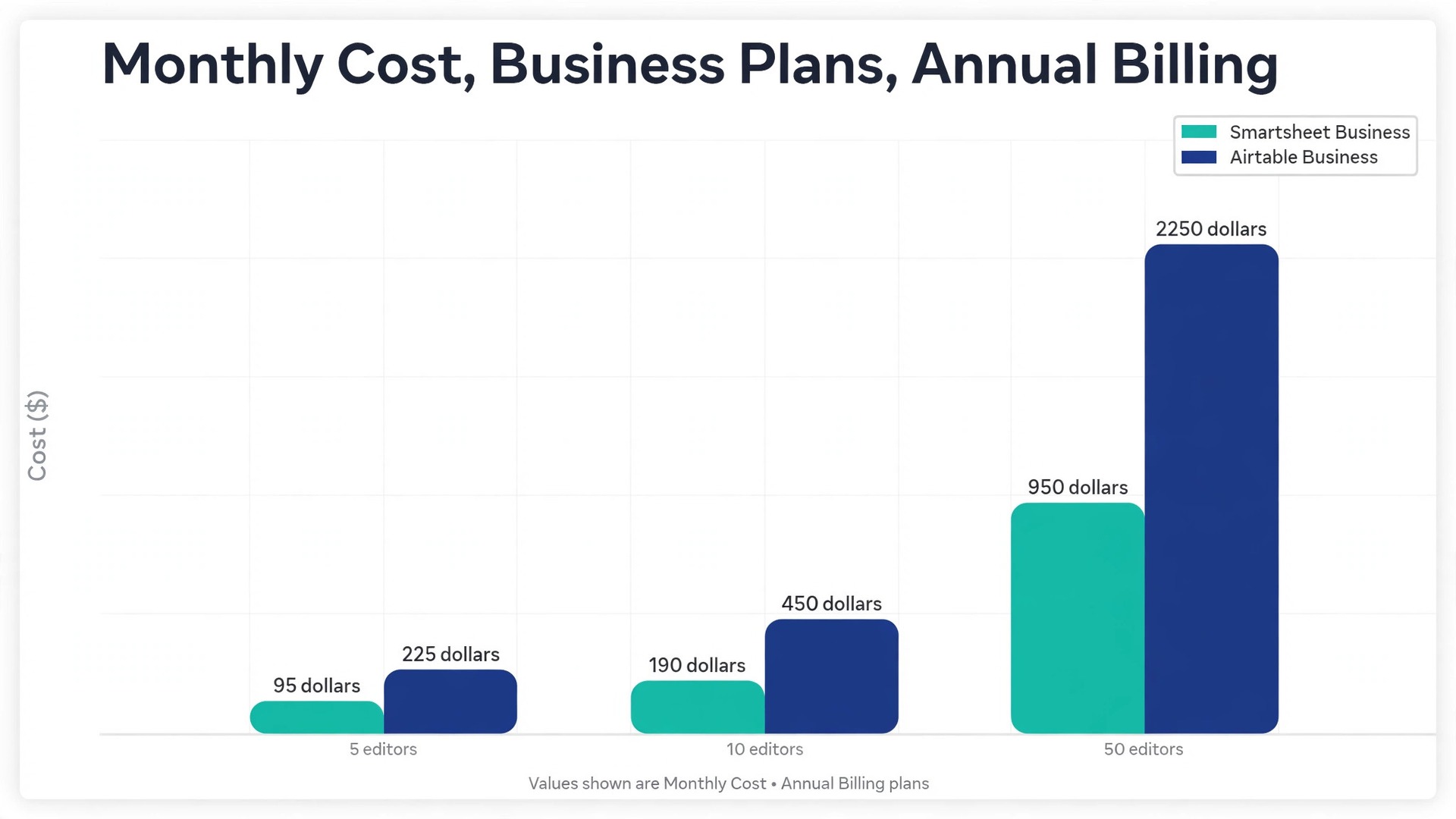
Cost is the third reason, and it deserves honest maths rather than a headline comparison. Airtable Team costs 20 dollars per seat per month on annual billing, and Business costs 45 dollars, with read only collaborators free on every plan. Smartsheet Pro costs 9 dollars per member per month on annual billing, and Business costs 19 dollars, with free viewers on both plans. A team of ten editors therefore pays far less on Smartsheet Business than on Airtable Business, but only if most of the wider team can work as viewers or guests.
A move also makes sense when reporting, not data entry, is the bottleneck. If your team spends Friday afternoons assembling updates from five bases, Smartsheet dashboards and reports will probably repay the migration effort within a quarter. If the bottleneck is instead a complex relational model with many linked tables, stay put and fix the model first. Smartsheet handles linked data through cell links, cross sheet formulas and reports, but it is not a relational database in the Airtable sense.
The Base to Sheet Map You Build First
Do not export anything until you have mapped the base on paper. A migration that starts with a CSV download ends with a pile of disconnected sheets, broken links and a team that cannot find its work. The map is a simple document with one row per Airtable table, and it becomes the build list for Smartsheet. For each table, record its purpose, its record count, its linked tables, its key views and its automations.
The core translation is straightforward. An Airtable base becomes a Smartsheet workspace, which is a folder that holds related sheets, reports and dashboards together. An Airtable table becomes a Smartsheet sheet. An Airtable record becomes a row. An Airtable field becomes a column. That sentence is easy to write and harder to execute, because linked records, formulas and attachments do not follow the same simple rule.
Start by sorting tables into three groups. Core project tables, such as tasks, milestones, risks and deliverables, become the main sheets and get rebuilt first. Reference tables, such as clients, vendors and status lists, become dropdown source sheets or single select columns. Archive tables, such as completed projects from two years ago, should not be migrated in the first pass. Export them as CSV files and leave them out until someone actually needs them.
Linked records need a decision per link, not a blanket rule. A link from a task to a project is a parent relationship, and it works well as a hierarchy of indented rows or as a project column with a report that groups by project. A link from a task to several team members becomes a contact list column with multiple contacts allowed. A many to many link, where a task links to many tags and each tag links to many tasks, has no exact Smartsheet equivalent, so replace it with a multi select dropdown plus a report that filters by tag. Write the chosen replacement in the map.
The table below gives the standard mapping. Add a row for every exception you find, because exceptions are the real migration plan.
| Airtable element | Smartsheet destination | Action before you build |
|---|---|---|
| Base | Workspace | One workspace per programme |
| Table | Sheet | One sheet per active table |
| Record | Row | Keep the Airtable record ID hidden for audit |
| Single line text field | Text or number column | Set column types during import |
| Single select field | Dropdown list column | Copy options exactly, spelling and order |
| Multiple select field | Dropdown list with multiple values allowed | Test filtering on multi value cells |
| Linked record, one link | Project column, hierarchy or cell link | Decide per link, parent, lookup or grouping |
| Linked record, many links | Contact list or multi select dropdown | Dropdown plus a filtered report |
| Attachment field | Attachment on the row | Download files separately, CSV links expire |
| Formula field | Smartsheet formula column | Rewrite every formula |
| Rollup or lookup field | Cross sheet formula or report | Cross sheet reference or summary report |
| Checkbox field | Checkbox column | Check values after import, blanks can read as unchecked |
| Date field | Date column | Match the workspace locale before import |
| Collaborator field | Contact list column | Map each person and check sharing |
| View, filtered | Saved filter or report | Rebuild filters, never import filtered exports |
| Interface | Dashboard or form | Dashboards for viewing, forms for entry |
| Automation | Smartsheet workflow | Rebuild by hand with the checklist below |
Two rules keep the map honest. First, count records per table before you plan the import. Smartsheet imports accept a file of up to 50 megabytes, with a maximum of 20,000 rows, 400 columns or 500,000 cells in one import. Split any table above those limits into smaller files. Second, keep the Airtable record ID in every export, hide it in Smartsheet, and use it to match rows when you check the import.

How Each View Converts
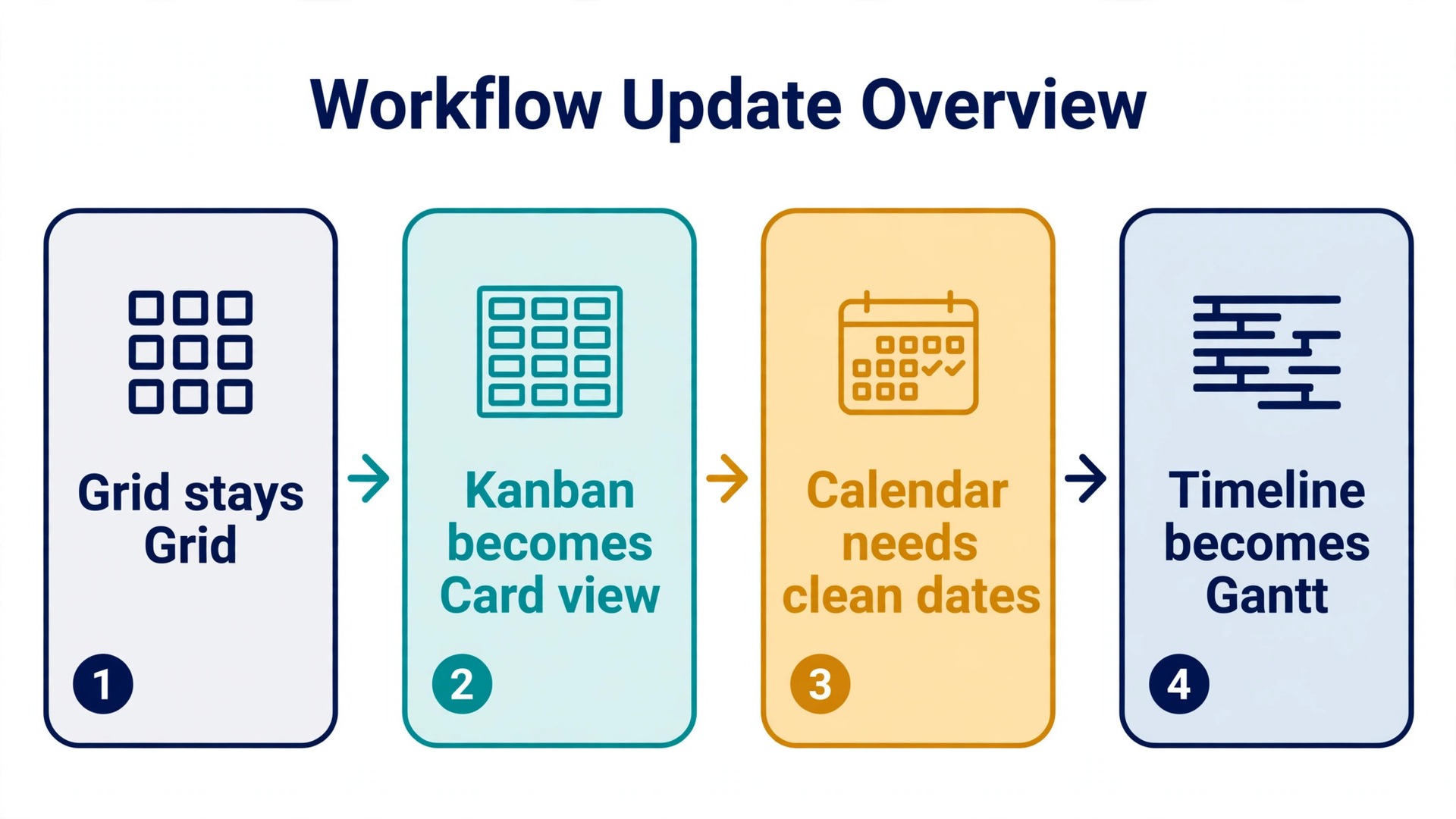
Views are where teams feel a migration most, because people do not miss tables, they miss the screen they open every morning. When you switch Airtable to Smartsheet, the grid converts cleanly, the kanban converts well, the calendar converts with care, and the Gantt view is where Smartsheet earns its keep. Plan each view separately, and test the converted view with the people who actually use it before you switch the team over.
Grid view
The grid is the easiest conversion in the whole project. Smartsheet Grid view is the native view of a sheet, so an imported table lands as a grid with columns, rows, filters and sorting already in place. Set column types during import, because a date imported as text will not sort, filter or drive a Gantt bar. Check dropdown values, since a stray space or capitalisation difference creates a duplicate option that later breaks filters. Freeze the primary column and save daily filters as named filters.
Kanban view
Airtable kanban groups cards by a single select field, usually status, and teams drag cards between columns as work moves. Smartsheet Card view does the same job, with lanes driven by a dropdown or status column and cards that show the fields you choose. Confirm the lane field has a closed list of values, since free text creates a lane per typo. Decide which fields appear on the card, because a card that shows ten fields is unreadable and one that shows two hides what people need to prioritise. Test drag behaviour, since moving a card can trigger an automation.
Calendar view
Calendar views convert, but dates expose every data quality problem in the base. Smartsheet Calendar view needs a date column, and optionally an end date, to place each row on the calendar. Tasks with no date simply do not appear, so before conversion, run a report of tasks with missing or past due dates and clean them. Multi day tasks need both a start and an end date. Recurring tasks need a different answer, since Smartsheet has no native recurring task engine in a sheet. Replace recurrence with a workflow that creates the next row when the current one completes, or with a template row the owner duplicates each cycle.
Gantt view
Gantt is the view that justifies the move for most project teams. Airtable offers a timeline view, but Smartsheet Gantt view adds dependencies, lag, milestones, percent complete rollups and a critical path, all on the same sheet that holds the task data. To convert, your sheet needs a start date column, an end date or duration column, a predecessors column for dependencies and a percent complete column. Indent subtasks under their parent task, mark milestones as zero duration tasks, and test the critical path on one real project before you convert the rest.
A useful test for every converted view is the Monday morning test. Open the Smartsheet view beside the Airtable view, and ask the person who uses it daily to complete three real jobs, such as finding overdue tasks for one owner, moving a task to done and checking what is due this week. If any job takes longer in Smartsheet, fix the view before cutover.
Field and Formula Differences That Catch Teams Out
Fields look like a simple column type problem until formulas enter the picture. Smartsheet imports data from Excel, CSV and Google Sheets, but formulas do not survive the import, because formula syntax differs between platforms. The workaround is to store the source formulas as text by removing the equals sign before export, then restore and rewrite them in Smartsheet. In practice, every formula field in Airtable needs a rewrite, not a transfer.
Start with an inventory of formula fields, sorted by how much damage a wrong value would cause. Date maths comes first, because project dates drive Gantt bars, reminders and reports. A formula that adds working days in Airtable must be rewritten with Smartsheet functions such as WORKDAY and NETWORKDAYS, and tested against known dates including weekends and holidays. Status formulas come second, since a status that reads Complete in Airtable but In Progress in Smartsheet will trigger the wrong automations.
Field type differences need the same care. A single select field maps to a dropdown list, but Smartsheet dropdowns can allow multiple values, which changes how filters and reports treat the cell. A collaborator field maps to a contact list, but contacts must exist in Smartsheet and be shared on the sheet before assignments behave as expected. An attachment field does not migrate through CSV at all, since a CSV carries only text, and export links are temporary URLs rather than files. Download attachments separately.
Rollups and lookups deserve a separate decision. In Airtable, a rollup can count linked records or sum a field across links with one field definition. In Smartsheet, the equivalent is a cross sheet formula that references another sheet, or a report that summarises rows across sheets. Cross sheet formulas work well for stable references such as pulling a project budget into a task sheet. Reports work better for counts and sums across many sheets, such as total open tasks per project. Test each rebuilt rollup against the Airtable value.
Before you switch Airtable to Smartsheet for a base with heavy formulas, run a formula audit week. List every formula, its purpose, its inputs and its expected output on five sample rows. Rewrite the top twenty formulas in a pilot sheet, compare outputs, and only then estimate the remaining work. Teams that skip the audit discover formula differences during user testing, when fixing them competes with training and cutover.

Rebuilding Automations in Smartsheet
Airtable automations do not export, so every automation must be rebuilt as a Smartsheet workflow. That sounds like a burden, and it is, but it is also the best clean up opportunity in the migration. Most bases carry automations nobody remembers, triggers that fire too often and notifications the team long ago learned to ignore. Rebuilding forces a review, and the review usually kills a third of the automations outright.
Smartsheet workflows follow a trigger, condition and action pattern. Common actions include sending an alert, sending an update request, sending an approval request, recording a date, moving or copying a row, locking or unlocking a row, assigning a person and changing a cell value. Permissions matter here, since only sheet owners and admins can create workflows that notify other people, while editors can only create alert workflows for themselves.
Approval workflows deserve special attention, because they behave differently from Airtable approvals. A Smartsheet approval request sends a message with approve and decline buttons, and the response writes a value into an approval status column. Only the owner or an admin can create approval workflows, and a locked row cannot be approved or declined, so lock the status column itself rather than the whole row. Test approvals on a pilot sheet with real approvers before you switch the team.
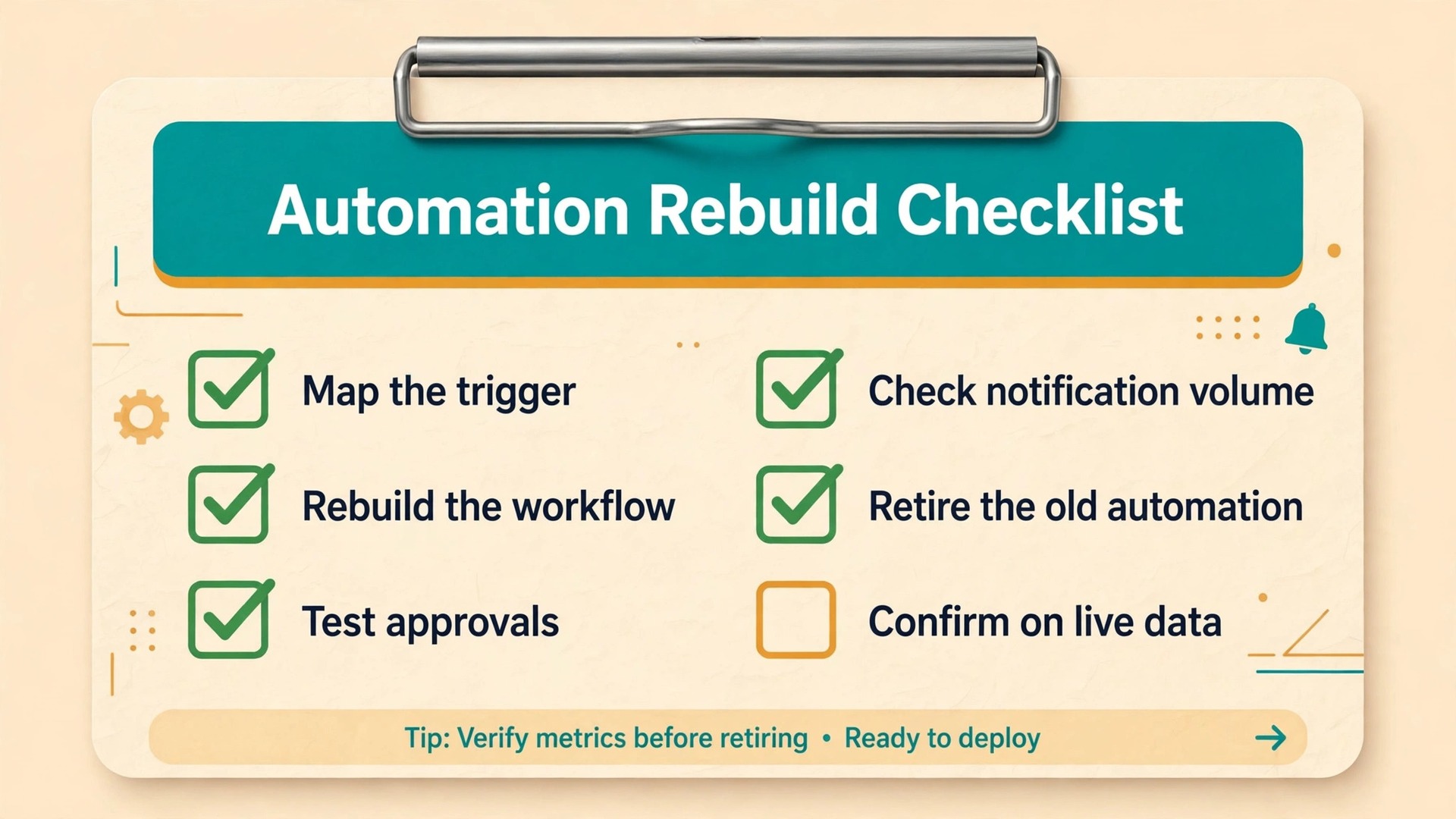
Use the checklist below for every automation you rebuild, and do not mark a workflow done until it has fired correctly on test data.
- List the Airtable automation, its trigger and every action, with the owner who can confirm it still matters
- Decide whether the automation survives, merges or dies, and record the decision with a reason
- Map the trigger to a Smartsheet trigger, and note where no exact trigger exists
- Map each action to a Smartsheet action, splitting one automation into two workflows where logic differs by outcome
- Rebuild the workflow in the pilot sheet first, using test rows that cover every condition branch
- Test approval workflows with the real approvers, including a decline and a resubmission path
- Check notification volume on a bulk change, and add conditions or a digest where a flood would result
- Confirm the workflow owner has permission to edit it, since editors cannot edit workflows built by others
- Record the workflow name, sheet, trigger and owner in the migration map
- Retire the Airtable automation only after the Smartsheet workflow has fired correctly on live data for one full cycle
Teams that switch Airtable to Smartsheet often underestimate notification design. Airtable teams tend to notify on every change, and Smartsheet makes that easy to recreate, which is not a compliment. A status change that notifies ten people creates noise that trains the team to ignore alerts, and ignored alerts are worse than no alerts. During the rebuild, notify the owner and the person who needs to act, and use a daily or weekly report for everyone else.
For automations that Smartsheet cannot express, such as multi step logic with branching, external system calls or complex data transforms, use an integration tool such as Zapier or Make, or the Smartsheet API for the heaviest cases. Keep these exceptions few, since each one adds a dependency outside Smartsheet.
Reporting and Dashboards
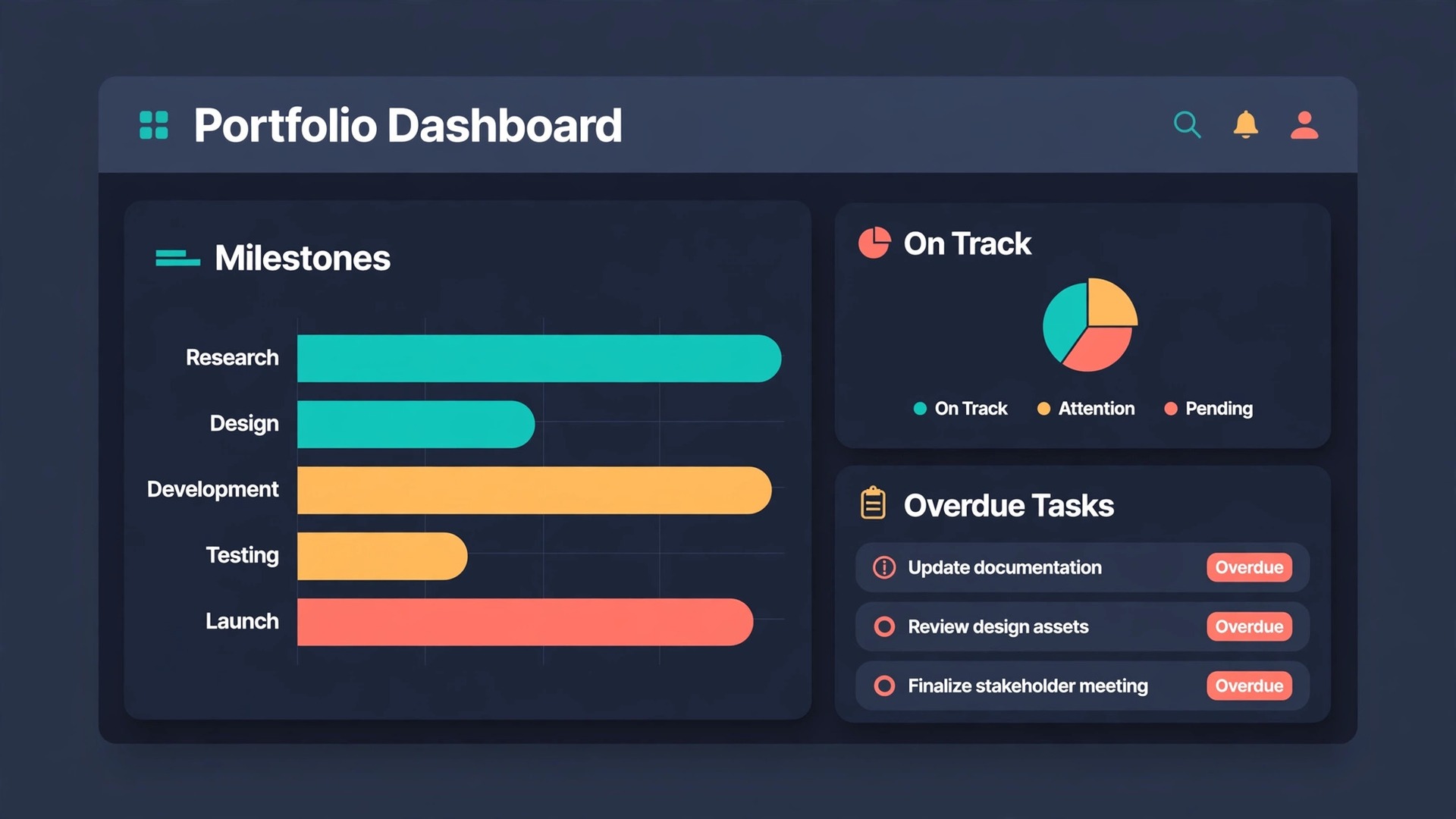
Reporting is where Smartsheet repays the migration effort, provided the sheets are built for it. A Smartsheet report pulls rows from one or more sheets that share compatible columns, filters them, groups them and sorts them into a live view. A dashboard then combines reports, sheets, charts and text into a page a sponsor can read without opening a single sheet.
Start reporting design from the questions sponsors actually ask. Typical project questions include which tasks are overdue by owner, which milestones slip this month, which projects are over budget, who is overloaded this week and what changed since the last review. Each question maps to one report with a clear filter and grouping. Overdue tasks by owner is a row report filtered on status and due date, grouped by assigned contact. Write the question list before you build anything.
Dashboards need the same discipline. A good project dashboard carries a portfolio summary, a milestone chart, an overdue task list, a risk list and a short text block explaining what needs a decision this week. Limit a dashboard to one screen, put decision items at the top, and link each widget back to its sheet or report.
Teams that switch Airtable to Smartsheet for reporting should also plan the transition of historical reporting. Smartsheet reports show live rows, not history, so a trend chart that showed progress over six months in Airtable will not appear automatically. If trend reporting matters, build a simple monthly snapshot sheet where a step on the first of each month records key figures. That sheet becomes the trend source.
Pricing Comparison
Prices change, so treat the figures below as a snapshot checked at draft time and confirm them on the official pricing pages before you commit. The comparison matters less as a headline and more as a model of who you pay for, because both vendors charge for editors and let viewers in free.
| Plan | Annual price per member or seat | Monthly price | Who it suits |
|---|---|---|---|
| Smartsheet Pro | 9 dollars per member per month | 12 dollars per member per month | Small teams, up to 10 members |
| Smartsheet Business | 19 dollars per member per month | 24 dollars per member per month | Delivery teams needing unlimited automations |
| Smartsheet Enterprise | Custom quote | Custom quote | Large organisations, advanced security |
| Airtable Team | 20 dollars per seat per month | 24 dollars per seat per month | Small teams, 50,000 records per base |
| Airtable Business | 45 dollars per seat per month | 54 dollars per seat per month | Larger teams, 125,000 records, deeper permissions |
| Airtable Enterprise Scale | Custom quote | Custom quote | Large organisations, negotiated limits |
The cost picture changes with team shape. Take a team of ten editors and forty viewers. On Smartsheet Business at annual billing, ten members cost 190 dollars per month, and the forty viewers cost nothing. On Airtable Business at annual billing, ten seats cost 450 dollars per month, and the viewers cost nothing. Take a team of fifty editors instead, and Smartsheet Business costs 950 dollars per month while Airtable Business costs 2,250 dollars per month.
Three costs hide behind those headlines. First, Smartsheet Pro caps automation at 250 runs per month and members at ten, so a team that outgrows Pro mid year faces a plan jump, not a small upgrade. Second, Smartsheet attachment storage is 20 gigabytes on Pro and 1 terabyte on Business, so a team with heavy project files may need Business for storage alone. Third, Airtable charges for commenters on the Team plan but only for owners, creators and editors on Business. Model your real roles, not your headcount.
For a team that plans to switch Airtable to Smartsheet, the cheapest honest comparison is a twelve month total. Add the plan cost for your editor count, add any integration tool cost for workflows Smartsheet cannot express, add training time for the team, and add the migration effort itself. A migration that saves 200 dollars a month on licences but costs a month of project manager time to rebuild badly planned sheets is not a saving.
A Phased Project Migration Plan
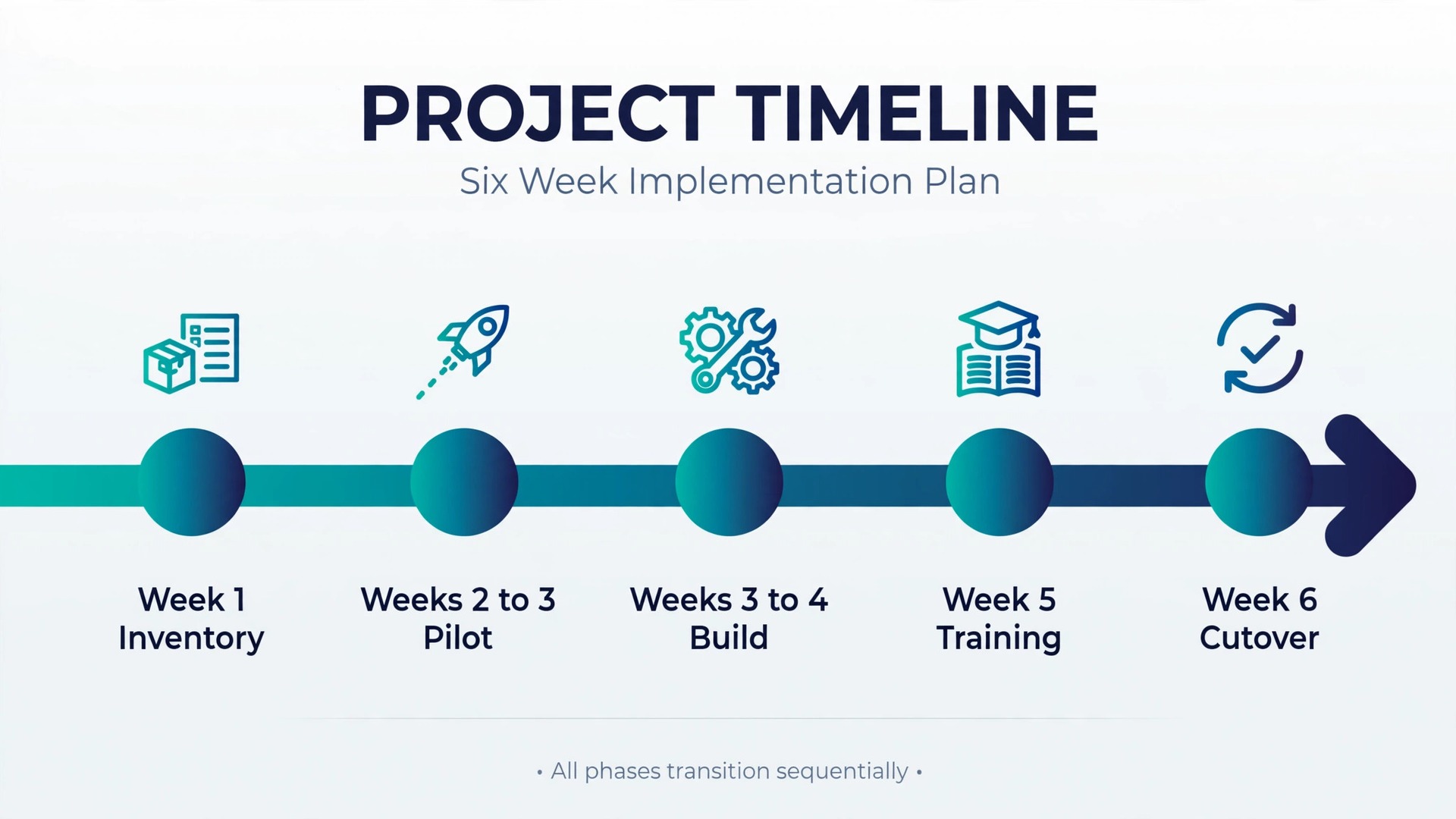
A big bang migration, where the whole base moves over a weekend, works only for small teams with one project and a quiet Monday. For live delivery teams, a phased plan protects deadlines and gives the team time to learn. The plan below runs over six weeks, and each phase has an exit check that must pass before the next phase starts.
Phase one is inventory and mapping, in week one. List every table, view, formula, automation and interface, sort tables into core, reference and archive groups, and build the base to sheet map. Exit check, the map is reviewed by the project leads and every core table has a named destination and owner.
Phase two is the pilot, in weeks two and three. Build one real project in Smartsheet, convert its views, rewrite its formulas, rebuild its automations and create its dashboard. Run the pilot beside Airtable, with the same team updating both systems for one week, and compare outputs daily. Exit check, the pilot passes the Monday morning test and its reports match Airtable on the same data.
Phase three is the build, in weeks three and four. Build the remaining core sheets from the pilot template, import data in stages within the import limits, reattach files, and rebuild the remaining automations using the checklist. Exit check, every core sheet has been imported, spot checked against Airtable record counts, and signed off by its owner.
Phase four is training and parallel running, in week five. Train the team on the sheets they actually use, and run both systems in parallel for one full reporting cycle. During parallel running, Smartsheet is the system of record for new work, and Airtable remains readable for reference. Exit check, the weekly status pack is produced from Smartsheet alone.
Phase five is cutover, in week six. Freeze Airtable edits on a Friday, run a final import of any changed rows, verify record counts and key reports, and switch the team to Smartsheet on Monday morning. Keep Airtable readable for at least ninety days and export a final CSV archive before cancelling the plan.
The week you switch Airtable to Smartsheet for live projects should never coincide with a major deadline, a client delivery or a team holiday. Move the cutover by a week rather than forcing it into a bad window, because a migration that lands during a deadline will be judged by that deadline, not by the quality of the sheets.
Related reading can help you judge the wider move before you commit. If your team also weighs other project tools, our guide to the best project management software gives a broader comparison, and the Asana versus Monday comparison shows how two popular delivery tools differ on timelines and workload. For the integration side, the guide to AI workflow automation tools for small business covers automation, while automating a small business with AI looks at wider operations.
If reporting is your main reason to move, the best AI tools for project managers rounds out the picture, and if you switch Airtable to Smartsheet after reading those guides, you will arrive with a clearer sense of what Smartsheet must prove in the pilot.
Frequently Asked Questions
Can I import an Airtable base directly into Smartsheet?
No direct importer exists, so the route is export then import. Export each table from a grid view as a CSV file, then import the file into Smartsheet as a new sheet or into an existing sheet in table view. Smartsheet accepts Excel, CSV, Google Sheets and Trello imports, with a limit of 50 megabytes, 20,000 rows, 400 columns or 500,000 cells per import.
What happens to linked records during the move?
Linked records flatten in a CSV export, usually into a comma separated list of names or IDs, so the link structure does not transfer. Before export, decide the Smartsheet replacement for each link, such as a hierarchy, a contact list column, a dropdown or a cell link to another sheet. Keep the Airtable record ID in every export, so you can match rows and rebuild links accurately.
Do Airtable formulas work in Smartsheet after import?
No, imported formulas do not carry over, because the syntax differs between platforms. You must rewrite each formula in Smartsheet, starting with date maths and status logic, since those drive Gantt bars, reminders and automations. Test every rewritten formula against known outputs from Airtable, including blank dates and overdue tasks, before you trust the new sheet for reporting.
How do Airtable automations translate to Smartsheet workflows?
Each Airtable automation becomes one or more Smartsheet workflows built on a trigger, condition and action pattern. Alerts, update requests, approval requests, row moves, date recording and cell changes all have Smartsheet equivalents, but multi step branching logic may need splitting into several workflows or an integration tool. Only sheet owners and admins can create workflows that notify other people.
Is Smartsheet cheaper than Airtable for a project team?
It depends on how many people edit. Smartsheet Business costs 19 dollars per member per month on annual billing, while Airtable Business costs 45 dollars per seat per month on the same basis, so a team with few editors and many viewers usually pays less on Smartsheet. Model your real editor, commenter and viewer counts, and confirm prices on the official pages before deciding.
Should I migrate all projects at once or phase the move?
Phase the move for any team with live deadlines. Start with one pilot project, run it beside Airtable for a week, then build the remaining sheets from the pilot template, then run both systems in parallel for one reporting cycle before cutover. A phased plan takes about six weeks for a mid sized team. Keep Airtable readable for at least ninety days after cutover, and archive final CSV exports before cancelling the plan.
The Move That Pays Off When Reporting Matters
The decision to switch Airtable to Smartsheet comes down to one question. Is your hardest problem storing connected data, or delivering projects on time with proof? If the answer is connected data, Airtable remains the better home. If the answer is delivery, timelines, dependencies and sponsor reporting, Smartsheet is built for that job, and the migration effort is an investment that pays back every Friday when the status pack writes itself.
Start with the map, pilot one real project, rebuild automations with the checklist, and judge the move on the Monday morning test rather than on a feature list. A migration that passes those checks will stick, because the team will have felt the benefit before cutover day. Do the pilot properly, and the rest of the move follows.