More than half of American households now stream most of their television, and the living room remote has become the front door to that habit. A small stick that plugs into the back of a television can replace a shelf of boxes and cables, yet many first time buyers stall at the same point, staring at a blank input screen and wondering which port, which password, and which account comes first. The good news is that the whole job takes about twenty minutes when the order is right, and most of that time is waiting for a software update to finish. This guide shows how to set up Fire TV Stick for streaming beginners, in the order that causes the fewest surprises.
This guide explains how to set up Fire TV Stick for streaming beginners in plain steps, with no assumed knowledge.
This guide walks through how to set up Fire TV Stick for streaming beginners in the order that causes the fewest surprises. You will plug in the hardware, connect to Wi-Fi, sign in to your Amazon account, sign in to your streaming apps one at a time, and finish with the picture and sound settings that make the biggest difference. By the end, the stick will feel like a normal part of the television rather than a gadget that needs constant attention.
Before You Unbox and Plug In
Start by gathering four things before you touch the television. You need the Fire TV Stick and its remote, the power adapter and USB cable from the box, two AAA batteries for the remote, and your Wi-Fi password. You also need an Amazon account, or the willingness to create one during setup, plus the login details for at least one streaming service you already pay for. Having these ready avoids the most common stall, which is pausing halfway through setup to hunt for a password on another device.
Check the back or side of your television for a free HDMI port before you plug anything in. Most televisions label these ports HDMI 1, HDMI 2, and so on, and the stick needs one that is easy to reach. If the ports sit tight against a wall or another cable blocks the stick, use the short HDMI extender cable included in the box. The extender gives the stick room to breathe, which also helps Wi-Fi reception, since a stick pressed flat against the back of a television can struggle to hold a signal.
Power matters more than most beginners expect. Amazon advises plugging the USB cable into the wall adapter rather than into a USB port on the television, because television USB ports often deliver less power than the stick needs. A stick running on weak power can restart during updates, freeze on the home screen, or drop Wi-Fi for no obvious reason. Plug the adapter into a wall outlet you can reach, keep the cable slack so it does not tug on the stick, and leave the television remote nearby, since you will need it to change the input source in a moment.
Think about where the remote will live once setup is done. The Alexa Voice Remote pairs over Bluetooth, so it does not need a clear line of sight to the stick the way an old infrared remote did. That freedom is useful, but it also means the remote can end up down the side of the sofa. A small tray or hook near your usual seat saves a surprising amount of searching later, and it keeps the batteries from being drained by buttons pressed under a cushion. Sorting the remote spot early is a small win when you set up Fire TV Stick for streaming beginners, because the remote is the part you touch every day.
How to set up Fire TV Stick for streaming beginners
The steps below follow the order Amazon uses on screen, with the small practical notes that the on screen prompts leave out. Work through them one at a time, and do not skip the software update even if you are eager to watch something. To set up Fire TV Stick for streaming beginners well, patience at the update step pays off in fewer glitches later.
- Put the batteries into the remote. Slide the back cover off, insert the two AAA batteries in the direction shown inside the compartment, and replace the cover. The remote should pair on its own when the stick powers up, and if it does not, hold the Home button for ten seconds while standing near the television.
- Connect the USB cable to the power adapter and to the stick. Push the small end firmly into the stick until it seats fully. A loose connection here is a common cause of random restarts, so give the cable a gentle tug to confirm it is snug before you move on.
- Plug the stick into a free HDMI port on the television. Use the extender cable if the fit is tight or the stick presses against the wall. Note which port number you used, because you will need to select that input on the television in the next step.
- Plug the power adapter into a wall outlet. Avoid the television USB port for power, as explained above. The stick should begin booting, and the Fire TV logo should appear within a minute.
- Turn on the television and switch to the correct HDMI input. Use the television remote, not the Fire TV remote, for this step, and press the Input or Source button until you reach the port number you noted. If you see a blank screen, wait thirty seconds and try the next input, since some televisions take a moment to detect a new device.
- Follow the on screen prompts to choose a language. The remote directional pad moves the highlight, and the centre button selects. Take your time here, since the language choice affects menus, voice search, and subtitles throughout the system.
- Connect to your Wi-Fi network. Select your network name from the list, enter the password carefully with the on screen keyboard, and confirm. If your password contains capitals or symbols, double check each character, because a single wrong character produces a vague connection error that looks like a network fault.
- Wait for the software update to download and install. The stick may restart once or twice during this step, which is normal. Do not unplug it while the update runs, and do not worry if the progress bar seems to pause, since large updates often sit at one percentage for several minutes.
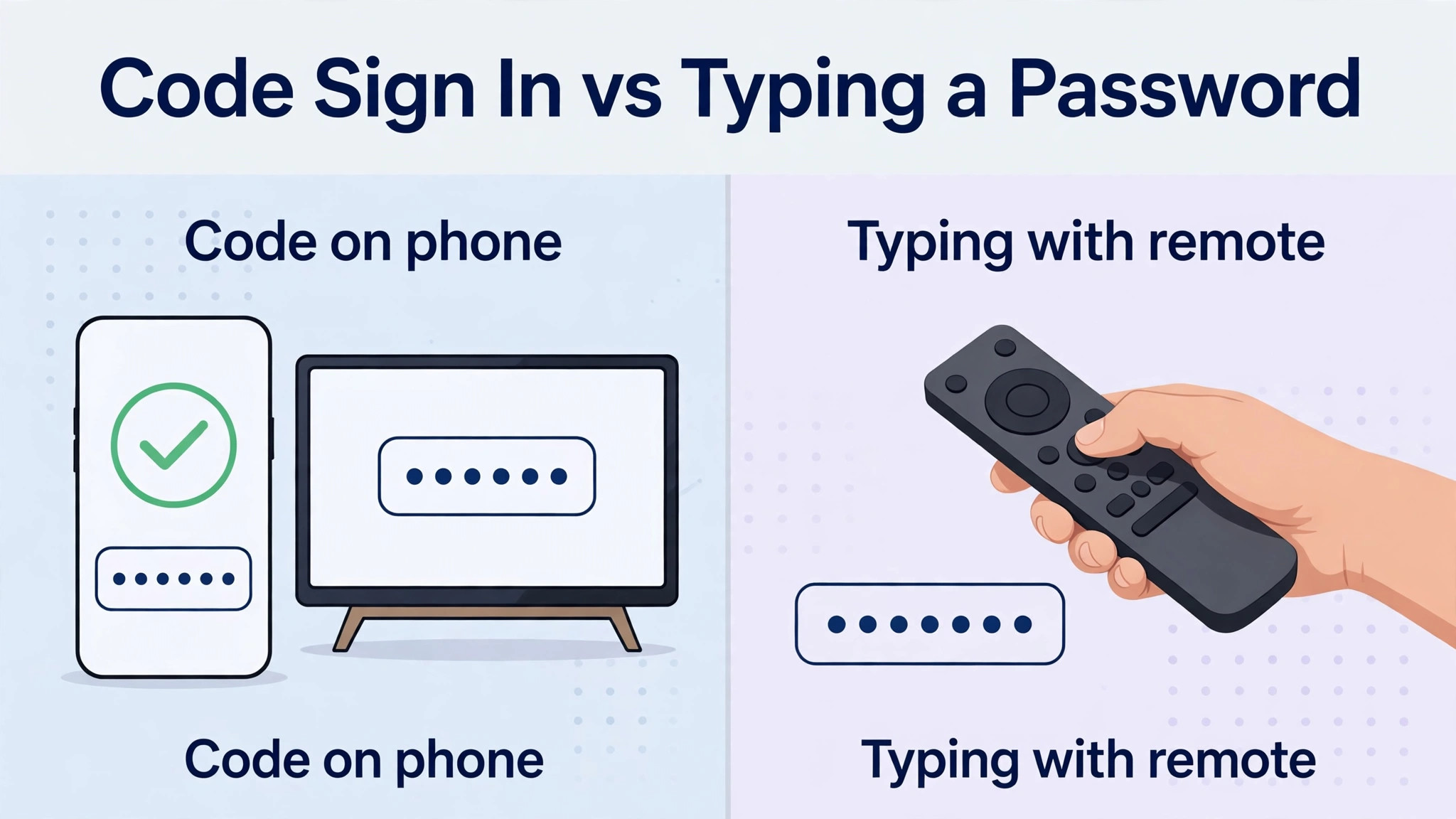
- Sign in to your Amazon account. The television will show a code and ask you to visit amazon.com/code on a phone or computer, sign in there, and enter the code. This method keeps you from typing a long password with a remote, and it also confirms the stick is registered to the right account. If you bought the stick from your own Amazon account, it may already be registered, in which case you simply confirm the account shown.
- Answer the equipment control questions. The setup will ask whether you want the Fire TV remote to control television power and volume, and it will test the volume buttons. Say yes if you want one remote for daily use, and test both volume up and volume down before you confirm, since a half working setup is more annoying than no setup at all.
Once these steps are complete, you land on the Fire TV home screen, and the hardest part is over. The home screen shows rows of apps and recommendations, which can look busy at first, but you do not need to understand every row today. The next sections cover signing in to apps, tuning picture and sound, and building a simple routine, and each of those jobs is smaller than the setup you just finished. To set up Fire TV Stick for streaming beginners in full, the app sign in stage is where the device stops being a gadget and starts being your television.
Your First Night Setup Checklist
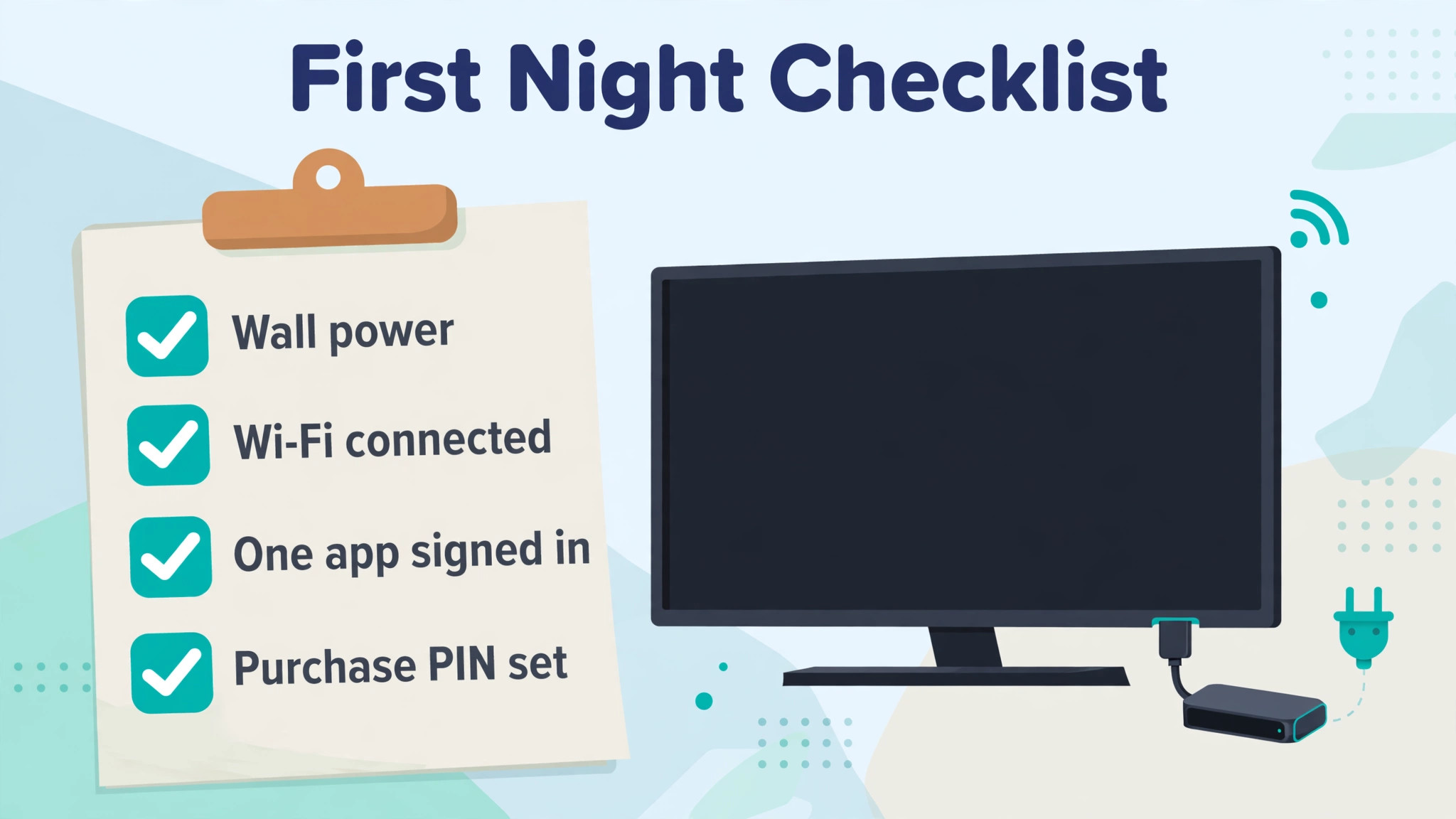
A short checklist keeps the first evening simple and stops the common mistake of signing in to twelve apps at once and forgetting half the passwords. Work through the list in order, tick each item off, and stop when the list is done rather than wandering into settings menus that can wait until the weekend.
- Confirm the stick stays powered from the wall adapter, not from the television USB port, and that the cable is not stretched tight.
- Confirm the television input is set to the stick port, and that the Fire TV remote changes volume on the television if you enabled that control.
- Confirm Wi-Fi shows as connected in the settings menu, and run one short video to prove the connection holds under real playback.
- Sign in to one main streaming app first, watch five minutes of a show, and check that sound comes from the television speakers or soundbar as expected.
- Turn on subtitles for one show and turn them off again, so you know where that control lives before you need it in a hurry.
- Set a PIN for purchases and for parental controls if children use the television, even if you do not think you need it yet.
- Write down the Amazon account email used for registration, and store it with your other household passwords, since account recovery is the slowest fix for any later problem.
The value of this list is that it separates setup from exploration. Exploration is fun, but it is also how beginners end up with five free trials running, a home screen full of apps they never open, and a remote whose buttons they have never tested. A calm first night, with one app working well, builds more confidence than a frantic evening of half finished installs, and confidence is what turns a new device into a daily habit.
If anything on the checklist fails, fix that one item before moving on. A Wi-Fi problem found now, while you are still in setup mode, is a five minute fix. The same problem discovered during a family movie night feels like a crisis, even though the fix is identical. Note what failed and what fixed it, since that note will save you a repeat search if the same fault returns after a router restart or a power cut.
App Sign In Table and Streaming Accounts
Signing in to apps is where most beginners lose time, because every service has its own method. Some ask you to type an email and password with the remote, which is slow. Others show a code on the television and ask you to approve it on a phone, which is much faster. The table below covers the pattern for the services most households start with, so you can pick the faster method each time rather than discovering it by trial and error.
| Service type | Usual sign in method | Tip that saves time |
|---|---|---|
| Prime Video | Already signed in through your Amazon account | No extra step needed after registration |
| Netflix | Code on television approved on a phone, or email and password | Use the code method and keep your phone nearby |
| Disney Plus | Code on television approved on a phone or computer | Approve on the same device where you manage the subscription |
| YouTube | Code on television approved on a Google account | Sign in once and your subscriptions and history follow |
| Hulu | Email and password, sometimes with a code | Check for a verification email if sign in seems to stall |
| Free apps like Pluto TV or Tubi | Often no account needed at all | Open and watch first, create an account later only if you want saved favourites |
Sign in to apps in order of how often you actually watch them, not in the order they appear on the home screen. The home screen promotes services that pay for placement, and a beginner who follows that order can end up subscribing to something they barely use. Start with the one or two services you already pay for, add a free service for background viewing, and leave the rest until you have a reason to open them. Your home screen will stay tidy, and your subscription spending will stay visible.
Watch for free trial traps during sign in. Some apps offer a trial as part of the sign in flow, with the trial converting to a paid plan unless you cancel. A trial is fine if you want it, but set a reminder on your phone for the day before it ends, and read the price shown on the confirmation screen rather than the price shown in the advertisement. If a trial asks for payment details before you have watched anything, pause and decide whether you actually want that service this week.
One more habit belongs here, and it is the habit of signing out of nothing. On a shared family television, staying signed in is normal, but purchases should still need a PIN, as noted in the checklist. If a guest or a child uses the television, a purchase PIN is the difference between a funny story and an awkward refund request. Set the PIN under the account and parental control settings, test it once with a small action, and then forget about it until it is needed.
To set up Fire TV Stick for streaming beginners with accounts handled properly, treat sign in as a short weekly job rather than a single marathon. Add one new app per week if you want it, sign in carefully, watch something on it, and only then decide whether it earns a permanent place on your home screen.
Picture, Sound and Remote Settings That Matter
Most televisions look acceptable out of the box, but two settings make a visible difference on a Fire TV Stick, and both are easy to miss. The first is the display resolution, found under the display settings, which should match what your television can actually show. A 4K stick on a 1080p television gains nothing from a 4K setting, and a stick set too low on a 4K television wastes the screen you paid for. Set the resolution to automatic first, then check a known sharp programme, and only change it manually if the picture looks soft or the screen flickers.
The second setting is the television picture mode itself, which lives on the television, not on the stick. Many televisions ship in a vivid shop mode that oversaturates colours and sharpens edges until faces look waxy. Switching the television to a movie or cinema mode usually produces a calmer, more natural picture, and it costs nothing. Try the change during a familiar show, compare it for ten minutes, and keep the mode that looks right to your eyes rather than the mode that looks brightest in the shop.
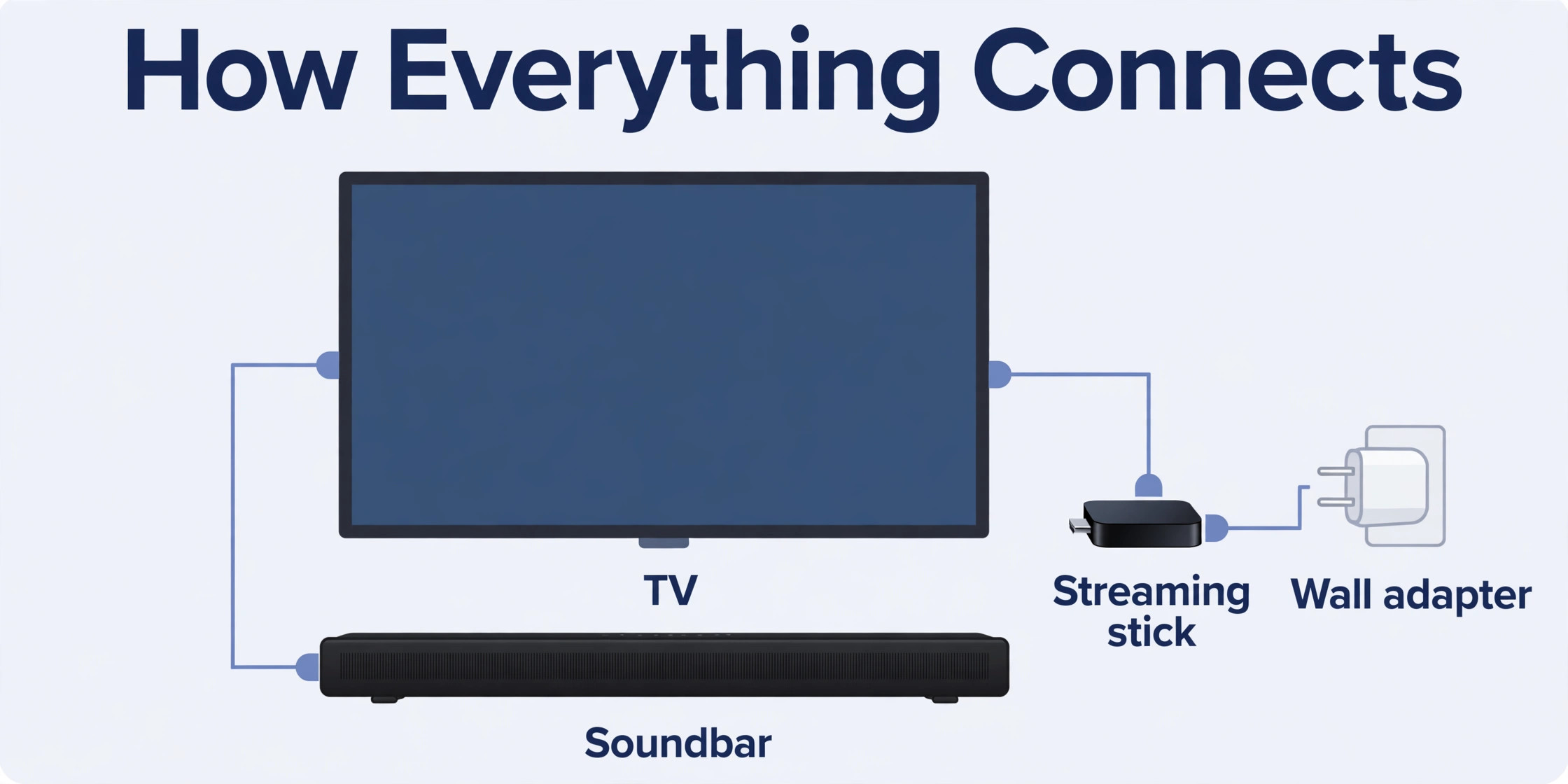
Sound deserves the same ten minute test. If you listen through television speakers, turn on any dialogue enhancement or clear voice mode the television offers, since small speakers often bury speech under music and effects. If you use a soundbar, make sure the television audio output is set to the soundbar connection, and test the Fire TV remote volume buttons to confirm they control the soundbar rather than the television speakers. A mismatch here produces the classic fault where the volume buttons appear to do nothing, even though sound is playing fine.
Remote settings round out this section. The Fire TV remote can control television power and volume once equipment control is set up, and it can also control some soundbars. If the volume test failed during setup, revisit the equipment control menu and run the test again, trying each offered code until the volume responds. Also learn the voice button early, since holding it and naming a show is faster than typing a title with the directional pad, especially for long titles or foreign language programmes.
Accessibility settings are worth a look even if you do not think you need them. Larger text, high contrast menus, and audio descriptions can help guests and older family members use the television without assistance, and they can be turned on or off in seconds. A household television serves more than one person, and a setting that helps one viewer rarely harms another, so a quick pass through the accessibility menu is time well spent.
When Something Does Not Work
Most Fire TV Stick faults fall into four groups, and each group has a first test that takes less than a minute. Start with the group that matches what you see, rather than restarting everything at once, because a targeted test tells you what actually fixed the problem.
If the screen is blank, check the television input first, then the power cable. A stick powered from a television USB port may show a low power warning or simply fail to boot, and moving the cable to the wall adapter fixes it immediately. If the input is right and power is right, unplug the stick power for thirty seconds, plug it back in, and wait a full minute for the boot sequence, since a rushed second attempt can look like a failure when the device was still starting.
If Wi-Fi will not connect, move closer to the problem in stages. First, confirm other devices on the same network still work, which tells you whether the fault is the stick or the network. Next, restart the router, wait two minutes, and try the stick again. If the stick sees the network but rejects the password, retype the password slowly, checking capitals and symbols, and if the network name contains a space or unusual character, confirm you selected the right network from the list rather than a neighbour network with a similar name.
If an app will not open or a video buffers constantly, test a different app before blaming the stick. When one app buffers and another plays fine, the fault usually sits with the first app or its servers, and waiting or reinstalling that one app is the right move. When every app buffers, the fault is more likely Wi-Fi signal or broadband speed, and moving the router closer, adding the extender cable for a better stick position, or switching the stick to a less crowded Wi-Fi band can help.
A speed test on a phone held next to the television gives a useful number to compare against what streaming needs, which is roughly 5 megabits per second for high definition and 25 megabits per second for 4K.
If the remote stops responding, replace the batteries first, even if they seem new, since weak batteries cause intermittent faults that look like software problems. Next, hold the Home button for ten seconds near the stick to re-pair the remote. If that fails, restart the stick from the settings menu or by unplugging power briefly, and then pair again. Keep a spare pair of AAA batteries in the same place as the remote tray, so this fix never waits for a shopping trip.
To set up Fire TV Stick for streaming beginners with fewer support calls, keep a one page note of these four tests near the television for the first month. The note turns a frustrating evening into a short sequence, and after a few weeks you will find you no longer need it, because the fixes will have become habit.

Habits That Keep Streaming Smooth
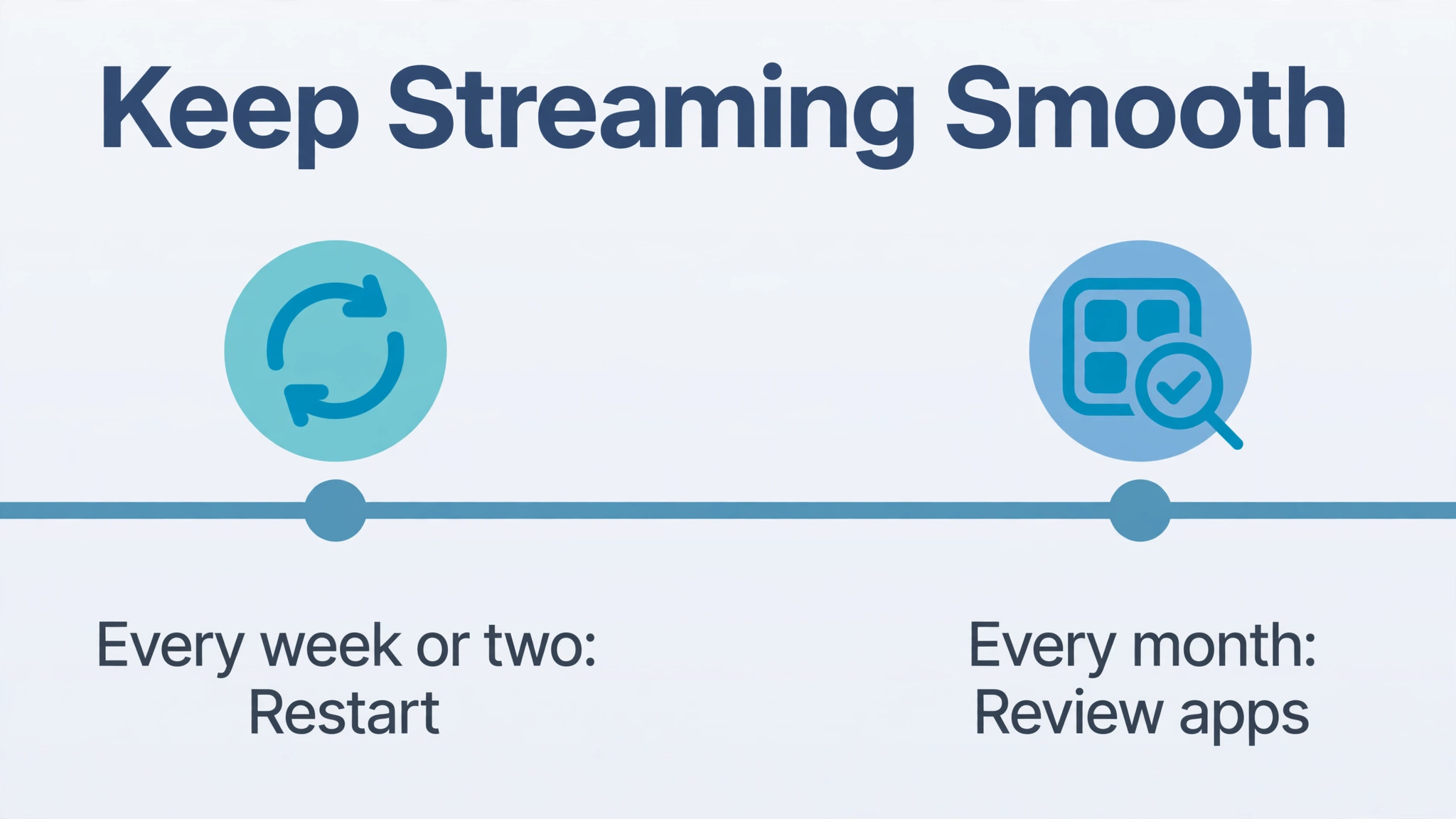
A streaming stick needs very little maintenance, but three small habits prevent most long term annoyances. First, restart the stick once every week or two, either from the settings menu or by unplugging power for thirty seconds. Streaming apps cache data as they run, and a periodic restart clears the stale cache that causes slow menus and app crashes. Treat it like restarting a phone, a routine task rather than a sign that something is broken.
Second, review your apps and subscriptions once a month. Open the apps list, remove anything you have not opened in a month, and check your subscription emails for services you forgot you were paying for. A tidy home screen loads faster and makes the apps you love easier to find, and a monthly subscription check can save real money over a year. This is also the right moment to check for software updates if automatic updates are off, since updates often fix the exact app faults users report.
Third, keep the area around the stick ventilated and the cable slack. A stick wedged behind a hot television, or a cable pulled tight by a moved television stand, can cause heat and connection faults that appear randomly. When you rearrange furniture, check the stick position as part of the move, and if the television moves to a new room, rerun the Wi-Fi and equipment control checks rather than assuming the old settings still fit the new space.
Voice search deserves a place in your weekly habit too, and it is one of the first skills to practise after you set up Fire TV Stick for streaming beginners, since it replaces the slowest job, which is typing titles with a directional pad. Try one voice search per week for something you actually want, and notice how much faster it is than typing. Voice search also helps when a title is hard to spell, and it can launch apps directly, which saves several remote presses. The more you use it, the more natural it feels, and the less the remote feels like a chore.
More Reading on Stratilyze
More Reading on Stratilyze. If streaming setup is your starting point, the companion guides on Roku for streaming beginners and Apple TV for home entertainment compare the other main approaches, and the guide on Disney Plus buffering on a smart TV covers the buffering fixes that apply to any stick. Read the one that matches your next device first, since a second setup goes faster when the first one is fresh in your mind.
Frequently Asked Questions
Do I need an Amazon account to use a Fire TV Stick?
Yes, registration needs an Amazon account, even if you never buy anything from Prime Video. The account ties the stick to your household, manages app purchases, and stores settings like your Wi-Fi password for future devices if you allow it. You can create a free account during setup, and you do not need a Prime membership to use Netflix, YouTube, or other third party apps.
Why does my Fire TV Stick keep restarting on its own?
The most common cause is weak power, usually because the stick is plugged into a television USB port instead of the wall adapter. Move the cable to the wall adapter and test for a day before trying anything else. If restarts continue on wall power, check for overheating behind the television, try a different HDMI port, and run the software update, since a corrupt update can also cause restarts.
Can I use a Fire TV Stick on an older television?
Yes, as long as the television has a free HDMI port and can show a high definition picture. The stick does not need a smart television, and in fact it is often the best upgrade for an older set, since it adds modern apps to a screen that still works well. Check that the television remote can change inputs, and keep that remote nearby, since you will need it to select the stick input.
How much internet speed do I need for smooth streaming?
For high definition viewing, a steady 5 megabits per second at the television is usually enough, and for 4K viewing, aim for 25 megabits per second. The speed at the television matters more than the speed promised by your broadband plan, so test on a phone held next to the television. If the number is far lower than the rest of the house, the Wi-Fi signal at the television is the bottleneck, not the stick.
What should I do before giving the stick to someone else or selling it?
Deregister the stick from your Amazon account first, either in the stick settings or on the Amazon website under your devices. Deregistering removes your account, your app sign ins, and your payment details from the device. After deregistering, restart the stick and confirm it shows the fresh setup screen, which proves the next owner starts clean.
Is a Fire TV Stick safe for children to use?
It can be, with two settings in place. Set a purchase PIN so children cannot buy or rent content by accident, and turn on parental controls to restrict content by age rating and to set viewing hours if your household uses them. Review the controls together with older children, since a control they understand is more likely to be respected than one that feels like a surprise.
A Calm First Week With Your New Stick
The first week is about learning one new skill at a time, not about mastering every feature on day one. Day one is plug in and watch something familiar. Day two is voice search and subtitles. Day three is a second app, signed in properly and tested. By the end of the week, the remote will feel familiar, the home screen will show the apps you actually use, and the stick will have faded into the background, which is exactly where good technology belongs.
Keep this guide nearby for the first month, and revisit the checklist whenever you add a new app or move the television. Small, ordered steps beat grand overhauls, and a stick that was set up calmly tends to stay calm. To set up Fire TV Stick for streaming beginners and keep it that way, the winning habit is simple. Set it up once, properly, and then just watch television.