
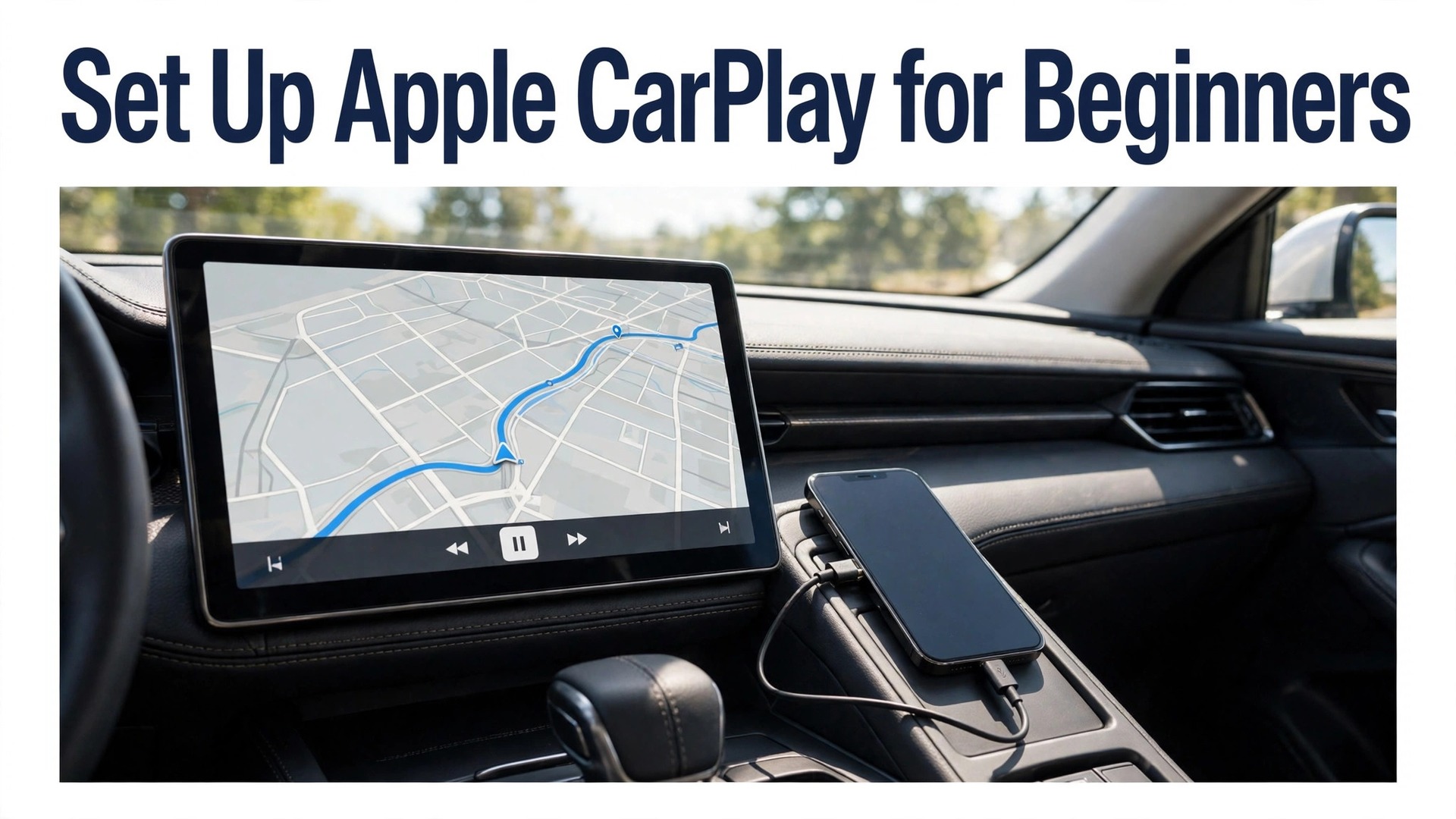
Most new cars sold in recent years include Apple CarPlay, yet a surprising number of owners never use it, because the first connection failed once and nobody tried again. The lost benefit is real. CarPlay puts navigation, music, calls, and messages on the car screen in a driving safe layout, controlled by voice, touch, or steering wheel buttons, instead of a phone balanced on a knee or a mount. This guide explains how to set up Apple CarPlay for beginners in the order that works, from compatibility checks and first pairing to the settings that make every drive smoother.
CarPlay is not an app you download and not a device you buy from Apple. It is a feature built into the iPhone and into compatible car infotainment systems, and it activates when the two connect. That simplicity is good news, since there is nothing to install, but it also means faults usually come from settings, cables, or car menus rather than from a missing download, and this guide focuses on those causes in the order you will meet them.
Check Compatibility Before You Sit in the Car
Start with the iPhone, since that check is fastest. CarPlay works on iPhone 5 and later running the required iOS version, though in practice any iPhone from the last several years works, and newer iPhones add wireless CarPlay support and faster performance. Update iOS before setup if an update is waiting, since CarPlay fixes ship in iOS updates, and a phone on a very old iOS version can fail to connect to a newer car system for reasons that look like a car fault. Also confirm Siri is enabled, since CarPlay relies on Siri for voice control, and a phone with Siri switched off will refuse CarPlay setup at an early step.
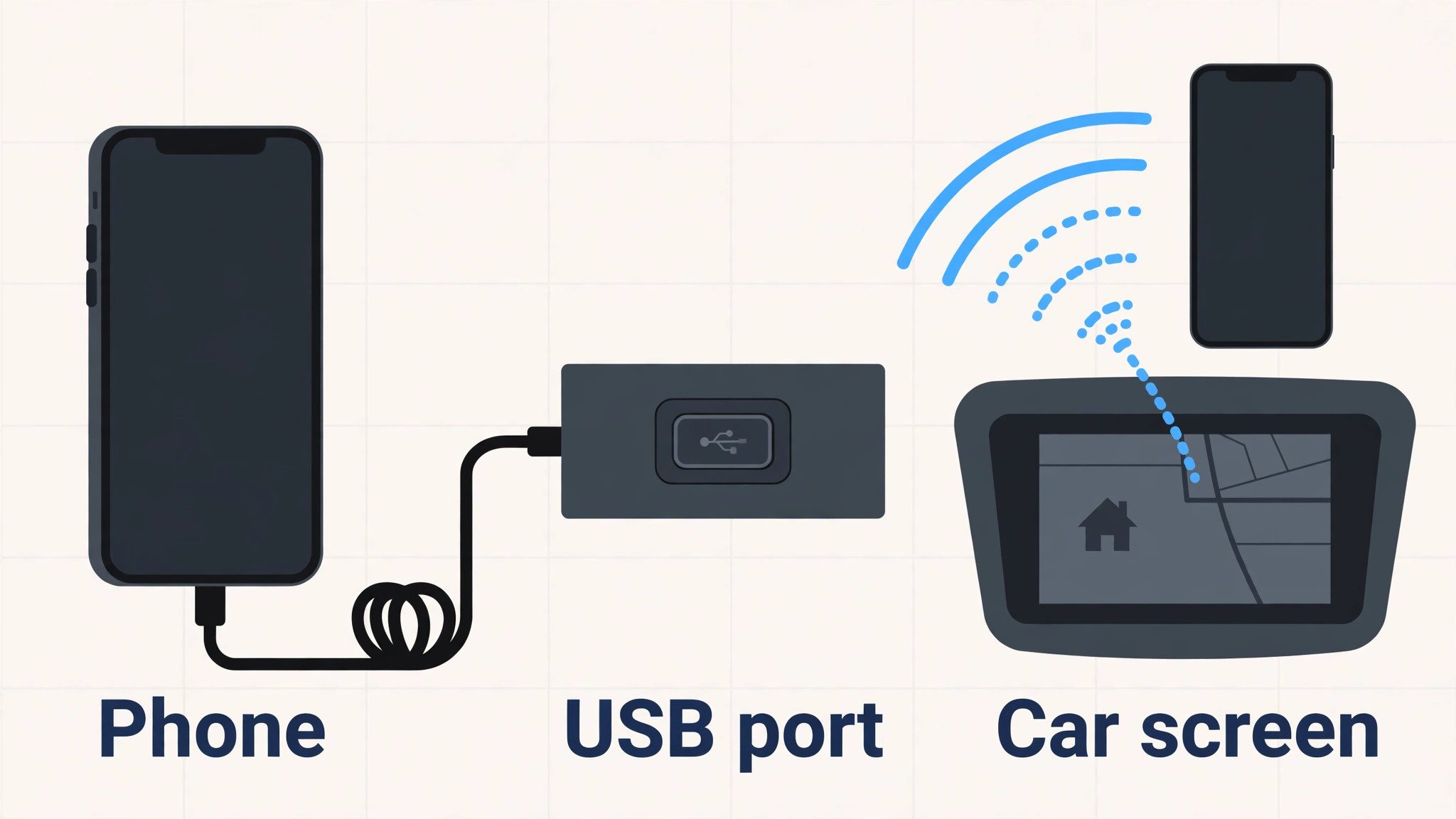
Next, check the car. Look in the car manual or infotainment menu for CarPlay support, and note whether the car supports wired only, wireless only, or both, since that decides your setup path. Most cars with CarPlay have a USB port marked with a CarPlay or smartphone symbol, and that port is the wired connection point, which is not always the same port used for charging alone. If the car manual is lost, the car maker website usually lists CarPlay support by model and year, and a quick search there before setup saves a frustrating hunt through menus in a parked car.
Check Screen Time restrictions as well, since a restriction that blocks CarPlay is a silent setup killer. On the iPhone, open Settings, then Screen Time, then Content and Privacy Restrictions, and confirm CarPlay is allowed. This restriction is often set on a family phone or a work phone without the owner remembering it, and it produces a connection that simply never appears, with no error message explaining why. If the phone is managed by an employer, check with IT as well, since managed phones can block CarPlay centrally, and no car setting fixes that.
Gather the right cable for wired setup. Use an Apple cable or a certified data cable that fits both the iPhone and the car USB port, meaning USB-C for iPhone 15 and later, and Lightning for earlier models. Charge only cables, which lack data wires, will charge the phone but never start CarPlay, and they are a common cause of a first setup that seems to do nothing. A short, good quality cable also avoids tangles and dashboard clutter, and a cable kept in the car for CarPlay only, separate from a charging cable, prevents the charge only mix up from recurring.
How to set up Apple CarPlay for beginners
The steps below cover wired setup first, since it is the most reliable first connection, then wireless setup, which often builds on a successful wired pairing. Do the setup parked, with the engine running or the ignition in accessory mode, and allow ten unhurried minutes, since rushing a first pairing in a moving car is unsafe and usually fails. To set up Apple CarPlay for beginners well, start wired even if you plan to use wireless daily, because a wired pairing creates the trusted connection that wireless setup then uses.
- Start the car and turn on Siri. On the iPhone, open Settings, then Siri and Search, and confirm Talk to Siri or the equivalent voice option is on. Without Siri, CarPlay will not start, and this is the step most often skipped by owners who rarely use voice assistants.
- Plug the iPhone into the CarPlay USB port. Use the certified data cable, plug into the port marked with the CarPlay or smartphone symbol, and unlock the iPhone when prompted, since a locked phone may not complete the first pairing. If the car asks whether to allow CarPlay, confirm on both the phone and the car screen, since both sides must agree to the connection.
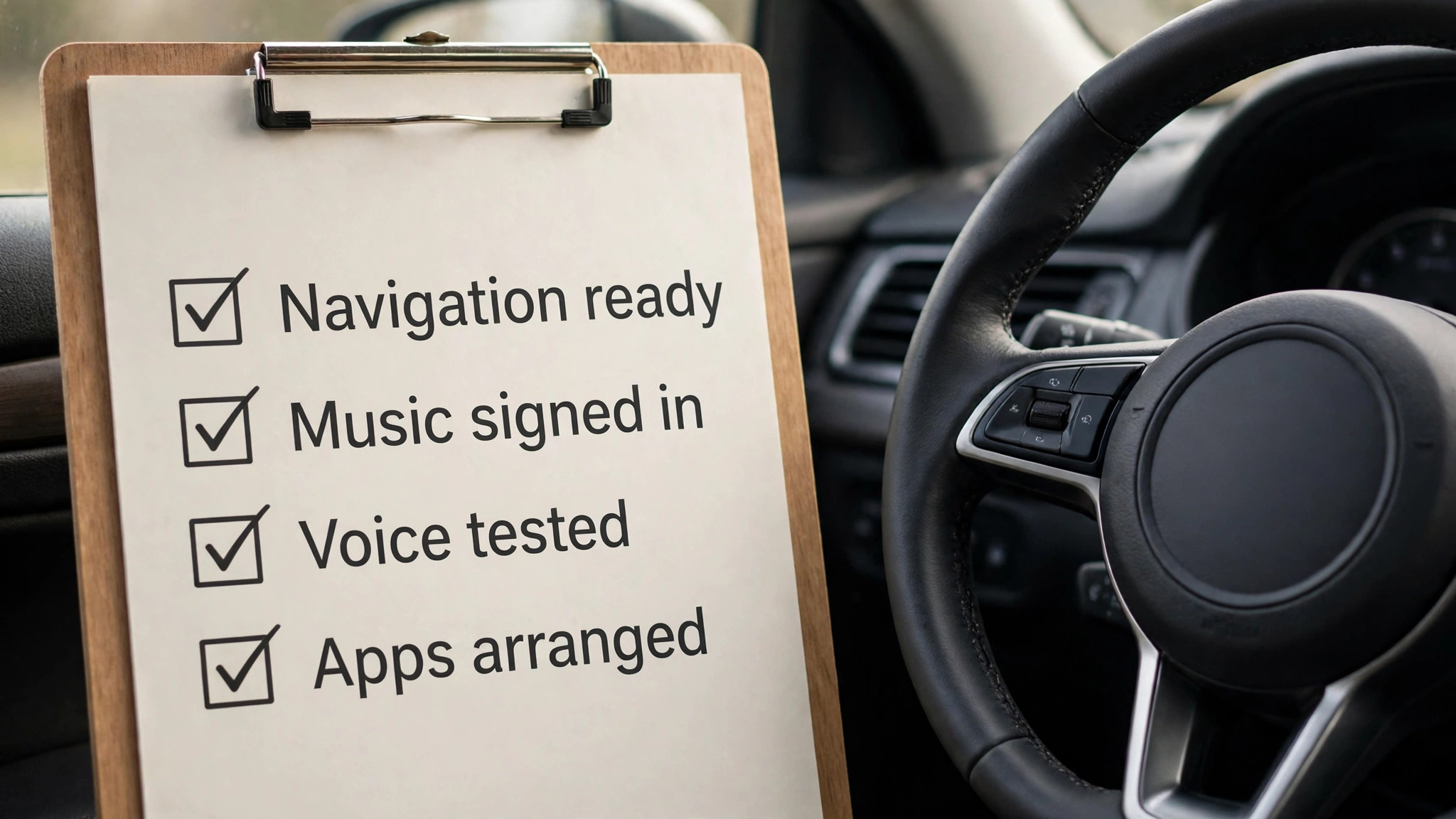
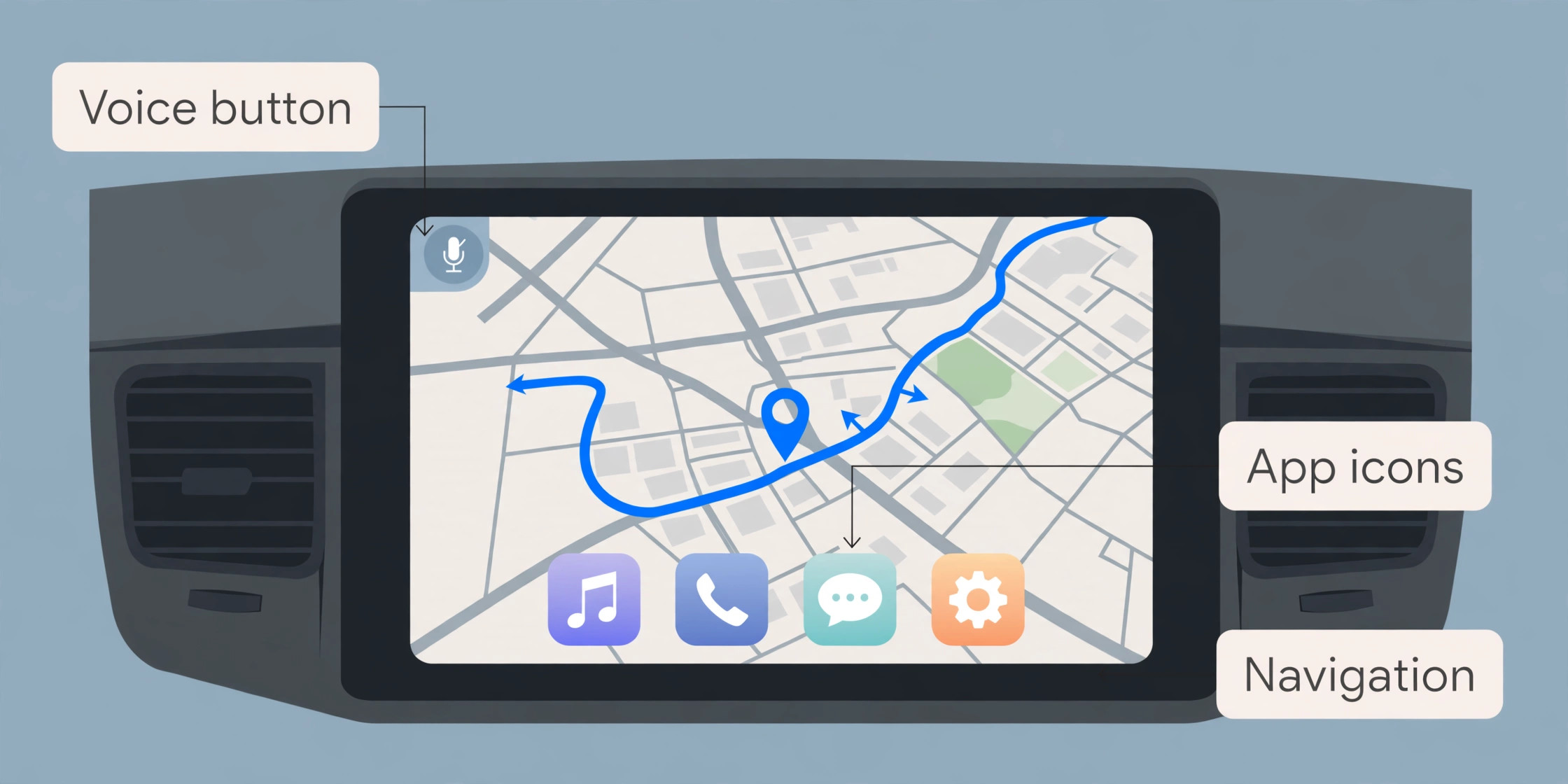
- Wait for CarPlay to appear on the car screen. The car display should switch to the CarPlay home screen, showing app icons for maps, music, phone, and messages in a driving safe layout. If the display does not switch, look for a CarPlay option in the car source or apps menu and select it manually, since some cars need a manual switch on first use.
- Arrange apps on the iPhone. Open Settings, then General, then CarPlay, select your car, and choose Customise, then drag the apps you use most, such as navigation and music, to the top of the list, and remove apps you never use in the car. A CarPlay home screen with six useful apps beats a screen with twenty apps to scroll through while driving, and this arrangement syncs to the car automatically.
- Test voice control before driving. Hold the steering wheel voice button or the CarPlay home button, say a simple command such as directions to a nearby place, and confirm Siri responds through the car speakers. Voice control is the safest way to use CarPlay while driving, so a voice test before departure matters more than a visual tour of every app icon.
- Set up wireless CarPlay if the car supports it. After a successful wired connection, many cars offer to connect wirelessly on future drives. Accept that offer, and on later drives, leave Wi-Fi and Bluetooth on, since wireless CarPlay uses Bluetooth to start the connection and Wi-Fi to carry it. If no offer appears, open Settings, then General, then CarPlay on the iPhone, look under available cars, and follow the car screen prompts to pair wirelessly.
- Test a short drive around the block. Drive a familiar short route with navigation running, music playing, and a hands free call if safe to test, confirming that sound routes through car speakers, navigation prompts interrupt music correctly, and the connection survives a stop and restart. A short test drive reveals faults, such as audio routing or reconnection delays, while you are still near home and can fix them calmly.
Once wired and wireless connections both work, daily use becomes automatic. Plug in for wired, or simply start the car for wireless, and CarPlay appears without further setup, which is the payoff for a careful first pairing. To set up Apple CarPlay for beginners in full, the first drive settings in the next sections matter as much as pairing, since a connected CarPlay that is poorly arranged still distracts, while a well arranged CarPlay fades into the drive.
Wired Versus Wireless Compatibility Table
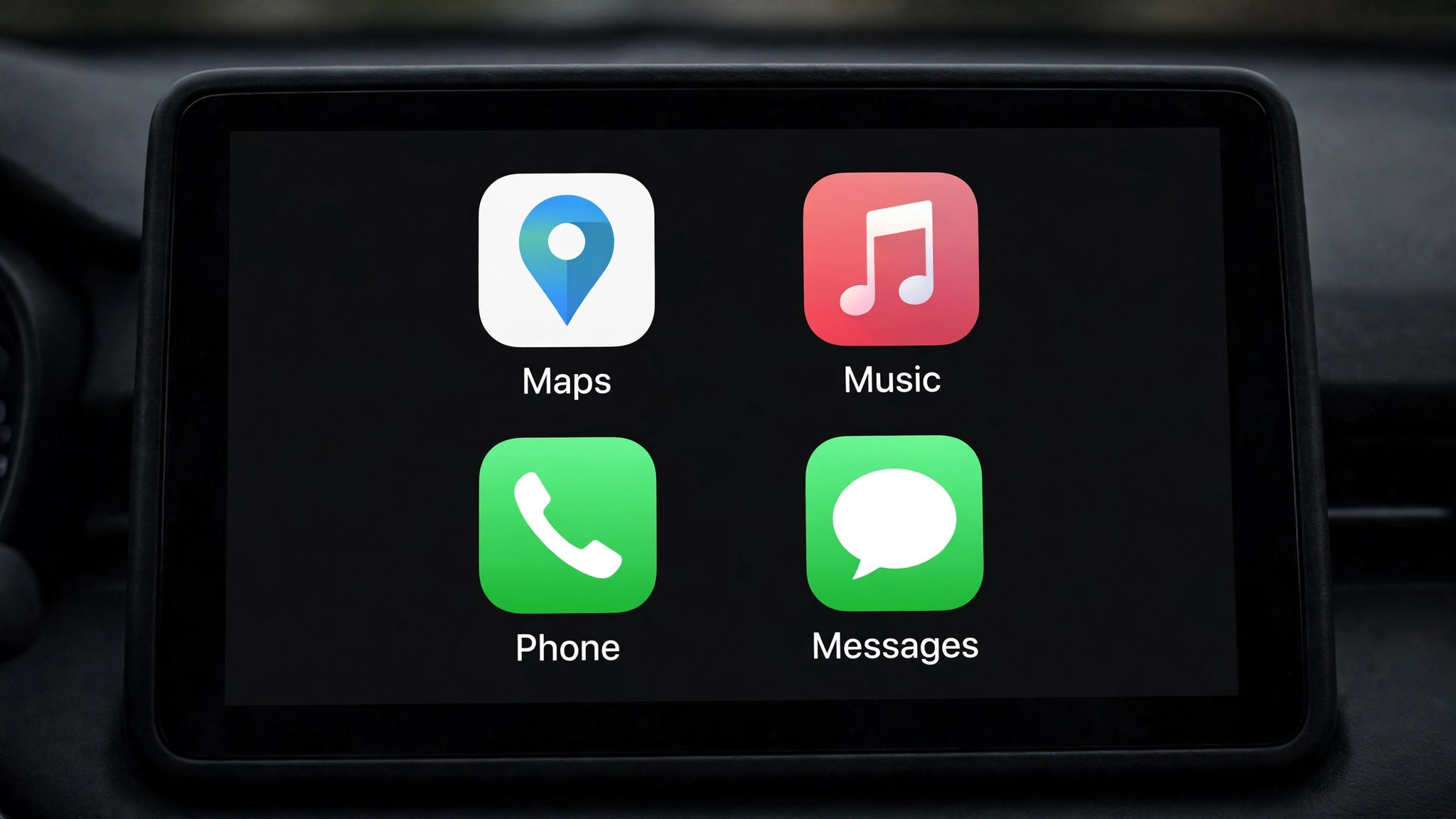
The table below is the overview proof element for this guide, paired with the first drive checklist in the next section, and it compares the two connection types on the factors beginners actually notice. Neither type is universally better, and the right choice depends on your car, your charging habits, and your tolerance for cables.
| Factor | Wired CarPlay | Wireless CarPlay |
|---|---|---|
| Connection method | USB data cable to CarPlay port | Bluetooth start, Wi-Fi for the session |
| Phone charging | Charges while connected | Does not charge, needs a separate charger |
| Reliability | Very high, few dropouts | High, occasional reconnect delays |
| Response speed | Slightly faster | Slightly slower on some cars |
| Setup difficulty | Plug in and confirm | Needs initial pairing, then automatic |
| Car support | Most CarPlay cars | Newer cars and some aftermarket units |
| iPhone requirement | iPhone 5 and later | Newer iPhones, best on iPhone X and later |
| Best for | Long drives, charging needs, older cars | Short trips, drivers who dislike cables |
Wired CarPlay suits long drives and drivers who want the phone charged on arrival, since the cable both connects and charges, and the connection rarely drops. Its downside is cable clutter and the need to plug in every time, which feels old fashioned after wireless becomes familiar. Keep a dedicated CarPlay cable in the car, routed neatly, and the clutter problem largely disappears, while the reliability benefit remains for every drive.
Wireless CarPlay suits short trips and drivers who get in and out often, since the phone stays in a pocket or bag and CarPlay appears automatically on starting the car. Its downsides are battery drain, since wireless CarPlay uses more phone battery than wired, and occasional reconnect delays of several seconds after starting, which can feel long when you need navigation immediately. A wireless charging pad in the car solves the battery downside for many drivers, and accepting a short delay on startup solves the patience downside, since the connection usually settles within half a minute.
Aftermarket options exist for cars without factory CarPlay, and they fall into two groups. A replacement head unit from a known car audio brand adds full CarPlay with a new screen, at a cost of several hundred dollars plus installation, and suits cars you plan to keep for years. A wireless adapter dongle plugs into a car that already has wired CarPlay and adds wireless capability, at a much lower cost, and suits drivers who like wired CarPlay but want wireless convenience. Neither option adds CarPlay to a car with no CarPlay hardware at all, despite marketing that sometimes suggests otherwise, so check factory support before buying any adapter.
First Drive Settings Checklist
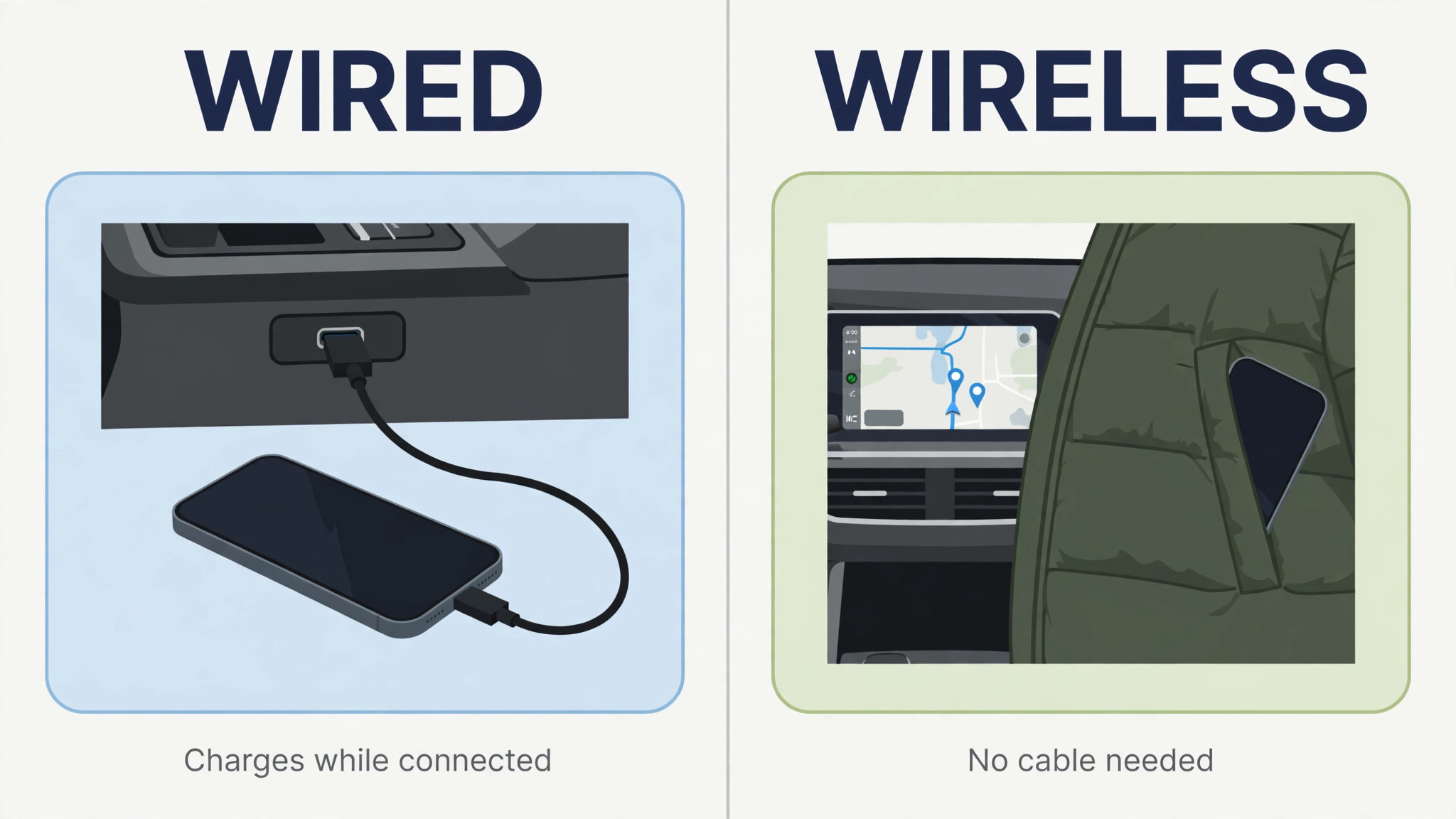
The checklist below covers the settings to confirm on your first proper drive, after pairing is done, since these settings decide whether CarPlay helps or distracts. Work through them parked, then confirm them on a short drive, adjusting one at a time rather than changing everything at once.
- Navigation app chosen as default for directions, whether Apple Maps, Google Maps, or Waze, and tested with a real destination, since each app handles traffic and rerouting differently.
- Music app signed in and tested, with a playlist or station ready, so the first drive does not become a search for music while moving.
- Do Not Disturb While Driving set to your preference, so calls and messages behave as you want, with important contacts allowed through if needed.
- Message announcements set to your comfort level, since hearing every message read aloud suits some drivers and distracts others, and the setting can be changed per drive.
- Siri voice feedback volume checked, since navigation prompts that are too quiet get missed and prompts that are too loud startle, and the volume can be adjusted during a prompt.
- CarPlay app order arranged with navigation first, music second, and phone third, so the most used apps are reachable without scrolling.
- Display brightness and car screen settings checked for day and night, since a screen that is too bright at night distracts and a screen that is too dim in sunlight is unreadable.
- Steering wheel controls tested for volume, track skip, and voice activation, since those controls are the safest way to interact while driving.
Navigation choice deserves a paragraph of its own, because it affects every drive. Apple Maps integrates tightly with CarPlay and Siri, Google Maps offers strong traffic data and familiar search, and Waze offers crowd sourced hazard and speed reports that many drivers value. Try each on a familiar route before committing, since the best app is the one whose voice prompts you understand instantly and whose rerouting you trust, not the app with the longest feature list. You can switch navigation apps per trip, so a single default is a convenience, not a permanent commitment.
Audio settings follow a similar try and adjust logic. Test music, podcasts, and phone calls separately, since each uses audio differently, and a setting that suits music may make calls too quiet. Check that navigation prompts lower music volume rather than stopping it entirely, and that phone calls route to car speakers with the microphone picking up your voice clearly at motorway speed. If callers report echo or muffling, check microphone placement and car cabin noise before blaming CarPlay, since car acoustics affect calls more than the phone connection does.
Apps, Safety and Passenger Use
CarPlay limits apps to driving safe categories, meaning navigation, audio, messaging, and calling, with visual complexity reduced for use at speed. That limit is deliberate, and it is why CarPlay feels simpler than a phone screen, since the interface is designed for glances, not reading. Use that simplicity as a safety feature, not a limitation to work around, and never try to mirror the full phone screen to the car display through unofficial methods, since those methods defeat the safety design and can distract dangerously.
Passengers can help by handling complex tasks, such as entering a new destination or choosing a playlist, while the driver focuses on the road. Agree on that division before a long trip, so the passenger knows they are the navigator and DJ, and the driver knows they can ask for help without taking eyes off the road. A passenger who understands CarPlay basics, such as how to switch apps and how to ask Siri for directions, makes long drives safer and more pleasant for everyone, and a five minute passenger tutorial before a trip pays off across hundreds of kilometres.
Messaging through CarPlay deserves a clear rule as well, since Siri can read messages aloud and let you reply by voice, which is useful for short replies but risky for long conversations. Keep replies to a sentence or two while driving, and save longer messages for a parked stop, since dictating a long message takes attention even when your hands stay on the wheel. If message announcements become distracting on a busy day, turn announcements off for that drive rather than ignoring them, since ignored announcements still interrupt music and navigation. Children and CarPlay need a brief note too.
A child in the back seat can ask Siri questions through the car speakers if voice control is left open, which is usually harmless but can change music or navigation unexpectedly. If that becomes a problem, use the car screen lock or the phone settings to limit voice activation while driving, or agree a simple rule that navigation changes need an adult request. The goal is not to ban voice control, but to keep it under driver control, since a navigation change mid motorway is a distraction even when requested innocently.
Problems and Fixes in Order
When CarPlay does not appear, work through fixes in order, starting with the simplest. First, check the cable, trying a certified data cable and the correct CarPlay USB port, since charge only cables and wrong ports are the top causes. Second, check Siri is on and Screen Time allows CarPlay, since either blocks setup silently. Third, restart both the iPhone and the car infotainment system, since a restart clears temporary states on both sides that a simple unplug does not. Fourth, forget the car in iPhone CarPlay settings and pair fresh, since a stale pairing survives restarts and blocks a clean connection.
When CarPlay connects but drops out, check for cable damage, loose ports, and phone overheating, since a hot phone in direct sun can throttle and drop connections. For wireless dropouts, check that Wi-Fi and Bluetooth stay on, that no VPN or hotspot setting interferes, and that the car software is updated, since car makers fix wireless stability in updates. If dropouts happen at the same location each drive, such as near a particular junction, interference from nearby wireless equipment may be the cause, and a wired connection for that route is a practical workaround rather than a fault to chase endlessly.
When sound routes wrongly, such as music playing through the phone speaker instead of car speakers, check the audio output in CarPlay and the car source menu, and check that no Bluetooth headphone or speaker is connected to the phone, since a forgotten headphone connection steals audio silently. When navigation prompts are silent, check navigation volume during a prompt, since prompt volume is separate from music volume on many systems, and adjusting volume while music plays does not change prompt volume. These audio routing quirks confuse many beginners, but they follow a pattern, which is that each audio type has its own volume and output, and adjusting the right one fixes the fault.
When you set up Apple CarPlay for beginners with fixes in mind, keep a short note of what worked for your car, including the correct USB port, the cable that works, and any Screen Time setting you changed. Add to that note the car software version and the iOS version that worked together, since a future update on either side that breaks the pairing is far easier to diagnose when you know which combination last worked. A note that takes two minutes to write can save an hour of guessing after an update, and it turns a frustrating morning into a short re-pairing job.
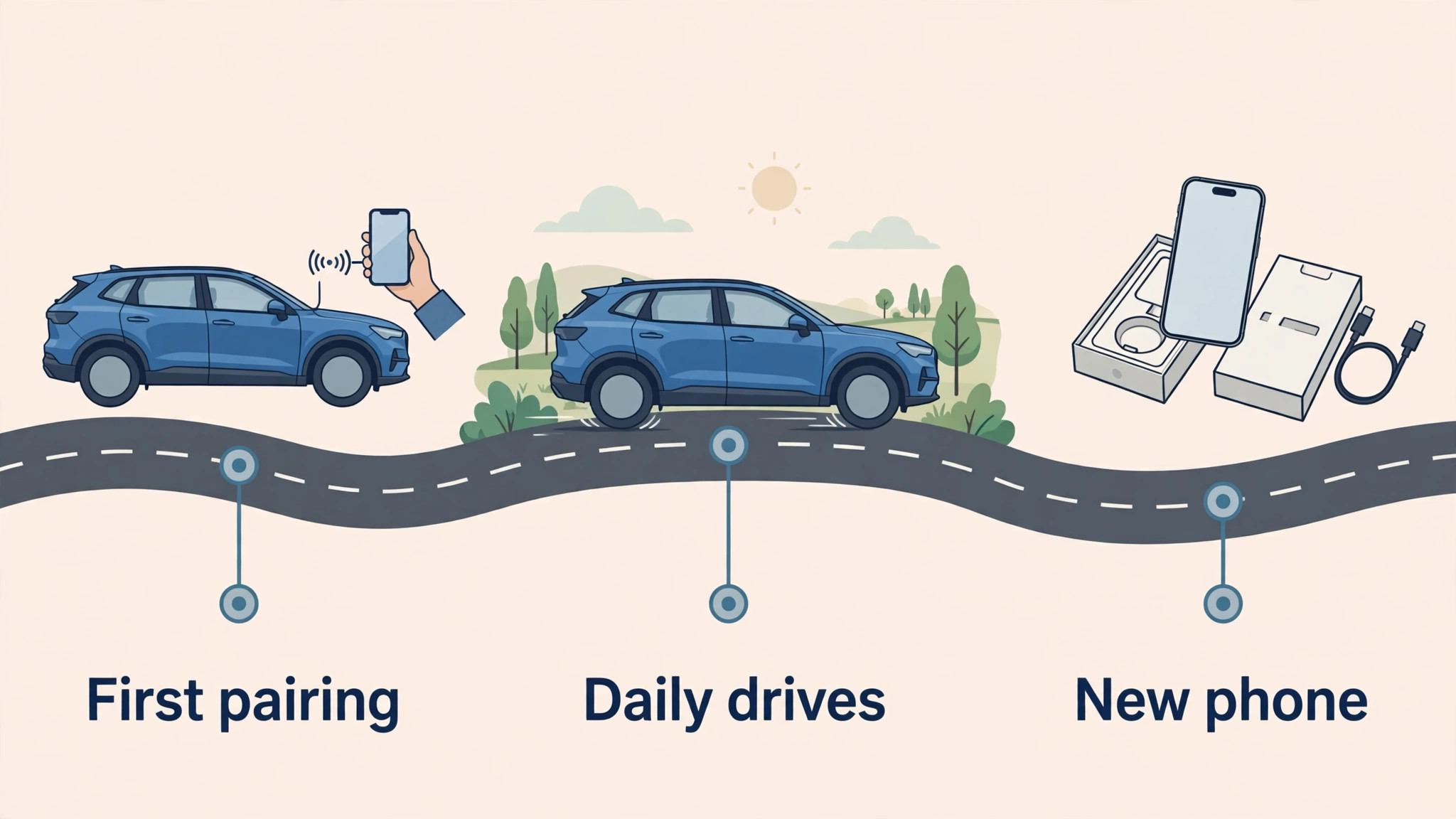
Car specific notes save a repeat search after a phone upgrade or a car software update, both of which can reset a pairing and force a fresh setup that goes faster with notes in hand.
Older Cars, Rentals and Second Cars
Rental cars are a common CarPlay use case, and the setup there is the same wired or wireless pairing, with one extra step, which is to forget the rental car from iPhone CarPlay settings after returning it. A forgotten rental car in the list is harmless but clutters settings, and removing it keeps the list to cars you actually drive. Also remember to unplug cables and remove any personal data, such as recent destinations, if the rental system stored them, since rental cars are used by many drivers after you.
Second cars in a household need separate pairings, and the iPhone remembers each car separately, with app arrangements that can differ per car. Pair each car once, arrange apps for that car, and the phone will apply the right arrangement when it connects to that car. If two cars share a driver, a consistent app order across both cars reduces confusion, so arrange the same top three apps in both, even if lower apps differ by car features.
Older cars without CarPlay can still benefit from a phone mount and Bluetooth audio, which gives navigation prompts and music through car speakers without the CarPlay interface. That setup is not CarPlay, and it lacks the driving safe layout and steering wheel integration, but it is a useful bridge while deciding on an aftermarket head unit. Judge the aftermarket investment by how long you will keep the car, since a head unit that costs several hundred dollars makes sense for a car kept for years, and less sense for a car you plan to replace within a year.
That same long term thinking applies when you set up Apple CarPlay for beginners in a second car, since a pairing done carefully once saves repeated setup on every future drive in that car.
More Reading on Stratilyze
More Reading on Stratilyze. Car and home device setup overlap more than expected, so the guides on Apple Watch for family safety and Bluetooth headphones that will not pair cover pairing problems that also appear in cars, and the guide on home Wi-Fi mesh networks for a small house helps when wireless features struggle at home. Read the Bluetooth pairing guide first if wireless CarPlay drops repeatedly, since the underlying pairing logic is similar.
Frequently Asked Questions
Do I need to download a CarPlay app to use it?
No, CarPlay is built into the iPhone and into compatible car systems, so there is nothing to download. Connect the iPhone to a compatible car by cable or wirelessly, confirm on both screens, and CarPlay appears. If CarPlay does not appear, the cause is usually a cable, a Siri setting, a Screen Time restriction, or car compatibility, not a missing app, so check those before searching app stores.
Why does CarPlay work in one car but not another?
Because each car pairing is separate, and each car has its own USB port, software version, and wireless support. A cable that works in one car may be plugged into a charge only port in another, or a car software update may be needed for stable wireless connection. Pair each car separately, note the correct port and cable for each, and check car software updates when a previously working car suddenly fails.
Does wireless CarPlay drain the phone battery quickly?
Yes, wireless CarPlay uses more battery than wired, since it maintains Wi-Fi and Bluetooth connections while running navigation and audio. For short trips the drain is modest, but for long drives, use a car charger or wireless charging pad alongside wireless CarPlay, or switch to wired CarPlay, which charges while it connects. Planning charging for long wireless drives avoids a phone that arrives empty.
Can passengers use CarPlay while I drive?
Passengers can interact with the car screen for navigation and music, which is safer than the driver doing so, and they can ask Siri for directions or music changes by voice. Agree before a trip that the passenger handles complex tasks, such as entering destinations, while the driver focuses on the road. Voice control remains available to the driver for simple commands, which is the safest split for most trips.
What happens to CarPlay if I change iPhones?
Pair the new iPhone fresh, following the same wired first steps, since CarPlay pairings are tied to the phone, not just to the car. App arrangements and settings from the old phone do not always transfer automatically, so arrange apps again in CarPlay settings on the new phone and test voice control on a short drive. Forgetting the old phone pairing in the car system, if the car stores it, keeps the list clean, though it is not strictly required.
Is CarPlay safe to use while driving?
CarPlay is designed to reduce distraction compared with handling a phone, through a simplified layout, large touch targets, and voice control, but it still requires attention and should be used with care. Set destinations before driving where possible, use voice for changes while moving, and let passengers handle complex tasks. No screen interaction is risk free while driving, so the safest habit is to prepare before departure and keep interactions brief and voice led.
A Calmer Drive Starts With One Good Pairing
CarPlay earns its place when it disappears into the drive, showing the next turn, playing the next song, and handling the next call without you thinking about the phone at all. That state comes from one careful pairing, a tidy app order, and a short test drive, not from a long list of features or a perfect car. Once it works, it keeps working, with only occasional re-pairing after updates or phone changes to keep it fresh.
Take ten minutes parked to pair properly, arrange your top apps, and test voice control before your next real journey. The next drive will feel different, calmer, and more focused, because the phone stays out of your hands and the road stays in front of your eyes. To set up Apple CarPlay for beginners and keep it reliable, the rule is simple. Pair wired first, arrange apps once, test voice before driving, and note the port and cable that work, so every future connection is automatic.
