
Most smart TVs already stream video, so a separate box can look like an unnecessary extra. The difference shows up in daily use, not on a spec sheet. Built in TV apps are often slow to open, slow to update, and tied to whatever interface the TV maker shipped that year. When you set up Apple TV home entertainment properly, the TV becomes a screen again and the box becomes the part you actually touch. One remote runs the apps, one home screen holds everything, and your purchases, photos, and music follow the same Apple ID you already use on your phone.
That shift matters most in a shared home. A TV that belongs to everyone needs separate tastes and limits for younger viewers, without a daily argument about who changed what. Apple TV handles that split better than most built in systems, because profiles, Family Sharing, and parental controls sit in the same place as the apps. This guide walks through the whole job in order, from cables to picture and sound settings. Follow it once, work through the checklist at the end, and the setup should stay tidy for months.
What Changes When You Add a Dedicated Box
A built in smart TV system is a compromise. The manufacturer must support the panel, the tuner, the sound, and the software, and the software usually ages first. Updates slow down and older models lose new apps. A dedicated box separates those jobs. The TV handles the picture. The box handles the apps and the interface. When the box updates, the whole experience improves at once, even if the TV is five years old.
The second change is consistency. If you already use an iPhone, iPad, or Mac, Apple TV speaks the same account language. Purchases made on one device appear on the others, and AirPlay sends video or music from a phone to the big screen in a few taps. The Apple ID you sign in with during setup becomes the spine of the whole system.
The third change is the remote. The Siri Remote has a clickpad for precise movement, a Siri button for voice search, and volume and power buttons that can learn to control the TV itself. Once paired, most households stop reaching for the TV remote at all, keeping it only for input changes and service menus.
There is a cost question to answer honestly before you buy. The current Apple TV 4K, announced in October 2026, costs 299 dollars in the United States in a single 128GB configuration with Ethernet included, according to Apple reporting at launch. That is a big jump from the 129 dollar starting price of the previous generation before its June 2026 price rise, and far more than a basic streaming stick. The case for paying it rests on 4K HDR playback, HomePod home theater audio, smart home hub features, and a remote with Find My support. If you only watch one service and never use Apple devices, a cheaper stick may serve you just as well.
Unboxing and Connection
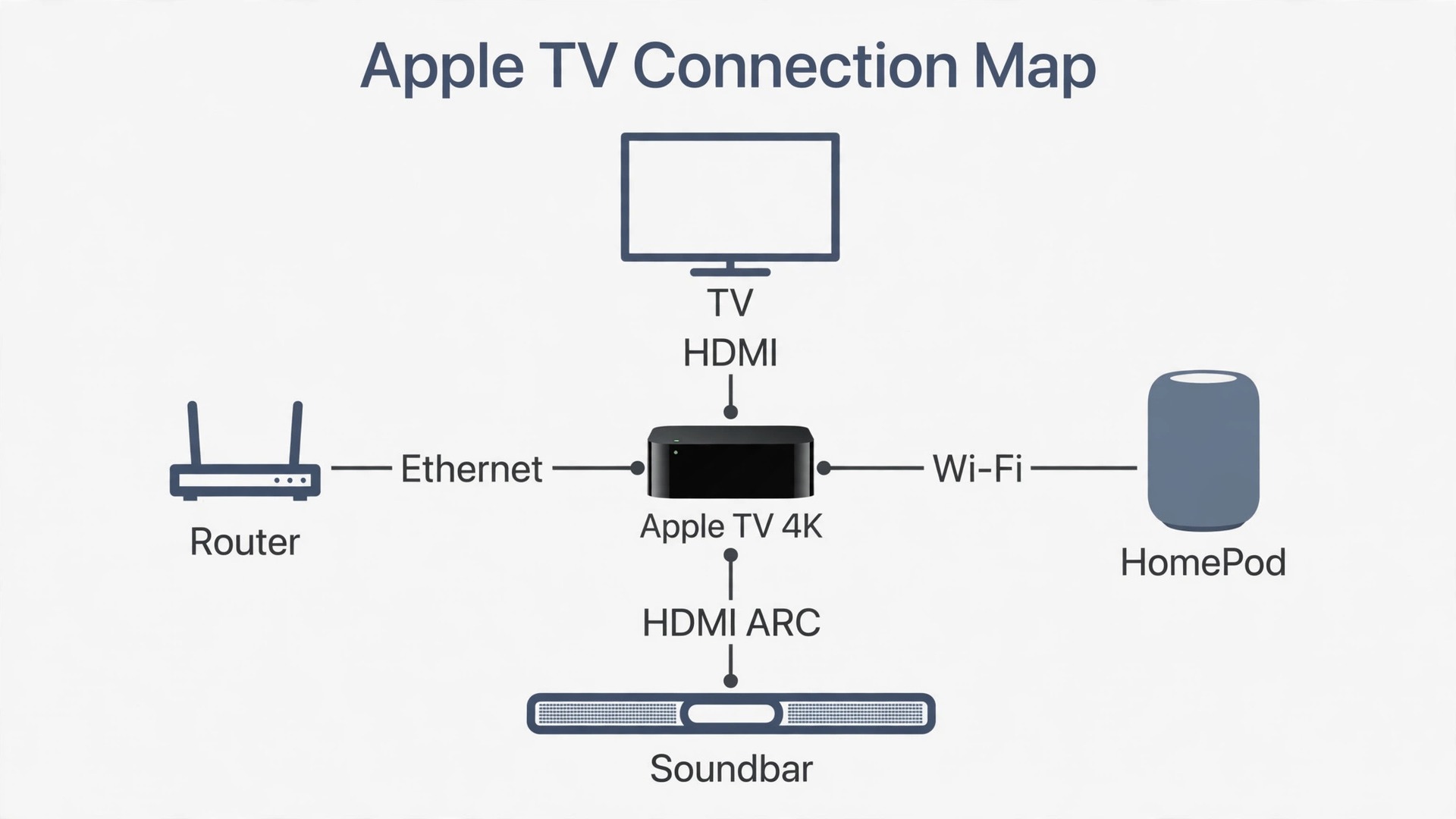
Open the box near the TV and check the contents before you plug anything in. You should find the Apple TV 4K unit, the Siri Remote, and a power cord. An HDMI cable is not included with most Apple TV models, so buy one if you do not own a spare. For 4K HDR, use an Ultra High Speed HDMI cable, the class Apple support recommends for HDMI 2.1. A cheap older cable is the most common cause of flicker, blank screens, and missing HDR.
Place the box where it can breathe. Hiding it behind the TV or inside a closed cabinet traps heat and blocks the remote signal, which causes problems that look like software faults. Put it on an open shelf with a little space around it, front facing the room. If you use Ethernet, run that cable now, before you push the unit into place, because the port sits on the back next to the HDMI output and power input.
Connection follows a simple order, and doing it in order saves a restart later.
- Connect one end of the HDMI cable to the HDMI port on the back of the Apple TV.
- Connect the other end to an HDMI input on the TV, or to an AV receiver if one sits between the box and the TV. Note which input number you used.
- Connect the power cord to the Apple TV and then to a wall outlet.
- If you chose a wired connection, connect an Ethernet cable from your router to the Ethernet port on the back of the box.
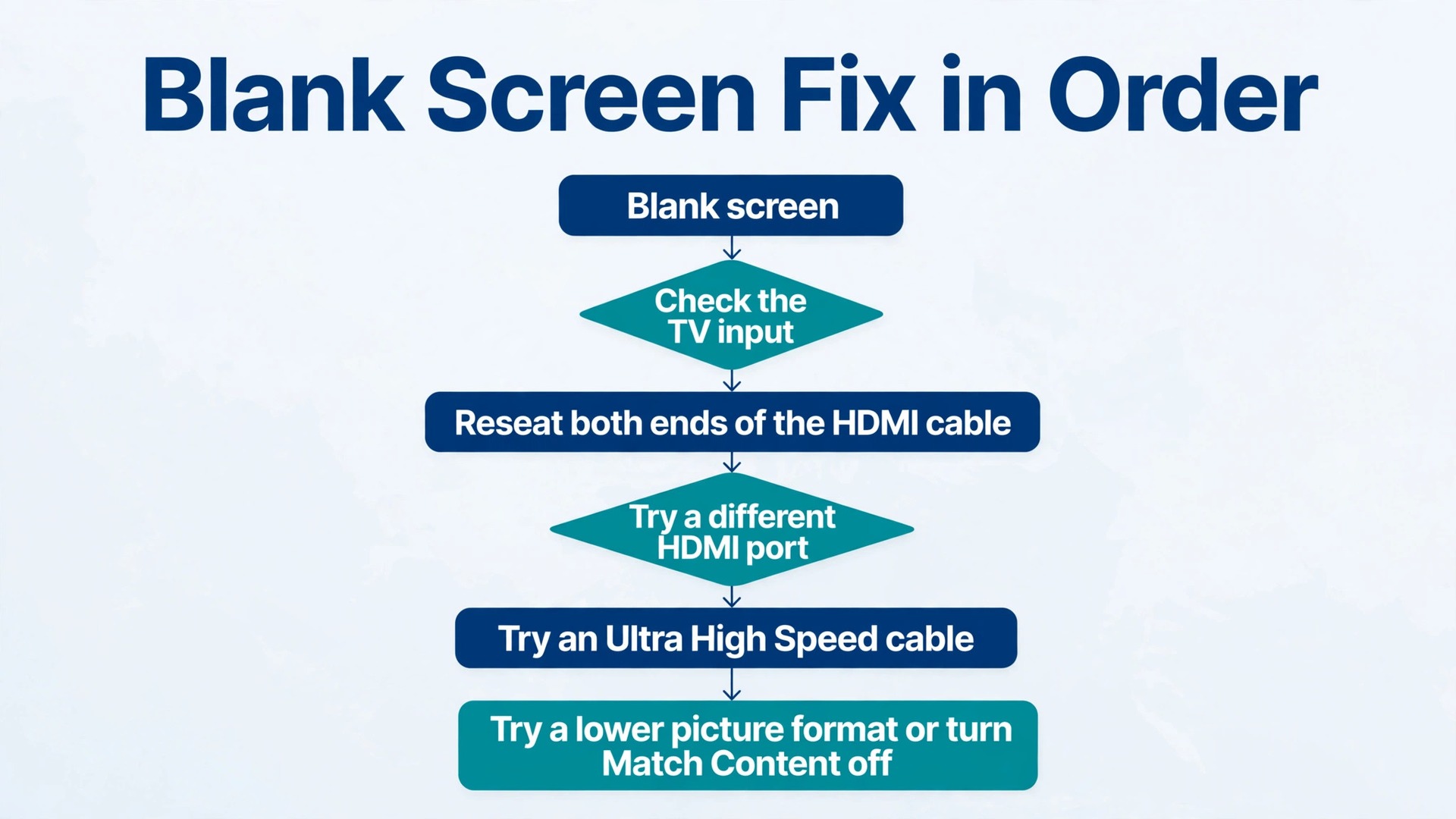
- Turn on the TV and select the HDMI input you just used. If the screen stays black, check the input first, then reseat both ends of the HDMI cable, then try a different HDMI port, starting with HDMI 1.
When the Apple TV powers on, it guides you through language and region selection on screen. The Siri Remote should pair on its own. If it does not respond, press a button to wake it and make sure it is charged over USB-C. If pairing still fails, move closer to the box, clear anything blocking the line between remote and box, and restart the Apple TV by unplugging it for 30 seconds. That restart fixes more first run problems than any menu change.
Two early decisions affect everything that follows. Wi-Fi is fine for most homes, and the current model supports Wi-Fi 7, but Ethernet is better for a main living room TV, especially if the router sits in another room. A wired box streams 4K without competing with phones and laptops for airtime. Also remember any HDMI port labelled ARC or eARC, because a soundbar or receiver setup will want that port.
First Run Setup and Your Apple ID
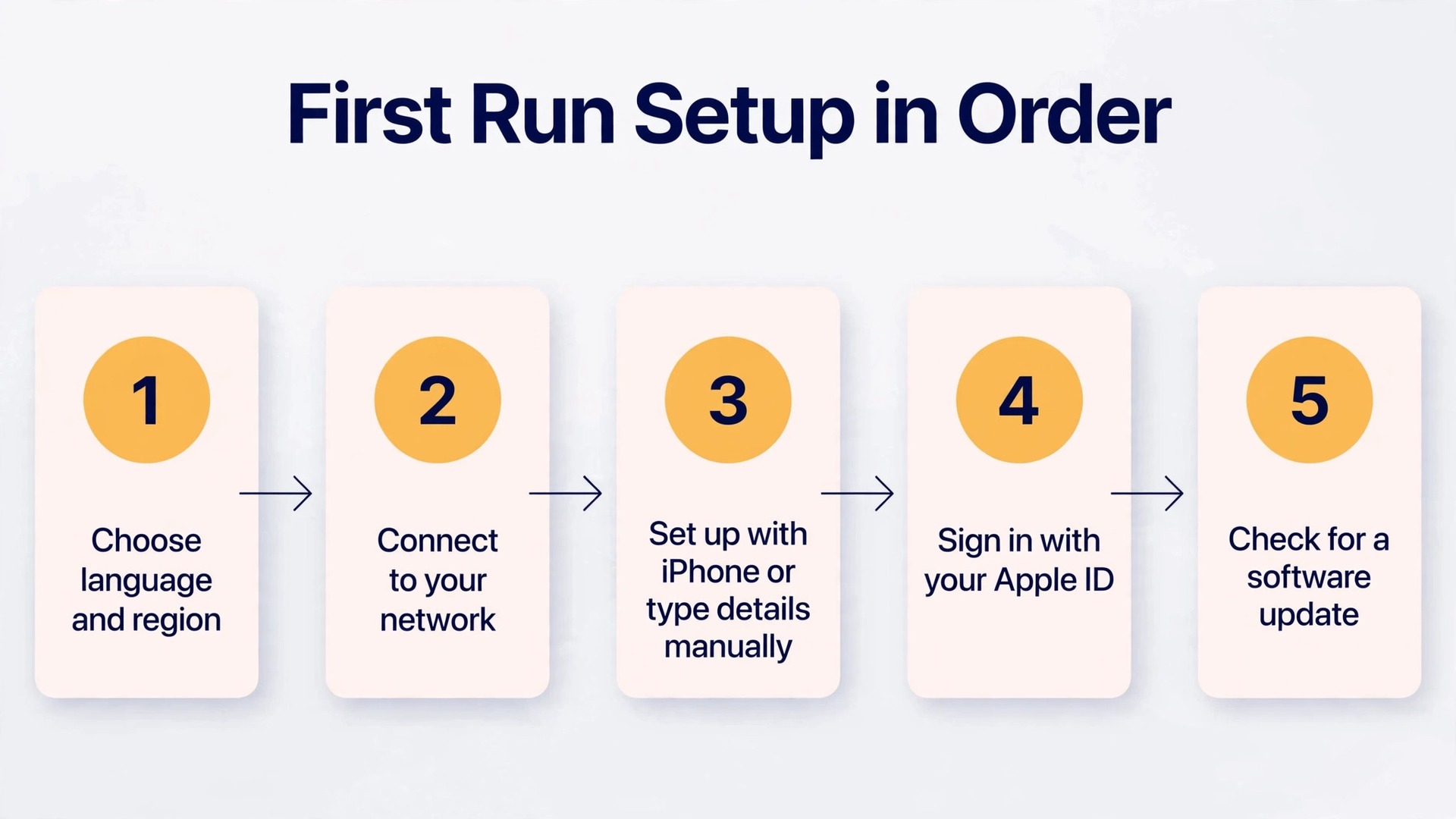
The on-screen setup asks for language, region, and a network connection, then offers the faster route. If you have an iPhone or iPad nearby, choose the option to set up with that device. The phone transfers your Wi-Fi details and Apple ID sign-in, which removes the job of typing a long password with an on-screen keyboard. Keep the phone unlocked and close to the box while this runs. Without an iPhone or iPad, choose manual setup and type the details with the remote. It takes longer, but the result is identical.
Your Apple ID unlocks purchases, subscriptions, photos, and Family Sharing on the box, so sign in with the account you actually use, not a spare account. A spare account fragments everything. Movies bought under one ID will not appear under another, and Family Sharing only shares what the organizer account owns. If your household already shares purchases, sign in with the organizer account, then add other family members as profiles after the first sign-in.
During setup, Apple TV will also ask about Siri, location, analytics, and diagnostics. None of these choices are permanent, and all can be changed later in Settings, so do not stall on them. Say yes to Siri if you want voice search. Read the single sign-on prompt for a cable or satellite provider carefully if it appears. It can sign you into supported TV apps at once, but it only helps if you actually have that provider.
Once setup finishes, do three small jobs before you download anything. First, check for a software update in Settings, then System, then Software Updates. Second, open Settings, then Remotes and Devices, and confirm the Siri Remote shows as connected. Third, open Settings, then Video and Audio, and confirm the box has detected your TV correctly. A quick glance now catches a wrong resolution or a missing HDR flag.
How to Set Up Apple TV Home Entertainment for the Whole Family
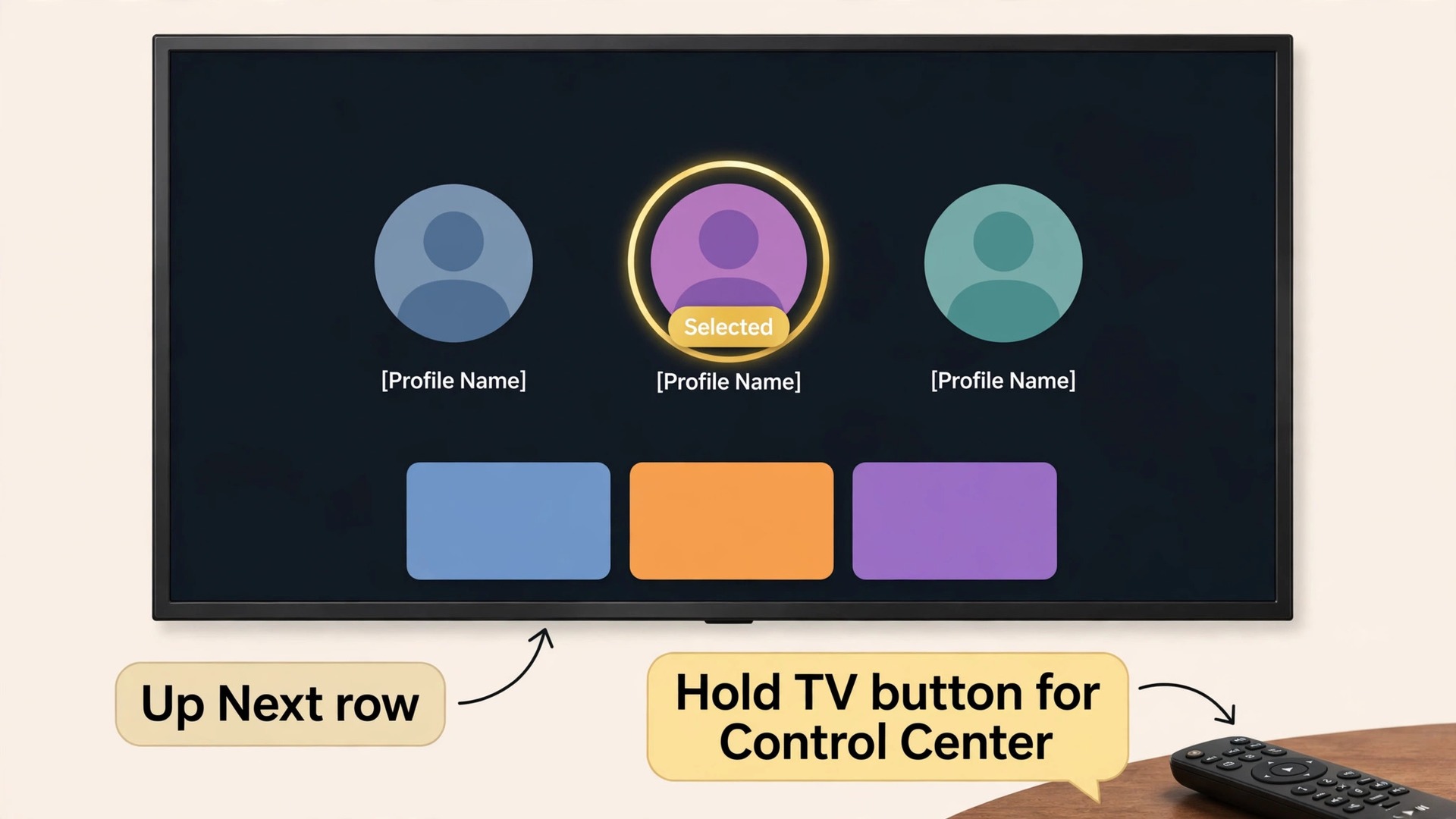
Family setup is where a shared TV either works or becomes a source of friction, so treat it as a real step rather than an afterthought. Apple TV supports multiple user profiles, and each profile keeps its own Up Next queue, recommendations, and watch history in the Apple TV app. Without that separation, one person’s tastes pollute another person’s recommendations, and a child’s cartoon queue fills the home screen for everyone. Profiles do not separate every third party app automatically, so check the account switch inside each streaming app as well.
To add a profile, open Settings, then Users and Accounts, then Add New User, and sign in with that person’s Apple ID. Family members already in your Family Sharing group can be added from that group. Switching profiles means holding the TV button to open Control Center and choosing the right person. Teach every regular viewer that one gesture on day one. It keeps recommendations clean.
Family Sharing is managed from an iPhone, iPad, or Mac rather than from the TV. The organizer opens Settings, then Family, and invites members, who accept on their own devices. Members can share eligible app purchases and subscriptions, subject to each service’s own sharing rules. Not every subscription shares, so check a specific service before promising it. Children under 13 get Ask to Buy on by default, which sends a purchase request to the organizer for approval. Keep that default.
Apple TV can also act as a home hub for HomeKit accessories, so lights, locks, and cameras keep working with automations even when no phone is at home. Assign it to a room in the Home app, using the same Apple ID that owns the home. Only the home owner can add an Apple TV or a HomePod to the home.
Apps, Layout, and the Home Screen
App installation happens in the App Store. Open it, search for the service you want, and download it. Sign in inside each app with that service’s own account, which is separate from your Apple ID unless the service uses Apple sign-in. Do this for your core services first, before you browse for extras. A TV with six working services beats a TV with thirty half signed-in apps.
Install in an order that matches how your household watches. Start with services you already pay for, then free catch-up services, then music and podcasts, then games last. When you set up Apple TV home entertainment in that order, the home screen fills with services people use instead of apps that looked interesting once.
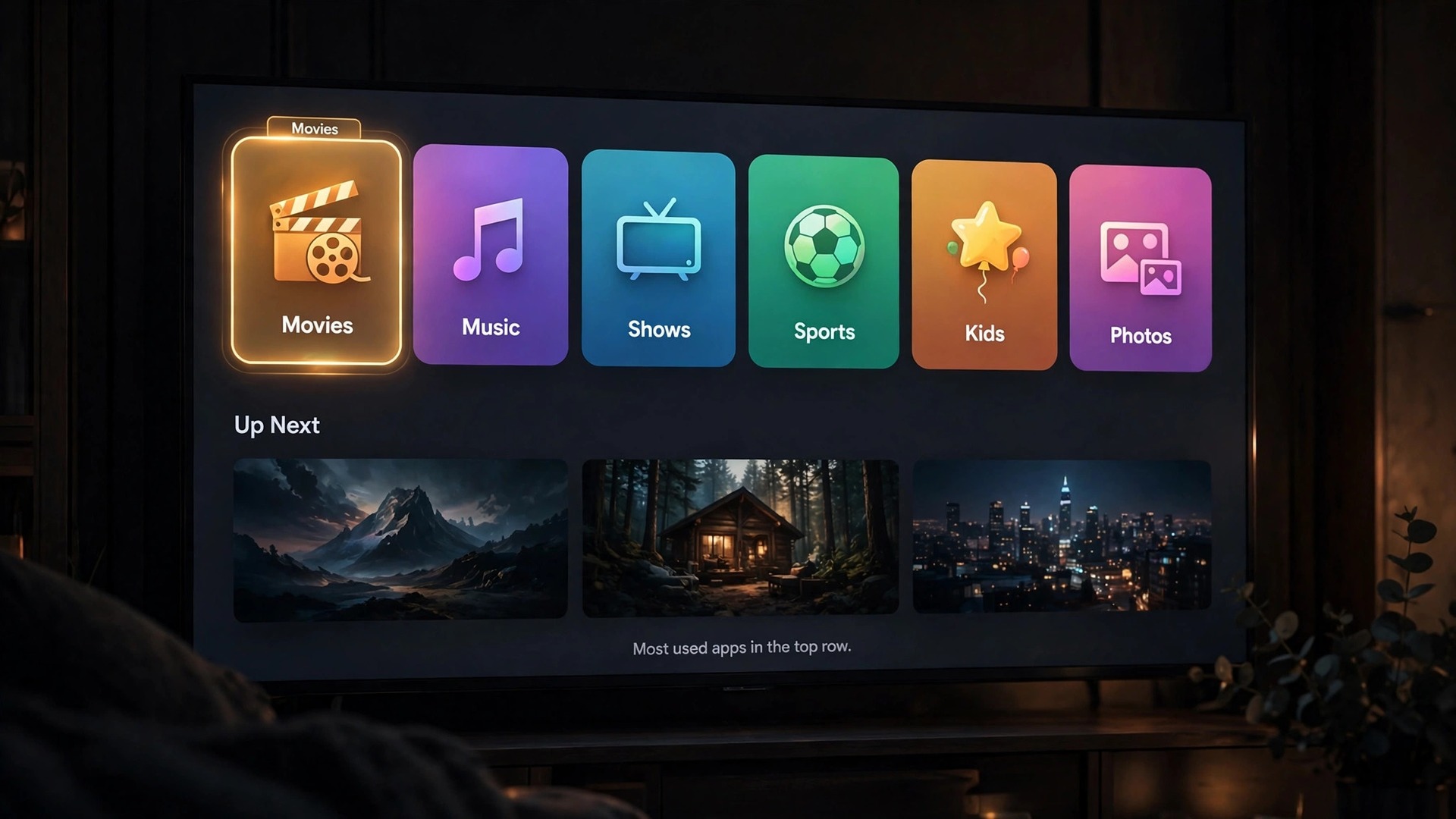
Layout deserves ten minutes, because the default order is rarely the best order. Highlight an app and hold the clickpad until the icon jiggles, then move it and press again to drop it. Put the services you open most nights in the top row, group similar apps together, and move rarely used apps to the bottom rows. Delete apps nobody has opened in a month. Deleting an app does not cancel its subscription.
The Apple TV app is both an app and a hub. Its Up Next row gathers shows and films from many services into one queue, so you can resume a series without remembering which service hosts it. That only works for services that support the connection, so do not expect every show to appear there. Still, make Up Next the first place you look when you sit down.
Audio Options. TV Speakers, Soundbar, and HomePod
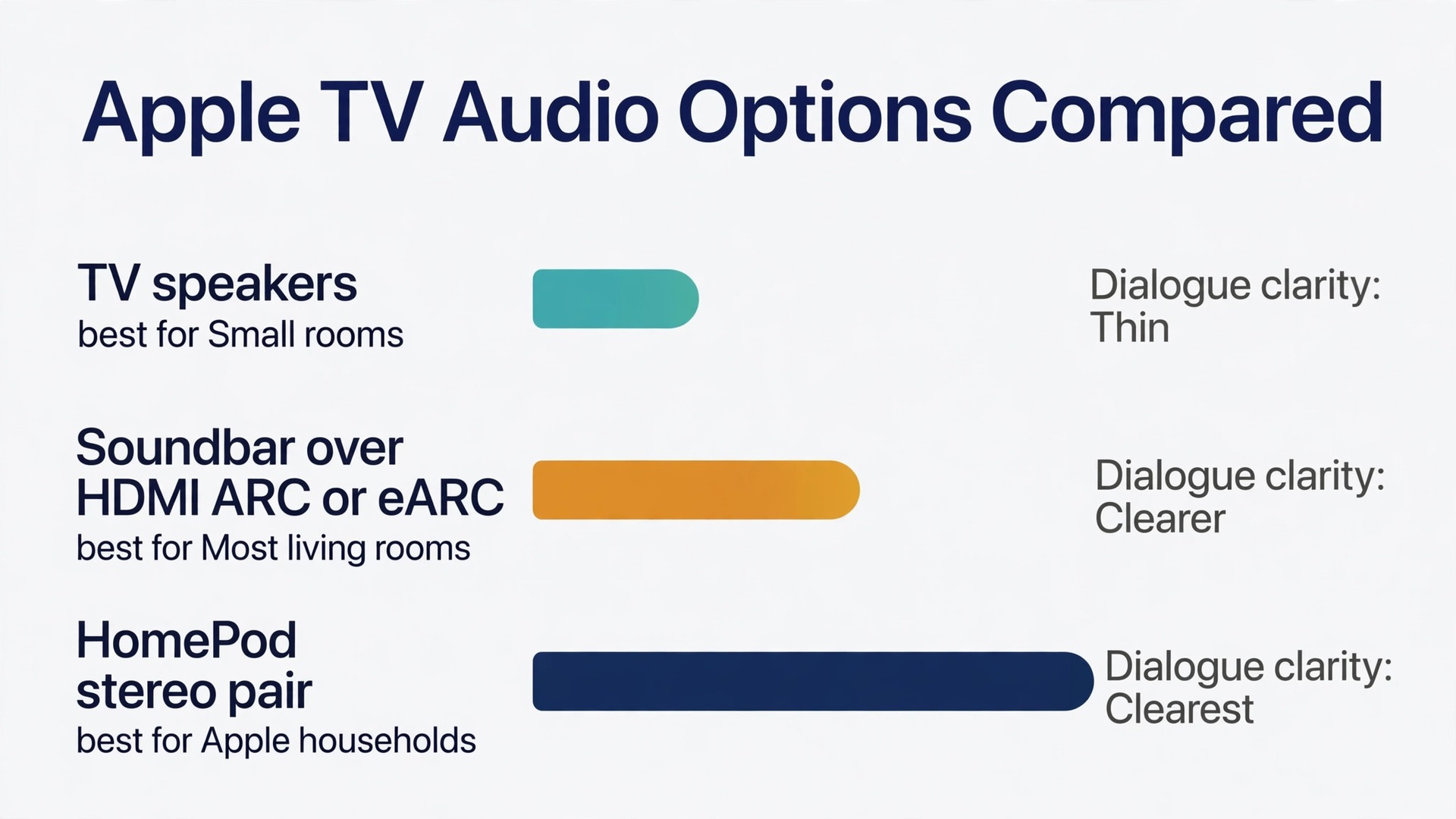
Sound is where a good setup becomes a great one, and where people overspend or settle too early. The right choice depends on the room, the budget, and dialogue clarity. A small bedroom needs a different answer from a large living room. The table below compares the main options, so you can match the setup to the room.
| Audio option | Best for | What you need | Watch out for |
|---|---|---|---|
| TV speakers | Small rooms and light viewing | Nothing extra | Thin sound and hard to hear dialogue |
| Soundbar over HDMI ARC or eARC | Most living rooms | A soundbar and an ARC or eARC HDMI port | Wrong port choice can limit sound formats |
| HomePod stereo pair | Apple households and music lovers | Two HomePods on the same Wi-Fi network | Both speakers must be in the same Home app room as the TV |
| HomePod mini pair or four speaker set | Smaller rooms and newer Apple TV models | HomePod mini speakers and a compatible Apple TV 4K | Four speaker surround needs matching newer speakers |
| Bluetooth headphones or AirPods | Late night viewing | Paired headphones | Only one or two listeners and no room filling sound |
| AV receiver with separate speakers | Dedicated film rooms | A receiver and wired speakers | Highest cost and most setup work |
Start with what you already own. If TV speakers are the only option today, turn on Enhance Dialogue in Settings, then Video and Audio, and turn on Reduce Loud Sounds for late night viewing. Those two settings alone make speech easier to follow without buying anything. If dialogue still gets lost, that is the signal to move to the next tier. When you set up Apple TV home entertainment audio this way, you spend only when a free fix has actually failed.
A soundbar is the best value upgrade for most living rooms. Connect it to the HDMI port labelled ARC or eARC on the TV, set the TV audio output to the soundbar, and confirm the Apple TV output in Settings, then Video and Audio, then Audio Output. Test with a dialogue heavy scene and an action scene before you judge the purchase. A soundbar that sounds good on music but muddy on speech has not solved the problem, and most soundbars have a dialogue mode worth switching on.
HomePod audio fits most naturally here, because it is set up from the same account and Home app. First, make sure the Apple TV and HomePod sit in the same room in the Home app on an iPhone or iPad. Then open the Home app, tap the Apple TV, and choose the HomePod or stereo pair as the default audio output. That routes all sound to the HomePod, so you do not reselect the speaker for every app. For a stereo pair, place the speakers on either side of the TV, roughly 1.2 metres apart, and within 25 centimetres of a wall if the room allows it.
The newest Apple TV 4K adds a four speaker option that earlier models did not offer. Paired with four HomePod mini 2 speakers, or HomePod second generation speakers in matching pairs, it builds a surround setup a stereo pair cannot match. Each HomePod mini 2 costs 149 dollars in the United States at launch, so four speakers alone cost 596 dollars before the 299 dollar box. For most households, a stereo pair is the sensible step, and four speakers are a later upgrade.
Whichever route you choose, test it the same way. Play the same scene at your normal volume on each option you compare, and listen for dialogue clarity first. Loudness is easy to add with a volume button. Dialogue clarity is not.
Picture Settings Worth Changing
Picture settings are the most skipped part of any TV setup, and they make the biggest visible difference after audio. Many TVs ship in a vivid or shop mode that oversaturates colour and sharpens edges, which looks striking in a store and tiring at home. Switch the TV picture mode to a cinema, movie, or filmmaker mode for evening viewing.
Inside Apple TV, open Settings, then Video and Audio, then Format, and check what the box offers for your TV. Choose the highest format your TV genuinely supports, such as 4K HDR or 4K Dolby Vision, and run the check to confirm the TV accepts it without flicker. If the check fails, drop one step and test again. A stable lower format beats a higher format that drops out every few minutes. Then turn on Match Content, with Match Dynamic Range and Match Frame Rate switched on. Those settings let the box switch to the frame rate and dynamic range of each programme. You may see a brief blank screen when playback starts, because the TV is switching modes.
For colour balance with an iPhone, open Settings, then Video and Audio, then Calibration, and follow the prompt with your iPhone held close to the TV. It takes about a minute. Without an iPhone, rely on the TV movie mode.
If the picture looks wrong after these changes, work through a short fault list. First, confirm the HDMI cable is Ultra High Speed and seated firmly at both ends. Second, confirm the TV input matches the port the box uses, and that the TV picture mode did not reset after an update. Third, turn Match Content off temporarily and test the same programme. If the picture stabilises with Match Content off, leaving it off is a valid trade. Fourth, try a different HDMI port. When you set up Apple TV home entertainment with picture settings tuned this way, the box stops fighting the TV.
Parental Controls That Actually Hold
Parental controls fail when they are set once and never tested, so build them, then test them with a child’s profile before you call the job done. On Apple TV, open Settings, then General, then Restrictions, and set a four digit passcode that children do not know. Do not use a birthday or a house number. Write the code down somewhere adults can find it, because a forgotten passcode can mean resetting wider settings.
With Restrictions on, you can limit content by rating for films and TV shows, block explicit music and podcasts, and block purchases and downloads. Set the film and TV limits to match the youngest regular viewer, not the oldest. A limit set for a teenager will not protect a younger sibling who picks up the remote. Also block purchases for children’s profiles, and keep Ask to Buy on, so a request reaches an adult first.
Profiles and restrictions work together, but they are not the same job. A profile keeps recommendations separate. Restrictions keep content out of reach. Test profile switching after you set restrictions, because a child who can switch freely to an adult profile bypasses the limit. The practical fix is a clear household rule about which profile each person uses, plus restrictions that limit what any profile can play without the code.
App specific controls matter too, because third party services carry their own maturity settings. Open the settings inside each major streaming app and set a profile PIN or maturity limit where the app offers one. Some services also offer a dedicated kids profile, which is a better daily option than a general profile with restrictions bolted on. Review these settings every few months, because updates sometimes reset preferences.
The Setup Checklist. Work Through It Once
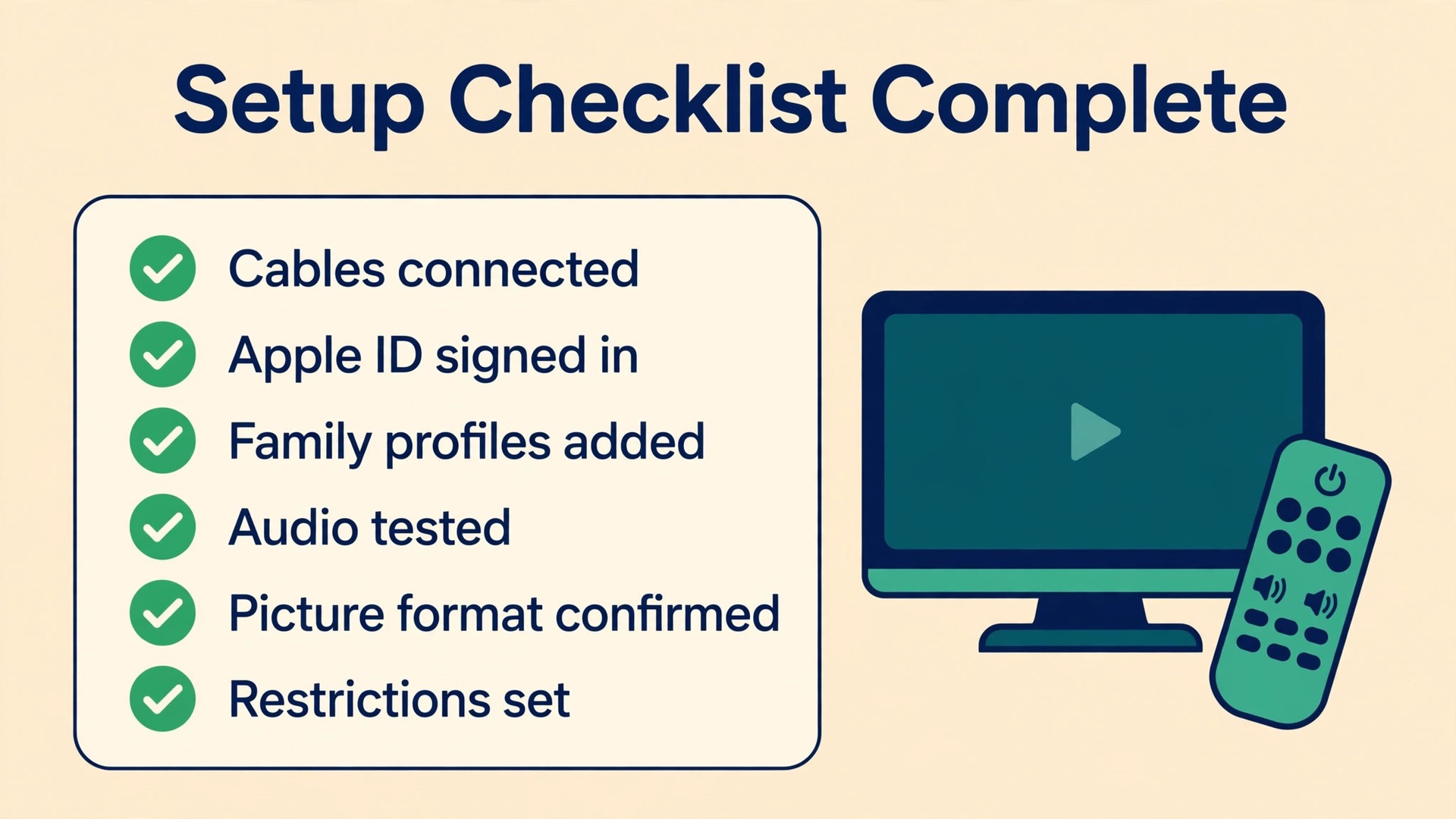
This checklist is the overview-proof heart of the guide. Print it, or keep it open on your phone, and tick each item before you declare the setup finished.
- Box placed with ventilation and a clear remote path.
- HDMI cable connected to a known TV input, with Ultra High Speed cable used for 4K HDR.
- Power connected to a wall outlet.
- Network chosen, with Ethernet for the main TV where practical.
- Language, region, and software update completed.
- Apple ID signed in with the main household account.
- Family members added as profiles, with switching taught to all viewers.
- Core apps installed and signed in, with unused apps deleted.
- Home screen arranged with most used services in the top row.
- Audio output chosen and tested with dialogue and action scenes.
- HomePod or soundbar assigned as default output where used.
- Picture format confirmed, with Match Dynamic Range and Frame Rate on.
- Colour balance run, or TV movie mode selected.
- Restrictions set, ratings limited for the youngest viewer, purchases blocked.
- Ask to Buy kept on for children in the family group.
- Siri Remote paired, charged, and tested for volume and power.
- Sleep timer set.
- TV remote stored somewhere known.
- Test viewing completed on two services, with sound and picture checked.
If any item fails, fix it now rather than noting it for later. The box will be used every night, and a small fault left in place becomes the household’s normal experience within a week. When you set up Apple TV home entertainment against this list, you also create a baseline for later faults.
When Something Goes Wrong
Most Apple TV faults fall into a small set of causes, and the fix order matters. Start with the cheapest checks, which are cables, input, and power, before you touch accounts or reset anything. A blank screen usually means the wrong input, a loose HDMI cable, or a cable that cannot carry the chosen format. Reseat the cable, try another port, and try another cable before you assume the box has failed. If the screen shows a picture but no sound, check the audio output in Settings, then Video and Audio, then Audio Output.
If you use a HomePod, confirm it sits in the same Home app room as the Apple TV, and restart both devices if the output list looks empty.
If apps crash or stall, test the network before blaming the app. Play the same service on a phone on the same Wi-Fi network. If the phone plays fine, focus on the box, which may need a restart, an app reinstall, or a software update. If the phone stalls too, focus on the network, which may need a router restart or a move to Ethernet. If only one app fails, reinstall that app, and check the service status page first.
Remote problems have their own short list. If the remote stops responding, charge it first, then move closer to the box, then restart the box. If volume buttons stop controlling the TV, open Settings, then Remotes and Devices, then Volume Control, and run the setup again. If the remote is lost, use the Apple TV Remote in Control Center on an iPhone as a stopgap, and use Find My on the newest Siri Remote to locate it.
A factory reset is the last step, not the first, and it should only follow a full restart, a cable swap, an app reinstall, and a software update. A reset erases accounts, settings, and apps. Before you reset, take phone photos of your picture settings, home screen order, and audio output choice. After a reset, work through the checklist again from the top. When you set up Apple TV home entertainment a second time after a reset, the checklist keeps the second setup better than the first.
Related reading on Stratilyze can help with the wider home setup around the TV. If your Wi-Fi struggles to carry 4K, read how to build a mesh network for a small house before you blame the box. If apps misbehave on the TV itself, the fixes in Smart TV apps crashing by brand and app cover the built in system. For the smart home side, the best smart home devices for 2026 puts the home hub role in context. When you set up Apple TV home entertainment as part of that wider system, each guide covers one layer.
Frequently Asked Questions
Do I need an iPhone to set up Apple TV?
No. An iPhone or iPad makes setup faster, because it transfers Wi-Fi details and Apple ID sign-in without typing, but manual setup with the Siri Remote reaches the same result. Choose manual setup on screen and type your network password and Apple ID details. The only features you lose without an iPhone are the one tap transfer and the colour balance tool.
Is an HDMI cable included with Apple TV 4K?
Most Apple TV models ship without an HDMI cable, so check your box before setup day and buy one if needed. For 4K HDR, buy an Ultra High Speed HDMI cable, the class Apple support recommends for HDMI 2.1. An old cable is a common cause of flicker and missing HDR.
Can each family member have their own profile?
Yes. Apple TV supports multiple user profiles, each with its own Up Next queue and recommendations in the Apple TV app. Add a profile in Settings, then Users and Accounts, then Add New User, and sign in with that person’s Apple ID. Switch profiles from Control Center by holding the TV button. Check switching inside third party apps separately, because not every app follows the Apple TV profile.
How do I make a HomePod the default speaker for Apple TV?
Put the Apple TV and the HomePod in the same room in the Home app on an iPhone or iPad, then open the Home app, tap the Apple TV, and choose the HomePod or HomePod stereo pair as the default audio output. That routes all Apple TV sound to the HomePod. If the HomePod disappears from the output list, restart both devices and confirm they share the same network and room.
Does Apple TV work with a soundbar as well as with HomePod speakers?
Yes. Connect the soundbar to the HDMI ARC or eARC port on the TV, set the TV audio output to the soundbar, and confirm the Apple TV audio output in Settings, then Video and Audio. A soundbar often suits a large room better, while a HomePod pair suits an Apple household that also wants music playback. Test dialogue clarity on both before you decide.
What should I do if the picture goes black when a show starts?
A brief black screen when Match Content switches the TV mode is normal, but a lasting black screen points to a cable, input, or format problem. First, reseat both ends of the HDMI cable and try a different HDMI port. Next, try an Ultra High Speed cable. Then open Settings, then Video and Audio, and try a lower format or turn Match Content off temporarily. If the picture returns with Match Content off, leaving it off is a fair trade.
Make Movie Night the Easy Default
A good TV setup is invisible. Nobody should have to think about inputs, logins, or sound settings at nine in the evening, when the only question should be what to watch. That invisibility comes from the unglamorous work in this guide, which is choosing the right cable, signing in with the right account, adding profiles before they are needed, and setting parental controls before a child finds the gap.
If you take one habit from this guide, make it the monthly ten minute review. Check the home screen order, delete the apps nobody opened, confirm the audio output still points at the right speaker, and glance at the restrictions for younger viewers. That review costs less time than one evening of troubleshooting. When you set up Apple TV home entertainment with that review in mind, the box earns its price by doing the ordinary thing well every night. Start with the checklist, finish the test viewing session, and then stop tinkering.