Most first time VR headaches come from setup mistakes, not from the headset itself. A loose strap slides the lenses off the sweet spot, a rushed room scan lets a coffee table sneak into the play space, and a dim room confuses the tracking cameras before the first game even loads. The good news is that each of those faults takes under a minute to prevent, provided the steps happen in the right order. This guide shows how to set up Meta Quest 3 for beginners in that order, from charging and fit to room scanning and first games, so the first session feels comfortable instead of confusing.
Virtual reality asks more of a beginner than a television stick does, because the device sits on your face, tracks your hands, and maps your room. That sounds complex, but the on screen setup does most of the work, and your job is mainly to give it a charged headset, a clear floor, and twenty unhurried minutes. Treat the first session as a fitting appointment rather than a gaming session, and the games will be far more enjoyable when you finally open them.
What Comes in the Box and What You Need First
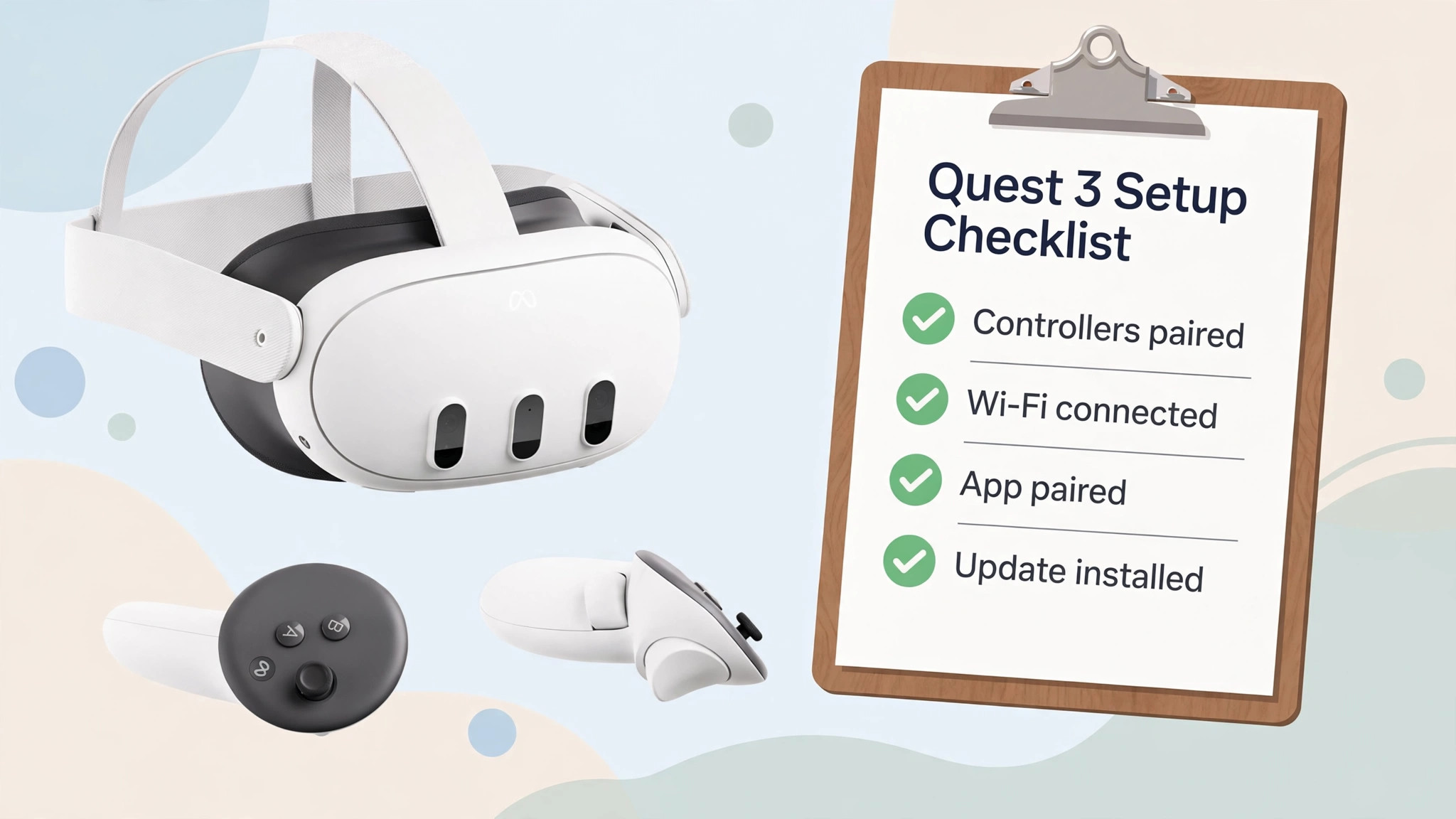
Inside the box you should find the Quest 3 headset, two Touch Plus controllers, a charging cable and power adapter, a glasses spacer for people who wear glasses, and a short quick start guide. Check that both controllers have batteries, since the Touch Plus controllers run on AA batteries rather than built in rechargeable cells. Keep a spare pair of AA batteries nearby for the first month, because controllers that die mid game are a needless interruption, and the low battery warning is easy to miss when you are wearing a headset.
You also need three things that do not come in the box. First, a phone with the Meta Horizon mobile app installed, since the app pairs the headset to your Meta account and handles purchases and some settings. Second, a Wi-Fi network with its password, because the headset downloads a software update during setup and downloads games afterwards. Third, a Meta account, or the willingness to create one, since the headset cannot finish setup without it. If you already own a Quest 2, your existing account and library carry over, which is one of the nicer surprises of upgrading.
Choose your play space before you power anything on. A clear area about two metres by two metres is ideal for roomscale play, where you can walk a few steps in each direction. If your room is smaller, you can still play seated or standing in place, and the setup will offer a stationary boundary instead. Move coffee tables, floor lamps, and pet bowls out of the area, and warn other people in the house that you will be blindfolded by a headset for a few minutes. A closed door helps too, since a wandering pet or child entering the play space is the most common cause of a first session collision.
Charge the headset before you start, ideally to at least half full. Plug the USB-C cable into the headset and the wall adapter, and wait for the charging light to show a healthy charge. While it charges, install the Meta Horizon app on your phone, sign in to your Meta account, and turn on Bluetooth on the phone. Doing these jobs during the charge means the setup itself runs without pauses, and you avoid the frustration of a headset that dies halfway through a software update.
How to set up Meta Quest 3 for beginners
The sequence below mirrors the on screen setup, with the practical notes that first time owners usually learn the hard way. Work through it slowly, and keep the phone nearby throughout, since the pairing step needs both devices at once. To set up Meta Quest 3 for beginners properly, resist the urge to rush past the fit and Guardian steps, because those two steps decide whether the headset feels good or feels like a chore.
- Power on the headset. Press and hold the power button on the right side of the headset until the Meta logo appears, then put the headset on. The first screens ask for language and region, and you select answers with the controllers, pointing and squeezing the trigger like a laser pointer.
- Adjust the lens spacing. The setup asks you to move a small wheel or use the on screen control to set the distance between the lenses to match your eyes. Take a moment here and try two or three positions, because the sharpest text position is not always the first one you try. If you wear glasses, fit the glasses spacer before this step, and if you wear contact lenses, wear them as normal.
- Pair the controllers. The headset guides you through pairing each Touch Plus controller, usually by holding a button combination until the controller light blinks. Test both controllers before moving on, checking that the trigger, grip button, thumbstick, and menu button all respond. A controller that pairs but has a sticky button is easier to notice now than during a game.
- Connect to Wi-Fi. Select your network, enter the password with the on screen keyboard, and wait for the connection to confirm. If your home has both a 2.4 GHz and a 5 GHz network with the same name, the headset will usually pick the faster one, but if downloads seem slow later, switching to the 5 GHz band in the Wi-Fi settings is worth trying.
- Pair with the Meta Horizon app. Open the app on your phone, follow the prompt to set up a new device, and enter the pairing code shown inside the headset. The phone and headset must be on the same Wi-Fi network for this step, and Bluetooth must be on, so check both if the code does not appear or the app cannot find the headset.
- Install the software update. The headset will download and install any available update, then restart. Leave the headset on a flat surface during the update, do not remove the battery from a controller mid update, and wait for the restart chime or the home screen before putting it on again. Updates can take ten minutes on a slow connection, which is normal.
- Set your profile basics. The setup asks for a username, avatar choices, and privacy preferences. Choose a username you are happy to be seen by in multiplayer games, and review the privacy settings rather than accepting defaults blindly, especially if children will use the headset. You can change all of these later, but a thoughtful first choice saves a rename later.
- Draw your Guardian boundary. This step gets its own section below, because it is the safety system for everything that follows. Do not skip it, and do not accept a boundary that cuts through furniture. A careful boundary takes three minutes and prevents the bruised shin that ruins a first impression.
Once setup completes, you arrive at the home environment, a calm virtual room where you can open the store, the library, and settings. Before buying anything, open the free First Encounters app, which is designed to teach mixed reality and controller basics in a few minutes. It is the closest thing the Quest 3 has to a driving lesson, and it also confirms that your Guardian, controllers, and fit all work together before you spend money on games. To set up Meta Quest 3 for beginners in full, this short test app is the bridge between setup and play, and it is worth more than any amount of menu reading.
Drawing a Safe Guardian Play Space
The Guardian is a virtual wall that appears when you approach the edge of your play area, and it is the single most important safety feature on the headset. When you get close to the boundary, a grid fades into view, and if you step through it, the headset switches to passthrough view, showing your real room through the cameras. That switch is deliberate, and it is what stops you walking into a wall while chasing a virtual object.

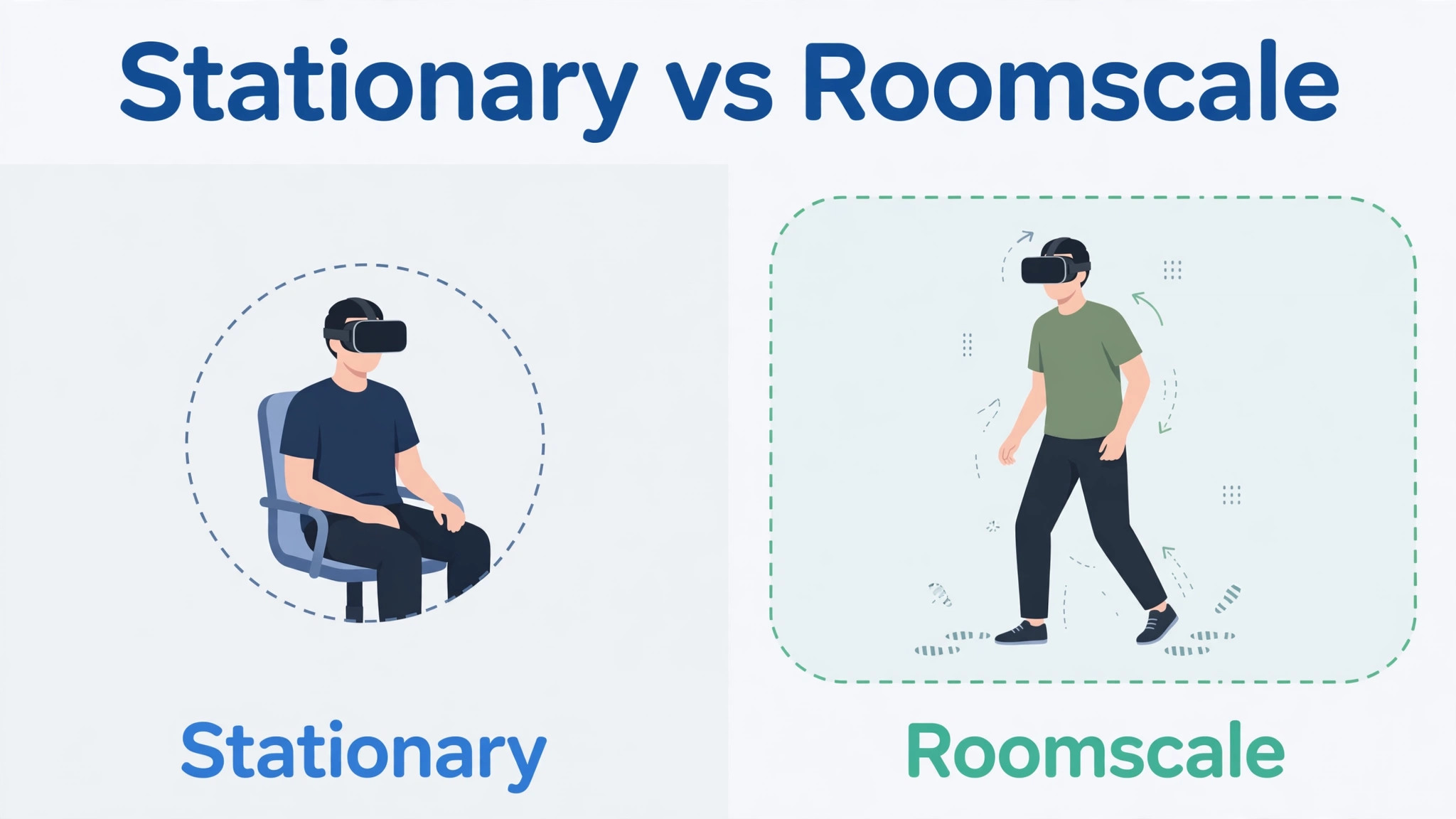
The setup offers two boundary types, and the choice depends on your room. A stationary boundary creates a small circle around you, about one metre by one metre, and suits seated play, standing play, and small rooms. A roomscale boundary lets you draw your own shape around a larger clear area, and suits games where you walk, dodge, or reach widely. The table below compares them side by side, so you can pick based on your room rather than on guesswork.
| Boundary type | Best for | Space needed | Watch out for |
|---|---|---|---|
| Stationary | Seated games, puzzle games, media viewing | About 1 metre by 1 metre | You may still reach outside the circle with your arms |
| Roomscale | Active games, fitness apps, mixed reality | At least 2 metres by 2 metres | Furniture inside the shape must be moved or the shape redrawn |
| Mixed reality space setup | Games that place objects on your real floor and walls | A clear room with visible walls | Bright, even lighting helps the cameras map the room |
To draw a roomscale boundary, stand in the centre of your clear area, look down at the floor, and trace the edge of the safe area with a controller, keeping the line inside furniture, walls, and doorways. Leave a margin of at least a full step between the boundary line and any hard object, because your arms reach past your feet, and a boundary drawn flush against a bookshelf still lets you punch the bookshelf. Confirm the floor level by looking down and touching the floor with a controller if prompted, since a wrong floor level makes virtual objects float or sink, which feels strange and can cause motion discomfort.
Mixed reality setup adds a second layer, scanning your walls and floor so virtual objects can sit on real surfaces. The headset guides you through looking around the room slowly, and it works best in a well lit room with plain walls and no mirrors facing the play area. Mirrors and very dark rooms confuse the tracking cameras, so draw curtains or cover a large mirror for the first scan if tracking seems jumpy. You can redo the space setup any time from the settings menu, so a first scan that looks rough is not a permanent problem.
Revisit the Guardian whenever the room changes. Moving a sofa, adding a Christmas tree, or playing in a different room all call for a fresh boundary, and the headset will often prompt you when it notices a new environment. A stale boundary is worse than no boundary, because it gives false confidence, so treat a room change as a Guardian change, every time, without exception.
First Week Settings Worth Changing
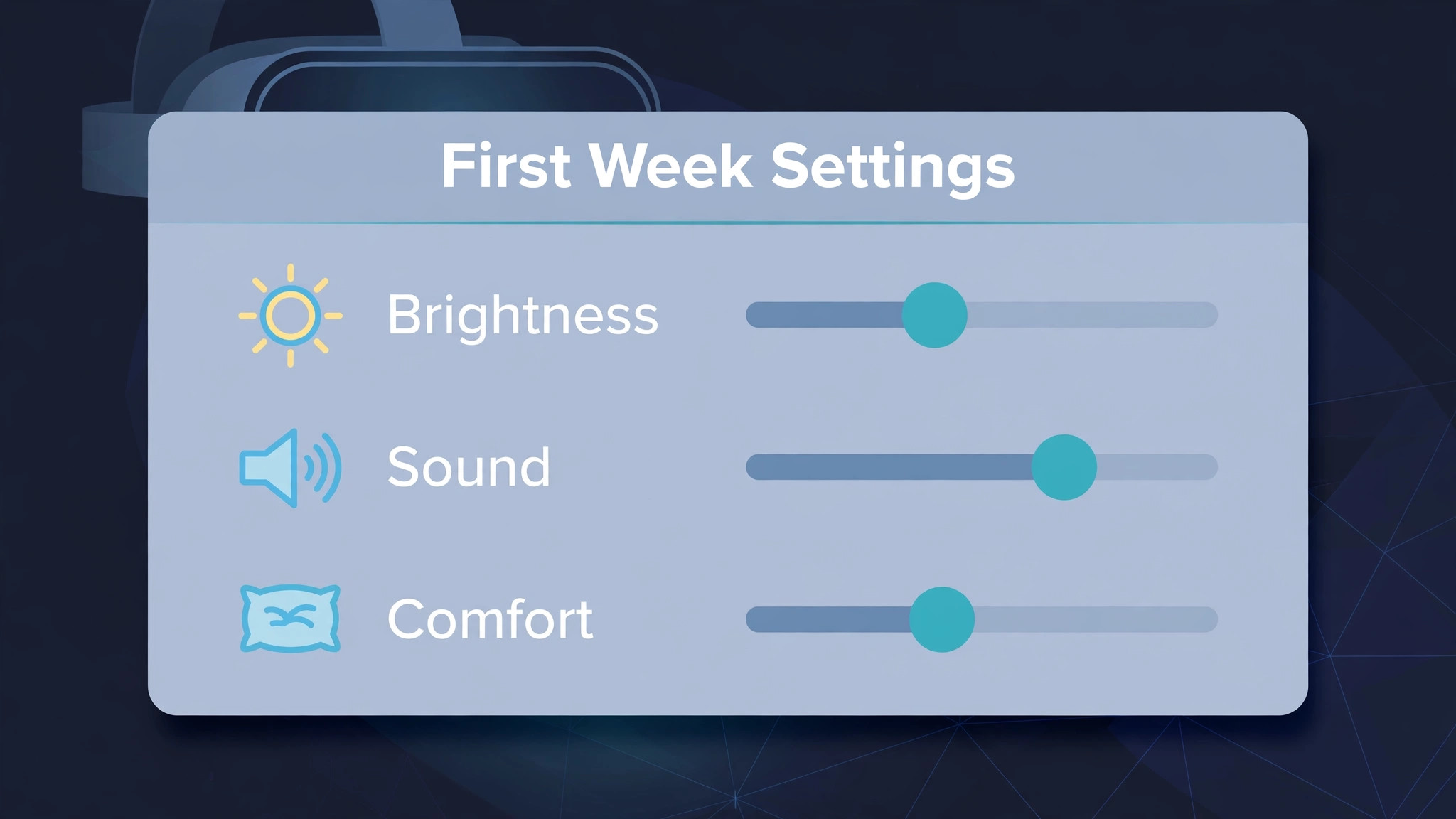
Out of the box settings are sensible, but five changes make the first week noticeably better, and they are all found in the settings menu under the headings shown in the table below. Change one at a time, test it in a short session, and keep the change only if it helps, since personal comfort varies more in virtual reality than in any other kind of device setup.
| Setting | Where to find it | First week recommendation |
|---|---|---|
| Guardian sensitivity | Settings, then Guardian | Leave at default for week one, raise sensitivity if you keep hitting the edge unexpectedly |
| Tracking frequency | Settings, then System, then Tracking | Use 60 Hz under normal home lighting, try 50 Hz if tracking flickers under older lights |
| Display brightness | Quick settings panel | Start near 70 percent, lower it if your eyes tire quickly |
| Sound output | Settings, then Audio | Test built in speakers first, then pair headphones for late night play |
| Comfort and vignette | Settings, then Accessibility or Comfort | Turn on comfort vignette for fast movement games if you feel queasy |
Comfort deserves special attention, because motion discomfort is the reason many beginners put the headset away after one bad session. Start with slow games, keep sessions under thirty minutes for the first week, and stop at the first sign of nausea rather than pushing through. A fan pointed at your face, a seated position, and a game with teleport movement instead of smooth walking all reduce discomfort, and most people find their tolerance grows over two weeks of short, regular sessions. If discomfort persists across many games, check the fit and lens spacing again, since a blurry image forces your eyes to work harder and makes nausea more likely.
Battery life is the other first week reality to plan around. The Quest 3 typically runs for about two hours of gaming on a full charge, less for demanding games, more for video viewing. That limit is actually a useful built in break, but it also means you should start sessions with a full charge and keep the charging cable nearby. An optional elite strap with a battery pack doubles play time, but try the standard strap first, since comfort and weight balance matter more than raw hours for most beginners.
Comfort, Fit and Battery Habits
Fit is a skill, not a single adjustment, and it improves over the first week as you learn how the straps behave. Loosen the side straps fully, place the headset so the lenses sit squarely in front of your eyes, then tighten the sides evenly until the headset feels snug without pressing hard on your cheeks. The top strap carries much of the weight, so adjust it until the headset does not slide down your face when you look down. If the image blurs at the edges, the headset is probably sitting too high or too low, and a small vertical shift fixes it faster than any software setting.
Glasses wearers should use the spacer and check for lens contact before a long session, since a scratched headset lens is expensive to repair. Contact lens wearers usually have an easier time, but dry eyes are common in virtual reality because people blink less while playing. Keep eye drops nearby, take the headset off between games, and look at something distant for a minute, which rests the eyes in a way that simply closing them does not.
Hygiene matters more than beginners expect, because a shared headset collects sweat and face oils quickly. Wipe the facial interface with a dry microfibre cloth after each session, and wash a removable cloth cover regularly if you use one. Never use liquids or sprays directly on the lenses, and never wipe lenses with a shirt sleeve, since both can damage the lens coating. A small case or stand keeps dust off the lenses between sessions, and it also stops the headset being knocked off a table by a curious pet.
Charging habits protect the battery over months. Charge with the supplied adapter, avoid leaving the headset plugged in for days at a time, and store it at room temperature away from direct sunlight. Sunlight through a window can also damage the lenses if it shines directly into them, so store the headset lens side down or covered, never facing a window. These habits sound fussy, but they are the difference between a headset that still holds a charge in two years and one that fades early.

When Tracking or Sound Goes Wrong
Tracking faults usually trace back to the room, not the headset. If controllers drift, freeze, or lose tracking, first check the room lighting. Very dim rooms, very bright sunlight, and flickering older lights all confuse the tracking cameras. Switch on normal ceiling lights, close curtains against direct sun, and remove reflective surfaces from the play area if you can. Next, check controller batteries, since low batteries cause exactly the kind of intermittent tracking loss that looks like a software fault. Fresh AA batteries fix more tracking complaints than any settings change.
If the headset itself loses tracking or the Guardian keeps resetting, clear the Guardian history and redraw the boundary in a well lit room. Also check that the tracking cameras on the front of the headset are clean, wiping them gently with a dry microfibre cloth. A smudged camera sees a blurry room, and a blurry room is a hard room to track. If the problem follows you to a different room, restart the headset fully rather than just putting it to sleep, since a full restart clears the tracking state in a way that sleep does not.
Sound faults follow a similar pattern of simple causes first. If you hear nothing, check the volume in the quick settings panel, then check whether audio is routed to paired headphones that are switched off or out of range. Bluetooth headphones can add delay in games, so for rhythm games or fast action, wired headphones or the built in speakers often feel better. If sound is muffled, check that nothing covers the speaker slots on the sides of the headset, and that the facial interface is seated properly, since a loose interface can muffle sound and let light leak in at the same time.
When a game itself misbehaves, with crashes or missing content, check for updates to both the headset software and the game, and check your storage. A nearly full headset slows downloads and can stop updates entirely, so uninstall a game you have finished before buying the next one, keeping at least a few gigabytes free. Your purchases stay in your library even after uninstalling, so removing a game costs nothing but download time later.
To set up Meta Quest 3 for beginners with fewer headaches, keep a short note of these fixes near your play space for the first month. Tracking, sound, and storage faults all look dramatic inside a headset, but most have a one minute fix, and a calm note beats a frustrated search through menus while wearing the device.

Buying Your First Games Without Wasting Money
New owners often buy five games on day one and play none of them well, because enthusiasm outruns information. A better rule is one game per category, played properly before buying the next. Start with the free First Encounters app, then add one slow exploration or puzzle game, and only then consider an active game that uses the full roomscale boundary. That order teaches you what you enjoy in virtual reality before you spend much, and it also reveals whether your play space suits active games at all, which is useful knowledge before a larger purchase.
Read store reviews with a beginner filter in mind. Look for comments about comfort, session length, and difficulty, rather than comments about graphics alone, since a beautiful game that makes you queasy in ten minutes is a poor first purchase. Check whether a game supports seated play, whether it offers teleport movement, and how much storage it needs, since large games take longer to download and leave less room for the next title. A game that needs twenty gigabytes deserves more thought than a game that needs two, especially on the smaller storage model.
Refunds and trials deserve a check before you buy. The Quest store has a refund policy with time and usage limits, and those limits change, so read the current policy on the store page before buying rather than assuming a refund will be available. Free demos exist for some titles, and they are the cheapest way to test comfort, since a ten minute demo tells you more about motion tolerance than any review. When you do buy, use the purchase PIN you set during setup, so a game cannot be bought accidentally by a guest trying the headset.
Storage planning is part of buying wisely. Check free space in the settings menu before each purchase, and keep a short list of games you have finished, so uninstalling them later is a quick decision rather than a debate. Your library keeps every purchase, so uninstalling is free and reversible, and a headset with breathing room downloads updates faster and crashes less. This habit also stops the common beginner trap of a full headset on the day a much wanted game goes on sale.
Free and low cost content deserves real attention in week one. Beyond First Encounters, the store offers free social apps, fitness trials, and media apps that turn the headset into a private cinema, and these teach you about fit, sound, and comfort without spending anything. A week spent exploring free content is not a wasted week. It is how you learn what to pay for, and it means that when you do buy a full price game, you buy it with confidence rather than hope.
To set up Meta Quest 3 for beginners with a sensible library, patience in week one beats a large day one basket, and the games you buy in week two will suit you far better for it.
One final buying habit helps for months. Keep a wishlist in the store app and check it during sales rather than buying at full price on impulse. Virtual reality games go on sale often, and a wishlist turns a sale into a planned purchase instead of a surprise expense. Review the wishlist monthly, remove games you no longer want, and buy only the title at the top of the list, since the top of a considered list is usually the right next game, while a sale page full of discounts is usually a distraction.
More Reading on Stratilyze
More Reading on Stratilyze. A strong home network makes virtual reality downloads far less painful, so the guide on home Wi-Fi mesh networks for a small house is a useful next read, and the guides on Bluetooth headphones that will not pair and Bluetooth speakers for outdoor movies cover the audio pairing problems that also appear with headsets. Read the Wi-Fi guide first if downloads feel slow, since a weak signal at the play space affects every game you install.
Frequently Asked Questions
Do I need a computer to use a Meta Quest 3?
No, the Quest 3 is a standalone headset, which means games run on the headset itself without a computer. You need a phone for the Meta Horizon app during setup, and a Wi-Fi connection for downloads, but daily play needs neither a computer nor a cable. A computer becomes useful only if you want to play PC virtual reality games through a link cable or wireless streaming, which is an optional advanced step, not a beginner requirement.
How much space do I really need to play?
For seated and standing games, a clear circle about one metre across is enough, and the stationary boundary covers exactly that case. For roomscale games where you walk around, aim for at least two metres by two metres of clear floor. Smaller spaces still work, but you will hit the Guardian wall more often, which breaks immersion, so clear the largest area you can and choose games that fit the space you actually have.
Will the Quest 3 make me feel sick?
Some people feel queasy at first, especially in games with smooth walking movement, but most adapt over one to two weeks of short sessions. Start with slow, seated games, keep sessions under thirty minutes, use teleport movement where offered, and stop at the first sign of discomfort. A well fitted headset with correct lens spacing also helps, since a blurry image makes nausea more likely, so revisit fit before blaming the games.
Can children use the Quest 3?
Meta sets a minimum age for accounts, and parents should check the current account rules before creating an account for a child. Even where a child is old enough, supervision matters, because virtual reality blocks awareness of the real room, and play sessions should be short, in a clear space, with an adult nearby. Set up a separate profile and review privacy and purchase settings before handing the headset over.
How long does the battery last, and can I play while charging?
Expect roughly two hours of gaming per charge, with video viewing lasting longer and demanding games lasting less. You can play while connected to a power cable, but a cable across the play space is a trip hazard, so a battery strap is the safer way to extend sessions. For most beginners, the two hour limit works as a natural break, and charging between sessions keeps the habit healthy.
What happens if I lose a controller or it stops pairing?
First, replace the batteries and try pairing again through the headset settings, holding the controller near the headset. If pairing still fails, unpair the controller in settings and pair it fresh, and restart the headset if needed. Replacement controllers are sold separately, and your account and games are unaffected, so a lost controller is an annoyance rather than a disaster, though it is worth checking whether the controller is simply out of battery before ordering a replacement.
Your First Week in VR, Done Right
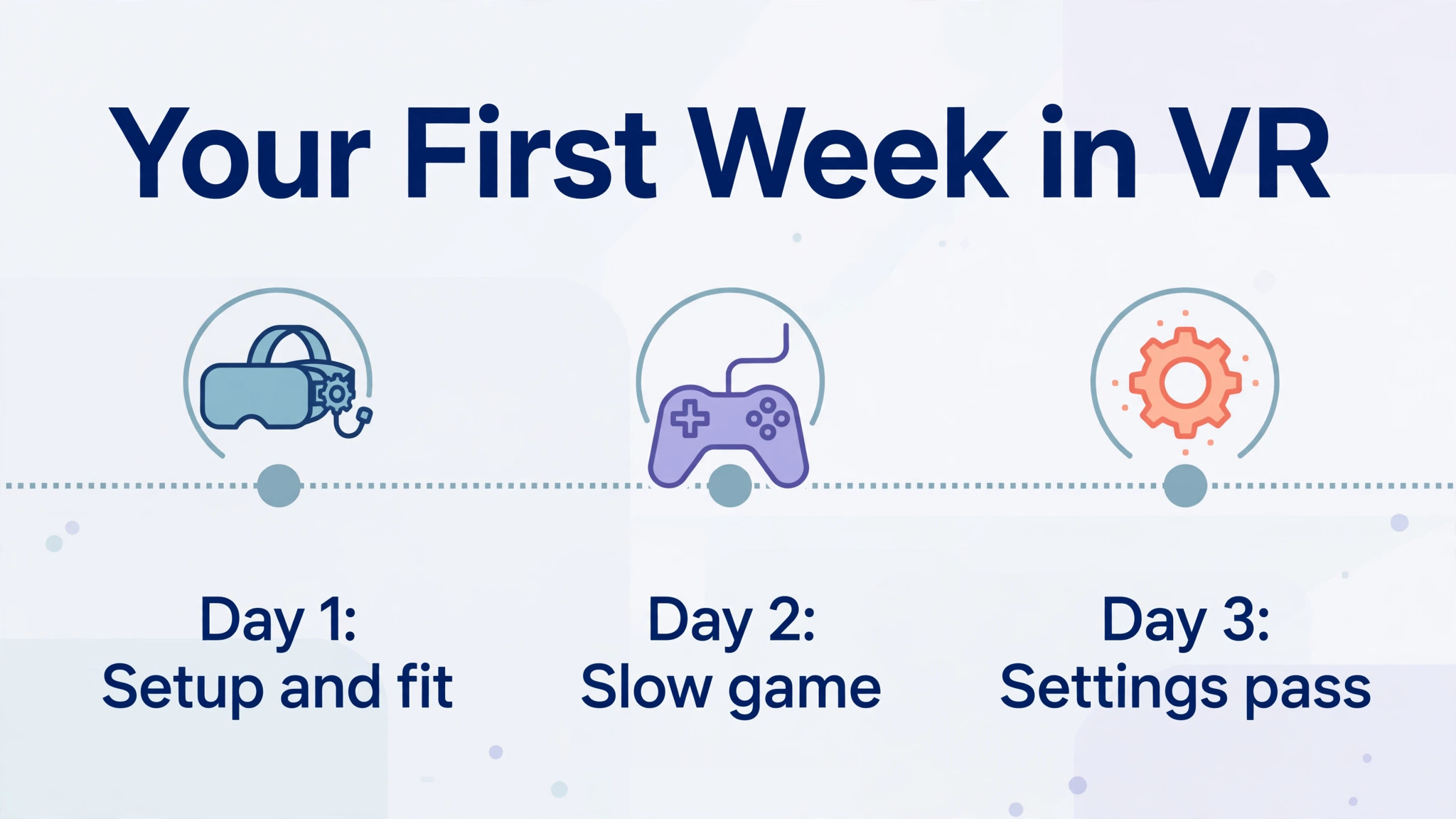
A good first week has a shape. Day one is setup, fit, Guardian, and the free First Encounters app. Day two is a slow game, played seated, for under thirty minutes. Day three is a settings pass, adjusting brightness, sound, and comfort options based on what you noticed. By the end of the week, you will know which games suit you, how long you like to play, and where your Guardian boundary sits, and the headset will feel like yours rather than a demo unit.
Keep the play space clear, keep sessions short at first, and keep notes on what worked. Virtual reality rewards patience more than enthusiasm in week one, and the owners who enjoy it longest are usually the ones who set it up carefully and then played a little every day. To set up Meta Quest 3 for beginners and keep enjoying it, that steady rhythm matters more than any single game purchase, and it starts with the careful setup you have just finished.