
About 667GB of usable storage sits inside a console advertised with 825GB, and that single gap explains why so many new owners run out of room far sooner than they expect. If you want to set up PS5 for beginners the right way, the job starts before you download a single game, because the choices you make on day one about display output, sound, accounts and storage shape every session that follows. A rushed first boot often leaves a television on the wrong picture mode, a controller that dies mid game and a hard drive full of trophy videos nobody will watch again. A careful first boot takes under an hour and prevents most of those annoyances for months.
This guide walks through that first hour and the first week in plain order. You will place the console safely, connect it correctly, sign in without sharing the wrong details, tune the picture and sound for your actual television and headphones, and set storage rules so large games do not surprise you. It assumes no prior PlayStation experience, it names the real menus you will see on screen, and it flags the decisions that are hard to undo later, such as who owns the primary account and which email address receives purchase receipts and password resets.
Before You Plug Anything In
Unbox the console on a stable surface and keep the box and inserts until you are sure everything works, because a return or exchange is far simpler with the original packaging. Check that you have the console, a DualSense wireless controller, an HDMI cable, an AC power cable, a USB cable for the controller and a base or stand for your model. If any item is missing, photograph the box contents and contact the seller before you start, since a missing cable can look like a faulty console once everything is connected.
Placement matters more than most beginners expect. The PS5 moves a large amount of air to stay cool, so it needs clear space on the sides and at the back, away from radiators, direct sunlight and the inside of a closed cabinet. Place it where the vents are not pressed against a wall or a stack of books, and where you can reach the power cable and the disc drive if your model has one. If you stand the console vertically, fit the base firmly and check that it cannot be knocked by a passing pet, child or vacuum cleaner.
If you lay it flat, make sure the surface is level and the console does not rock when you press a button on the controller.
Think about the television before you switch anything on. Note which HDMI port you use, because many televisions treat ports differently, and only one or two may support the highest refresh rates or the enhanced format needed for 4K at 120Hz. Use the HDMI cable supplied in the box for the first setup, since a very old cable from a drawer can silently limit the picture even when the console is set correctly. Keep the remote for the television nearby, because you will need to select the right input and possibly change the television picture mode after the console starts.
A short preparation list saves repeated trips behind the television.
- Keep your Wi-Fi password ready, or run an Ethernet cable to the console if the router is close enough.
- Have the email address and password for a PlayStation Network account ready, or decide who in the household will own that account.
- Charge the controller with the supplied USB cable during setup, even if it has some charge out of the box.
- Decide where downloads will go and whether you already own an external drive for PlayStation 4 games or media.
- Clear enough floor or shelf space so cables are not stretched tight across a walkway.

How to Set Up PS5 for Beginners Without Rushing the First Boot
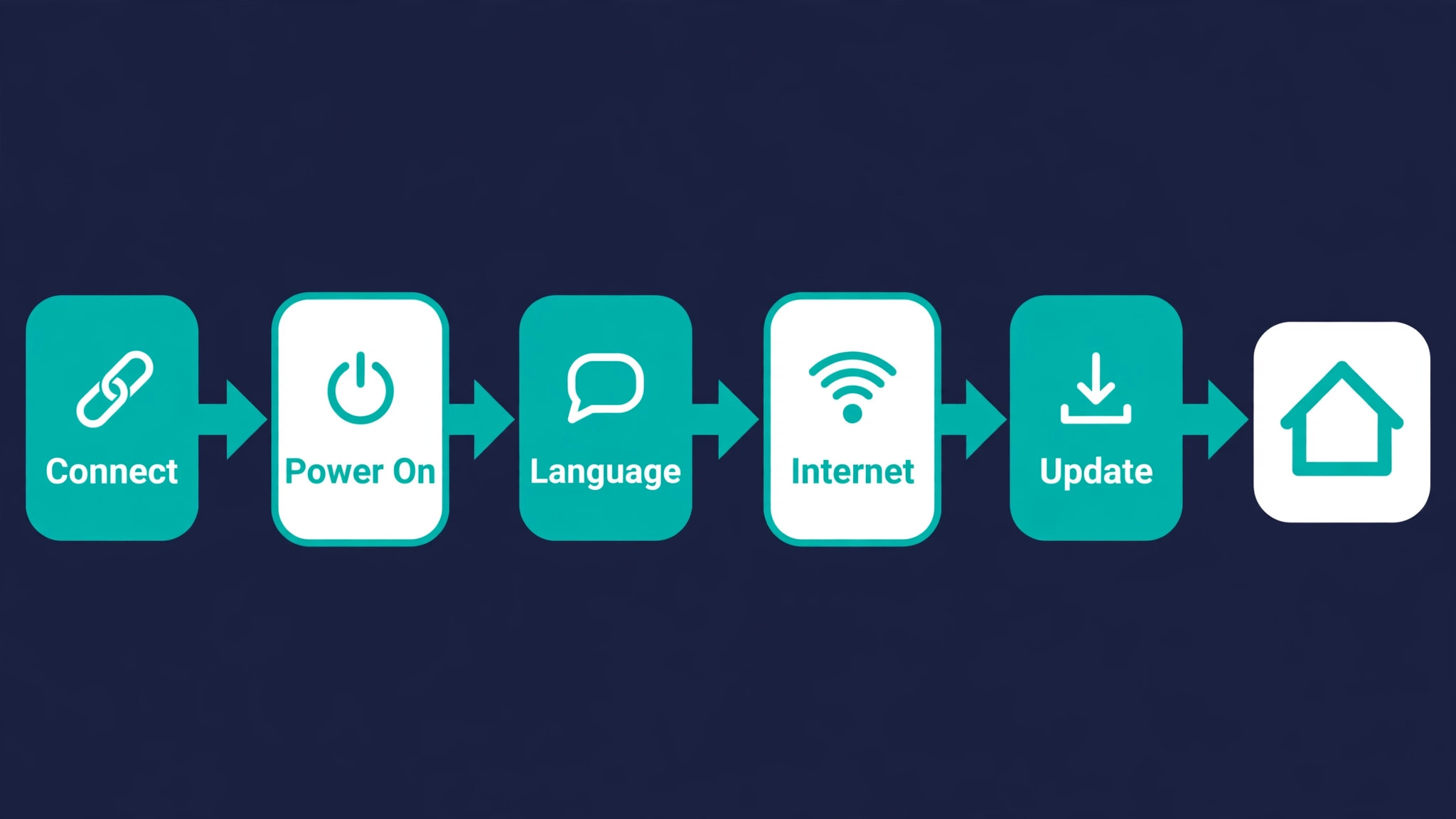
Connect the HDMI cable to the HDMI OUT port on the rear of the console and to an HDMI input on the television, then connect the AC power cable to the AC IN connector and to a wall outlet. Connect the controller to the console with the USB cable and press the PlayStation button. Switch the television to the correct HDMI input. The console will guide you through language selection, internet connection, display adjustment, Rest Mode power options and the user agreement. Do not skip the system software update if one is offered, because updates often fix stability problems and add features that later guides assume you already have.
Sign in with an existing PlayStation Network account if you have one, or create a new account with an email address you actually monitor. This account controls purchases, trophies, cloud saves for subscribers and parental controls, so it should not be a throwaway address you lose access to next year. Turn on two step verification as soon as the account is active, and store the backup codes somewhere safe outside the console. If children will play, create their accounts under family management rather than sharing an adult account, because sharing makes age ratings, spending limits and play time controls much harder to enforce later.
The first boot checklist below covers the steps in the order the console presents them, plus the two checks beginners most often forget, which are the software update and the controller pairing check after the cable is removed.
| First boot step | What to do | Check before moving on |
|---|---|---|
| Connect display and power | Use the supplied HDMI cable and AC cable | Television shows the PlayStation start screen |
| Pair the controller | Connect by USB, press the PlayStation button | Controller works after the USB cable is removed |
| Choose language and region | Pick the language you read most easily | Menus and store prices match your region |
| Connect to the internet | Use Wi-Fi or Ethernet and enter the password | Console reports a successful connection test |
| Install the system update | Accept the update and let it finish | System software shows the latest version |
| Sign in or create an account | Use a monitored email address | Two step verification is turned on |
| Adjust display area | Follow the on screen border test | No menu edge is cut off by the television |
| Set Rest Mode options | Choose charging and download behaviour | Controller charges while the console rests |
| Accept agreements | Read the summary, then accept | Home screen loads without repeated prompts |
| Open the store and library | Confirm purchases and free games appear | At least one game is ready to download |
After the home screen loads, spend ten minutes learning the layout before you start a large download. Press the PlayStation button once to open the control centre, press it again or hold it to return home, and open Settings from the gear icon in the top right corner. Find Games, Media, Saved Data, Sound, Screen and Video and Storage now, while nothing is urgent, so you are not hunting through menus when a game is waiting to install. This short orientation pays off every time a friend asks why the sound is wrong or where a download went.
Display Settings That Make Games Look Right on Your Television
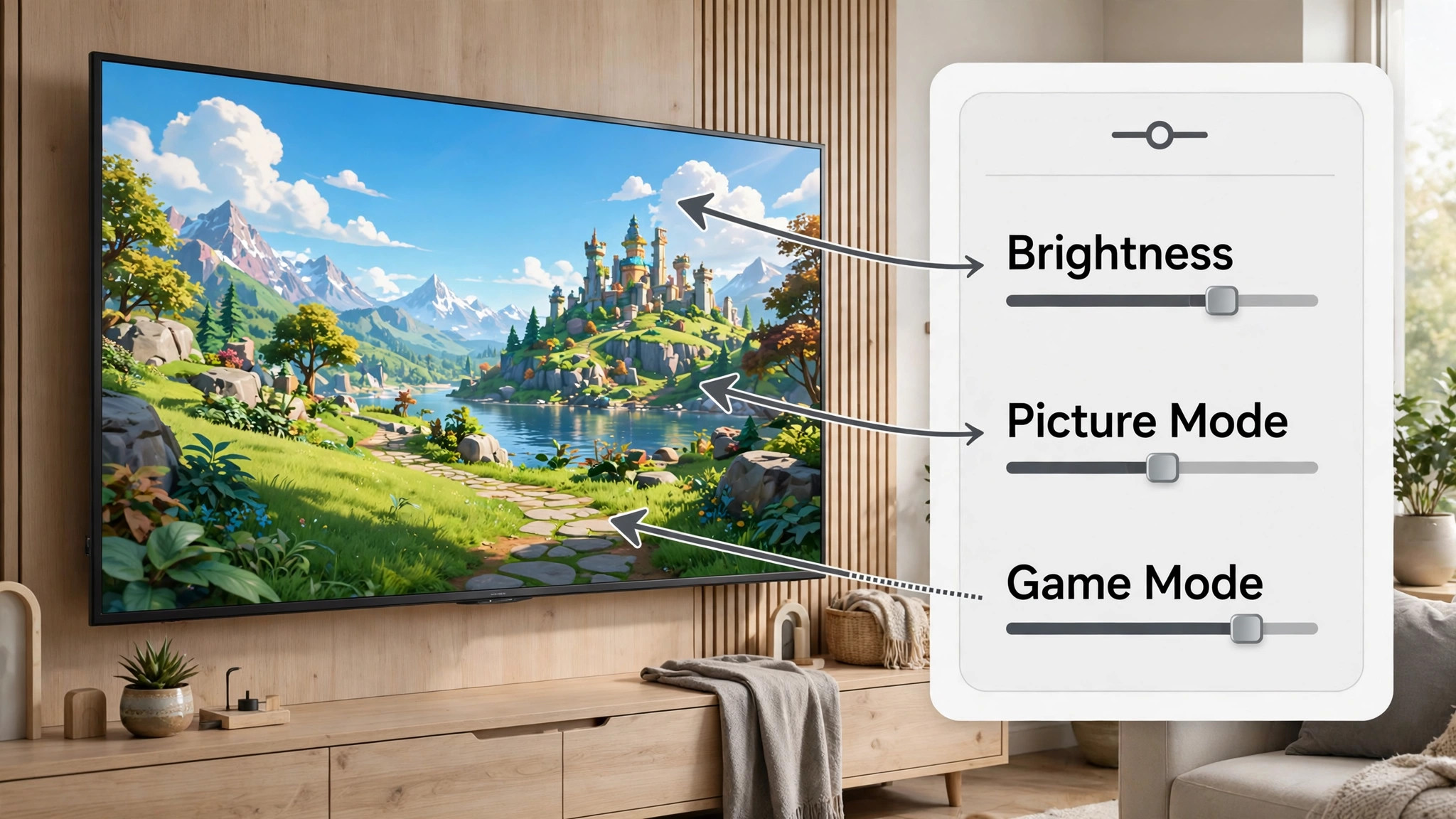
Open Settings, then Screen and Video, then Video Output to see what your television actually supports, and this display check is a core step when you set up PS5 for beginners. The console can test 4K, HDR and refresh rate support, and the result matters, because a television that accepts a 4K signal may still handle HDR poorly, and a game can look washed out if HDR is forced on a screen that does not reproduce it well. If the test shows your television supports 120Hz output, enable it only for games that offer a performance mode, since most story driven games still target lower frame rates and will not benefit in the same way.
Picture mode on the television is at least as important as any console setting. Many televisions ship in a vivid or dynamic mode designed to stand out in a shop, with colours pushed hard and motion smoothing turned up. For films and story games, a cinema, movie or filmmaker mode usually gives more natural skin tones and better shadow detail. For competitive games, a game mode reduces input delay by cutting extra processing, and it is worth switching to game mode even if the picture looks slightly less bright at first. Write down the television settings you change, because a software update or a guest pressing buttons can reset them without warning.
Adjust the display area if menus touch the edge of the screen, and check HDR calibration in games that offer it, since a single global setting rarely suits every title. A dark game may need a slightly higher black level adjustment, while a bright open world game may look better with the default. Avoid changing five settings at once, because you will not know which change helped or hurt. Change one setting, play for a few minutes in a familiar scene, and then decide whether to keep it.
Sound, Headphones and 3D Audio Explained in Plain Terms
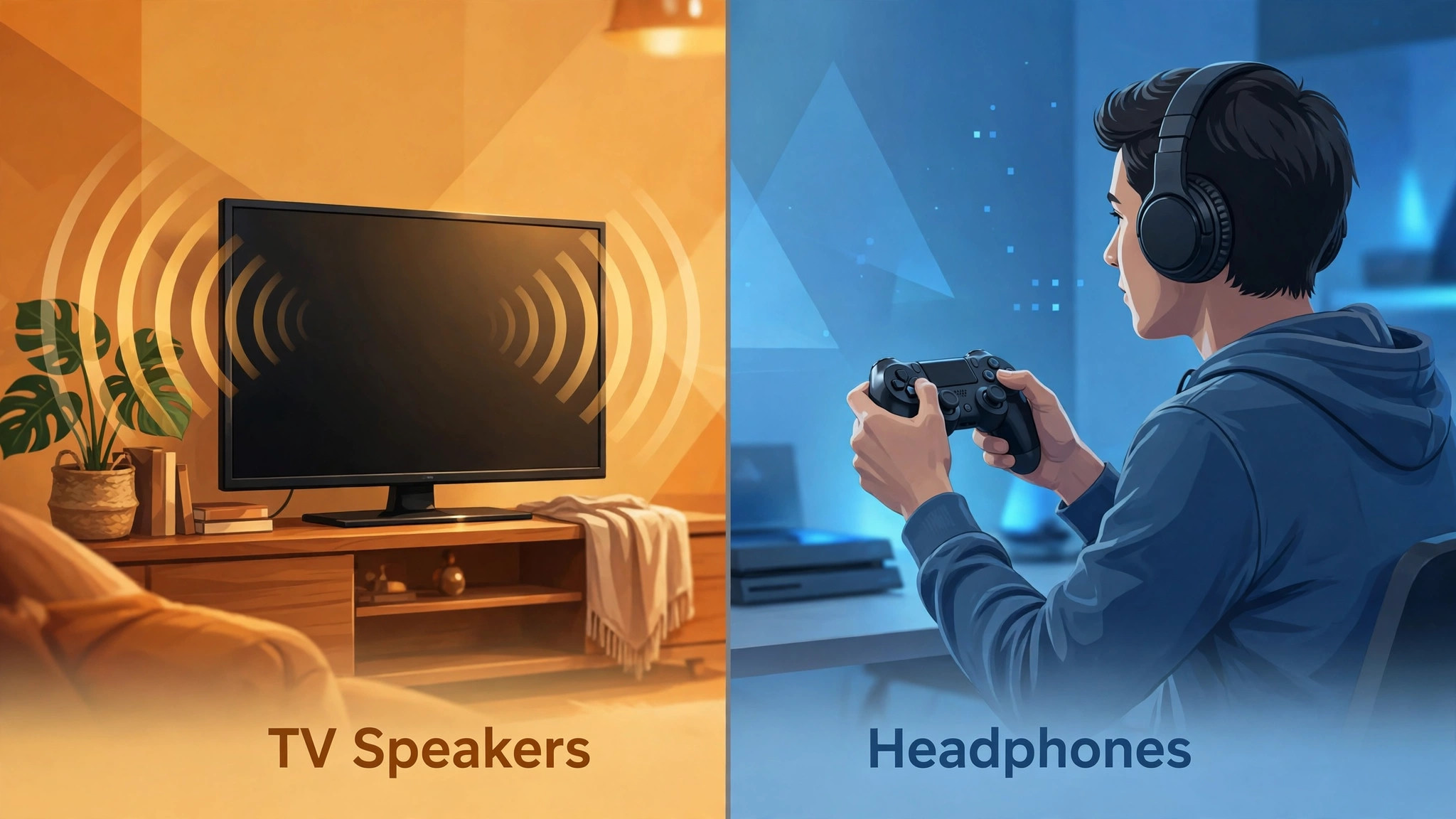
Open Settings, then Sound, then Audio Output to choose how sound leaves the console. If you play through television speakers, check the output device and volume, then turn on 3D Audio for TV Speakers if your setup supports it and test it in a game with clear directional sound, such as footsteps or rain. If you play with headphones, select the headphone output, run the Measure 3D Audio for Headphones test if offered, and try the available profiles, because head shape and ear shape change how spatial sound is perceived and no single profile suits everyone.
The PS5 does not support most Bluetooth headphones directly, so do not waste an evening trying to pair standard wireless earbuds through the normal Bluetooth menu. Use a wired headset connected to the controller, a headset with its own USB wireless adapter, or a separate Bluetooth transmitter plugged into a USB port if you must use Bluetooth headphones. Check microphone settings before your first online session, because a microphone left open or set to the wrong input can broadcast household noise to other players. Set the microphone to mute when the console starts if you play in a shared room, and learn the mute button on the controller so you can silence yourself quickly.
Volume balance deserves a minute of attention too. Game audio, voice chat and system sounds compete, and a chat volume set too high can drown out footsteps or dialogue. Start with game audio at a comfortable level, bring chat up only until voices are clear, and reduce system notification sounds if they break concentration during story scenes. If you use a soundbar or home cinema system, confirm whether it receives sound through HDMI ARC, optical output or direct HDMI passthrough, because each route can add a small delay, and lip sync problems are often a routing problem rather than a console fault.
Storage, Downloads and Game Presets That Prevent a Full Drive
Open Settings, then Storage to see how much space is used, and planning storage early is wise when you set up PS5 for beginners. A PlayStation 5 game can easily occupy tens of gigabytes, and a handful of large titles can fill the internal drive, so treat storage as a weekly habit rather than a crisis you deal with when a download fails. Delete games you have finished and do not plan to revisit, keep your saved data, and remember that deleting a game does not delete your progress if the save file remains.
If you own PlayStation 4 games, an external USB drive is a sensible home for them, while PlayStation 5 games need the internal drive or a compatible internal expansion drive to play.
Game Presets, found under Settings, then Saved Data and Game or App Settings, let you choose defaults for performance mode or resolution mode, difficulty, subtitles, camera controls and online play behaviour. Choosing performance mode as a default suits fast action and competitive games, while resolution mode suits slow, visual games where frame rate matters less. These are defaults, not locks, and individual games can still offer their own choice at start up, so check the in game options if a title looks or feels different from what you expected.
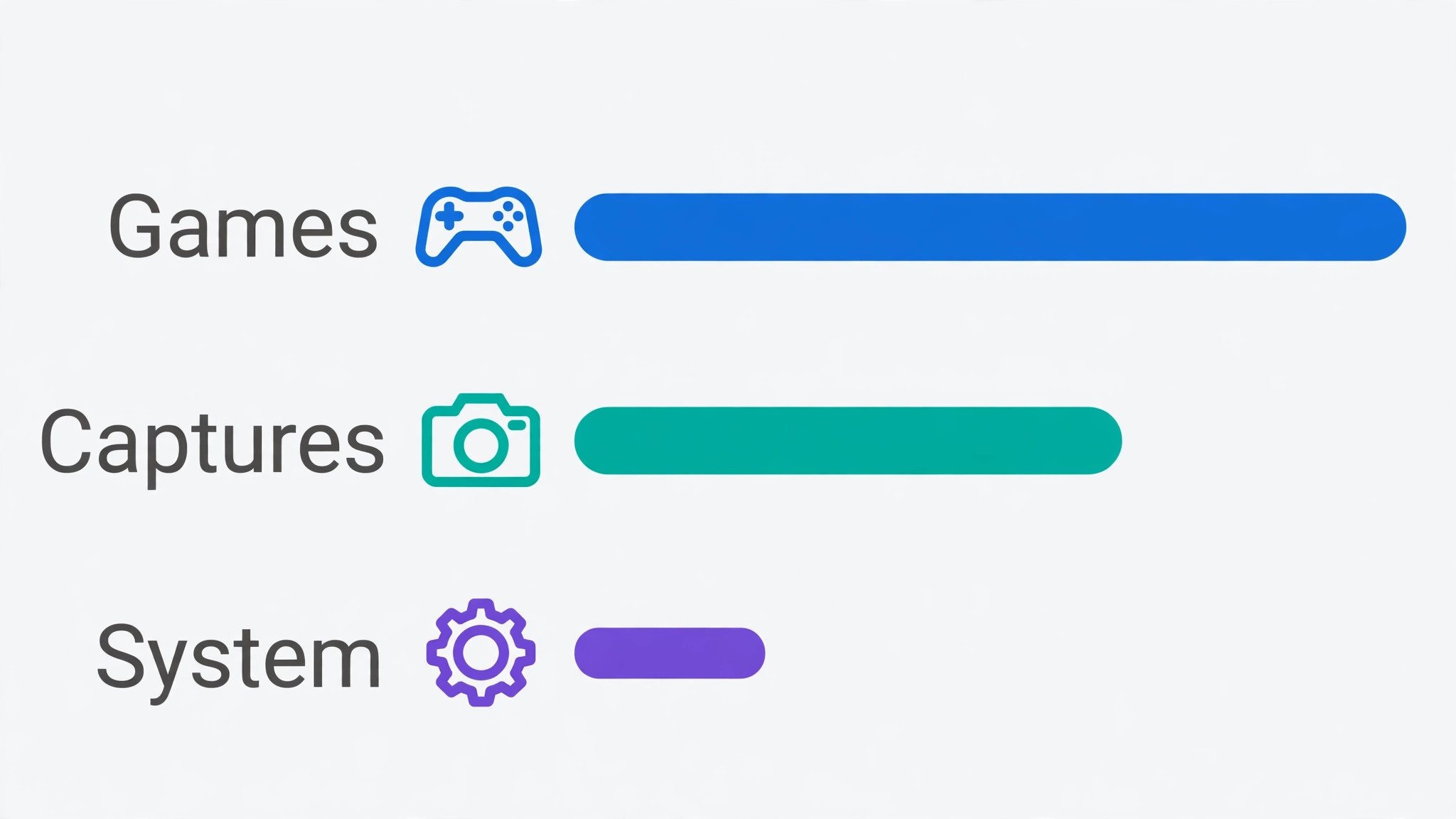
Captures deserve a specific decision on day one. By default the console can record screenshots and video clips for trophies and challenges, and those files accumulate quietly. Open Settings, then Captures and Broadcasts, then Captures, then Auto Captures, and turn off the trophy and challenge captures you do not want. Keep manual capture for moments you genuinely want to save, and review the Media Gallery every few weeks. A few minutes of tidying here can free tens of gigabytes over a year, which is often enough room for another full game.
| Storage and download setting | Sensible beginner choice | Why it helps |
|---|---|---|
| Automatic updates | On for system software and games | Patches install overnight instead of blocking play |
| Download region and language | Match your account region | Avoids wrong language packs and store mismatches |
| PlayStation 4 games | Move to an external USB drive | Frees internal space for PlayStation 5 titles |
| Trophy captures | Turn off automatic video clips | Stops silent storage growth from every trophy |
| Game preset mode | Performance for action, resolution for story games | Matches frame rate to the type of game |
| Rest Mode downloads | Stay connected to the internet | Large downloads finish while you are away |
| USB power in Rest Mode | Three hours for controller charging | Controller is full without leaving power on all day |
| Media Gallery review | Check every few weeks | Old clips are deleted before they fill the drive |
One account should act as the household manager when you set up PS5 for beginners, and other players should have their own profiles where possible, because separate profiles keep trophies, saved games, friends lists and spending apart. If a child plays, set up family management from Settings, then Users and Accounts, then Family, and add the child account with an age appropriate profile. From there you can set spending limits, approve purchase requests, restrict games by age rating and set play time limits. These controls work best when they are explained before they are needed, so tell younger players what the limits are and why they exist, rather than letting the first blocked purchase become an argument.
Privacy settings also deserve a calm pass on day one. Decide who can see your real name, who can send friend requests and messages, and whether your online status is visible to everyone or only to friends. A beginner who leaves everything public may receive unwanted messages after a few online matches, while a player who locks everything down may miss party invites from real friends. A middle path works well for most people, with friend requests open to friends of friends or approval based, messages limited to friends, and activity visible to friends only.
Review these settings again after a month of play, because your comfort level often changes once you know which games you play online and which you play alone.
Console sharing is another setting beginners misunderstand. Console Sharing and Offline Play, under Settings, then Users and Accounts, then Other, allows other accounts on the same console to play games owned by the primary account holder when that console is set as the shared console. This is useful in a household where one person buys most games, but it should only be enabled on a console you control, because enabling it elsewhere can affect who can play your library offline. If you ever sell or give away a console, sign out, deactivate sharing and reset the system first, and never hand over a console still signed in to your account.
Payment details need the same care. Add a payment method only if you plan to buy digitally, set a spending limit or require a password at checkout, and check that purchase confirmation emails go to an address you read. Digital purchases are tied to the account, not the console, so a lost console does not mean lost games, but a lost account password without recovery options can be far more serious. Keep the account email current, keep two step verification on, and teach anyone who shares the console never to enter payment details on a guest profile.
Controllers, Rest Mode and Power Habits That Extend Battery Life
The DualSense controller charges through USB, and its battery life depends heavily on vibration, adaptive triggers, speaker volume and light brightness. If you notice the controller dying quickly, open Settings, then Accessories, then Controller, and reduce vibration intensity, trigger effect intensity and brightness before buying a second controller. These features add a great deal to immersion in many games, but turning them down slightly for long sessions is a reasonable trade, especially in games where constant vibration adds little information.
Rest Mode is not the same as switching the console fully off, and understanding the difference prevents lost downloads and warm consoles. In Rest Mode the console can charge controllers, download updates and stay connected to the internet at low power, which is ideal overnight. To enter Rest Mode, press the PlayStation button, open the power options and choose Enter Rest Mode. To switch off fully, choose Turn Off PS5 instead. If the console feels warm or the fan runs loudly in Rest Mode, check the power saving settings under Settings, then System, then Power Saving, and shorten the time before USB power stops and before the console enters Rest Mode automatically.
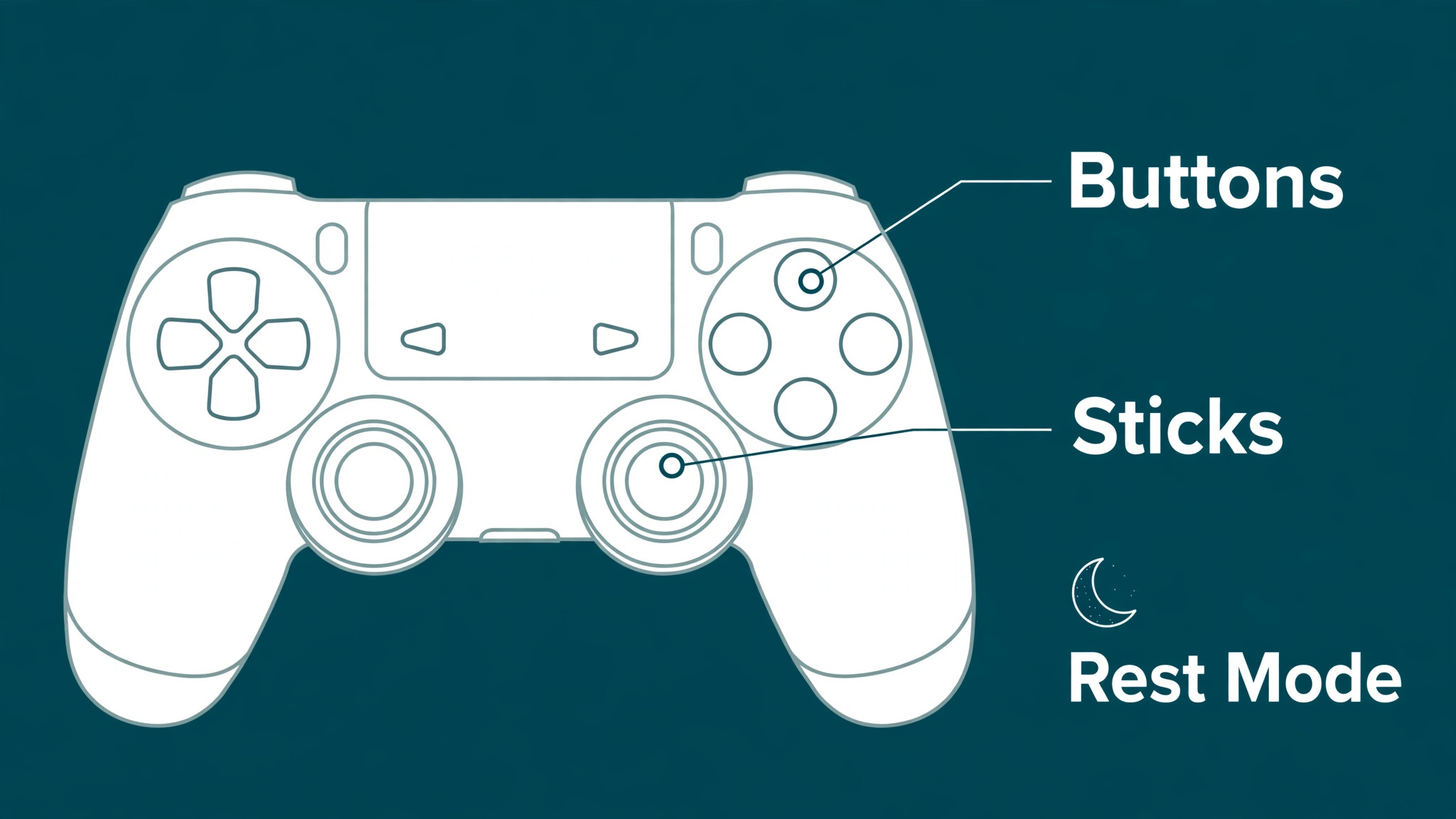
Learn the basic controller shortcuts early. The PlayStation button opens the control centre, the Options button opens context menus in most games and apps, the Create button captures screenshots and video, and the touch pad often opens a map or inventory depending on the game. If the controller stops responding, connect it by USB again and press the PlayStation button, which usually re pairs it. If it still fails, check for a small reset hole on the rear of the controller, but use that only after a cable connection and a console restart have failed, because a reset removes the pairing and you will need to set it up again.
What to Play First and How to Judge Whether a Game Suits You
Start with a game that teaches the controller without punishing mistakes, which is sound advice when you set up PS5 for beginners and choose a first title. A free pack in title or a colourful platform game lets you learn movement, camera control and menu navigation at your own pace, while jumping straight into a difficult online shooter can leave a beginner feeling that the console is at fault when the real problem is the learning curve. Play the first hour of a new game without worrying about trophies or online rankings, and use the easiest difficulty if one is offered, because difficulty can usually be raised later, while early frustration can put a new player off for weeks.
Judge a game on three questions after a few sessions. Does the control scheme feel learnable, or are you fighting the buttons more than the game world. Does the game explain its goals clearly, or do you spend more time searching menus than playing. Does a session leave you wanting to return, or relieved that it is over. If the answers are mostly negative, try a different genre before concluding that gaming is not for you, because the gap between a slow puzzle game and a fast racing game is larger than the gap between many other hobbies. The console library covers both extremes and most points in between.
When you are ready for online play, start with cooperative modes or games with friends before competitive ranked modes, because cooperative play forgives mistakes and teaches communication, while ranked play measures you against strangers who may have thousands of hours of practice. Set voice chat to push to talk or team only if the game allows it, mute players who are abusive without engaging, and report serious harassment through the console tools rather than replying. A good first online experience depends far more on the people you play with than on your internet speed.
Fixing the Common First Week Problems Without Panic
Most first week problems have a simple cause. If there is no picture, check that the television is on the correct HDMI input, that the HDMI cable is fully seated at both ends, and that the console power light is on. If the picture is present but the edges are cut off, run the display area adjustment again. If the sound is missing, check the television volume, the Audio Output device in Settings, and whether headphones are connected to the controller, because sound routed to headphones will not come from the television speakers.
If a download is slow, test a wired connection, pause other large downloads in the household, and check whether a system update and a game update are competing for the same connection.
If a game will not install, check storage first, then check whether the disc is clean and correctly inserted if you own a disc model, and then restart the console fully rather than entering Rest Mode. If the controller will not charge, try a different USB cable and port, because many charging problems are cable problems. If the console is loud, check ventilation and dust around the vents, and move it out of an enclosed shelf if necessary.
If a problem persists after these checks, search the official PlayStation support pages for the exact error code or message, because error codes narrow the cause far faster than general descriptions, and support articles often list a fix that a forum guess will miss.
Keep a simple log during the first week. Note the game, the problem, what you changed and whether it helped. This habit sounds dull, but it prevents the common loop where a player changes three settings, the problem disappears, and nobody knows which change mattered when the problem returns. A log also helps enormously if you later contact support, because you can describe steps already tried instead of repeating them under pressure.
More Reading on Stratilyze
Readers who enjoyed this console walkthrough may also enjoy the companion guide to setting up an Xbox Series X for beginners, the smart TV streaming setup guide for getting the television itself ready for films and shows, and the noise cancelling headphones travel guide for choosing and pairing audio gear that works well with a console on the move.
Frequently Asked Questions
Do I need a PlayStation Plus subscription to set up PS5 for beginners?
No, you do not need a subscription to complete the first setup, play single player games, use media apps or download free games. A subscription becomes relevant for online multiplayer in most paid games, for monthly games and for cloud storage of saved games. Start without one, learn which games you enjoy, and add a subscription only when online play or cloud saves matter to you.
How long does the first PS5 setup take?
Allow about forty five minutes to an hour if a system update is available, including unboxing, connections, account sign in and basic display checks. The update and the first large game download take the longest, and both can run in the background while you explore menus. If you set up PS5 for beginners on a slow connection, start the update first, then use the waiting time to adjust sound, storage and family settings.
Should I buy an expansion drive on day one?
Most beginners should wait. Play for a few weeks, see how many large games you actually keep installed, and check storage before spending on an expansion drive. An expansion drive makes sense when you regularly juggle several large titles and deleting and redownloading them becomes annoying. Until then, an external USB drive for older titles and a tidy Media Gallery usually provide enough breathing room.
Why does my game look worse than the trailers?
Trailers are often captured on high end equipment with ideal settings, while your result depends on television picture mode, HDR calibration and the performance or resolution choice inside the game. Switch the television to game mode or cinema mode as appropriate, run the HDR adjustment in the game if offered, and check whether the game is running in performance mode when you expected resolution mode. Small changes here usually close most of the gap.
Yes, with separate profiles and family management. Give each player a profile, set age ratings and spending limits for younger players, and keep the adult account password private. Shared play on one console works well when purchases require approval and play time rules are agreed in advance. Review the settings together after the first month and adjust them as children grow more confident.
What should I do before selling or giving away a PS5?
Sign out of your account, deactivate console sharing, back up saved games if you have a subscription that stores them online, and perform a full factory reset. Remove any discs, disconnect external drives, and check that no payment method remains attached to a profile on the console. A reset protects your account and gives the next owner a clean first boot experience.
A Calm Verdict for New Owners
A good PS5 setup is not about changing every setting on day one, it is about getting the foundations right and leaving room to learn. Place the console where it can breathe, sign in with an account you will keep, tune the picture for your television rather than a shop display, choose sound settings for the way you actually listen, and set storage rules before the drive fills. If you set up PS5 for beginners with that order in mind, the console fades into the background and the games take over, which is exactly what a first week should feel like.
Revisit the settings after a month, keep what works, change what does not, and let your preferences grow with your library.