
Most new televisions ship in a vivid shop mode designed to catch your eye under bright store lights, with colours pushed hard, brightness at maximum and motion smoothing that makes films look like video, which is the first thing to fix when you set up smart TV for streaming beginners. That single factory choice explains why so many living rooms end up with soap opera motion, washed out shadows and tired eyes, even when the television itself is perfectly capable of a calm, accurate picture.
If you want to set up smart TV for streaming beginners properly, the work is less about buying a better television and more about undoing that shop setup, connecting the television reliably, signing in to only the apps you will actually watch, and tuning picture and sound for your room rather than for a showroom.
This guide covers the full journey from unboxing to a relaxed first movie night. You will place the television safely, connect it by the most reliable method available, sign in to streaming apps without sharing passwords carelessly, organise the home screen so favourite apps are one press away, and adjust the picture and sound settings that make the largest difference. It works across the main platforms, including Google TV, Samsung Tizen, LG webOS, Roku and Fire TV, with notes where menu names differ, so you can follow it even if your remote looks different from the examples.
Unboxing, Placing and Powering On for the First Time
Unbox the television with a second person if the screen is large, because a television dropped on a corner or flexed while lifting can crack even before it is switched on. Keep the box and foam until the television has passed a full setup and a streaming test, since returns are simpler with original packaging. Check for the television, a remote with batteries, a stand or feet, screws for the stand, and a power cable. If you plan to wall mount, check the mount compatibility and weight rating separately, and do not improvise with screws that do not match the mounting holes.
Placement affects both picture and safety. The television should sit at a height where the centre of the screen is roughly at eye level from your usual seat, with no direct sunlight falling on the screen for most of the day. A television placed too high forces your neck up for every film, while a television facing a bright window will wash out dark scenes no matter how good the panel is. Leave ventilation space around the back and sides, keep the screen away from heaters and radiators, and secure the television against tipping if children or pets share the room, using a safety strap where appropriate.
Connect power and switch on, then follow the on screen prompts for language, region and network. Most televisions will offer a quick setup through a phone app, which can speed up Wi-Fi password entry and account sign in, and that option is worth using if your passwords are long. Do not accept every data sharing and personalisation prompt without reading it, because some options enable viewing data collection and targeted advertising that you may prefer to leave off. You can usually change these choices later in privacy settings, but a calm first pass saves a later hunt through menus.
Wired or Wi-Fi, and How Much Speed Streaming Really Needs
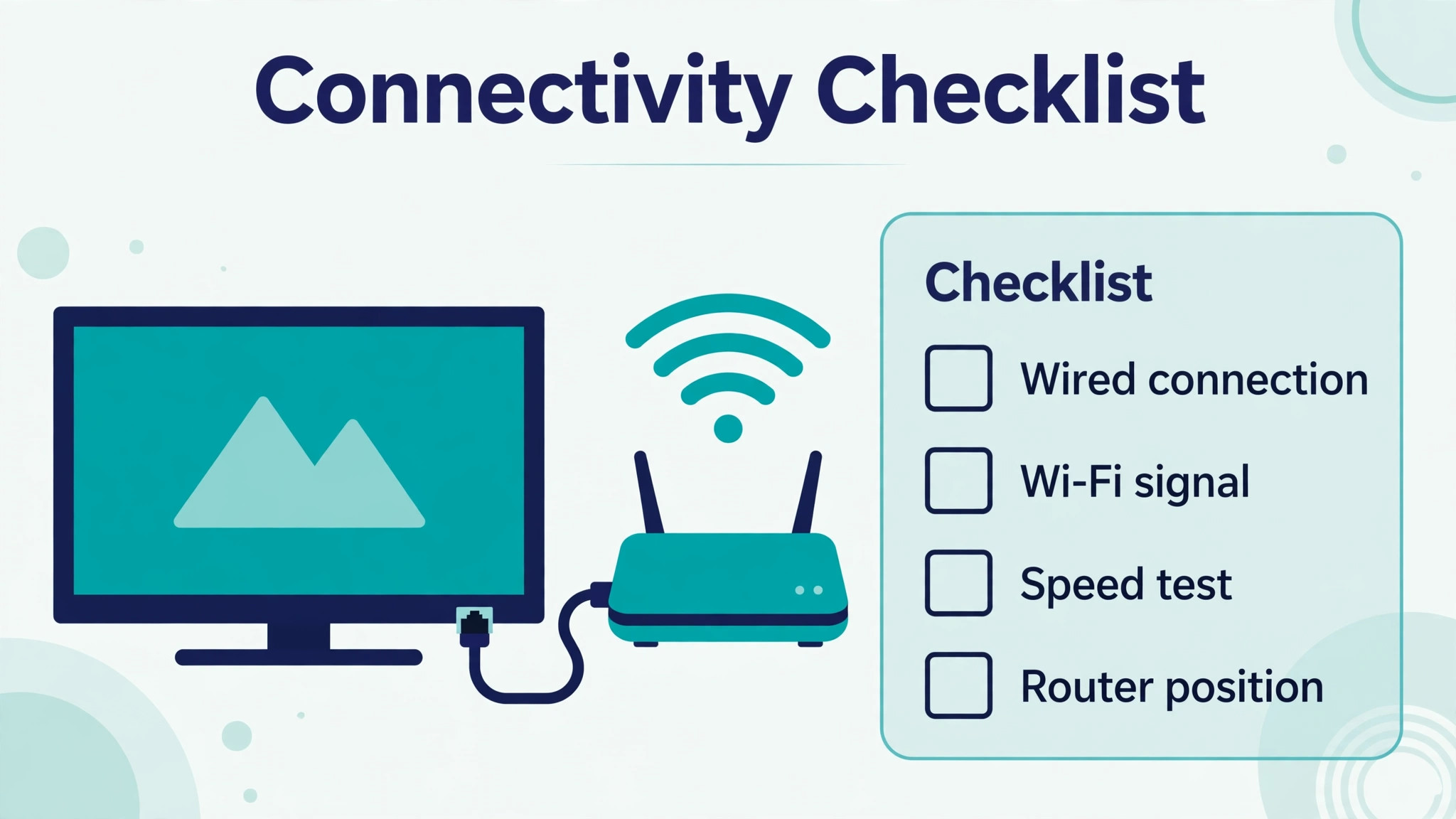
A wired Ethernet connection is the most reliable option if the router sits near the television, and choosing it early helps when you set up smart TV for streaming beginners. Ethernet avoids Wi-Fi congestion from neighbours, thick walls and competing devices, and it gives steadier 4K playback with fewer buffering pauses. If a cable is impractical, use Wi-Fi on the 5GHz band where possible, place the router as close as practical to the television, and avoid placing the router inside a closed cabinet or behind a large metal object that blocks signal.
Streaming speed needs are often overstated by marketing and understated by frustration. As a planning guide, standard definition video needs only a few megabits per second, high definition needs roughly five to ten megabits per second, and 4K streaming typically needs about twenty five megabits per second of steady, real world speed, not just a headline plan speed. Test your actual speed at the television location with a speed test app or a phone held beside the television, because a plan that delivers fast speeds to a router in a hallway may deliver far less to a television in a far bedroom.
If 4K buffers frequently, try high definition first and fix the network before blaming the television or the streaming service.
Other devices in the home affect streaming too. A video call, a large game download and a 4K film running at the same time can saturate a modest connection, so schedule large downloads for overnight where possible and pause them during a planned movie night. A mesh Wi-Fi node or an extender near the television can help in a large home, but place it halfway between the router and the television, not right beside the television, because an extender too close to the television still receives a weak signal from the router and simply repeats that weakness.
The App Sign In Table and a Tidy Home Screen
Streaming apps fall into three groups, and signing in to all of them at once is a mistake. The first group is the apps you already pay for and watch weekly, such as a main film service, a live television app or a music app. The second group is free apps you use occasionally, such as a broadcaster catch up app or a video sharing app. The third group is apps you might try one day, which should not be installed yet at all. Install the first group on day one, add the second group over the first week as needed, and leave the third group alone until a specific show or event makes it necessary.
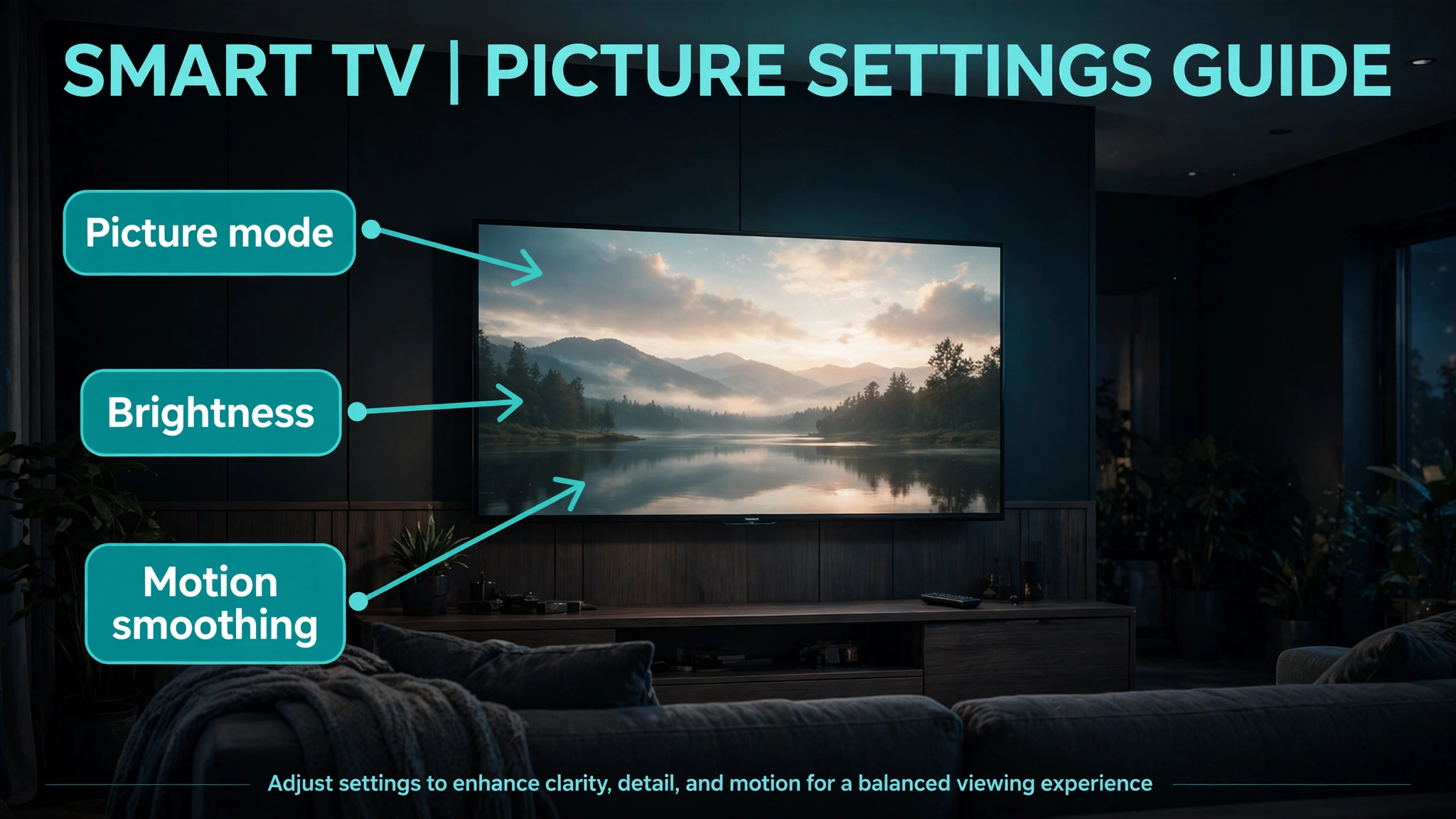
Sign in methods vary, and the phone method is usually easiest. Many apps show a code on the television and ask you to enter it on a phone or computer, which avoids typing a long password with a television remote. Others ask you to scan a QR code with a phone camera. Use the code or QR method where offered, sign in on a trusted device, and never type a streaming password into a website reached from a random link, because phishing pages imitate sign in screens convincingly. After signing in, check that profiles are correct, especially in a household with children, where a child profile with age appropriate content should be the default for younger viewers.
| App or account type | Sign in method to prefer | Check after signing in |
|---|---|---|
| Main film and series service | Code on television entered on a phone | Correct profile and playback quality selected |
| Broadcaster catch up app | Code or QR code on a phone | Region and live television access work |
| Video sharing app | Google or platform account sign in | Watch history and subscriptions appear correctly |
| Music app | Code on television entered on a phone | Audio output goes to television or soundbar as intended |
| Live sport app | Code on television entered on a phone | Live stream starts without repeated sign in prompts |
| Kids profile app | Child profile within the main service | Age filter and PIN for adult profiles are on |
| Television platform account | Platform account during first setup | App store downloads and purchases work |
| Rental and purchase store | Platform account with payment method | Purchase confirmation and PIN are set |
Once apps are signed in, organise the home screen. Move favourite apps to the front row, remove apps you never use from the home row where the platform allows it, and turn off autoplay previews if they distract or use bandwidth unnecessarily. A home screen with six favourite apps in a fixed order is far easier for the whole household than a home screen that reshuffles based on recent use, because muscle memory builds around fixed positions. Show every household member where their apps live, and agree that the front row changes only after a family discussion, not after one person’s late night browsing.
Picture Settings That Actually Change What You See
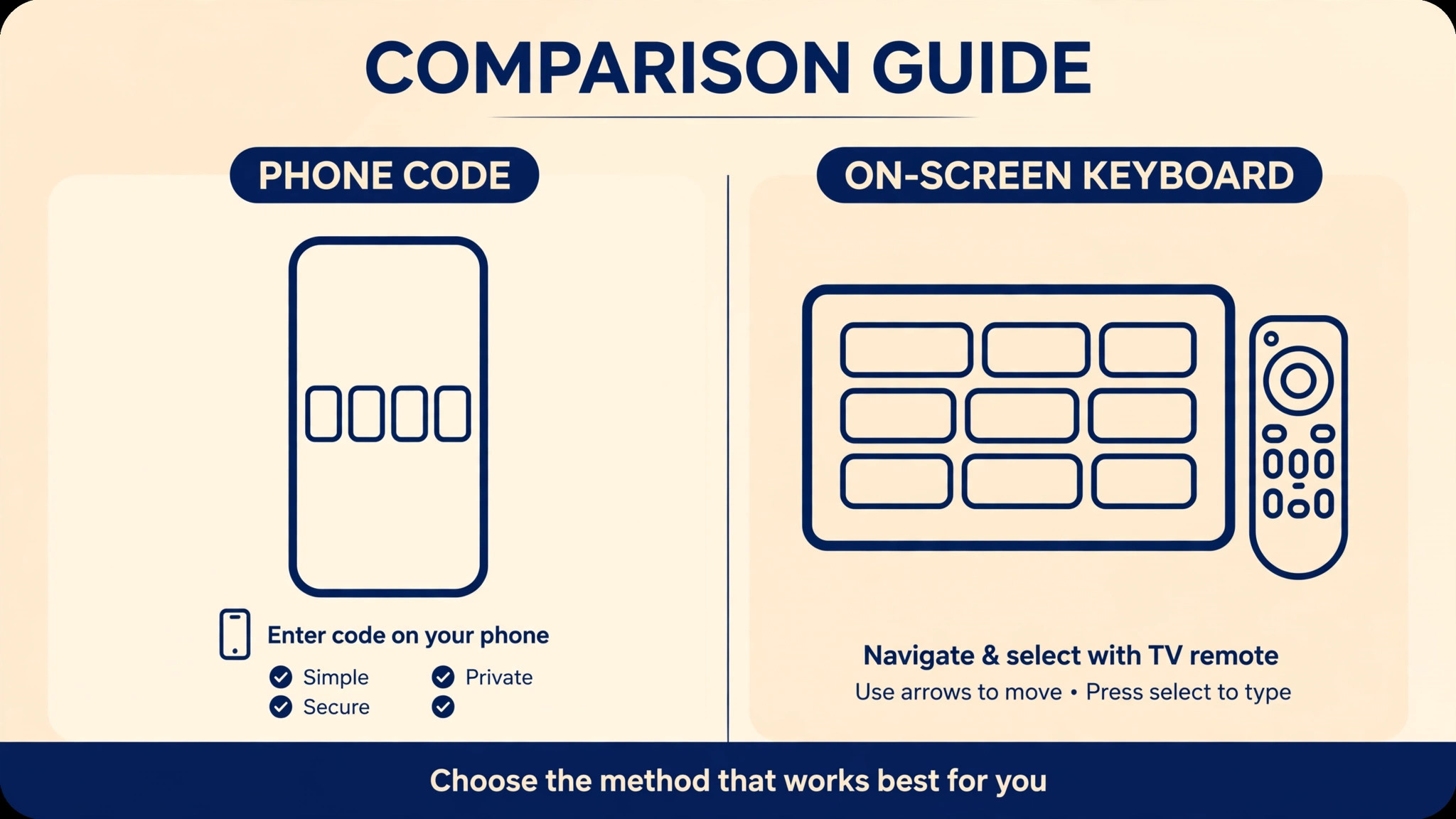
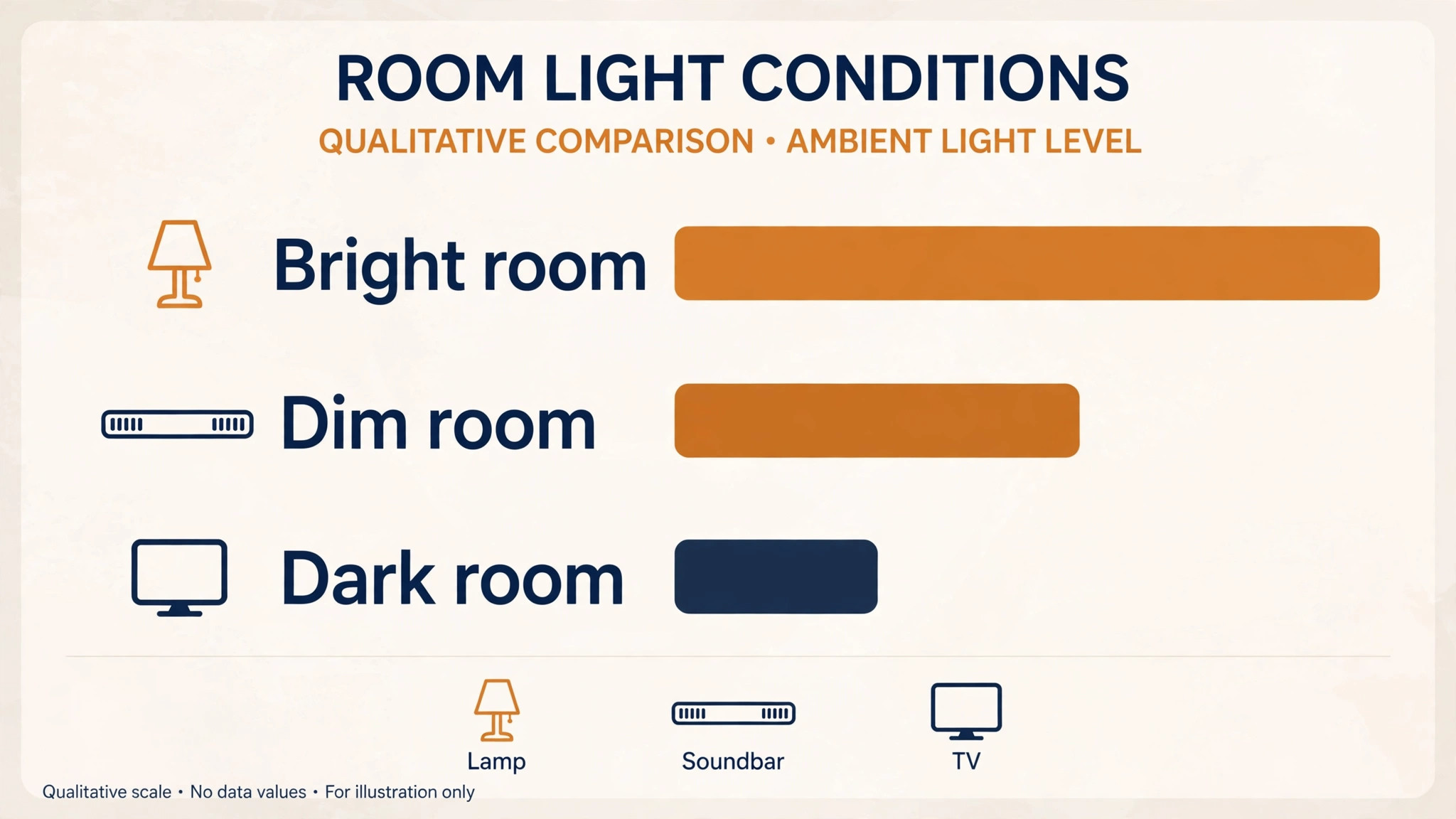
Open picture settings, usually under Settings, then Picture or Display, and start with picture mode, because picture mode is the biggest single improvement when you set up smart TV for streaming beginners. Vivid or Dynamic mode is the shop mode to leave behind. Standard or Natural mode suits everyday television in a bright room. Cinema, Movie or Filmmaker Mode suits films in a dim room, with more accurate colours and less artificial sharpening. Game Mode suits consoles, because it reduces input delay by cutting extra processing. Sports mode can help fast action, but it often adds motion smoothing that some viewers dislike, so test it during a real match rather than assuming it is better.
Motion smoothing deserves a specific decision. Often called by brand names such as TruMotion, MotionFlow or Auto Motion Plus, it inserts extra frames to make motion look smoother, but it can make films look like video and create artefacts around fast moving objects. For films and drama, turn motion smoothing off or to its lowest setting. For live sport, a low or medium setting may help without the soap opera effect, but try it during a match and decide by eye. There is no correct universal setting, only a setting that matches what you watch most and what bothers you least.
Brightness, contrast, sharpness and colour need only small adjustments after picture mode is chosen. Backlight controls overall brightness and should rise for bright rooms and fall for dark rooms. Brightness controls black level, and setting it too high washes out shadows, while setting it too low crushes dark detail. Contrast controls the difference between light and dark, and pushing it to maximum often loses detail in bright skies. Sharpness should stay low, because high sharpness adds artificial edges and noise. Colour saturation should stay near the middle, because pushing it high makes skin tones look sunburnt. Change one setting at a time, watch a familiar scene, and keep a note of the values you like.
| Picture setting | Sensible starting point | What too much of it does |
|---|---|---|
| Picture mode | Cinema for films, Standard for daytime television | Vivid mode oversaturates colours and crushes detail |
| Backlight | Higher for bright rooms, lower for dark rooms | Too high causes eye strain at night |
| Brightness | Near middle, adjust for black detail | Too high washes out shadows |
| Contrast | Near middle to high, watch bright skies | Too high loses detail in clouds and highlights |
| Sharpness | Low, often near zero to a quarter | Too high adds halos and noise around edges |
| Colour | Near middle | Too high makes skin tones look unnatural |
| Motion smoothing | Off for films, low for sport if liked | Too high creates soap opera motion and artefacts |
| HDR mode | Auto where available, test per app | Forced HDR on a weak panel can look washed out |
Sound Settings, Soundbars and a Picture and Sound Checklist
Television speakers have improved, but they still face the screen or the rear of the set, which limits bass and dialogue clarity, so test them properly when you set up smart TV for streaming beginners. Before buying a soundbar, test the built in speakers properly, because a few settings can improve dialogue noticeably. Open sound settings, usually under Settings, then Sound or Audio, and look for a dialogue enhancement, clear voice or speech mode, which boosts the frequency range where voices sit. Set sound mode to Standard or Movie for most content, and avoid a music mode for films, because it can make dialogue sound distant.
Check that night mode or dynamic range compression is available if late night viewing disturbs others, because it reduces loud explosions while keeping dialogue audible.
A soundbar changes the equation, and connection method matters. HDMI ARC or eARC is usually the best connection, because it carries sound from the television to the soundbar over one cable and allows the television remote to control volume. Optical output is a reliable fallback, but it may not carry the highest quality audio formats and usually needs a separate remote or a universal remote setup. Bluetooth soundbars can work, but they can introduce a small delay between lips and sound, so test dialogue sync carefully before settling on Bluetooth as a permanent solution.
After connecting a soundbar, set the television audio output to the external device, disable built in speakers if the menu offers that option, and test a dialogue heavy scene and a music scene.
The picture and sound settings checklist below is the one to work through on the first evening, in order, because it prevents the common pattern of changing a setting in one app and forgetting that another app uses different defaults. Some apps carry their own picture and audio settings, so check the main television settings first, then check the settings inside your most used streaming app.
| Checklist item | Where to check | Done when |
|---|---|---|
| Picture mode chosen | Settings, Picture, Picture Mode | Films look natural, not oversaturated |
| Motion smoothing decided | Settings, Picture, Motion settings | Films do not look like video unless you want that |
| Backlight matched to room | Settings, Picture, Backlight | Bright room is readable, dark room is comfortable |
| HDR confirmed per app | Play a known HDR title, check picture info | HDR badge or info appears where expected |
| Sound mode chosen | Settings, Sound, Sound Mode | Dialogue is clear without raising volume constantly |
| Dialogue enhancement on | Settings, Sound, Clear Voice or similar | Voices stand out over background music |
| Audio output correct | Settings, Sound, Audio Output | Sound comes from soundbar if one is connected |
| Night mode tested | Settings, Sound, Night Mode | Loud scenes are tamed without losing dialogue |
| Subtitle size checked | Settings, Accessibility, Subtitles | Subtitles are readable from the usual seat |
| Volume limit for children | Settings, Sound or Parental controls | Maximum volume cannot be raised beyond the limit |
4K, HDR and Why Some Shows Still Look Ordinary
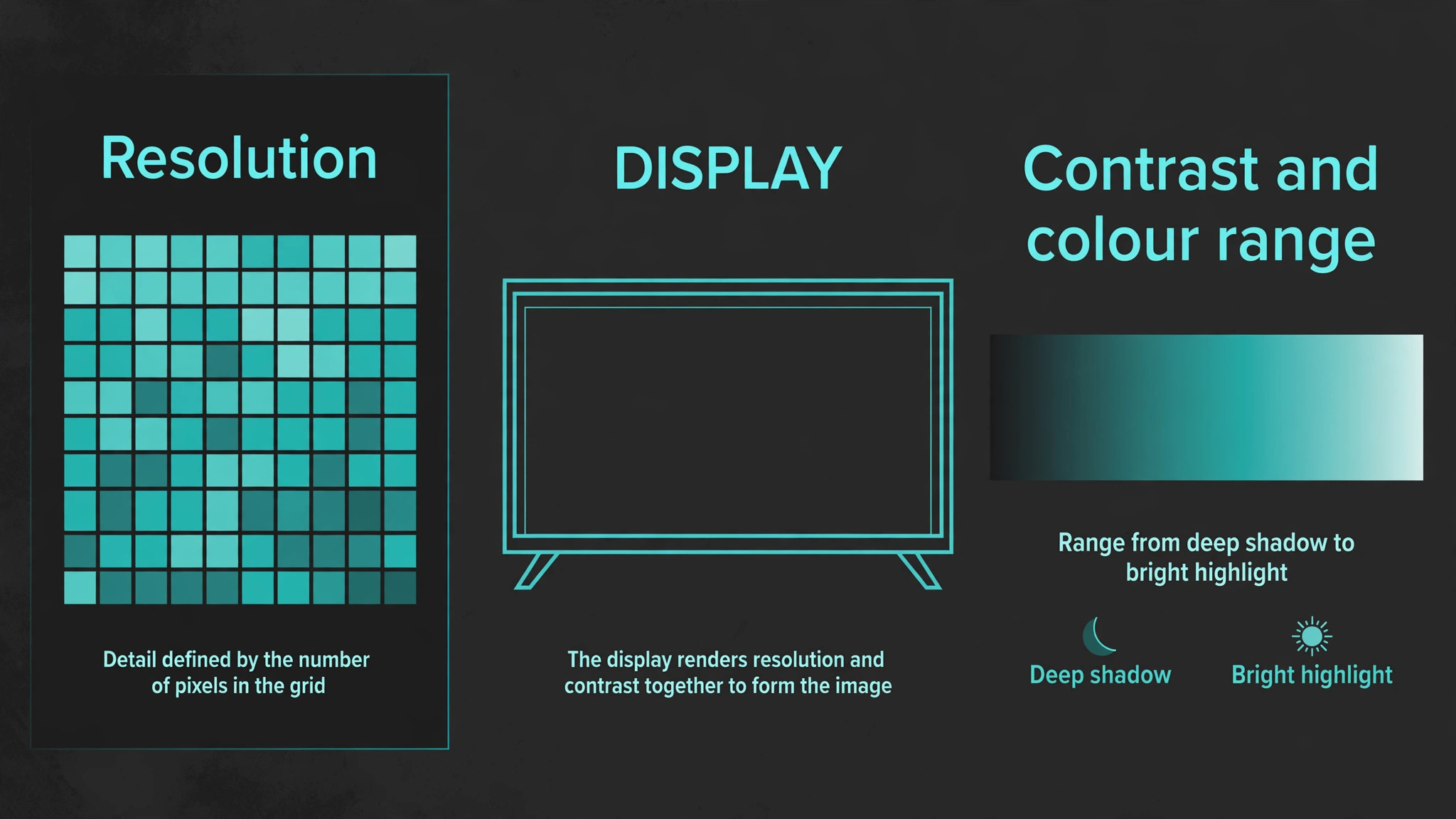
4K and HDR are often sold as a single upgrade, but they are different things. 4K describes resolution, or the number of pixels, while HDR describes contrast and colour range, or how bright highlights and how deep shadows can be. A 4K television without good HDR can show a sharp but flat picture, while a good HDR television at high definition resolution can show a picture with striking depth. When you shop or set up, judge HDR performance by watching a dark scene with a bright light source, such as a street lamp at night, and checking whether the lamp glows without washing out the surrounding darkness.
Not every show is made in 4K or HDR, and that is normal. Older programmes, many news broadcasts and some comedies were made in high definition or standard definition, and upscaling them to a 4K screen cannot add detail that was never recorded. A show that looks ordinary may simply be an older production, not a setup fault. Check the title information in the streaming app, which usually states whether a title is available in 4K, HDR or Dolby Vision, and compare a known 4K HDR title before concluding that your television is underperforming. If a 4K title buffers or drops to a lower resolution, the network is usually the cause, not the panel.
HDMI ports also affect 4K and HDR. Older televisions may have only one or two ports that support the full bandwidth needed for 4K at higher frame rates, and a streaming stick or console plugged into a limited port will be capped even if the television panel is capable. Check the television manual or the port labels for enhanced format or full bandwidth notes, and move high demand devices to the capable ports. Use a good quality HDMI cable for 4K devices, because a very old cable can cause flicker, dropouts or a fallback to a lower resolution without any clear error message.
How to Set Up Smart TV for Streaming Beginners With External Devices
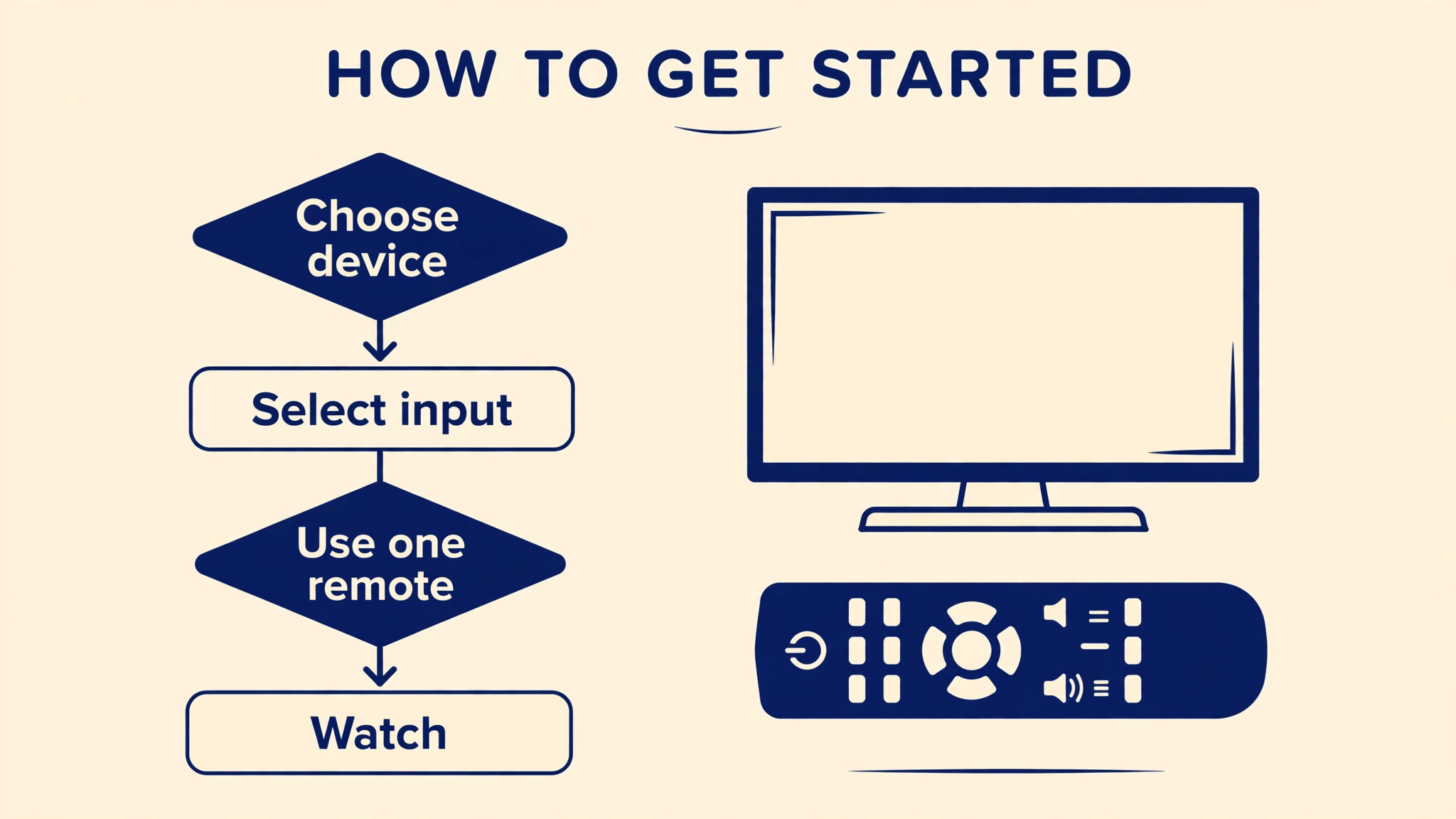
Most living rooms accumulate devices quickly, including a streaming stick, a console, a soundbar and perhaps a Blu-ray player. Each device adds a remote, and the pile of remotes becomes a daily annoyance. Aim for a single remote goal, where the television remote controls volume on the soundbar through HDMI CEC, and where streaming sticks can be controlled by the television remote where supported. HDMI CEC, often branded as Anynet, Simplink, Bravia Sync or similar names depending on the television brand, allows devices to switch inputs and control power together, but it must be enabled on both the television and the device, so check both menus if CEC does not work at first.
Label inputs clearly in the television input menu. Rename HDMI 1 to Console, HDMI 2 to Streaming Stick, and so on, so family members do not need to remember numbers. Remove unused inputs from the quick input list where the platform allows it, because a shorter input list is faster to navigate. If a device is rarely used, unplug it rather than leaving it in the input list to confuse guests, and keep a simple card near the television for the first month listing which input does what and which remote controls volume.
Universal remotes and phone remote apps can help, but they add their own setup step and can confuse a household if only one person knows how they work. A phone remote app is a good backup when the physical remote is lost down the side of a sofa, but it should not replace the physical remote as the main control, because a phone that is charging or in another room leaves the television uncontrollable. Keep spare batteries for the main remote in a known drawer, and teach everyone the basic buttons, including home, back, volume and input, before teaching advanced shortcuts.
Profiles, Parental Controls and Household Peace
Profiles are the simplest way to keep a shared television peaceful when you set up smart TV for streaming beginners. Create a profile for each regular viewer in each main streaming app, so recommendations, watch history and continue watching lists do not mix. A child profile should have age appropriate content limits and a PIN protecting adult profiles, so a child cannot switch to an adult profile by accident. In the television platform settings, set a PIN for purchases and for installing new apps, so a stray tap cannot buy a film or subscribe to a service.
Parental controls on the television itself, separate from app profiles, can restrict content by age rating and lock certain inputs or settings. These controls are worth setting even in a household without children, because they prevent a guest or a visitor from changing picture settings or installing apps without permission. Review controls after a few weeks, because a setting that felt protective on day one may feel restrictive when a teenager wants to watch a legitimate programme that sits just above the set rating. Adjust the rating together and explain the reason, rather than quietly raising it and undermining trust in the system.
Viewing habits also benefit from a simple household agreement. Decide on a default volume for evenings, a rule about autoplay of the next episode late at night, and a plan for who chooses on a shared movie night. These agreements sound trivial, but they prevent the most common living room arguments, which are rarely about technology and almost always about one person controlling the remote while others feel ignored. A television that everyone can operate, with profiles that everyone understands, is a household device, not one person’s gadget.
Updates, Storage and the Monthly Tidy Up
Smart televisions need updates, just like phones, and updates can improve app compatibility, fix bugs and occasionally change menu layouts. Enable automatic updates where offered, and allow the television to install them overnight or during idle time, rather than postponing them repeatedly. After a major update, recheck picture mode and sound mode, because updates occasionally reset a setting to a default. If an app stops working after an update, check for an app update in the app store first, then restart the television fully by unplugging it for thirty seconds, which clears temporary faults more reliably than simply switching it to standby.
Storage on a smart television is limited, and installing every app you encounter will eventually cause slowdowns or failed installs. Review installed apps every few months, remove apps that have not been used in that period, and clear app caches where the platform allows it. If the television feels slow, a restart and an app tidy up often help more than a factory reset, which should be a last resort because it removes all sign ins and settings. Keep a note of app sign in methods, so a reset or a new television does not become a password hunting exercise across many services.
Troubleshooting Buffering, Black Screens and Missing Apps
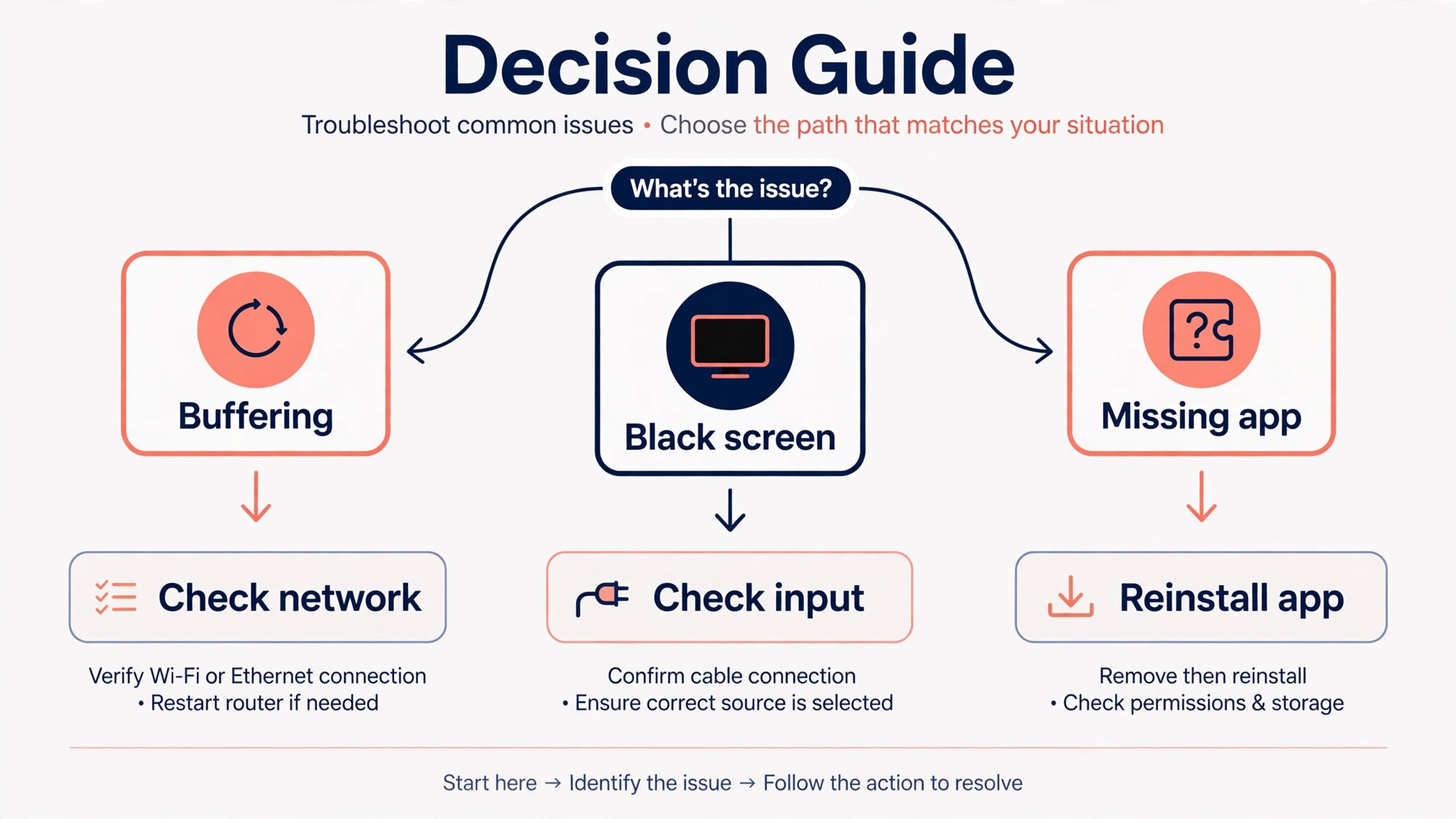
If streaming buffers when you set up smart TV for streaming beginners, test the network first. Pause other large downloads in the home, try a wired connection if available, and test another app to see whether the problem affects all services or only one. If only one app buffers, the problem may be that service’s servers or that app’s quality setting, so lower the quality setting in that app temporarily and test again. If all apps buffer, test speed at the television location and consider moving the router, adding a mesh node or switching to a wired connection.
If the screen is black but sound plays, check the input, reseat the HDMI cable if an external device is in use, and try a built in app to see whether the panel itself works. If there is no sound, check the audio output setting, check whether headphones or a Bluetooth device are connected, and test built in speakers by disconnecting the soundbar temporarily. If an app is missing, check whether it is available in your region’s app store, search the store by exact name, and check whether the television platform still supports that app on your model, because older models sometimes lose support for newer app versions.
When a problem persists, note the exact error message, the app, the time and what you changed, and search the television manufacturer’s support pages for that message. A precise error code narrows the cause far faster than a general description, and support articles often list a fix that a forum guess will miss. Avoid changing five settings at once, because you will not know which change helped when the problem clears.
More Reading on Stratilyze
Readers finishing a living room setup may also enjoy the Google Nest Hub smart home beginner guide for voice control of the same room, the PS5 beginner setup guide for console picture and sound settings, and the iPad setup guide for seniors and beginners for a simpler second screen in the same household.
Frequently Asked Questions
Do I need a soundbar to set up smart TV for streaming beginners?
No, you can complete setup and enjoy streaming with built in speakers, especially after turning on dialogue enhancement and choosing a sensible sound mode. A soundbar becomes worthwhile when dialogue remains unclear, when bass feels thin, or when the television sits in a large room. Try the built in speakers for a week first, then decide whether the improvement justifies the cost and the extra remote complexity.
Why does my new television look worse than the shop display?
Shop mode uses vivid colours, maximum brightness and motion smoothing to stand out under bright lights, while a living room needs a calmer cinema or standard mode. Switch picture mode, turn motion smoothing off for films, and adjust backlight for your room light. Also check that you are watching a high quality stream, because a low resolution stream on a large screen will always look softer than a 4K demonstration loop in a shop.
How fast does my internet need to be for 4K streaming?
As a planning guide, allow about twenty five megabits per second of steady speed for 4K, five to ten for high definition, and a few for standard definition. Test speed at the television location, not just at the router, because walls and distance reduce real world speed. If 4K buffers, try high definition while you improve the network, rather than assuming the television is at fault.
Should I use Wi-Fi or Ethernet for a smart TV?
Use Ethernet if a cable run is practical, because it gives steadier playback and lower latency. Use Wi-Fi on the 5GHz band if a cable is impractical, and place the router or a mesh node reasonably close to the television. Either method works well when the signal is strong, and either method struggles when the signal is weak, so signal quality matters more than the technology label.
Can children use a smart TV safely without adult help every time?
Yes, with profiles and PINs set up in advance. Give each child a child profile with age appropriate limits, protect adult profiles and purchases with a PIN, and restrict app installs in platform settings. Teach children to stay in their profile and to ask before buying or installing anything. Review the settings together every few months as children grow and viewing habits change.
What should I do if an app disappears after an update?
First search the app store by exact name, because updates sometimes move apps or require a fresh install. Check whether the app is still supported on your television model and region, and check for a platform update that may restore it. If the app is genuinely discontinued on your model, a streaming stick can often provide the same app on the same television without replacing the set.
A Movie Night Verdict Worth Keeping
A well set up smart television does not announce itself. It switches on to a tidy home screen, plays the chosen show without buffering, shows films with natural colours and clear dialogue, and lets anyone in the household find their programme without a tutorial. If you set up smart TV for streaming beginners with that calm result in mind, starting with placement and network, signing in only to apps you watch, and tuning picture and sound for your room, the television becomes a background pleasure rather than a daily puzzle. Keep the settings note you made on day one, revisit it after a month, and change only what real viewing has shown needs changing.