
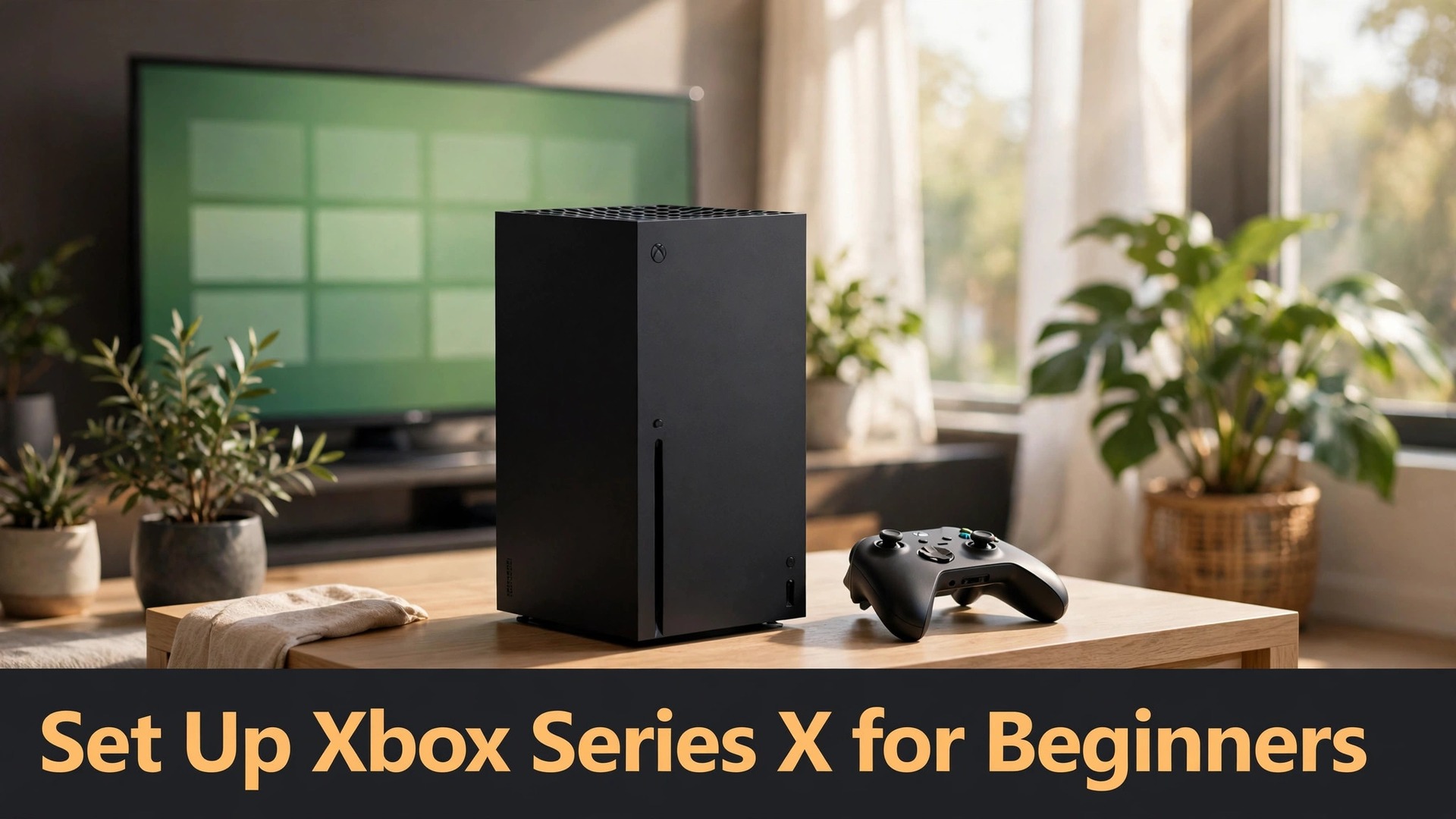
About 802GB of usable storage sits inside a console advertised with 1TB, and that single gap explains why storage decisions come before game choices when you set up Xbox Series X for beginners. A handful of large games can fill the drive fast, and moving them later is slower than planning for it on day one, so the first decisions should cover the connection, the account, Game Pass, and where each type of game lives. Get those four right and everything else, from display settings to family sharing, becomes a small adjustment rather than a rework. This guide walks through each decision in order, so the console is ready for its first game night without a surprise download queue.
An Xbox Series X is a powerful machine with a quiet learning curve. The controller feels familiar within minutes, the home screen is navigable, and most settings are sensibly named. The confusion usually comes from subscriptions, storage types and account sharing, three areas where a wrong tap can cost money or lock a game behind a setting you did not know existed. This guide separates those areas clearly, gives you a first boot sequence that avoids the common traps, and ends with a troubleshooting section for the problems new owners actually report.
The Four Decisions to Make Before You Press Power
First, decide on the network. A wired Ethernet connection gives lower latency and steadier downloads than Wi-Fi in most homes, and it removes one variable when a download stalls or a multiplayer match lags. If the router is in another room, use Wi-Fi on the 5GHz band where possible, place the console where the signal is strong, and test the connection before you start a game larger than a hundred gigabytes. A weak signal discovered during a large download wastes far more time than a cable run planned in advance.
Second, decide who owns the Microsoft account when you set up Xbox Series X for beginners. Games, subscriptions and cloud saves attach to the account, not the console, so the account holder should be an adult who monitors the email address attached to it. Children should have their own child accounts linked through family settings, with spending controls and content limits, rather than playing on an adult profile. Sharing an adult profile makes it hard to enforce age ratings, and it mixes purchase history, friends and achievements in a way that is painful to untangle later.
Third, decide about Game Pass before the console tempts you with a trial. Game Pass gives access to a large library of games for a monthly subscription, and Game Pass Ultimate adds online multiplayer and cloud gaming benefits, but a trial that rolls into a paid plan can surprise a household budget if nobody diarises the renewal date. Read the current plan terms on the console or on the Microsoft store page at sign up time, note the renewal date, and decide whether you want the library breadth of Game Pass or whether buying two or three games outright suits your playing habits better.
Fourth, decide on storage when you set up Xbox Series X for beginners. The Series X ships with 1TB of internal storage, of which roughly 802GB is usable for games and apps after system software, according to widely reported measurements. That sounds generous until you install two or three modern titles, each of which can exceed a hundred gigabytes. Plan from day one which games deserve internal space, which older games can live on an external USB drive, and when an official expansion card becomes worth the cost.

Unboxing, Placement and the First Power On
Unbox on a clear surface and keep the packaging until the console has passed a full update and a game launch, because a fault discovered on day two is easier to resolve with the original box. Check for the console, a wireless controller, batteries or a rechargeable pack depending on your bundle, an HDMI cable and a power cable. Photograph any damage or missing item immediately and contact the seller, rather than improvising with an old cable that may limit picture quality.
Place the console upright or flat on a stable surface with clear airflow around the vents, especially at the top if upright and at the rear in either orientation. Keep it away from heaters, direct sun and enclosed cabinets, and leave enough room to reach the rear ports without pulling the console forward by its cables. Use the supplied HDMI cable for the first setup and note which television input you use, because only some television ports support the highest refresh rates. Keep the television remote nearby so you can switch inputs and adjust picture mode without hunting for it mid setup.
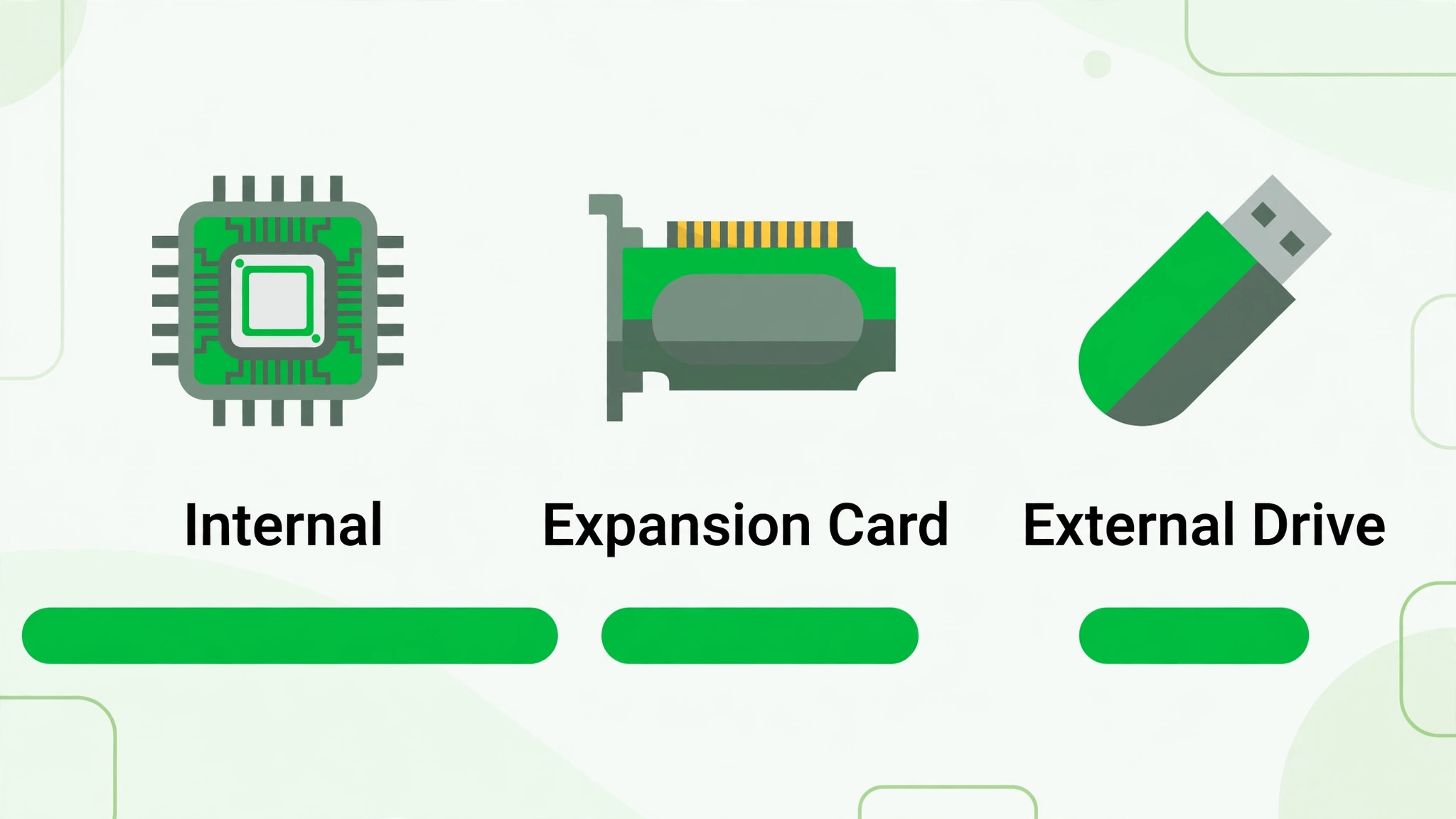
Connect power and HDMI, insert batteries or connect a charged controller, and press the Xbox button on the controller or the power button on the console. The first run setup will ask for language, region, network connection and account sign in. If you have the Xbox app on a phone, the app can speed up parts of this process by handling sign in and settings on a larger keyboard, which is a real benefit when passwords are long. Allow the system update to finish before judging performance, because a console mid update can feel sluggish and can interrupt a first game download.
Your First Boot Checklist in the Order It Happens
Work through this checklist slowly, and tick each item mentally before moving on, because skipping the network test or the update check is the most common cause of a confusing first evening. The steps below follow the on screen flow, with the two most forgotten checks added at the end.
| First boot step | What to do | Check before moving on |
|---|---|---|
| Connect power and display | Use supplied HDMI and power cables | Television shows the Xbox start screen |
| Pair the controller | Press the Xbox button, pair if prompted | Controller navigates menus without a cable |
| Choose language and region | Match your household language and store region | Store prices and language look correct |
| Connect to the network | Use Ethernet or Wi-Fi with the correct password | Network test reports a successful connection |
| Install the system update | Let the update download and install fully | Console restarts to the home screen cleanly |
| Sign in with a Microsoft account | Use a monitored adult email address | Account name and profile picture appear correctly |
| Set privacy and family options | Choose defaults, add child accounts if needed | Children cannot buy without approval |
| Choose power mode | Pick Instant On or Energy Saving deliberately | Console behaviour overnight matches your choice |
| Confirm Home Xbox status | Set only on your main household console | Other profiles on this console can play your games |
| Open My Games and Apps | Confirm owned games and Game Pass titles appear | First download starts without an error |
After setup, spend fifteen minutes learning the guide menu. Press the Xbox button to open the guide, where you will find people, achievements, captures, settings and power options without leaving a game. Open Settings from the guide, then System, then Storage, and look at how much space is free before you queue downloads. Finding these menus now prevents a frantic search later when a download fails or a friend invites you to a party.
Game Pass Without the Billing Surprises
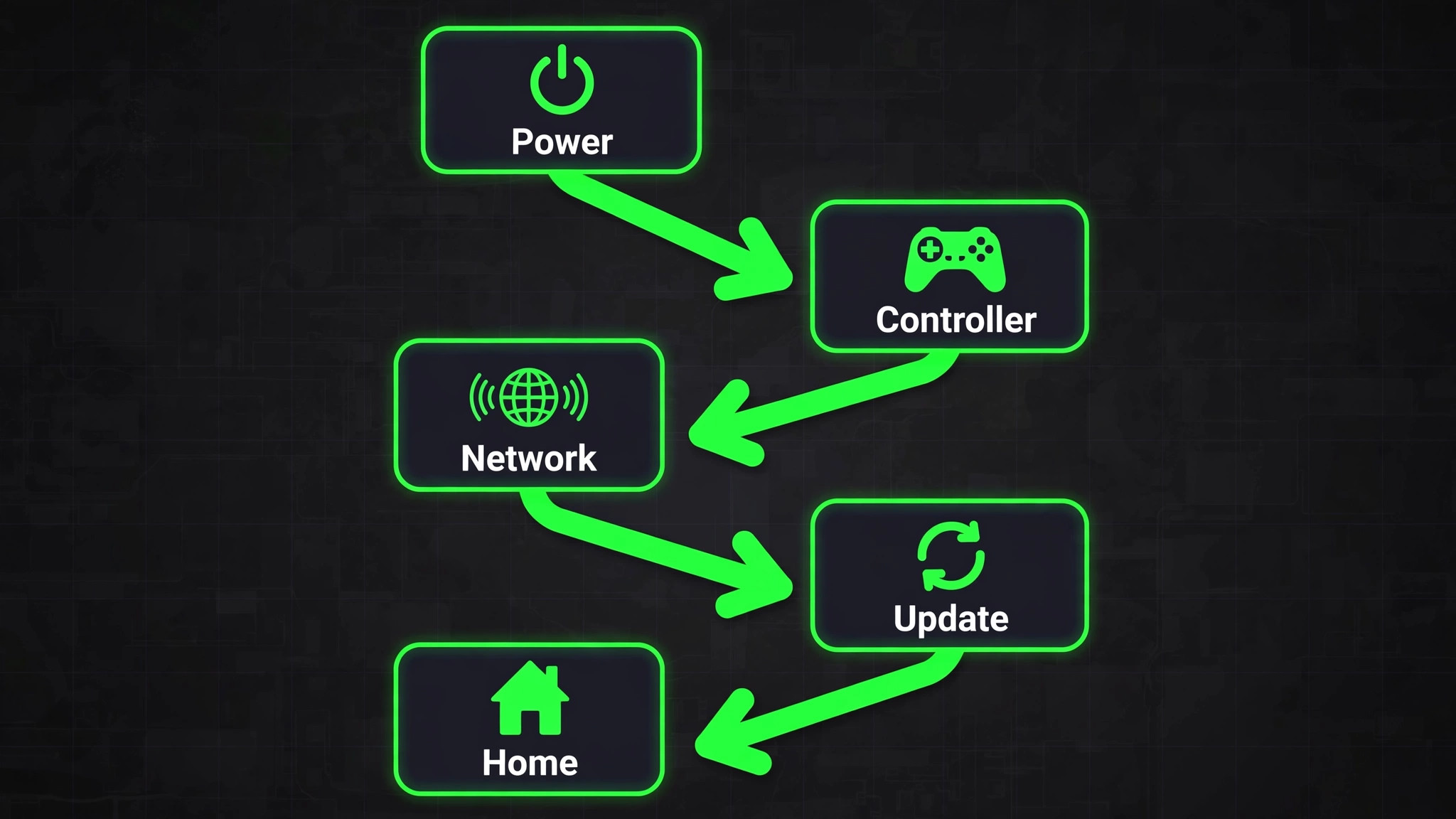
Game Pass is best understood as a library card with a monthly fee. While subscribed, you can download and play included games, and when a game leaves the library or your subscription ends, access ends, although your saved data usually remains so you can resume if you buy the game later. That distinction matters, because a child who spends weeks progressing in a Game Pass title may be upset if the title leaves the service, so check whether a favourite is a permanent part of the library or a rotating title before investing dozens of hours.
To join, open the Game Pass area from the home screen or the store, compare the current tiers, and read what each tier includes, which is a key step when you set up Xbox Series X for beginners. If you already own several games outright, a lower tier may be enough, while a household that plays many different titles each month may save money with a broader plan. Set a calendar reminder for any trial end date on the day you sign up, and check the subscription management page in your Microsoft account after the first payment, so the renewal date and payment method are confirmed rather than assumed.
Installing Game Pass games is straightforward, but queue management matters. Open the Game Pass tab, browse by genre or by recently added titles, select a game and choose Install. Install one large game at a time on a slower connection, because parallel downloads split bandwidth and can make every game take longer. Use cloud gaming where offered to try a game before committing to a full download, which is especially useful for a title you are unsure about, since a streamed trial can answer the question of whether you enjoy the gameplay without using tens of gigabytes of storage.
Storage Rules, Expansion Cards and External Drives
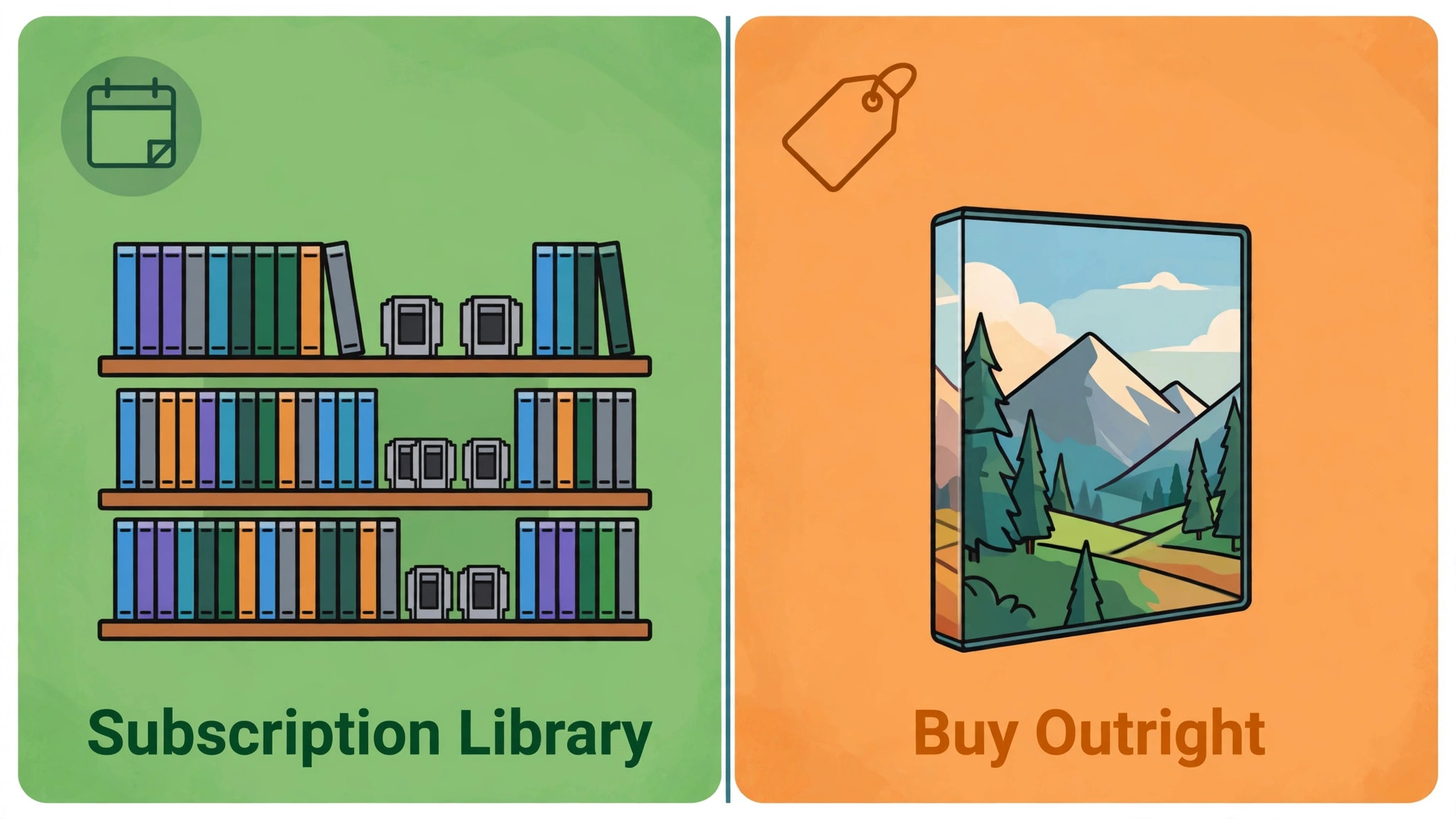
Series X games must run from internal storage or from an official Seagate Storage Expansion Card that plugs into the rear expansion port, because only those drives match the speed the console expects. An external USB hard drive or SSD can store Series X games and can play older Xbox One and backwards compatible titles, but a Series X game stored on USB must be moved back to internal storage before it will play. That move can take a long time for a large title, so plan your library with this rule in mind rather than discovering it on a Friday evening when friends are waiting.
Open Settings, then System, then Storage Devices to see each drive, its free space and its default install location. Set the default install location to internal storage for new Series X purchases, and move older titles to USB when space gets tight. To move a game, open My Games and Apps, highlight the game, press the Menu button, choose Manage Game and Add Ons, then Move or Copy, and select the destination. Deleting a game does not delete its cloud save, so you can reinstall later and resume, but check that cloud saves are enabled for your profile before deleting a long running campaign.
| Storage option | Best use | Limitation to remember |
|---|---|---|
| Internal storage | All Series X games and frequent titles | Roughly 802GB usable, fills quickly |
| Expansion card | Extra Series X games at full speed | Higher cost per gigabyte than USB drives |
| External USB SSD | Older titles, storage for Series X games | Series X games must move back to play |
| External USB hard drive | Large cheap archive for older games | Slower transfers than an SSD |
| Cloud saves | Resume after reinstall or on another console | Requires the right subscription or account setting |
| Captures drive | Screenshots and clips off internal storage | Set capture location deliberately in settings |
| Game Pass installs | Try many titles without buying each one | Access ends if the title leaves or subscription ends |
| Shrinkable games | Remove optional high resolution packs | Check what each pack changes before removing |
How to Set Up Xbox Series X for Beginners for Family Play
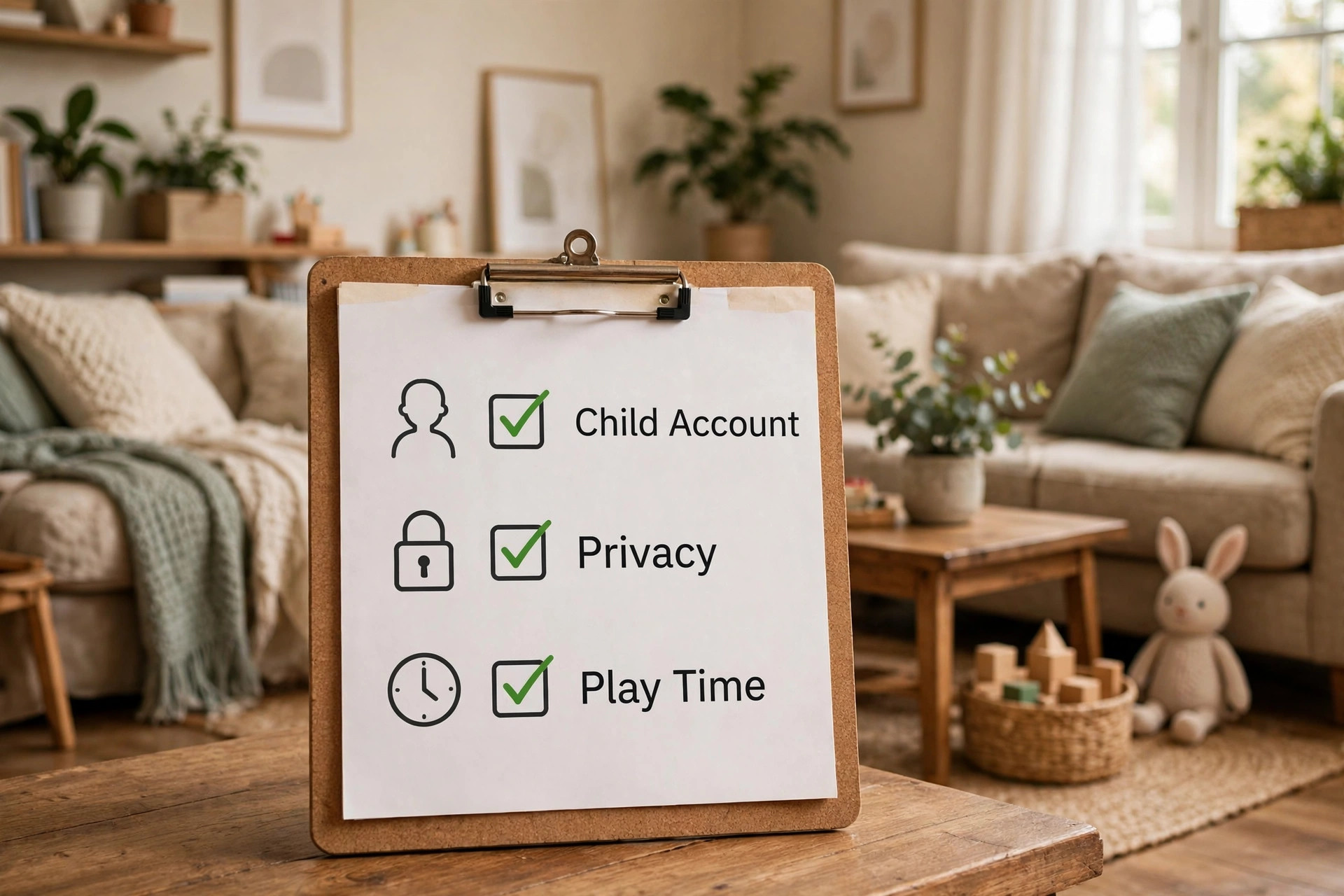
Family setup starts with the Microsoft family group, not with individual console toggles. Create or join a family group in your Microsoft account, add child accounts, and set content filters by age, screen time limits and spending approval. On the console, these settings live under Settings, then Account, then Family Settings, where you can manage each child profile. Explain the rules to children before the first game, including which purchases need approval and what happens when screen time ends, because a rule discovered mid game feels like a punishment, while a rule agreed in advance feels like a household routine.
Privacy and online safety settings sit alongside family controls. Under Settings, then Account, then Privacy and Online Safety, decide who can see your activity, send messages and invite you to parties. For younger players, limit communication to friends, turn off messages from strangers and review the friend list together regularly. For adults, a friends only setting still allows party play with known players while reducing unwanted contact after public matches. Revisit these settings after a month, because the games you play and the people you meet will shape what feels comfortable.
Home Xbox deserves a paragraph of its own, because it is the most misunderstood sharing feature on the platform. When a console is set as your Home Xbox, other profiles on that console can play your games and use your subscription benefits, even when you are not signed in. That is ideal for a main living room console shared by a family. It is not ideal for a second console, a friend’s console or a console you plan to sell, because changing the Home Xbox designation is limited in how often it can be switched. Set it once, deliberately, on the console the household uses most, and leave other consoles as secondary devices.
Display, Sound and Controller Settings Worth Changing
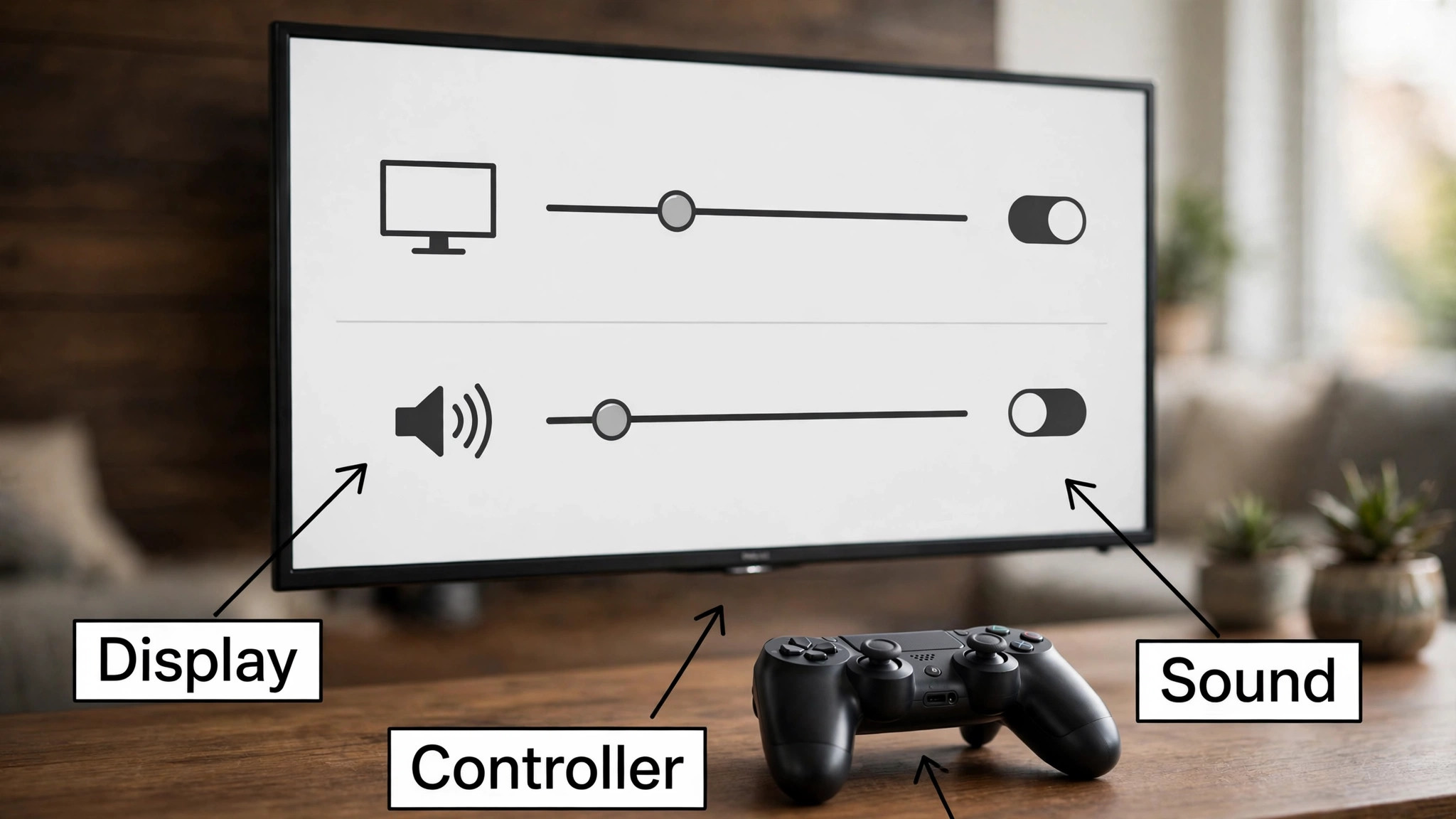
Display settings live under Settings, then General, then TV and Display Options, where you can check what your television supports, and checking them early helps when you set up Xbox Series X for beginners. Run the calibration tools if offered, and match the console output to the television input you are using, since a port that supports enhanced formats on one input may not do so on another. For competitive games, enable game mode on the television to reduce input delay. For story games and films, a cinema or movie mode on the television usually gives more natural colours, and you may prefer to switch modes depending on what you are playing rather than leaving one mode for everything.
Sound settings are under Settings, then General, then Volume and Audio Output. Choose the correct output for your setup, whether television speakers, a soundbar or a headset, and test headset audio through the controller jack before an online session. If you use a soundbar through HDMI ARC or optical output, check for lip sync delay, because sound routed through extra equipment can lag behind the picture. A headset connected directly to the controller usually avoids that delay and gives clearer voice chat, which matters in team games where callouts need to arrive on time.
Controller settings are simpler than they first appear. The Series X controller uses batteries by default in many bundles, so keep a spare set or invest in a rechargeable battery pack if you play daily, because a controller dying mid match is avoidable with a charging habit. Pair additional controllers by pressing the pair button on the console and on the controller, and assign each controller to a profile so achievements and saves do not mix. If stick drift or a sticky button appears, test the controller in another game before assuming the game is at fault, and check for a firmware update under Settings, then Devices and Connections, then Accessories.
Power Modes, Updates and the Overnight Routine
Power mode is a genuine choice, not a trivial toggle. Instant On lets the console wake quickly, download updates in the background and resume games faster, but it uses more power while idle. Energy Saving uses far less power, wakes more slowly and still allows scheduled updates in many configurations, but it will not keep the console ready in the same way. Choose Instant On if you play daily and want updates ready when you sit down, and choose Energy Saving if the console is used a few times a week or if energy costs matter more to your household.
You can change this later under Settings, then General, then Power Mode and Startup, so do not treat the first choice as permanent.
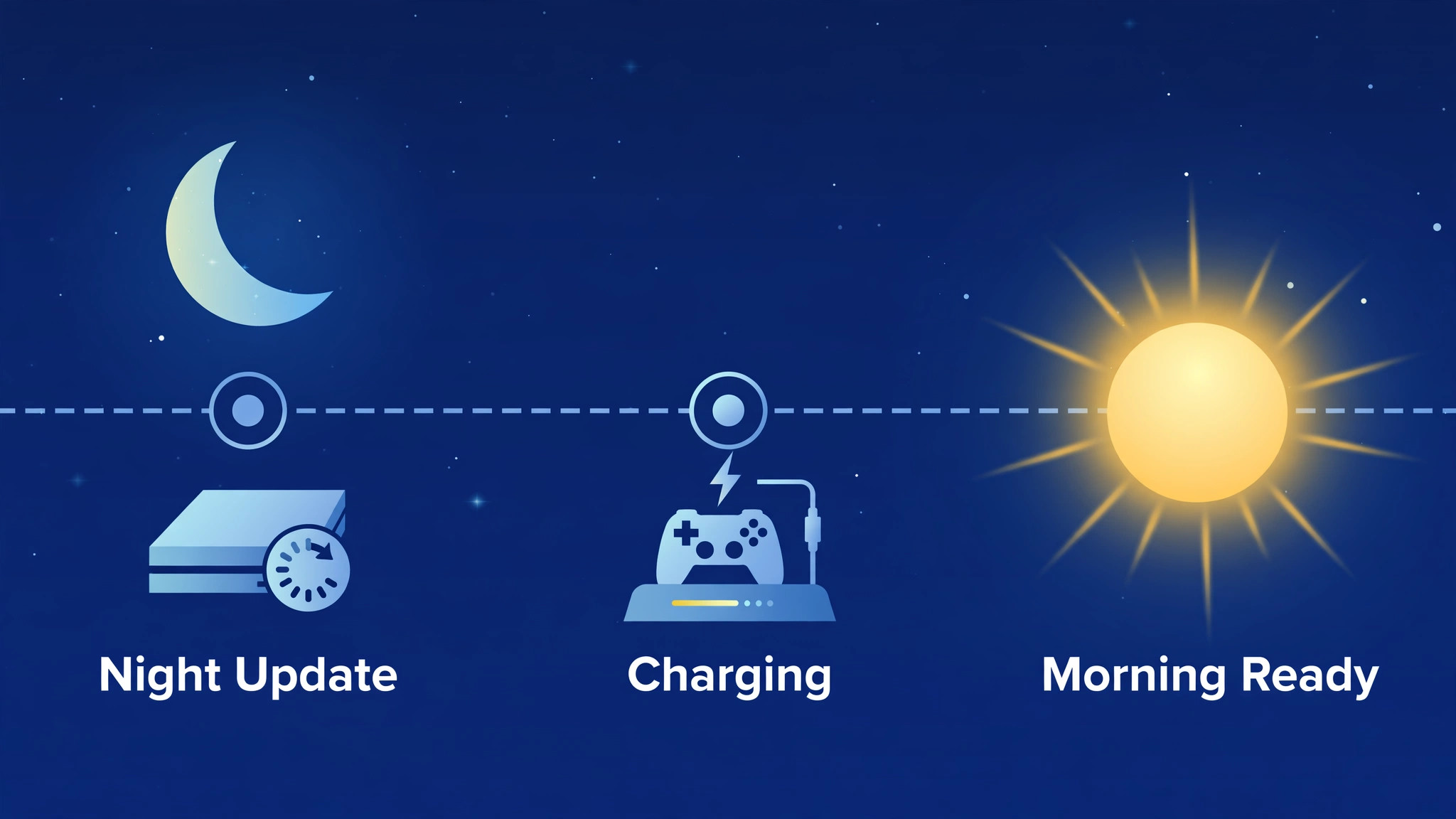
Automatic updates deserve to be on for most beginners. Under Settings, then System, then Updates, enable automatic updates for games and system software, so patches install overnight instead of blocking a planned session. Large updates can still surprise you, especially for live service games that patch frequently, so check the download queue before a planned multiplayer evening and start any large update early. If storage is tight, an update that needs extra free space may fail, which is another reason to keep at least one large game worth of free space whenever possible.
Build a simple overnight routine. When you finish playing, quit to the home screen rather than leaving a game suspended for days if you will not return soon, let the console enter its chosen power mode, and leave it connected to power and the network if you want updates to install. Check the controller battery level before bed if you play in the morning, and place the controller on charge or swap batteries so a dead controller does not delay the first session of the day. These small habits compound, and after a month they feel automatic.
Choosing What to Install First
Resist the urge to queue every interesting Game Pass title on day one when you set up Xbox Series X for beginners, because a queue of large downloads on a typical home connection can take a full day and leaves you with nothing playable while you wait. Install one game you are excited about and one smaller title you can play while the larger one downloads, and use the waiting time to explore settings, customise the home screen and set up profiles. A playable game within the first hour does more for a beginner’s confidence than a library of half downloaded titles.
Judge your first games by how they teach you. A game with a clear tutorial, forgiving early levels and adjustable difficulty lets you learn the controller and the console menus without pressure. A game that drops you into competitive multiplayer with no practice mode can be discouraging, even if it is popular. Try a single player or cooperative title first, learn movement, aiming and menu navigation at your own pace, and move to competitive modes when the controls feel natural. If a game does not click after a few honest sessions, try a different genre before deciding the console is not for you, because the library is broad enough to include slow strategy games, fast racers, puzzles and story adventures.
Customise the home screen only after you know which games you return to. Pin favourite games and apps so they are one press away, remove tiles you never use, and choose a background that does not make text hard to read. A tidy home screen saves a surprising amount of time over months of play, and it helps younger players find their games without navigating through menus they do not need.
Troubleshooting the Problems New Owners Actually Hit
If there is no picture, check the television input, reseat the HDMI cable at both ends, and try another HDMI port if the first port does not support the console output. If the picture is present but colours look wrong, switch the television out of vivid or shop mode into game or cinema mode, and recheck HDR settings on the console. If sound is missing, check the television volume, the audio output setting, and whether a headset is connected to the controller, since headset audio will silence television speakers.
If a download is slow, pause other downloads, test a wired connection, and check whether other devices in the home are streaming video at the same time. If a game will not install, check storage, check whether the title requires internal storage rather than USB, and restart the console fully. If a controller will not pair, replace or recharge the batteries, press the pair buttons again, and try a USB cable connection to rule out a wireless issue. If a Game Pass title says it is unavailable, check the subscription status in your Microsoft account, confirm the title is still in the library, and confirm you are signed in with the account that holds the subscription.
When a problem persists, note the exact error message or code and search official Xbox support pages for that message, because support articles are organised by error code and often give a specific fix. Avoid changing five settings at once, because you will not know which change helped when the problem clears. Change one thing, test, and record what worked, especially for network and storage problems that tend to recur.
More Reading on Stratilyze
Readers setting up a living room may also enjoy the PS5 beginner setup guide for comparing console choices, the smart TV streaming setup guide for tuning the television that both consoles share, and the Apple Watch sleep tracking guide for a different kind of first setup that focuses on health data rather than games.
Frequently Asked Questions
Do I need Game Pass to set up Xbox Series X for beginners?
No, you can complete setup, play purchased games, use media apps and play free titles without Game Pass. Game Pass becomes useful when you want access to a large rotating library without buying each game, and Ultimate adds online multiplayer for most paid titles. Try the console with a few owned or free games first, then decide whether a subscription matches how often you try new titles.
How much usable storage does a Series X really have?
The console ships with 1TB of internal storage, and roughly 802GB is usable for games and apps after system software. Modern titles can exceed a hundred gigabytes each, so a handful of large games can fill the drive quickly. Plan to keep Series X titles on internal storage or an expansion card, and move older titles to an external USB drive to preserve space.
What is Home Xbox and should I set it on day one?
Home Xbox is the console where other profiles can play your games and share your subscription benefits. Set it on your main household console if family members share that device, because it lets everyone play your library without you being signed in. Do not set it on a friend’s console or a device you plan to sell, and remember that switching the designation is limited, so choose deliberately.
Can I play Series X games from an external USB drive?
You can store Series X games on an external USB drive, but you cannot play them from there. Move the game back to internal storage or an expansion card before playing, which can take a while for large titles. Older Xbox One and backwards compatible games can usually play directly from USB, so use external storage primarily for those titles and for archiving Series X games you are not currently playing.
Is Instant On or Energy Saving better for a beginner?
Instant On suits daily players who want fast wake times and background updates, while Energy Saving suits occasional players and households watching energy use. Both can be changed later in power settings, so start with the option that matches how often you play. If you choose Energy Saving and find updates always block your sessions, switch to Instant On and compare the difference over a week.
What should I check if online multiplayer will not work?
First confirm your subscription covers online play for that title, then test the network connection in settings, then check whether the game itself needs an update. A wired connection or a router restart fixes many transient problems. If only one game fails while others work, the problem is more likely with that game’s servers than with your console, so check the game’s status page before changing console settings.
The Short Answer for a First Week Well Spent
If you set up Xbox Series X for beginners by following the order in this guide, your first week will feel calm rather than chaotic. You will have a network connection you trust, an account structure that protects younger players, a Game Pass decision made on purpose, and storage rules that keep your favourite games ready to play. The console itself is easy to learn, and most of the skill in owning one lies in these setup choices rather than in mastering menus. Play one good game, learn the guide menu, keep a little free space, and revisit power and privacy settings after a month when you know how your household actually uses the machine.