
The verdict first, because it saves most readers the rest of the search. When a WhatsApp voice message will not play properly, the phone is almost never broken and the message is almost never lost. In the great majority of cases the audio is playing, but through the wrong output, at the wrong volume, or through a sensor trick that turns the screen black and switches the sound to the earpiece. If you need to fix WhatsApp voice messages not playing, start with routing and volume before you touch permissions, storage, or reinstallation, because the fix order in this guide reflects that reality.
Work from the output you hear, or fail to hear, toward the cause, and test after each step. Most voice message problems resolve within the first three checks, and the deeper steps exist for the minority that genuinely involve the app or the phone.
The Speaker Versus Earpiece Test That Names the Fault
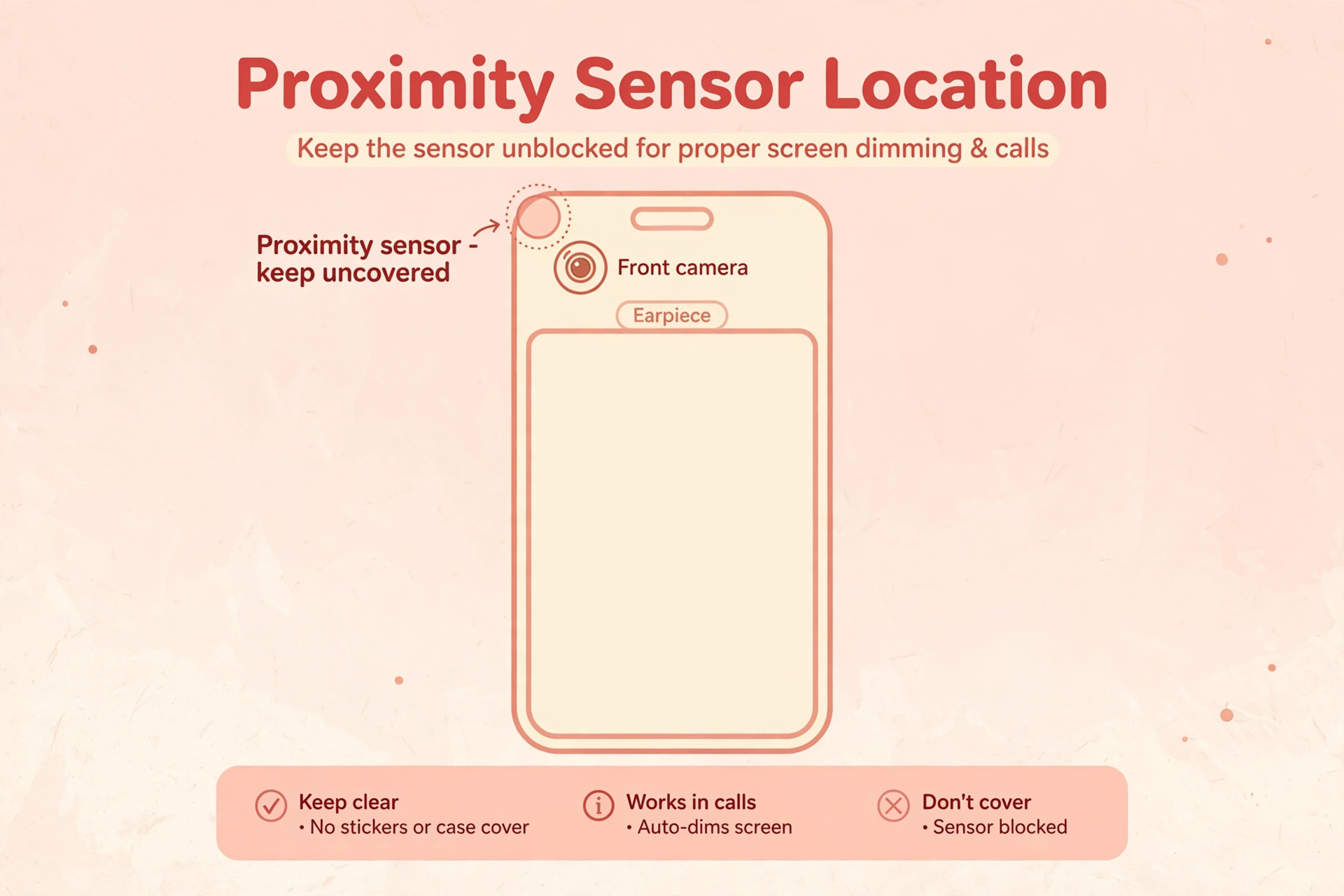
WhatsApp has a behaviour that surprises almost everyone the first time they meet it. When you hold the phone to your ear during a voice message, WhatsApp switches playback from the loudspeaker to the earpiece, just like a phone call, and turns the screen off using the proximity sensor. That is a feature, designed for private listening, but it looks exactly like a fault when it triggers accidentally. A hand, a finger, a case edge, or a misaligned screen protector covering the proximity sensor near the top of the phone tells WhatsApp the phone is at your ear, and the message suddenly goes quiet, the screen goes black, and the progress bar keeps moving in silence.
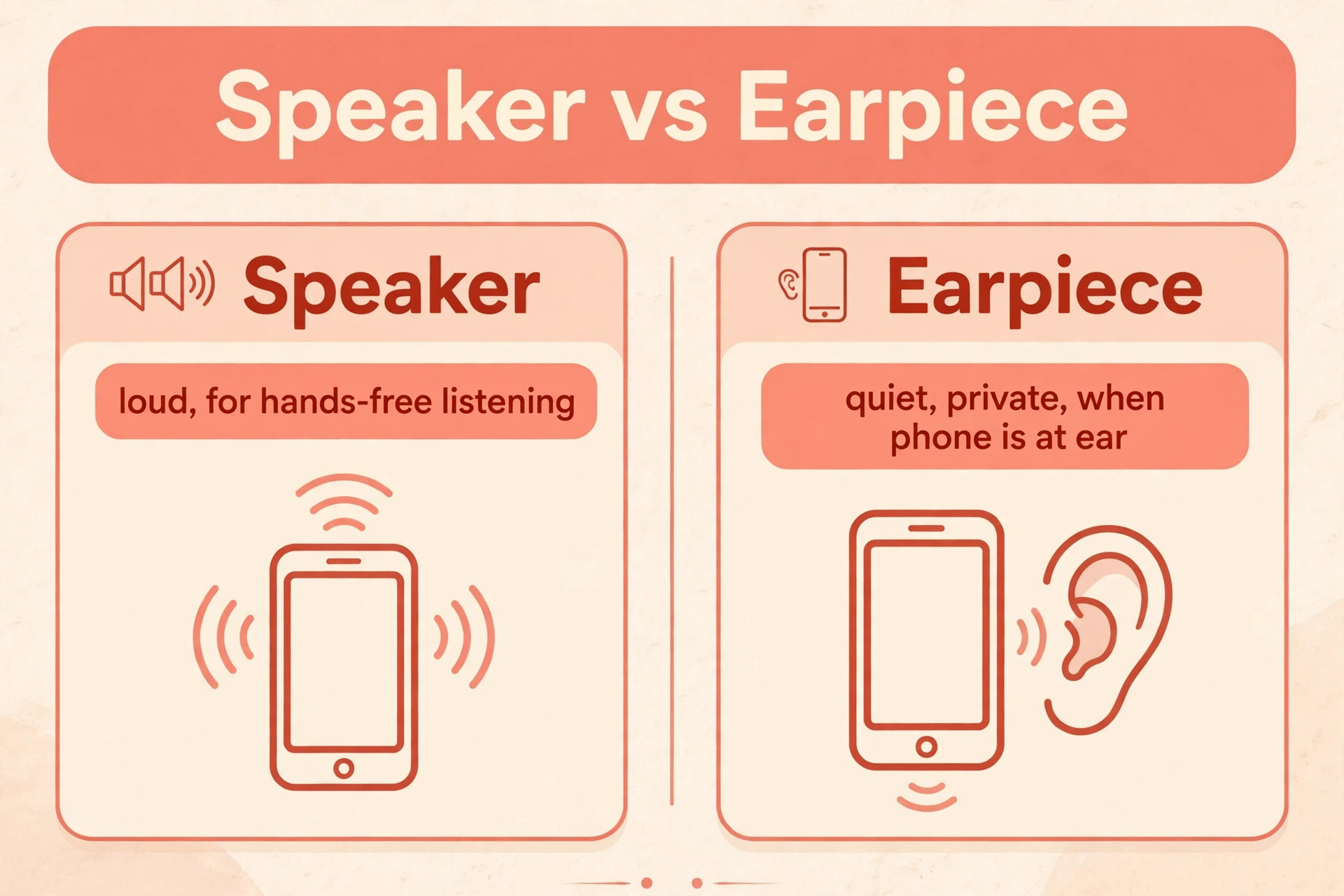
The owner concludes the message is broken. In reality the message is playing softly through the earpiece, exactly as designed, triggered by a covered sensor.
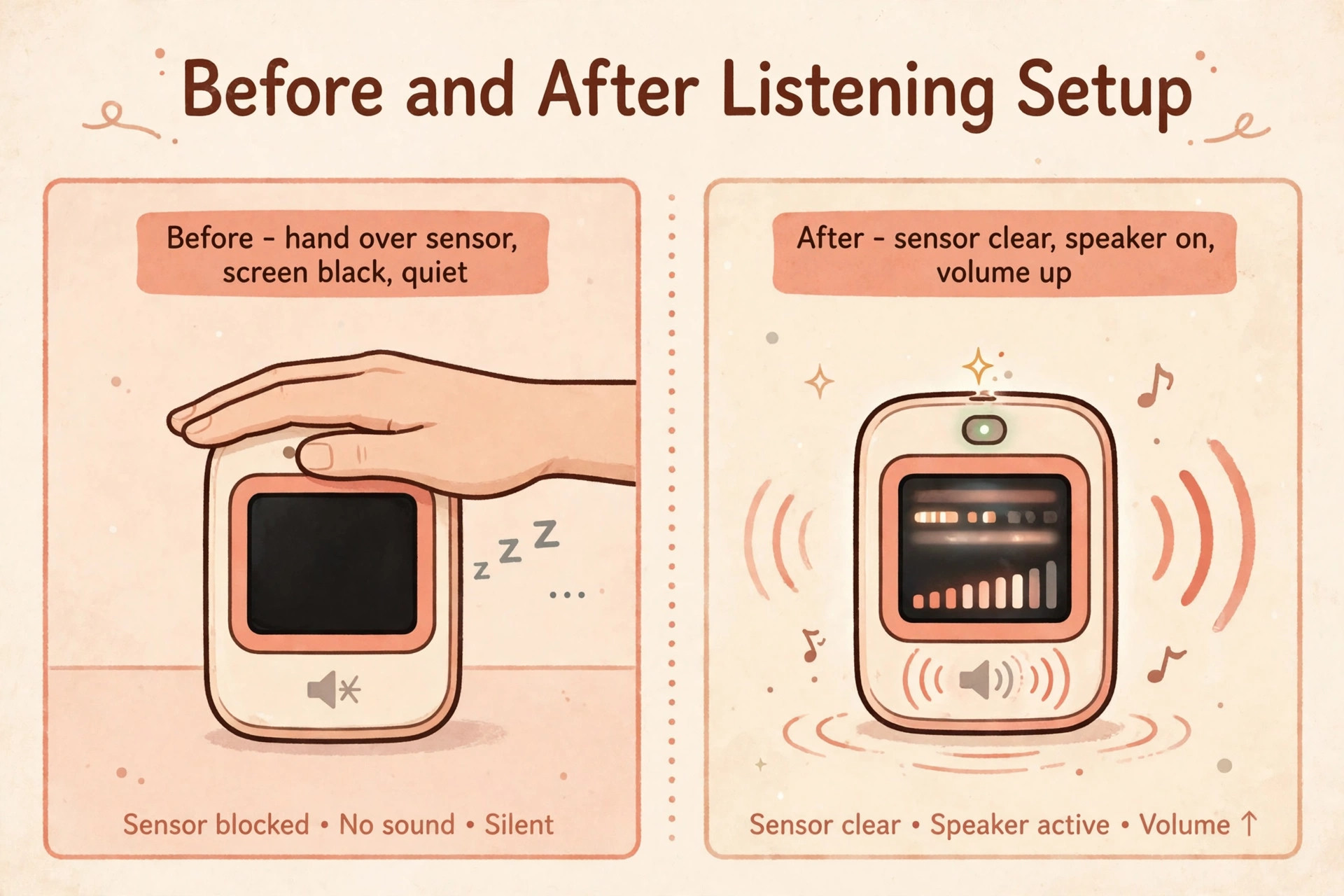
Test this deliberately. Play a voice message while holding the phone flat on a table, with nothing near the top edge, and listen. Then lift the phone to your ear and notice the switch to the earpiece and the dark screen. Then lower it again and notice the return to the loudspeaker. If the message plays on the table and goes quiet at your ear, the proximity feature is working correctly and your problem is a sensor being covered unintentionally. If the message is silent in both positions, the problem is volume, routing, or the app.
That single comparison separates a feature from a fault, and it is the test most guides bury halfway down the page instead of putting first.
| What you observe | Most likely cause | Check this first |
|---|---|---|
| Screen goes black and audio goes quiet | Proximity sensor covered or triggered | Hand position, case, and screen protector |
| Message plays but very quietly | Earpiece output or low media volume | Volume up during playback and sensor check |
| No sound at all in any position | Media volume muted or Bluetooth routing | Media volume and Bluetooth disconnect |
| Audio plays through earbuds or car | Bluetooth device holding the audio | Bluetooth off test |
| Message will not download at all | No connection or full storage | Connection test and free space |
| Recording fails but playback works | Microphone permission denied | WhatsApp microphone permission |
| One message fails but others play | Corrupted or incomplete download | Delete and re-download the message |
| All media fails across apps | System audio fault or speaker failure | Music test and restart |
That table is the diagnostic shortcut for this guide. The top two rows cover the majority of complaints, and both are routing or sensor issues rather than app faults. Notice the recording row too. Playback and recording are separate functions with separate permissions, so a phone that cannot record a voice message may play received messages perfectly, and the fix for one does nothing for the other. Diagnose playback and recording separately, and do not let a recording fix distract you from a playback problem.
Media volume is not ringer volume
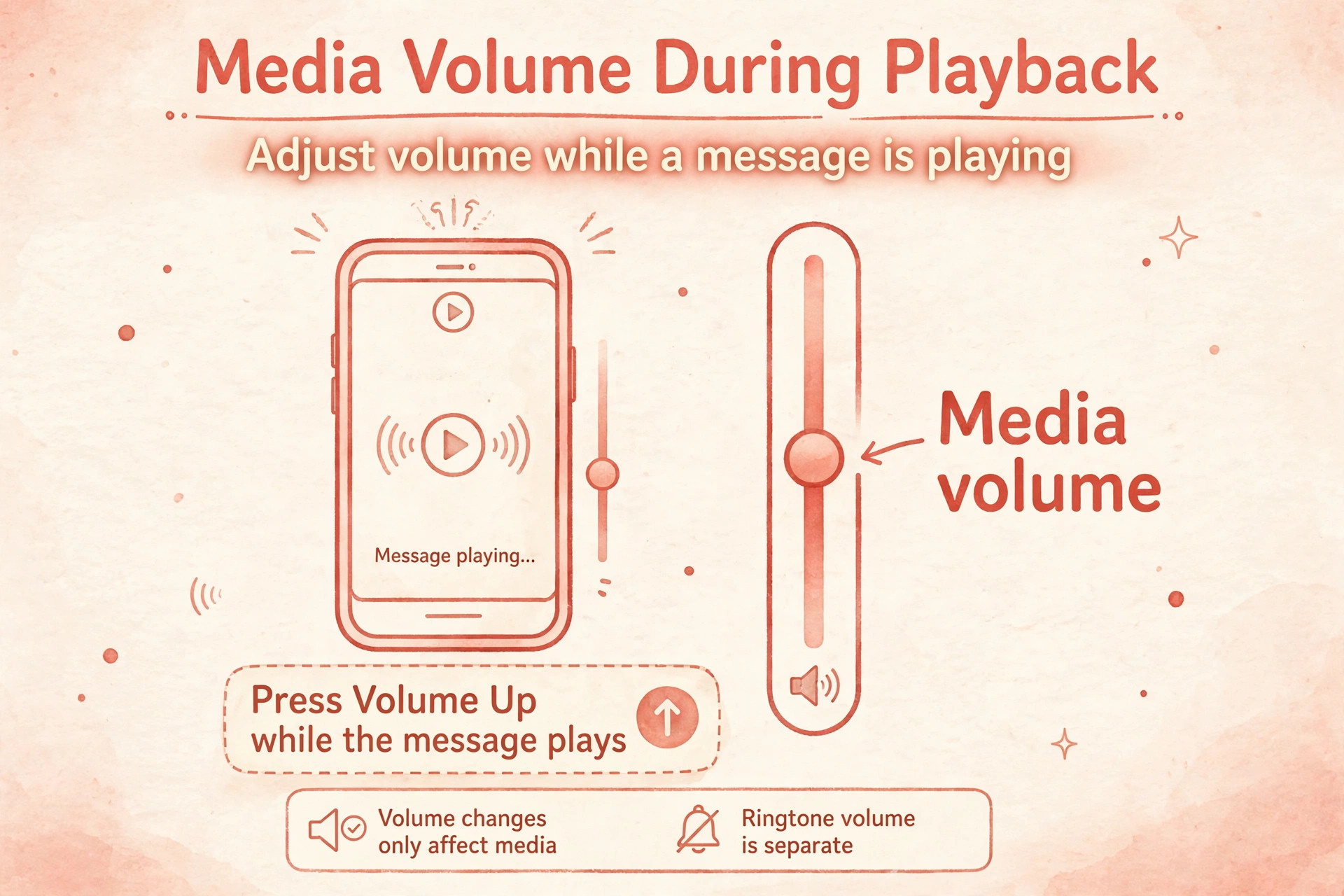
Android and iPhone both separate volume into channels, and WhatsApp voice messages use the media channel, not the ringer channel. A phone with a loud ringtone and silent media volume will ring for calls and stay silent for voice messages, which looks contradictory until you understand the split. The reliable way to set media volume is to start a voice message playing, then press the volume up button while it plays. The slider that appears during playback is the media slider, and raising it raises voice message volume directly. Setting volume from the home screen often adjusts the ringer instead, which is why owners report that turning the volume up did nothing.
Check silent and vibrate modes too, because some phones mute media along with the ringer in certain modes, and a phone left in silent mode after a meeting will stay silent for voice messages until the mode is changed.
How to Fix WhatsApp Voice Messages Not Playing in Order
Work through this checklist from top to bottom and test with a real voice message after each step. The order runs from the fastest routing checks to the deeper app steps, and you should stop as soon as messages play clearly through the loudspeaker.
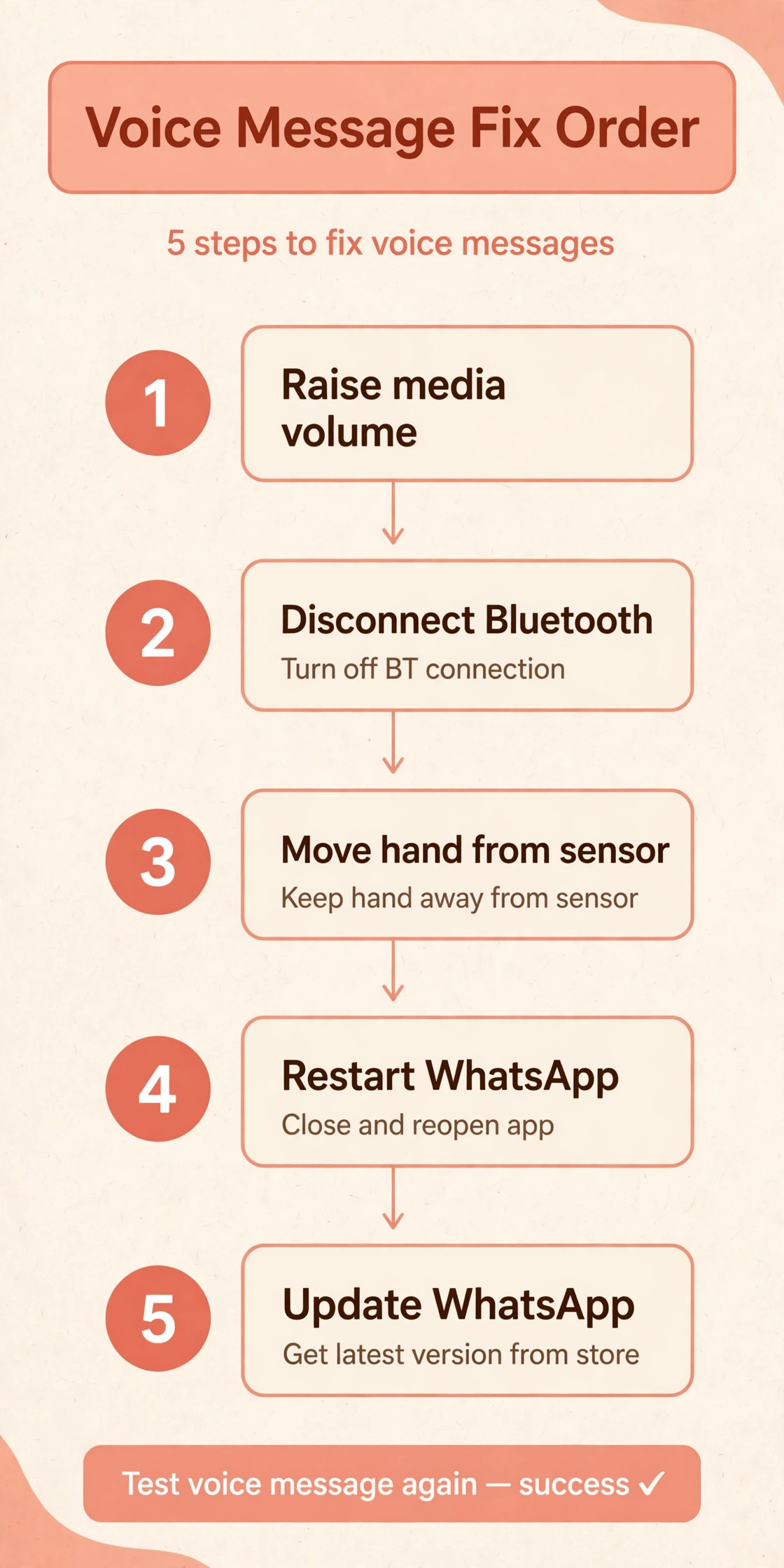
Step 1. Play a message on a table and raise media volume during playback
Place the phone flat, with nothing near the top edge, and play a voice message. While it plays, press volume up repeatedly until the media volume is high. If the message is now audible, the problem was media volume or an accidental sensor trigger, and you are done. If the message remains silent, keep the phone on the table and move to the next step, because the table test has already ruled out the proximity feature as the sole cause. Note whether the progress bar moves during silence.
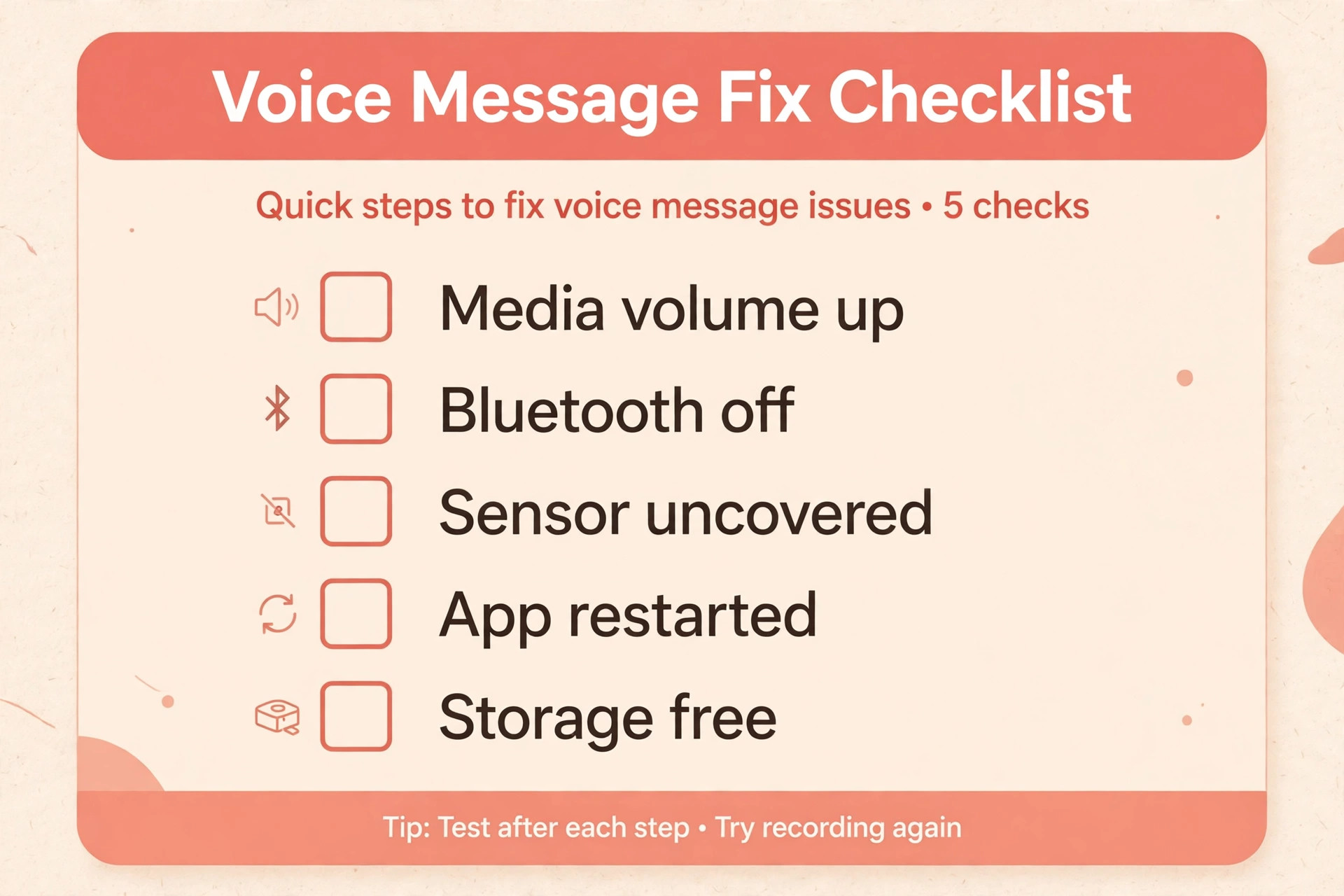
A moving progress bar means the message is playing but its audio is routed elsewhere or muted, while a frozen progress bar means the message is not playing at all, which points at download or app faults instead.
Step 2. Remove the case and screen protector as a test
Take the case off and, if the screen protector is thick, misaligned, or covers the sensor area near the top of the display, peel it back or remove it temporarily. Then play a message on the table again. A case lip or a protector edge that covers the proximity sensor is one of the most common causes of the black screen and quiet earpiece pattern, and removing it for a test costs nothing and proves the cause instantly. If messages play normally without the case or protector, replace them with versions that leave the sensor area fully clear, and test a message with the new accessories fitted before you rely on them.
If messages still fail without any accessories, the sensor is not the cause, and the fault lies in routing, volume, or the app.
Step 3. Turn Bluetooth off and test the speaker directly
Bluetooth is the great misdirector of phone audio, and WhatsApp is no exception. A pair of earbuds in another room, a car system in the driveway, or a smart speaker can hold the audio connection and receive the voice message while the phone stays silent. Open quick settings and turn Bluetooth off entirely, then play a message. If sound returns, the phone was never at fault, and a connected device was receiving the audio. Forget and re-pair that device if the problem recurs, and check whether it has a setting that keeps it connected for media even when switched off.
If messages remain silent with Bluetooth off, routing to an external device is ruled out, and the app steps below are next.
Step 4. Restart WhatsApp and then restart the phone
Force close WhatsApp completely, reopen it, and test a message. This clears a stuck audio session inside the app without touching any data. If that fails, restart the phone itself, which clears stuck system audio processes that can seize the output and refuse to release it to WhatsApp. Test after the restart with a message on the table, media volume up, and Bluetooth off, so all three routing variables are controlled at once.
If messages play after a restart but fail again later the same day, note what you did in between, because another app grabbing audio, such as a music app left paused or a recording app left open, may be the recurring cause, and closing that app before WhatsApp is the lasting habit.
Step 5. Check microphone and media permissions for recording faults
If your problem is recording rather than playback, permissions are the prime suspect. On Android, open Settings, then Apps, then WhatsApp, then Permissions, and confirm Microphone is allowed. On iPhone, open Settings, then Privacy and Security, then Microphone, and confirm WhatsApp is on. If WhatsApp is not listed, open WhatsApp and try to record a message, which should trigger the permission prompt. Also check that no other app is holding the microphone open, because a recording app or a voice assistant left active can block WhatsApp from capturing audio. If permission is on and recording still fails, test the microphone in another app, such as the voice recorder, to separate a WhatsApp problem from a phone microphone problem.
Step 6. Free storage and clear the WhatsApp cache on Android
Voice messages must download before they play, and a full phone cannot download them. Check free storage and free space if the phone is nearly full, because a message that never downloads looks identical to a message that will not play. On Android, open Settings, then Apps, then WhatsApp, then Storage, and tap Clear Cache, which removes temporary files without deleting chats. Do not tap Clear Data at this stage, because that removes local app state and requires setup again. After clearing cache, reopen WhatsApp and try downloading the message again.
If one specific message fails while others play, delete that message and ask the sender to resend it, because an incomplete or corrupted download for a single message is a message problem, not a phone problem, and re-downloading a fresh copy resolves it.
Step 7. Update WhatsApp and reinstall only with a backup
Open the Play Store or App Store, search for WhatsApp, and install any update available, because playback and sensor bugs are fixed in app updates regularly. If the problem persists after updating, reinstallation is the last app step, but only with a chat backup completed first. Open WhatsApp settings, then Chats, then Chat Backup, and run a backup to your Google account or iCloud. Then uninstall WhatsApp, restart the phone, reinstall from the official store, and restore the backup during setup.
Reinstallation without a backup loses chat history, and reinstallation before the earlier steps wastes effort on a routing problem that a fresh install cannot fix, because a new install on the same phone with the same case and the same Bluetooth device will fail in exactly the same way.
iPhone and Android Differences Worth Knowing
The core fixes are the same on both platforms, but the settings live in different places and a few behaviours differ. On iPhone, media volume and ringer volume are more closely linked than on Android, yet the same rule applies. Adjust volume while a message plays to be certain you are adjusting media output. On iPhone, clearing cache is not available per app the way it is on Android, so the equivalent steps are force closing WhatsApp, restarting the phone, and, as a last resort, offloading or reinstalling the app. On Android, the cache clear is a genuinely useful middle step that iPhone owners lack, so Android owners should use it before reinstalling. Permission paths differ too.
iPhone owners check Settings, then Privacy and Security, then Microphone, while Android owners check Settings, then Apps, then WhatsApp, then Permissions. The proximity sensor behaviour is identical on both, and the case and screen protector test applies equally, because the sensor hardware sits in the same top edge position on both platforms.
Speakerphone and earpiece listening deserve a note for both platforms. WhatsApp’s earpiece mode is a deliberate privacy feature, not a bug, and learning to trigger it on purpose is useful. Tap play, then lift the phone to your ear, and the message plays quietly through the earpiece with the screen dark, letting you listen privately in a public place. Lower the phone and playback returns to the loudspeaker. Owners who understand this switch stop fearing it, and owners who do not understand it report it as a fault repeatedly.
If you prefer loudspeaker listening always, keep the top edge of the phone clear and avoid holding a finger over the sensor area, and the feature will stay out of your way. If you listen privately often, the earpiece mode is a genuine convenience, and the only cost is remembering that a covered sensor is what activates it.
When voice messages fail everywhere, not just in WhatsApp
If voice messages fail in WhatsApp and music, videos, and other apps are also silent, the fault is system wide, not WhatsApp specific, and the app steps in this guide will not help. Test music playback through the phone speaker with Bluetooth off and media volume up. If music is also silent, restart the phone, test in safe mode on Android to rule out an installed app, and check for a system update. A speaker that plays nothing for any app, after a restart and a system check, is a hardware suspect, and a repair diagnosis is the honest next step.
If music plays fine and only WhatsApp fails, the fault is WhatsApp specific, and the checklist above, ending with a backed up reinstall, is the correct path. This cross-app test is the fastest way to decide whether to troubleshoot an app or a phone, and skipping it leads to reinstalling an app for a speaker fault that no reinstall can fix.
When a Voice Message Itself Is the Problem
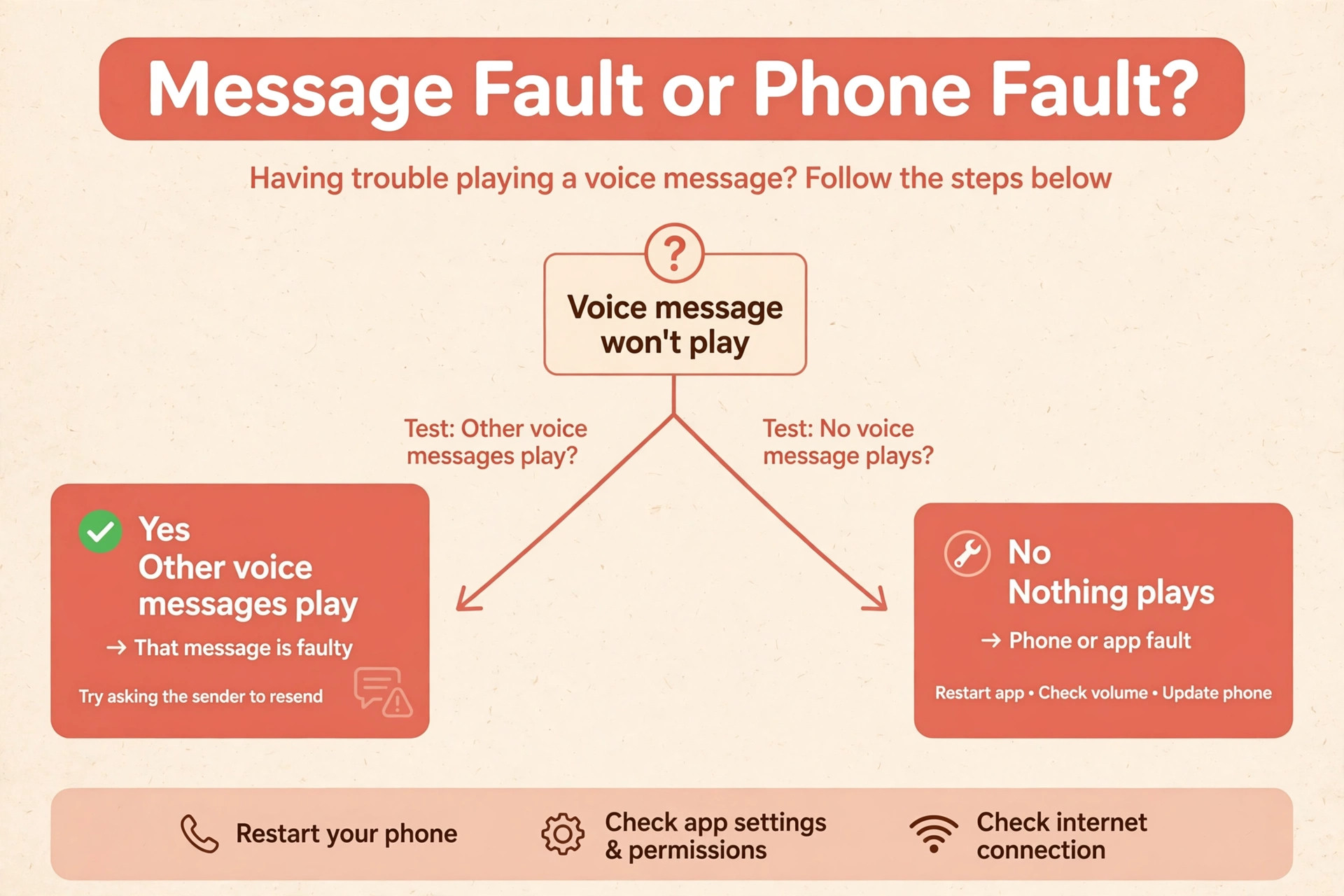
Not every failed message implicates your phone. A voice message recorded in a very noisy environment, recorded with a failing microphone on the sender’s phone, or corrupted during upload can arrive quiet, distorted, or unplayable no matter what you do. If one sender’s messages always fail while everyone else’s play fine, the sender’s phone or connection is the likely cause, and asking them to re-record in a quiet place or to resend the message is the fix. If a message shows a download error repeatedly on a good connection with free storage, delete it and ask for a resend, because the original upload may have been incomplete.
If a message plays on another device logged into the same WhatsApp account, your phone is the variable, and the checklist applies. The pattern to remember is simple. One failing message is a message problem. All messages failing is a phone or app problem. One failing sender is a sender problem. Keeping those three patterns distinct prevents hours of phone troubleshooting for a single corrupted file.
Group Chats, Voice Notes, and Playback Speed Quirks
Voice messages behave slightly differently in group chats, forwarded messages, and long recordings, and those differences create complaints that look like playback faults but are not. In a busy group, several voice messages may download in the background while you listen to one, and a message that appears ready may still be downloading its final seconds. If a message stops partway through or refuses to start in a group, wait a few seconds on a good connection and try again, because the download may simply be incomplete. Forwarded voice messages carry the same audio but a new message entry, so a forwarded message that fails while the original plays points at that copy’s download rather than at your phone.
Deleting the forwarded copy and asking for a fresh forward usually resolves it. Long voice messages, several minutes in length, are more sensitive to connection interruptions during download, so a long message that stalls at the same point repeatedly has likely downloaded incompletely, and a delete and re-download is the fix.
Playback speed adds another layer of confusion. WhatsApp offers faster playback speeds for voice messages, and a message left at double speed from a previous listen will sound rushed and unnatural on the next message, which some owners report as distorted audio. Check the speed indicator on the player and return it to normal speed if the voice sounds unnaturally fast. Similarly, a message that sounds slow or deep may have been recorded that way, or may be playing through a Bluetooth device with its own audio processing. Test the same message through the phone speaker with Bluetooth off before concluding the recording is faulty. Linked devices add a final wrinkle.
A message played on WhatsApp Web or a linked tablet does not affect phone playback, but a message marked as played on one device may show as played everywhere, which confuses owners who expected an unread indicator on the phone. Playback state syncs across devices, while the audio itself always plays on the device you use, so a message that seems already played on the phone was likely played on a linked device first. Understanding these behaviours prevents a long troubleshooting session for what is, in the end, a speed setting, an incomplete download, or a linked device.
Owners who know how to fix WhatsApp voice messages not playing in the ordinary sense should still check these quirks first when the failure involves groups, forwards, or long recordings, because the fix is a tap, not a reset.
Mistakes People Make When They Try to Fix WhatsApp Voice Messages Not Playing
The most common mistake when you try to fix WhatsApp voice messages not playing is to reinstall the app before testing the proximity sensor, which deletes and restores everything for a case edge covering a sensor. The second mistake is to adjust volume from the home screen and conclude volume is not the problem, when the home screen slider controls the ringer and only the during-playback slider controls media. The third mistake is to test while holding the phone, with a finger over the sensor, and to report the resulting earpiece silence as a fault, when the phone is doing exactly what it was designed to do.
The fourth mistake is to ignore Bluetooth, because earbuds in another room silently receive messages while the owner troubleshoots the phone speaker. Work the order, test on a table, adjust volume during playback, and turn Bluetooth off before you touch the app. Learning how to fix WhatsApp voice messages not playing properly is mostly learning to control the output before you blame the app.
A Listening Routine That Avoids the Problem Entirely
Prevention for voice messages is mostly accessory and habit hygiene. Choose cases and screen protectors that leave the top sensor area fully clear, and test a voice message with any new accessory fitted before you rely on it. Keep Bluetooth devices disconnected when not in use, and check the connected device list before important listening. Keep WhatsApp updated, keep free storage above a comfortable margin, and back up chats regularly so a reinstall, if ever needed, costs nothing. Learn the earpiece gesture deliberately, so you can use private listening when you want it and recognise it instantly when it triggers by accident.
These habits take seconds and remove the three most common causes, sensor covering, Bluetooth routing, and low storage, from daily use. A phone set up this way plays voice messages the first time, every time, without the ritual of toggling settings before each listen.
More Reading on Stratilyze
WhatsApp audio faults usually share one cause across calls, messages and media, so readers whose voice messages will not play usually test the neighbouring WhatsApp faults next. The guide to WhatsApp calls that will not work covers the call-side version of the same audio routing problem, including the permission and Bluetooth checks that silence both calls and messages, the guide to WhatsApp media that will not download explains the storage and network checks that also block voice messages from arriving in the first place, and the guide to a WhatsApp backup that will not restore picks up the data side, for readers whose chat history and voice notes go missing together after a reinstall.
Frequently Asked Questions
Why does my WhatsApp voice message screen go black when I play it?
The proximity sensor near the top of the phone is detecting something close, such as your hand, your ear, a case edge, or a screen protector, and WhatsApp switches to earpiece playback with the screen off, just like a phone call. Play the message with the phone flat on a table and nothing near the top edge. If it plays normally there, the sensor was being covered, and a case or protector change is the fix.
Why can I hear WhatsApp voice messages only very quietly?
The message is probably playing through the earpiece rather than the loudspeaker, either because the proximity sensor is covered or because media volume is low. Move your hand away from the top of the phone, play the message on a table, and press volume up while it plays to raise media volume. If the message stays quiet with Bluetooth off and media volume high, restart WhatsApp and test again.
Why do WhatsApp voice messages play through my earbuds instead of my phone?
Bluetooth audio routing sends playback to the last connected Bluetooth device, even when that device is in another room. Turn Bluetooth off and play the message again. If sound returns to the phone speaker, forget and re-pair the Bluetooth device, and disconnect it when not in use so it cannot capture future messages silently.
Can a screen protector really break WhatsApp voice messages?
Yes, and it is a common cause. A thick or misaligned protector that covers the proximity sensor tells WhatsApp the phone is at your ear, switching playback to the quiet earpiece and turning the screen black. Remove the protector temporarily and test. If messages play normally without it, replace it with one that leaves the sensor area clear, and test with the new protector fitted.
Why can I play voice messages but not record them?
Playback and recording use separate permissions and separate hardware paths. Recording requires microphone permission, so check WhatsApp’s microphone permission in system settings and confirm no other app is holding the microphone open. Test the microphone in the phone’s voice recorder app. If recording fails there too, the phone microphone is the suspect, not WhatsApp.
Should I reinstall WhatsApp to fix voice message playback?
Only after the routing, volume, sensor, Bluetooth, restart, cache, and update steps have failed, and only with a chat backup completed first. Most playback failures are routing or sensor issues that a fresh install cannot fix, because the same case, the same Bluetooth device, and the same sensor will produce the same result on a new install. If you need to fix WhatsApp voice messages not playing that survive every earlier step, a backed up reinstall is the correct last app step before considering a phone hardware check.
The Decision Guide for Silent Voice Messages
Start on a table, with media volume raised during playback and Bluetooth off, and let that controlled test tell you whether the message plays at all. If it plays on the table, the cause is the sensor, the case, or your hand position, and the fix is an accessory change or a habit change. If it stays silent on the table, work through restart, cache, permissions, storage, and update in order, testing after each step. If every app is silent, the phone speaker or system audio is the suspect, not WhatsApp. If one message fails while others play, the message itself is the suspect, and a resend is the fix.
Follow that decision path, and the next time you need to fix WhatsApp voice messages not playing, you will find the answer in minutes, with the message audible and the mystery gone. That is the whole method in one paragraph.