
On most Galaxy phones the display alone draws more power than any other single component, and the top three battery consumers together usually account for well over half of every charge. That simple split explains why you need to fix Samsung phone battery draining fast with diagnosis first and tweaks second. When one app, one setting, or one radio sits near the top of your battery usage list far above everything else, you have found your drain, and no amount of generic battery saving will beat removing that one cause. When usage is spread evenly and the phone still dies by mid-afternoon, the battery itself, the screen settings, or the network environment is the story instead.
This guide teaches you to read that split before you change anything, then works through the fixes in the order Samsung’s own support path and experienced technicians recommend, from the one-minute checks to the deeper resets that actually last.
Read Your Battery Usage Before You Change Anything
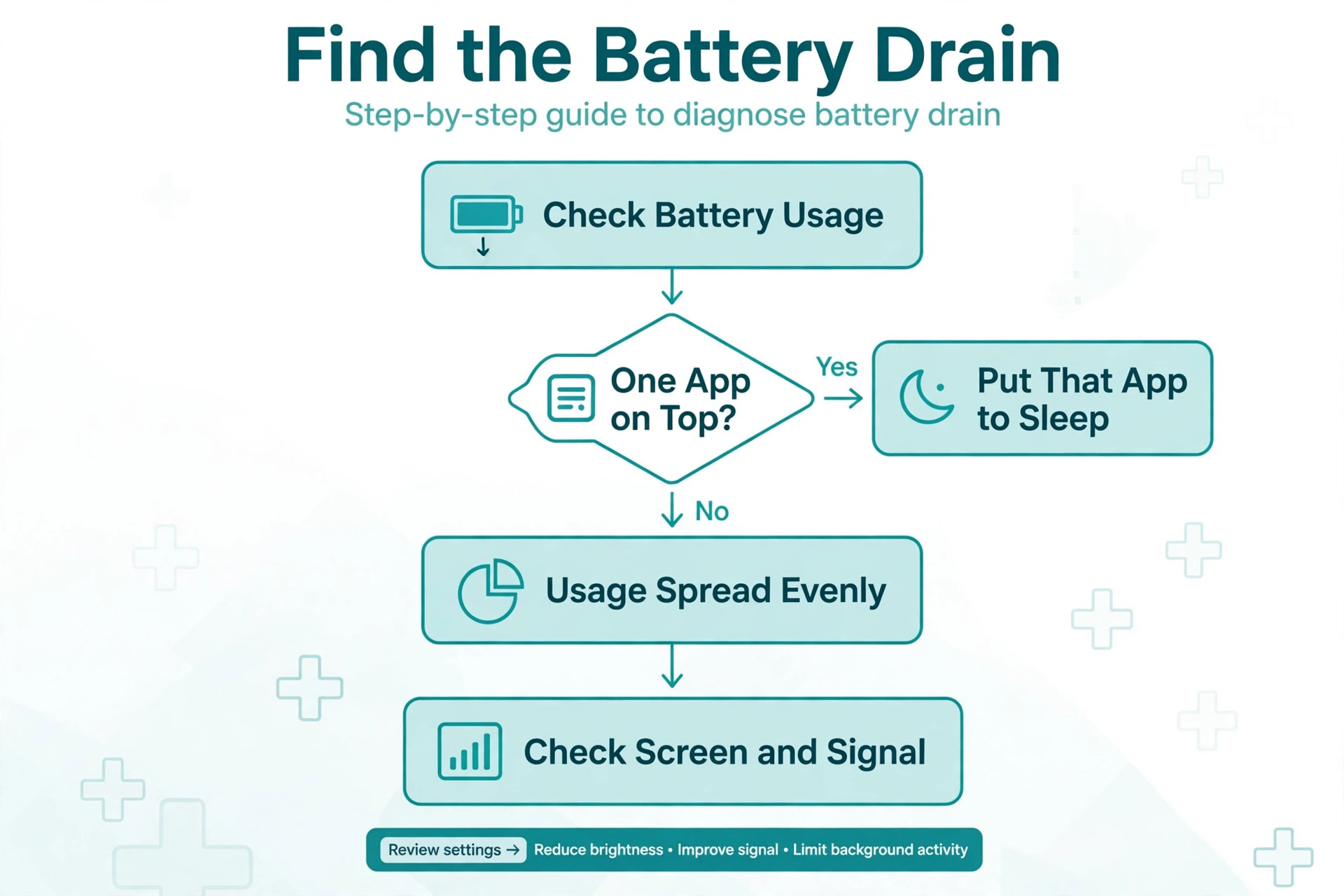
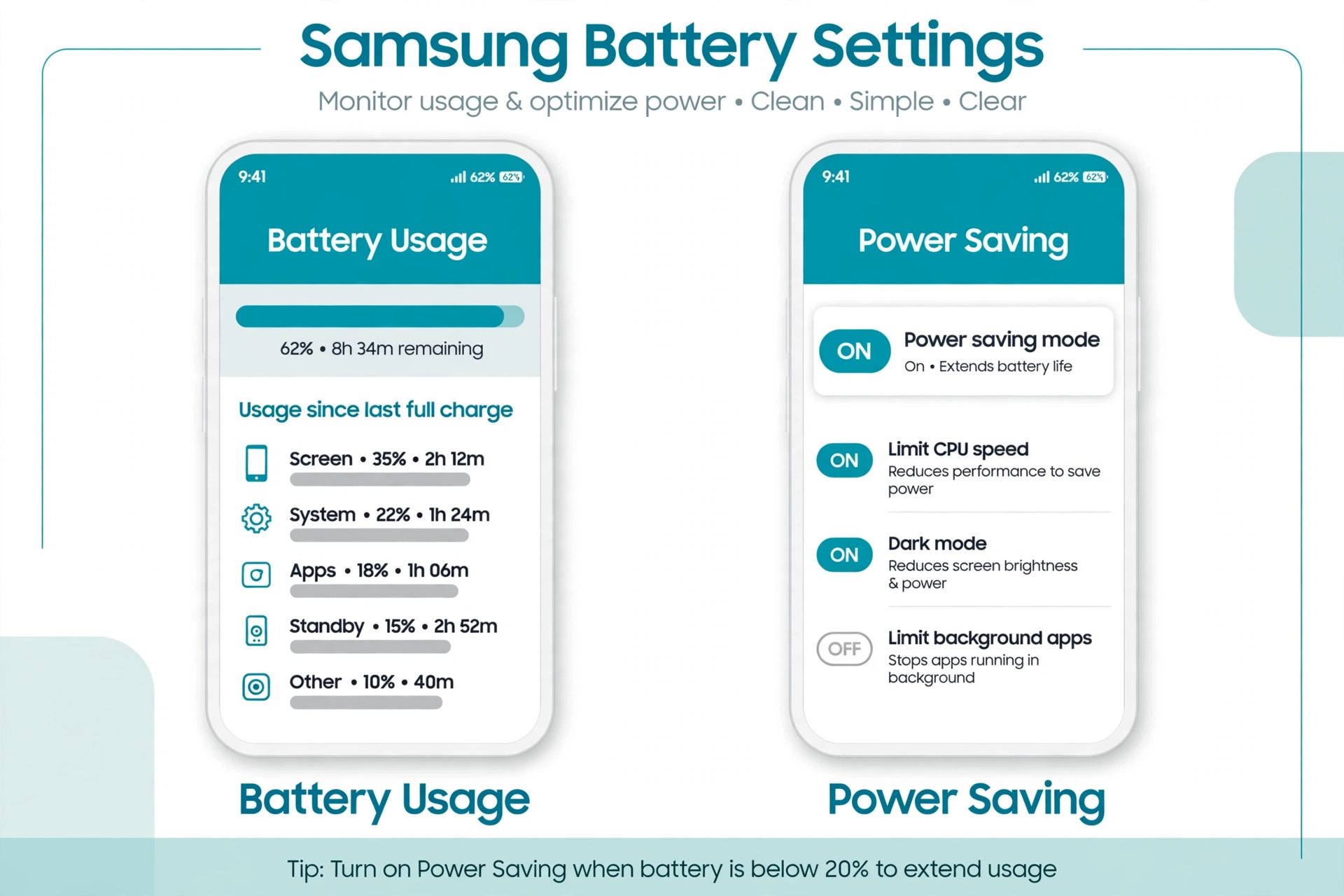
Open Settings, then Battery, then Battery Usage, and look at the list with fresh eyes. The screen entry near the top is normal. A social, video, or navigation app near the top that you barely opened is not normal, and it is your first suspect. A system entry such as Google Play Services near the top usually means some other app is syncing through it, not that Play Services itself is misbehaving. A sudden change matters more than any absolute number. If the phone lasted a full day last week and dies by lunch this week, ask what changed.
A new app, a software update, a new watch pairing, a trip to a weak signal area, or a settings change you made and forgot all count. Battery drain that starts overnight after an update is usually temporary, because the phone spends a day or two reindexing and optimising apps, and it deserves two or three days of normal use before you treat it as a fault.
| What the usage list shows | Most likely cause | Fix this first |
|---|---|---|
| One app you rarely use near the top | Runaway background activity in that app | Restrict background use or uninstall it |
| Screen far above everything else | High brightness, long timeout, high refresh rate | Brightness, timeout, and motion smoothness |
| Google Play Services near the top | Another app syncing heavily through it | Account sync settings and app sync intervals |
| Mobile network or phone idle high | Weak signal forcing the radio to work harder | Wi-Fi use and signal environment |
| Drain concentrated overnight while idle | Background sync, always on display, or a stuck process | Deep sleep, sync, and restart |
| Drain started right after an update | Post-update optimisation or an incompatible app | Wait two days, update apps, wipe cache partition |
| Phone warm even when idle | Stuck process, poor signal, or a failing battery | Restart, safe mode, and Samsung Members test |
| Battery percentage drops in jumps | Ageing cell or miscalibrated gauge | Samsung Members battery diagnostics |
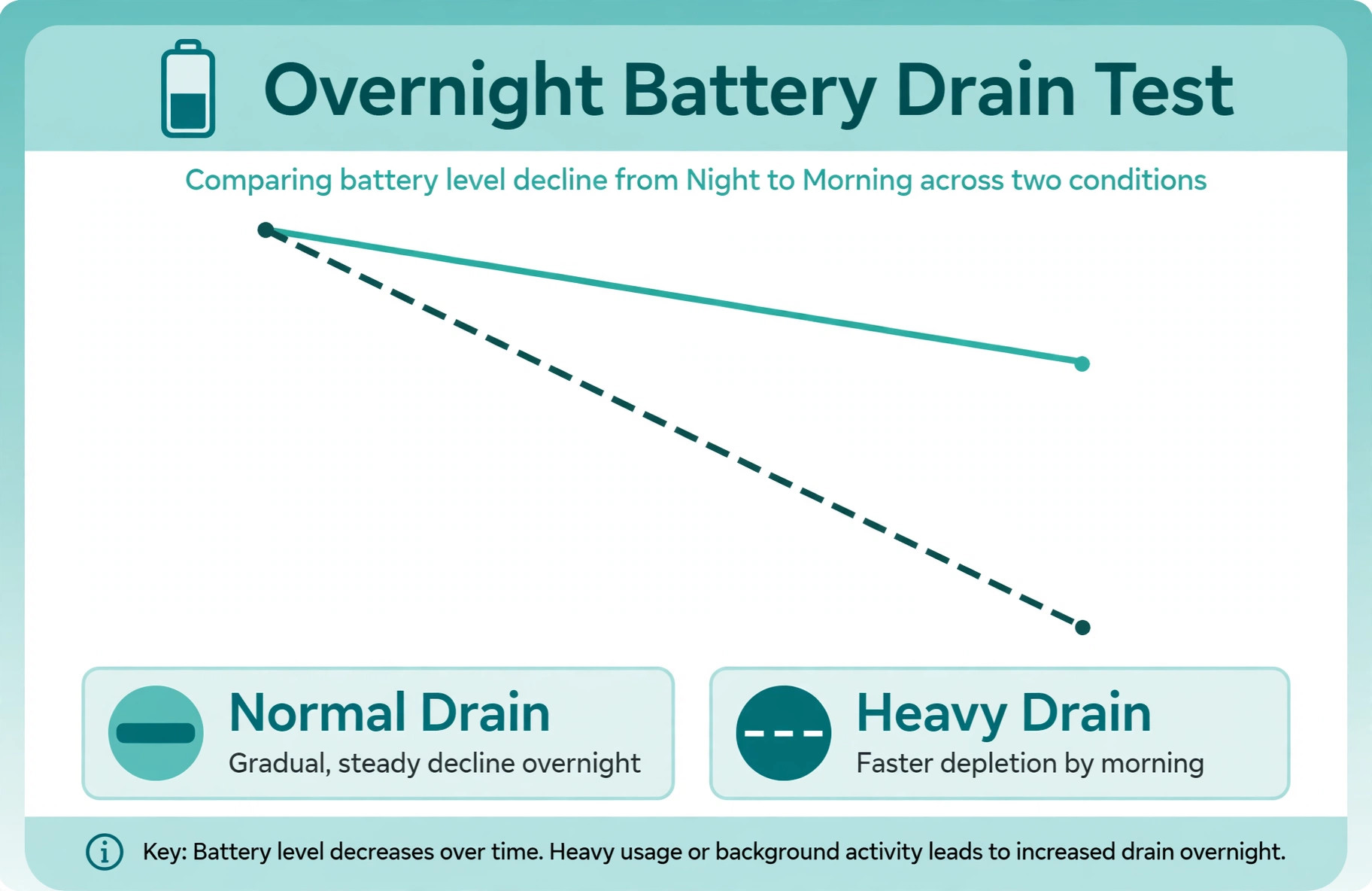
That table is the whole diagnostic method in miniature. Match your pattern to a row, and you have a starting point that beats turning on every power saving switch at once. The overnight test is especially valuable. Charge to full, unplug, leave the phone untouched overnight with Wi-Fi on as normal, and note the morning percentage. A healthy modern Galaxy loses only a small amount overnight. A large overnight drop with the screen off proves background activity is the problem, because the screen cannot be blamed while it is off, and that narrows the hunt to apps, sync, and radios.
Run the Samsung Members battery diagnostic early
Samsung ships a diagnostic tool most owners never open, and it answers the one question no settings screen can. Is the battery itself still healthy. Open the Samsung Members app, go to the support or diagnostics area, and run the battery test. The result comes back as a plain word rather than a percentage. A Normal result means the battery shows no performance problem, so your drain is software or usage, and the fixes in this guide will help. A Weak result means efficiency has dropped through long use or hard conditions, so you should expect shorter life even after software fixes and plan for a battery replacement in the medium term.
A Bad result means the battery has degraded significantly, and Samsung’s own advice is to visit a service centre. Running this test early stops you from spending a week tuning settings on a battery that is simply worn out, and it gives you a documented result to show a technician if you go for a replacement.
How to Fix Samsung Phone Battery Draining Fast in Order
Work through this checklist from top to bottom and give each step a few hours before judging it, because battery changes reveal themselves over a charge cycle, not in five minutes. The order runs from the fastest wins to the deeper interventions, and you should stop as soon as the phone comfortably lasts your day.

Step 1. Restart the phone and update everything
A stuck background process is the most common single cause of sudden drain, and a restart kills it outright. Restart, then open the Galaxy Store and the Play Store and update every app, because an app written for an older One UI version can misbehave badly on a new one. Then check for a system update under Settings, then Software Update. Updates frequently contain efficiency fixes and app compatibility patches, and a phone that drains after an update often settles once its apps catch up. If the drain began immediately after a system update, give the phone two to three days of ordinary use before you judge, because post-update optimisation is real and temporary.
Step 2. Tame the screen, the biggest single consumer
The screen deserves attention before any app, because it is usually the largest draw and the easiest to reduce without losing anything important. Turn on Adaptive Brightness so the screen dims automatically in dark rooms instead of blazing at full power indoors. Shorten the screen timeout to thirty seconds or one minute, so a forgotten unlocked phone does not burn power for ten minutes on a table. If your Galaxy offers Motion Smoothness, consider the adaptive or standard setting rather than the highest refresh rate, which redraws the screen far more often for a smoothness gain you may not notice outside games.
Turn off Always On Display, or limit it to a schedule, because a screen that never truly sleeps never truly saves power. Each of these changes is small alone, and together they routinely return an hour or more of daily life.
Step 3. Put unused apps to sleep and restrict the worst offender
Samsung’s background usage limits are the most powerful battery tool on the phone, and they are underused. Open Settings, then Battery, then Background Usage Limits, and confirm that Put Unused Apps to Sleep is on. Then look at your battery usage list, tap the worst app, and set it to Deep Sleep if you rarely use it, which stops it running in the background entirely until you open it. For an app you use but that drains heavily, set it to Sleep instead, which limits its background activity without stopping notifications entirely. Never put your messaging, phone, or alarm apps to sleep, because missed calls and alarms are a worse outcome than a shorter battery day.
If a single app dominates the usage list and you can live without it, uninstalling it beats restricting it, because a removed app cannot drain anything.
Step 4. Turn on Power Saving Mode properly
Power Saving Mode is not one switch but a set of choices, and using it well matters. Open Settings, then Battery, then Power Saving, and turn it on. Then look at the options it offers, such as limiting CPU speed, reducing brightness, turning off Always On Display, and restricting background data. For daily use, a moderate set of restrictions gives most of the saving without making the phone feel slow. For a long day away from a charger, turn on the stricter options and accept the trade off.
Note that messages and notifications from sleeping apps may be limited while Power Saving is on, so do not enable the strictest mode on a day when you are waiting for an important message. Power Saving Mode is a tool for specific days, not a permanent state, and a phone that only lasts the day with it permanently on still has an underlying cause worth finding.
Step 5. Control sync, location, and radios
Sync is silent and constant. Open Settings, then Accounts and Backup, then Manage Accounts, and look at what is syncing automatically. Turning off auto sync entirely stops background checks for every account, and your apps still pull fresh content the moment you open them, so the cost is delayed notifications rather than lost data. A gentler version is to open individual accounts and turn off sync for services you do not need constantly updated, while keeping mail and calendar syncing. Location is the next radio to tame. Set location permission for most apps to While Using the App rather than Always, and turn off precise location where approximate is enough.
Bluetooth, NFC, and mobile data left scanning all day add up, so turn off radios you are not actively using, and prefer Wi-Fi over mobile data when both are available, because a weak mobile signal forces the radio to transmit at higher power.
Step 6. Wipe the cache partition after a troublesome update
When drain begins after a system update and survives restarts and app updates, stale temporary files from the old system are a known culprit. Wiping the cache partition removes those files without touching your photos, apps, or accounts. The exact key combination varies by model, and on newer Galaxy phones it usually involves connecting the phone to a computer with a cable, powering off, then holding volume up and power until the recovery menu appears. Select Wipe Cache Partition with the volume keys, confirm with power, then select Reboot System Now. This step sounds technical, but it is safe, reversible, and recommended by Samsung community support for post-update drain.
If the recovery menu feels unfamiliar, a Samsung service centre or support chat can confirm the exact steps for your model before you try it.
Step 7. Test in safe mode to separate apps from the system
Safe mode loads only the apps that shipped with the phone, which makes it the cleanest test available. Restart into safe mode, use the phone normally for a few hours with your usual screen settings, and watch the drain. If the battery behaves normally in safe mode, an app you installed is the cause, and you can find it by uninstalling recent or heavy apps one at a time and retesting. If the drain continues in safe mode with no third-party apps running, the cause is the system, the battery, or the network environment, and the Samsung Members diagnostic plus a service check are the next steps.
Safe mode costs you nothing and answers a question that guessing cannot, so use it before any factory reset.
The Battery Protection Setting That Looks Like Fast Drain
One of the most misunderstood Galaxy features is Battery Protection, and it sends owners searching for a drain problem that does not exist. On recent One UI versions, Battery Protection can cap charging at a maximum you choose, and older versions capped it at eighty or eighty five percent. A phone set to stop at eighty percent starts the day with a fifth less energy than you expect, and it feels exactly like fast draining even though the cell is perfectly healthy and the drain rate is normal. Open Settings, then Battery, then Battery Protection, and check whether a cap is active.
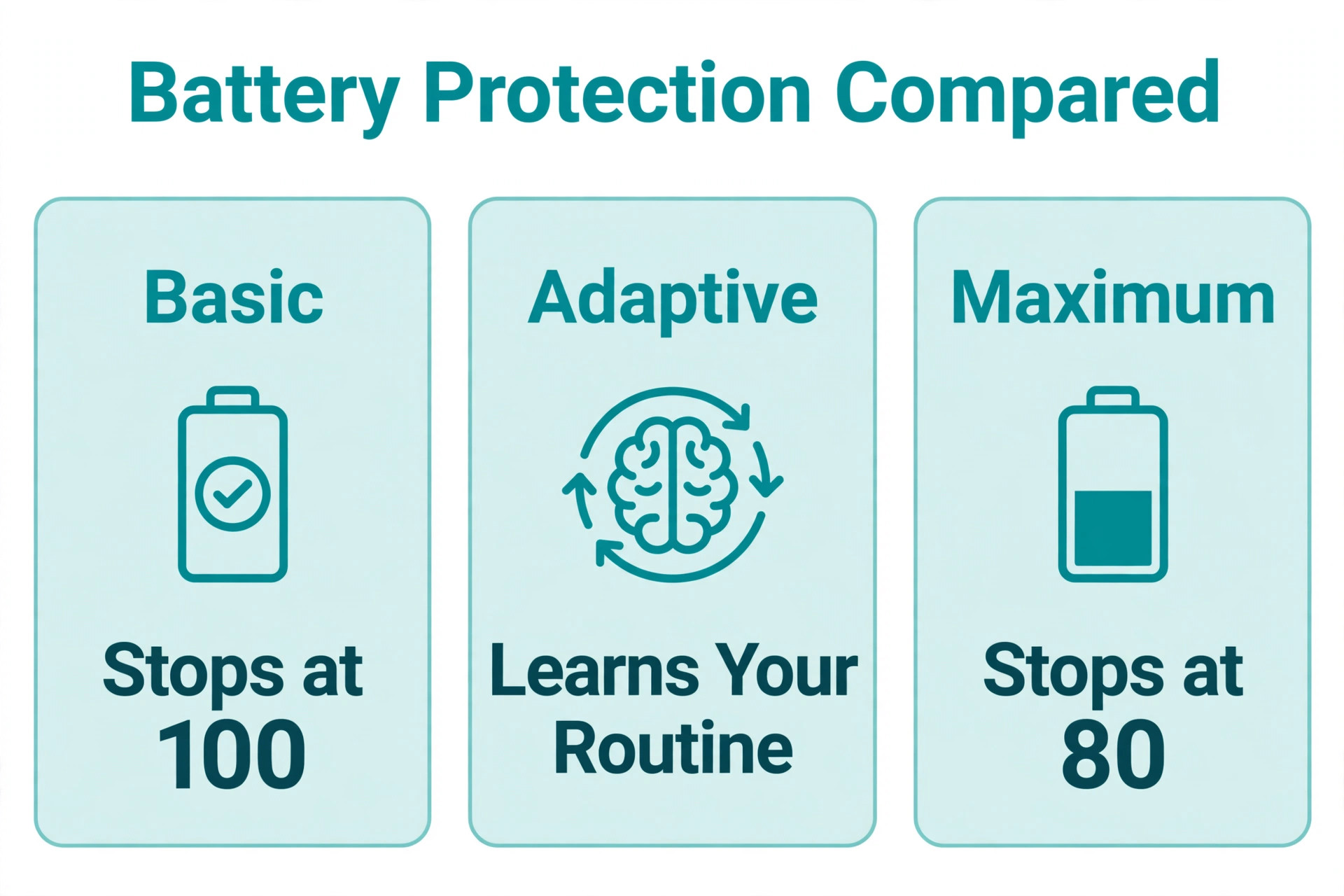
If you want maximum daily life, turn the cap off or set it to Basic, which charges to full and pauses until the level drops slightly. The cap exists to prolong the battery’s long term health, and it is a good choice for phones that sit on a charger overnight, but you should choose it knowingly rather than discover it by accident and blame the battery.
Charging habits matter beyond the cap. Heat is the battery’s real enemy, more than any charging speed. A phone that charges in a hot car, under a pillow, or while running a demanding game ages faster than one charged in a cool room. Wireless charging generates more heat than wired charging, so if your phone feels warm on a wireless pad every night, a wired charger may extend its life noticeably. Fast charging is convenient and modern Galaxy phones manage it well, but using a standard charger overnight and fast charging only when you are in a hurry is a sensible balance.
If your phone is swollen, if the back cover is lifting, or if the screen is separating from the frame, stop using it and seek service immediately, because a swollen battery is a safety issue, not a performance complaint, and it should never be charged or punctured.
Weak signal and why your surroundings drain the battery
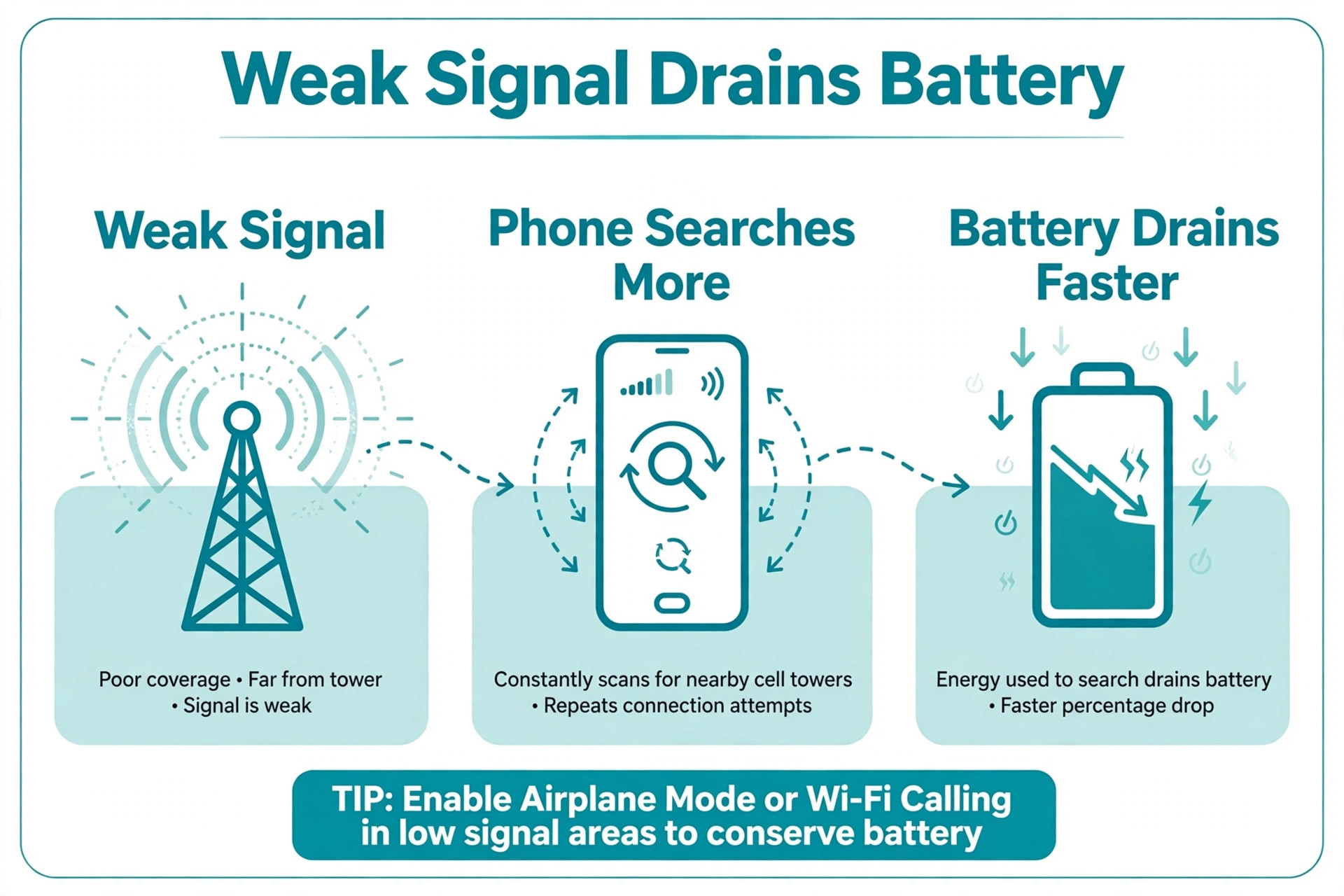
Signal strength is the hidden battery tax most owners never consider. A phone in a weak coverage area boosts its radio power to stay connected, and that extra transmission drains the battery far faster than the same phone in strong coverage. If your battery dies quickly at work but lasts fine at home, compare the signal in both places before you blame apps.
The practical fixes are to use Wi-Fi calling where available, to switch the phone to a lower network mode in very weak areas if your model allows it, and to turn on airplane mode in places with no coverage at all, such as a basement car park, rather than letting the radio hunt endlessly for a tower it cannot reach. Travel days combine weak signal, navigation, camera use, and roaming, so a travel day that kills the battery is not evidence of a fault. It is evidence of heavy use in hard conditions, and a portable charger is the honest answer for those days rather than a settings overhaul.
When the Battery Itself Needs Replacing
Software fixes have a limit, and recognising it saves weeks of frustration. The signs of a genuinely worn battery are consistent. The phone dies at twenty or thirty percent without warning, the percentage jumps up and down by large amounts, the phone shuts off in cold weather, and the Samsung Members diagnostic returns a Weak or Bad result. A battery that also drains in safe mode, after a cache wipe, and with a fresh set of settings is almost certainly worn, because every software suspect has been removed and the drain remains.
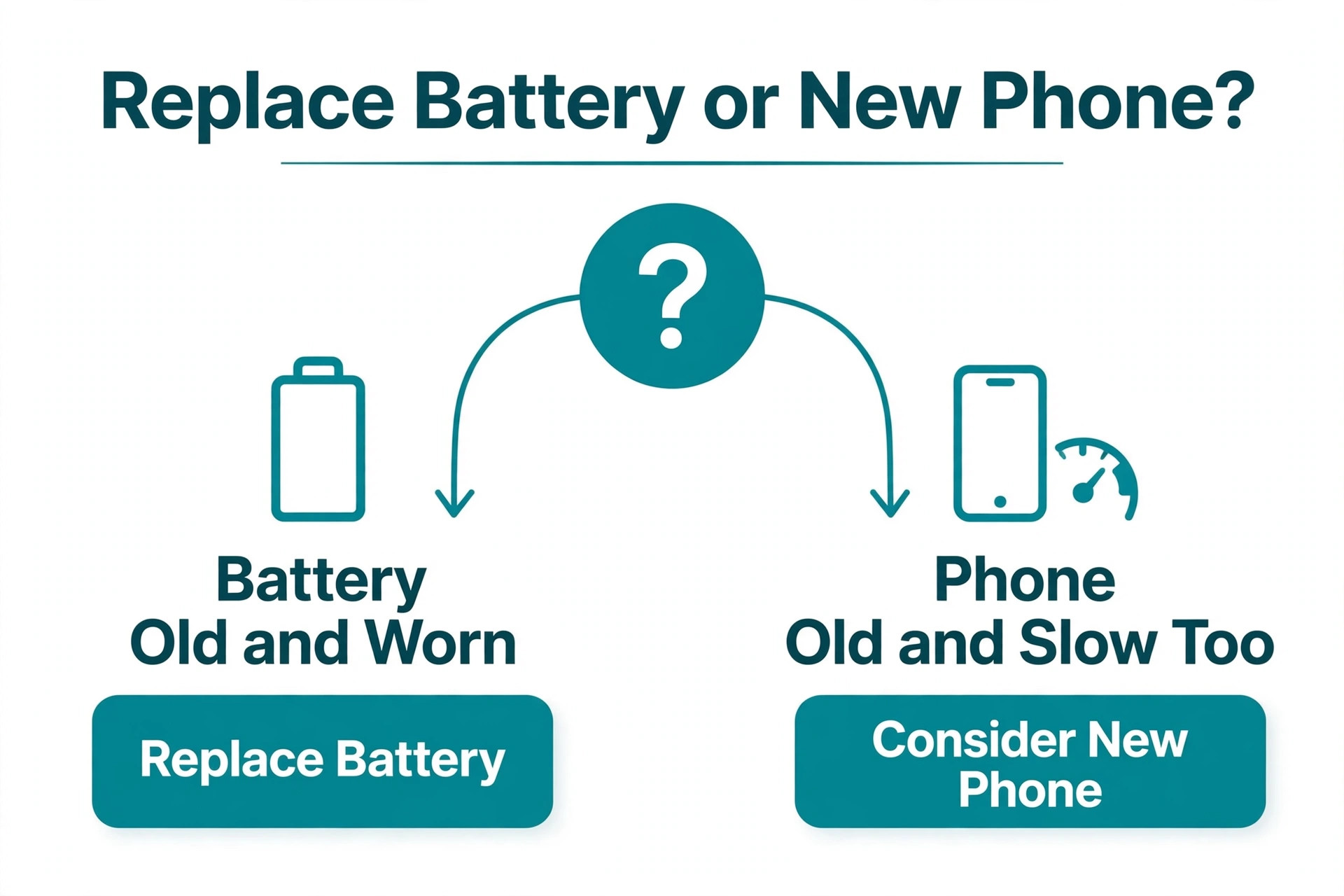
Battery replacement on a Galaxy is a routine service centre job, and it is usually far cheaper than replacing the phone, especially if the screen, cameras, and performance are otherwise fine. Ask for a genuine Samsung battery, because cheap third-party cells often deliver less capacity and age faster, which recreates the same complaint within months.
Before you book a replacement, check whether the phone is still under warranty or covered by Samsung Care, because a battery that fails early may be covered even when a merely aged battery is not. Back up the phone before service, since service centres sometimes reset devices during repair, and remove any screen lock information they ask you to clear. After a replacement, give the new battery a few full cycles before you judge it, because a fresh cell and a freshly serviced phone both need a short settling period.
If the phone still drains after a genuine new battery and a clean software state, the fault is board level or radio level, and that is the point where replacing the phone becomes the rational choice rather than another repair attempt.
Charging Accessories and Cable Problems That Fake Battery Drain
Not every battery complaint is drain at all. Some phones are simply not charging properly, so they start each day part full and die early, which looks identical to fast draining. A worn cable, a dirty charging port, or an underpowered charger can all slow charging so much that an overnight charge never reaches full, and the owner blames the battery for a charger problem. Check the charging screen or the battery settings while plugged in and confirm the phone reports fast charging or charging normally rather than slow charging.
Try a different cable and a different wall charger, preferably the one that shipped with the phone or a reputable equivalent with matching wattage, and clean the charging port gently with a soft dry brush. Lint packed into a USB-C port prevents the plug from seating fully, which causes intermittent charging that the owner notices only as a phone that never seems full.
This distinction matters for anyone trying to fix Samsung phone battery draining fast, because the fix order changes completely when charging is the fault. A phone that charges slowly but drains normally needs a cable, a charger, or a port cleaning, not a settings overhaul. A phone that charges normally to full and then drops quickly needs the software and battery checks in this guide. Test both halves separately. Charge with a known good cable and charger to a confirmed full battery, then watch the drain during a normal day. If the phone reaches full easily and still dies early, drain is real.
If it never reaches full on any charger, the port or the battery charging circuit deserves a service check. Owners who want to fix Samsung phone battery draining fast for good should also check for a swollen battery or a loose back cover before buying accessories, because no cable fixes a failing cell. Keep the original charger for overnight use, keep a spare cable that you know is good, and replace cables at the first sign of fraying or intermittent connection, because a cable that works only at certain angles is already failing and will waste more of your time than its replacement costs.
A Weekly Routine That Keeps Galaxy Battery Healthy
Good battery life is mostly maintenance, not heroics. Once a week, glance at the battery usage list and look for any app climbing unexpectedly. Once a month, review background usage limits and remove sleeping exemptions for apps you no longer use. Keep auto brightness on, keep the screen timeout short, and keep Always On Display off unless you genuinely use it. Update apps promptly, because developers fix battery bugs constantly, and an app that drained last month may be fixed this month. Restart the phone weekly, which clears stuck processes before they become noticeable drain.
Charge in a cool place, avoid letting the phone sit at zero percent for days, and avoid leaving it plugged in at full charge in a hot room for weeks. None of these habits is dramatic, and together they are the difference between a phone that comfortably lasts the day at two years old and one that needs a midday charge at one year old.
One habit deserves emphasis for anyone who wants to fix Samsung phone battery draining fast permanently rather than once. Keep a simple note of what you changed and when. Battery problems return, and when they do, the note tells you whether the cause is new or a repeat. A repeat cause means your earlier fix did not stick, perhaps because an update restored a setting or an app re-enabled its background activity. A new cause means something changed, and the timeline in your note will usually name it.
This small discipline turns battery troubleshooting from a frustrating mystery into a short, repeatable check, and it is the habit that separates owners who fight the same drain every month from owners who fix it once and move on.
More Reading on Stratilyze
Battery drain rarely stays a Samsung-only story, so readers comparing notes usually look at the same fault on other devices next. The guide to an iPhone battery that drains fast shows the same usage-list reading on the other major platform, the guide to an Android phone that will not charge covers the cable, port and adapter checks that matter once drain turns into a dead battery, and the guide to an Android phone that overheats while charging explains the heat warnings that often arrive with fast drain.
Frequently Asked Questions
Why is my Samsung battery draining fast after a One UI update?
An update changes what runs in the background without changing the battery itself. Restart the phone, update all apps from both stores, and give it two to three days of ordinary use while it finishes optimising. If the drain persists after that, wipe the cache partition and check battery usage for an incompatible app. A short term increase after an update is normal, while ongoing heavy use from one app is not.
How do I know if my Samsung battery is actually bad?
Open the Samsung Members app and run the battery diagnostic. A Normal result means the battery is fine and software or usage is the cause. A Weak result means efficiency has dropped through long use, and a Bad result means the battery has degraded significantly and Samsung advises a service centre visit. A Weak or Bad result on a phone that also drains in safe mode points at the cell rather than at software.
Why does my Samsung only charge to eighty percent?
That is a setting, not a fault. Open Settings, then Battery, then Battery Protection, and check the maximum charge limit. On older One UI versions the cap was fixed at eighty five percent, while newer versions let you choose the limit. Turn the cap off or set it to Basic if you want a full charge each morning, and keep the cap only if you prefer longer battery lifespan over daily capacity.
Does closing apps from the recent apps screen save battery?
Generally no, and it can cost battery instead. Android manages background apps efficiently, and force closing an app that you reopen soon forces the phone to reload it from scratch, which uses more power than leaving it cached. The exception is a misbehaving app that is actively draining in the background. Restrict that app under background usage limits or uninstall it, rather than closing every app obsessively. If you are working to fix Samsung phone battery draining fast, restrict the single worst app instead of closing everything.
Can a weak signal really drain my Samsung battery fast?
Yes, significantly. A phone in weak coverage boosts radio power to hold its connection, and that extra transmission drains the battery much faster than the same phone in strong coverage. Use Wi-Fi where available, enable Wi-Fi calling, and switch on airplane mode in places with no coverage at all, so the radio stops hunting for a tower it cannot reach.
Is it safe to use Power Saving Mode every day?
It is safe, but it is not ideal as a permanent state. Power Saving Mode limits CPU speed, brightness, background data, and sometimes notifications, which makes the phone feel slower and can delay messages. Use it on long days away from a charger, and treat a phone that only survives the day with it permanently on as a phone with an underlying cause still worth finding. If you need to fix Samsung phone battery draining fast for good, find the cause rather than living inside Power Saving Mode forever.
The Prevention Plan for a Galaxy That Lasts the Day
A Galaxy that drains fast is usually telling you something specific, and the battery usage list is where it speaks. Read that list first, match your pattern to a cause, and work the checklist in order from restart and updates through screen settings, sleeping apps, sync, cache, and safe mode. Most owners find their answer in the first three steps, and the rest find it in the diagnostic or the service centre, armed with evidence instead of guesses. Keep the weekly routine, keep the change note, and keep Battery Protection as a deliberate choice rather than a surprise.
Do that, and the phone you already own will usually give you the full day you bought it for, without a new battery and without a new phone. That is the practical way to fix Samsung phone battery draining fast and keep it fixed.