

You install WhatsApp on a new phone, verify your number, and wait for the restore prompt that never appears, or you tap restore and watch it stall, fail, or finish with chats missing. That failure is stressful out of proportion to its technical size, because chat history holds family messages, work agreements, photos, and memories that cannot be recreated. When you fix WhatsApp backup not restoring, the cause is almost always one of five things, which are a different account, a different number, too little storage, a weak connection, or a backup that is older, smaller, or more damaged than expected, and each has a different fix.
This guide works through the fixes in order, from the requirements that must all be true before any restore can work, through the restore steps for Android and iPhone, to storage, file, and local backup options when the cloud restore fails. It explains what a restore can and cannot recover, including the fact that only the most recent cloud backup is kept, and it gives a prevention routine so the next phone move restores cleanly. Follow the steps in order, check requirements before reinstalling repeatedly, and stop as soon as chats and media restore correctly.
Requirements That Must All Be True
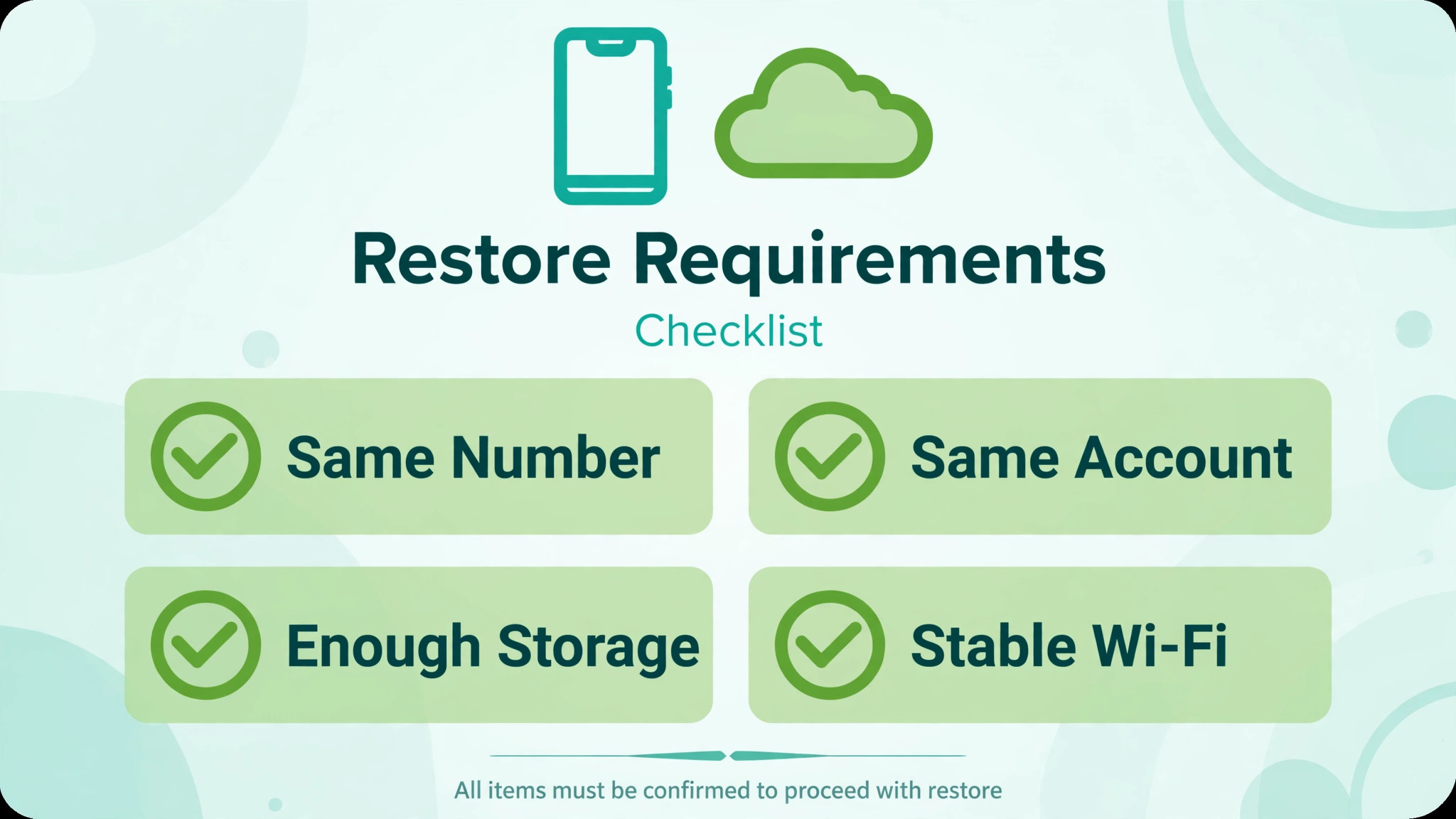
A cloud restore can only work when five requirements are all true at the same time, and a single false one blocks the whole restore without a clear error. First, the phone number must match exactly, including country code, because WhatsApp ties backups to the number that created them, and a changed number means the backup belongs to a different account that the new install cannot see. Second, the cloud account must match exactly, which means the same Google account on Android, where backups live on Google Drive, or the same Apple ID on iPhone, where backups live on iCloud, because a backup stored under another account is invisible to the new install.
Third, the connection must be stable, preferably Wi-Fi, because a restore interrupted by a weak or switching network can stall or corrupt, especially for large backups with media.
Fourth, the phone must have enough free storage, because a restore needs room for chats plus media, and a phone with only a little free space will fail partway through, often without explaining that storage is the cause. Fifth, WhatsApp itself must be up to date, and Google Play Services on Android must be installed and updated, because an old app version may not recognise a newer backup format, and missing or outdated services break the Drive connection entirely.
Also check that the device date and time are set automatically, because a wrong date can break cloud authentication in confusing ways, and that the backup actually exists, by checking the cloud storage backups area before reinstalling, where a WhatsApp entry with the number should appear.
A common misunderstanding deserves clearing up early, which is that WhatsApp keeps only the most recent cloud backup, so an older backup cannot be chosen from the cloud if a newer one has overwritten it. If the most recent backup is incomplete, corrupt, or missing media, the cloud offers no older version to fall back on, and local backups on Android, where several dated files are kept on the device, become the only path to older chats. That limitation makes regular, verified backups far more important than any restore trick, because a restore can only return what the last successful backup actually saved, and a backup that never completed cannot be repaired after the fact.
Check all five requirements when you fix WhatsApp backup not restoring, before reinstalling.
How to fix WhatsApp backup not restoring in Order
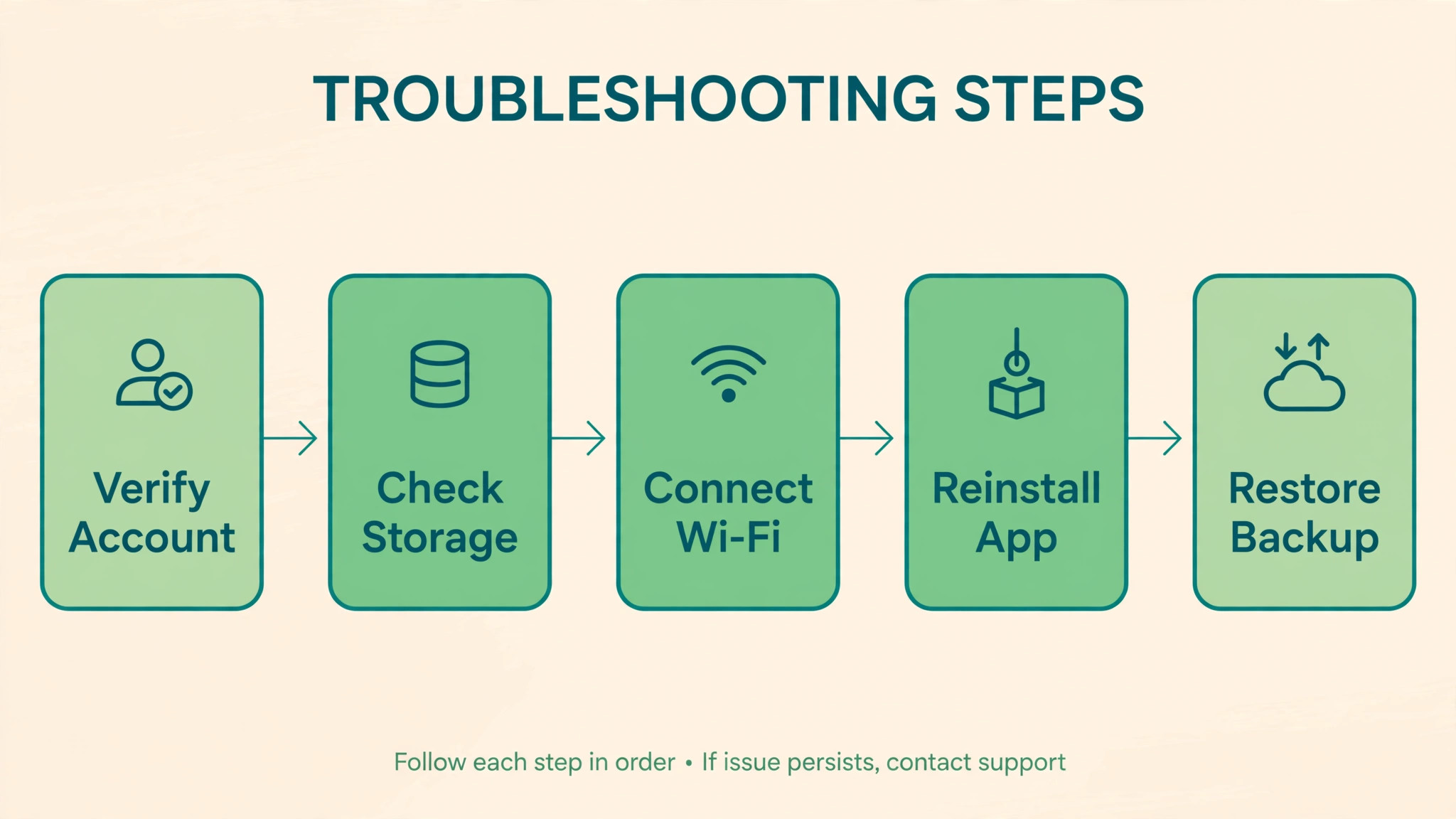
Work through this order, checking requirements before reinstalling, because repeated reinstalls without fixing the underlying cause waste time and can overwrite a local backup that might have helped. Keep your phone number, cloud account password, and a note of the backup date and size handy, because several steps need them, and test after each step by attempting the restore prompt again.
- Confirm the phone number matches exactly, including country code, and that you are signed into the same Google account on Android or the same Apple ID on iPhone that created the backup.
- Confirm a backup actually exists, by checking Google Drive storage backups on Android or iCloud storage on iPhone for a WhatsApp entry.
- Connect to stable Wi-Fi, charge the phone, and confirm the device date and time are set automatically, because weak power, network, or clock faults break restores.
- Update WhatsApp from the store, and on Android update Google Play Services, then restart the phone before attempting again.
- Free storage on the phone, aiming for several gigabytes free, because large media restores need far more room than chats alone.
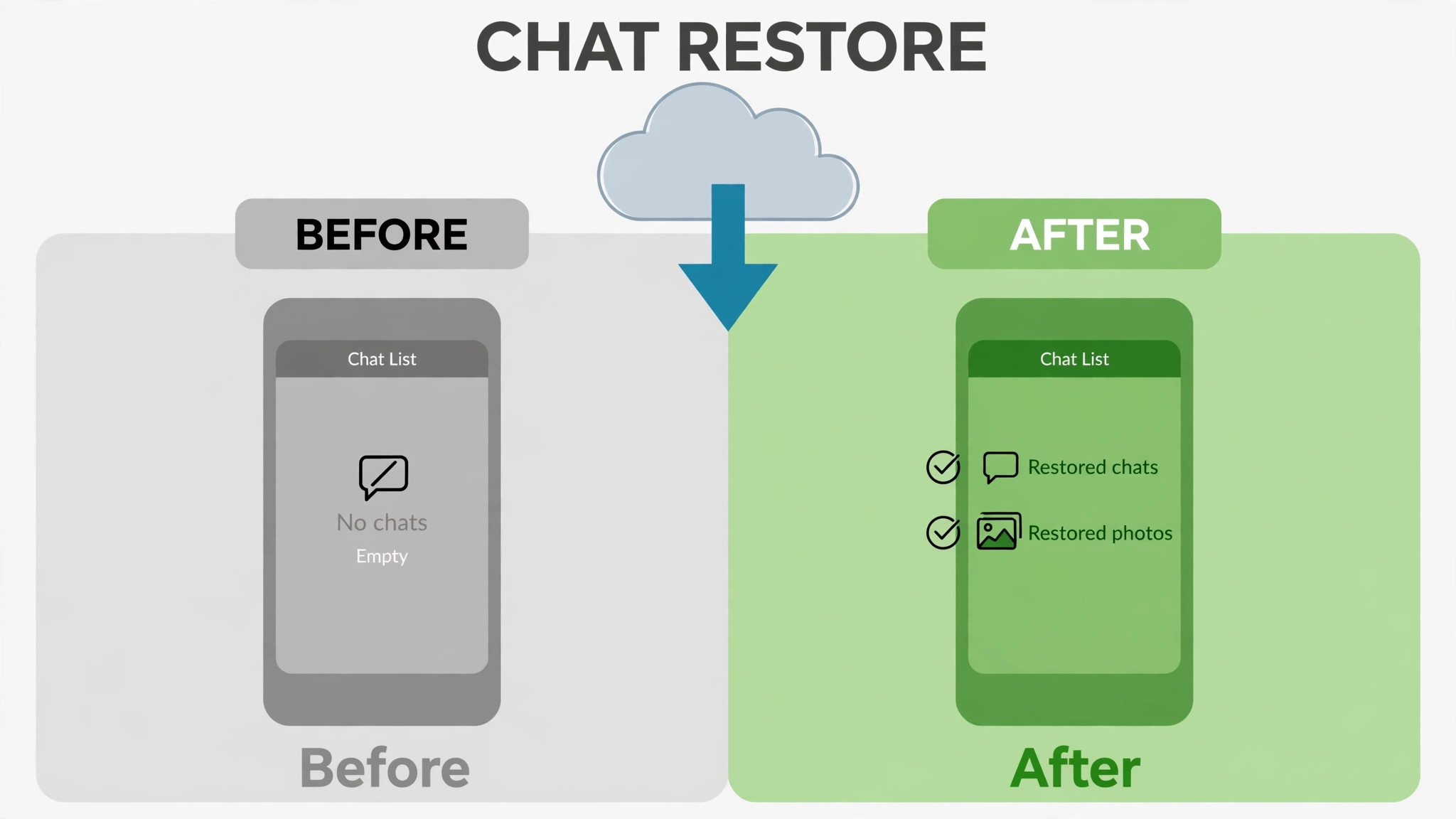
- Uninstall and reinstall WhatsApp, verify the number, and when prompted, tap Restore, then wait without interrupting, because chats restore first and media follows in the background.
- If no restore prompt appears, check again that number and account match, and that no other account is signed into Drive or iCloud on that phone.
- If restore stalls or fails, restart the phone, reconnect to Wi-Fi, and try again, because a single network interruption can abort a large restore.
- On Android, check for a local backup file on the device or SD card, and restore from it following the local steps in the section below, if the cloud restore cannot work.
- If the backup is missing, corrupt, or tied to a different number or account, accept that cloud recovery may not be possible, and focus on preventing the next loss with the routine at the end.
That order matters, because the first steps prove whether a restore is possible at all, before any reinstalling, while later steps fix the common blockers of storage, network, and version. Reinstalling first, without checking number and account, is the most common waste, because a reinstall with the wrong number or account will never show a restore prompt, no matter how many times it is repeated. Waiting matters as well, because a large restore can take a long time, with chats appearing first and media continuing in the background, and interrupting it to check progress can abort a restore that was actually working.
When you fix WhatsApp backup not restoring, do not tap Skip on the restore prompt unless you have decided to start fresh, because skipping tells WhatsApp to proceed without restoring, and the prompt will not return without another reinstall. If you tapped Skip by accident, uninstall and reinstall again, with number and account confirmed, and the prompt should return, provided a backup still exists for that number and account. A restore that completes for chats but seems to miss media often needs more time, because media restores after chats, in the background, and a phone left on Wi-Fi and charging will usually finish media within hours, even when chats appeared in minutes.
Restore Steps for Android and iPhone
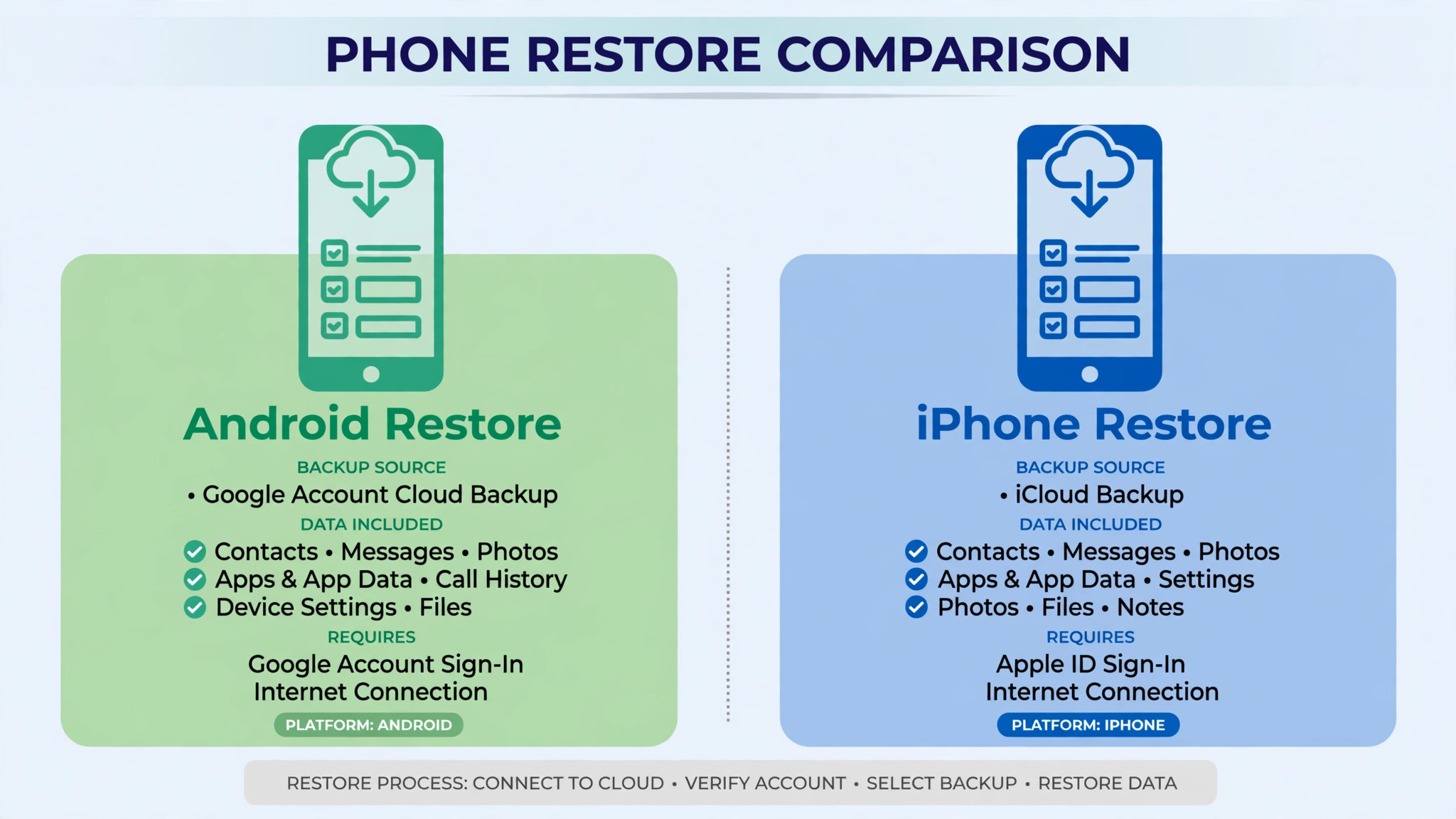
Android restores from Google Drive, and the steps are consistent, though menu names vary slightly by phone maker. Install WhatsApp from the Play Store, open it, agree to terms, and verify the phone number by SMS code, using the exact number that created the backup. WhatsApp will then detect the Google Drive backup for that number and account automatically, and prompt to restore, at which point tap Restore and wait, without switching networks or powering off, until chats appear, then tap Next, after which media continues restoring in the background. If the prompt does not appear, stop and recheck number and account, because proceeding without a prompt means starting fresh, and the prompt will not return without a reinstall.
iPhone restores from iCloud, and the requirements mirror Android, with Apple ID in place of Google account. Confirm the iPhone is signed into the same Apple ID that created the backup, that iCloud Drive is on, and that iCloud has enough free space for the backup itself, because a backup cannot be created or restored cleanly when iCloud is full. Install WhatsApp from the App Store, verify the number, and when prompted, tap Restore Chat History, then wait, because iPhone restores also bring chats first and media afterwards.
If the prompt does not appear, check Apple ID, iCloud settings, and whether a backup actually exists in iCloud storage, before reinstalling again, because a reinstall with the wrong Apple ID will never find the backup.
Cross platform restores deserve a plain warning, because a Google Drive backup cannot restore directly to an iPhone, and an iCloud backup cannot restore directly to an Android phone, through the normal restore prompt. Moving chats between Android and iPhone needs the official transfer tools WhatsApp provides for that move, which work differently from a cloud restore, and they require both phones, a cable or a local connection, and careful following of on screen steps. Do not expect a cloud backup from one platform to appear on the other, and do not delete the old phone’s data until the transfer is verified on the new phone, because a deleted source cannot be recovered if the transfer fails partway.
Use the official transfer tools when you fix WhatsApp backup not restoring across platforms, not a cloud restore.
Cause Table for Restore Failures
Use this table to match what you see with the most likely cause and the first fix, so a clear symptom leads straight to the relevant section without working blindly. The table does not replace the full order, but it speeds diagnosis when a pattern is distinctive.
| Symptom | Most likely cause | First fix to try |
|---|---|---|
| No restore prompt at all | Wrong number or wrong cloud account | Confirm number and account exactly, reinstall |
| Restore starts then stalls | Weak network, low storage, or large media | Stable Wi-Fi, free storage, wait longer |
| Restore fails with an error | Corrupt backup, old app, or services fault | Update app and services, restart, retry |
| Chats restore but media missing | Media still restoring in background | Leave on Wi-Fi and charging, wait hours |
| Backup found but very old | Only most recent cloud backup kept | Check local backups on Android, accept old date |
| Restore works on old phone, not new | Number, account, or platform mismatch | Confirm number, account, and platform path |
| Backup entry missing from cloud | Never backed up, or different account | Check other accounts, check backup settings |
| Restore completes but chats incomplete | Last backup predates missing chats | Check backup date, restore local file if available |
A symptom that changes after a step is useful, even when the step does not fully fix the problem, so note what changed. If confirming the account turns no prompt into a prompt, the account was the blocker, even if the restore then stalls, because stalling is a separate network or storage problem. If freeing storage turns a failure into a slow but progressing restore, storage was the blocker, and patience, not further fixing, is the next step. Troubleshooting is narrowing, not magic, and a short note of number, account, backup date, storage, and network makes that narrowing fast, especially if you later seek help.
Use the table first when you fix WhatsApp backup not restoring and the pattern is clear.

Storage, File Size and Media Problems
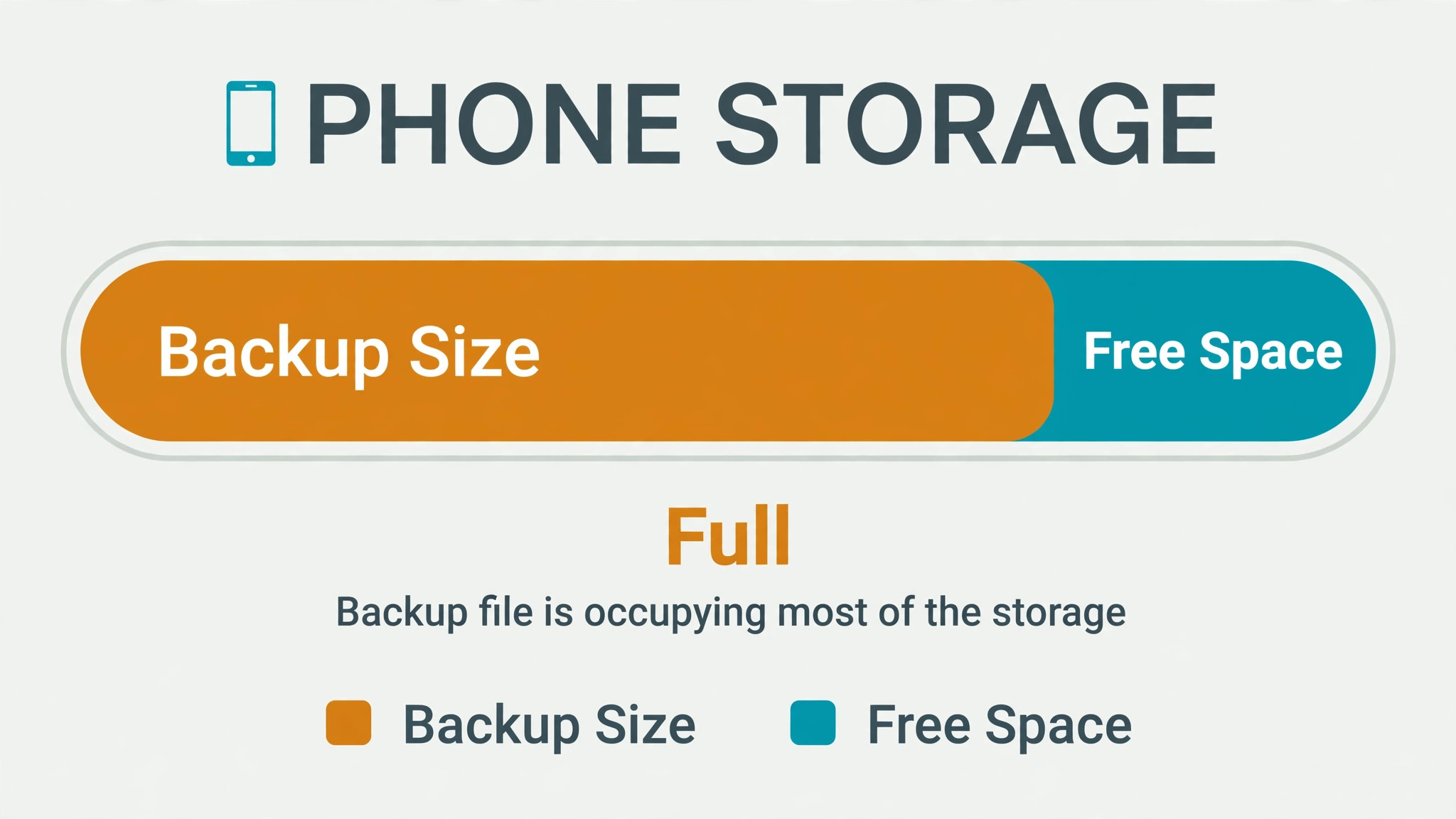
Storage fails restores in two places, on the phone and in the cloud, and both need checking, because a phone with room but a full cloud account, or a cloud account with room but a phone nearly full, can each block a restore. On the phone, free several gigabytes, because a backup with years of photos and videos can be many gigabytes, and the restore needs room for the full set plus working space during installation.
Delete unused apps, large downloaded videos, and duplicate photos, move personal files to another backup if needed, and check storage again after freeing, because a phone that reports free space in settings may still be too full for a large media restore once system reserves are counted.
In the cloud, check that the account has room for backup operations, because WhatsApp backups count toward Google storage, and an account near its free limit can fail to complete a backup, leaving a partial or outdated backup as the only restore source. If the account is full, free space by deleting large Drive files, old backups, or unnecessary mail attachments, or consider a storage upgrade for the month of the move, because a failed backup during a phone move is far more costly than a temporary upgrade.
Also check the backup size itself, where the cloud backups area shows it, because a backup far smaller than expected may mean media was excluded from backups, in which case chats will restore but photos and videos will not, and that outcome, while disappointing, is a backup setting result, not a restore fault.
Media settings deserve a direct check before the next backup, because WhatsApp backup settings control whether videos are included, and a backup without videos restores chats perfectly while leaving videos behind. Open WhatsApp settings, go to Chats, then Chat Backup, and confirm the backup account, the backup frequency, and whether videos are included, then run a manual backup and confirm it completes, noting its date and size. When you fix WhatsApp backup not restoring, storage and media settings should be checked before the restore is attempted, because a restore cannot return media that was never backed up, and discovering that after a move is too late to fix.
Local Backups on Android
Local backups are an Android only safety net, and they deserve attention when a cloud restore fails, because Android keeps several dated backup files on the device, while iPhone relies on iCloud alone. On Android, WhatsApp creates local backup files in the phone’s internal storage or SD card, in the WhatsApp databases area, with dated names, and the most recent local file can sometimes restore chats even when the cloud backup is missing or outdated.
To use a local backup, the file must be on the new phone in the correct folder, with the correct name for the restore to detect it, and the steps involve copying the file, renaming it where guidance requires, reinstalling WhatsApp, and verifying the number, after which WhatsApp should detect the local backup.
That process carries risks, and it should be done carefully, with a copy of the local file kept safe before any renaming or moving, because a renamed or overwritten file cannot be undone if the restore fails. Follow WhatsApp’s own help guidance for local restore steps for your app version, because file locations and naming rules change over time, and a guide for an old version can mislead on a new version.
If the local file is from a different number, it will not restore to the new number, for the same account tying reason that blocks cloud restores, and if the local file is corrupt, no local trick will repair it, though trying an older dated local file, where several exist, sometimes succeeds when the newest fails.
Local backups also explain why an old phone should not be wiped immediately after a move, because the old phone holds local files that the new phone may need if the cloud restore fails. Keep the old phone, with its WhatsApp data intact, until the new phone’s restore is verified, including a spot check of important chats and media, because a wiped old phone removes the local safety net permanently. Keep the old phone until verification when you fix WhatsApp backup not restoring to a new device. That patience, of verifying before wiping, is the single habit that most often saves a chat history that a rushed move would have lost.

Mistakes That Make Restore Problems Worse
The first mistake is tapping Skip on the restore prompt, then wondering why chats are missing, because skipping starts fresh and the prompt returns only after another reinstall. The second mistake is reinstalling repeatedly with the wrong number or account, which never produces a prompt and wastes time, while a single check of number and account would have revealed the blocker. The third mistake is wiping the old phone before verifying the new phone’s restore, which destroys local backups and any chance of a second attempt from the old device.
The fourth mistake is interrupting a large restore to check progress, switch networks, or power off, which can abort a restore that was progressing normally, especially for media that restores in the background after chats. The fifth mistake is ignoring storage, because a nearly full phone will fail a restore partway, and freeing space is the only fix that helps, while repeated restore attempts on a full phone all fail the same way.
The sixth mistake is assuming a cloud backup contains everything, when media settings may have excluded videos, or the last backup may predate important chats, because a restore can only return what the last successful backup saved, and that limitation should be checked before a move, not discovered after one.
Preventing the Next Restore Failure
Prevention for WhatsApp restores is mostly about regular, verified backups, because a restore is only as good as the last backup, and a backup that never completed cannot be repaired later. Set automatic backups to daily or weekly, depending on how important your chats are, confirm the correct cloud account is selected, and include videos if they matter to you, accepting the larger backup size that choice creates. Run a manual backup before any phone move, SIM change, or number change, and confirm it completes, noting its date and size, because a manual backup immediately before a move gives the newest possible restore source.
Verify backups occasionally, by checking the cloud backups area for a recent WhatsApp entry, and by confirming the phone has several gigabytes free, because a backup that fails silently for months leaves an old restore source that misses recent chats. Verify backups monthly when you fix WhatsApp backup not restoring through a prevention routine. Keep a written note of the backup account and frequency in a safe place, because a future phone move under time pressure is the worst moment to guess which account holds the backup. Test the restore on a spare device first where possible, because a trial restore reveals problems while the old phone still holds the original data.
Before a phone move, keep the old phone until the new restore is verified, check important chats and media on the new phone, and only then wipe or sell the old device. Teach family members who share a phone plan the same routine, because a household move often happens under time pressure, and a shared note of number, account, and backup date speeds every future move. A few minutes of backup care each month keeps chat history safe, and it means the next phone move will be a calm restore instead of a stressful recovery attempt.
More Reading on Stratilyze
If this guide helps your chats restore, the wider Stratilyze guides cover the messaging problems around it. The guide to WhatsApp not sending photos helps when media fails in daily use, the guide to Google Drive storage full cleanup covers the cloud space that backups need, and the guide to iPhone apps crashing after an update helps when an app fault, not a backup fault, blocks use. Read the Drive guide next if storage is tight, because a full cloud account fails backups silently.
Frequently Asked Questions
Why is there no restore option when you fix WhatsApp backup not restoring?
No restore prompt almost always means the number or cloud account does not match the backup, because WhatsApp ties backups to the exact number and account that created them. Confirm the number including country code, confirm the same Google account on Android or Apple ID on iPhone is signed in, and confirm a backup entry actually exists in cloud storage, then reinstall and verify again. If you tapped Skip on an earlier attempt, reinstalling with the correct number and account should bring the prompt back.
Can I restore a WhatsApp backup from a different phone number?
No, a cloud backup cannot restore to a different number through the normal restore prompt, because backups are tied to the number that created them. If you changed numbers, use WhatsApp’s change number feature on the old phone before moving, where available, or use the official transfer tools for the move, and do not wipe the old phone until the transfer is verified. A backup from an old number will remain invisible to a new number, no matter how many times you reinstall.
How long does a WhatsApp restore take?
Chats usually restore in minutes, while media continues restoring in the background for hours, depending on backup size, network speed, and phone storage. A small chat only backup may finish quickly, while a backup with years of photos and videos can take several hours on Wi-Fi, and interrupting it to check progress can abort it. Leave the phone on stable Wi-Fi and charging, let chats appear first, and check media later, because media completion lags chats by design.
Why did my chats restore but my photos and videos not restore?
That pattern usually means media is still restoring in the background, or media was excluded from the backup in the first place, because backup settings control whether videos are included. Wait several hours on Wi-Fi and charging, then check media again, and check backup settings for whether videos were included and what the backup size was. A backup far smaller than expected likely excluded videos, in which case chats restore fully while videos cannot, because they were never backed up.
Can I restore an older WhatsApp backup instead of the newest one?
From the cloud, no, because WhatsApp keeps only the most recent cloud backup, so an older cloud version cannot be chosen if a newer one has overwritten it. On Android, local backup files offer a path to older chats, because several dated local files are kept on the device, and restoring from an older local file, following official guidance, can sometimes recover chats the cloud backup missed. Keep the old phone until any local restore is verified, because wiping it removes those local files permanently.
What should I check before moving WhatsApp to a new phone?
Run a manual backup immediately before the move, confirm it completes, and note its date and size, then confirm the new phone uses the same number and cloud account, has several gigabytes free, and is on stable Wi-Fi. Install WhatsApp, verify the number, tap Restore when prompted, and wait for chats and then media, without tapping Skip. Verify important chats and media on the new phone before wiping or selling the old phone, because the old phone holds local backups that may be needed if the cloud restore fails.
A Restore That Completes
A WhatsApp restore completes when number, account, storage, network, and app version are all correct before reinstalling, and when the restore is given time to finish chats first and media afterwards. Confirm the backup exists in cloud storage, use stable Wi-Fi and a charged phone, free several gigabytes, update the app and its services, and never tap Skip unless you intend to start fresh. Keep the old phone until the new restore is verified, check local backups on Android when the cloud fails, and accept that a restore can only return what the last successful backup saved.
Set automatic backups, include videos if they matter, and run a manual backup before every phone move, and the next move will restore calmly instead of becoming a recovery attempt. Share the backup routine with family members, so a household phone move never depends on one person’s memory of passwords and settings. Keep a copy of the backup date and account in a safe note, so the next phone move starts with confirmed facts instead of guesses, and check that note before wiping any old phone.