
You plug in the charger, the light comes on, and the percentage does not move, or it climbs for a few minutes and then falls back while still plugged in. That stuck number is the classic sign of a charging problem, and it is also the most misleading one, because it points at the battery while the real cause is usually somewhere else entirely. To fix Windows laptop battery not charging, check the usual culprits in order, which are a failing cable or underpowered charger, a confused battery driver after a Windows update, a charge limit set by the manufacturer’s own utility, and only then a genuinely worn battery.
If you want to fix Windows laptop battery not charging problems without wasting money, work that order and test after each step, because the most expensive explanation is also the least common one. The steps below follow that order, and each one ends with a test that tells you whether to stop or keep going.
What the Charging Message Actually Tells You
Windows gives you more information than most owners use, and the exact message narrows the fault dramatically. Click the battery icon in the taskbar and read what it says. A message saying the laptop is plugged in and charging but the percentage never rises points at a charger too weak for the laptop’s draw, a battery that can no longer accept charge, or a charge limit holding the level steady. A message saying plugged in but not charging points most often at the battery driver, a firmware charge threshold, or a battery that Windows has decided to protect.
No message at all, with no charging icon, points at the cable, the charger, the wall outlet, or the charging port, because Windows cannot see power it never receives. A message about a slow charger on a USB-C laptop means the charger delivers fewer watts than the laptop wants, and the battery may drain slowly even while plugged in under heavy load.
| What Windows shows | Most likely cause | Check this first |
|---|---|---|
| Plugged in and charging but percentage stuck | Weak charger, charge limit, or worn battery | Charger wattage and manufacturer utility |
| Plugged in not charging | Battery driver fault or firmware threshold | Driver reinstall and BIOS charge settings |
| No charging icon at all | Cable, charger, outlet, or port failure | Different outlet, cable, and charger |
| Slow charger warning on USB-C | Charger below the laptop’s required wattage | Original charger wattage rating |
| Battery stuck at 50, 60, or 80 percent | Manufacturer battery health limit | Dell, Lenovo, HP, or ASUS battery utility |
| Percentage jumps or drops suddenly | Ageing cell with unreliable gauge | Battery report from powercfg |
| Laptop only runs when plugged in | Battery unable to hold any charge | Battery report and replacement |
| Charging works after restart then stops | Driver or power plan conflict | Driver reinstall and power troubleshooter |
Read that table before you touch anything, because it prevents the classic error of replacing a battery that was simply capped at eighty percent by a health setting. Charge limits deserve emphasis. Dell, Lenovo, ASUS, and HP all ship utilities that can stop charging at a set percentage to prolong battery lifespan, and these limits survive Windows reinstalls because they live partly in firmware. A laptop that stops at sixty percent after a service visit or a utility update is almost certainly limited, not broken, and the fix is a toggle in the manufacturer’s app rather than a new part.
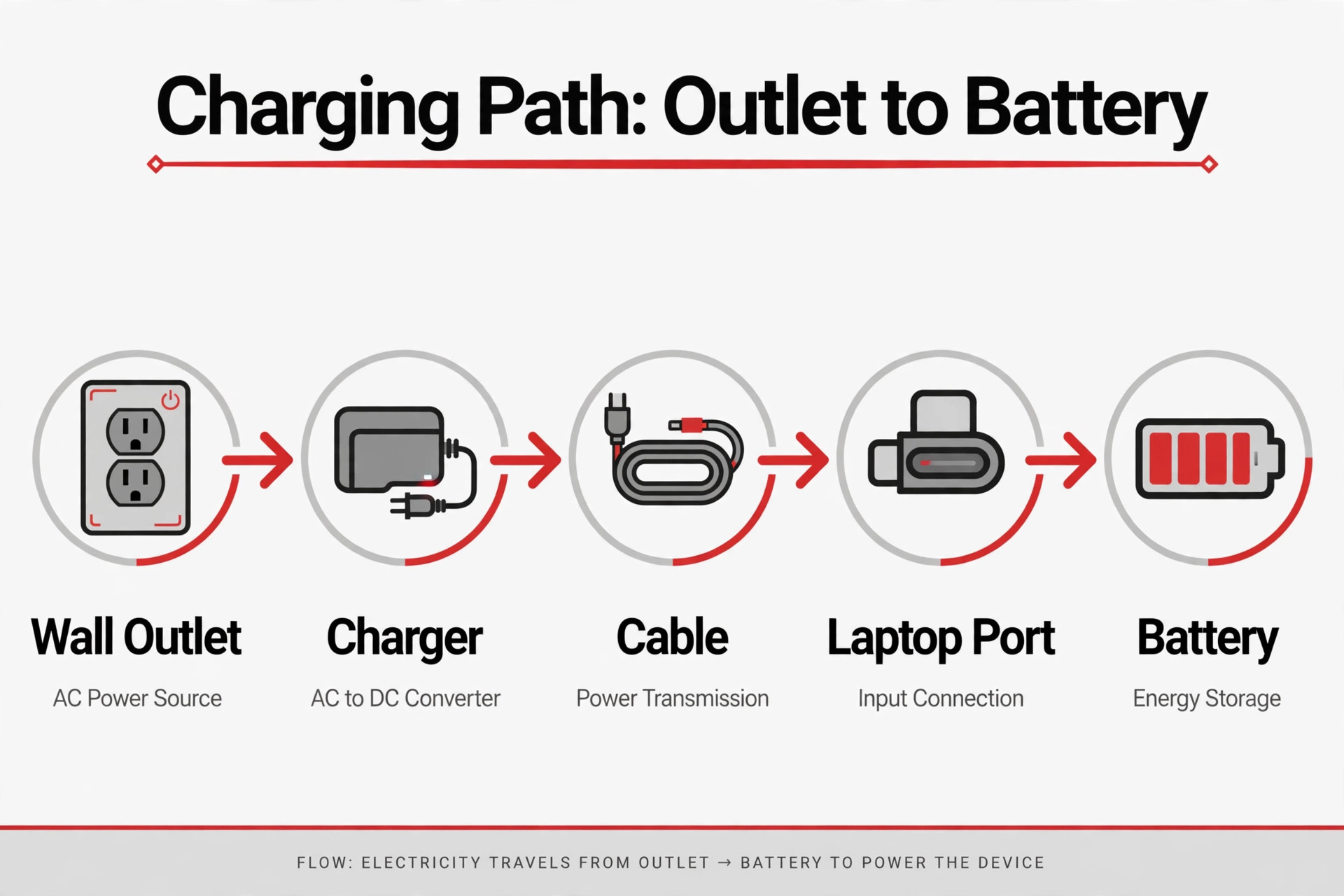
The five minute power path check
Start with the physical path, because it is the most common failure and the cheapest to prove. Unplug the charger from the laptop and the wall, inspect the full cable for kinks, fraying, or bent connectors, and feel the brick for unusual heat or rattling. Plug into a different wall outlet that you know works, because a dead outlet or a tripped power strip fools more owners than any software bug. If the laptop charges over USB-C, try a different USB-C port, because ports wear unevenly and one port can fail while another works perfectly. If you have access to another charger with the same connector and equal or higher wattage, test with it.
A laptop that charges with a borrowed charger and not with yours has a charger problem, and you have just saved yourself a repair booking. Note the wattage printed on your original charger and compare it with any replacement, because a low wattage phone charger plugged into a laptop may light the charging icon while delivering too little power to raise the percentage under load.
How to Fix Windows Laptop Battery Not Charging in Order
Work through this checklist from top to bottom and test after each step. The order runs from the cheapest and fastest checks to the deeper system work, and you should stop the moment the percentage starts climbing steadily.
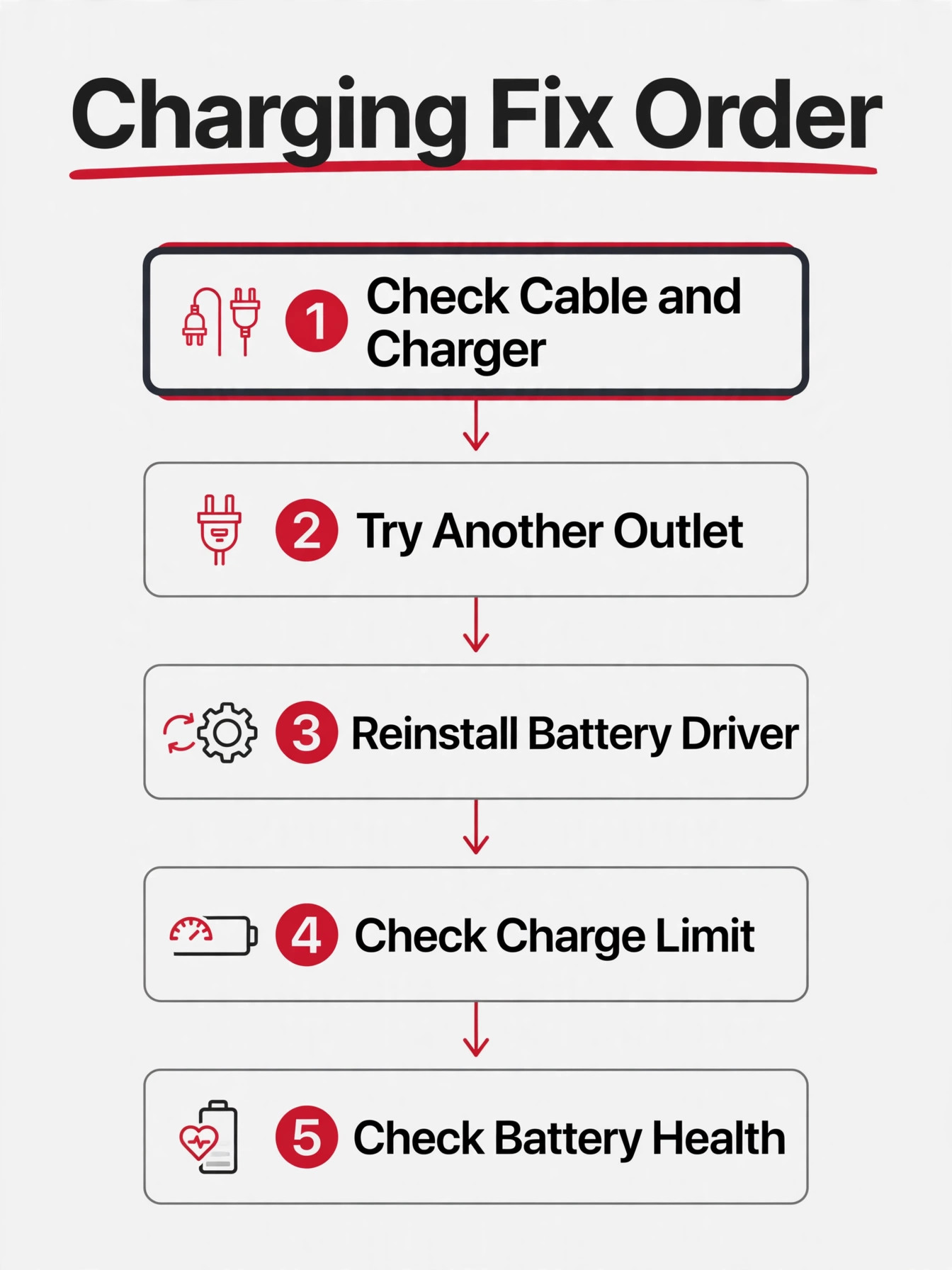
Step 1. Confirm the charger, cable, and outlet
Use the original charger if you still have it, because laptop chargers are matched to the machine’s wattage and connector, and generic replacements often fall short. Check that the cable seats fully in the laptop port, with no wobble, and that the charging light on the laptop or the charger brick behaves as it normally does. Try a second outlet and, for USB-C laptops, a second port. If the laptop has a removable battery, power off, remove the battery, hold the power button for about fifteen seconds to clear residual charge, reinsert the battery, and plug in again. This power drain step clears a stuck charging state on older designs and costs nothing.
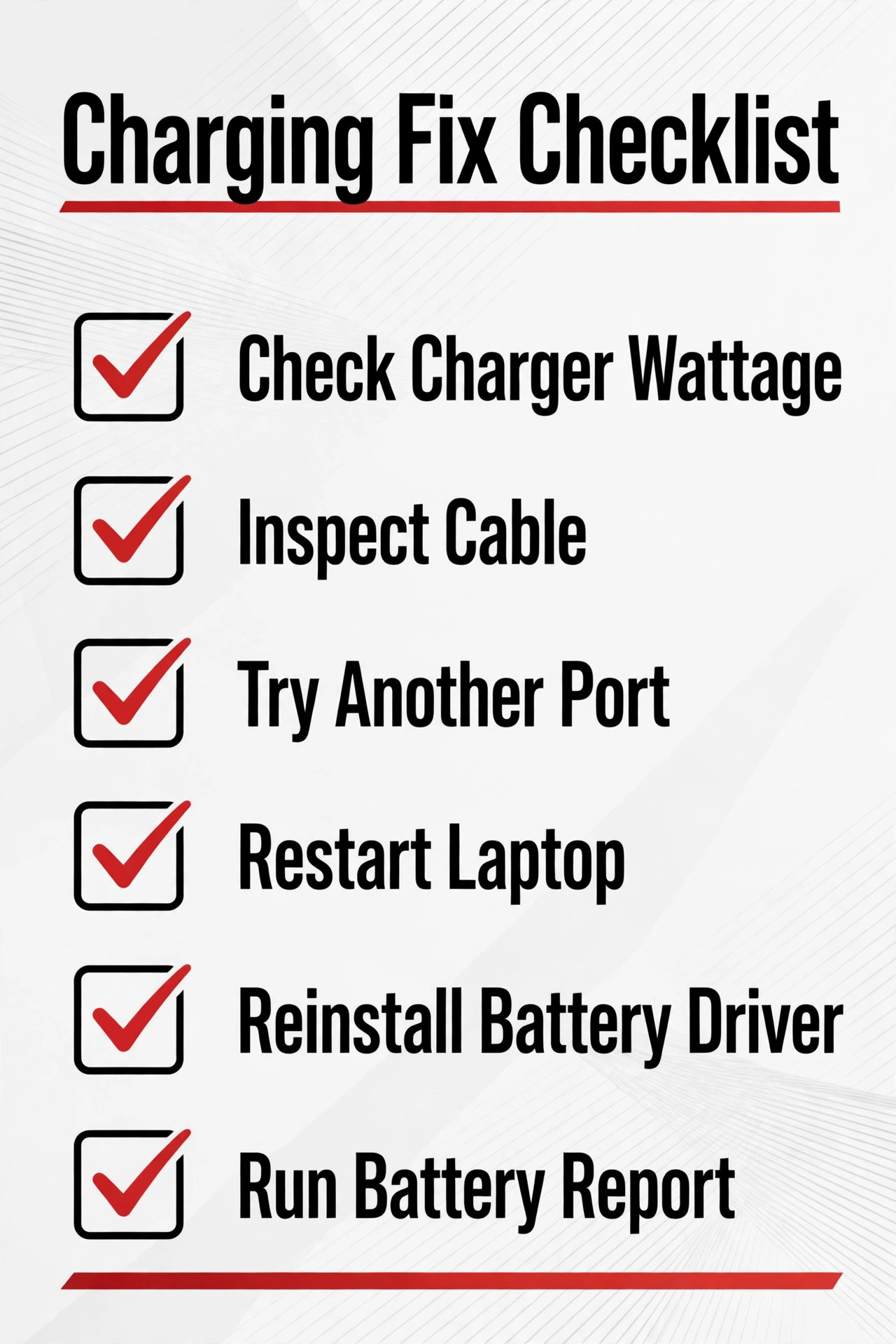
If the laptop has a sealed battery, skip the removal and use the restart and driver steps below instead.
Step 2. Reinstall the battery driver in Device Manager
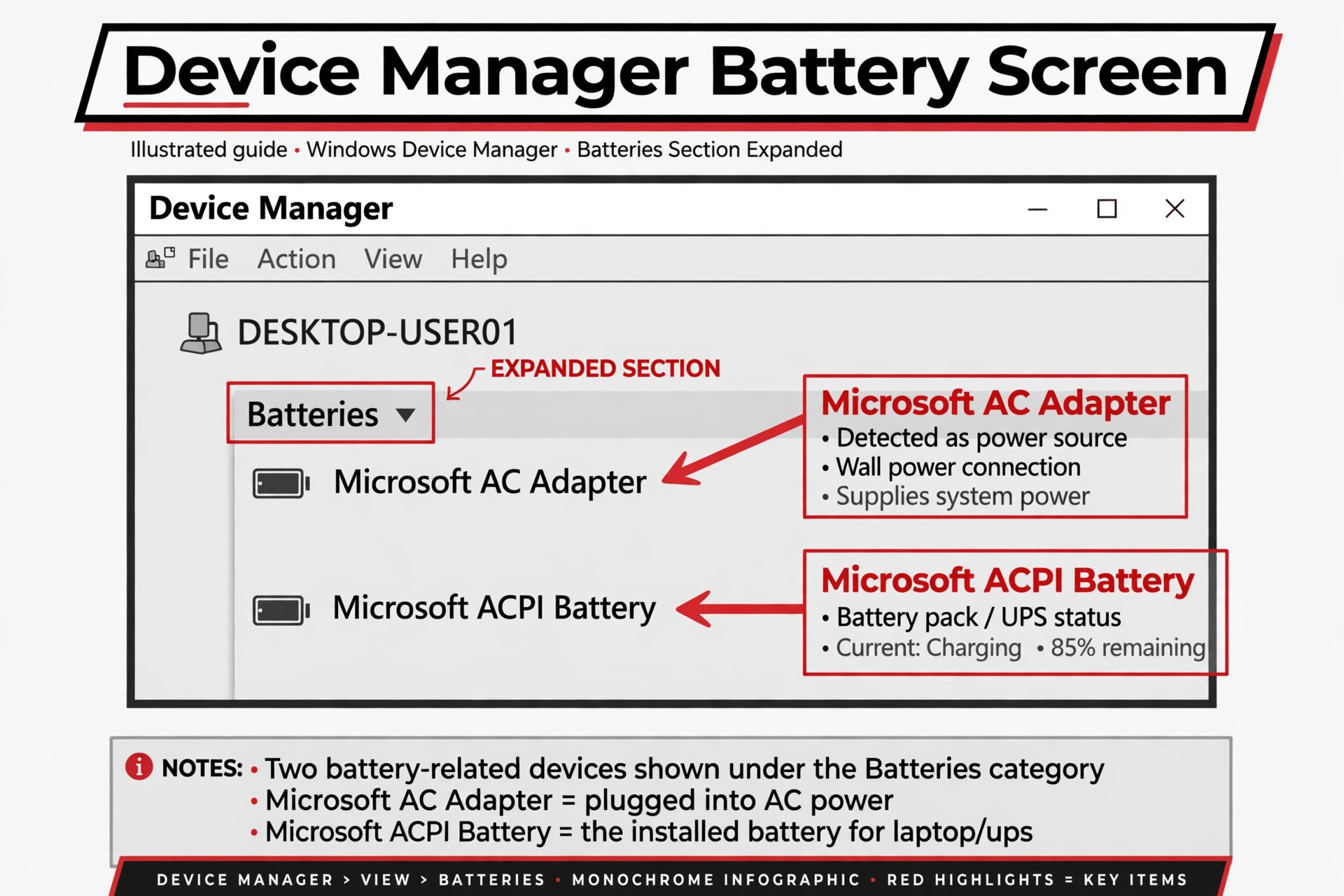
This single step resolves a large share of plugged in not charging complaints, especially those that appear after a Windows update. Right click the Start button and open Device Manager. Expand the Batteries section, where you should normally see Microsoft AC Adapter and Microsoft ACPI-Compliant Control Method Battery. Right click the ACPI battery entry and choose Uninstall Device, without ticking any delete driver option if one appears. Then restart the laptop with the charger still plugged in. Windows reinstalls a fresh copy of the driver as it boots, which rebuilds the link between the operating system and the battery. Give it a few minutes after restart and watch whether the percentage starts climbing.
If it does, the driver was the fault, and you are done.
Step 3. Run the Power troubleshooter and restore power defaults
Open Settings, then System, then Troubleshoot, then Other Troubleshooters, and run the Power troubleshooter. It catches power plan and configuration faults automatically and applies fixes without asking you to understand them. Then open the power plan settings and restore defaults for your current plan, because a custom plan carried over from years ago can contain sleep and charging behaviours that conflict with modern Windows. While you are there, disable Fast Startup temporarily as a test, since Fast Startup can preserve a faulty power state across restarts. You find it under Power Options, then Choose What the Power Buttons Do, then Change Settings That Are Currently Unavailable, then uncheck Turn On Fast Startup.
If charging returns with Fast Startup off, you have found a state problem rather than a hardware fault.
Step 4. Check manufacturer charge limits and battery utilities
Open the battery utility from your laptop’s maker and look for a charge limit, conservation mode, or battery health setting. On Dell machines this lives in Dell Power Manager under Battery Information. On Lenovo machines it lives in Lenovo Vantage under Battery. On HP machines it lives in HP Support Assistant or the BIOS setup under power management. On ASUS machines it lives in MyASUS under Battery Health Charging. If any of these is set to stop charging at fifty, sixty, or eighty percent, that is your answer, and switching it to full charge mode restores normal charging immediately.
These utilities are the most overlooked cause in this entire guide, because owners forget they enabled a limit years ago, and a Windows update or a service visit can re-enable one silently.
Step 5. Update Windows, chipset drivers, and the BIOS
Charging logic lives partly in firmware, so a BIOS update can genuinely restore charging when nothing else does. Start with Windows Update, including optional driver updates, and install everything pending. Then visit your manufacturer’s official support page for your exact model and download the chipset drivers and any power management drivers offered. Only then consider a BIOS update, following the manufacturer’s instructions exactly, with the laptop plugged into reliable power and with no other programs running. A BIOS update interrupted by a power loss can damage the machine, so never start one on a nearly dead battery or a suspect charger.
If you are uncomfortable with BIOS updates, a service centre can do it, but do not skip the step out of caution alone, because firmware charging fixes are real and common.
Step 6. Generate a battery report and read it honestly
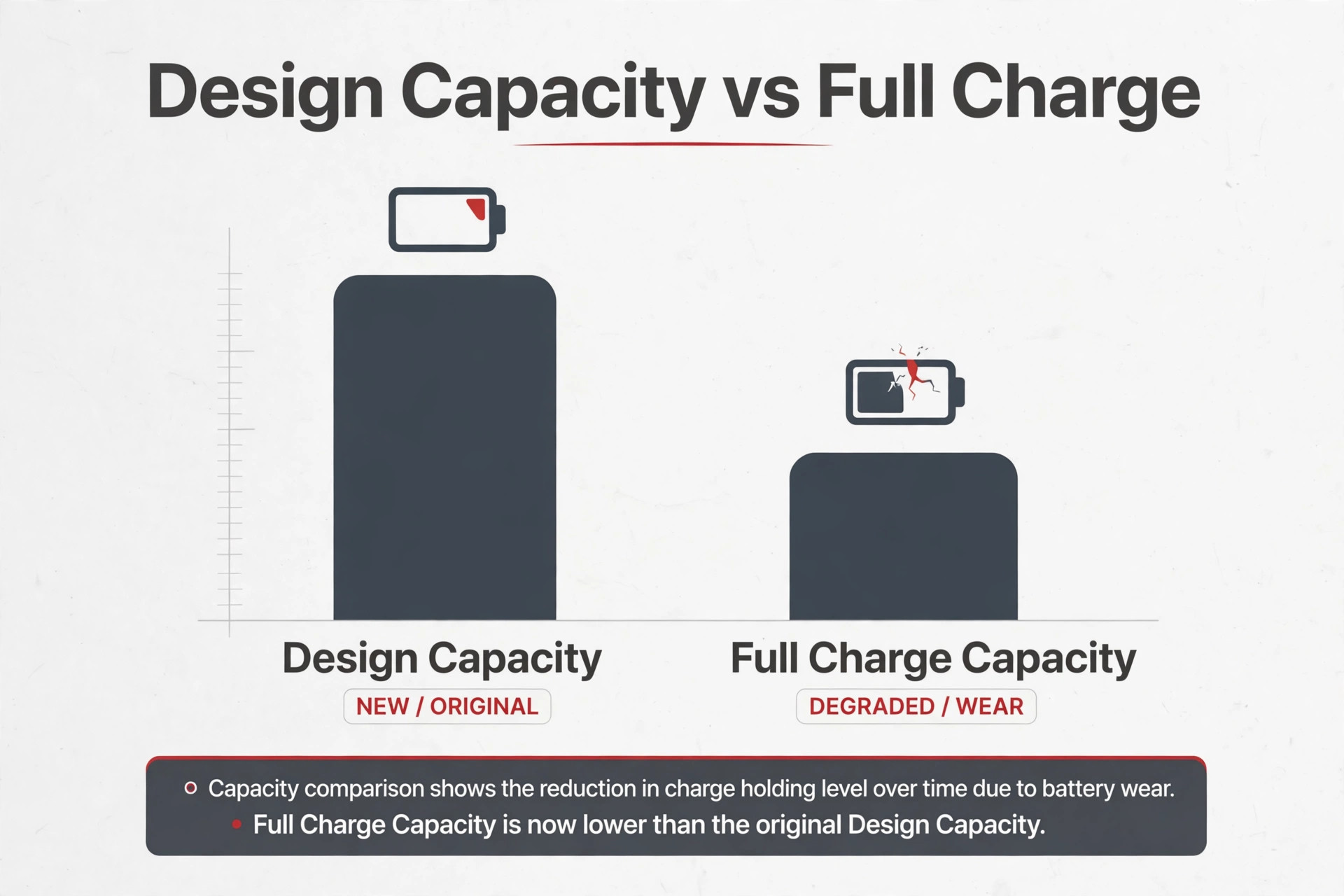
Open Command Prompt and run the command powercfg with the batteryreport option. Windows writes an HTML report file, usually in your user folder, showing design capacity against full charge capacity, recent usage, and charge history. Compare the two capacity numbers. A full charge capacity close to design capacity means the battery is healthy and the fault is elsewhere. A gap of more than about thirty percent means real wear, and the battery is a legitimate suspect. A battery whose capacity looks fine but whose charge history shows sudden drops or failure to charge past a point may have a faulty cell or a gauge problem.
This report is the evidence that separates a driver problem from a worn battery, and it is what a technician will ask for first, so generate it before you book anything.
Brand Notes for Dell, HP, Lenovo, and ASUS Laptops
Each major maker adds its own layer to Windows charging, and knowing yours saves a generic search. Dell laptops pair with Dell Power Manager, which offers Standard, ExpressCharge, Primarily AC Use, Adaptive, and Custom charge profiles. Primarily AC Use and Custom profiles can cap charging deliberately for desk-bound machines, so a Dell that never passes eighty percent on a desk is often following its own profile. Lenovo Vantage offers Battery Conservation Mode, which caps charging around sixty percent, and Rapid Charge, which charges faster at the cost of more heat. HP laptops expose battery health settings in the BIOS and in HP Support Assistant, and some models include a battery calibration tool worth running before you declare the battery dead.
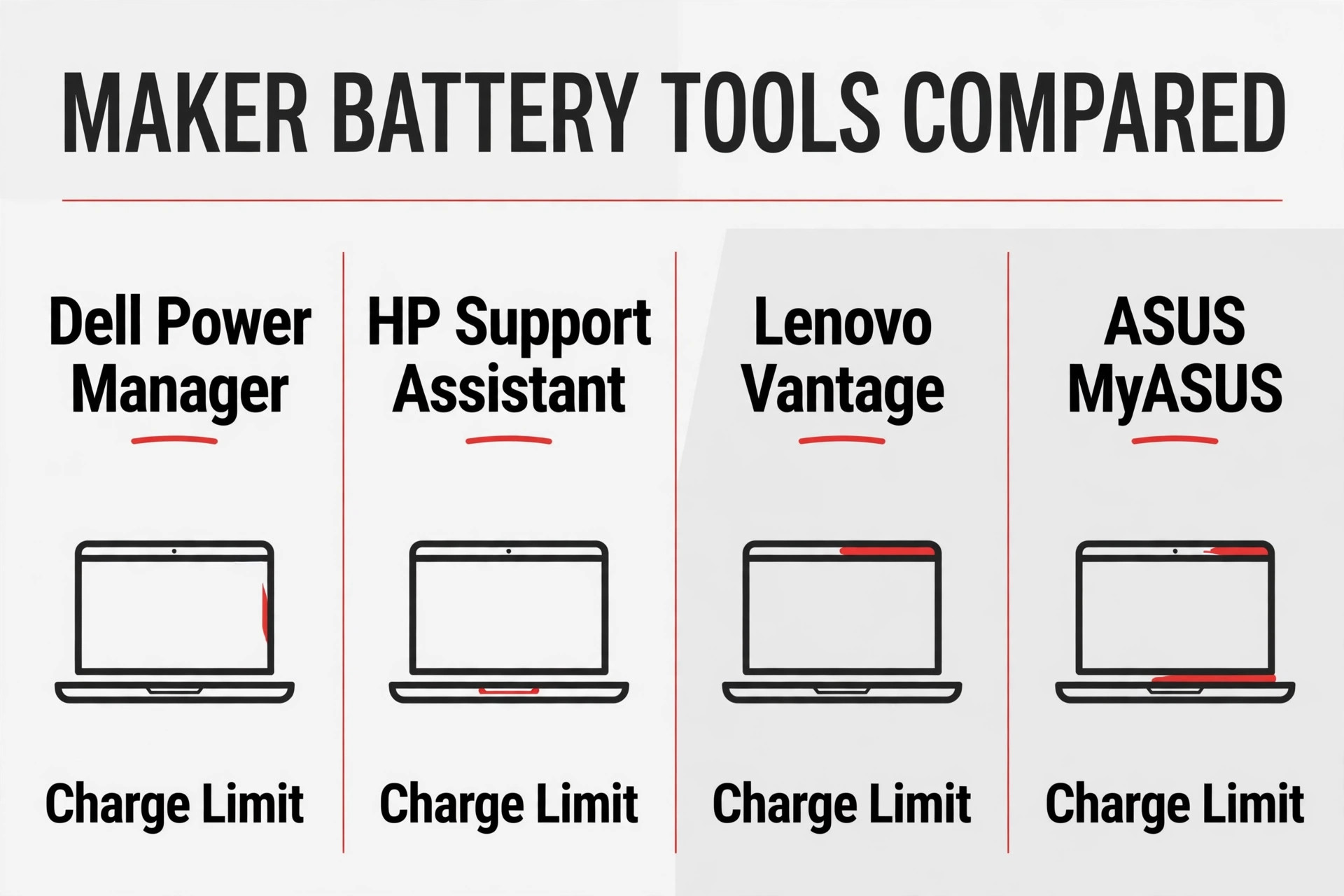
ASUS MyASUS offers Battery Health Charging with Full Capacity, Balanced, and Maximum Lifespan modes, the last of which caps charging at sixty or eighty percent depending on the model. The pattern is identical across brands. A cap set for lifespan looks exactly like a fault, and the manufacturer’s utility is where you check first.
USB-C charging adds a brand-independent complication. Not every USB-C port on a laptop accepts charging, and not every USB-C charger delivers enough watts. Check your laptop’s manual or the port markings for a charging symbol, and match the charger wattage to the original adapter’s rating. A forty five watt charger on a laptop that shipped with a ninety watt adapter may maintain the battery during light use but lose ground during heavy use, producing the maddening pattern of a laptop that charges overnight and drains while plugged in during work. Docking stations add another variable, because a dock with its own power supply may deliver less wattage than the original charger.
If charging works with the original charger and fails through a dock, the dock is the suspect, and testing without it settles the question in minutes.
Heat, age, and the honest limits of a laptop battery
Laptop batteries age with cycles and heat, and both accumulate silently. A battery used daily for three or four years will hold noticeably less than when new, even with perfect care, and a battery regularly used in a hot room or on a soft bed that blocks vents will age faster still. Heat during charging is the main accelerator, so charge on a hard flat surface with vents clear, and avoid gaming or video rendering while charging on a weak adapter, because that combination heats the battery from both sides. Calibration can help a battery whose gauge is wrong, though it cannot restore lost capacity.
A calibration cycle means charging to full, using the laptop until it shuts down, then charging uninterrupted to full again, and it is worth trying when the percentage jumps erratically. If the battery is swollen, if the trackpad is lifting, or if the bottom case is bulging, stop using the laptop and seek service at once, because a swollen battery is a safety hazard and must never be punctured, bent, or charged further.
When Replacement Is the Right Call
You have reached replacement territory when the battery report shows a large capacity gap, the laptop dies the moment you unplug it, and every driver, firmware, and utility check has passed. Replacement is also right when the battery is swollen, when the laptop shuts off at thirty percent repeatedly, or when calibration and a fresh driver change nothing. Buy the battery from the laptop maker or an authorised parts seller, because cheap unbranded batteries often report wrong capacities, lack proper safety circuits, or fail within months. On models with a removable battery, replacement is a five minute job with no tools beyond a latch.

On sealed models, replacement means opening the chassis, disconnecting the battery connector, and often removing adhesive, so a service centre is the safer choice unless you are experienced with laptop repair. Back up your data before any service, and ask the service centre to confirm the new battery’s design capacity in a fresh battery report after fitting, so you know the replacement actually restored the capacity you paid for.
Before you spend money, consider the laptop’s overall value. A battery replacement makes sense on a machine with a good screen, adequate performance, and years of useful life left. On a very old machine with a failing screen, a slow drive, and a worn battery, the replacement cost may approach the value of a refurbished replacement laptop, and the rational choice changes. This is not a reason to delay a needed battery, but it is a reason to price the repair before you commit, and to weigh it against the cost of a newer machine that would also bring a fresh battery, a faster drive, and a current warranty.
USB-C Chargers, Docks, and Third-Party Adapters
USB-C charging looks universal and behaves anything but. Two chargers with identical connectors can deliver wildly different wattages, and a laptop that charges happily from one may barely hold its percentage from another. The number that matters is watts, printed on the charger brick, and it must meet or exceed the wattage of the original adapter. A phone charger delivering eighteen watts will light the charging icon on many USB-C laptops and still lose ground while the laptop works, because the machine draws more than eighteen watts under load. Windows may warn you about a slow charger in this situation, and that warning is worth believing. It is telling you the charger is inadequate, not that the laptop is faulty.
Always test with the original adapter before you conclude anything, and if the original adapter is lost, buy a replacement matched to the original wattage from the laptop maker or a reputable brand with proper USB Power Delivery support.
Cables matter as much as chargers under USB-C. Not every USB-C cable carries the same power, and a cheap cable rated for data and low power charging will throttle a high wattage adapter down to a trickle. A cable that works for a phone may be entirely inadequate for a laptop, and the symptom is a laptop that charges overnight but never during work. Use the cable that shipped with the charger, or a cable explicitly rated for the wattage your laptop needs, and replace any cable that only charges at certain angles. Docking stations introduce a third variable.
A dock passes power through its own circuitry, and many docks deliver less wattage than the original charger even when they claim laptop support. If your laptop charges with the original adapter and not through the dock, test the dock with its own power supply firmly connected, check the dock maker’s wattage rating, and try a direct charger connection to isolate the fault. Thunderbolt docks, monitor USB-C hubs, and travel adapters all deserve the same test, because each one sits between the wall and the battery and each one can be the weak link.
Anyone working to fix Windows laptop battery not charging problems on a USB-C machine should treat the charger, the cable, and the dock as three separate suspects and test each one alone, because replacing the wrong one wastes money while the real culprit keeps throttling the charge. Keep a known good charger and cable set aside for testing, label them, and resist the urge to mix phone chargers into laptop duty. The few minutes spent matching wattage and cable ratings will save you from the most frustrating pattern in laptop charging, a machine that looks like it is charging while its battery quietly drains.
Mistakes People Make When They Try to Fix Windows Laptop Battery Not Charging
The most expensive mistake when you try to fix Windows laptop battery not charging problems is to buy a new battery before checking the charger and the manufacturer charge limit. Shops see this regularly, and the old battery tests fine once the real cause is removed. The second mistake is to use an underpowered charger and conclude the laptop is faulty, when the charger simply cannot keep up with the machine’s draw. The third mistake is to reinstall Windows as an early step, which erases everything and still leaves a firmware charge limit untouched, because that limit lives outside Windows.
The fourth mistake is to ignore the battery report, which is free, fast, and decisive, in favour of guessing from symptoms. Work the order, read the report, and let evidence decide whether the next step is a cable, a driver, a setting, or a part. That discipline is what separates a ten minute fix from a wasted purchase, and it is the habit that makes any future attempt to fix Windows laptop battery not charging problems faster than the first one.
A Routine That Keeps a Laptop Charging Reliably
Prevention for laptop charging is mostly about power hygiene. Keep the original charger as your main charger and label it, so a weaker spare does not quietly replace it. Inspect cables monthly for fraying near the connectors, where most failures start. Keep vents clear and the laptop on a hard surface while charging, and avoid charging in hot cars or in direct sun. Run Windows Update regularly, because driver and firmware fixes arrive through it, and check the manufacturer utility after major updates, since updates can restore default charge limits.
Generate a battery report every six months and watch the capacity trend, so you see wear coming over months rather than discovering it on a day you need the laptop most. These habits cost almost nothing, and they turn charging from a recurring mystery into a system you understand and control.
More Reading on Stratilyze
Power faults rarely stay on one machine, so readers whose laptop will not charge usually compare the same fault on their other devices next. The guide to a MacBook battery that will not charge covers the same adapter and battery-health checks from the other laptop platform, the guide to an Android phone that will not charge walks through the cable and port tests that apply to phones as well as laptops, and the guide to a Windows laptop that will not turn on at all picks up where this guide ends, for the machines that stay dark even with a charger attached.
Frequently Asked Questions
Why does my laptop say plugged in not charging?
The most common causes are a corrupted battery driver, a manufacturer charge limit, or a battery that Windows is protecting. Reinstall the battery driver in Device Manager and restart, then check your manufacturer’s battery utility for a conservation or lifespan mode that caps charging. If both checks pass, generate a battery report to see whether the cell itself is worn. Working through those three checks in that order is the fastest way to fix Windows laptop battery not charging complaints without replacing parts you do not need.
Is it safe to leave my laptop plugged in all the time?
Modern laptops manage this well, and many manufacturers offer a primarily AC use mode that caps charging to protect the battery during desk use. Leaving the laptop plugged in is safe, but keeping it at full charge in a hot environment for months accelerates wear. If the laptop lives on a desk, enable the manufacturer’s AC or lifespan mode, keep vents clear, and let the battery cycle occasionally rather than sitting at full charge in heat indefinitely.
Why does my battery stop charging at 60 or 80 percent?
That is almost always a manufacturer battery health setting, not a fault. Dell Power Manager, Lenovo Vantage, HP tools, and ASUS MyASUS all offer modes that cap charging at sixty or eighty percent to extend battery lifespan. Open the utility for your brand and switch to full capacity mode, and normal charging should resume immediately. If no cap is set and the battery still stops at the same percentage, generate a battery report to check for cell wear.
Can a Windows update stop a laptop battery from charging?
Yes, indirectly. An update can corrupt the battery driver, restore a default power plan, or re-enable a manufacturer charge limit. The fix order is to reinstall the battery driver, restore power plan defaults, check the manufacturer utility, and then install any follow-up Windows or driver updates. A BIOS update from the manufacturer can also restore charging when the fault sits in firmware.
How do I know if my laptop battery needs replacing?
Generate a battery report with powercfg and compare full charge capacity with design capacity. A gap above roughly thirty percent, a laptop that dies immediately when unplugged, or repeated shutdowns at a high reported percentage all point at replacement. If the report shows healthy capacity but charging still fails after driver, firmware, and utility checks, the charging circuit or port deserves a service diagnosis instead.
What charger wattage does my laptop need?
Use the wattage printed on the original charger as your minimum. A lower wattage charger may light the charging icon yet fail to raise the percentage under load, and on USB-C laptops Windows may warn you about a slow charger. Match or exceed the original wattage with a reputable charger, and test charging with the original adapter before concluding the laptop is at fault.
The Decision Tree for a Laptop That Will Not Charge
Start with the cable and the charger, because that is where most charging failures live and where the fix is cheapest. Move to the driver reinstall, the power troubleshooter, and the manufacturer utility, because those three solve most of the rest. Read the battery report before you spend money, and let its capacity numbers decide between a settings fix and a replacement part. If the report is healthy and the software steps pass, the port or the charging circuit is the remaining suspect, and a service diagnosis is the honest next step.
Work that tree in order, keep a note of what you tested and what changed, and the next time you need to fix Windows laptop battery not charging problems, you will know within minutes whether the answer is a cable, a driver, a setting, or a part, instead of guessing at all four at once. That confidence is the real payoff.