
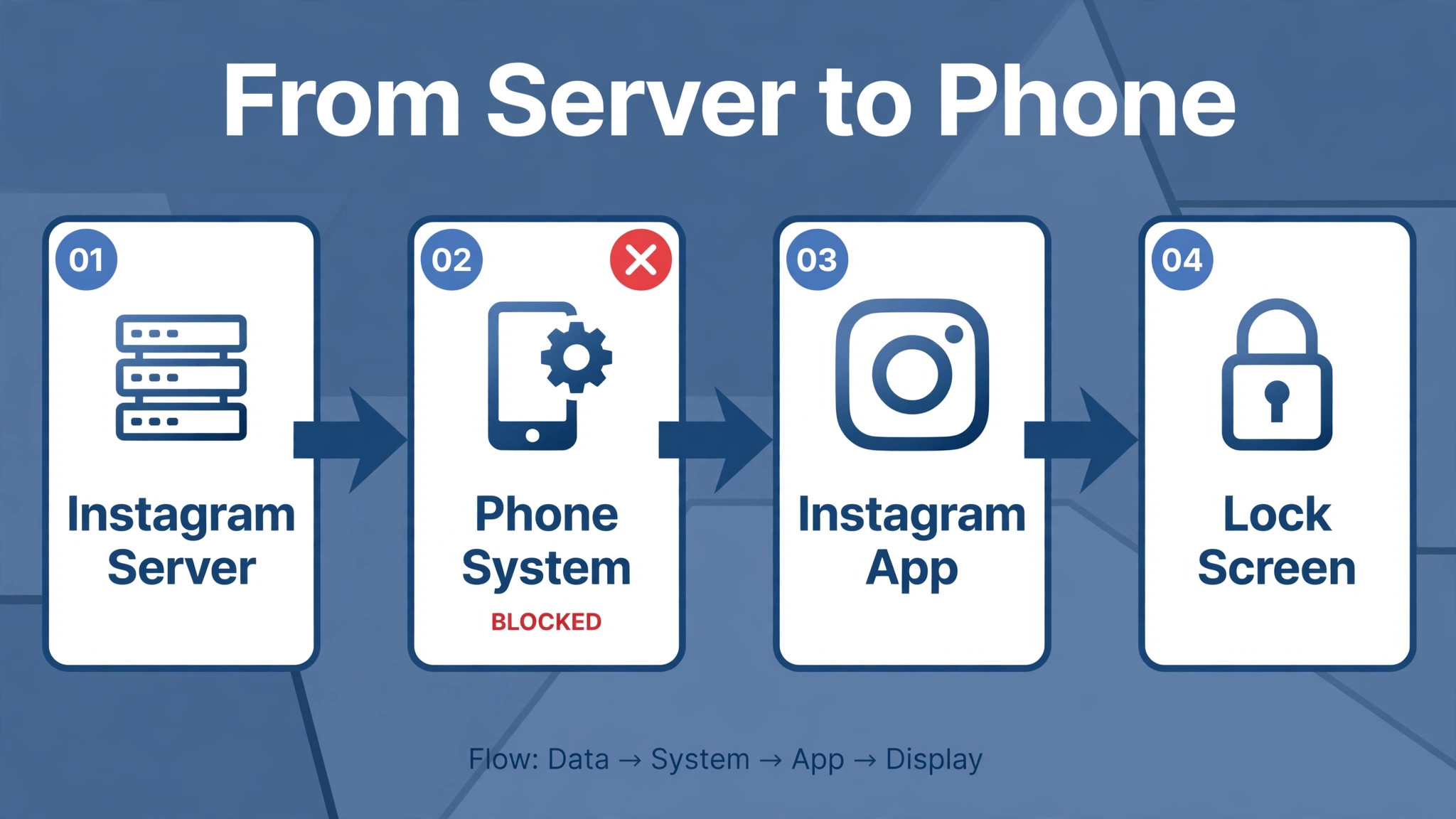
You open Instagram and find a dozen likes, comments, and messages waiting, yet your phone never buzzed, never showed a banner, and never lit the lock screen. That gap between activity inside the app and silence outside it is the defining symptom when you need to fix Instagram notifications not working, and it tells you something important before you change anything. Notifications pass through three checkpoints, Instagram’s servers, your phone’s operating system, and Instagram’s own in-app settings, and any one of them can block the alert while the others work perfectly.
The fix is to find which checkpoint is closed, and this guide does that with one diagnostic test, then works through the fixes in the order that solves the most cases first, from the system permission that overrides everything to the in-app pause that owners forget they ever tapped.
The In-App Counter Test That Finds the Blocking Layer
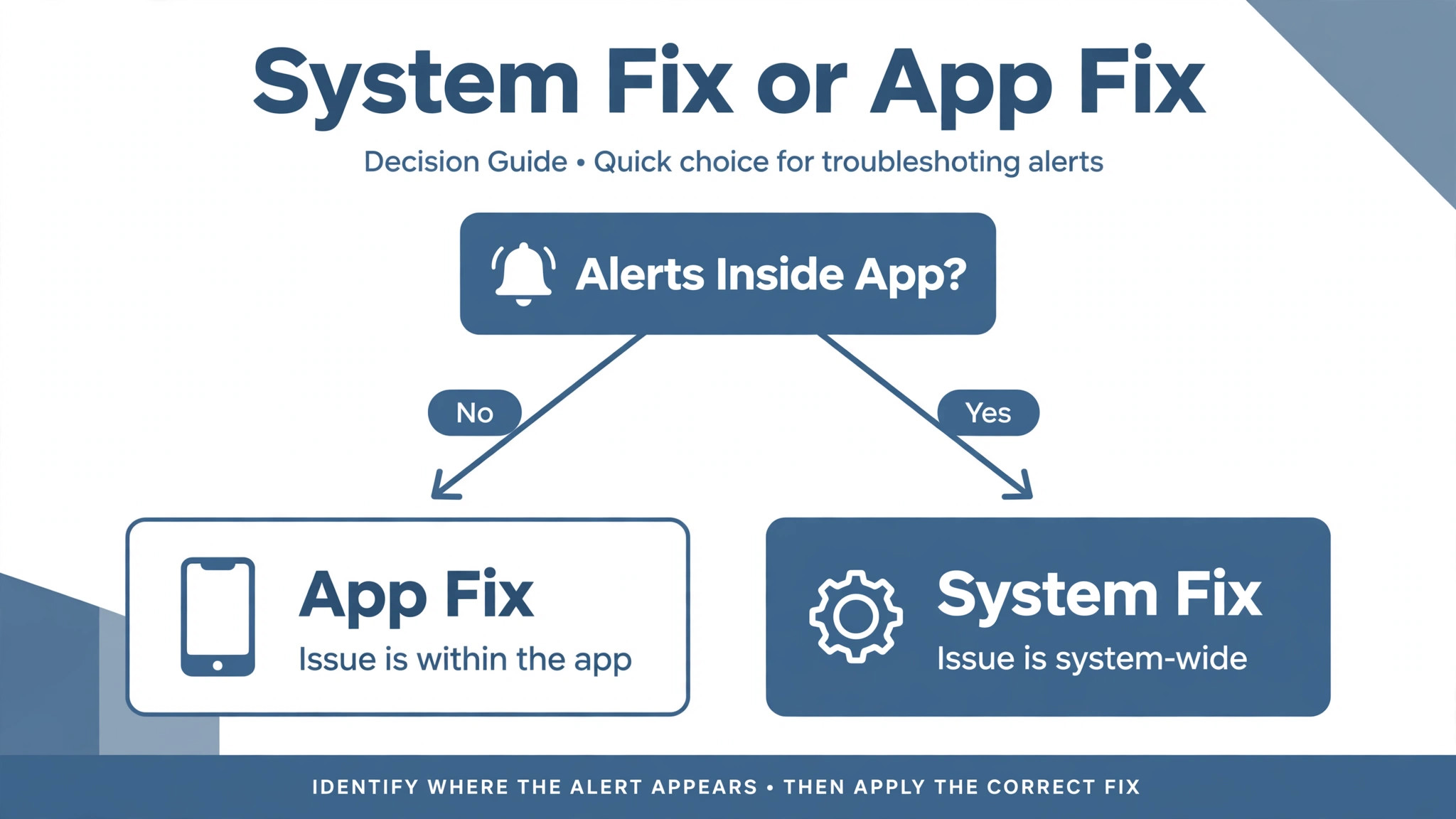
Before you change a setting, open Instagram and look at the activity screen, the heart icon area where likes, comments, follows, and mentions appear. If new activity is arriving there normally, with red dots and fresh entries, but no banner ever reaches your lock screen, the operating system is blocking notifications, because Instagram itself is receiving and displaying the activity. If the in-app activity counter is also frozen, showing nothing new even after friends confirm they interacted with you, the problem is deeper, either Instagram’s in-app notifications are paused, the app is signed out or restricted in the background, or the account itself has a problem.
That single comparison separates a system permission fault from an app fault, and it decides which half of this guide matters.
Run a second test alongside it. Ask a friend to send you a direct message, then watch the phone with the screen on and Instagram closed. If nothing arrives within a minute, the block is active right now, not intermittent. If a notification arrives late, in a batch minutes later, the cause is more likely battery optimisation or a summary feature that holds notifications back and delivers them together. Late delivery and no delivery are different faults with different fixes, and confusing them leads to changing permissions for a battery problem or changing battery settings for a permission problem. Write down which pattern you see, because the table below maps each pattern to its cause.
| What you observe | Most likely cause | Check this first |
|---|---|---|
| In-app activity fresh but no banners | System notification permission off | Phone settings for Instagram notifications |
| In-app activity frozen too | In-app pause or background restriction | Instagram pause setting and battery optimisation |
| Notifications arrive late in batches | Battery optimisation or scheduled summary | Battery setting and summary settings |
| Some types arrive but others do not | Per-category in-app setting off | Instagram notification categories |
| Nothing arrives during sleep hours only | Do Not Disturb or Focus schedule | Mode schedules and exceptions |
| Notifications stopped after an update | Permission reset or app bug | System permission and app update |
| Notifications work on one phone but not another | Device specific permission or battery rule | Compare settings across devices |
| No notifications and app feels sluggish | Outdated app or corrupted cache | App update and cache clear |
That table is the diagnostic core of this guide. The first row alone covers the majority of complaints, because the system permission overrides every in-app setting. An owner can enable every toggle inside Instagram and still receive nothing if the phone itself has notifications switched off for the app, which is why the fix order below starts at the system level and only then moves inside the app.
Pause All is the toggle owners forget
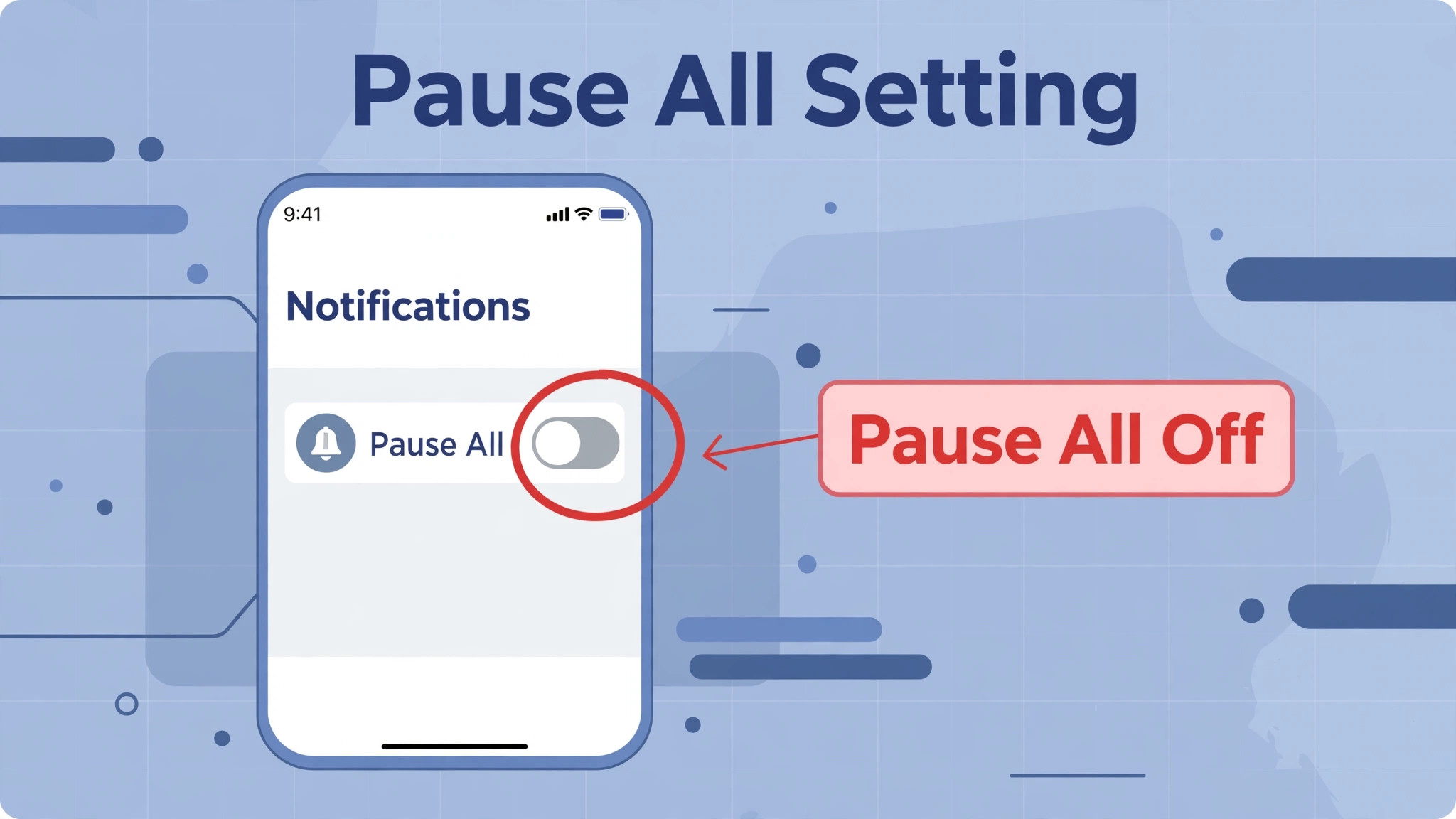
Instagram lets you pause all push notifications from inside the app for a set duration, commonly fifteen minutes, one hour, two hours, four hours, or eight hours, and that pause stays active even if you close and reopen the app. A pause tapped during a meeting, a flight, or a busy evening can therefore silence the phone for hours after the reason for it has passed, and the owner, having forgotten the tap, concludes the app is broken. Open Instagram, go to your profile, open the menu, then Settings and Privacy, then Notifications, and look for the Pause All toggle. If it is on, turn it off, and notifications should resume immediately.
Check this early, because it is a one tap fix that explains many complaints, and it is invisible from the phone’s system settings, which will show Instagram notifications as fully enabled while the app itself holds them back.
How to Fix Instagram Notifications Not Working in Order
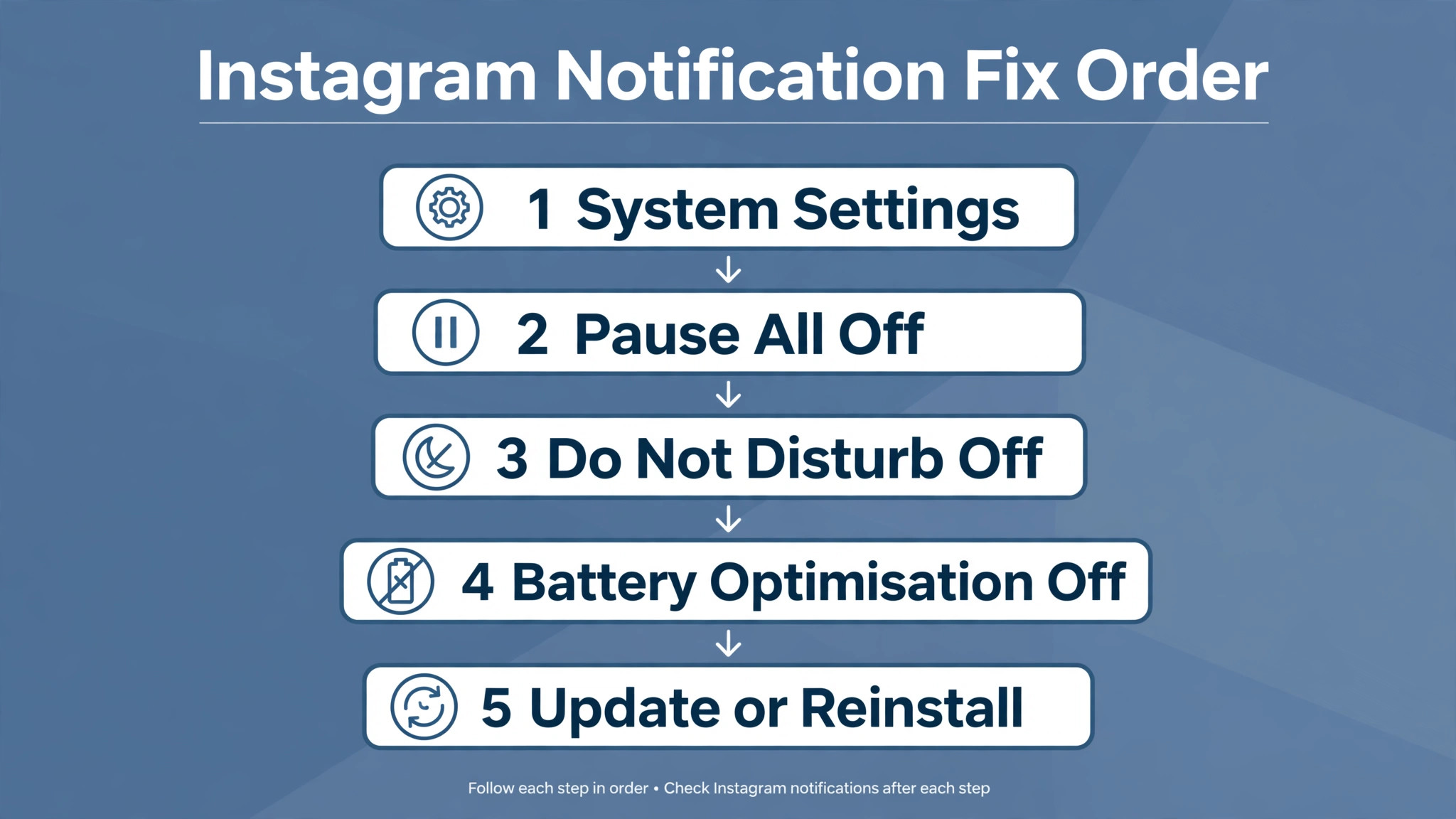
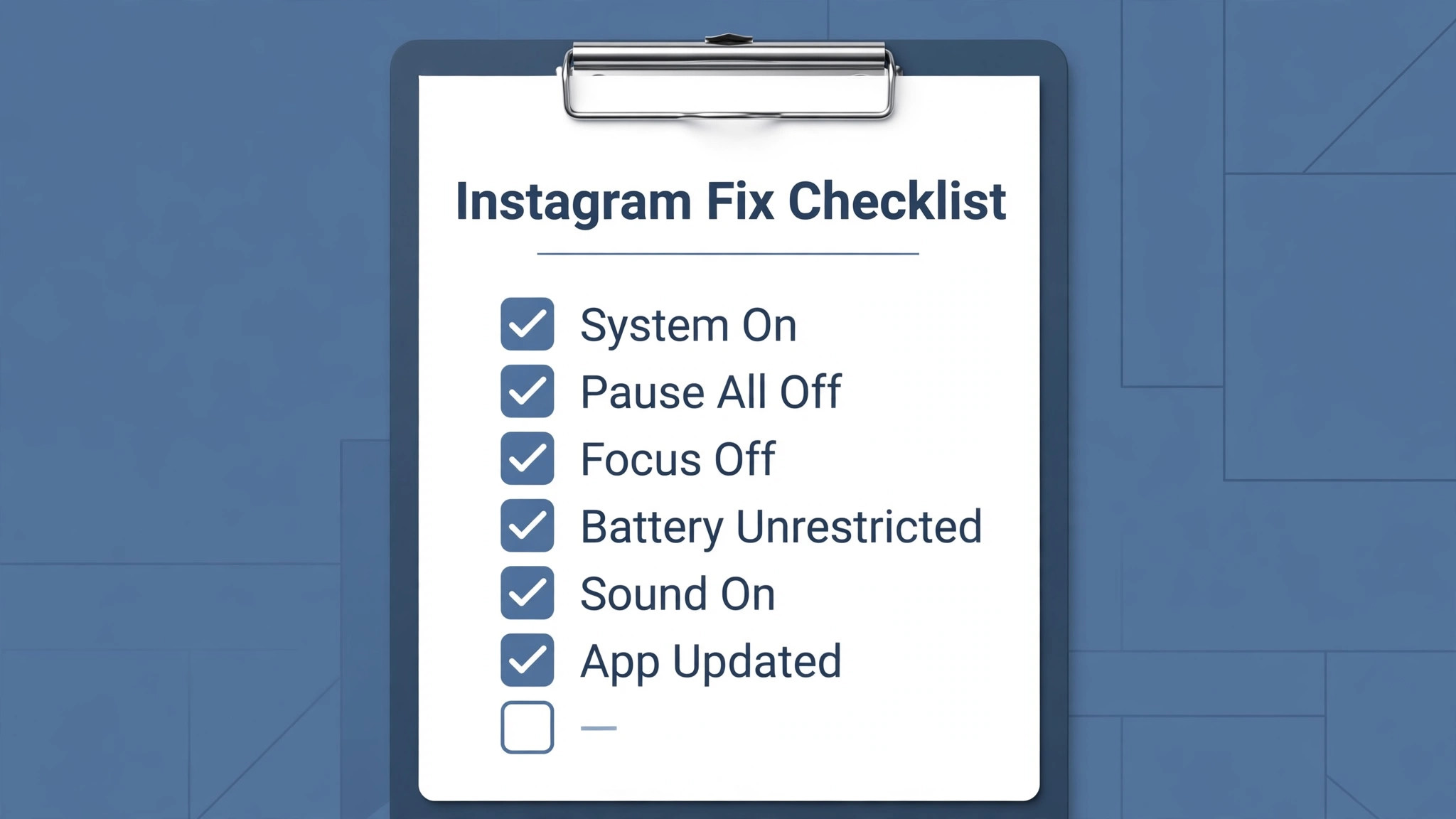
Work through this checklist from top to bottom and test after each step by asking a friend to send a message or interact with a post. The order runs from the system level, which overrides everything, through the app level, then through modes and battery rules, and finally to reinstallation.
Step 1. Turn on system notifications for Instagram
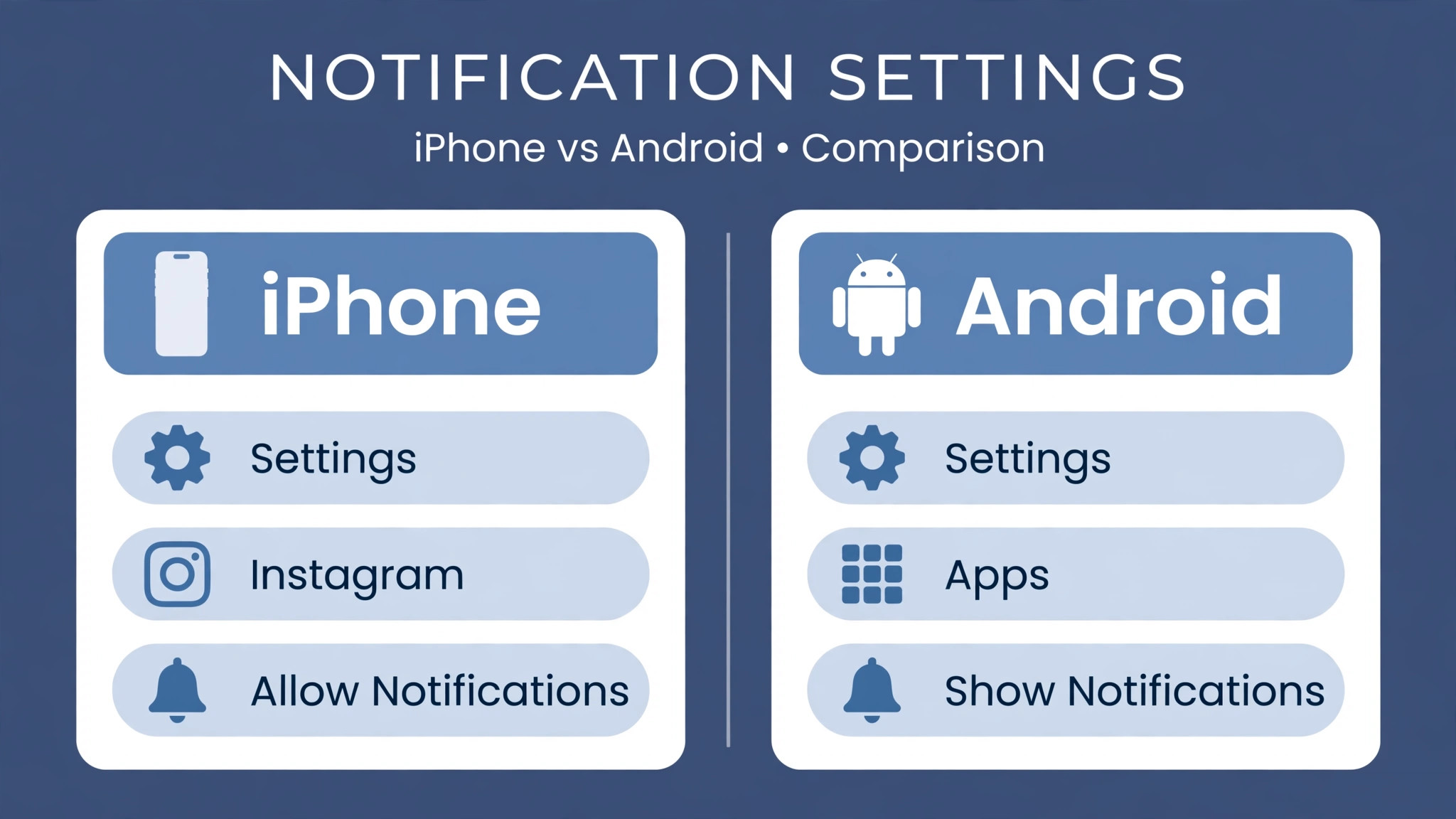
This is the master switch, and it overrides every other setting. On iPhone, open Settings, then Apps, then Instagram, then Notifications, and turn on Allow Notifications, including lock screen, notification centre, and banners, with a sound and badge style you will notice. On Android, open Settings, then Apps, then Instagram, then Notifications, and turn on Show Notifications, then check the individual notification categories below it, because Android lets you disable direct messages separately from likes or comments. If the master switch was off, turning it on should restore notifications immediately, and you can stop here. If it was already on, the block lies elsewhere, and the next steps will find it.
Step 2. Turn off Pause All and check in-app categories inside Instagram
Open Instagram, go to your profile, open the menu, then Settings and Privacy, then Notifications. Turn off Pause All if it is active. Then work through the categories one by one, including posts, stories, and comments, following and followers, direct messages, and live videos, and enable the ones you want. Instagram’s in-app categories are granular, so a phone can buzz for direct messages while staying silent for likes, and that selective silence is a setting, not a fault. Pay special attention to notifications for specific accounts, because muting notifications for one account silences that account only, which explains why messages from one friend arrive and messages from another do not.
Check the push notification settings for any account you expected to hear from.
Step 3. Turn off Do Not Disturb, Focus modes, and scheduled summaries
Do Not Disturb silences notifications globally, and Focus modes on iPhone can filter Instagram out while allowing other apps through. Open Control Centre and check whether Do Not Disturb or any Focus mode is active, then open Settings and check the schedule, because a schedule set for sleep hours that runs long will silence morning notifications. On iPhone, also check Scheduled Summary, which holds notifications back and delivers them in a batch at set times. A phone with Scheduled Summary on for Instagram looks exactly like a broken app, delivering nothing until the summary time, and turning Instagram out of the summary restores immediate delivery.
On Android, check Do Not Disturb schedules and any Bedtime mode under Digital Wellbeing, both of which can silence notifications on a schedule you forgot.
Step 4. Stop battery optimisation from putting Instagram to sleep
On Android, battery optimisation is the most common silent killer of Instagram alerts, and it is the cause most owners never suspect. Open Settings, then Apps, then Instagram, then Battery, and set it to Unrestricted or Not Optimised, so Android cannot put the app to sleep in the background. On Samsung phones the same control also appears under Battery and Device Care, where Instagram must not be listed among sleeping or deep sleeping apps. On iPhone, check Background App Refresh for Instagram under Settings, then General, and confirm it is on, because without background refresh the app cannot fetch new activity promptly.
Also check Low Power Mode, which reduces background activity across the phone and can delay notifications until the phone is charged. If notifications arrive late rather than never, battery or background restrictions are the prime suspect, and this step is the fix.
Step 5. Check connection, account status, and notification sound settings
Confirm the phone is connected and that other apps receive notifications, which separates an Instagram fault from a connection fault. Then confirm you are signed into the correct Instagram account, because notifications go to the signed-in account, and an account switch or an accidental sign-out silences everything without any error. Check notification sounds and vibration in the phone settings, because a notification that arrives silently, with no sound and no vibration, is easy to miss and easy to misreport as no notification at all. Test with the phone unlocked and the volume up, so a silent delivery is not mistaken for a missing one.
If notifications arrive on another device signed into the same account but not on this phone, the fault is device specific, and the system and battery steps above are where it lives.
Step 6. Clear the Instagram cache on Android and update the app
On Android, open Settings, then Apps, then Instagram, then Storage, and tap Clear Cache, which removes temporary files without deleting your account or posts. Test notifications after clearing. On iPhone there is no per-app cache clear, so force close Instagram and restart the phone as the equivalent step. Then update Instagram from the Play Store or App Store, because notification bugs are fixed in app updates regularly, and a notification failure that began after an update is often patched in the next one. If the app is already up to date, check for a phone system update as well, because operating system notification changes can break app delivery until the app catches up.
Step 7. Reinstall Instagram as the last resort
If every setting is correct and notifications still fail, reinstall the app. On Android, uninstall from Settings, then Apps, then Instagram, then reinstall from the Play Store. On iPhone, delete the app from the home screen, then reinstall from the App Store. Your posts, followers, and messages live on Instagram’s servers, not on the phone, so reinstallation does not delete them, but you will need to sign in again, and you should recheck notification settings after reinstalling, because a fresh install can restore defaults that differ from your previous choices. Test with a friend’s message immediately after reinstalling, before changing any other setting, so you know whether the fresh install itself was the fix.
iPhone and Android Paths Side by Side
The same fix lives under different names on the two platforms, and knowing both prevents a search that ends in frustration. On iPhone, the system permission sits at Settings, then Apps, then Instagram, then Notifications, with Allow Notifications as the master switch and lock screen, notification centre, and banners as delivery styles. Focus modes live in Settings, then Focus, and Scheduled Summary lives in Settings, then Notifications, where Instagram can be added or removed from the summary list. Background App Refresh lives in Settings, then General, and Low Power Mode lives in Settings, then Battery.
On Android, the system permission sits at Settings, then Apps, then Instagram, then Notifications, with Show Notifications as the master switch and notification categories listed beneath it. Do Not Disturb lives in Settings, then Notifications, and battery optimisation lives in Settings, then Apps, then Instagram, then Battery. The in-app path is identical on both platforms, through the profile menu, then Settings and Privacy, then Notifications, which is why the in-app steps in this guide need no platform split. When you cannot find a setting, use the settings search bar and type the feature name, because it jumps straight to the right screen on either platform.
Multiple devices add a complication worth checking. Instagram notifications can arrive on a tablet or a second phone while staying silent on your main phone, and that split proves the account and Instagram’s servers are working. The fault is then device specific, and the system permission, battery rule, or Focus mode on the silent device is the cause. Conversely, if no device receives notifications for an account, the fault is account level, and the in-app pause, category settings, or account status deserve a fresh look.
Sign out and back in on one device as a test if the account level is suspect, but do not reinstall on every device at once, because that destroys the comparison that tells you where the fault lives. Test one device at a time, change one setting at a time, and let the pattern across devices guide you.
Muted conversations, restricted accounts, and quiet threads
Not every missing notification is a settings failure. Instagram lets you mute notifications for individual conversations, posts, stories, and accounts, and those mutes are easy to set accidentally and hard to notice afterwards. If messages from one person never notify while everyone else does, open that conversation, check its notification settings, and unmute it. The same applies to stories and posts from specific accounts, which can be muted independently of direct messages. Restricted accounts and filtered message requests add another layer. Messages from accounts you do not follow may land in requests rather than the main inbox, and request notifications follow their own settings, so a message sitting in requests with no banner is working as designed rather than broken.
Check the requests folder whenever a notification seems missing, and adjust request notification settings if you want banners for them. These per-account and per-thread settings explain the selective silence that global settings cannot, and they are the first place to look when the pattern is one silent person rather than a silent app.
When Notifications Fail for a Business or Creator Account
Business and creator accounts sometimes experience notification behaviour that personal accounts do not, because they receive higher volumes and use additional tools. A creator receiving hundreds of interactions an hour may find notifications throttled or batched by the phone’s own notification management, which groups similar alerts to reduce noise. Check the phone’s notification grouping and history settings if alerts arrive but appear collapsed or summarised. Creator tools such as scheduled posts, branded content controls, and professional dashboard alerts have their own notification categories inside Instagram, so work through those categories specifically rather than assuming the general toggles cover them.
If notifications fail only for a business account while a personal account on the same phone works, compare the in-app category settings between the two accounts, because category settings are per account, not per phone, and a category disabled on one account stays disabled when you switch. Account level restrictions, such as a temporary action block, can also suppress some activity, though they usually come with an in-app notice. If a business account suddenly stops notifying after a period of heavy activity, check for any in-app notice about limits before troubleshooting the phone.
Also review any third-party scheduling or management tool connected to the account, because such tools can change notification-related settings or post on your behalf in ways that alter what you expect to see. Disconnecting a tool temporarily will tell you whether it is involved.
Notification History, Badges, and Sounds That Fake Silence
Some notification complaints are not missing notifications at all. They are notifications delivered in a form the owner does not notice, and the distinction matters because the fix is a sound or badge setting rather than a permission. Start with badges. On iPhone, the red badge count on the Instagram icon shows unread activity even when banners are off, and a badge that climbs while no banner appears means notifications are arriving but banner delivery is disabled for the app. On Android, notification dots serve the same purpose, and a dot on the icon with no banner means the notification arrived but the banner style or sound did not catch your attention. Check notification history too.
Android keeps a notification history that shows alerts from the last day even after they are dismissed, and iPhone keeps them in Notification Centre until cleared. If the missing alert appears in history, it was delivered and dismissed, swiped away, or silenced by a sound setting, and the app is not at fault.
Sound settings create a second class of fake silence. A notification with sound set to none, with vibration off, and with banners set to notification centre only will arrive without any sensory cue, and an owner checking the phone hours later will report no notification. Open the phone notification settings for Instagram and confirm a sound is selected, vibration is on, and banners are allowed on the lock screen. Check the phone’s overall sound mode as well, because a phone left in silent mode after a meeting suppresses notification sounds for every app, and Instagram is simply the app where the silence was noticed first. Ringtones and notification tones assigned per app can also confuse matters.
If Instagram’s tone was changed to a quiet or unfamiliar sound, alerts may arrive unnoticed because the owner does not recognise the sound as Instagram. Restoring the default tone for a week will tell you whether recognition or delivery was the problem. These checks belong before reinstallation, because they cost seconds and they explain a meaningful share of complaints where the notification system worked perfectly and the owner’s attention did not. Anyone working to fix Instagram notifications not working should confirm delivery in history and centre before concluding delivery failed, because a delivered notification that went unnoticed needs a sound or badge fix, not a permission reset.
Mistakes People Make When They Try to Fix Instagram Notifications Not Working
The most common mistake when you try to fix Instagram notifications not working is to change only the in-app toggles while the system permission sits off, which is like unlocking an inner door while the outer door stays bolted. The second mistake is to forget Pause All, which silences everything for hours from inside the app while every system setting looks correct. The third mistake is to test with the phone in Do Not Disturb or a Focus mode and to conclude the app is broken, when the mode is doing exactly what it was set to do.
The fourth mistake is to ignore battery optimisation on Android, which delays or suppresses notifications invisibly and only reveals itself when the phone has been idle. The fifth mistake is to reinstall before checking the system permission, which restores defaults and wastes time on a switch that was off all along. Work the order from system to app to mode to battery, test with a real message after each step, and note what changed. Learning how to fix Instagram notifications not working properly is mostly learning that notifications have layers, and that the outer layer must be open before the inner ones matter.
A Routine That Keeps Instagram Notifications Reliable
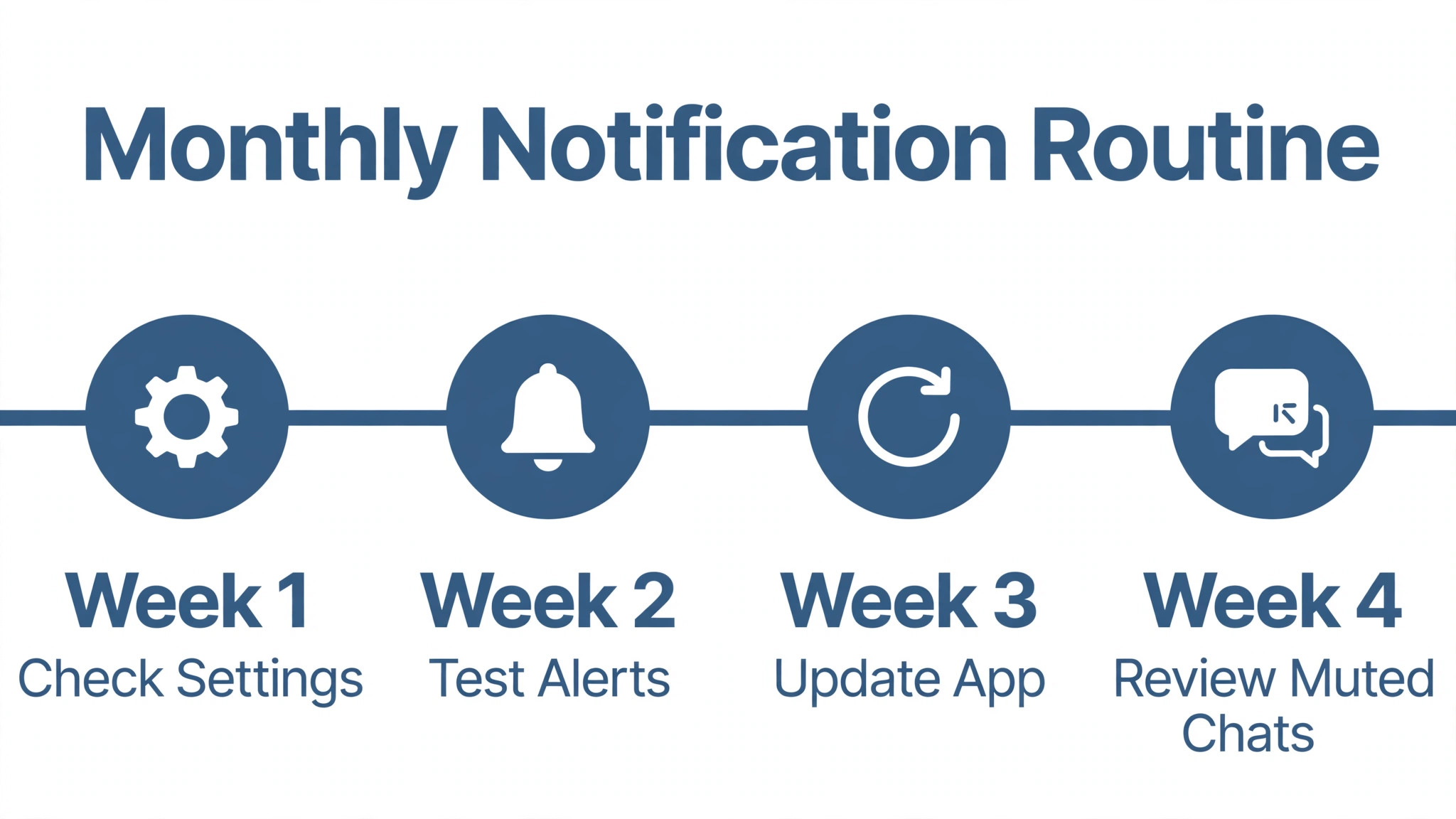
Reliable notifications are mostly permission hygiene. After every major phone update, check the system permission for Instagram, because updates sometimes reset permissions. After every Instagram update, check Pause All and the category toggles, because updates can restore defaults. Keep Instagram unrestricted in Android battery settings permanently, and keep Background App Refresh on for Instagram on iPhone. Review Focus and Do Not Disturb schedules monthly, and keep Scheduled Summary off for Instagram unless you deliberately want batched delivery. Check muted conversations whenever a specific person goes quiet, rather than assuming a global fault. Finally, test notifications monthly with a friend’s message, so a silent phone is caught within weeks rather than after a missed opportunity.
These habits cost minutes and prevent the slow drift of permissions, pauses, and battery rules that causes most notification complaints.
More Reading on Stratilyze
Instagram faults on a phone usually arrive as a cluster, with silent notifications appearing next to failed uploads or a crashing app, so readers often check the neighbouring Instagram guides next. The guide to an Instagram app that keeps crashing on Android covers the install and storage checks on the same phone that also silence alerts, the guide to Instagram Reels that will not upload walks through the permission and network checks that block uploads and notifications alike, and the guide to Instagram Stories that will not load explains the feed-side version of the same connection problem on the same phone.
Frequently Asked Questions
Why do I get Instagram notifications in the app but not on my lock screen?
This pattern means Instagram is receiving activity normally while the phone’s system permission blocks banners. Open the phone settings for Instagram notifications and turn on Allow Notifications on iPhone or Show Notifications on Android, including lock screen and banner styles. If the system permission is on, check Do Not Disturb, Focus modes, and Scheduled Summary, which can hold banners back even with permission granted.
Why did Instagram notifications stop after I updated my phone?
System updates can reset app permissions, restore default Focus schedules, or reapply battery optimisation. After any major update, check the system notification permission, the Focus and Do Not Disturb schedules, and the battery setting for Instagram. These three checks solve most post-update silence, and they take less than two minutes combined.
Can battery optimisation really stop Instagram notifications?
Yes, and on Android it is one of the most common causes. When Instagram is put to sleep to save power, the phone delays or suppresses its notifications, especially after the phone has been idle. Setting Instagram to Unrestricted in its battery settings prevents this, and it costs very little battery in practice, because Instagram’s background use is light compared with the screen and the radio.
What is Pause All in Instagram and why does it matter?
Pause All is an in-app toggle that silences all Instagram push notifications for a set duration, commonly up to eight hours, and it stays active even if you close and reopen the app. A pause tapped during a meeting can silence the phone long after the meeting ends. Open Instagram, go to Settings and Privacy, then Notifications, and turn Pause All off to restore alerts immediately.
Why do I get notifications for some accounts but not others?
This selective pattern usually means a per-account or per-conversation mute is active, or a notification category is off for that type of activity. Check the conversation or account notification settings for the silent account, and work through the in-app notification categories for posts, stories, comments, and direct messages. Global settings cannot explain a single silent account, so the per-account settings are where the answer lives.
Should I reinstall Instagram to fix notifications?
Only after the system permission, in-app categories, Pause All, modes, battery settings, and app update checks have failed. Reinstallation restores defaults and clears corrupted app state, but it cannot fix a system permission that is off or a battery rule that puts the app to sleep, because those live outside the app. If you need to fix Instagram notifications not working that survive every earlier step, reinstall, sign in again, and recheck notification settings immediately, since a fresh install can restore defaults that differ from your choices.
The Closing Check for a Silent Instagram
A silent Instagram is a phone obeying an instruction, in almost every case. Work the layers in order, from the system permission that overrides everything, through Pause All and the in-app categories, through Do Not Disturb and Focus modes, through battery optimisation, and finally to reinstallation. Test with a real message after each step, and stop the moment the banner arrives, because that step was the cause and you now know how to manage it. Keep the permission hygiene routine, check pauses after busy days, and test monthly. That is the whole method, and it works. Keep this guide nearby for the next silent spell.
Do that, and the next time you need to fix Instagram notifications not working, you will find the closed checkpoint in minutes instead of missing a day of messages while guessing at settings.