
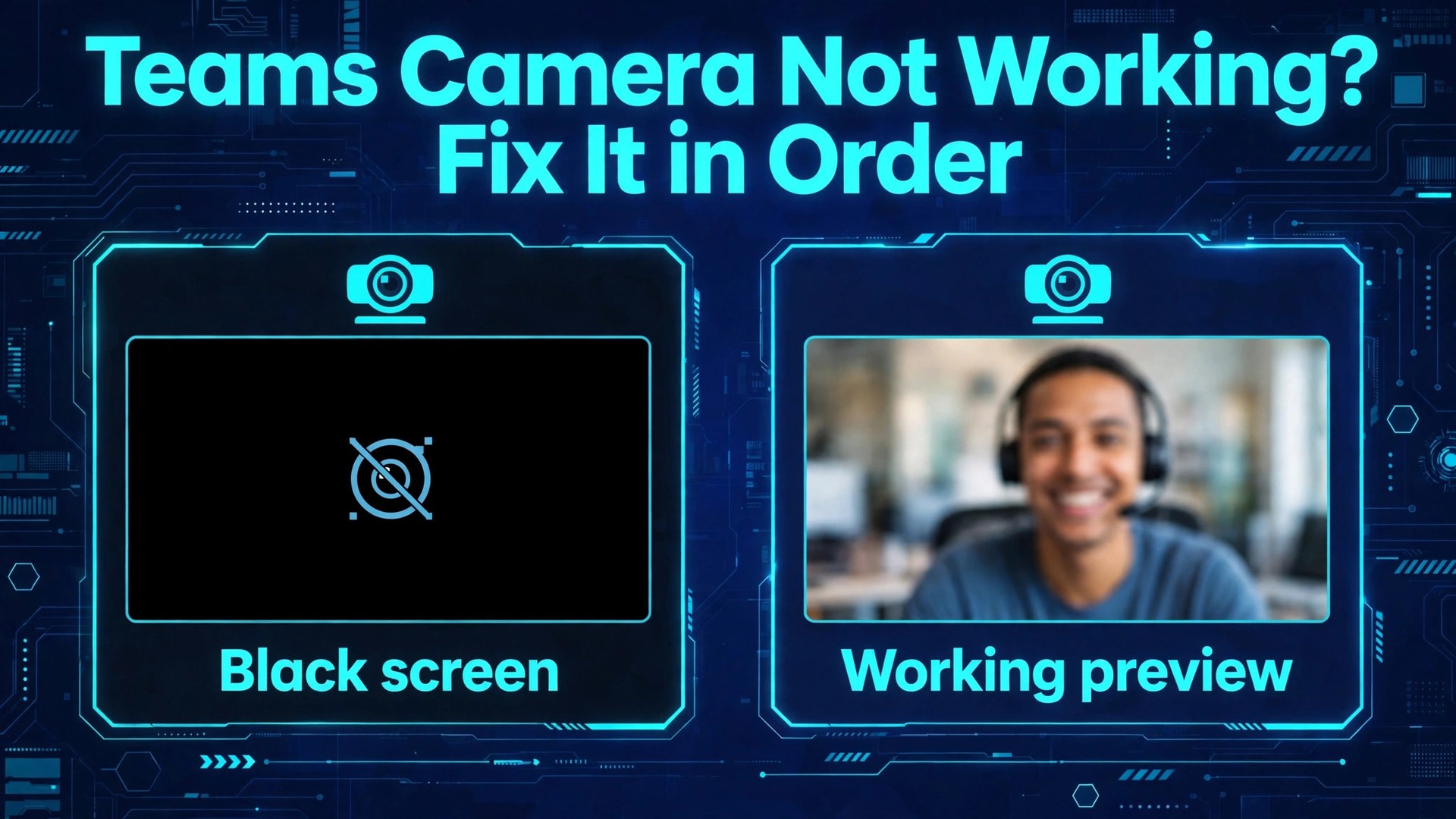
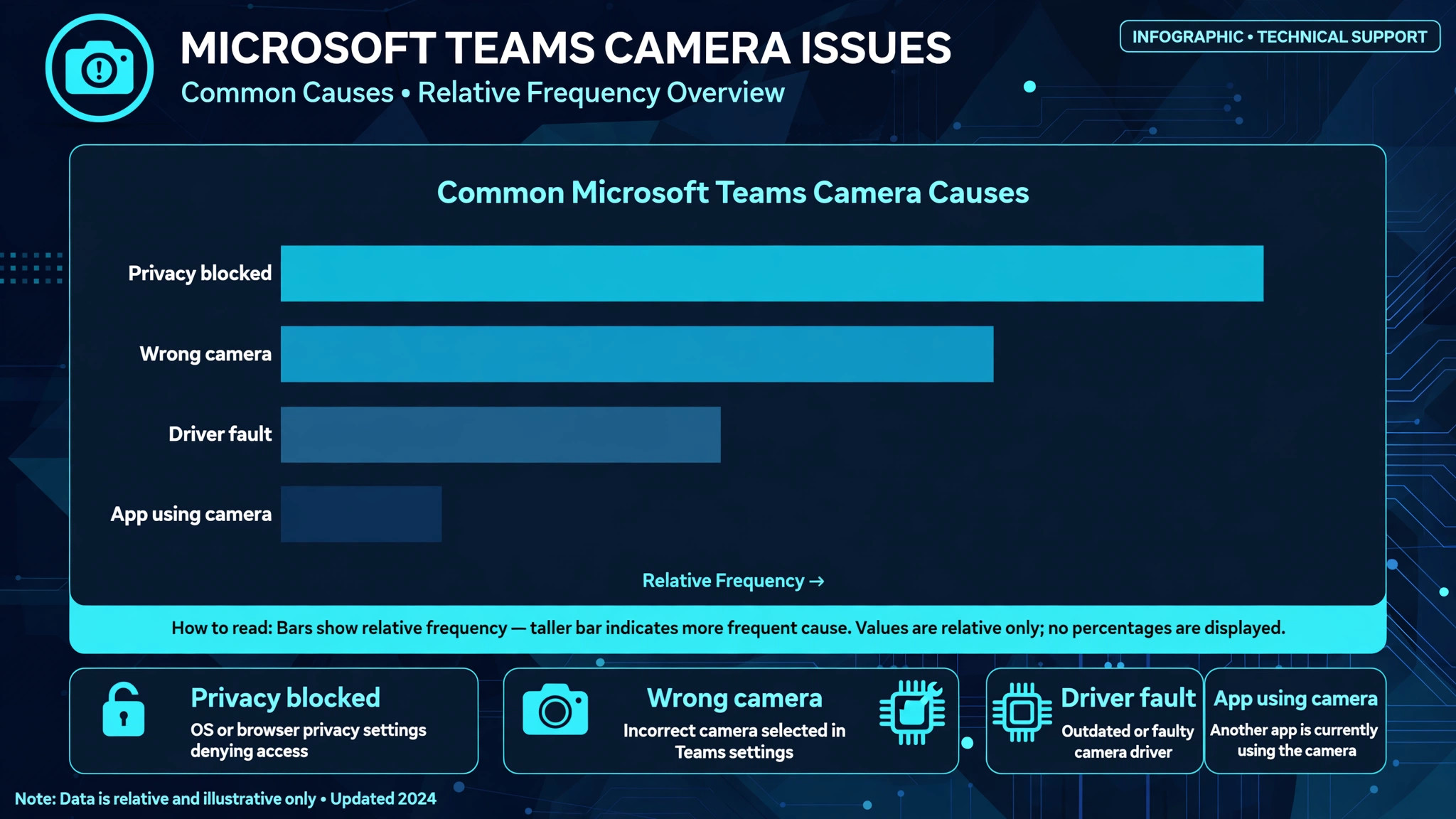
Verdict first. Most Teams camera failures are permission or selection problems, not broken cameras, and to fix Microsoft Teams camera not working you should prove that distinction first and save a needless repair trip. Either Teams has not been given permission to use the camera, Teams is looking at the wrong camera, another app is holding the camera, the camera driver has failed, or the camera itself has a physical block or fault. The order matters, because reinstalling Teams will not help a camera that another app is holding, and buying a new camera will not help a permission that was never granted.
This guide shows how to fix Microsoft Teams camera not working problems by proving the camera works outside Teams first, then working through Teams settings in the order that finds the cause fastest.
Diagnose the Camera Fault From What Teams Shows You
Teams gives different symptoms for different faults, and reading them correctly saves time. If Teams shows no camera at all in device settings, the camera is not recognised by the system, its driver has failed, or it is disabled. If Teams lists a camera but the preview is black, permission may be granted but the camera is covered, held by another app, or failing to deliver frames. If Teams shows an error message about the camera being in use, another app is holding it, and closing that app is the fix.
If the preview works in settings but video fails in a meeting, the fault may be a meeting policy, a bandwidth limit, or a temporary Teams fault rather than a camera fault. Note exactly which symptom you see before changing settings, because each one points to a different section below.
The outside test is decisive. Open the built in Camera app on Windows or the Photo Booth or FaceTime app on Mac, and see whether the camera shows a live image there. If it does, the camera hardware and driver work, and the fault is confined to Teams permissions, device selection, or a camera lock. If it does not, the fault is system wide, and you should focus on drivers, privacy settings, physical shutters, and hardware before touching Teams settings. Also check for a physical privacy shutter, a sliding cover on the laptop lid, or a function key that disables the camera, because modern laptops increasingly include a hardware shutter that no software setting can override.
A black preview with a shutter closed looks identical to a driver failure on screen, but the fix is a finger slide rather than a software repair.
| Symptom pattern | Likely cause | First action to try |
|---|---|---|
| No camera listed in Teams settings | Driver failure or camera disabled | Check Device Manager and system camera settings |
| Camera listed but preview is black | Cover, shutter, or app holding camera | Check shutter and close other camera apps |
| Teams says camera is in use by another app | Camera lock by another app | Close browser tabs, recording tools, and other meeting apps |
| Preview works but meeting video fails | Meeting policy or temporary Teams fault | Rejoin meeting and make a test call |
| Camera works in Camera app but not Teams | Teams permission or wrong device selected | Check privacy settings and Teams device selection |
| Camera works on web Teams but not desktop app | Desktop app cache or install fault | Clear Teams cache or reset the app |
| External webcam fails but built in works | USB port, hub, or webcam driver fault | Try another USB port directly on the computer |
| Camera fails after a system update | Driver or permission reset by update | Reallow permission and update camera driver |
Fix Microsoft Teams Camera Not Working With This Ordered Checklist
Work through this checklist in order, testing the Teams preview after each group. Do not reinstall Teams until permission, selection, lock, and driver steps have failed, because a reinstall will not fix a permission block and it will not fix a camera held by another app.

1. Microsoft Teams Physical Checks and Camera Shutter
Start with the physical camera. Look at the laptop lid or webcam body for a sliding privacy shutter and slide it open. Check for a sticker, a cover, or a case flap over the lens. On laptops, look for a camera kill switch or a function key combination that toggles the camera, since some models include a dedicated key that disables the camera at the hardware level and shows no warning in Teams. For an external webcam, check that the cable is firmly seated, that the lens cap is removed, and that any privacy light on the camera behaves normally when Teams opens it.
A webcam whose light never turns on is not being accessed at all, which points to permission or driver faults, while a webcam whose light turns on but shows black is more likely covered or delivering no frames.
Unplug an external webcam, wait about ten seconds, and plug it into a different USB port directly on the computer, not through a hub or a monitor. Hubs and monitor ports sometimes fail to deliver enough power or stable data for a webcam, and a direct port test removes that variable. Test the webcam on another computer if one is available, because a webcam that fails everywhere has a hardware fault, while a webcam that works elsewhere has a computer specific fault. These physical checks take two minutes and they prevent the common error of spending an hour on software for a shutter that was closed or a hub that was failing.
2. Microsoft Teams Privacy Permissions on Windows and Mac
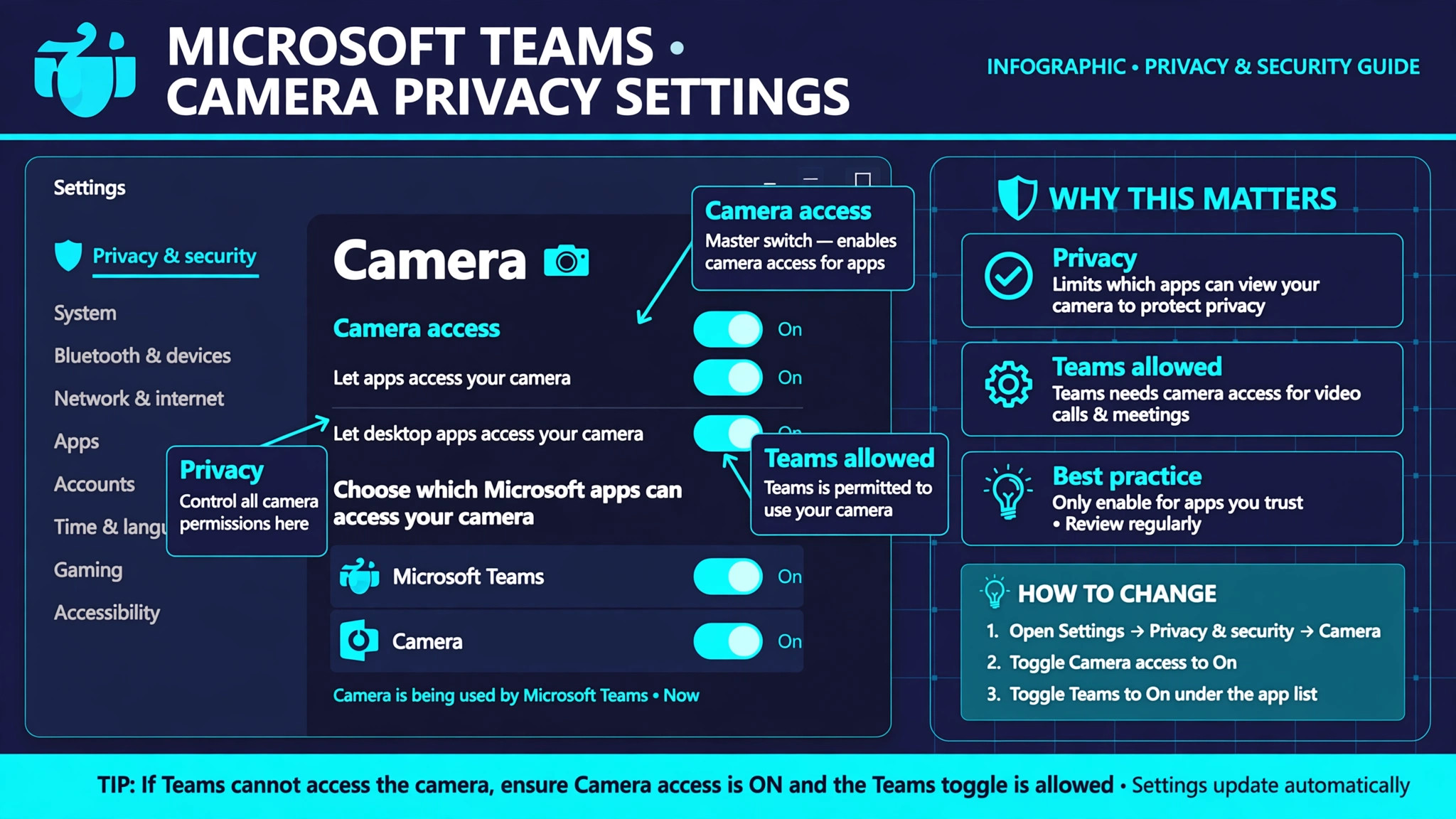
Microsoft support guidance for a Teams camera fault starts with privacy settings, and for good reason, because permission blocks are the most common cause. On Windows, open Settings, open Privacy and security, open Camera, and confirm that camera access is on, that apps are allowed to access the camera, and that Microsoft Teams is allowed. Note that Windows distinguishes between app access and desktop app access, and Teams may need the desktop app permission depending on the version, so confirm both toggles where they appear. If Teams permission is already on, toggle it off and back on, then close Teams fully and reopen it, because a permission that looks on can still be stale after an update.
On Mac, open System Settings, open Privacy and Security, open Camera, and confirm Microsoft Teams is checked. If Teams is not listed, it has never requested permission, which usually means it has never tried to access the camera in a context that triggers the request, and starting a test call or opening video settings can trigger it. After changing any permission on either system, restart Teams completely, not just the meeting, because a running Teams process may hold the old permission state. To fix Microsoft Teams camera not working faults that began after a system update, permissions are the first place to check, because updates frequently reset privacy permissions without telling the user.
3. Microsoft Teams Device Selection and Test Call
Open Teams settings and open Devices. Under the camera section, confirm the correct camera is selected, and watch the preview. If multiple cameras appear, such as a built in camera and an external webcam, or a virtual camera from recording software, try each one in turn, because Teams may be defaulting to a virtual camera that produces no image. Remove or disable virtual cameras you no longer use, since they commonly hijack the default selection after their host app is uninstalled or updated. If the preview shows your face, the camera works in Teams, and the problem is specific to a meeting, so rejoin that meeting and test again rather than changing more settings.
Use the test call feature in Teams settings to verify camera, microphone, and speaker together before an important meeting. The test call records a short sample and plays it back, confirming the whole media path in one step. Note that the test call feature is not available in Teams on the web, so desktop app users should use it while web users should join a test meeting instead. During a meeting, confirm the camera button shows the video on state, and check whether the meeting organiser or a policy has disabled video for participants, because a meeting level video restriction looks like a personal camera fault but cannot be fixed from your device settings.
4. Microsoft Teams Camera Locks From Other Apps
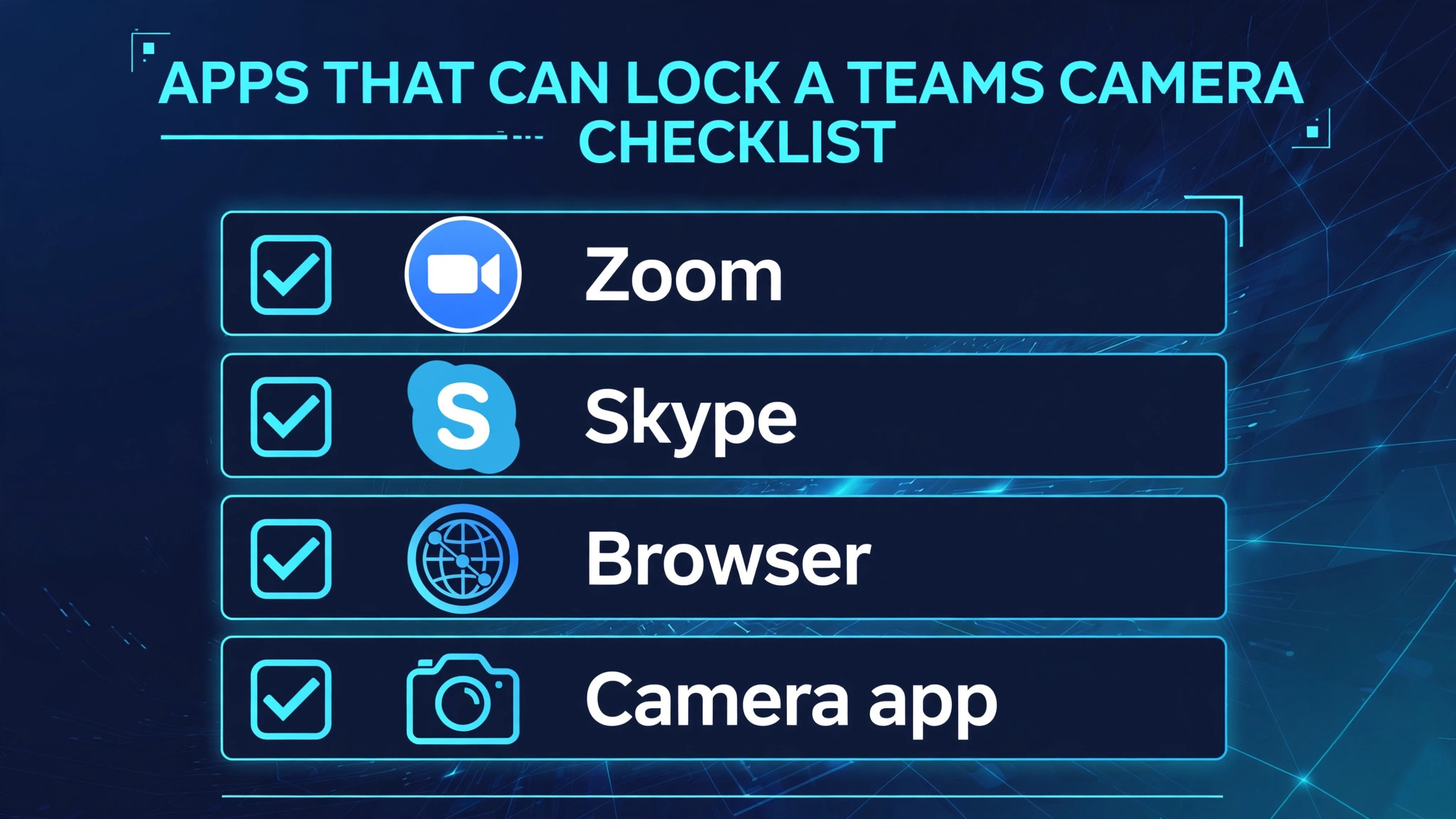
Only one app can reliably control a camera at a time, and a camera held by another app will appear black or unavailable in Teams even though the camera itself is healthy. Close the built in Camera app, browser tabs that requested camera access, recording and streaming tools, virtual camera software, and other meeting apps such as Zoom or Meet that may still be running in the background. Check the system tray and the task manager for background processes from those apps, because an app left running after a meeting ends can hold the camera for hours.
Restart the computer if you cannot identify the holding app, since a restart clears every camera lock at once and is faster than hunting through processes.
Antivirus and security software can also block camera access, treating it as a privacy protection. Check whether your security software includes a webcam protection feature and whether it lists Teams as allowed. Temporarily testing with that feature adjusted, where safe and permitted by your organisation, can reveal whether security software is the blocker. On managed work computers, camera access may be controlled by IT policy, and a camera that works on a personal account but not on a work account on the same computer points to policy rather than hardware. Gather that comparison before contacting IT, because it focuses their investigation on policy instead of on replacing hardware that works.
5. Microsoft Teams Drivers, Updates, and Cache
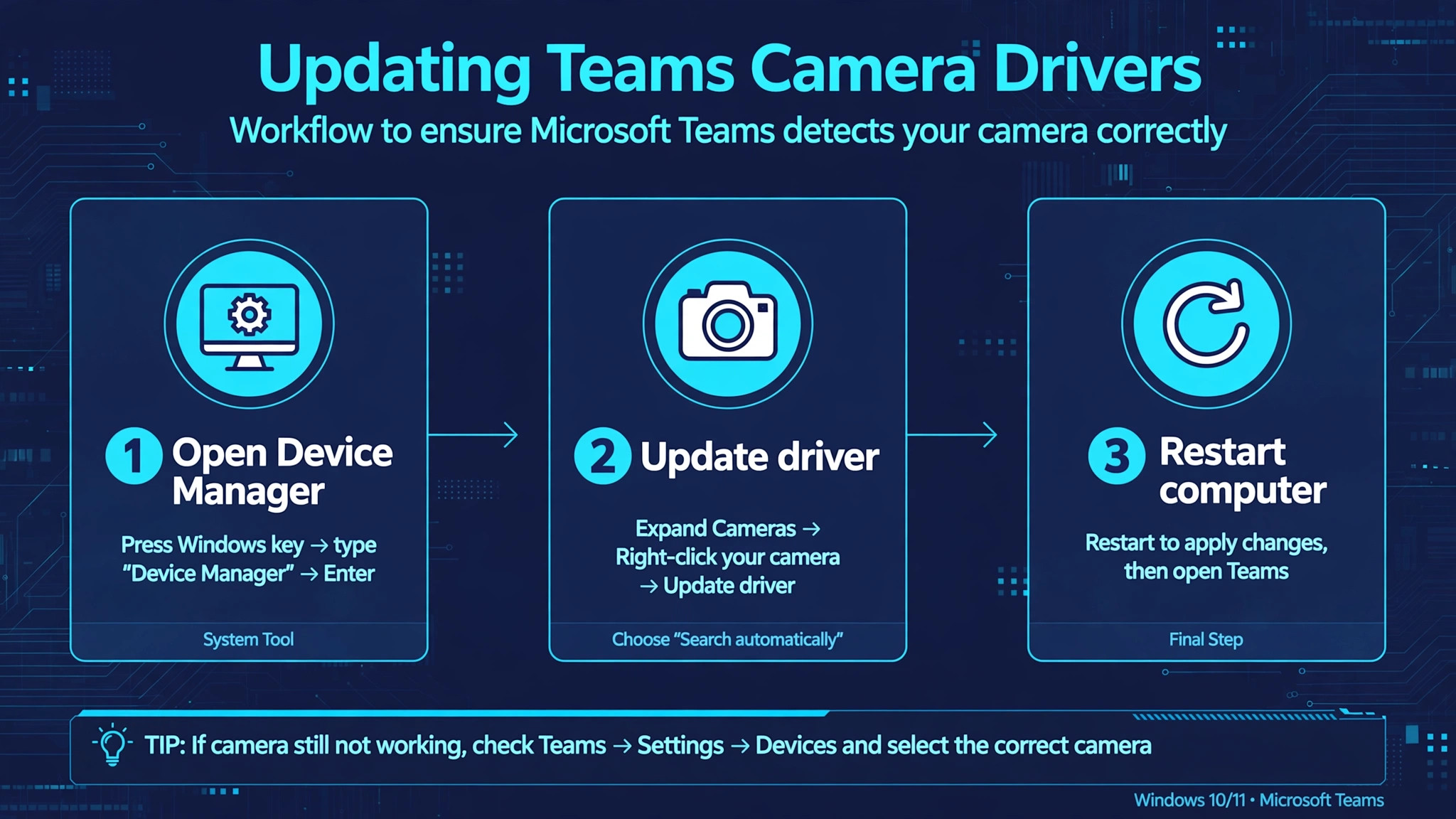
If the camera works nowhere, update its driver. On Windows, open Device Manager, expand Cameras, right click the camera, and choose Update driver, then restart the computer. If Windows finds no update, check the laptop or webcam manufacturer website for a driver specific to your model, because manufacturer drivers sometimes fix faults that generic Windows drivers do not. Update Windows itself and update Teams, since Teams releases fixes for camera handling regularly and an outdated client can contain a camera bug that a newer version removes.
On Mac, camera drivers are part of the operating system, so installing macOS updates is the equivalent step, and a camera that fails after a macOS update may need a further update or a restart to complete driver loading.
Clearing the Teams cache is a deeper fix that helps when the desktop app holds corrupted settings. For the classic Teams app on Windows, quit Teams fully, open the Run dialog, enter the Teams app data folder path, and delete its contents, then restart Teams. For the new Teams app, the cache location differs, and the supported route is to use the app reset option in Windows Settings under Apps, then Installed apps, then Teams advanced options, then Reset. On Mac, quitting Teams and removing its container folders achieves a similar reset, but take care to follow current Microsoft guidance for your Teams version rather than deleting folders blindly.
After a cache clear or reset, sign in again, reselect the camera in Devices, and test with a test call before joining a real meeting. To fix Microsoft Teams camera not working faults that survive permission and driver checks, cache and reset steps are the right next layer, because they remove corrupted app state without touching the camera hardware.
6. Microsoft Teams Web App and Reinstall as Final Steps
Test Teams on the web as a comparison. Open Teams in a supported browser such as Edge or Chrome, join a test meeting, and allow camera permission when the browser asks. If the camera works on the web but not in the desktop app, the desktop install or its cache is at fault, and a reset or reinstall is justified. If the camera fails on the web as well, the fault is system wide, and you should return to driver, permission, and hardware checks rather than reinstalling the desktop app again. This web comparison is one of the most useful diagnostic steps available, because it separates app faults from system faults in a single test.
Only reinstall Teams when the web test points to the desktop app and cache clearing has failed. Uninstall Teams through Windows Settings or Mac Applications, restart the computer, and install the latest version from the official Microsoft source. Sign in, open Devices, select the camera, and run a test call before restoring custom settings. If a fresh install still fails while the web app works, check for conflicting software such as virtual camera tools or security software that intercepts camera access, because a fresh install inherits the same system environment that blocked the old one.
At that point, a support request with the results of the Camera app test, the web test, and the driver check gives support staff a complete picture without asking you to repeat steps.
Teams Camera Problems on Phones, Tablets, and Meeting Rooms
On a phone, Teams camera faults follow phone rules rather than computer rules. Open the phone settings, confirm Teams has camera permission, and check that no other app is holding the camera. Test the phone camera in its own camera app first, then test Teams video in a test meeting. On iPhone, a Teams camera fault after an iOS update often traces to a permission reset, so reallowing camera permission and restarting the phone resolves it. On Android, battery optimisation can restrict Teams in the background, although video during an active meeting is less affected than background activity, so focus on permission and camera selection first.
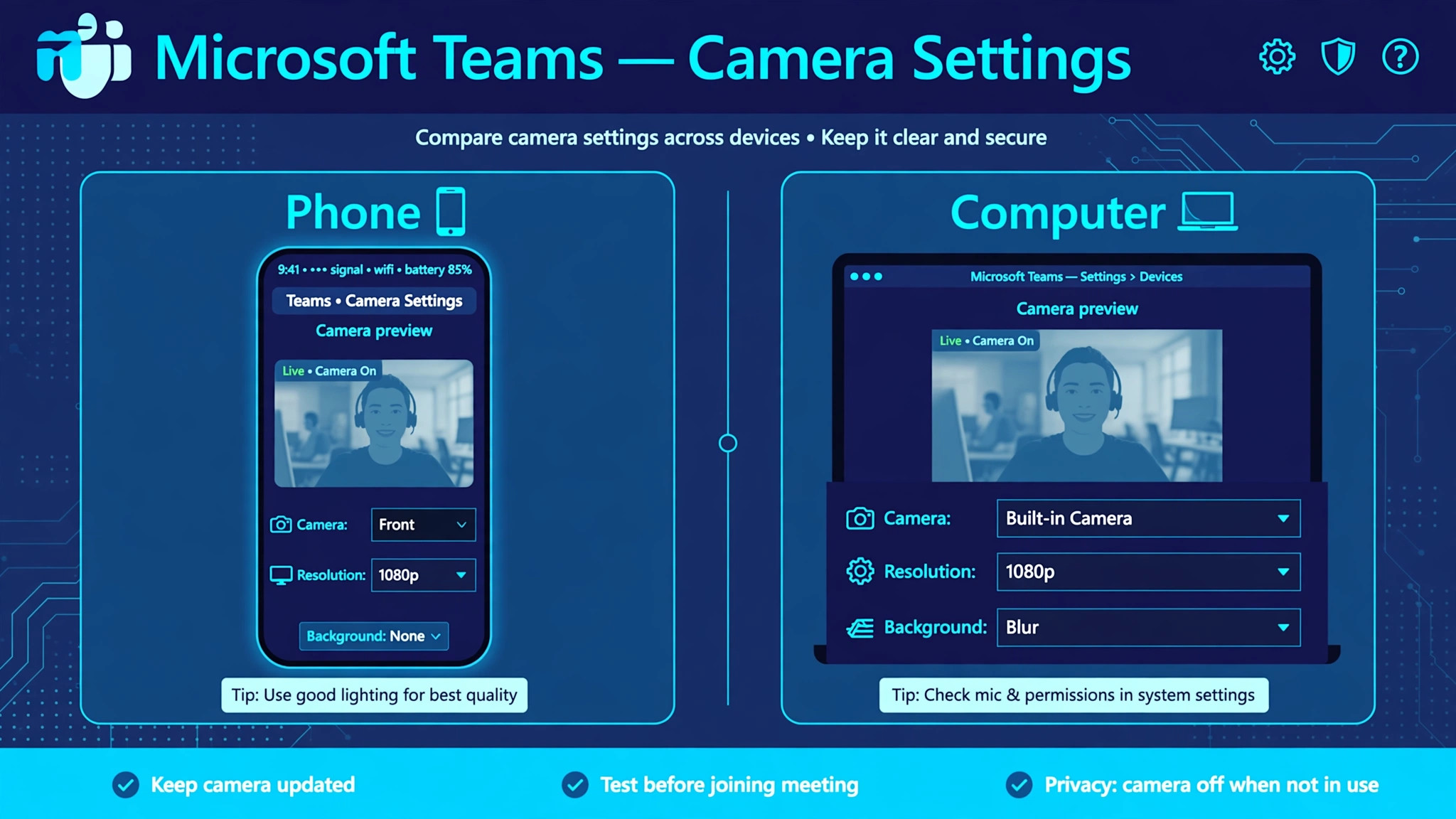
If the front camera fails but the rear camera works in Teams, switch cameras during a meeting to confirm which camera is at fault, since a single failed camera module is a hardware repair rather than a Teams fault.
On a tablet, the same steps apply, with the added check that a keyboard case or cover is not blocking the camera, and that the tablet is not connected to an external display that changed the default camera. In a Teams Room, camera faults involve room hardware, such as a room camera, a video bar, or a content camera, and those devices have their own firmware and connection checks. If a room camera fails, check its USB connection to the room computer, restart the room system, and test with a different camera if one is available.
Room camera faults that affect every meeting point to room hardware or firmware, while faults that affect one user point to that user device, and keeping that distinction clear prevents a room system replacement for a single laptop fault.
Choosing a Replacement Webcam When Repair Is Not Sensible
Sometimes the honest conclusion is that the camera itself has failed, and choosing a replacement well matters more than another round of troubleshooting. A built in laptop camera that fails everywhere, shows no device in Device Manager, and does not appear after driver updates and restarts is likely a hardware fault, and repair may cost more than a good external webcam. An external webcam that fails on two computers with different cables has also proven itself faulty. When buying a replacement, choose a webcam from a known manufacturer with current driver support for your operating system, and prefer a model with a physical privacy shutter, since the shutter prevents the exact confusion that started many troubleshooting sessions.
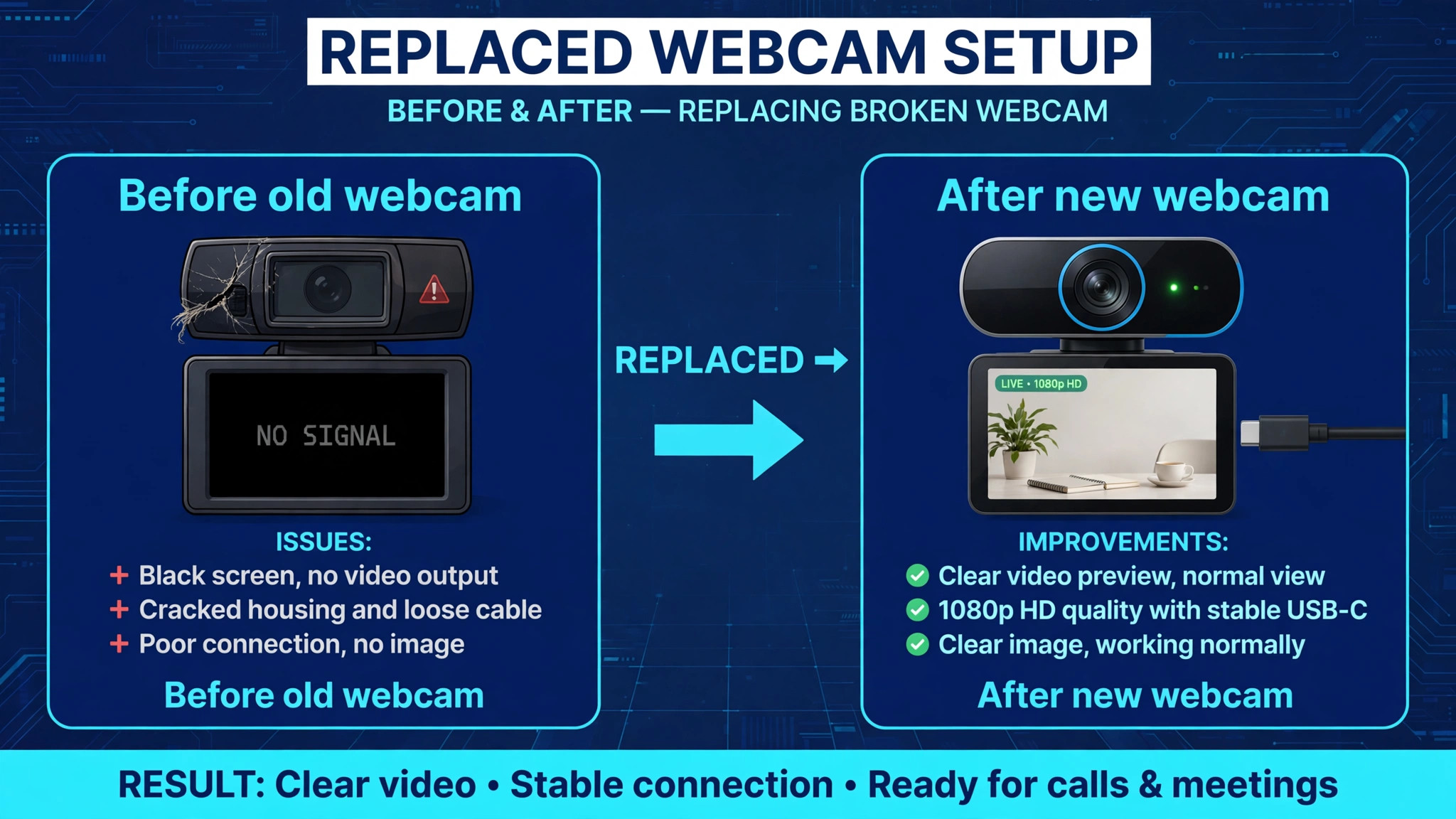
Test the new webcam in the system camera app before opening Teams, so you know it works at the system level before testing Teams permissions.
Avoid virtual camera software unless you need it, because virtual cameras are a frequent source of default device confusion in Teams. If you use streaming or recording software, configure it to release the camera when closed, and remove virtual cameras you no longer use from the system device list. Keep the number of cameras connected to the computer small during meetings, because each additional camera adds a selection that Teams can default to incorrectly. A single reliable webcam, correctly selected, with permission granted and no competing app holding it, is the configuration that fails least often, and it is worth simplifying to that setup even if you own several cameras for other purposes.
A Pre Meeting Camera Routine for Reliable Video
Once video works again, protect it with a short routine. Before important meetings, open Teams settings, open Devices, confirm the correct camera is selected, and watch the preview for a few seconds. Run a test call if the meeting matters, since it verifies camera, microphone, and speaker in one step. Close other meeting apps and camera apps before joining, and keep the laptop camera shutter open as part of your meeting setup, checking it visually rather than assuming it. Keep Teams and the operating system updated outside meeting hours, and recheck camera permission after major system updates, because updates are the most common silent cause of a permission reset.
When you need to fix Microsoft Teams camera not working trouble again in future, this routine usually catches the fault before the meeting starts, when a fix is calm and quick rather than embarrassing and rushed.
Keep a note of your working camera name as it appears in Teams Devices, because camera names can be similar and a note removes guesswork when multiple cameras appear. If you switch between home and office setups, note which camera belongs to each setup, and select it deliberately when you change location rather than trusting Teams to remember. That deliberate selection habit prevents the most common repeat fault, which is Teams defaulting to the camera from the previous location. Over time, these small habits matter more than any single advanced fix, because they keep the simple causes from recurring.
Camera Faults That Appear Only in Certain Meetings
A camera that works in most meetings but fails in one specific meeting points away from hardware and toward meeting settings, organiser policy, or a temporary service fault. When you need to fix Microsoft Teams camera not working trouble that follows a single meeting series, test by creating your own meeting and joining it alone, then test by joining a different existing meeting. If video works in your own meeting and in other meetings but fails in one series, the fault belongs to that series, perhaps because video was disabled by the organiser, because a lobby or policy setting restricts participants, or because that meeting was created with a template that limits media.
Ask the organiser whether other participants have the same problem, because a shared fault confirms a meeting level cause faster than any device change.
Also consider bandwidth and meeting size for that specific meeting. A large meeting with many video feeds can trigger a client decision to limit outgoing video when the computer or network is strained, even though the camera works in small calls. Test that theory by turning off incoming video display options or by joining the large meeting with video off and then turning video on after joining, which changes the load order. If video works in the large meeting after that change, load management rather than camera failure was the cause.
To fix Microsoft Teams camera not working faults that appear only in large or specific meetings, keep the comparison between meetings as your main evidence, because it separates a personal device fault from a meeting fault in a way no single device test can.
More Reading on Stratilyze
Teams video faults usually arrive with an audio or sharing fault in the same meeting, so readers often check the neighbouring meeting guides next. The guide to a Microsoft Teams microphone that will not work covers the audio-side version of the same permission problem, the guide to Microsoft Teams screen sharing that lags explains the bandwidth checks that also freeze video, and the guide to a Zoom camera that will not work on a laptop shows the same camera diagnosis on the other major meeting platform.
Frequently Asked Questions
Why does Teams show a black screen instead of my video
A black preview usually means the camera is covered, held by another app, or failing to deliver frames despite being recognised. Check the privacy shutter, close other camera apps and browser tabs, and test the camera in the system camera app. If the system camera app also shows black, focus on drivers and hardware. If the system app works but Teams shows black, focus on Teams permission and device selection, and try selecting a different camera and then switching back to force a refresh.
Why does my camera work in other apps but not in Teams
That pattern means the camera hardware and driver work, and the fault is specific to Teams. Check Windows or Mac privacy settings and confirm Teams specifically is allowed to use the camera, then open Teams Devices and confirm the correct camera is selected. Close other apps that might hold the camera, clear the Teams cache, and test Teams on the web. If the web app works, the desktop app install or cache is at fault. If the web app also fails, recheck system permission, because a system permission block affects every Teams version equally.
Why does Teams say my camera is being used by another app
Only one app can control the camera reliably at a time, so another app holding it blocks Teams. Close the system camera app, browser tabs with camera access, recording tools, virtual camera software, and other meeting apps. Check background processes for apps left running after previous meetings, and restart the computer if you cannot identify the holding app. A restart clears all camera locks and is often faster than hunting through processes one by one.
Why does my external webcam fail while the built in camera works
An external webcam fault points to its cable, USB port, hub, or driver. Plug it directly into a computer USB port instead of a hub or monitor port, try a different port, and try a different cable if the webcam uses a detachable one. Test the webcam on another computer to separate a webcam fault from a computer fault. Update the webcam driver from the manufacturer website if Windows offers no update, and check that Teams Devices selects the external webcam rather than defaulting back to the built in camera.
Why did my Teams camera stop working after a Windows update
System updates frequently reset camera permissions, replace camera drivers with generic versions, or change privacy defaults. Reallow Teams camera permission in privacy settings, update the camera driver from the manufacturer, and restart the computer. Test the camera in the system camera app to confirm system level recovery, then test in Teams. If the problem began immediately after an update, that timing is strong evidence for a permission or driver reset, and those two checks should come before any reinstall.
Should I reinstall Teams to fix a camera problem
Reinstall only after permission, device selection, camera lock, and driver checks have failed, and after the web app test has pointed to the desktop app. A reinstall will not fix a permission block, a closed shutter, a camera held by another app, or a failed driver, and it costs sign-in and configuration time. When you do reinstall, test with a test call immediately after signing in, before restoring custom settings, so you can tell whether the fresh install or a restored setting caused any return of the fault. To fix Microsoft Teams camera not working faults that survive a clean reinstall, the remaining suspects are system drivers, security software, and hardware, in that order.
When to Seek Repair Instead of Another Software Fix
Stop troubleshooting software when the evidence points firmly to hardware. A built in camera that never appears in Device Manager, never works in the system camera app, and does not recover after driver updates and restarts has likely failed physically. An external webcam that fails on two computers with different cables has proven itself faulty. A camera that works only when the cable is held at a certain angle has a damaged connector. In each case, further software changes waste time and may hide the fault. Seek manufacturer support for a built in camera under warranty, or replace an external webcam with a supported model, and test the replacement at the system level before opening Teams.
That decision, made on evidence rather than frustration, ends the troubleshooting loop cleanly and restores video faster than another round of settings changes. Fixing a camera problem well means knowing when the fix is a setting and when it is a replacement, and the tests in this guide give you that answer before you spend money or lose another meeting.