
A store doing 50,000 dollars a month in sales and paying a 1 percent platform fee on top of its gateway charges hands over 500 dollars a month, or 6,000 dollars a year, for the privilege of checking out on its own platform. That single number explains most Shopify to WooCommerce moves, because WooCommerce charges no platform transaction fee at all, whatever gateway the store uses. When you switch Shopify to WooCommerce small store owners are usually not running from Shopify quality. They are running from a bill that grows with every sale, and from a system where checkout, apps and design all answer to one vendor.
This guide is for a small store, meaning under a few hundred products, standard product types and no custom checkout logic that a developer built specially. It walks through the move in order, from export to launch, and names the parts that need rebuilding by hand, because a migration that promises a one click transfer of everything is selling a fantasy. Prices use published ranges at writing time, so confirm on the vendor page before you buy, and treat any single number in a guide, including this one, as a starting point for the store’s own arithmetic rather than a quote.
Why Stores Leave Shopify Despite Liking It
Shopify earns its reputation honestly. A store can launch in a weekend, checkout works reliably, hosting and security updates are handled, and support answers when something breaks. For a new store that reliability is worth a great deal, and many stores stay happily for years. The push to leave usually arrives with scale, when the monthly platform fee, the app stack and the transaction fee on a third party gateway combine into a total that no longer feels small. Published guides place Shopify plans roughly from 39 to 399 dollars a month, with an additional 0.5 to 2 percent transaction fee when the store does not use Shopify Payments, and app costs on top of that.
Control is the second push, and it matters more to some stores than cost. Shopify themes, checkout rules and app choices all live inside Shopify rules, and a store that wants a specific shipping logic, a custom product builder or a checkout flow of its own will hit those rules regularly. WooCommerce, running on WordPress hosting the owner controls, allows any plugin, any gateway and any code change the owner is willing to maintain. That freedom is real, but it carries a maintenance duty that Shopify previously handled, meaning updates, backups and security become the owner’s job, or the job of a host or developer the owner pays.
The third push is ownership of data and design. On Shopify the store, its theme and its app data live inside one hosted system, and leaving means exporting what Shopify allows and rebuilding the rest. On WooCommerce the store database sits on hosting the owner controls and can be backed up and moved. A store that plans to add wholesale, subscriptions or a second sales channel often values that ownership highly. A store that sells a stable range with no such plans may find the move is effort without reward, and staying on Shopify is the better business call.
What Exports Cleanly and What Does Not
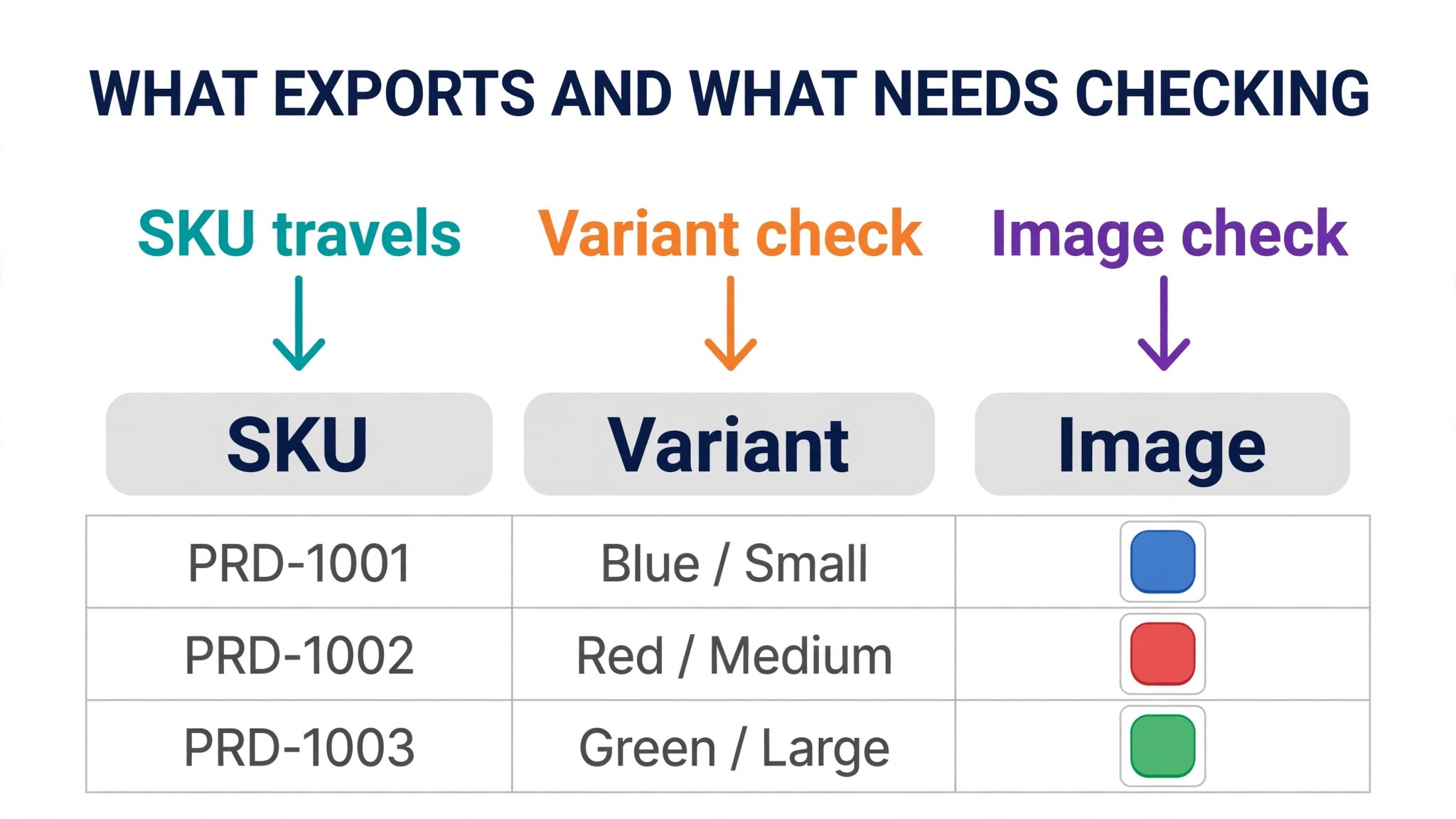
Shopify exports products, customers, orders and blog posts as CSV files from the admin, and that export is the backbone of a do it yourself move. Products carry titles, descriptions, SKUs, prices, variants and image references, though image handling needs a check, because a CSV can point at images without carrying the files themselves. Customers and order history do not travel as cleanly through a plain CSV export, and most stores use a dedicated migration plugin or tool for that part, such as the official migration plugin on the WooCommerce marketplace or a tool such as Cart2Cart, which can carry order status, customer profiles and coupons in one pass.
Pages, blog posts and navigation need a separate plan. Shopify pages must generally be recreated as WordPress pages, while blog posts can be exported and imported with a plugin or pasted manually for a small blog. Discount codes, gift cards, reviews and custom metafields are the items most often lost in an automated move, and each needs a named decision, meaning recreate by hand, carry with a dedicated plugin, or drop deliberately. Customer passwords cannot move, because they are stored encrypted on Shopify, so customers will need a password reset email at launch, and a store that warns customers in advance gets far fewer support messages than one that lets buyers discover a dead password at checkout.
Theme and design never move, because a Shopify theme cannot become a WordPress theme. The new store needs a fresh WooCommerce theme, and published guides place premium themes roughly from 49 to 150 dollars a year or more. Treat the redesign as a light refresh rather than a full rebrand during migration, keeping layout and category names close to the old store for returning customers, and saving bigger design changes for after launch, when traffic and conversion can be measured against a stable baseline.
| Item | Moves by CSV or tool | Needs rebuilding |
|---|---|---|
| Products and variants | Yes, by CSV or tool | Image and variant checks |
| Customers and orders | Yes, with a tool | Password resets for buyers |
| Blog posts | Yes, by export or plugin | URL and formatting checks |
| Discounts and gift cards | Partly | Manual recreation often |
| Theme and apps | No | New theme and plugins |
How to Switch Shopify to WooCommerce Small Store in Nine Steps
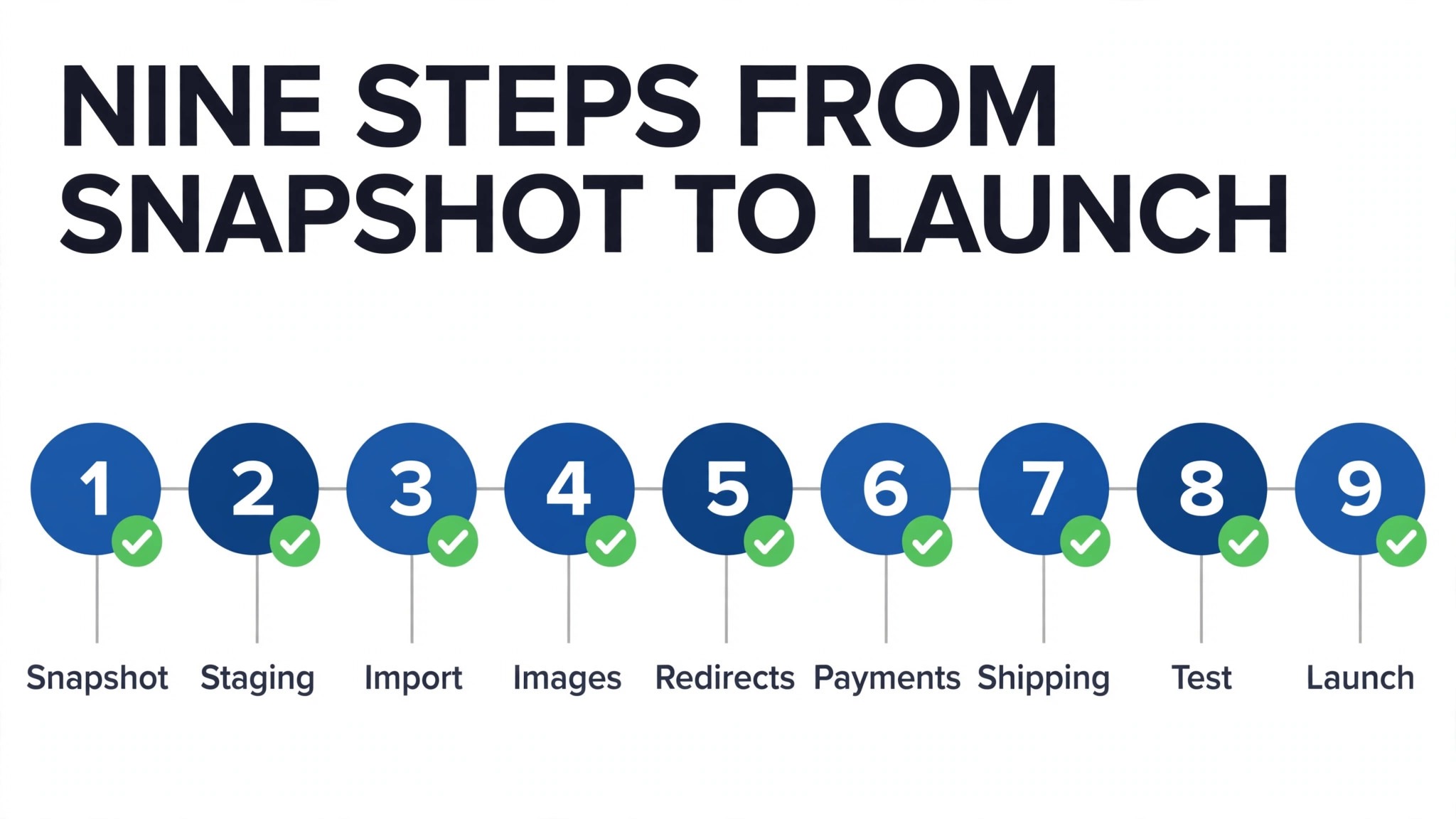
Step one is to take a snapshot of the live store before touching anything. Record product count, category list, active discount codes, shipping zones and rates, tax settings, payment provider and every app in use, with what each app actually does. That snapshot becomes the checklist that proves the new store matches the old one, and it stops the familiar migration error of discovering a forgotten app only when a customer complains that a feature vanished.
Step two is to set up WordPress hosting and install WooCommerce, keeping the new store on a staging address while it is built. Choose hosting that meets WooCommerce requirements, run the setup wizard for store address, currency, shipping and tax basics, and install a backup plugin before any data arrives. Customers keep buying from the live Shopify store while the new store is proven, which removes the deadline pressure that causes most migration mistakes.
Step three is to export from Shopify, meaning products, customers, orders and blog posts as CSV files, saved in one dated backup folder, with product images downloaded separately if the export does not carry them. Open each file and look at it before importing, checking for missing descriptions, duplicate SKUs, stray characters in prices and variant options that no longer match the live catalogue. A clean file imports in minutes, while a dirty file imports in minutes and then costs days of fixes on live product pages.
Step four is to import products into WooCommerce with its built in importer, starting with a test import of ten products. Check titles, prices, images, categories, variants and stock on the front end, then run the full import. Step five is to import customers and orders with a migration tool or plugin, and to check that order statuses, customer records and coupon data landed correctly on a sample of real records before trusting the full import.
Step six is to rebuild what the import cannot carry, meaning discount codes, shipping rules, product attributes, pages and the plugin set, covered in the next sections. Step seven is to build the redirect map, which has its own section below because it protects search traffic directly. Step eight is to swap payments and test checkout end to end, including a discount order, a refund and a phone checkout. Step nine is launch, meaning point the domain to the new hosting, run the launch checklist, and keep the old Shopify store and its exports untouched for at least a month as a fallback.
Building the Redirect Map for Shopify URLs
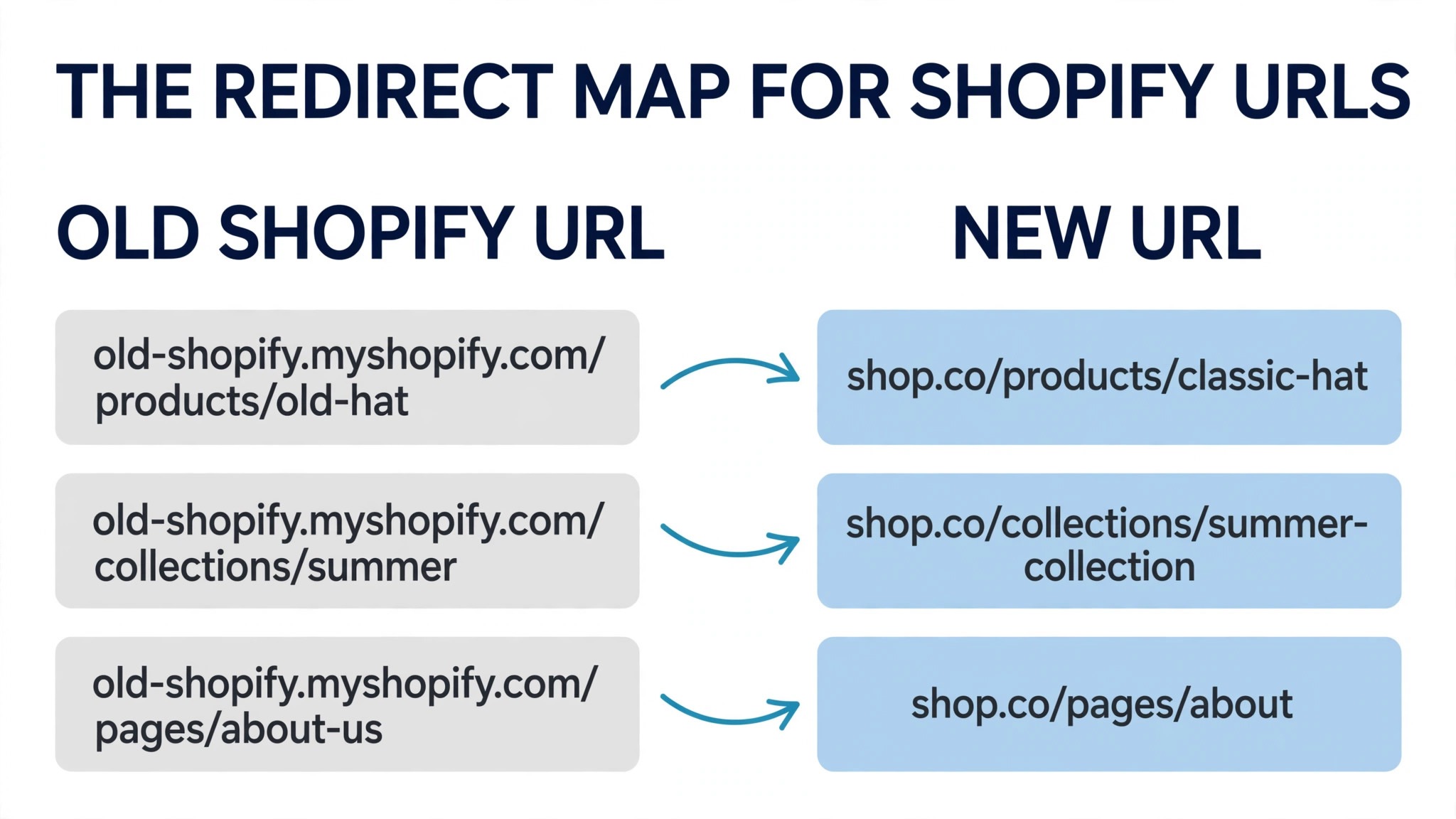
Redirects protect the search rankings a store spent months or years earning, and Shopify to WooCommerce is a case where they matter more than usual, because the two platforms use different URL patterns by default. Search engines treat a new URL as a new page, so a product page that moves without a redirect loses most of its ranking value, and a store that launches without redirects should expect a lasting traffic fall rather than a brief wobble. A 301 redirect tells search engines and visitors that the page has moved permanently, and it passes most of that ranking value to the new address.
Shopify product URLs typically follow a products pattern, collections follow a collections pattern, and blog posts follow a blogs pattern, while WooCommerce uses product, product category and post patterns that differ in wording and slashes. The map must therefore list every old URL and its new equivalent, not just best sellers, and it should be built from Shopify analytics, Search Console and the full catalogue together, so that a page with no recent traffic but a valuable backlink is not missed. Where a product is discontinued, map to the closest live category rather than the home page, because a visitor who lands on a relevant category can still buy.
Implement the map with a redirect plugin such as Redirection, or at server level for a larger store, and test the top twenty URLs by hand before launch, plus a full list check if the store has hundreds of pages. After launch, watch Search Console for missing page errors daily for two weeks and add redirects for any missed URL the moment it appears. When you switch Shopify to WooCommerce small store owners who treat the redirect map as a launch gate, meaning no launch until it is tested, protect revenue that no amount of post launch fixing can fully recover.
| Shopify pattern | WooCommerce pattern | Action |
|---|---|---|
| Products product name | Product product name | Redirect each product |
| Collections category | Product category category | Redirect each collection |
| Blogs news post title | Blog post title | Redirect each post |
| Pages about page | About page | Rebuild then redirect |
Rebuilding Apps as WooCommerce Plugins
Every Shopify app needs a WooCommerce answer, and the answer is not always a plugin with the same name. Start from the snapshot list and sort apps into three groups, meaning essential, useful and unused. Essential apps are those that touch money or fulfilment, such as reviews that drive conversion, a subscriptions app, a bundles app or a shipping app. Useful apps are those that help but do not block a sale, such as an email popup or a social proof widget. Unused apps are those installed for a past campaign and never removed, and they should simply be dropped.
For each essential app, find the WooCommerce equivalent and check three things before committing, meaning whether it imports the old app data, whether it works with the chosen theme, and what it costs per month or per year. Reviews are a common gap, because review text and ratings do not always travel with a product import, and a store that loses hundreds of reviews at launch loses social proof that took years to earn. Subscriptions are a second gap, because active subscribers usually need a dedicated subscriptions plugin and a plan for payment details, which often cannot move and may require customers to re enter card details.
Keep the plugin list short, because every plugin is a future update, a future conflict and a small drag on speed. A small store that replaces fifteen Shopify apps with fifteen WooCommerce plugins has traded one app bill for another, with more maintenance attached. Aim for a core set covering payments, shipping, backups, SEO, forms and the one or two features that genuinely drive sales, and add further plugins only when a measured need appears. When you switch Shopify to WooCommerce small store plugin discipline is what keeps the cost saving real, because an undisciplined plugin list can cost more than the Shopify apps it replaced.
Swapping Payments, Shipping and Tax
Payment setup on WooCommerce is a fresh connection, not a transfer, so the store connects its gateway again, whether that is WooPayments, Stripe, PayPal, Square or another provider available in its region. WooCommerce charges no platform transaction fee, but the gateway still charges its own processing fee, and published guides commonly cite card rates around 2.9 percent plus a small fixed fee per order. Confirm the exact rate on the provider page, because rates vary by region, volume and card type, and because the saving that justifies the move lives in the difference between the old total and the new gateway only total.
Test payments in the gateway sandbox before launch, covering a standard order, a discount order, a refund, a partial refund and a failed payment, and confirm that order emails reach both buyer and store owner. Test on a phone as well as a desktop, because most small store traffic now arrives on a phone and a checkout that only works on desktop is a broken checkout. Write down who handles refunds and chargebacks on the new setup, because a platform move is also the moment when support habits need a named owner rather than an assumption.
Shipping and tax need the same fresh build from the snapshot. Recreate shipping zones, rates and rules, and test one order for each rule, meaning weight based, price band and product class rules where they exist, because a single wrong rate can lose money on every order or drive customers away at checkout. Set tax display and rates deliberately, and check with an accountant if the store sells across state or country lines, because tax rules are not a setting to guess. A store that copies shipping and tax settings from memory rather than from the snapshot will discover the error from a customer, which is the most expensive way to learn it.
Cost After the Move, Compared Honestly
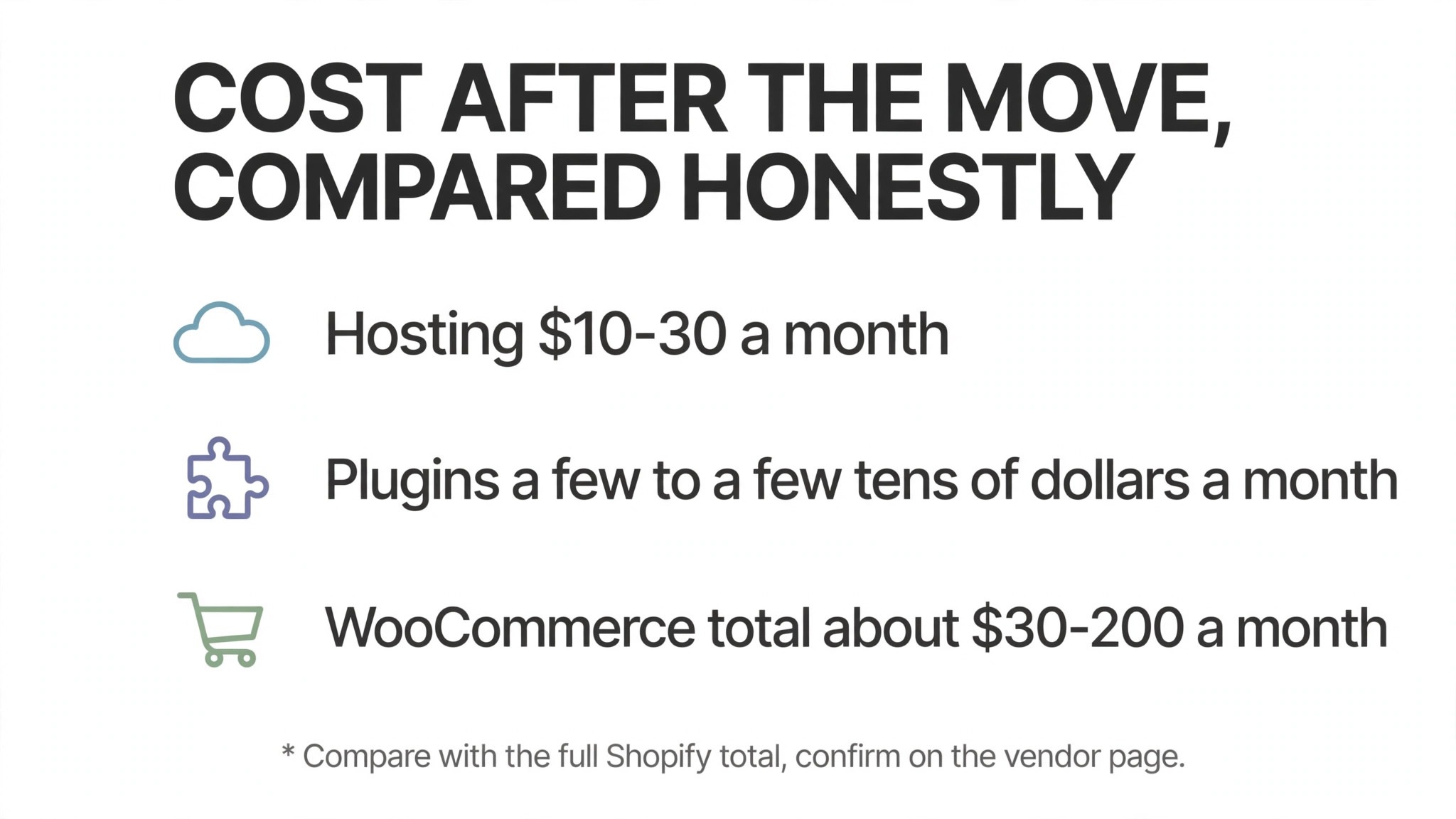
The honest monthly picture for a small WooCommerce store has four lines, and it should be compared with the full Shopify total, not with the Shopify headline plan price alone. Hosting commonly runs 10 to 30 dollars a month for a small store, a premium theme runs roughly 50 to 150 dollars a year, and essential paid plugins can add a few dollars to a few tens of dollars a month depending on what the store genuinely needs. Payment processing sits on top at the gateway rate on both platforms, so it should not be counted as a WooCommerce cost alone, and the saving is the platform fee and app difference, not the whole gateway bill.
The WooCommerce route commonly lands roughly from 30 to 200 dollars a month on the same basis, plus owner time for updates, backups and small fixes, usually two to four hours a month. A store that values its time at a real hourly rate should price that time in, because a saving that depends on unpaid owner hours is a smaller saving than it first appears.
Budget also for the migration itself. A do it yourself move costs mainly time, meaning one to two weeks of part time work for a small catalogue, with published guides placing a straightforward store at three to seven days from start to go live. A migration tool costs a one time fee roughly in the range of 69 to 299 dollars depending on catalogue size and options. A developer led move costs more, but it suits stores with subscriptions, complex variants or custom checkout logic. When you switch Shopify to WooCommerce small store owners should pick the route that matches catalogue complexity, not the cheapest route on offer, because a failed cheap move costs more than a well priced one.
Launch Checklist and the First Month
A launch checklist turns a nervous launch day into a routine, and it should be run on staging first and again on the live site after the domain moves. Confirm that every product shows the right title, price, image, variant and stock status, and that no test product remains visible. Confirm that categories, search and filters return sensible results, and that a visitor can reach any product in three clicks from the home page. Place test orders on desktop and on a phone, with a discount code and without one, and confirm that order emails arrive and stock falls correctly.
Confirm that redirects work for the top product, category and blog URLs, and that no important page returns a missing page error. Confirm that contact forms, newsletter signup and any enquiry form deliver to a monitored inbox, and that analytics, Search Console and any ad tracking fire on the new site, because a launch without measurement is a launch flying blind. Send the customer password reset email and a short announcement that the store has a new home, and monitor support messages closely for the first week, keeping a list of repeat questions so the site can answer them rather than the support inbox.
Keep the old Shopify store live but private for a month, and keep every export file in the dated backup folder. In the first month, reconcile gateway payouts against WooCommerce order totals weekly, watch Search Console daily for missing page errors in the first two weeks, and run a speed test on the home page, a category page and a product page. Plan one small improvement after launch, such as clearer shipping information or better product photos on the highest traffic page, and measure it for two weeks before changing anything else. A store that holds that rhythm will know exactly which change earned its next growth, rather than guessing.
Mistakes That Cost a Store Its Rankings or Its Customers
The first mistake is launching without a tested redirect map, or with redirects only for best sellers. Rankings live on product pages, category pages and old blog posts alike, and a store that redirects only its top ten pages will watch the rest of its search traffic fade over the following weeks. The second mistake is importing a dirty catalogue, meaning duplicate SKUs, discontinued lines, test products and missing images, all of which clutter the new store for months when a spreadsheet tidy before import would have removed them.
The third mistake is assuming payments work because a plugin is installed, without testing refunds, failed payments and phone checkout. The fourth mistake is rebuilding every app, including unused ones, which replaces a Shopify app bill with a WooCommerce plugin bill and adds maintenance without adding sales. The fifth mistake is redesigning everything at once, meaning new navigation, new category names and new product names in the same launch, which makes it impossible to tell whether a traffic change came from the platform, the design or the URLs. Change the platform first, then improve design in measured steps.
The sixth mistake is deleting the old store too soon. Keep it for a month, keep the exports, and keep the login, because a product description or an old order record that turns out to be wrong on the new store is fastest fixed from the old export. When you switch Shopify to WooCommerce small store owners who keep a fallback sleep better in launch week, and the one extra month of the old plan is the cheapest insurance in the whole project. A fallback that was deleted cannot be bought back at any price.
After Launch, Growing on WooCommerce
A move to WooCommerce only earns its keep if the store uses the freedom it bought, and the first growth job is usually search. WooCommerce on WordPress gives a store full control of titles, descriptions, category pages and content, plus an SEO plugin that Shopify never matched in depth. Spend the first month after launch fixing the pages that matter, meaning category descriptions that actually help a buyer choose, product titles that match how customers search, and one genuinely useful guide per top category that answers the question buyers ask before they buy.
When you switch Shopify to WooCommerce small store email and retention deserve the second slot, because a store that owns its checkout data can build follow up that a hosted store makes harder. Set up an abandoned cart email, a post purchase thank you with a related product, and a win back email for customers who have not bought in ninety days, and measure each one separately. A single follow up flow that recovers even a small share of abandoned carts will often pay for a month of hosting on its own, and it is the kind of flow that justifies the move in the first quarterly review.
Finally, keep a simple monthly rhythm that protects the store the migration built. Update plugins on staging first, check the shop front after each update, confirm that backups run daily and that a restore has actually been tested, and review plugin costs against use, removing anything that has not earned its keep in a quarter. When you switch Shopify to WooCommerce small store owners who hold that rhythm find that the platform stops feeling like a project and starts feeling like an asset, because the store grows through measured changes rather than through another platform move. That is the real payoff of the switch, and it arrives quietly, month by month, rather than on launch day.
Frequently Asked Questions About Moving to WooCommerce
Will I lose my search rankings if I move from Shopify?
Not if redirects are done properly. A tested 301 redirect for every old URL passes most ranking value to the new address, and Search Console monitoring in the first month catches any missed page quickly. Rankings may wobble for a few weeks during reindexing, which is normal, but a store that launches without redirects should expect a lasting fall rather than a wobble.
How long does a small store migration take?
A straightforward store with under a few hundred products and standard product types usually takes three to seven days of focused work, or one to two weeks part time, including setup, import, testing and launch. Stores with subscriptions, complex variants, custom metafields or hundreds of products should allow three to four weeks, and should avoid launching on a sale weekend or a peak trading day.
Do my customers keep their accounts and passwords?
Customer names, email addresses and order history can move with a migration tool or plugin, but passwords cannot, because they are stored encrypted on Shopify. Customers will need to reset their passwords on the new store, so send a clear reset email at launch and keep the reset page easy to find for the first month.
What happens to my Shopify domain and apps?
The domain can stay where it is and point to the new hosting by DNS, which usually takes up to 48 hours to spread fully, so plan the switch for a quiet period. Apps do not move, so each app needs a WooCommerce plugin equivalent, a manual rebuild or a deliberate decision to drop it, and reviews and subscriptions deserve special attention because their data does not always travel with a product import.
Is WooCommerce really cheaper than Shopify?
It can be, but the honest answer compares full totals, not headline plan prices. WooCommerce software is free and hosting commonly runs 10 to 30 dollars a month, yet paid plugins, a premium theme and two to four hours a month of maintenance add real cost. A store that keeps plugins few, handles updates itself and previously paid platform transaction fees usually saves money, while a store that hires help for every fix may move for control rather than savings.
Should I hire a developer or do it myself?
Do it yourself if the catalogue is small, products are standard and the owner is comfortable inside WordPress. Hire a developer if the store runs subscriptions, complex variants, custom checkout logic or a large order history, because those cases carry the highest risk of silent data loss. Either way, insist on a staging site, a tested redirect map and a full test checkout before launch, and keep the old exports for a month.
More Reading on Stratilyze
– Shopify to WooCommerce Migration for a Small Store – Shopify or WooCommerce, Which Fits a Small Store – Cost of Running a Shopify Store Monthly – Moving a Store Between Platforms Without Losing Search Traffic, plain text title, link not verified at writing time