
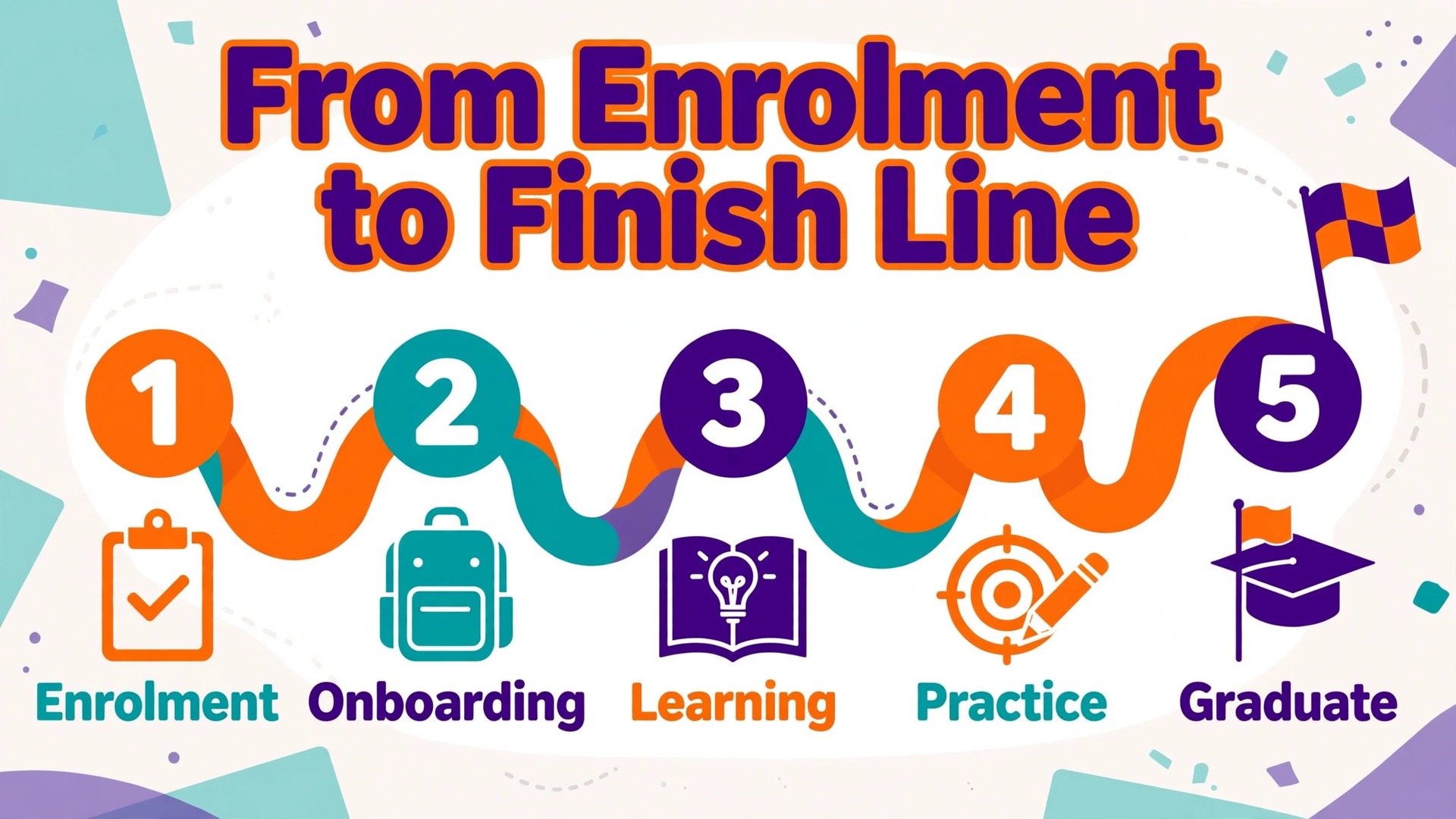
The verdict is straightforward. If you use AI for online course creator student onboarding, your students should reach their first lesson faster, get help sooner when they stall, and finish more often. That is the whole case for it. Most course creators do not lose students because the content is weak. They lose students in the first seven days, when access is confusing, the next step is unclear, or nobody notices that a paying student has gone quiet.
This guide builds a complete onboarding system around that first week and the weeks after it. You will get a welcome sequence that actually orients students, first lesson nudges that respect their time, a clear way to flag stuck students, and completion check-ins that feel like support rather than pressure. It also includes a ready to use checklist, honest notes on what AI cannot do, and tool options matched to different course platforms. The aim is not more messages. The aim is fewer, better timed messages that move a student from enrolment to momentum.
Why Students Stall in the First Week
Enrolment is not onboarding. A student who has paid and received a login has not yet started learning. They still need to know where the first lesson lives, how long it takes, what they need before they begin, and what happens if they fall behind. When any of those answers is missing, the student postpones the start. A postponed start often becomes a forgotten course.
Three gaps cause most early stalls. The first is access friction. A welcome email that arrives late, a password reset loop, or a course that is hard to find inside a busy platform can end the relationship before lesson one. The second gap is orientation. Students who do not know the course map, the expected pace, or the support route will guess, and guessing badly feels like failure. The third gap is silence. When a student stalls and nobody notices for three weeks, the eventual message feels like a sales push rather than help.
Good onboarding closes all three gaps in order. Access first, orientation second, and a visible safety net third. AI helps by watching for the signals that a human creator cannot watch for across hundreds of students, such as a student who opened lesson one three times without finishing it, or a student who has not logged in for seven days. The creator still decides what to say. The system makes sure the right student gets the message at the right time.
How to Use AI for Online Course Creator Student Onboarding in Eight Steps
This workflow runs from payment to completion, and it is designed to run without daily manual checking. Set it up once, test it with a small group, and then let it run while you review the exceptions each week. The steps below follow the student journey in order, so each step builds on the one before it.
Step 1. Confirm Access Before You Send Anything Else
The first message a student receives should solve access, not sell the next course. Send login details, a direct link to the course home, and a one line note on what to click first. If the payment system and the course platform are connected by a webhook or an automation, this message should fire automatically within minutes of payment. Test it yourself with a test purchase before you launch, because a broken first message is the most expensive bug in onboarding.
Watch for the silent failure pattern that practitioner guides warn about. Payment succeeds, the welcome email goes out, but platform access never provisions. Your workflow should check for that case explicitly. If a student has paid but has no course access after an hour, alert the creator and send the student a holding message that names the fix and the time it will happen. A student who hears from you during a glitch stays. A student who hears nothing assumes the course was a mistake.
Step 2. Send a Short Welcome Sequence, Not a Course Dump
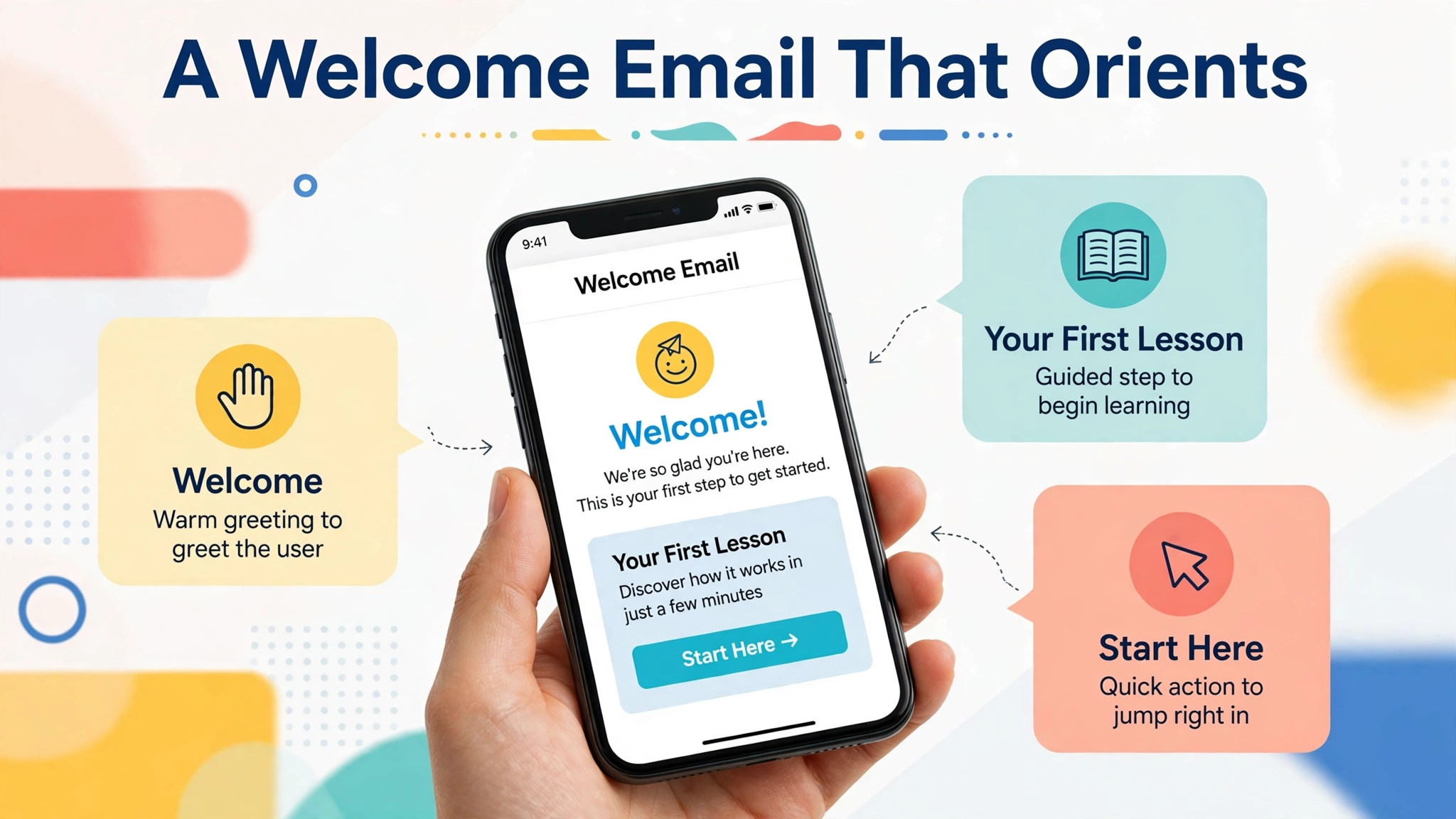
A welcome sequence works best in three short parts spread over the first week. Day zero covers access and the first lesson link. Day two covers the course map, the expected pace, and where to ask questions. Day five covers a small early win, such as finishing the first lesson or completing a short introductory exercise, and points to what comes next. Each message should have one job and one link, because a message with five links is a message the student will save for later and never open again.
Use AI to draft these messages in your voice, but keep them short enough to read on a phone. Personalise with the course name, the student first name, and the exact next lesson, not with generic praise. A student can tell when a message was written for everyone, and a message written for everyone is easy to ignore. Review the sequence once a quarter, because course structures change and a welcome message that points to a renamed module will confuse new students fast.
Step 3. Guide the First Lesson With a Clear Next Step
The first lesson deserves special attention, because completion of lesson one is the strongest early signal of later completion. Make the lesson short, make the goal obvious, and tell the student how long it takes. A lesson described as taking twelve minutes gets started more often than a lesson described only by its title. After the lesson, show the next lesson immediately, with a preview of what it covers and why it matters.
If a student starts lesson one but does not finish it, wait a day and send a help oriented nudge. Ask whether the video, the exercise or the timing caused the pause, and offer a direct route back to the exact point where they stopped. That specificity matters. A message that links to the course home asks the student to find their place again. A message that links to the exact lesson removes that friction and respects the effort they already made.
Step 4. Nudge by Behaviour, Not by Calendar Alone
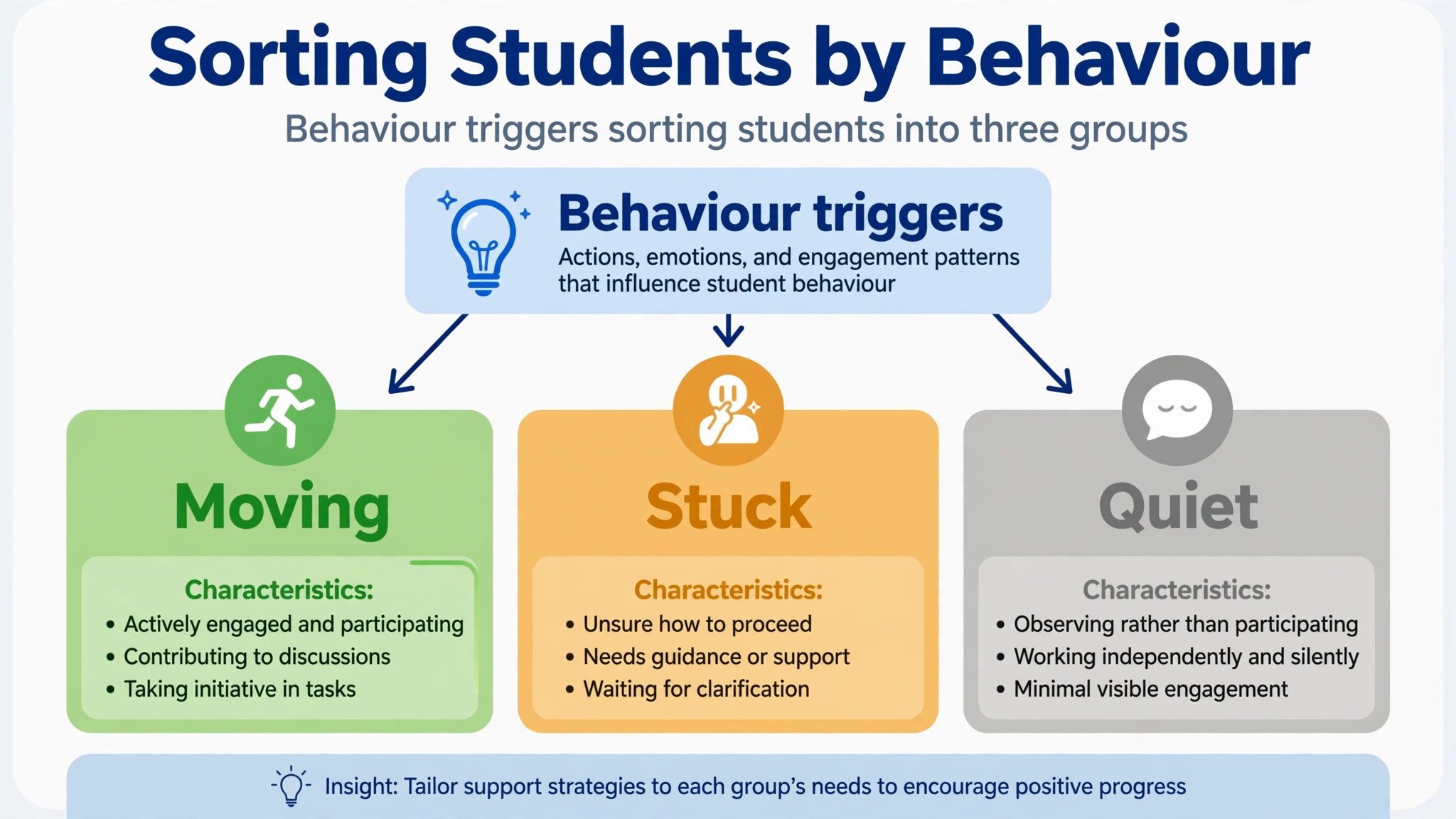
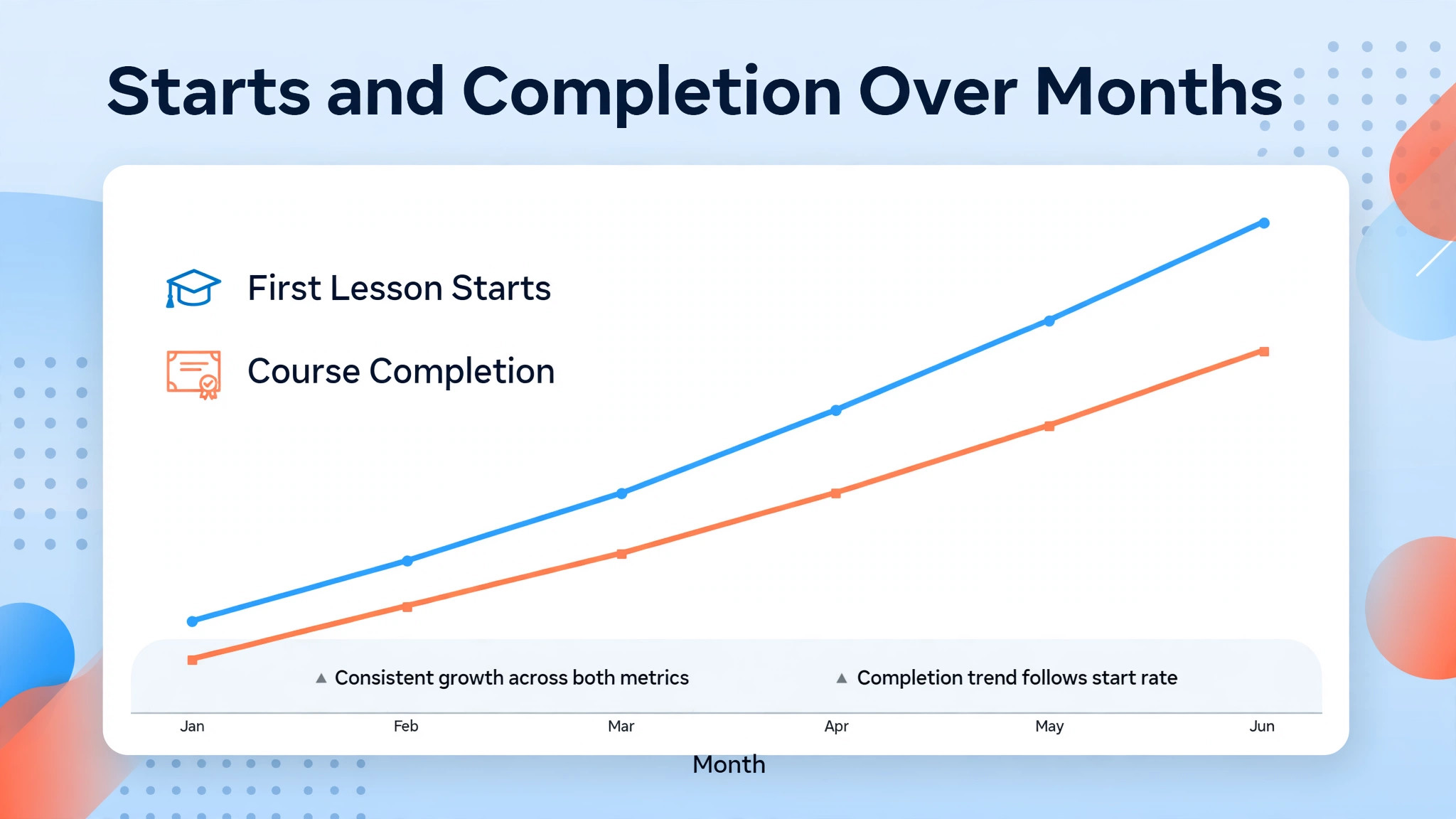
Calendar nudges treat every student the same. Behaviour nudges respond to what the student actually did. A student who finished two lessons in a day does not need a reminder to start. A student who has not logged in for seven days needs a different message from a student who opened the same lesson four times without completing it. Build your nudges around those behaviours, and let AI sort students into those groups from platform activity.
Set the rules in advance and keep them gentle. Seven days without activity triggers a short check-in with a direct lesson link. Repeated opens without completion triggers a help message with a resource or an office hours invitation. A completed module triggers a brief acknowledgement and a preview of the next module. Each rule should have a stop condition too, so a student who replies or resumes does not keep receiving catch-up messages that no longer fit.
Frequency matters as much as timing. Two thoughtful messages a week is support. Six messages a week is noise, and noise trains students to ignore you. Cap automated nudges, and let any human reply pause the automation for that student until the conversation closes.
Step 5. Flag Stuck Students for a Human Check-In
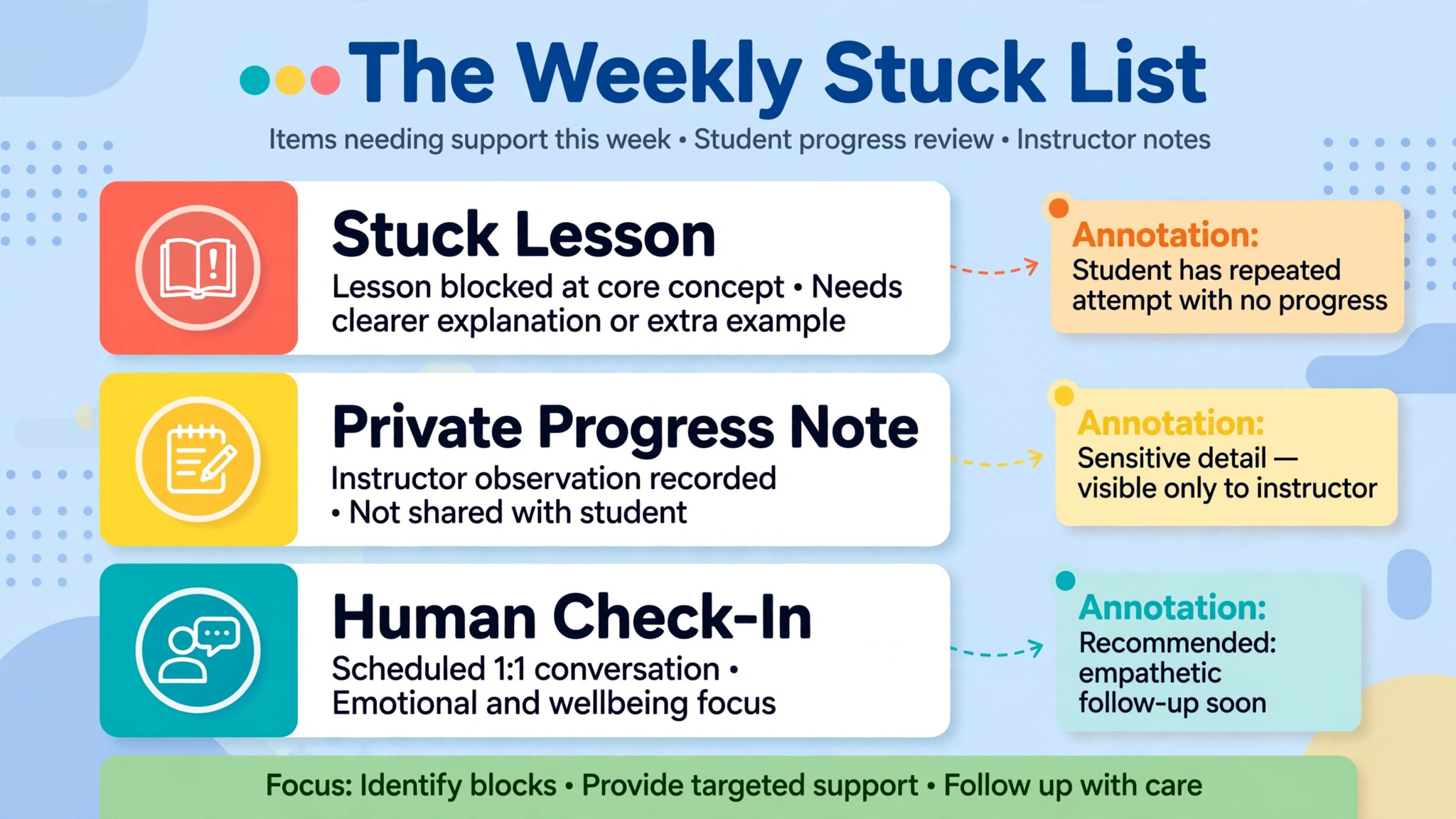
Automation should surface problems, not pretend to solve personal ones. Create a weekly stuck list with three groups. Students with no activity for fourteen days, students stuck on the same lesson for more than a week, and students whose quiz scores suggest they are struggling with a concept. Review that list yourself once a week, and decide who gets a personal message, who gets a group support invitation, and who simply needs more time.
AI can draft the personal message from the student record, naming the lesson and the last activity, but you should edit it before sending. A short human sentence about the specific lesson beats a polished generic paragraph every time. Keep the tone curious rather than disappointed. Ask what got in the way, offer a concrete next step, and make it easy to reply. Students answer questions. They ignore guilt.
Protect student privacy in this step. Progress data is sensitive, and a stuck list should stay inside your course platform or customer system, not in a shared chat log or an unsecured sheet. Limit access to people who actually support students, and never share one student progress detail with another student.
Step 6. Run Completion Check-Ins at Natural Breaks
Completion check-ins work best at module boundaries, not at arbitrary calendar dates. When a student finishes a module, send a short message that names what they completed, previews the next module, and asks one question about confidence or usefulness. That question gives you feedback and gives the student a reason to reply, which keeps the relationship active.
For students near the end of a course, the check-in changes. Confirm what remains, offer a clear path to the certificate or final project, and explain what happens after completion, such as access duration or a next course recommendation. Many creators lose the final push here, because the student is close but tired. A specific, short message that lists the two remaining steps often does more than a motivational speech.
Use AI to draft these check-ins from progress data, but keep the certificate step under human control. Certificates, grades and final project feedback carry real consequences for students, so no automated message should promise a credential before a human or a verified system check has confirmed it.
Step 7. Re-Engage Lapsed Students With One Good Offer of Help
When a student has been inactive for thirty days, a different approach is needed. Do not restart the welcome sequence, because the student has already seen it. Instead, send one message that acknowledges the gap without scolding, names the exact lesson where they stopped, and offers a fresh start point, such as a short recap lesson or a live session. Give one clear choice, not a menu of options.
If there is no reply, wait at least two weeks before a second message, and make the second message different, not a repeat. A short survey about what got in the way can work well here, because it asks for information rather than demanding a return. Use the answers to fix onboarding for future students, even if that particular student never returns. Every lapsed student is a source of product feedback, not just a lost sale.
Step 8. Review the Onboarding Data Every Month
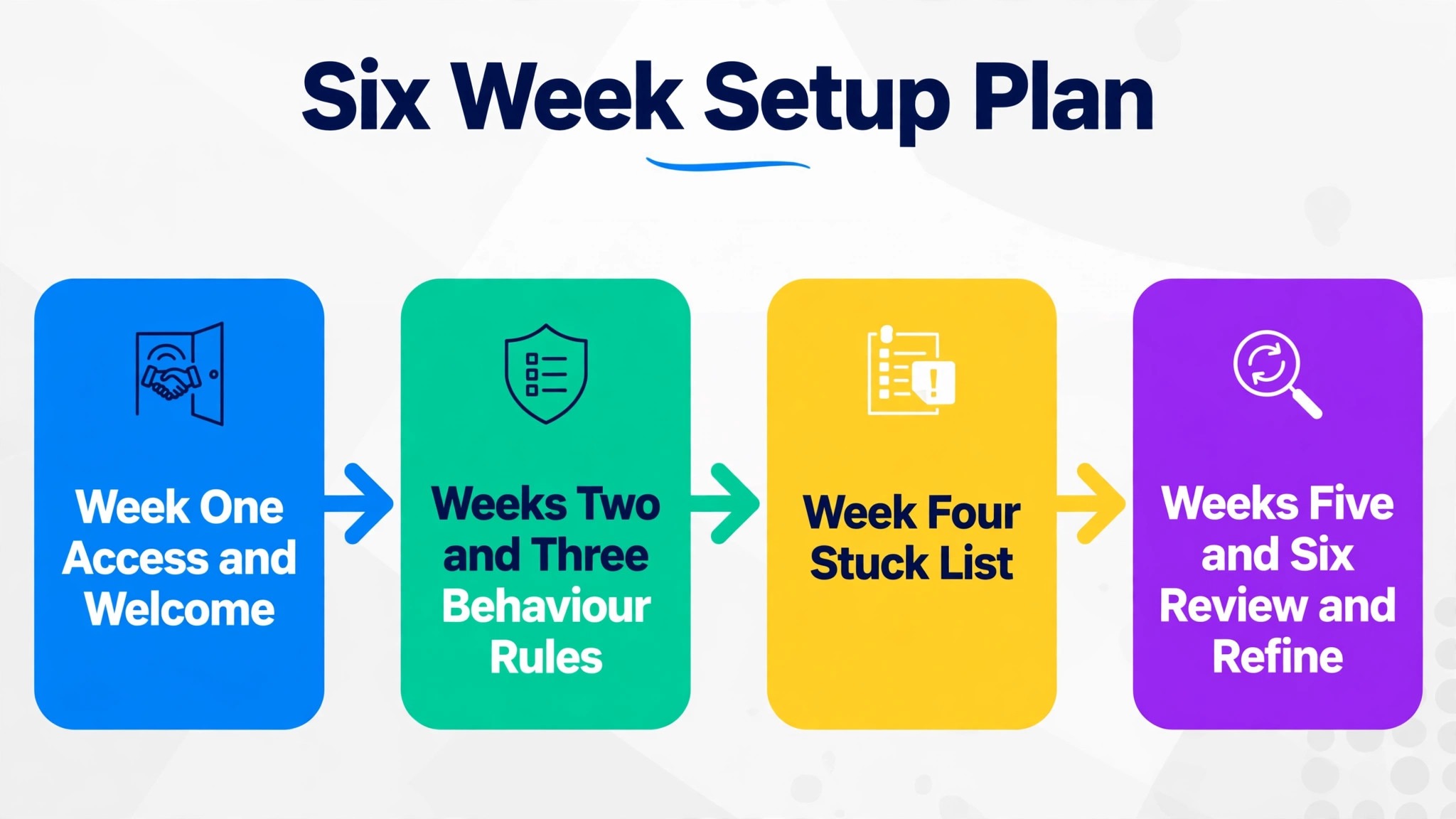
Once a month, review four numbers. The share of students who start lesson one within three days, the share who finish the first module, the share who go quiet for fourteen days, and the share who complete the course. Look at those numbers by traffic source and by course, because a course with a weak first lesson will show up here before it shows up in refunds or reviews.
Use AI to draft the monthly summary, but interpret it yourself. A drop in first lesson starts after a platform change points to an access problem. A drop in module completion after a content update points to a lesson problem. The numbers tell you where to look, and your knowledge of the course tells you what changed. Adjust one thing at a time, so the next month data can show whether the change helped.
Student Onboarding Checklist You Can Copy
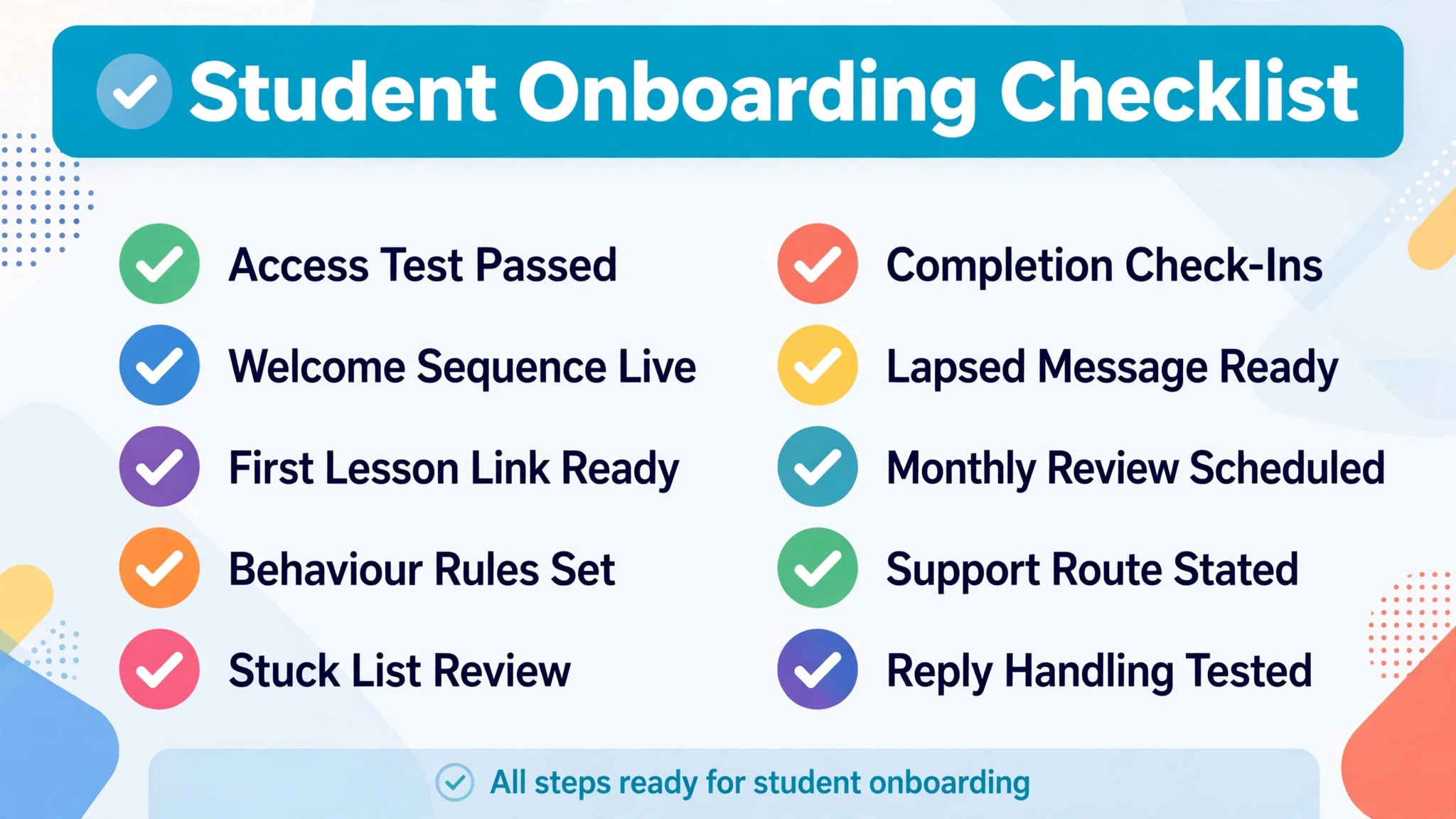
Use this checklist for every new cohort or evergreen enrolment when you use AI for online course creator student onboarding. Tick each item as it goes live, and keep the checklist with the course setup notes so a future update does not silently break onboarding.
Access test passed with a real test purchase and a fresh login.
Welcome sequence live, with day zero access, day two course map, and day five early win messages.
First lesson link points to the exact lesson, with a stated duration and a visible next lesson.
Behaviour rules set for seven day inactivity, repeated lesson opens, and module completion.
Stuck list review scheduled weekly, with a named owner and a private location for progress data.
Completion check-ins set at each module boundary, with certificate steps under human control.
Lapsed student message written, with a recap option and a two week gap before any second message.
Monthly review scheduled, tracking first lesson starts, first module finishes, fourteen day quiet share, and course completion.
Support route stated in every early message, so students know where to ask for help.
Unsubscribe and reply handling tested, so a student reply pauses automation instead of triggering more messages.
Keep this checklist short on purpose. A checklist with thirty items gets skipped. A checklist with ten items gets used, and a used checklist protects more students than a perfect document nobody opens.
Tools That Fit a Course Onboarding Workflow
Pick tools that already know your student progress when you use AI for online course creator student onboarding, because onboarding automation is only as good as its triggers. A course platform that records lesson completion can drive nudges that a separate email tool cannot guess at. The tools below cover the main combinations creators actually use.
Thinkific for Progress Driven Onboarding
Thinkific is a course platform that exposes lesson and course progress events, which makes it a strong base for onboarding automation. When a student completes a lesson or reaches a percentage of the course, that event can trigger the next message or update a contact record. Practitioner guides note this webhook style behaviour as the raw material for behaviour driven sequences, and it is the reason platform native progress matters more than clever copy.
The limit is that Thinkific alone does not write your messages. You still need an email tool or an automation tool to turn a progress event into a welcome, nudge or check-in. Budget for that second tool, and confirm at checkout which plan includes the progress events and integrations your workflow needs, since the last published list price should be confirmed at checkout.
Teachable for a Simple Evergreen Setup
Teachable suits creators who want a straightforward course platform with email and automation connections, without building a complex stack. It handles enrolment, lesson delivery and student accounts, and connects to common email tools for welcome sequences. For a creator with one or two courses, that simplicity keeps onboarding maintainable.
The trade-off is depth of automation. Complex behaviour rules, such as distinguishing a student stuck on one lesson from a student who simply has not logged in, may need an external automation tool to interpret the platform data. Start simple, prove the welcome sequence works, and add behaviour rules only when the basic flow runs cleanly.
Kajabi for an All in One Creator Business
Kajabi combines course hosting, email, landing pages and automation in one system, which removes the integration work between separate tools. For a creator who sells, delivers and emails from one place, onboarding triggers and messages can live in the same account, and student data does not need to travel between systems to fire a nudge.
The honest limit is cost and scope. An all in one platform charges for the bundle even if you only use part of it, so confirm at checkout that the plan you choose includes the automation depth you need. Creators with a single small course may find a course platform plus a separate email tool cheaper, while creators with several courses and a mailing list often find the single system easier to maintain.
ActiveCampaign for Behaviour Based Email
ActiveCampaign is an email and automation platform that many course creators pair with a course platform. It can receive progress events, tag students by behaviour, and send different sequences to students who are moving, stuck or quiet. That tagging ability is what turns a single welcome sequence into a responsive onboarding system.
The limit is setup discipline. Tags and automations multiply quickly, and a creator who builds ten overlapping automations will confuse students and themselves. Keep a map of every automation, its trigger, its stop condition and its owner. Review that map monthly, and retire any automation that no longer has a clear job.
Zapier for Connecting Tools Without Code
Zapier connects course platforms, payment systems and email tools through automated workflows, and it is a practical choice when your chosen tools do not connect directly. A payment success event can trigger enrolment, a lesson completion can trigger a tag, and a form submission can trigger a welcome message, all without custom code. Template libraries for course sign-up sequences show this pattern in use across many creator stacks.
The limit is reliability and cost at scale. Each automated step consumes tasks, and a high volume course can generate many tasks per student. Monitor task usage in the first month, and move a high volume workflow to a native integration or a dedicated automation platform if the task count grows faster than revenue. Also test failure cases, because a failed step in a chain can leave a student without access while the rest of the workflow assumes success.
What AI Can and Cannot Do for New Students
When you use AI for online course creator student onboarding, AI is strong at drafting, sorting and timing. It can draft a welcome message in your voice, sort students by recent behaviour, and send the right nudge at the right hour. It can summarise a month of progress data into a short review, and it can draft a personal check-in from a student record. Those tasks scale, and scaling them by hand is what burns out solo creators.
AI cannot replace teaching judgment or human empathy. It cannot tell whether a student is stuck because the lesson is unclear, because life intervened, or because the course is simply not the right fit. It cannot grade a nuanced project fairly, award a credential responsibly, or handle a sensitive student conversation about confidence or finances. Those moments need a human, and a workflow that pretends otherwise will damage trust.
AI also cannot fix a confusing course. If lesson one is long, unclear or badly ordered, no nudge sequence will save completion. Fix the lesson first, then automate the messages around it. Automation amplifies the course you have. It does not repair it.
Mistakes That Break Onboarding
The first mistake when you use AI for online course creator student onboarding is sending too much too soon. A welcome email with the full course map, five bonus links and three upsells teaches the student to ignore your messages. One job per message, one link per message, and a clear next step will outperform a comprehensive dump every time.
The second mistake is nudging by calendar instead of behaviour. A student who finished the module yesterday does not need a reminder to start it. Behaviour based nudges respect effort, and students notice that respect. Calendar only nudges feel robotic, and students treat them that way.
The third mistake is automating replies. When a student writes back with a real question, an automated follow-up that ignores the question breaks trust instantly. Pause automation on reply, answer the question as a human, and only resume the sequence when the conversation closes. That single rule protects more goodwill than any clever copy.
The fourth mistake is never reviewing the data. Onboarding that runs for a year without a monthly review will drift. Links break, modules rename, and a once good sequence starts pointing students to the wrong place. A monthly thirty minute review prevents a slow decline that no single student will report.
How Behaviour Nudges Compare With Calendar Nudges
| Feature | Behaviour nudges | Calendar only nudges |
|---|---|---|
| Message relevance | Matched to actual progress | Same for every student |
| Risk of annoying active students | Low, with stop conditions | High, messages ignore progress |
| Stuck student detection | Fast, from lesson activity | Slow, from elapsed time only |
| Setup effort | Higher, needs progress events | Lower, needs dates only |
| Student trust | Higher, messages feel attentive | Lower, messages feel generic |
The table shows why behaviour nudges are worth the extra setup when you use AI for online course creator student onboarding. Calendar nudges are easier to build, but they cost trust with your most active students, who are exactly the students you most want to keep.
A Six Week Setup Plan
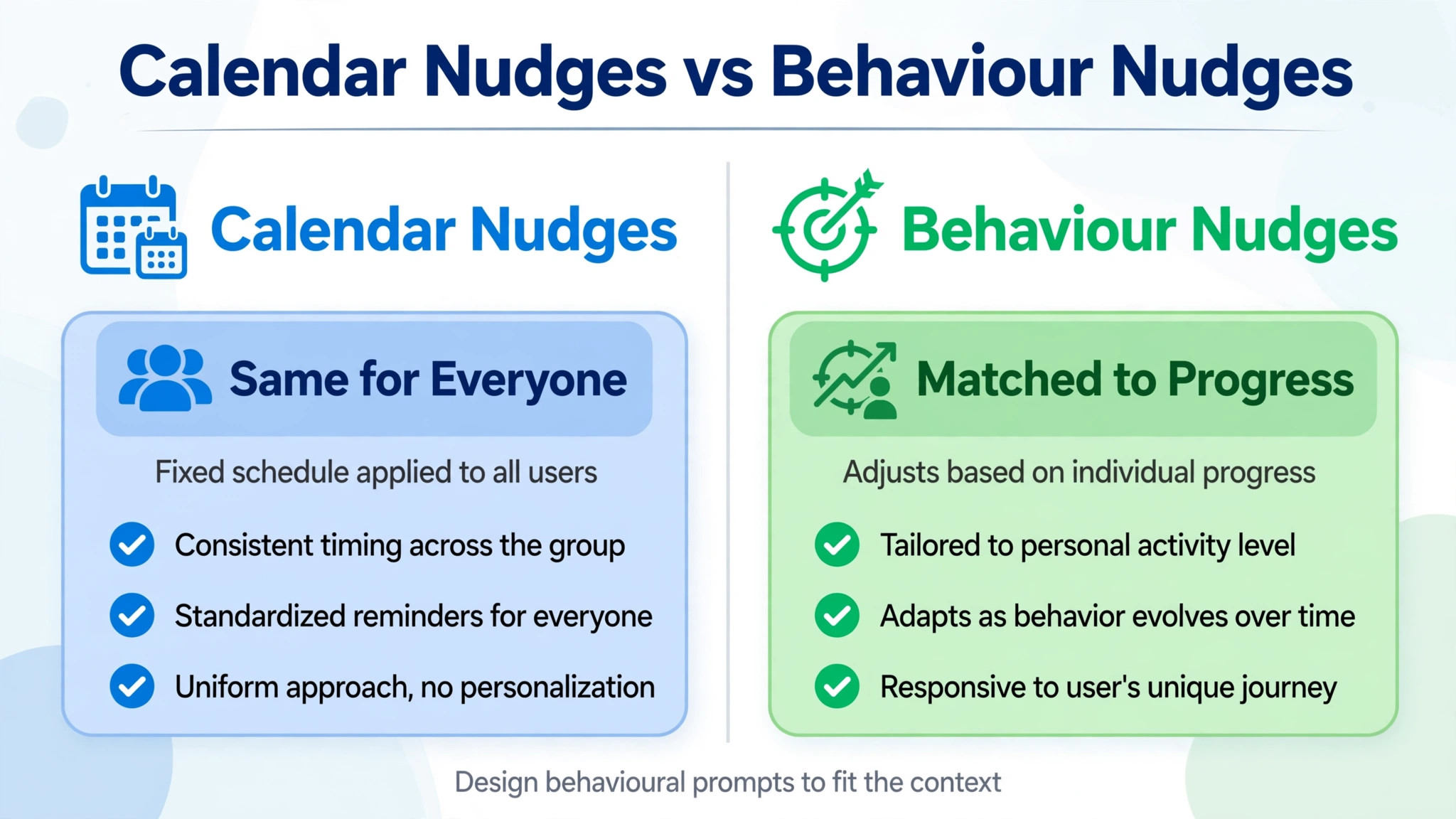
Week one is access and welcome when you use AI for online course creator student onboarding. Test a purchase, fix any access gap, and write the three part welcome sequence. Do not build nudges yet, because the welcome flow must work alone first.
Weeks two and three are behaviour rules. Add the seven day inactivity nudge, the stuck lesson help message, and the module completion check-in. Test each rule with test students in each state, and confirm that stop conditions work when a student resumes.
Week four is the stuck list. Start the weekly review, draft personal check-in templates, and set the privacy rules for progress data. Keep the list small at first, so the review stays a fifteen minute job.
Weeks five and six are review and refinement. Run the monthly data review, fix the weakest step in the journey, and write the lapsed student message. After six weeks, the system should run with a weekly review and a monthly data check, not with daily firefighting.
Verdict
When you use AI for online course creator student onboarding, the win is not a fancier email. The win is a student who starts lesson one without friction, gets help the week they stall instead of a month later, and reaches the end of the course with a clear sense of progress.
That outcome comes from a disciplined sequence. Access first, orientation second, behaviour nudges third, and human check-ins for the students who truly need them. Build it in that order, review the numbers monthly, and keep every automated message honest about what comes next. Students finish courses that respect their time and notice their effort. An onboarding system built on those two principles will do more for completion than any single tool upgrade.
Frequently Asked Questions
How many welcome messages should a new student receive in the first week?
Three short messages work well for most courses. Day zero solves access, day two explains the course map and support route, and day five celebrates an early win and points to the next lesson. More than that in week one risks training students to ignore you. If your course has a complex setup, such as software installation, add one setup message on day one and keep the rest of the sequence unchanged.
What is the best trigger for a first lesson nudge?
Lesson activity is a better trigger than elapsed time alone. If a student started lesson one but did not finish, a help message after one day works well, with a link to the exact lesson. If a student never started, a short check-in after three days with a direct lesson link is a reasonable first step. Both messages should ask what got in the way and offer a concrete next step, rather than simply repeating the course link.
How do I handle a student who replies to an automated message?
Pause automation for that student immediately and reply as a human. Answer the actual question, confirm the next step, and only resume the sequence after the conversation closes. This rule matters more than any other automation setting, because a student who writes back is engaged, and an automated reply that ignores their words will undo that engagement. Keep a note on the student record so the next message fits the conversation.
Should AI write my onboarding messages entirely on its own?
No. Let AI draft messages from your templates and student progress data, then edit them before they go live as templates, and review personal check-ins before sending. Fully automated copy drifts into generic phrasing, and generic phrasing is easy to ignore. Your voice, your course names and your specific next steps are what make a message feel personal. AI supplies the draft and the timing. You supply the judgment.
How often should I review the stuck student list?
Weekly is the right cadence. A weekly review keeps the list short, usually a handful of students for a small course, and lets you act while a stall is still recoverable. A monthly review lets too many students drift past the point where a message helps. Put the review in the calendar as a fifteen minute slot, and keep progress data private to the people who support students.
What should a completion check-in include?
Name what the student completed, preview the next module in one sentence, and ask one question about confidence or usefulness. That structure gives recognition, direction and feedback in three short lines. At the end of a course, add the remaining steps to a certificate or final project, and explain access duration after completion. Avoid long surveys at module boundaries, because a long survey at a moment of progress feels like a penalty.
Can this workflow work for a small course with few students?
Yes, and it may matter more, because each student represents a larger share of revenue and reputation. For a small course, the same workflow runs with simpler tools, such as a course platform plus an email tool, and the weekly stuck list may have only one or two names. The principles do not change with size. Access first, behaviour nudges second, and human replies for students who write back.
How do I measure whether onboarding is improving?
Track four numbers monthly. The share of students who start lesson one within three days, the share who finish the first module, the share who go quiet for fourteen days, and the share who complete the course. Improvement in the first two numbers shows that access and orientation are working. A fall in the quiet share shows that nudges and stuck reviews are catching stalls earlier. Judge change over two or three months, not one week, because small cohorts vary.