
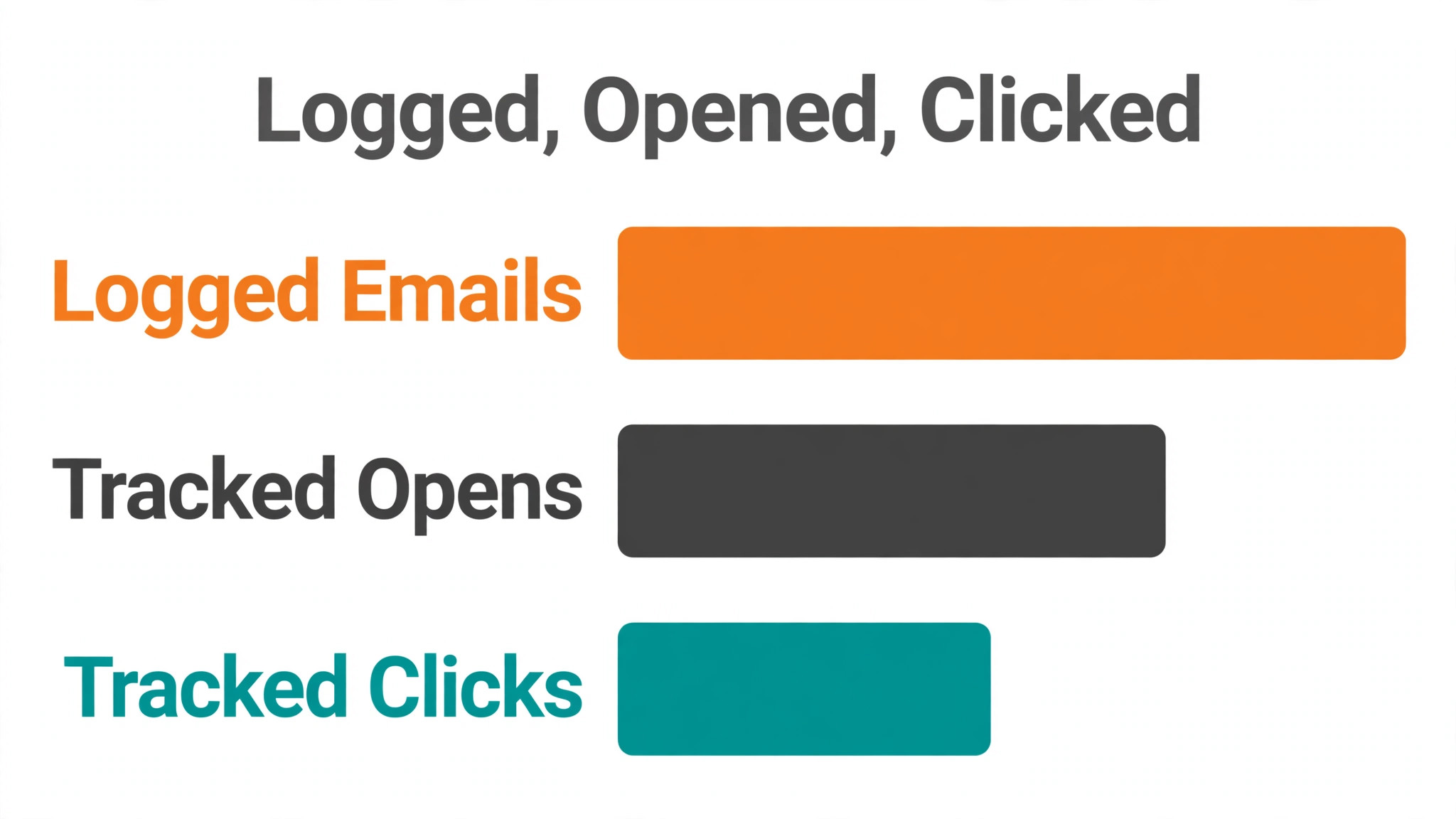
The verdict is simple. Most tracking failures are not a broken CRM. They are a missing setting, a disabled extension, a plain text send, or a blocked tracking pixel. When you need to fix HubSpot email not tracking small business sends, check those four causes before you rebuild anything. A logged email is not a tracked email. Logging records that a message exists. Tracking records that it was opened or clicked. If you see the log but no opens, the pixel or the link rewrite never ran, or the recipient system blocked it. That distinction decides the whole fix, and it is the fastest way to fix HubSpot email not tracking small business sends.
Small sales teams live on that distinction. A follow up that looks ignored may have been opened three times. A proposal that looks cold may have been clicked and read by a second person. Without tracking, you follow up too early, too late, or not at all. With tracking, you can time the next message to real interest. That is why this guide treats a missing open as a diagnostic signal, not as proof that the prospect ignored you. First prove whether tracking is off, blocked, or simply invisible for that recipient.
Start with a controlled test, not with a live prospect. Send a tracked email to your own personal address and to a colleague, from the same inbox and the same setup you use for prospects. Open it on a phone and on a desktop. Click a link. Then wait a few minutes and check the contact timeline. If your own test tracks, the system works and the fault is specific to a recipient, a device, or a network. If your own test fails, the fault is in your setup and you can fix it without involving a prospect.
How Tracking Works, and Why It Stops
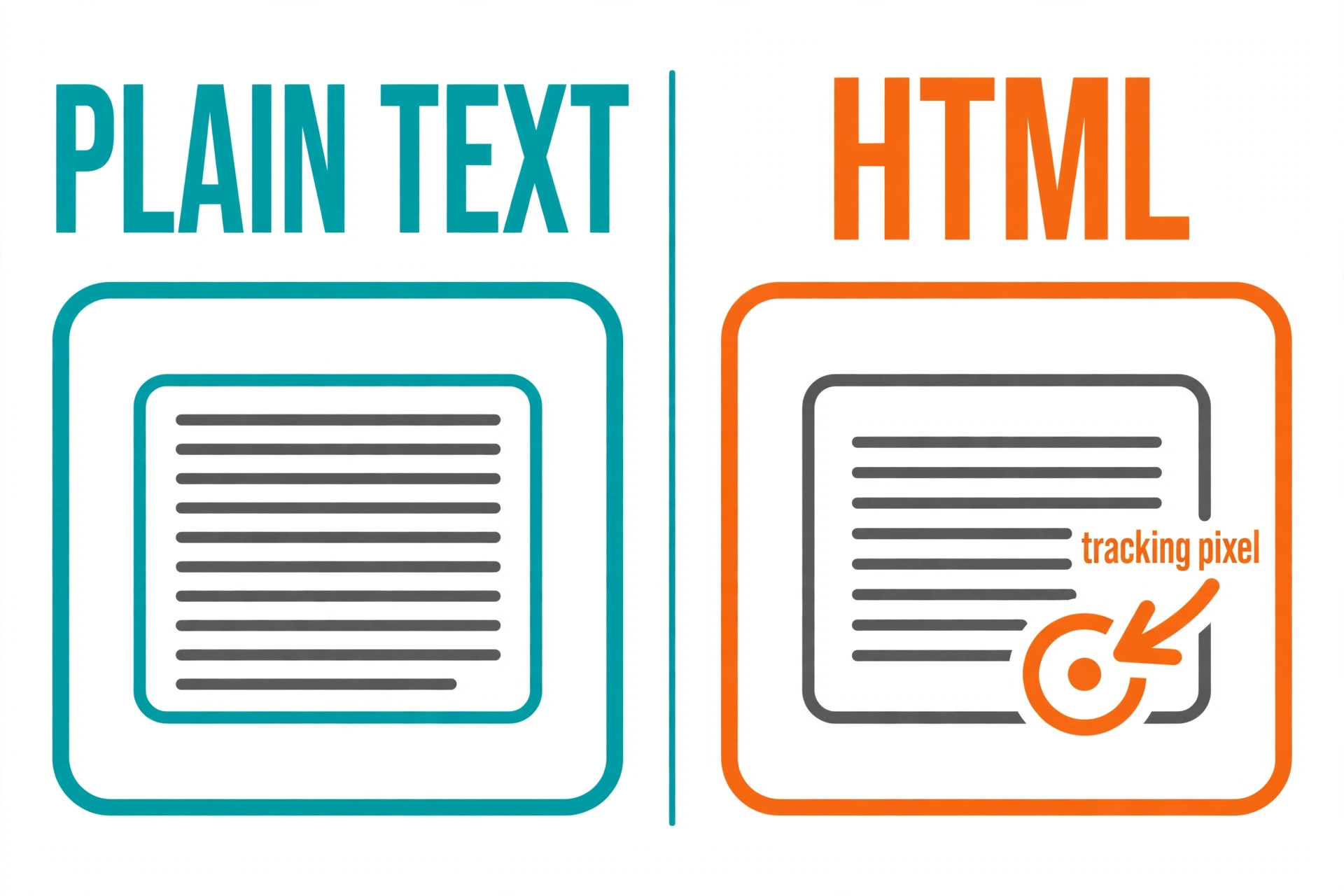
HubSpot email tracking for one to one sales email works through two mechanisms. An invisible one pixel image records an open when the recipient mail system loads images. Rewritten links record a click when the recipient follows a link. Both mechanisms need the right conditions. The email must be sent in HTML format, the tracking option must be on for that send, and the extension or add-in that inserts the pixel must be active at send time. Remove any one condition and tracking fails silently, which is why a checklist matters when you fix HubSpot email not tracking small business mail. The email still arrives, which makes the failure easy to miss.
That silence is the hardest part. No error appears when a pixel is stripped. No warning appears when an extension is disabled. The sender sees a sent message and assumes tracking is running. The recipient sees a normal message. Only the timeline reveals the gap, and only if someone looks. Build a habit of checking the timeline after test sends, not after a week of prospect sends. A week of untracked sends is a week of lost timing data that you cannot recover later.
Recipient systems also affect tracking in ways you cannot control. Some mail systems block images by default. Some corporate filters strip pixels for security. Some privacy tools block tracking images and rewritten links. A recipient who reads in a preview pane without loading images may never register an open, even though they read every word. That does not mean your setup is broken. It means open data is directional, not exact. Treat opens as a signal to prioritise follow up, not as a perfect count of reads.
The Verdict in Practice to Fix HubSpot Email Not Tracking Small Business Settings
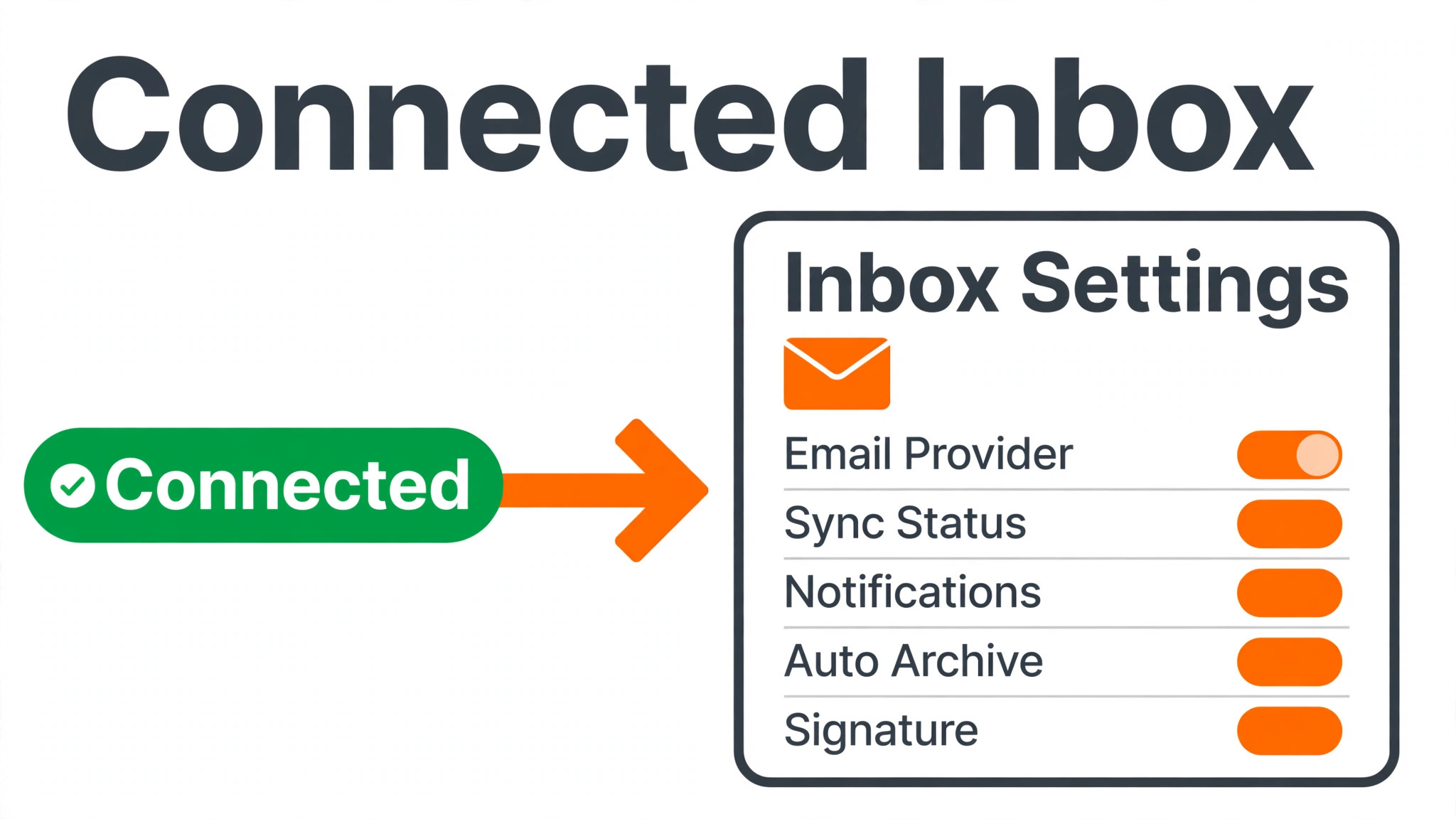
Open your HubSpot settings and confirm the chain from inbox to send. Go to the settings area, then General, then Email, then Connected inboxes. Confirm your inbox shows as Connected, not as an error or a needs attention state. A disconnected inbox can still send from your mail client, but HubSpot cannot log or track reliably, so reconnect first when you fix HubSpot email not tracking small business sends. Reconnect the inbox if the status is anything other than Connected, and test again before you change anything else.
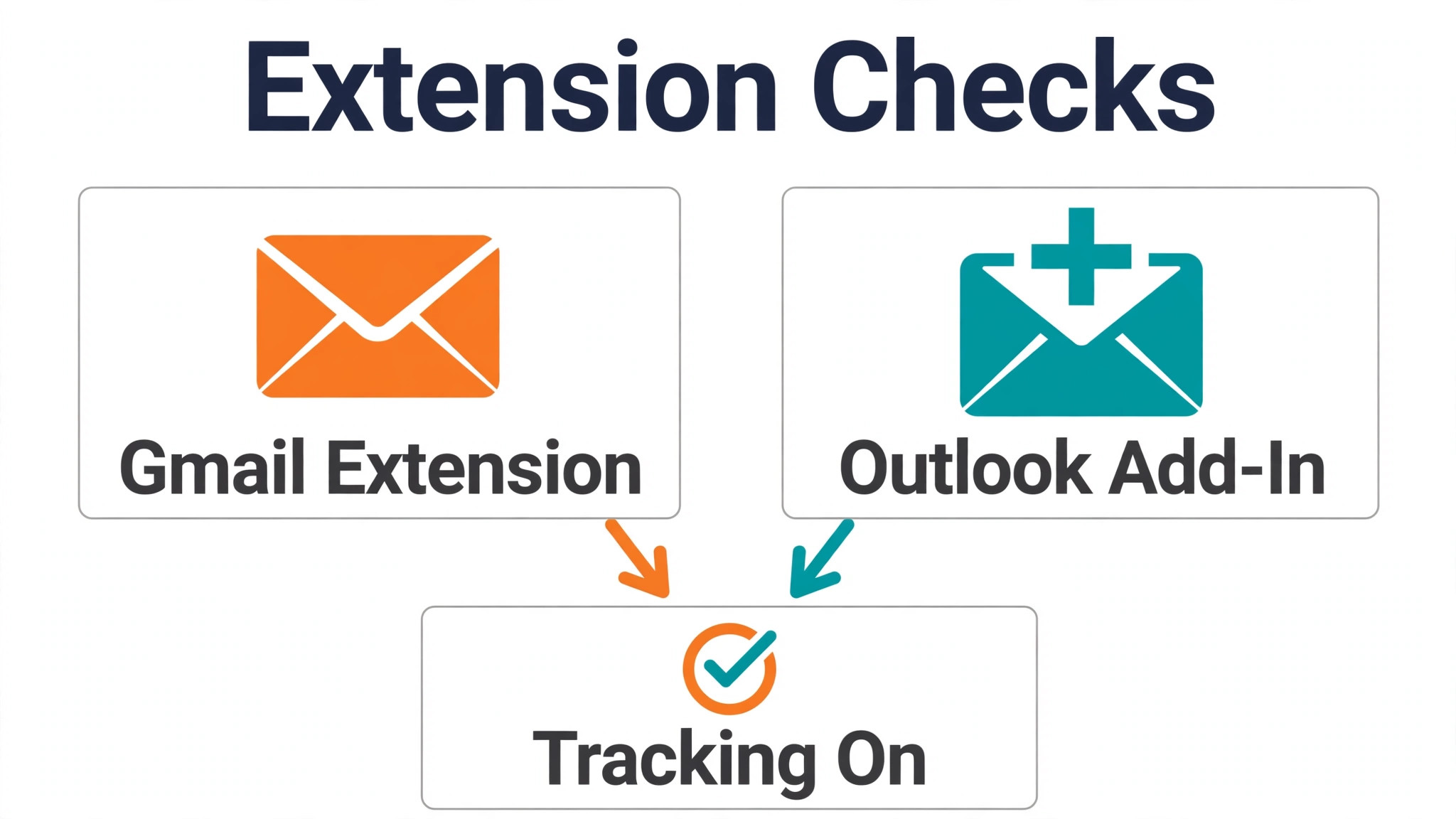
Next, check your log and track preferences for your user. HubSpot lets you set defaults for logging and tracking, and those defaults can differ by user. Confirm that tracking is on by default if that is your team policy. Even with a default on, check the send time option on the actual message. In Gmail, the HubSpot extension shows a tracking control when you compose. In Outlook, the add-in shows a track option and, for Office 365, a checkbox for tracking opens. If that control is off for one send, that send will not track, no matter what the default says.
Check the message format next. Emails sent in plain text mode cannot be tracked, because a plain text message carries no pixel and no rewritten link. In Gmail, check the compose options and make sure plain text mode is off. In Outlook, check the message format setting and make sure it is HTML. This step alone fixes a surprising number of cases, because plain text mode can be set once and then forgotten. It can also be set by a signature tool, a template, or a reply that inherited a plain text format from an earlier thread.
Finally, check whether you sent from the right place. Tracking works when you send from the CRM, from the HubSpot mobile app, or from Gmail in Chrome with the extension, or from Outlook with the add-in. Sending from a phone mail app, from a different browser, or from a mail client without the extension will log the message through the blind copy address at best, but it will not track opens or clicks. If your team sends from phones on the road, set a clear rule for which app counts as a tracked send and which app is for quick replies only.
Extension and Add-In Checks for Gmail and Outlook
For Gmail, the HubSpot Sales Chrome extension is the part that inserts tracking. Confirm it is installed, enabled, and signed in. Open Chrome extensions and look for the extension in the list. If it is disabled, enable it and reload Gmail. If it is missing, install it again from the official extension store and sign in, because a missing extension is a common reason to fix HubSpot email not tracking small business mail. Do not install a lookalike extension from an unrelated publisher. A wrong extension can look similar and do nothing for tracking.
Check for conflicts next. HubSpot documents several extensions that can conflict with tracking, including ad blockers and other mail tracking tools. If you run more than one tracking tool, they can fight over the same message. Turn off other mail extensions one by one and test after each change. The HubSpot extension also includes a help and troubleshooting area that can check for known conflicting extensions. Use that check before you uninstall everything, because it names the conflict instead of forcing you to guess.
Note two Chrome conditions that break the extension silently. The extension does not display in incognito mode for private browsing, so a test sent from an incognito window will not track. Google Rapid Release track is also documented as incompatible with the extension, so a team on that track should talk to IT about moving to the default release track. Managed Chrome policies can also block or force extensions. If IT manages your browser, ask IT to confirm the extension policy allows the HubSpot extension and its permissions.
For Outlook, the add-in must be open when the email is sent. In Outlook on the web, compose a message, open Apps, and select HubSpot Sales. In Outlook desktop, use Sales Tools in the message ribbon. Pin the add-in open if your version supports pinning, because a closed task pane at send time can mean the tracking step never runs. If the Sales Tools icon is greyed out in desktop Outlook, restart Outlook and test again. A greyed out icon often clears with a restart, while a missing add-in needs a reinstall from the add-in store.
Also check for Outlook add-in conflicts and security software. Other add-ins and some security programs can block the tracking step or close the task pane. Turn off other add-ins temporarily and test. If tracking returns, turn them back on one by one. If security software is the cause, ask IT for an exception rather than turning security off permanently. A temporary test with security off proves the cause, but a permanent exception is the safe fix.
Domain Allowlisting and the Tracking Pixel
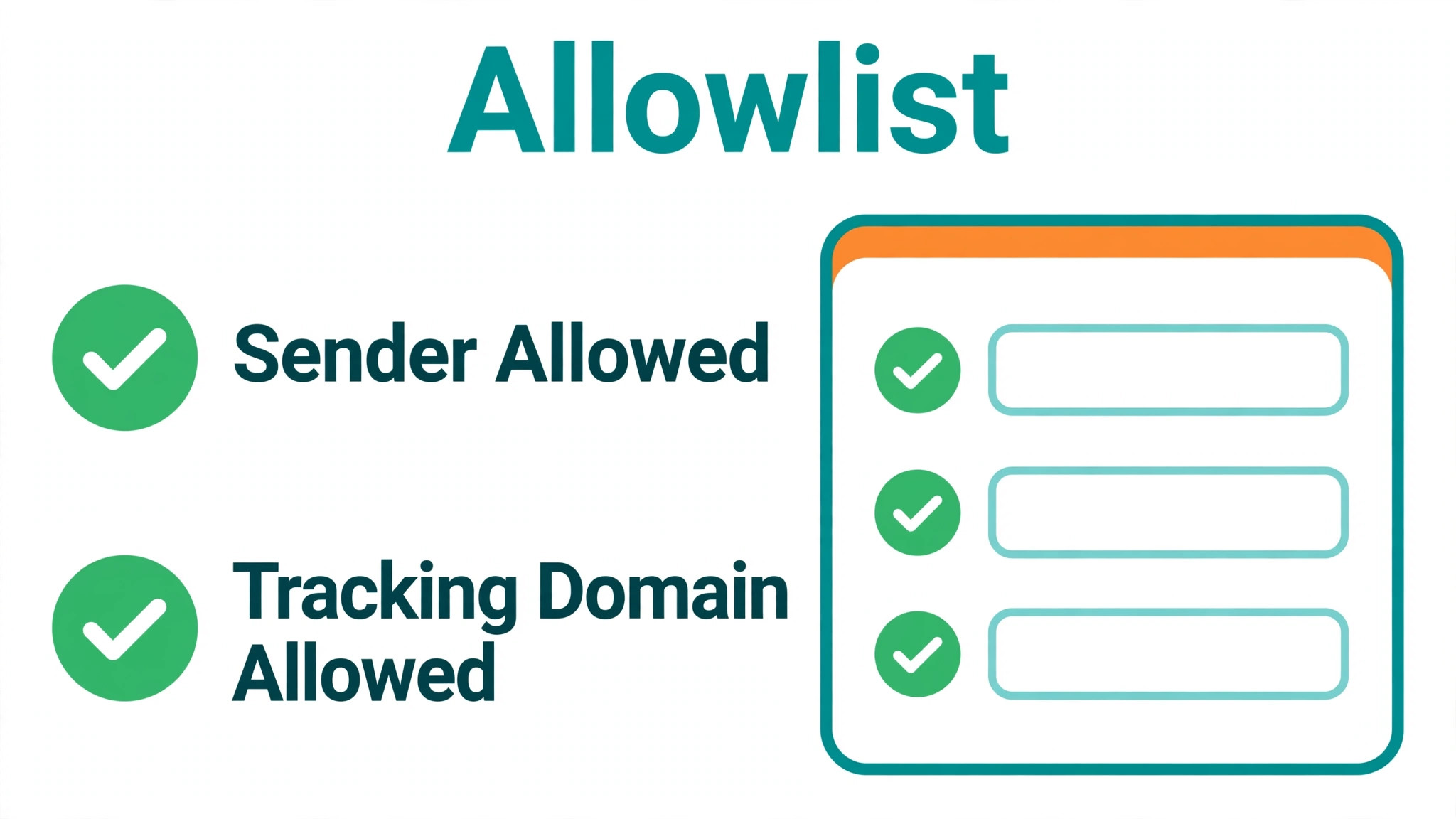
Allowlisting matters when your own mail system or your recipient company system blocks HubSpot domains. HubSpot publishes a list of sending domains and addresses for allowlisting, and IT teams should add the collective list for the services you use. For a small business without IT staff, the practical version is simpler. Ask your mail provider or your IT contact to add HubSpot as a safe sender and to allow the tracking domains HubSpot uses for opens and clicks. Check the vendor current help page for the exact list before you ask, because domain lists change and an old list can miss a new domain.
Understand what allowlisting can and cannot do. Allowlisting your own domain helps HubSpot notification mail reach your inbox, and it is one step when you fix HubSpot email not tracking small business tests. Allowlisting a tracking domain on your side helps your test sends track when your own filter was stripping the pixel. It does not force a prospect company to allow the pixel. A prospect firewall that strips pixels will still strip them, even when your setup is perfect. That is why test sends to a personal address matter. They separate your filter from the prospect filter.
If links break when tracking is on, the link rewrite is the likely cause. HubSpot rewrites links through its tracking domain so clicks can be recorded. Some ad blockers and company networks flag that domain and break the link. If turning tracking off fixes broken links, you have found the conflict. Options include asking IT to allow the tracking domain, using a custom tracking domain on a paid plan where available, or turning off click tracking for that recipient while keeping open tracking. Check the vendor current pricing and plan page before you promise a custom domain, because availability depends on your plan.
Do not confuse allowlisting with authentication. Email authentication for marketing sends, through domain records, is a separate topic from one to one sales tracking. For sales email, the immediate allowlist is the HubSpot sender and tracking domains in your mail client and any security tool. For marketing email, domain connection and authentication matter more, and that work belongs in a separate deliverability review. Keep the two reviews separate, or you will change marketing settings while trying to fix a sales tracking fault.
Test Sends That Prove the Fix
A good test send has a clear pass mark. Before the test, write down what you expect. The email should appear on the contact timeline as logged. An open should appear after you open the test message with images loaded. A click should appear after you click a link. If any step fails, you know exactly which mechanism failed. A vague test, where you send and hope, tells you nothing when it fails, because you cannot tell which step broke.
Run the test in three variants. First, send to a personal Gmail address and open it in Chrome with images on. Second, send to a colleague on a company address and ask them to open it and click a link. Third, send to an Outlook address if your team uses Outlook, and open it in Outlook with the add-in open. Three variants cover the main mail systems your prospects use. If Gmail tracks but Outlook does not, the fault is Outlook specific. If both fail, the fault is in your HubSpot setup or your extension, and you should fix HubSpot email not tracking small business sends at the setup layer.
Record the results in a simple table. Note the send time, the recipient type, whether the log appeared, whether the open appeared, and whether the click appeared. That table becomes your evidence if you need support. It also becomes your baseline for the next failure. When tracking breaks again in three months, run the same three tests and compare. A change in one column points to the change that broke it, whether that change was an extension update, a browser update, or a new security tool.
Wait long enough before you call a test failed. Opens and clicks can take a few minutes to appear on the timeline. Refresh the timeline after five minutes, not after five seconds. Also open the test message in a way that loads images. If you open in a preview pane with images blocked, you have tested image blocking, not tracking. Load images explicitly for the test, then check the timeline again. A test that blocks its own pixel will always fail, and it will mislead you into changing settings that were fine.
Common Traps That Look Like Tracking Failures
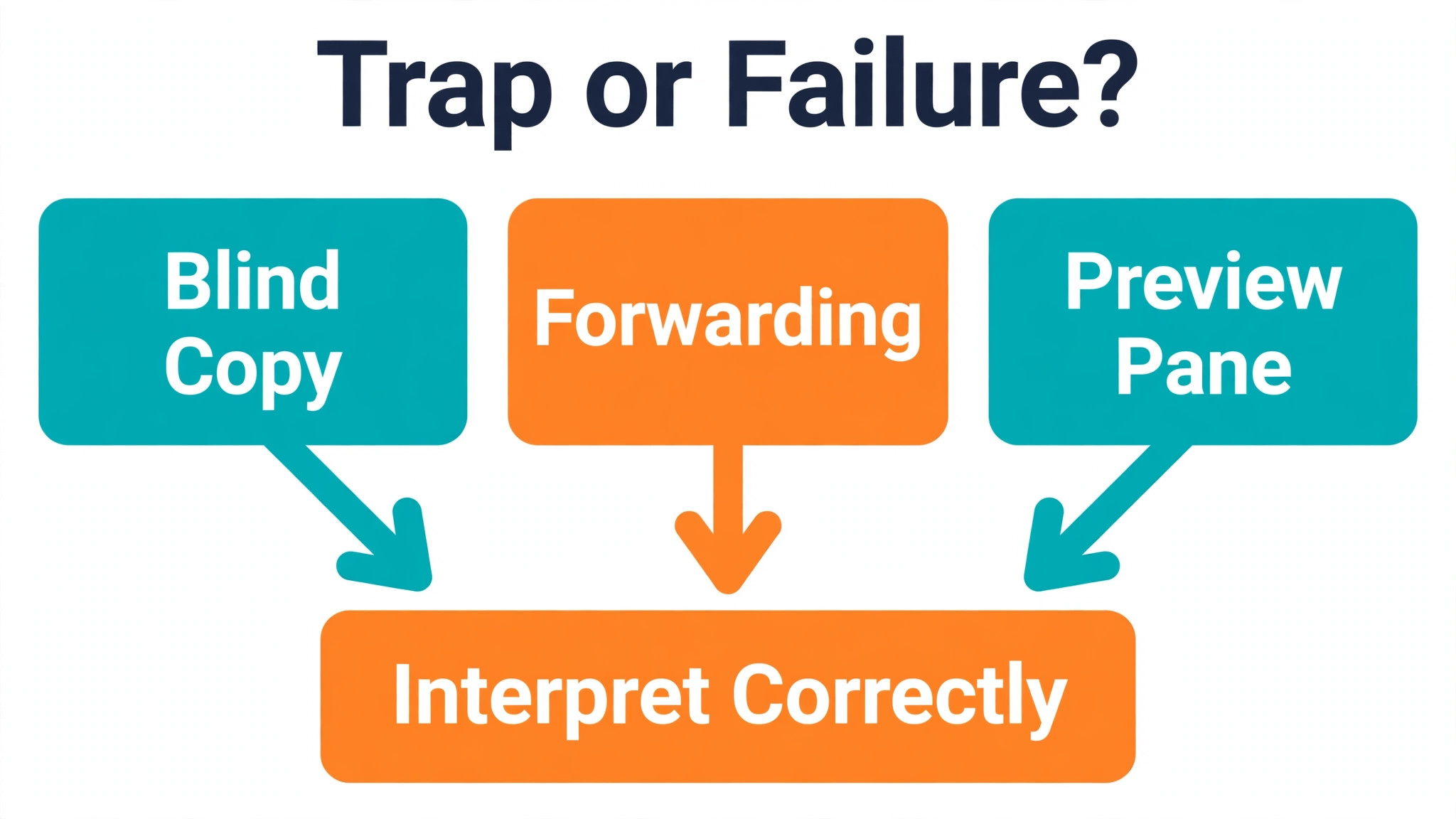
The first trap is the blind copy address. When you send from Gmail or Outlook, a HubSpot blind copy address can appear, and that address logs the email. Logging is not tracking. If you see the log and assume tracking is on, you will miss the fact that the extension was off. Check for the open and click events, not only for the log entry. A log without an open after a confirmed open means tracking failed, and that gap is the clearest signal to fix HubSpot email not tracking small business mail.
The second trap is forwarding. If a recipient forwards your email, the pixel travels with the forwarded copy and can register opens from the new reader. That can look like extra opens from the original contact. It can also look like tracking is working when the original send never tracked. Do not use forwarded opens as proof. Use your own controlled test sends as proof, where you control who opens and when.
The third trap is the preview pane. Some recipients read mail in a preview pane that loads images automatically, which can register an open before they actually read. Others read in a preview pane that blocks images, which registers no open at all. Both cases distort open counts. Use opens to prioritise, not to judge interest with precision. A click is a stronger signal than an open, because a click requires an action. A reply is stronger still. Build follow up rules around clicks and replies first, and opens second.
The fourth trap is testing on yourself from the same inbox. If you send a tracked email to yourself and open it in the same browser session, some mail systems and privacy settings can behave differently than they do for an outside recipient. That is why the colleague test matters. A colleague on a different address and a different device gives you a cleaner result. If both your own test and the colleague test fail, the fault is almost certainly in your setup.
The fifth trap is changing too much at once. If you reinstall the extension, reconnect the inbox, change the format, and allowlist domains in one session, you will not know which change fixed it. Change one thing, test, and record the result. That discipline feels slow, but it saves time on the next failure, because you will know which change mattered and which changes were wasted effort.
A Tracking Checklist for Small Teams
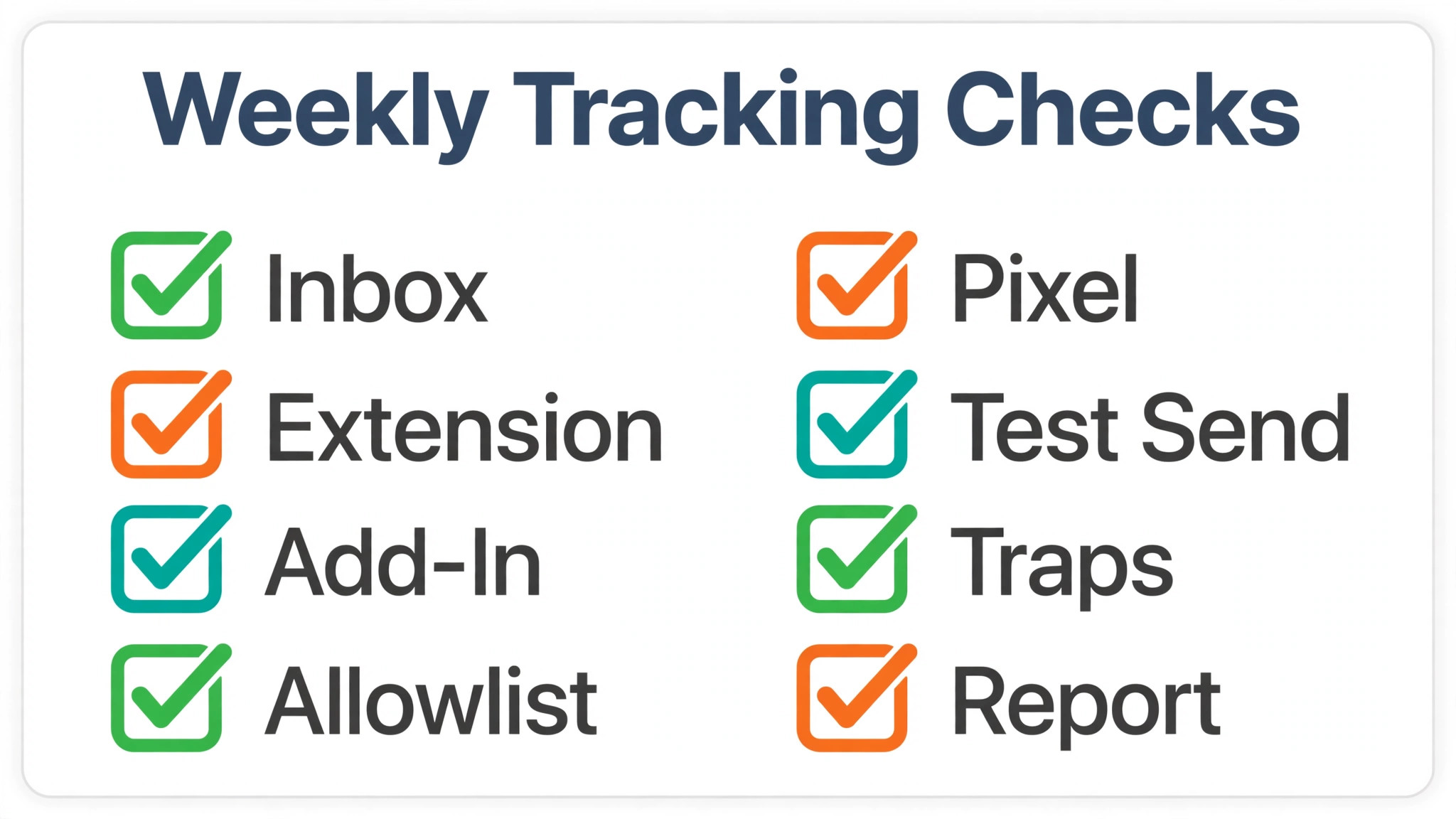
Use this checklist as a weekly habit, not only as a repair tool. A team that checks tracking weekly catches a broken extension on Monday, not after a month of untracked prospect mail. Assign one person to run the checklist, and rotate that role so the knowledge does not sit with one person alone.
– Confirm the inbox shows as Connected in settings, under General, Email, and Connected inboxes. – Confirm tracking is on by default for each user who sends prospect mail. – Confirm the extension or add-in is installed, enabled, and signed in. – Confirm no conflicting mail extension or add-in is running. – Confirm sends are in HTML format, not plain text mode. – Confirm sends come from the CRM, the mobile app, Gmail with the extension, or Outlook with the add-in. – Send a test to a personal address and to a colleague, and confirm log, open, and click appear. – Record the test result and the date, so the next failure has a baseline.
If a checklist item fails, fix that item and retest before moving to the next item. A checklist run in order is faster than a random set of fixes, because it follows the chain from inbox to send to pixel to timeline. When every item passes and a prospect send still shows no open, accept that the prospect system may be blocking the pixel. Follow up on value and timing, not on the missing open alone.
What to Change in Your Follow Up Habits
Tracking data should change how you follow up, not only how you report. If a prospect opens a proposal three times in one day, call while interest is high. If a prospect clicks a pricing link, send the pricing detail they clicked toward, not a generic check in. If a prospect shows no open after two sends, change the subject and the first line, rather than sending the same message a third time. Tracking is useful only when it changes the next action.
Set simple rules for the team. An open without a click gets a short, useful follow up within one working day. A click gets a same day follow up that references the clicked content. No open after two sends gets a different angle, not a repeat. A reply stops the automated sequence immediately, even if the sequence still shows as active. Write those rules down and review them monthly. A rule that nobody follows is worse than no rule, because it creates false confidence.
Keep tracking data in context. If you are weighing a move to a different CRM while you fix this, read Switch from Insightly to HubSpot as a Small Business for the migration tradeoffs, and keep tracking fixes separate from platform decisions. A single open from a shared inbox may come from an assistant, not from the decision maker.
A click from a phone may come from a quick scan, not from deep interest. Pair tracking with the conversation history. If the prospect asked for a document and then clicked it, that click means more than a click on a newsletter link. If the prospect never replied and never clicked, a single open does not justify a hard sell. Use tracking as one signal among several, and let the conversation lead.
When to Escalate to Support, and What to Send Them
Escalate when your three variant tests all fail after settings, extension, format, and allowlist checks. At that point, further random changes waste time and can hide the original fault. Support needs a clean record, not a long list of changes made in one afternoon. Stop, gather the evidence, and send one clear case. A case that shows method gets a faster answer than a case that shows frustration.
Start the case with the account facts. State the user affected, the inbox type, whether the send was Gmail or Outlook, and the browser or app version. State the date and time of the test sends, and whether the tests used a personal address, a colleague address, or both. State whether the log appeared, whether the open appeared, and whether the click appeared. That table, copied into the case, lets support skip the first round of questions and move to the account layer.
Add the settings you already checked. List the connected inbox status, the default tracking setting, the per send tracking setting, and the message format. List the extension or add-in status, including whether it was reinstalled and whether conflicting extensions were turned off. List any allowlist change and who made it. When support sees that list, they will not ask you to repeat those steps. They will check server side logs, account permissions, and any known issue affecting your plan or region.
Ask one specific question in the case. Ask whether support can see the pixel request for your test send, or whether the test send arrived without a pixel. That question narrows the fault to the send step or the recipient step. If support can see no pixel request, the send step failed. If support can see a pixel request but no open event, the recipient system likely blocked the image or the event was filtered. A specific question produces a specific answer, while a general complaint produces a general checklist you have already completed. When you fix HubSpot email not tracking small business mail through support, that precision is what moves the case forward.
While you wait, protect your pipeline. Tell the team which sends are tracked and which are not, so nobody reports open rates from a broken period as if they were real. Use replies and meetings as the follow up signal until tracking returns. Keep a note on each affected contact record, so a future team member does not misread a blank timeline as disinterest. A blank timeline during a known outage is not a prospect signal. It is a system gap, and it should be labelled as one.
After support resolves the case, rerun the three variant tests and record the result. Compare the new result with the baseline you recorded during the failure. If Gmail now tracks but Outlook still does not, keep the Outlook case open and do not close the whole ticket. If all three variants track, update the team checklist with the fix that worked, and note the support case number for future reference. That closing step turns a support case into team knowledge, rather than a fix that only one person remembers.
Frequently Asked Questions
Why is my email logged in HubSpot but not tracked?
Logging and tracking use different mechanisms. Logging records the message through the blind copy address or the inbox connection. Tracking needs the pixel for opens and rewritten links for clicks, plus the extension or add-in active at send time. A log without an open usually means the pixel never ran, the send was plain text, the extension was off, or the recipient system blocked the pixel.
Does HubSpot track emails sent from my phone mail app?
A phone mail app without the HubSpot extension or app will generally log through blind copy at best, but it will not track opens or clicks reliably. For tracked sends, use the HubSpot mobile app, the CRM, Gmail in Chrome with the extension, or Outlook with the add-in. Use a phone mail app for quick replies only, and note that those replies may not carry tracking data.
Why do opens appear for some recipients but not others?
Recipient mail systems differ. Some load images by default, some block images, and some corporate filters strip pixels. A recipient who reads in a preview pane without images will not register an open. That variation is normal. Use your own test sends to prove your setup works, and treat prospect opens as directional signals rather than exact read counts.
Can an ad blocker stop HubSpot email tracking?
Yes. Ad blockers, privacy tools, and other mail tracking extensions can block the pixel, block rewritten links, or conflict with the HubSpot extension. Turn off conflicting extensions one by one and test after each change. If tracking returns after one extension is off, that extension is the conflict. Ask IT for an exception if the extension is required for other work.
What is the difference between log and track preferences?
Log preferences control whether a sent message appears on the contact timeline as a record. Track preferences control whether opens and clicks are recorded for that message. Both need to be on for full visibility, and both can be set as defaults and overridden per send. Check the per send control on the actual message, because a per send override can defeat a correct default.
Why does tracking fail in plain text mode?
Plain text messages carry no pixel image and no rewritten link, so there is nothing for the recipient system to load or click through for tracking. Switch the message format to HTML before sending. In Gmail, check compose options. In Outlook, check the message format setting. A single plain text send will not track, even when every other setting is correct.
Should I turn tracking off if links break for recipients?
If links break only when tracking is on, the link rewrite or a network filter is the likely cause. First ask IT to allow the tracking domain. If you hold a plan that offers a custom tracking domain, check the vendor current plan page for availability and setup. As a short term fix for one recipient, you can turn off click tracking for that send while keeping the message itself unchanged.
How long should I wait before I call a test send failed?
Wait at least five minutes and refresh the contact timeline. Opens and clicks can take a few minutes to appear. Also confirm you loaded images when you opened the test message, and that you clicked a link for the click test. A test that blocks its own pixel, or that checks too early, will look like a failure even when tracking works.