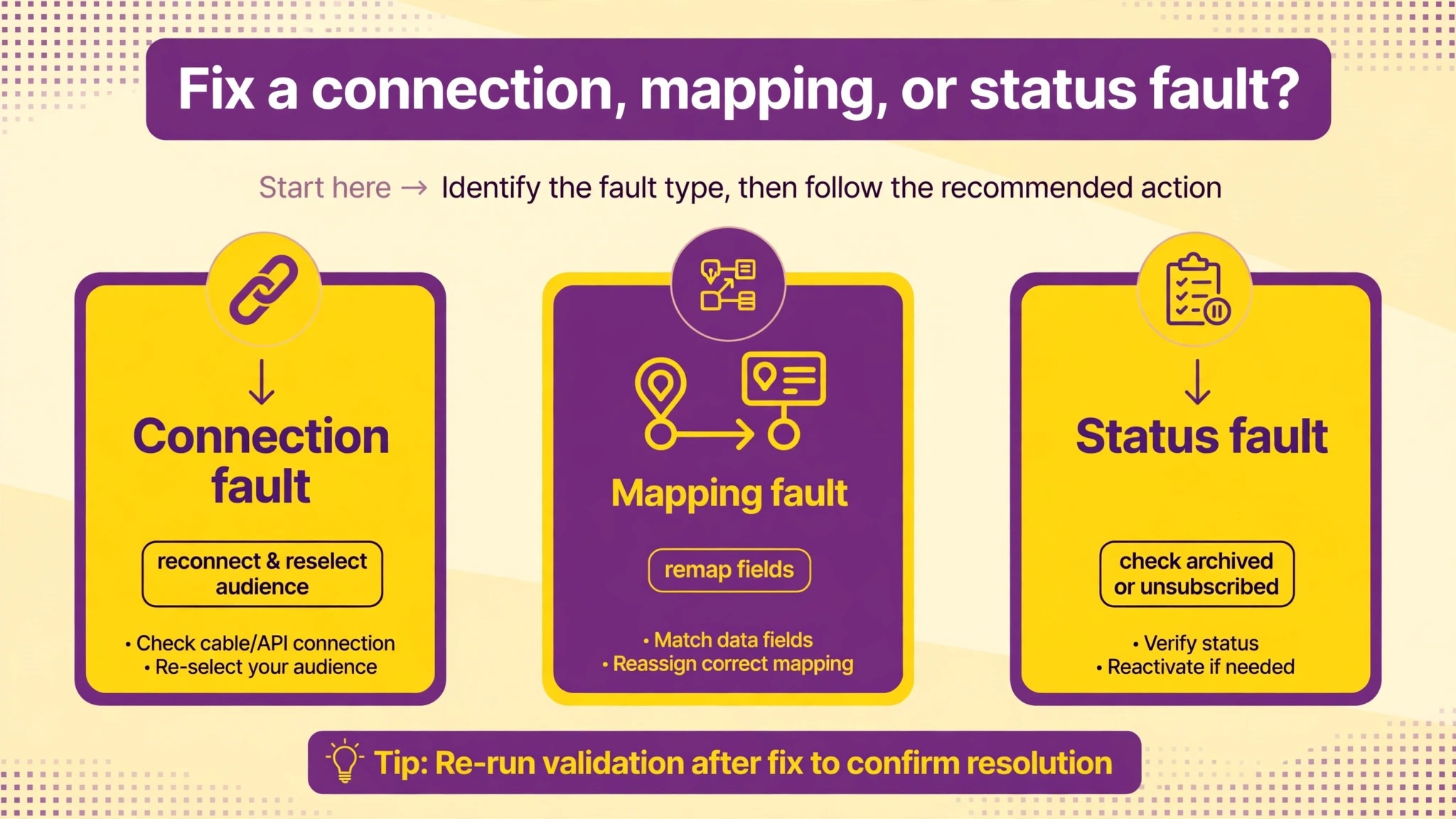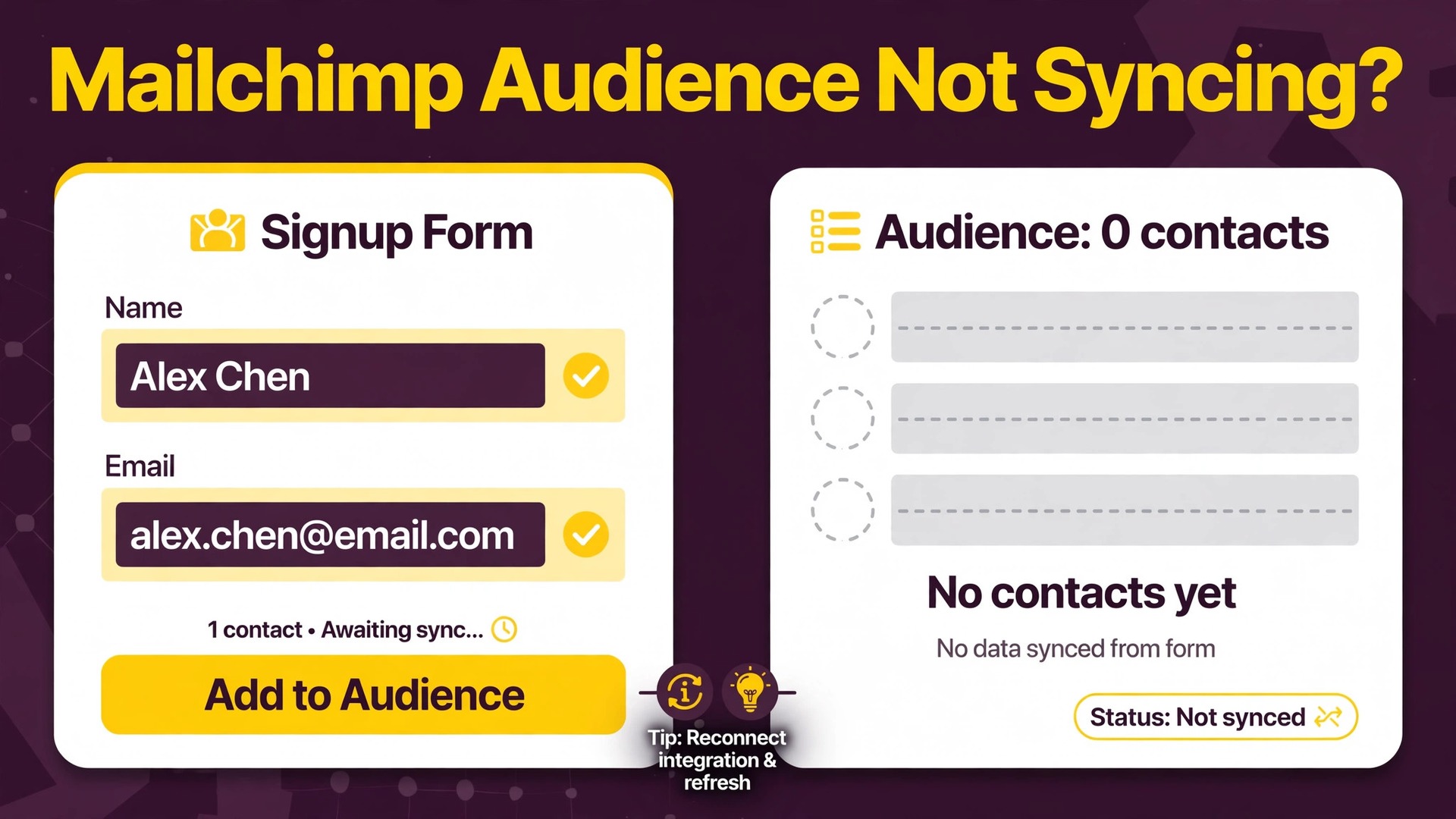
The problem is plain, and it is easy to miss until it costs you a campaign. To fix Mailchimp audience not syncing small business lists, start with the connection, then the mapping, then the errors. New customers sign up on your website, buy from your store, or fill in a form, and their details never reach your Mailchimp audience. Or they reach it days late, with missing names, wrong tags, or no record of what they bought. The next email then goes to an old list, new customers hear nothing, and the owner assumes the signup form is broken when the form is fine.
To fix Mailchimp audience not syncing small business teams need to check the connection first, then the field mapping, then the sync errors that quietly reject individual contacts. Those three checks, in that order, solve most cases.
A sync failure is different from a delivery failure, and confusing the two wastes time. A delivery failure means contacts are in the audience but emails do not reach them. A sync failure means contacts never arrive in the audience at all, or arrive in the wrong audience, with the wrong status, or with missing data. The symptoms overlap, because both end with a customer not receiving an email, but the fixes are entirely different. This guide deals only with sync, meaning the movement of contact data from another tool into Mailchimp, and it shows how to prove, contact by contact, where that movement stops.
Syncs come in several forms, and the form matters for diagnosis. A website form may add contacts directly to an audience. An ecommerce store may sync customers and orders. A customer system may sync contacts in both directions. An automation tool may move contacts between apps on a schedule. Each form has its own connection, its own field mapping, and its own error log, but all of them share the same failure points. A broken connection, a required field with no value, a deleted or renamed audience, a contact limit, or a record that Mailchimp rejects for a data reason.
Work through those points in order, and you will find the break.
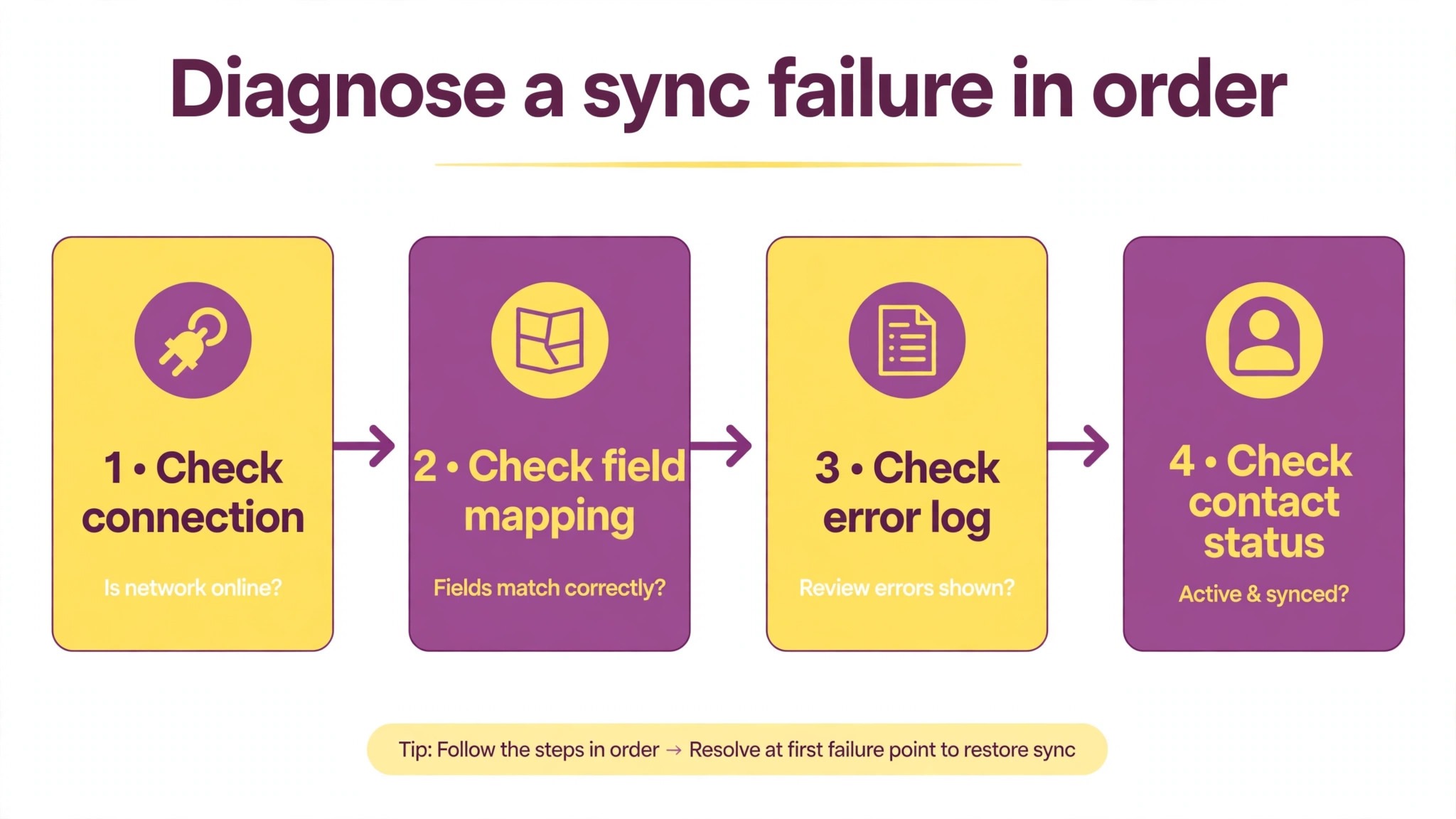
How to Fix Mailchimp Audience Not Syncing Small Business in Order
Start with a single missing contact, described exactly. Write down the email address, the source where the contact signed up, the date and time of signup, and what you expected to see in Mailchimp, including tags, status, and any extra fields. Then search the Mailchimp audience for that email address, including archived contacts, since a contact that was archived after an earlier sync will not appear in a normal audience search. If the contact is present but missing data, the problem is mapping. If the contact is absent entirely, the problem is connection, audience selection, or rejection.
Check the sync direction and timing before assuming a failure. Some syncs run in near real time, while others run on a schedule, such as hourly or nightly, and a contact that signed up minutes ago may simply not have synced yet. Check the integration documentation or settings for its sync frequency, and check whether the sync is one way or two way. A one way sync from your store to Mailchimp will never bring Mailchimp changes back to the store, and that is expected behaviour, not a fault.
A sync that was paused, either by a person or automatically after repeated failures, will also look like a failure until it is resumed.
Work through the steps below in order, and test with a fresh test contact after each change. Use a real email address you control, sign up through the same source as the missing contact, and watch whether it arrives, what data it carries, and how long it takes. A test contact gives you a clean example, free from the history of the original contact, which may have been archived, unsubscribed, or blocked for a separate reason.
Check the Integration Connection and Audience Selection First
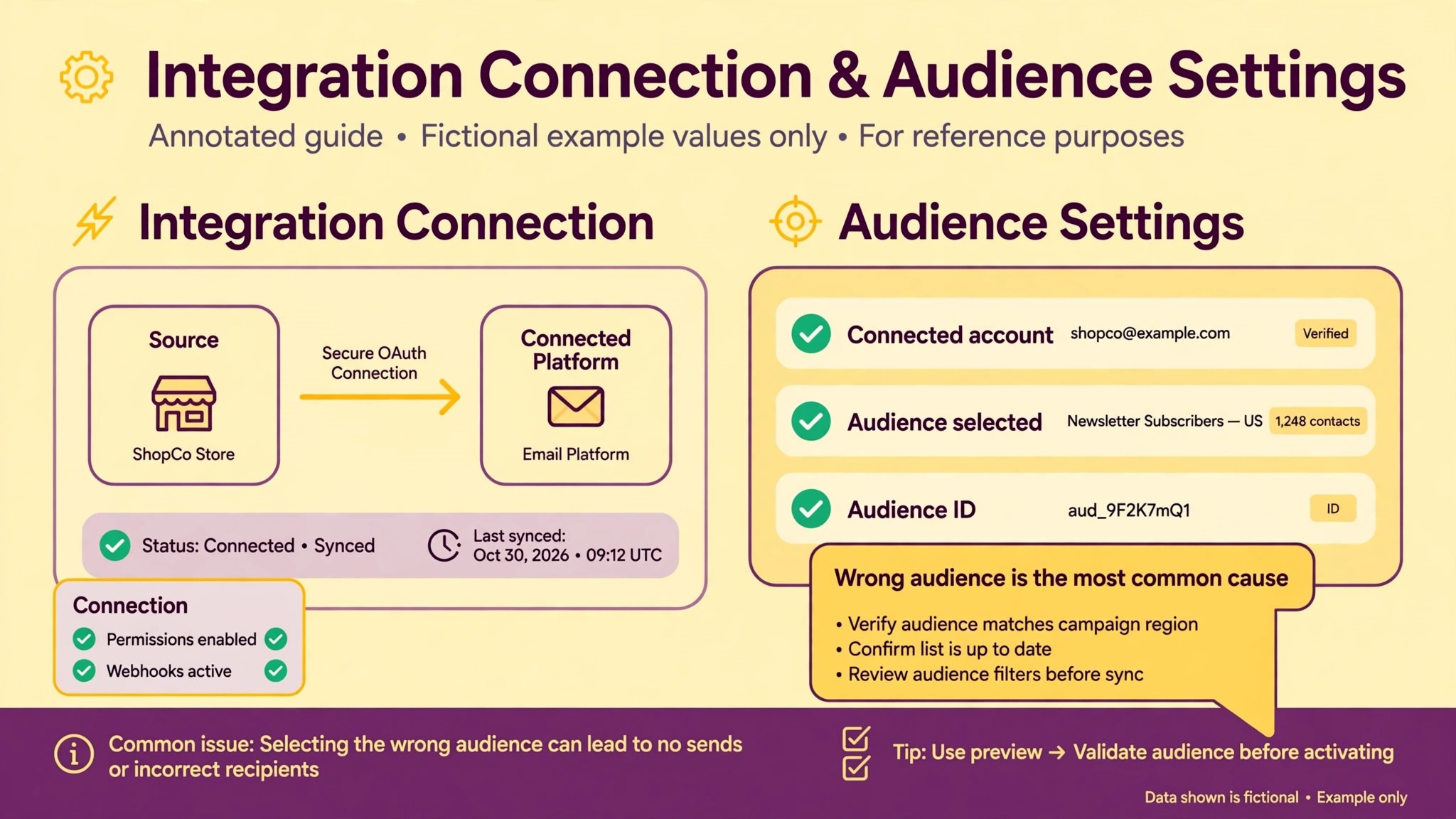
When you fix Mailchimp audience not syncing small business connections, open Mailchimp and go to the integrations area for the tool that should be syncing, or open that tool and go to its Mailchimp settings, depending on which side owns the connection. Confirm the connection is still active, that it points at the correct Mailchimp account, and that it is connected to the correct audience. Connections break more often than owners expect, because passwords change, API keys are revoked, staff leave, and accounts are reorganised. An API key that was revoked or mistyped will fail every sync, and the error is often logged on the source tool side, not in Mailchimp, so check both sides.
Audience selection is the next check, and it fails quietly when an audience is renamed, duplicated, or deleted. A sync that points at an audience that no longer exists will fail, and a sync that points at an old duplicate audience will succeed while filling the wrong list. In Mailchimp, open Audience, then Settings, then Audience name and defaults, and confirm the audience ID matches the one the source tool is configured to use. The audience ID is the reliable identifier, not the audience name, since names can be duplicated or changed while the ID stays fixed.
If the source tool shows an audience name that does not match any current audience, reconnect it and select the correct audience deliberately.
API keys deserve a specific check where the integration uses one. In Mailchimp, API keys live under the account profile, then Account and billing, then Extras, then API keys, and each key carries a data centre suffix, such as a code after a hyphen at the end of the key. A key copied without its suffix, a key from the wrong account, or a key that was revoked after a staff change will all fail. Generate a fresh key if you suspect the old one, update the source tool with the full key, and test immediately.
Do not share API keys in support messages or screenshots, since a key gives access to the account, and a leaked key should be revoked at once.
Also check account limits and permissions. The user who connected the integration may have lost access, changed roles, or left the business, and some integrations stop syncing when that user permission changes. Confirm the connected user still has access to the audience, and reconnect under a current team member if needed. Check whether the audience has reached a contact limit for its plan, since a sync that pushes an audience past its cap will log limit errors and stop adding new contacts, even though existing contacts keep working normally.
Field Mapping and Required Fields Reject More Contacts Than Any Other Cause
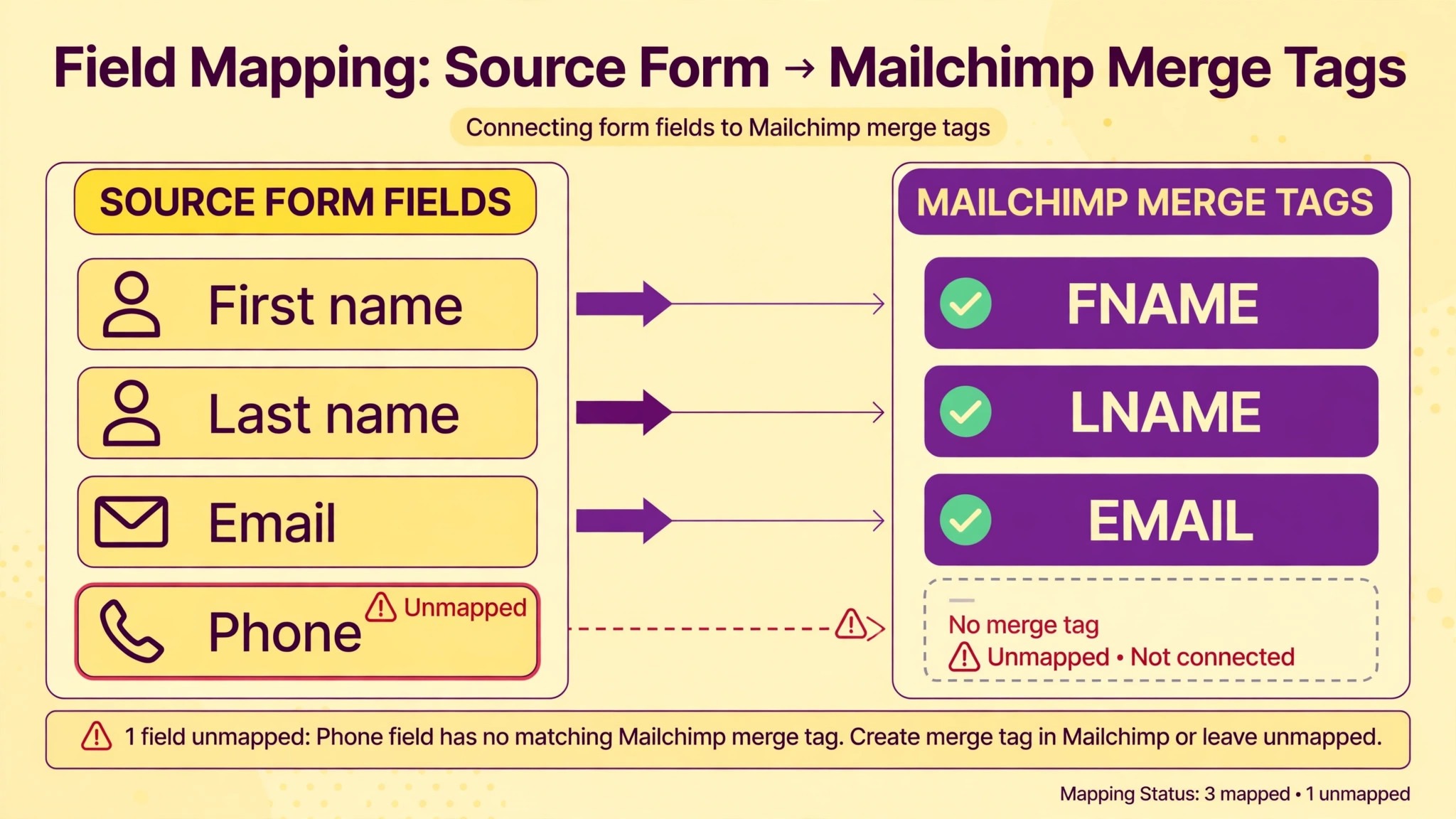
When the connection is sound but you still must fix Mailchimp audience not syncing small business contacts, field mapping is the most likely cause. Mapping is the table that says which field in the source, such as first name, becomes which field in Mailchimp, such as the merge tag for first name. If that table is wrong, missing, or incomplete, Mailchimp either rejects the contact or stores it with blank fields. Open the integration mapping settings and read every row. Confirm that email maps to email, that first name and last name map to the correct merge tags, and that any custom fields in the source map to custom fields that actually exist in the audience.
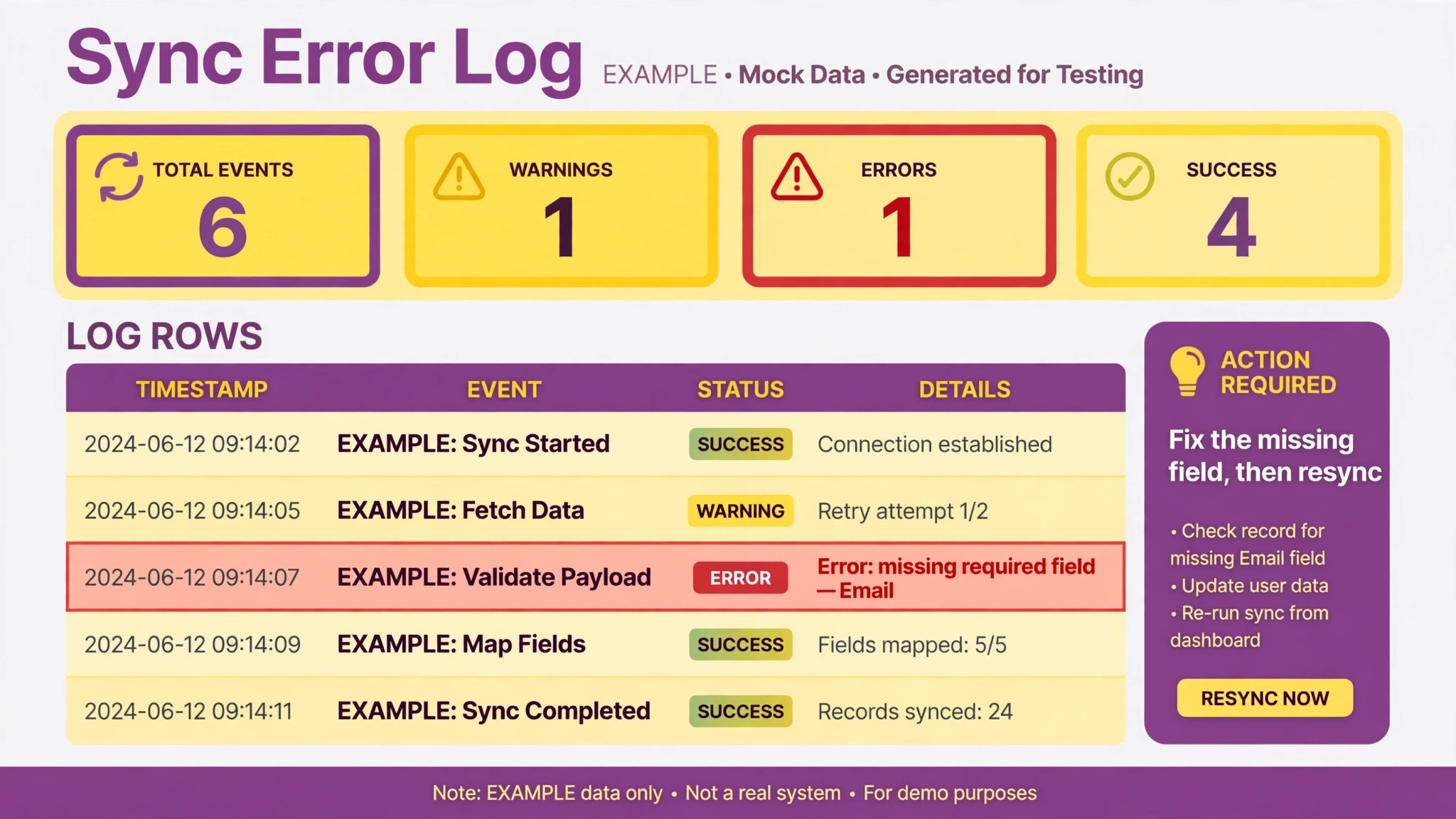
Required fields are the sharpest edge of mapping. In Mailchimp, open Audience, then Settings, then Audience fields and merge tags, and look for fields marked as required. If a field is required, every contact synced into that audience must carry a value for it, or Mailchimp will reject the contact. A common pattern is a first name or last name field marked as required, while the source form only collects an email address. Those contacts fail with an error naming the missing merge tag, such as a message that a particular merge field must be provided.
The fix is either to collect that field at signup, or to clear the required flag for that field in Mailchimp, so contacts without it can still sync. Choose deliberately, since clearing a required flag affects every future sync, not just the failing one.
Custom fields need the same care. A source field that maps to a Mailchimp field of the wrong type, such as text sent to a date field, or a value longer than the field allows, will be rejected or stored incorrectly. A source field with no matching Mailchimp field at all may be dropped silently, which looks like a sync success with missing data. Create the missing Mailchimp field first, with the correct type, then map it, then test with a contact that carries a value for it.
Do not rename a merge tag to fix a mapping, since existing campaigns, segments, and templates may use the old tag, and renaming it can break those in turn. Add a new field if needed, and update the mapping to use it.
Tags and groups are mapping too, and they fail in their own way. A tag that is created by the source tool may not exist in Mailchimp yet, or a group name may have changed, so contacts arrive without the tag or group that segments and automations depend on. Check whether the test contact carries the expected tags after sync, and check the automation that depends on those tags. A contact that syncs without its tag will miss welcome emails, even though the sync itself looks successful, so tag checks belong in every sync test, not just in contact checks.
Read the Sync Errors Instead of Guessing
Every serious integration keeps an error log, and reading it is the fastest way to fix Mailchimp audience not syncing small business rejections, faster than changing settings blindly. Open the source tool sync settings and look for a sync status, error history, or delivery log. Common errors name the problem directly, such as a missing required field, a rejected email address, a deleted audience, a limit reached, or an authentication failure. Note the exact error text for the failing contact, including any field name it mentions, since that field name is the clue that points at the mapping row to fix.
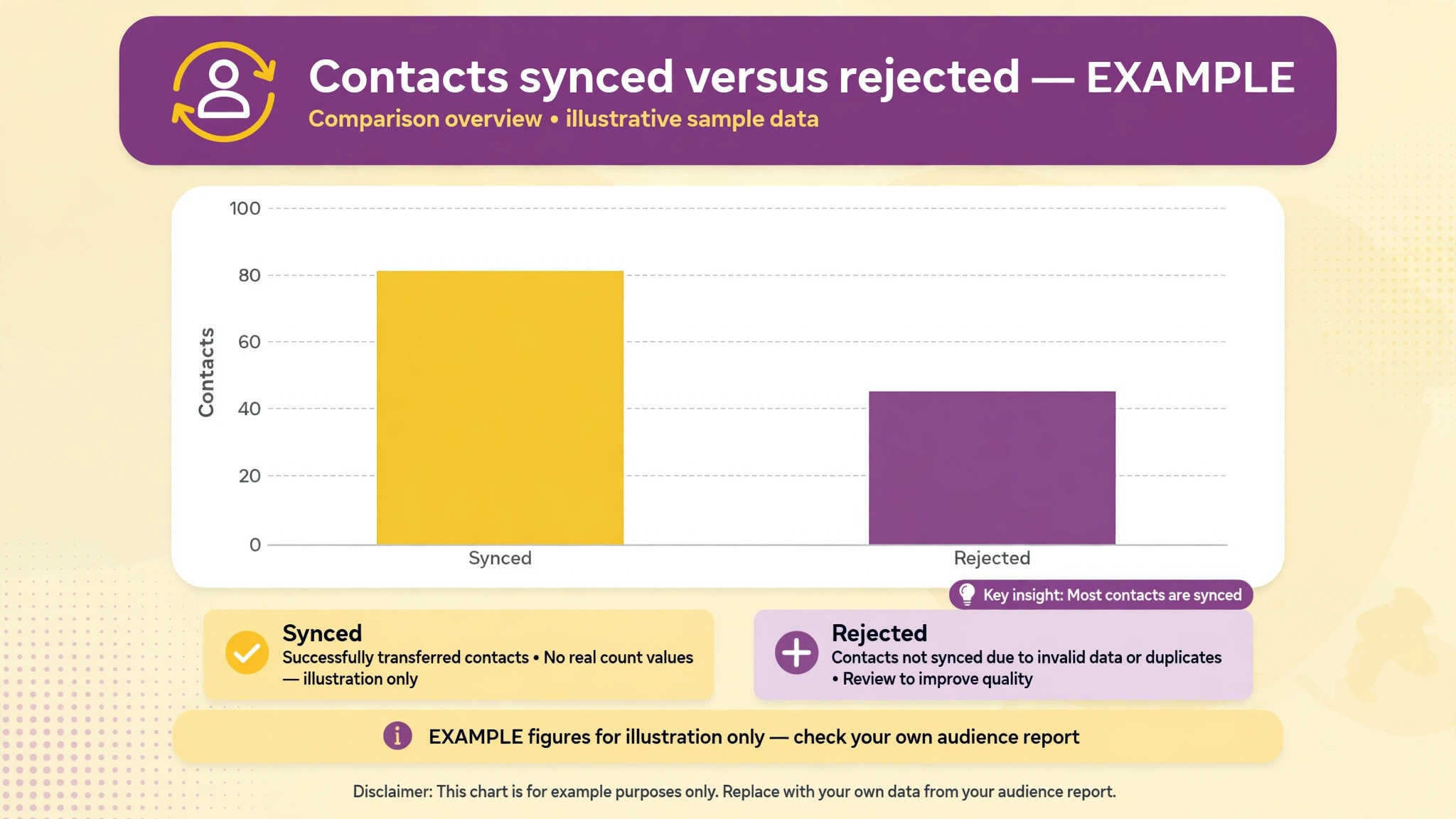
Some contacts are rejected for data reasons that have nothing to do with mapping. A contact with no email address cannot be added to Mailchimp at all, since email is the core identifier for an audience member. A test or obviously fake email address may be rejected by Mailchimp validation. A duplicate email address will be merged into the existing contact, which can look like a missing sync if you expected a second record. An email address that previously unsubscribed, bounced repeatedly, or was marked as cleaned will not be re-added as a subscribed contact by a sync, and that protection is deliberate.
Check the contact status history in Mailchimp before treating those cases as sync failures.
Syncs that stop entirely, rather than rejecting individual contacts, usually point at connection, audience, or limit problems. Check whether the integration has auto disabled itself after repeated failures, since some tools disable a failing sync to prevent further errors, and the sync will stay off until a person re-enables it. Re-enable it only after fixing the underlying cause, or it will fail again and disable itself again. Check the sync schedule too, since a sync set to manual will never run on its own, and a sync set to a long interval will look broken to anyone expecting instant results.
When errors are vague, narrow the test. Sync a single contact with only an email address and a first name, and see whether it arrives. Then add one field at a time until the sync fails. That process isolates the field that causes the rejection, even when the error message does not name it. Keep a note of the failing field and the error text, since that note is what a support team will ask for if you need to escalate the problem.
Status, Segments, and the Contacts That Sync But Look Wrong
A contact that arrives with the wrong status is a different problem when you fix Mailchimp audience not syncing small business lists, and it needs a different fix from a contact that never arrives. Mailchimp audience members carry a status, such as subscribed, unsubscribed, cleaned, or archived, and a sync that adds new contacts as unsubscribed, or that archives existing contacts, will break campaigns even though the audience count looks right. Check the status of your test contact after sync, and check the integration settings for a default status. New contacts from a signup form should normally arrive as subscribed, provided consent was collected, while contacts imported from another system may arrive with a different status depending on the integration.
Unsubscribe and consent rules also block some syncs by design. A contact who unsubscribed from Mailchimp emails should not be resubscribed by a sync from another tool, and a sync that tries to do so will be blocked or will leave the status unchanged. That is a compliance protection, not a bug, and the fix is to respect the unsubscribe and to find a lawful way to re-engage, such as a fresh signup with clear consent, rather than forcing the sync. Similarly, a contact whose email address bounced repeatedly may be cleaned by Mailchimp, and a sync will not restore it as subscribed without a deliberate, compliant re-add process.
Segments and automations that depend on synced data deserve a check after any mapping fix. A segment built on a field that was blank during the failure period will exclude contacts who synced without that field, even after the mapping is fixed, until those contacts are updated. An automation triggered by a tag will miss contacts who synced before the tag mapping was fixed. After fixing a sync, plan a catch up step, such as re-syncing the affected contacts, updating their fields, or manually adding the missing tags, so the historical gap does not persist as a permanent hole in your segments.
Ecommerce, Form, and Automation Syncs Have Different Traps
Ecommerce syncs, which move customers and orders from a store, fail for reasons that form syncs do not. An order sync may depend on the customer having an email address at checkout, on the store integration being enabled for customers as well as orders, and on the product data mapping correctly. A guest checkout customer who never created an account may sync differently from a registered customer, and a customer who checked out with one email address but subscribes with another will appear as two contacts unless the system merges them. Test both guest and registered checkouts, and check whether order data, such as purchase history, arrives alongside the contact.
Form syncs fail most often on required fields and on audience selection, as covered above, but they also fail when the form itself is not connected to any audience at all. A form built in a website tool may collect entries into that tool, and only forward them to Mailchimp if a Mailchimp action is configured on the form. Open the form settings, confirm the Mailchimp action exists, confirm it points at the correct audience, and submit a test entry. If the entry appears in the form tool but not in Mailchimp, the forwarding action is missing or broken, and the form itself is not at fault.
Automation syncs, which move contacts through a tool that connects apps, fail when any step in the automation breaks, when a field mapping inside the automation changes, or when the automation is paused. Open the automation history, find the run for the missing contact, and read its error. An automation that succeeded for months and then stopped often points at a changed field, a renamed audience, or a revoked connection, all of which are covered by the earlier checks.
An automation that runs but produces no output often points at a filter step that excludes the contact, such as a condition that the contact must have a particular field value that the test contact lacks.
The Sync Audit Checklist to Run Every Month
Use this checklist monthly, and after any integration change. It is the overview proof element of this guide in practical form.
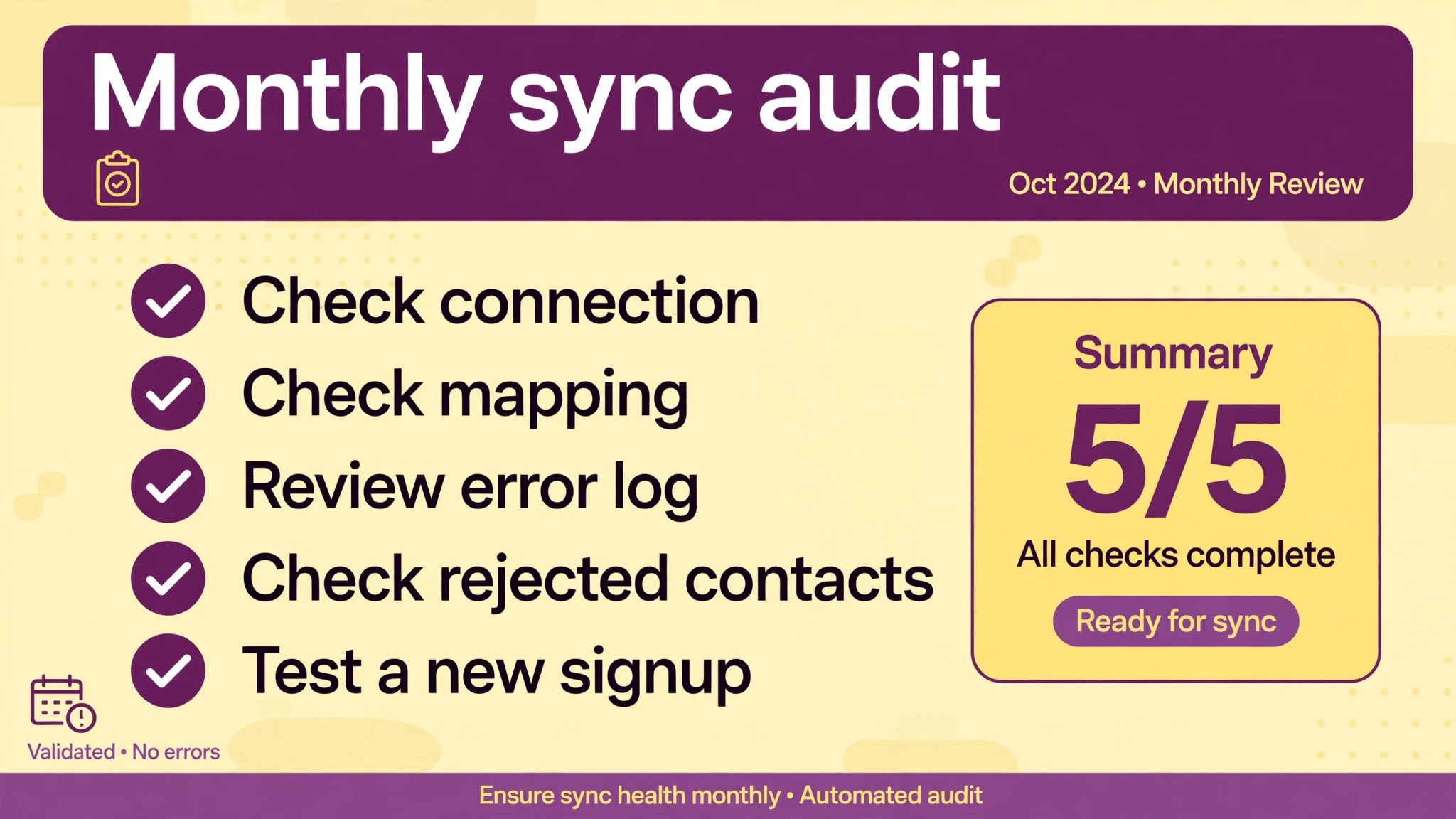
Step 1, confirm the connection and audience
Check that the integration is active, points at the correct account and audience ID, and that the connected user still has access. Reconnect under a current team member if needed.
Step 2, confirm required fields
Open audience fields and merge tags, list every required field, and confirm the source collects a value for each one, or clear the required flag deliberately.
Step 3, confirm the full field mapping
Read every mapping row, confirm custom fields exist with the correct type, and confirm tags and groups arrive on a test contact.
Step 4, test a fresh contact end to end
Sign up through the real source with an email you control, and check arrival, status, fields, and tags, plus how long the sync took.
Step 5, read the error log
Check the source sync log for rejected contacts, note exact error text, and fix the named field or connection cause before re-enabling a paused sync.
Step 6, check limits and statuses
Confirm the audience has not reached a contact limit, and check that new contacts arrive as subscribed where consent was collected, not archived or unsubscribed.
Step 7, catch up affected contacts
Re-sync or update contacts that failed during the outage, add missing tags, and check segments and automations that depended on the missing data.
Step 8, record the setup
Write down the audience ID, the mapping table, the sync schedule, and the connected user. The next sync failure will be diagnosed far faster with that record.
Mistakes That Turn a Sync Gap Into a Data Mess
The first mistake is importing a large spreadsheet to patch a sync gap, without fixing the sync itself. The import may fill the audience for one campaign, but the sync stays broken, the next campaign has the same gap, and the import may create duplicates, overwrite good data, or resubscribe contacts who had unsubscribed. Fix the sync first, then handle the historical gap with a careful re-sync or a targeted update, not a bulk import. The second mistake is changing merge tags to fix a mapping. Renaming a tag breaks campaigns, segments, and templates that use the old tag, and it creates a second problem while solving the first.
Add a new field if needed, and update the mapping to use it.
The third mistake is clearing every required field in a hurry. Required fields exist to protect data quality, and clearing them all lets incomplete contacts flood the audience, which breaks personalisation and segmentation later. Clear only the field that blocks legitimate signups, and collect the important fields at signup where they matter. The fourth mistake is reconnecting an integration to a new audience without checking the old one. Contacts may then live in two audiences, campaigns may go to the wrong list, and unsubscribe handling becomes confusing. Choose one audience deliberately, migrate contacts properly if a move is needed, and close or archive the duplicate.
The fifth mistake is ignoring the gap after the fix. A sync that was broken for two weeks leaves two weeks of contacts missing, mistagged, or missing purchase data, and those contacts will miss welcome emails and segments until someone catches them up. Always pair a sync fix with a catch up step, and check the first campaign after the fix for contacts who should have received it but did not.
What to Tell Customers and Your Team During a Sync Outage
Customers rarely need to know about a sync failure, unless it affected something they were promised, such as a welcome email, a discount code, or an order update. If a customer signed up and received nothing, apologise briefly, explain that their signup did not reach the email system, and offer to add them manually with their permission, or to resend the promised message. Do not add a customer to marketing emails without consent, even to fix a sync gap, since consent is the basis for the list. Ask, confirm, and then add.
Your team needs a clearer message. Tell them which source stopped syncing, from when, which contacts are affected, and what the catch up plan is. Sales and support staff who promise a welcome email or a follow up need to know whether that promise will be kept automatically or needs a manual step. Keep a simple incident note with dates, the cause, the fix, and the catch up results, so the next outage is not diagnosed from memory. A sync outage that is documented becomes a known failure mode, while one that is fixed silently and forgotten will surprise the team again.
For related reading, see HubSpot email not tracking, Gmail going to spam, setting up a client feedback loop and Calendly double booking. Those posts cover adjacent email, feedback, and scheduling problems, and the same lesson applies when you fix Mailchimp audience not syncing small business lists. Check the connection, then the mapping, then the errors, and catch up the gap.
Frequently Asked Questions
Why are new signups not appearing in my Mailchimp audience?
Check the connection and audience selection first, then required fields, then the sync error log. A missing required field, a deleted audience, a revoked connection, or a paused sync are the most common causes, and the error log usually names the exact one.
What does a merge tag error mean?
It usually means Mailchimp requires a value for a field, such as first name, that the source did not send. Open audience fields and merge tags, find the field named in the error, and either collect that field at signup or clear its required flag, so contacts without it can still sync.
That points at field mapping. The source field may map to the wrong merge tag, the target field may not exist, or the tag mapping may be missing. Read every mapping row, create any missing fields with the correct type, and test with a contact that carries values for each field.
Can a sync resubscribe someone who unsubscribed?
No, and it should not try. Mailchimp protects unsubscribe status, so a sync will not turn an unsubscribed contact back into a subscribed one. The correct path is a fresh signup with clear consent, not a forced sync change.
Why did my sync stop entirely after working for months?
A connection, audience, or limit change is the usual cause, such as a revoked API key, a renamed or deleted audience, a user who lost access, or an audience that reached a contact limit. Check those points, fix the cause, and only then re-enable a sync that auto disabled after repeated failures.
How do I catch up contacts missed during an outage?
Re-sync the affected contacts from the source if the integration supports it, or update their fields and tags carefully, and check segments and automations that depended on the missing data. Avoid a bulk import that could duplicate records or overwrite good data, and avoid resubscribing anyone who unsubscribed.
A Steady Verdict on Sync Failures
A Mailchimp sync failure feels invisible until a campaign exposes it, but its causes are usually visible in three places. The connection, the mapping, and the error log. Check the connection and audience ID first, because a broken or misdirected connection fails everything. Check required fields and mapping second, because a single missing field rejects contacts one by one while the sync looks healthy. Read the error log third, because it names the field, the limit, or the audience that needs attention. Then catch up the contacts missed during the outage, record the setup, and run the audit monthly.
Teams that work that way stop losing signups quietly, and their lists stay a reliable record of real customers, not a partial list that only looks complete. That reliability is the real payoff when you fix Mailchimp audience not syncing small business lists properly.