Squarespace is a tidy rented studio. Everything matches, everything works, and you cannot move the walls. WordPress is the building you own. You choose the layout, the wiring, and the tenants, and you also take on the maintenance. That trade sits at the heart of this decision, and it is why so many growing firms eventually make the move. This guide shows how to switch Squarespace to WordPress small business sites step by step, covering export, mapping, design rebuild, integration swaps, and a first-week cutover plan, so the move feels planned rather than improvised.
Why Owners Switch Squarespace to WordPress Small Business Websites
The most common trigger is not a single missing feature. It is a pile of small limits that starts to cost real money. A booking flow that cannot bend around your process. A checkout that cannot carry the fee structure you need. A page layout that looks fine but cannot be changed without rebuilding the whole section. Each limit alone is tolerable. Together they slow down changes that should take an afternoon.
Ownership is the second trigger. On Squarespace you rent the platform, the template system, and the hosting as one bundle. On WordPress you own the content, the database, and the choice of host, and you can move hosts without rebuilding the site. That matters when a business outgrows its first setup, hires help, or wants a second site that shares content. You are no longer asking one vendor for permission to grow in a particular direction.
Cost shape is the third trigger, and it cuts both ways. Squarespace charges one predictable subscription. WordPress splits cost across hosting, a theme or builder, and plugins, and the total can land lower or higher depending on what you pick. Confirm current prices on each vendor page before you budget, because plugin and hosting prices change often. The honest case for WordPress is control and flexibility, not a guaranteed lower bill.
Squarespace and WordPress Side by Side
Put the two platforms next to each other before you commit. The table below compares what daily life looks like on each, not just the feature list on a sales page. Read it as a working owner, not as a developer, and mark the rows that touch revenue first.
| Area | Squarespace | WordPress |
|---|---|---|
| Site ownership | Rented platform and hosting bundle | Your content and database, host of your choice |
| Design control | Template sections with set options | Themes, blocks, and builders with deep control |
| Extra features | Built-in tools with fixed scope | Thousands of plugins, quality varies |
| Blogging | Clean editor, limited structure | Categories, tags, and custom post types |
| Selling | Built-in store with set rules | WooCommerce and other store plugins |
| Search control | Solid basics, limited depth | Full control of redirects, schema, and structure |
| Upkeep | Vendor handles updates | You or your host handle updates |
| Cost shape | One subscription | Hosting plus theme plus plugins |
The table points to a simple rule. If your site is mostly a brochure with a contact form, Squarespace may already be enough, and a move adds work for little gain. If your site drives bookings, sales, or leads through flows you want to shape yourself, WordPress earns its extra upkeep. Decide from your revenue pages, not from your homepage. A pretty homepage that never books anything is not the page that should drive this call.
What Actually Moves and What Stays Behind
A Squarespace export is a partial move, not a clone. The export file typically carries blog posts, standard pages, images attached to that content, comments, authors, categories, and tags. That covers most of the words and pictures a small business cares about. It does not carry the template, the section layouts, custom code blocks in their original form, store products and orders, form submissions, member areas, scheduling data, or email campaigns. Treat those as rebuild items from day one.
This gap surprises owners more than any other part of the move. They expect the new site to look like the old one on arrival, then discover that only the raw content crossed over. Plan the rebuild as a design project with its own budget and week, not as an afterthought to the import. List every page that earns money or answers a top customer question, and rebuild those first. Everything else can follow in priority order.
– Blog posts and standard pages with their text and images – Comments, authors, categories, and tags attached to posts – Image files linked from exported posts and pages – Template design, section layouts, and style settings, which do not transfer – Store products, orders, and customer records, which need a separate export or manual move – Form entries, member content, scheduling records, and email campaigns, which stay behind
Confirm the current export coverage on the Squarespace support page before you start, because export rules change and older guides go stale. Screenshot your key pages, your navigation, and your store settings before you touch anything. Those screenshots become your rebuild reference when the export file raises questions later.
Export Your Squarespace Content Without Losing Pieces
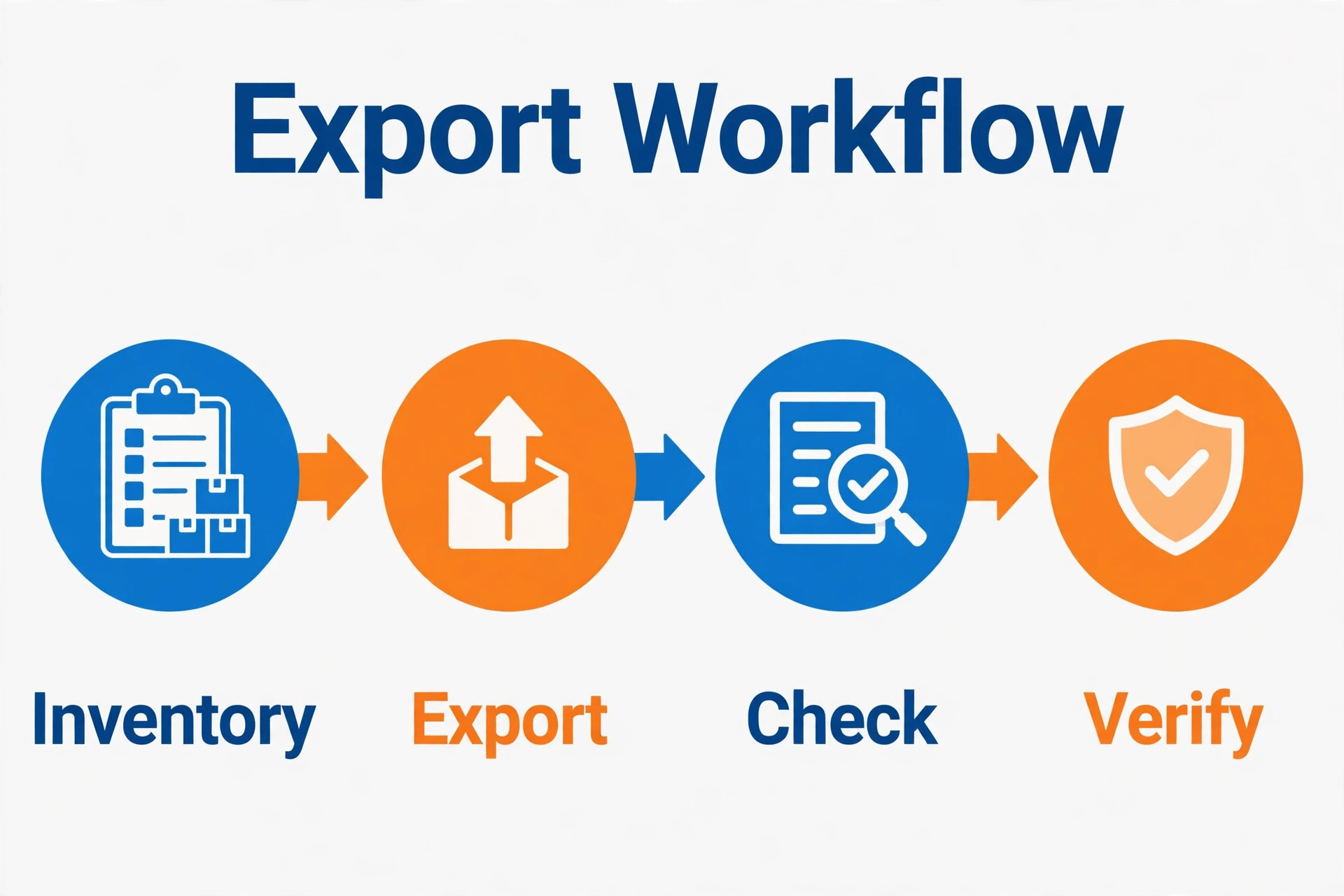
Start with a full inventory before you export anything. Open every section of the old site and write down the page title, the URL, and the job that page does. Include hidden pages, landing pages linked from ads, and pages linked only from social profiles. Owners routinely forget two or three pages that still receive traffic, and those are the pages that break quietly after launch. A spreadsheet with one row per page takes an hour and prevents weeks of patching.
Run the export from the Squarespace settings area and download the file to your own computer, not just to a cloud folder you might lose access to. Open the file and check that your main posts and pages are inside it, with images referenced. If a post looks empty or an image is missing, fix it on the source site and export again before you build anything. An import built on a broken export wastes the whole rebuild week.
1. Inventory every page, post, product page, and landing page with its URL and purpose. 2. Screenshot your homepage, navigation, key service pages, and store settings for reference. 3. Export blog content and pages, then save the file locally and check its contents. 4. Export product and customer data separately where Squarespace allows it, or copy it by hand. 5. Download your image library originals for any image that matters to sales pages. 6. Record your domain, email, and DNS settings before you change any record. 7. Keep the Squarespace site live and untouched until the new site passes its checks.
Keep the old site running throughout the build. The export is a copy, not a move, and nothing forces you to cancel Squarespace on day one. Owners who cancel early lose their reference site and their fallback. You can cancel after the new site has run clean for a full week, not before.
Rebuild the Map for Pages, Posts, and URLs
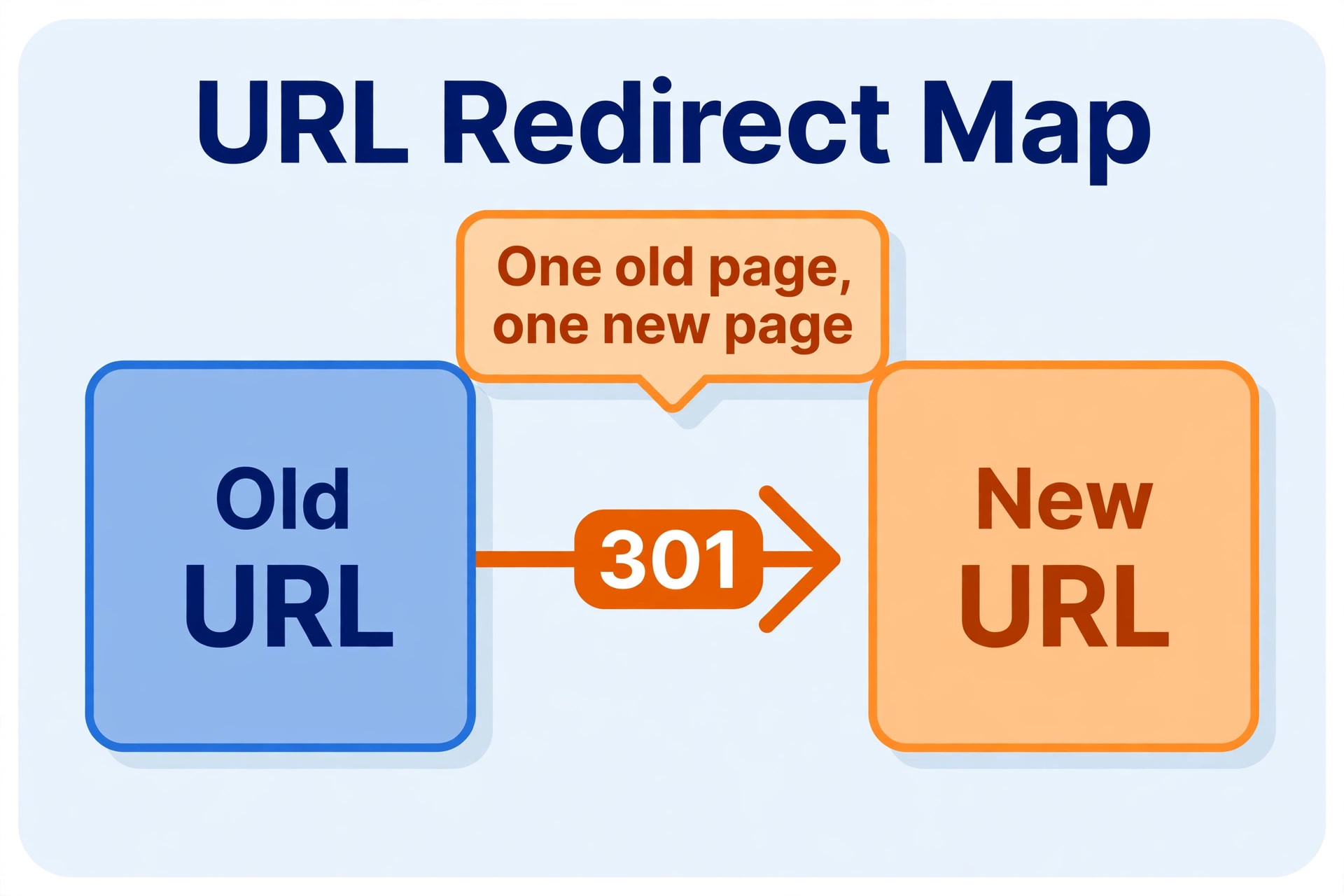
Importing content is only half the job. The other half is deciding where each old URL should point on the new site. WordPress lets you shape permalink structure, but it will not guess your old Squarespace URL patterns for you. Map every old URL to a new URL, and set a permanent redirect for each one that changes. This is the step that protects search rankings, and skipping it is the most expensive mistake in the whole project.
Keep slugs short, readable, and close to the originals where you can. A service page that lived at a short Squarespace path should land at a similar WordPress path, not at a new nested address that no one can remember. When a page no longer deserves to exist, redirect it to the closest live page rather than letting it return an error. A redirect map is boring work, and it is exactly what separates a clean migration from a rankings drop.
| Old Squarespace item | WordPress home | Watch out for |
|---|---|---|
| Blog posts | Posts with categories and tags | Check author names and publish dates |
| Standard pages | Pages in the main hierarchy | Rebuild section layouts by hand |
| Image galleries | Media library plus gallery blocks | Re-upload originals, do not hotlink |
| Blog landing page | Blog index or a custom page | Set the posts page correctly |
| Store pages | WooCommerce products and shop pages | Products need a separate move |
| Contact and form pages | Pages with a new form plugin | Form entries do not carry over |
Test the map before launch, not after. Click every redirect, open every top page, and check that images load at full size. A redirect that points to the homepage is not a fix. It is a soft error that frustrates visitors and search engines alike, so point each old URL at the genuinely matching new page.
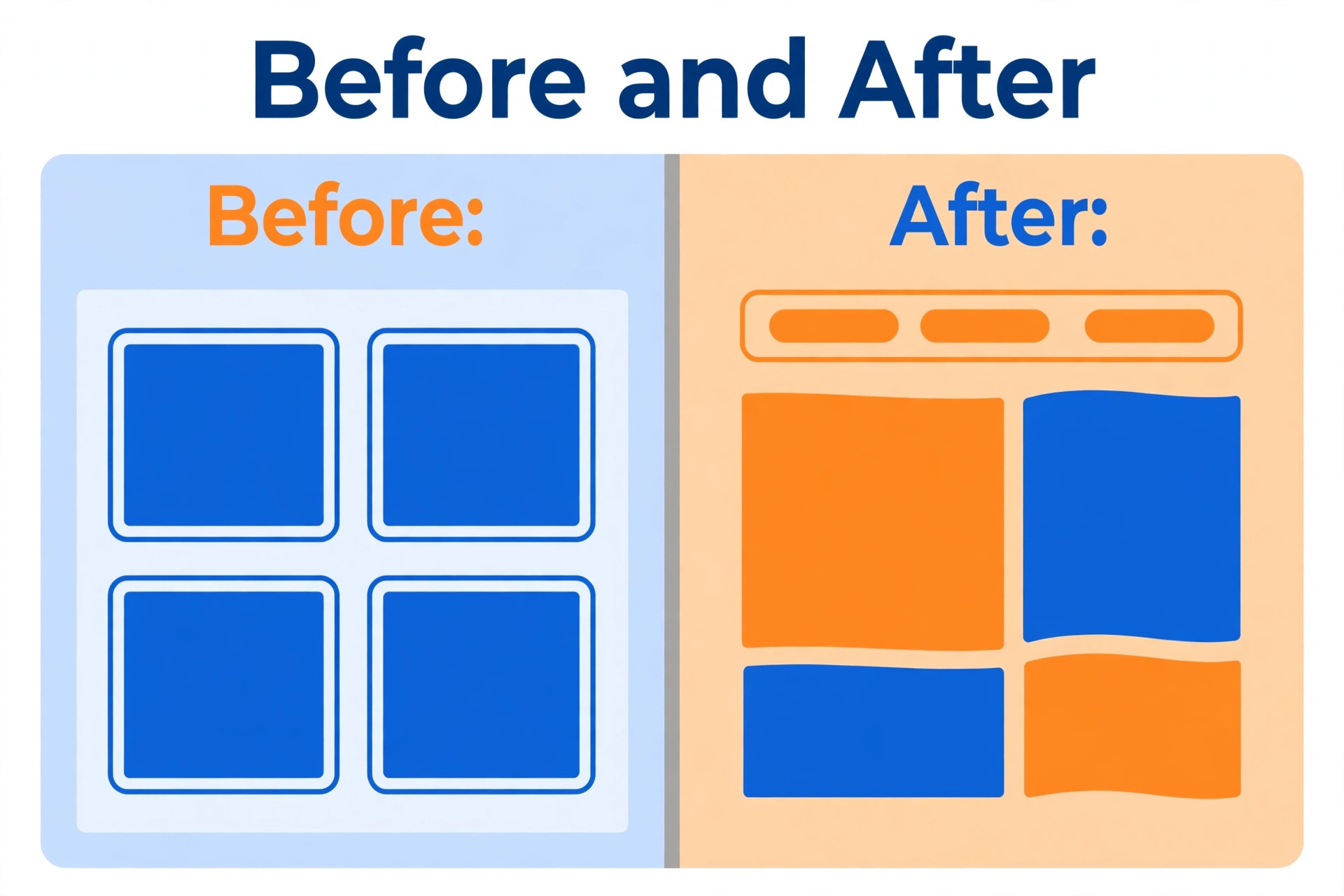
Rebuild Design Without Copying the Old Template
Your Squarespace template does not transfer, and that is actually good news. A straight copy would carry over layout choices made for a different system. Start from your brand instead, meaning your colors, fonts, logo, and photo style, and rebuild pages around the actions visitors take. A service business needs clear calls to book, call, or request a quote near the top of every money page. A portfolio business needs fast image loading and a short path to the contact form.
Pick a theme or builder you can maintain yourself. A heavy builder with dozens of add-ons looks flexible on day one and becomes a burden at update time. A lean block theme with a small set of well-supported plugins is easier to keep fast and safe. If you run a visual business such as photography, study how similar firms present their work, including guides like best website builder for wedding photographers, and borrow the structure, not the template. Structure means the order of sections and the placement of proof, not the exact look.
Rebuild in priority order. Homepage, top service pages, booking or contact page, then blog, then everything else. Check each rebuilt page on a phone before you move on, because most small-business traffic arrives on mobile. A desktop layout that looks polished and a mobile layout that buries the booking button is a failed rebuild, however good the desktop version looks.
Swap Every Integration, One by One
No integration moves by itself. Forms, email capture, booking, payments, analytics, and social feeds each need a new home on WordPress, and each one needs testing before launch. Work through them one at a time and tick them off in writing. Owners who try to swap everything in one sitting usually discover a dead booking form on launch day, when a customer is already trying to use it.
Start with the integrations that touch money and leads. Contact forms and quote forms come first, then booking or scheduling, then payment and store tools, then email lists and analytics. For each one, record what the old tool did, what the new tool does, and what happens to the data collected so far. A form that looks right but sends enquiries to the wrong inbox is worse than a form that visibly fails, because no one notices it.
| Squarespace feature | WordPress approach | Test before launch |
|---|---|---|
| Contact and quote forms | A form plugin with notifications | Send a test enquiry end to end |
| Email signup blocks | An email plugin or embedded form | Confirm the subscriber lands on the right list |
| Scheduling blocks | A booking plugin or embedded scheduler | Book, reschedule, and cancel a test slot |
| Store checkout | WooCommerce with a payment gateway | Run a test order and a test refund |
| Analytics | An analytics plugin or tag | Check that visits and goals record |
| Social feeds | A feed plugin or manual embeds | Check feeds load on mobile |
| Customer records | A CRM plugin or external CRM | Import a sample and check fields |
When you switch Squarespace to WordPress small business teams often forget the customer relationship tool entirely, because Squarespace hides it inside the platform. If your follow-up lives in scattered inboxes today, this is the moment to give it a real home. Firms that manage clients by hand can learn from best CRM for staffing agencies small business, which shows how a structured pipeline replaces inbox hunting. Even a simple pipeline with stages for new enquiry, quoted, booked, and done will change how reliably you follow up.

Protect Search Rankings Through the Move
Search engines do not care that you changed platforms. They care that old URLs still resolve, that content still answers the same questions, and that pages still load quickly. Set a permanent redirect for every changed URL, keep page titles and headings close to the originals on your top pages, and submit the new sitemap in Search Console once the site is live. Do not rewrite all your copy during the migration. A redesign plus a rewrite plus a platform move is three risky changes at once, and if rankings fall you will not know which one caused it.
Keep your images honest too. Re-upload originals with descriptive file names and alt text, and check that gallery images are not loading at poster size on a phone screen. Page speed matters more after a move, because a new theme and new plugins can quietly add weight. Test your top five pages on mobile and fix the slowest elements before you announce the launch. A fast page that looks plain beats a heavy page that looks impressive and loads late.
– Redirect every changed URL to its matching new page, never to the homepage by default – Keep titles and main headings on top pages close to the originals – Submit the new XML sitemap and check coverage in Search Console – Check that blog categories and tags still resolve to real archive pages – Re-upload images at sensible sizes with descriptive alt text – Test mobile speed on the homepage and top service pages – Watch rankings and traffic daily for the first two weeks
When you switch Squarespace to WordPress small business owners sometimes panic at a small rankings wobble in week one. A short dip while search engines re-crawl is normal. A sustained fall across many pages is not, and it usually traces back to missing redirects or pages that never made it across. Keep a list of your top twenty pages from before the move and check each one weekly until traffic stabilises.
The Go-Live Checklist
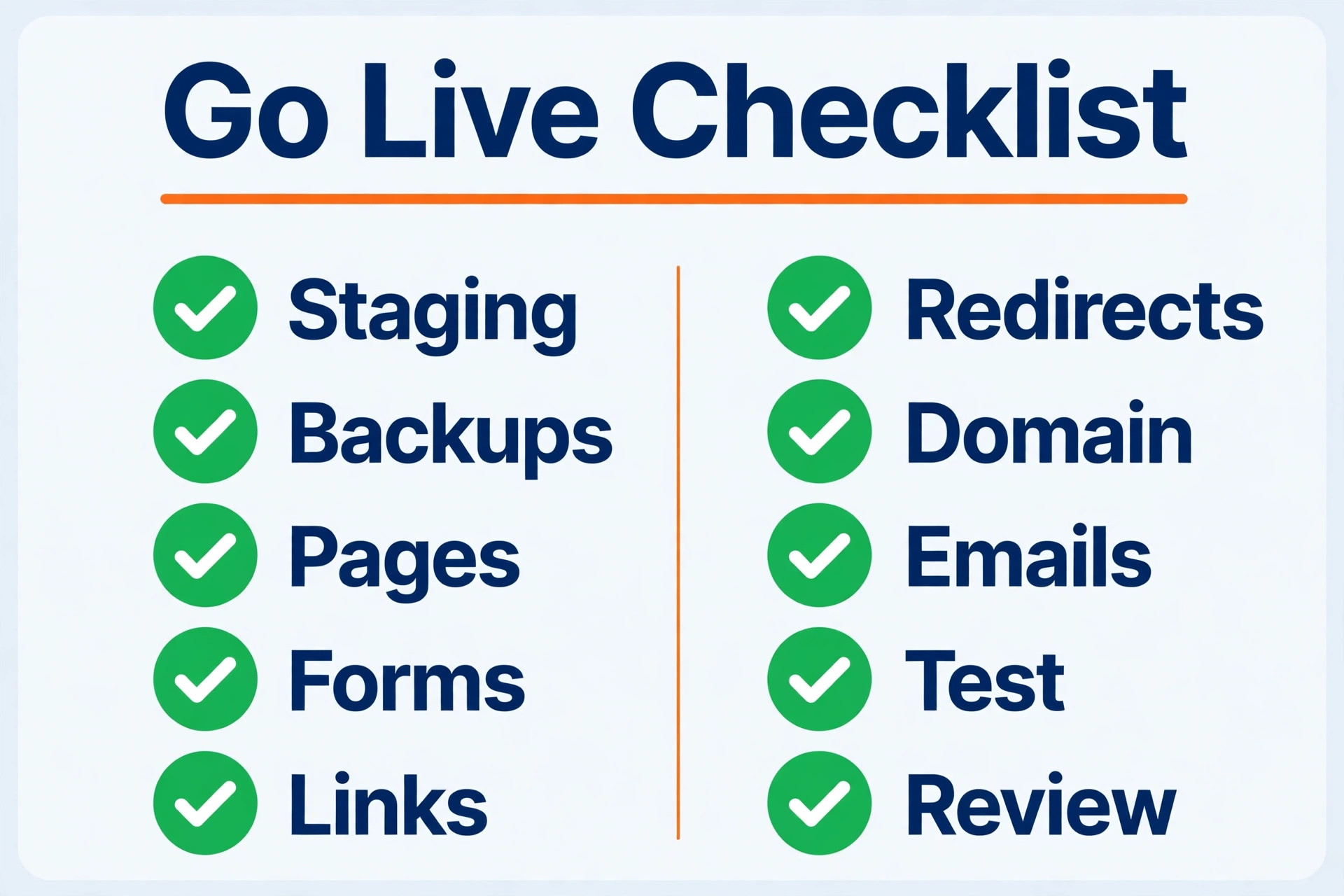
Launch day should be boring. If launch day feels dramatic, something was left too late. Run this checklist on a staging copy first, fix everything it catches, and only then point the domain at the new site. A staging site is a private copy where mistakes cost nothing, and every serious migration uses one.
1. Confirm every redirect from the old URL map returns the correct new page. 2. Test the contact form, quote form, and booking flow on desktop and mobile. 3. Run a test store order, including payment, confirmation email, and refund. 4. Check that email signups land on the correct list with the correct welcome message. 5. Confirm analytics records visits, form submissions, and key goals. 6. Proofread the homepage, top service pages, and pricing page on a phone. 7. Check that the site loads over a secure connection on every page. 8. Confirm business details, hours, phone number, and service area are correct everywhere. 9. Back up the new site fully before you change any DNS record. 10. Hand over logins, documentation, and a short how-to note to anyone who updates the site.
When you switch Squarespace to WordPress small business owners should also plan the handover, not just the launch. If a team member or contractor updates the site, they need editor access, a backup routine, and a written note on where things live. A clean handover checklist, similar in spirit to how to create a client offboarding checklist small business, keeps the new site maintained after the excitement fades. Launch is day one of ownership, not the end of the project.
Your First-Week Cutover Plan
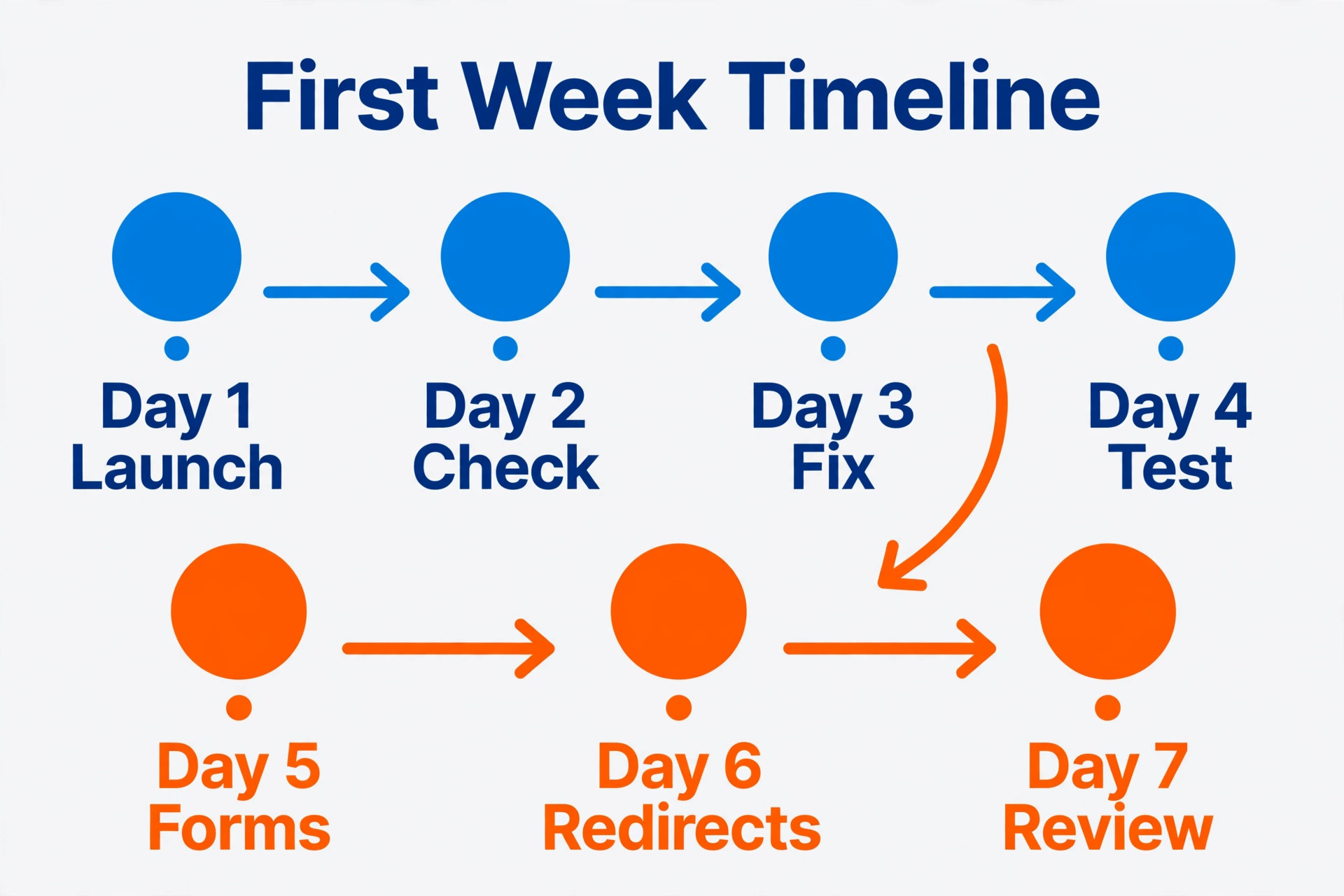
The week after launch decides whether the migration sticks. Visitors will find broken links you missed, customers will test forms in ways you did not predict, and search engines will re-crawl at their own pace. Treat the first week as a supervised rollout, not a holiday. Check the items below daily, fix problems the same day, and keep the old site available as a reference until the week ends.
| Day | Focus | Done when |
|---|---|---|
| Day 1 | Redirects and top pages | Every top page loads and every old URL resolves |
| Day 2 | Forms, booking, and email | Test enquiries arrive and bookings complete |
| Day 3 | Store and payments | Test orders, refunds, and confirmation emails pass |
| Day 4 | Search and speed | Sitemap submitted, mobile speed checked, errors logged |
| Day 5 | Content gaps | Missing pages and images found and restored |
| Day 6 | Team and customers | Staff know the new workflow and customers are told |
| Day 7 | Review and cancel decision | Traffic, leads, and orders look normal for three days |
When you switch Squarespace to WordPress small business billing also needs a home in week one. If you invoice clients for services, set up your invoicing workflow before the old platform goes away, and test an invoice from creation to payment. Freelancers and small firms can compare options in best invoicing software for creative freelancers, which covers the billing side that a website move often exposes. A site that books work but cannot invoice for it cleanly has only moved half the business.
Tell customers about the new site in plain language. A short note on the homepage or in your next email, saying the site has a fresh look and the same services, prevents confusion when a regular finds a changed layout. Do not announce a platform migration to customers. They care about booking easily and finding your phone number, not about which software powers the pages.
Time, Cost, and Help, Stated Honestly
A small brochure site with ten to twenty pages usually takes a focused owner several days of part-time work, spread across export, rebuild, and testing. A store or booking site takes longer, because products, payments, and schedules each need their own test pass. Hiring help shortens the calendar but not the decisions. You still need to approve the design, the page map, and the integrations, and no contractor can approve those for you.
Costs vary too widely to quote a single number. Hosting, a theme or builder, and plugins each carry their own price, and some plugins charge yearly while others charge monthly. Confirm current prices on each vendor page and add a margin for one or two paid plugins you discover mid-project. If you are weighing builder costs in general, cost of Framer for small business monthly shows how a modern builder subscription is structured, which helps you compare a bundled price against the split WordPress bill. The comparison matters because WordPress looks cheap until plugins accumulate.
When you switch Squarespace to WordPress small business owners should budget for upkeep, not just launch. Updates, backups, and occasional fixes are now your job or your host’s job, and ignoring them turns a fast site into a slow and risky one. A simple monthly routine of updates, a backup check, and a speed glance takes under an hour once you know the routine. Price that hour into your decision, because it is the real ongoing cost of ownership.
Mistakes That Force a Second Migration
Most failed migrations fail in the same few places, and all of them are avoidable. The first is cancelling Squarespace before the new site is proven, which removes both the fallback and the reference. The second is skipping the redirect map, which trades a week of boring work for months of lost rankings. The third is rebuilding every page at once instead of starting with the pages that earn money, which leaves the important pages rushed at the end.
The fourth mistake is plugin overload. New owners install a plugin for every small wish and end up with a slow site that is hard to update. Install what the launch needs, test it, and add the rest later only when a real need appears. The fifth is forgetting email. Domain and email settings often travel together, and a careless DNS change can break mail delivery for days. Record your mail records before you touch DNS, and test sending and receiving after every change.
When you switch Squarespace to WordPress small business teams also underestimate image work. Galleries and blog images carry much of a site’s appeal, and low-resolution or missing images make a new site look unfinished even when the text is perfect. Re-upload originals, check galleries on mobile, and fix broken images before launch day. A site with clean images and plain text will outperform a site with fancy sections and missing photos.
Frequently Asked Questions
Will I lose my domain when I move?
No, your domain is separate from your website platform. You keep the domain with your registrar and point it at the new host when the new site is ready. The risk is not losing the domain but changing DNS records carelessly, which can break email. Record your current DNS and mail settings first, make the change once, and test both the site and email afterwards.
Do my Squarespace templates and layouts transfer?
No. Templates, section layouts, and style settings stay on Squarespace, and only content such as posts, pages, images, comments, and tags moves in the export. Rebuild the design on WordPress from your brand assets and a clear priority list, starting with the homepage and the pages that earn money. Treat the rebuild as a design project with its own time and budget.
How long does the whole move take?
A small brochure site often takes one to two weeks of part-time work, while a store or booking site takes longer because products and payments need separate testing. The export itself is quick. The rebuild, redirect map, and testing take the real time, and rushing those stages is what causes launch-day failures. Plan the calendar around testing, not around the export button.
Will my search rankings drop?
They can dip briefly while search engines re-crawl, but a careful redirect map, stable titles on top pages, and a submitted sitemap keep most rankings intact. Rankings fall hardest when old URLs break, when top pages vanish, or when the whole copy is rewritten during the move. Keep content stable through the migration and save rewrites for after traffic settles.
Can I keep my store products and orders?
Products and orders do not move in the standard content export, so plan a separate step. Export product and customer data where the platform allows it, or copy the catalogue by hand for a small store, and test the new checkout with a real order and refund before launch. Keep the old store accessible until the new store has processed real orders cleanly.
Should I cancel Squarespace right away?
No. When you switch Squarespace to WordPress small business owners should keep Squarespace live until the new site has run clean for at least a full week, with forms, bookings, orders, and email all proven. Cancelling early removes your fallback and your reference for anything the export missed. Cancel only after the first-week review shows normal traffic, leads, and orders.
The Verdict for Squarespace Owners
Move when the limits cost you something measurable. Lost bookings, a checkout you cannot shape, or a layout you cannot change are real reasons. Stay when the site already does its job and the move would only buy flexibility you do not plan to use. Flexibility has a maintenance price, and paying it for features you never touch is not a strategy.
If you move, move in order. Inventory, export, map, rebuild, swap, test, launch, then watch the first week like it matters, because it does. A migration done in that order is unglamorous and dependable. A migration done in a hurry is memorable for the wrong reasons, and your customers will remember it longer than you will.