
Two customers can use the same code on the same afternoon and get two different results. One sees the price drop at checkout and finishes the order with a smile. The other sees a refusal message, abandons the cart, and never tells you why. That split is the clue that matters most when you try to fix WooCommerce coupon not applying small store problems, because a code that works for some people and fails for others is almost never broken in the same way for everyone. It is usually being blocked by a rule, a cart condition, or a checkout setting that only some shoppers trip over.
A small store feels this problem harder than a large one. You do not have a support team to catch the failed orders, and every abandoned cart is a visible share of the day’s revenue. The good news is that most coupon failures follow a short list of causes, and they appear in a predictable order. Work through them from the most common to the least common, test with a real customer account rather than your admin account, and change one thing at a time so you know which change fixed it.
How to Fix WooCommerce Coupon Not Applying Small Store
Start by separating three different symptoms, because each one points to a different part of the store. The coupon field may be missing entirely, so customers cannot enter a code at all. The code may be entered and then refused, with WooCommerce showing a reason on screen. Or the code may appear to apply while the discount itself looks wrong, because the saving is smaller than expected or it lands on the wrong items. Writing down which symptom you have, the exact code, the exact message, and the exact cart contents will save you from guessing later.
Test the failing code yourself before you change any setting. Open a private browser window, add the same products in the same quantities, and use the same shipping destination the customer used. Do not test while logged in as the store owner, because an admin session can hide email restrictions, usage limits, and caching problems that real customers hit. If the code fails for you in a private window, you have a problem you can reproduce. If it works for you and fails for customers, the cause is more likely to be an email rule, a usage limit, a cache layer, or a difference between your cart and theirs.
Read the Error Message Before You Touch a Setting
WooCommerce usually tells you why a code was refused, and that message is the fastest diagnosis tool you have. A message saying the coupon does not exist points to a draft coupon, a mistyped code, or a code that was never published. A message about expiry points to the date range on the coupon itself. A message about a usage limit points to the total limit or the per customer limit. A message about minimum spend points to the cart subtotal, not the final total after shipping and tax in every case, so check how your store displays prices.
| Message you see | What it usually means |
|---|---|
| Coupon does not exist | Draft coupon, deleted coupon, or mistyped code |
| Coupon has expired | Expiry date has passed |
| Usage limit reached | Total limit or per customer limit is used up |
| Minimum spend not met | Cart subtotal is below the set threshold |
| Not valid for sale items | Sale item exclusion is switched on |
| Not applicable to products | Product or category restriction blocks the cart |
Keep a screenshot of the message and the cart that produced it. Support threads and plugin developers both ask for those two pieces of evidence first, and a store owner who can show them gets a faster answer. If the message is vague, repeat the test with one product in the cart and then add items back one at a time. That narrowing step often reveals that a single sale item, a single excluded category, or a single shipping choice is the trigger.
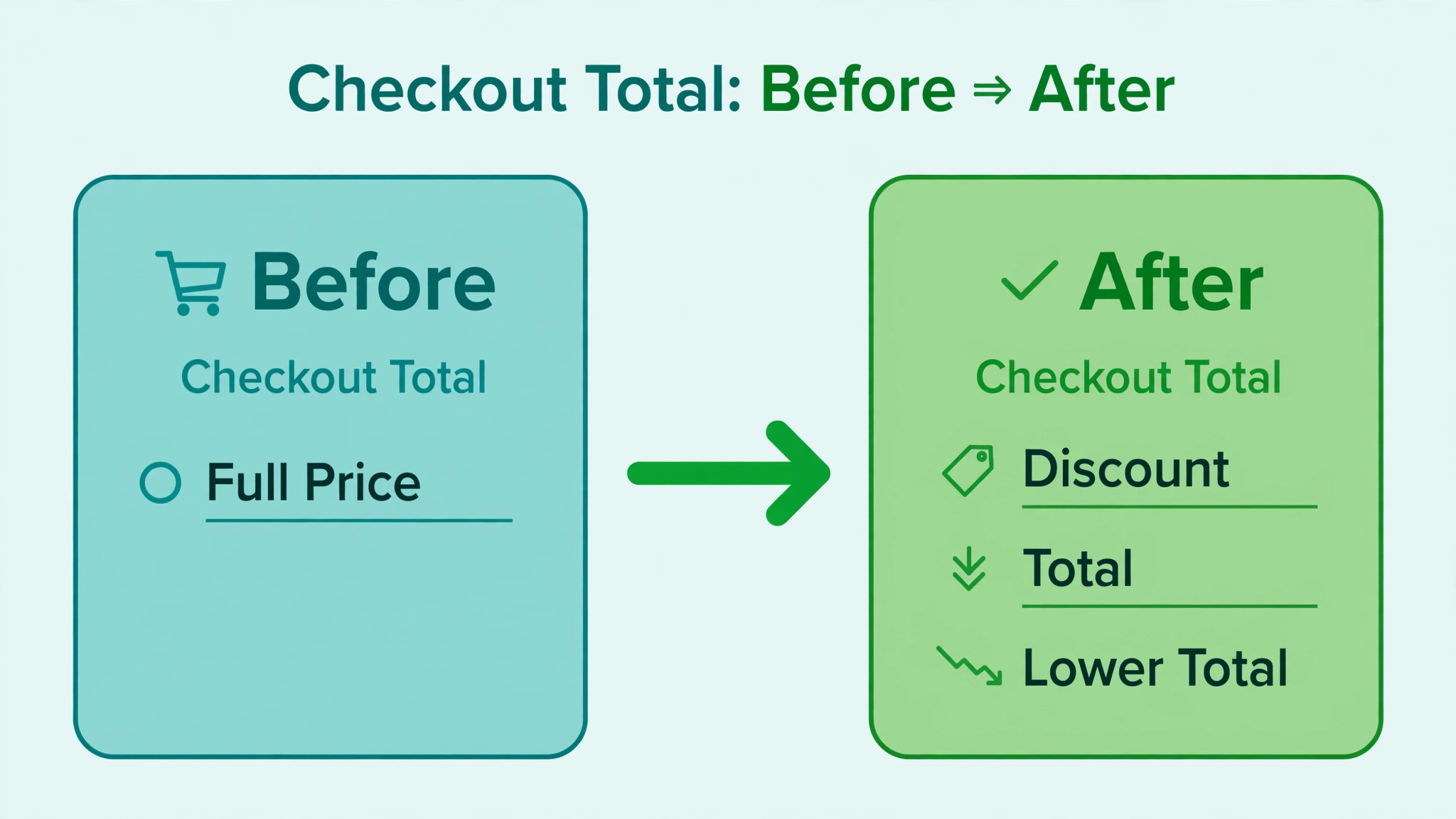
Step Diagnosis in Order for a Failing Coupon
Work through these steps in order to fix WooCommerce coupon not applying small store failures, and stop at the first step that explains the failure. Jumping straight to plugin conflicts or theme changes wastes time when the cause is usually a setting on the coupon itself. Each step below includes what to check, where to find it, and what a pass looks like, so you can hand the same sequence to a staff member and get the same result.
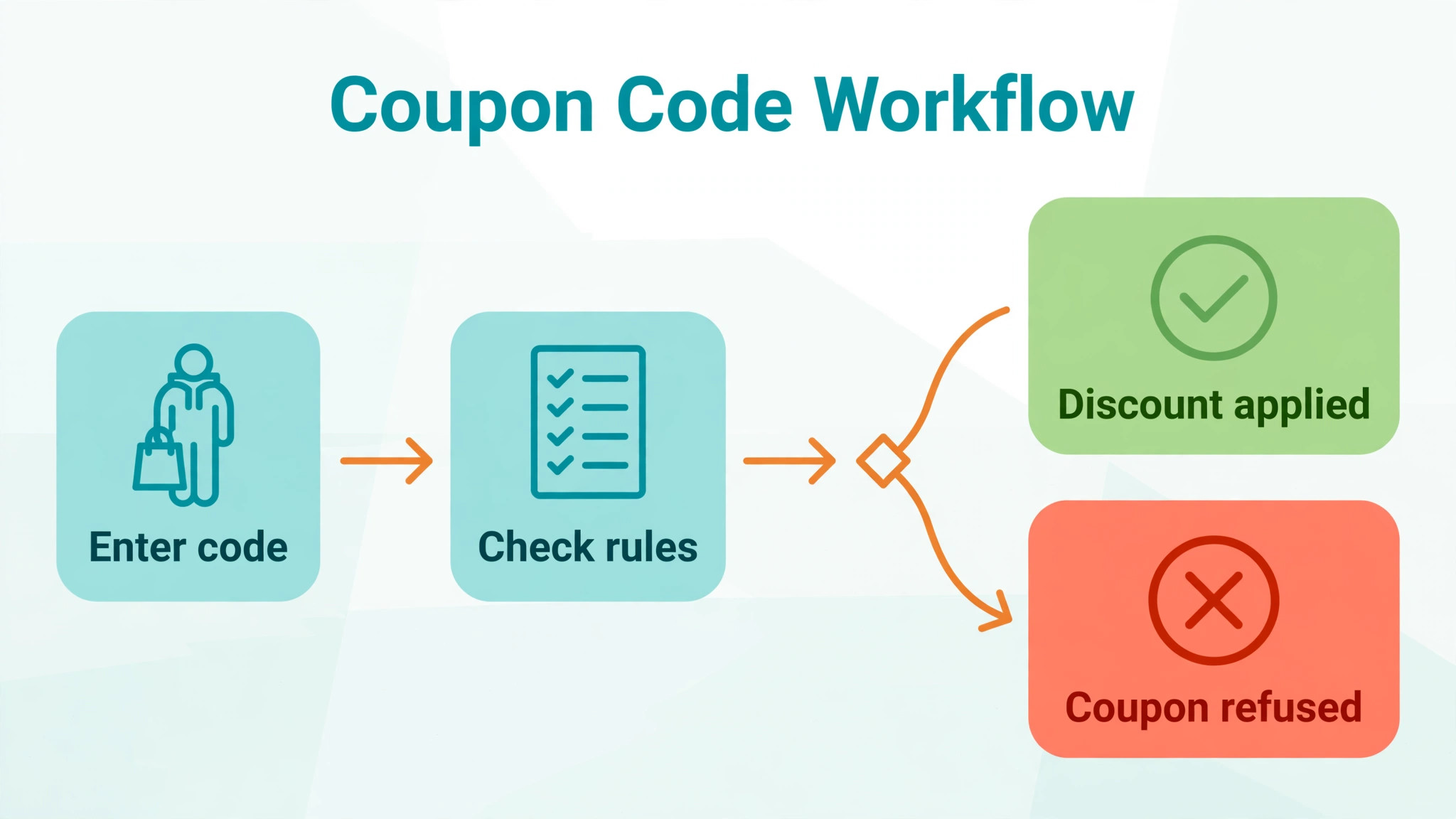
Step 1. Confirm the Coupon Is Published and the Code Is Exact
Open Marketing and then Coupons in the WordPress dashboard, and open the coupon that is failing. Check that its status is published rather than draft, scheduled, or in the trash. A draft coupon can look complete in the editor while remaining invisible to customers, and a scheduled coupon will not work before its start date. Check the code itself for hidden spaces, because a code copied from an email or a design file can carry a trailing space that customers paste without noticing.
WooCommerce coupon codes are not case sensitive, so a difference between upper and lower case letters should not block a code. Focus instead on characters that look alike, such as the letter O and the number zero, and on codes that were typed by hand from a printed flyer. Create a test order with the code copied directly from the coupon editor, not retyped, and see whether that version applies. If it does, the published code and the advertised code are different, and the advertisement needs correcting rather than the coupon.
Step 2. Check Expiry, Minimum Spend, and Maximum Spend
Open the General tab of the coupon and read the expiry date carefully. WooCommerce treats a coupon as unusable on its expiry date itself, so a code advertised as valid through Friday may already be dead on Friday morning. That single detail causes a surprising number of complaints at the end of a promotion, and the fix is to set the expiry date one day later than the last day you intend to advertise, or to change the advertised end date to match the real one.
Next, check the minimum and maximum spend on the Usage restriction tab. WooCommerce compares the minimum spend against the displayed cart subtotal, including tax when your store displays prices including tax. It does not compare against the final total after shipping in every display setup, so a cart that looks large enough at checkout may still fall short on the subtotal measure. Build a test cart at the exact threshold and one just below it, and confirm the boundary behaves the way your promotion promises.
Step 3. Check Product, Category, and Sale Item Rules
A coupon that is restricted to certain products or categories will refuse a cart that contains none of them, even if the cart is large. Open the Usage restriction tab and read both the included products and categories and the excluded ones. Remember that a cart must contain at least one included product when an inclusion list is set, and that an excluded product can block the discount on that item while the rest of the cart still qualifies. Test with a cart made only of included products first, then add the customer’s actual items back.
The sale item exclusion is a separate trap. When Exclude sale items is switched on, a product already on sale cannot also take the coupon discount. Customers see this as the coupon failing, when in fact the coupon is working exactly as configured. Decide which behaviour your promotion actually promises. If the advertisement says the code works on everything, switch the exclusion off. If the exclusion is deliberate, change the advertisement so it says sale items are excluded, and your support inbox will quieten down.
Step 4. Check Allowed Emails and Usage Limits
Open the Usage restriction tab again and look at the allowed emails field. WooCommerce checks this restriction against the billing email used at checkout, not against the email address on the customer account in every case, and not against the address that received the marketing email. A code sent to a work address will fail when the customer checks out with a personal address. If the promotion is meant for anyone, leave this field blank. If it is meant for a specific list, tell customers to check out with the address that received the offer.
Then open the Usage limits tab and compare three numbers. The usage limit per coupon is the total number of times all customers may use the code. The usage limit per user is the number of times one customer may use it. The limit on items is how many items in one order may receive the discount. A code that worked yesterday and fails today has very often hit one of these limits overnight, and the usage count on the coupon screen will confirm it. Pending or failed orders can also hold usage in some setups, so check recent orders before you raise a limit.
Step 5. Check Individual Use and Other Coupons in the Cart
The Individual use only checkbox stops a coupon from being combined with any other coupon. When it is switched on, WooCommerce will refuse the second code or remove the first one, depending on the order in which the codes are applied. Customers who stack a welcome code with a sale code will therefore see a failure that looks like a broken coupon, when the real cause is a combination rule. Test the failing code entirely on its own in a clean cart before you investigate anything else.
Free shipping coupons deserve a separate check at this step. A free shipping coupon only produces a saving when the cart has a shipping method that can carry it, and the shipping zone for the customer’s address must include a free shipping method set to require a valid coupon. If the customer’s address falls outside every shipping zone, or if the zone offers no free shipping method, the coupon has nothing to apply to. That is a shipping configuration problem, not a coupon problem, and it needs fixing in the shipping zones rather than in the coupon editor. For a wider comparison of how the two main store platforms handle discounts and shipping, read our guide to Shopify versus WooCommerce.
Step 6. Check the Cart, Checkout, and Shipping Setup
Some failures only appear at checkout, not on the cart page, because the two pages can show different fields and different totals. Test the code on both pages, and test it with the customer’s shipping method and destination. A code tied to a minimum spend can pass on the cart page and fail at checkout if a shipping choice or a tax recalculation changes the subtotal measure. A code that discounts shipping can fail when no shipping method is selected yet, because there is no shipping cost to discount.
Also check whether the coupon is a fixed cart discount, a percentage discount, a fixed product discount, or a free shipping coupon, because each type calculates differently. A percentage coupon applies to eligible items only, so a cart mixed with eligible and ineligible items will show a smaller saving than a customer who expected a percentage off everything. A fixed product discount applies per eligible item up to the item limit, so quantity matters. Naming the discount type in your promotion, for example percentage off selected items, prevents most of these misunderstandings before they reach support.
Step 7. Clear Caching and Test the Checkout Flow
Cart and checkout pages must be excluded from page caching, because a cached page can show an old total, hide a coupon field, or keep a code applied after it should have been removed. Check your caching plugin, your host cache, and any content delivery network in front of the store, and confirm that cart, checkout, and account pages are on the exclusion list. Clear every cache layer after you change a coupon, and then test again in a private window so the browser does not serve you a stored copy of the page.
If the coupon field is missing entirely, caching is one suspect, but the checkout design is another. Some checkout plugins and custom checkout layouts move or hide the coupon field behind a link or a collapsed section, and customers on mobile may never find it. Open the checkout on a phone as well as on a desktop, and confirm the field is visible without hunting. If the field only appears after a theme or plugin change, that change is the prime suspect, and a staging site is the safe place to confirm it before you roll anything back on the live store. Related checkout guides cover the WooCommerce checkout problem and the WooCommerce shipping rates problem.
Step 8. Run a Plugin and Theme Conflict Test on Staging
Only reach this step when the coupon settings, the cart, and the cache all check out. On a staging copy of the site, switch to a default WordPress theme and deactivate plugins other than WooCommerce, then test the code again. If it works, reactivate plugins one at a time and test after each one, until the failure returns. The last plugin reactivated is the conflict, and you can then look for an update, a setting, or a replacement for it. Never run this test on the live store during trading hours, because deactivating plugins can break payments and display for real customers.
Keep notes on what you tested and in what order, because coupon conflicts often return after an update. A plugin that conflicts today may be updated tomorrow, and a theme update can change the checkout layout again. The staging test is therefore not a one time chore. It is the procedure to repeat whenever a coupon fails after an update, and it is far cheaper than rebuilding a promotion from scratch. If the conflict is in a plugin you cannot live without while you fix WooCommerce coupon not applying small store trouble, contact its developer with the failing code, the cart contents, and the error message, and ask whether a newer version addresses the checkout interaction.
Coupon Rules That Quietly Block a Code in WooCommerce
The most frustrating cases when you fix WooCommerce coupon not applying small store failures are the ones where nothing looks wrong. The code is published, the date is valid, and the customer is not doing anything unusual.

In those cases the block is usually a rule that was set months ago and forgotten, such as a category exclusion added for a previous sale, an email restriction left over from a private offer, or a per user limit that made sense for a welcome code but not for a sitewide sale. Auditing the coupon from top to bottom, tab by tab, is the only reliable way to catch these leftovers.

When the Coupon Field Itself Is Missing From Checkout
A missing coupon field is a different problem from a refused code, and it needs a different diagnosis. First confirm that coupons are enabled at all, under WooCommerce settings in the General area, where the option to enable the use of coupon codes lives. If that box is unchecked, no coupon field will appear on the cart or checkout pages, and no code will work no matter how correct its settings are. Switch it on, save, clear the cache, and test again before looking anywhere else.
If coupons are enabled and the field is still missing, look at the checkout design. Some themes and checkout customisation plugins replace the standard checkout layout, and the coupon field can end up hidden behind a toggle, moved to a step the customer never reaches, or removed by a template override. Test with a default theme on staging to see whether the field returns. If it does, the theme or the checkout plugin is responsible, and you can decide whether to restore the field in the custom layout or to simplify the checkout. Customers cannot use a code they cannot find, so a visible field is part of the promotion, not a decoration.
Caching, Plugins, and Checkout Conflicts That Mimic a Coupon Bug
Caching problems produce symptoms that look like coupon bugs but behave inconsistently, which is the clue. A code works for one customer and not for another, works in the morning and not in the afternoon, or works after a page refresh but not on the first load. Those patterns point to a cached page serving an old total or an old version of the checkout. Exclude cart, checkout, and account pages from every cache layer, including the caching plugin, the host level cache, and any content delivery network, and clear all of them after every coupon change.
Plugin conflicts are less common than setting errors, but they are real, and they usually appear after an update. A discount plugin, a checkout customisation plugin, a currency plugin, or a subscription plugin can all change how totals are calculated or how the coupon field behaves. When a failure starts the same day as an update, check the update first and test on staging with that plugin deactivated. Keep a simple change log for the store, noting the date of each plugin and theme update, so you can match a new failure to a recent change without relying on memory. That log is also useful when a developer asks what changed before the problem started.
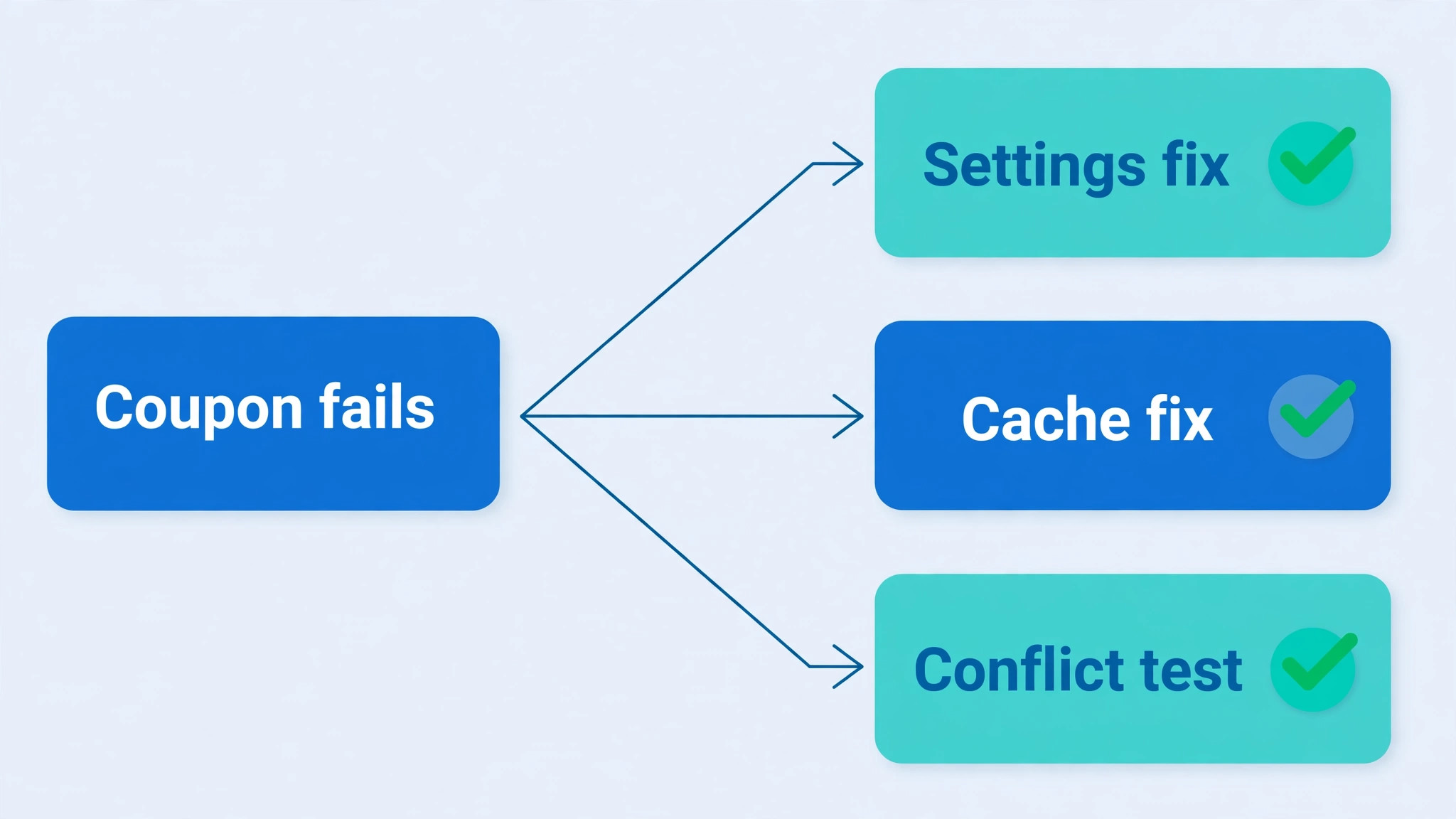
Test Like a Customer, Not Like the Store Owner
The single most useful habit when you fix WooCommerce coupon not applying small store failures is testing with a customer account in a private window. Store owners test while logged in as administrators, on a fast connection, with a cache that already holds their own pages, and with an email address that may be on an allowed list. Customers test with none of those advantages. A test that reproduces the customer’s exact cart, shipping destination, and billing email is worth far more than a test that simply confirms the code works in ideal conditions.
Build a small test routine and use it for every promotion. Create a test customer account with an ordinary email address, add the promoted products in the promoted quantities, apply the code on the cart page, and complete the test through checkout to the payment step without paying, or with a test payment method if your gateway supports one. Repeat the test on a phone, and repeat it after clearing the cache. Record the result for each promotion in a simple document, so the next promotion starts from a tested baseline instead of from guesswork. That routine also protects you when a customer reports a failure, because you can say honestly whether the code passed the same test.
Coupon Rules Diagnosis Checklist
Use this checklist in order to fix WooCommerce coupon not applying small store failures for any coupon that fails, and tick each item only after you have tested it rather than assumed it. It is designed to be copied into a support document or a staff handbook, and it works for a single failing code as well as for a promotion that is failing for many customers at once.
Confirm the coupon status is published and the code matches the advertised code character for character, apart from upper and lower case letters.
Confirm the expiry date is still in the future, remembering that a coupon cannot be used on its expiry date itself.
Confirm the cart subtotal meets the minimum spend and does not exceed the maximum spend, using the displayed subtotal measure your store uses.
Confirm the cart contains at least one included product or category, and that no excluded product or category is blocking the discount on the items that matter.
Confirm the sale item exclusion matches the advertised offer, and change either the setting or the advertisement so the two agree.
Confirm the allowed emails field is blank for a public offer, or that the customer is checking out with the address that received the offer.
Confirm the total usage limit, the per user limit, and the item limit have not been reached, and check recent pending orders that may be holding usage.
Confirm the code is tested on its own, without any other coupon in the cart, when Individual use only is switched on.
Confirm a free shipping coupon has a shipping method and a shipping zone that can carry it, for the customer’s actual address.
Confirm cart, checkout, and account pages are excluded from every cache layer, and clear all caches before retesting in a private window.
Confirm the coupon field is visible on both desktop and mobile checkout, and that the code works on both the cart page and the checkout page.
Confirm a staging conflict test has been run if every setting above passes and the code still fails, by switching to a default theme and deactivating other plugins one at a time.

What to Tell Customers While You Fix a Coupon
A coupon failure is also a customer service moment when you fix WooCommerce coupon not applying small store problems, and the words you use while fixing it matter as much as the fix. Acknowledge the failure plainly, tell the customer you are testing their exact cart, and give a time by which you will update them. Do not tell a customer that a code should work when you have not yet reproduced their cart, because that answer sounds dismissive and it is often wrong. A short, honest update keeps more customers than a long explanation of coupon settings ever will.
If the code cannot be fixed before the customer needs to order, offer a workaround that protects the promised saving. That may mean creating a replacement code with the same value and no restrictions, applying a manual discount to their order, or refunding the difference after they check out at full price. Record which workaround you offered, so a second staff member does not offer a different one to the same customer. A customer who receives the promised saving, even by a workaround, is far more likely to return than a customer who is told to wait for a technical fix.
Frequently Asked Questions About WooCommerce Coupons
Why does my WooCommerce coupon work for me but not for customers
The most common reason is that you are testing as an administrator with a different email address, a different cart, and a cached page. Test in a private window with an ordinary customer account, using the customer’s exact products, quantities, and shipping destination. Check allowed emails and usage limits next, because those two settings affect customers while leaving an admin test untouched. If the code still works for you and fails for customers after that test, check caching on cart and checkout pages.
Why does a coupon say minimum spend not met when the cart looks large enough
WooCommerce compares the minimum spend against the displayed cart subtotal, including tax when prices are displayed including tax. Shipping costs and later adjustments may not count toward that subtotal in the way a customer expects. Build a test cart at the threshold and check the subtotal figure itself, rather than the final total. If the threshold is close to the typical order value, consider lowering it or stating the subtotal basis in the promotion so customers can judge it before checkout.
Can customers use two WooCommerce coupons at the same time
Customers can use more than one coupon when neither coupon has Individual use only switched on, and when no other restriction blocks the combination. When Individual use only is switched on for a coupon, that coupon cannot be combined with any other code. Test combinations before advertising them, because a promotion that promises stacking will fail if any participating coupon has the individual use box ticked. State the stacking rule in the promotion to avoid disappointment at checkout.
Why does a free shipping coupon not reduce the order total
A free shipping coupon only removes a shipping cost, so it needs a shipping method and a shipping zone that can carry it. Check that the customer’s address falls inside a zone that offers a free shipping method set to require a valid coupon. If the cart already has free shipping from another rule, or if no shipping method is selected yet, the coupon may appear to do nothing. Test with the customer’s actual address and shipping choice to see the real behaviour.
Why does a coupon fail on sale items only
The Exclude sale items setting stops a coupon from applying to products already on sale. That setting is useful when a promotion is meant for full price items, but it confuses customers when the advertisement does not mention it. Decide whether the exclusion matches the promise you made. If it does, add the exclusion to the advertisement. If it does not, switch the setting off and retest with a sale item in the cart before relaunching the promotion.
How do I test a coupon without affecting real orders
Create a test customer account, use a private browser window, and build a cart that matches the promotion. Take the test through checkout to the payment step, and use a test payment method if your gateway provides one, or stop before payment and discard the cart. Clear the cache before testing, and test on both desktop and mobile. Keep a note of the test result for each promotion, so a later failure can be compared against a known good test rather than against memory.
A Final Word on Coupon Failures for a Small Store
Most coupon failures are not mysteries, and they are not signs that the store is broken beyond repair. They are usually one setting, one forgotten restriction, or one cache layer standing between a good promotion and a customer who wants to buy.
Working through the diagnosis in order is the practical way to fix WooCommerce coupon not applying small store trouble, because testing like a customer and keeping a short record of each promotion fixes most failures quickly and prevents the same failure next time. If you are weighing a platform change while you fix discount problems, our comparison of the Shopify and WooCommerce platforms and the guide to moving a store from Shopify to WooCommerce give useful background, and the discount code problem on Shopify shows how the same diagnosis ideas apply on the other platform. Keep the coupon rules simple, advertise exactly what the settings deliver, and test every code before customers do.