
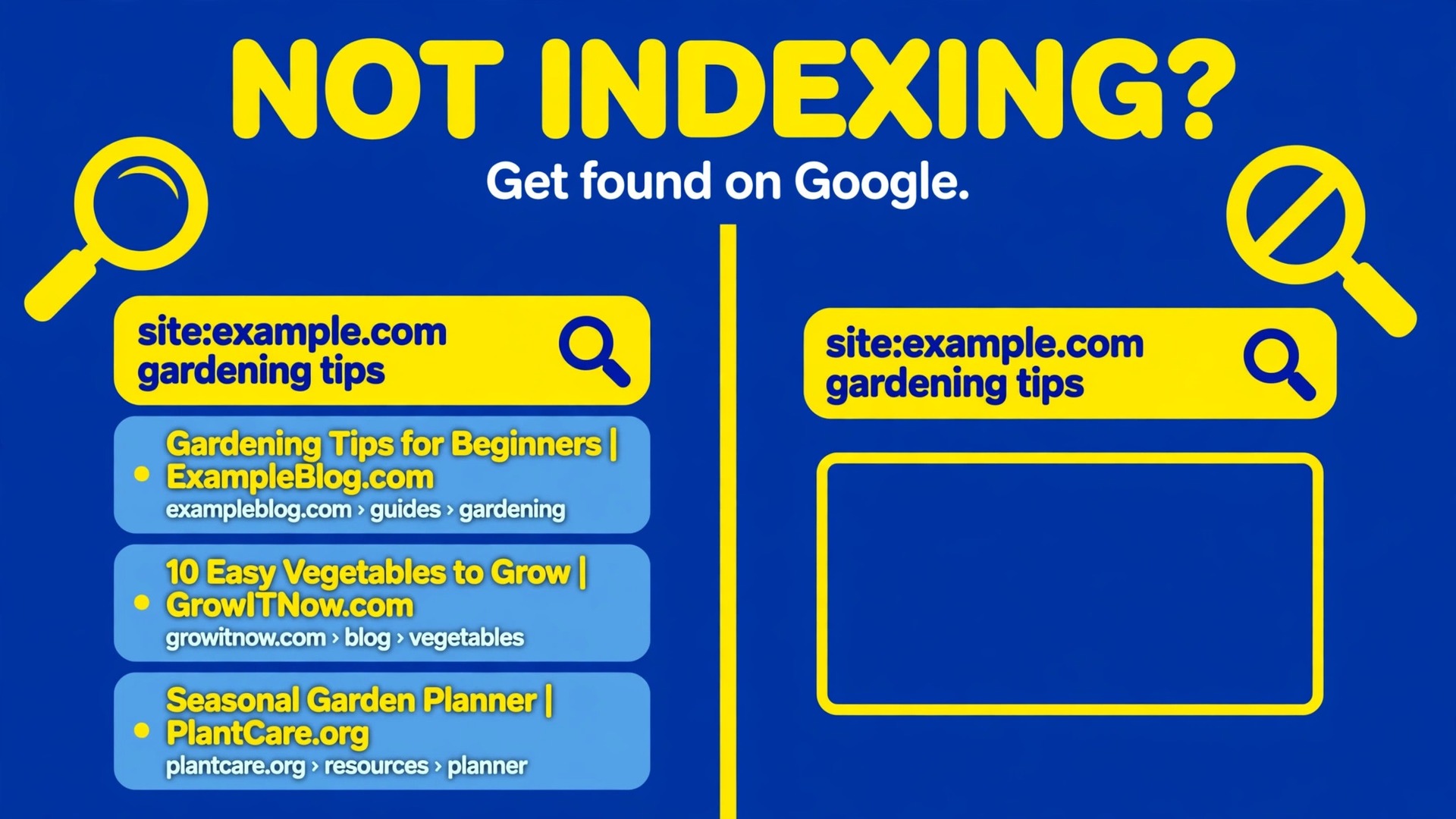
Zero indexed pages means zero chances to rank, no matter how strong the writing is. A page that Google has not indexed cannot appear in search results, cannot earn clicks, and cannot be found by a customer who searches for exactly what it offers. That is the harsh arithmetic behind the work to fix WordPress site not indexing small business problems, and it is also why indexing trouble deserves attention before any new content is written. More posts will not help while the pages you already have are invisible.
This guide works through the diagnosis in the order that finds the cause fastest. It starts with the sitewide blocks that can hide an entire site, then moves to page level blocks, then to sitemaps and discovery, and finally to the slower causes that need patience rather than a setting change. Work in order, check one thing at a time, and keep a note of what you find, because an indexing problem that returns after a redesign usually has the same root as the first one.
How to Fix WordPress Site Not Indexing Small Business
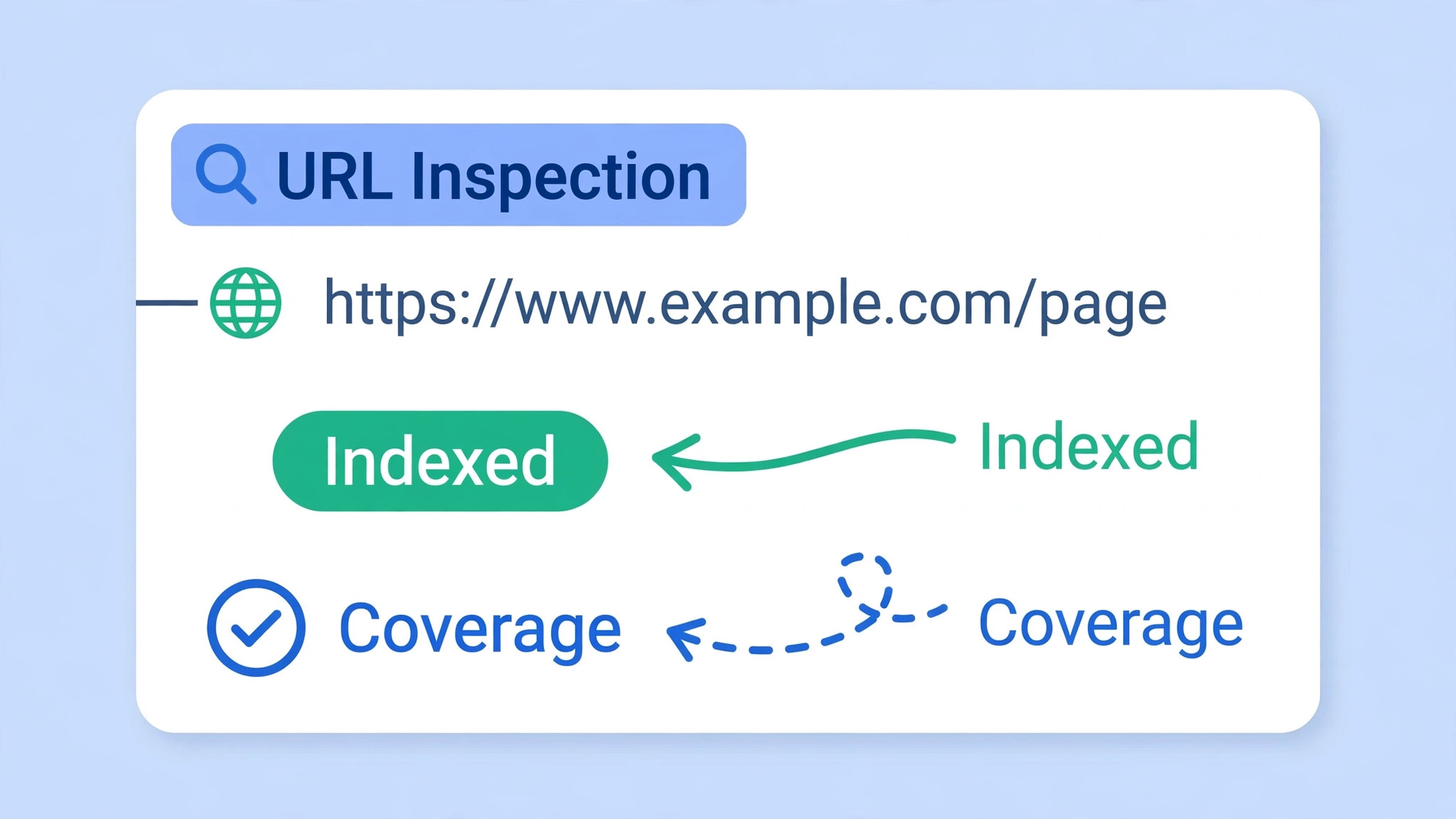
Begin by confirming the problem properly, because a site search is not a reliable test on its own. Open Google Search Console, paste a page address into the URL Inspection tool, and read what Google says about that exact address. The tool reports whether the page is indexed, whether it was crawled, and whether a directive or a robots rule is blocking it. That single report replaces a dozen guesses, and it tells you which section of this guide matters most for your site.
If you do not yet have Search Console set up, verify the site first and submit the sitemap before you change anything else. Verification gives you the only authoritative view of how Google sees the site, and the sitemap submission gives Google a direct list of pages to crawl. Without those two steps you are working blind, and you may fix a setting that was never the problem while the real block stays in place. Set them up now, even if the site is small, because a small site benefits most from a direct line to Google.
Step Diagnosis in Order for an Unindexed Site
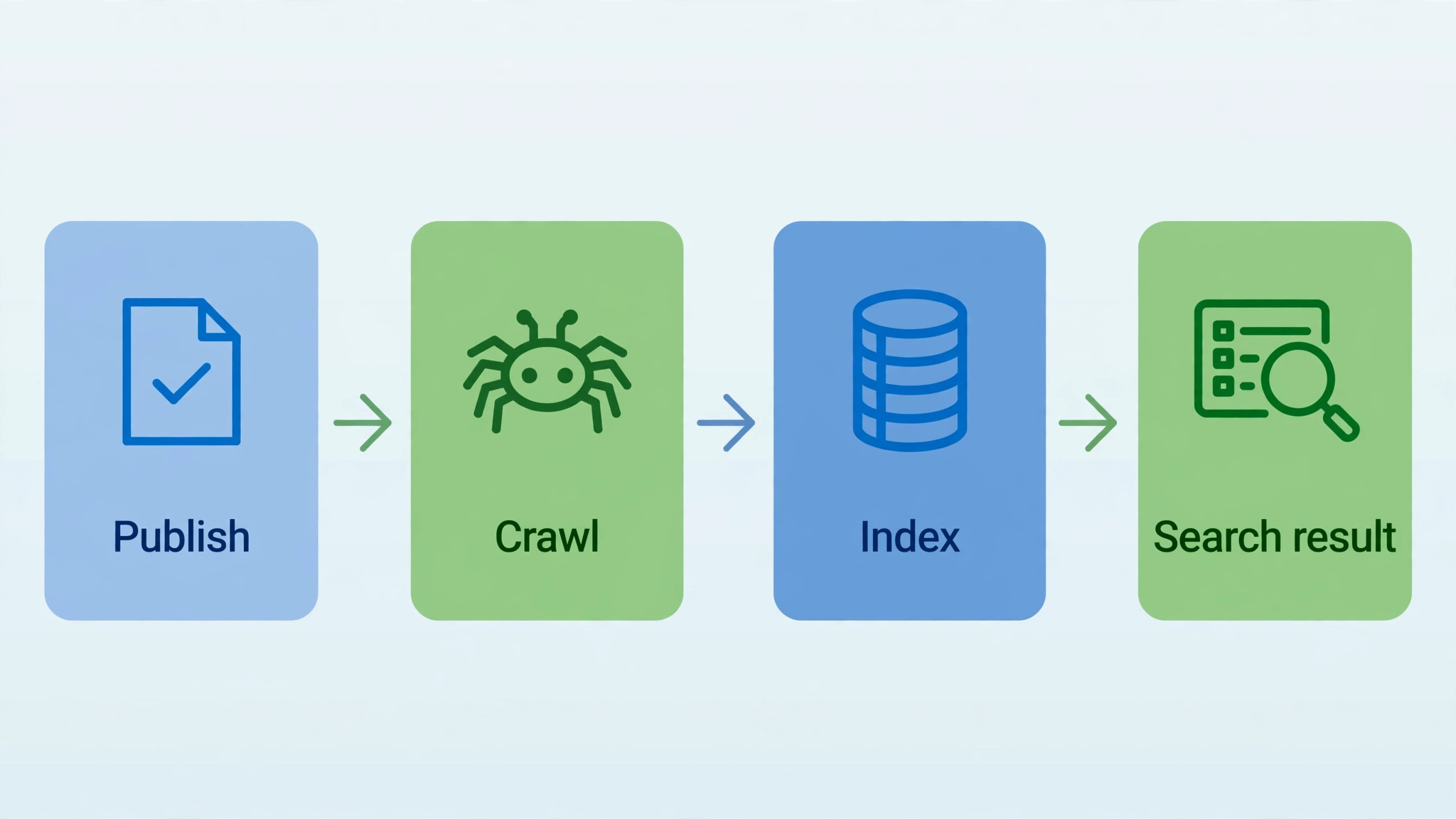
The steps below run from the most common and most damaging causes to the least common when you fix WordPress site not indexing small business problems. A sitewide noindex setting can hide everything at once, so it comes first. A robots rule comes next, because it can block crawling for whole sections. Page level settings, sitemaps, and quality issues follow, because they usually affect some pages rather than all of them. Stop at the first step that explains what you see.
Step 1. Check the Discourage Search Engines Setting in WordPress
Open Settings and then Reading in the WordPress dashboard, and look for the checkbox labelled to discourage search engines from indexing the site. When this box is ticked, WordPress adds a sitewide noindex instruction that tells search engines not to index the site. The setting is meant for a site under construction, but it routinely survives a launch, a redesign, or a migration from a staging site, and it then hides the live site for months.
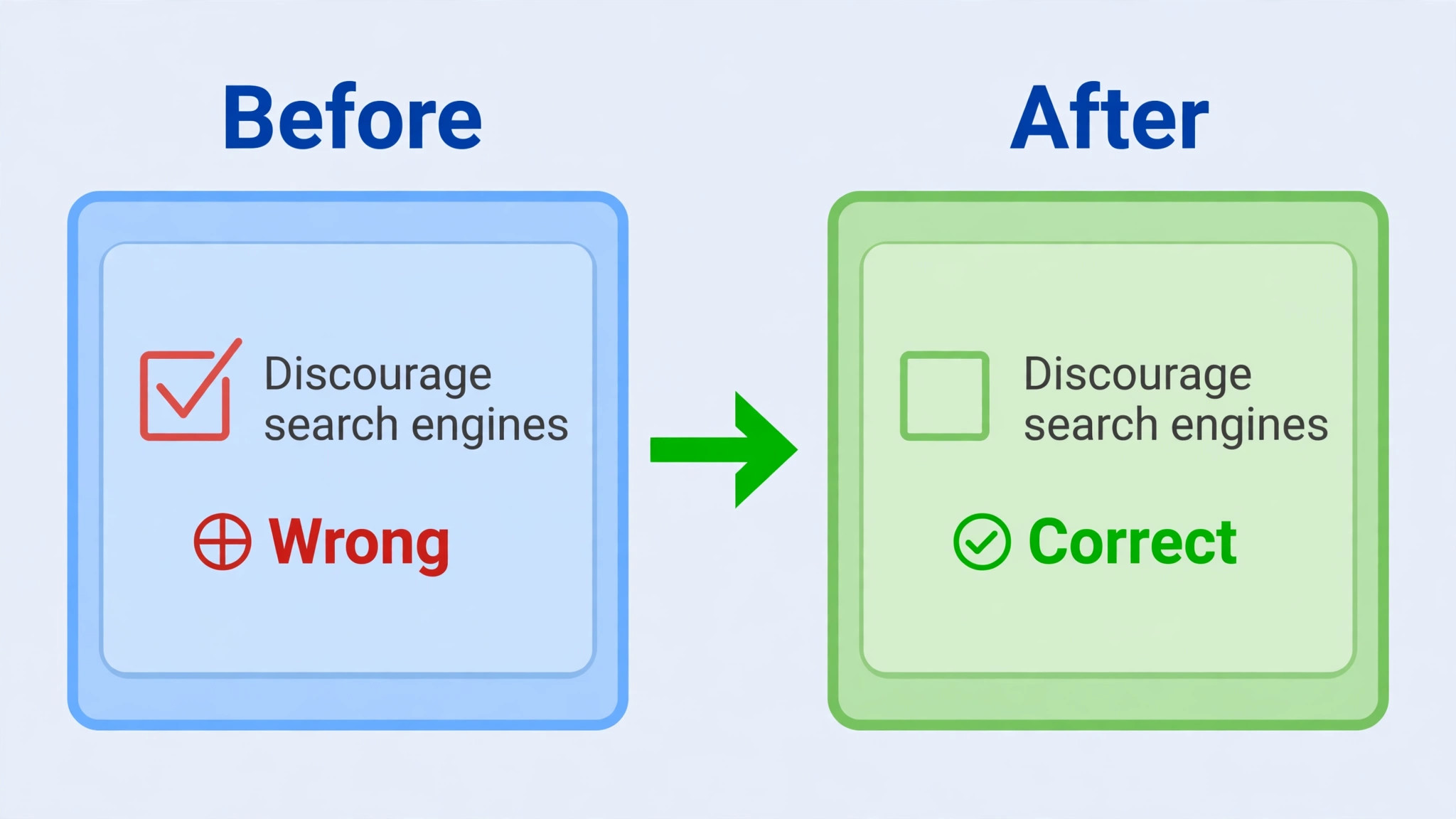
Untick the box and save the settings if the site is meant to be public. Then check a page in Search Console again, and request indexing for the homepage and the most important pages. Note that removing the setting does not instantly index the site. Google must recrawl the pages and see the changed instruction, so allow days for the change to show, and use the URL Inspection tool to confirm that Google now reports indexing as allowed for a sample of pages.
Step 2. Read Your Robots File for a Sitewide Block
Visit the robots file for your site by adding robots.txt to the domain address, and read every line. A rule that disallows the whole site, written as a disallow for the root path, will stop Googlebot from crawling any page. That rule often arrives with a staging setup, a security plugin, or a well meaning edit that was never removed. If the site should be indexed, remove or narrow that rule so it no longer covers pages you want found.
Remember that a robots block stops crawling, not indexing in the strict sense. Google can still list a blocked address when other sites link to it, but it will do so without the page content, which is of little use for ranking. That is why a robots block is the wrong tool for hiding a page you want kept private. For pages that must stay out of search results, allow crawling and use a noindex instruction instead, so Google can read the instruction and obey it. For pages you want indexed, make sure no disallow rule matches their path for Googlebot.
A noindex tag can come from the page itself, from an SEO plugin setting for a whole post type, or from a response header that is invisible in the page source. Open a page that should be indexed, view its source, and search for the word noindex. Also check the SEO plugin settings for search appearance, because one toggle can noindex an entire post type, a taxonomy, or an archive section without any visible change on the page itself. Rank Math, Yoast, and similar plugins all carry these per type settings, and one forgotten toggle can hide a whole section.
Check individual pages next, because editors sometimes set noindex on a single page through the SEO settings box and then forget it. If only scattered pages are missing from the index, open each one and check its advanced SEO settings. If a whole section is missing, the post type or taxonomy setting is the more likely culprit. Remove the noindex instruction only from pages that should be public, and leave it on cart, checkout, account, internal search, and thank you pages, where it belongs.
A page whose canonical tag points to a different address tells Google that the other address is the real version, and Google may index that address instead. Open the page source and read the canonical link. It should point to the page itself, using the same address form that the site uses elsewhere, including the same use of secure addresses and trailing slashes. A canonical that points to the homepage, to an old address, or to a non secure version will quietly divert indexing away from the page you care about.
Status codes matter just as much. A page that returns a not found error, a server error, or a redirect will not be indexed as itself. Check the address in a browser and in Search Console, and look for redirect chains that send Google in circles. A soft error is harder to spot, because the page loads for a visitor while returning an error to a crawler, so use the URL Inspection tool to see what Google actually received. Fix the status or the redirect first, then request indexing again.
Step 5. Submit a Clean Sitemap and Fix Sitemap Errors
An XML sitemap is a list of the pages you want crawled, and most SEO plugins generate one automatically. Find the sitemap address in the SEO plugin settings, open it in a browser, and confirm that it lists the pages you want indexed and not the pages you want hidden. Submit that address in Search Console under the Sitemaps section, and read any errors Search Console reports for it. A sitemap that lists deleted pages, that returns an error, or that has not been submitted at all gives Google a poor map of the site.
Clean the sitemap by removing pages that no longer exist, pages that are noindexed, and pages that redirect elsewhere. Those entries waste crawl attention and can confuse the indexing picture. After cleaning, resubmit the sitemap and watch the Search Console sitemap report for how many submitted addresses Google actually indexed. A large gap between submitted and indexed counts points back to the earlier steps, or to the quality and linking issues covered later in this guide.
Step 6. Strengthen Internal Links to Orphaned Pages
Google discovers pages through links as well as through sitemaps, and a page with no internal links pointing to it is far less likely to be crawled and indexed. These orphaned pages often appear after a site restructure, when a menu item is removed or a category page is rebuilt without linking to every post it used to list. Audit the site for pages that no other page links to, and add links to them from relevant category pages, related posts, and the homepage where appropriate.
Internal linking also tells Google which pages matter most. A page linked from the homepage and from several related posts will be crawled sooner than a page buried five clicks deep with a single link. When you publish a new post, link to it from at least one established page, and link from the new post back to related older pages. That two way habit keeps the site connected, and it helps both new and old pages stay in the index once they get there.
Step 7. Check Crawl Budget, Speed, and Server Errors
A small business site rarely runs out of crawl attention in the strict sense, but a slow site, a site that returns frequent server errors, or a site with thousands of thin archive pages can still waste the crawling Google does offer. Check Search Console for crawl errors and server errors, and fix any pattern that affects many pages at once, such as a broken plugin, a failing host, or a redirect loop. A site that answers reliably and quickly gets crawled more thoroughly than one that times out.
Speed work also supports indexing indirectly, because a fast page is easier to crawl and gives a better experience once it ranks. Compress images, remove plugins you no longer use, and check the site on a phone, where most visitors will meet it. Our guide to the WordPress slow loading checklist covers the speed checks in more detail, and it pairs well with the indexing work here, since the same cleanup often helps both problems at once.
Step 8. Improve Thin Pages That Google Crawls but Does Not Index
Some pages reach the stage of being crawled but not indexed, and Search Console reports them as crawled and currently not indexed, or discovered but not yet indexed. That status usually means Google saw the page and decided not to index it yet, often because the content is thin, duplicated, or too similar to another page on the site. It is not a technical block, and no setting change alone will fix it. The page needs a reason to be indexed.
Strengthen such pages with original, useful content that answers a specific question better than the pages already ranking for it. Merge near duplicate pages into one stronger page and redirect the weaker ones to it. Remove or noindex thin archive and tag pages that add no value, so crawl attention goes to the pages that matter. Then request indexing for the improved pages and allow time, because a quality judgement changes more slowly than a setting change.
Read Search Console Like a Diagnosis Report
Search Console gives a different status for each indexing problem, and learning to read those statuses saves weeks of guessing when you fix WordPress site not indexing small business trouble. A status saying a page is blocked by robots points to the robots file. A status saying a page is excluded by a noindex tag points to the page or plugin settings. A status saying a page is an alternate with a proper canonical points to the canonical tag. A status saying a page was discovered but not indexed, or crawled but not indexed, points to discovery or quality rather than a hard block.
Open the Pages report under Indexing, and sort the examples by status rather than reading the list at random. Each status groups pages that share a cause, so fixing one example often fixes the whole group. Click into a few example addresses for each status, run them through URL Inspection, and confirm that the cause matches what you found on the site. That grouping habit turns a long list of unindexed pages into a short list of fixes, which is exactly what a busy small business owner needs.
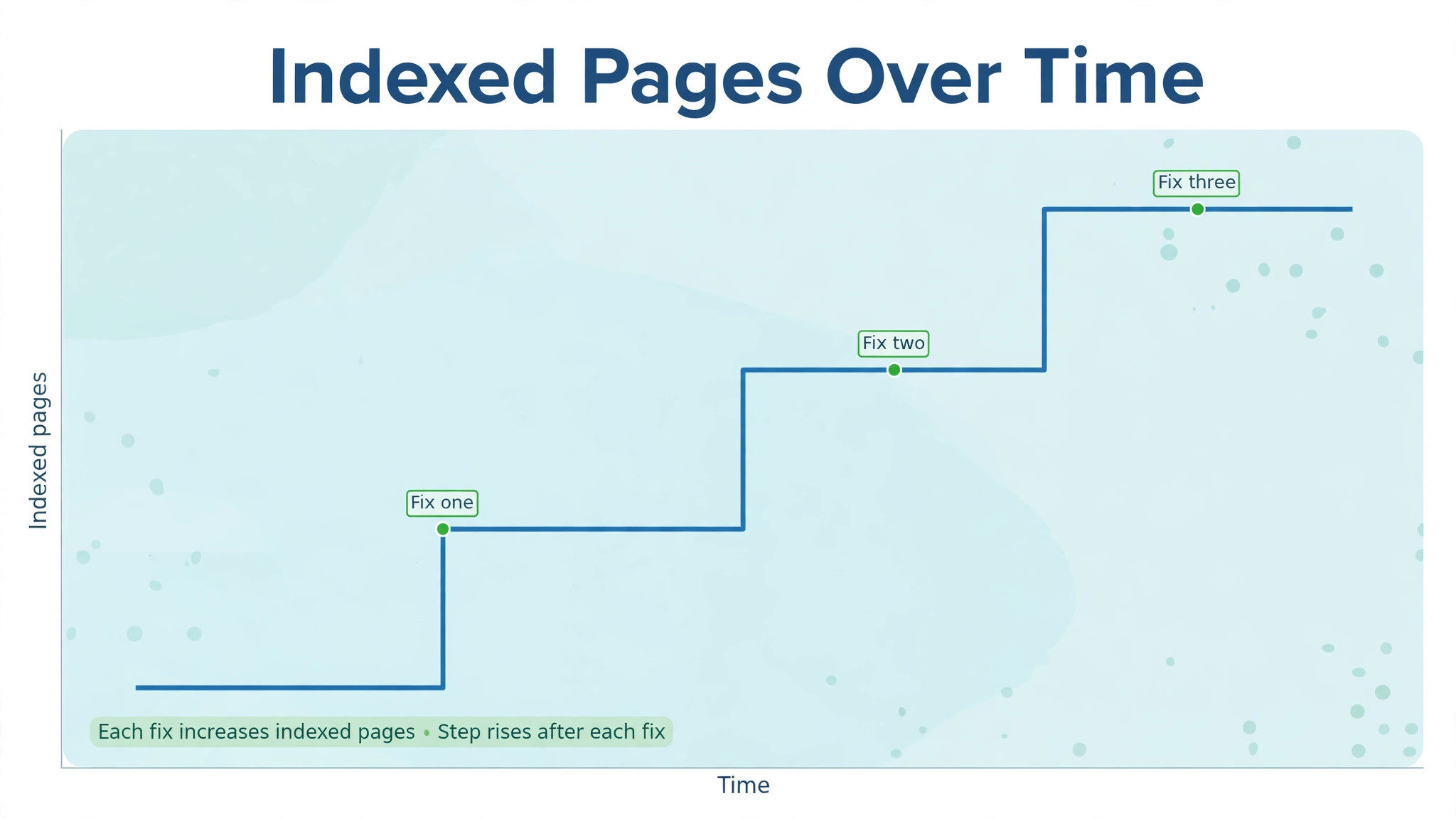
Keep a simple record of the counts for each status before and after a fix. Note the date, the status, the number of affected pages, and the change you made. When Google recrawls the site, the counts should move in the right direction over days and weeks, not hours. If a count does not move, the fix may not have taken effect, or a second cause may be hiding behind the first. That record also helps when a developer or an SEO helper asks what has already been tried.
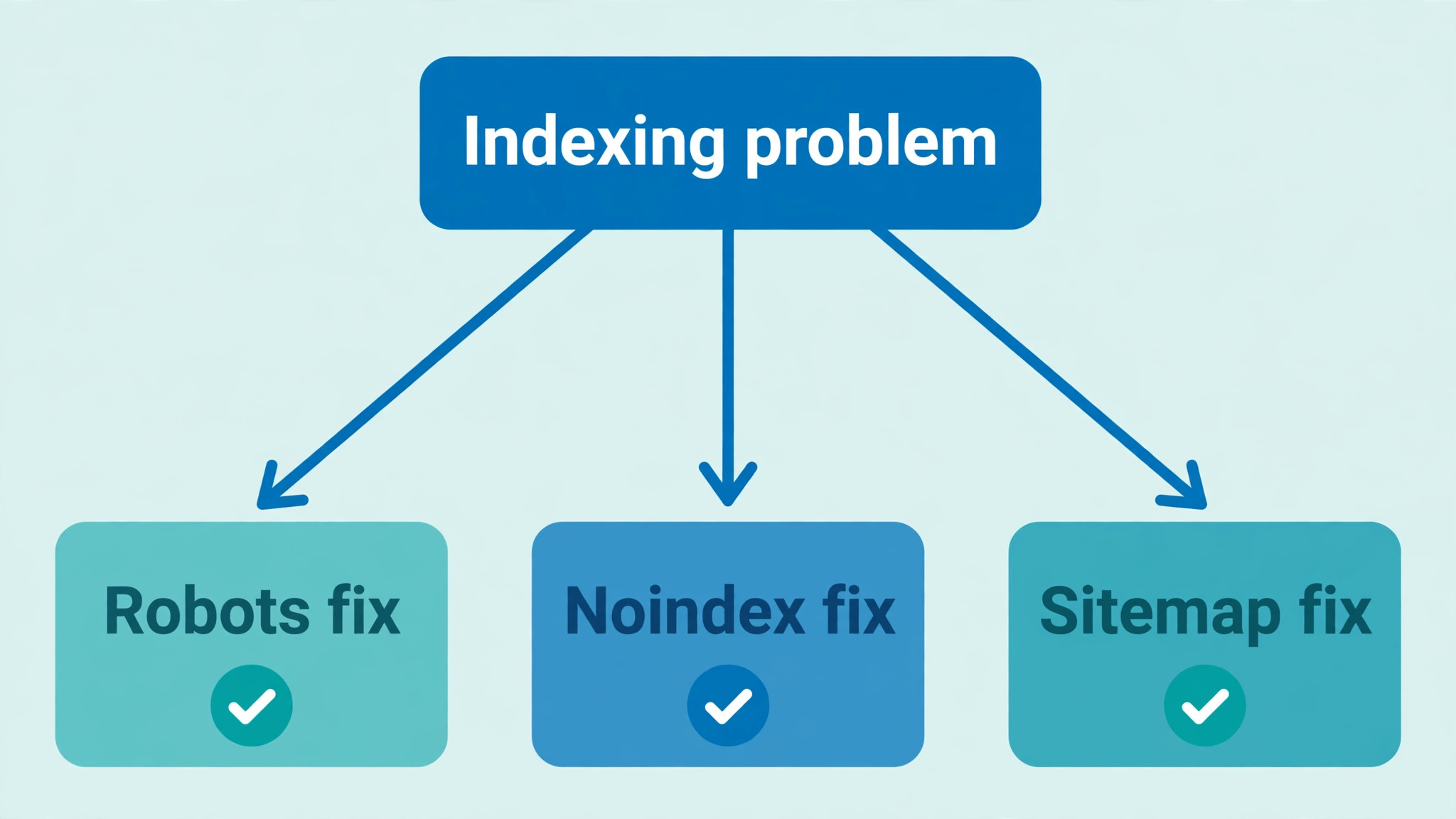
Indexing Diagnosis Checklist for a Small Business Site
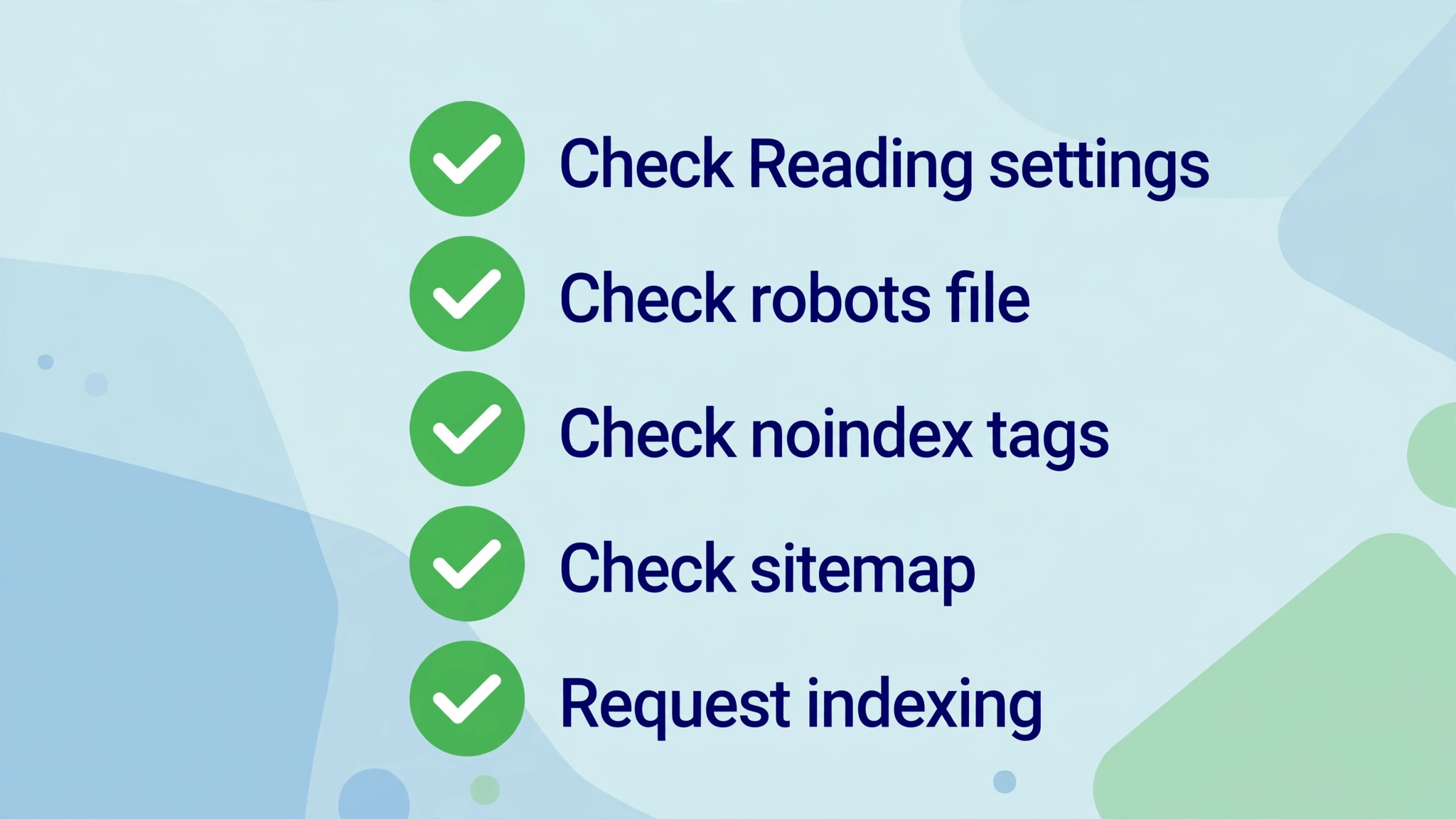
Copy this checklist into a document and work through it in order to fix WordPress site not indexing small business trouble for any site or section that is not indexing. Tick an item only after you have checked it on the live site and in Search Console, not after you have assumed it is correct.
Confirm the Discourage search engines checkbox under Settings and then Reading is unticked for a public site.
Confirm the robots file contains no disallow rule that covers pages you want indexed, and that no staging rule survived the launch.
Confirm no noindex tag appears in the page source for pages that should be public, and that no response header carries a noindex instruction for those pages.
Confirm SEO plugin search appearance settings allow indexing for every post type and taxonomy that should be public.
Confirm per page SEO settings do not carry a forgotten noindex instruction on individual pages that should rank.
Confirm each important page has a self pointing canonical tag that matches the address form used elsewhere on the site.
Confirm important pages return a success status, not a not found error, a server error, or a redirect chain.
Confirm the XML sitemap is submitted in Search Console, lists only live and indexable pages, and reports no errors.
Confirm every important page receives at least one internal link from a relevant page, and that no important page is orphaned.
Confirm Search Console crawl errors and server errors have been fixed, and that the site loads reliably on mobile.
Confirm thin or duplicate pages have been improved, merged, or noindexed, so crawl attention goes to pages worth indexing.
Confirm indexing has been requested for priority pages after each fix, and that counts are rechecked after a reasonable wait rather than the same day.
Common Mistakes That Keep a WordPress Site Unindexed
One common mistake when you fix WordPress site not indexing small business problems is fixing a setting on staging and never deploying it to the live site. Staging and live sites often share a database copy, a plugin setting, or a robots file, and a change made in one place can be lost when the other is copied over it. Always verify a fix on the live address itself, in a private browser window, and in Search Console, rather than trusting that a staging change reached production.
A second mistake is blocking pages in two places at once. A page that is both blocked in robots and marked noindex cannot be crawled, so Google can never see the noindex instruction, and the page may linger in search results as a bare address. Choose one method for each purpose. Use robots rules to save crawl attention on sections Google never needs to visit, and use noindex for pages Google may crawl but should not list. Mixing the two for the same page creates a problem that neither tool alone would cause.
A third mistake is resubmitting the same sitemap every day and expecting faster indexing. Repeated submission does not speed up a crawl, and it can distract from the real work of fixing blocks and improving pages. Submit once, fix the errors Search Console reports, request indexing for priority pages, and then give Google time. A site that is checked weekly with a clear record of changes will be diagnosed far more accurately than a site that is resubmitted daily in frustration.
How Long Indexing Takes After a Fix
A hard block such as a sitewide noindex setting or a robots disallow can start to clear within days of the fix WordPress site not indexing small business owners apply, because Google recrawls the homepage and key pages fairly often. A fix to a single page, requested through URL Inspection, can show movement sooner than a fix to a whole section, because the request puts that address in front of Google directly. Use that request tool for the homepage, the main service pages, and the newest posts, rather than spending it on every address at once.
Quality based delays take longer, because Google must recrawl the improved page, judge the new content, and compare it with competing pages. That process can take weeks, and it does not follow a fixed timetable that any guide can promise. The honest test is whether the Search Console status for the page changes from crawled but not indexed to indexed, and whether the page then appears for its own exact title in search. If the status changes but the page still does not rank, the next problem is ranking, not indexing, and it needs content and links work rather than another technical fix.
Patience is not the same as inaction. While waiting, publish useful content, strengthen internal links, and fix any new errors Search Console reports. A site that keeps improving while Google recrawls it will index more steadily than a site that is left untouched after a single fix. The waiting period is therefore best used for the content work that supports indexing, rather than for repeated checks of the same report. For background on moving a site between platforms without losing indexing, see our guide to moving a Squarespace site to WordPress, and for a related site health check, see the WordPress plugin conflict guide.
What to Do When Only Some Pages Are Missing
When the homepage and main pages are indexed but new posts are not, the cause is usually discovery, linking, or quality rather than a sitewide block. Check whether new posts appear in the sitemap, whether they are linked from the homepage or a category page, and whether they carry a noindex setting from a template or a plugin default. A new post type or a new category can inherit a noindex setting that older posts never had, so compare the settings of an indexed post with those of a missing post side by side.
When only a specific section is missing, such as products or a custom post type, check the search appearance settings for that type first, then check its archive template and its sitemap entries. A section that was built by a plugin, such as a shop or a booking section, can carry its own indexing settings separate from the main post settings. Finding those settings often requires opening the plugin documentation or settings screen for that section, rather than searching the general WordPress settings. Once found, the fix is usually a single toggle, followed by a sitemap resubmission and indexing requests for sample pages.
When a single page is missing while similar pages are indexed, compare that page against an indexed neighbour. For a related address problem, see our guide to the WordPress 404 errors after migration. Check its canonical tag, its status code, its internal links, and its content length and originality. A single page that duplicates another page almost word for word, or that contains very little original text, is a candidate for merging into the stronger page. A single page with a wrong canonical or a redirect is a candidate for a quick technical fix. That comparison habit finds single page causes far faster than rechecking sitewide settings that are already correct.
Frequently Asked Questions About WordPress Indexing
How do I know if my WordPress site is indexed at all
Use Google Search Console and the URL Inspection tool for an authoritative answer, because a site search can be unreliable and can miss pages that are indexed under a different address form. Paste the homepage address and a sample post address into URL Inspection and read the indexing status for each. If both report as indexed, the site is at least partly indexed. If both report as not indexed, work through the sitewide steps in this guide first.
Why is my site not indexed after I removed the noindex setting
Removing a noindex setting only tells Google what to do on its next crawl, and Google must recrawl each page before the change takes effect. Request indexing for priority pages through URL Inspection, confirm in that tool that indexing is now reported as allowed, and allow days for the status to change. If the status still reports a block after recrawling, a second noindex source, such as a plugin setting or a response header, is still in place and needs finding.
Should I block tag and category pages from indexing
Many small sites benefit from noindexing thin tag archives, date archives, and internal search pages, because those pages rarely rank and they consume crawl attention. Keep category pages indexed when they are useful landing pages with original introductions and clear navigation, and noindex them only when they duplicate other pages without adding value. The decision should be page by page, based on whether the archive helps a visitor, rather than a blanket rule for every archive type.
Does submitting a sitemap guarantee indexing
A sitemap helps Google discover pages, but it does not guarantee that Google will index them. Google still checks each page for blocks, canonical signals, quality, and usefulness before indexing it. A clean sitemap plus correct settings plus useful content is the combination that works. A sitemap alone, submitted to a site that is blocked or filled with thin pages, will not produce indexing, and repeated submission will not change that outcome.
Why are new posts indexed slowly while old posts rank well
Established pages have history, links, and crawl frequency behind them, while new posts must be discovered, crawled, and judged from scratch. Linking a new post from an established page, submitting it through the sitemap, and requesting indexing for it all help, but the process still takes time. If new posts remain unindexed after weeks while the rest of the site is healthy, check the new post template for a noindex default, and check whether the new posts are thinner or more duplicated than the older posts that rank.
Can a slow site stop Google from indexing pages
A very slow site or a site that returns frequent server errors can reduce how thoroughly Google crawls it, which can delay indexing, especially for deeper pages. A moderately slow site will not usually block indexing entirely on its own. Fix reliability and speed problems, check Search Console for crawl errors, and then recheck indexing after the site answers consistently. Speed work is worth doing, but it should not replace the block checks that come earlier in the diagnosis.
A Closing Check for a Site That Needs to Be Found
An unindexed site is not a failed site. It is usually a site with one setting, one rule, or one weak page pattern standing between good content and the searchers who need it. Work through the diagnosis in order to fix WordPress site not indexing small business trouble, and you will find that cause without rebuilding the site or buying a new tool. Start with the sitewide settings, then the page level blocks, then the sitemap and links, and finally the content quality that earns indexing over time. That order protects your time, because it checks the causes that hide everything before the causes that hide a few pages.
Keep Search Console open as your record, request indexing for the pages that matter most, and give each fix time to show in the report before moving to the next one. A small business site does not need to be indexed everywhere at once. It needs its homepage, its service pages, and its best posts to be found by the customers who search for them, and the steps in this guide are designed to deliver exactly that, one verified fix at a time. If you later change platforms, read our guide to moving a WordPress site to Shopify before the move, so indexing is protected during the transition.