
Need a logo for your small business? We tested three popular options, Design.com, Canva, and Adobe Express, to see which one makes creating a professional business logo easier.
Each platform takes a slightly different approach to logo design. Some make it easier to find ready-made concepts, while others give you more freedom to build and customize your own. But when you're starting a business, you probably don't want to spend hours browsing templates or figuring out which design elements work together. You want something that looks good, represents your brand, and is ready to use.
After reviewing all three, Design.com was our top choice for small-business logo creation. Its business-focused logo suggestions, style and color filters, customization options, and AI chatbot made it easier to move from a business name to a logo that felt right for Fresher Clothes.
Here's how each platform performed and what we found during our testing.
| Feature | Design.com | Canva | Adobe Express |
|---|---|---|---|
| Logo creation | Business name and keyword-based results | Templates | Guided logo creation and templates |
| Design selection | Over 500k+ logo design templates | Extensive template library | Logo templates and generated ideas |
| Style and color filters | Yes | Template browsing and editor controls | Available design and editing controls |
| Typography customization | Yes | Yes | Yes |
| Background and logo colors | Yes | Yes | Yes |
| Design elements | Yes | Yes | Yes |
| AI logo editing chatbot | Yes | No dedicated logo-editing chatbot | No dedicated logo-editing chatbot |
| Best suited for | Small businesses looking for ready-made logo designs and customization | Users who want a flexible, general-purpose design editor | Users already working within Adobe's creative ecosystem |
So, we put all three logo makers to the test with the same fictional business: Fresher Clothes, a laundry shop seeking a fresh, recognizable brand identity.
We entered the business name, explored the available logo designs, and tested the customization tools to see how much control each platform offers. We also looked at how easily we could refine a design, whether through traditional editing or AI-assisted features.
Design.com Review: Best Overall Logo Maker for Small Businesses
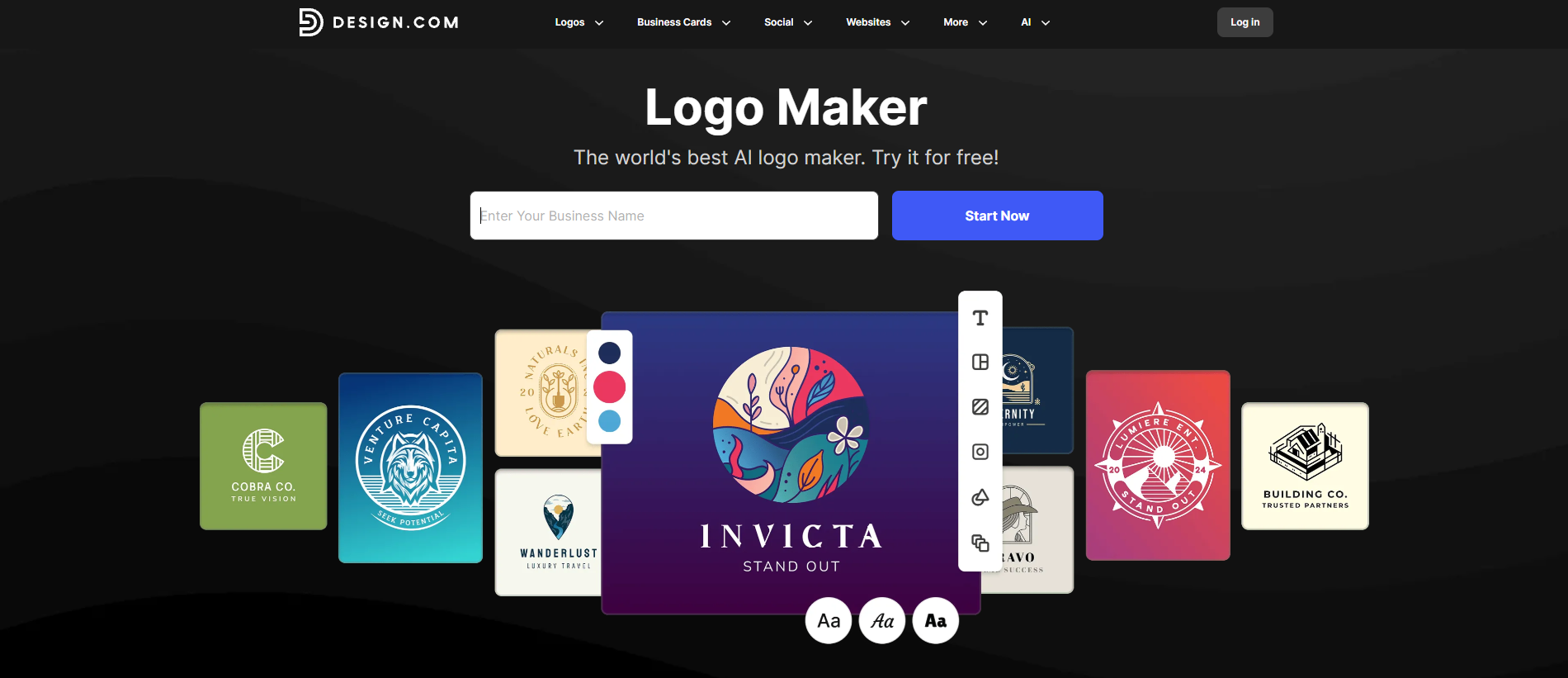
Website: https://www.design.com/
When we started creating a logo for Fresher Clothes, Design.com immediately gave us a focused starting point. Instead of building a logo from individual graphics, shapes, and text, we could enter the business name, add a keyword, and explore a collection of logo designs.
This was particularly helpful for our laundry shop concept. We wanted something that communicated cleanliness and freshness without looking too generic. Design.com gave us several creative directions to consider, and its filters made it easier to narrow down the options before moving into the editor.
What we liked most was how the platform connected the different parts of the process. We could find a design, customize its typography and colors, adjust individual elements, and even use the AI chatbot to request changes. It felt less like starting a graphic design project and more like working toward a finished business logo.
How We Created a Logo for Fresher Clothes
Step 1: Enter the business name and keyword

We started by entering "Fresher Clothes" as the business name and adding a relevant keyword for the laundry business.
This gave Design.com a starting point for generating logo suggestions. Instead of searching through unrelated templates, we could start with designs relevant to the type of business we wanted to create.
For small-business owners who already have a name but aren't sure what their logo should look like, this is a practical way to get started.
Step 2: Explore the generated logo designs
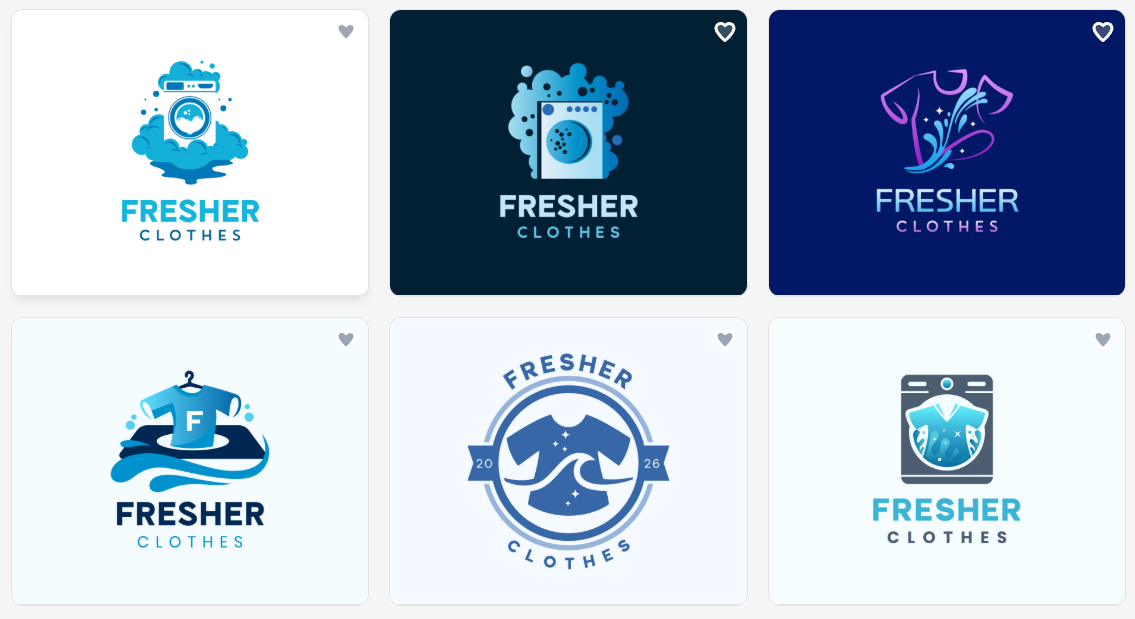
After submitting the details, Design.com presented a collection of logo designs for Fresher Clothes.
We explored the different concepts, comparing typography, symbols, and layouts. Some designs offered a more minimal look, while others used illustrative elements that could work well for a laundry shop.

Having several options available made it easier to find a direction before spending time customizing the logo. We could compare different concepts and decide which ones best represented the business.
Step 3: Filter by logo style and color
One feature we found particularly useful was the ability to filter the results by style and color.
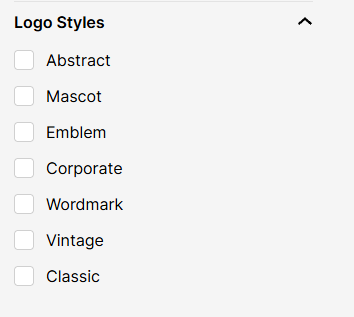
We could explore styles such as abstract, mascot, emblem, corporate, wordmark, vintage, and classic.
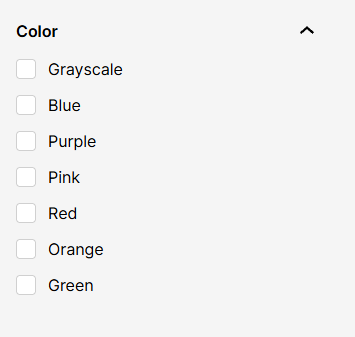
We could also narrow the results by color, including blue, green, red, purple, orange, pink, and grayscale.
For Fresher Clothes, we focused on designs that looked clean and professional. Blue-based logos were a natural choice for the laundry business, while simpler wordmarks offered a more modern direction.
These filters helped us spend less time browsing and more time comparing designs that matched the brand we had in mind.
Step 4: Customize the selected logo
Once we found a design we liked, we moved into the editor. We could adjust the:
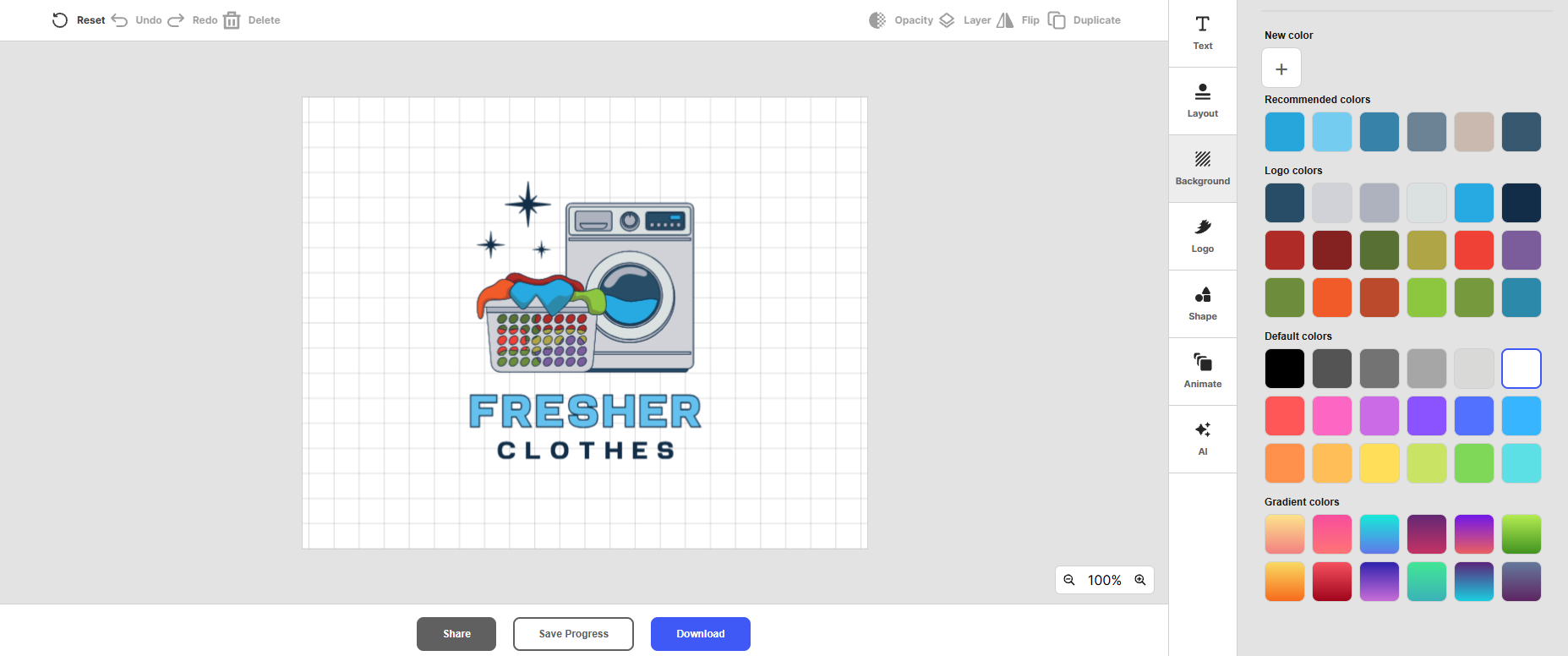
background color
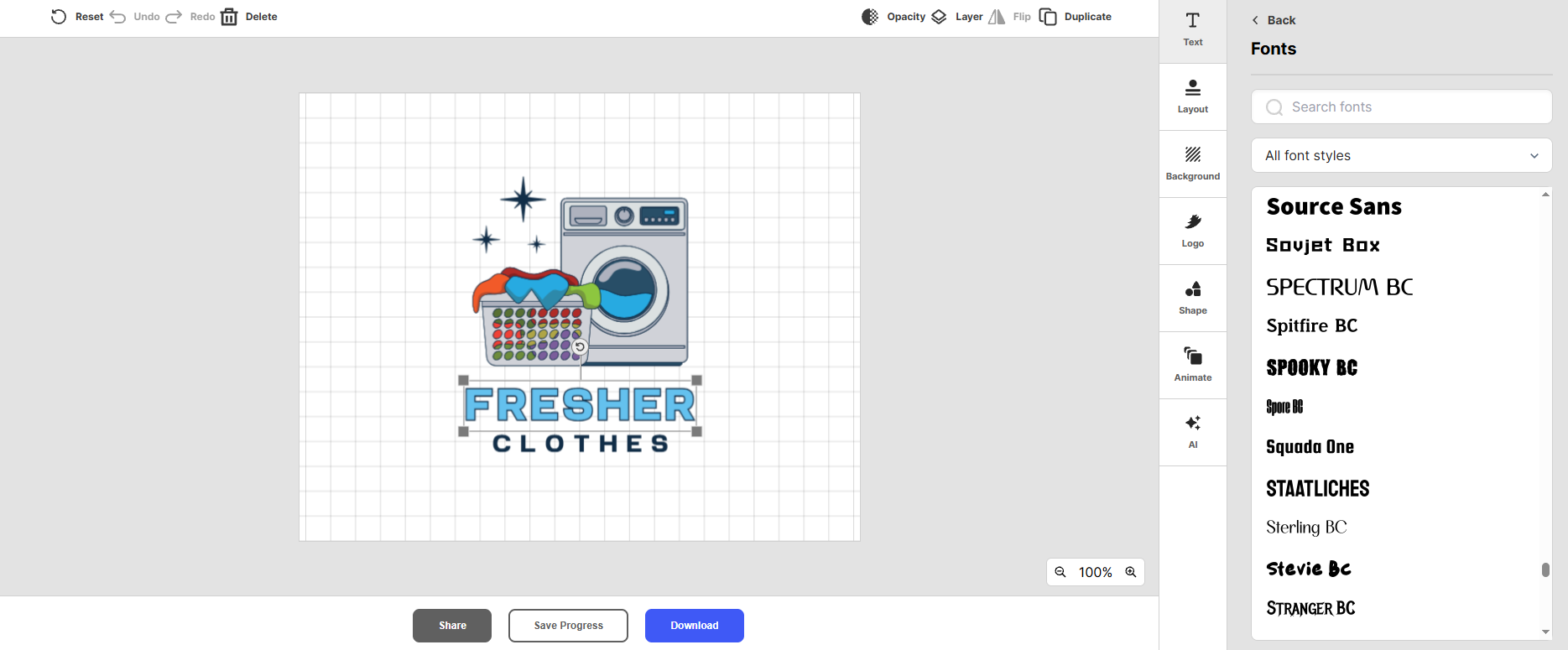
Typography

logo color
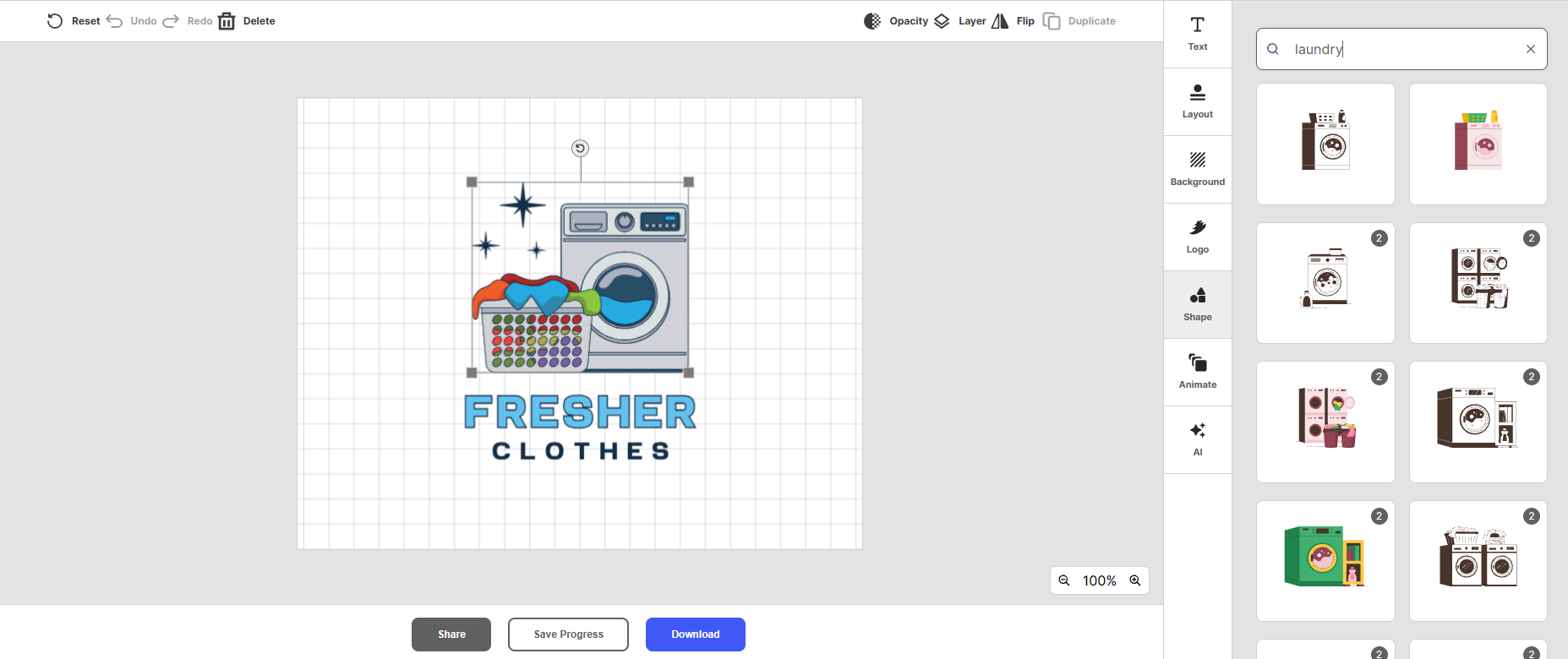
individual design elements
This gave us enough flexibility to make the selected logo feel more specific to Fresher Clothes, rather than simply using the original template as is.
We experimented with different font styles, adjusted the colors, and explored the available elements to create a look that felt fresh and recognizable.
The editor also made it possible to refine the design without having to return to the original results and start again.
Step 5: Try the AI Logo Generator chatbot

Design.com also offers an AI chatbot that lets users describe the changes they want to make to their logo.
For Fresher Clothes, we could enter a request such as:
"Change the image into a floating shirt with splashes of water, using blue and white colors"
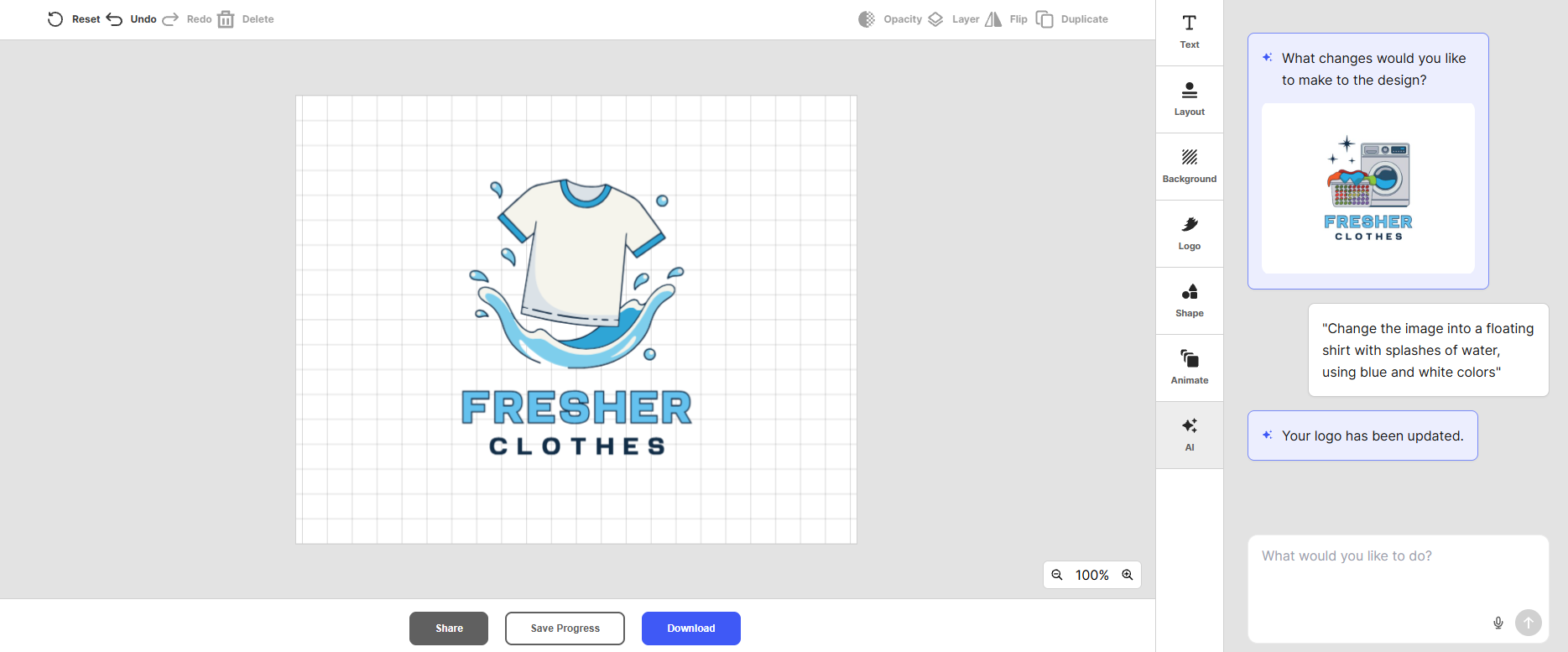
This gave us another way to explore design changes without relying entirely on manual editing. We could simply enter a request into the AI Logo Generator chatbot, describe the direction we wanted, and use its suggestions to help refine the logo.
Having both the traditional editor and AI-assisted customization available made the experience more flexible, especially when we wanted to experiment with different creative ideas.
Our Experience with Design.com
Design.com was the strongest option we tested for creating a business logo. The business name and keyword input gave us relevant starting points, the filters helped us narrow down the choices, and the editor offered practical customization options.
The AI chatbot was another useful addition. Instead of manually adjusting every detail, we could describe the changes we want and explore another way to refine the design.
For a small business like Fresher Clothes, these features made the logo creation process feel more straightforward. We could focus on choosing a design that represented the business rather than spending time building one from scratch.
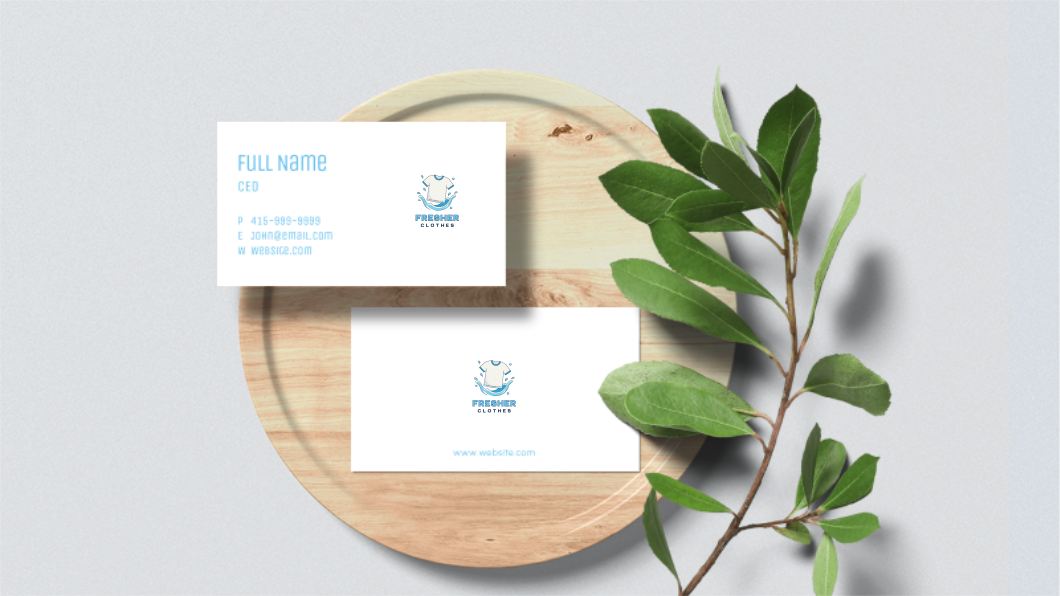
We also liked that Design.com doesn't stop at logo creation. The platform offers additional branding tools for business cards, websites, social media graphics, flyers, presentations, and other marketing materials. This gives business owners a convenient place to further develop their visual identity after completing their logo.
See how it works below:
Business cards

Shop sign

Mobile view
What stood out: Design.com offered the most focused logo-making experience among the three platforms, combining business-specific logo discovery, filtering, customization, and AI-assisted editing into a single workflow.
Design.com Key Features
- Business name and keyword-based logo suggestions
- Extensive library of professionally designed logo templates
- Filters for logo styles and colors
- Typography and font customization
- Background and logo color editing
- Customizable design elements
- AI chatbot for conversational logo editing
- Additional branding tools for websites, business cards, flyers, and social media graphics
- Logo color-based branding for supporting designs
Design.com Pricing
Design.com offers a free plan and paid subscriptions for users who need additional downloads, customization, and branding features.
| Plan | Annual Billing | Monthly Billing |
|---|---|---|
| Starter | $3/month | $9/month |
| Value | $4/month | $14/month |
| Premium | $5/month | $19/month |
Paid plans include downloadable logo files and additional design resources. Higher-tier plans add website and other branding features.
Canva Review: Best for Flexible Graphic Design

Website: https://www.canva.com/create/logos/
Canva is one of the most recognizable names in online graphic design, offering a large collection of templates and an editor that can handle everything from logos to presentations and social media content.
Its logo maker takes a more template-oriented approach than Design.com. Users can browse existing designs, customize a selected template, or explore AI-assisted creative tools. This gives Canva plenty of flexibility, though it may require more hands-on work when the goal is to create a business-specific logo.
For our Fresher Clothes test, we started by exploring Canva's logo templates. We looked for designs suitable for a laundry business, focusing on typography, illustrations, and layouts that convey cleanliness and freshness.
We found several starting points, but the experience involved more browsing and creative decision-making. Instead of entering our business name and keyword to get a collection of tailored logo suggestions, we had to find a suitable template and adapt it ourselves.
Once we selected a design, however, Canva's editor gave us plenty of room to experiment.
How We Created a Logo for Fresher Clothes
Step 1: Browse the logo templates

We started by opening Canva's logo maker and searching for suitable logo templates.
We explored different designs that could work for Fresher Clothes, including text-based logos, illustrative concepts, and more conventional business logo layouts.
Canva's template library offers plenty of creative possibilities. We could browse different styles and select a design that looked like a good foundation for the laundry shop.
However, we had to evaluate the options ourselves. Unlike Design.com, which uses a business name and keyword to generate relevant logo suggestions, Canva's template-first experience required us to do more of the initial searching.
Step 2: Select a template and customize the design

After choosing a template, we opened Canva's drag-and-drop editor.
We replaced the existing business name with Fresher Clothes and started modifying the design to suit the laundry shop.
The editor offers several customization options:
- Typography: Choose from different fonts, adjust text sizes, and change the appearance of the business name.
- Colors: Modify the colors of text, shapes, backgrounds, and other graphic elements.
- Graphics and icons: Add or replace illustrations, symbols, and decorative elements.
- Layout: Move, resize, rotate, and reposition individual components to achieve the desired arrangement.
We could also search Canva's element library for clothing, washing machines, bubbles, and other laundry-related illustrations.
This gave us considerable creative freedom, although it also meant making more individual decisions to get the design looking right.
Step 3: Refine the logo using Canva's editing tools
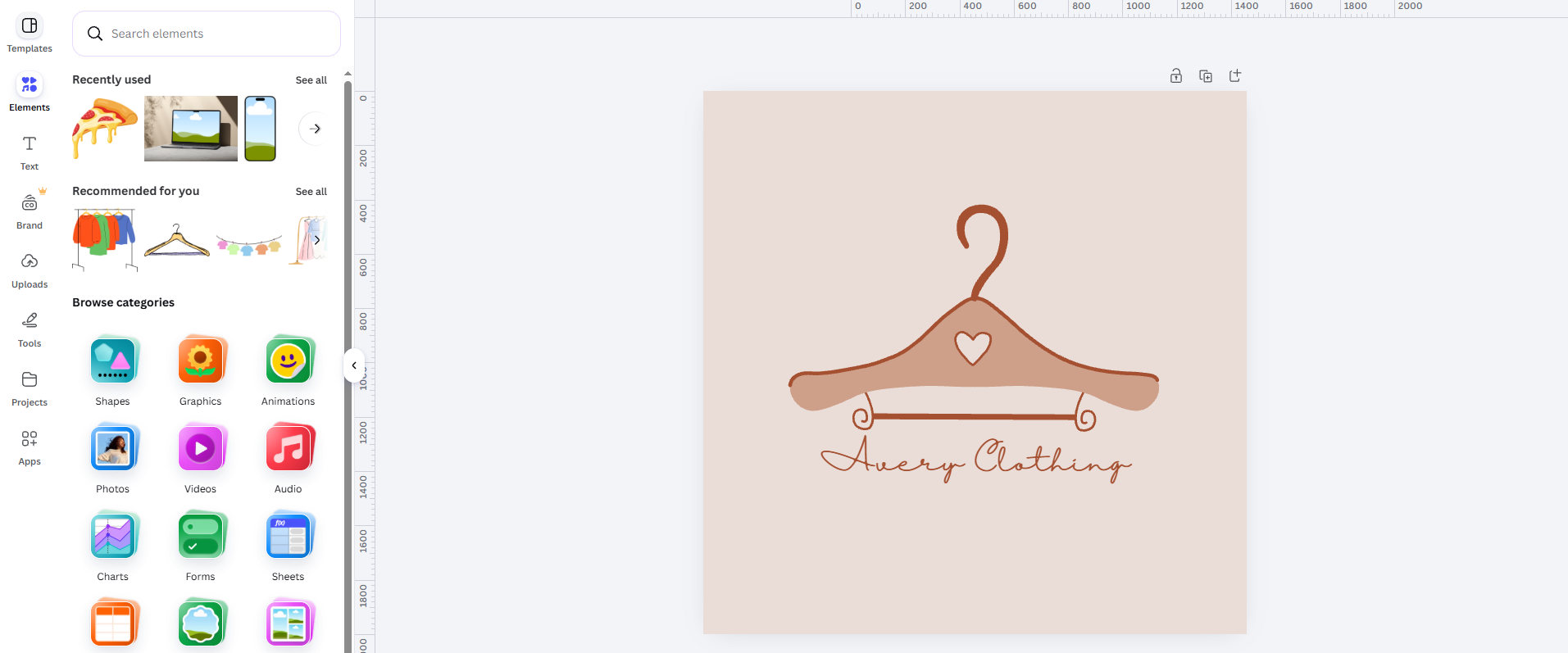
Canva gives users considerable freedom to experiment with their designs.
We could switch between different typefaces, test alternative color combinations, and reposition the graphics until the logo looked closer to what we had in mind.
Its AI features and Magic Studio tools also provide additional ways to explore creative ideas and work with visual content. These are useful additions for users who want to do more than basic template editing.
However, Canva's AI tools are part of its broader design ecosystem rather than the same dedicated conversational logo-editing experience offered by Design.com. For precise adjustments to our selected logo, we still relied heavily on the editor.
Our Experience with Canva
Canva's biggest advantage is its versatility. The editor gives users plenty of room to experiment with various visual elements, and its extensive template library enables them to create much more than a logo.
We also liked the familiarity of its drag-and-drop interface. Anyone who has used Canva for everyday design work will likely find the editor comfortable to use.
However, the experience was less streamlined when the main objective was creating a business logo. We had to spend more time browsing templates, choosing graphics, and adjusting individual components. The process also required more creative input from us before the design started to resemble the brand we had in mind.
For Fresher Clothes, Canva provided a flexible workspace, but Design.com offered a more direct route from a business name to a selection of relevant logo concepts.
What stood out: Canva is a good choice for people who enjoy hands-on design and want to use the same platform for logos, marketing graphics, presentations, and other creative projects.
Canva Key Features
- Extensive library of logo templates
- Drag-and-drop logo editor
- Typography and font customization
- Color, background, and graphic editing
- Large library of illustrations, icons, and design elements
- AI-assisted creative tools through Magic Studio
- Brand Kit for managing brand assets and colors
- Additional tools for social media graphics, presentations, and marketing materials
Canva Pricing
Canva offers a free plan alongside paid subscriptions.
| Plan | Pricing |
|---|---|
| Canva Free | $0/month |
| Canva Pro | $18/month |
| Canva Business | $25/month |
Some premium templates, stock assets, and advanced branding features require a paid plan. Subscription pricing and availability can vary by region.
Adobe Express Review: Best for Users Already Familiar with Adobe
Website: https://www.adobe.com/express/create/logo
Adobe Express brings Adobe's creative ecosystem into a more approachable online design platform. Its logo maker is designed to help users create business and personal logos using guided creation tools, professionally designed templates, and an accessible editing interface.
Compared with Design.com, Adobe Express takes a more structured approach to logo creation. Users can enter their business name, select relevant design preferences, and explore logo concepts before customizing their preferred result.
For our test, we once again used Fresher Clothes. We wanted to see how easily Adobe Express could help us create a logo that communicated cleanliness and freshness while still looking professional.
The platform provided a guided starting point, and we could move into the editor to adjust the typography, colors, icons, and other visual components.
Its main appeal is the connection to Adobe's broader collection of creative resources. Users can work with Adobe Fonts, stock assets, and other design tools when developing their brand materials.
How We Created a Logo for Fresher Clothes
Step 1: Enter the business name and choose design preferences

We began by opening Adobe Express's logo maker and entering Fresher Clothes as the business name.
The guided workflow also allows users to select relevant preferences, such as an industry, visual style, and icon, to help shape the logo ideas.
For our laundry shop, we wanted something clean and modern. We explored directions that could incorporate laundry-related imagery without making the logo look too busy.
This was a straightforward way to begin, although the experience differed from Design.com's business name and keyword-based logo discovery.
Step 2: Explore the generated logo ideas

After completing the initial selections, we explored the available logo concepts.
We looked for designs that could represent a laundry business, including options with clean typography and simple visual symbols.
The generated ideas provided a useful foundation, although we still needed to determine which design best suited the business and its intended branding.
For Fresher Clothes, we focused on concepts that communicated freshness and reliability. A simple combination of typography and a recognizable symbol seemed more appropriate than an overly detailed illustration.
Step 3: Customize the selected logo

Once we selected a suitable design, we moved into the Adobe Express editor to make adjustments.
The available editing tools allowed us to personalize the logo in several ways:
- Typography: Change the font and text appearance to better match the business identity.
- Colors: Adjust the color palette to create a consistent look.
- Icons and graphics: Add or replace visual elements to make the logo more relevant to the laundry industry.
- Layout: Adjust the placement and arrangement of the different components.
We could also explore Adobe's broader design resources for additional graphics and visual assets.
The editor provided reasonable flexibility, although getting the final look right still required manually adjusting the different components.
Our Experience with Adobe Express
Adobe Express is a capable option for users who want a simple design platform connected to Adobe's creative ecosystem.
Its guided logo creation process provides an accessible starting point, while the editor offers enough flexibility to adjust fonts, colors, icons, and layouts. We particularly liked the access to Adobe's wider creative resources, which can be convenient for people who already use its other products.
However, when evaluating the logo maker on its own, the experience felt more dependent on selecting and manually refining a starting design. We also missed having a dedicated AI chatbot for conversational logo editing, which would have made it easier to request specific changes without adjusting each component individually.
For Fresher Clothes, Adobe Express offered a workable way to create and customize a logo, but it didn't provide the same combination of business-specific logo discovery, dedicated filtering, and AI-assisted refinement that we found in Design.com.
What stood out: Adobe Express is a good option for people who already use Adobe products and want a convenient way to create logos and other branded materials within the same creative ecosystem.
Adobe Express Key Features
- Guided logo creation workflow
- Professionally designed logo templates
- Business name-based logo creation
- Typography and font customization
- Color and background adjustments
- Editable icons, graphics, and design elements
- Adobe Fonts and stock creative resources
- Brand Kits and additional marketing design tools
- Integration with the broader Adobe creative ecosystem
Adobe Express Pricing
Adobe Express offers a free plan and a paid Premium subscription.
| Plan | Pricing |
|---|---|
| Adobe Express Free | $0 |
| Adobe Express Premium | $9.99/month |
The free plan provides access to basic design tools and templates, while Premium unlocks additional creative assets, features, and resources. Subscription pricing and
availability may vary by region.
Final Verdict: Which Logo Maker Is Best for Small Businesses?
After testing Design.com, Canva, and Adobe Express with the same fictional laundry shop, we found that all three platforms offer useful ways to create and customize a business logo. However, their approaches suit different types of users.
Canva is a good choice for people who enjoy working with templates and want a flexible editor for different types of graphic design. Adobe Express is worth considering for users already familiar with Adobe's creative ecosystem.
But if your primary goal is to create a professional business logo without spending too much time building one from scratch, Design.com is the platform we'd recommend.
Why Design.com Comes Out on Top
1. A more direct way to discover logo designs
Design.com starts with the information that matters most: the business name and relevant keywords. This gives users a collection of logo suggestions to explore without having to manually assemble a design from unrelated elements.
For Fresher Clothes, we could explore different laundry-related logo directions and narrow the results using dedicated style and color filters.
2. Convenient customization options
All three platforms provide typography, color, and graphic editing. However, Design.com combines these traditional controls with a dedicated AI chatbot for logo refinement.
This gives users two ways to work: make adjustments themselves or describe the changes they want in plain language.
3. A focused logo-making experience
Canva and Adobe Express are broader creative platforms. Their logo makers are part of larger collections of design tools, which is useful for people who want to create many different types of content.
Design.com puts more emphasis on the logo itself, from discovering relevant concepts to refining the selected design.
4. Branding tools beyond the logo
Another advantage is what happens after the logo design is finished. Design.com provides access to additional branding tools, including business cards, websites, social media graphics, flyers, presentations, and other marketing materials.
Its tools can also use the logo's colors to help maintain a more consistent appearance across supporting designs.
Our Recommendation
Our winner: Design.com
For small businesses creating their first logo, Design.com is our strongest recommendation.
Its combination of business name and keyword-based logo generation, extensive design selection, dedicated style and color filters, manual editing controls, and AI chatbot makes the process more straightforward.
We could take Fresher Clothes from a simple business name to a customized logo without needing to build everything from scratch. That is a practical advantage for entrepreneurs who want to spend more time developing their business and less time figuring out graphic design.
Canva remains a good option for users who prefer a flexible design editor, while Adobe Express is worth considering for those already familiar with Adobe's creative ecosystem.
However, when the priority is finding and customizing a business logo, Design.com provides the most complete and convenient experience of the three platforms we tested.