
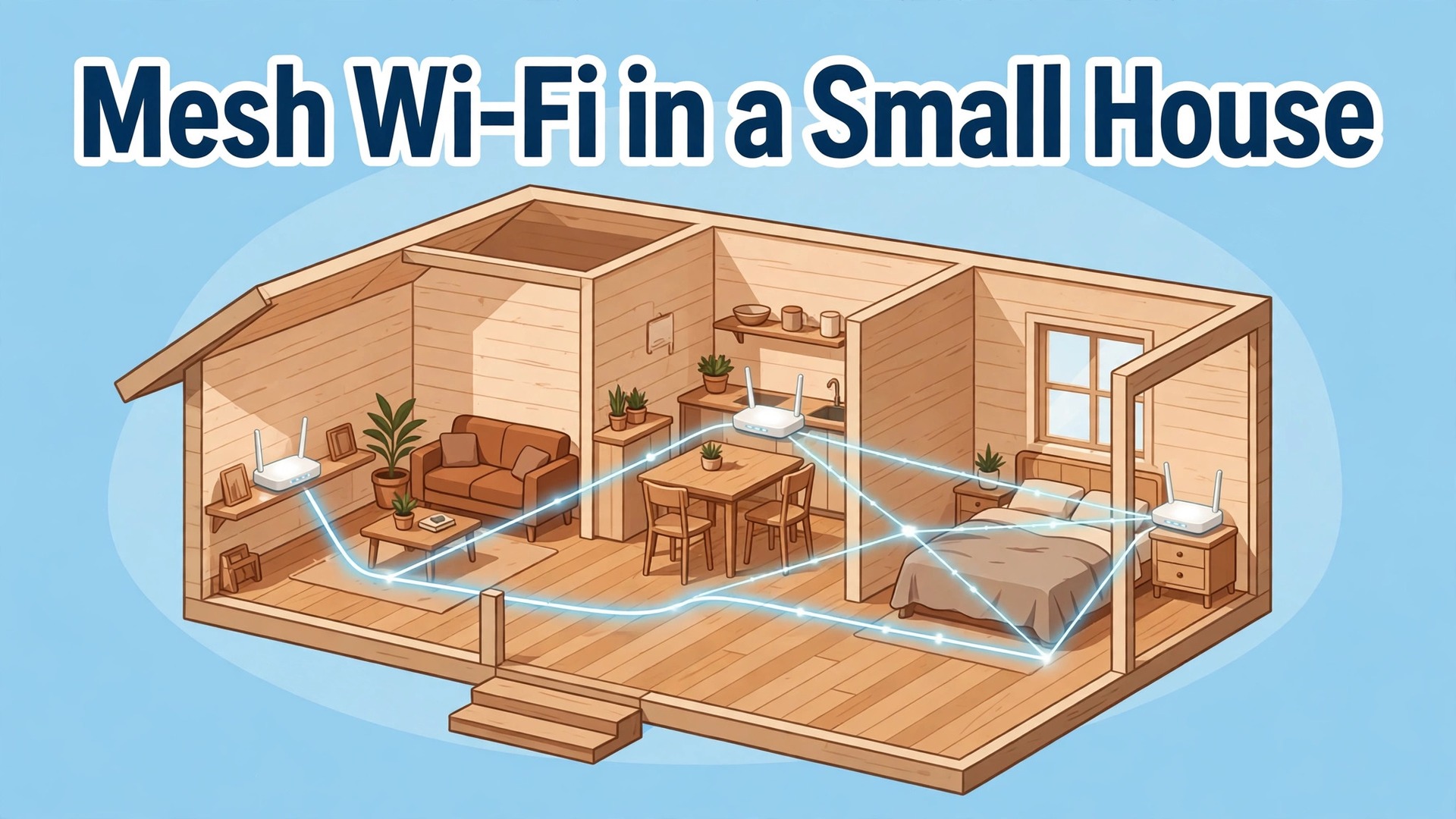
Parks Associates research cited by Optimum puts the average United States internet household at around 17 connected devices, and some surveys land north of 20. That number explains why a small house can still have bad Wi-Fi. A single router in a corner closet may have been fine when a home had one laptop and one phone. It is a different job when you set up mesh Wi-Fi small house coverage for two people working from home, a television streaming in 4K, a video doorbell uploading clips and a dozen small smart devices staying connected all day.
Learning how to set up mesh Wi-Fi small house coverage is less about buying more hardware and more about putting the right number of nodes in the right places, on the right bands, with a link between nodes that can carry the load.
This guide gives you a complete small-house plan. You will work out how many nodes you actually need, draw a placement map before you buy anything, understand the 2.4 GHz, 5 GHz and 6 GHz bands in plain terms, choose between wired and wireless backhaul, compare real prices, install the system in order and then hunt down any dead zones that remain. It is written for homes under about 2,000 square feet, including flats, cottages, terraced houses and two-storey homes with one or two tricky rooms. If your house is larger, the same principles apply, but you will probably need an extra node and a longer look at wired backhaul.
Why a Small House Still Gets Dead Zones
A dead zone is rarely a mystery once you look at what sits between the router and the device. Wi-Fi weakens with distance, and it weakens faster through dense material. A plasterboard wall costs little signal. A brick fireplace, a metal appliance, a fish tank, a thick concrete floor or a wall full of pipes costs a lot more. A router tucked inside a media cabinet loses signal before it even reaches the room. A router on the floor in a far corner sends half its coverage into a wall or out of the building, where nobody uses it.
How Many Nodes Does a Small House Need
For most homes under 2,000 square feet, two nodes are enough, and three nodes cover almost every small-house case that remains. That includes a two-storey house, a long narrow flat and a house with a garden office, provided the extra room is not too far from the main house. Start with two nodes, test properly, and add a third only if a named room still fails the test in the dead-zone checklist later in this guide. Buying a three pack up front is reasonable when the price gap is small, but installing all three at once in a small space can hurt.
Nodes placed too close together overlap, compete for airtime and hand devices back and forth, which shows up as jitter on calls and uneven speeds.
Square footage alone is a weak guide, because vendors measure coverage in open air, not through your walls. A useful rule is one node per 1,000 to 1,500 square feet of real living space, adjusted for layout and material. A 900 square foot open-plan flat may run well on a single strong router, but it still benefits from a second node if the bedroom sits behind two brick walls. A 1,400 square foot two-storey house usually needs two nodes, one per floor, because a floor slab blocks far more signal than an internal stud wall.
A 1,800 square foot house with a long hallway and a home office at the far end often needs three nodes, with the third node serving the far room rather than sitting in the middle of the house doing nothing.
When you set up mesh Wi-Fi small house systems, start with two nodes and a clear test, rather than guessing from a box. Put the main node where the broadband enters the house or as close to the centre as the cable allows, put the second node roughly halfway between the main node and the worst room, and then measure. If the worst room now holds a stable speed that supports its real use, such as a video call or a 4K stream, you are done. If it still fails, move the second node closer to the main node first, because a node that cannot hear the main node clearly cannot serve its room well.
Only after that move fails should you add a third node, placed between the second node and the problem room, not inside the problem room itself.
| House shape | Usual starting point | When to add a node |
|---|---|---|
| Flat under 1,000 square feet, open plan | One strong router or two nodes | Add a second node if a back bedroom falls below a quarter of paid speed |
| Flat or house 1,000 to 1,500 square feet, one floor | Two nodes | Add a third node for a far office or a brick extension |
| House 1,500 to 2,000 square feet, two floors | Two nodes, one per floor | Add a third node for a loft, a basement or a long rear extension |
| Long narrow house or flat | Two nodes along the length | Add a third node at the far end only if the middle node link stays strong |
| Thick walls, brick, concrete or metal framing | Two nodes, closer together | Add a third node sooner, and favour wired backhaul where possible |
How to Set Up Mesh Wi-Fi Small House Layouts in Three Passes
A placement map turns guesswork into a plan you can test. Draw a rough floor plan on paper or in a notes app, one box per room, and mark three things. First, mark where the broadband socket and modem sit, because the main node must connect to the modem by cable. Second, mark the rooms where people actually use heavy Wi-Fi, such as a home office, a living room television and a main bedroom. Third, mark the known problem spots, such as a back bedroom, a kitchen corner or a garden office.
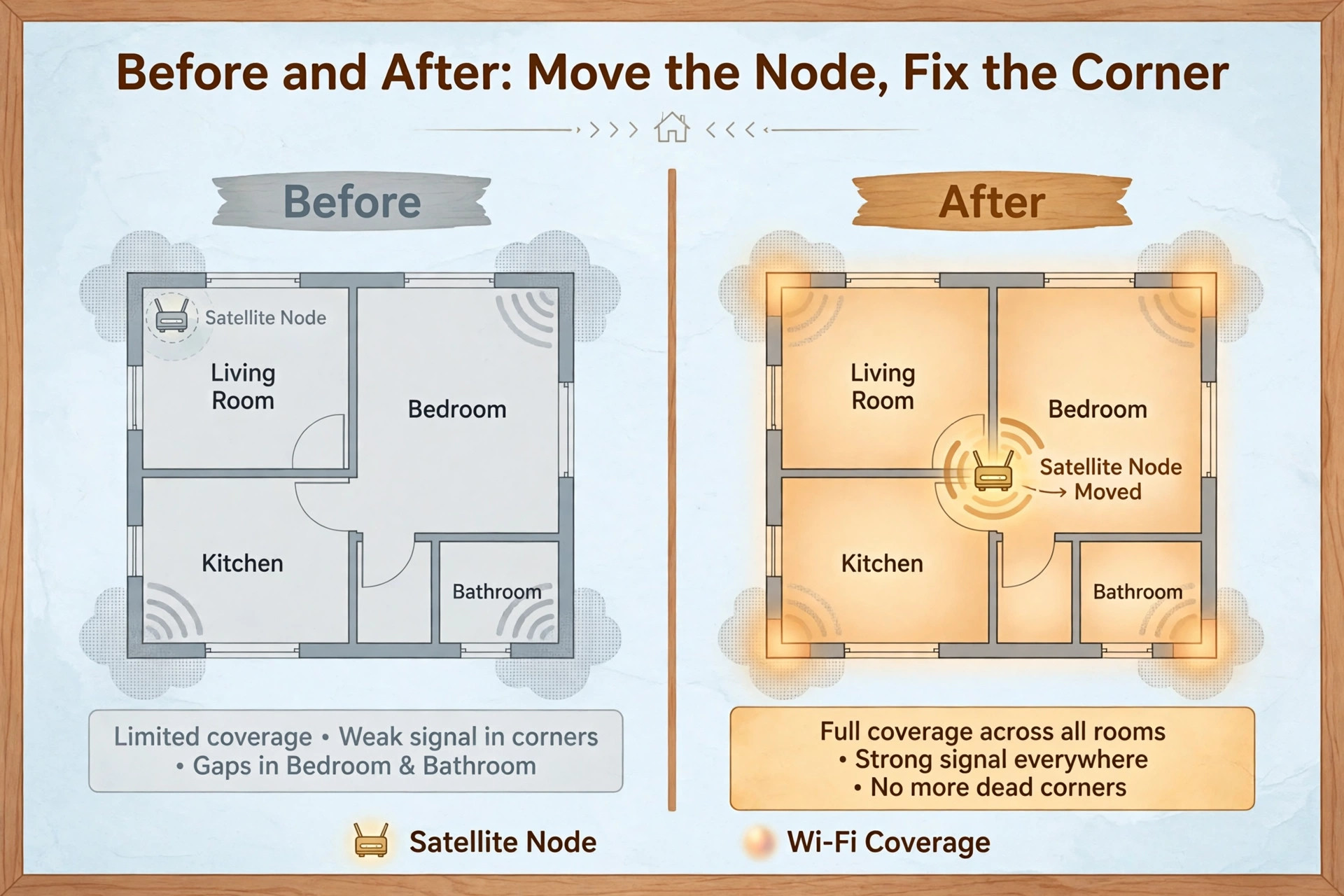
A plan to set up mesh Wi-Fi small house coverage should start on paper, because moving a node on paper costs nothing and moving it after installation costs an afternoon of retesting.
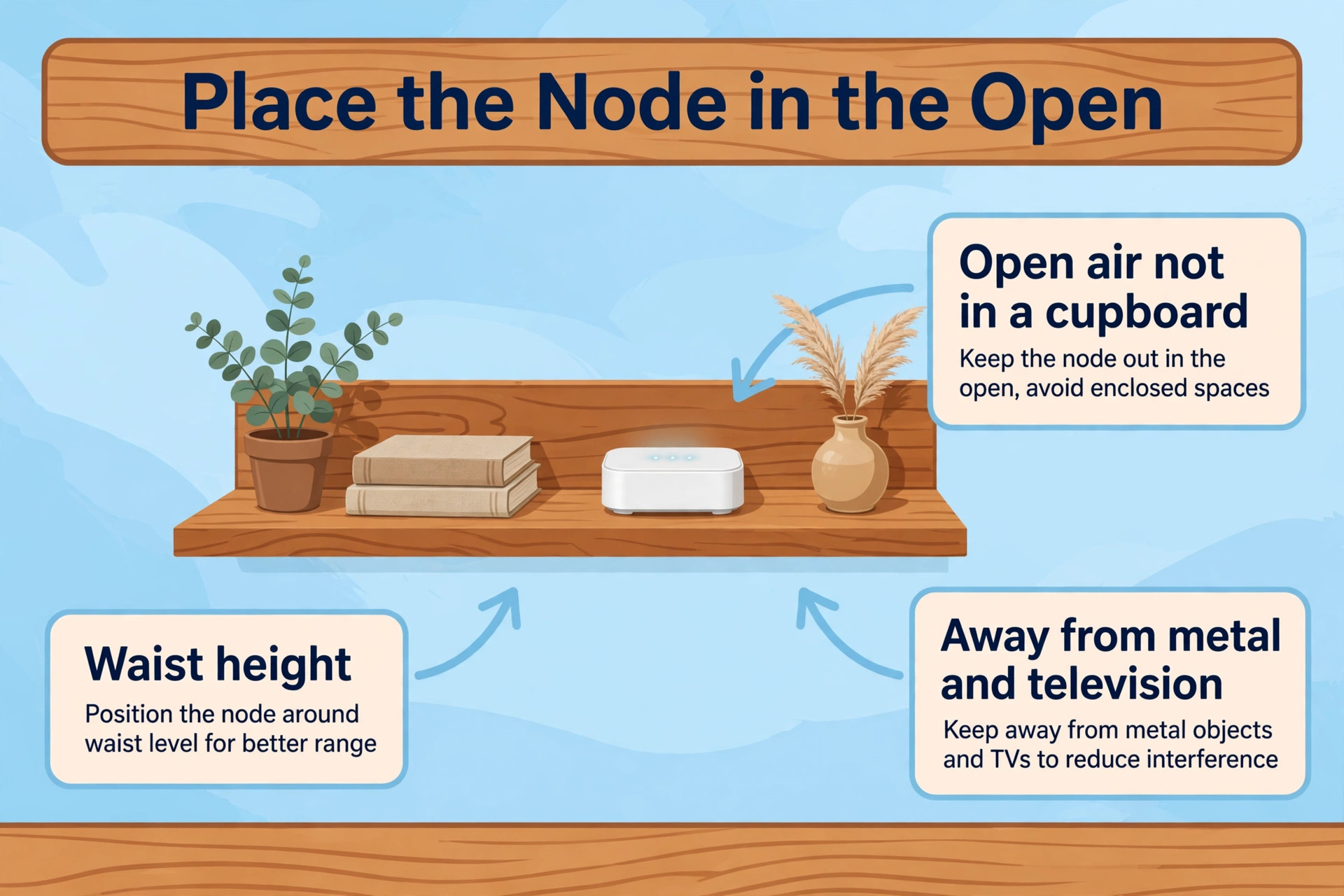
Pass one is the main node. Put it in the open, at waist or chest height, on a shelf or a table, away from walls, metal cabinets, fish tanks and large appliances. Keep it away from a microwave and a baby monitor base where possible, because those devices crowd nearby frequencies. If the broadband socket is in a corner cupboard, run a short Ethernet cable out to an open shelf if you can, rather than leaving the main node inside the cupboard. A few feet of cable at this stage is worth more than a more expensive node later, because every other node depends on the signal this node sends.
Pass two is the satellite node, and the rule here surprises most people. Do not put the satellite in the dead zone. A node in a dead zone receives a weak signal and rebroadcasts a weak signal, so the room looks covered in the app while speeds stay poor. Put the satellite roughly halfway between the main node and the problem room, in a room the main node already reaches well, with no more than two walls between the two nodes and a distance of about 30 to 40 feet through walls, or up to about 50 feet with a clear line of sight.
In a two-storey house, put a node on each floor, roughly above or below each other, near the stairwell, so the floor slab is crossed once at a strong point rather than at an angle through extra material.
A Small-House Placement Map You Can Copy
The table below is a placement map for a typical two-storey small house of about 1,400 square feet. Adapt the room names to your own home, but keep the logic. The main node sits near the entry point and near the centre of the ground floor. The second node sits upstairs, near the stairwell, halfway to the back bedroom. The third node, if needed, serves the far rear room, not the middle of the house.
| Node | Position | Serves best | Avoid |
|---|---|---|---|
| Main node | Ground floor, open shelf near the centre, wired to the modem | Living room, kitchen, ground floor devices | Inside a cupboard, behind a television, on the floor in a corner |
| Node 2 | First floor, near the stairwell, open shelf | Bedrooms, home office upstairs, hallway | Inside a wardrobe, behind a metal bed frame, at the far end of the house |
| Node 3, only if needed | Rear room or extension, halfway from node 2 | Back bedroom, garden office, converted garage | Inside the dead zone itself, in a metal shed, across two thick walls |
Bands Explained Without the Jargon
Mesh systems broadcast on bands, which are frequency ranges with different trade-offs. The 2.4 GHz band travels farthest and passes through walls best, but it is slower and more crowded, because neighbours, smart devices and microwaves all use it. The 5 GHz band is faster and less crowded, but it loses strength faster through walls and floors, so it suits rooms near a node. The 6 GHz band, found on Wi-Fi 6E and Wi-Fi 7 systems, is fastest and least crowded, but it has the shortest range and needs a device that supports 6 GHz to use it at all.
Most phones and laptops from the last few years support 5 GHz, fewer support 6 GHz, and almost every smart bulb, plug and sensor uses 2.4 GHz only.
People who set up mesh Wi-Fi small house networks often ask whether Wi-Fi 7 is worth paying for in a small home. The honest answer is that it depends on your broadband speed, your devices and your backhaul. Wi-Fi 7 adds a wider channel, multi-link operation that can use more than one band at once, and lower latency in good conditions. Those gains show up most when your broadband plan is above 1 Gbps, when several devices use 6 GHz, or when nodes talk to each other wirelessly and need every bit of capacity.
For a home on a 200 Mbps or 500 Mbps plan, with mostly Wi-Fi 6 devices, a good Wi-Fi 6 or Wi-Fi 6E system delivers the full paid speed in every room for far less money. Pay for Wi-Fi 7 when you have the broadband and the devices to use it, or when the price gap to a tri-band Wi-Fi 6E system is small.
| Band | Range through walls | Speed | Best use |
|---|---|---|---|
| 2.4 GHz | Longest, best through walls | Slowest, most crowded | Smart bulbs, plugs, sensors, far rooms, doorbells |
| 5 GHz | Medium, weaker through thick walls | Fast, good for most homes | Phones, laptops, televisions, consoles near a node |
| 6 GHz | Shortest, weakest through walls | Fastest, least crowded | Wi-Fi 6E and Wi-Fi 7 devices near a node, tri-band backhaul |
Backhaul Is the Link That Decides Your Speed
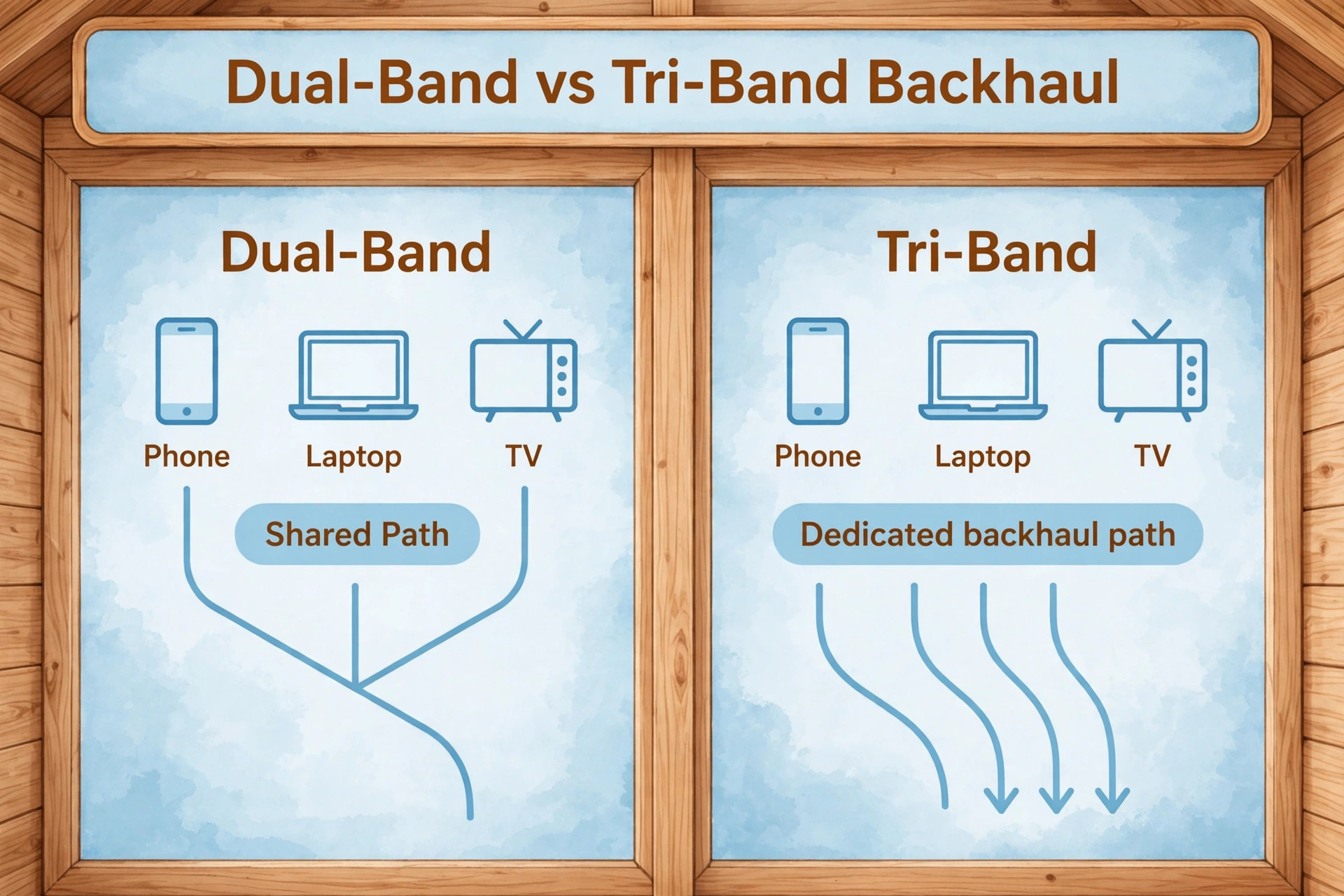
Backhaul is the connection between nodes, and it is the most overlooked part of mesh setup. When you stream on a satellite node, your data travels from your device to that node, then across the backhaul to the main node, then out to the internet, and back again. If the backhaul is slow or weak, the device speed is capped at that link, no matter how fast the device-to-node link looks in the app. A wireless backhaul is convenient, because it needs no cable, but it shares airtime with your devices on dual-band systems and loses strength through walls. A wired backhaul, using an Ethernet cable between nodes, removes that sharing entirely.
The node radios then serve only your devices, speeds stay close to the paid broadband speed at every node, and placement becomes far more forgiving.
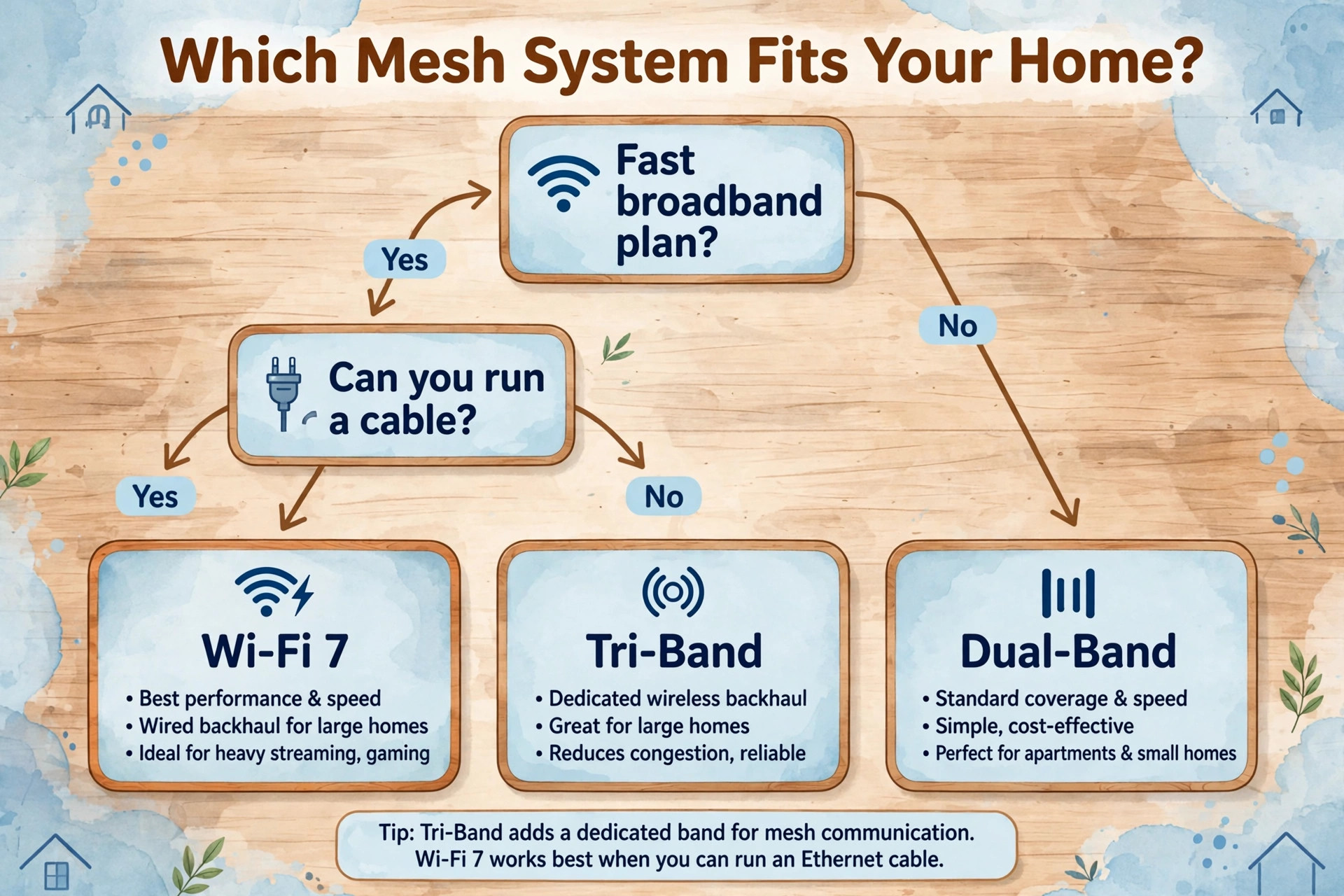
The first choice when you set up mesh Wi-Fi small house coverage is whether a cable is possible between the main node and at least one satellite. In a house with existing Ethernet points, the answer is easy, and you should use them. In a house without them, look for practical routes, such as along a skirting board, through a loft, down a stairwell, or beside an existing cable run. A flat Ethernet cable under a carpet edge or behind furniture is often enough for a two-node link.
Powerline adapters, which send network data over household electrical wiring, are a middle option, but their speed varies wildly with wiring quality and interference from appliances, so test them before relying on them for a work office or a main television.
What to Buy and What It Costs
Prices below reflect listings found in October 2026, and you should check the official pricing page and checkout before paying, because mesh prices move with sales, pack sizes and clearance stock. The point of this section is the price tier and the trade-off, not a single day price. A dual-band Wi-Fi 6 three pack in the 150 to 200 dollar range is the value tier for most small houses. A tri-band Wi-Fi 6E three pack in the 250 to 400 dollar range is the mid tier for busy homes and wireless backhaul.
A Wi-Fi 7 three pack above 400 dollars is the top tier for fast broadband and new devices, and it is easy to overspend there if your plan and devices cannot use it.
TP-Link Deco is the value leader in most small-house comparisons. The Deco X55, a dual-band Wi-Fi 6 system, was listed around 149.96 dollars for a three pack in an October 2026 sale, against a higher list price near 195 dollars, and the official TP-Link store listed a three pack near 184.99 dollars. The Deco X20 was listed near 159.99 dollars for a three pack on the official store. The Deco XE75 Pro, a tri-band Wi-Fi 6E system, was listed near 289 dollars for a three pack in sale listings, against a list price near 399.99 dollars. The Deco BE23, a dual-band Wi-Fi 7 system, was listed near 219.99 dollars for a three pack.
Check the Deco range on the official TP-Link Deco pages before buying, because pack sizes and band counts vary between models with similar names. The official product family page is a good starting point, and you can find the Deco X20 details at the TP-Link site link given in the sources for this guide.
| System | Tier | Typical three-pack price found in October 2026 | Best for a small house |
|---|---|---|---|
| TP-Link Deco X55 | Dual-band Wi-Fi 6 | About 150 to 185 dollars | Value pick for plans under 500 Mbps |
| TP-Link Deco X20 | Dual-band Wi-Fi 6 | About 160 dollars | Value pick, similar to X55, check current sale |
| TP-Link Deco XE75 Pro | Tri-band Wi-Fi 6E | About 289 to 400 dollars | Busy homes, wireless backhaul, three nodes |
| Google Nest Wifi Pro | Tri-band Wi-Fi 6E | About 399.99 dollars new | Google Home households, simple setup |
| eero 6 | Dual-band Wi-Fi 6 | About 159.99 dollars on clearance | Simple setup, smaller homes, light use |
| eero Pro 6E | Tri-band Wi-Fi 6E | About 374.99 dollars on sale | Simple setup with a dedicated backhaul band |
Install in Order, One Node at a Time
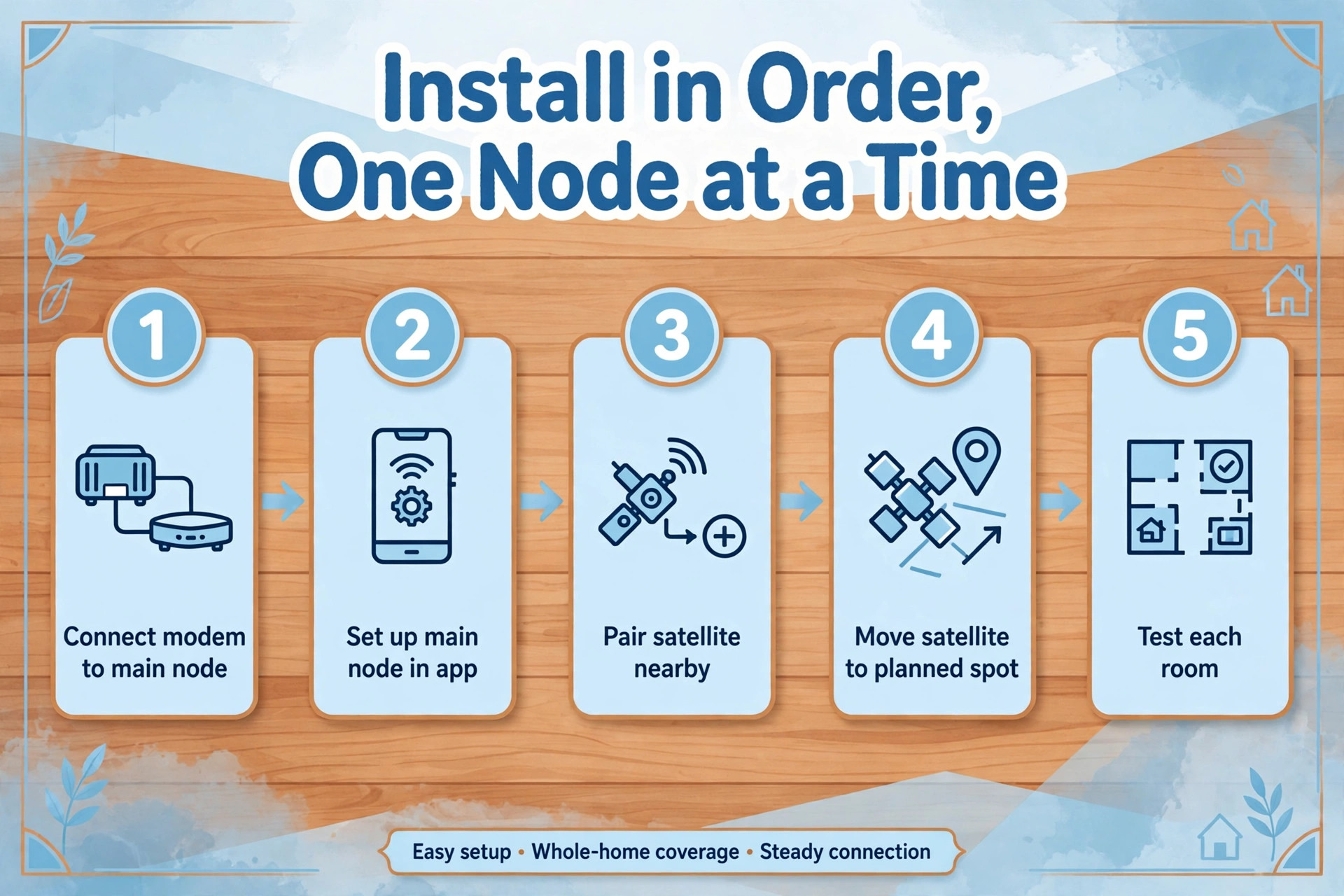
The day you set up mesh Wi-Fi small house hardware, work one node at a time and resist the urge to place every node in its final spot before the first one works. Start with the modem and the main node. Unplug the old router, connect the modem to the main node with the Ethernet cable supplied, power on the main node, and wait for the app to find it and update its firmware. Use the app setup flow, not a web page guess, because the app checks the modem link, the firmware version and the account in one pass.
Create the new network name and password, and keep the name simple, without special characters that older smart devices struggle with. If your old network name is familiar to every device in the house, reusing it can save a long evening of reconnecting bulbs and plugs, but only do that if the old password was strong and private.
Next, add the second node near the main node first, not in its final room. Most apps pair a new node best when it is in the same room or the next room, with a strong link, and then let you move it after pairing. Wait for the solid light or the app confirmation that the node is connected and updated, then move it to the planned spot from your placement map, wait two minutes for it to reconnect, and check the link quality in the app. Repeat the same process for a third node if you have one. Adding nodes one at a time makes faults obvious.
If node two pairs near the main node but fails in its final spot, the spot is the problem, not the hardware.
Placement Map and Dead-Zone Checklist
This section is the part of the guide you should keep on your phone. It combines the placement map logic with a test you can run in about 20 minutes, and it is the fastest way to prove whether your mesh setup works or only looks like it works. A placement map without a test is a guess. A test without a map leaves you moving nodes at random. Together, they give you a repeatable process you can rerun after any change, such as a new television, a new office room or a furniture move that puts a metal cabinet in a signal path.
Dead-Zone Checklist
Work through this checklist room by room after installation, and after any node move. Tick a room only when it passes its real use, not just when the app shows a signal bar.
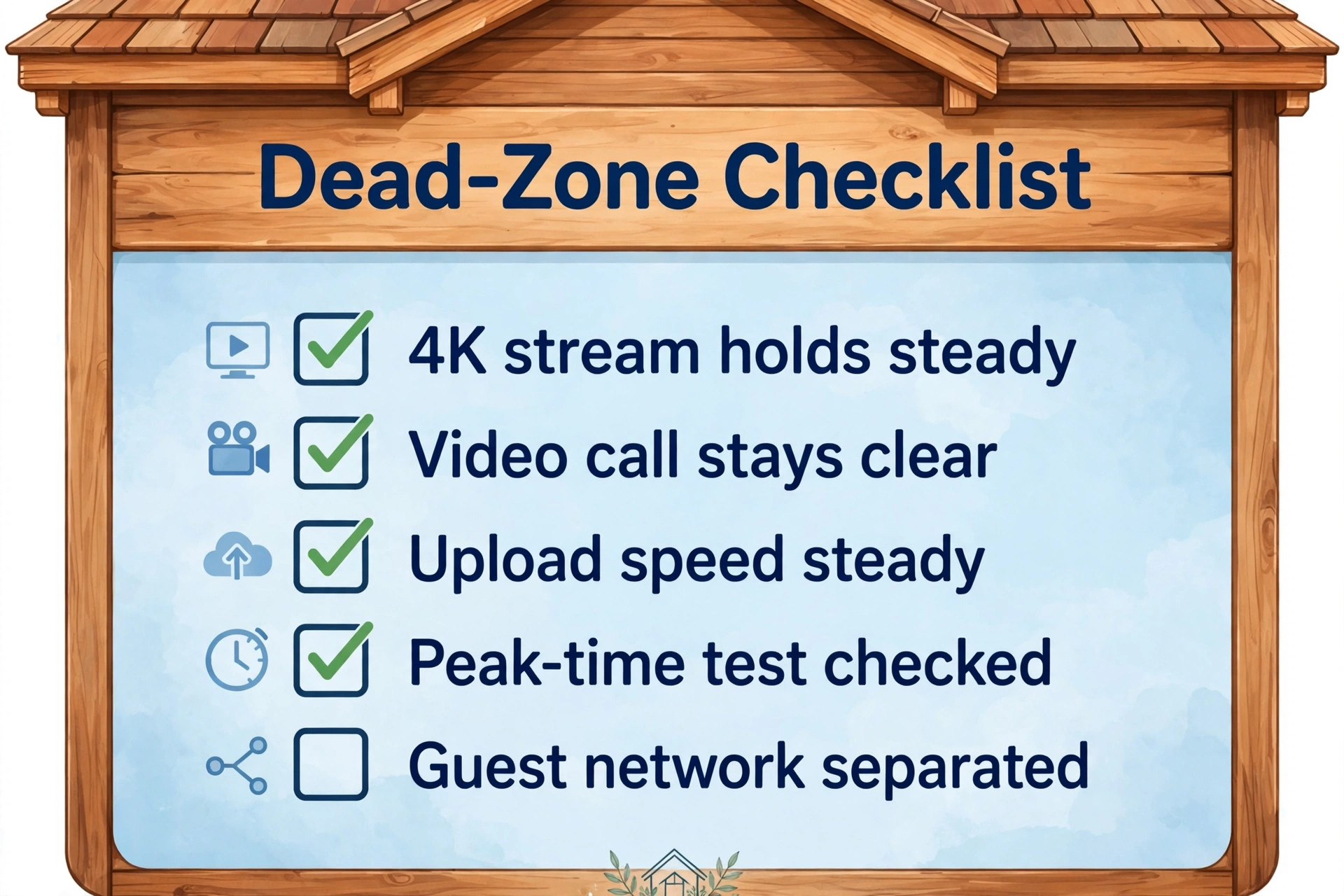
- [ ] Living room television streams in 4K for 10 minutes without dropping to low quality or buffering
- [ ] Home office holds a video call for 10 minutes without frozen video, robotic audio or a dropped connection
- [ ] Main bedroom loads pages and streams video at a speed that feels instant, not just usable
- [ ] Back bedroom or far room reaches at least half the paid broadband speed on a wired-backhaul system, or at least a stable speed for its real use on wireless backhaul
- [ ] Kitchen smart speaker answers promptly and a video doorbell clip uploads without a long delay
- [ ] Every node in the app shows a link quality of good or excellent, with no node stuck on fair or poor
- [ ] A phone walking from room to room stays on one network name and does not cling to a distant node for more than a minute
- [ ] Upload speed in the office is steady, not just download speed, because calls and cloud backups depend on upload
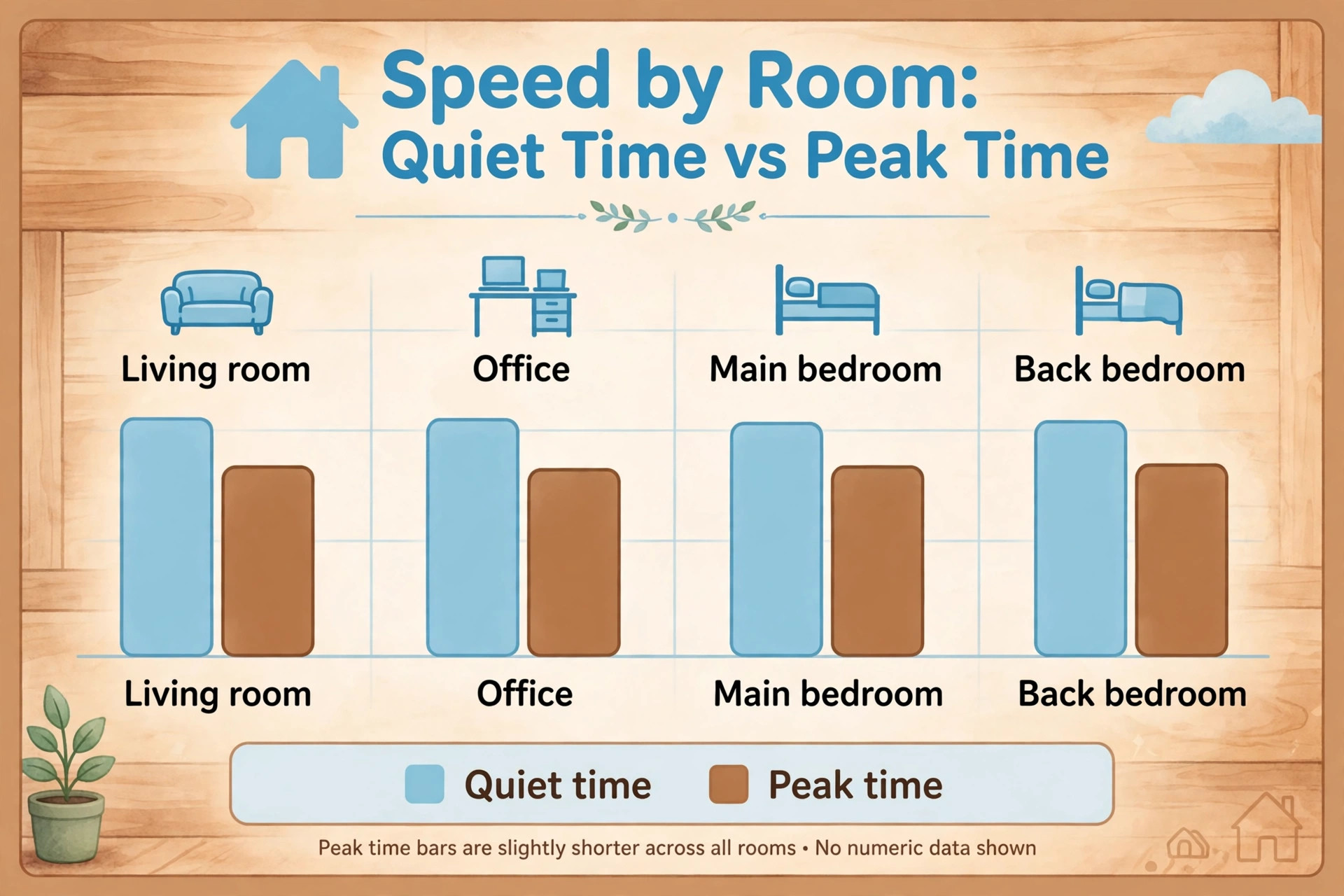
- [ ] Peak-time test at 8 pm is within about a third of the quiet-time test in the same room, not a collapse to a tenth
- [ ] Guest network works, and a visitor device cannot see shared drives, printers or smart home controls it should not reach
Use this checklist after you set up mesh Wi-Fi small house coverage, and keep the results with your placement map. If a room fails, move the serving node closer to the main node by a few feet, or to the other side of a doorway, and retest that room only. If it still fails, check the backhaul rating for that node, and if the rating is fair or poor, move the node again before you buy anything. If the rating is good but the room still fails, the problem may be the device, a thick wall directly in the path, or interference from a nearby appliance.
Only when two sensible moves fail should you add a node, and the new node goes between the existing node and the problem room, not inside the problem room.
Mistakes That Waste Money in a Small House
A common error when people set up mesh Wi-Fi small house systems is buying node count instead of fixing placement. Five nodes in a 1,200 square foot flat do not make Wi-Fi five times better. They make handoffs more frequent, airtime more crowded and fault-finding harder, because a phone can bounce between nodes that are all within a few feet of each other. Start with two nodes, prove the result with the checklist, and add nodes only for named rooms that fail. The same logic applies to headline speed. A system rated at 10 Gbps does not deliver 10 Gbps to a phone in a bedroom through two walls.
The device radio, the band, the distance and the backhaul set the real speed, and those limits apply to every brand.
The second mistake is hiding nodes. A node inside a cabinet, behind a television, inside a wardrobe or on the floor behind a sofa loses a large share of its coverage before the signal reaches the room. The app may still show the node as online, because the node itself has power and a link, but the room link is weak. Put nodes in the open, at waist or chest height, and accept that a visible node in a good spot beats a hidden node in a bad spot. If appearance matters, choose a system with a design you like, and place it on an open shelf, rather than hiding it where it cannot work.
The third mistake is putting a node in the dead zone and expecting it to fix the dead zone. A node needs a good signal to share a good signal. A node in a room with no signal shares no signal. The fix is always to move the node toward the main node until its link quality turns good, and then let that node serve the problem room from a stronger position. If no position between the main node and the problem room gives a good link, the answer is a cable, a different route, or an extra node in the middle, not a node pushed further into the weak room.
For related reading, best smart home devices helps you see which devices will load the network you just built, because cameras, speakers and displays add steady traffic. If a room change is part of the upgrade, how to use AI to renovate your home covers layout and wall changes that affect Wi-Fi as well as living space.
Frequently Asked Questions
How many mesh nodes do I need for a small house?
Most small houses need two nodes, and three nodes cover almost every remaining small-house case, including two-storey homes and long flats. Start with two nodes, run the dead-zone checklist in this guide, and add a third node only for a named room that still fails after you have tried moving the second node closer to the main node. More nodes than needed can hurt, because nodes placed too close together overlap and hand devices back and forth.
Should the satellite node go in the dead zone?
No. A node in a dead zone receives a weak signal and rebroadcasts a weak signal, so the room looks covered while speeds stay poor. Place the satellite roughly halfway between the main node and the problem room, in a spot the main node already reaches well, with a link quality of good or excellent in the app. That position gives the node a strong signal to share with the problem room.
Is a wired backhaul worth the effort in a small house?
Yes, whenever a cable run is practical, because a wired link frees the node radios to serve only your devices and keeps speeds close to your paid plan at every node. A single cable between the main node and the main satellite often removes the need for a third node. If a cable is not possible, use a tri-band system, keep nodes closer together, and check the link quality rating before you judge the system.
Do I need Wi-Fi 7 for a small house?
Not usually. Wi-Fi 7 helps most when your broadband plan is above 1 Gbps, when your main devices support Wi-Fi 7, or when wireless backhaul needs extra capacity. For a home on a 200 Mbps or 500 Mbps plan with mostly Wi-Fi 6 devices, a good Wi-Fi 6 or Wi-Fi 6E system delivers the full paid speed in every room for less money. Buy Wi-Fi 7 when you can measure a use for it, not just because it is the newest number on the box.
Why is my mesh Wi-Fi slower than my broadband plan in one room?
The usual causes are distance, wall material, a weak backhaul link, or a device that has stuck to a distant node or a slow band. Check the app link quality for the serving node, move the node closer to the main node, test with a second device in the same spot, and test at quiet time and peak time. If every room is slow, check the modem, the cable to the main node and the broadband plan itself, because mesh cannot deliver speed that never arrives at the house.
Can I mix mesh nodes from different brands or generations?
Generally no, and you should not plan on it. Mesh systems are designed to work as a matched set, and mixing brands usually means running two separate networks or losing the roaming and backhaul features that make mesh useful. Some brands also block mixing generations, such as Google Nest Wifi Pro with older Google Wifi units. Buy the nodes as a set, check that add-on units match the exact system, and keep the set together if you later expand.
Two Nodes Well Placed Beat Five Nodes Badly Placed
If you set up mesh Wi-Fi small house coverage with two nodes, a paper placement map and a 20 minute dead-zone test, you will beat most larger setups that were installed by guesswork. The winning pattern is simple, and it is worth repeating because it is easy to drift away from under sales pressure. Put the main node in the open near the centre, put the satellite halfway to the problem room rather than inside it, use a cable between nodes wherever the house allows it, favour tri-band when the backhaul must be wireless, and test at peak time before you decide the job is done.
That pattern works in a flat, a cottage and a two-storey house, and it works with a value system as well as a premium one, because placement and backhaul matter more than the headline speed on the box.