
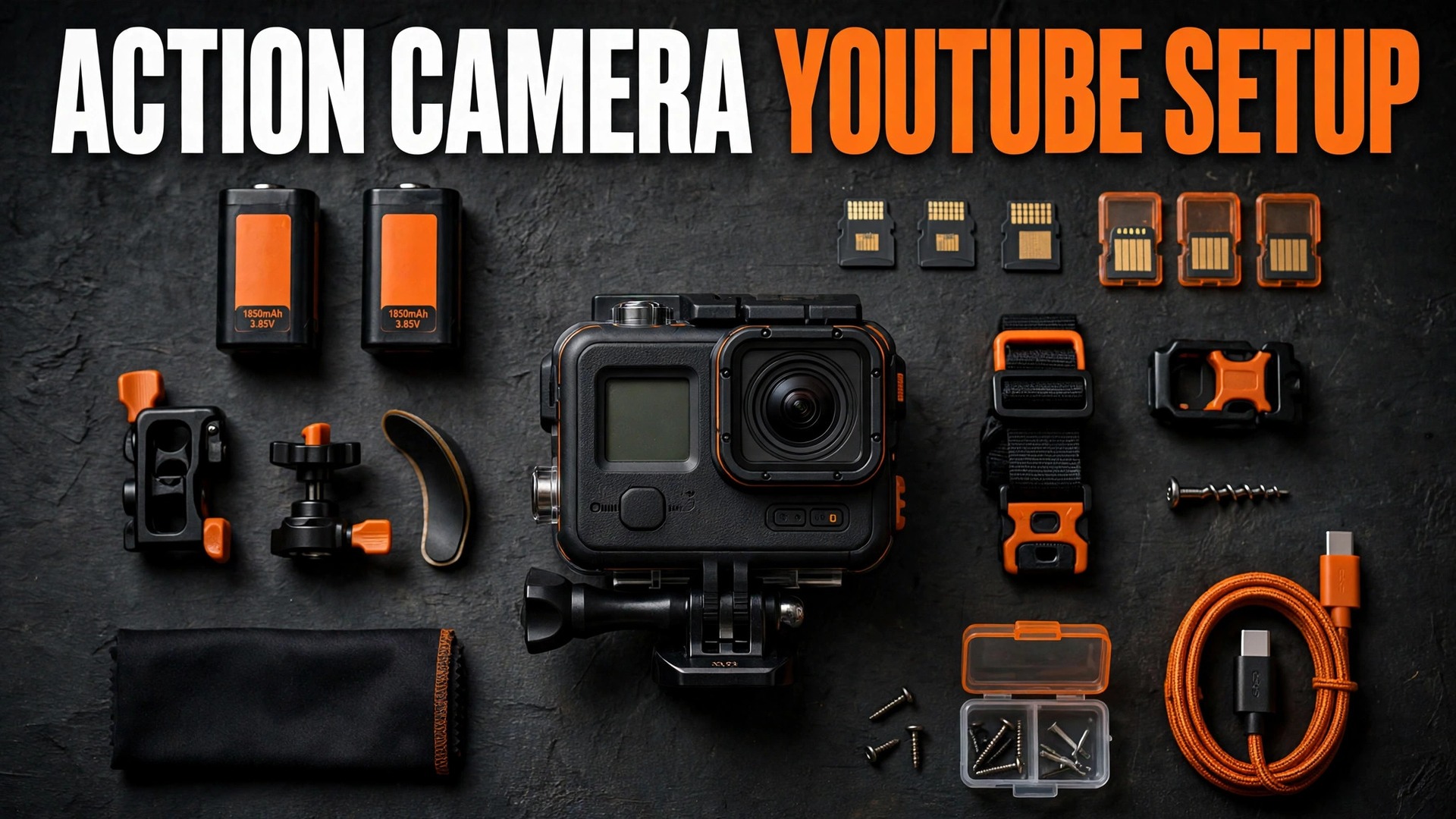
The problem is familiar to almost every new action channel. The footage looks exciting on the camera screen, then flat, shaky, or oddly quiet once it reaches YouTube. The trail ride that felt fast looks slow. The voice that sounded clear on the beach is buried under wind noise in the edit. Learning to use action camera for YouTube publishing is less about buying a better camera and more about fixing the chain from mount to microphone to export, because a weak link anywhere in that chain shows up in the final video.
This guide builds that chain as one repeatable workflow. It covers which camera and kit fit which kind of channel, settings by scene in a table you can save, mounts that match the shot, audio that survives wind and water, an edit order that wastes no time, and export settings that keep YouTube compression from ruining clean footage. Prices quoted here reflect publicly listed October 2026 figures, and you should check the official store before paying.
The Problem Most Action Camera Channels Hit
Action cameras are built for a hard job. They must survive water, dust, crashes, and vibration while recording a very wide view from a very small sensor. That design creates specific trade-offs. The wide lens makes everything look farther away. The small sensor struggles in dim light. The built-in microphones sit close to wind and water. The stabilization that smooths a ride can also crop the frame. None of these are defects. They are the price of a camera that can go where a normal camera cannot.
Most disappointing action videos fail for the same three reasons, and none of them are the camera brand. First, the mount puts the camera in the wrong place, so the viewer sees a helmet or an empty stretch of road instead of the action. Second, the settings fight the scene, so bright sky blows out or 60 frames per second makes a normal walk look like a video game. Third, audio was treated as an afterthought, so viewers leave even when the picture is good. Viewers forgive a slightly soft frame. They rarely forgive audio they cannot understand.
The fix is to plan the video before the camera comes out of the bag. Decide the story in one sentence, pick two or three shots that prove it, choose the mount for each shot, and set the camera for the light you will actually face.
Pick the Camera and Kit That Fit Your Channel
Three cameras dominate the current action market for YouTube creators. The GoPro Hero 13 Black lists at $429.99 on the GoPro store for the camera alone, and it shoots up to 5.3K at 60 frames per second with interchangeable lens mods. The DJI Osmo Action 5 Pro lists at $319 for the Standard Combo and about $419 for the Adventure Combo, and it records 4K at up to 120 frames per second with dual touchscreens and 47 GB of usable built-in storage. The Insta360 Ace Pro 2 lists at about $400 for the standard bundle, and it records 8K at 30 frames per second with a flip touchscreen.
Those headline numbers matter less than the daily differences. The GoPro lens system is the strongest reason to pick it, because a macro or ultra wide lens changes what you can shoot without a second camera. The DJI is the strongest value pick for long days, because battery life and dual screens reduce fiddling that eats shoot time. The Insta360 is the strongest pick for creators who talk to camera often, because the flip screen shows framing and exposure while you record. That is the practical starting point when you use action camera for YouTube publishing as a main camera.
Kit matters as much as the camera body. Budget for at least two batteries and a dual charger, because cold weather, 4K recording, and stabilization drain power faster than lab figures suggest. Budget for two microSD cards from a known brand, rated for 4K video, so a full or corrupt card never ends a shoot day. A protective case, a lens cover, and a small cleaning cloth prevent the scratched lens that ruins an otherwise good video.
If you already own an older action camera, do not rush to upgrade. A Hero 11, an Action 3, or an Ace Pro still produces strong YouTube footage in daylight with good audio and a sensible mount. Spend the upgrade money on a wireless microphone, a second battery, and a card reader first, because those three items improve more videos than a newer sensor will.
Settings by Scene
Settings are where most creators overcomplicate the job. An action camera has dozens of options, but only five decisions change the picture in a meaningful way. Those five are resolution, frame rate, field of view, stabilization mode, and colour profile. Set the five correctly for the scene, lock them before you ride, paddle, or walk, and stop changing them mid-session unless the light changes completely. These five decisions matter most when you use action camera for YouTube delivery.
Resolution is a trade between detail, file size, and editing load. Shooting 4K gives room to crop and deliver sharper 1080p, but it creates files several times larger than 1080p and demands a faster computer and more storage. Shoot 4K for hero footage you plan to keep or slow down, and 1080p for long sessions where file size matters more than detail. Never shoot 8K without a clear reason and a computer that can edit it without stuttering.
Frame rate controls motion more than it controls quality. Shoot 30 frames per second for normal, natural looking footage, and reserve 60 or 120 frames per second for moments you plan to slow down. Shooting everything at 60 frames per second does not look more professional. It makes normal motion look unnaturally crisp and doubles file size.
Field of view controls how close the action feels. The widest setting captures everything but pushes the subject far away. A narrower setting, often called Linear or Narrow, pulls the subject closer and straightens bent edges, but it crops the frame and can hide context. For point of view riding or paddling, wide usually works best, because context sells speed. For talking to camera or detail shots, a narrower view looks more natural.
Stabilization deserves a decision of its own. In camera stabilization smooths bumps, but the strongest mode crops more of the frame and can make footage feel detached from the ground. A medium or standard setting keeps more of the frame and preserves some feeling of movement, which is usually what an action video wants. Turn horizon lock on for cycling or boating, and off for surfing or mountain biking, where a tilting horizon is part of the feeling.
Colour profile is the last big choice. A standard or vivid profile looks good straight out of camera and suits creators who publish fast. A flat or log profile preserves more highlight and shadow detail for grading, but it looks grey until you grade it, and it punishes sloppy exposure. If you do not grade every video, shoot standard. If you grade and enjoy colour work, shoot flat or log and build one preset you reuse.
| Scene | Resolution and frame rate | Field of view | Stabilization | Colour and exposure tip |
|---|---|---|---|---|
| Trail ride or mountain bike | 4K at 30, 60 for slow sections | Wide | Standard, horizon lock on | Standard colour, exposure down one notch in sun |
| Surf, paddle, or swim | 4K at 30, 60 for wave faces | Wide | Standard, horizon lock off | Standard colour, daylight white balance |
| City walk or travel vlog | 4K at 30 | Linear | Standard | Standard colour, face exposure priority |
| Talking to camera | 4K at 30 | Linear or Narrow | Standard or off on a tripod | Standard colour, check skin tones on screen |
| Low light street or evening | 4K at 30, never 60 | Wide | Standard | Standard colour, accept some noise |
| Slow motion highlight | 4K at 120 or 1080p at 240 | Wide | Standard | Standard colour, shoot in bright light |
| Timelapse or long session | 1080p or timelapse mode | Wide | Off on a fixed mount | Standard colour, manual white balance |
| Underwater | 4K at 30 or 60 | Wide | Standard | Dive filter or manual white balance |
That table is a starting point, not a law. Test it on one shoot and rewrite the rows that do not work for your sport and light.

How to Use Action Camera for YouTube on a Real Shoot Day
A workflow only earns its name if it survives a real day with dust, delays, and dead batteries. The shoot day below assumes a half day outing, one camera, and a video of eight to twelve minutes as the target. Shorter or longer days follow the same order, with the same checks, because the order is what prevents the common failures.
Start the night before. Charge every battery, format both cards in the camera, and update firmware only if you have time to test it afterwards, never on the morning of a shoot. Pack the camera, mounts, microphone, spare batteries, cards, a cloth, and a small dry bag in one case.
Arrive and run a two minute test before the real action starts. Record ten seconds on each mount you plan to use, play it back, and check framing, horizon, and audio. This test catches the chest mount that points at the sky and the microphone that paired to the wrong device. Fix those problems now, when the fix costs two minutes.
Shoot in short, deliberate clips rather than one endless recording. Aim for clips of 20 to 90 seconds for action, and 60 to 180 seconds for talking segments. Short clips are easier to review, easier to back up, and far easier to edit, because you can see the good moments at a glance instead of scrubbing through an hour of footage. Between clips, mark keepers with the camera highlight feature where offered, or simply say the keeper out loud on camera.
Capture the supporting shots while you are still on location. Film 30 seconds of the location with no action, for use as a cutaway. Film your hands setting up the mount or the trailhead sign, because those detail shots give the edit places to breathe and places to hide cuts. Record 30 seconds of ambient sound with no talking, which helps the editor smooth audio joins later.
End the day with a backup ritual before you shower, eat, or drive home. Copy both cards to a laptop or drive, verify the copy by playing three random clips, and only then format the cards for the next shoot. Name the folder by date and location, so next month you can find it without opening twenty folders.

Mounts That Change the Story
A mount is not just a holder. It is the camera angle, and the camera angle is the story. The same ride filmed from a helmet, a chest, a handlebar, and a selfie stick looks like four different sports. A video shot entirely from one mount feels flat even when the riding is good. A video that changes mount every 30 to 60 seconds feels alive, even when the action is modest. Mount choice matters most when you use action camera for YouTube stories that rely on movement.

The helmet mount gives the closest view to what the rider sees, which suits fast descents and technical lines. Its weakness is that it follows head movement, so quick looks left and right can make viewers dizzy. Keep head turns slow and deliberate when the helmet camera is rolling.

The chest mount gives a steadier, lower view that shows handlebars, hands, and the trail ahead, which suits climbing and touring. Its weakness is that a loose strap bounces, so tighten it properly and test it on a short run first.
The handlebar or seat post mount gives a fixed view that suits speed runs, because the bike stays still in frame while the world moves past it. Its weakness is vibration, so use a mount with a dampener where offered and avoid clamping to a part that flexes.
The tripod or clamp mount is the most underrated mount for YouTube. Set the camera on a tripod at a corner, a jump, or a viewpoint, ride past it, and you get a shot no body mount can give. Use it for the opening shot, the closing shot, and any moment where you want the viewer to see the whole scene.
Mount safety deserves a paragraph of its own. Use a tether on any mount over water, on a boat, or on a fast descent, because a camera that detaches at speed is lost and can injure someone behind you. Check every adhesive mount the day before, because adhesive needs a clean, dry surface and time to bond. Tighten thumbscrews by hand until firm, and recheck them after the first ten minutes of riding.
Audio Viewers Actually Stay For
Audio decides retention more than resolution does. A viewer will watch slightly soft 1080p footage with clear speech. The same viewer will leave clean 4K footage with muffled or wind-blasted speech within a minute. Action cameras make audio hard, because their microphones are small, exposed, and close to wind and water. Treat audio as a separate system when you use action camera for YouTube videos with speech.
Start with wind protection. A foam wind cover costs little and removes much of the low rumble that ruins outdoor speech. For riding or boating, add a furry cover over the foam, because fur breaks up wind before it reaches the microphone. Test the cover on a short ride before a real shoot, and keep a spare in the bag.
For any video where you talk to camera, use a wireless lavalier microphone. Clip it inside your collar or jacket, about a hand span below your chin. Pair and test it before the action starts, and record ten seconds of speech at the volume you will actually use. Check that recording on headphones, not on the camera speaker. If the wireless link drops, fall back to the camera microphone with a wind cover and get closer to the camera.
In the edit, treat audio in this order. First, cut out the worst wind sections rather than trying to rescue them. Second, level speech so the quietest important sentence is still easy to hear. Third, add music at a level where speech still sits clearly on top.
The Edit That Keeps the Story Moving
Editing action footage is mostly cutting, not effects. A strong action video is a chain of short, clear moments with no dead time between them. A weak action video is a long, uncut ride with a music track pasted over it. The difference is selection. Cut anything that does not move the story or give the viewer a reason to keep watching. Cutting discipline matters when you use action camera for YouTube edits built from many short clips.
Work in a fixed order so the edit does not drift. First, import and back up, then watch every clip at double speed and mark the keepers. Second, build the story spine in order, aiming for a rough cut of about 120 percent of target length. Third, cut to length by removing the weakest moments, then fix audio, grade colour with one preset, add titles and captions, and export.
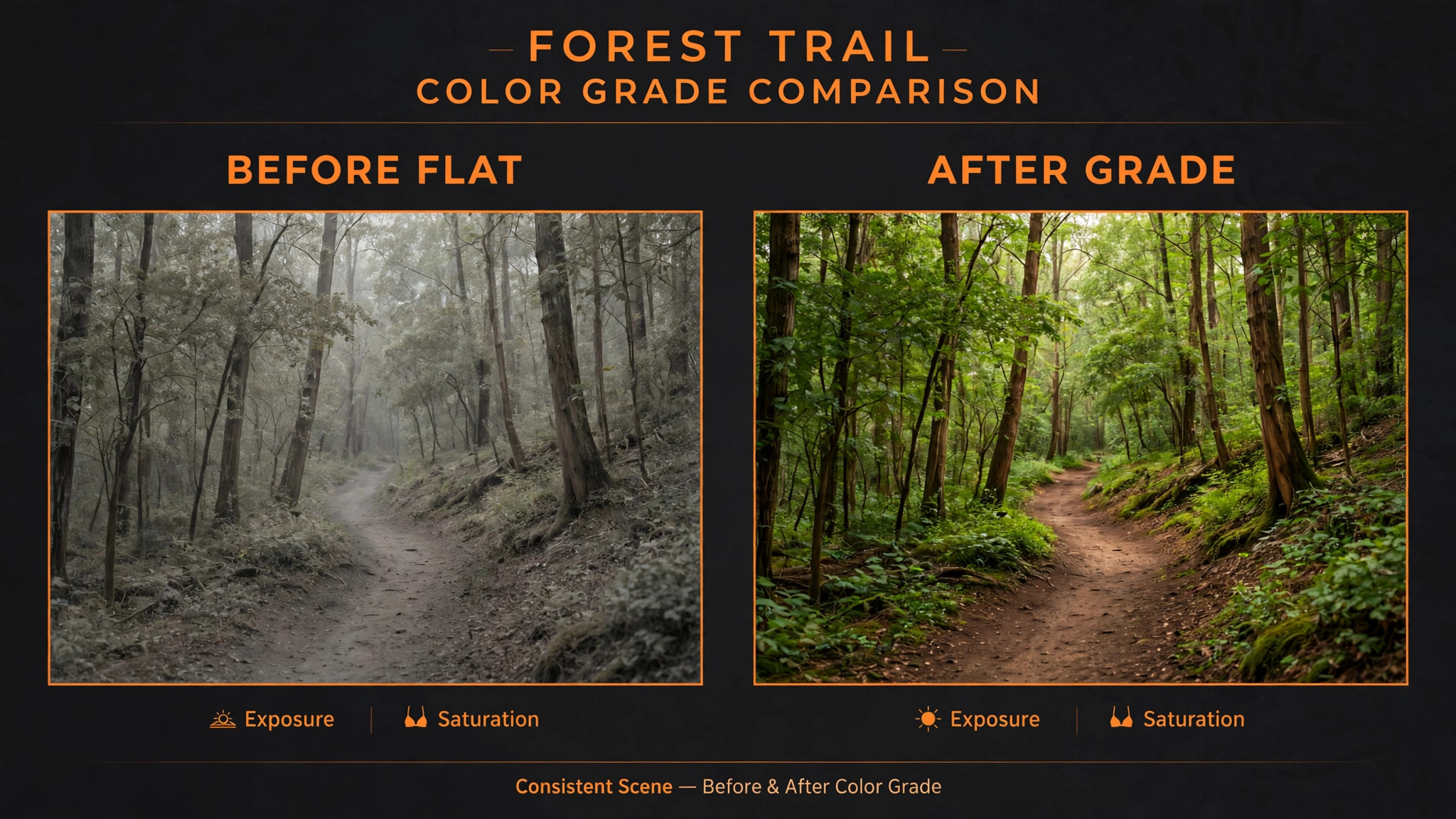
Colour grading for action footage should be simple. If you shot standard, apply only small adjustments to exposure, contrast, and saturation, and keep skin tones natural. If you shot flat or log, apply the profile conversion first, then the same small adjustments. Check the grade on a phone screen as well as a computer monitor.
Captions and titles carry more weight than many creators expect. A large share of viewers watch with sound off at first, so accurate captions keep them watching until they turn sound on. Keep on screen text short and high contrast, and put the main hook in the first five seconds, in both picture and speech.
Editing software does not need to be expensive to be good. DaVinci Resolve offers a free version that covers editing, colour, and audio for most action channels, and the paid Studio version lists at $295 as a one-time purchase, with a limited-time price of $236 reported in October 2026, so check the Blackmagic store before buying. GoPro Quik and the DJI Mimo app handle quick phone edits, but a desktop editor is the right tool for a main YouTube video.
Mount and Editing Checklist
This checklist is the overview-proof part of the workflow, because it turns the advice above into a repeatable routine you can save to your phone.
Before you leave home, confirm batteries are charged, cards are formatted in the camera, mounts and tethers are packed, the microphone is charged and paired, wind covers are packed, and the lens is clean. On location, run the two minute test on every mount, check framing, horizon, and audio on headphones, and lock the settings for the light you face. During the shoot, record in short clips and recheck mounts after the first ten minutes of motion.
After the shoot, copy both cards to a laptop or drive, play three random clips to verify the copy, and name the folder by date and location. In the edit, watch everything at double speed, build the story spine, cut to length, fix audio before colour, apply one colour preset, and add captions. Before upload, confirm the export settings and watch the exported file all the way through once.

Export and Upload Settings for YouTube
YouTube re-encodes every upload, so your export is the best your video will ever look on the platform. Export at a higher quality than you think you need, because compression only removes detail, never adds it. Use MP4 with H.264 video and AAC audio, keep the frame rate the same as your source footage, and use variable bitrate where your editor offers it. Export quality matters when you use action camera for YouTube uploads because re-encoding only removes detail.
YouTube publishes recommended upload bitrates, and they are a useful floor rather than a target to beat. For standard dynamic range uploads, the recommended rates are 8 Mbps for 1080p at 24 to 30 frames per second, 12 Mbps for 1080p at 48 to 60 frames per second, 35 to 45 Mbps for 4K at 24 to 30 frames per second, and 53 to 68 Mbps for 4K at 48 to 60 frames per second.
| Export | Setting for most action videos |
|---|---|
| Container and codec | MP4, H.264 High Profile, progressive scan |
| Audio | AAC-LC, stereo, 48 kHz, 384 kbps |
| Horizontal video | 3840 by 2160 for 4K, 1920 by 1080 for 1080p |
| Vertical Short | 1080 by 1920, up to 3 minutes |
| Frame rate | Same as source, usually 30 for main footage |
| Bitrate mode | Variable bitrate, no forced limit where offered |
| 4K standard frame rate | 35 to 45 Mbps, use 45 for fast detail |
| 4K high frame rate | 53 to 68 Mbps, use 68 for fast detail |
After upload, wait before judging quality. YouTube processes lower resolutions first, so a new upload may show only 360p or 720p for a while, with the 4K version arriving hours later. Judge the video only after the 4K version has finished processing. If the processed video looks soft, check the exported file first, because a soft export cannot be fixed by re-uploading the same file.

How to Choose Your First Kit
Choosing kit is easier when you match it to the channel you actually run, not the channel you imagine running one day. A surf channel needs waterproofing, a floaty grip, and a tether before it needs an 8K sensor. A cycling channel needs a chest mount, a helmet mount, and a second battery before it needs a macro lens. A travel vlog channel needs a flip screen, a small tripod, and a wireless microphone before it needs a dive case. Match kit to shots when you use action camera for YouTube channels in a single sport.
Budget in tiers to keep the decision honest. A starter kit of a previous generation camera, two batteries, two cards, one chest mount, one tripod, and a wind cover costs far less than a flagship bundle, and it produces videos viewers cannot distinguish from flagship footage in daylight. A mid tier kit adds a current camera body and a wireless microphone, which is where most serious channels land.
Consider weight and packing as part of the choice. An action camera system earns its keep because it fits in a small bag. Keep the daily kit to what fits in a small pouch plus a tripod.
Mistakes That Ruin Good Action Footage
The first mistake is shooting everything at the highest settings with no plan for files, battery, or editing time. A day of 5.3K or 8K footage sounds impressive until the cards fill, the batteries die, and the computer stutters through the edit for a week. Shoot the highest settings only for hero moments, and shoot the rest at settings your computer and schedule can handle. Publishing every week at 4K beats publishing once a month at 8K.
The second mistake is ignoring audio until the edit. Wind, water, and engine noise cannot be removed cleanly after the fact, no matter what a filter promises. A wind cover and a microphone test on location cost minutes. Audio rescue in the edit costs hours and still sounds worse. Treat the audio test as part of the mount test, not as an optional extra.
The third mistake is filming only point of view. A whole video from one mount, however exciting the sport, becomes visually repetitive. Mix in a tripod shot, a detail shot, a wide shot, and a talking segment, even if each lasts only a few seconds. Variety gives the editor places to cut, and cuts give the video pace.
The fourth mistake is overusing slow motion and speed ramps. Slow motion is powerful because it is rare. If every jump, turn, and wave is slowed down, none of them feel special, and the video drags. Use slow motion for one or two moments per video, the moment the viewer most wants to see again, and let the rest play at normal speed.
The fifth mistake is exporting at a low bitrate to save upload time. A 4K timeline exported at a 1080p bitrate is still a large file with little detail, and YouTube compression will make it worse. Export at the recommended rate for your resolution and frame rate, and let the upload take longer. Upload time is a one-time cost. A soft video is a permanent one.
The sixth mistake is skipping the final full watch. Watch the exported file from start to finish, on a phone, with headphones, before you upload. That single watch catches the black frame, the audio pop, the misspelled title, and the cut that jumps, all of which are easy to fix before upload and embarrassing after.
For related reading, creators starting a channel should read how to start a YouTube channel with AI, editors comparing software should read best AI video editing tools and best free AI tools for video creators, and creators planning a wider toolkit should read best AI tools for YouTubers and best AI tools for content creators.
Frequently Asked Questions
What settings should I start with on an action camera for YouTube?
Start with 4K at 30 frames per second, a wide or linear field of view depending on the shot, standard stabilization, and the standard colour profile. That combination gives natural motion, manageable files, and footage that looks good without grading. Add 60 or 120 frames per second only for moments you plan to slow down.
Which mount gives the best point of view footage?
The helmet mount gives the closest view to what you see, while the chest mount gives a steadier view that shows your hands and the trail ahead. Most strong action videos use both, cutting between helmet and chest angles for variety. Add a tripod shot for the opening and closing, because a fixed wide shot shows the scene in a way no body mount can.
Do I need an external microphone for action videos?
You need one for any video where speech matters, such as vlogs, tutorials, or narration over action. A wireless lavalier microphone clipped near your collar gives clear speech in wind that a built-in microphone cannot match. For pure action videos with music and no speech, a good wind cover is often enough, but test it on your sport first.
Is 4K worth it over 1080p for YouTube?
Yes, for most creators, because 4K gives room to crop and stabilize in the edit, and it delivers a sharper 1080p video even for viewers who watch at 1080p. The cost is larger files, faster battery drain, and heavier editing, so shoot 1080p for long sessions where detail matters less. Export at the recommended bitrate for the resolution you choose.
How long does an action camera battery last while recording?
Battery life depends on resolution, frame rate, stabilization, temperature, and screen use, so lab figures are optimistic. DJI rates the Action 5 Pro battery at up to four hours in lab conditions at 1080p with stabilization on, while GoPro rates the Hero 13 Black Enduro battery at over 1.5 hours at 4K30 and over 2.5 hours at 1080p30. In cold weather or at 4K with heavy stabilization, expect less, and carry a spare battery for any shoot longer than an hour.
Can I edit action camera footage on a phone?
Yes, for short videos and social cuts, using the camera maker’s app or a phone editor, but a desktop editor is better for a main YouTube video. Desktop editing gives precise audio control, proper colour tools, and export settings that match YouTube recommendations. Many creators cut a quick phone version for Shorts and a full desktop version for the main channel.
Your First Ten Videos Shot Like a System
A YouTube workflow is not a camera setting. It is a habit of planning the shot, testing the mount, protecting the audio, backing up the cards, and exporting at a quality YouTube cannot ruin. The creators who grow an action channel are rarely the ones with the newest camera. They are the ones who publish on a rhythm.
Start with the next outing, not with a shopping list. Pick one story, two mounts, and the settings table row that matches your scene. Run the two minute test, record the audio test on headphones, film the cutaways while you are there, and back up before the day ends. Do that ten times, and you will use action camera for YouTube publishing with a system tuned to your sport, your light, and your voice.