
The verdict is simple. If you want to fix Zoom audio echo fast, put on headphones first and mute every second device in the room second. Those two moves break the loop that causes most echo, and they work before you touch a single setting. Everything else in this guide, from Zoom audio settings to room layout and paid noise tools, matters only after those two moves, and in that order. That order is what saves a meeting, because echo is rarely a mystery fault. It is almost always one person’s speakers feeding back into one person’s microphone, and the fastest cure is to stop the sound from reaching a microphone in the first place.
This guide covers both sides of the call. Hosts get controls that find the source in under a minute, even in a meeting of 50 people, and guests get fixes they can apply without asking the host for help or restarting the call. It also covers echo only one person hears, echo only when someone shares a screen, and echo that survives a headset. Prices here were checked against public listings in October 2026. Confirm checkout prices before paying.
How to Fix Zoom Audio Echo in the Right Order
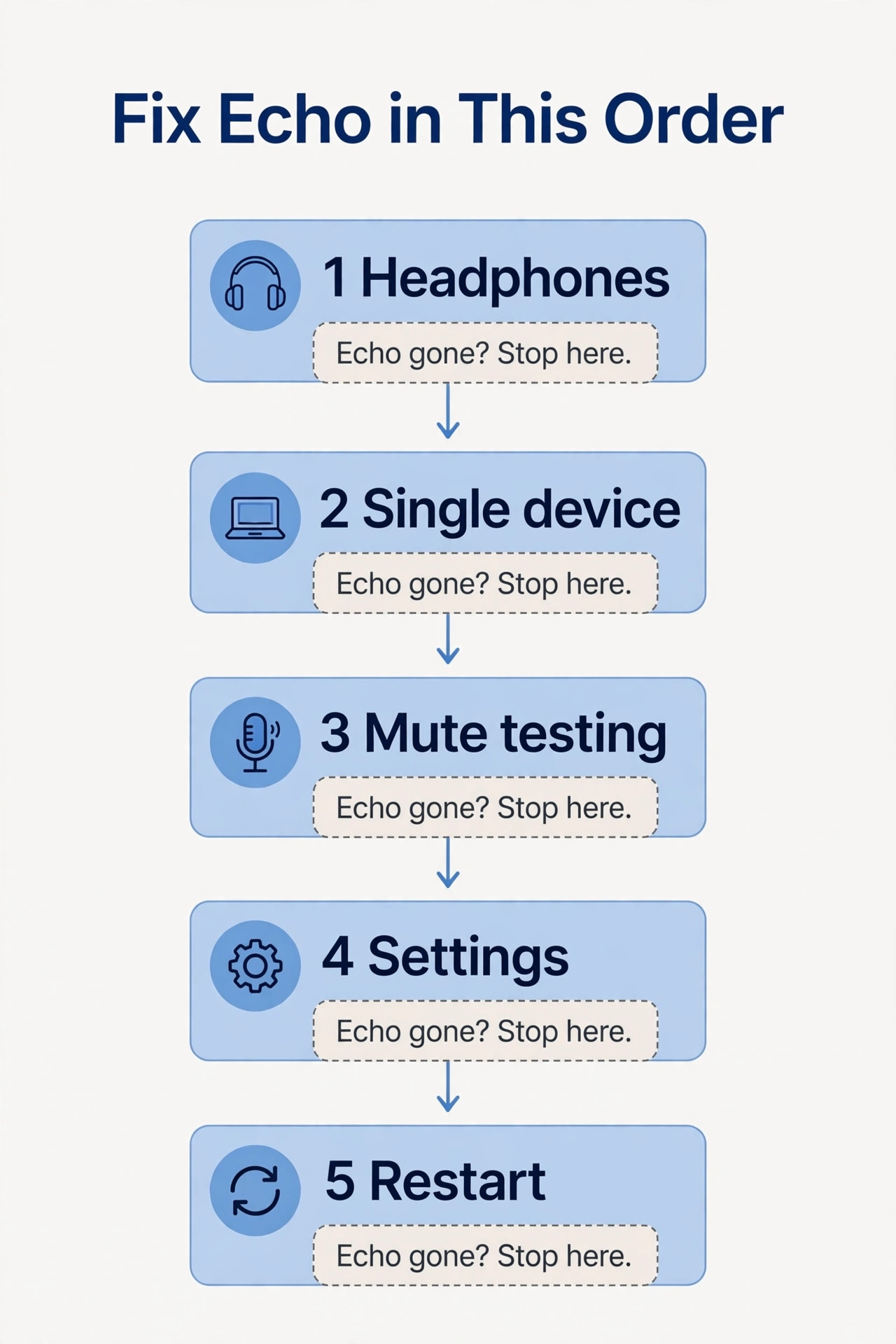
Work through this checklist from the top down and stop as soon as the echo is gone. Do not jump to advanced settings first. Most echo is fixed by step two, and jumping ahead wastes the meeting while the real cause keeps looping.
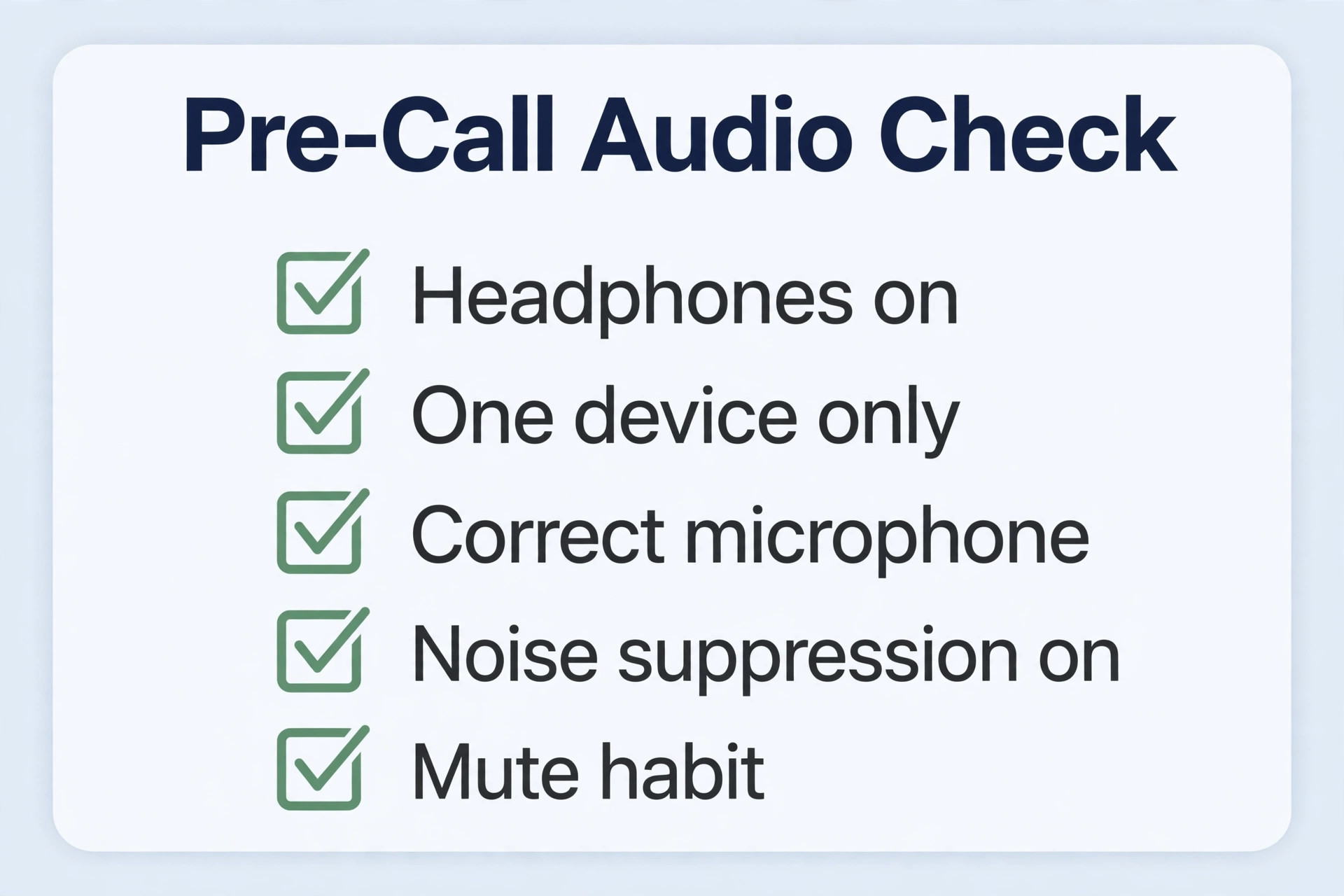
- Put on headphones or earbuds. Use wired headphones if you have them. If you are the host, say this out loud and give people 30 seconds to find a pair.
- Mute or leave audio on every second device. If you joined from a laptop and a phone, or from two laptops in the same room, keep audio on one device only.
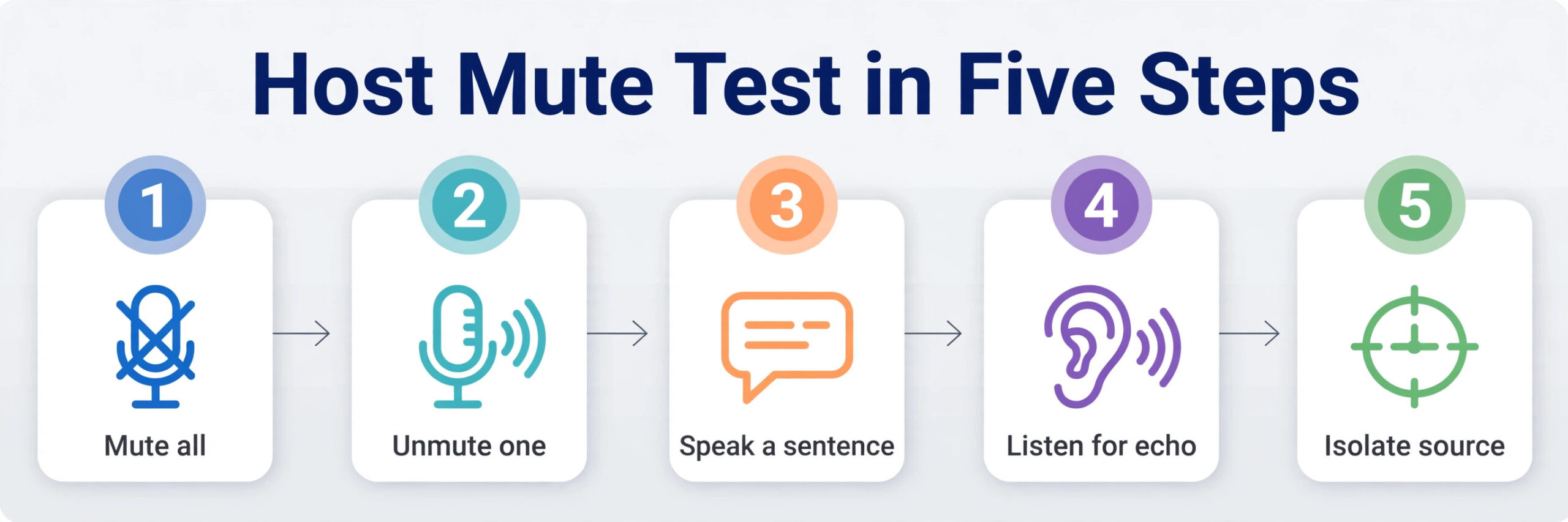
- Mute everyone, then unmute one person at a time. When the echo returns, the last person unmuted is the source, or is sitting near the source.
- Lower speaker volume and move the microphone away from the speaker. Turn the volume down to a level where you can still hear clearly.
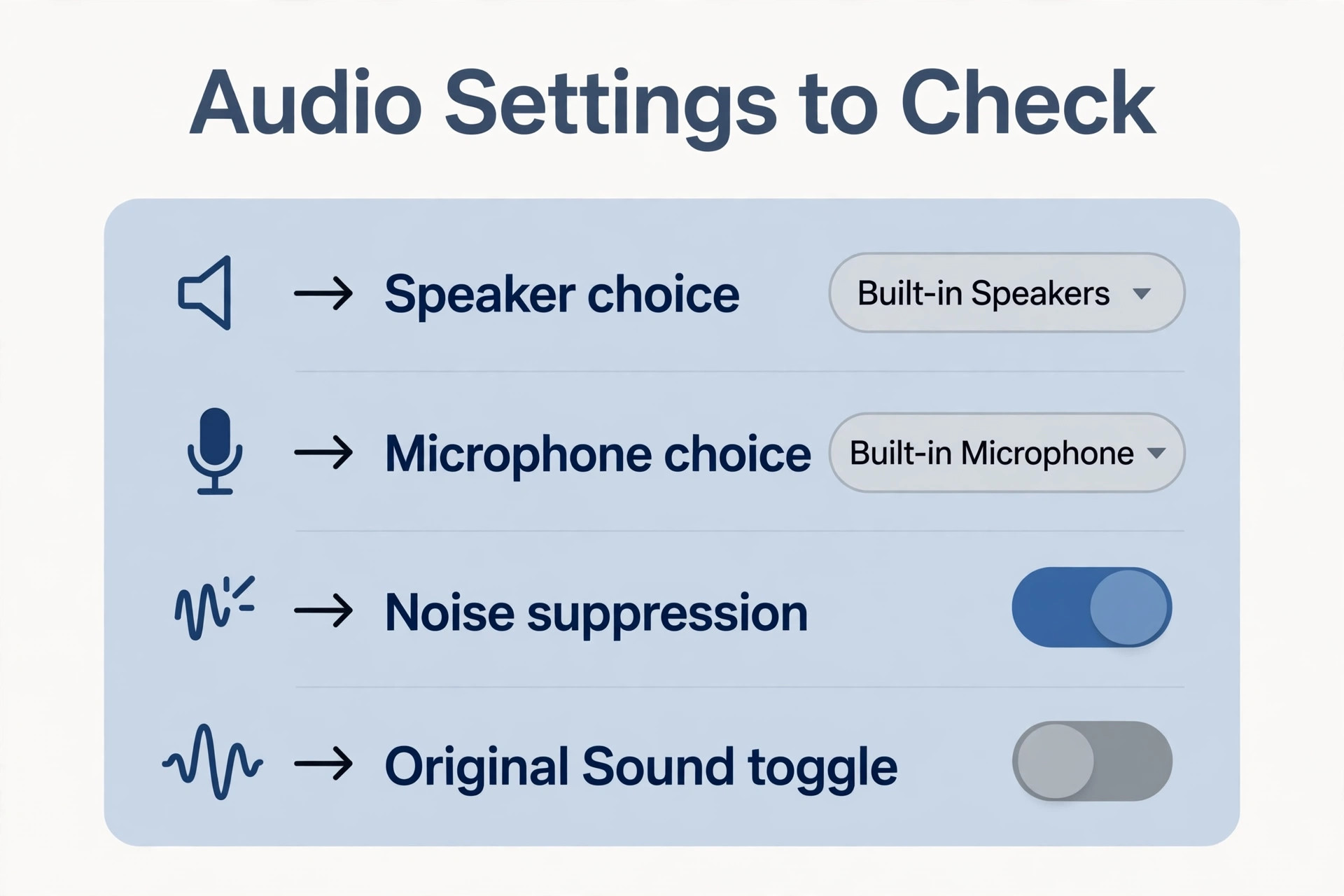
- Check the Zoom microphone and speaker choices. Open the audio menu during the call and confirm both choices match the hardware you are actually using.
- Set background noise suppression to Auto for a quiet room or High for a noisy room, and turn off Original Sound for ordinary speech calls.
- Turn off microphone monitoring, loopback apps, and Stereo Mix. Any feature that plays your microphone back through your speakers creates a fresh loop.
- Restart Zoom and test again in a solo meeting. If echo is still there after a restart, swap the headset or move to a different room, and test again.
The point of the order is that each step removes a whole class of causes. Headphones remove speaker bleed. One audio device removes duplicate joins. Muting one at a time removes guesswork. Only when those fail is it worth suspecting a driver, a faulty microphone, or a room with hard surfaces.
What Echo Actually Is and Why It Fools You
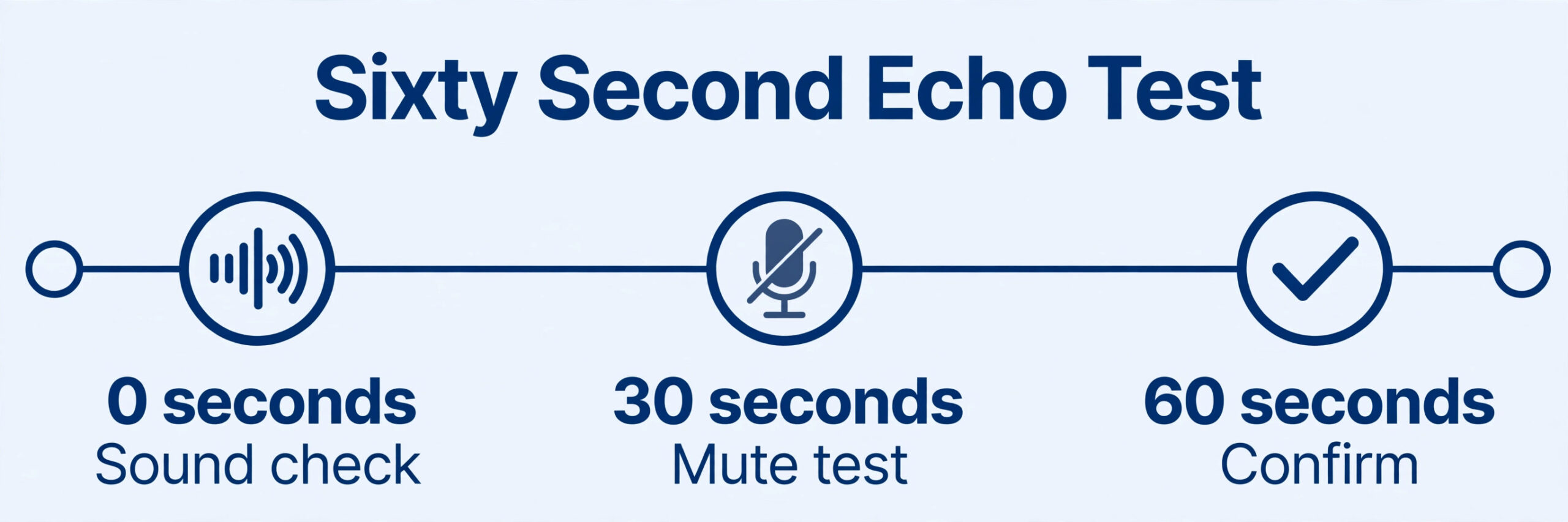
Echo on Zoom is a loop, not a recording fault. One person’s microphone picks up sound from a speaker, sends it back into the meeting, and the meeting plays it again. The delay makes it sound like a repeat, and when the loop repeats several times it can build into a ringing sound that forces everyone to mute. The person causing the echo often hears nothing wrong, because the loop happens on their outgoing audio. Everyone else hears their own voice coming back a fraction of a second late.
That asymmetry is why echo arguments happen. The person who hears the echo is not necessarily the person causing it, and the source cannot judge the fix by listening to their own speakers. The reliable test is always the other side of the call. Ask one other person whether they still hear the repeat after each change, and trust their answer over your own impression.
Three physical facts explain nearly every case. First, a microphone cannot tell your voice apart from the voice coming out of your speaker. If both reach it at similar volume, both get sent. Second, distance and volume decide how much speaker sound reaches the microphone, which is why a laptop on a hard desk with speakers at full volume is the worst common setup. Third, software echo cancellation works best when it knows what the speaker is playing, and worst when speaker and microphone sit on different devices, when audio passes through extra software, or when music settings have turned cancellation down.
Diagnose It in 60 Seconds
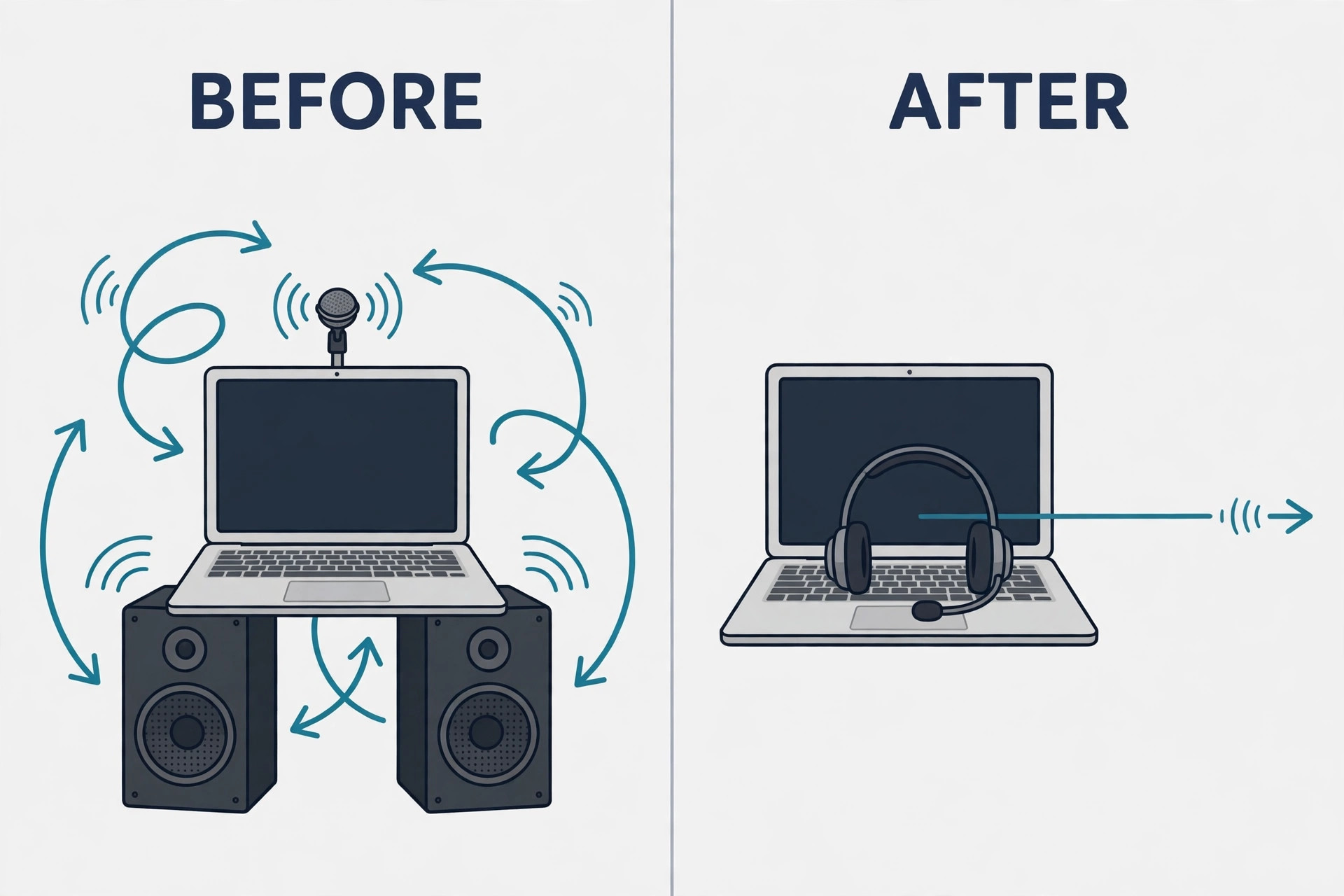
Before you change settings, spend one minute on diagnosis. The table below maps what you hear to the most likely cause, so you do not waste ten minutes on settings when the cause is a second laptop in the next chair.
| What you hear | Most likely cause | First move |
|---|---|---|
| Your own voice repeats once, a moment late | Someone else’s speaker is feeding your voice into their microphone | Ask everyone to wear headphones, then mute one at a time |
| Everyone hears a repeat when one person speaks | That person’s speakers are too loud or too close to their microphone | That person lowers volume and puts on headphones |
| A rising ring or howl | A loop between a microphone and a nearby speaker, or two live devices in one room | Mute all, then unmute one at a time, and leave audio on one device per room |
| Echo only when music or a video plays | Sound is playing through speakers instead of being shared directly | Share computer sound through the share menu instead of playing it aloud |
| Echo only on one person’s calls, every time | That person’s hardware or settings, such as monitoring turned on or Original Sound left on | Check their device choices, monitoring, and microphone mode |
| Echo in a large room but not on laptop calls | Hard surfaces and a far microphone in the room | Move closer to the microphone, add soft furnishings, and use one room device |
| Echo that comes and goes | A Bluetooth headset reconnecting, a second device joining late, or a speaker volume change | Check for a second join and a headset that switched devices mid call |
If the table points to a person, fix that person first. If it points to a room, fix the room before you blame a laptop. If nothing fits, because the echo is faint and constant and no change removes it, suspect a driver or a virtual audio app that routes sound in a circle.
The mute one at a time test deserves care, because hosts use it badly. Muting everyone at once proves only that echo stops when nobody can speak. The useful version is to mute everyone, then ask people to unmute one at a time and speak a short sentence, waiting a few seconds after each person. When the echo returns, you have your suspect. Ask that person to put on headphones and check for a second device before moving on.
Host Fixes That Stop Echo for Everyone
A host who needs to fix Zoom audio echo for a whole room has two advantages. The host can mute anyone, and the host can set the tone in the first minute so guests do not feel blamed. Use both. Start with a short audio check before the agenda, and treat echo as a setup problem, not as someone’s fault.
First, mute all participants from the participant panel, then unmute people one at a time as described above. On a large call, mute all and ask people to raise a hand when they want to speak, then unmute them for their turn. For a discussion meeting, mute all only for the diagnosis minute, then return to open microphones once the source is fixed.
Second, use the participant panel to spot the source visually. When someone speaks, their tile lights up or their microphone icon shows activity. If a tile shows activity while nobody is speaking, that microphone is picking up room or speaker sound, and it is a strong suspect. Watch for a tile that stays active during someone else’s sentence. That pattern is the visual signature of echo.
Third, set expectations in the invite, not just in the meeting. A single line asking guests to join from one device and to wear headphones in a noisy room prevents more echo than any setting change during the call. Repeat that line in the chat at the start of a recurring meeting for the first two weeks, until it becomes habit.
Fourth, control screen sharing with sound. If anyone plays a video aloud through room speakers, every microphone in the room will pick it up and send it back. Share computer sound through the share menu instead, which sends audio directly to participants. Tick the share sound option before you start, and test it with a few seconds of audio.
Fifth, plan for large and mixed meetings. In a meeting where some people share a room and some join remotely, the room should use one device for audio. Remote guests should stay on headphones. If the room uses a speakerphone, nobody in the room should also join from a laptop with a live microphone.
Guest Fixes When You Are the Source
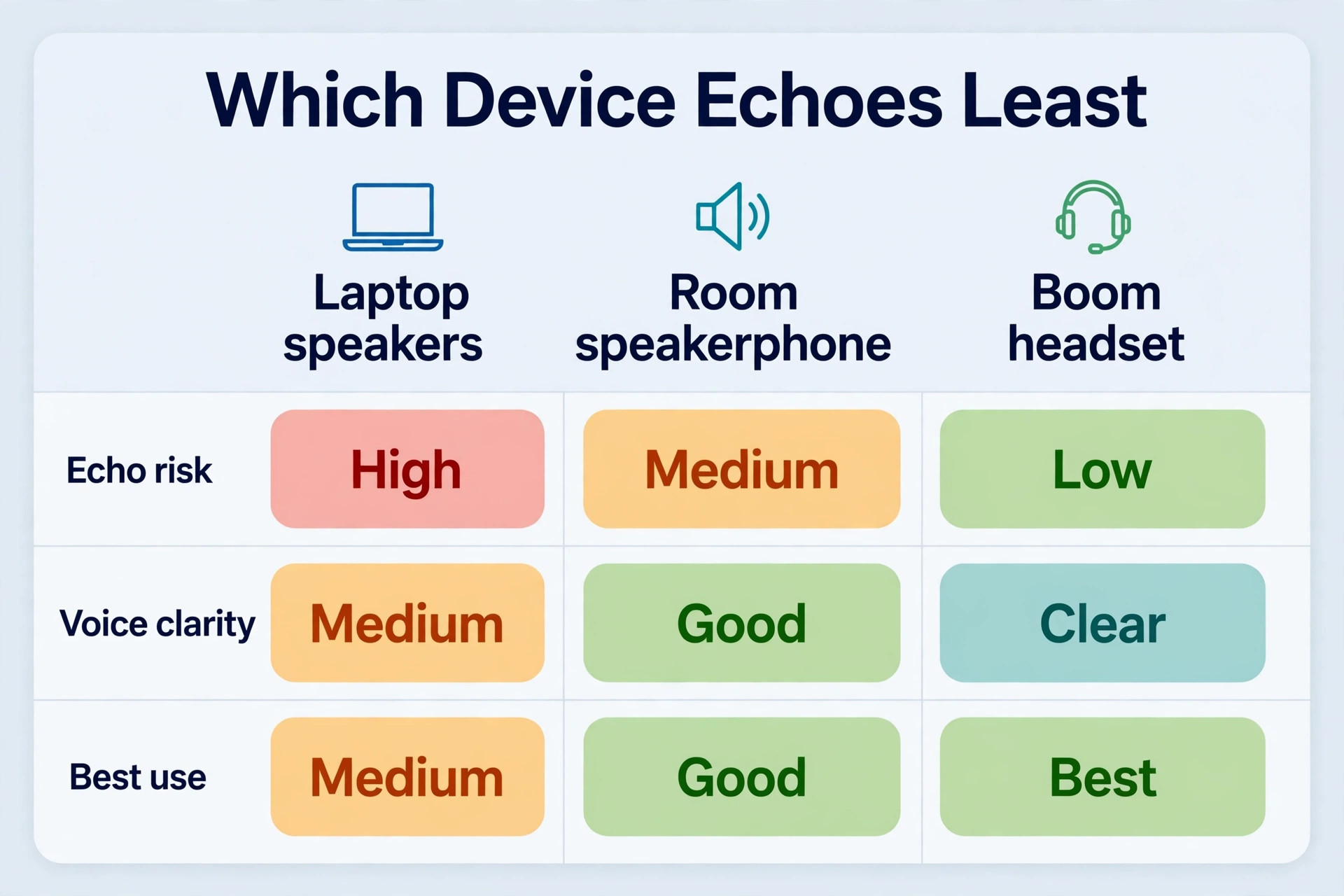
Guests who want to fix Zoom audio echo on their own side have less control than hosts, but the guest fixes are simpler, because the guest only has to fix one setup. Start with headphones. This single change fixes more echo than every setting in this guide combined. A wired headset with a boom microphone is the most reliable choice, because the microphone sits near your mouth and far from the earpieces. Wireless earbuds work well too, provided they stay connected to the right device. If you must use speakers, keep the volume low and mute yourself whenever you are not speaking.
Next, check for a second device. This is the cause guests miss most often. You may have joined from a laptop, then opened the meeting on a phone to read the chat, or a tablet on the desk may have joined from a calendar link. Each extra device with live audio adds another microphone and speaker to the same room. Leave computer audio on every device except one. Do not rely on muting alone for a second device, because a muted microphone still leaves a live speaker in the room.
Then check the device Zoom is actually using. Plug in a headset after joining, and Zoom may keep using the laptop microphone and speakers. Open the audio menu during the call and select the headset for both speaker and microphone. Speak a test sentence and watch the input level meter. A healthy level moves in the middle of the meter when you speak normally. A level stuck at the top means gain is too high and will catch speaker sound from across the desk.
After that, fix your side of the room. Move the speaker away from the microphone, turn the volume down one or two steps, and avoid sitting with a bare wall directly behind you if you can. Hard surfaces reflect sound back toward the microphone. You do not need studio treatment. A closed door, a curtain, a bookshelf, and a rug change the sound enough for most calls.
Finally, use mute as a habit, not as a punishment. Mute yourself when you are not speaking, especially on calls with ten or more people, and use push to talk if your setup supports it. Hold the space bar to speak on a desktop call, and release it to mute again. A muted microphone cannot loop speaker sound, no matter what else is wrong.
Zoom Settings That Matter, and the Ones to Leave Alone
Open Zoom settings before the meeting, not during a crisis, and change one thing at a time. These are the settings that help you fix Zoom audio echo without changing hardware. The audio tab holds most of what matters, and the advanced options hold the rest. Start on the audio tab and confirm the speaker and microphone choices, then test both with the built in test buttons. A test takes 20 seconds and answers the question that otherwise eats ten minutes, which is whether Zoom hears you through the device you think it hears you through.
Set background noise suppression to Auto for a quiet room. Switch it to High when the room is noisy, when you are near a road, or when others say they hear background sound from your side. High suppression can clip the start of a quiet word, so do not leave it on High in a silent room if your voice sounds cut off. For most calls, Auto is the right default and High is the right fix for a noisy day.
Microphone modes are the setting guests change by accident most often. In a meeting, the audio menu offers noise removal as the normal mode, and that is the mode to use for ordinary calls. Personalised audio isolation trains on your voice and can help in a crowded room, and it is worth trying when noise removal still lets other voices through. Original Sound for musicians is the mode to avoid for speech calls. It preserves the full sound of an instrument and reduces the filtering that stops echo. If you see an Original Sound button at the top of the meeting window, make sure it is off unless you are deliberately playing an instrument.
In the advanced audio options, keep echo cancellation on for speech calls. If your version offers automatic or manual echo cancellation, automatic is the safe setting for a laptop or headset. Manual settings are for audio interfaces and for people who know why they need them. Do not turn echo cancellation off to improve quality on a speech call, because the gain is small and the echo risk jumps at once.
Two more settings cause echo that looks like a Zoom fault but is not. The first is automatic microphone volume. Leave it on for a built in microphone or a basic headset, because it stops gain drifting up to a level that catches speaker sound. Turn it off only if you use a proper external microphone and set gain by hand. The second is any system monitoring or loopback feature. On Windows, that means the Listen to this device option and Stereo Mix, both of which should be off for an ordinary call. On a Mac, it means any loopback app that routes microphone sound to speakers.
Phone, Tablet, and Browser Joins
Mobile joins echo for different reasons than desktop joins. To fix Zoom audio echo on a phone, start with earphones, because the speaker and microphone sit centimetres apart. On a phone, the speaker and the microphone sit centimetres apart, so speakerphone mode is the highest risk setup in this whole guide. If you join from a phone, use earphones, or hold the phone to your ear like a phone call, or keep the volume low and mute when you are not speaking. Do not put a phone on speaker in a room where a laptop is also in the same meeting, because that is two live devices in one room, and the loop is immediate.
Check permissions and audio routing before the meeting. If Zoom has no microphone permission, you will be silent, and if the phone routes audio to a Bluetooth speaker in another room, you will hear the meeting late. In the mobile app, open audio settings from the More menu during a call and confirm the microphone mode and speaker output. If a Bluetooth device keeps stealing the audio, disconnect it for the call and use wired earphones.
Tablets sit between phones and laptops. A tablet on a stand is reasonable for one person and poor for a group gathered around it. For a group, use one external speakerphone, and do not let two tablets in the same room both stay live.
Meeting Rooms and Two Devices in One Room
Conference rooms create the worst echo cases. To fix Zoom audio echo in a conference room, start before anyone joins, because the room adds distance, reflections, and several people who each think someone else is the source. The fix starts before anyone joins. Choose one room device for audio, and make that choice visible. Put a small sign or a chat message in the room invite that names the device, so a colleague who arrives late does not open a laptop and join with audio out of habit. If the room has a dedicated speakerphone or a room system, use it and keep every laptop microphone muted or disconnected from audio.
When the room device is a laptop connected to a TV or soundbar, keep the volume moderate and use an external microphone placed on the table if you can. A TV across the room with a laptop microphone on the far side creates a long sound path with reflections off walls. A clap test tells you whether the room is the problem. Clap once with everything off. If the clap rings or flutters, the room needs softening before any microphone upgrade will help.
If you cannot change the room, change the meeting shape. Split a large hybrid meeting into a presentation part, where only the presenter is unmuted, and a discussion part, where people take turns. Use the chat for questions during the presentation part. That shape removes the conditions echo needs, which are several live microphones and speakers in the same space at once.
When a Headset or a Noise Tool Is Worth Paying For
Most echo needs no purchase. A pair of earbuds you already own and a mute habit fix the common cases. Spend money only when the free fixes fail repeatedly, or when your job depends on call quality every day. The buying decision is simpler than the marketing suggests, because the choice is between a better physical setup and a better software filter, and the physical setup wins in most cases.
A wired USB headset with a boom microphone is the best first purchase for a person who takes calls all day. Expect to pay roughly 30 to 80 dollars for a reliable office headset from a known brand, and check the current listing before buying. The boom microphone matters more than the earpiece brand, because it keeps the microphone near your mouth and away from the speakers. A headset with active noise cancelling for the listener is a comfort feature, not an echo fix.
A separate USB microphone is the right purchase only if you already use good headphones and want better voice quality for presenting or teaching. A desk microphone picks up more room sound than a boom microphone, so it is a worse echo choice for a noisy room, even though it sounds better in a quiet room. Pair it with headphones, keep it close, and test it on a real call before a client meeting.
Software noise tools help in a specific case, which is a noisy environment where you cannot change the room or hardware. Krisp is the best known example, and its Core plan is listed at about 8 dollars per user a month billed annually, or about 16 dollars per user a month billed monthly, with a free trial to test it. Check the official pricing page before buying, because Krisp has changed plan names and trial terms before. A tool like Krisp sits between your microphone and Zoom and filters noise before Zoom hears it. It does not replace headphones, and it does not fix a second device in the room.
Zoom itself costs nothing to test, because the Basic plan is free, with group meetings limited to 40 minutes and up to 100 participants in current public listings. The Pro plan is listed at about 16.99 dollars per user a month billed monthly, or about 14.16 dollars per user a month billed annually. Check Zoom support before upgrading, because echo fixes do not need a paid Zoom plan. Paying for Pro will not fix a speaker feeding a microphone. Upgrade for meeting length or cloud recording, not for echo.
Mistakes That Bring the Echo Back
The first mistake, when you try to fix Zoom audio echo for good, is fixing it for one call and then repeating the setup that caused it. A guest who borrows headphones for one meeting and then joins the next meeting on laptop speakers will echo again, and the host will diagnose the same problem again. Make the fix permanent. Keep headphones at the desk, keep the headset selected in Zoom, and keep second devices out of the meeting by habit. A fix that depends on remembering a setting every time is not a fix, it is a ritual that will fail on a busy day.
The second mistake is turning on music settings for a speech call. Original Sound, high fidelity music mode, and low noise suppression all have real uses for musicians, and they all weaken echo control for speech. If you teach music, use those settings deliberately, with headphones and a proper interface, and turn them off for the next staff meeting. If you do not teach music, leave them off.
The third mistake is blaming the network. A slow connection causes choppy audio and frozen video, but it does not usually cause a clean repeat of your own voice a moment late. That repeat is a loop, and it needs a physical or routing fix. Restarting the router will not break the loop.
The fourth mistake is buying a louder speaker. A bigger speaker makes echo more likely, not less, because it puts more sound into the microphone. If people cannot hear you, the fix is usually a better microphone position, a headset, or a quieter room, not more volume from the far side.
The fifth mistake is leaving a second audio path open through another app. A recording app, a streaming app, a virtual cable, or a phone that is also on a call can all route audio in a circle. Before an important call, close apps you do not need, and check that no other app is using the microphone.
The sixth mistake is assuming the host must fix it. On a call where the host cannot find the source, a guest who suspects they are the source should speak up and test their own setup. Say that you will try headphones and rejoin, or that you will mute and listen, and then do it. That one act saves the host from muting people one by one while the meeting waits.
For related reading, if you are choosing between meeting platforms, Zoom vs Google Meet compares the two on features and fit, Zoom alternatives covers other platforms when Zoom is not the right choice, and best AI meeting assistants looks at note taking and follow up tools that sit alongside a clean call. If echo keeps returning on a specific person’s setup, Krisp alternatives compares noise tools that can help in a noisy room.
Frequently Asked Questions
Why do I hear my own voice on Zoom but the other person does not?
You hear your voice because someone else’s microphone is picking up your voice from their speaker and sending it back to you. The other person does not hear it because the loop happens on their outgoing audio, not on yours. The fix is on their side, usually headphones or a lower speaker volume, and the host can find that person by muting one at a time.
Why does Zoom echo only when several people are in the meeting?
With two people, one microphone and one speaker are in play, and echo cancellation can often cope. With several people, several microphones and speakers are live at once, and the chance that one of them loops rises sharply. Mute discipline, headphones, and one audio device per room matter more as the participant count grows.
Does a headset always fix Zoom echo?
A headset fixes the common speaker bleed case, because speaker sound no longer reaches the microphone through the air. It does not fix a second device in the room, a monitoring loop in software, or a faulty cable. If echo survives a headset, check for a second join, check monitoring and loopback apps, and test with a different headset.
Should I turn on Original Sound to fix echo?
No. Original Sound is for music and instruments, and it reduces the filtering that stops echo on speech calls. For an ordinary meeting, leave Original Sound off, keep noise removal as the microphone mode, and set background noise suppression to Auto or High. Turn Original Sound on only for a music lesson or a high quality audio share, with headphones and a proper interface, and turn it off again afterwards.
Shared sound that plays through room speakers gets picked up by microphones and sent back, which sounds like a doubled track. Share computer sound through the share menu instead, so audio goes directly to participants. If the doubled sound persists, check that nobody is playing the same video aloud on a second device.
How do I find the person causing echo in a large meeting?
Mute all participants, then unmute one person at a time and ask each person to speak a short sentence. Wait a few seconds after each person, because echo needs a voice to loop. When the echo returns, the last person unmuted is the likely source. Ask that person to put on headphones and to check for a second device before you continue, and keep everyone else muted until the source is fixed.
The Quiet Call Standard
A quiet call is not a lucky call. It is what you get when you fix Zoom audio echo at the setup stage instead of during the meeting. It is a call where every person uses one audio device, where headphones are the default in noisy rooms, and where music settings stay off for speech. That standard takes a minute to set up.
Start with your next meeting, not with a shopping list. Put headphones on the desk, check that Zoom uses the right microphone and speaker, set noise suppression to Auto, and confirm that no second device will join with live audio. Share that routine with your team in one short message, and ask the host of your recurring meetings to run a 60 second audio check for the first two weeks. After that, the routine becomes habit, and echo becomes the rare exception that a quick mute test finds.