
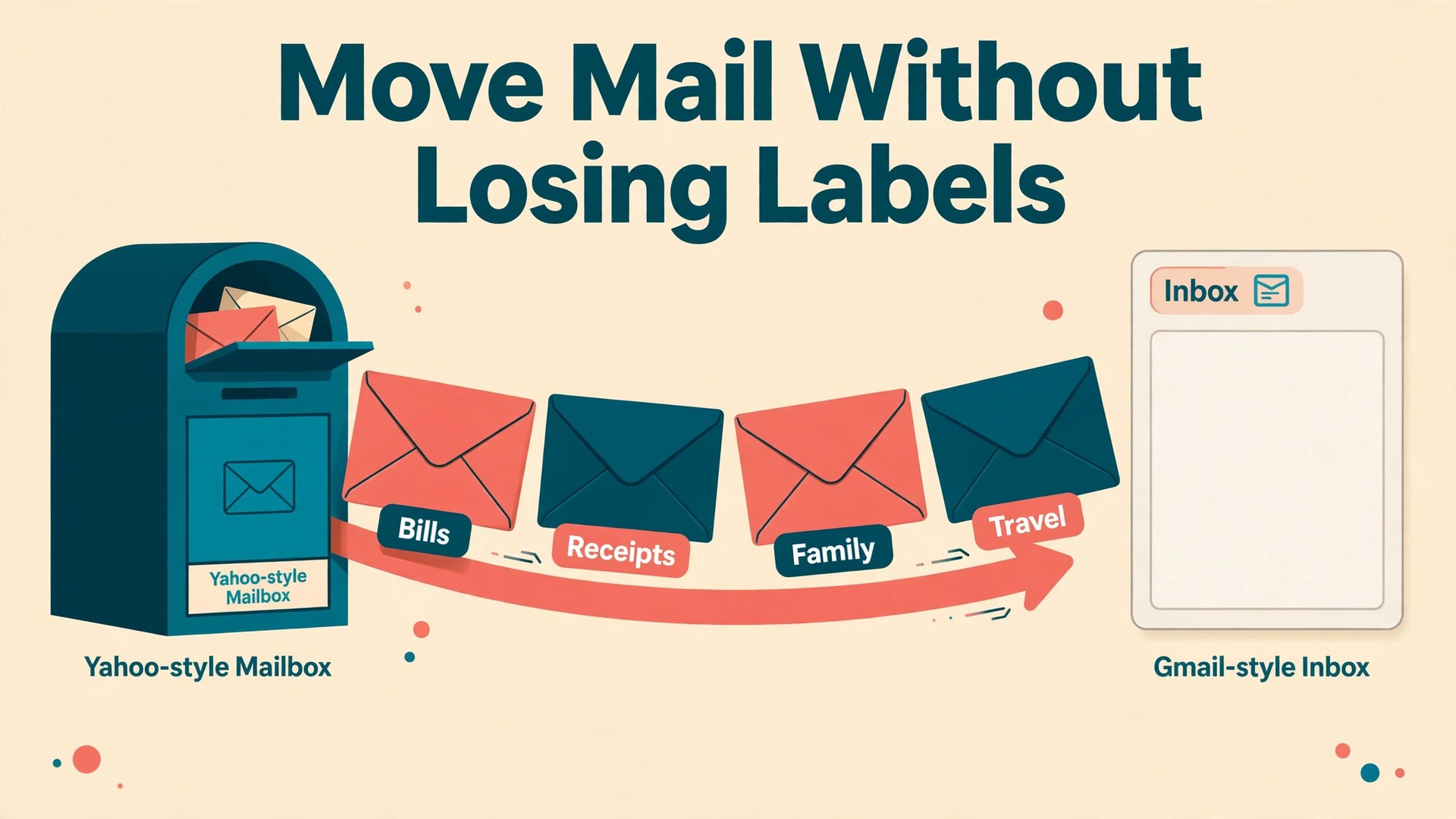
The move is worth making, but only if you plan your labels first. When you migrate Yahoo Mail to Gmail, the messages themselves travel well, while the filing system that made them findable often does not. Gmail’s importer copies mail and contacts, yet it flattens folders into a single stream, and a message that lived in a carefully named Yahoo folder can end up buried under one generic label. That is fixable, and this guide shows you how, before a single message moves.
You will learn what Gmail’s built-in importer does and does not carry over, how Yahoo folders differ from Gmail labels, and how to map every folder to a Gmail label before you start. You will also get a step by step import route, a plan for contacts and calendar events, a way to rebuild filters, a checklist to verify the result, and a rollback plan.
What Gmail’s Importer Actually Moves
Gmail’s importer lives in Gmail settings, under Accounts and Import, behind the button marked Import mail and contacts. It is free, it runs in the background, and it needs no extra software. For a simple mailbox, it is the right tool. For a mailbox with years of folders, it is only half the job.
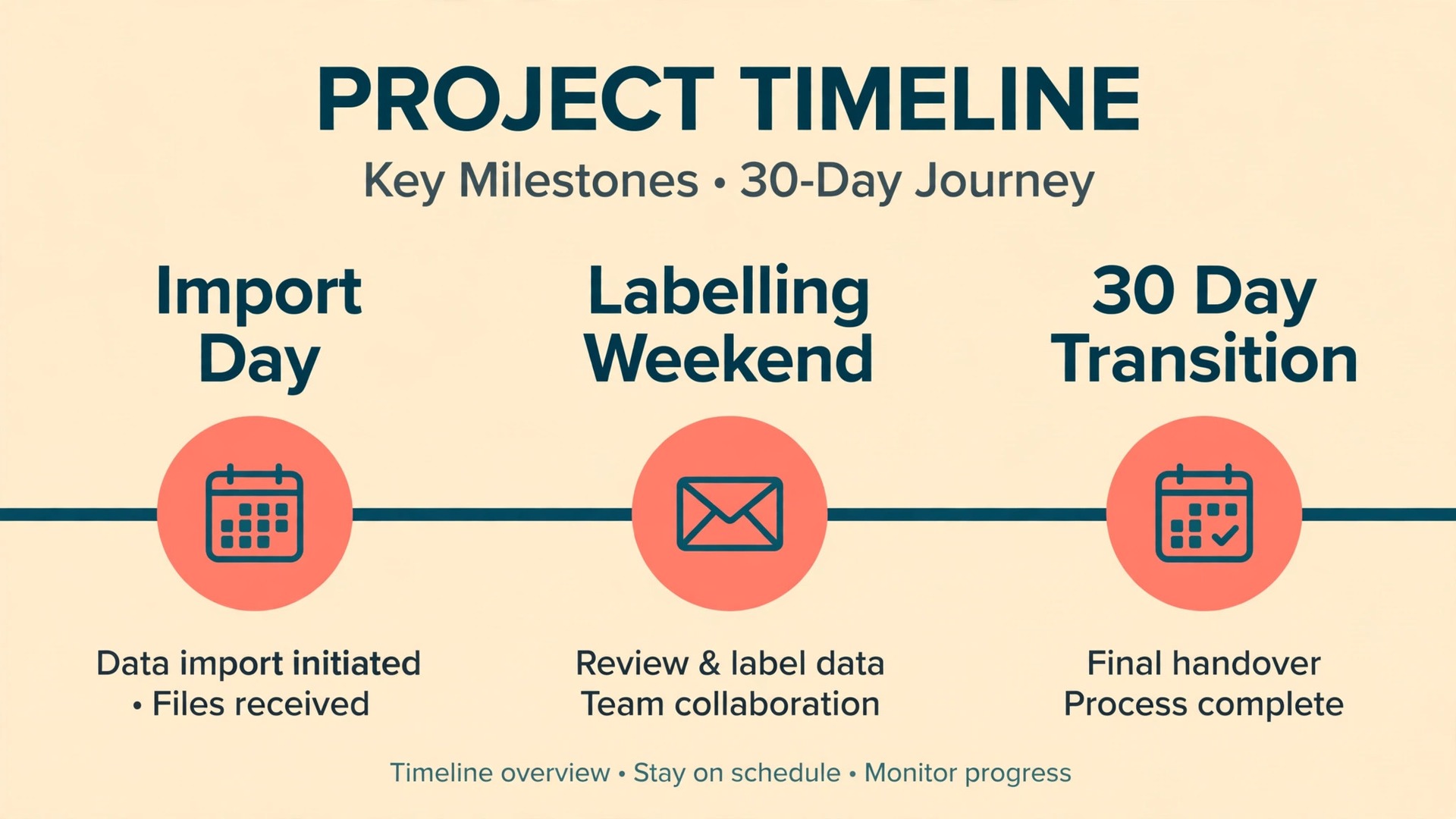
The importer copies your existing Yahoo messages into Gmail and it copies your Yahoo contacts into Google Contacts. It also offers to keep pulling new mail that arrives at your Yahoo address for the next 30 days, which gives you a month to tell people your new address while stragglers still reach you. Imported mail is grouped under a label named for your Yahoo address, so you can find the whole batch in one place. The import can take a few hours for a small mailbox and up to a couple of days for a large one, and Gmail notifies you when it finishes.
You can keep using Gmail while it runs, and you can stop it from the same settings page.
What it does not do matters just as much. It does not recreate your Yahoo folder tree as Gmail labels, it does not move your Yahoo calendar at all, and it does not rebuild your Yahoo filters, blocked sender list, signatures, or vacation response. It does not move drafts reliably. Press Start import without a label plan and you will get your mail back but lose the structure that made it useful. Free Yahoo accounts also no longer offer automatic forwarding to another address, since forwarding is now tied to a paid Yahoo option.
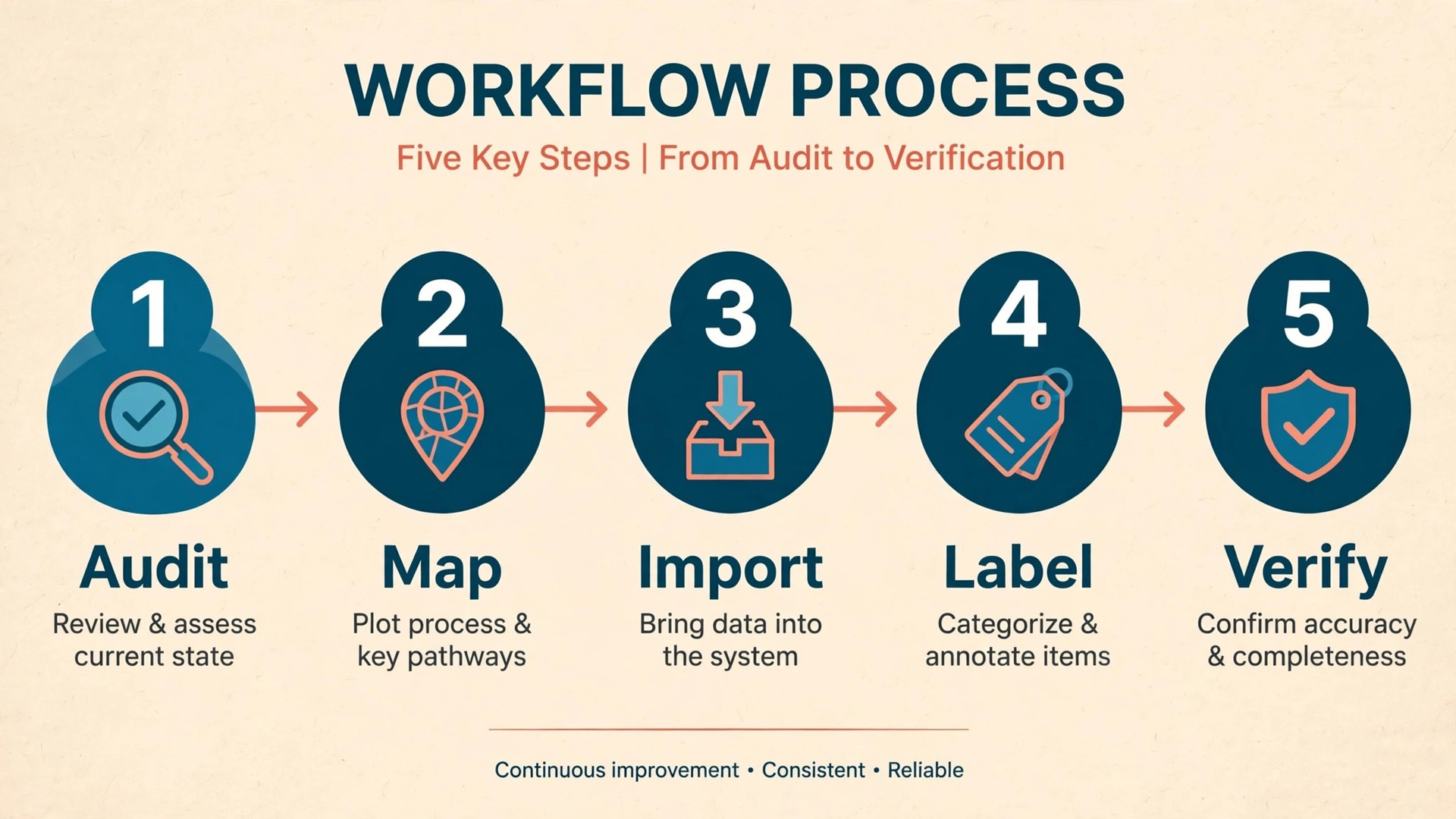
Before You Touch Import, Audit Your Yahoo Mailbox
A ten minute audit saves hours of searching later, and it is the first job when you migrate Yahoo Mail to Gmail with folders intact. Open Yahoo Mail on a computer, not only on your phone, and write down each custom folder, what lives in it, and whether you still need it. Most long lived mailboxes hold folders that stopped being useful years ago. Delete what is genuinely junk, rescue anything worth keeping from Trash and Spam by moving it to a real folder first, and leave the rest in a tidy list you can map to Gmail labels.
Next, check the scale of the job. Note how many messages sit in your largest folders and whether you have large attachments such as scanned documents or photo sets. Gmail accounts share 15 GB of storage across Gmail, Google Drive, and Google Photos, so a Yahoo mailbox stuffed with years of attachments can eat a large share of that space. If your Yahoo mailbox is close to that limit, save the biggest files to a computer first and delete the copies from Yahoo.
Then list the non mail items tied to Yahoo. Open Yahoo Contacts and look for duplicates and contacts stored only as a first name. Open Yahoo Calendar and list each calendar you own, plus any calendar shared with you. Check Yahoo filters under Settings, and note each filter that files mail or marks it read. Note every service that uses your Yahoo address to sign in, such as shopping accounts, banking alerts, and school portals. Those services do not move with your mail, and each one needs your new Gmail address after the move.
Folders Are Not Labels, and That Changes Everything
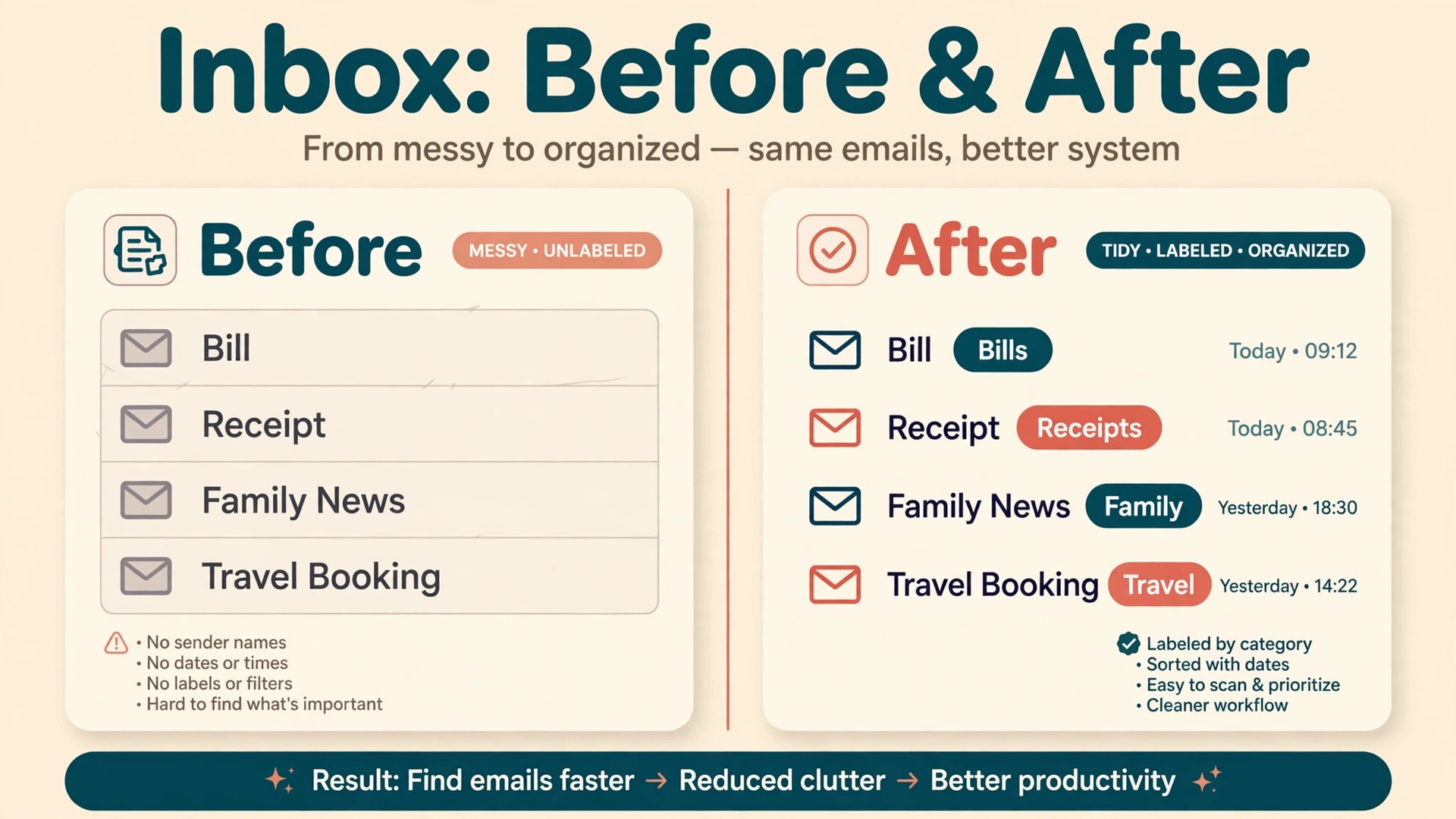
The single idea that explains most Yahoo to Gmail problems is the difference between a folder and a label. In Yahoo Mail, a message lives in one folder at a time. Move it from Inbox to Bills and it leaves the Inbox. In Gmail, a label is a tag, not a room. A message can carry several labels at once, it can sit in your Inbox and under Bills and under Tax at the same time, and removing a label does not delete the message. The message still exists in All Mail until you delete it properly. That difference is good news once you understand it, because Gmail can show one message in several useful places.
Yahoo folders also behave differently in a few practical ways. Archiving in Yahoo moves a message into the Archive folder, while archiving in Gmail removes the Inbox label and leaves the message in All Mail, findable by search and by any other label it carries. Starring in Yahoo is a flag on a message, while Gmail has both stars and a separate Important marker that Gmail learns from your habits, so a starred Yahoo message does not automatically become an Important Gmail message. Sent mail, drafts, spam, and trash do not always map cleanly during an automated import, so drafts and sent mail deserve a manual check after import.
Nested folders need a decision too. Yahoo lets you nest folders, such as Work with Clients and Invoices inside it, and Gmail lets you nest labels the same way, but the importer’s flat result will not recreate that nesting for you. Decide the nesting now, while you still have the Yahoo tree in front of you, and keep it shallow. Two levels are enough for most people. Use the mapping table below as the decision record, and do not start the import until every folder you care about has a Gmail home written next to it.
Your Yahoo Folder to Gmail Label Mapping Table
Use this table as your template. Copy it into a note, replace the example folders with your own, and keep it open while you label imported mail. For each row, pick one Gmail label as the home for that folder.
| Yahoo folder | What lives there | Gmail label to create | Action before and after import |
|---|---|---|---|
| Inbox | New and unfiled mail | Inbox | Leave as is, then file the backlog after import |
| Sent | Mail you sent | Sent | Check sent mail arrived, since it is easy to miss in a count |
| Drafts | Half finished mail | Drafts | Finish or delete each draft, because drafts move poorly |
| Archive | Old mail out of the inbox | Archive, plus topic labels | Confirm archived mail is in scope |
| Spam | Suspected junk | Do not import as a label | Rescue anything real first, then leave spam behind |
| Trash | Deleted mail | Do not import as a label | Rescue anything real first, then empty it before import |
| Bills | Utility and phone bills | Bills | Create the label first, then label bill threads by sender |
| Receipts | Shop and travel receipts | Receipts | Create the label first, then label by sender and date |
| Work, with Clients inside | Client threads | Work, with Clients nested inside | Create both labels first, then file client threads under Clients |
| Family | Family mail and photos | Family | Create the label first, then label by family senders |
| Travel | Bookings and itineraries | Travel | Create the label first, then label by booking senders |
| Newsletters | Subscriptions you read | Newsletters | Create the label first, then cancel or resubscribe with Gmail |
| Starred messages | Mail you flagged | Starred in Gmail, plus a topic label | Re-star the same threads after import |
| School or college | Course and admin mail | School | Create the label first, then label by school senders |
Two rows deserve extra attention. Spam and Trash should not become Gmail labels. Carrying years of junk into a fresh Gmail inbox pollutes search results and wastes storage, and anything you truly need from those folders should be moved to a real folder before import.

How to migrate Yahoo Mail to Gmail in Nine Steps
This is the built-in importer route, and it suits most people. Use it when your folder list is short, your mailbox fits comfortably in Gmail storage, and you are happy to label imported mail after it arrives using the mapping table. If your folder list is long and folder names matter deeply, read the folder faithful alternative after step nine before you start.
- Finish the audit and the mapping table above, and clear out Trash, Spam, and folders you no longer need in Yahoo.
- Sign in to Gmail on a computer, open Settings, choose See all settings, and open the Accounts and Import tab.
- Find Import mail and contacts and click that button. A new window will open for the import setup.
- Type your full Yahoo Mail address, click Continue, and sign in to Yahoo in the window that follows. Approve the access Gmail asks for, and if Yahoo asks you to create an app password under your Yahoo account security settings, create one for this import and keep it only until the import is verified.
- Choose what to import. Tick import contacts, tick import mail, and tick the option to import new mail for the next 30 days.
- Click Start import and close the setup window. The import now runs in the background, and you can use Gmail normally while it works.
- Wait for Gmail to notify you that the import is complete. For a small mailbox this can be a few hours, and for a large mailbox it can take up to a couple of days. Do not delete Yahoo mail during this wait.
- When the notification arrives, open the label Gmail created for your Yahoo address and spot check the result. Search for a sender from each major folder, open a thread with an attachment, open a thread from last year, and open a thread from this week.
- Label the imported mail using your mapping table. Work folder by folder, not message by message. Search for a sender or a subject pattern, select all matching threads, apply the Gmail label, and move to the next folder. Create nested labels as you go and star the threads that were starred in Yahoo.
The Folder Faithful Alternative for Large Folder Trees
If you have twenty or more Yahoo folders and their names carry real meaning, such as client names or tax years, consider the manual IMAP route instead of the built-in importer. Connect both Yahoo and Gmail to a desktop mail program such as Thunderbird, using IMAP for both accounts. In Yahoo settings, confirm IMAP access is on. For Yahoo, the usual IMAP server uses port 993 with SSL, and the SMTP server uses port 587. Once both accounts sync, create the matching labels as folders in Gmail, then drag each Yahoo folder into its Gmail home. Because the copy runs folder by folder, the folder names survive as Gmail labels in a way the flat importer does not guarantee.
This route is slower, but it lets you verify each folder as it lands, and it gives you a clean repair tool for a folder the built-in import mangled. Do not run both routes at full scale at the same time, or you will create duplicates that take longer to clean than the original problem. If an import seems stuck, check its status in Gmail settings first. Leave a progressing import alone for another day. If it shows an error, or no new mail has arrived for more than two days, stop it, fix any storage or sign in problem, and restart it. Stopping an import never deletes Yahoo originals, because the importer only copies mail.
Contacts and Calendar Need Their Own Moves
When you migrate Yahoo Mail to Gmail, contacts usually travel with the importer, but verify them anyway, because a contact list is only useful if names, addresses, and phone numbers are right. After import, open Google Contacts and search for five people you email often, one person you email rarely, and one contact with only a phone number. Check that email addresses landed on the right names and that duplicates have not split one person into two entries. If the importer missed contacts, export them yourself as a CSV file from Yahoo Contacts, then import that file in Google Contacts, choosing to merge duplicates when Google offers that choice.
Calendar data needs a fully separate move, because neither the Gmail importer nor IMAP touches calendars. List each Yahoo calendar separately, including a family calendar, a work calendar, and any calendar shared with you. Export each Yahoo calendar as an ICS file, which is the standard calendar file format, then in Google Calendar create a new calendar with a matching name and import the ICS file into it. Import one calendar at a time and check the result before moving to the next.
After each calendar import, check three kinds of events that break most often. Check a recurring event, such as a weekly class, and confirm the future dates still repeat correctly. Check an all day event, such as a birthday, and confirm it still sits on the right date rather than shifting by a day. Check an event with a guest from outside your household, and confirm the guest details are still present. Sharing needs one more step. People who shared a Yahoo calendar with you must share the matching Google calendar again, and any calendar you shared from Yahoo must be shared again from Google.
Re-send invites for important meetings from Google Calendar so guests hold the new invite, not the old Yahoo one.
Rebuild Filters, Categories, and Send As in Gmail
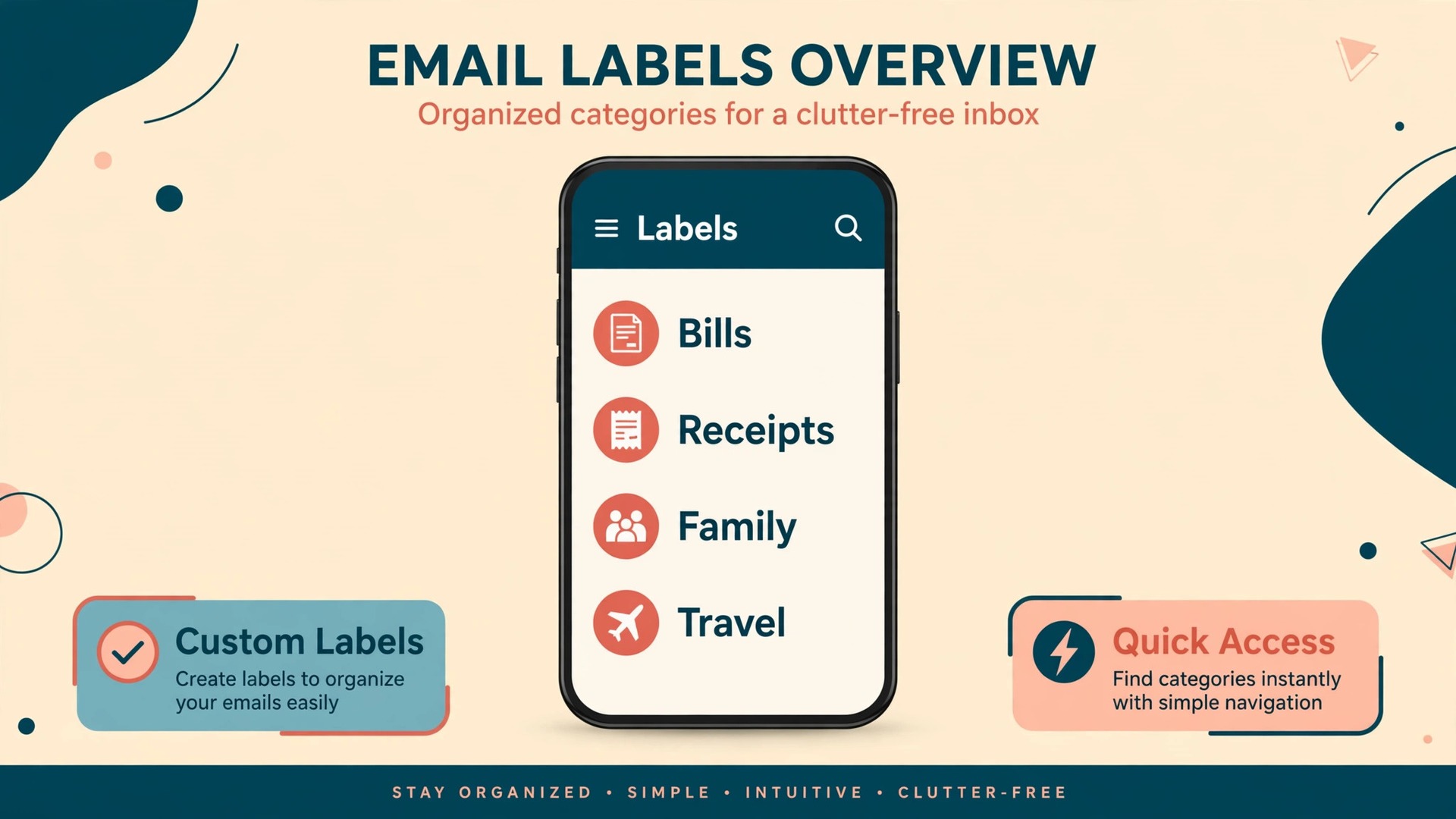
When you migrate Yahoo Mail to Gmail, Yahoo filters do not transfer, so rebuilding them is a job in its own right. Open your Yahoo filter list before you close Yahoo down, and write each filter in plain words, such as mail from your electricity provider goes to Bills. In Gmail, open Settings, choose Filters and Blocked Addresses, and create each filter again using the sender, subject, or keyword that defined it in Yahoo. Test each important filter by applying it to matching mail already in Gmail, because a filter built from memory often uses a slightly different sender address than the real one.
Use Gmail categories and labels together rather than copying Yahoo habits exactly. Gmail already sorts mail into Primary, Social, and Promotions tabs, so a Yahoo filter that filed every newsletter into a folder may be unnecessary if the Promotions tab handles it well enough. Keep filters for the cases that matter, such as bills, receipts, school mail, and client mail, and let Gmail tabs handle the rest. For each rebuilt filter, decide whether the mail should skip the Inbox, get a label, or get starred.
Your Yahoo signature, blocked sender list, and vacation response need the same treatment. Recreate your signature in Gmail settings, block the Yahoo senders that still matter, and set a Yahoo auto response for the transition month that tells senders your new Gmail address. That auto response is a signpost, not a forwarding rule, because free Yahoo accounts do not forward automatically. Sending from your old address during the transition is possible but should be temporary. Gmail lets you add another address under Send mail as in Accounts and Import, and Yahoo sending uses its SMTP server, commonly on port 465 with SSL or port 587. Use this only for replies to threads that started at your Yahoo address.
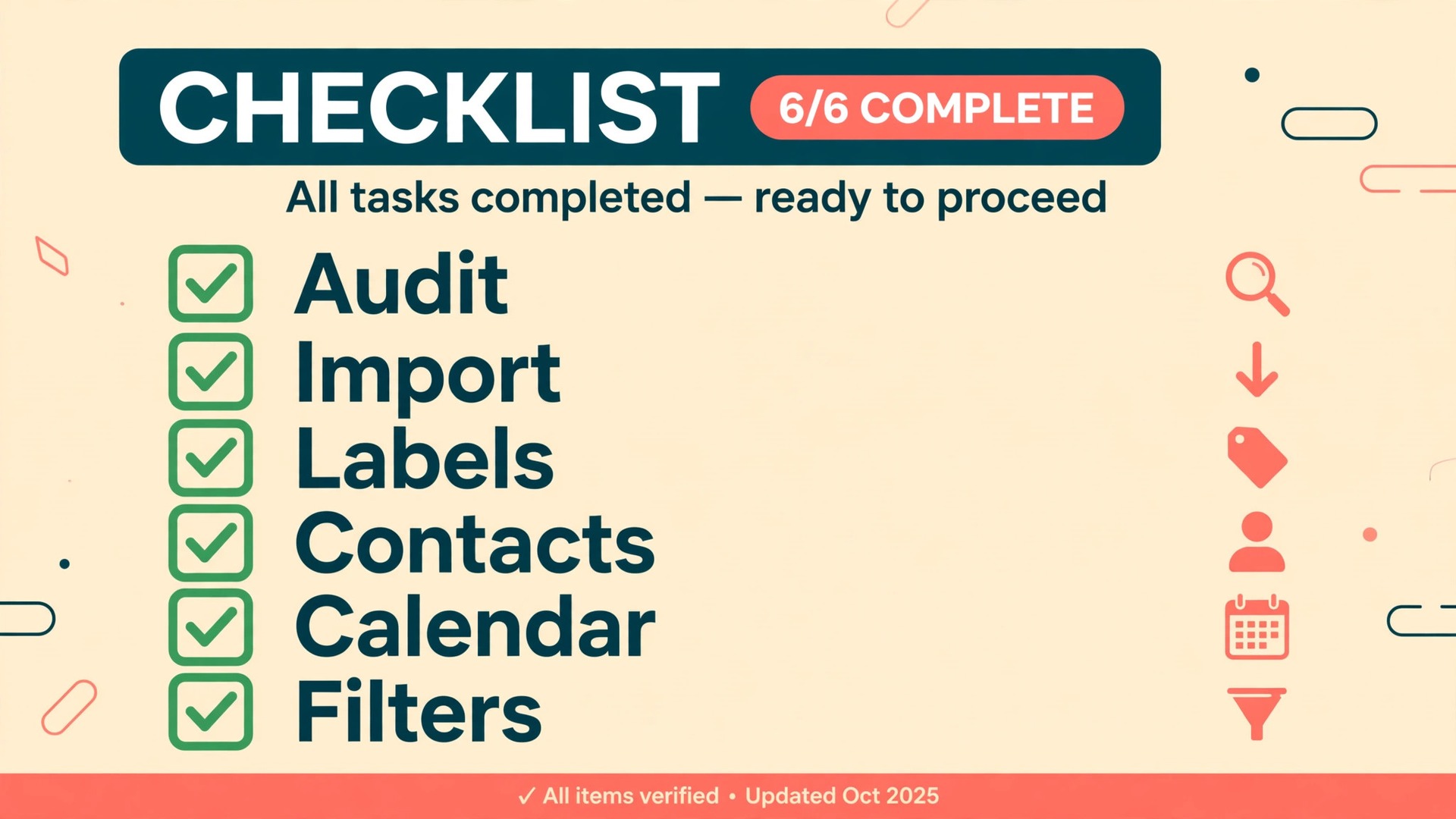
Your Import Checklist
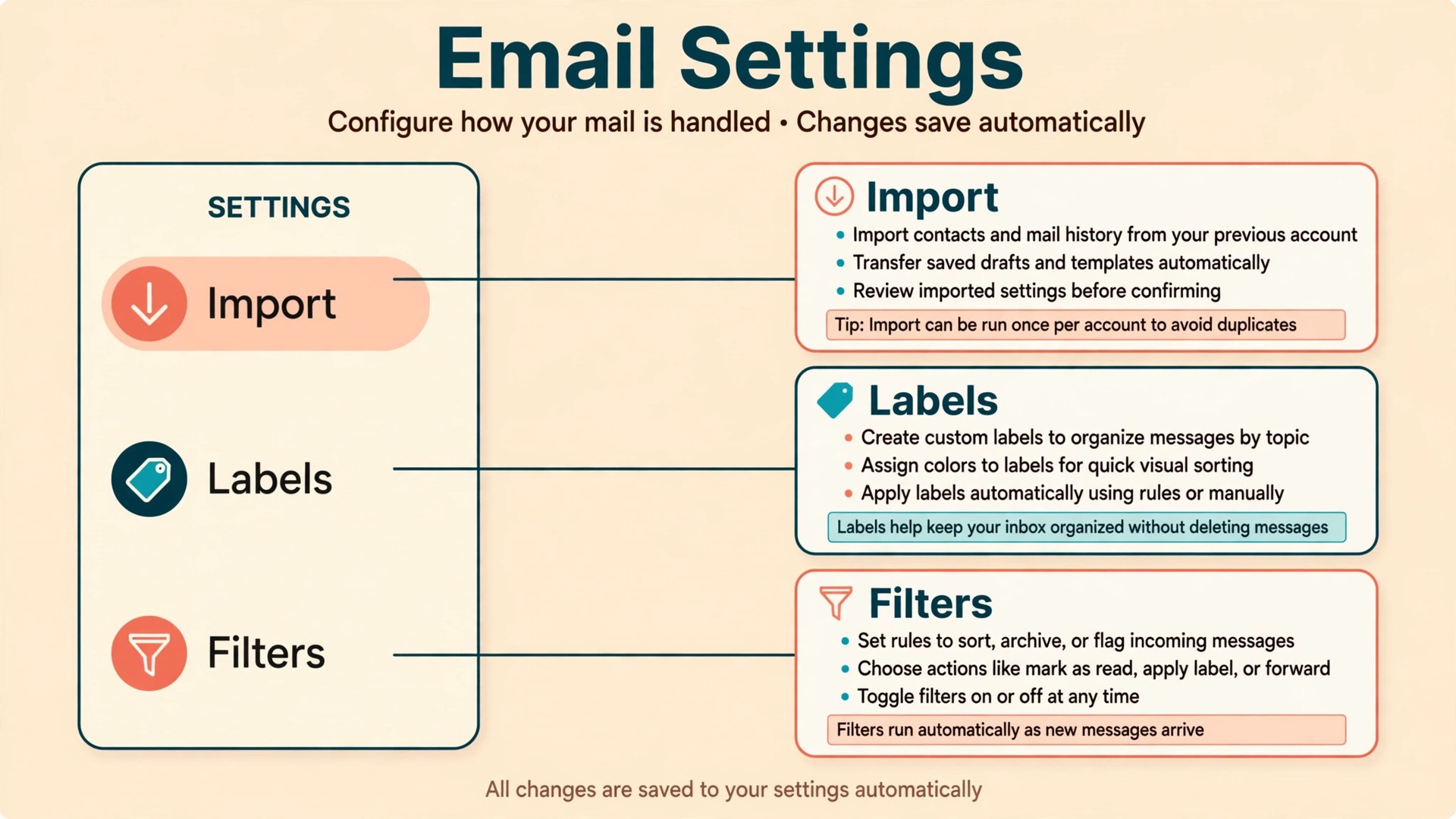
Use this checklist in order when you migrate Yahoo Mail to Gmail, and do not tick a box from memory. Open Gmail, check the item, then tick it. The checklist is the proof that the move worked, and it is far more useful than a general feeling that most of the mail arrived.
- Audit finished, with every Yahoo folder listed and Trash and Spam cleared of anything worth keeping
- Mapping table finished, with one Gmail label chosen for every folder you care about
- Gmail storage checked, with room for the full Yahoo mailbox plus a margin for new mail
- Two step verification on for both accounts, and Yahoo sign in tested on a computer
- Import started from Gmail Settings, Accounts and Import, with contacts, mail, and the 30 day new mail option all ticked
- Import completion notification received, not assumed, before any Yahoo mail is deleted
- Spot checks passed for a sender from each major folder, a thread with an attachment, a thread from last year, and a thread from this week
- Imported mail labelled folder by folder using the mapping table, with nested labels created and starred threads re-starred
- Contacts checked in Google Contacts, with five frequent contacts, one rare contact, and one phone only contact all correct
- Each Yahoo calendar imported into its own Google calendar, with a recurring event, an all day event, and an event with a guest all checked
- Filters rebuilt in Gmail and tested, with bills, receipts, school, and client filters all correct
- Senders updated for banks, shops, schools, and subscriptions, starting with services that send money or security codes
- Yahoo auto response set for the transition month, pointing senders to your new Gmail address
- Yahoo mailbox left untouched for at least 30 days after import, with no deletion and no closure until every check above passes
If any box fails, stop and fix that box before moving on. A failed spot check for one folder usually means that folder needs the IMAP repair copy described earlier, not a full restart. A failed contact check usually means a CSV export and import will fix it faster than rerunning the whole mail import.
What to Do With the Yahoo Account Afterwards
For the first 30 days, treat Yahoo as a safety net, not as a second inbox. Check it once or twice a week for mail the importer window missed, such as mail from a sender who only writes rarely. Reply to anything important from Gmail, not from Yahoo, so the thread continues under your new address. Keep a running list of senders who still write to Yahoo, and update them in batches, starting with money, security, work, and school, then moving to shops and newsletters.
After the 30 day window ends, new Yahoo mail will no longer flow into Gmail automatically, so the update work must be done, not deferred. Confirm each service from your audit list now uses Gmail. Check password recovery settings for important accounts, because many services send a reset code to the email on file, and an old Yahoo address you no longer check can lock you out of an account you still need. When you migrate Yahoo Mail to Gmail, this recovery update is easy to forget and painful to discover later, so do it in the transition month.
Only then decide the long term fate of the Yahoo account. You can keep Yahoo as a free archive, signed in occasionally, with two step verification on, as a second copy of old mail. You can keep it only as a sign in address for old services while doing all mail in Gmail. Or you can close it, but only after you have exported a final copy of any mail, contacts, and calendar data you still need, and only after a full month with no important mail arriving there. Never close Yahoo in the same week as the import.
If Something Goes Wrong, Use This Rollback Plan
The core fact that makes rollback possible when you migrate Yahoo Mail to Gmail is that the importer copies mail, it never deletes your Yahoo originals, so every step below starts from a Yahoo mailbox that is still intact. That is why no step in this guide deletes Yahoo mail early.
If the import stalls, stop it in Gmail settings, fix storage or sign in, and restart it. If the import finishes but counts look wrong, compare folder by folder rather than trusting a total. Open Yahoo, note the message count in one folder, then search Gmail for that folder’s senders and compare. If one folder is short, copy just that folder by the IMAP route and label it correctly. If the import landed in the wrong Gmail account, which happens when several Google accounts are signed in at once, do not delete anything yet.
Sign in to the correct Gmail account, run the import there, and only delete the wrongly imported mail from the first account after the correct import is verified.
If contacts or calendar events are wrong, roll back that workload alone. Delete the badly imported contacts or the wrongly merged calendar in Google, then re-import from the Yahoo CSV or ICS file you kept. Keep those export files on your computer until the move is fully verified, because they are your rollback copy for contacts and calendar in the same way Yahoo itself is your rollback copy for mail.
Mistakes That Cost People Old Mail
The first mistake is importing before mapping. When people migrate Yahoo Mail to Gmail without a plan, they press Start import on a Friday night, wake up to a flat pile of mail under one label, and then face the dull job of labelling thousands of threads without a guide. The mapping table exists to prevent exactly that, and it takes less time than the labelling pass it guides. The second mistake is deleting Yahoo mail during the import wait. Deleting the source while the copy is still running removes the safety net for the very mail that has not arrived yet.
The third mistake is trusting a total count. A mailbox can show the right total while one folder is missing and another is duplicated, because duplicates and gaps can cancel each other out in a headline number. Check folder by folder, sender by sender, and year by year for the folders that matter most, such as bills, tax, and client mail. The fourth mistake is forgetting the non mail items. Contacts, calendar events, filters, signatures, and blocked senders all feel minor until a meeting invite goes missing or a bill filter stops filing. Give each of those items its own check on the import checklist, and do not call the move done until they pass.
For related reading, fix Gmail not receiving emails is the first place to check if new mail stops arriving after the move, AI tools for Gmail power users shows how to get more from Gmail labels, filters, and search once your mail is settled, and best AI email management tools can help tame a large imported inbox.
Frequently Asked Questions
Will I lose my Yahoo folders when I move to Gmail?
You will not lose the messages, but you will lose the folder structure unless you plan for it. Gmail’s importer groups imported mail under one label, so use the mapping table in this guide to recreate each folder as a Gmail label, and use the IMAP folder by folder route if your folder names matter deeply. Your Yahoo originals stay untouched during import.
How long does the move take?
The import itself can take a few hours for a small mailbox and up to a couple of days for a large one with many attachments. The full move takes longer, because labelling imported mail, checking contacts and calendar events, rebuilding filters, and updating senders all take time. Plan on a weekend for the import and labelling, plus a 30 day transition while contacts learn your new address.
Does Gmail import my Yahoo contacts and calendar?
Gmail’s importer copies contacts, and you should verify them in Google Contacts after import, fixing any gaps with a Yahoo CSV export. Calendar events do not move with the importer at all, so export each Yahoo calendar as an ICS file and import it into its own Google calendar, checking recurring events, all day events, and events with guests after each import.
Can I keep getting Yahoo mail in Gmail after 30 days?
The importer’s new mail window lasts 30 days, and after that you need senders to write to Gmail directly. Free Yahoo accounts do not offer automatic forwarding to Gmail, so use the transition month to update banks, shops, schools, and subscriptions, and set a Yahoo auto response that points senders to your new address.
What happens to my Yahoo account after I move?
Nothing happens automatically. Yahoo stays open, with your old mail still in it, until you decide otherwise. Keep it as a safety net for at least 30 days, update password recovery addresses for important services to Gmail, and only close it after the import checklist is fully ticked and a quiet month has passed. Keep your CSV and ICS exports even after closure, as a final backup.
Can I undo the move if Gmail does not suit me?
Yes, as long as you have not deleted or closed Yahoo. Your Yahoo mailbox stays intact during import, so you can keep using Yahoo, stop the Gmail import, and delete imported mail from Gmail if you change your mind. The work you would lose is the labelling, filter rebuilding, and sender updating you did in Gmail, which is why it is wise to keep Yahoo untouched until you are sure Gmail is the right home.
Keep the Labels, Keep the Mail, Then Let Yahoo Go
A good Yahoo to Gmail move is boring in the best sense. You audit first, you map every folder to a label, you import, you label the result folder by folder, you move contacts and calendar events on their own tracks, you rebuild filters and test them, and you keep Yahoo alive as a safety net for a full month. Together those steps are what separate a move you trust from a move that leaves you searching for a bill you know you filed somewhere.
Start today with the audit, not with the import button. List your Yahoo folders, fill in the mapping table for the folders that matter, and check your Gmail storage. If the folder list is short, run the built-in importer this weekend to migrate Yahoo Mail to Gmail and spend the labelling pass turning the flat result into a filing system. If the folder list is long, use the IMAP route for the folders whose names carry real meaning. Either way, wait for the completion notice, work the checklist honestly, and let Yahoo go only when Gmail has proven itself for a month.