
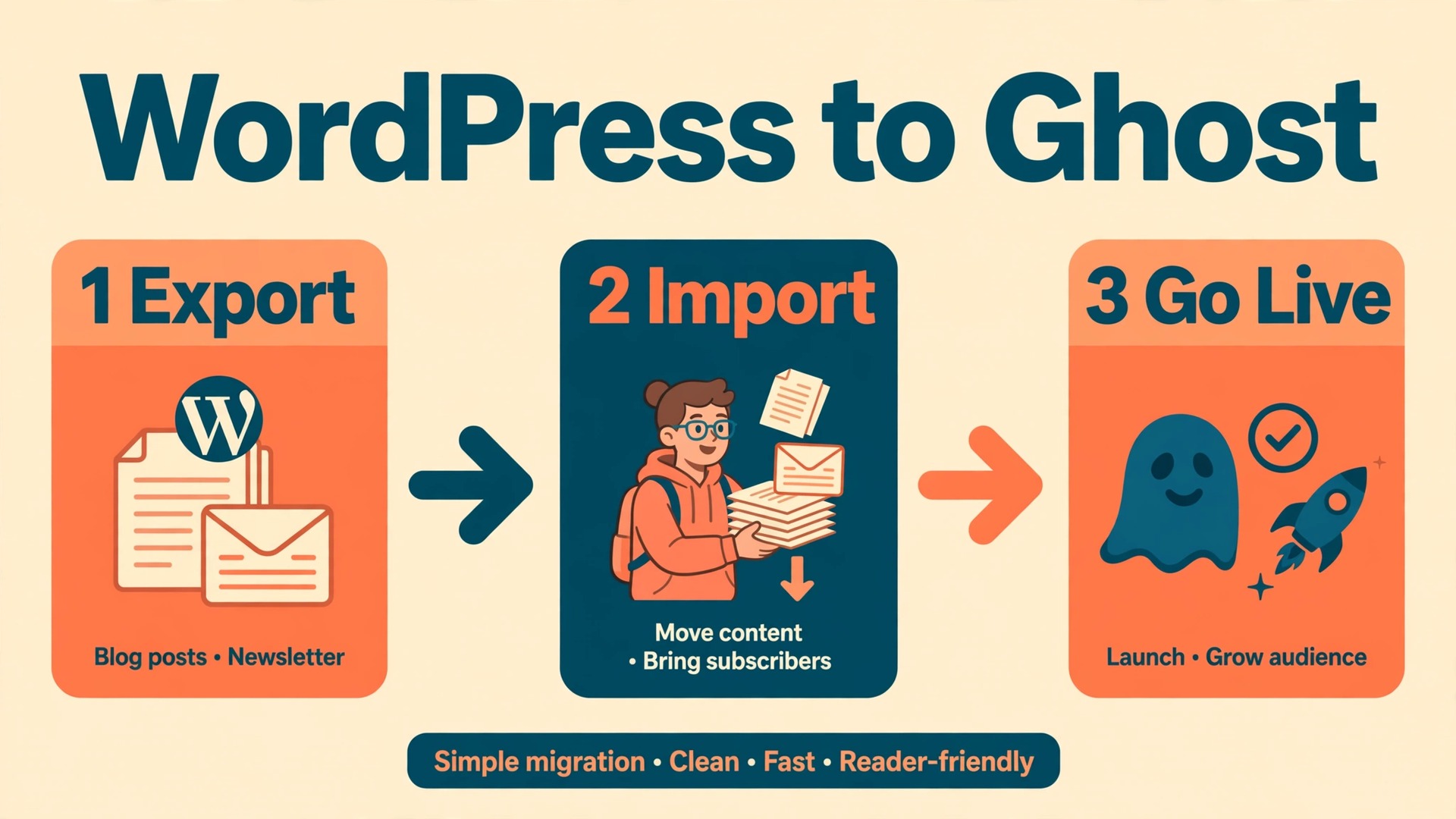
If your blog has become mainly a publication with a newsletter and a paid tier, and WordPress maintenance now takes more time than writing, you should migrate WordPress to Ghost. If your site is really a shop, a course platform, a forum, or a directory held together with plugins, you should stay on WordPress, because Ghost will not replace that machinery and rebuilding it will cost more than the move saves.
That verdict is the whole decision in one paragraph, and the rest of this guide is the working detail behind it. Ghost is a publishing platform built around posts, members, and newsletters in one place. WordPress is a general website builder that can do almost anything with the right plugin. The first option gives you less to maintain and a faster path from a draft to a paid subscriber. The second gives you more freedom and more upkeep.
Who Should Move, and Who Should Stay
Ghost suits a blogger whose income or audience growth comes from published writing and email, which is why the decision to migrate WordPress to Ghost usually comes down to how much of the site is publication and how much is everything else. If you publish a few times a week, send a weekly newsletter, and either sell subscriptions or plan to, Ghost removes a whole layer of work. Membership, paid tiers, newsletters, and a member dashboard are built in, so you stop paying for and updating separate tools. The default output is fast, with clean HTML, a canonical URL, social sharing tags, structured data, and an XML sitemap generated without a plugin.
WordPress still wins for sites where publishing is only one job among many. A store with checkout rules, a membership site with drip content, a learning site with quizzes, or a business site with booking forms will all need plugin combinations that Ghost does not offer. Ghost has integrations, but it has no plugin store where you install a new feature in five minutes. Anything unusual has to be built into a theme, handled by an outside service, or dropped.
A useful test is to list the five things your site must do on launch day on Ghost, then check each one against Ghost itself. Can readers subscribe for free. Can paying members read gated posts. Can you send the newsletter from the same editor. Can your archive, about page, and contact page exist as posts and pages. Can your design be rebuilt with a Ghost theme. If one of the five depends on a WordPress plugin with no Ghost equivalent, keep WordPress for that job.
How to Migrate WordPress to Ghost Without Losing a Post
Start with an audit before you export anything. Count published posts, drafts, pages, categories, tags, authors, and media files in WordPress. Then list your 50 most visited posts, your 20 most linked posts, and every page that earns money or collects signups. Those lists become your test set later, and posts on them get checked by hand after import. The audit also exposes dead weight that should not move, meaning test posts, duplicate pages, and unfinished drafts from years ago. Leave those behind.
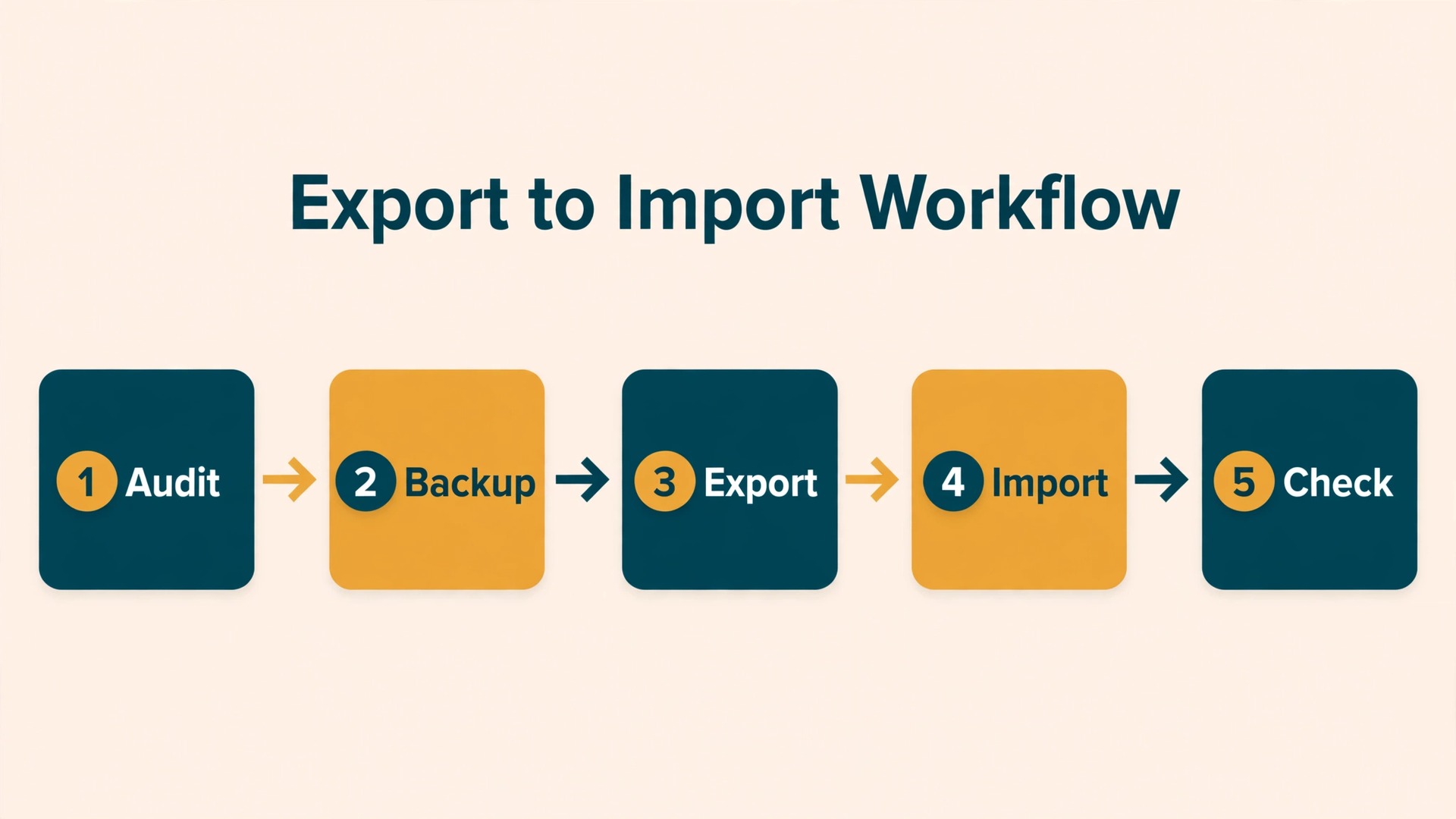
Take a full backup of the WordPress site before you touch the export, and keep it somewhere outside the hosting account. The export file is not a backup. It does not carry your theme, your plugins, your settings, or your media files themselves. Do not close, cancel, or repoint anything until the new site has passed every check in the go-live list near the end of this guide.
Two Export Routes, and Which One to Pick
When you migrate WordPress to Ghost, Ghost provides an official WordPress plugin, called Ghost, that exports your content in a JSON format Ghost can import directly. Install it from the WordPress plugin directory, activate it, and use its export screen under Tools to download the file. This is the route most bloggers should use, because it handles posts, pages, tags, authors, and images in one pass. The second route is the built-in WordPress export under Tools, then Export, which produces a WXR file in XML format. That file is useful as a spare copy, but it carries references to your images rather than the image files themselves.
Either way, understand what the export will not carry. Categories do not transfer as categories, because Ghost organises content with tags, so convert important categories to tags before you export. Comments do not transfer, because Ghost has no built-in commenting system. Custom post types, custom fields, shortcodes, and plugin data do not transfer either, so a post that depends on a shortcode will arrive with that shortcode as plain text or as a gap. Passwords never transfer, so every author will reset their password on Ghost after import.
The Post and Member Mapping Table
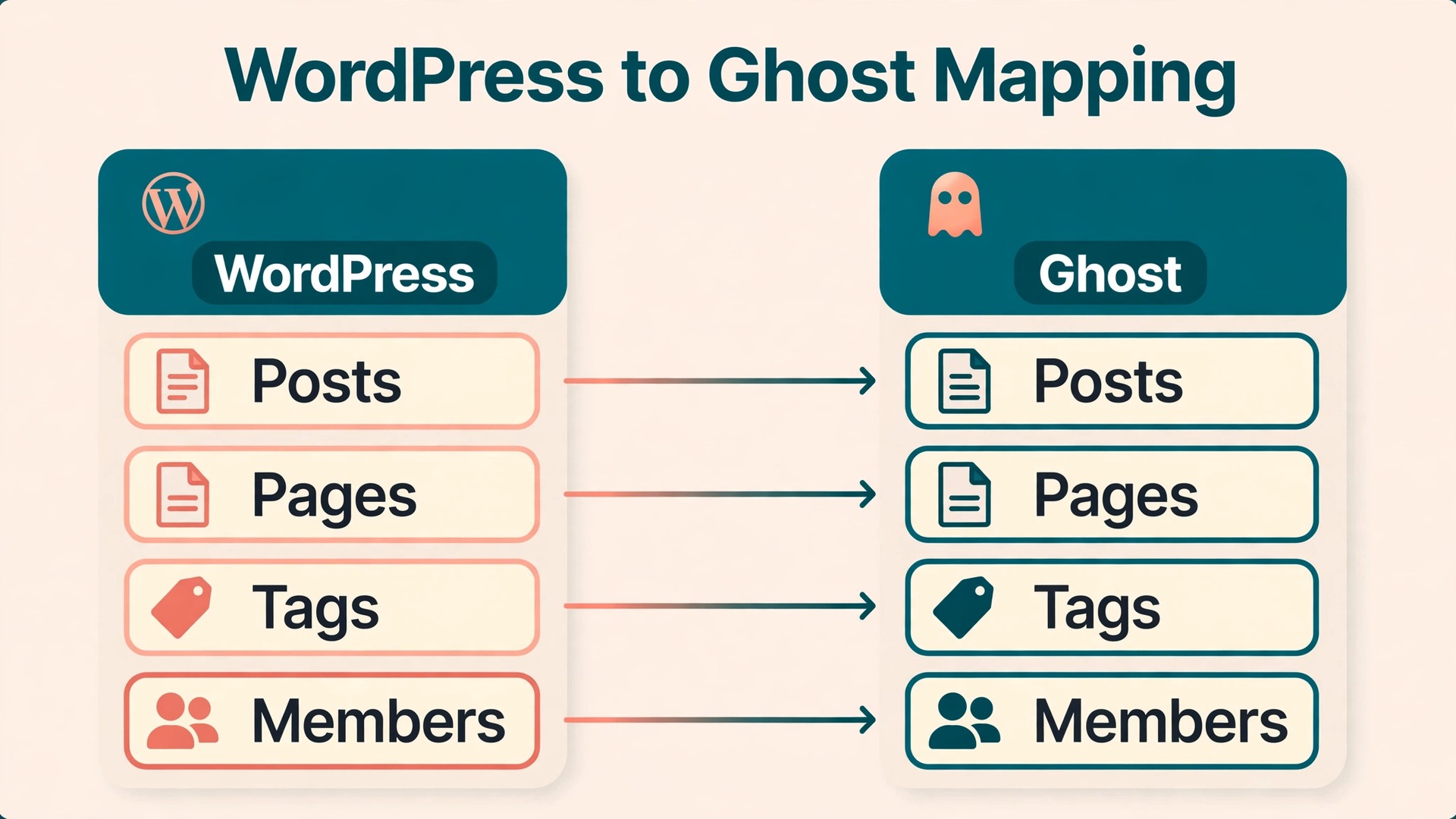
The table below is the heart of the move, because it shows what each WordPress piece becomes on Ghost and what you must do about the pieces that have no direct equivalent. Read it before you import, not after, so the surprises arrive while you can still fix them on WordPress.
| WordPress piece | What it becomes on Ghost | What you must do |
|---|---|---|
| Published posts | Published posts, with title, slug, content, and publish date | Check formatting on your top 50 posts by hand |
| Draft posts | Draft posts on Ghost | Finish or delete them before launch |
| Pages | Pages, including about, contact, and landing pages | Rebuild any page that relied on a plugin or page builder |
| Categories | Nothing directly, so rebuild them as tags | Convert key categories to tags before export |
| Tags | Tags, attached to the same posts | Merge duplicate and near-duplicate tags after import |
| Authors | Staff users or authors, with name and profile | Invite authors again and ask each one to reset their password |
| Featured images | Featured images on the matching posts | Check the top posts first |
| In-content images | Images inside posts, fetched from the old site | Keep WordPress live until images are verified |
| Comments | Nothing built in, so comments do not carry over | Pick a comment tool, or close comments cleanly |
| Menus and navigation | Navigation set in Ghost admin | Rebuild primary and secondary navigation by hand |
| Widgets and sidebars | Nothing directly, so rebuild as theme sections | Drop sidebar content that is not needed |
| Contact and signup forms | Nothing built in, so use an outside form service | Embed the new form and test it before launch |
| Membership plugin data | Member records, only through a CSV import | Follow the member steps in order |
| Newsletter subscribers | Members, through a CSV import | Clean the list and map consent before import |
| SEO titles and descriptions | Nothing automatic, so re-enter them | Export top post metadata and re-enter it on Ghost |
| Custom post types and shortcodes | Plain text or gaps, with no automatic conversion | Rebuild them as standard posts, or leave them behind |
Two rows deserve emphasis. The SEO metadata row matters because titles and descriptions do not ride along with the content import, so export them from your SEO plugin and re-enter them for your top posts. The shortcode row matters because a recipe card, a pricing table built by a plugin, or a quiz embedded by shortcode will not survive as a working feature, so rebuild those posts with native Ghost headings, lists, tables, and embeds.
Import Steps in Order
Set up the Ghost site on a temporary address first, not on your live domain, so you can build and test without breaking the live site. On Ghost(Pro) that means starting a trial site. On a self-hosted install it means using a staging subdomain.
- Create the Ghost site, choose a theme, and set the site title, description, and publication language.
- Import the Ghost plugin JSON file through Settings, then Advanced, then Import and Export, and check counts against your audit.
- Review the import report for skipped posts, missing authors, and failed images, and fix the source rather than ignoring it.
- Merge duplicate tags, rebuild navigation, and set the homepage and post layout.
- Work through the top 50 posts by hand, checking headings, images, lists, tables, and embeds.
- Re-enter SEO titles and descriptions for the top posts from your exported spreadsheet.
- Upload the redirects file, and test a sample of old URLs.
- Import members only after Stripe is connected.
- Send a test newsletter to yourself and a small internal list.
- Point the domain at Ghost only when every check above passes, and keep the WordPress backup for three months.
If the import report shows many failures, stop and find the cause before importing again on top of a partial import. Common causes are a file that timed out during export, images hosted on a domain that is already offline, and posts with broken HTML from an old page builder. Fixing the source and re-importing into a fresh Ghost site is usually faster than patching hundreds of broken posts one by one.
Images, Embeds, and Shortcodes After Import
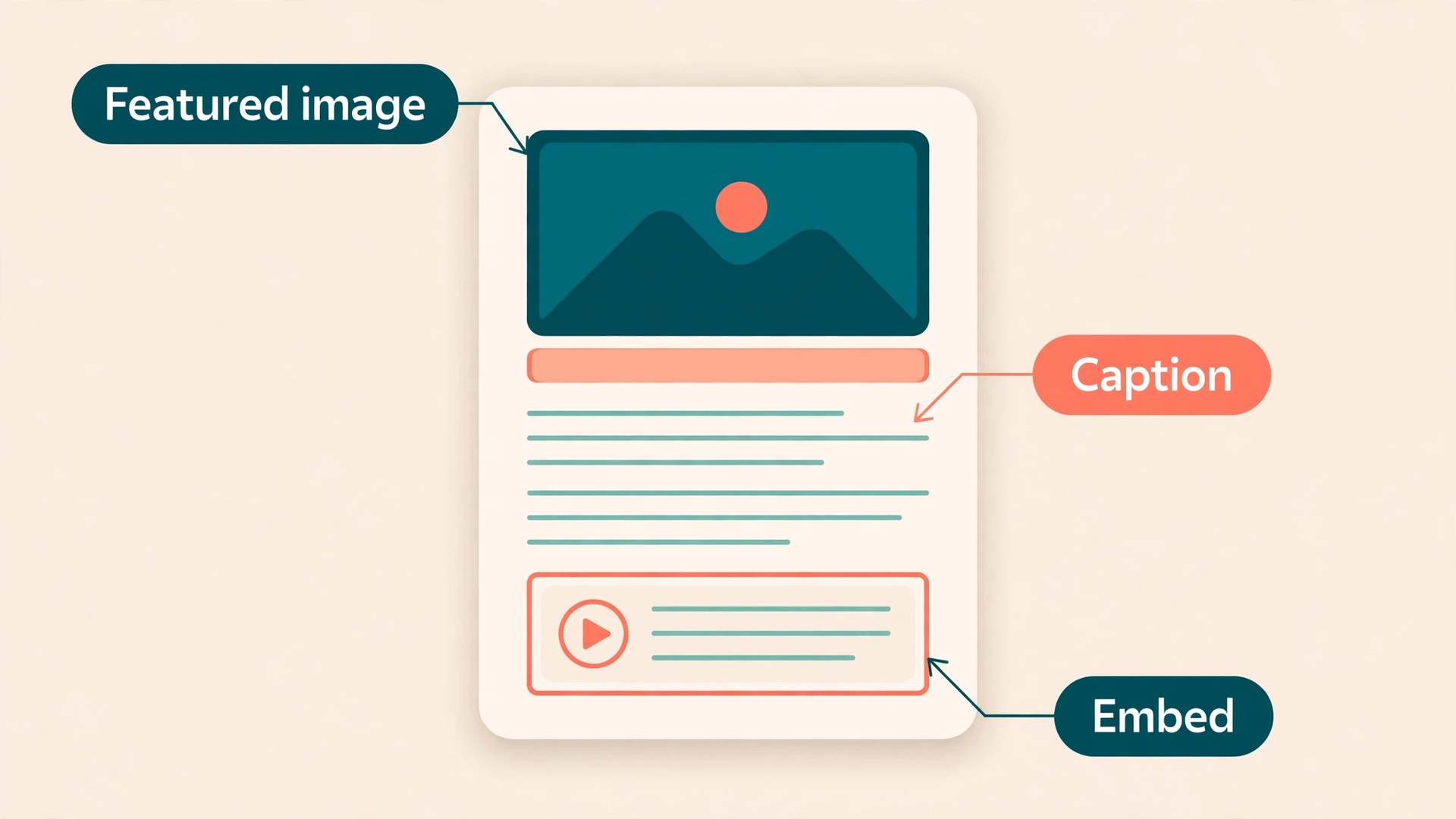
Images cause more visible damage than any other part of a migration, because a reader sees a broken image instantly while a broken tag is invisible. After import, check the featured image, every image inside the body, and every image caption on your top posts. A featured image that failed to transfer shows up as a blank header on the post page and on the homepage. A caption that carried a credit or a source link can arrive as plain text with the link stripped.
Embeds need a separate pass, because Ghost handles them differently from WordPress. A YouTube video, a tweet, a podcast player, or a social post embedded by pasting a URL into WordPress should be tested in Ghost preview, and replaced with a Ghost embed card where the old embed does not render. Test the five most common embed types on your site, not just one.
Shortcodes are the quiet failure. A post can look perfect in the editor and still contain a shortcode string in the published output, because the import preserved the text but Ghost has no plugin to run it. Search the imported content for opening square brackets, and work through the results post by post. A gallery shortcode becomes a Ghost gallery, a button shortcode becomes a button card or a plain link, a form shortcode becomes an embedded form from an outside service, and a table shortcode becomes a native table.
Themes, Design, and the Rebuild Nobody Can Skip
Your WordPress theme does not transfer to Ghost, and no converter will turn it into a Ghost theme. Ghost themes use Handlebars templates and are uploaded as a zip file in the theme settings, controlling the homepage, the post page, the tag pages, the author pages, and the member signup flow. A blogger who picks a well-made marketplace theme, changes the colours and fonts, and uploads a logo can be live in a day. A blogger who wants a pixel-perfect copy of a custom WordPress design needs a developer and a week or more, and should get a quote before committing to the move.
Start from the default Ghost theme or a marketplace theme that already looks close to what you want, and change it in small steps. Set the brand colours, the fonts, the logo, and the cover image first, then check the site on a phone, because most readers will meet the new design on a small screen.
Custom code belongs in the theme or in the code injection settings, not scattered across posts. Move custom CSS for callouts, tables, or buttons into the theme or header injection, and test it on a post that uses each element. Rebuild page-builder landing pages as Ghost pages with native content, and accept that they will look simpler.
This is the section where order matters most, because a member import done in the wrong order can leave paying readers locked out of content they already paid for. Ghost membership runs through Stripe, and Ghost itself takes no percentage of your membership revenue, which is one of the strongest reasons to move. Standard Stripe processing fees still apply to each payment, so your revenue is not free of fees, but no platform cut is taken on top.
Connect Stripe Before You Import Anyone
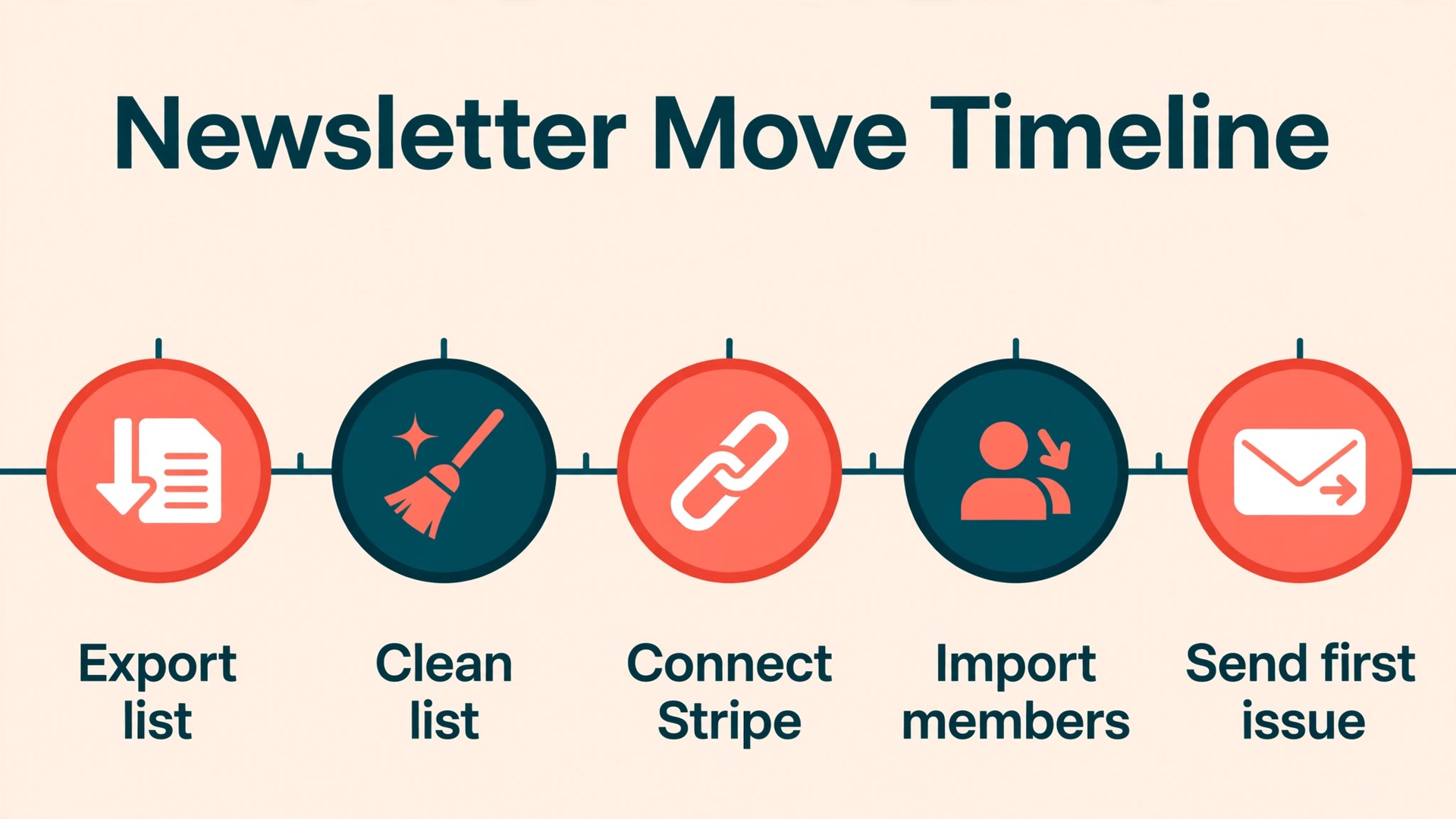
Connect the same Stripe account you already use for paid memberships before you import a single member record. Ghost matches imported paid members to their Stripe customer records, and that match only works if the Stripe account is connected first and is the same account that holds the live subscriptions. For members billed outside Ghost, such as through invoices, Ghost supports complimentary subscriptions, but Stripe still needs to be connected before those can be added.
WordPress membership plugins vary, and the export path depends on which one you used. A plugin that bills through Stripe subscriptions gives the cleanest path, because each paying member has a Stripe customer record that Ghost can match. A plugin that bills through PayPal has no clean path into Ghost, because Ghost payments run through Stripe only, so those members must resubscribe through Stripe or receive complimentary access until their current period ends, and you should tell them which option applies before the move.
Your newsletter list is the asset that pays for the move, so treat it with more care than the post archive. A post can be fixed after launch. A subscriber who marks your first Ghost email as spam because it arrived without warning, or who never receives it because the import dropped their consent flag, is much harder to win back. Work through these steps in order, and do not skip the cleaning step.
- Export the subscriber list from WordPress, your email tool, or both, and merge them into one spreadsheet with duplicates removed.
- Remove hard bounces, addresses that never engaged, and anyone who unsubscribed, and keep the unsubscribe list as a suppression file.
- Add a column for consent source and signup date where you have it.
- Map each subscriber to a Ghost member field, meaning email as the required field, plus name, labels, and subscribed status.
- For paid members, add the Stripe customer ID column, or set it to auto so Ghost searches the connected Stripe account for that email.
- For members who should keep access without a live Stripe subscription, set the complimentary plan flag, and check that a paid tier exists first.
- Import the CSV in Ghost admin, and wait for the completion email before you assume the import finished.
- Check imported counts against your spreadsheet, then verify a sample of free, paid, and complimentary records.
- Set up the sending domain and sender name, and confirm replies go to an inbox you read.
- Send a test issue to yourself and a small internal group, checking the subject line, preview text, images, links, and unsubscribe link.
- Send the first live issue as a short note about the move, explaining what changed and how members can manage their subscription.
- Watch the first send for bounces, spam complaints, and replies, and fix any delivery problem before the second issue.
Multiple newsletters need one extra decision before import. The import setting for email subscription controls which newsletters a new member joins. A member imported with email subscription turned on joins the newsletters set to subscribe new members automatically, while a member imported with it turned off is unsubscribed from all newsletters. Set those defaults before import, and check a sample member from each segment after import.
Tell readers about the move in the last WordPress email and in the first Ghost email, using the same words in both. The first Ghost issue should name the old site, name the new system, and link to the member account page, so no reader mistakes it for a phishing attempt.
SEO, URLs, and Redirects That Protect Your Rankings
Search traffic is the part of a migration that cannot be fixed with a quick edit after launch, because a lost ranking takes weeks to recover even when the fix is perfect. The rule is simple. Every URL that earned traffic or links on WordPress must either stay the same on Ghost or redirect permanently to its new home. Ghost post URLs follow the form of a slash, then the post slug, then a slash, while WordPress URLs may include a date, a category, or a blog prefix. If your WordPress permalinks already use the post name only, many URLs will match automatically.
Ghost handles redirects through a redirects file in YAML format, uploaded in the admin under the migration and redirect settings. Each entry pairs an old path with a new path under a 301 heading for permanent moves, and 302 entries are reserved for temporary moves you expect to reverse. For a date-based WordPress structure, a pattern rule can strip the year, month, and day from the old path and send the reader to the post slug alone. Test each pattern on a handful of real URLs before you upload the full file.
Build the redirect list from your audit, not from memory. Export the WordPress URL list, compare it with the Ghost URL list after import, and write a redirect for every old URL that does not match a live Ghost URL. Pay special attention to tag and category pages, author pages, and paginated archive pages. Where an old tag has no Ghost equivalent, redirect it to the closest live tag or to a relevant post, and never redirect everything to the homepage.
After launch, crawl the new site and check the old URL list, fixing every 404 that carries traffic or links. Update your sitemap submission in Search Console, and keep the old WordPress site accessible on a private address for a few weeks. Rankings usually wobble briefly after any platform move, so judge the result after four to six weeks.
For a blogger weighing this move alongside other platform choices, our guide to WordPress alternatives sets out where Ghost sits among the options, and our guide to writing tools for bloggers can help with drafting once the new editor is in place.
Ghost Hosting Options and Real Costs
Ghost gives you two routes, and the right one depends on how much server work you want to own, so price the decision to migrate WordPress to Ghost on total cost and total time, not on the server line alone. Ghost(Pro) is the official managed service, where hosting, updates, backups, SSL, a content delivery network, and email delivery are included in the monthly price. Self-hosting means you install the free open-source Ghost software on your own server and handle updates, backups, security, and email delivery yourself.
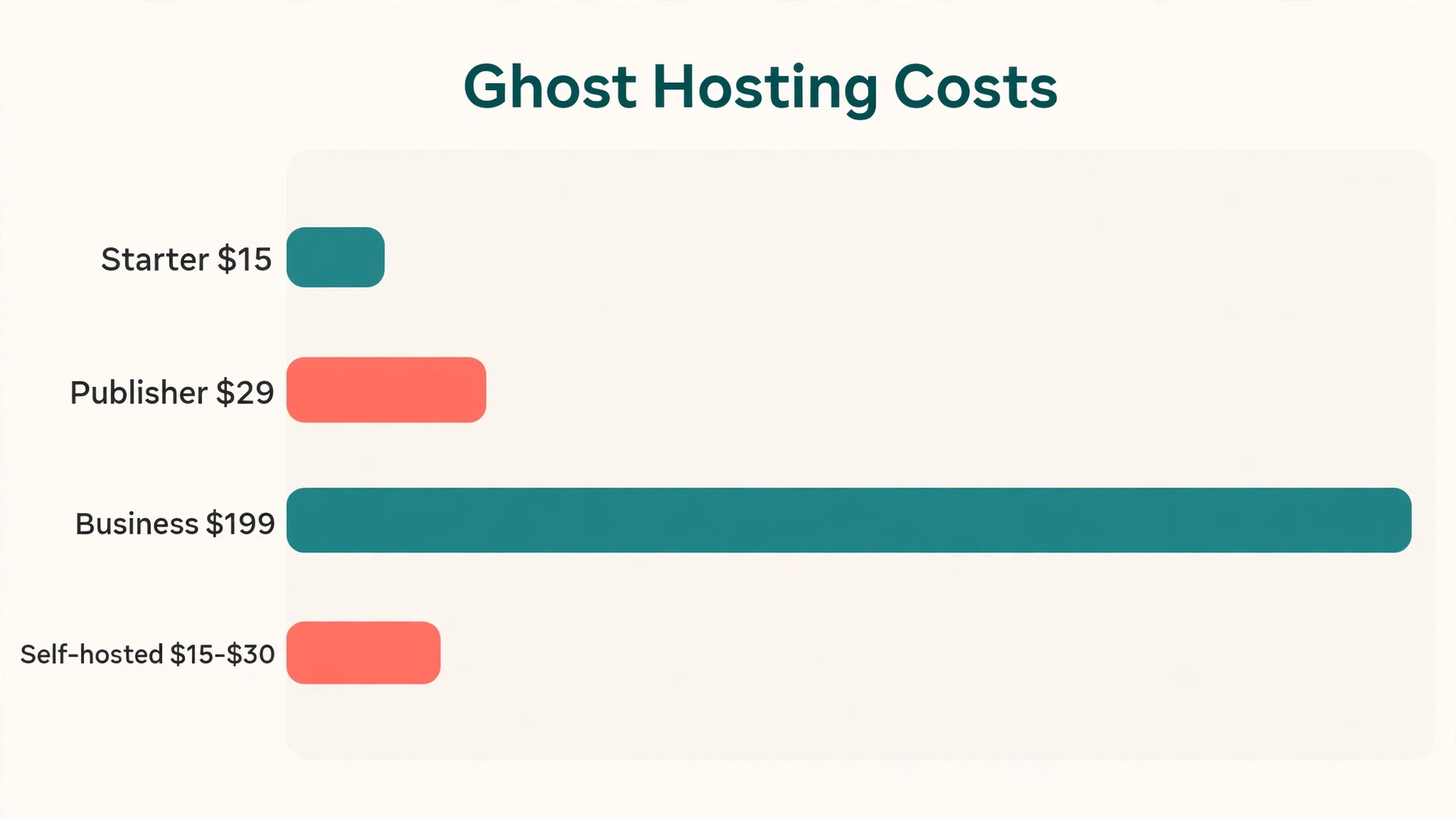
Ghost(Pro) pricing is tiered by member count, and the price rises as your list grows, so check the current pricing page before you buy, because plan names and prices have changed before. At the time of writing, Starter costs 15 dollars per month billed yearly, or 18 dollars billed monthly, for up to 1,000 members with one staff user, a free newsletter, and the default theme only. Publisher costs 29 dollars per month billed yearly, or 35 dollars billed monthly, for up to 1,000 members with three staff users, custom and marketplace themes, and paid subscriptions at no platform fee.
Business costs 199 dollars per month billed yearly, or 239 dollars billed monthly, for up to 10,000 members with 15 staff users and priority support. Publisher pricing rises with member count, reaching about 63 dollars per month billed yearly at 5,000 members.
| Hosting route | Monthly cost at small scale | What is included | Best for |
|---|---|---|---|
| Ghost(Pro) Starter | 15 dollars billed yearly | Hosting, updates, backups, SSL, CDN, email delivery | A free newsletter and blog with one author |
| Ghost(Pro) Publisher | 29 dollars billed yearly | Starter, plus custom themes and paid subscriptions | A blogger who sells subscriptions |
| Ghost(Pro) Business | 199 dollars billed yearly | Publisher, plus more staff and priority support | A team publication with a large list |
| Self-hosted on a VPS | About 5 to 7 dollars for the server alone | Software only, so you add email, backups, and updates | A technical blogger who wants full control |
| Self-hosted, realistic total | About 15 to 30 dollars in total | Server, email delivery, backups, domain | A technical blogger who wants control without surprises |
Self-hosting looks cheaper on the server line, and it is, but the realistic total is higher than the server price alone. A small virtual server costs about 5 to 7 dollars per month, then you add a bulk email service, because self-hosted Ghost uses Mailgun for bulk sending, plus backups and a domain, which brings the realistic total to about 15 to 30 dollars per month for a small publication. You also pay in time for updates, security patches, and server problems.
Compare the total honestly with your current WordPress bill, not just with the hosting line. WordPress hosting plus a premium theme, a membership plugin, an email service, and a backup tool can easily pass the Ghost(Pro) Publisher price, and the WordPress total grows with each plugin renewal.
A 14-day free trial with no card required is available on Ghost(Pro) plans. Use it for the staging site, importing content, testing the theme, and sending a test newsletter, all before you pay or point a domain.
The Go-Live Checklist for a Blogger
Run this checklist in order, and do not point the domain until every item passes. A checklist item that fails is a launch blocker, because readers and search engines will meet the failure before you do.
- The WordPress backup is stored outside the hosting account.
- Import counts match the audit.
- The top 50 posts read correctly, with images, captions, lists, tables, and embeds checked.
- Navigation, homepage, tag pages, and author pages all load correctly.
- SEO titles and descriptions are re-entered for the top posts.
- The redirects file is uploaded, and a sample of old URLs lands on the right new pages.
- The theme looks correct on a phone and a desktop.
- Stripe is connected to the same account, and member counts match.
- A sample of free, paid, and complimentary members shows correct status.
- The sending domain is set, and a test newsletter renders correctly.
- Forms work, and the contact page lists a monitored address.
- The sitemap loads, Search Console is updated, and analytics are installed.
- The first Ghost email about the move is drafted, with an account link.
- The old WordPress site stays live on a private address for a few weeks.
After launch, check the 404 log, the member inbox, the newsletter bounce rate, and the top 20 posts by traffic every day for two weeks, fixing problems the same day they appear. At the end of the first month, compare traffic, subscriber growth, and paid conversion with the same period before the move.
If you are planning the audience side of the move as well, our guide on how to start a newsletter with AI covers list building, and our guide on how to monetize a blog with AI covers revenue options beyond subscriptions. Plan that side early if you migrate WordPress to Ghost with a paid list, because the member import and the first email matter more than the theme.

Frequently Asked Questions
Will I lose my Google rankings if I move from WordPress to Ghost?
Not if the URLs are handled correctly. Keep the same slugs where you can, redirect every changed URL permanently with a 301 redirect, re-enter SEO titles and descriptions for your top posts, and submit the new sitemap. Expect brief ranking movement while search engines recrawl the site, then judge the result after four to six weeks. Most lasting losses come from missing redirects or missing metadata, not from the platform itself.
Does Ghost import my WordPress categories?
No, not as categories. Ghost organises content with tags, so convert your most important categories to tags before export, then merge duplicates after import. Posts keep their content and tags, but category archive pages do not transfer, so redirect old category URLs to the matching tag pages.
What happens to my WordPress comments?
Comments do not transfer, because Ghost has no built-in commenting system. You can add a comment tool through an integration, keep the old site readable as an archive, or close comments and start fresh on Ghost. Tell readers which option you chose in the announcement email.
Can paid members keep their subscriptions without paying again?
Yes, provided their subscriptions run through Stripe and you connect the same Stripe account before import. Ghost matches the member record to the Stripe customer record, so billing continues without re-entering payment details. Members billed through PayPal cannot carry billing over automatically, because Ghost payments run through Stripe only, so those members must resubscribe through Stripe or receive complimentary access until their current period ends.
Is Ghost cheaper than WordPress for a blogger?
It depends on what you count. Cheap WordPress hosting alone is cheaper than Ghost(Pro), but WordPress hosting plus a membership plugin, an email service, a premium theme, and backup tools often costs more than Ghost(Pro) Publisher. Self-hosted Ghost can cost about 15 to 30 dollars per month in total for a small publication, but it costs your time for updates and server care.
How long does a WordPress to Ghost move take for a typical blog?
A small blog with under 200 posts, a simple theme, and no paid members can move in a weekend, with most time spent checking posts and rebuilding navigation. A blog with paid members, a custom design, and hundreds of posts should allow two to four weeks. The import itself is the fast part. The checking, the redirects, and the member testing are what take the time, and rushing them is how launches fail. If you migrate WordPress to Ghost, budget the checking time first and the import time second.
Your Move, On Your Terms
Ghost is not a better WordPress. It is a smaller, sharper tool for a narrower job, and that narrowness is the whole appeal for a blogger whose job is writing, sending, and selling subscriptions. If that describes your site, the move will feel like clearing a desk that had grown cluttered with tools you stopped using. If your site needs the wider WordPress toolbox, staying is a correct decision made with open eyes.
Move when the audit says your site is a publication, move in a quiet week, move with a backup and a redirect list, and move your members with Stripe connected before a single record is imported. When you migrate WordPress to Ghost on that basis, the platform stops being the project and the writing becomes the project again.