

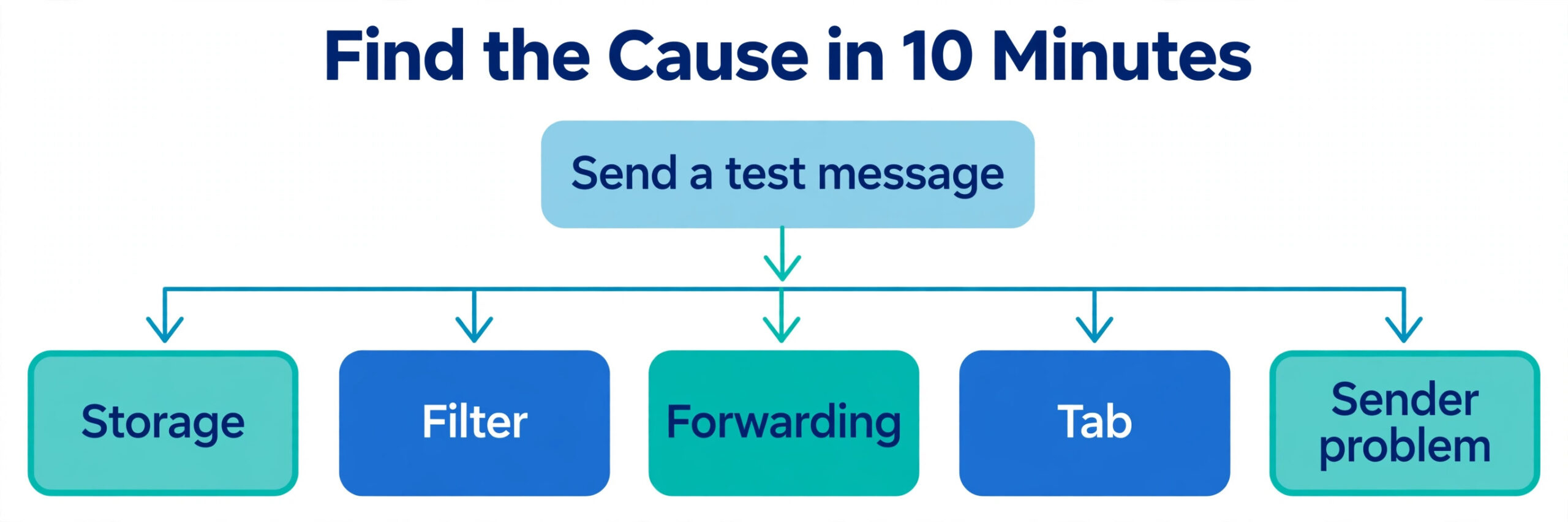
The verdict is simple, and it saves most people an hour of random clicking. When Gmail stops receiving mail, the cause is almost always one of five things, and they are worth checking in this order. Your storage is full, a filter is skipping or deleting mail, forwarding is sending mail somewhere else, the sender is blocked or their mail is landing in a tab you never open, or the sender has a delivery problem on their side. To fix Gmail not receiving emails, work through those five causes in order, and stop as soon as mail starts flowing again, because the first cause you find is usually the only one that matters.
This guide is built as a checklist by cause, not as a list of vague tips. Each section tells you exactly where to click, what a healthy setting looks like, and what to change. It also covers the filter audit steps in full, because filters are the most common silent cause, and they are the easiest to miss. Prices and limits quoted here reflect publicly listed figures checked in October 2026, and you should check the official pricing page and checkout before paying for extra storage, because Google One prices vary by country and plan.
Start With the 10 Minute Triage
Before you change any setting, run a fast triage that tells you which cause to chase. This step matters because it stops you from deleting filters or buying storage for a problem that was really a sender error or a tab you had not checked. To fix Gmail not receiving emails, start by sending yourself a test message from a different account, not from the same Gmail address. If that test arrives, your account can receive mail, and the problem is probably limited to one sender, one filter, or one tab. If the test does not arrive within five minutes, the problem is more likely account wide, which points to storage, forwarding, or a wider outage.
Next, search for the missing message instead of browsing the inbox. In the Gmail search box, type the sender address on its own. Gmail search looks in every folder except Spam and Trash by default, so a message that appears in search but not in your inbox has been filed, labelled, or sent to a tab, not lost. Then open Spam and Trash directly and search there too, because a message marked as spam by mistake will not show in a normal search. Also open All Mail, which shows every message except Spam and Trash, and look for the sender there.
If you find the message in All Mail, it was archived or filtered out of the inbox, and the fix is a filter or label change, not a delivery repair.
Check the storage bar at the bottom of the inbox on desktop, or open the Google One storage page, and note the percentage used. A free Google account gets 15 GB shared across Gmail, Google Drive, and Google Photos. When that shared pool fills up, Gmail can stop sending and receiving, and senders may get a bounce message. This is the single most misunderstood cause, because your inbox can look almost empty while Drive or Photos has filled the shared pool. If storage shows 100 percent or very close to it, jump straight to the storage section and free space before you touch anything else, because no filter fix will help while the account is full.
| Triage result | Most likely cause | Go to |
|---|---|---|
| Test mail arrives, one sender missing | Filter, block, tab, or sender problem | Filter audit and sender sections |
| Test mail does not arrive at all | Storage, forwarding, or outage | Storage and forwarding sections |
| Message found in All Mail | Archive or Skip the Inbox filter | Filter audit section |
| Message found in Spam | Spam filter or sender reputation | Spam and blocked sender section |
| Sender got a bounce | Storage full or sender error | Storage and bounce code sections |
How to Fix Gmail Not Receiving Emails When Storage Is Full
Storage is the first cause to rule out, because it blocks everything, and it is easy to confirm in under a minute. Open Google One storage or look at the storage bar in Gmail, and check the breakdown by Gmail, Drive, and Photos. Many people are surprised to find that Photos or Drive is the real hog, not email. A phone backing up full quality photos and videos can fill 15 GB faster than years of ordinary email, and a few large video files in Drive can do the same. The breakdown tells you where to clean, so you do not waste time deleting small emails while a single video file holds the account hostage.
If the account is full, free space in the order that gives the biggest return first. Start with large emails by searching for has attachment and larger than 10 MB, using the search operators Gmail provides. Select the large messages you no longer need, delete them, and then empty Trash, because deleted mail still counts toward storage until Trash is emptied. Then empty Spam as well, since Spam also counts until cleared. Next, open Drive, sort by storage used, and remove or move the largest files you no longer need, and empty Drive Trash too. Then check Photos, where switching future backups to Storage saver quality and removing large videos usually frees the most space over time.
One warning matters here. Emptying Trash is permanent, so do not empty it in a rush if it holds messages you might need. If a large email matters, download its attachment or forward it to a second account before you delete it, or use Google Takeout to export a copy of old mail first. Archiving does not free space, because archived mail still lives in your account and still counts toward the limit. Archiving only removes mail from the inbox view, so it will not fix a full account, even though it makes the inbox look tidier. Only deleting, or moving mail out of Google entirely, frees space.

Audit Your Filters Step by Step
Filters are the quietest cause of missing mail, because they work exactly as they were set up, even when the setup was a mistake. A filter created years ago for a newsletter, a shopping site, or a work project can still be skipping, labelling, archiving, or deleting mail from a sender you now care about. A filter can also be created by accident, for example by clicking Create filter after a search, without noticing that the search terms were broad. The filter audit below takes about five minutes, and it is worth doing even if you think you never created a filter, because many accounts collect filters from old tools, imports, and one click clean up attempts.
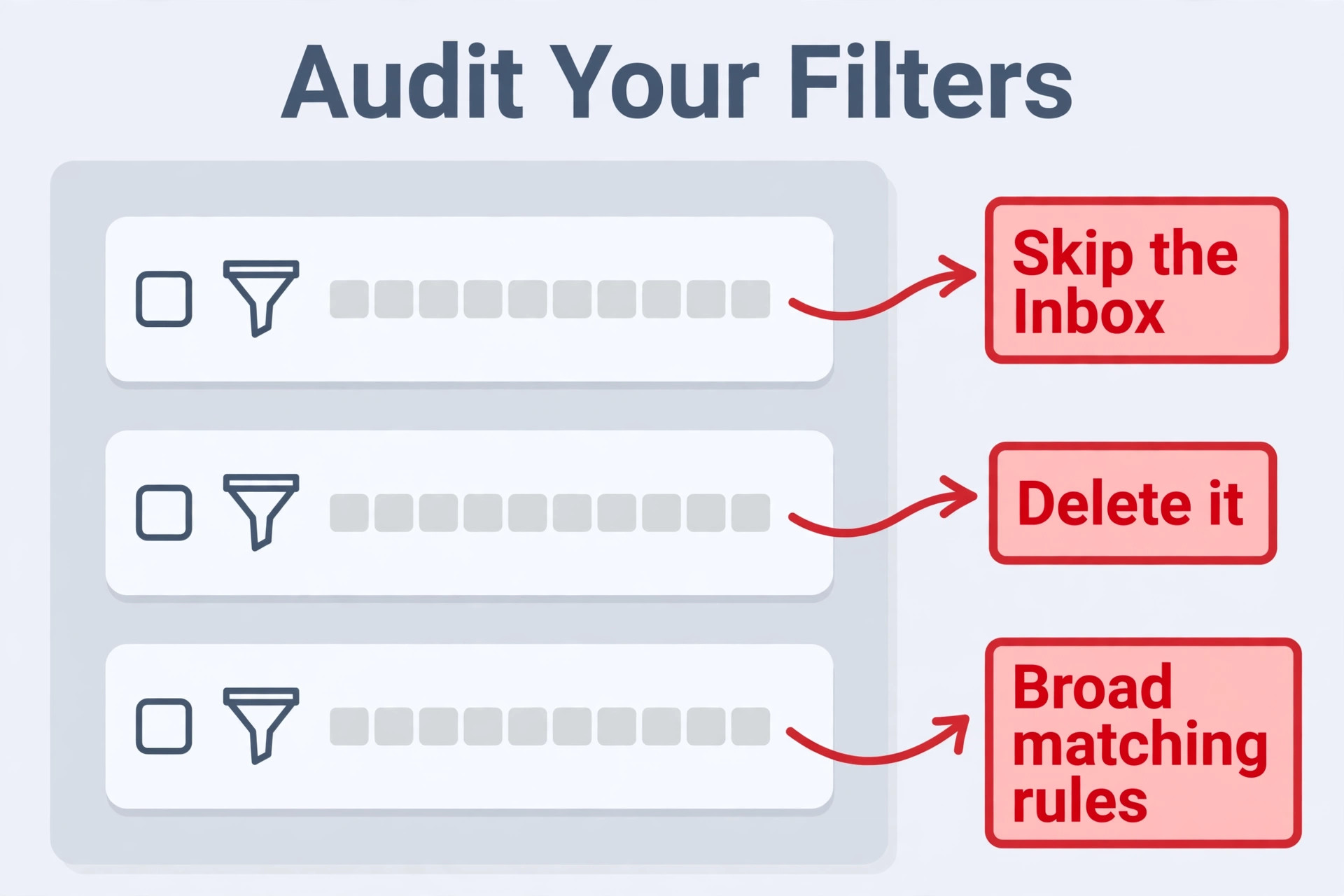
Start on a computer, because the full filter list is easiest to review there. Open Settings, then See all settings, then Filters and Blocked Addresses. Read every filter in the list, not just the first few, and pay attention to the actions on the right hand side of each filter. Any filter with Skip the Inbox, Delete it, Mark as read, or Forward it deserves a second look, because those actions hide mail or move it away from the inbox.
A filter that only applies a label is usually harmless, because labelled mail still appears in All Mail and in search, but a filter that skips the inbox and applies a label can still look like missing mail if you never open that label.
For each suspicious filter, click Edit and read the matching rules. Check the From field, the To field, the subject words, and the Has the words field. A common problem is a filter that matches a whole domain, such as an entire company domain, when it was meant to match one newsletter address. Another common problem is a filter that matches a word in the subject, such as order or receipt, which then catches unrelated mail from banks, shops, and services. If the rules are broader than you intended, narrow them or delete the filter. Deleting a filter does not delete the mail it already filtered, so check All Mail and the relevant label for mail that filter already hid.
The Filter Audit Steps in Order
Work through these steps without skipping, and write down anything you change, so you can undo it if mail starts arriving from a sender you had meant to filter.
- Open Settings, then See all settings, then Filters and Blocked Addresses, and list every filter.
- Flag every filter with Skip the Inbox, Delete it, or Forward it as an action.
- Open each flagged filter, read the From, To, subject, and Has the words rules, and check whether they are broader than intended.
- Delete or narrow any filter that could catch the missing sender, and note the change.
- Check the Blocked Addresses list on the same tab, and unblock the sender if they appear there.
- Search All Mail and Spam for the missing sender, and move any found message to the inbox.
- Ask the sender to resend a test message, and confirm it lands in the inbox before you call the audit done.
Check Forwarding, POP, and IMAP Before You Blame Gmail
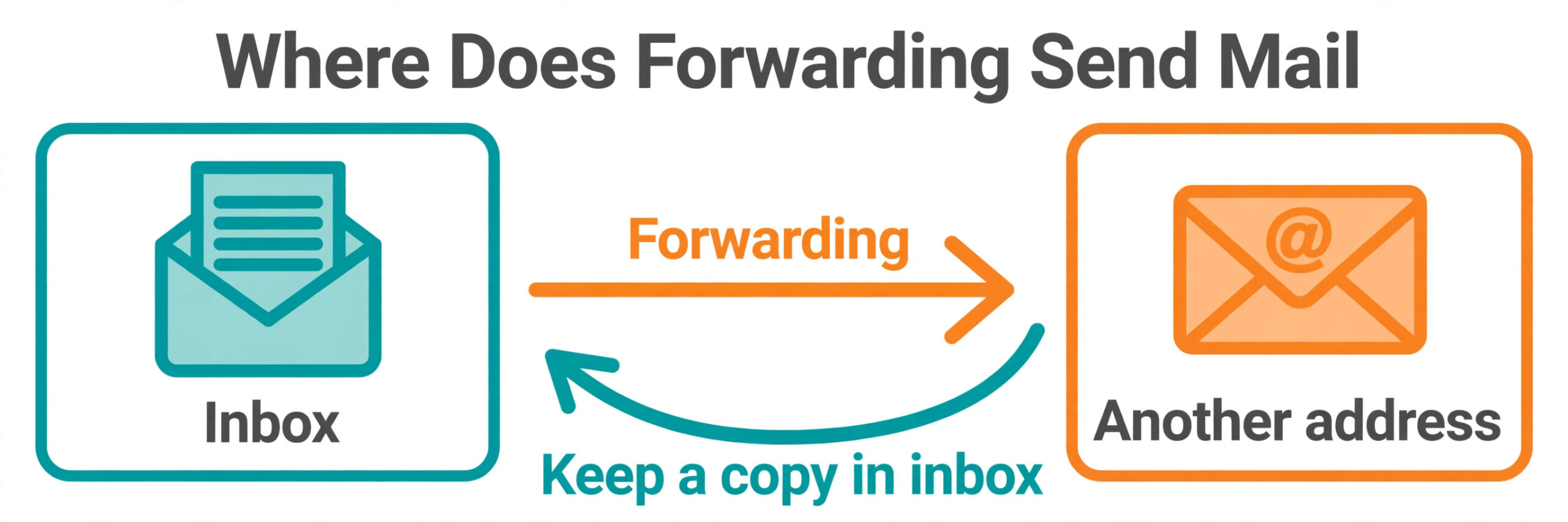
Forwarding is the second silent cause, and it can make mail vanish even when every other setting looks fine. If forwarding is on and set to delete Gmail copy after forwarding, every new message is sent to another address and removed from Gmail, so your Gmail inbox stays empty while the other account fills up. This setting is often left on after a job change, a move to a new email address, or a test of a mail app, and then forgotten. It is also a setting worth checking for security reasons, because an unknown forwarding address can mean someone else set it up.
To fix Gmail not receiving emails, open Settings, then See all settings, then Forwarding and POP/IMAP. Read the Forwarding section first. If forwarding is on, check the destination address carefully. If you recognise it and you still use that account, change the setting to keep Gmail copy in the inbox, so mail lands in both places. If you do not recognise the address, or you no longer use it, turn forwarding off at once, and then check your account security, including recent sign ins and connected apps, because an unfamiliar forwarding address is a red flag. After you change forwarding, ask a sender to resend a test message and confirm it stays in Gmail.
POP and IMAP settings matter for people who read mail in another app, such as Outlook, Apple Mail, or Thunderbird. POP can be set to delete mail from the server after download, which means mail read on one device may disappear from Gmail and from other devices. If you use POP, check whether it is set to keep a copy on the server, and consider switching to IMAP, which syncs mail across devices instead of downloading and removing it.
IMAP itself rarely causes missing mail, but an IMAP client with aggressive local rules can move mail to local folders that Gmail web does not show, so check the client rules if mail appears on one device but not in Gmail web.
Tabs, Labels, and the Inbox You Are Actually Looking At
A large share of missing mail reports turn out to be mail in the wrong tab. Gmail default inbox sorts mail into Primary, Social, and Promotions, with Updates and Forums as optional tabs. A newsletter, an order confirmation, or a message from a new contact can land in Promotions or Updates and sit unread for weeks, while the owner checks Primary only and concludes that mail never arrived. This is not a bug, it is sorting doing its job a little too well, but the result feels exactly like missing mail.
To fix Gmail not receiving emails, fix it by teaching Gmail where a sender belongs. Find one message from that sender in Promotions, Updates, or Social, drag it to Primary, and confirm Yes when Gmail asks whether to do the same for future messages from that sender. That single drag creates a lasting rule for that sender, and it is more reliable than repeatedly moving messages one by one. You can also turn tabs off entirely in Settings, under Inbox, if you prefer one combined inbox, though tabs help many people manage volume, so try the drag fix first before you turn tabs off.
The Sender Side, Bounce Codes, and Large Messages
Sometimes Gmail is not the problem at all, and the sender side holds the answer. A sender may have typed your address wrong, mailed an old address, or hit a sending limit on their own service. A sender using a new domain or a bulk mailing tool may also have a reputation problem, which means Gmail treats their mail as spam or rejects it, even though the sender thinks it was sent. Asking the sender three questions usually settles this fast. Did they get a bounce message, did they mail the exact address you use now, and did they send the message once or several times.
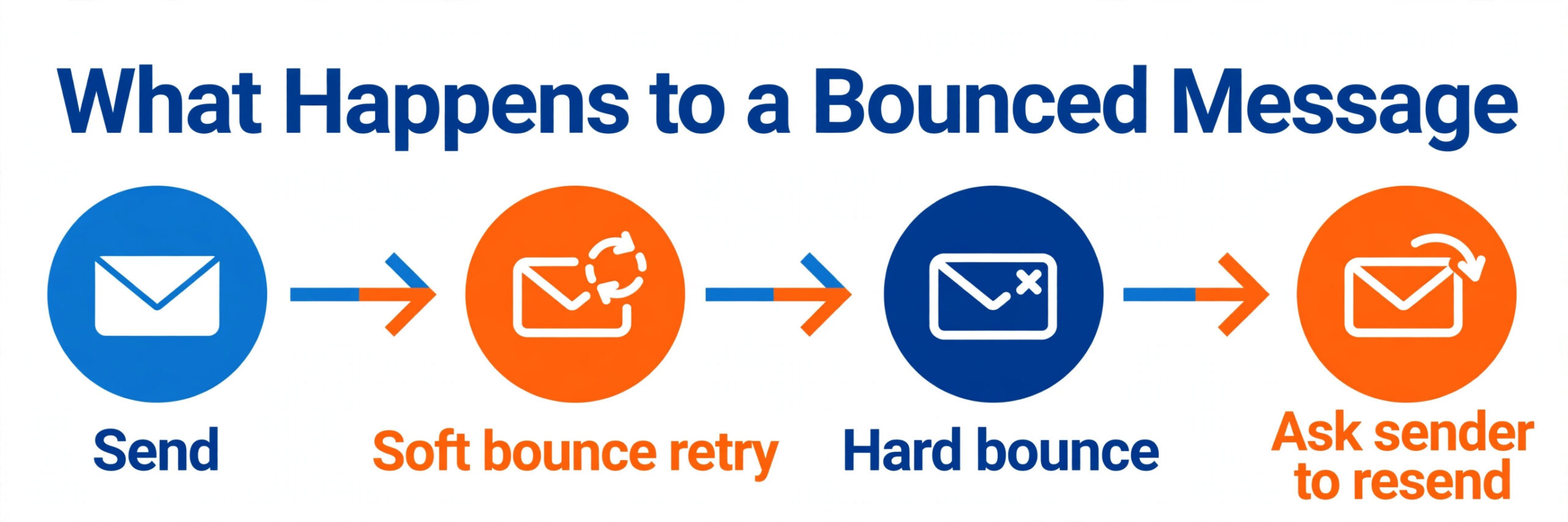
Bounce codes are worth reading, because they name the failure. A code mentioning a full mailbox points to storage. A code mentioning a blocked address or a policy rejection points to spam filtering or sender reputation. A code mentioning a message too large points to size limits, because Gmail limits a single message, including attachments, to 25 MB. If a sender tried to send a larger file, the message will fail no matter how much storage you free, and the fix is for the sender to share the file through Drive or a file sharing link instead of attaching it.
A temporary code, often marked as a retry, means the sending server will try again, so the message may still arrive without any action from you.
Phone, App, and Browser Checks That Catch Sync Problems
To fix Gmail not receiving emails, if mail arrives in Gmail on the web but not on your phone, the problem is sync, not delivery, and the fix is different. Start by opening Gmail in a desktop browser and checking whether the missing message is there. If it is, your account received it, and your phone app is not syncing, not showing it, or filtering it into a tab you have not opened on mobile. If it is not in web Gmail either, go back to the storage and filter sections, because the phone cannot show mail that Gmail never received or already filtered away.
On Android, check that Gmail sync is on, that the account is set to sync Gmail, and that battery optimisation is not pausing Gmail in the background. On iPhone, check that the Gmail app is set to fetch new mail, that notifications are allowed, and that you are signed into the right account, because many people run two Gmail accounts on one phone and check the wrong one. In both cases, try removing and re-adding the account only as a last step, because re-adding can take time and it will not fix a filter or storage problem.
First try a manual refresh, a restart of the app, and a check of the All Mail label inside the app, which often reveals mail that a tab view hides.
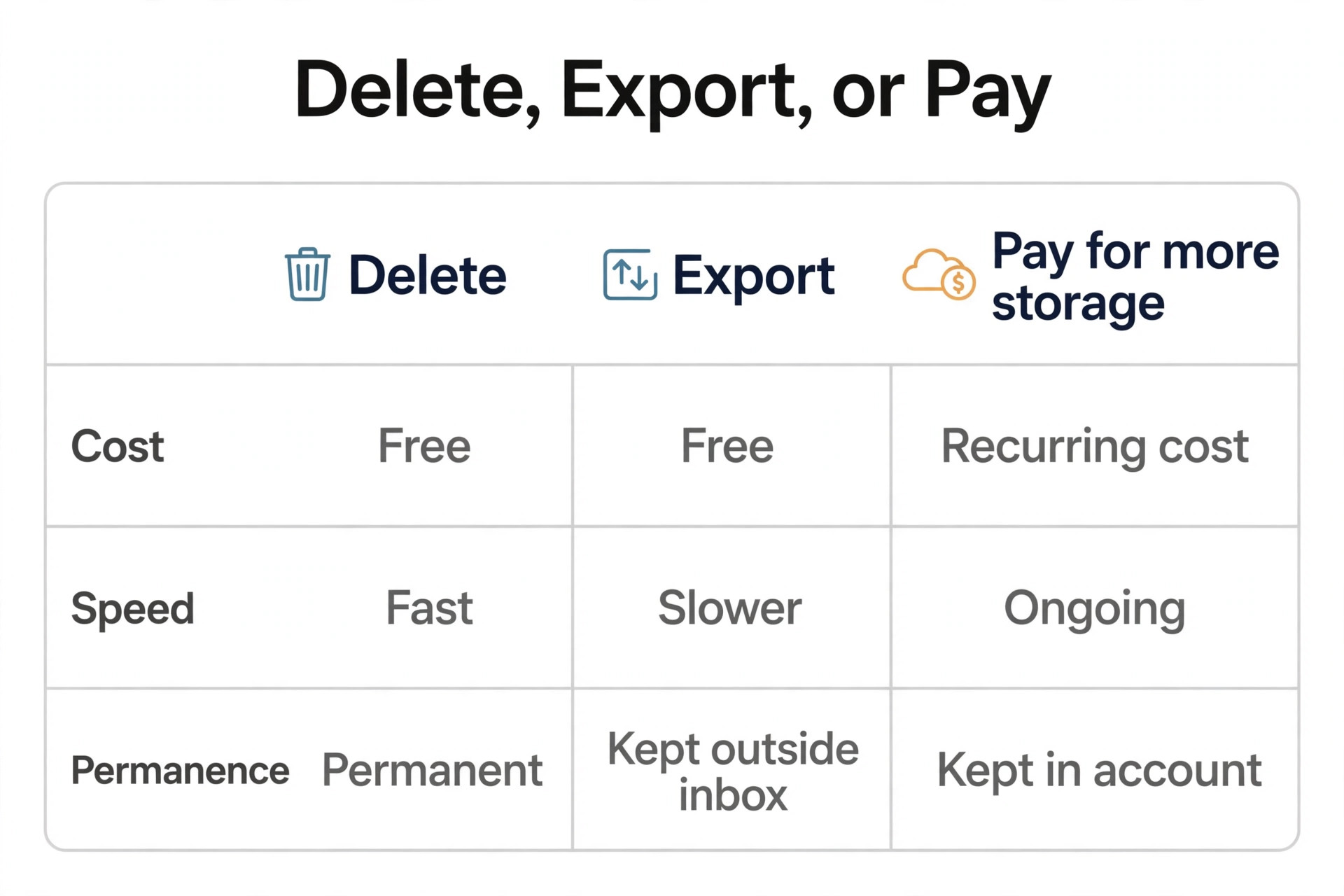
How to Choose Between Freeing Space, Archiving, and Paying
This choice matters because each option solves a different problem, and picking the wrong one wastes time or money. To fix Gmail not receiving emails, freeing space by deleting is the fastest fix when the hog is junk, and it is the only fix that works at once for a full account. Deleting large attachments, old newsletters, and duplicate Drive files can free gigabytes in an hour, and it costs nothing. The trade off is permanence, so only delete mail you truly no longer need, and export anything important first.
Paying for Google One is the best choice when you have already cleaned, the account fills again quickly, and you value keeping everything in Gmail, Drive, and Photos without constant cleanup. The monthly cost is small compared with the time spent cleaning every few weeks, and a paid plan also gives headroom for photo backups and Drive files, not just email. The trade off is a recurring cost, and the fact that storage needs tend to grow, so a 100 GB plan that fits today may feel tight in two years if photo backups keep growing.
Check the price for your country, consider annual billing if it saves money, and set a reminder to review the plan once a year, so you do not pay for far more space than you use.
| Option | Best when | Trade off |
|---|---|---|
| Delete junk and empty Trash | Hog is newsletters, duplicates, or old large files | Permanent, so export important mail first |
| Export with Takeout, then delete | Mail matters but is rarely needed in Gmail | Exported mail is harder to search |
| Pay for Google One | Account refills fast after cleaning | Recurring cost that grows with your library |
| Switch Photos to Storage saver | Photos are the main hog | Slightly lower quality for future backups |
Mistakes That Make the Problem Come Back
To fix Gmail not receiving emails, the first mistake is fixing only the symptom. Deleting a few emails to drop below the storage limit, without fixing the photo backup setting that filled the account, means the account will fill again in weeks. Fix the source as well as the symptom, by changing Photos backup quality, turning off automatic backups for large videos, or setting a regular cleanup habit. A fix that only buys a few weeks is not a fix, it is a delay.
The second mistake is deleting filters blindly. Deleting every filter at once can flood the inbox with newsletters and shopping mail you had filtered for a reason, and it makes it harder to find which filter was the culprit. Delete or narrow one suspicious filter at a time, test with a resend, and keep notes, so you can restore useful filters without restoring the harmful one. Patience here saves a second cleanup later.
The third mistake is leaving forwarding on after the reason for it has gone. A forwarding rule set up for a holiday, a job change, or a test should have an end date in your mind, even if Gmail does not ask for one. Review forwarding every few months, and turn it off as soon as you no longer need it. The same applies to POP settings that delete mail from the server, because a setting that made sense for one device can quietly remove mail from every other device.
The fourth mistake is ignoring Spam training. If a wanted sender lands in Spam and you simply move the message to the inbox without marking it as Not spam, Gmail may send the next message from that sender to Spam again. Always use the Not spam action for wanted mail, and use the Report spam action for mail you truly do not want, because those actions teach Gmail your preferences over time. Skipping that step means you will repeat the same rescue for every message from that sender.
The fifth mistake is treating a sender problem as a Gmail problem, and changing settings that were fine. If only one sender is missing, and every other sender arrives normally, the cause is almost certainly that sender, a filter for that sender, or a block on that sender, not a general Gmail failure. Resist the urge to reset your whole account, reinstall apps, or buy storage when one sender is the only gap, because those big changes will not fix a single sender issue and they can create new ones.
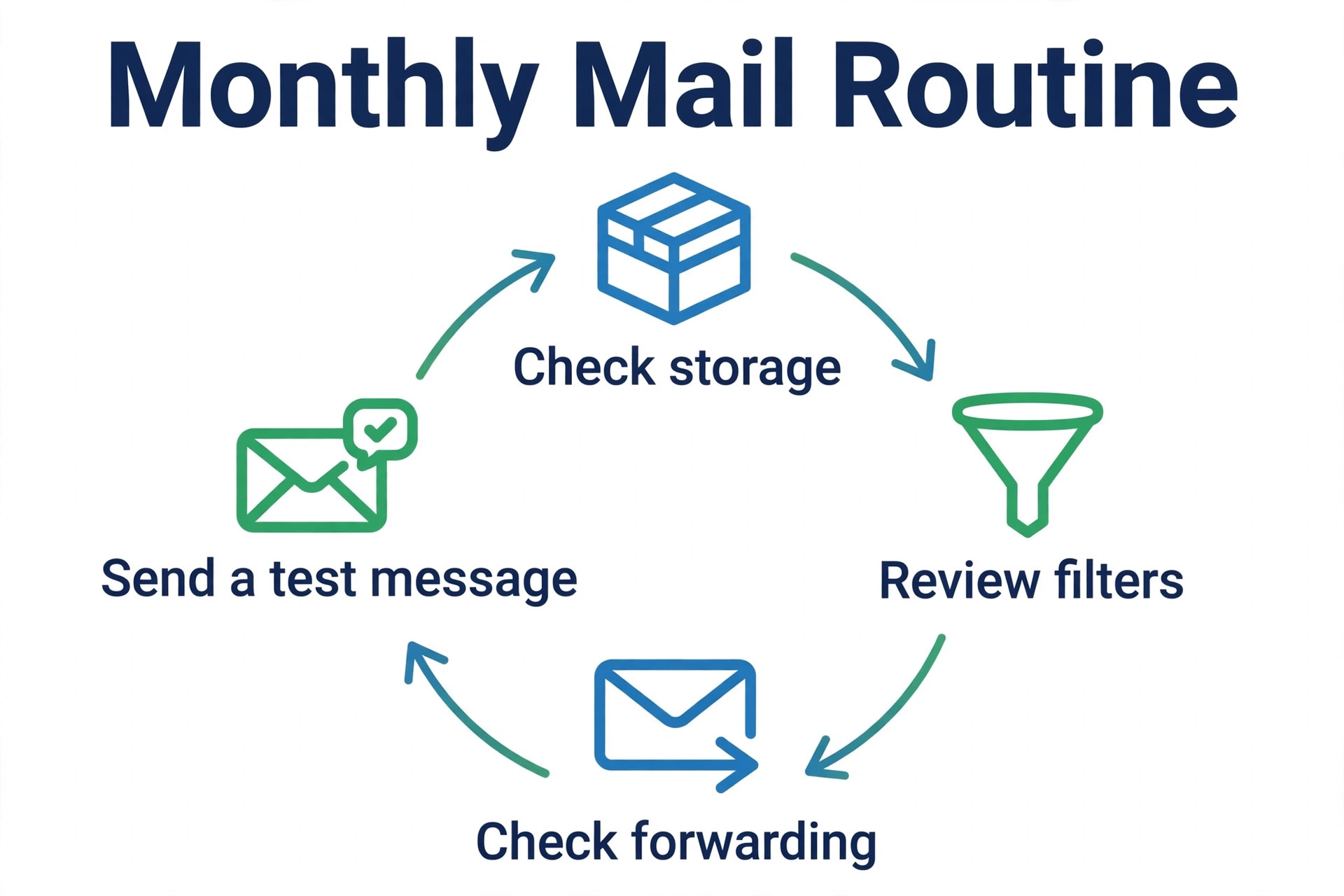
Keep Mail Flowing With a Short Monthly Routine
Prevention is less work than rescue, and a short monthly routine covers most causes before they bite. Once a month, check storage and note the trend, not just the current percentage. If storage rises by several gigabytes a month, find the source now, before it hits the limit during a busy week. Once a month, glance at Filters and Blocked Addresses, and delete any filter you no longer recognise. Once a month, check Forwarding and POP/IMAP, and confirm the destination and the delete settings are still what you intend.
Also build a habit of checking All Mail and Spam once a week, not once a month. A quick scan of Spam catches a wanted message before it is auto deleted after 30 days, and a scan of All Mail catches a filter problem while the sender still remembers sending the message. Set a weekly reminder if needed, because the messages that matter most are often the ones you do not know you missed until it is too late to ask for a resend.
Related reading on this site can help with the wider inbox picture. The guide to AI tools for Gmail power users covers tools that help with triage and organisation, the roundup of best AI email management tools compares inbox tools for heavier mail loads, and the guide on how to use AI to write better emails helps with the sending side once receiving is fixed. Those guides are useful after the checklist, not instead of it, because no inbox tool can receive mail that storage, a filter, or forwarding has already blocked.
Frequently Asked Questions
Why is Gmail not receiving emails from one sender only?
One sender missing, while others arrive normally, usually means a filter, a block, a tab, or a sender problem, not a general Gmail failure. Search for the sender across All Mail and Spam, check Filters and Blocked Addresses for that sender, drag one of their messages to Primary if it lands in Promotions, and ask the sender for a bounce message. If the sender got no bounce and their mail is nowhere in your account, ask them to send a plain test message and to check their own sending setup.
Will I get missed emails back after I free storage?
It depends on how the sender server handled the bounce. Some senders retry delivery for a day or two, so mail that soft bounced may arrive on its own once space is free. Mail that hard bounced, or that the sender did not retry, will not arrive on its own, and you will need to ask the sender to resend it. Free space as fast as you can, then contact important senders promptly, because the retry window is limited and older messages are often deleted from sender queues after a few days.
How do I know if a filter is deleting my emails?
Open Settings, then See all settings, then Filters and Blocked Addresses, and look for any filter with Delete it as an action. Read its matching rules to see whether it could catch the missing sender. Deleted mail goes to Trash and stays there for 30 days before auto deletion, so search Trash for the sender as well. If you find the message in Trash, move it to the inbox and delete or narrow the filter at once, so the next message from that sender is not deleted too.
Can full Google Drive or Photos storage stop Gmail from receiving mail?
Yes, because the 15 GB free limit is shared across Gmail, Drive, and Photos. Your inbox can be small while Drive or Photos fills the shared pool, and Gmail will still stop receiving once the total hits the limit. Check the storage breakdown by service, clean the service that uses the most space, and empty Trash in all three services, because deleted items still count until Trash is emptied. Switching Photos backups to Storage saver quality also slows future growth.
What should I do if forwarding is sending my mail somewhere else?
Open Settings, then See all settings, then Forwarding and POP/IMAP, and read the forwarding destination and the copy setting. If you recognise the destination and still use it, change the setting to keep Gmail copy in the inbox, so mail lands in both accounts. If you do not recognise the destination, turn forwarding off at once and check your account security, including recent sign ins and connected apps. After the change, ask a sender to resend a test message and confirm it stays in Gmail.
How long do messages stay in Spam and Trash before they disappear?
Messages in Spam and Trash are auto deleted after 30 days, so a wanted message that lands in Spam will not stay there indefinitely. Check Spam at least once a week, mark wanted mail as Not spam, and move any message you need to the inbox before the 30 day window ends. The same window applies to Trash, so a message deleted by a filter can be rescued from Trash if you catch it within 30 days, but after that it is gone from Gmail.
Your Inbox, Back on Watch
To fix Gmail not receiving emails, most missing mail cases end with a small, specific fix, not a big rebuild. A full storage pool freed, a broad filter narrowed, a forwarding rule turned off, a blocked sender unblocked, or a sender asked to resend after a bounce. The checklist in this guide gives you that fix in order, starting with the causes that block everything and ending with the causes that affect one sender. Work it from the top, test after each change, and note what you changed, so the next time mail goes quiet you start from evidence, not from guesswork.
If you work through the whole checklist and mail still does not arrive, gather three pieces of evidence before you seek help. Note the storage percentage and the breakdown by service, list the filters and forwarding settings you checked, and copy the bounce message from the sender, if there is one. That evidence lets support, or the sender IT team, pinpoint the problem in minutes, instead of starting the same checklist from scratch. Keep the monthly routine going after the fix, because an inbox that is checked, cleaned, and tested stays an inbox you can trust, and that trust is worth more than any single recovered message.